Create Map for Max Yield
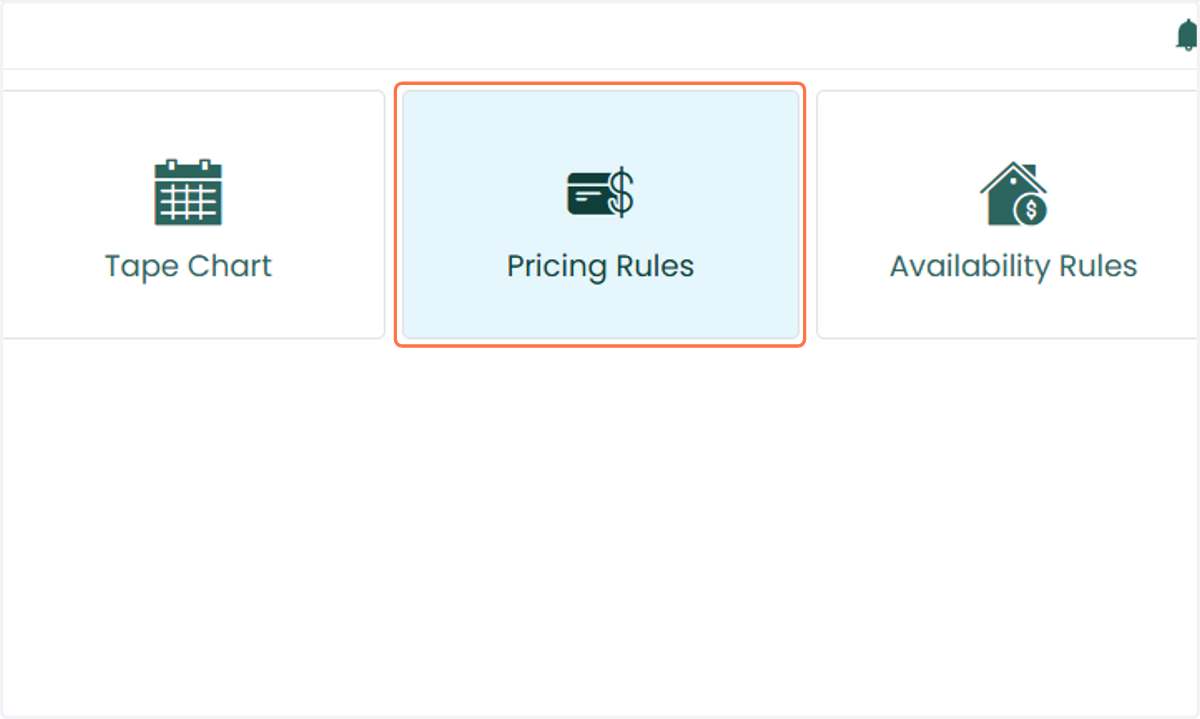
1. To create a Yielding Map, navigate to Pricing Rules
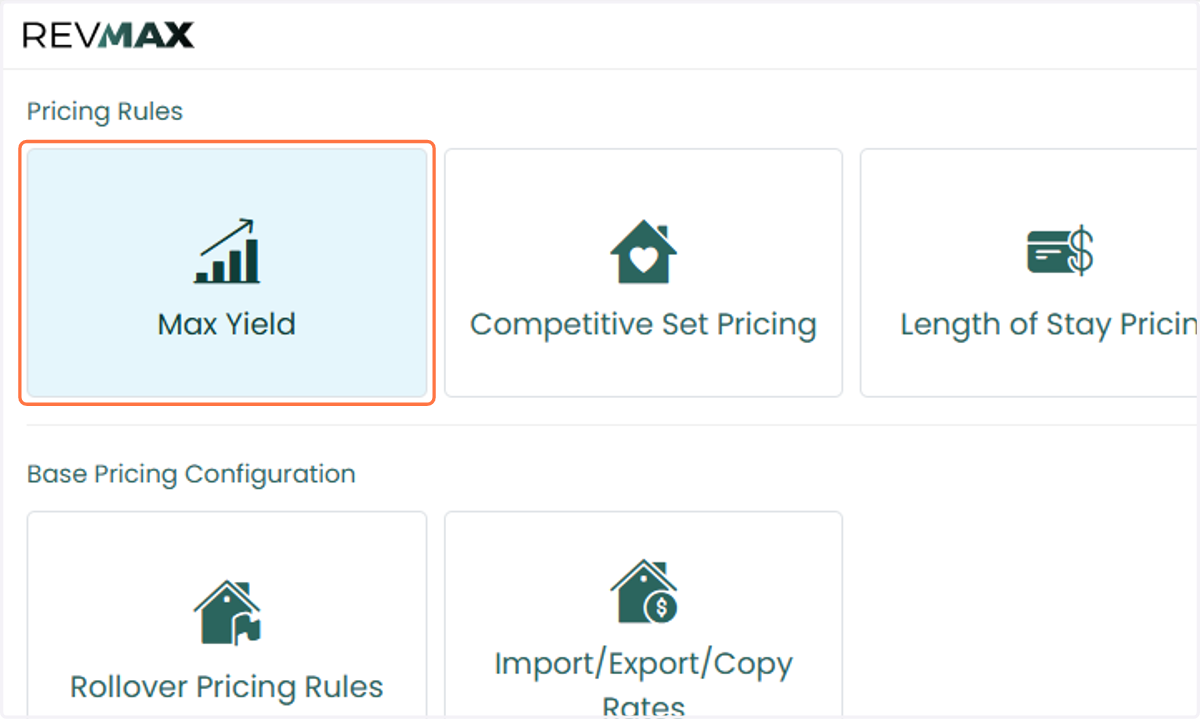
2. Click on Max Yield
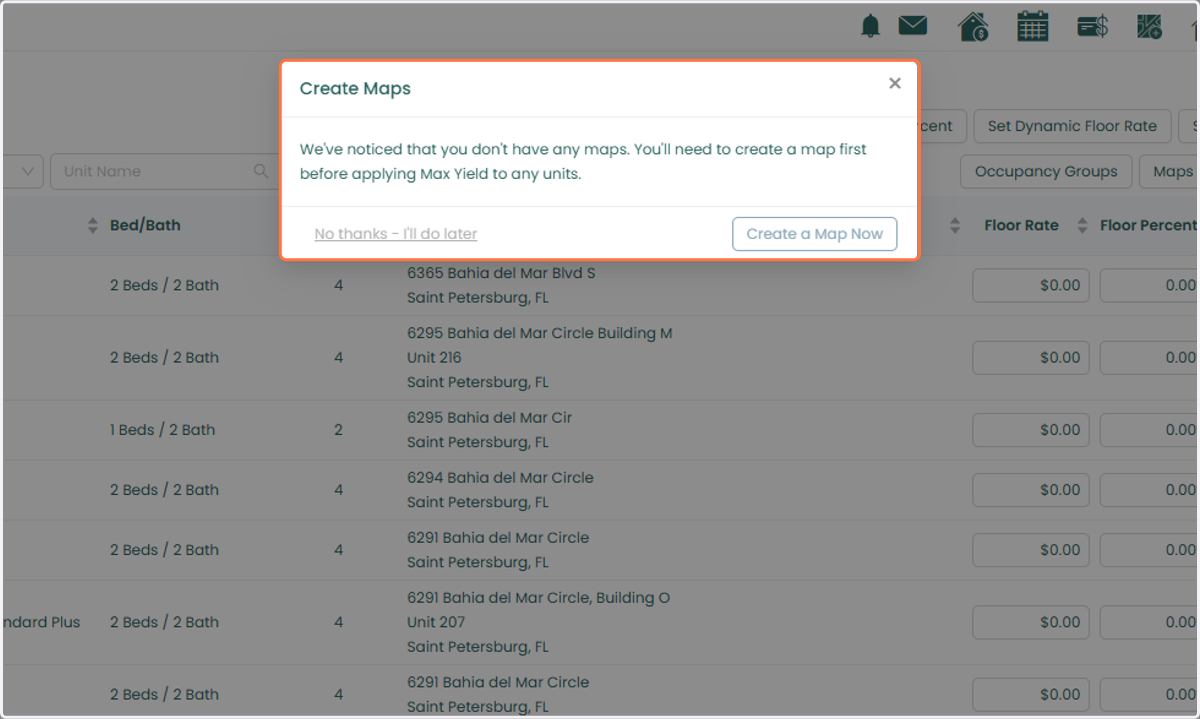
3. On the Max Yield page, a pop-up reminder may appear prompting you to create your Yielding Maps. You can click “Create a Map Now”, which will take you directly to the Yielding Map page.
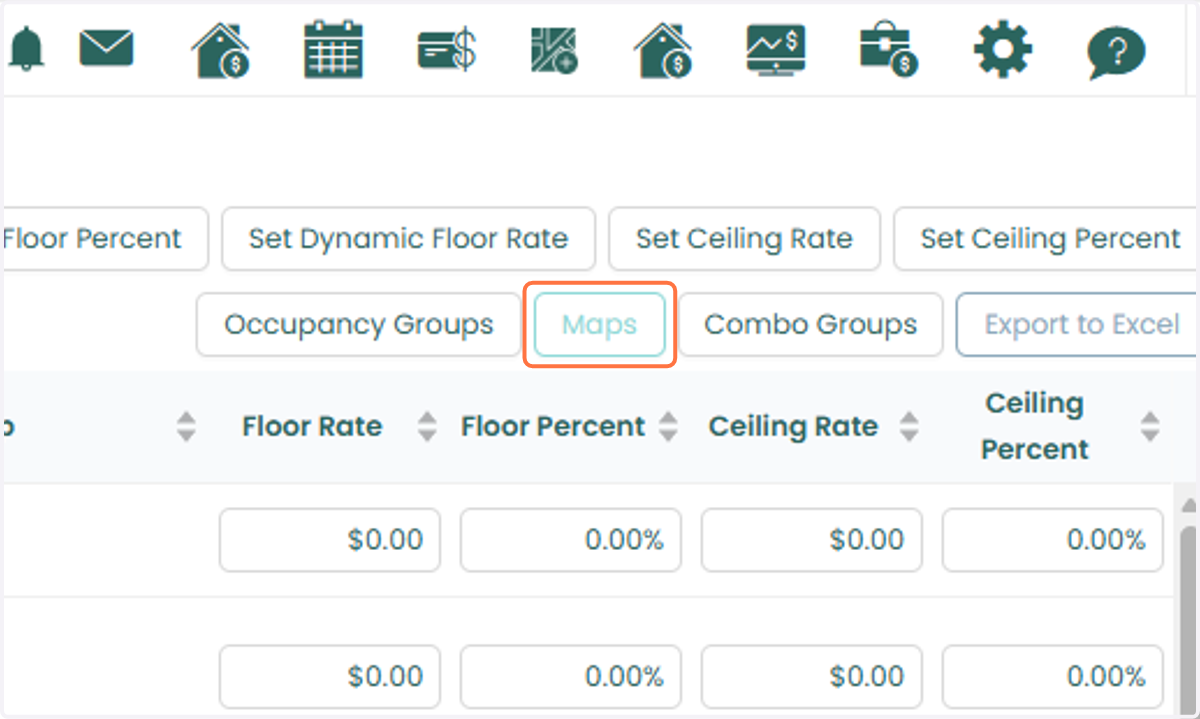
4. Alternatively, you can access this page at any time by clicking the Maps button.
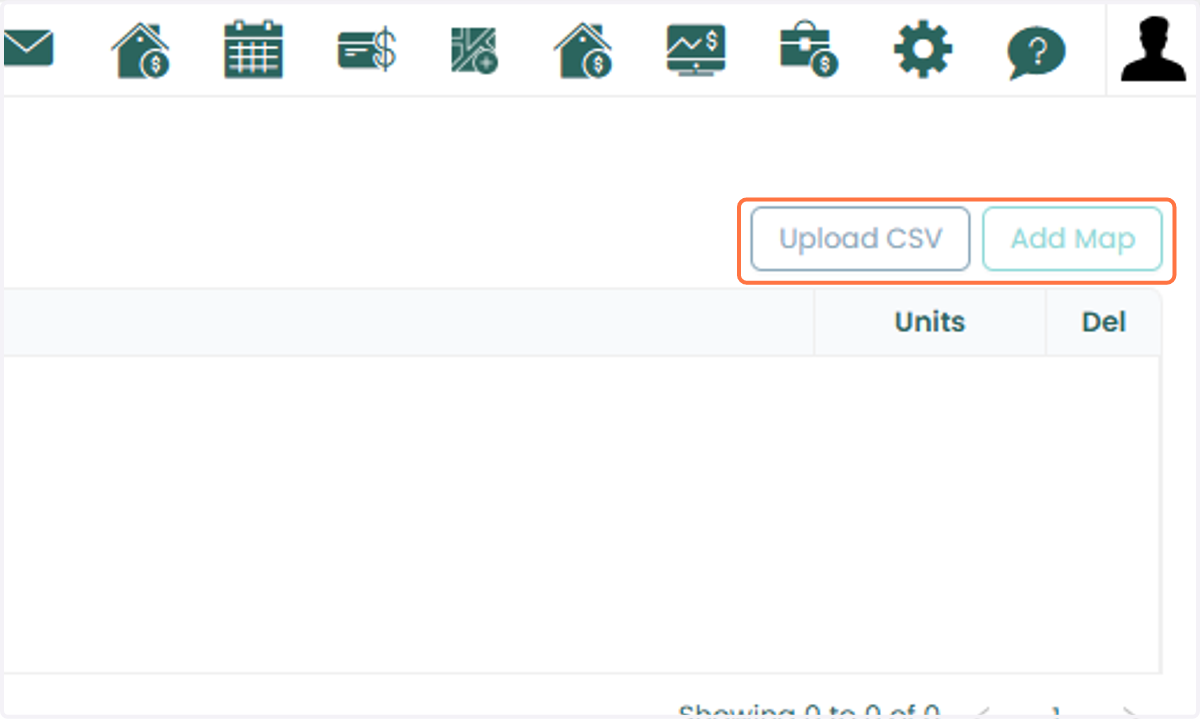
5. Once on the Yielding Maps page, click Add Map to create a new map.
Important: If you already have a Yielding Map saved as a CSV file, you can upload it using the Upload CSV button.
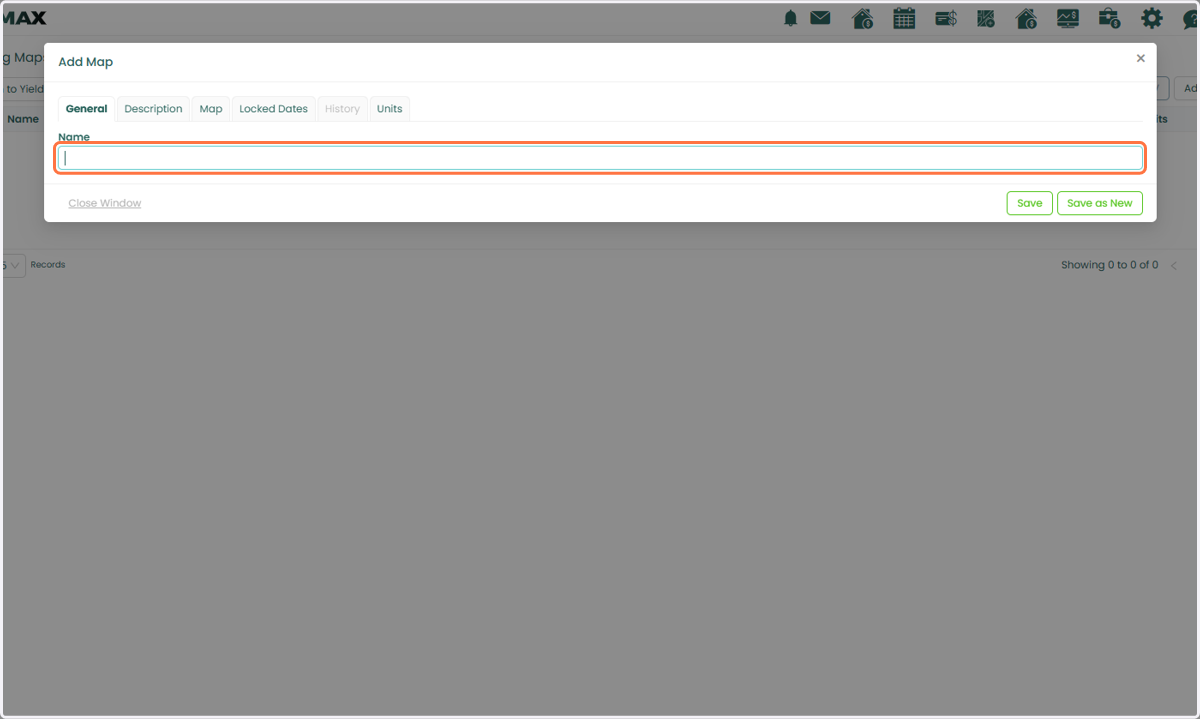
6. Under the General tab, enter a name for your map.
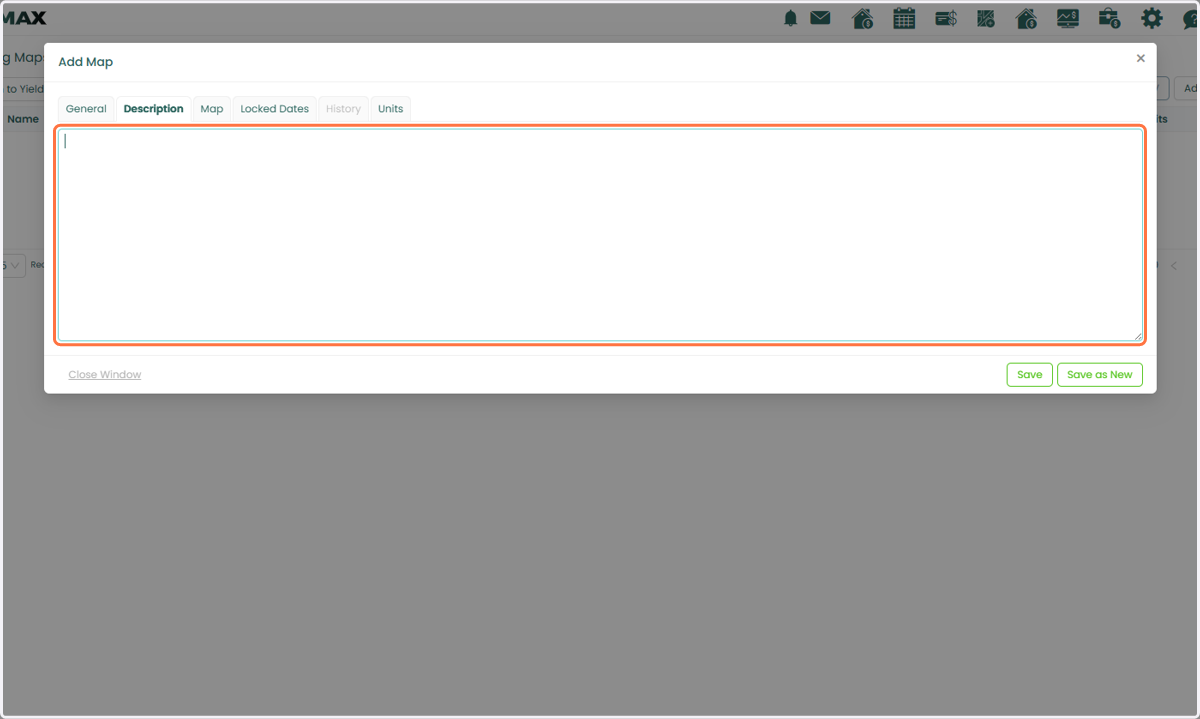
7. Then, add a description in the Description tab to provide more context.
8. Next, open the Map tab. You will see a default map populated with preconfigured values.
This default map is provided as a reference and can be customized with your preferred upcharges or discounts to better align with your specific market strategy or unit requirements.
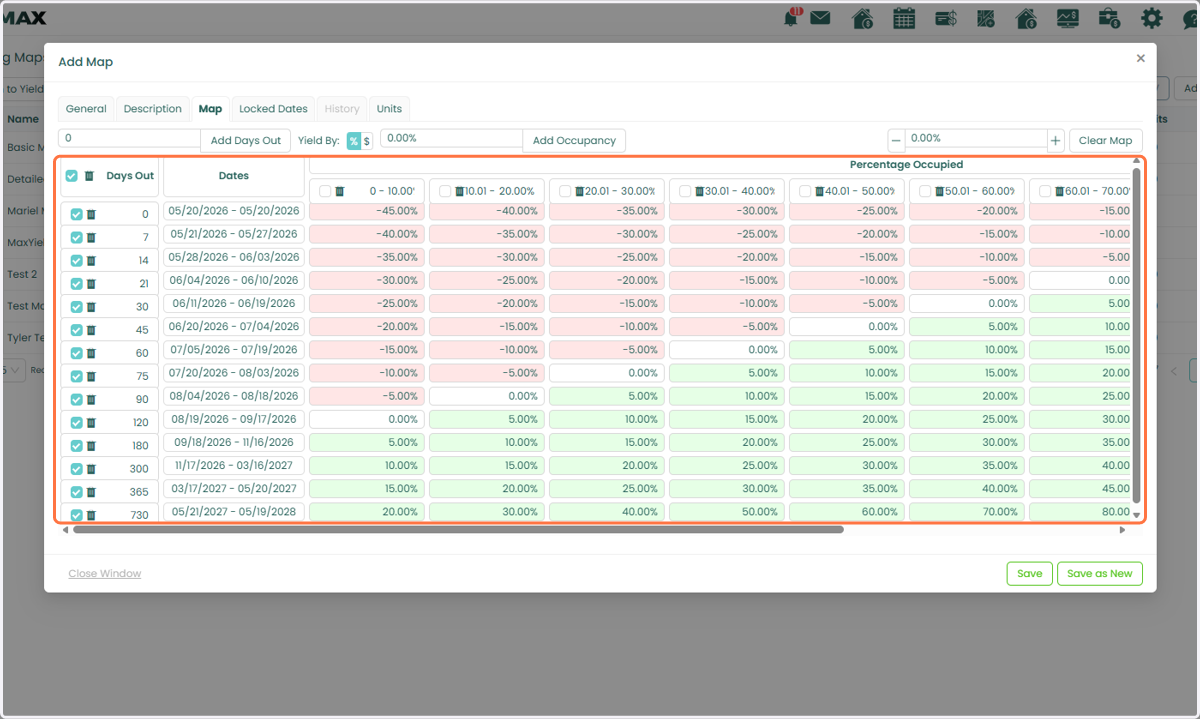
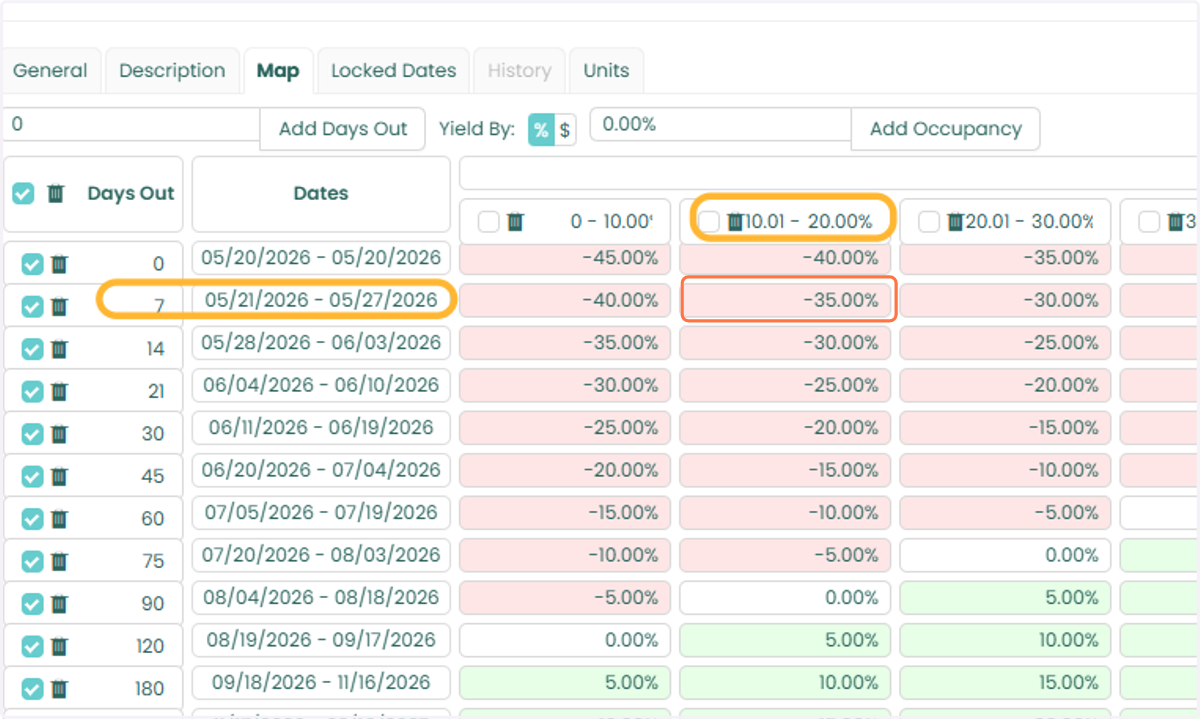
9. Each cell in the map reflects the adjustment applied to your base rate based on both occupancy level and days before arrival.
For example, if your occupancy group is at 20% and you are 7 days from arrival, the intersecting value in the map might apply a 35% discount to your base rate for that day.
10. You can customize the map based on your market and pricing strategy:
To edit a single value, click directly on a cell and enter the desired adjustment.
To adjust the entire map at once, enter a value in the field next to Clear Map, then click the + or – button to increase or decrease all values accordingly.
You can add more rows or columns by selecting Add Days Out or Add Occupancy.
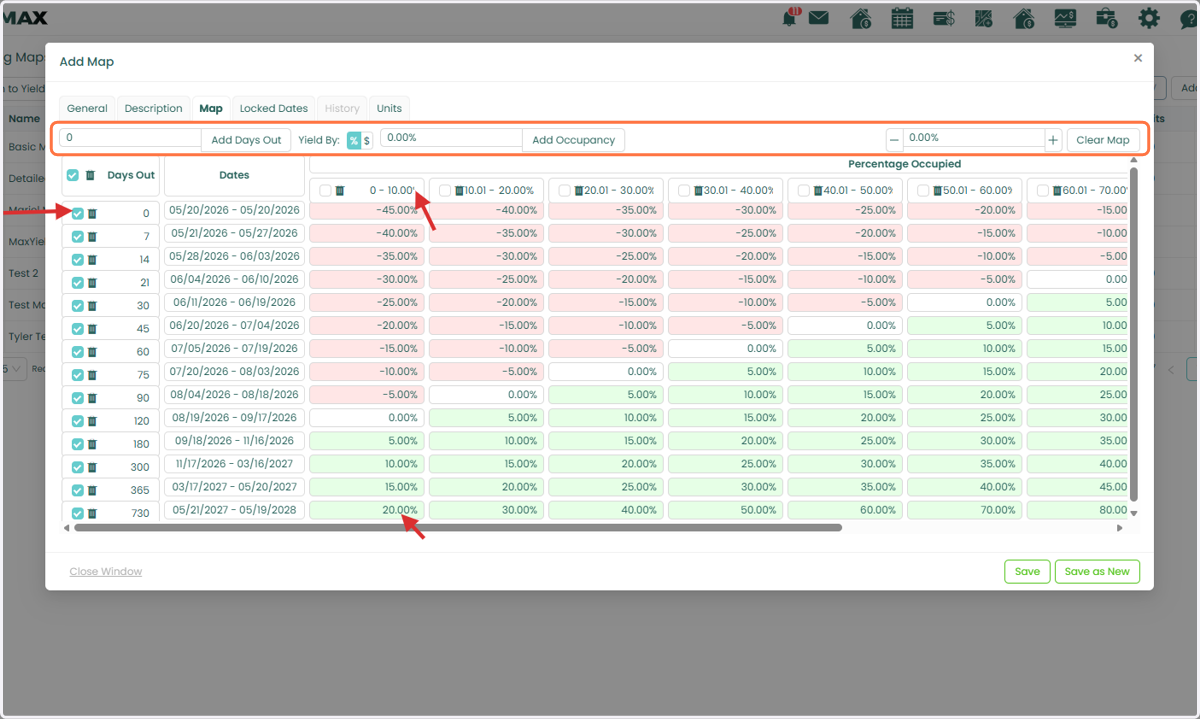
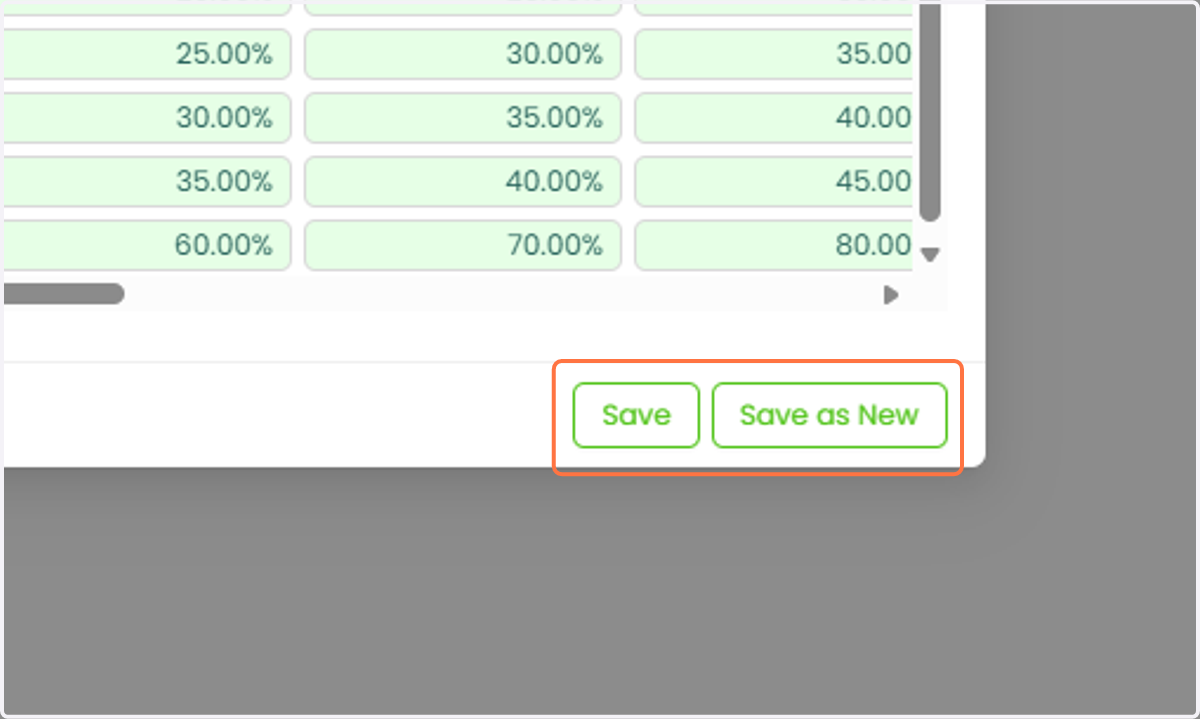
11. Once you’ve configured your map, click Save. You can create a copy of the map by clicking on the "Save as New" button.
You can create multiple Yielding Maps to suit different segments of your inventory, depending on your pricing needs.