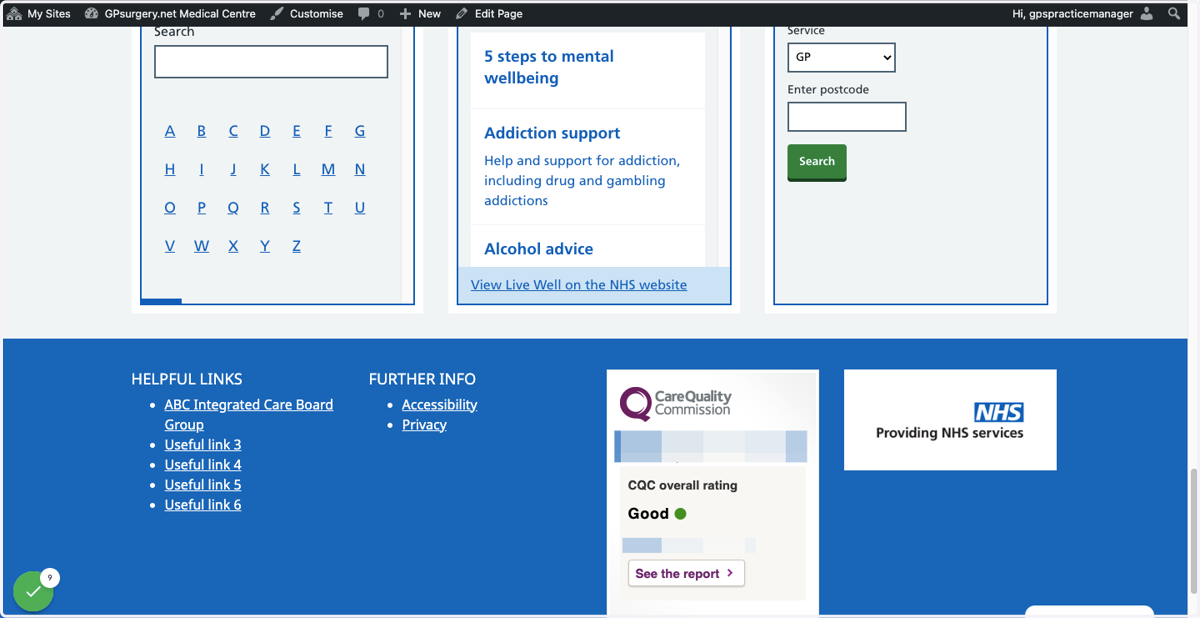
Remove an item from the Footer links or Helpful links menu
This tutorial will show you how to remove an item from the Footer links (Further info) or Helpful links menu. You can move through the tutorial at your own pace using the NEXT button below.
Gpsurgery
1. Ensure that you are logged into your website. The black admin toolbar should be visible at the top of the screen.
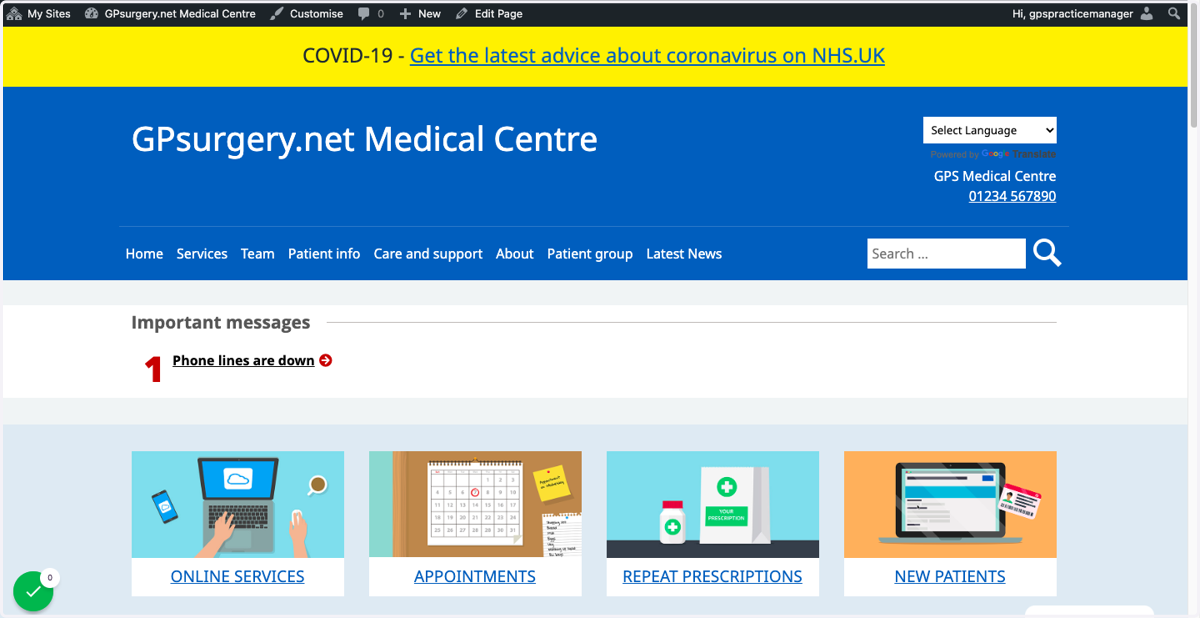
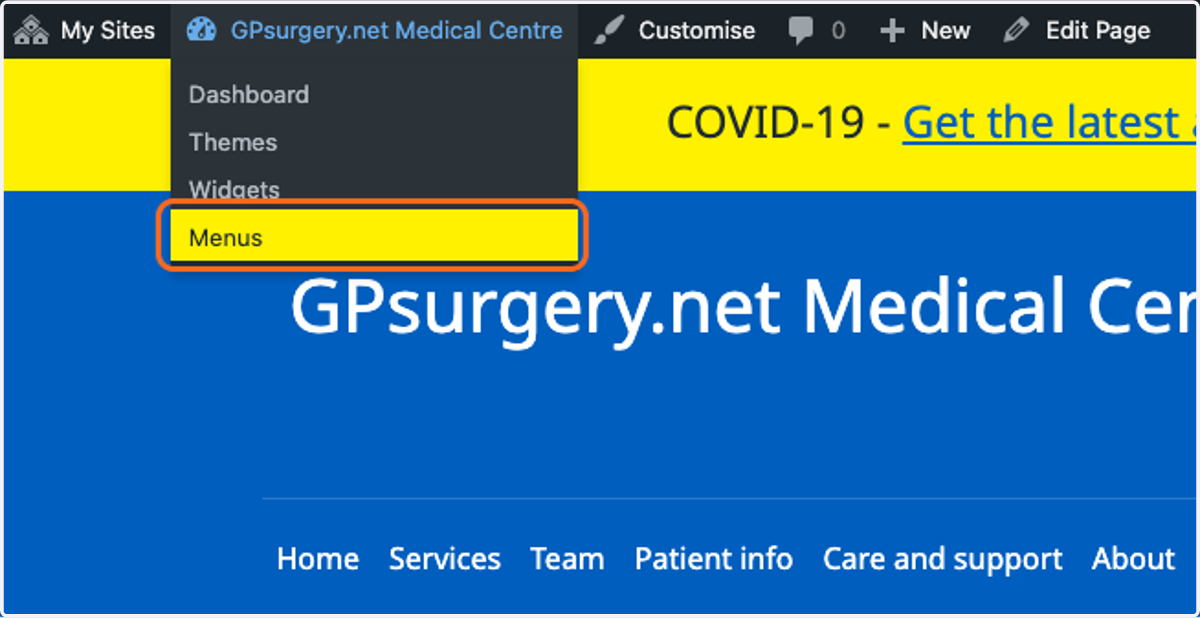
2. Hover your mouse over the name of the website in the admin toolbar. Select Menus from the drop-down menu that appears.
3. From the Select a menu to edit drop-down, select the menu from which you would like to delete an item.
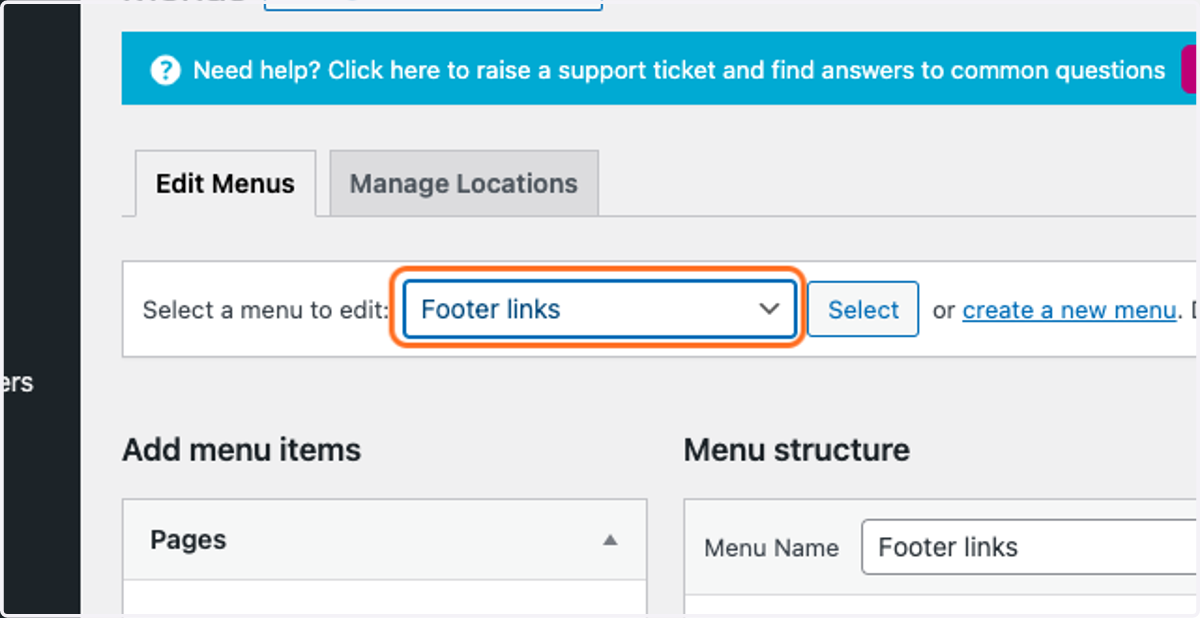
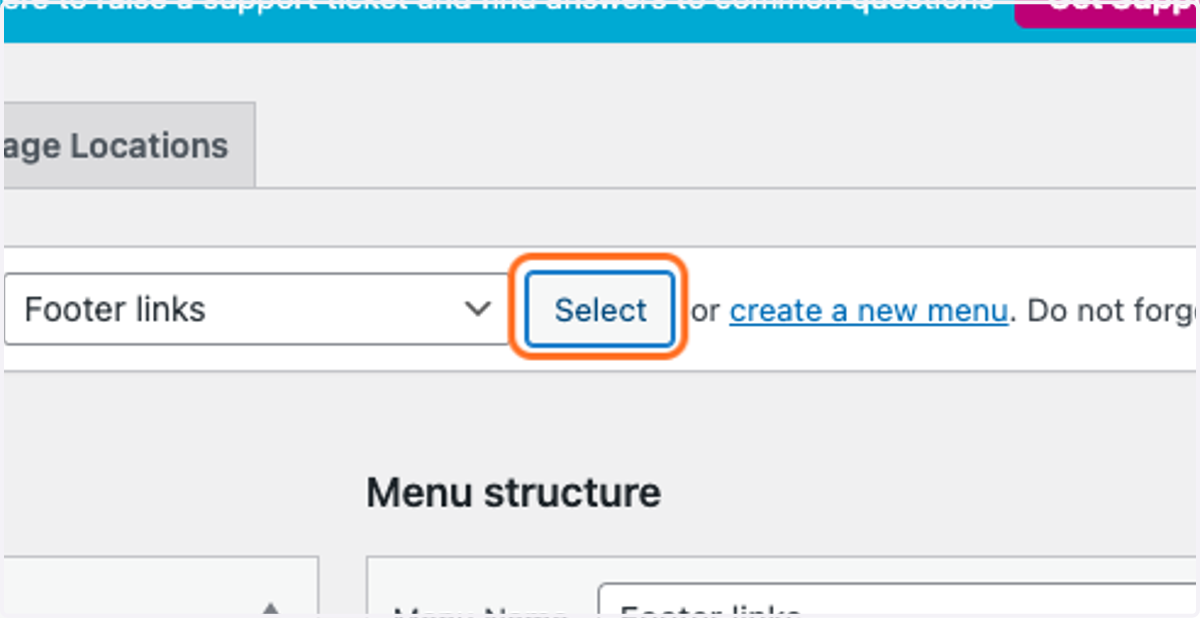
4. Click the Select button to ensure that you are working on the correct menu.
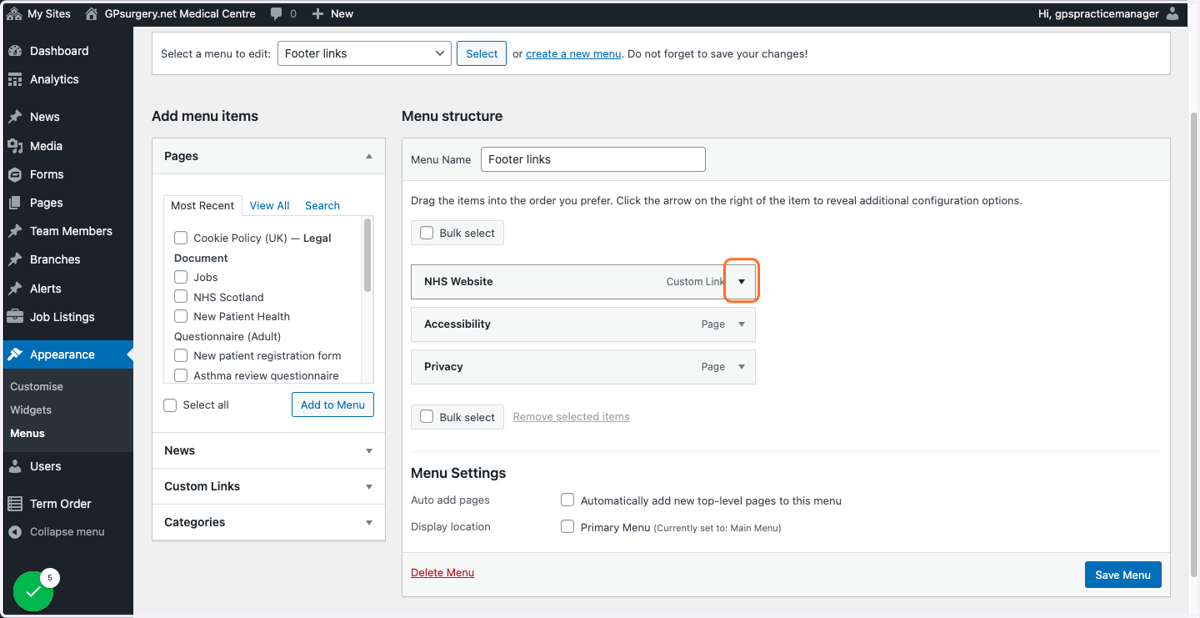
5. From the list of menu items, find the item that you would like to delete, and click the small expand arrow next to its name.
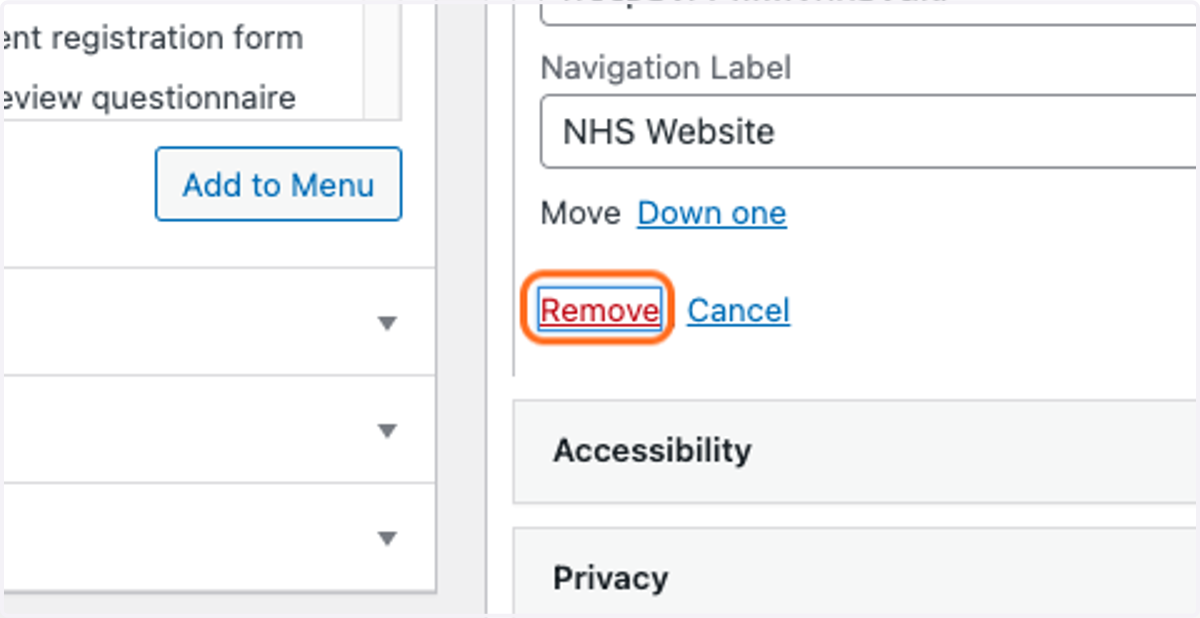
6. Click the red Remove link in the expanded menu item to remove it from the menu.
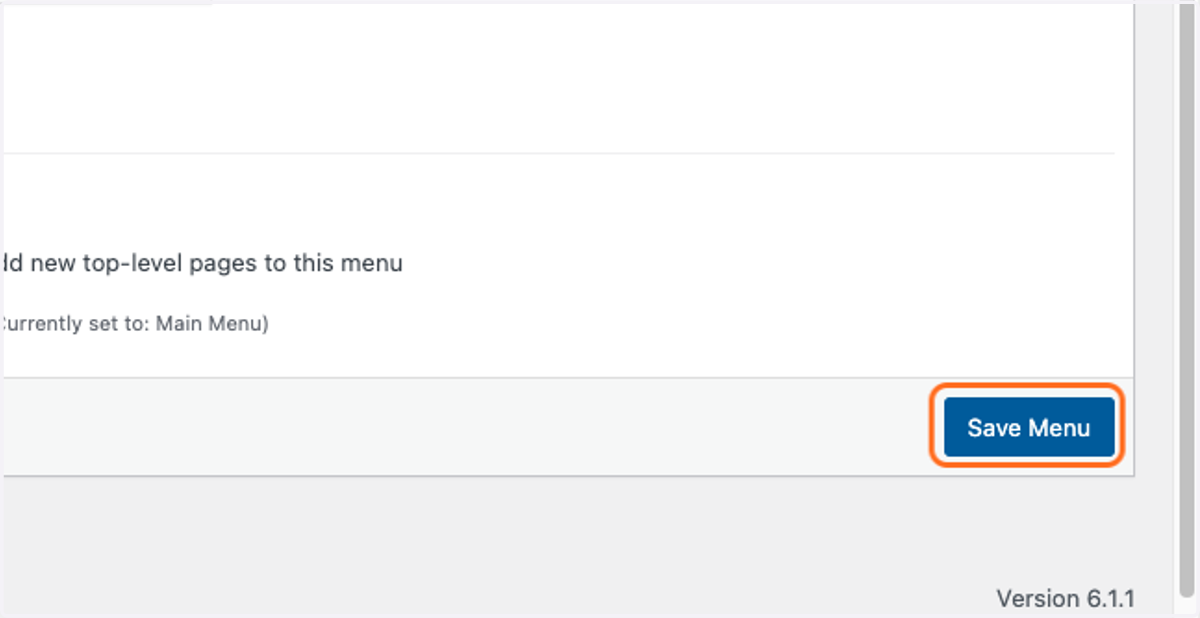
7. Once you have deleted the item(s) that you wanted to remove, click the Save Menu button to save your changes to the menu.
8. The menu item will now have been removed from the menu you chose.