H1 SEO | Pages SEO + GEO Metadata
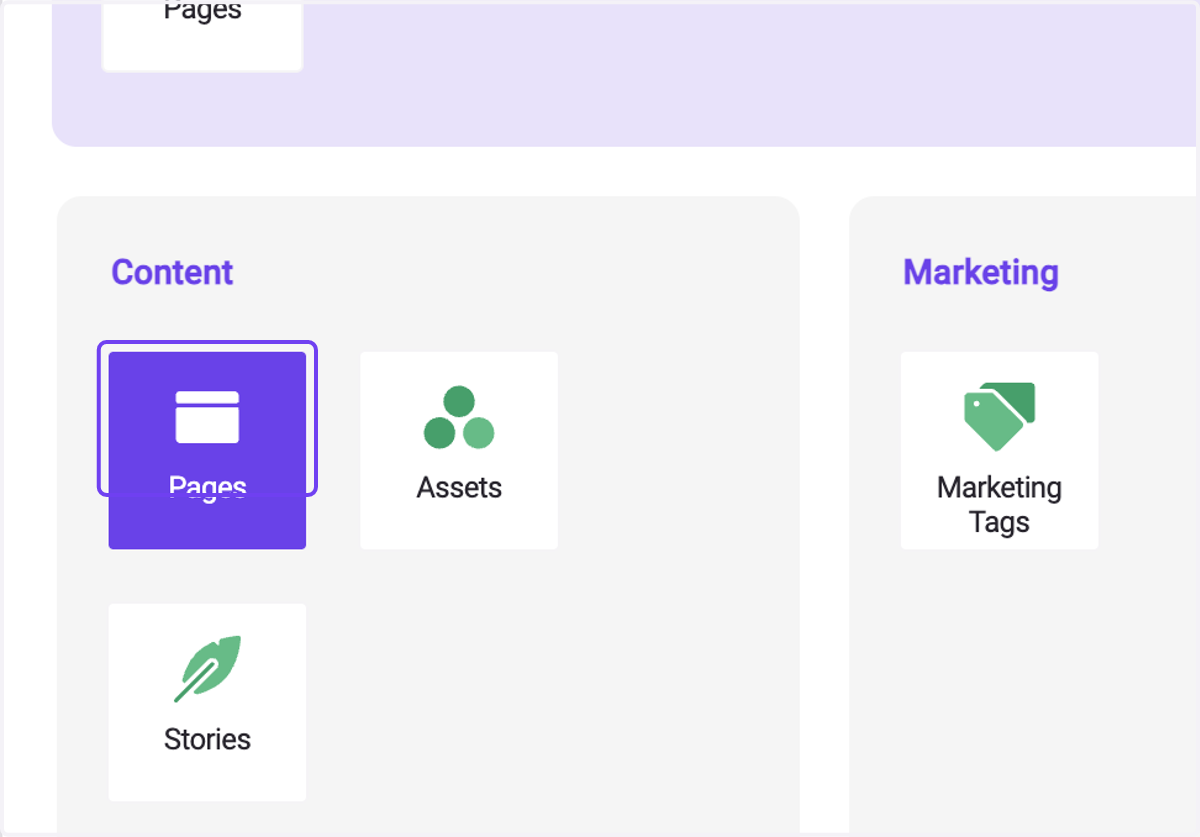
1. Click on Pages
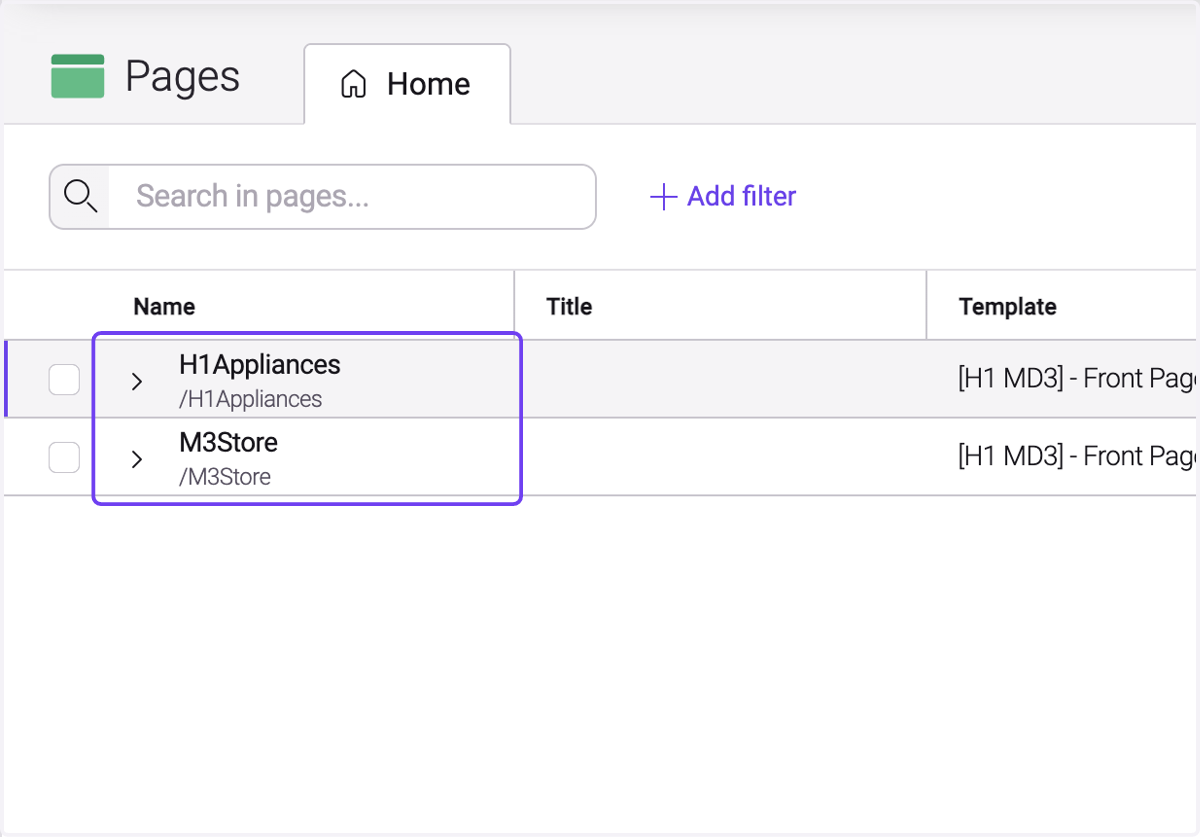
2. Click on your Page
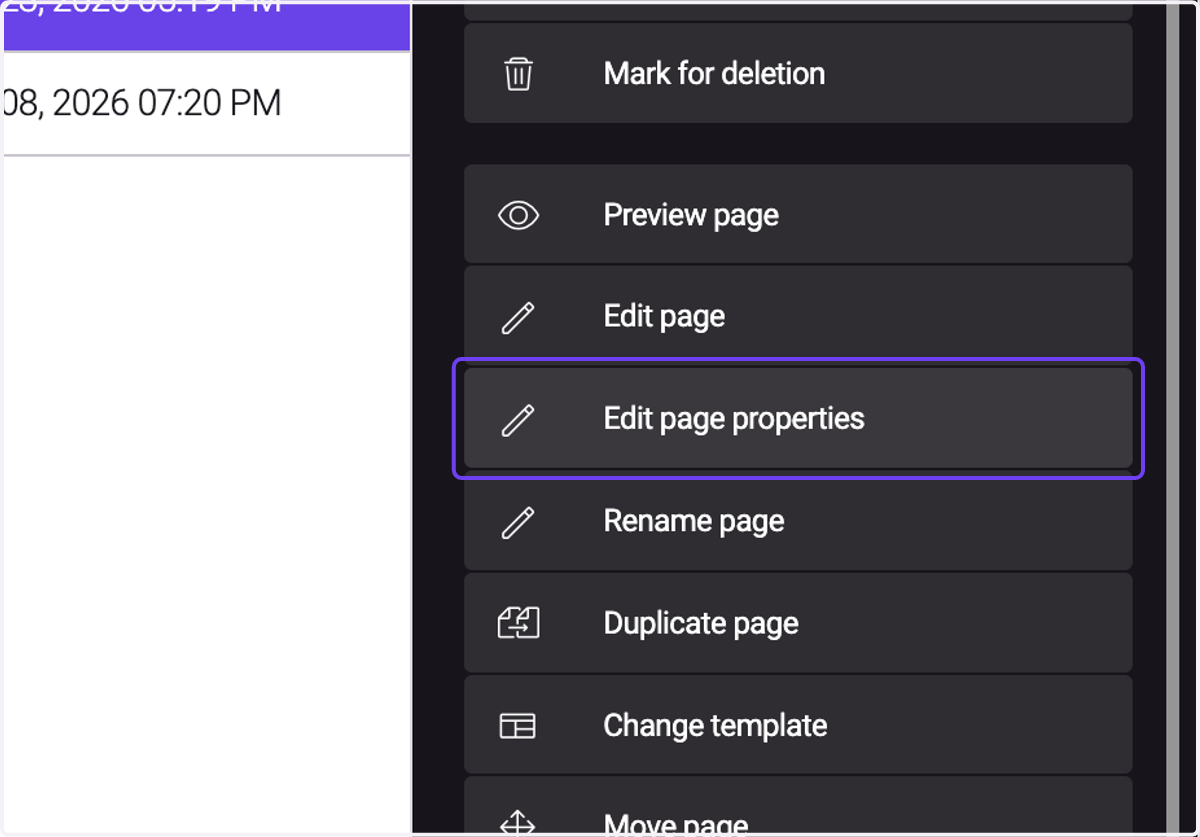
3. Select Edit page properties
4. A. Click on [H1] SEO
4. B. Write text into SEO Title
4. C. Write text into SEO Meta Description
4. D. Write text into GEO LLMs Summary

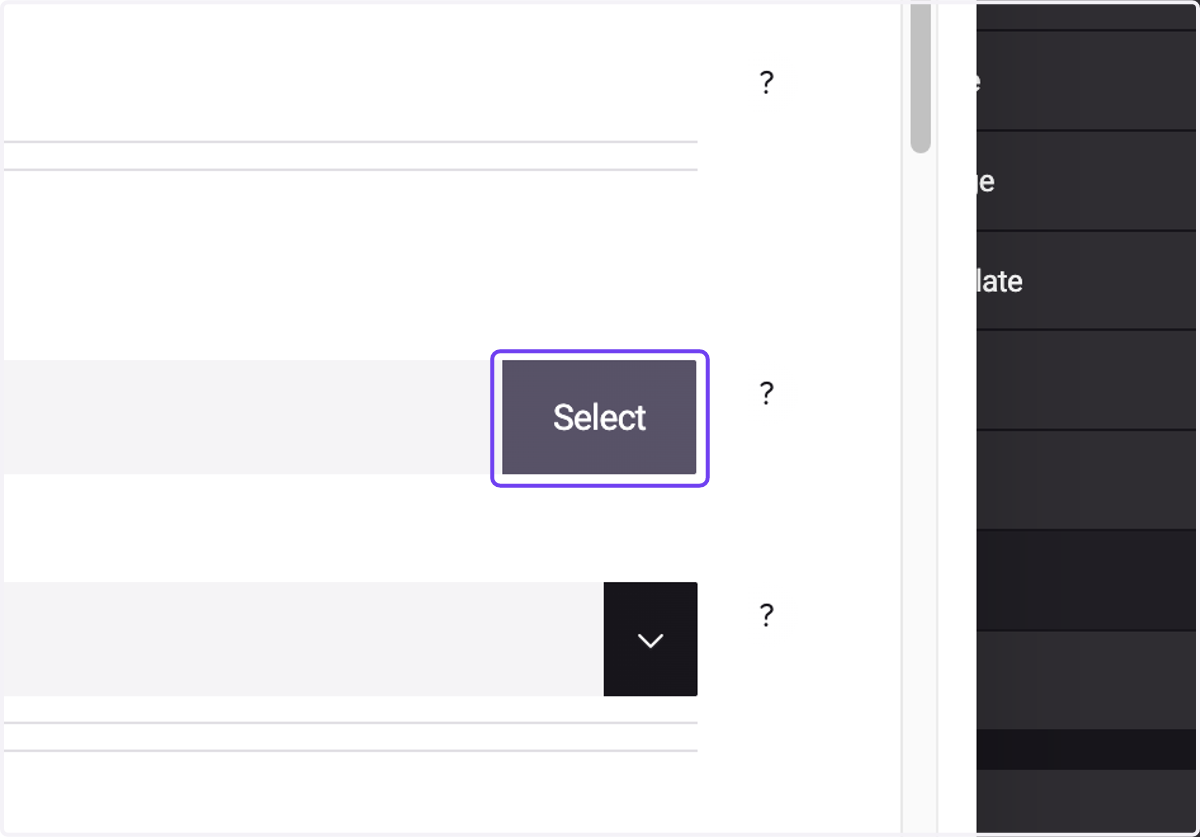
5. Select an OG Image
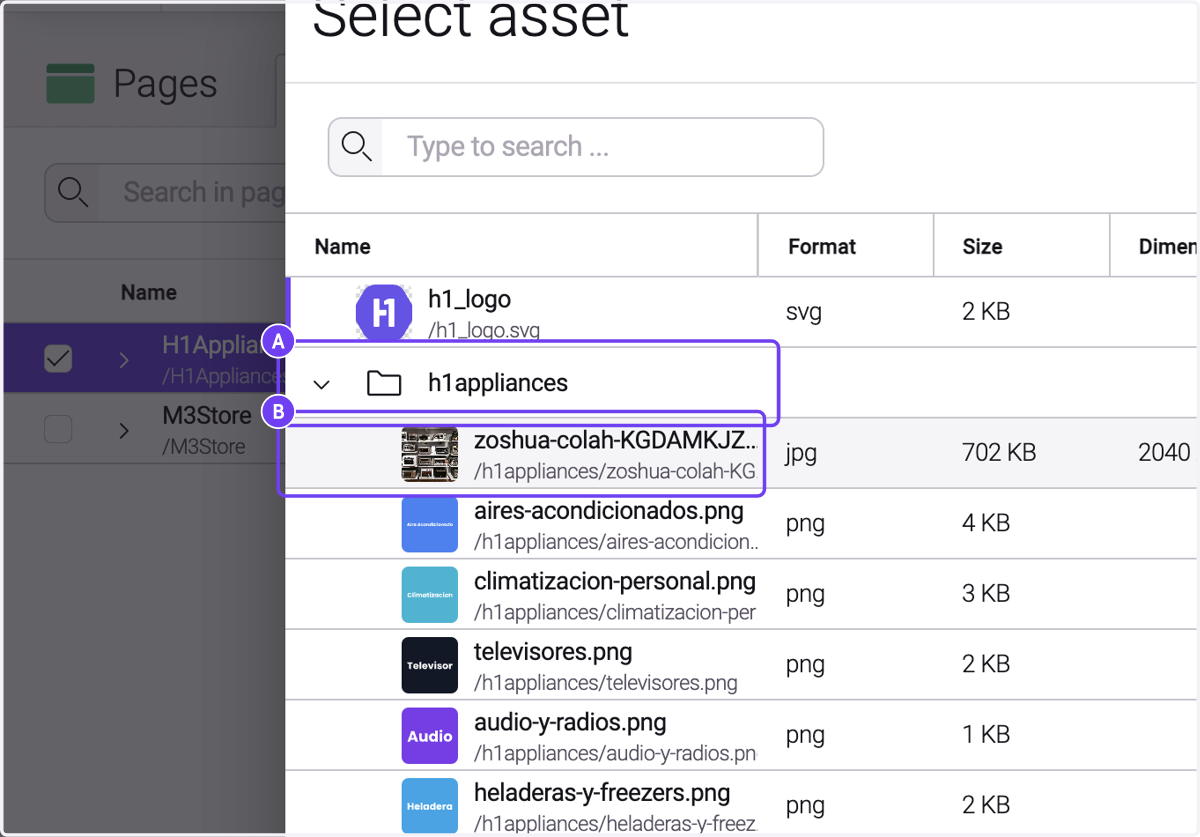
6. A. Search for your Assets Folder
6. B. Select your preferred image
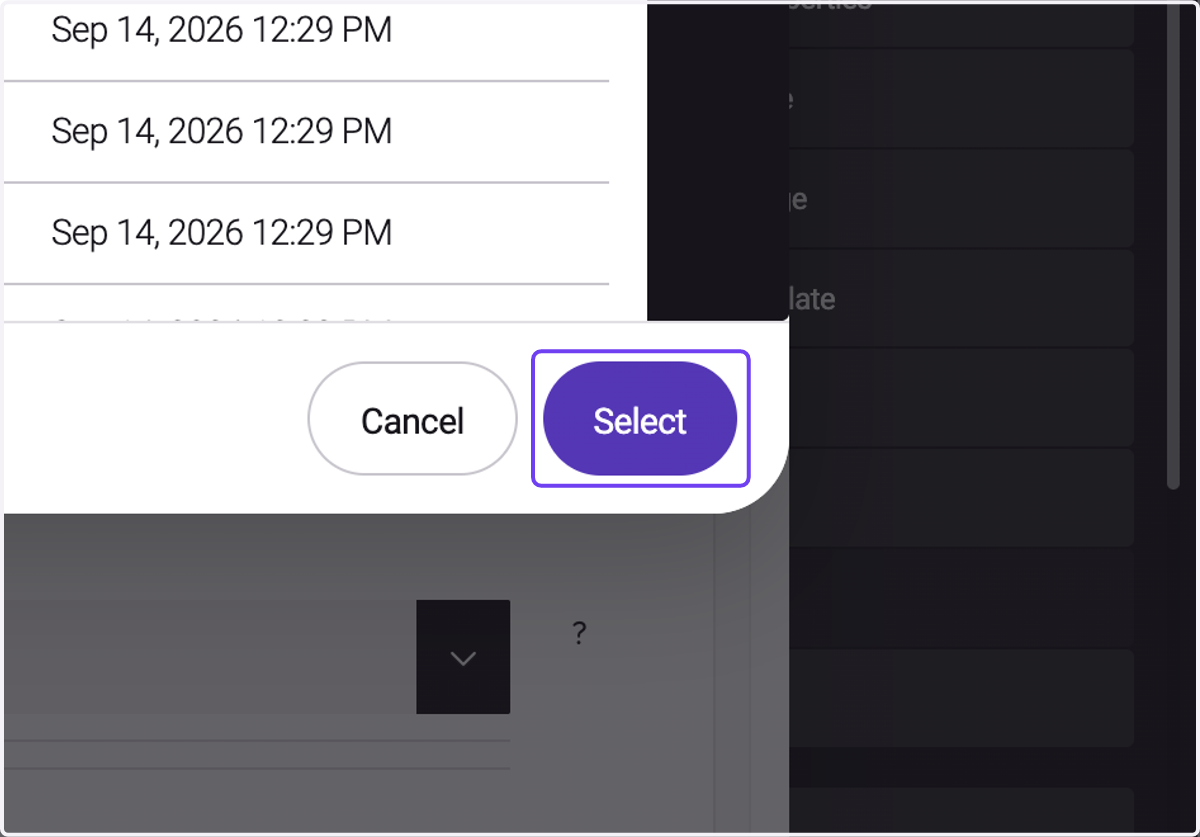
7. Confirm the selected image
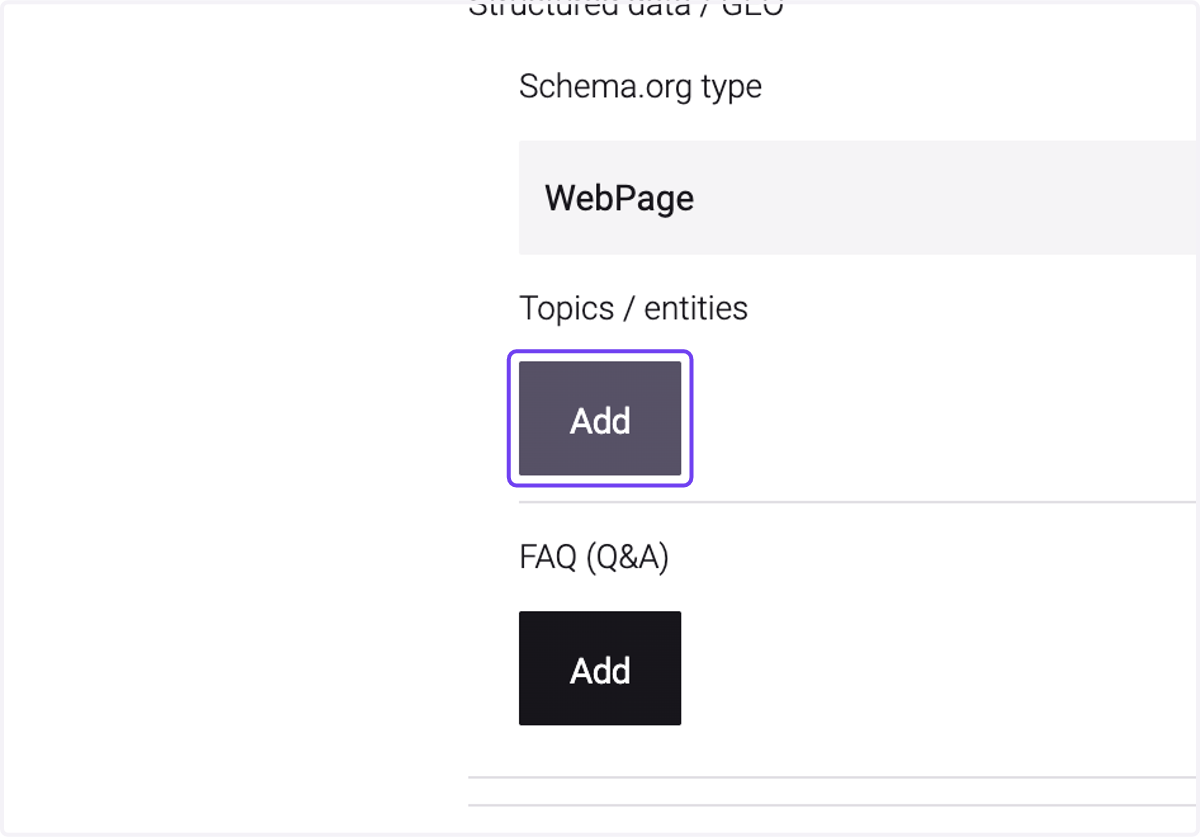
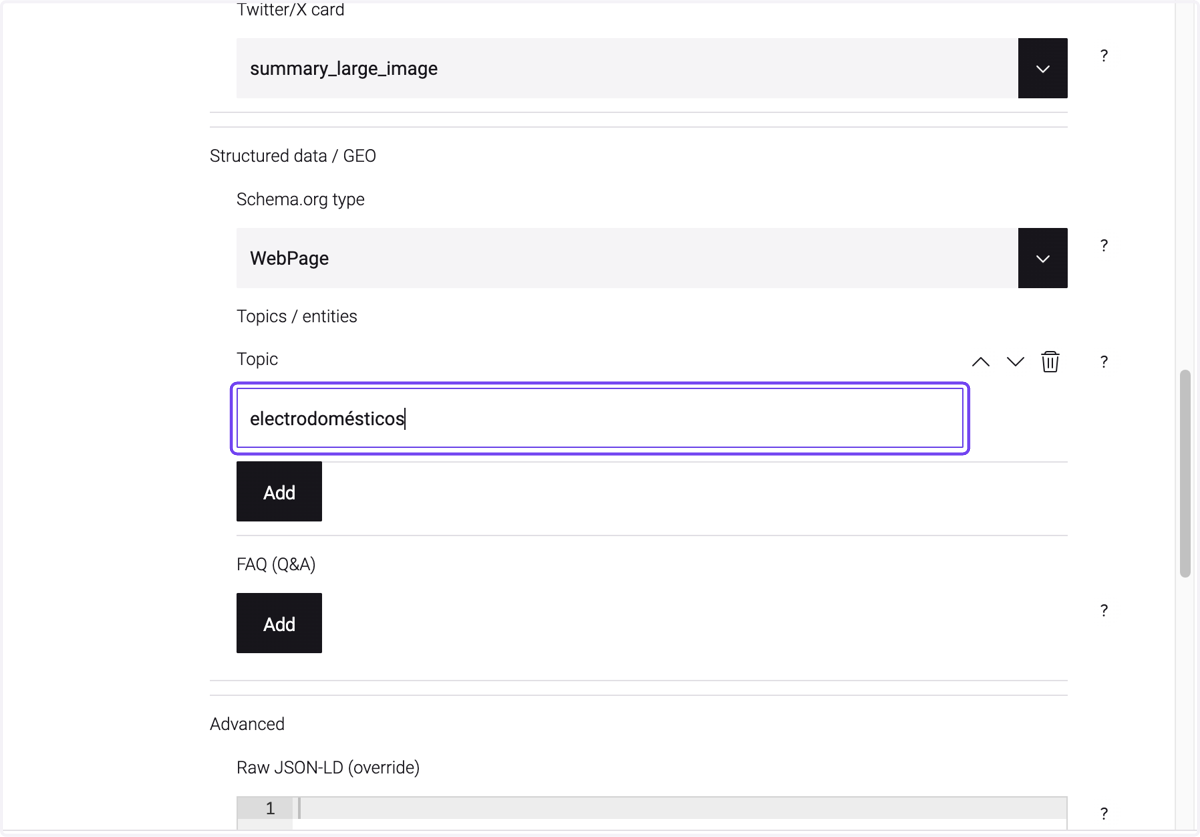
8. Add Topics to this page
9. Write Topic 1 into input
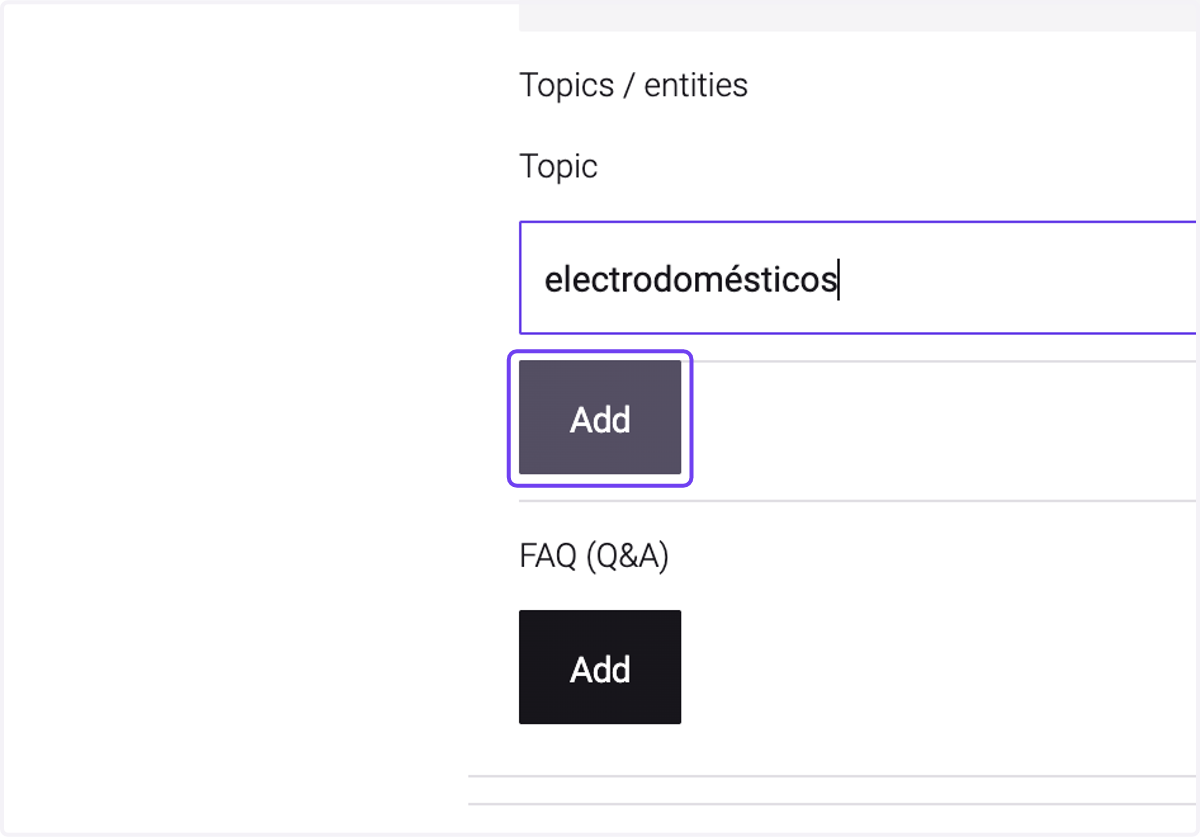
10. Add Topics to this page
11. Write Topic 2 into input
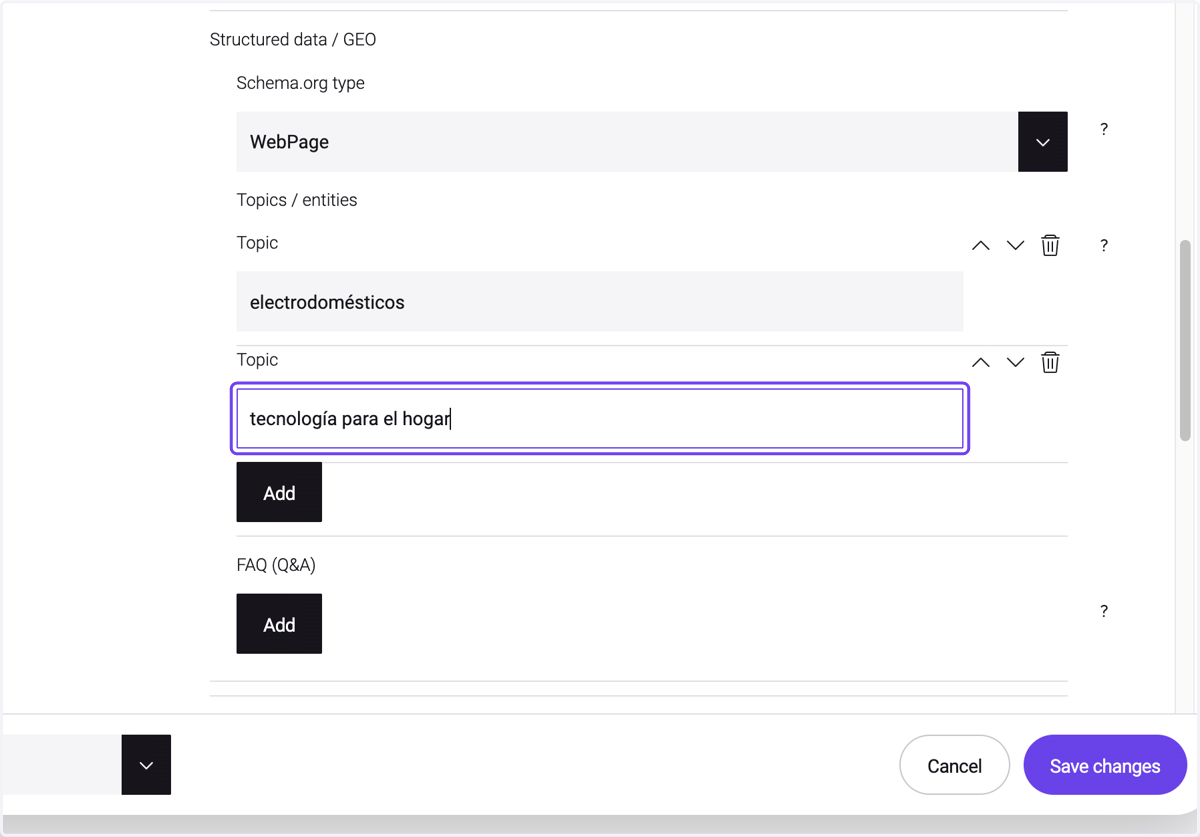
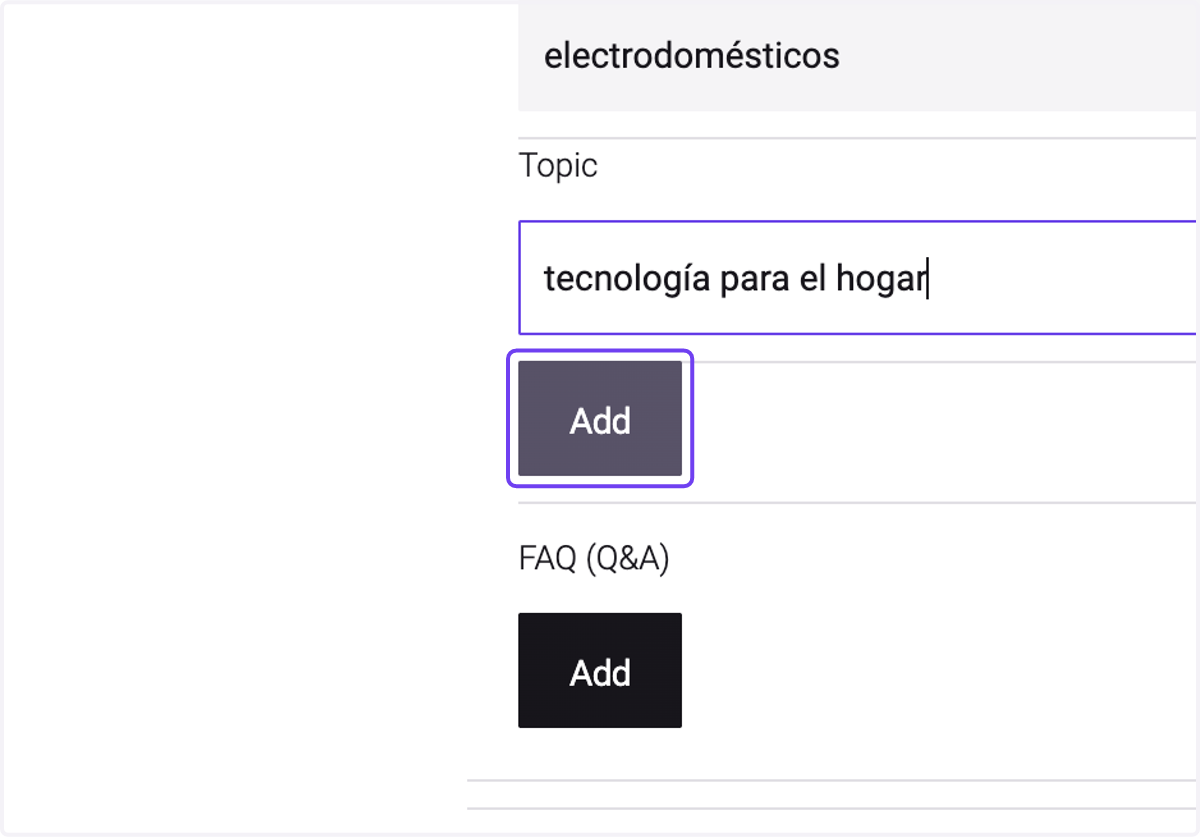
12. Add Topics to this page
13. Write Topic 3 into input
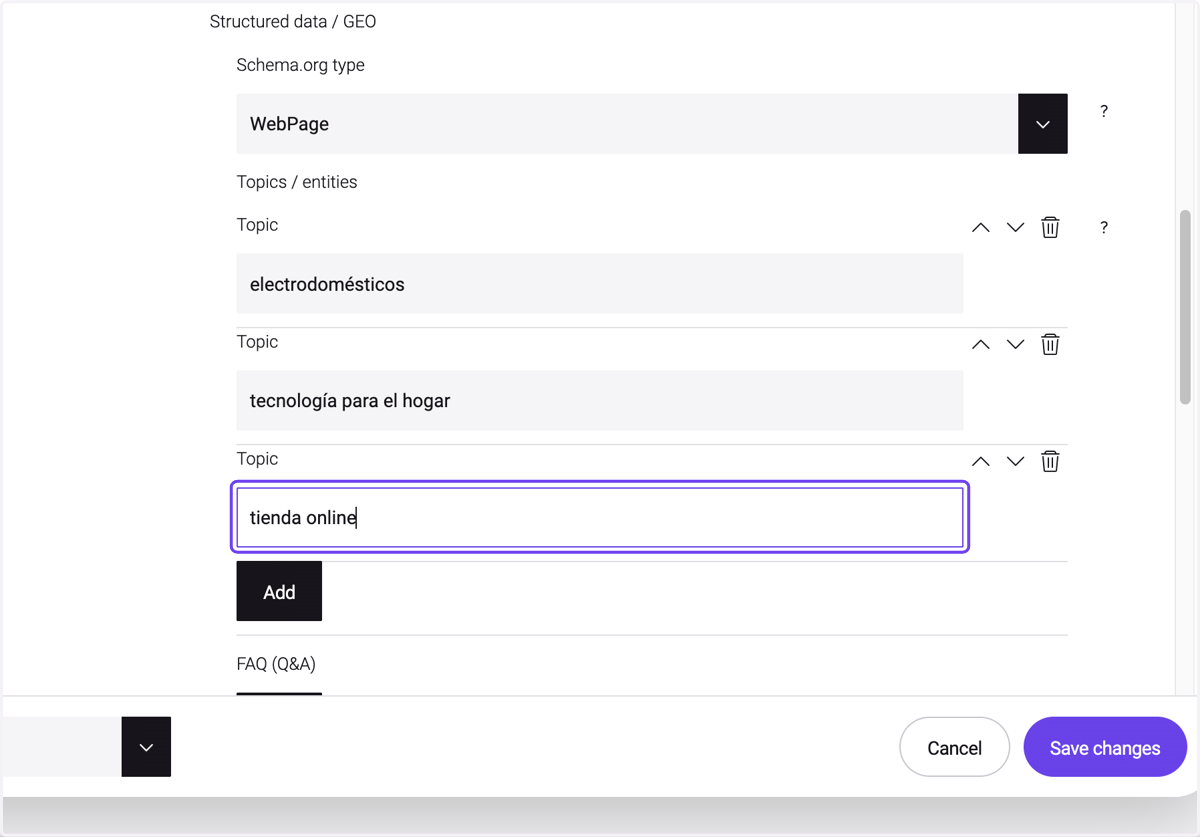
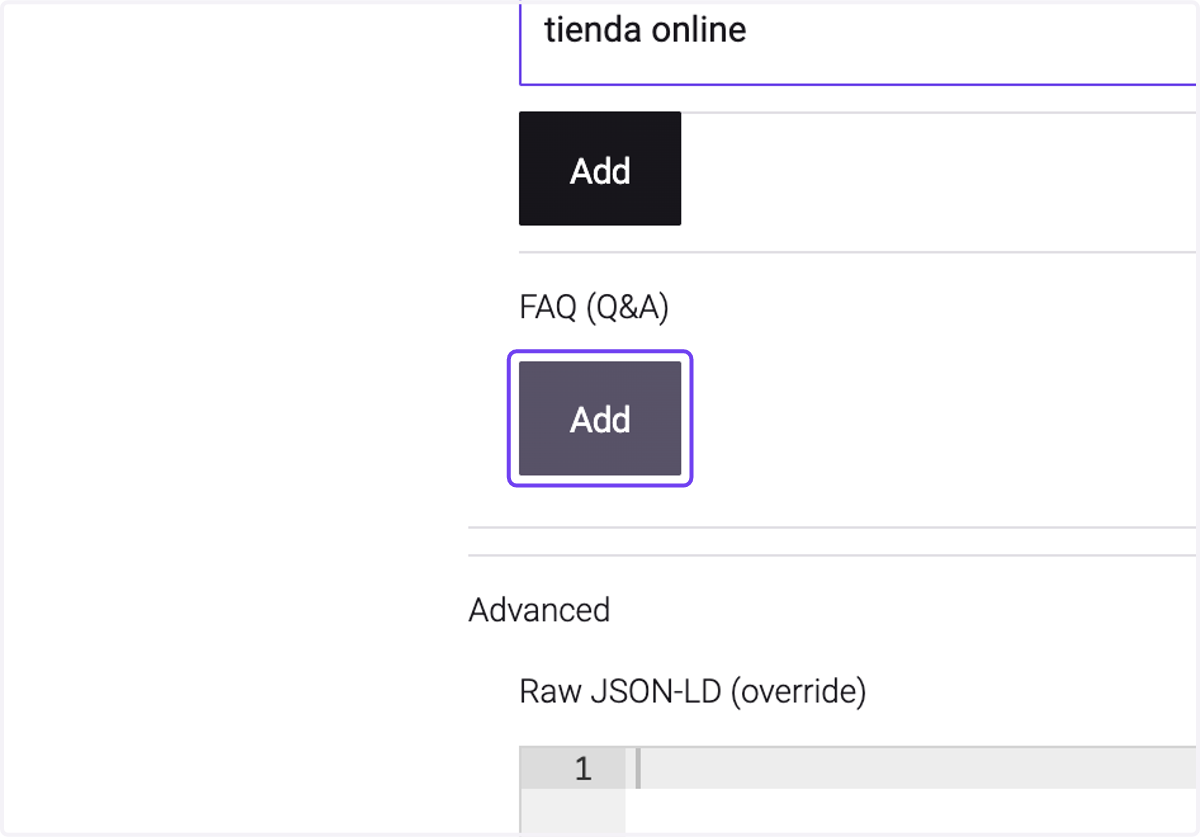
14. Add FAQs to this page
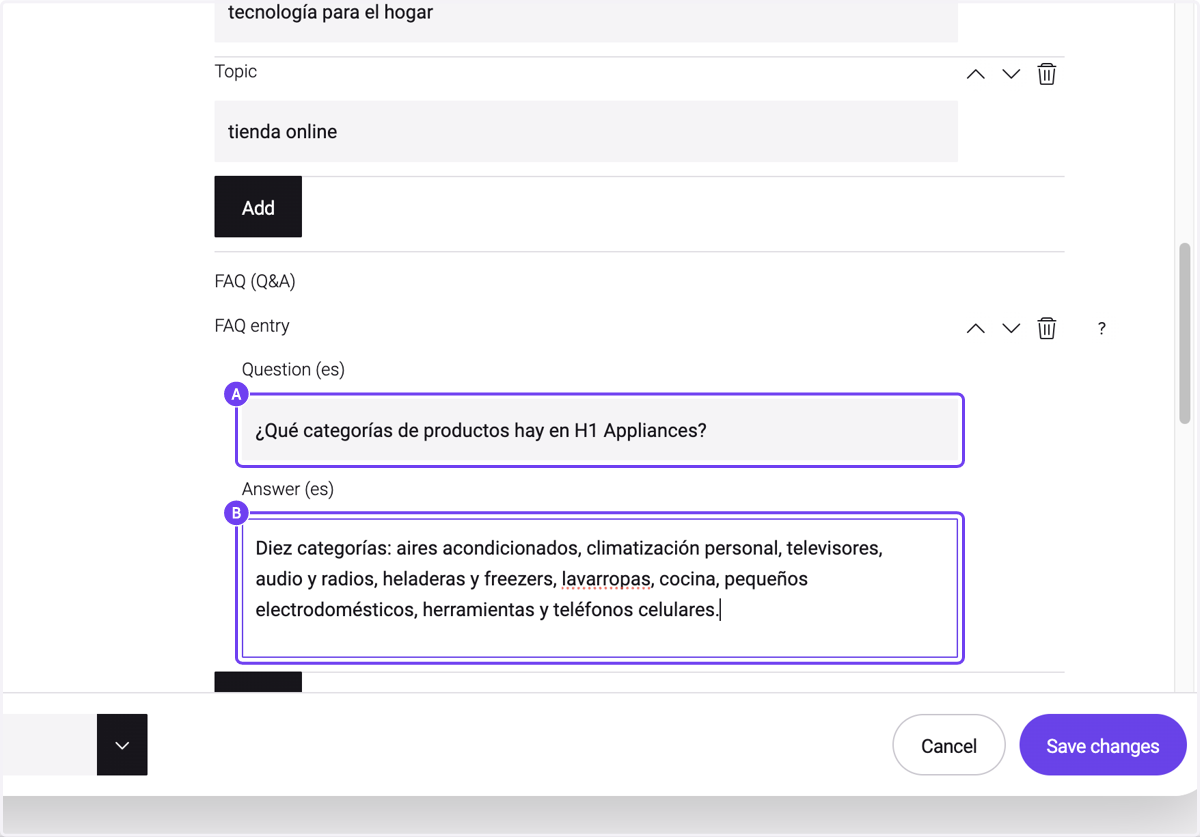
15. A. Write a question into input
15. B. Write an Answer into text area
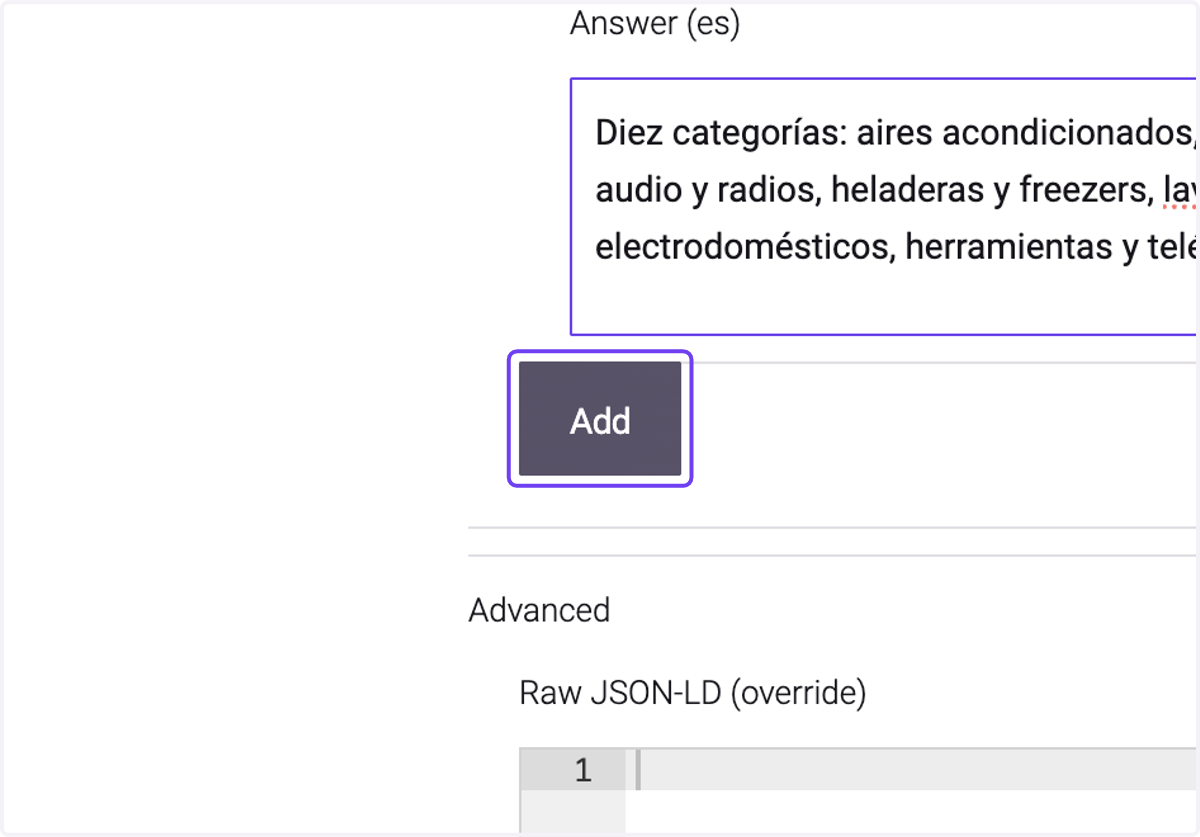
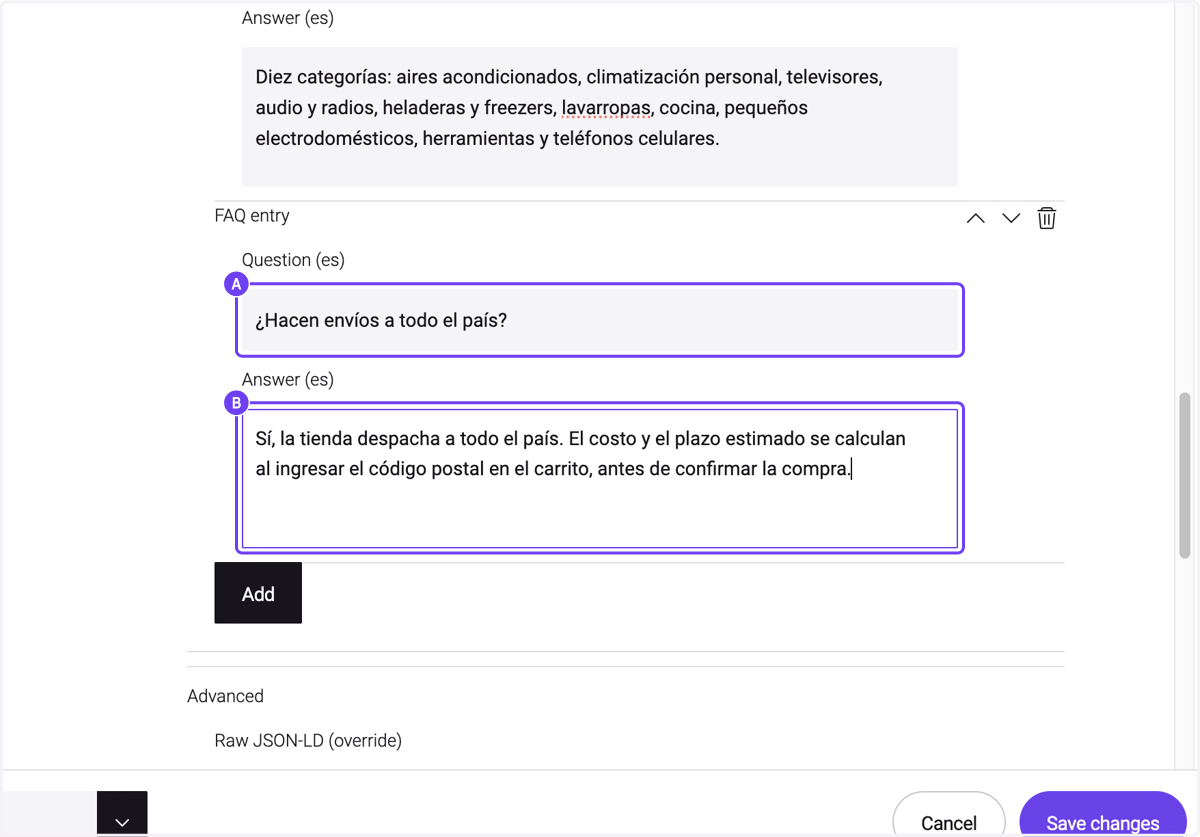
16. Add FAQs to this page
17. A. Write a question into input
17. B. Write an answer into text area
18. Click on Save changes
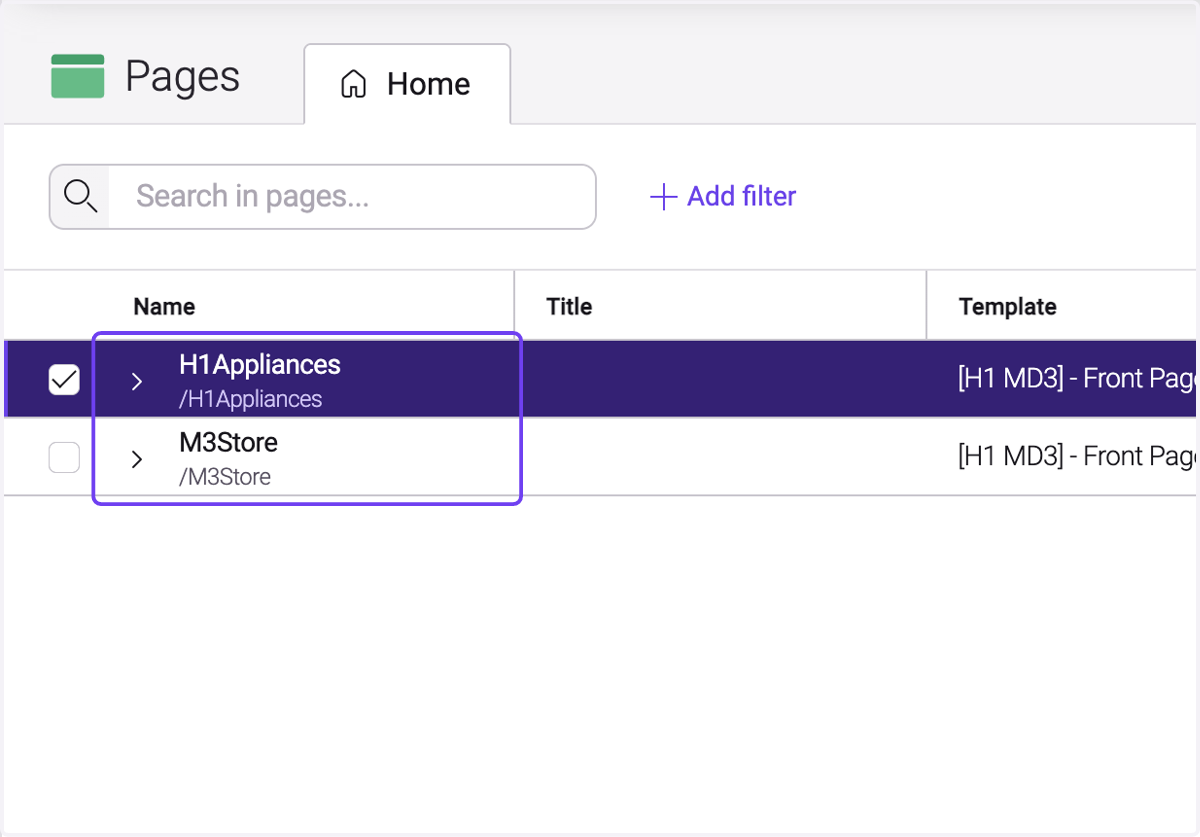
19. Click on your Page
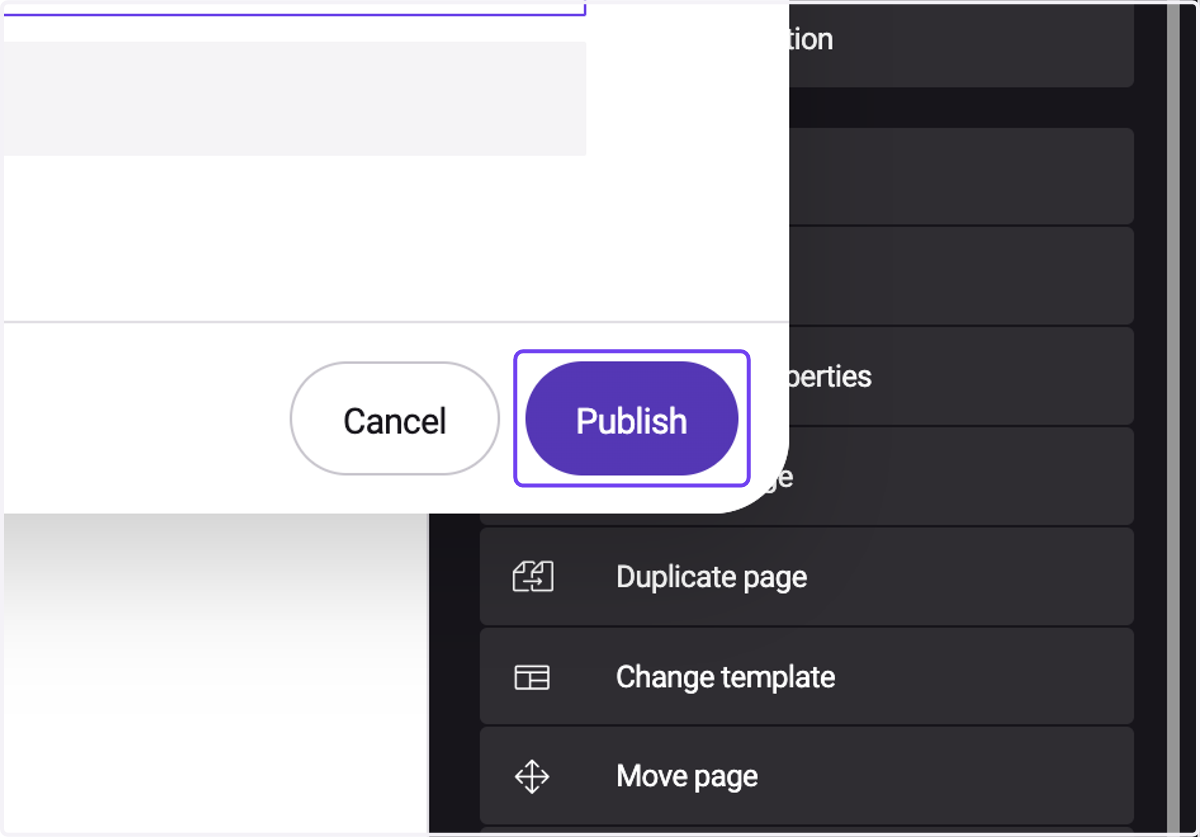
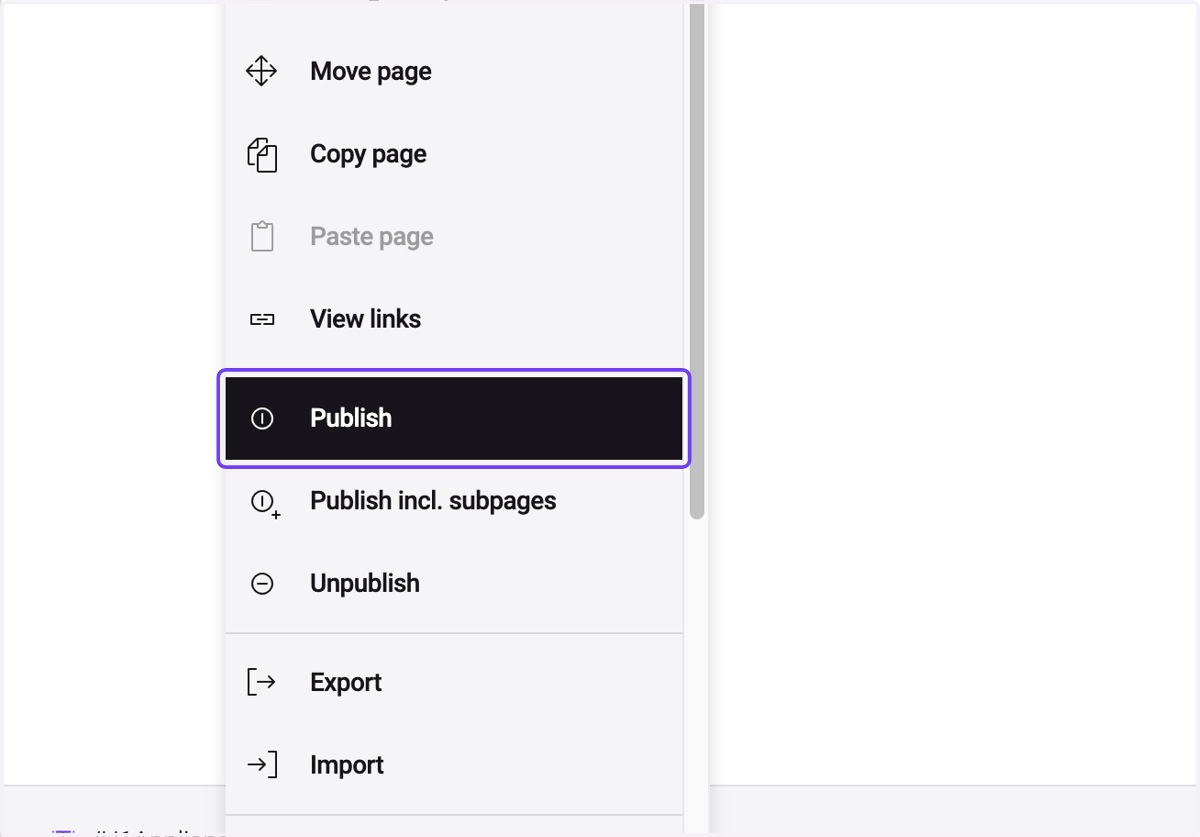
20. Publish
21. Write the Comment
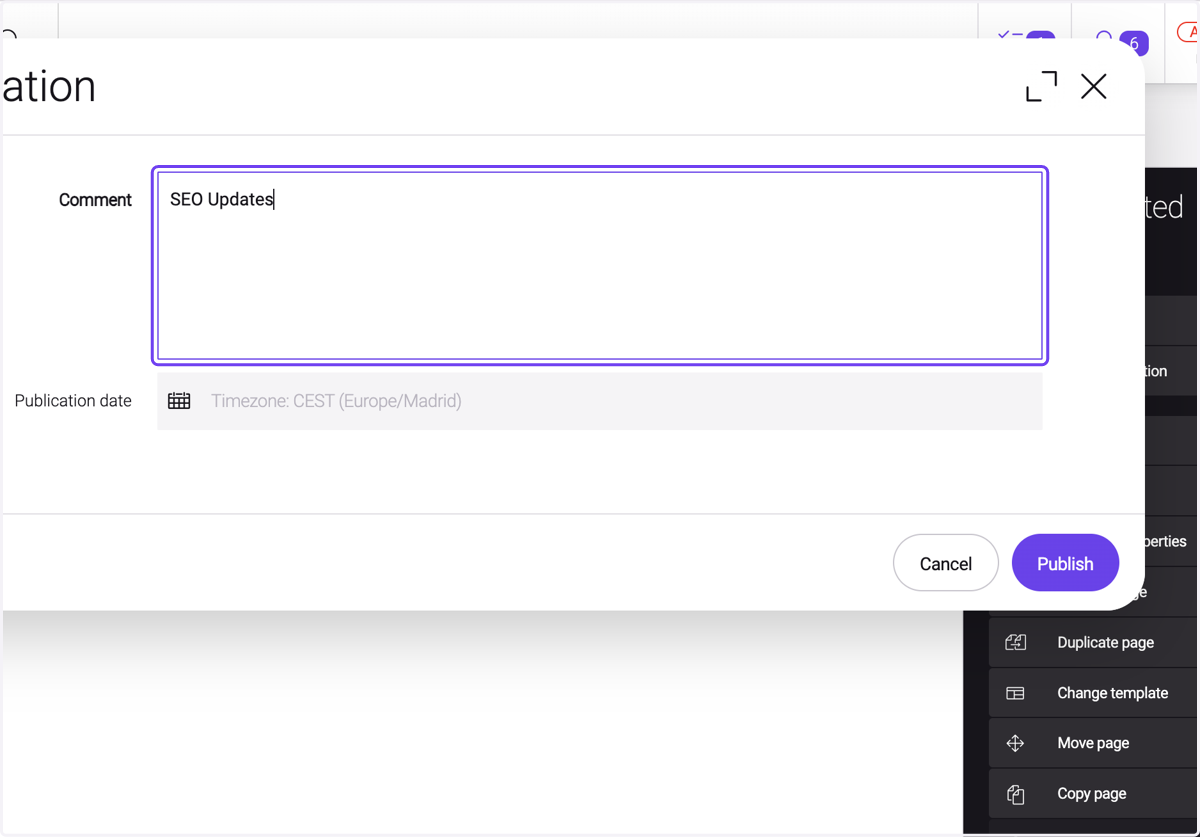
22. Click on Publish