Craft Your Custom QScan Template in Minutes!
Creating custom templates is one of the primary tasks users perform inside QScan.
Although QScan provides premade templates for most of the Big Brand Streamers or broadcasters, in some cases, you might need to create a variation of the premade template or create a new template from scratch.
Creating a new template historically has been a time-consuming and highly technical task. In QScan, we've simplified this process. It will only take you a few minutes, and we've removed some of the more in-depth technical challenges to keep things streamlined.
localhost
1. Go to http://localhost:8080
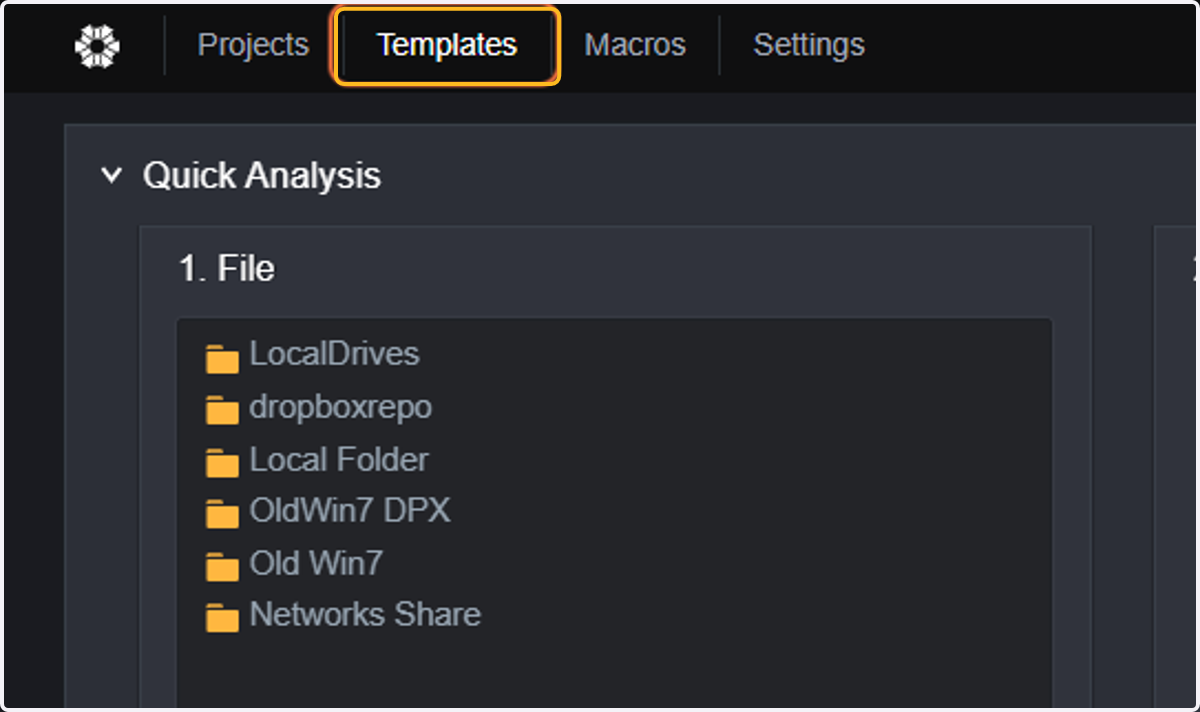
2. Click on Templates.
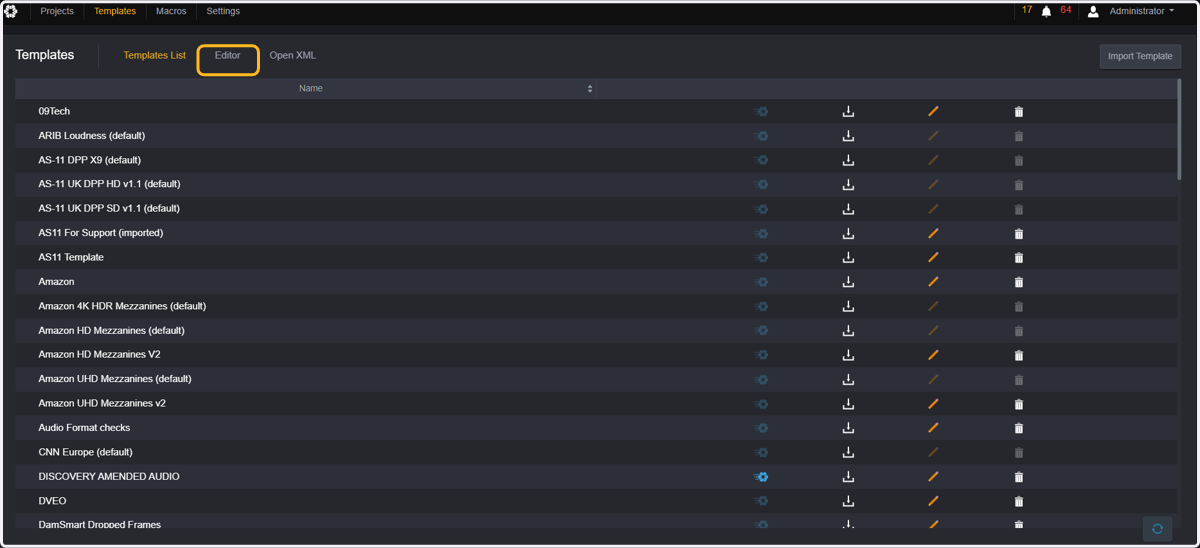
3. Click on Editor. A page with all the analysis parameters will be displayed.
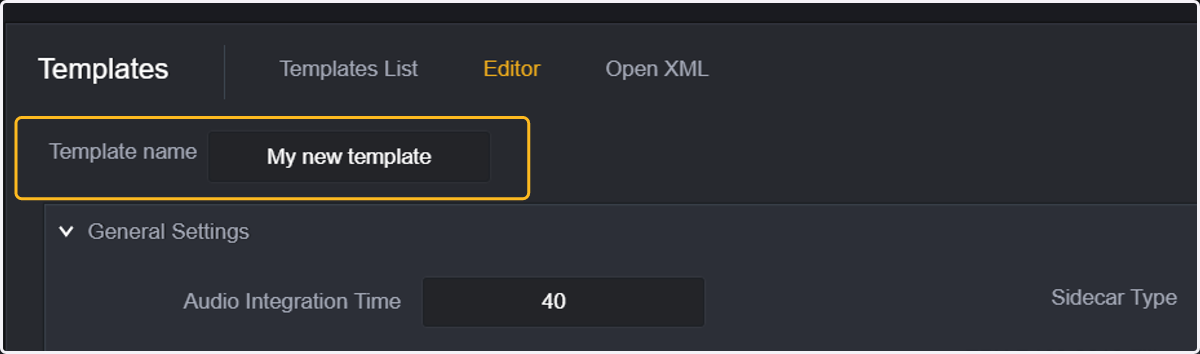
4. You will then need to add a new name to your template.
5. If you want to use a reference file, click "From File."
This will allow creating all format check thresholds automatically according to the reference file.
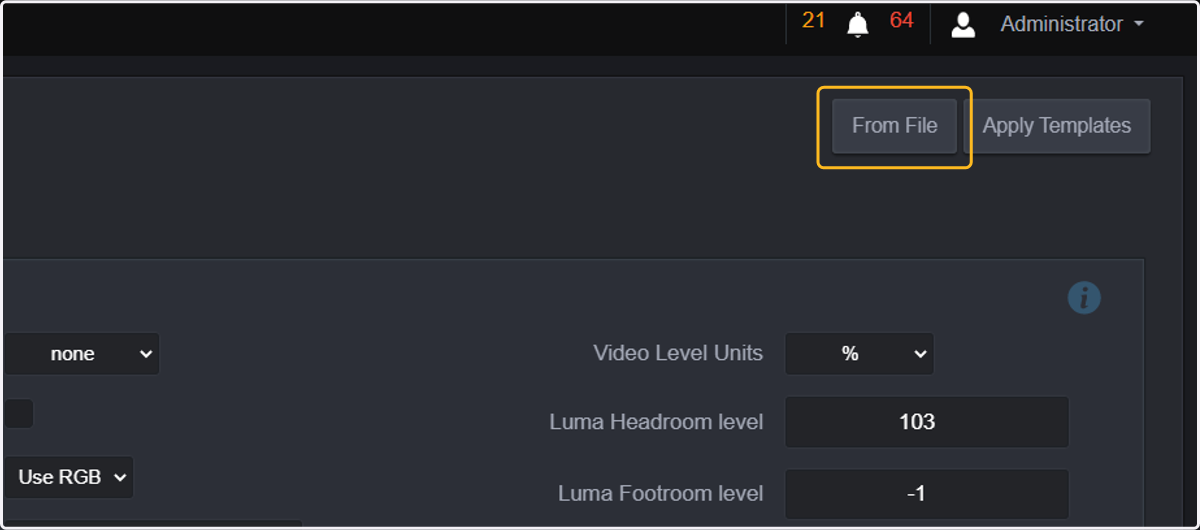
6. Browse through your folders and repositories to find the reference file.
Depending on the condition, you can also configure the type of events you want to create.
"is": if the parameter is the same as the reference file
"none": discard this severity level
"is not". if the parameter is not the same as the reference file
In the screenshot, logging events will be created with the condition "is" (the same as the reference file), and critical events when "is not" (the same as the reference file)
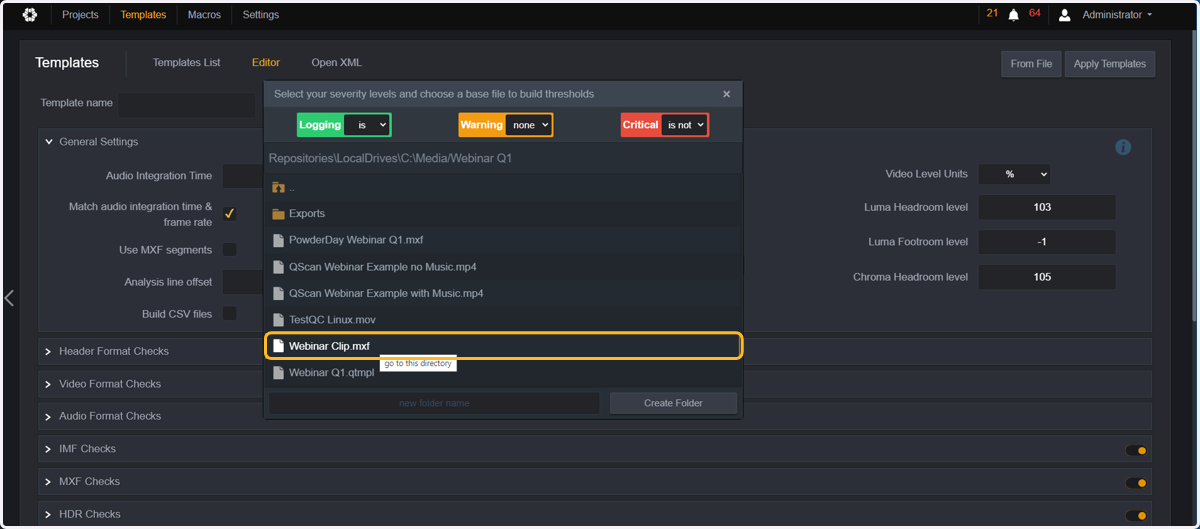
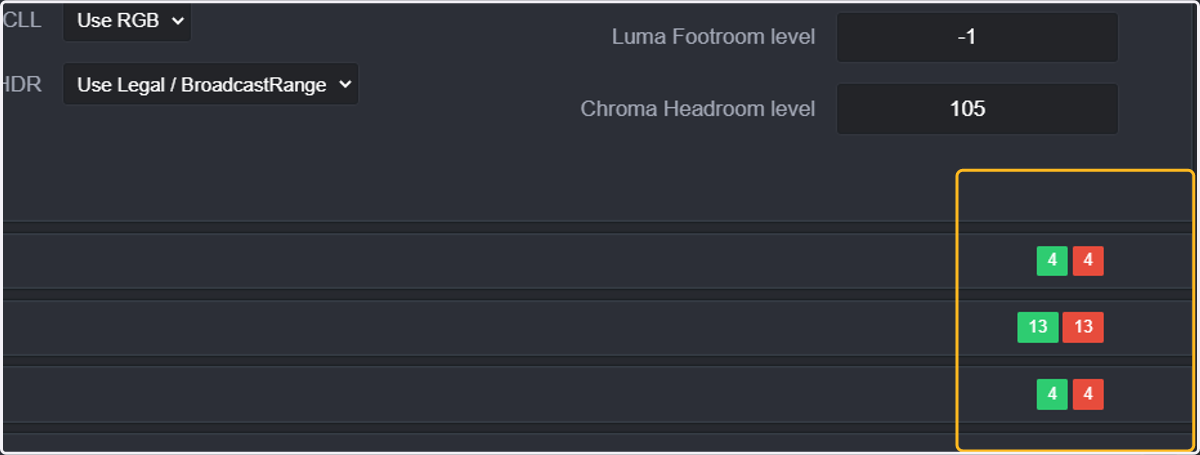
7. Once selected, the thresholds for format checks will be added automatically.
8. Expanding the header format checks and checking the Container format we can see that a logging event was created when the file "IS" MXF and a critical event when the file "IS NOT" MXF.
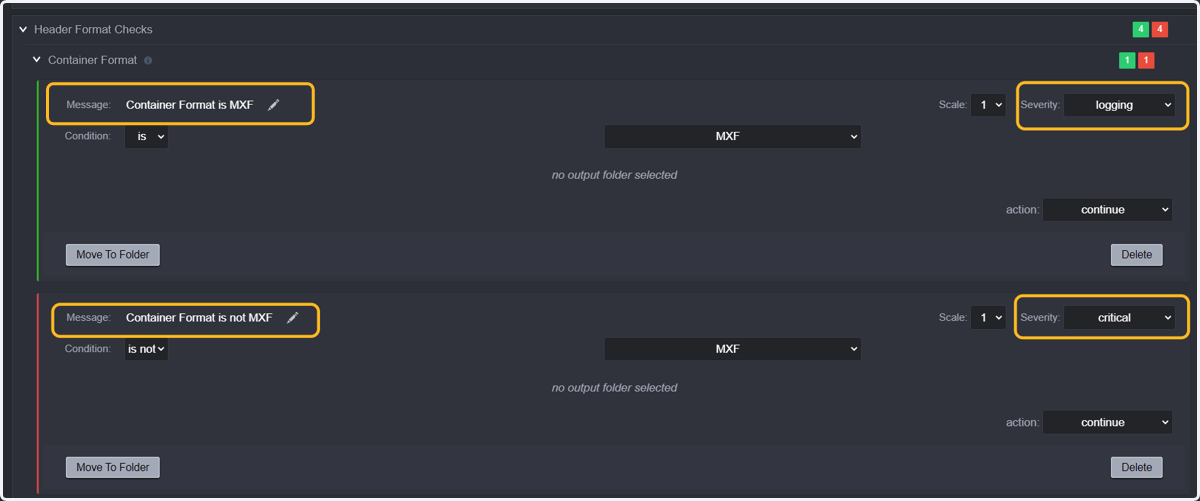
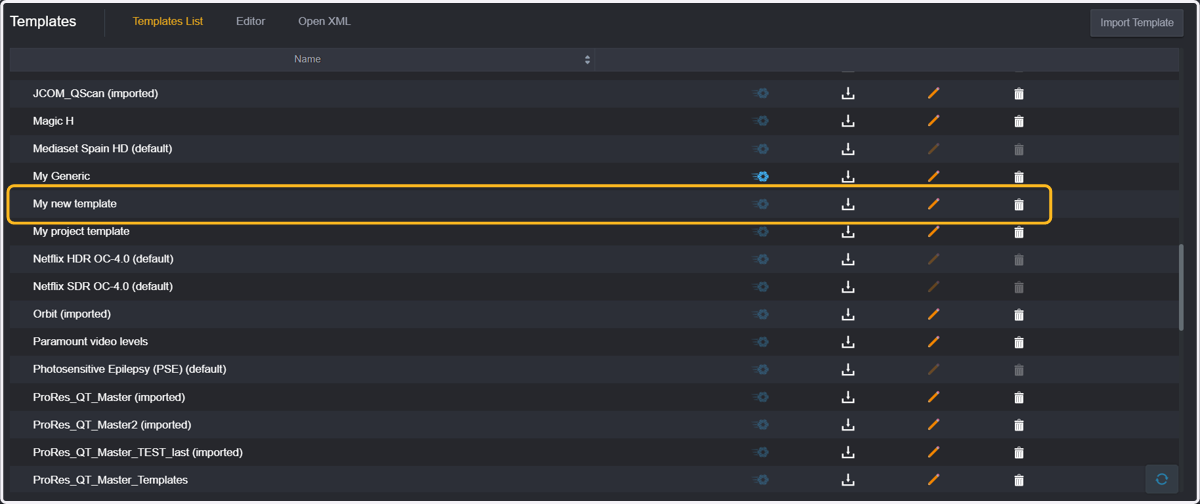
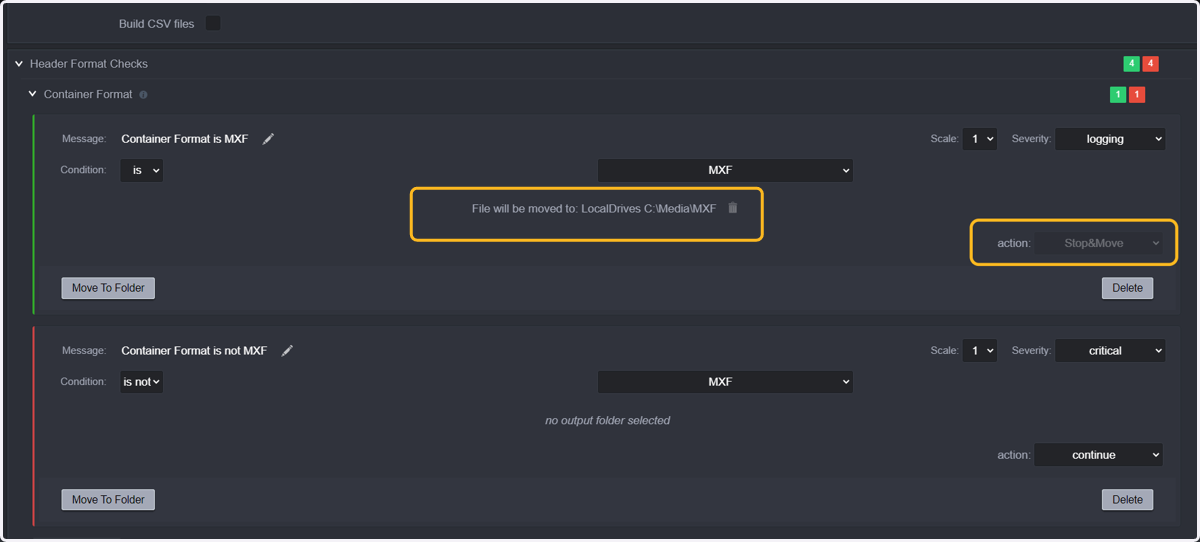
9. You can now even add some actions depending on the threshold, such as "stop & move" when the condition is met.
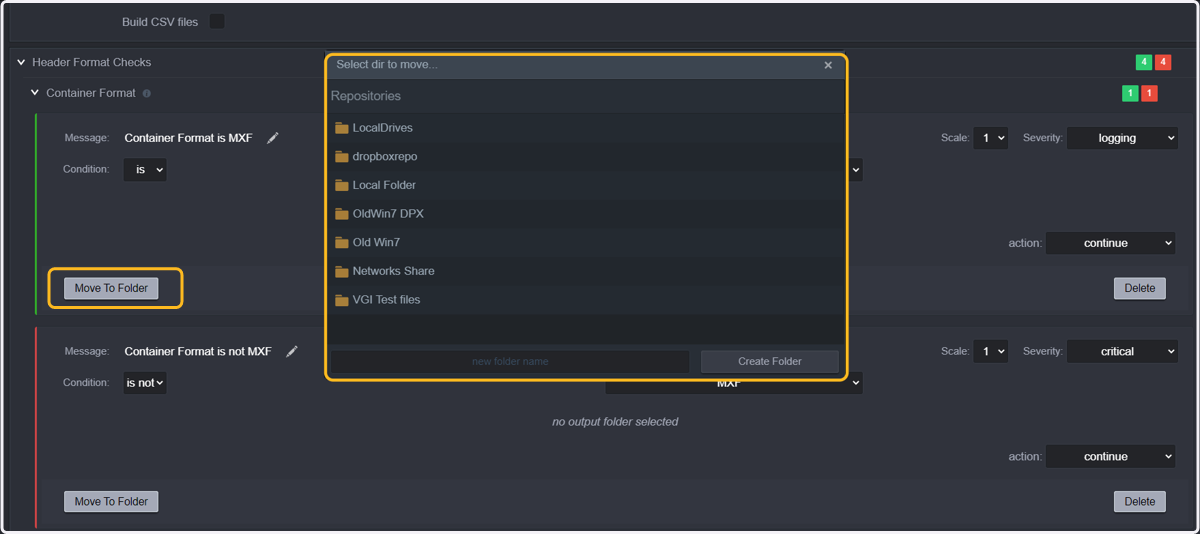
10. We now selected a folder for moving the file is the condition "is MXF" is met.
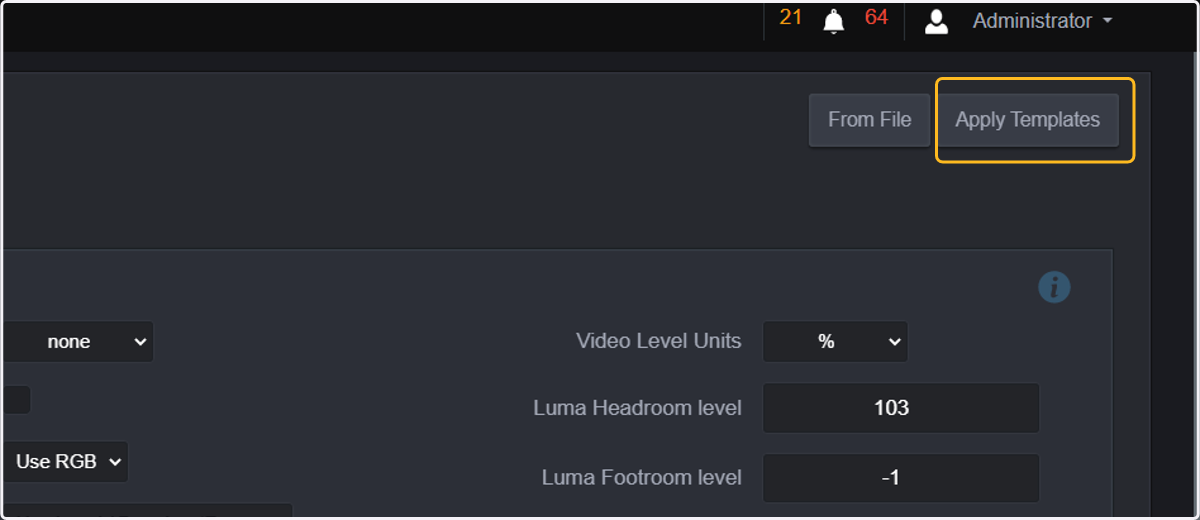
11. Now, if you want to add other parameters, you can use premade templates. So click on "Apply Templates."
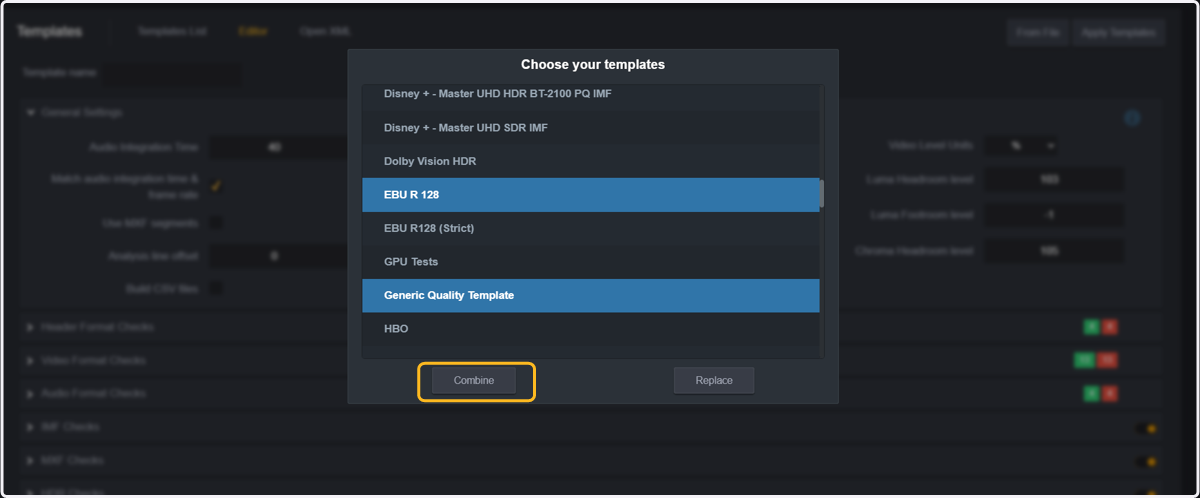
12. Select one or more templates from the list of premade templates.
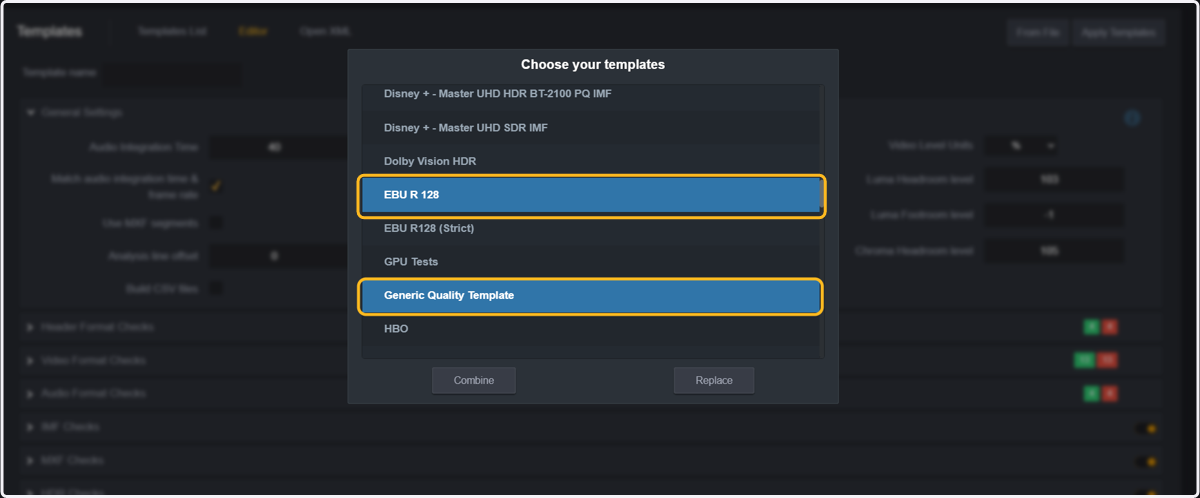
13. When you select the templates you want to combine, click on combine.
NOTE: clicking on replace would replace all format checks that were configured from the reference file.
14. All thresholds corresponding to the selected premade templates will be added to the new template.
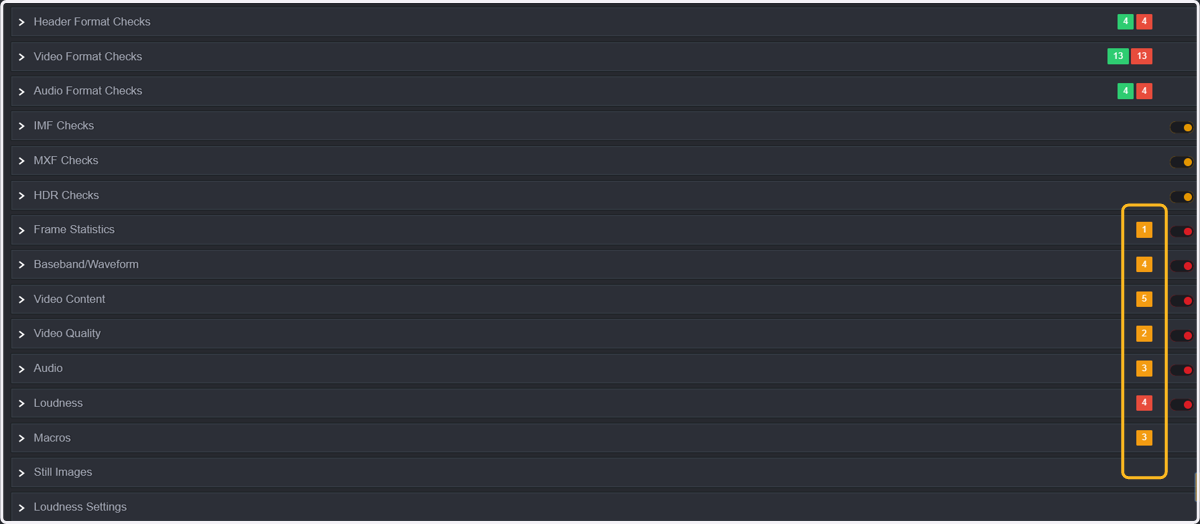
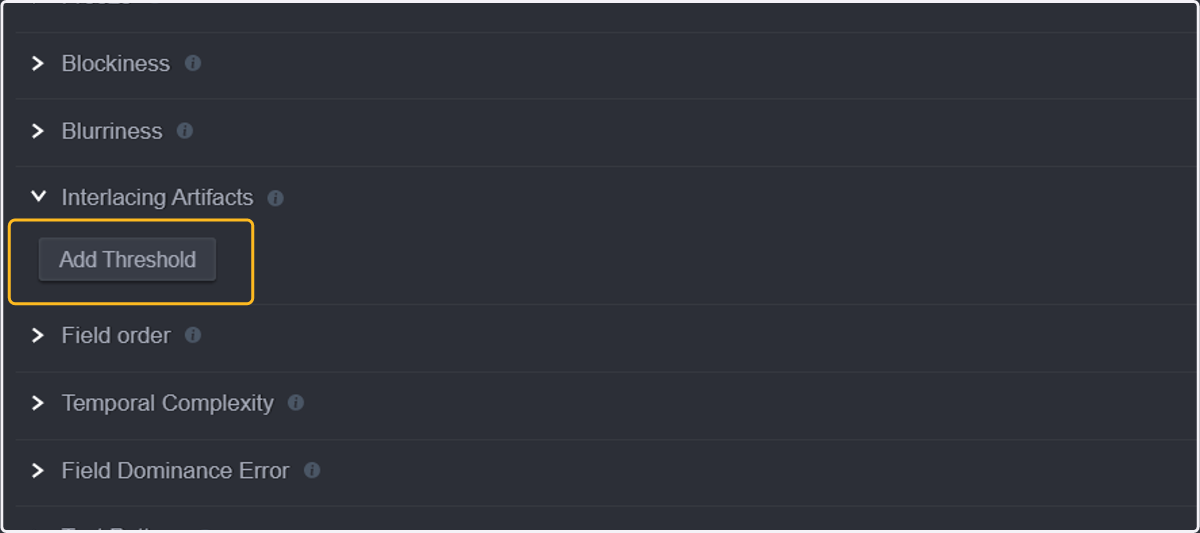
15. Now you can manually add any thresholds or modify any existing ones.
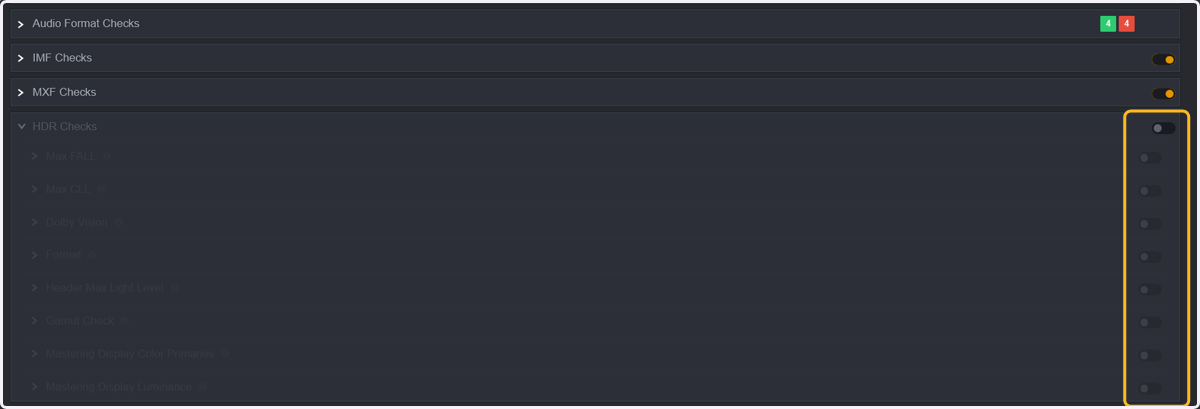
16. You should disable any parameter or group of parameters you do not need.
NOTE: Some of the heaviest parameters are
HDR measurements
PSE
Dead pixel detection
Digital drops
Digibeta errors
Noise detection
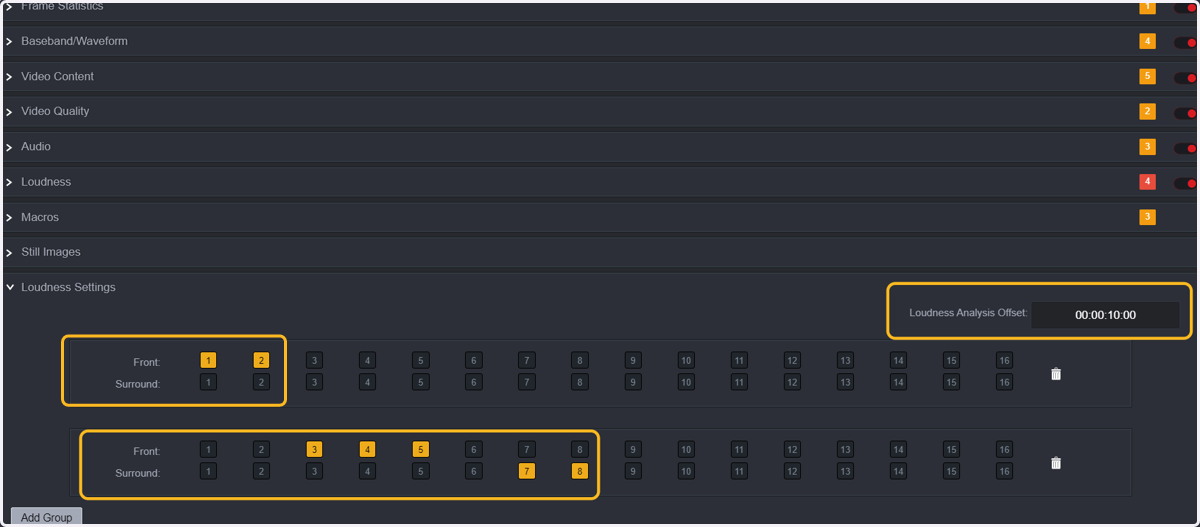
17. In case you are measuring Loudness, you need to configure the loudness audio groups so QScan can measure them correctly and you can also add an offset for the loudness measurements.
In this screenshot:
an offset of 10 seconds is added (loudness measurements will start 10 seconds after the start of the file).
A group combining Ch1 and Ch2 is created to measure the loudness of those channels as stereo.
A group that combines Ch3-8 is created for measuring the loudness of those channels as 5.1.
18. And when you are satisfied with the template, click "Create New Template."
19. The screen will refresh and display the complete list of templates, including your newly created template ready to use in any Project or Quick Analysis.