Getting started: Creating a course and sharing your SCORM-package via LTI Tools
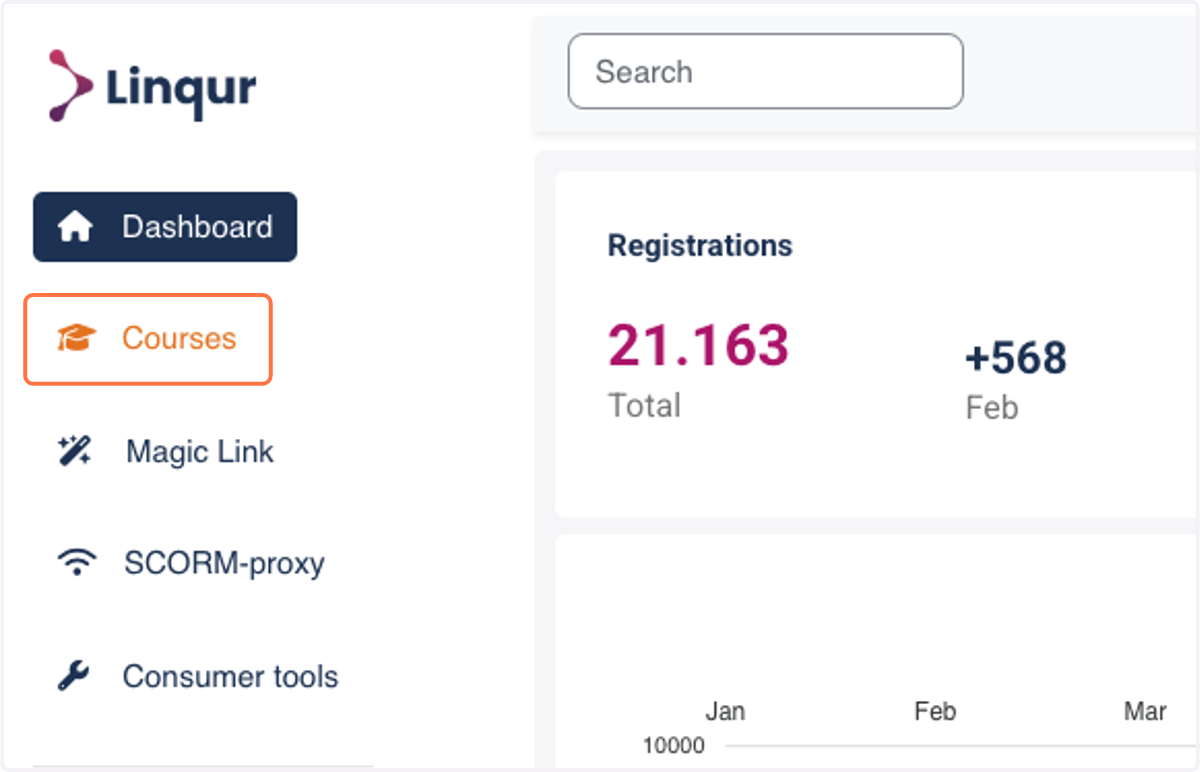
1. Click on "Courses" in the menu
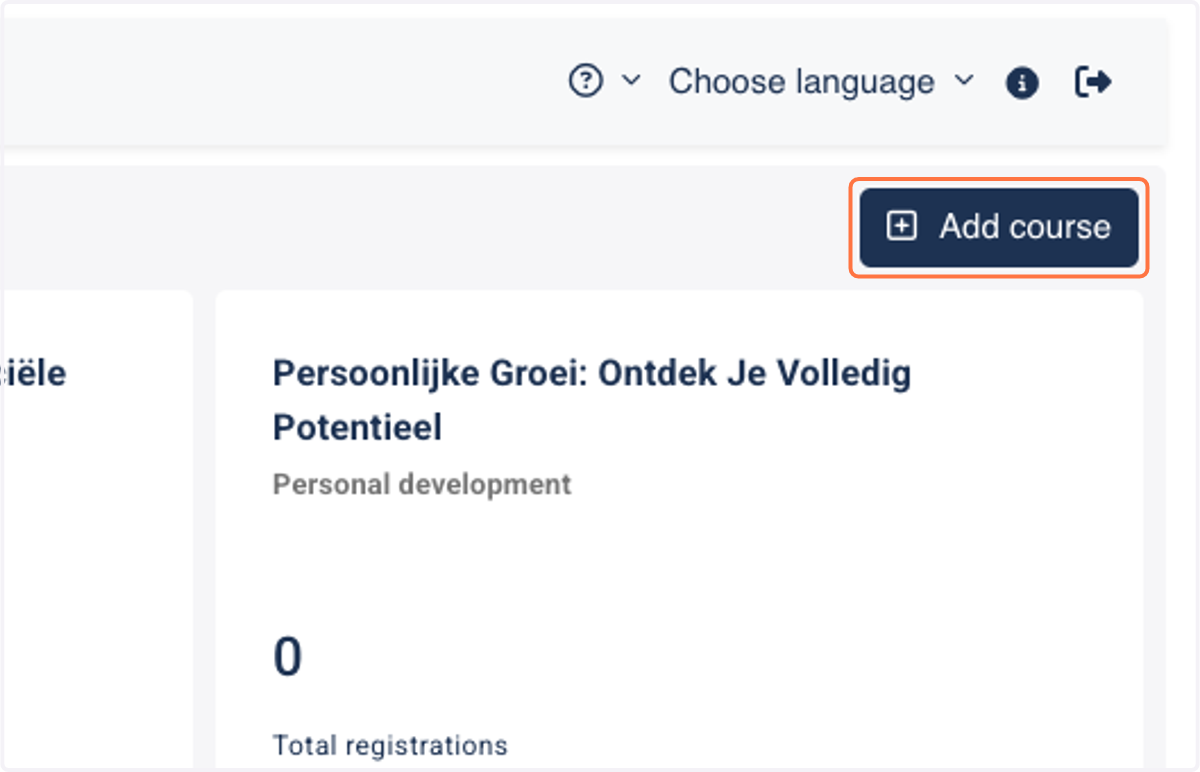
2. Click on "Add course"
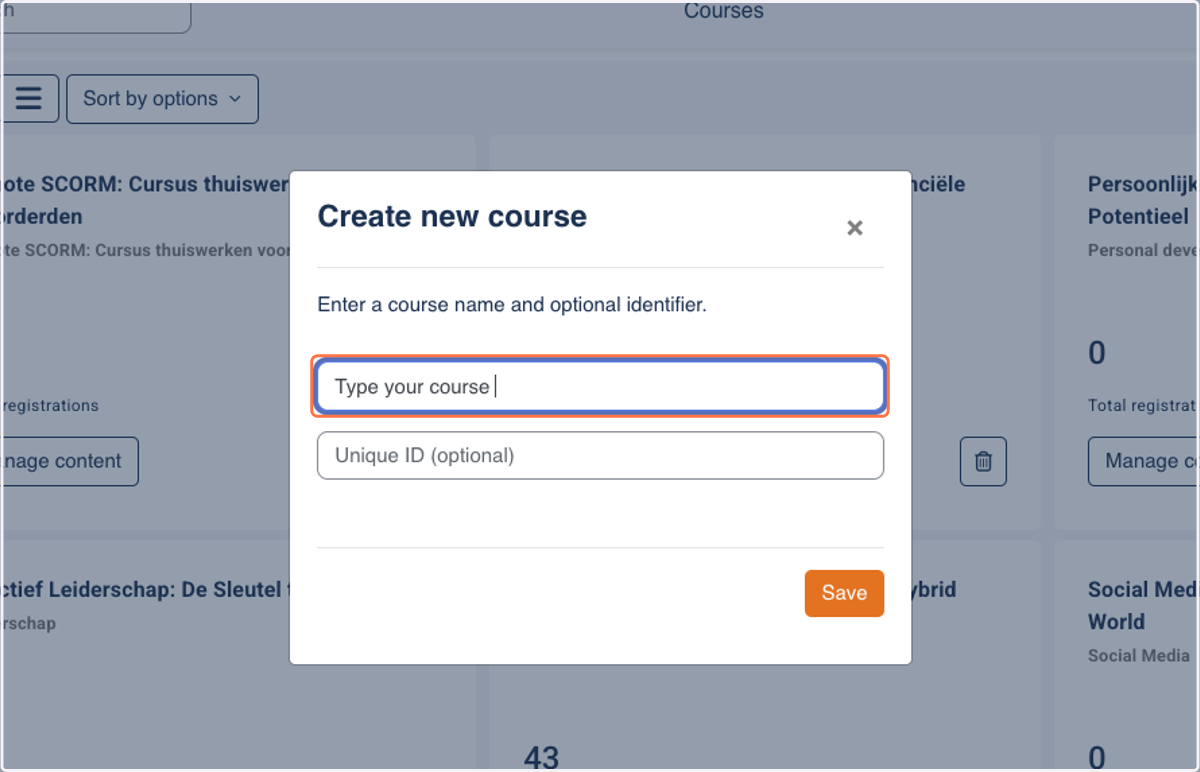
3. Type "Your course name" and optional Unique ID for future reference
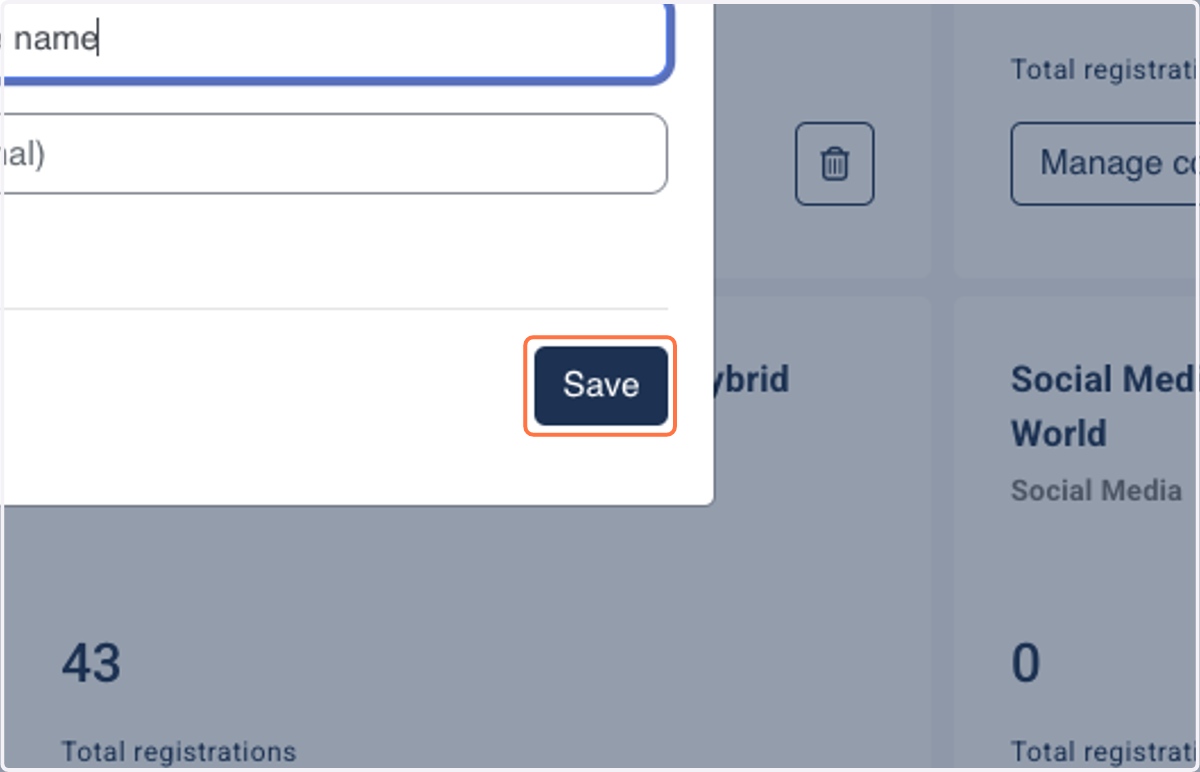
4. Click on Save
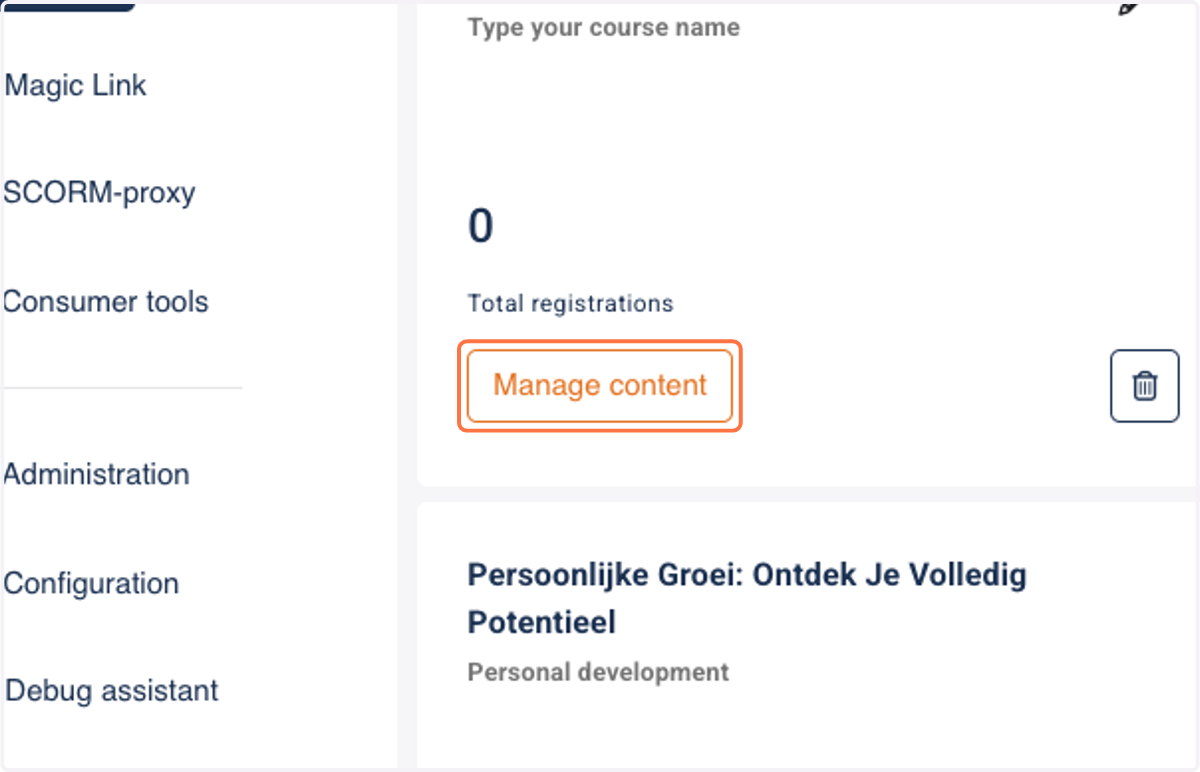
5. Click on Manage content
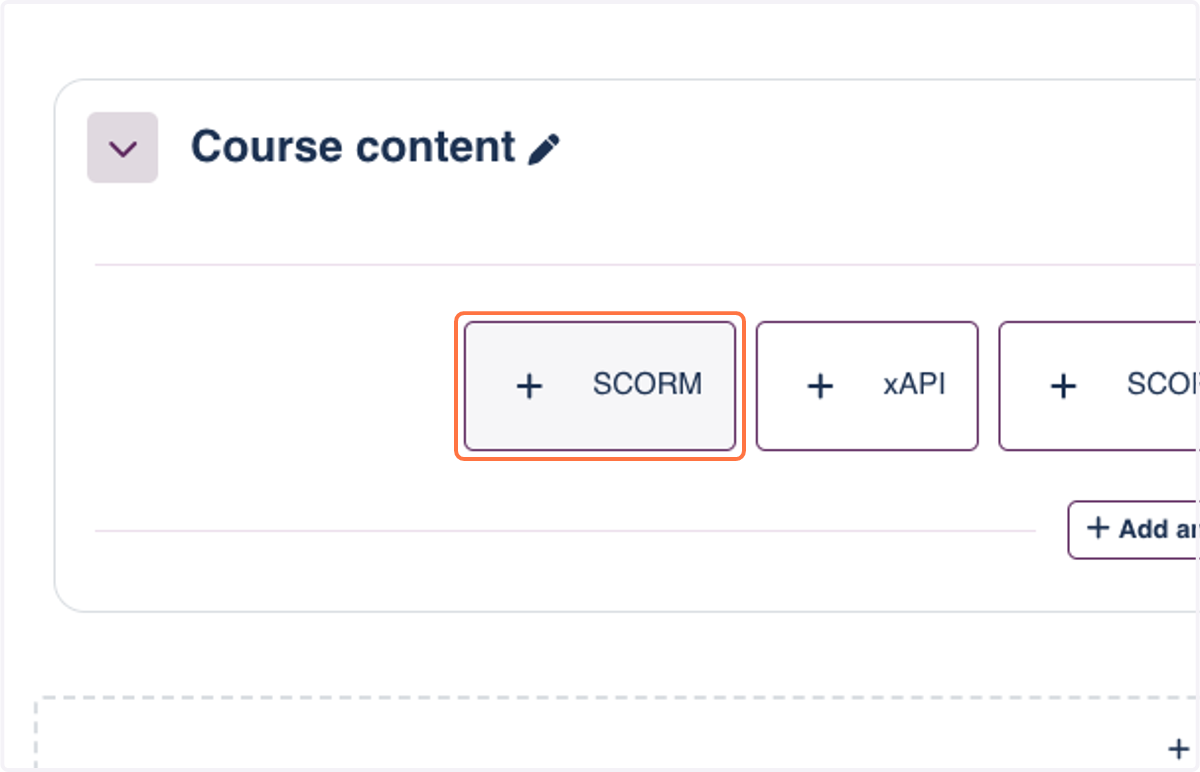
6. Click on SCORM to start adding a SCORM-package to the course
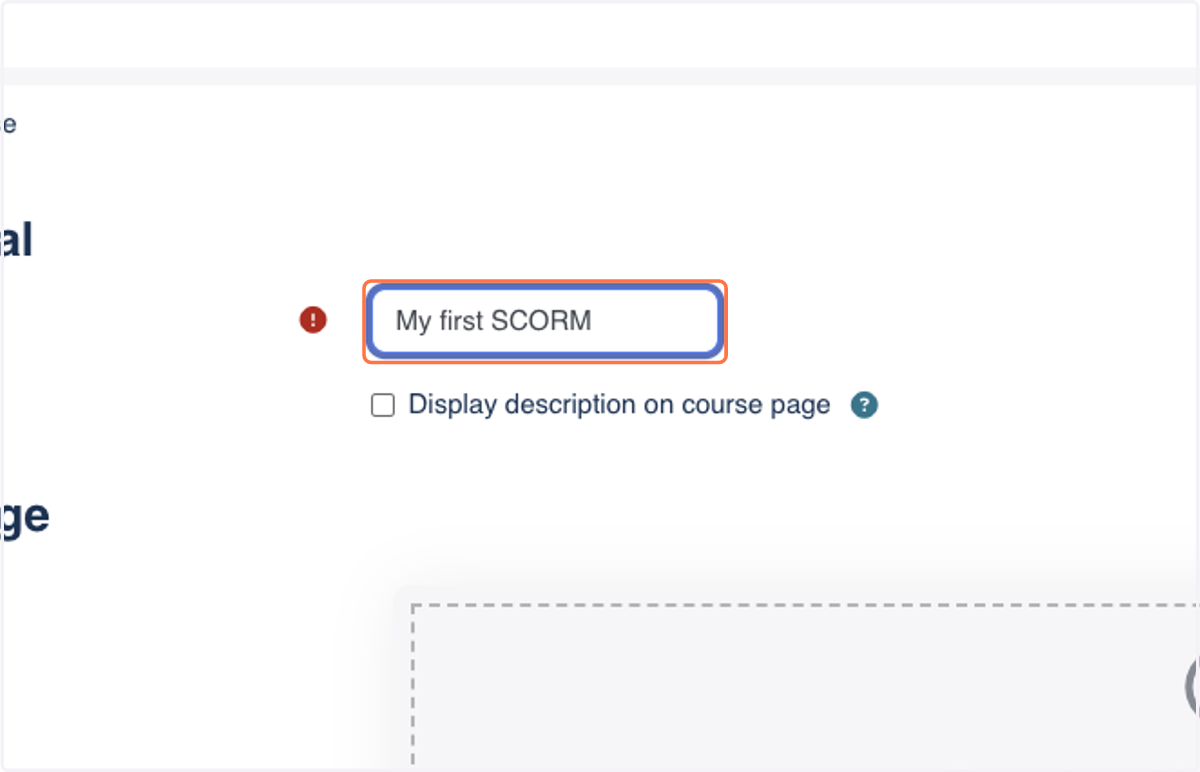
7. Name your SCORM package
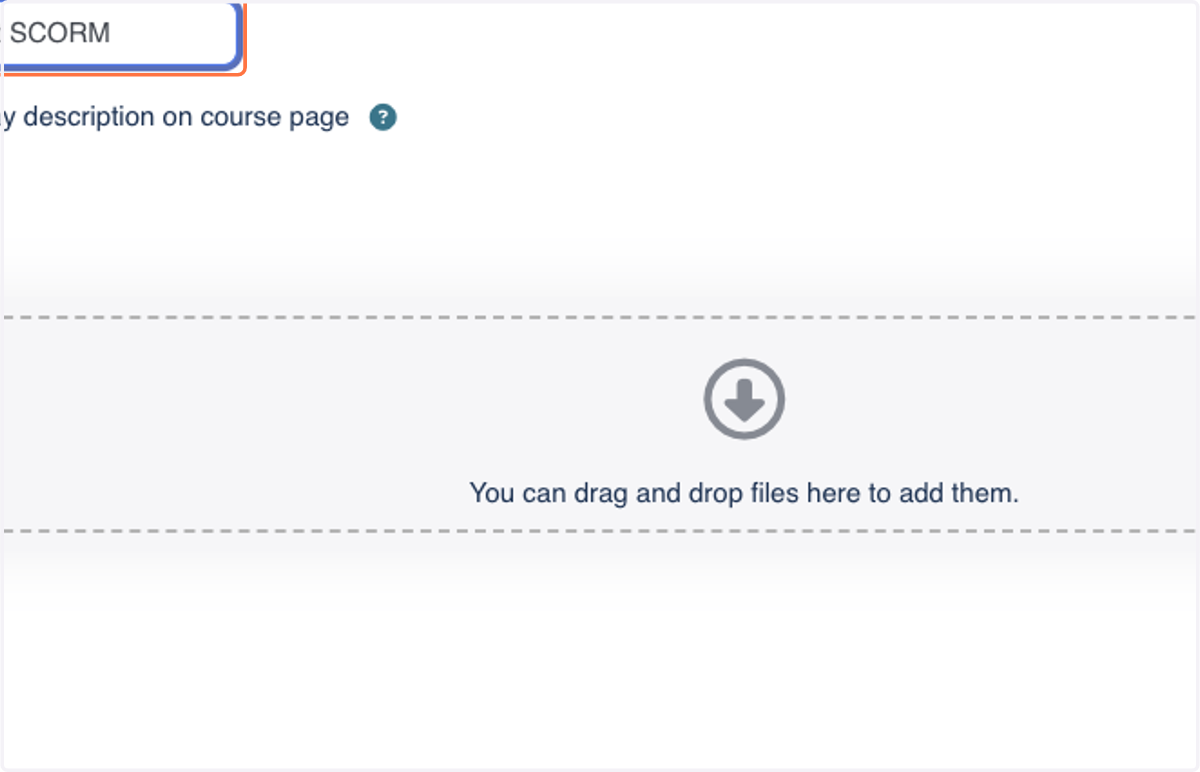
8. Drag and drop a SCORM (.zip) file to the dropzone, or select it from your file system.
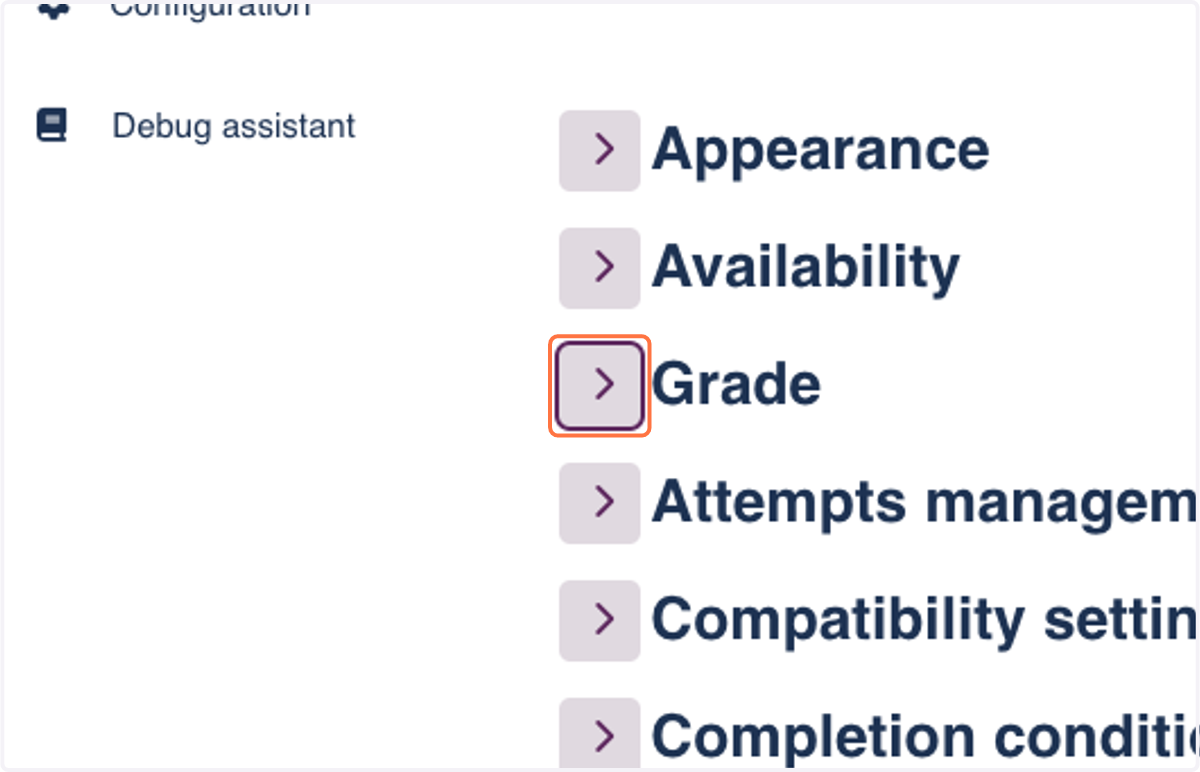
9. Click on Grade
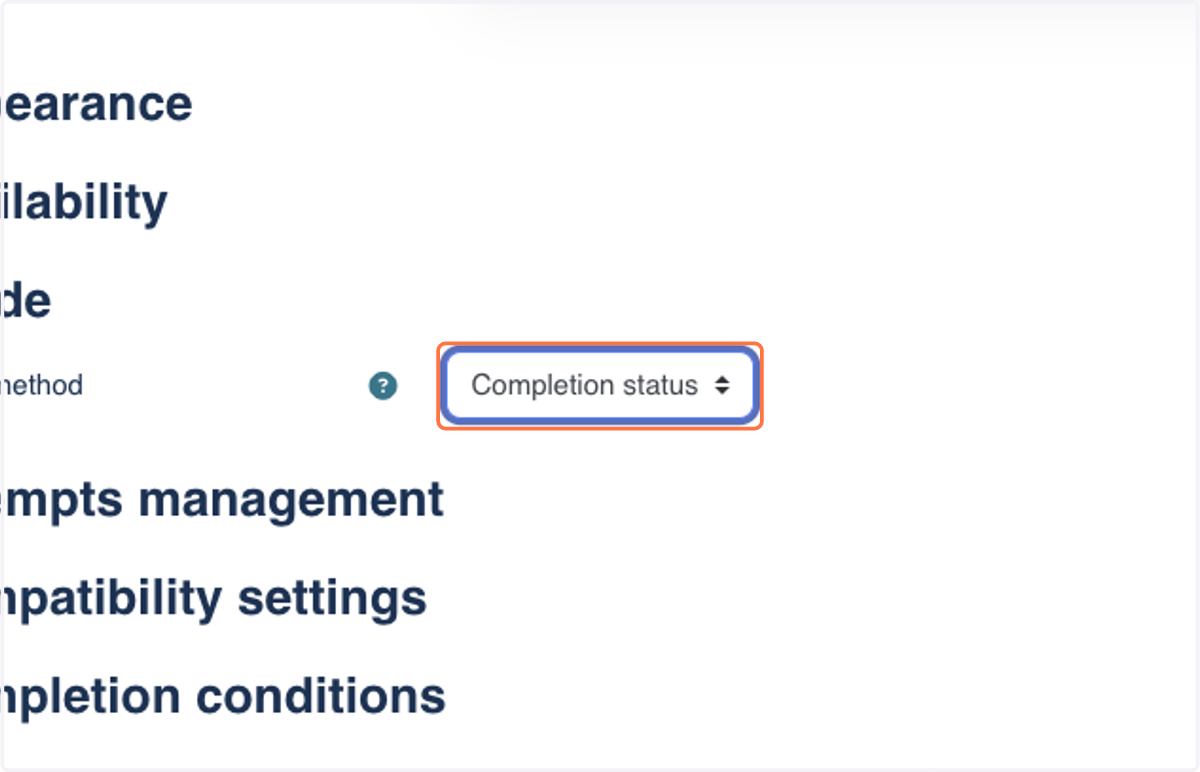
10. Select your desired grading method from the dropdown menu. A SCORM can be graded based on Completion status or grade.
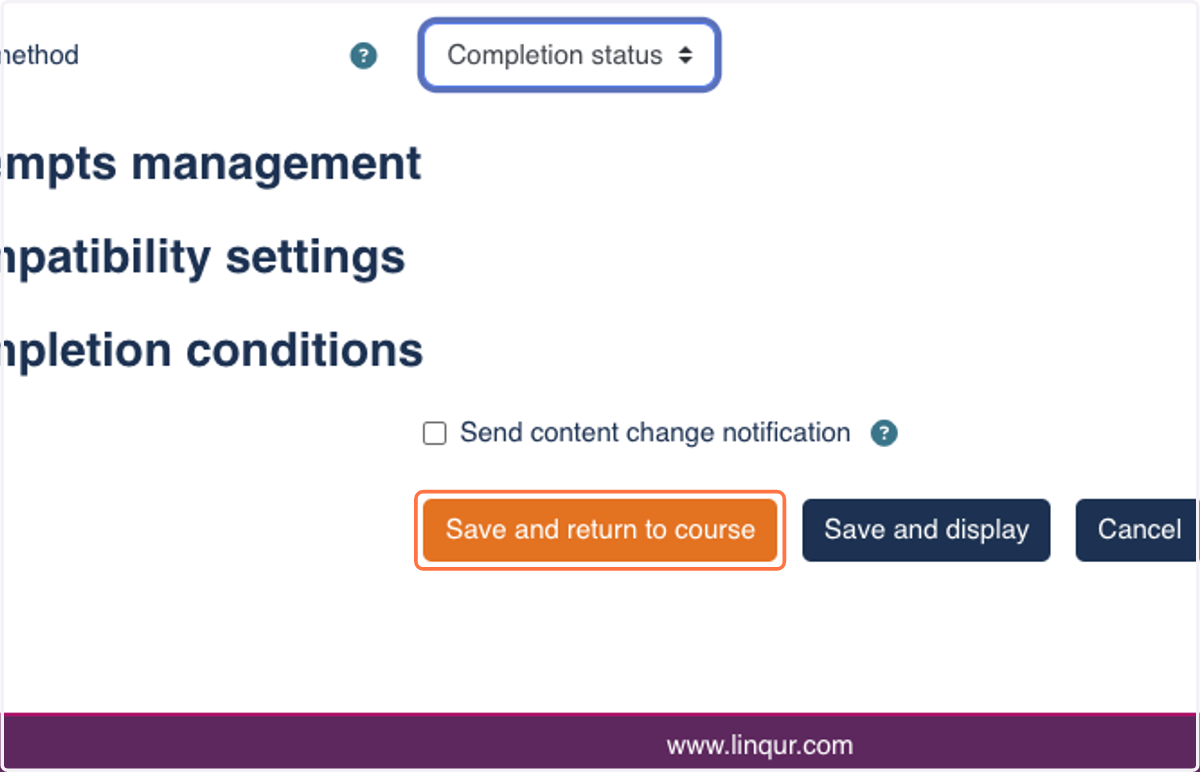
11. Click on Save and return to course
12. Click on LTI tools tab where all tools in your course can be found.
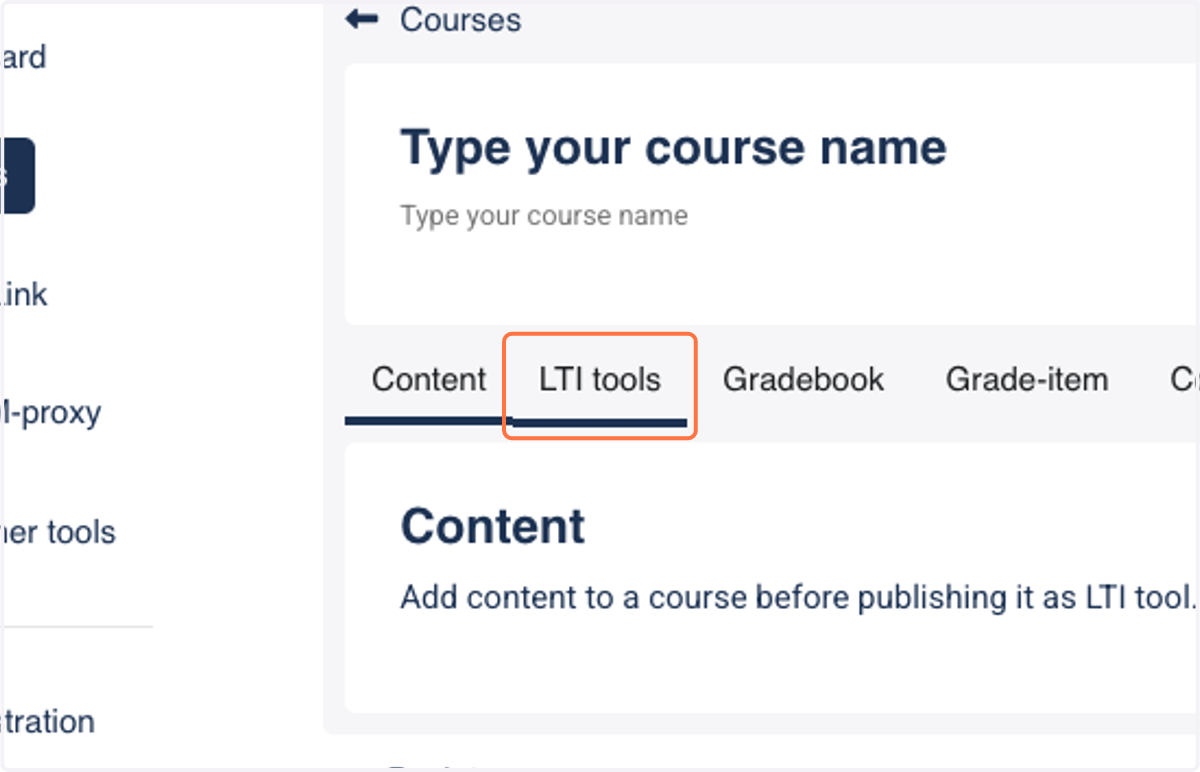
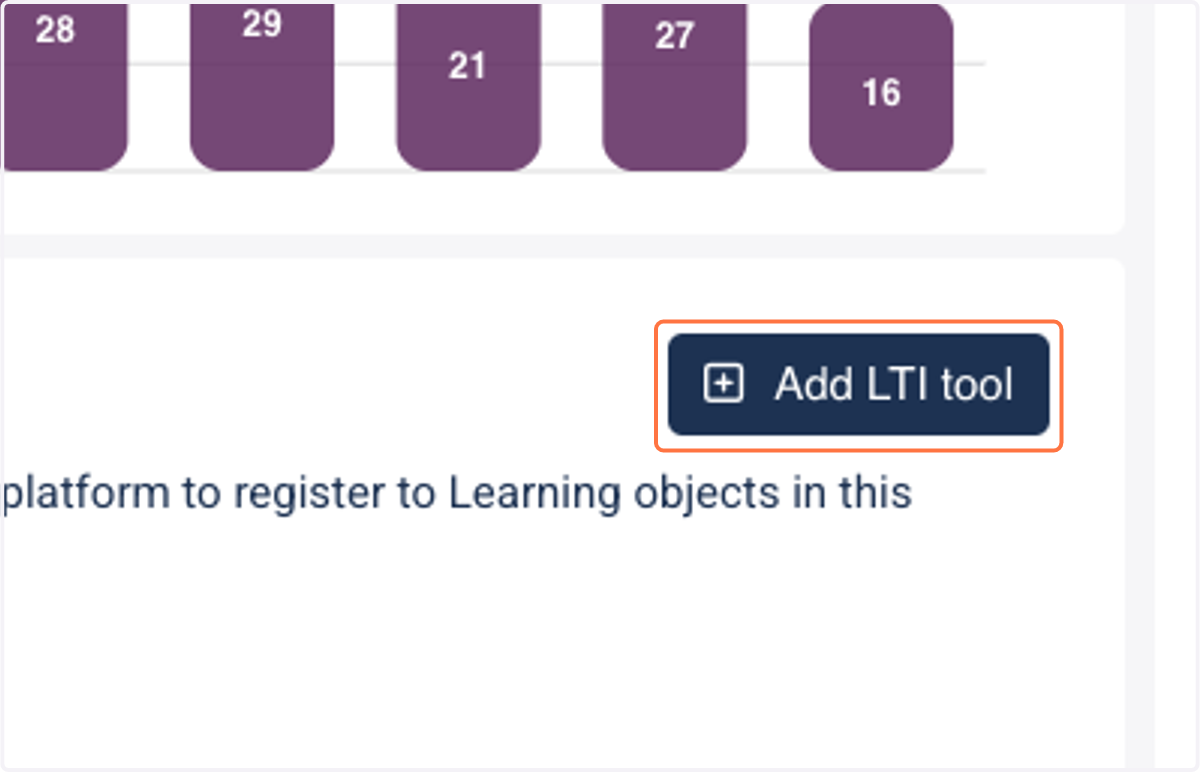
13. Click on "Add LTI tool"
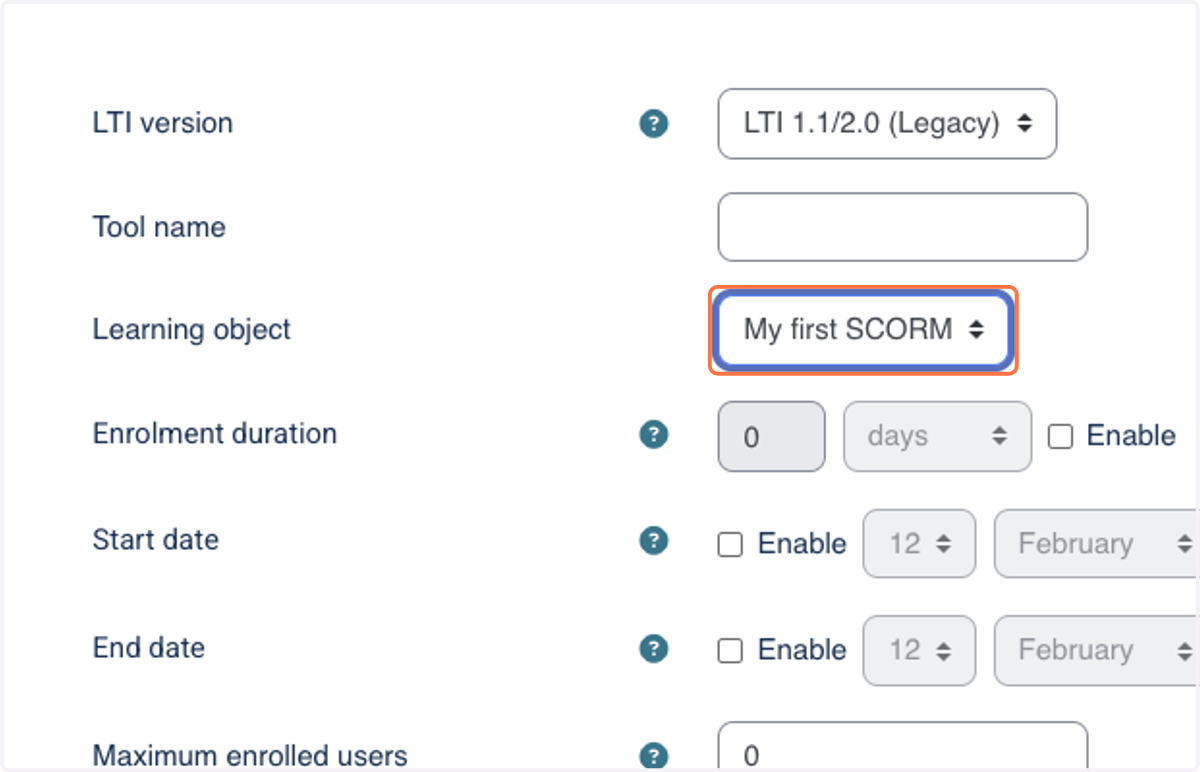
14. Select your SCORM-package from the Learning object dropdown
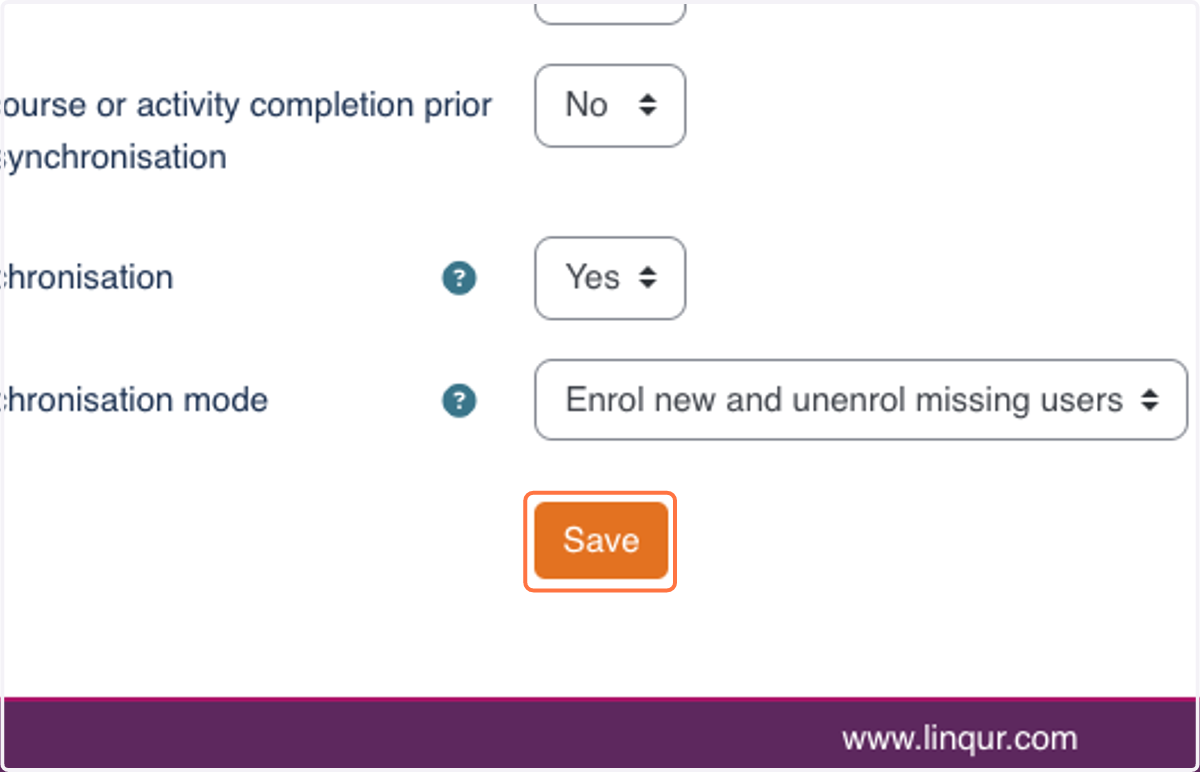
15. Click on Save
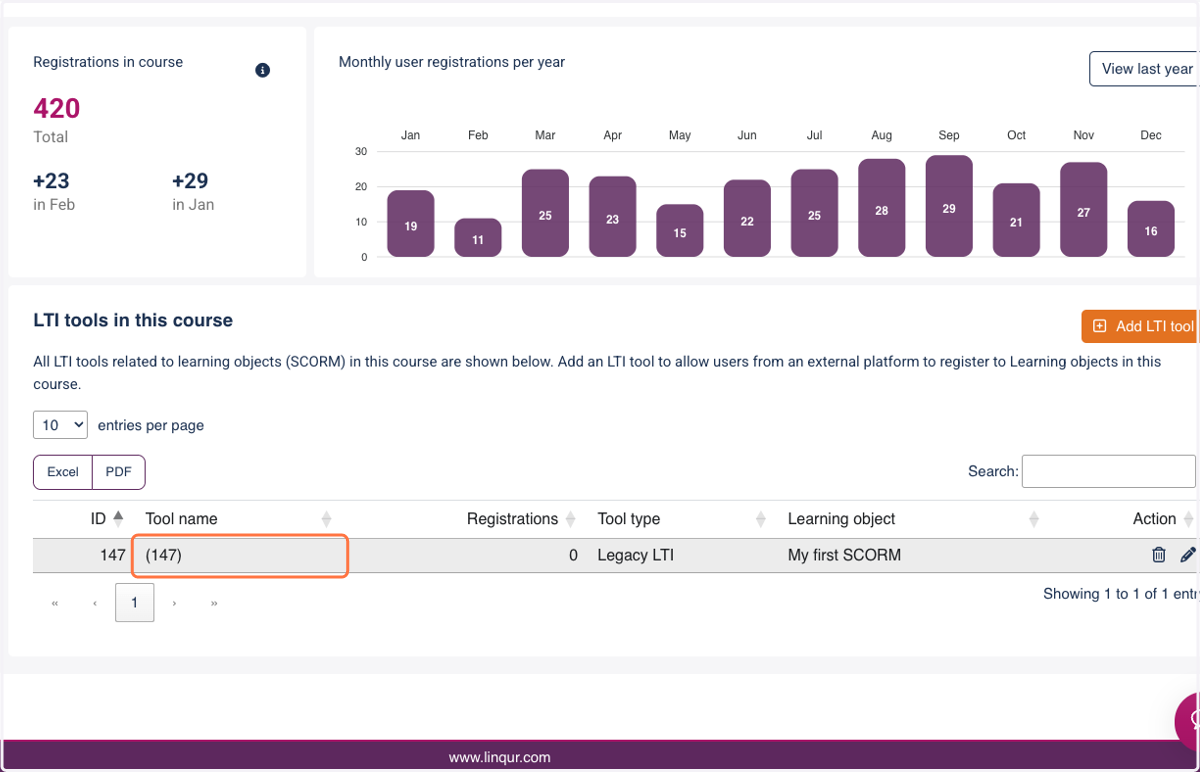
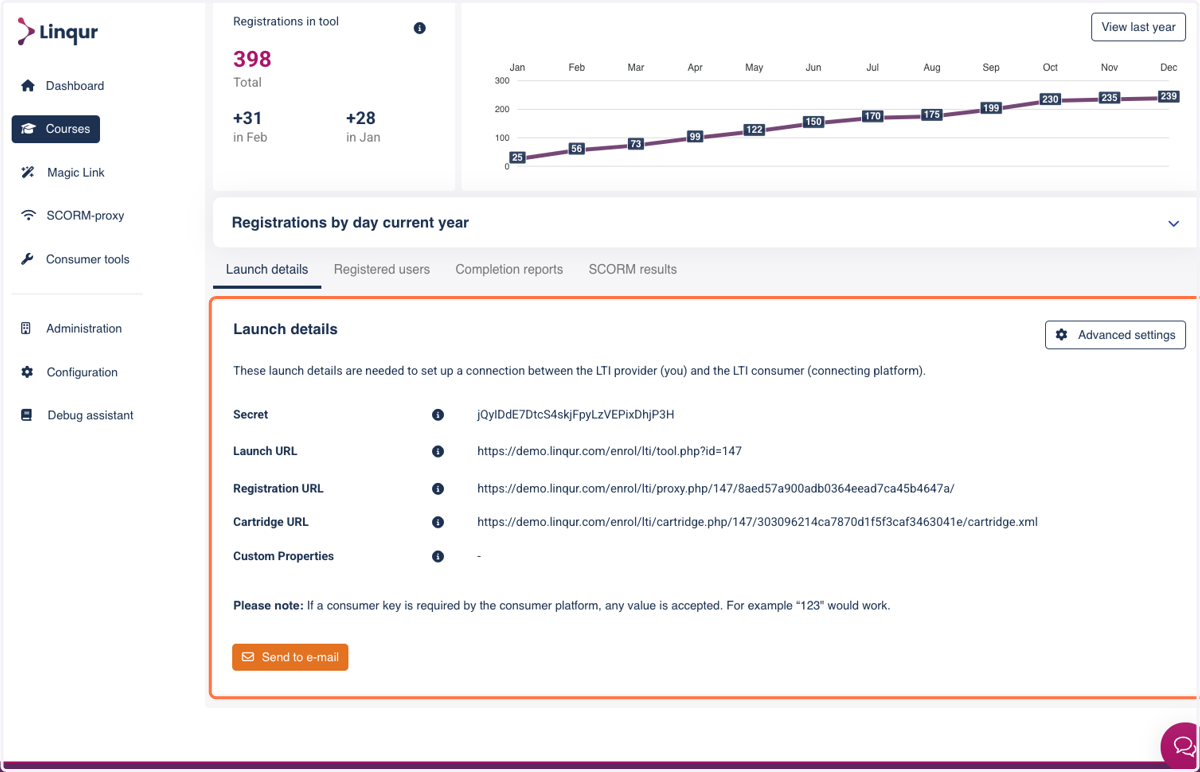
16. Your LTI tool is created! Open your tool from the table on the bottom of the screen.
17. Use the Launch details to connect your Tool Consumer platform.
18. To test your LTI tool, take a look at our step-by-step guide on using the LTI Platform emulator created by Saltire.