Setup Software Installers for DattoRMM

Cork - Integrations

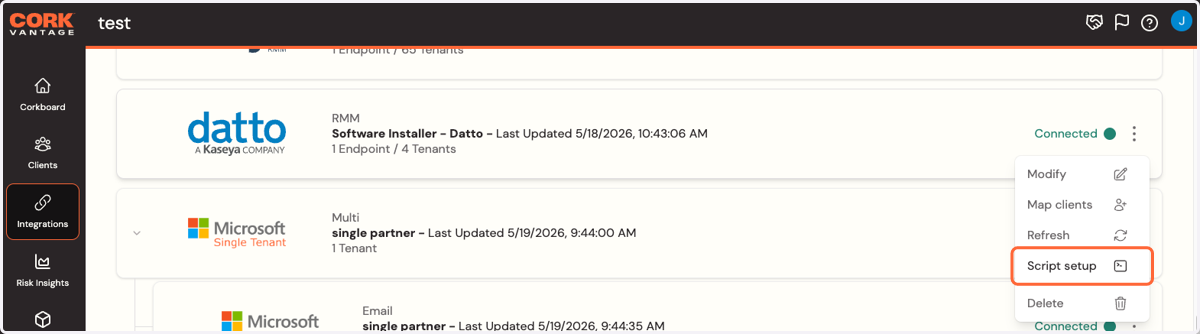
  1. 1. Click on Script setup

    Click on Script setup
  2. 2. Click on the package manager of your choice
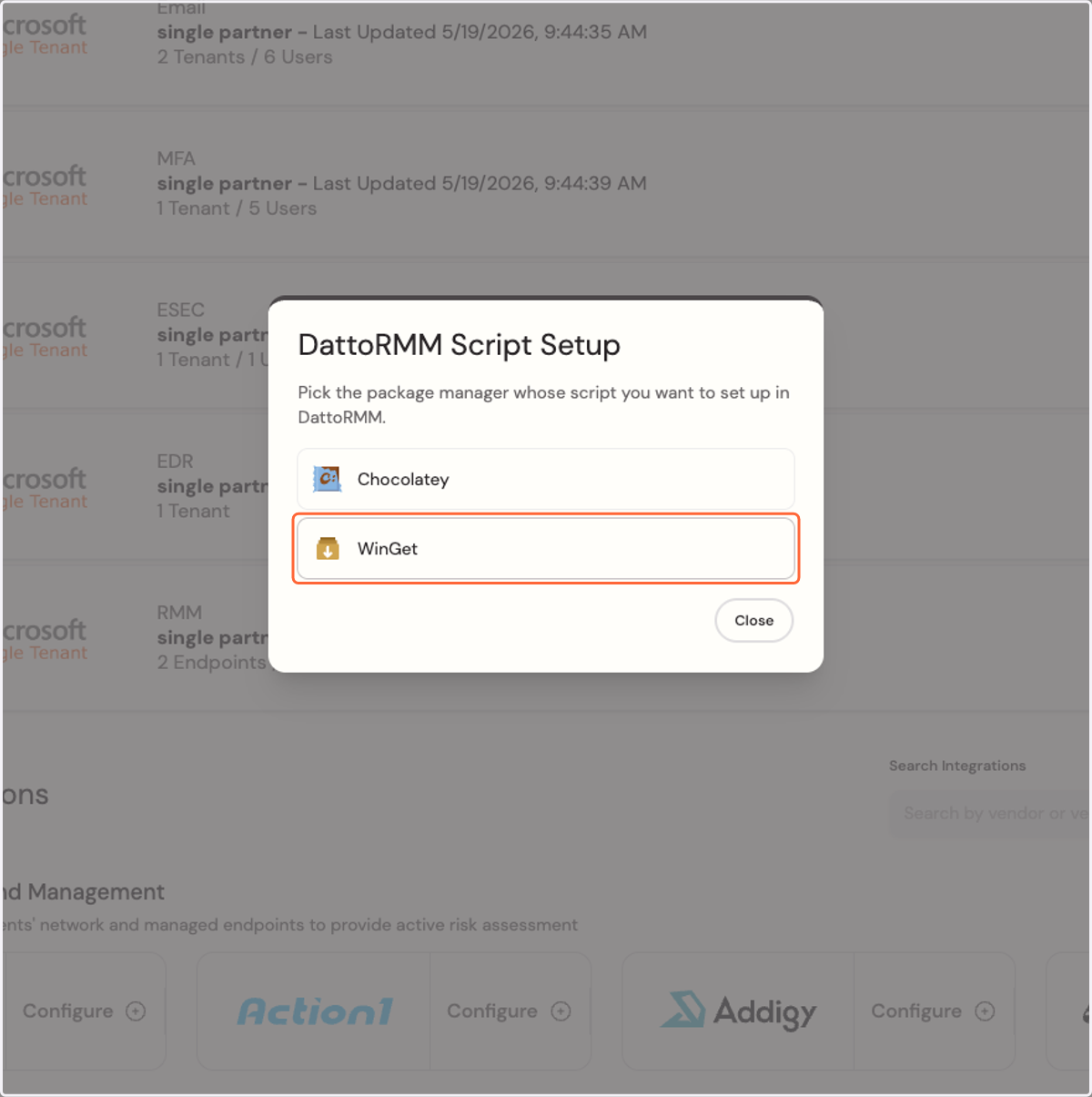
    Click on the package manager of your choice
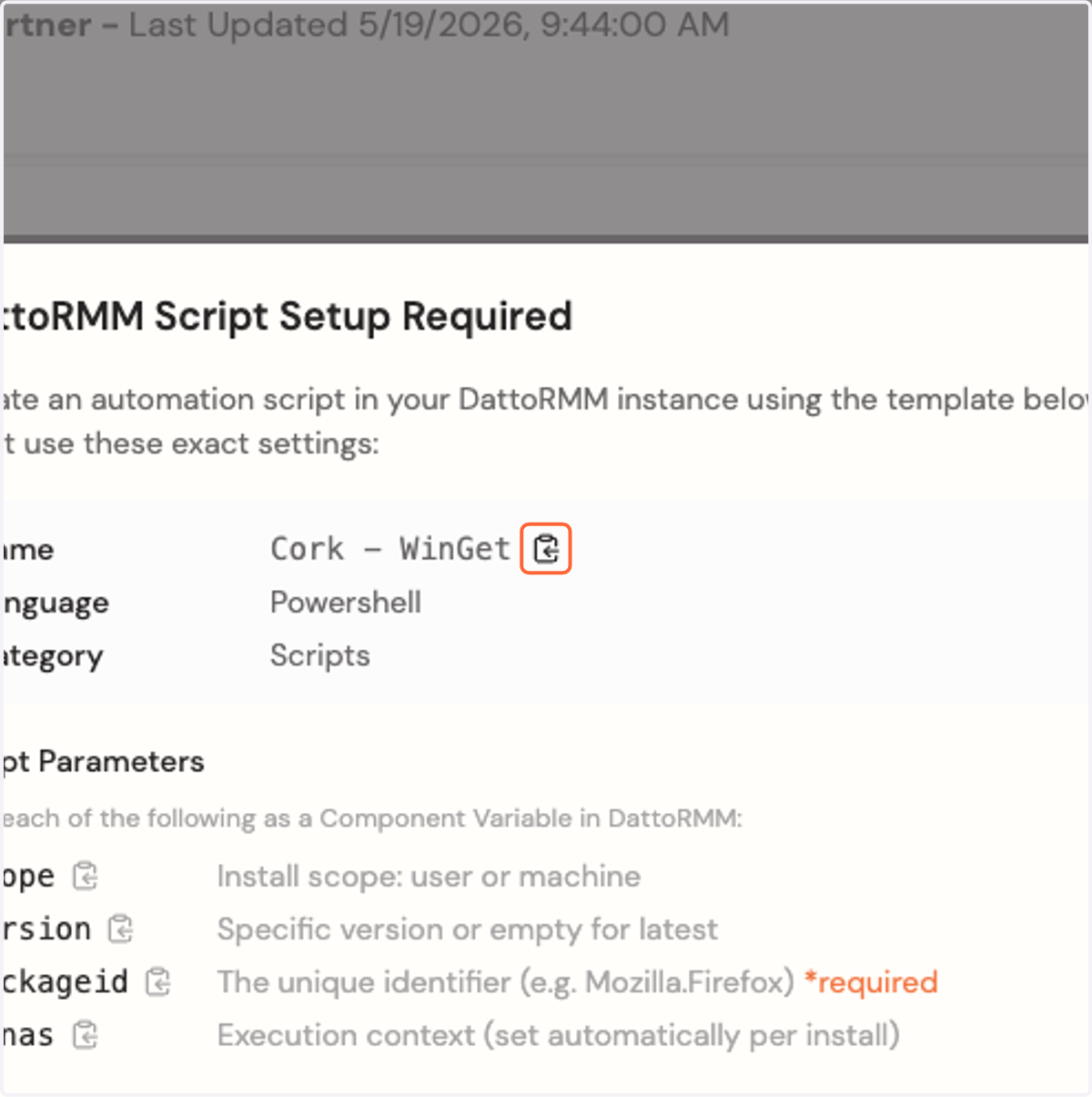
  3. 3. Click on Copy Script name

    Click on Copy Script name

Datto RMM Portal

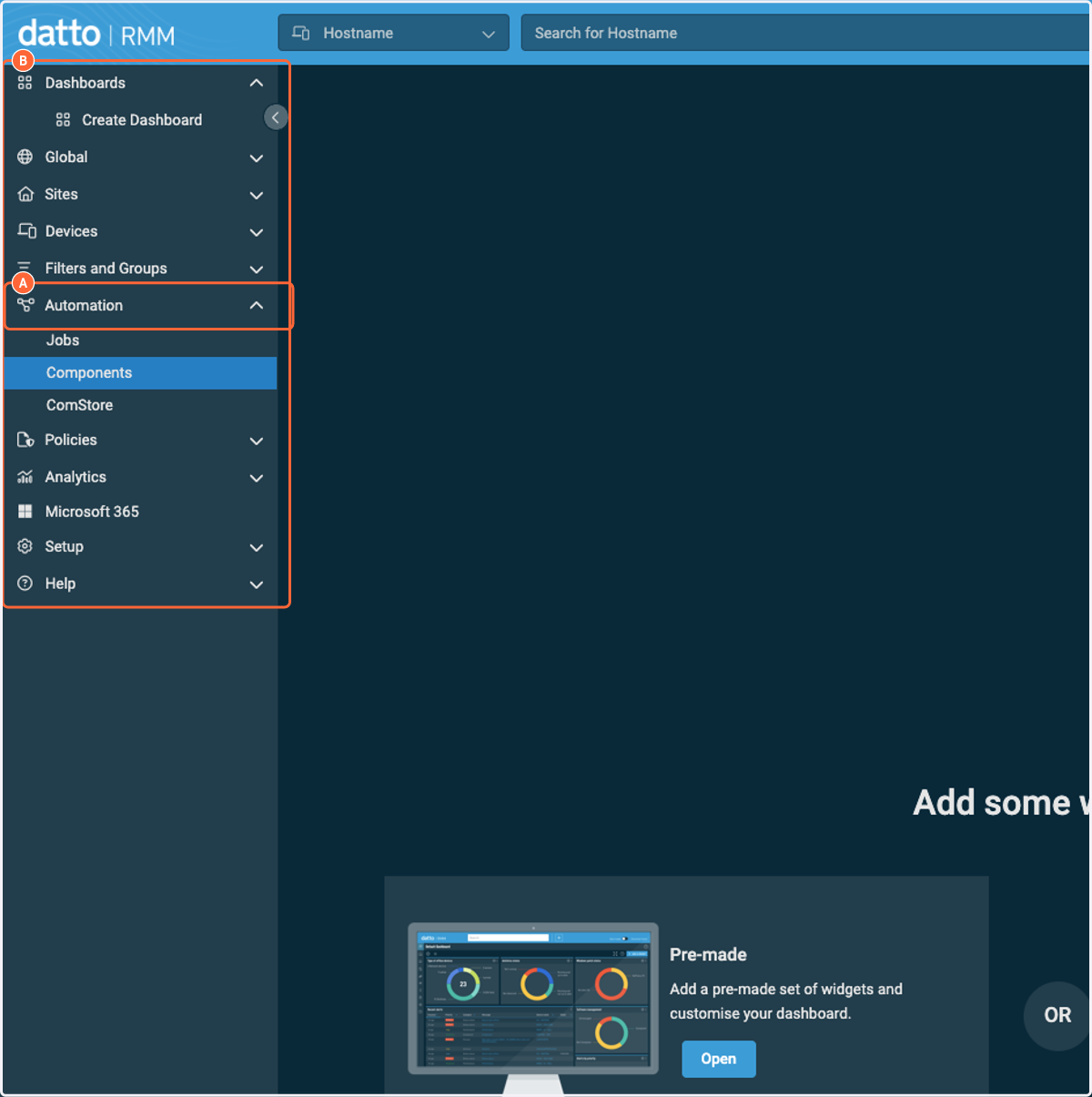
    1. 4. A. Click on Automation

    2. 4. B. Click on a

    A. Click on Automation B. Click on a
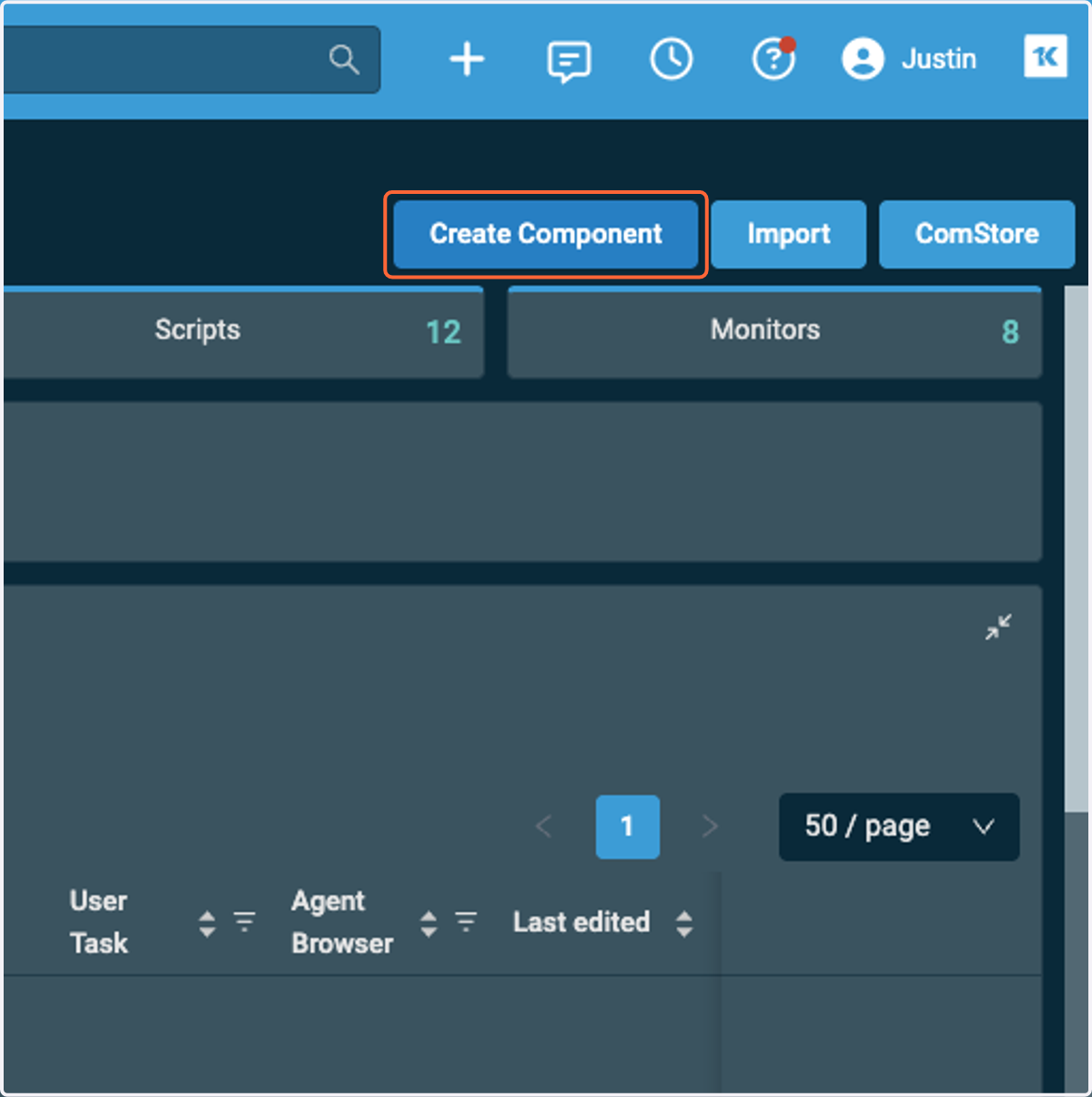
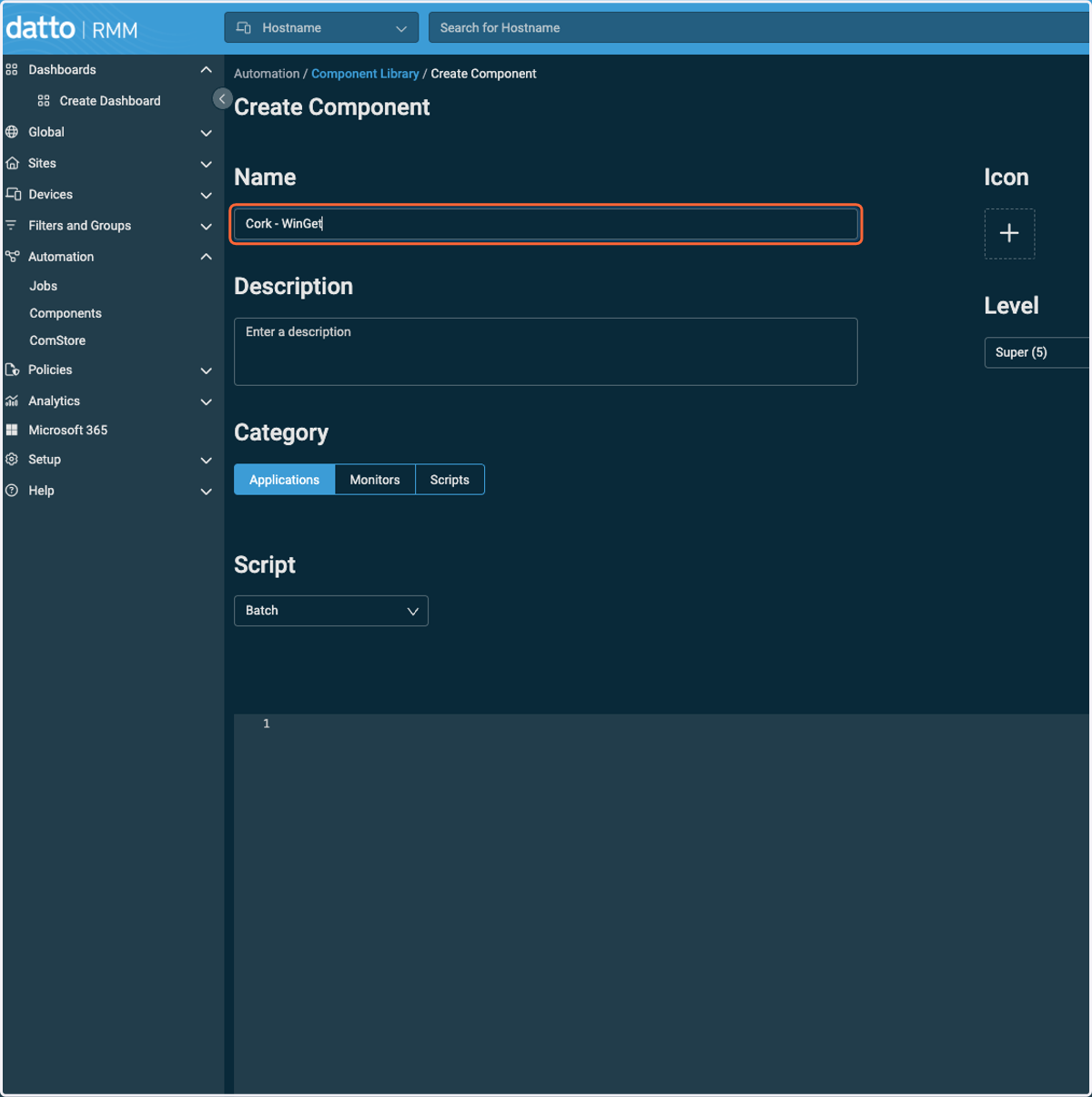
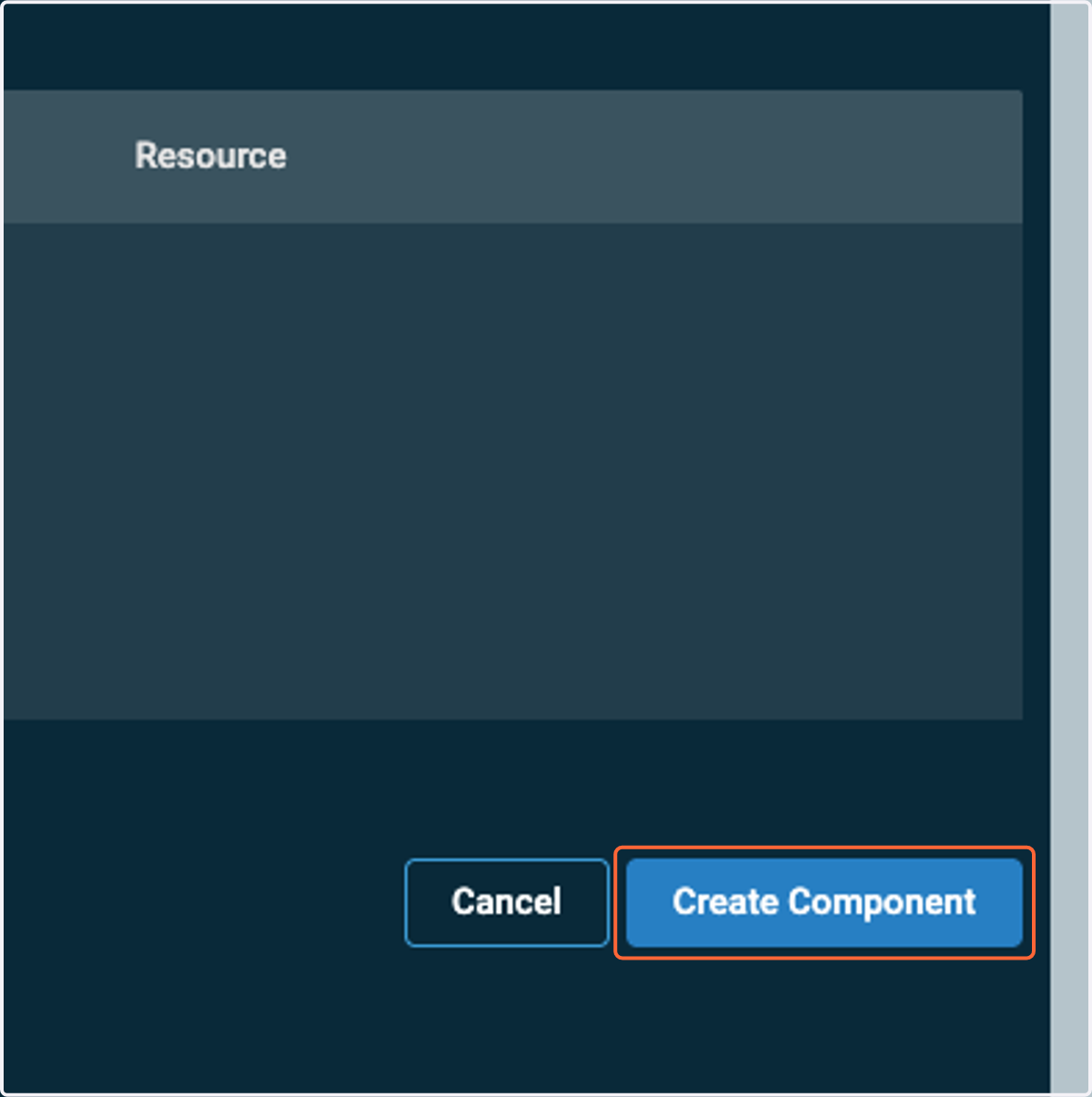
  1. 5. Click on Create Component

    Click on Create Component
  2. 6. Paste text into input

    Paste text into input
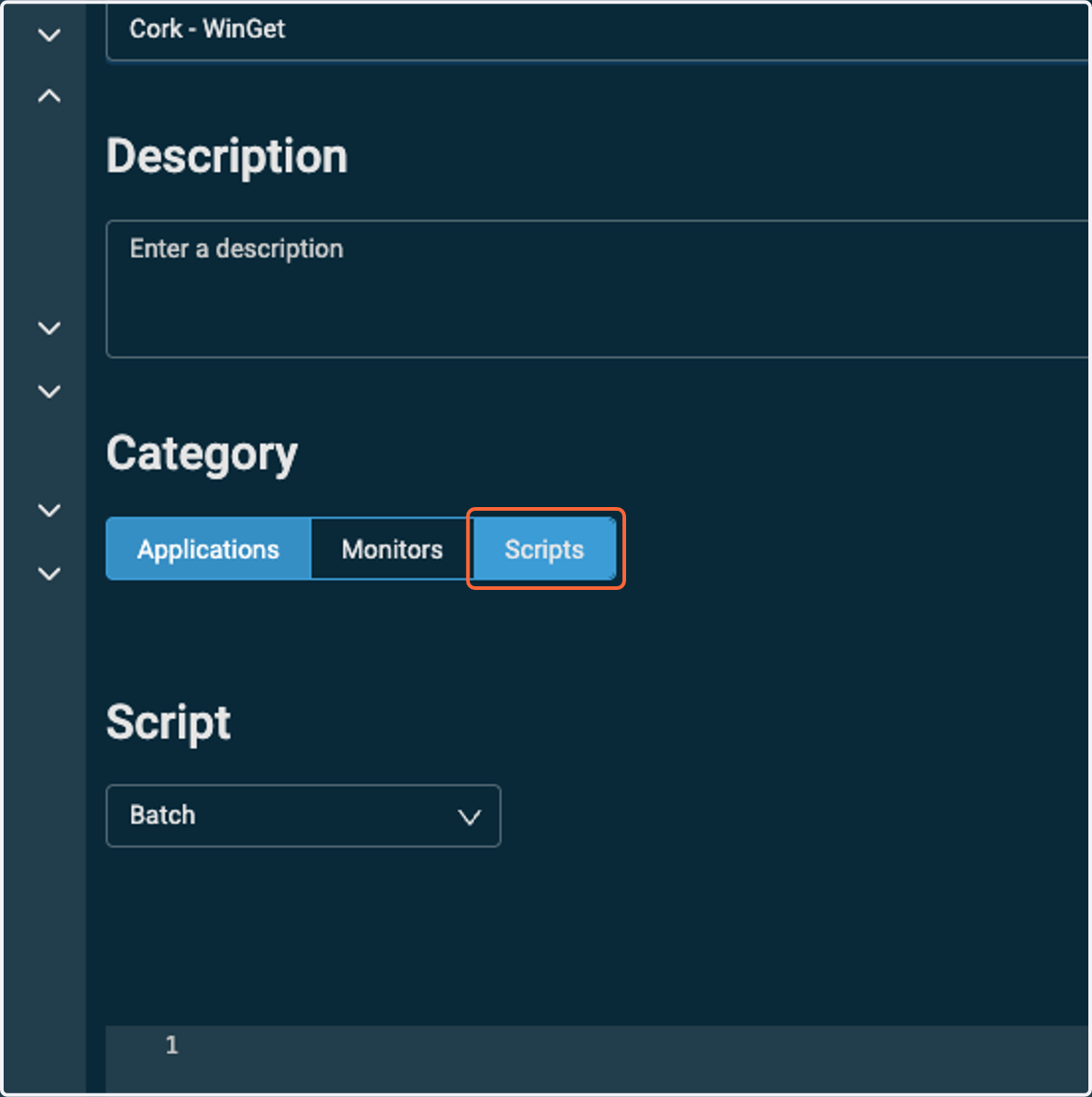
  3. 7. Select Scripts

    Select Scripts
    1. 8. A. Click on the Script dropdown

    2. 8. B. Click on PowerShell (or other specified language)
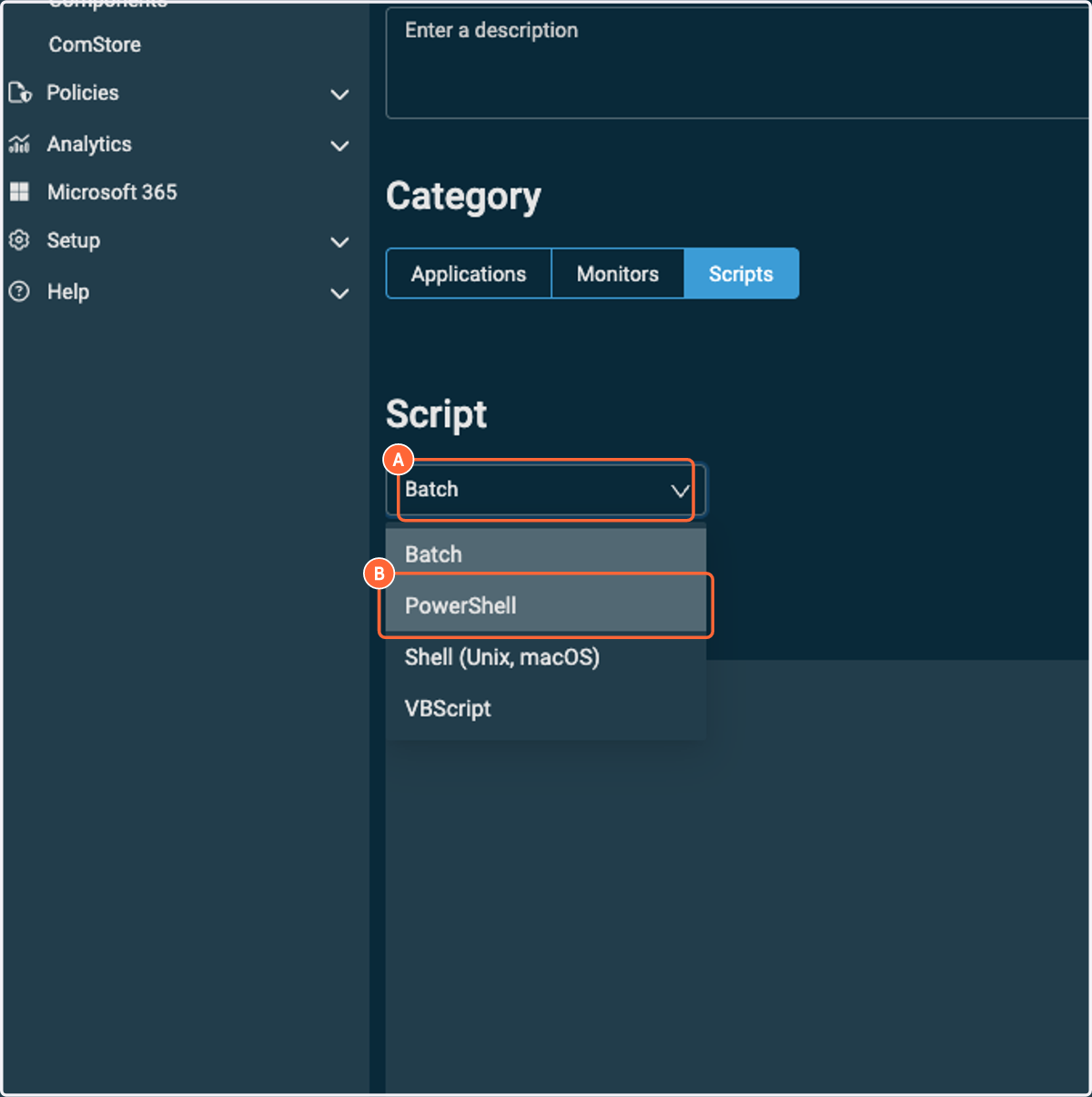
    A. Click on the Script dropdown B. Click on PowerShell (or other specified language)

Cork - Integrations

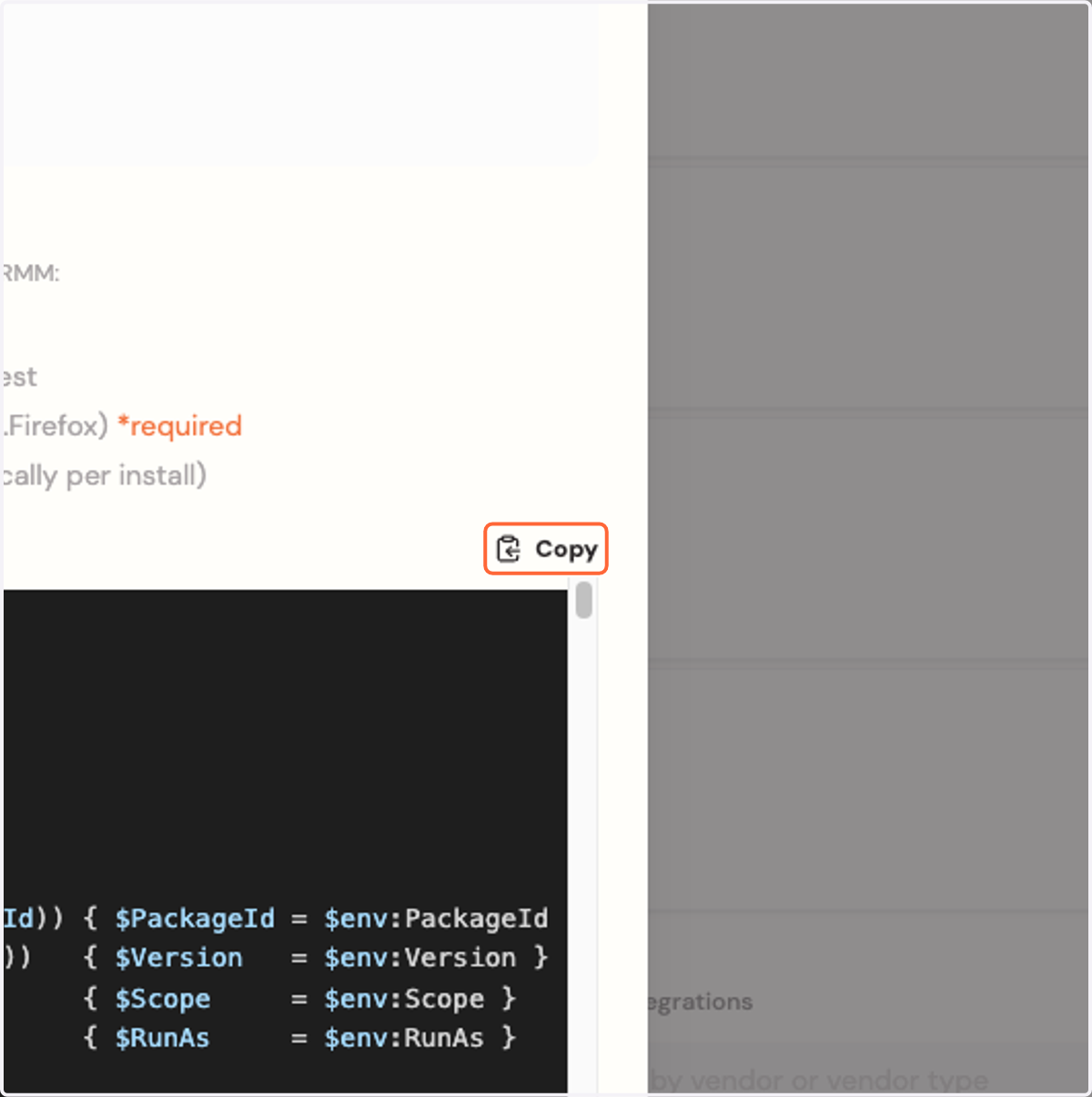
  1. 9. Copy the script content

    Copy the script content

Datto RMM Portal

  1. 10. Click on the script section and paste
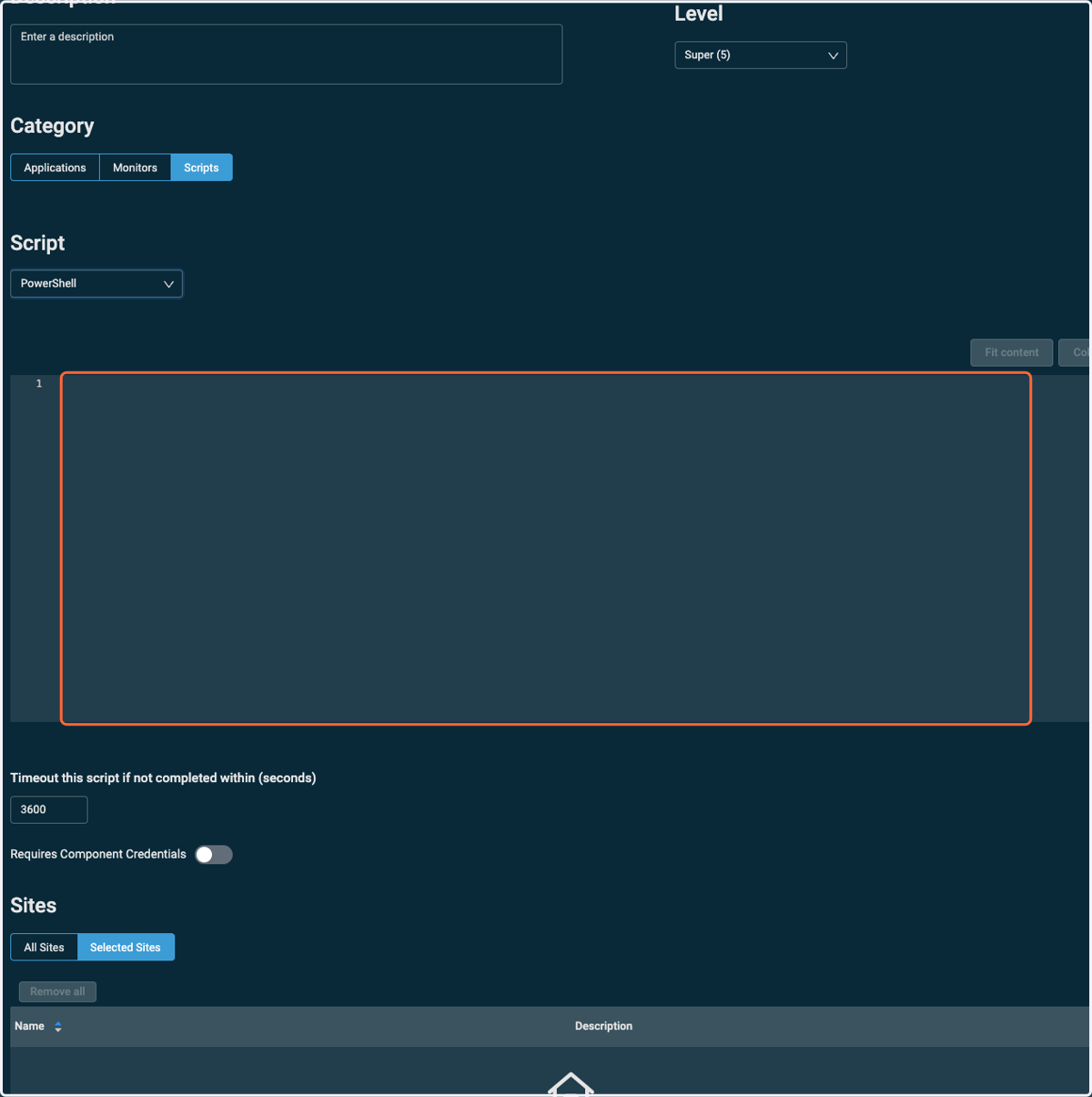
    Click on the script section and paste
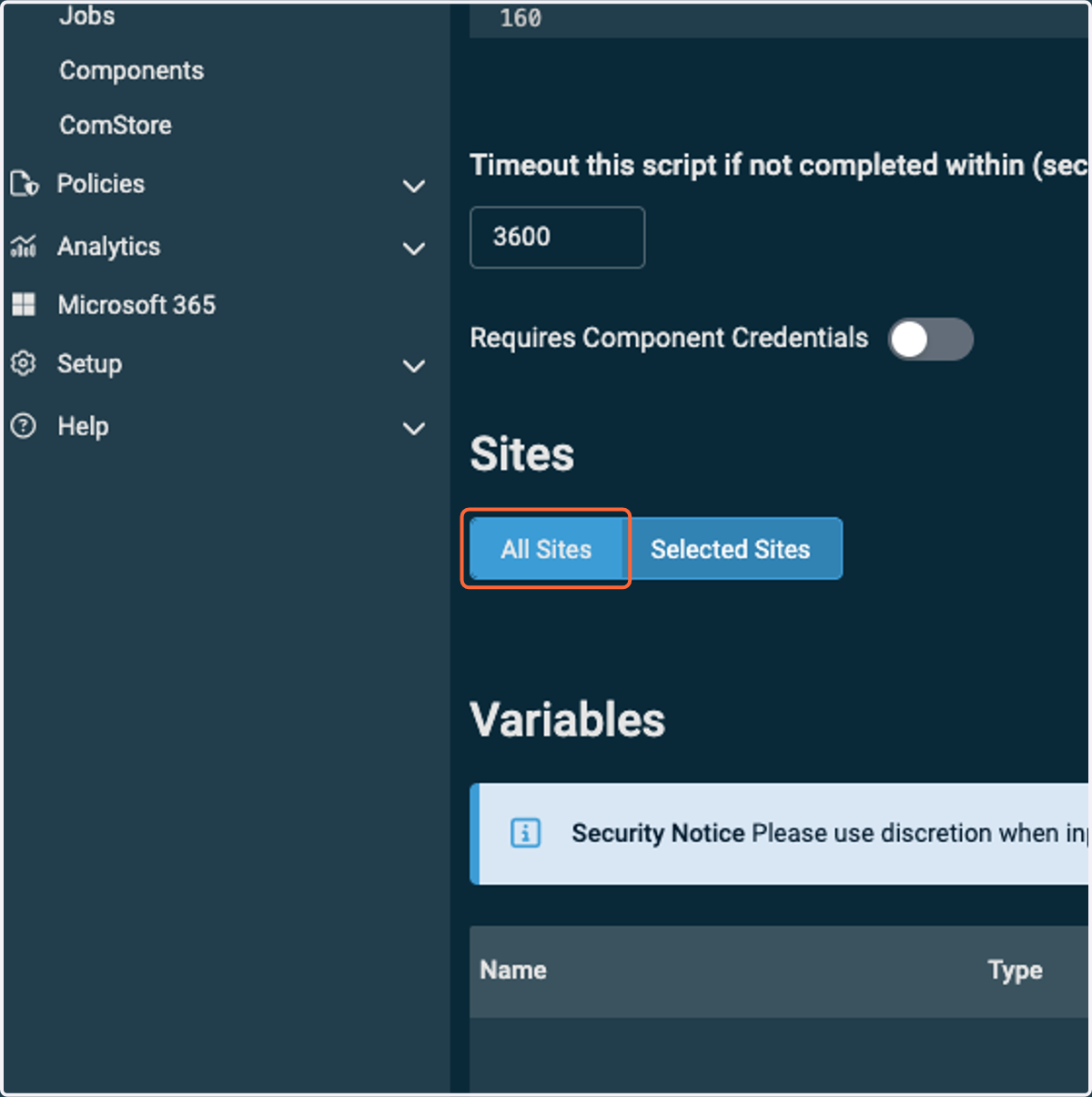
  2. 11. Select All Sites

    Select All Sites
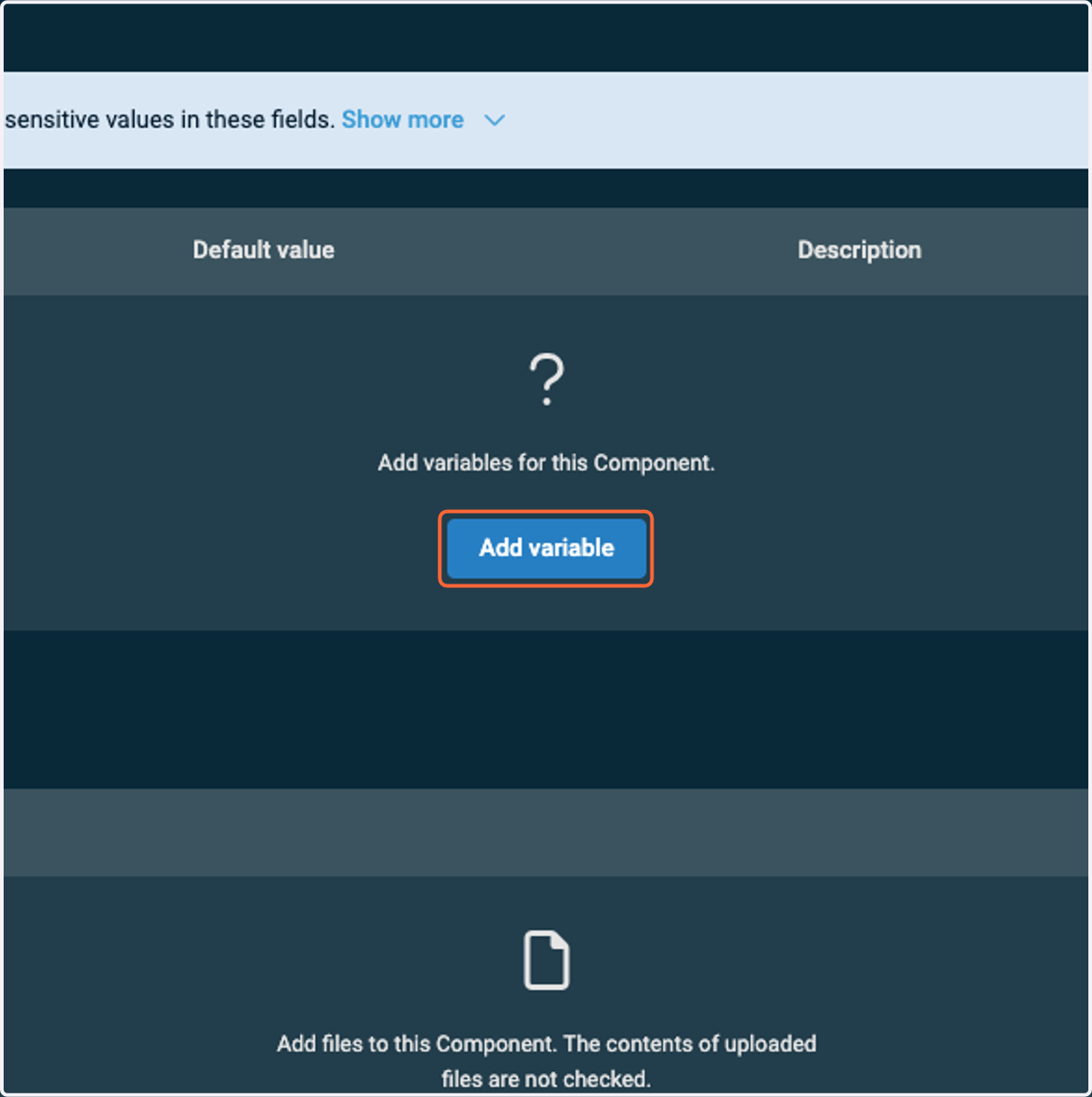
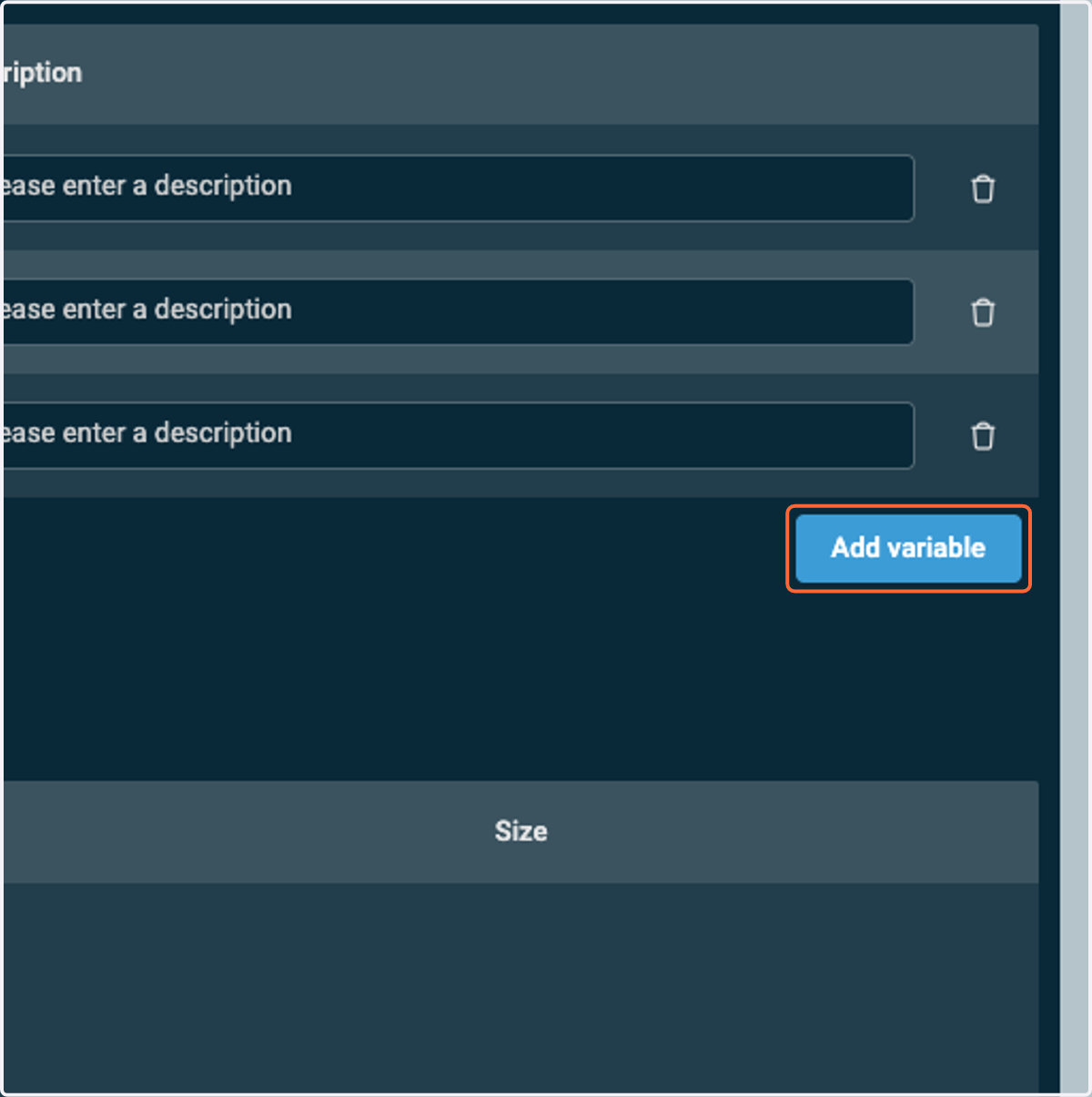
  3. 12. Click on Add variable

    Click on Add variable

Cork - Integrations

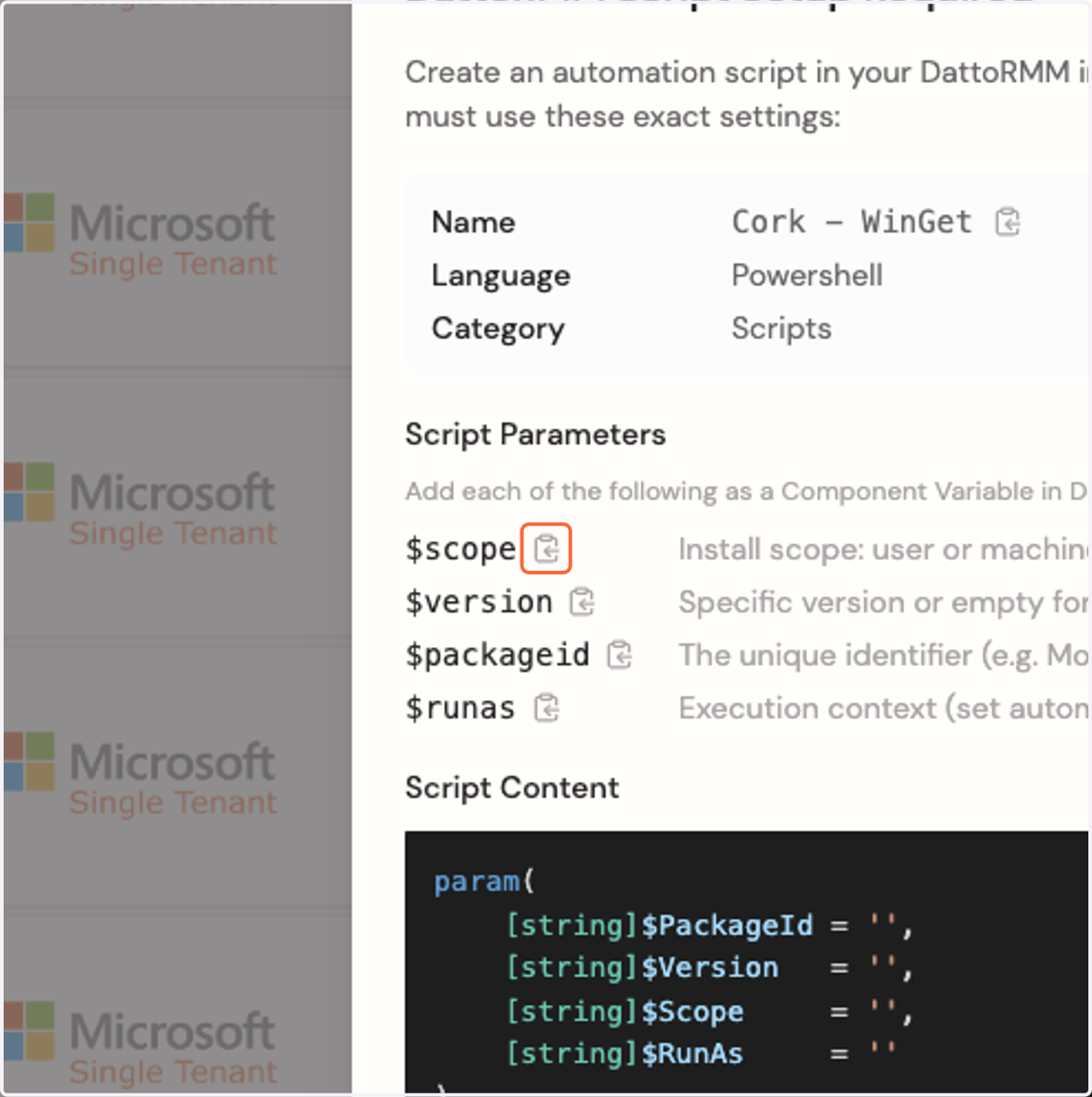
  1. 13. Click on Copy Variable

    Click on Copy Variable

Datto RMM Portal

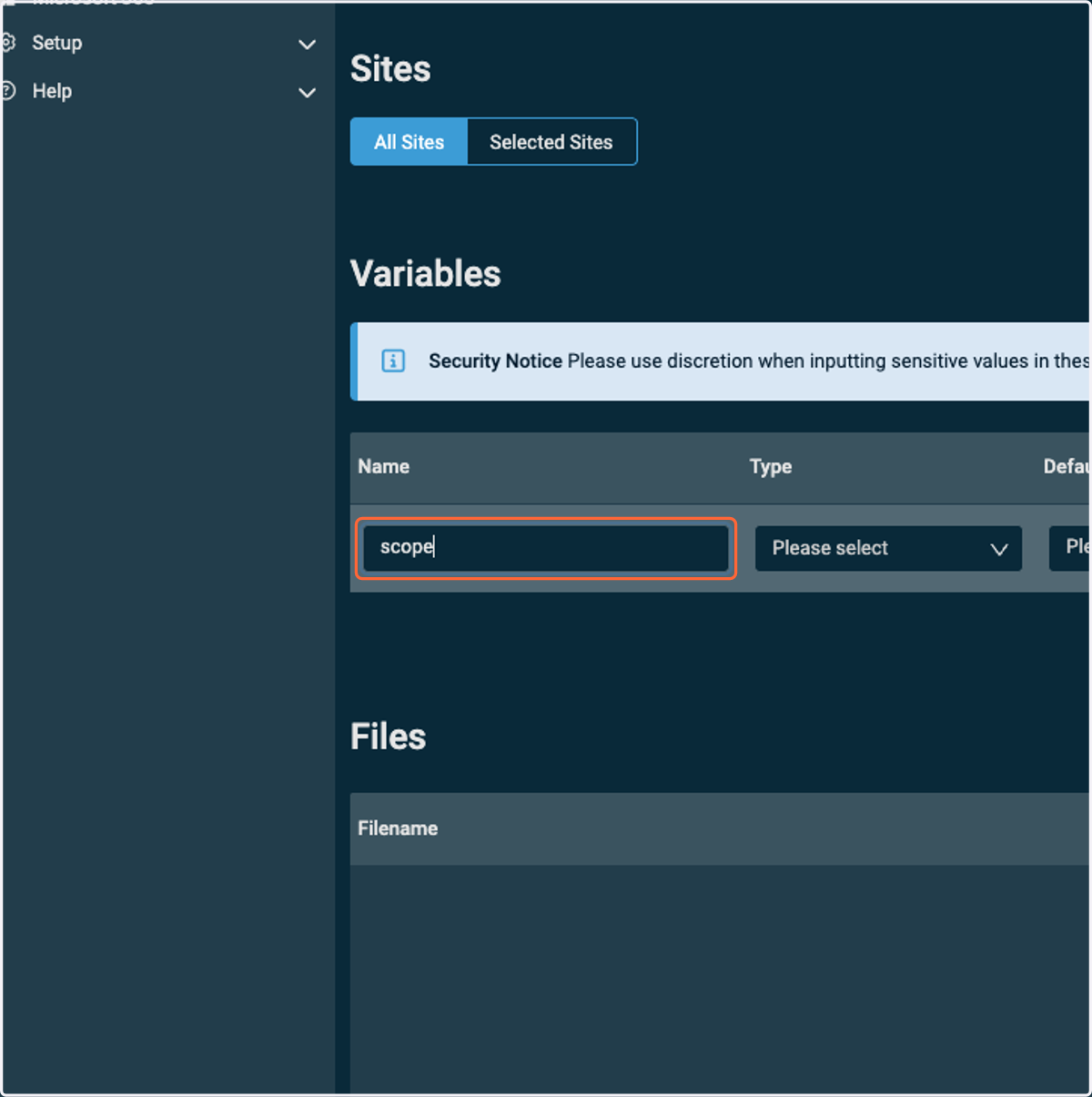
  1. 14. Paste scope into text area

    Paste scope into text area
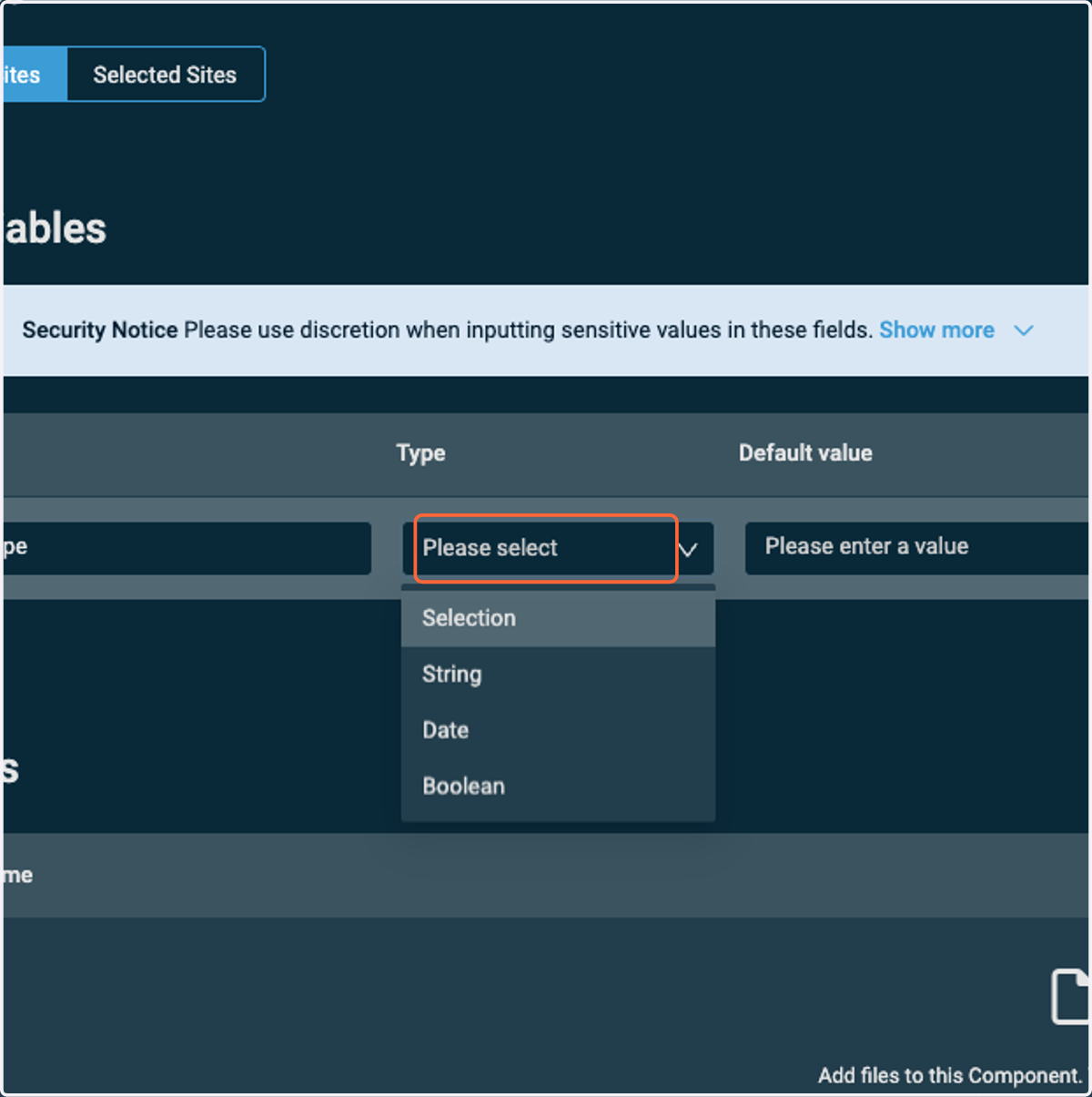
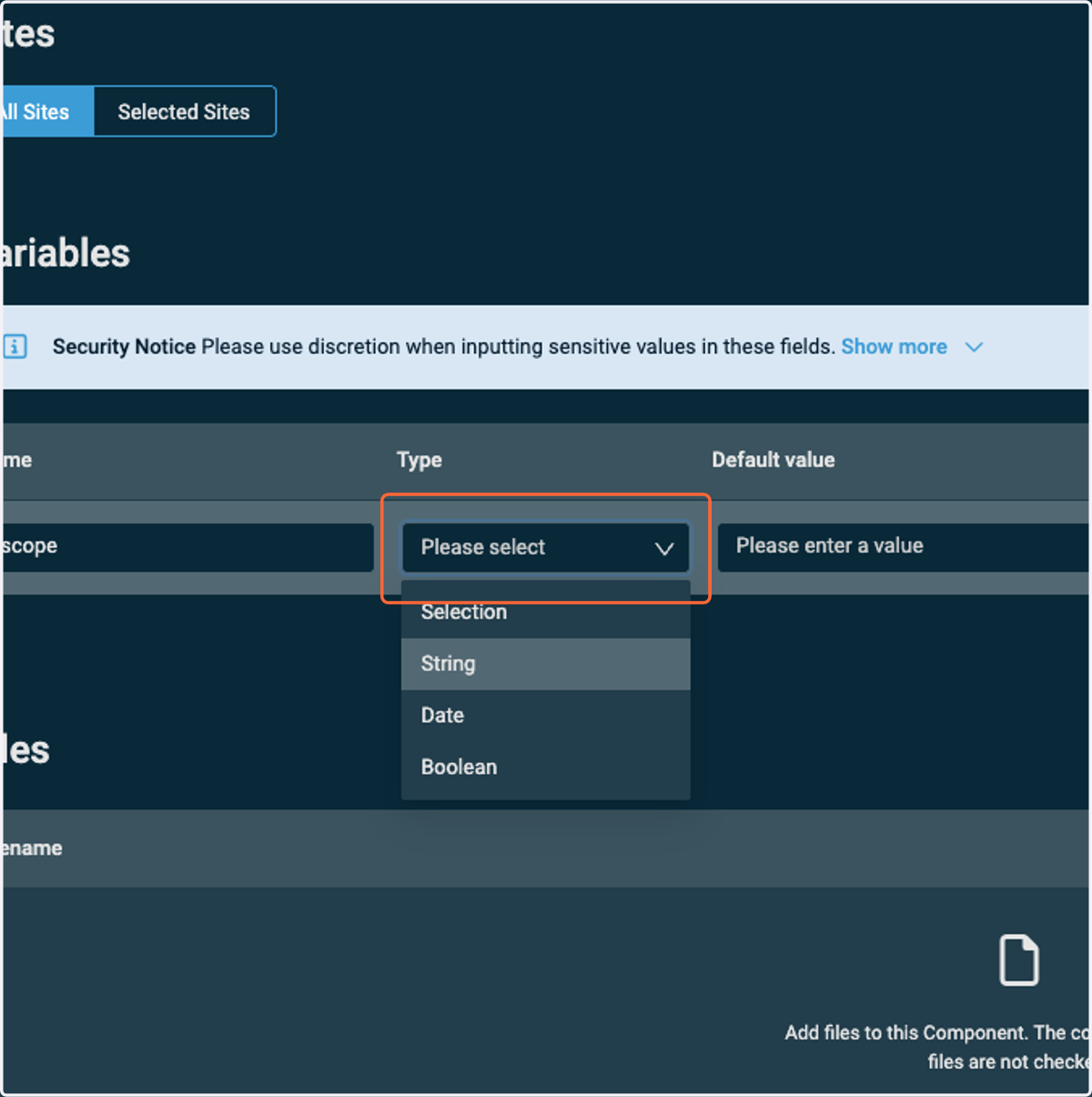
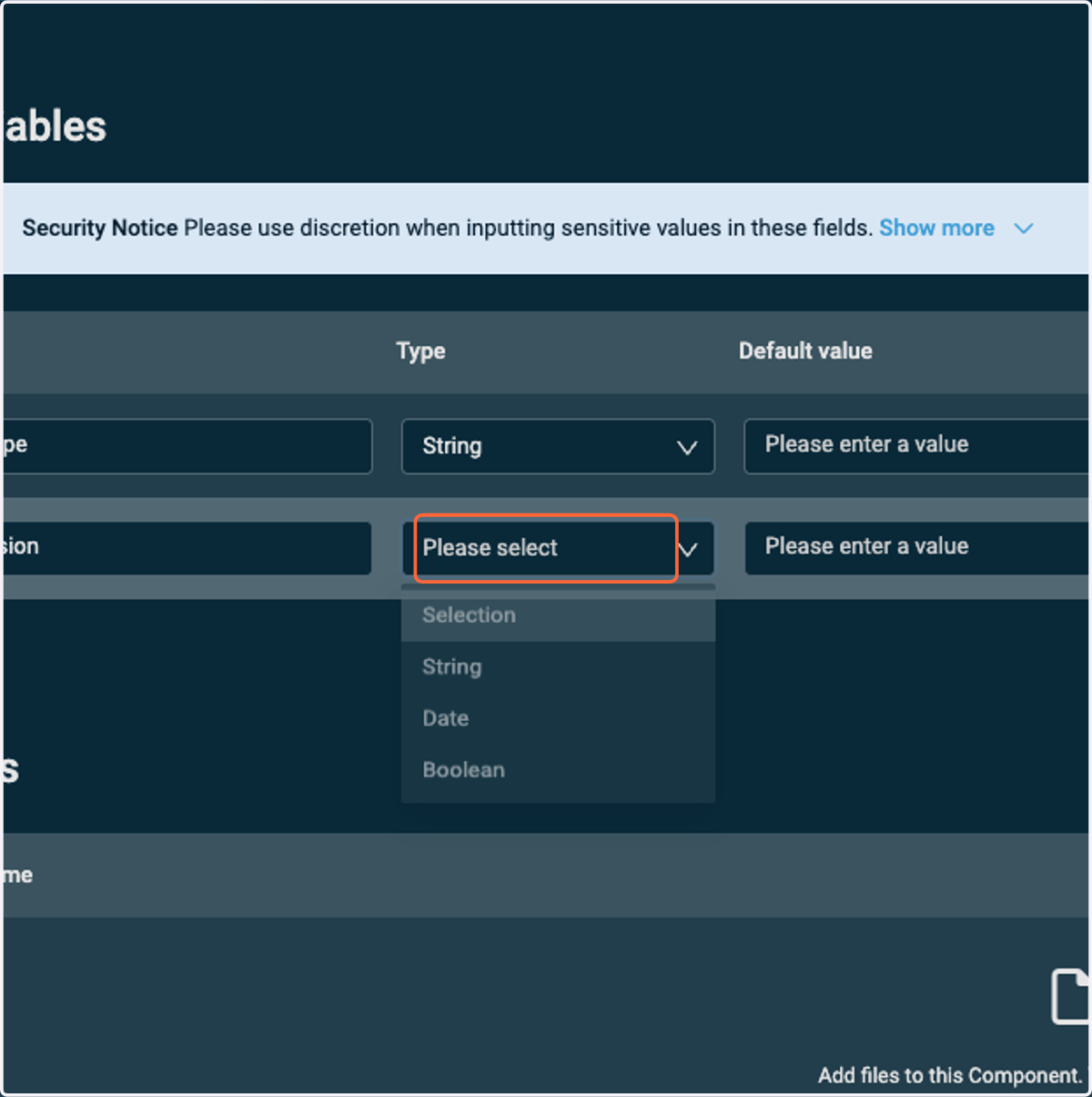
  2. 15. Click on dropdown trigger

    Click on dropdown trigger
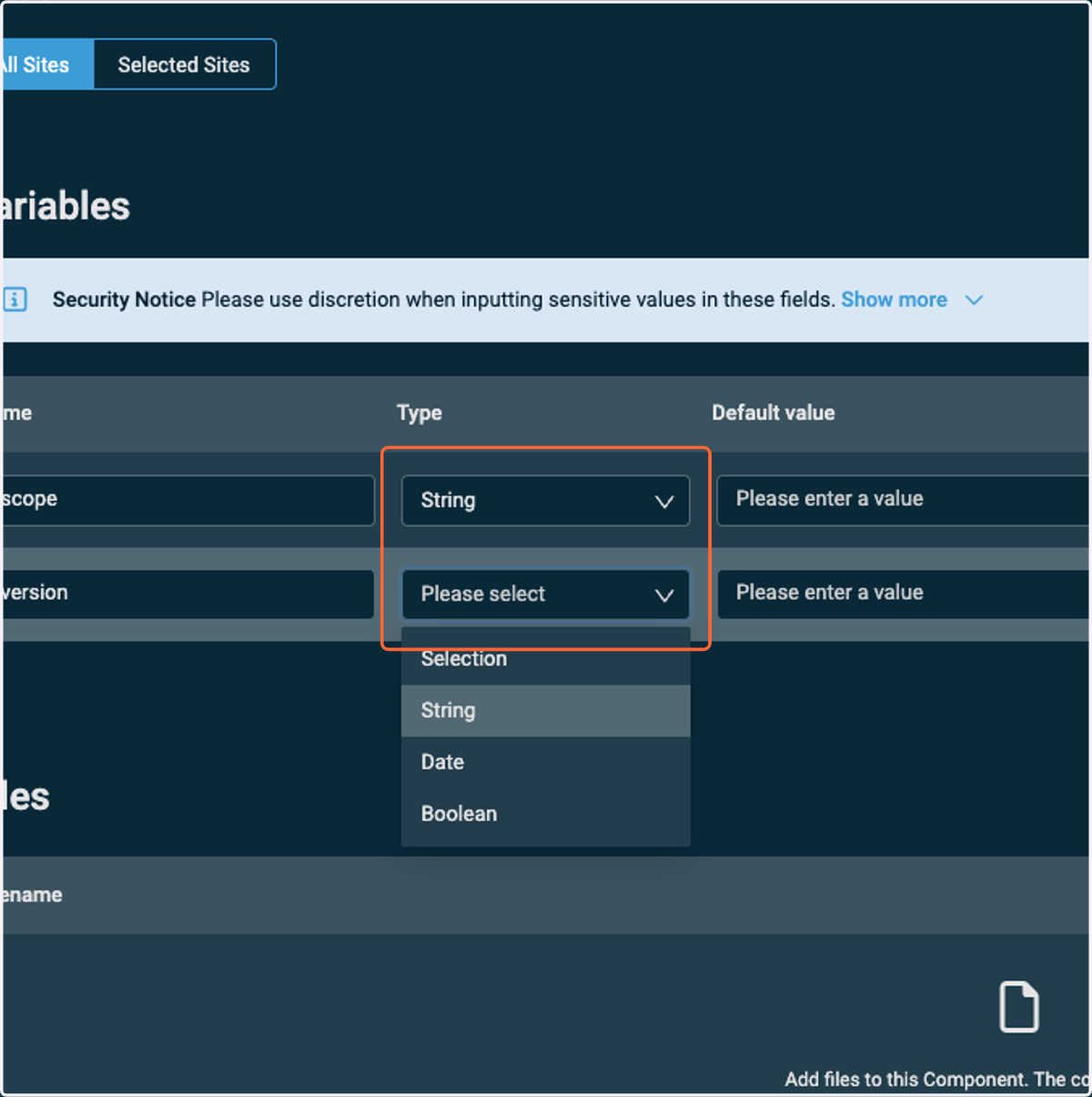
  3. 16. Click on String

    Click on String
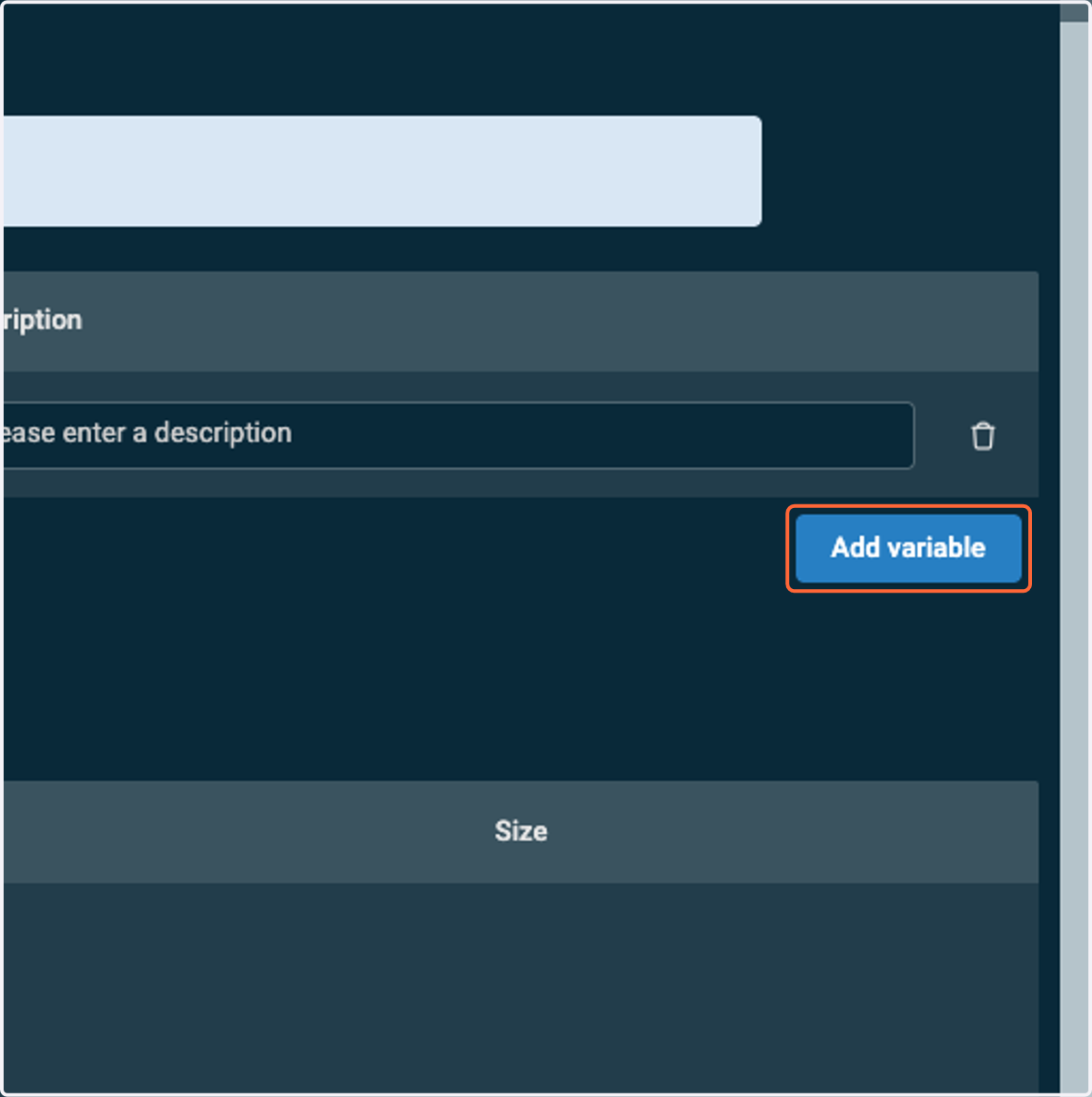
  4. 17. Click on Add variable

    Click on Add variable

Cork - Integrations

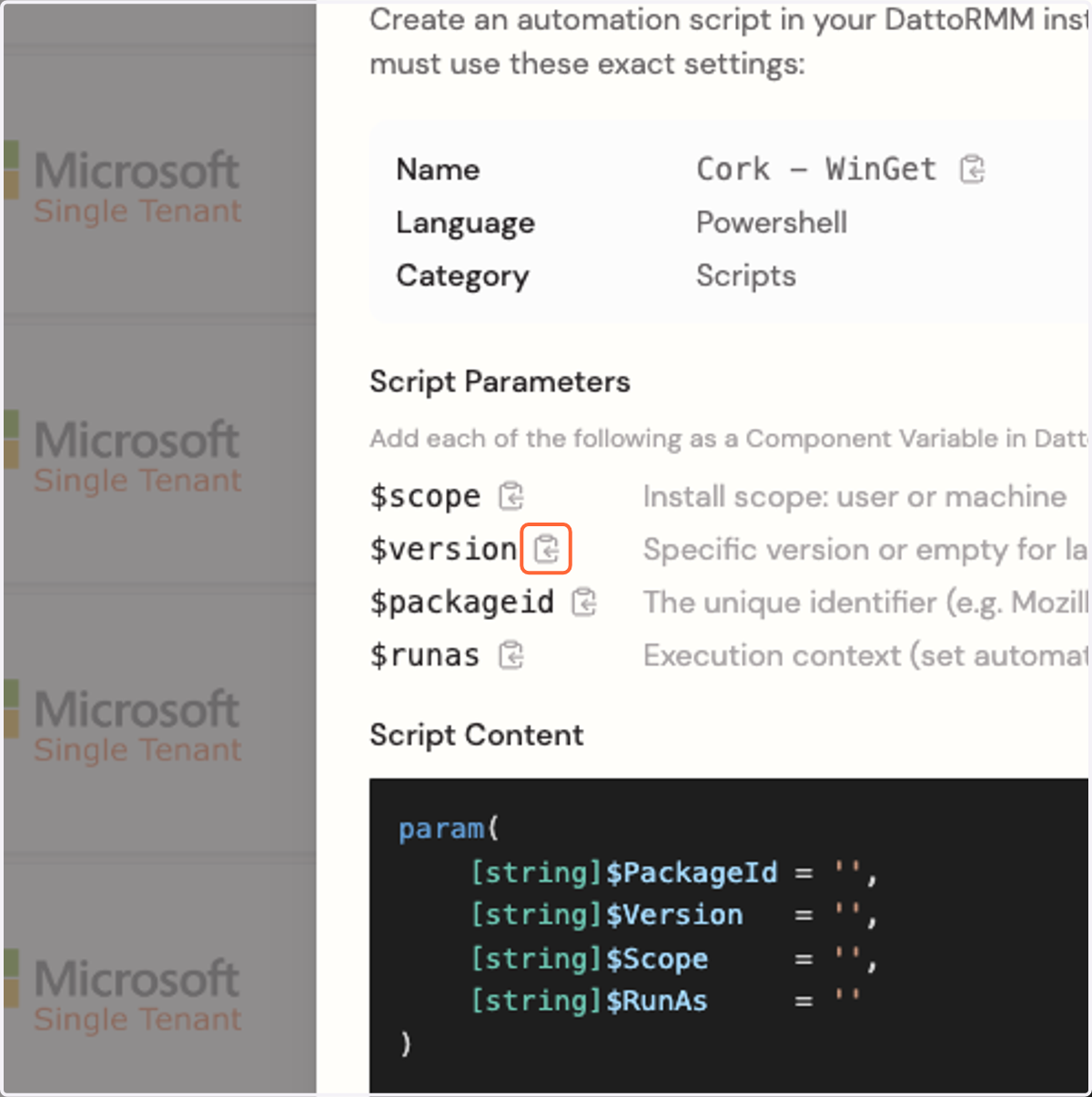
  1. 18. Click on Copy Variable

    Click on Copy Variable

Datto RMM Portal

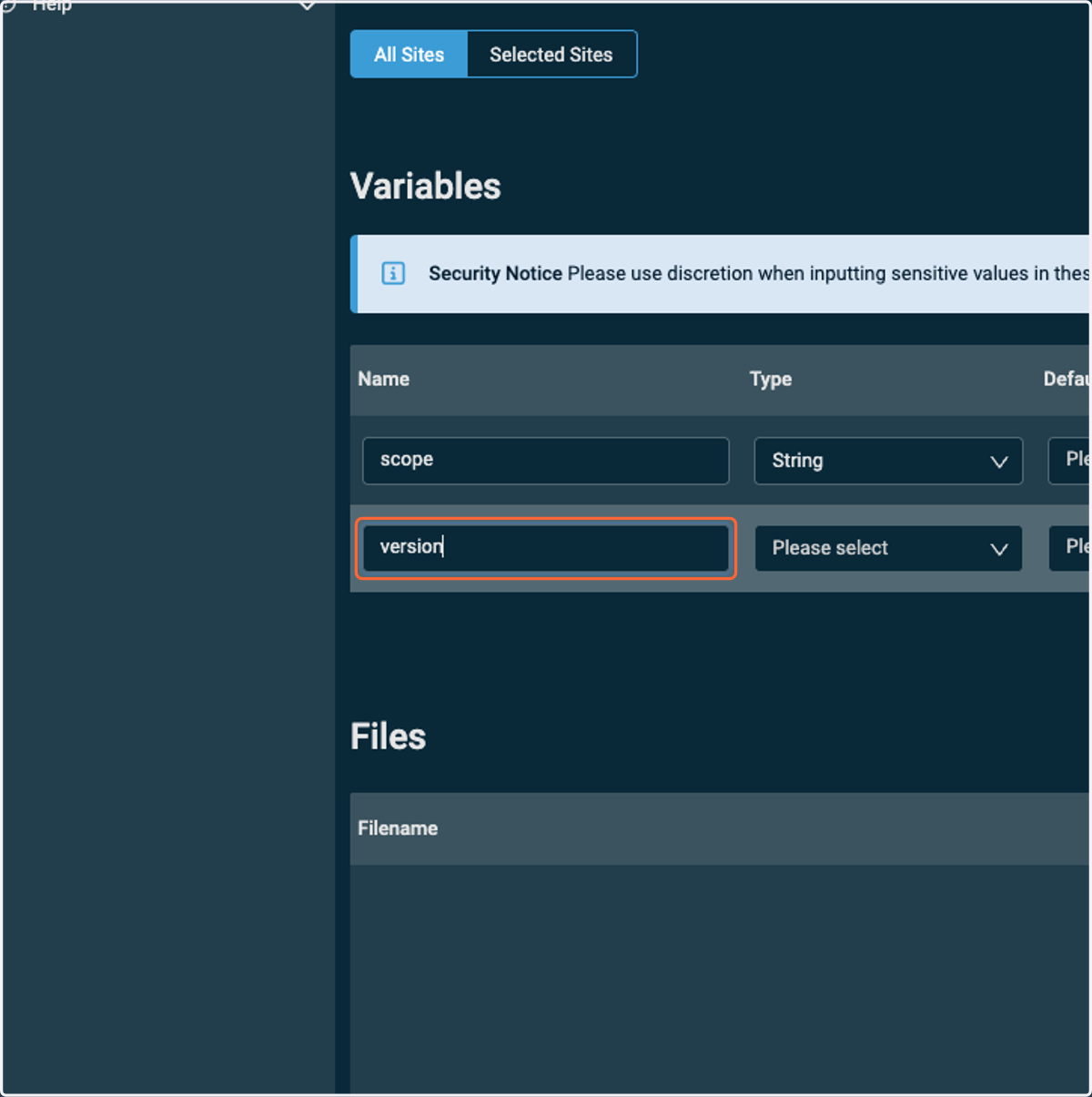
  1. 19. Paste version into text area

    Paste version into text area
  2. 20. Click on dropdown trigger

    Click on dropdown trigger
  3. 21. Click on String

    Click on String

Cork - Integrations

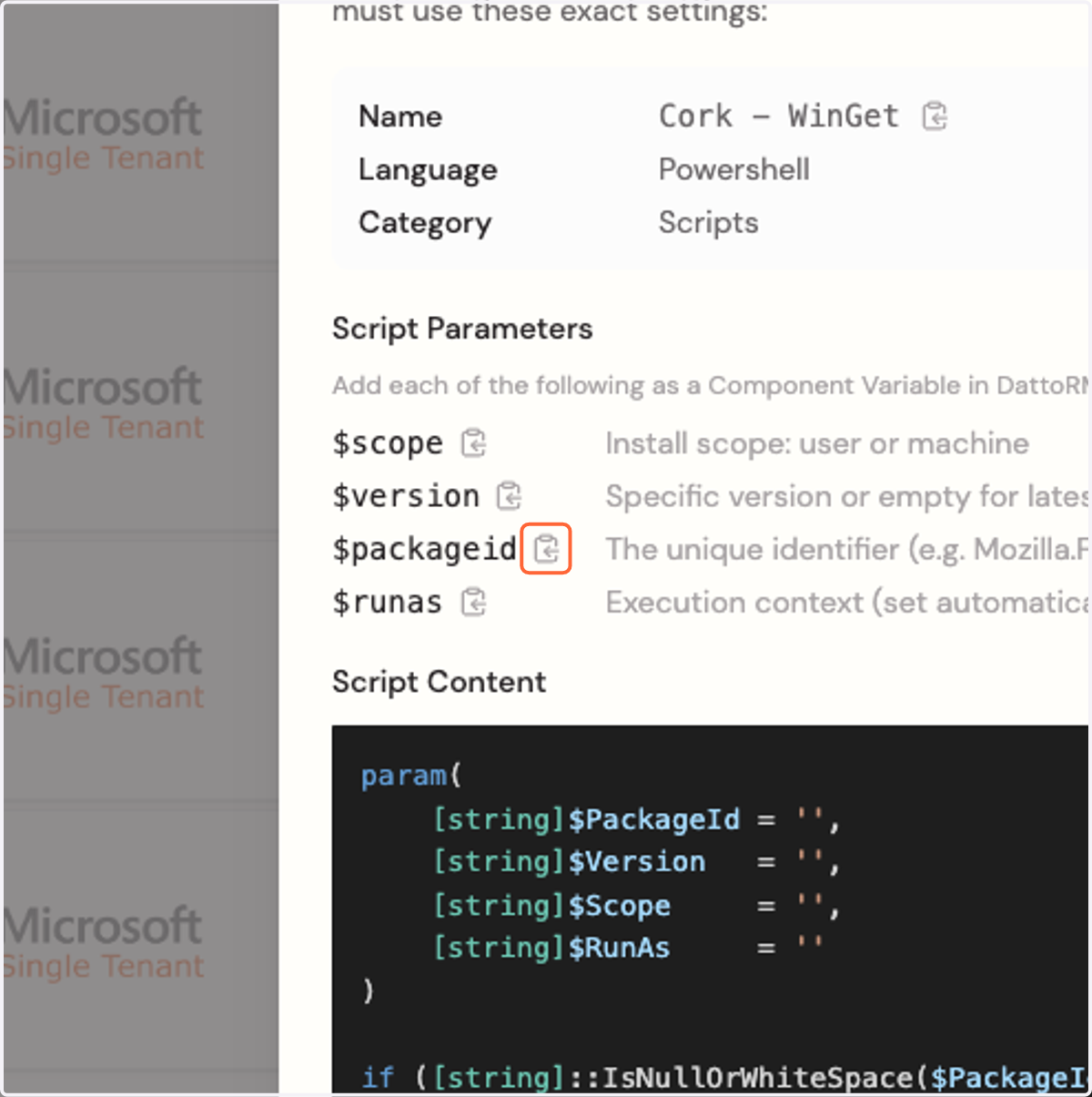
  1. 22. Click on Copy Variable

    Click on Copy Variable

Datto RMM Portal

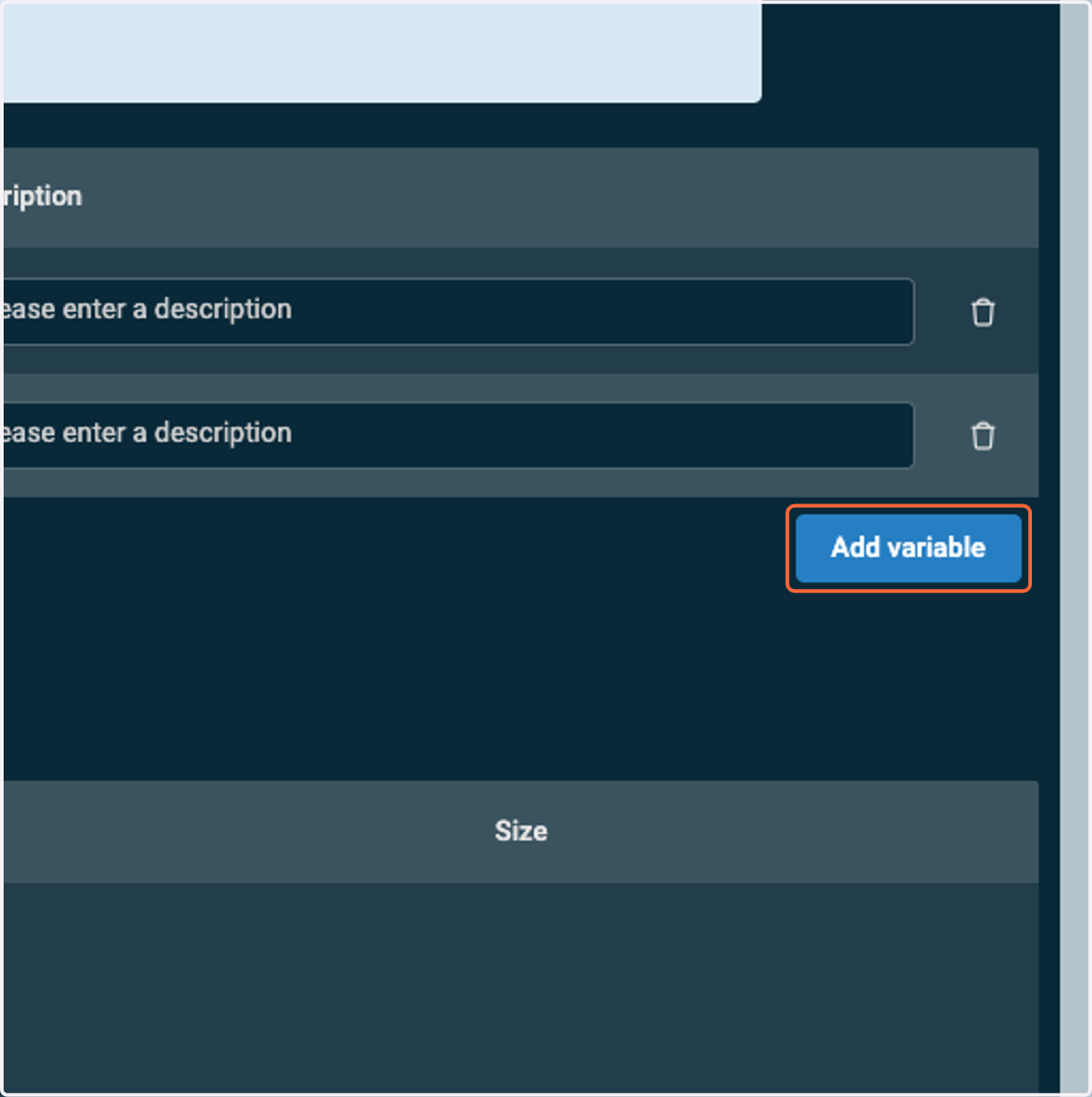
  1. 23. Click on Add variable

    Click on Add variable
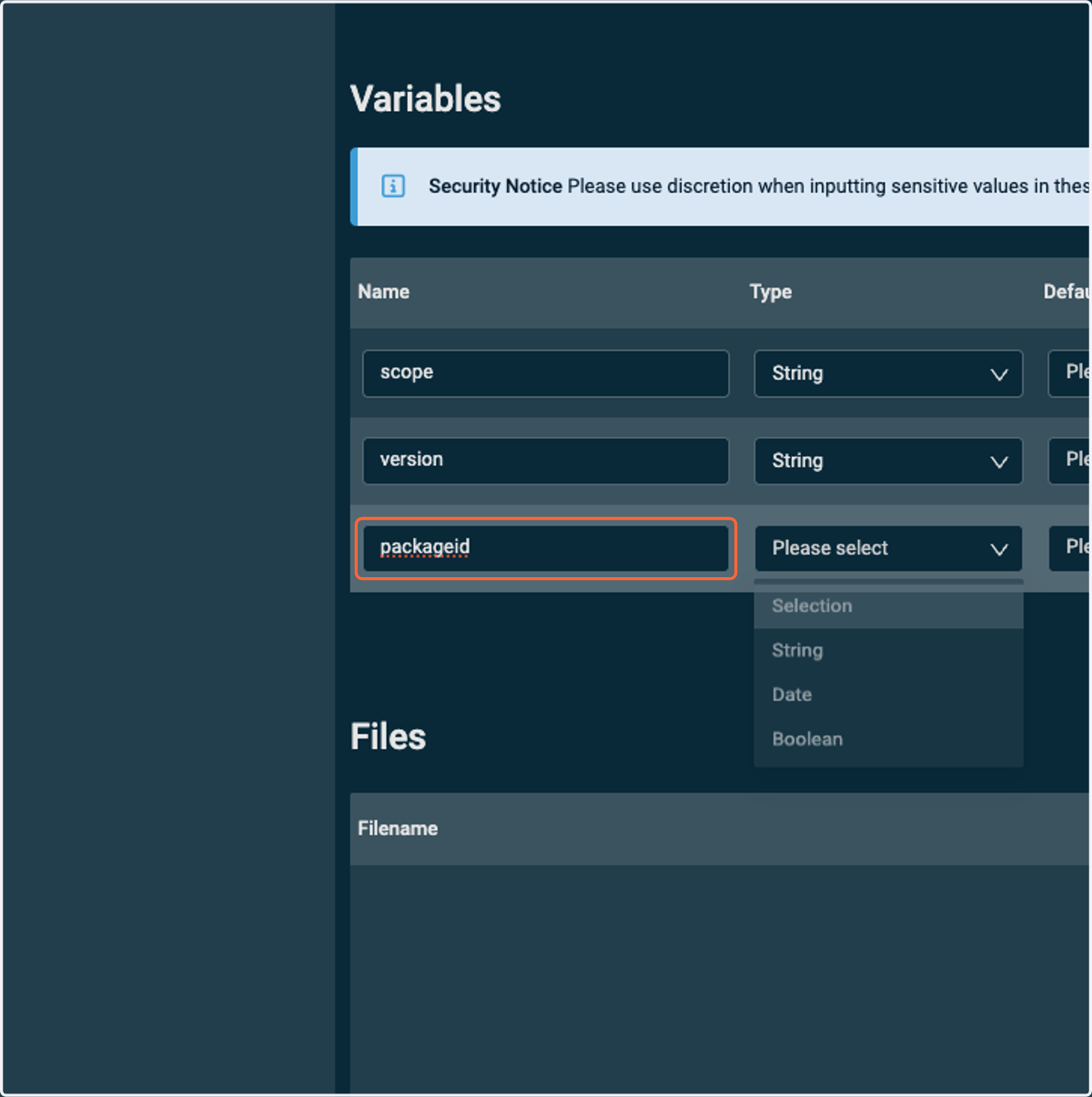
  2. 24. Paste packageid into text area

    Paste packageid into text area
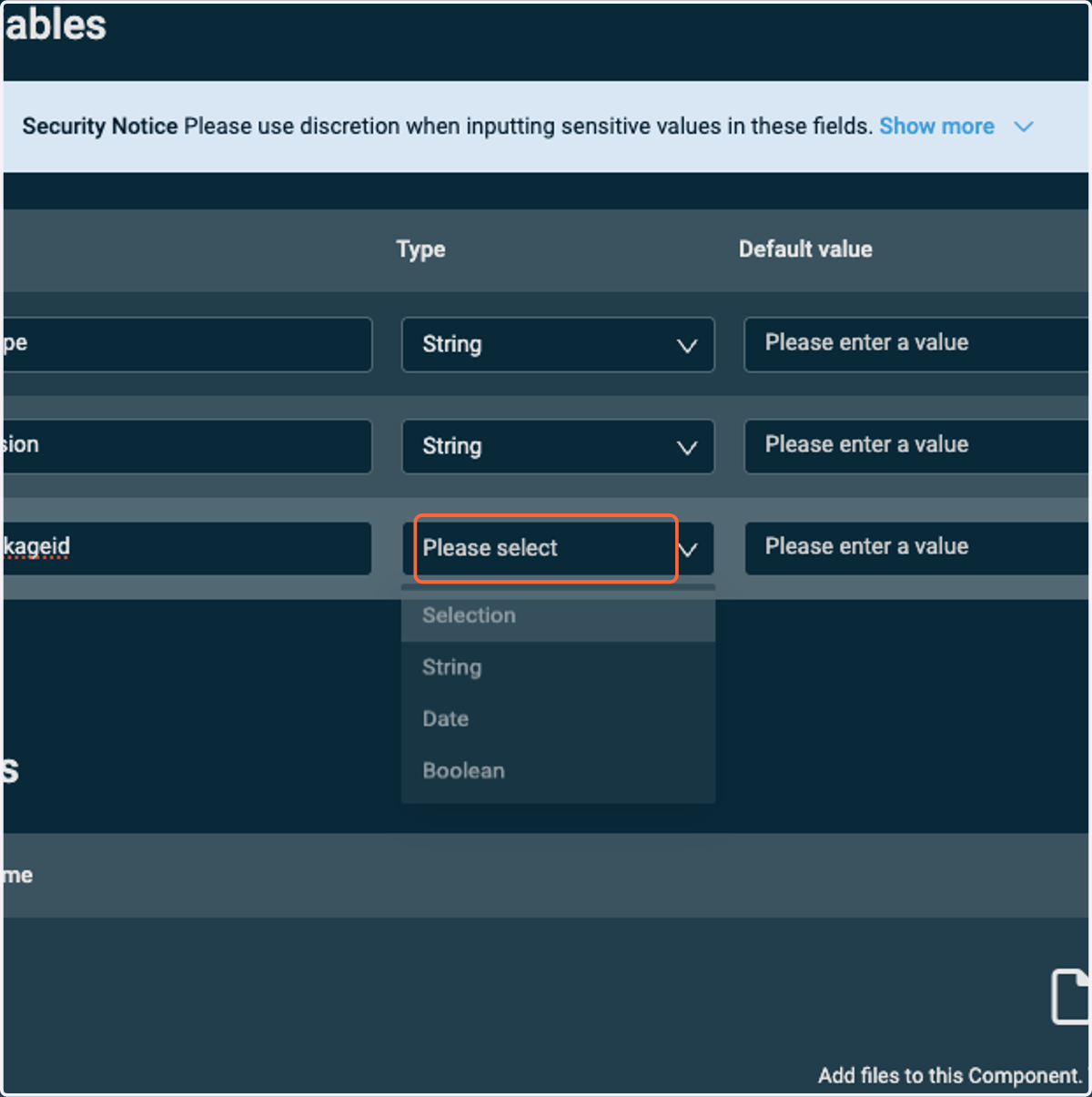
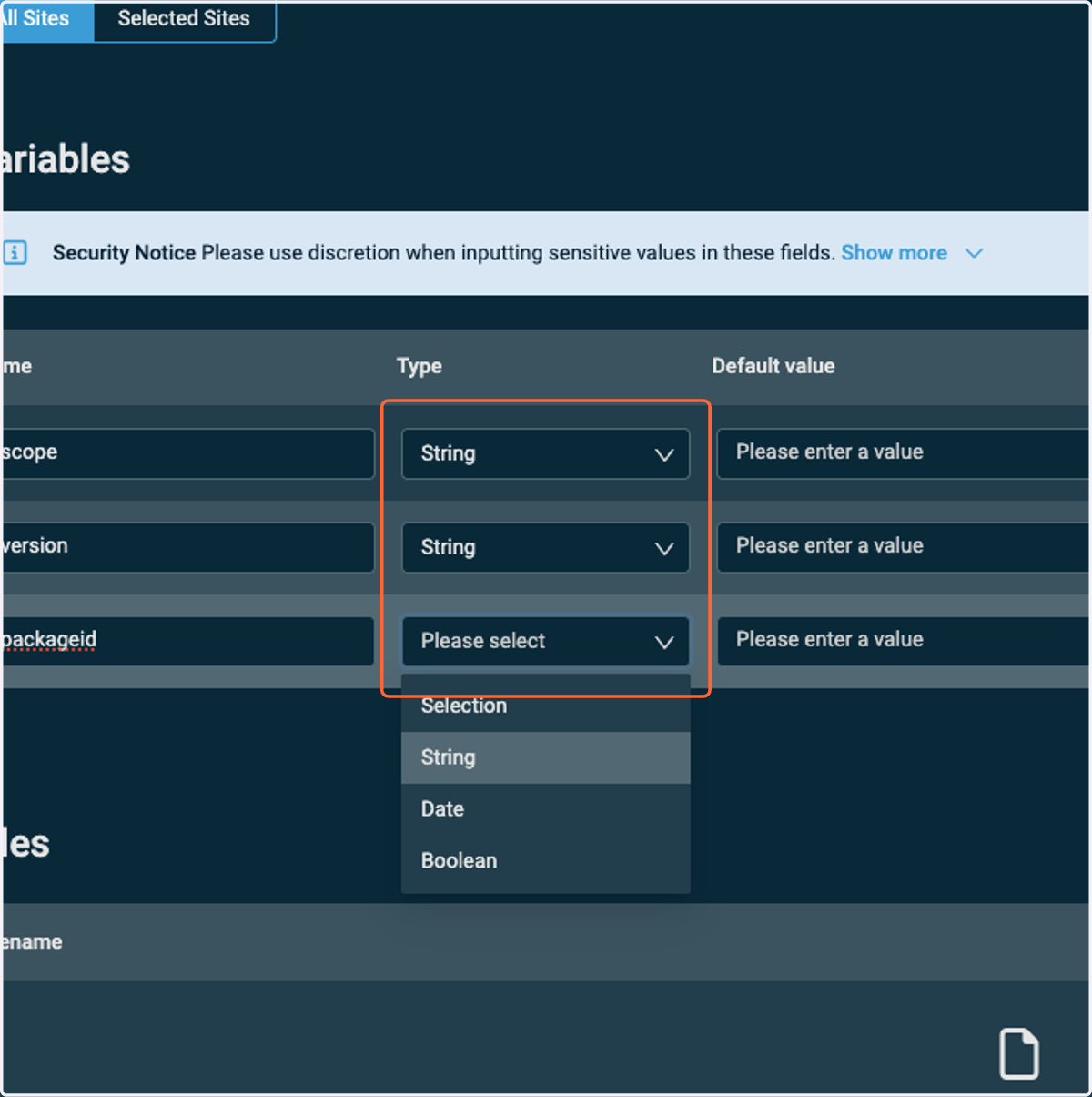
  3. 25. Click on dropdown trigger

    Click on dropdown trigger
  4. 26. Click on String

    Click on String

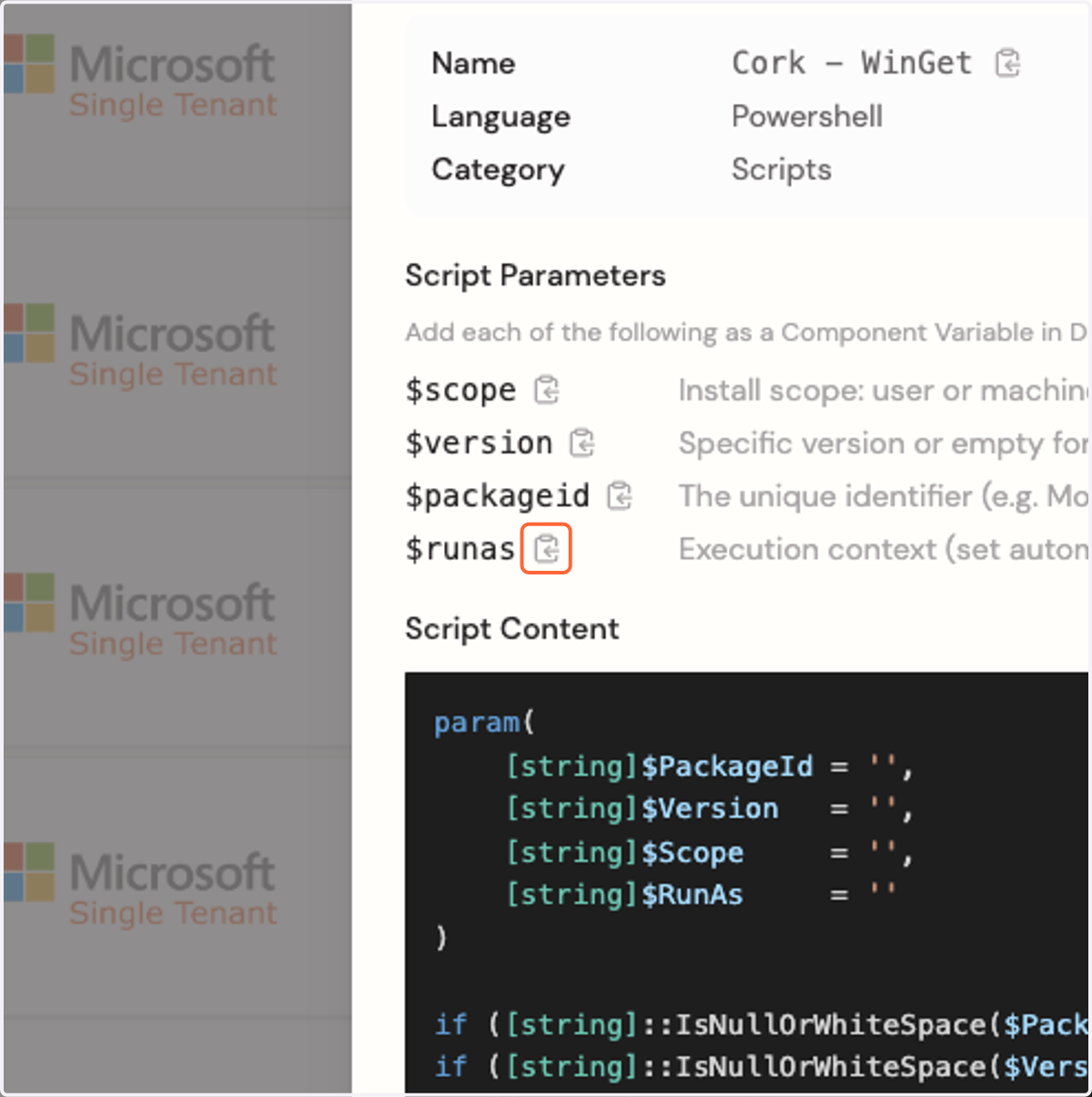
Cork - Integrations

  1. 27. Click on Copy Variable

    Click on Copy Variable

Datto RMM Portal

  1. 28. Click on Add variable

    Click on Add variable
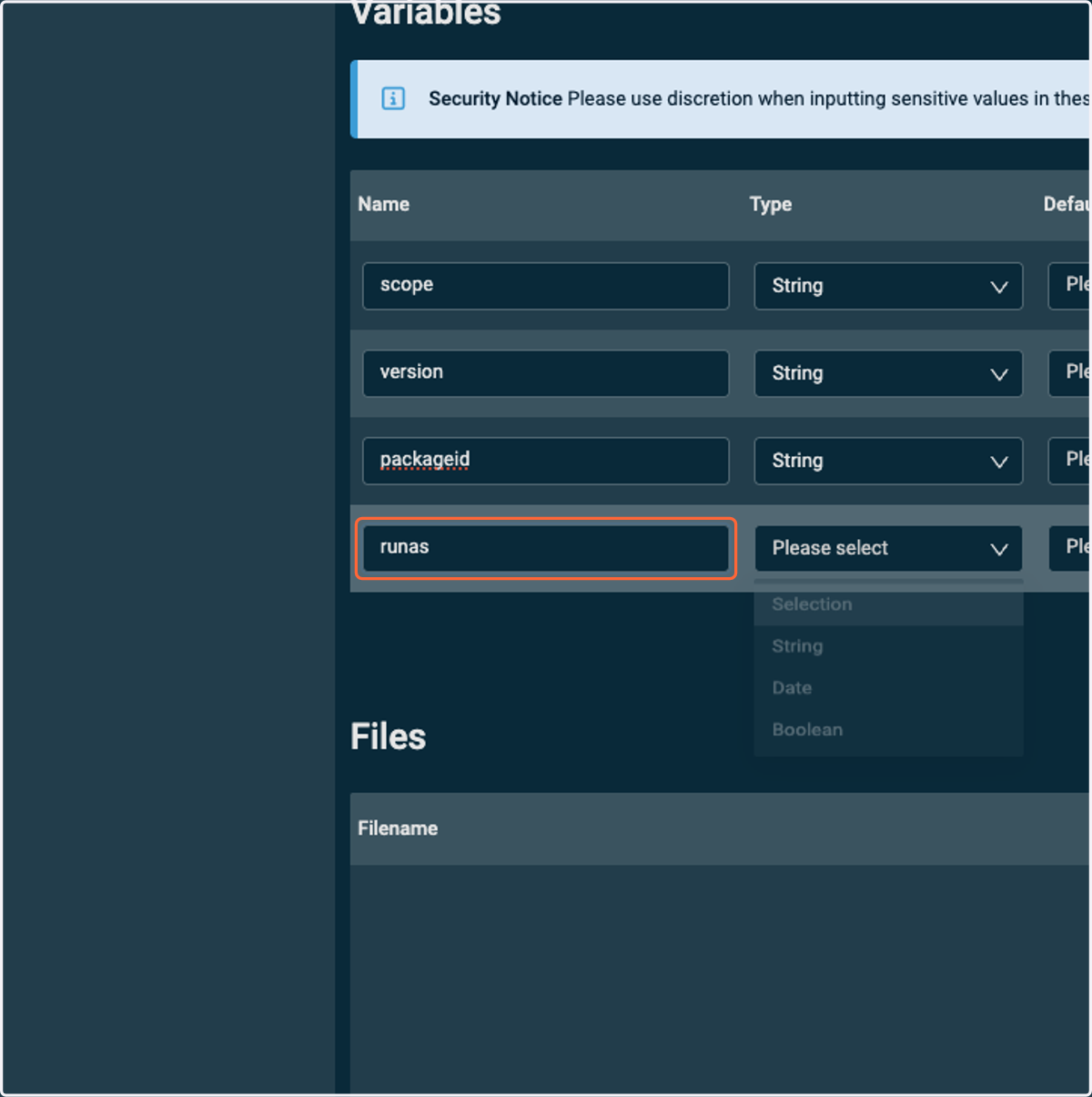
  2. 29. Paste runas into text area

    Paste runas into text area
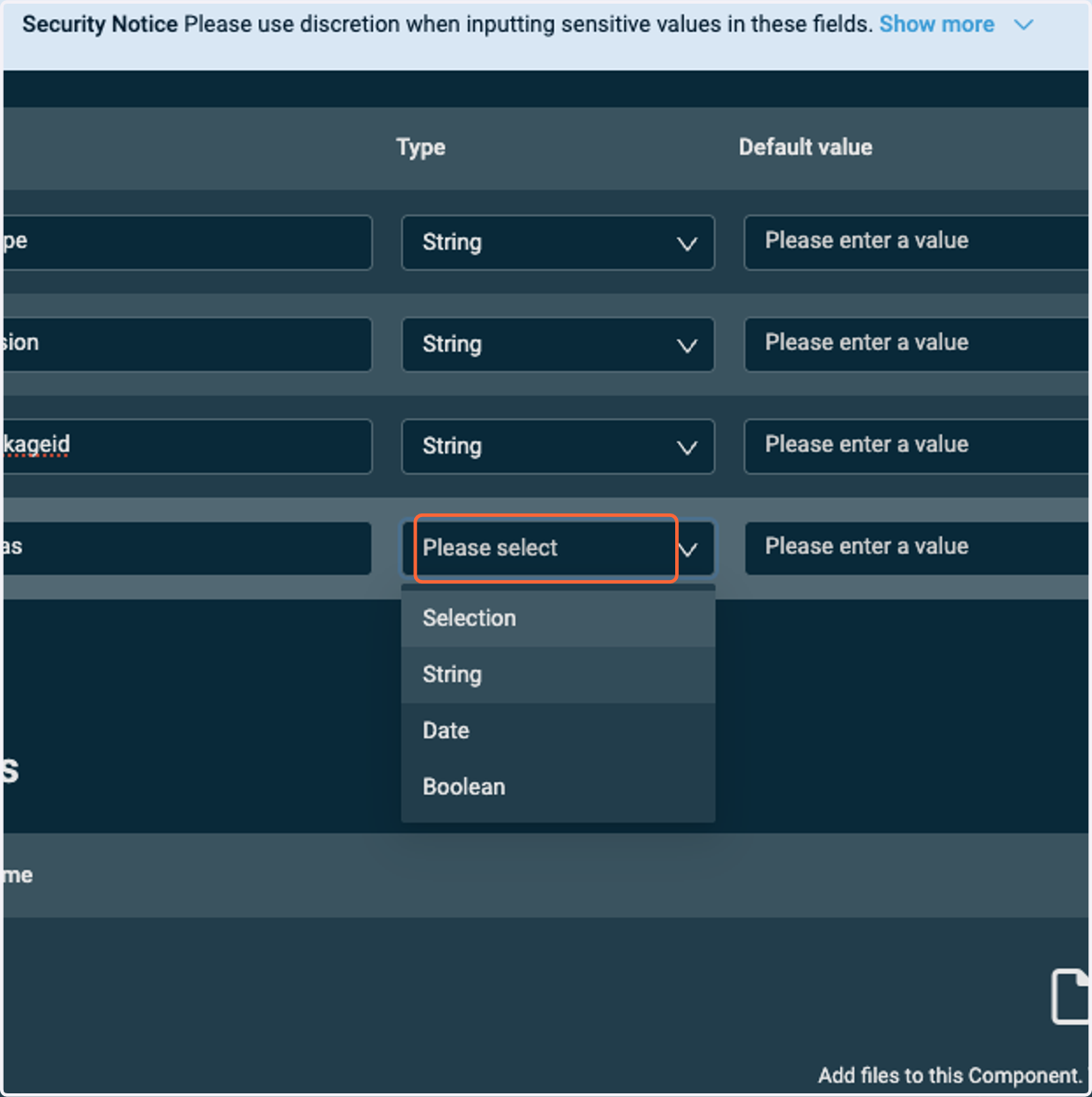
  3. 30. Click on dropdown trigger

    Click on dropdown trigger
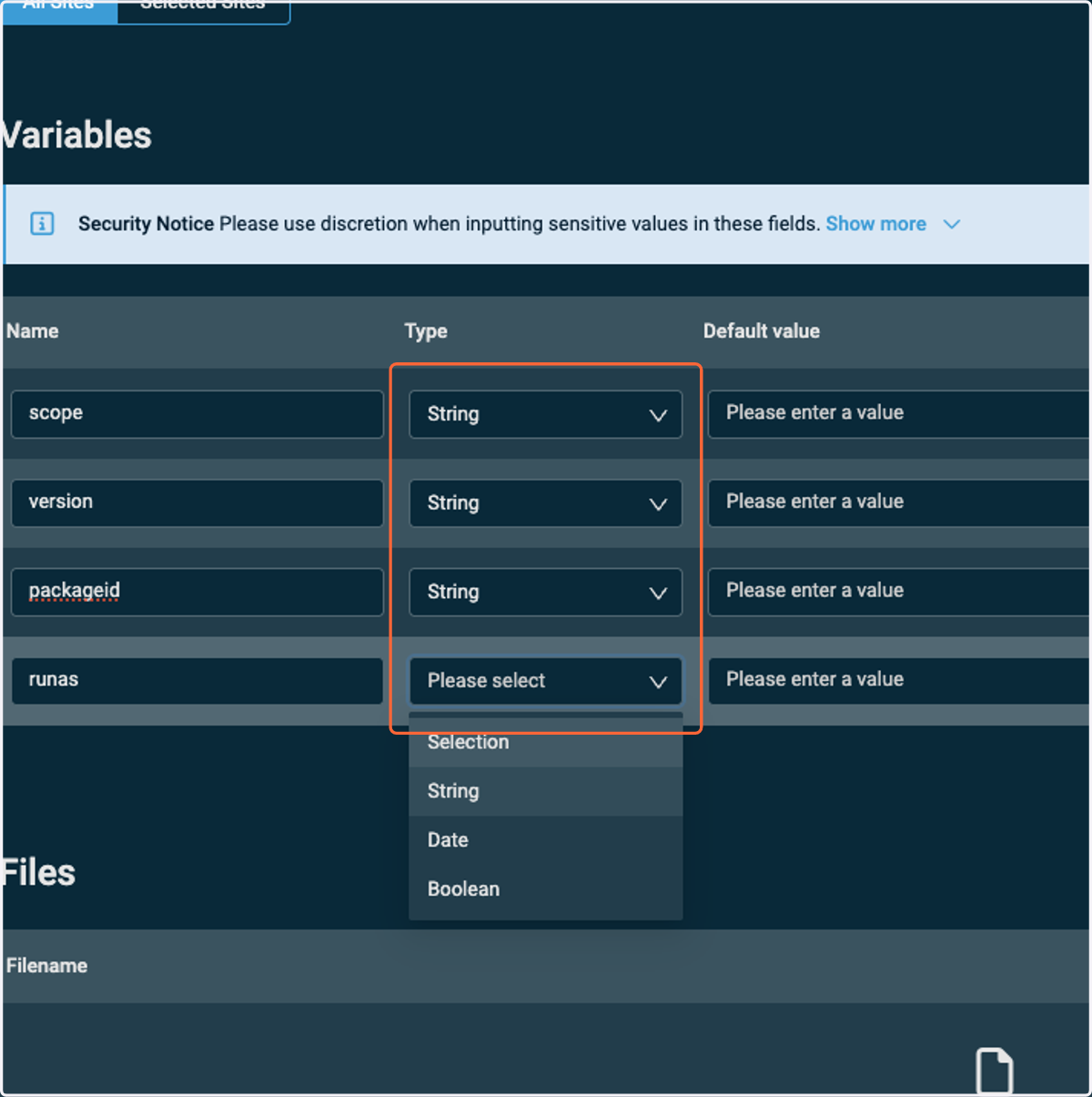
  4. 31. Click on String

    Click on String
  5. 32. Click on Create Component

    Click on Create Component

Cork - Integrations

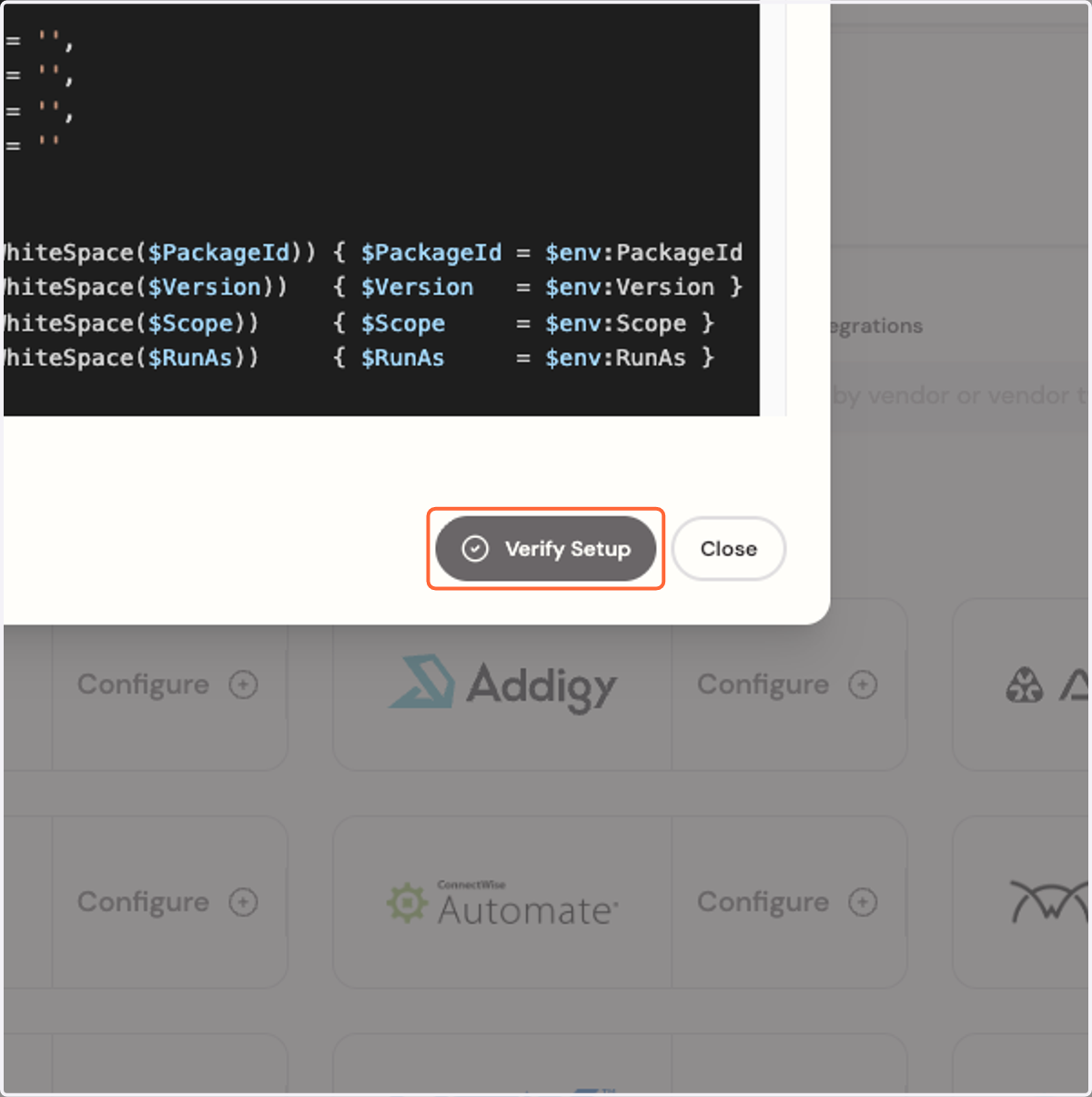
  1. 33. Click on Verify Setup

    Click on Verify Setup