Setup Dine-in Order
GOrder
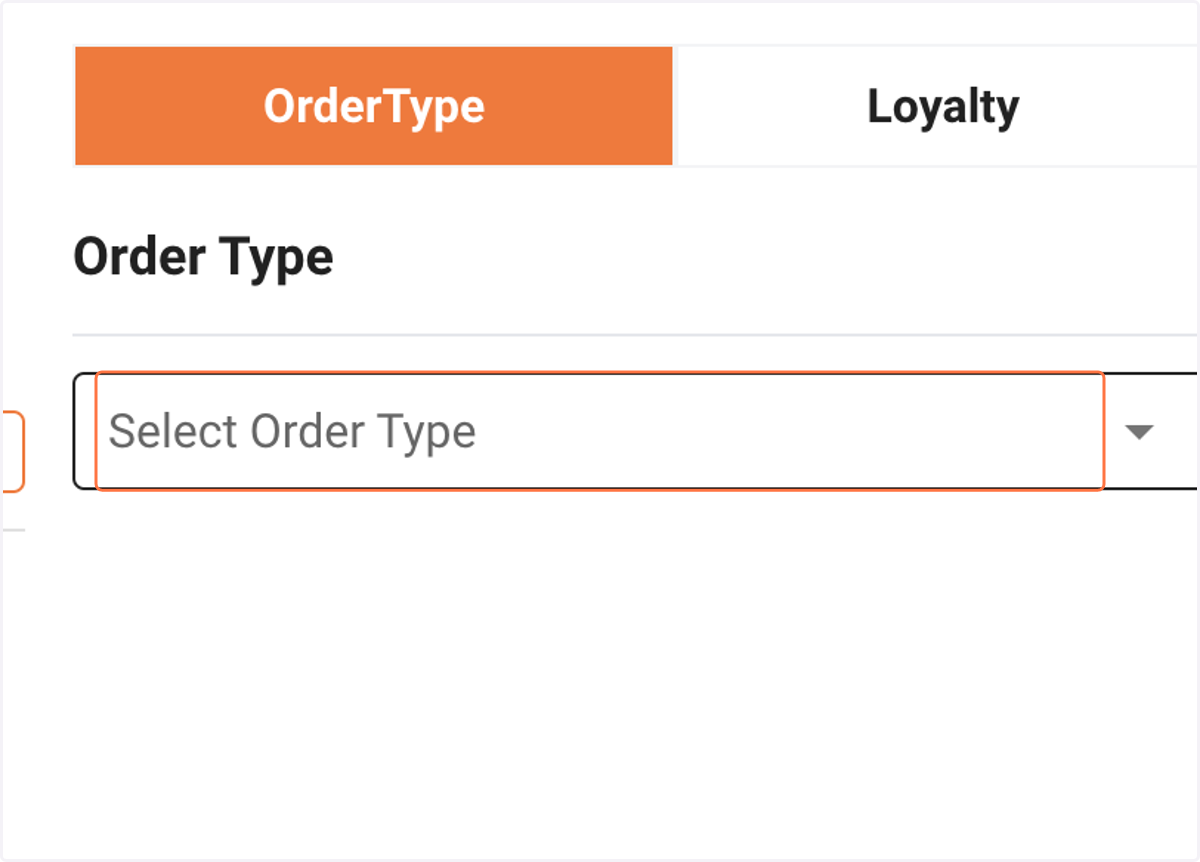
1. Click on Select Order Type
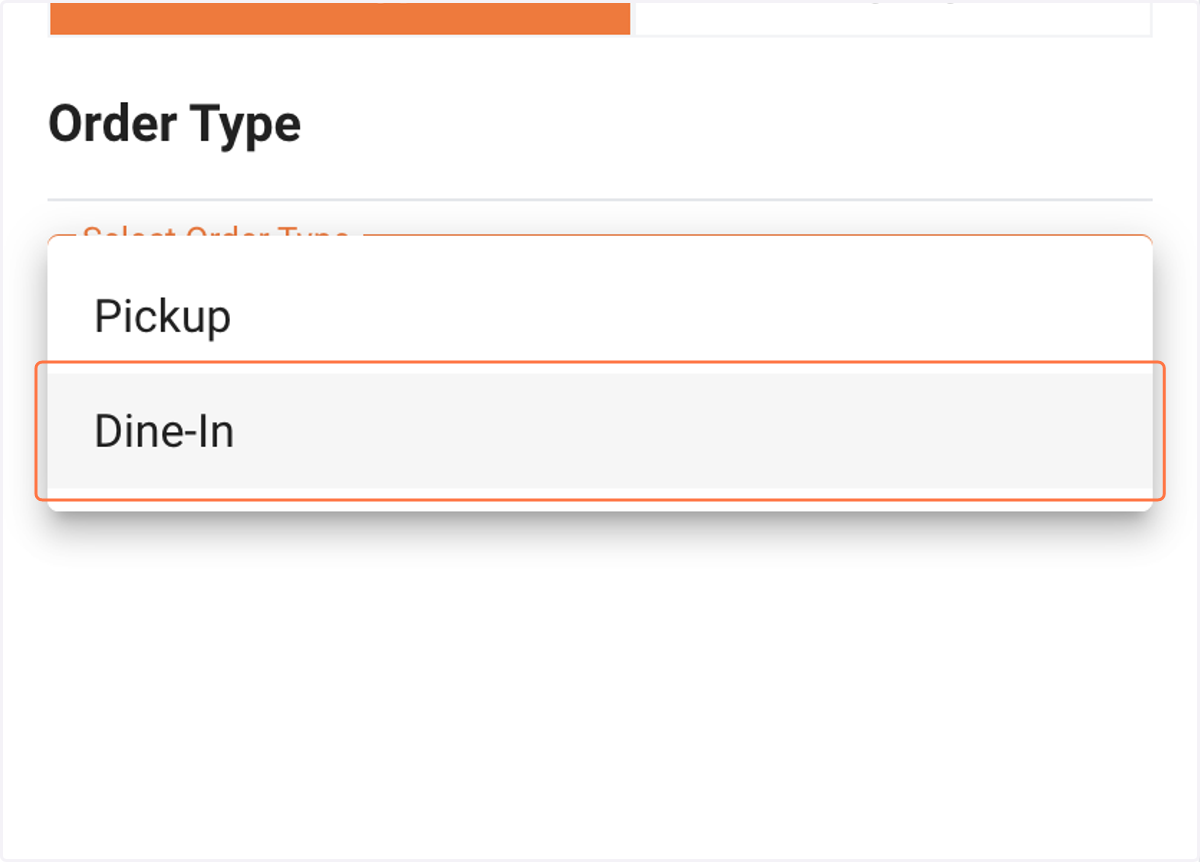
2. Click on Dine-In
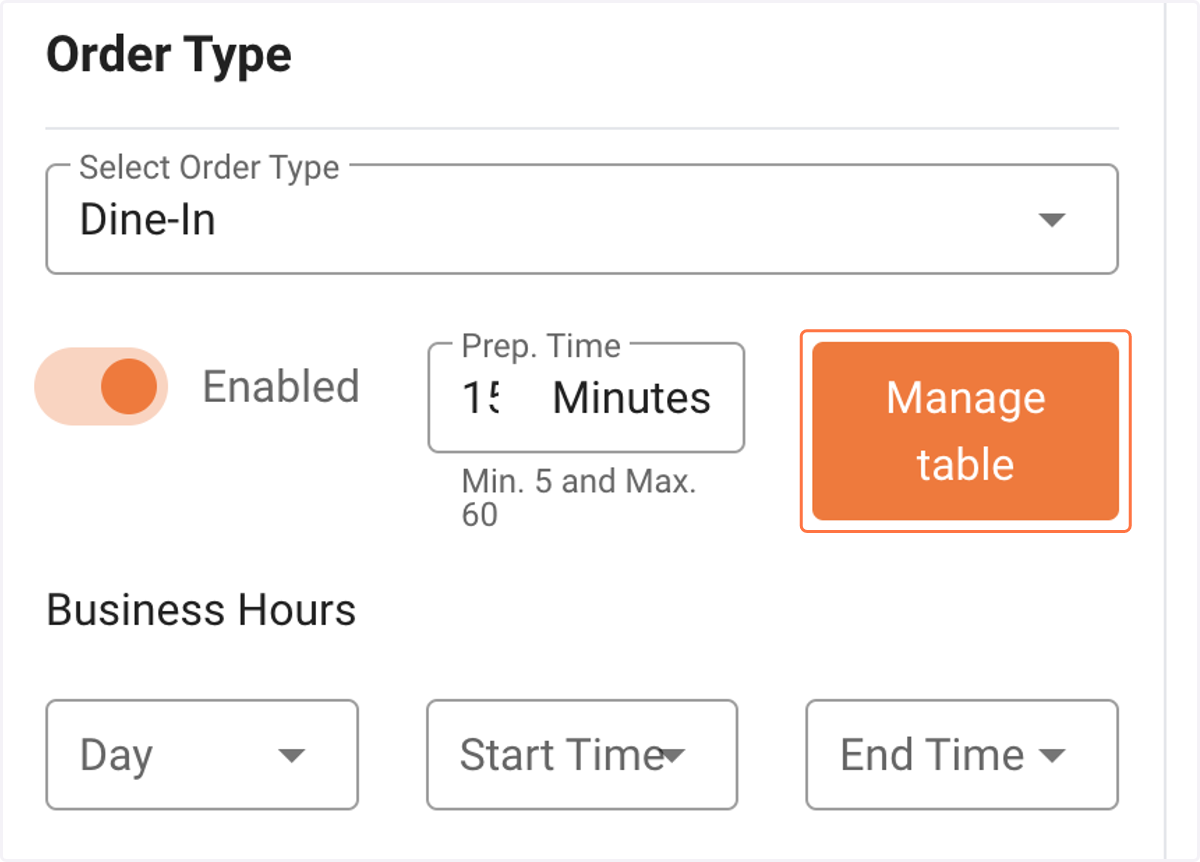
3. To enable the order type, you can click the toggle. Enable it after you're ready.
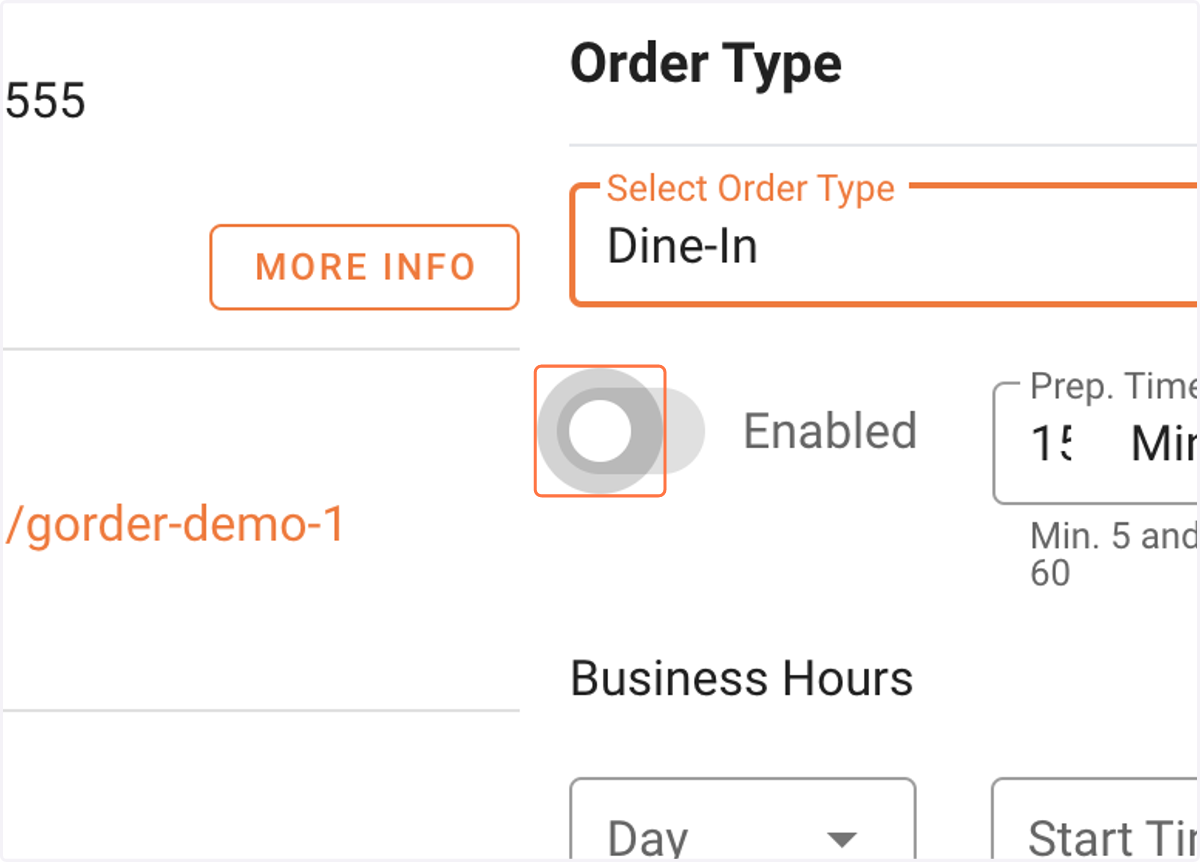
4. Next is create a table with QR code. Click the manage table
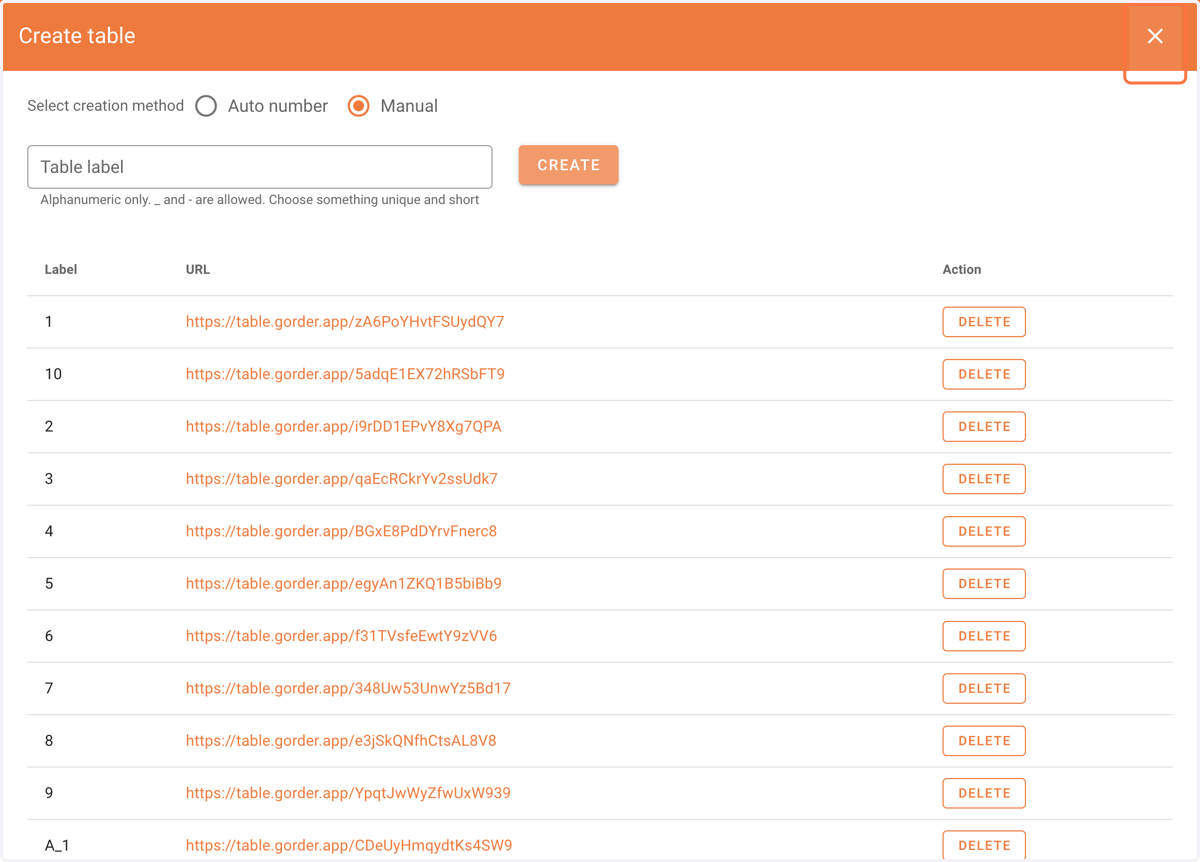
5. Thera are two ways to generate tables. Option 1 is auto number where you choose many tables to generate and the system will automatically generate tables for you using sequence of number from 1 to n.
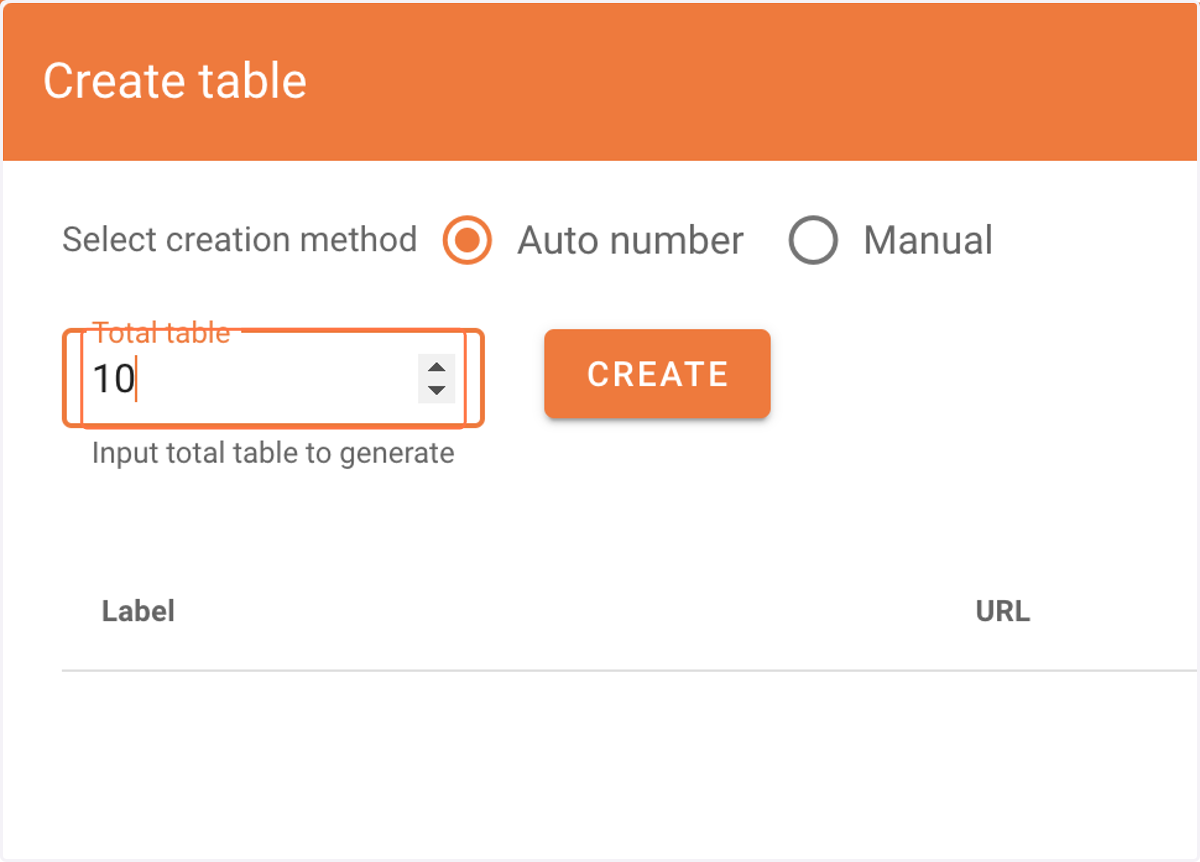
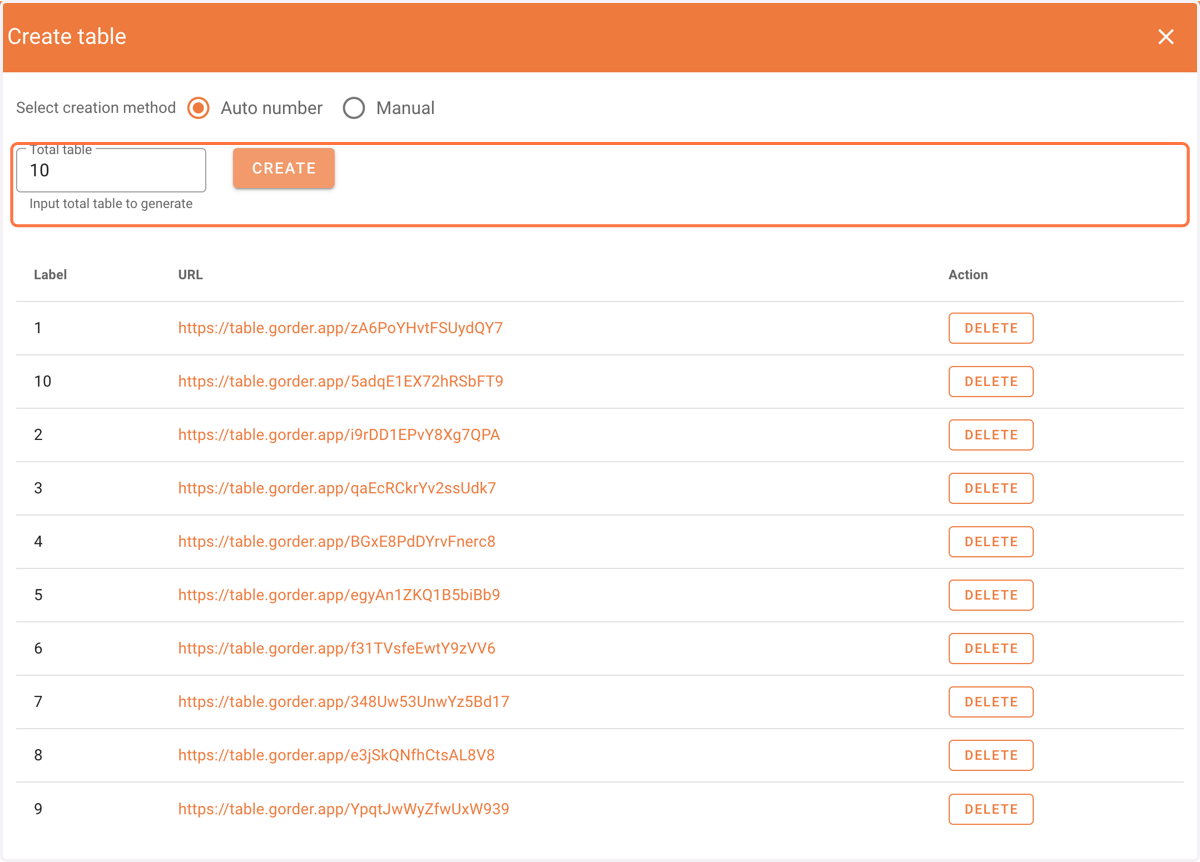
6. After filling the total number of table you want to generate, click create.
You'll get 10 table with QR code for each table. You can convert the link into a QR code and print it out then put it on the table.
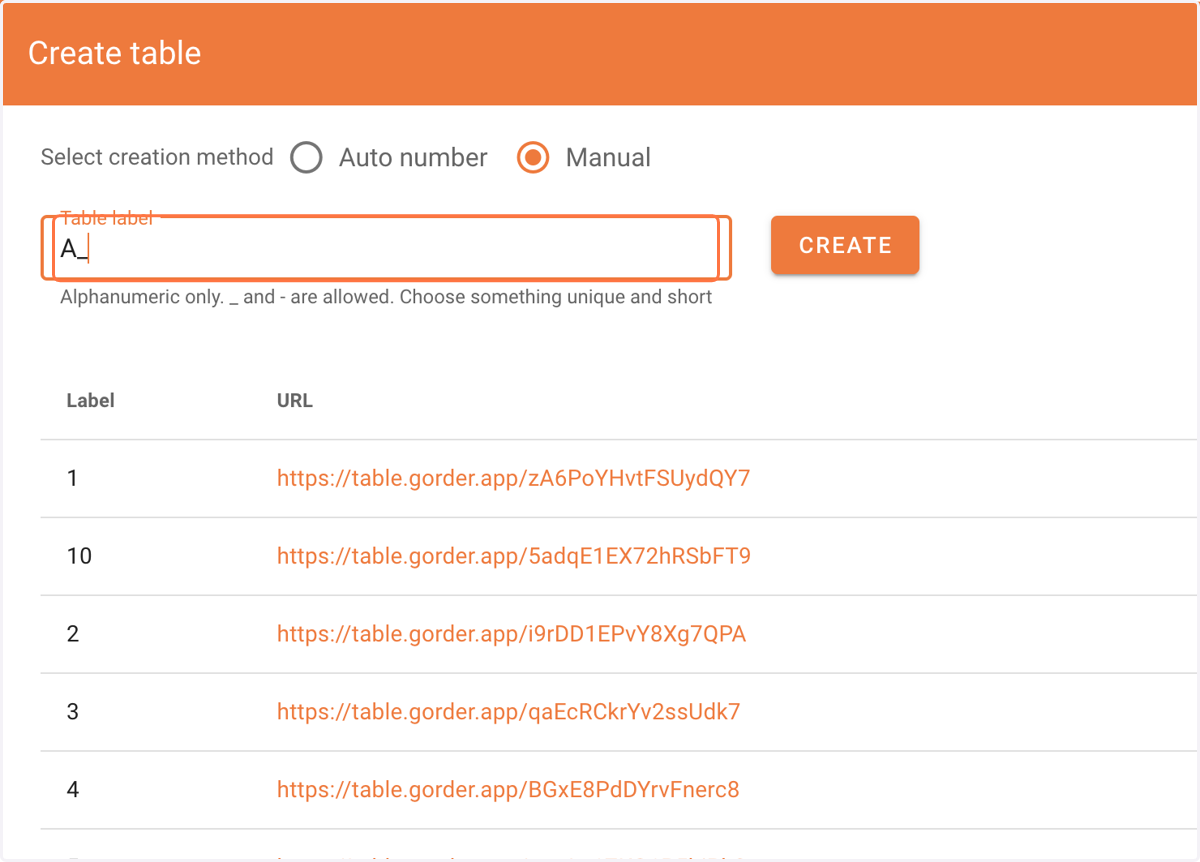
7. Another option for creating a table is using manual input. You need to input the table name manually.
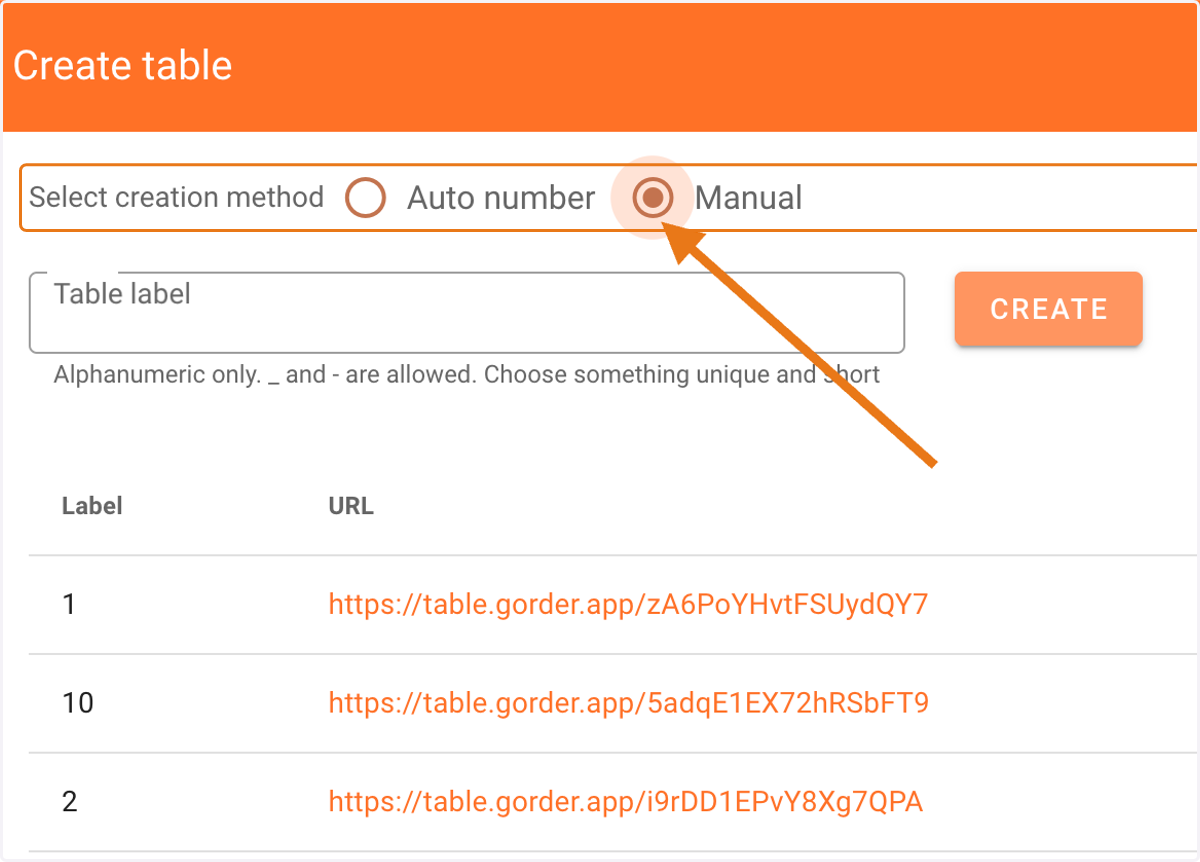
8. Enter your table number name and click create
9. And that's it. After you finish with table creation, you can close the view.
Just like the pickup order type, you also need to setup the hours for dine-in.