How to copy and paste component dimensions in Figma
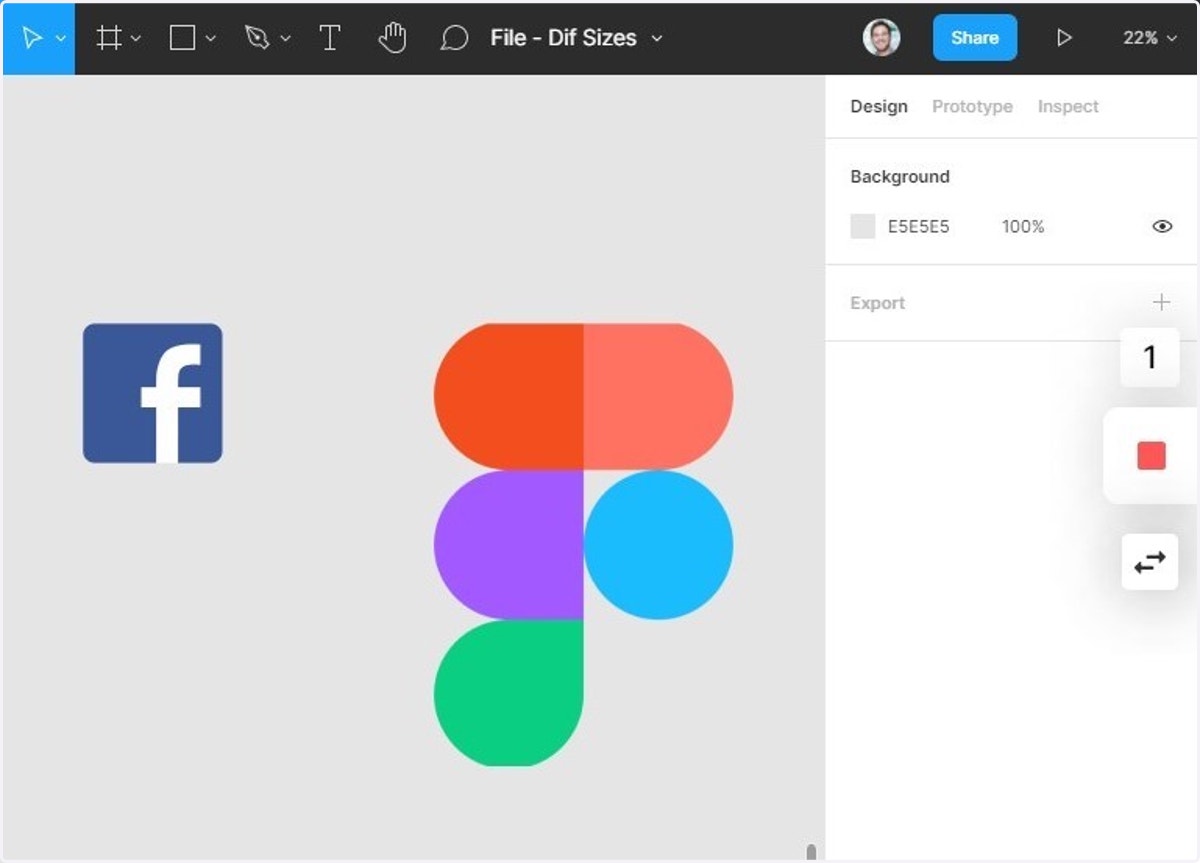
1. Notice that these assets are two completely different sizes
💡 Let's see how we easily copy and paste the dimensions from the facebook logo onto the figma logo so that they're the same size
Figma
2. First, we want to Download the Copy Paste plugin
Link here 👉 Copy paste position size
Click on
↓ Install
3. On Figma, click on the component with the dimensions you want to copy
4. Now click on the menu in the top left
5. Now go to Plugins → Copy paste position size -> Copy Position Size
This will copy the size and position of the Facebook logo


Figma
6. Now click on the Figma icon and go back to the menu to paste the height
7. Go through the plugin menus and select Paste Height
Because the widths are different, we want to make the heights the same
8. 🎉 Awwwww yeaaaahhhhhhh! Now they have the same height!


