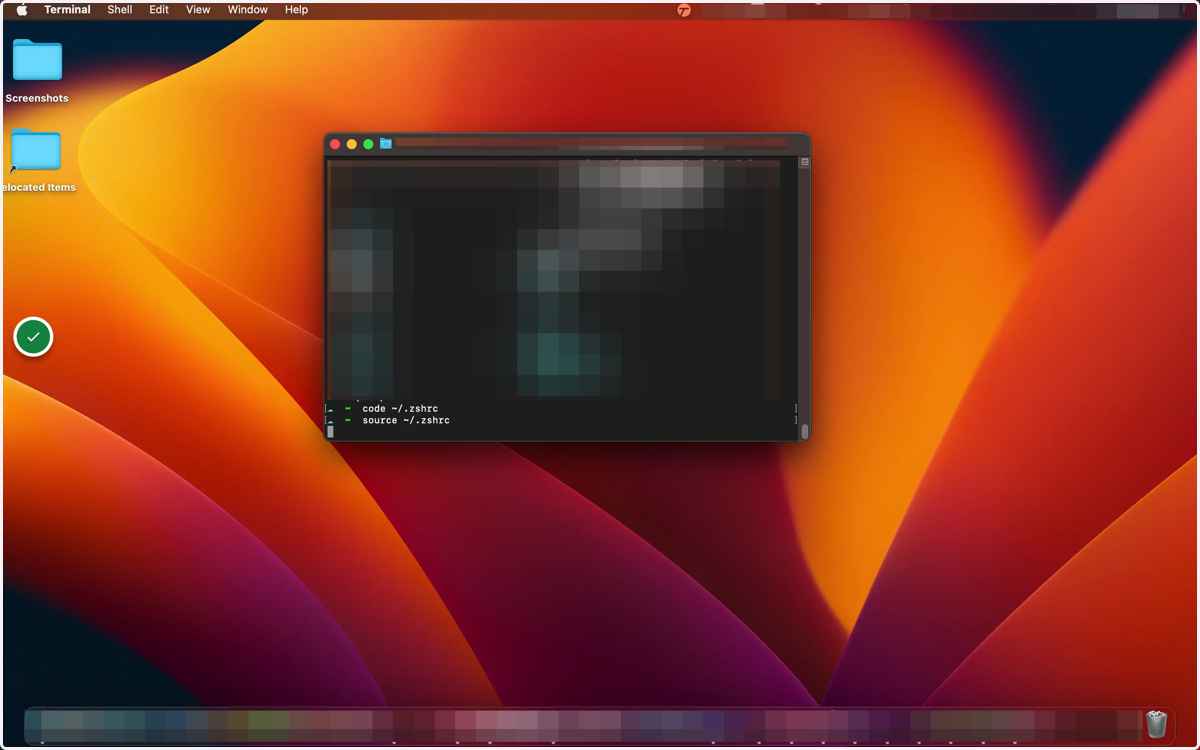
Creating Aliases in Your Terminal
Create aliases to perform actions faster in your terminal
1. Open your terminal
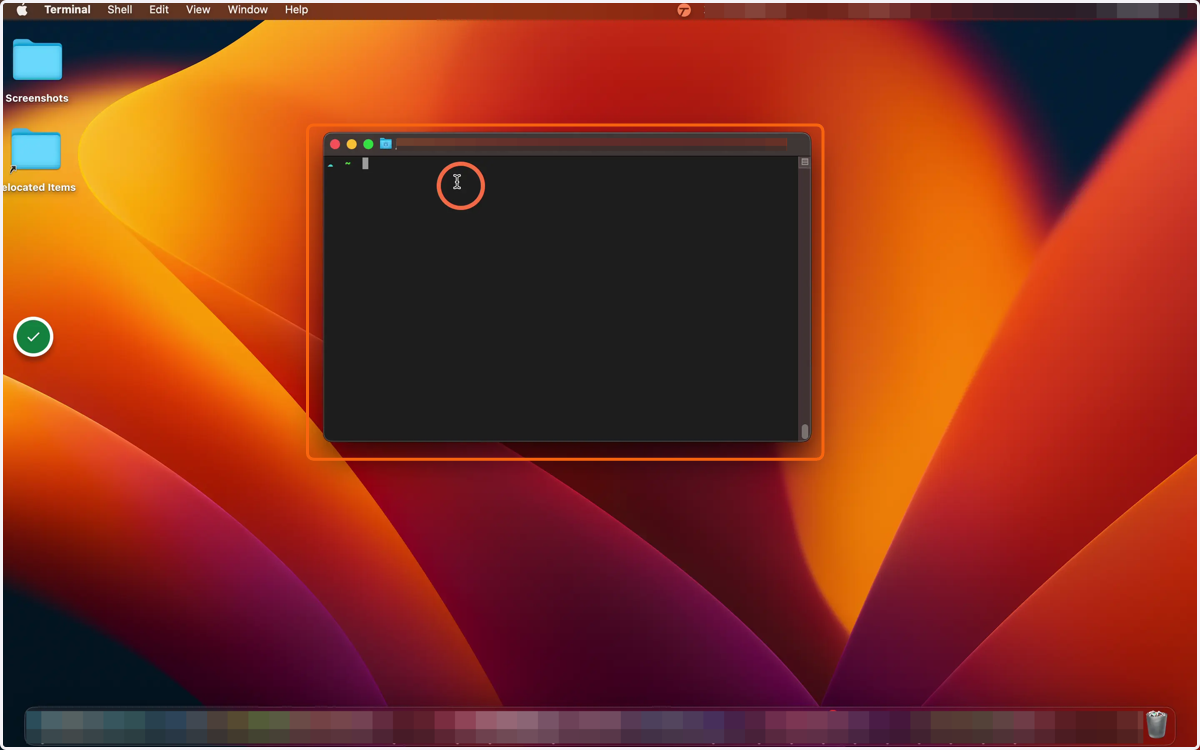
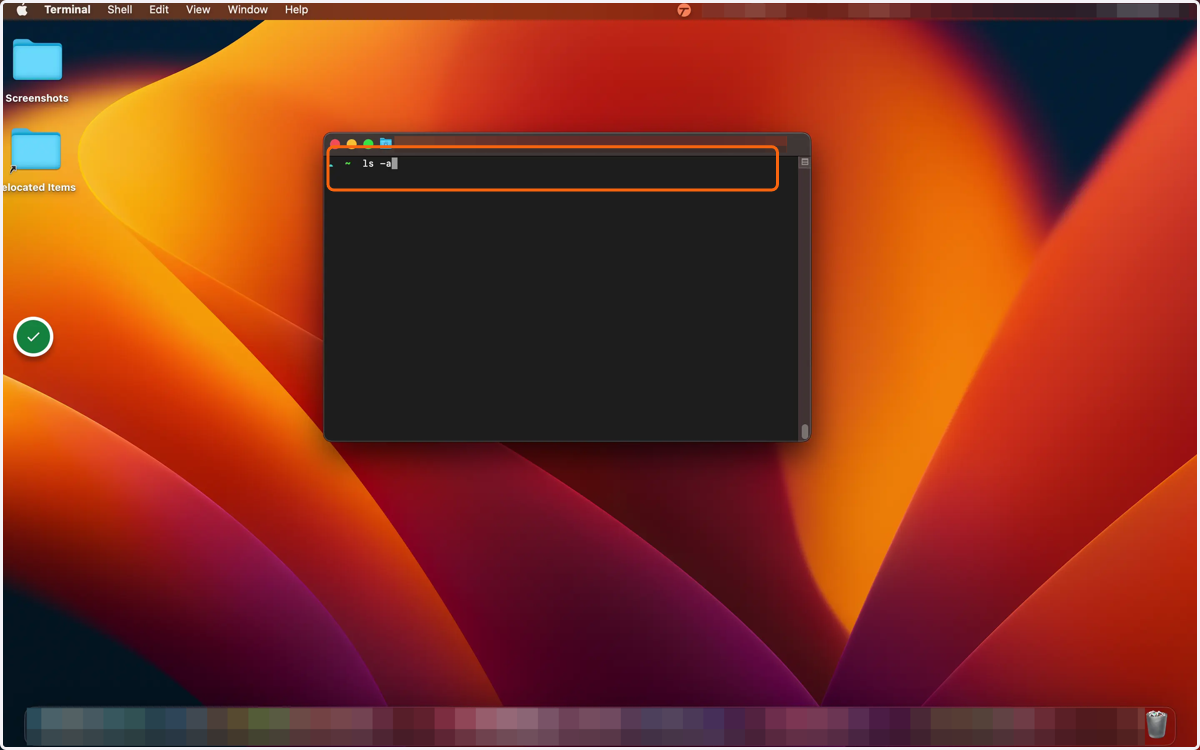
2. Type "ls -a" and press enter to list all available files
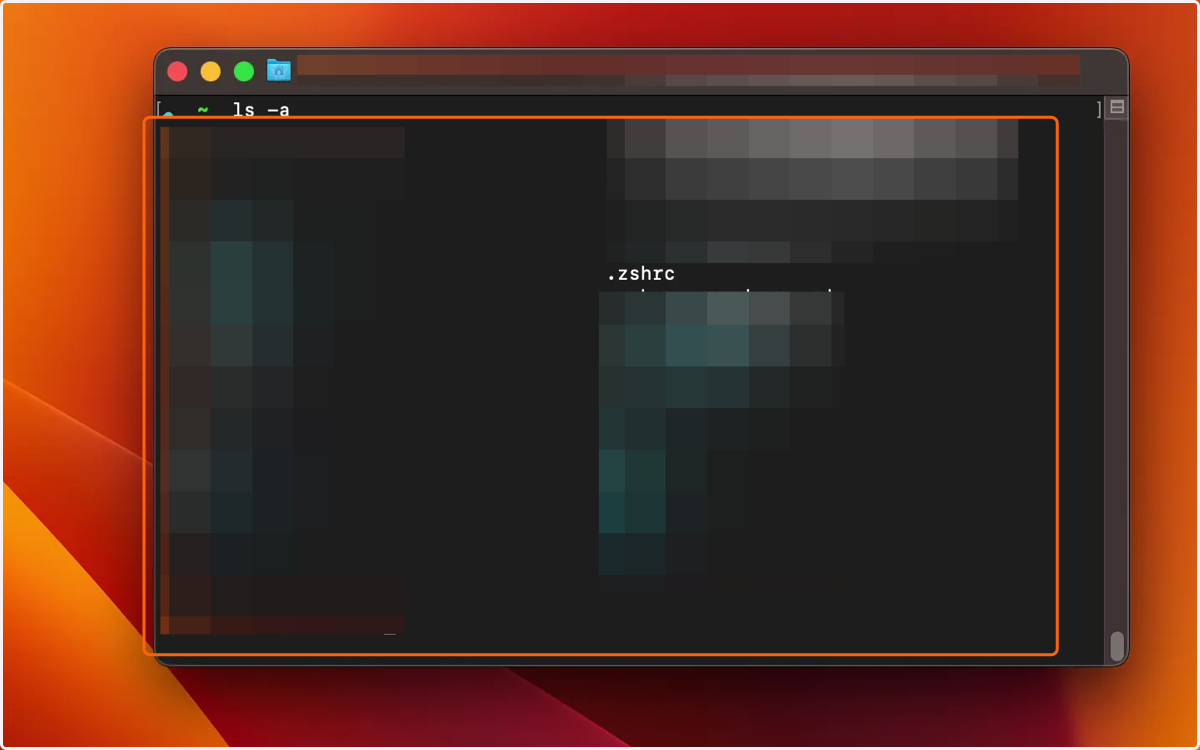
3. You'll see a list of all files, including hidden files
You're looking for your shell files. If using zsh, you'll look for .zshrc. If using Bash, you'll look for .bash_profile
4. Open your shell config file
For example, if using VS Code and zsh like I am, you'll use the command
code ~/.zshrc
If using Atom and Bash, you would use the commandatom ~/.bash_profile
You may be using a different IDE and/or shell, in which case you can look up the equivalent command and file name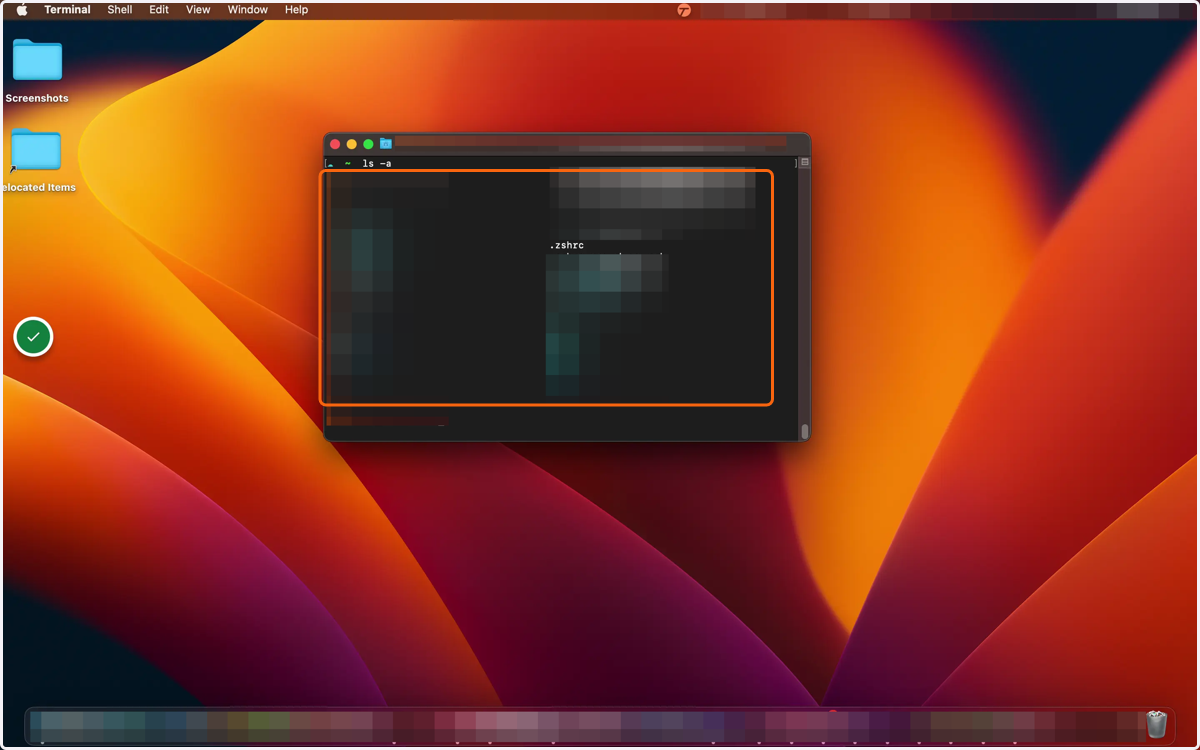
visualstudiocode
5. At the bottom of your file there may already be a place for aliases. If not, create a new section and add a comment indicating this is where you'll define aliases
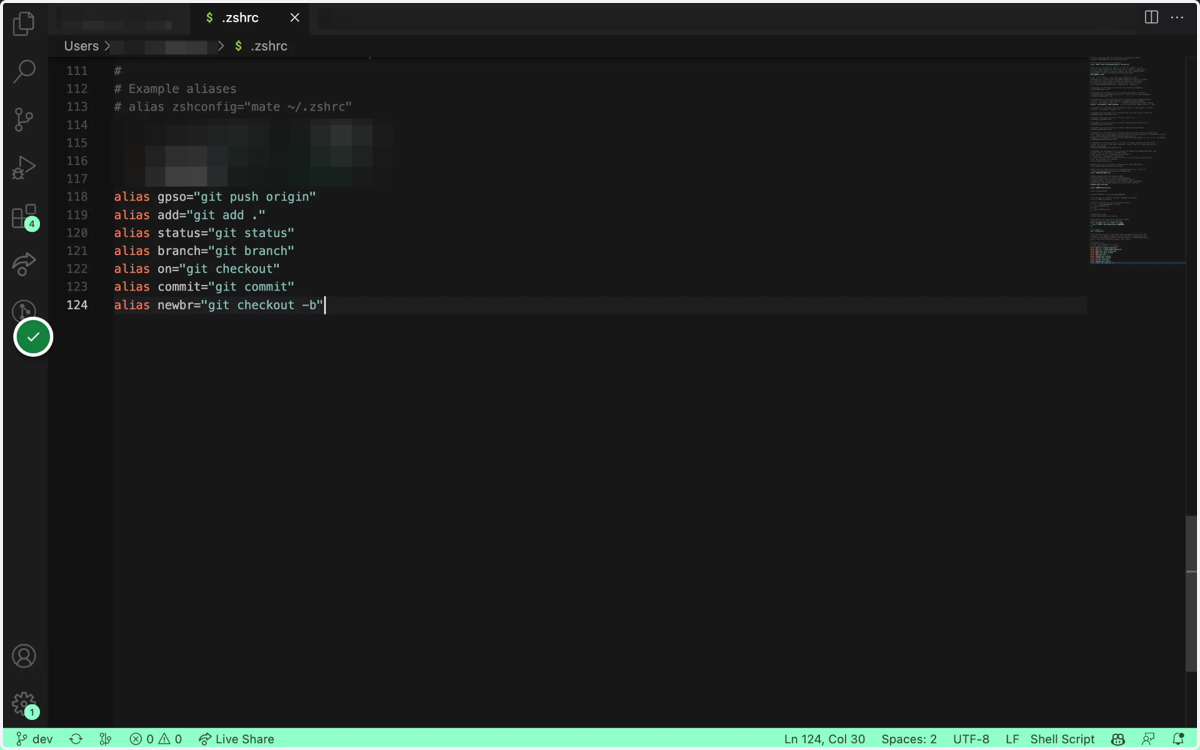
6. Add your alias(es)
These are a few of mine, and I've added
alias start="npm run start"to the list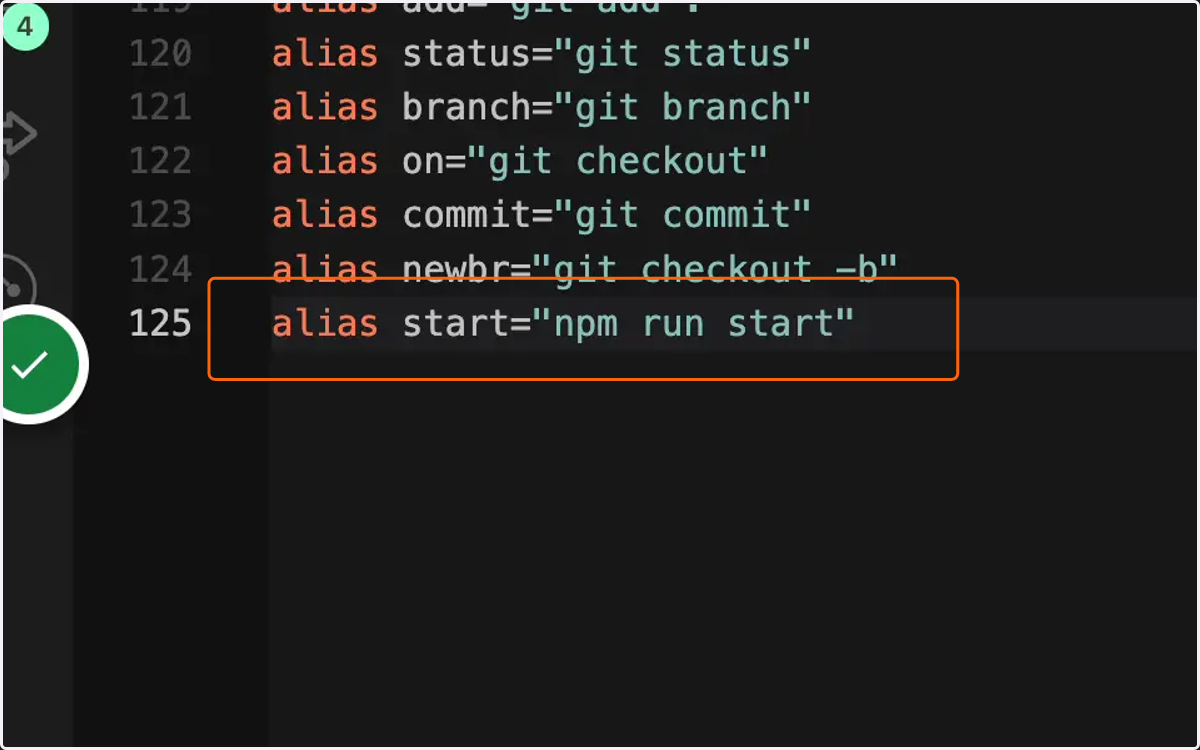
7. Save your file
On mac:
cmd + s
On PC:ctrl + s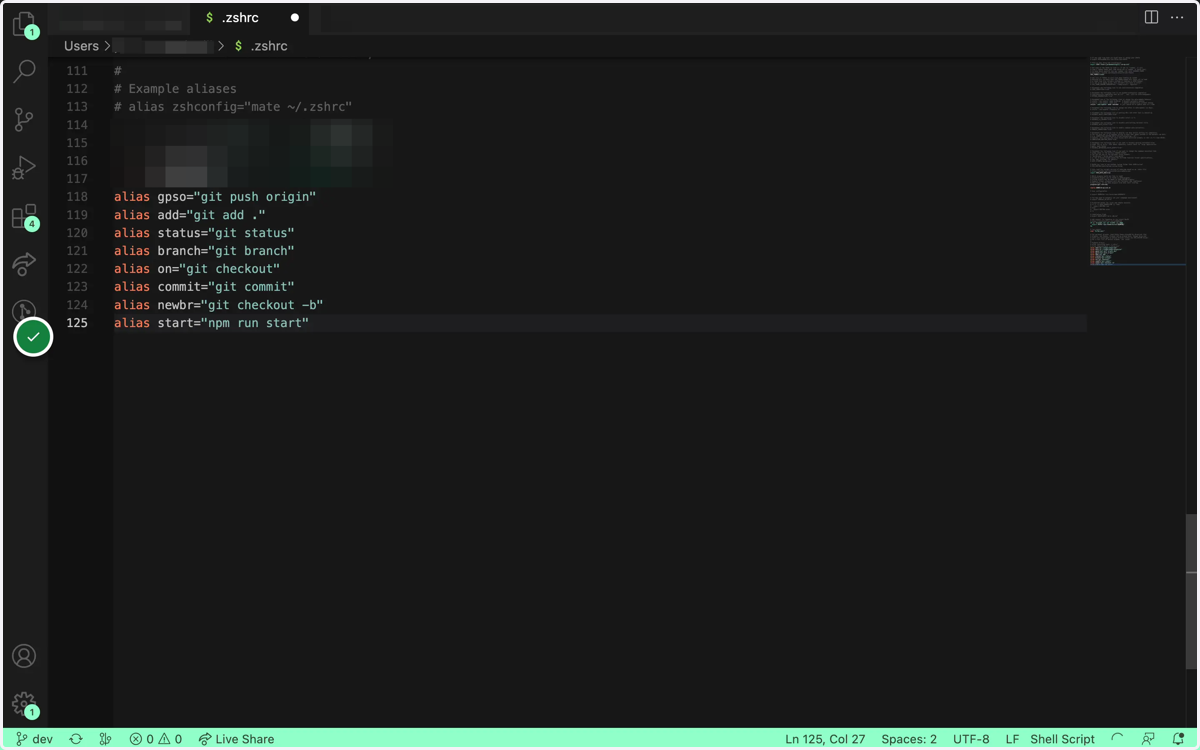
8. Update your terminal to use the new alias(es)
To apply changes, restart your terminal or type
source <filename>
That's it!