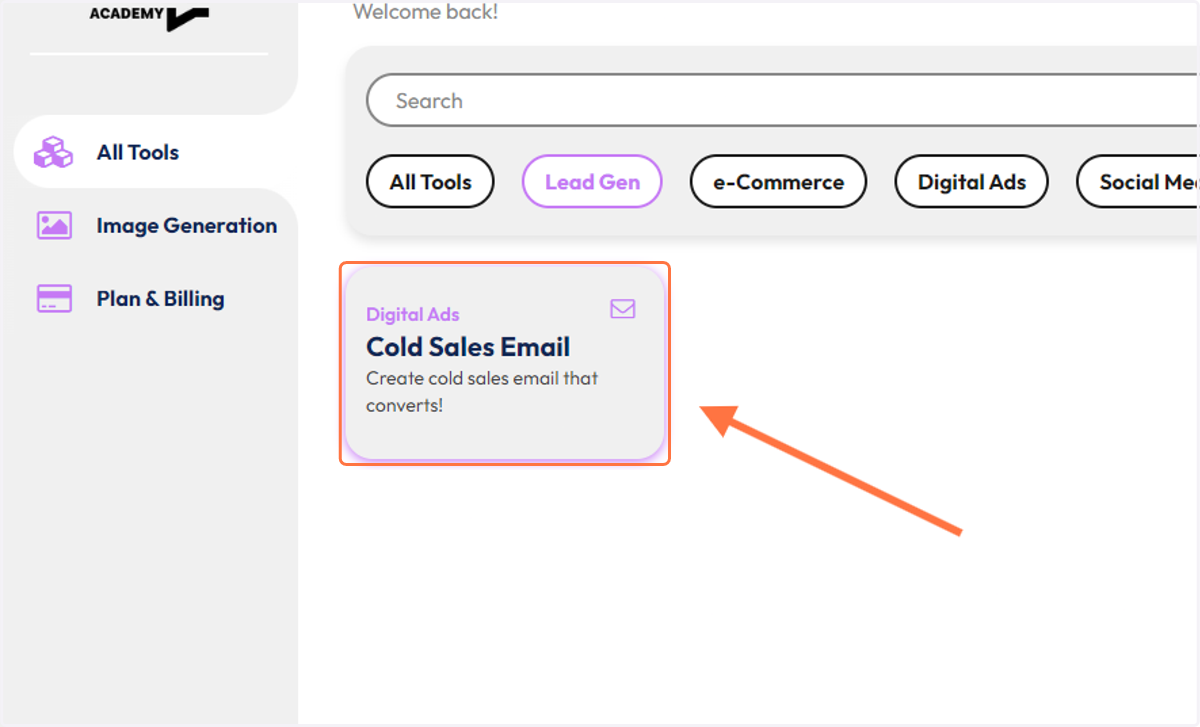
Adding Existing Tools to that Category
Bubble.io
Go to bubble.io
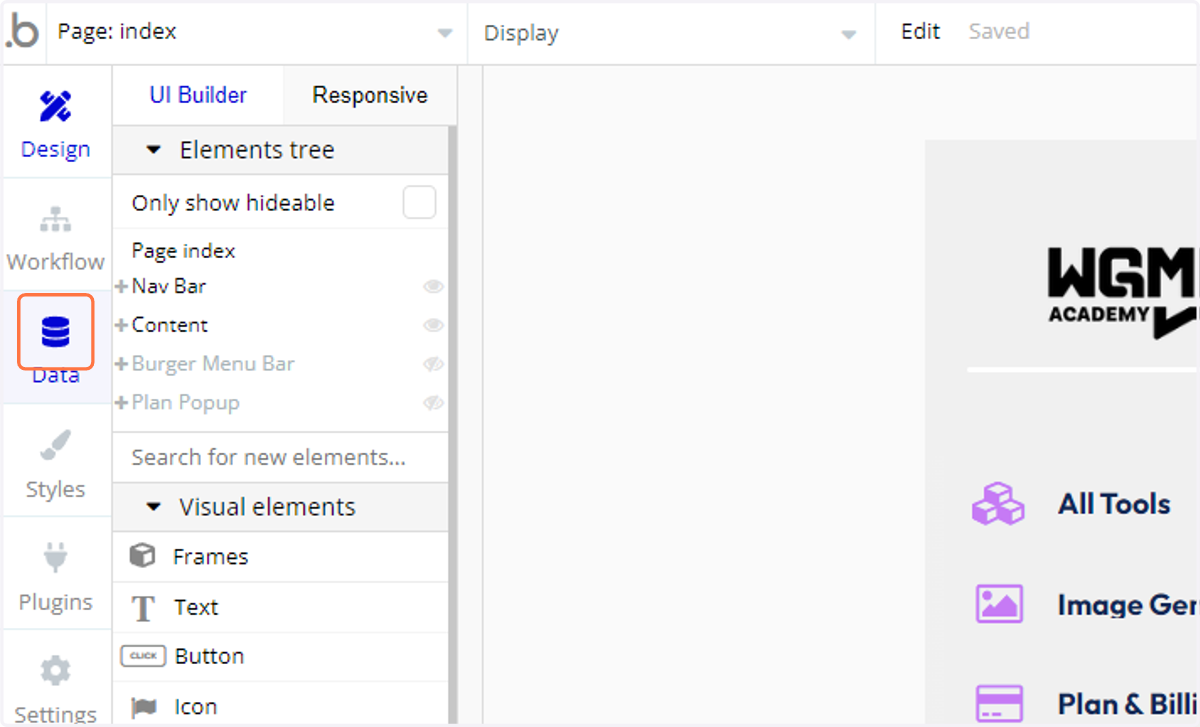
1. Click on Data
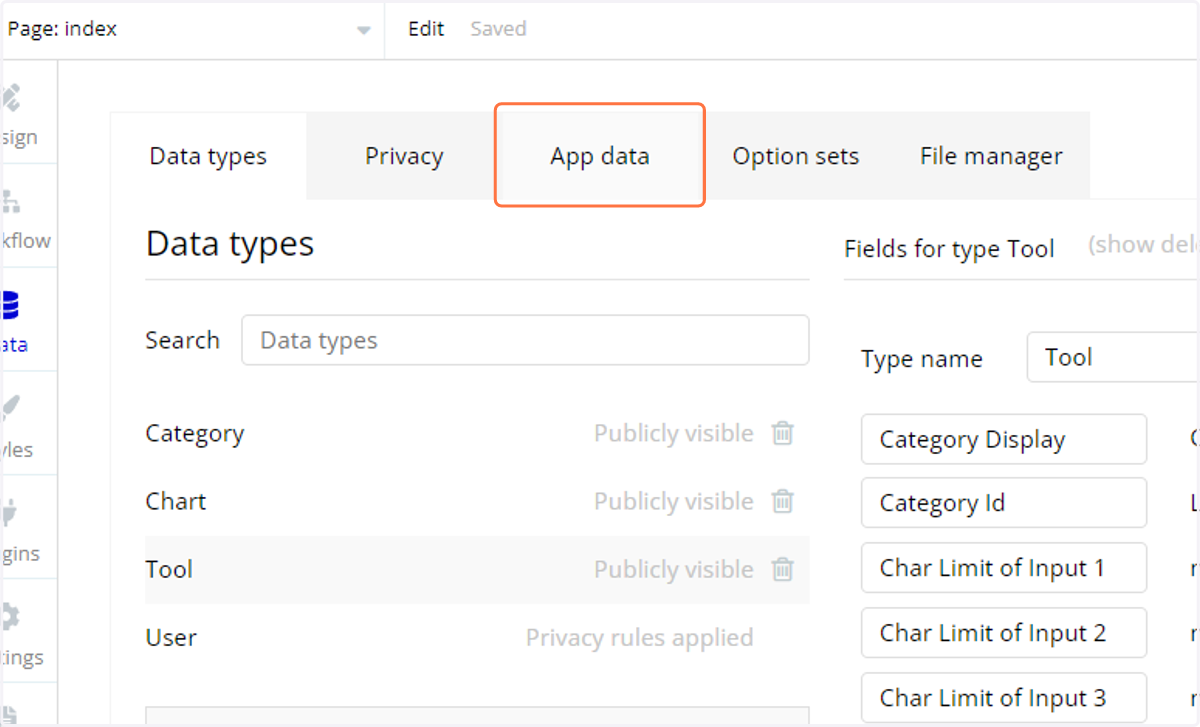
2. Click on App data
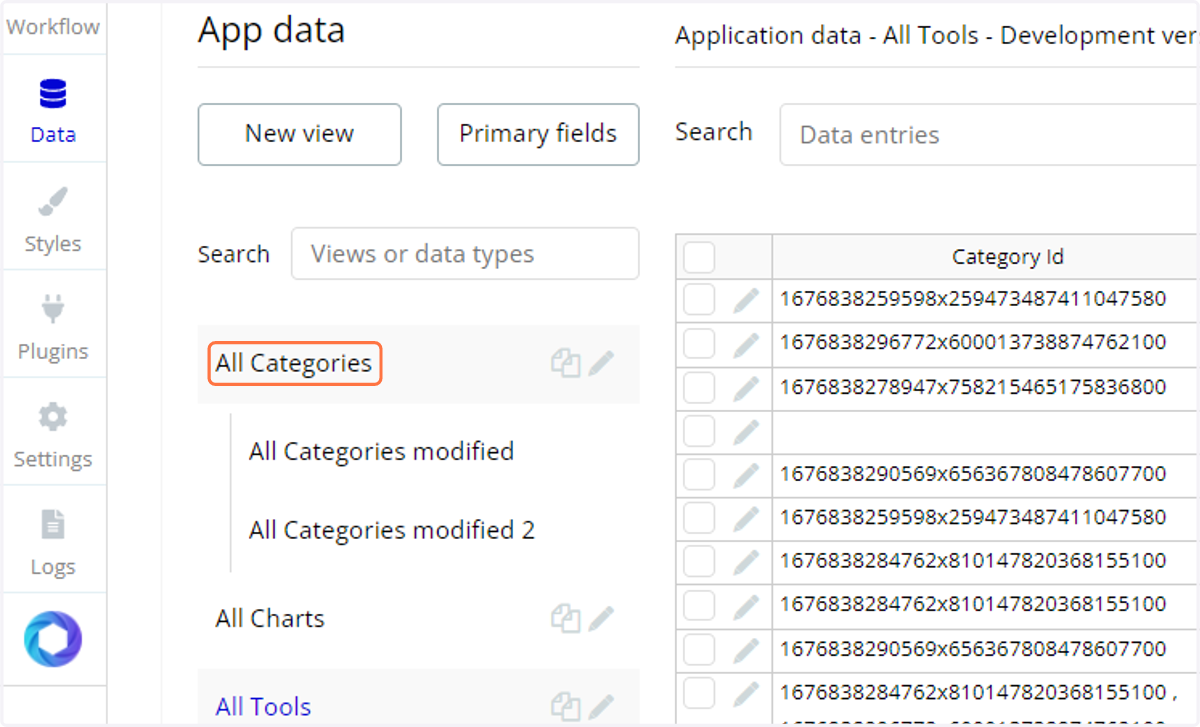
3. Click on All Categories
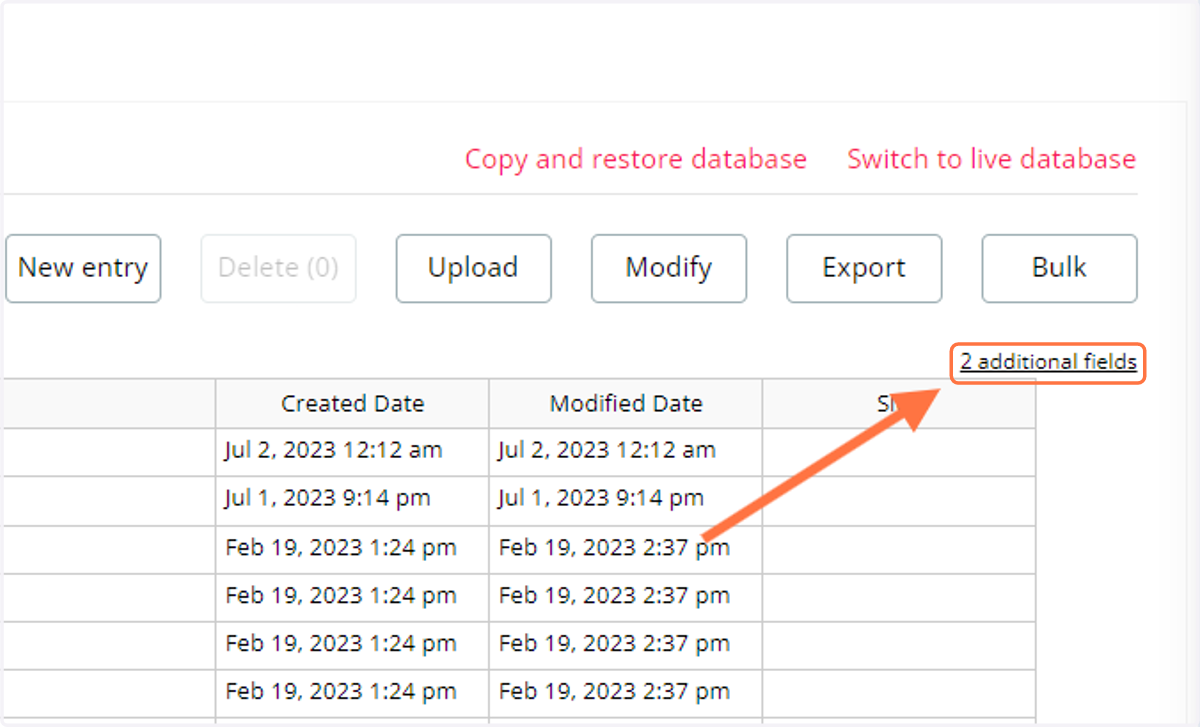
4. Click on 2 additional fields
this is so we can grab the unique ID of the category to paste in the tool we want to add
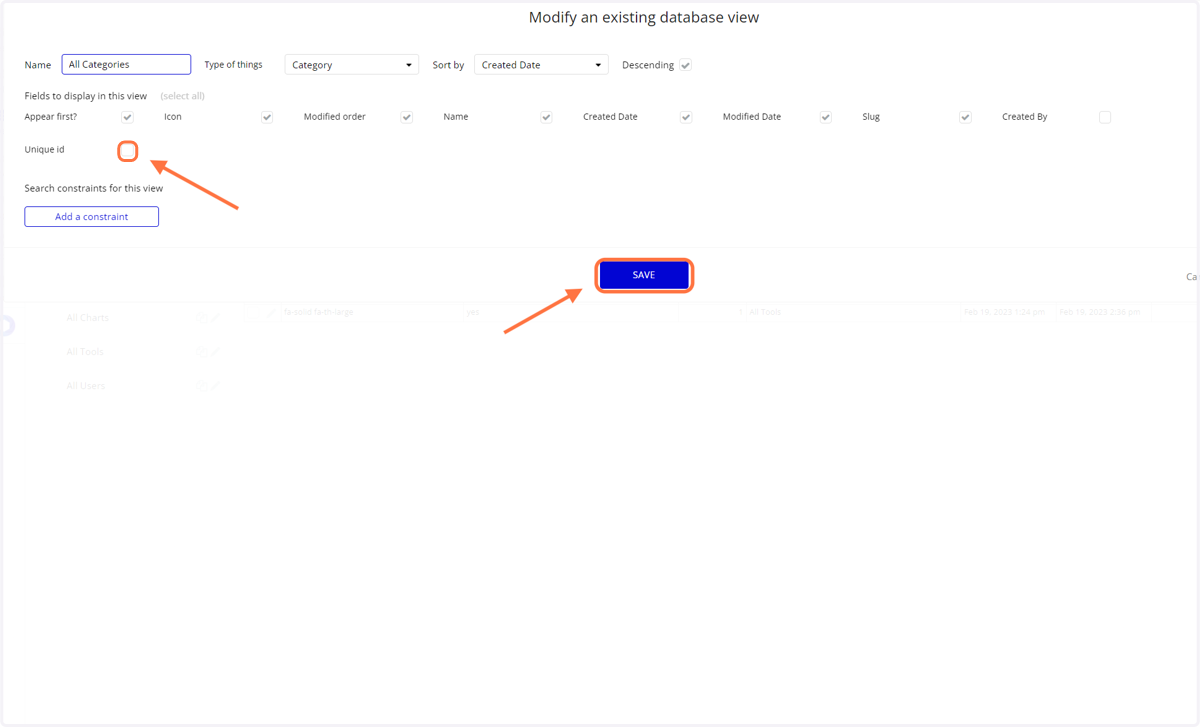
5. Select "Unique ID" & click "SAVE"
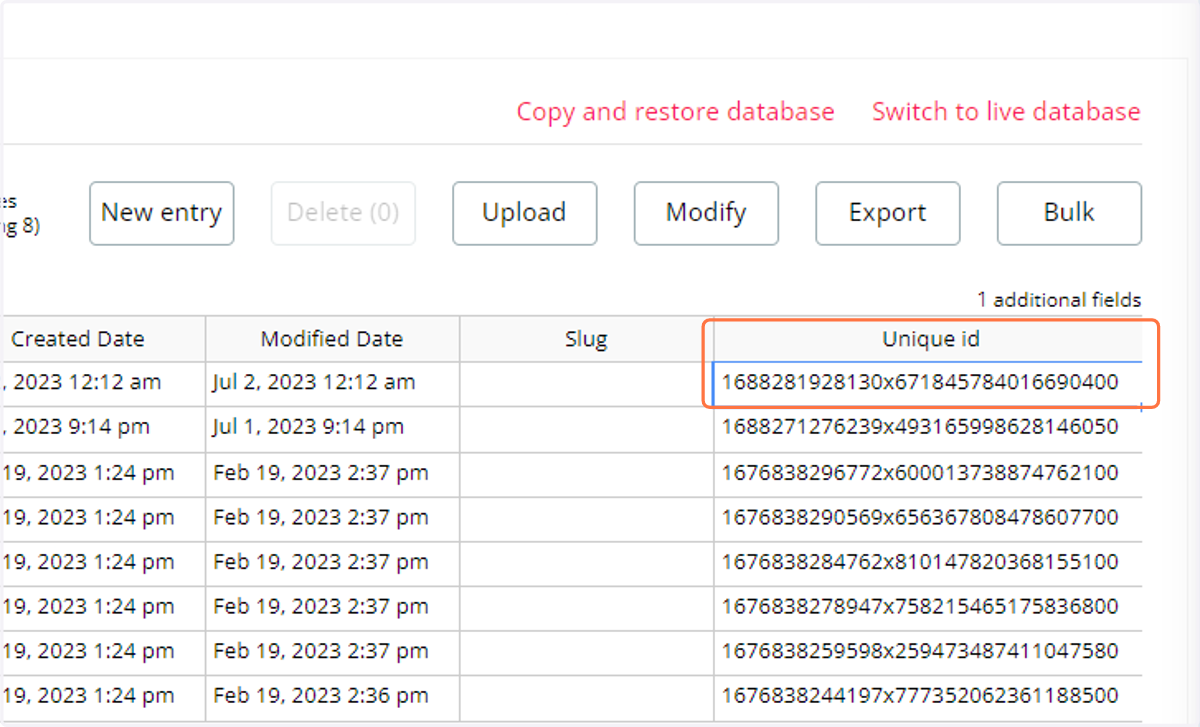
6. Copy the Unique ID of the category you want to use
just select it and copy it
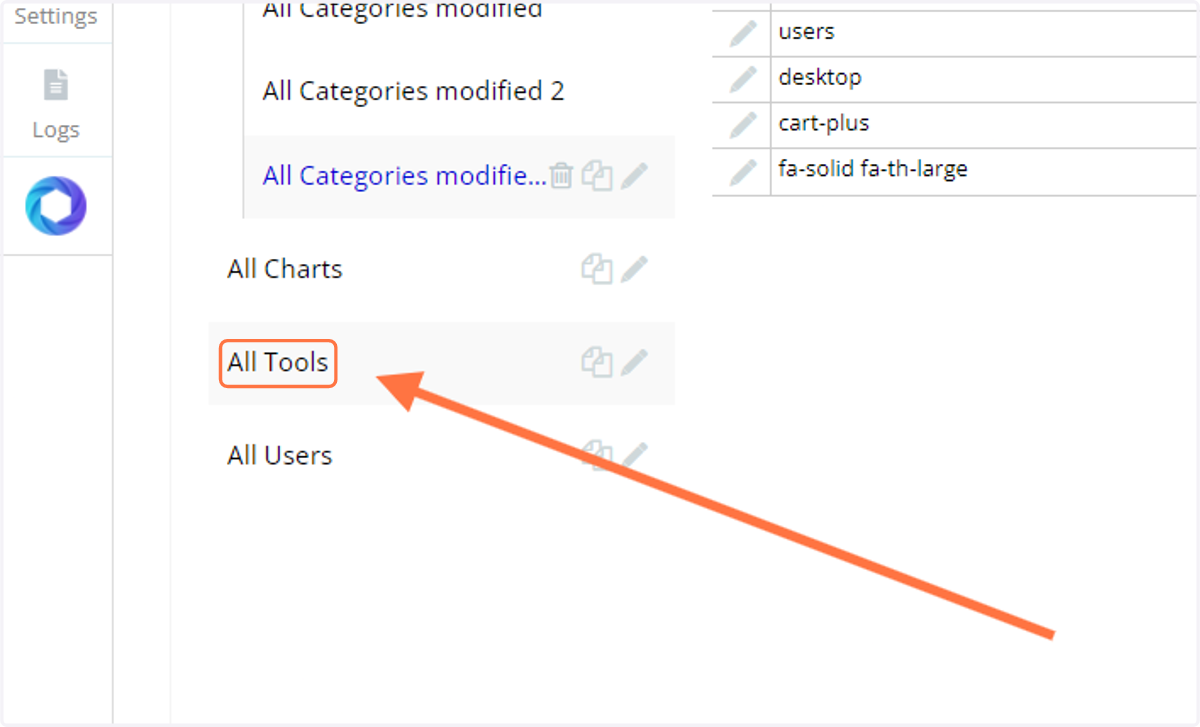
7. Click on All Tools
8. Click on 28 additional fields
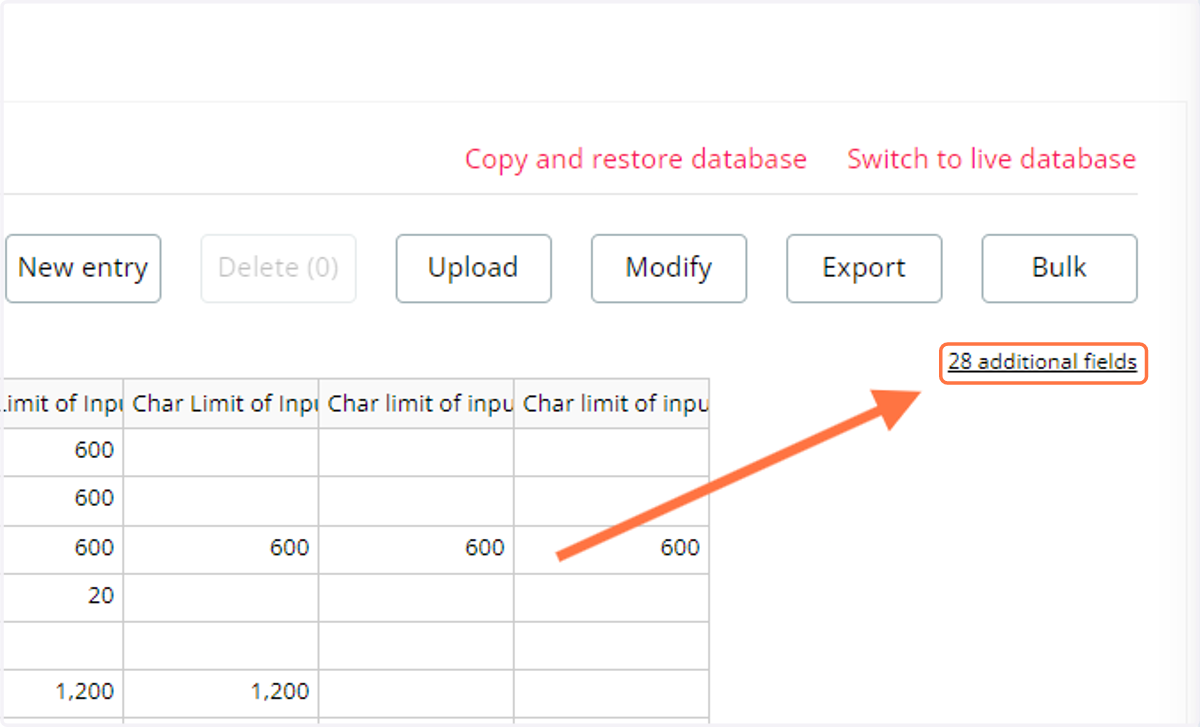
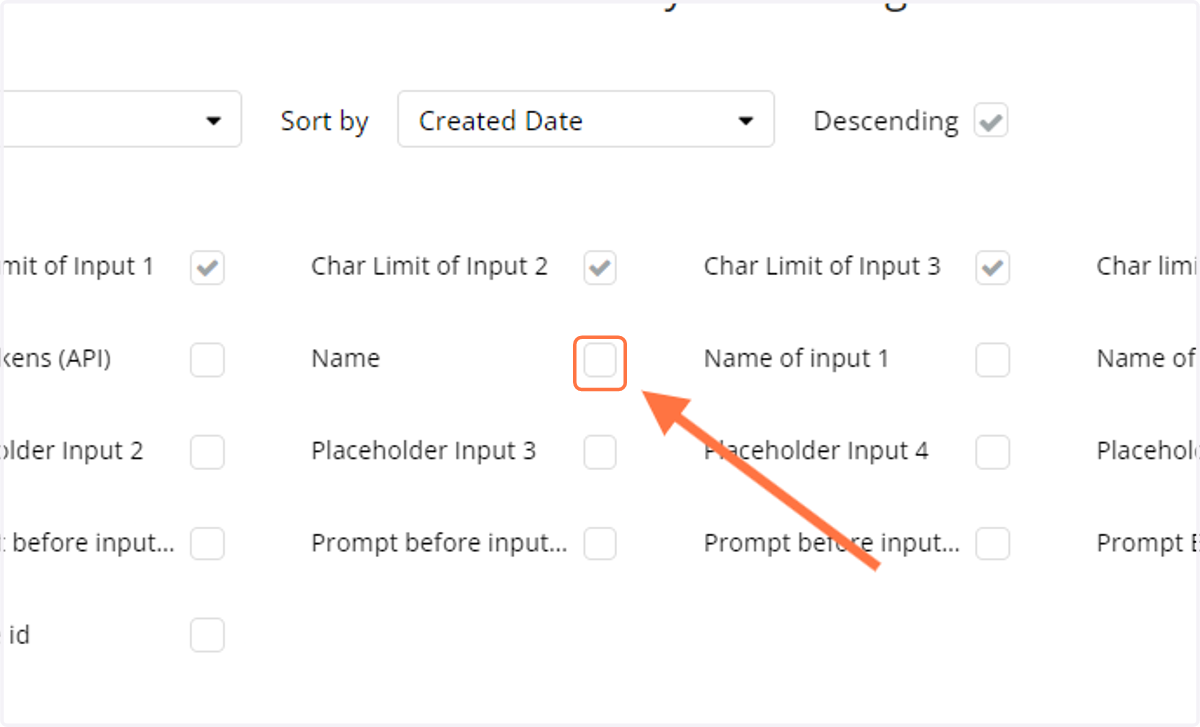
9. Select "Name" & Click on "SAVE"
This is so we create a modified view of all our tools so we can sort them by name
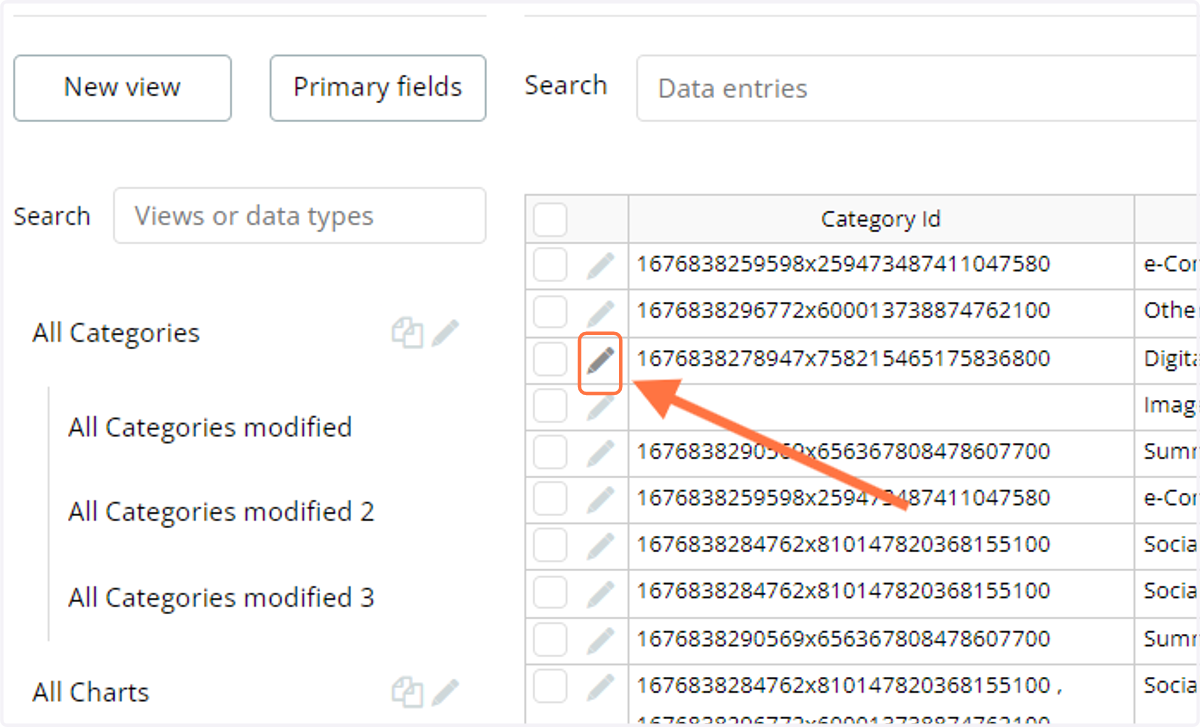
10. Click the edit icon on the tool you want to add to your category.
in my case i will add the "Cold sales email " tool to my "lead gen" category
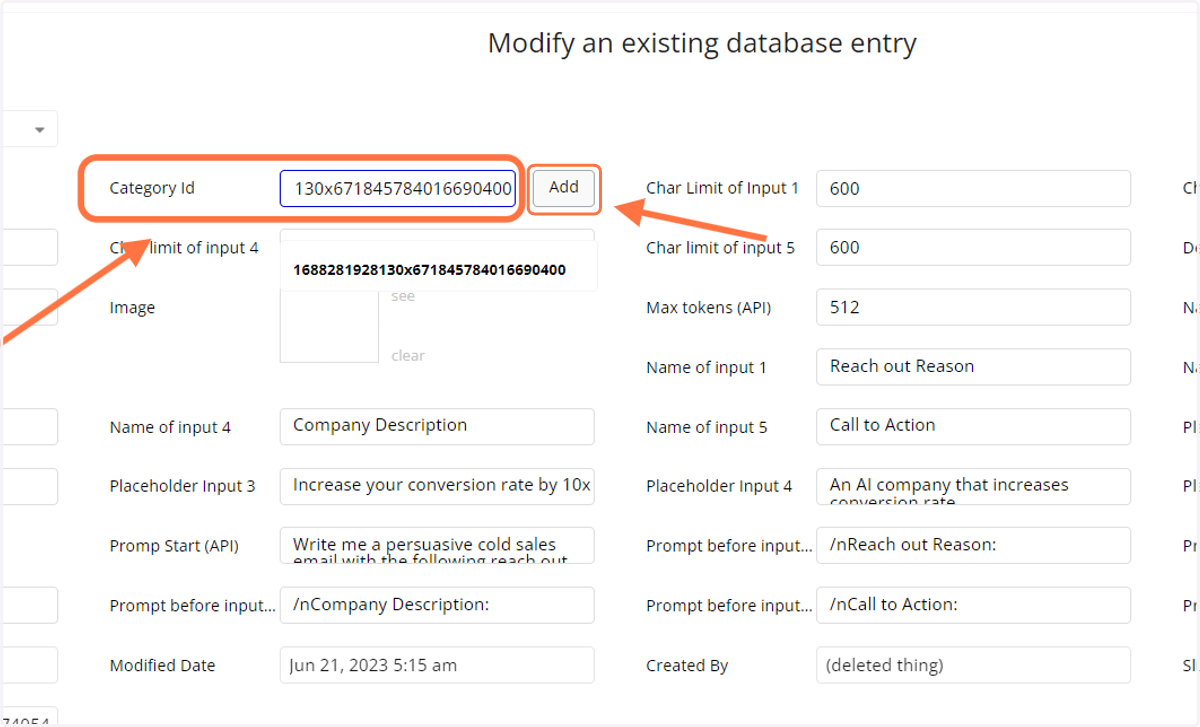
11. Paste the Unique ID of the category you copied into this field then click on "Add"
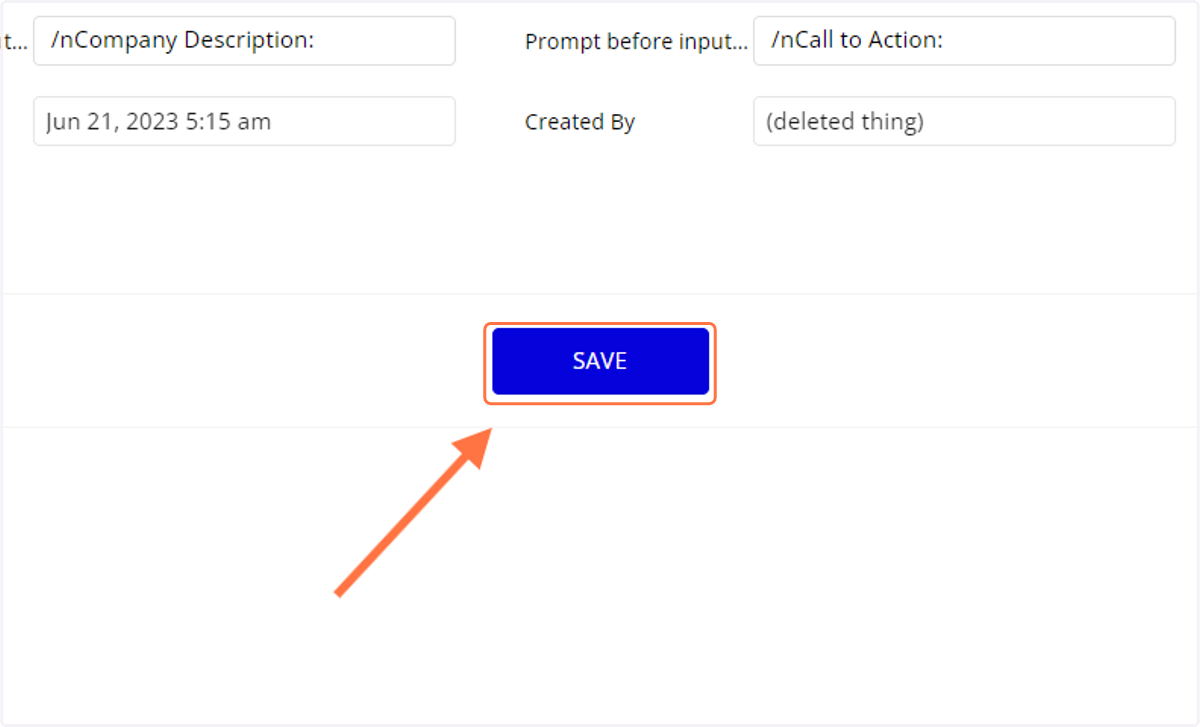
12. Click on SAVE
13. Your tool should now be visible on the front-end
View our "create a custom tool" tutorial to see this full process