How to Use the Southwest Companion Pass
Southwest Airlines
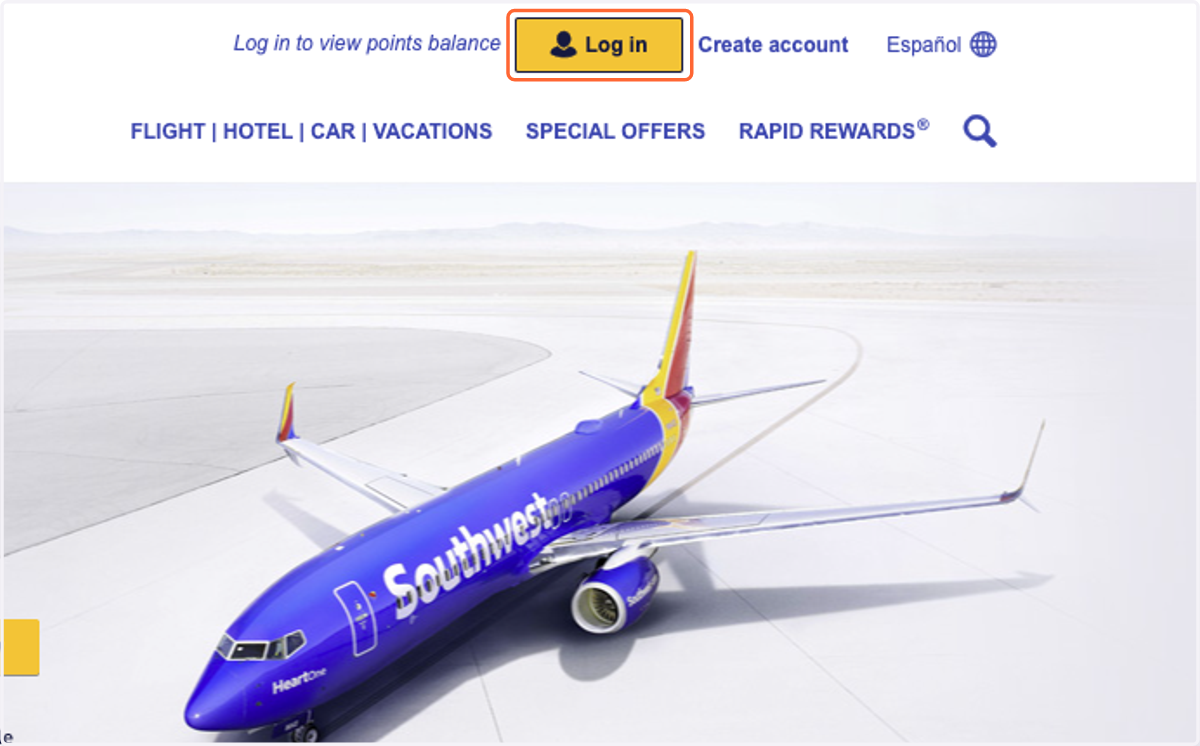
1. Click "Log In" in the top right to log in to your Southwest Account
Be sure that you're logging into the account that qualified for the Companion Pass
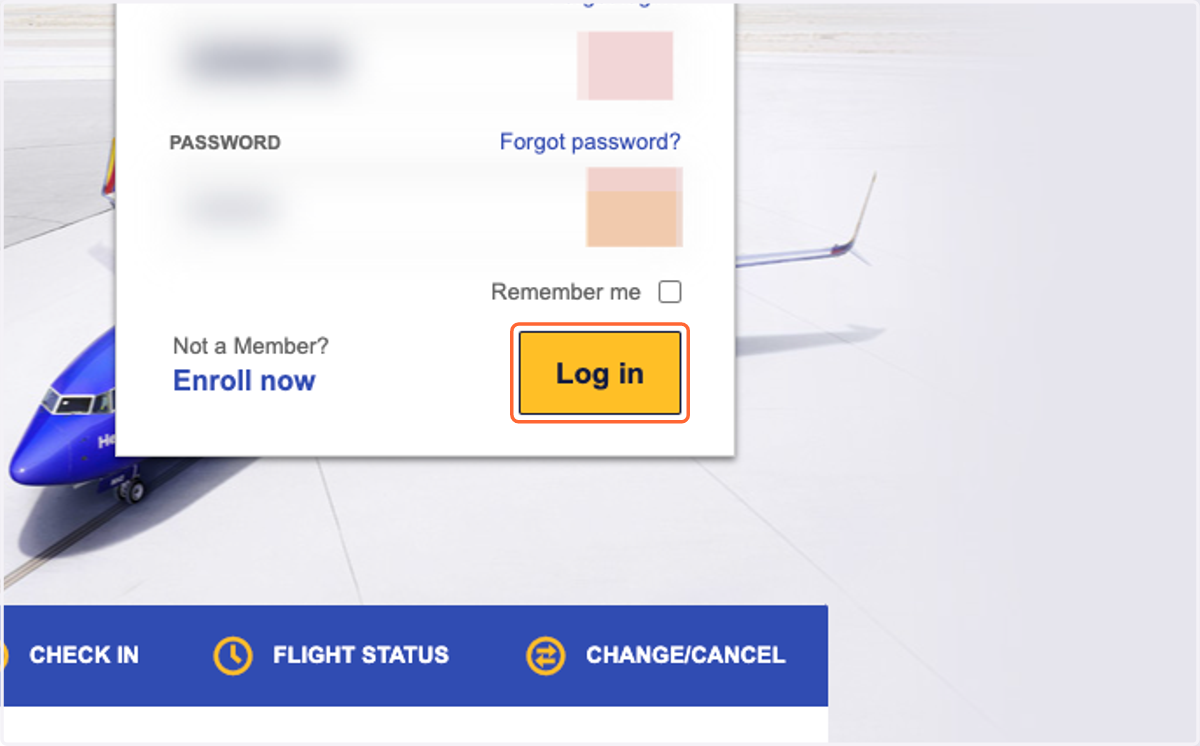
2. Enter your account info in the pop down box and click "Log In"
3. Enter your search details in the box on the home page
You can use your Companion Pass on every flight. Whether one way, round-trip, multi-city. Booked with cash or points.
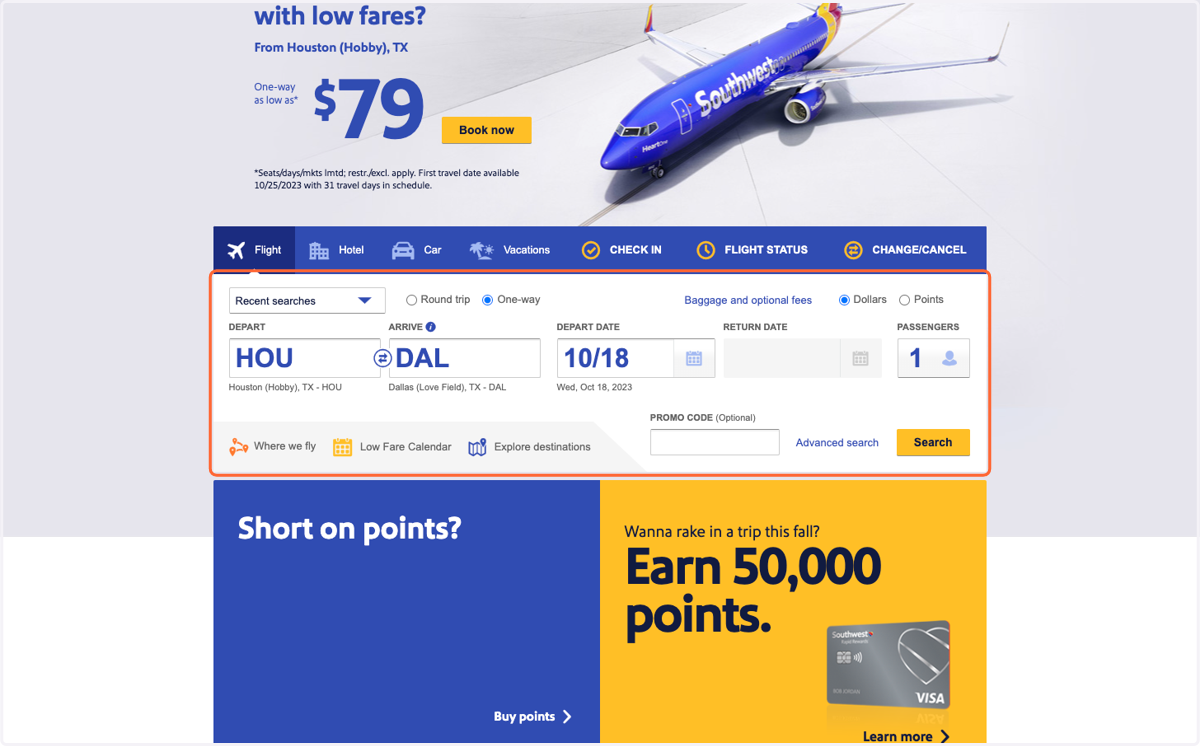
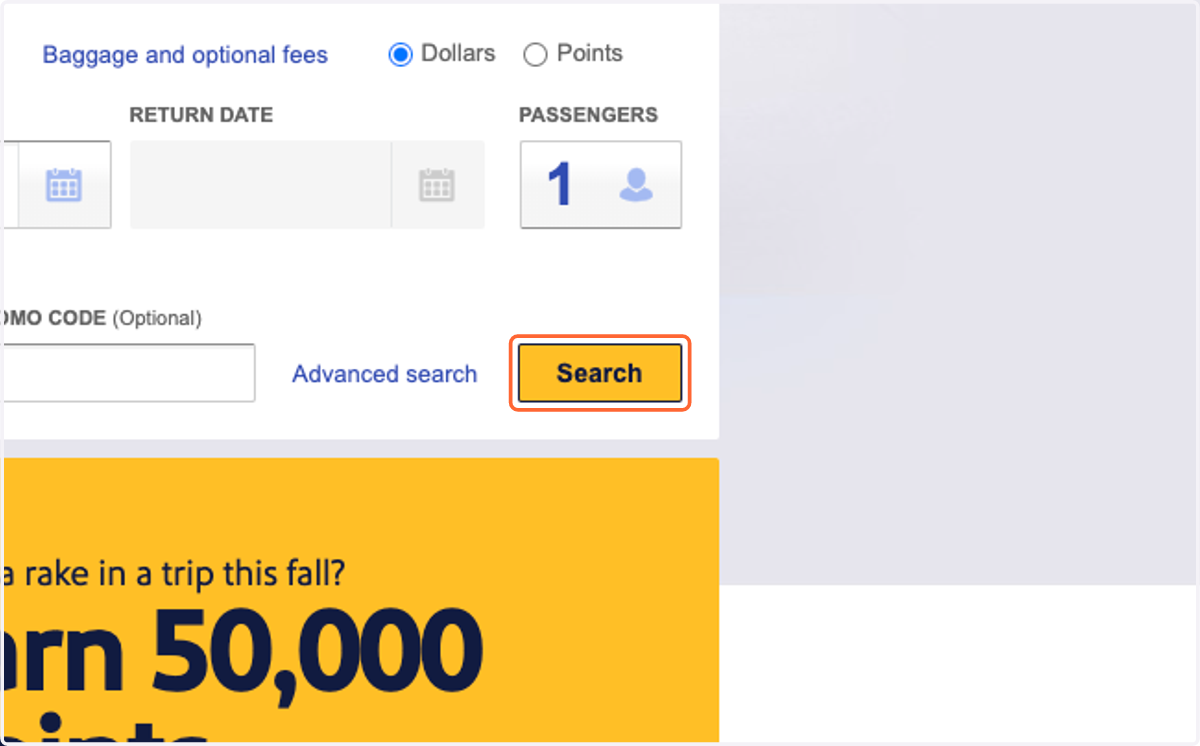
4. Click on Search
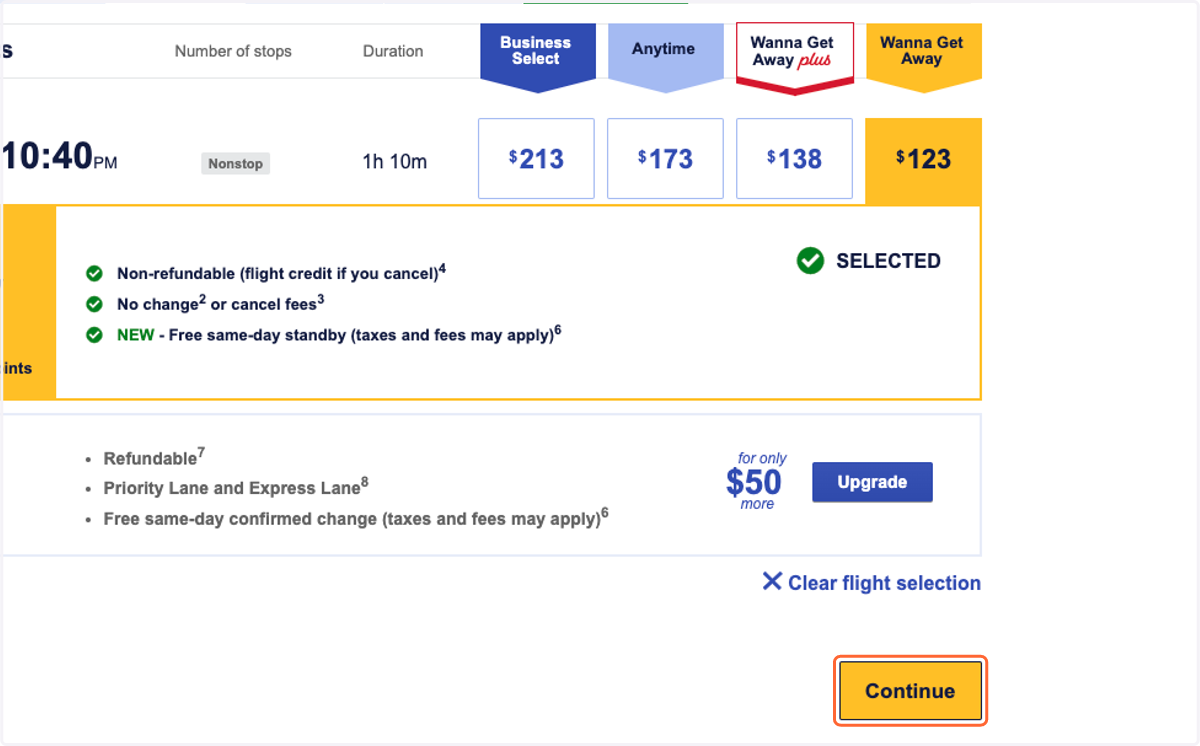
5. Select your flight, and click "Continue"
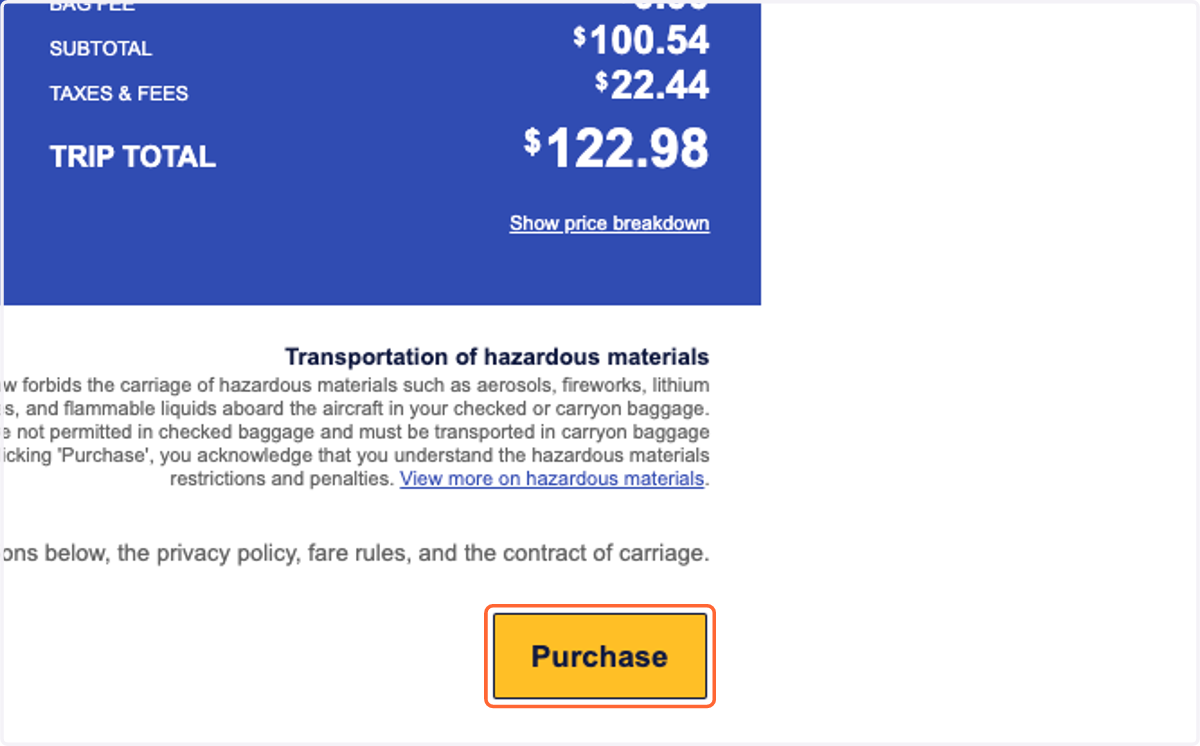
6. Proceed through the check out process
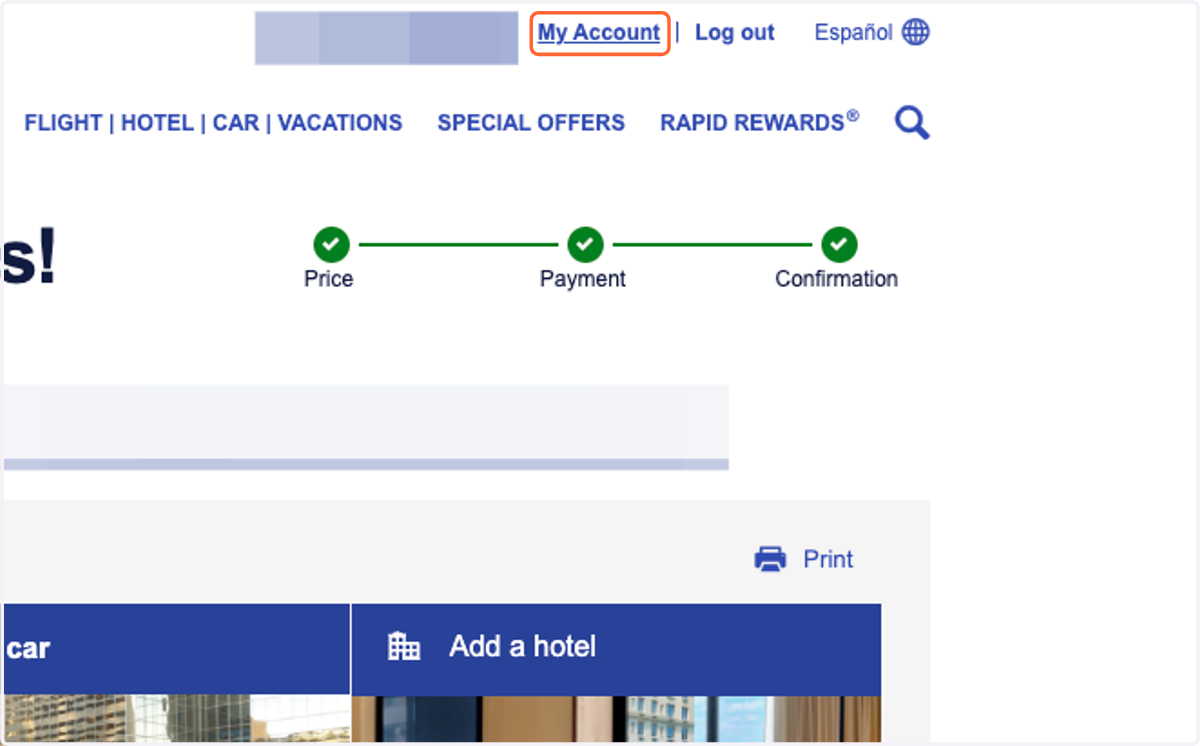
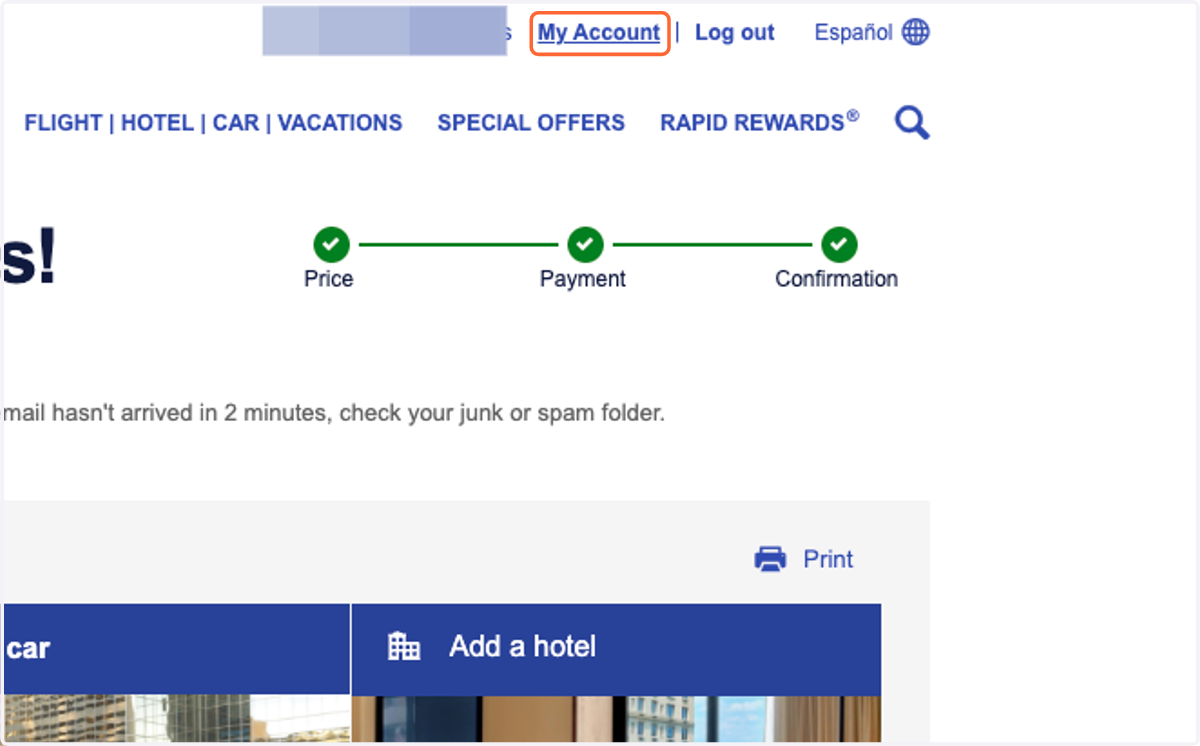
7. After purchasing your flight, click on My Account
8. Find the relevant flight in the section "My Upcoming Trips"
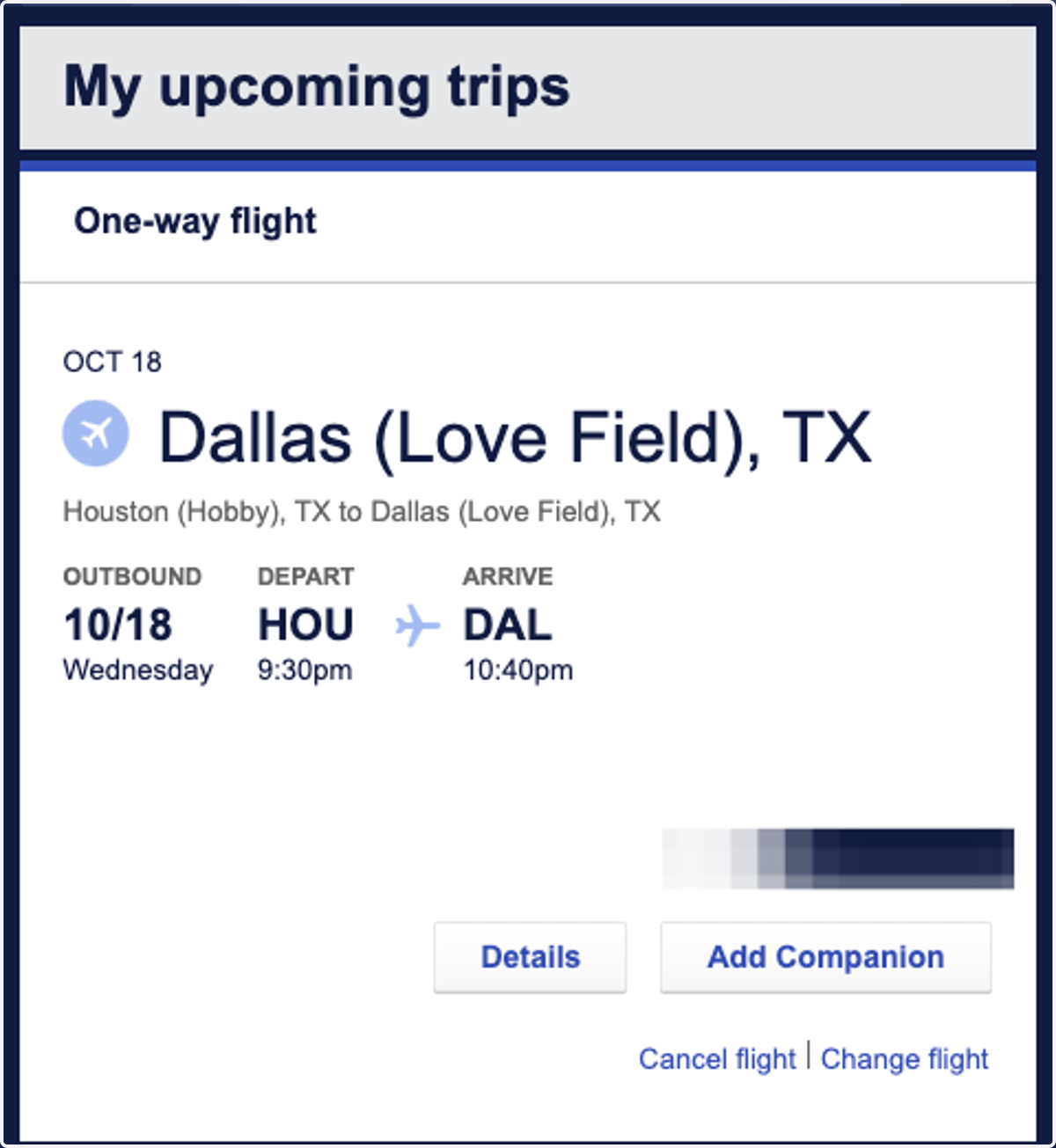
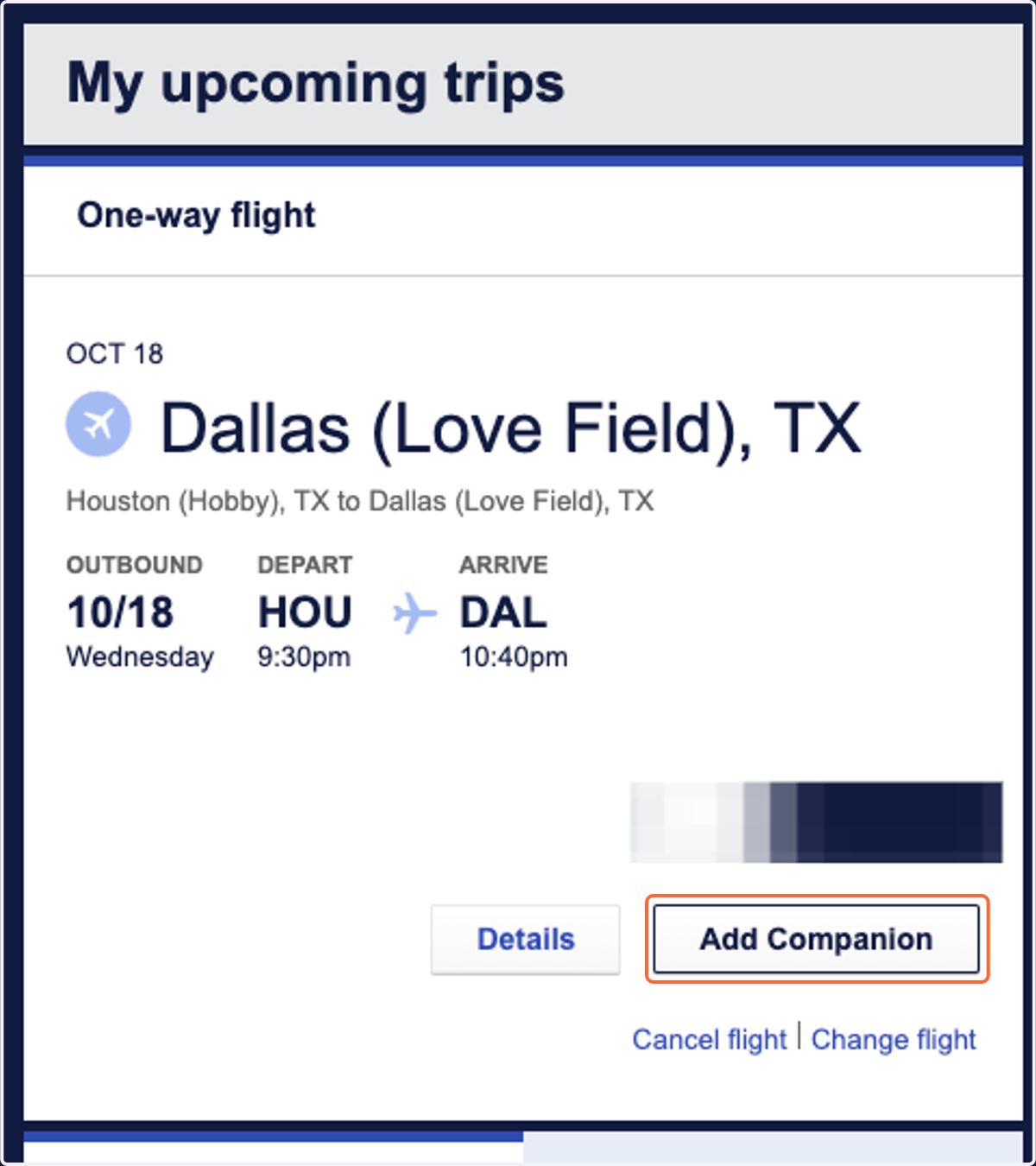
9. Click on Add Companion
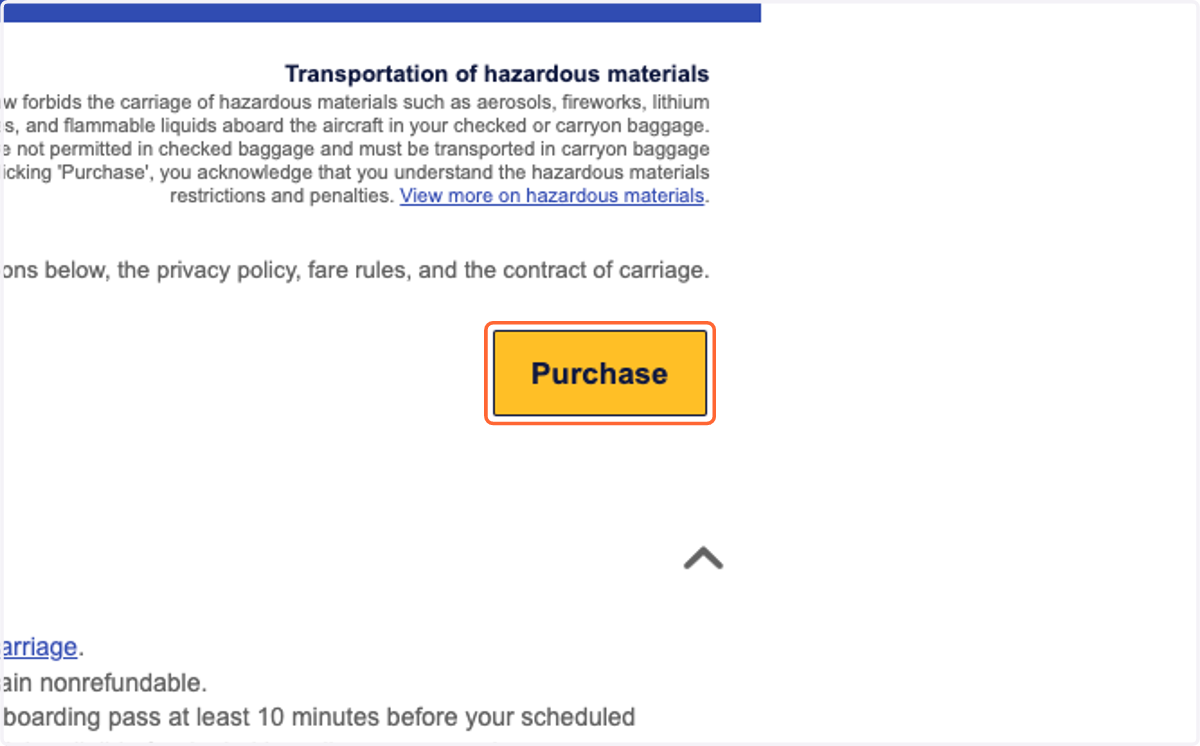
10. Complete the checkout sequence
11. Your Companion Ticket is now Booked!
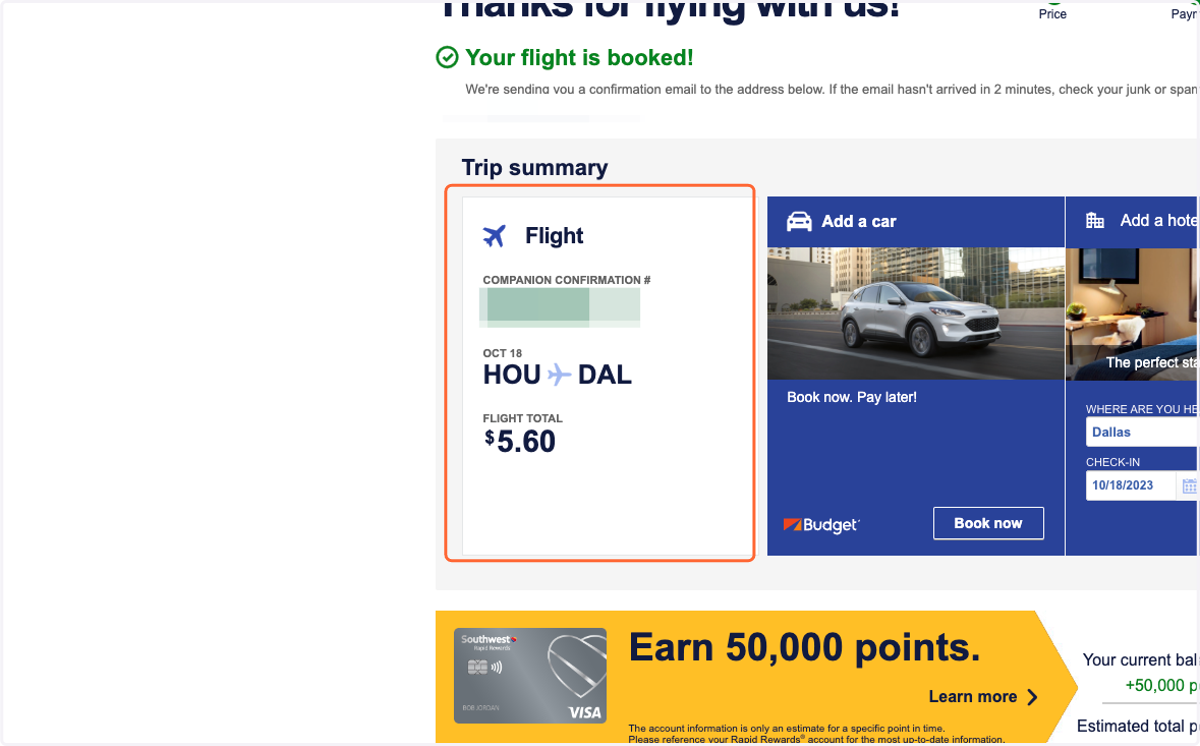
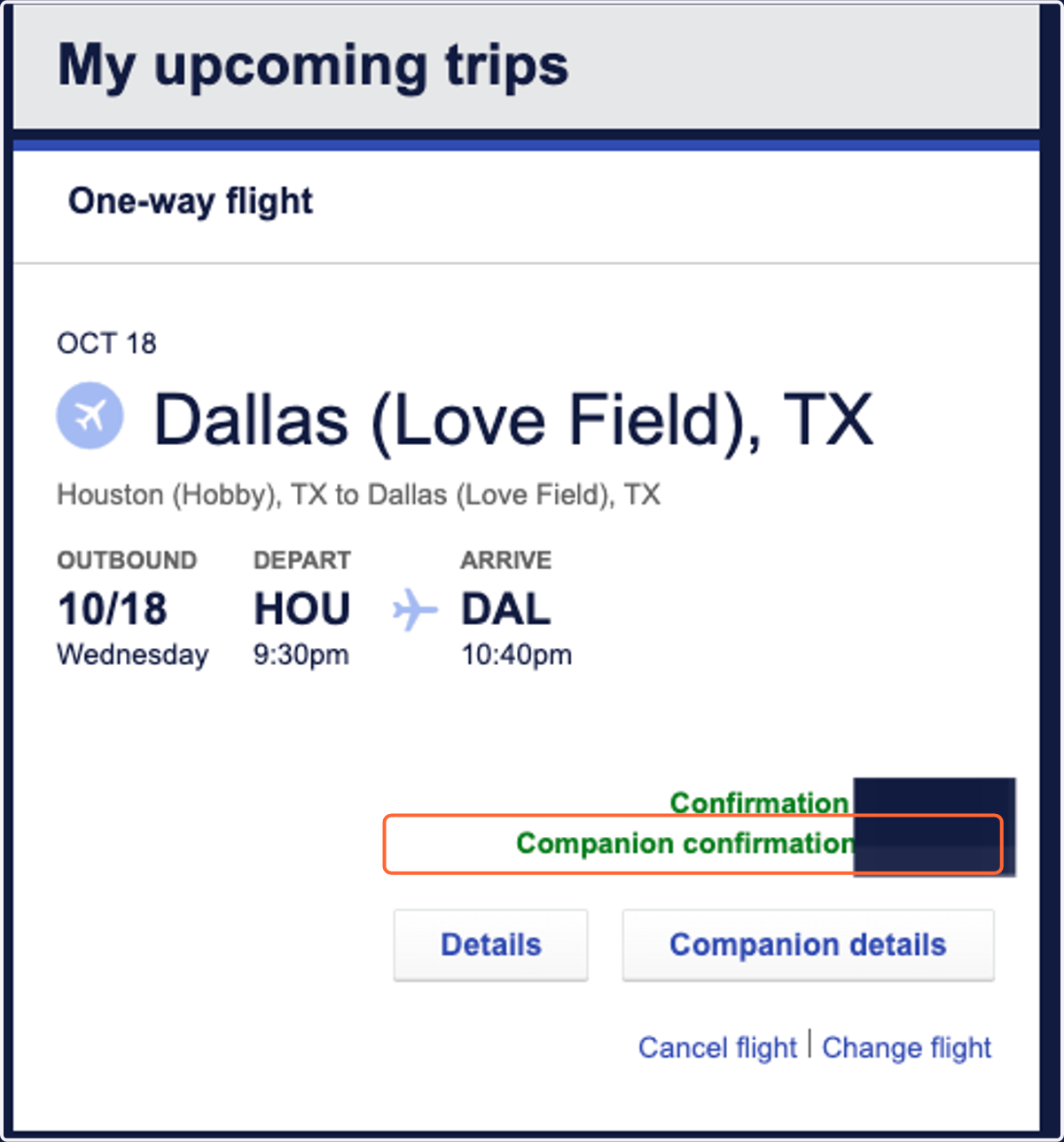
12. If you navigate back to your account...
13. You will see your Companion's confirmation number attached!