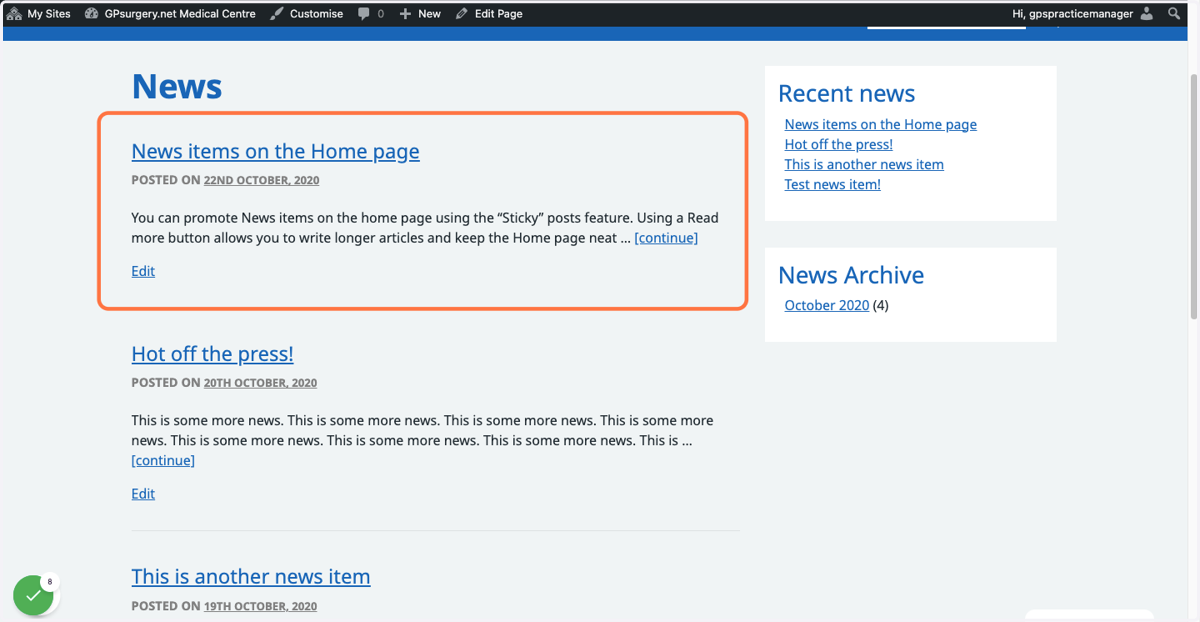
Making a news item 'sticky'
This tutorial will show you how to make a news item 'sticky', which means it will stay at the top of your news page, even when new articles are published. You can move through the tutorial at your own pace using the NEXT button below.
Gpsurgery
1. Make sure that you are logged into your website. You should be able to see the black admin toolbar at the top of your screen.
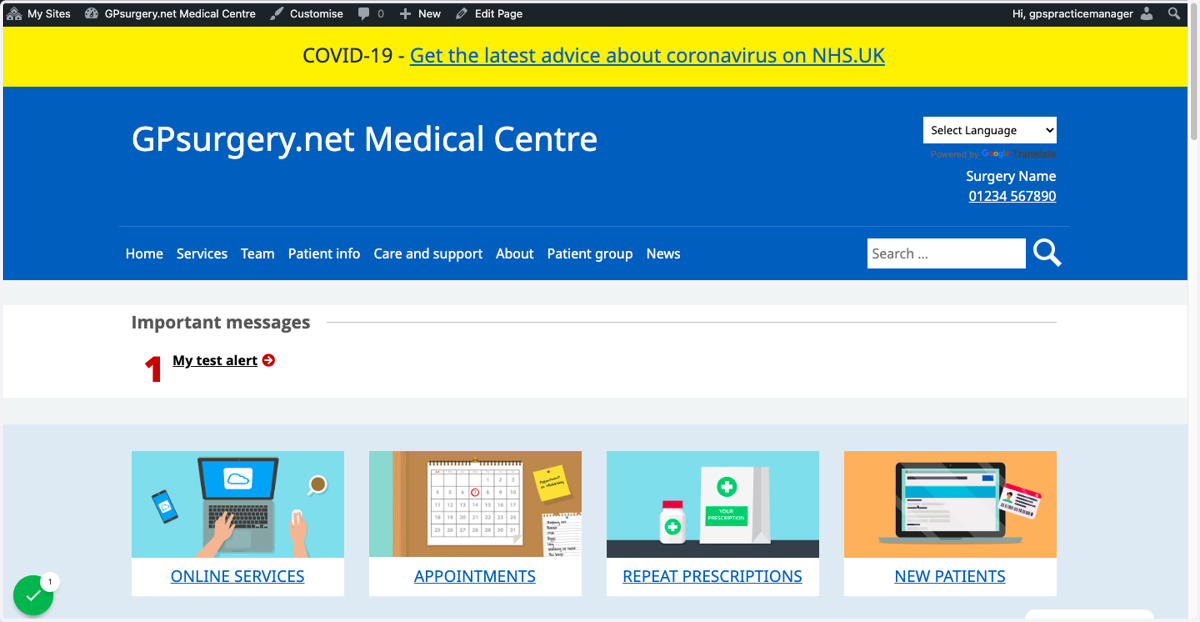
2. Click on your website's name in the admin toolbar to go to the Dashboard.
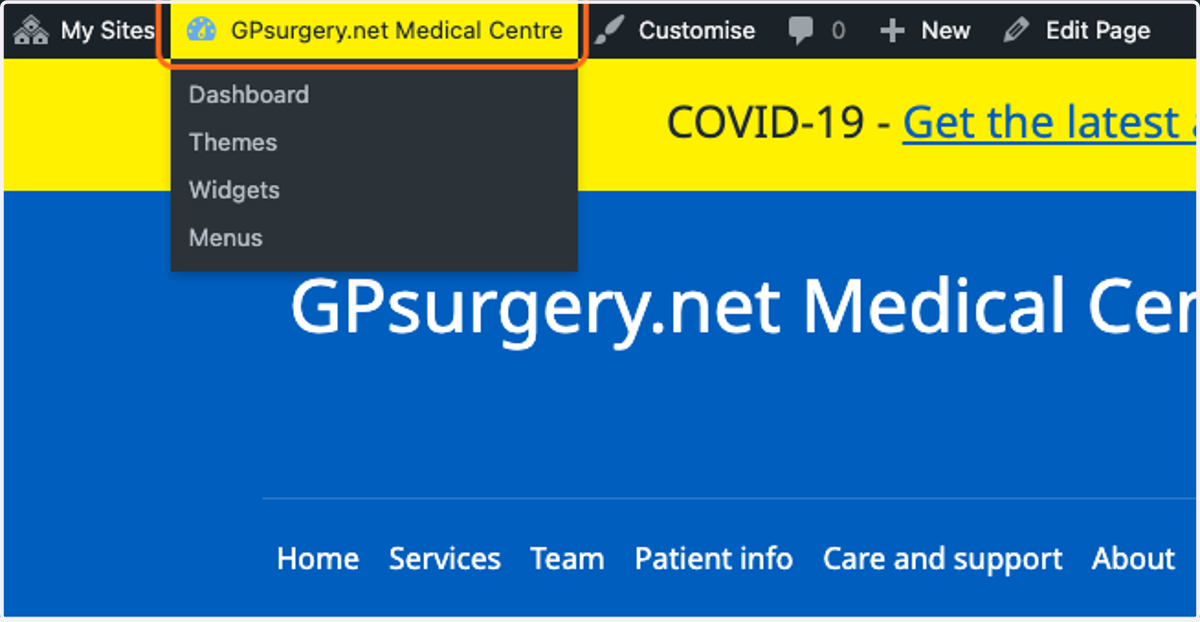
3. In the left-hand sidebar, click the News button.
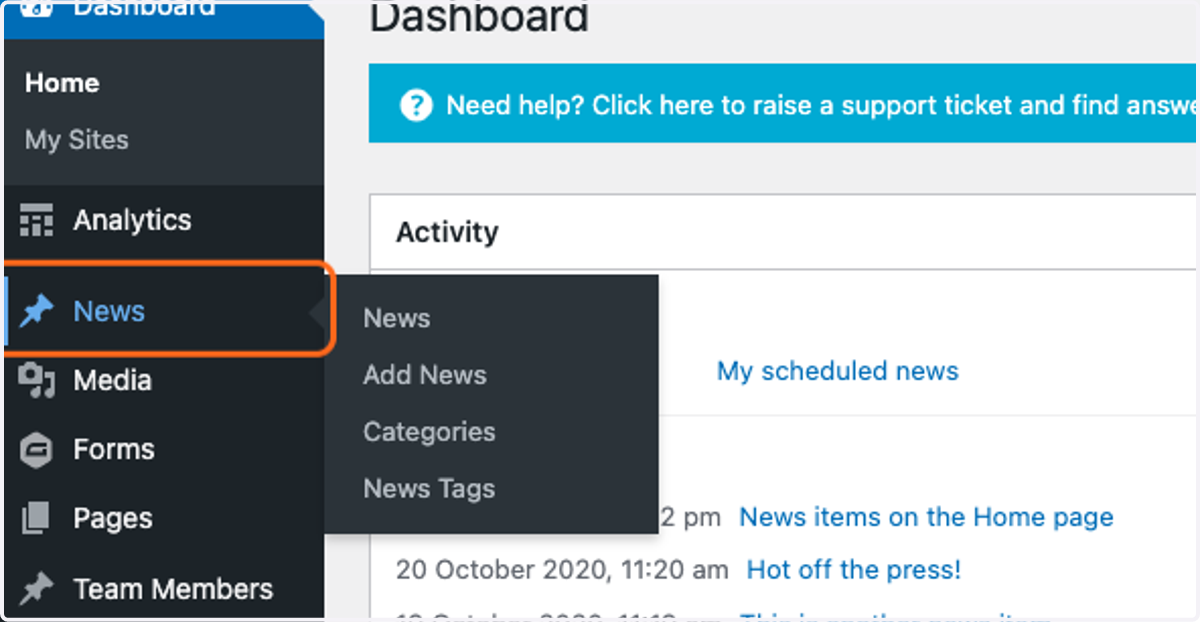
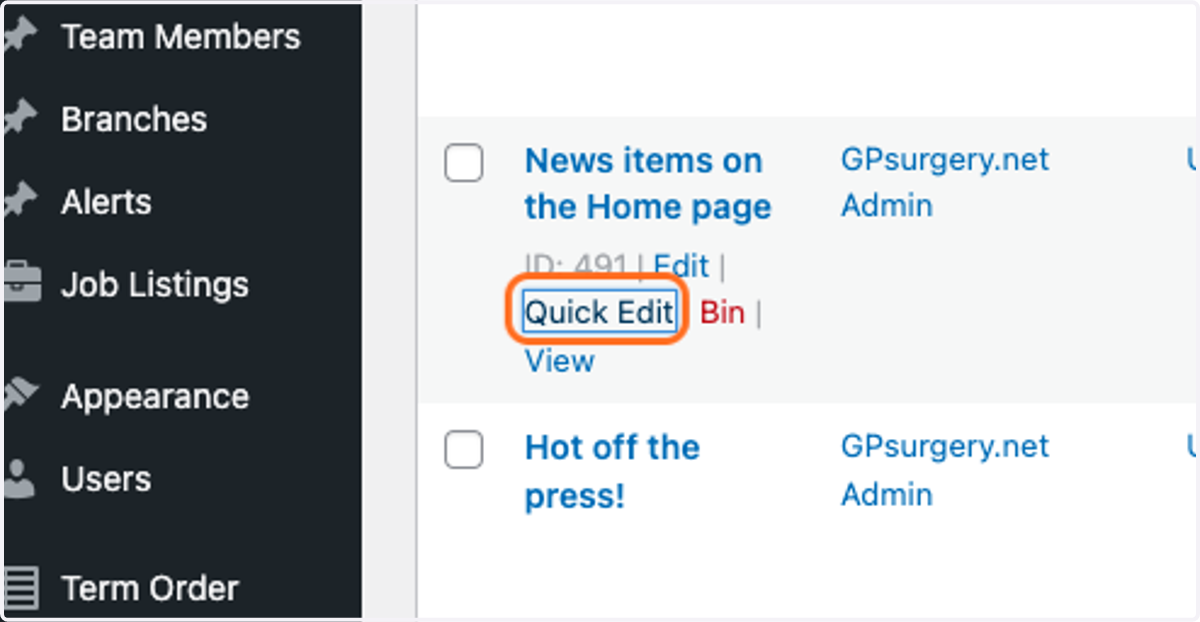
4. In the News section, find the article you would like to make sticky, and click the Quick Edit link below its name.
Gpsurgery
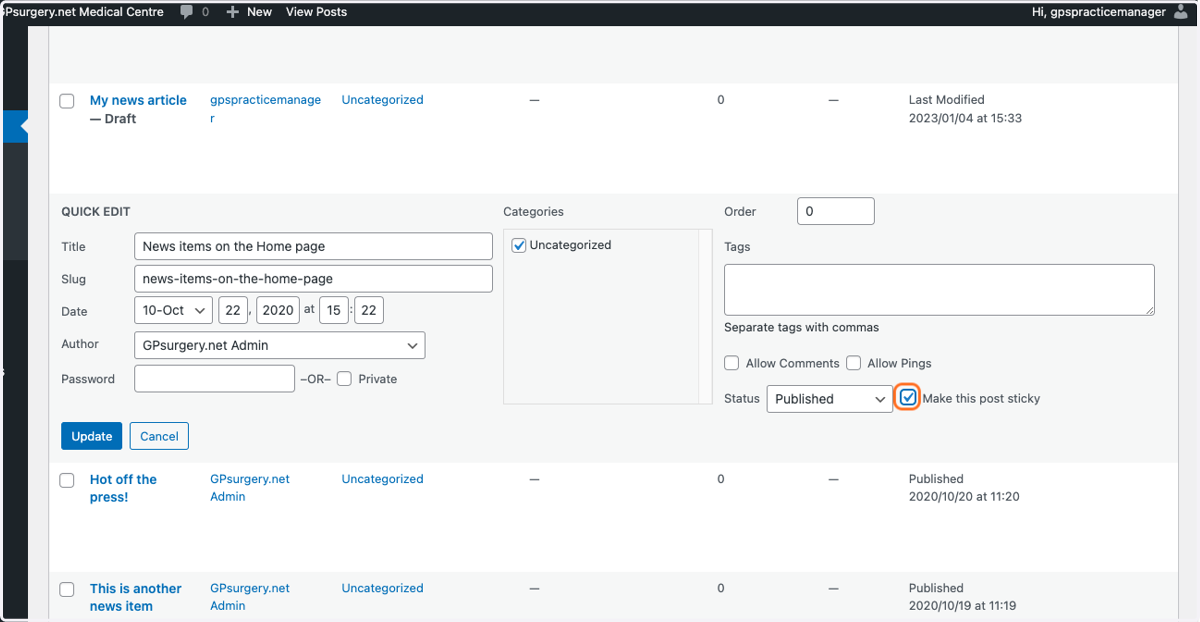
5. In the Quick Edit menu, check the Make this post sticky checkbox.
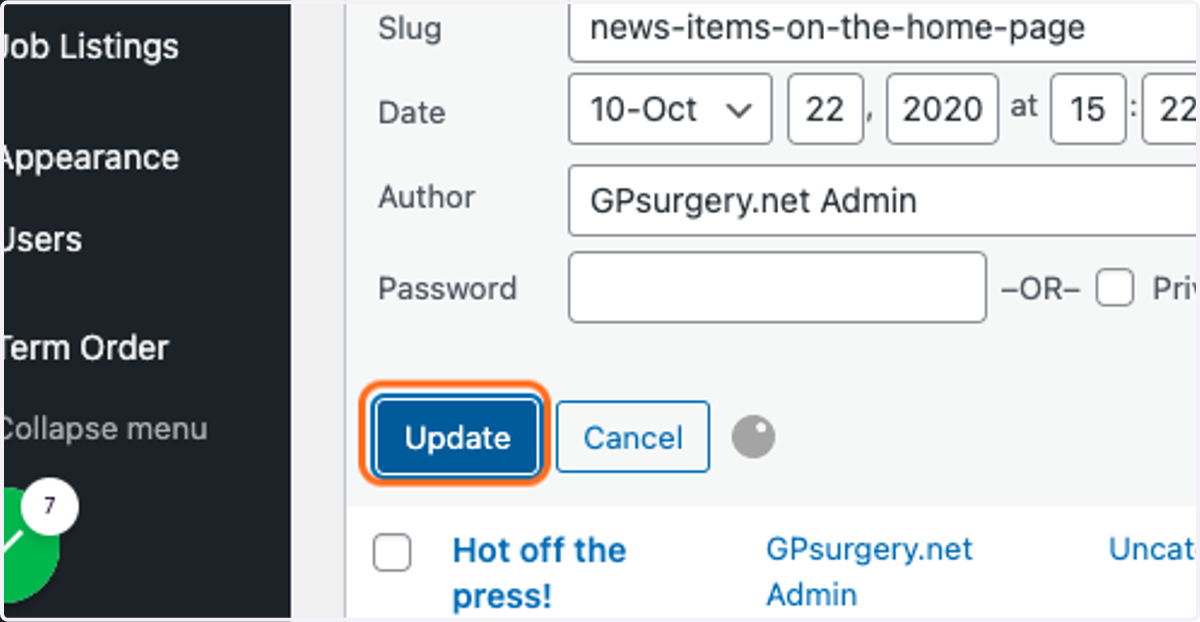
6. Click the blue Update button to save your changes.
Gpsurgery
7. Your news item will now be 'stuck' to the top of the news page.