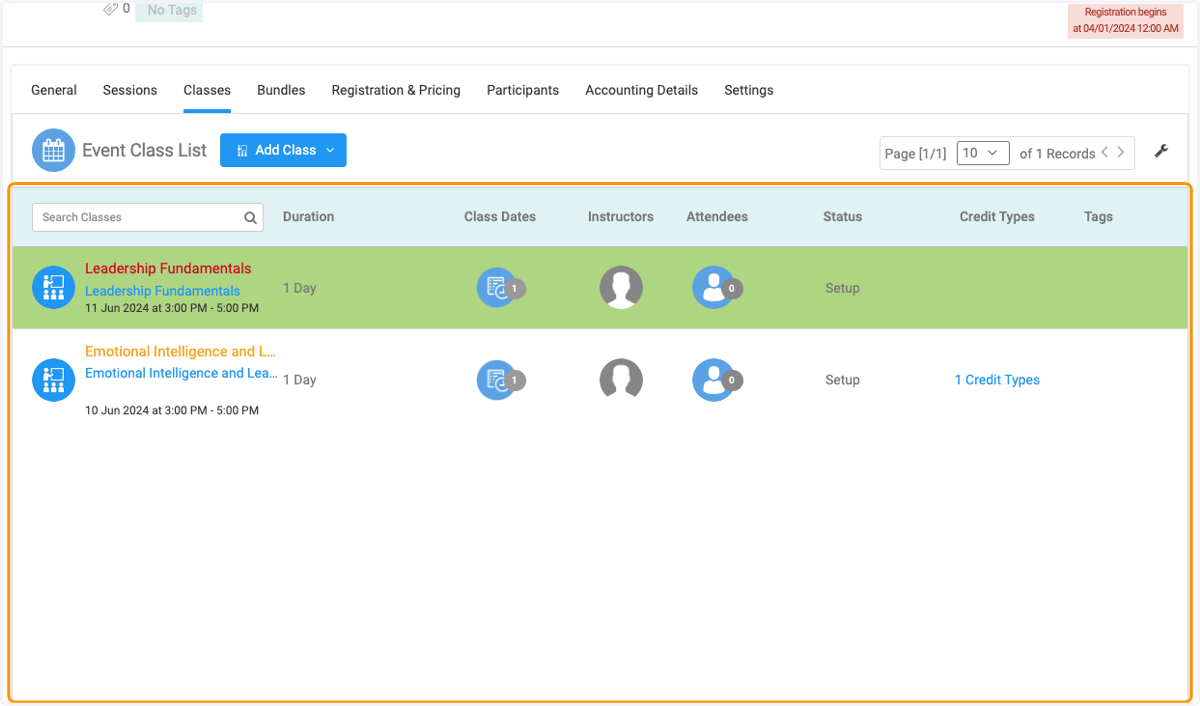
Adding a Class in an event
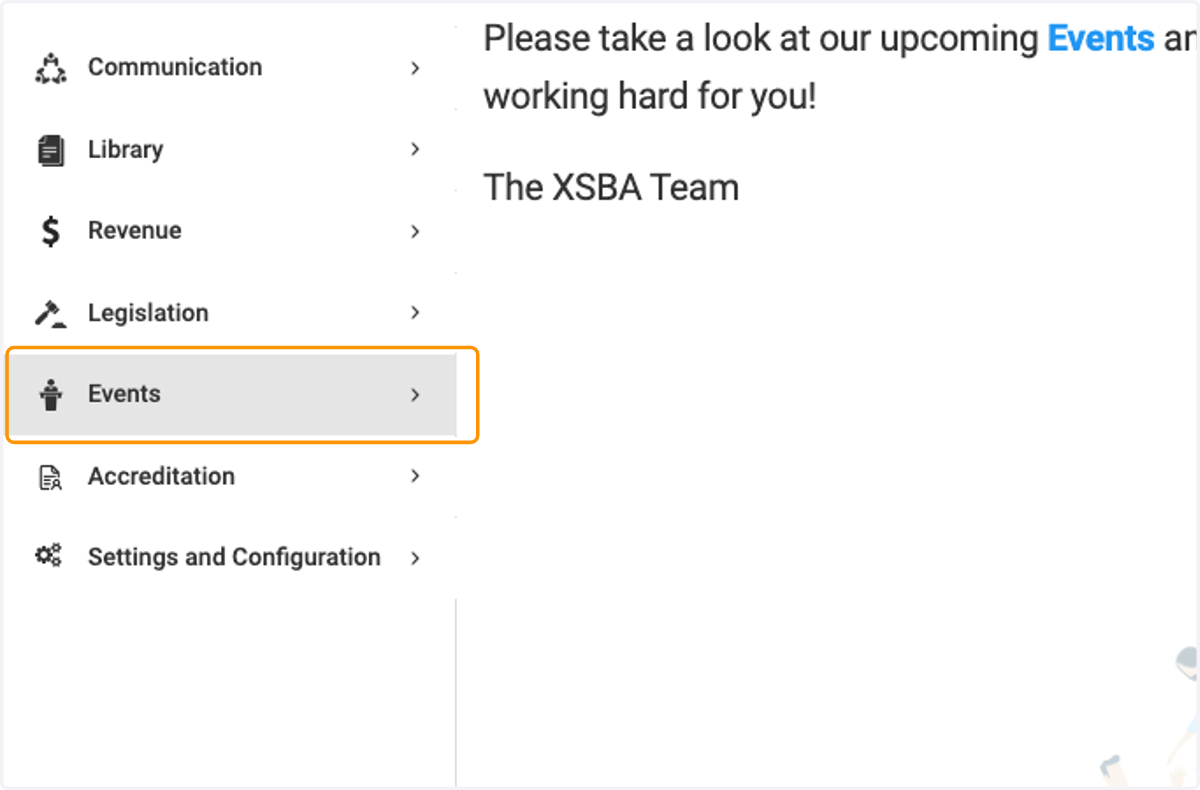
1. Click on Events
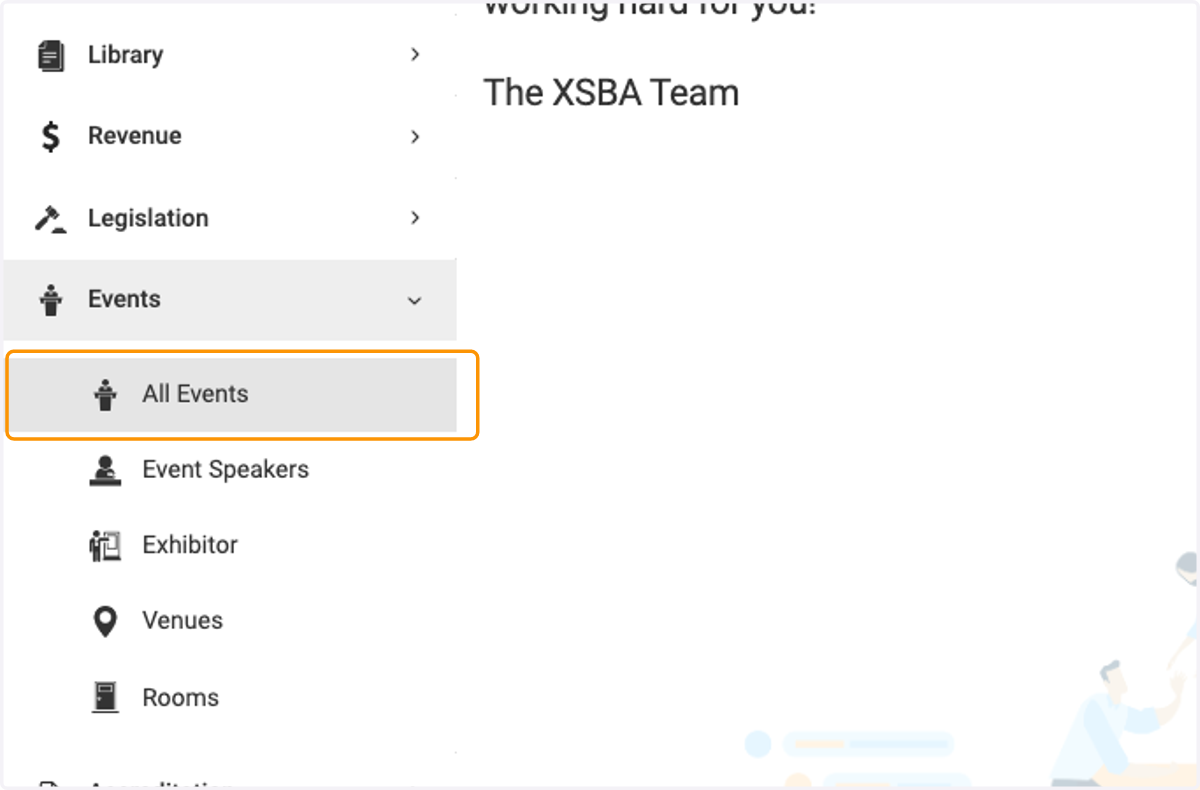
2. Click on All Events
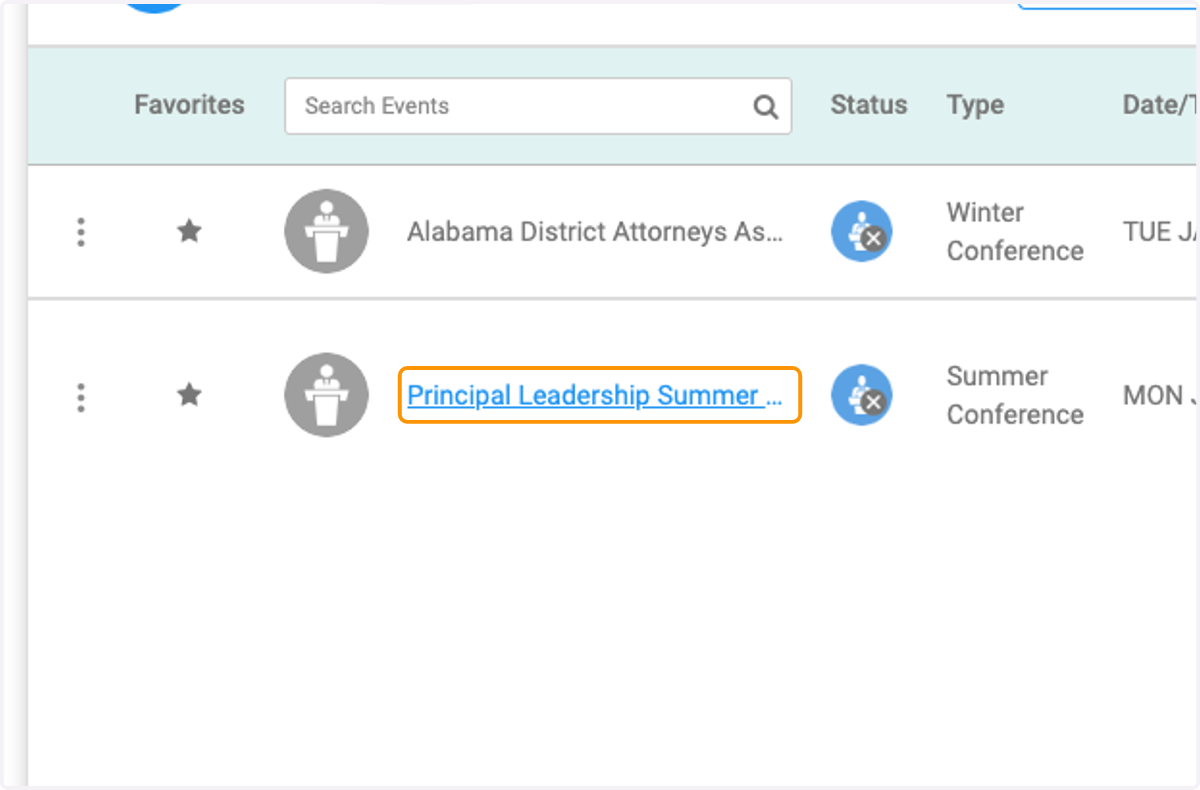
3. Select the event
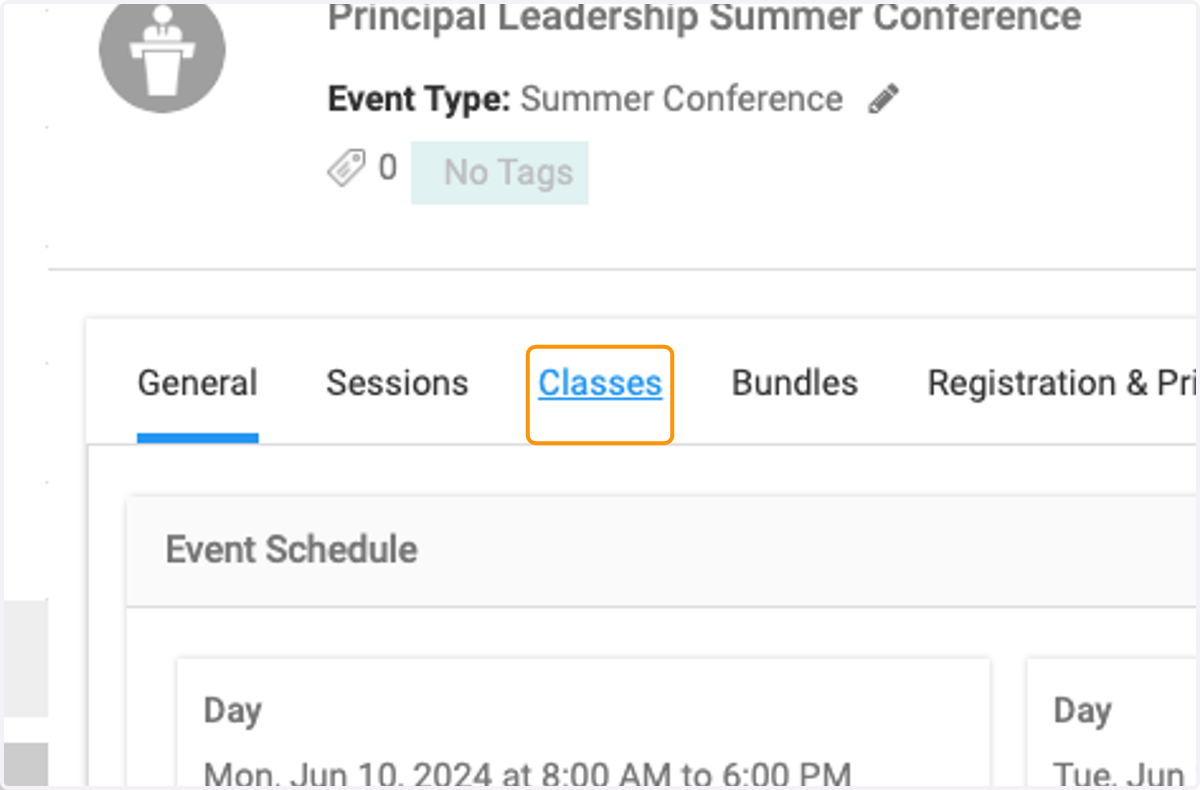
4. Click on Classes
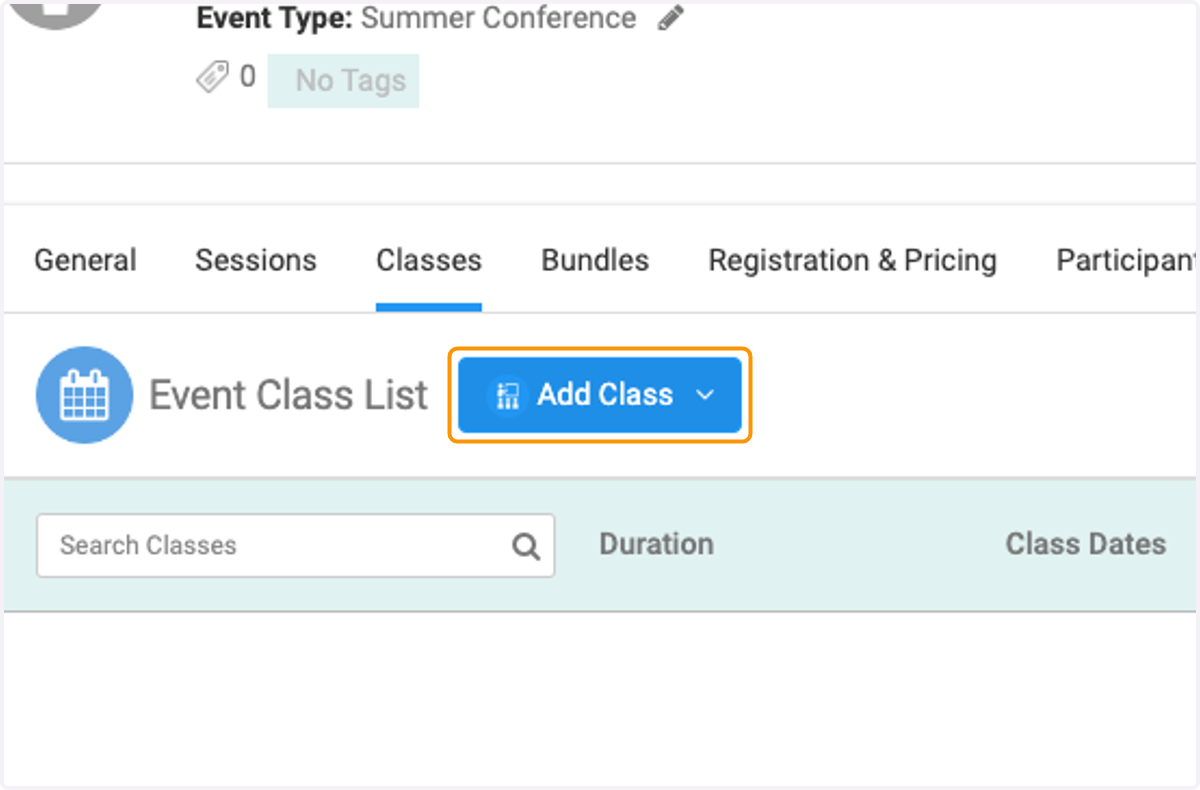
5. Click on Add Class
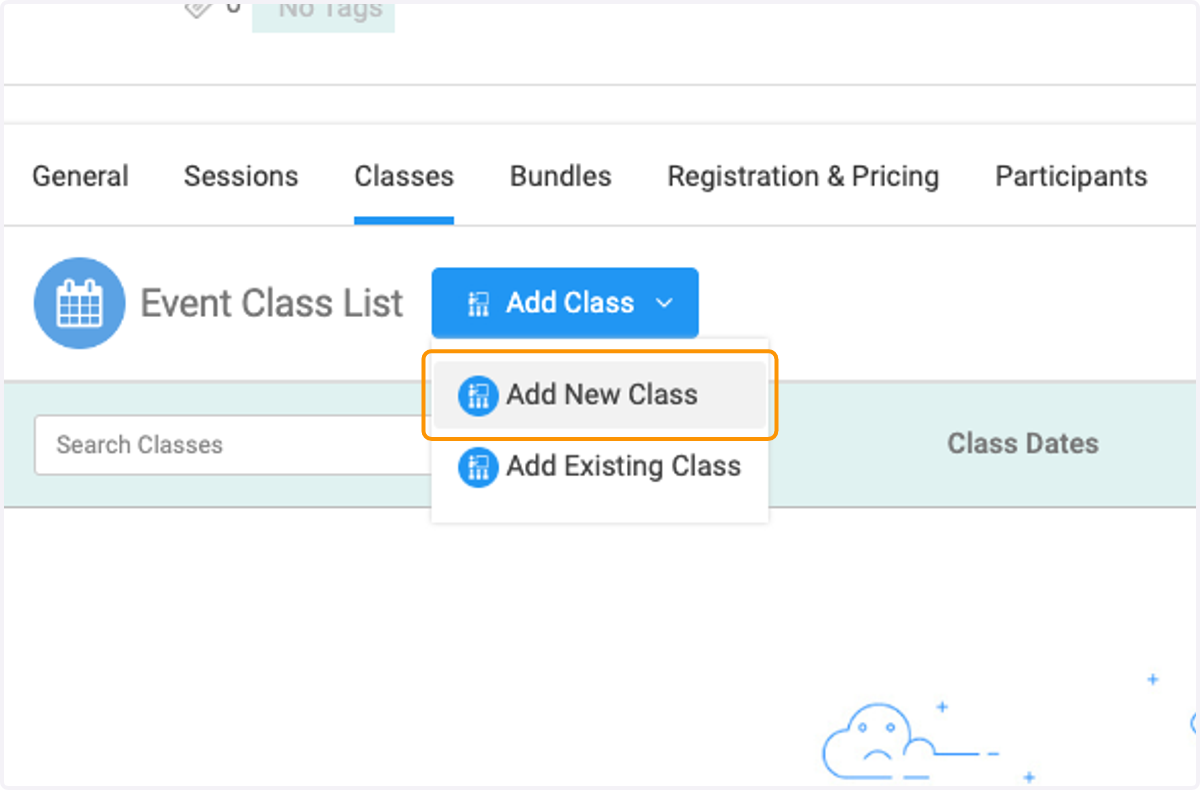
6. If you would like to add a new class click on Add New Class
7. Click on Select
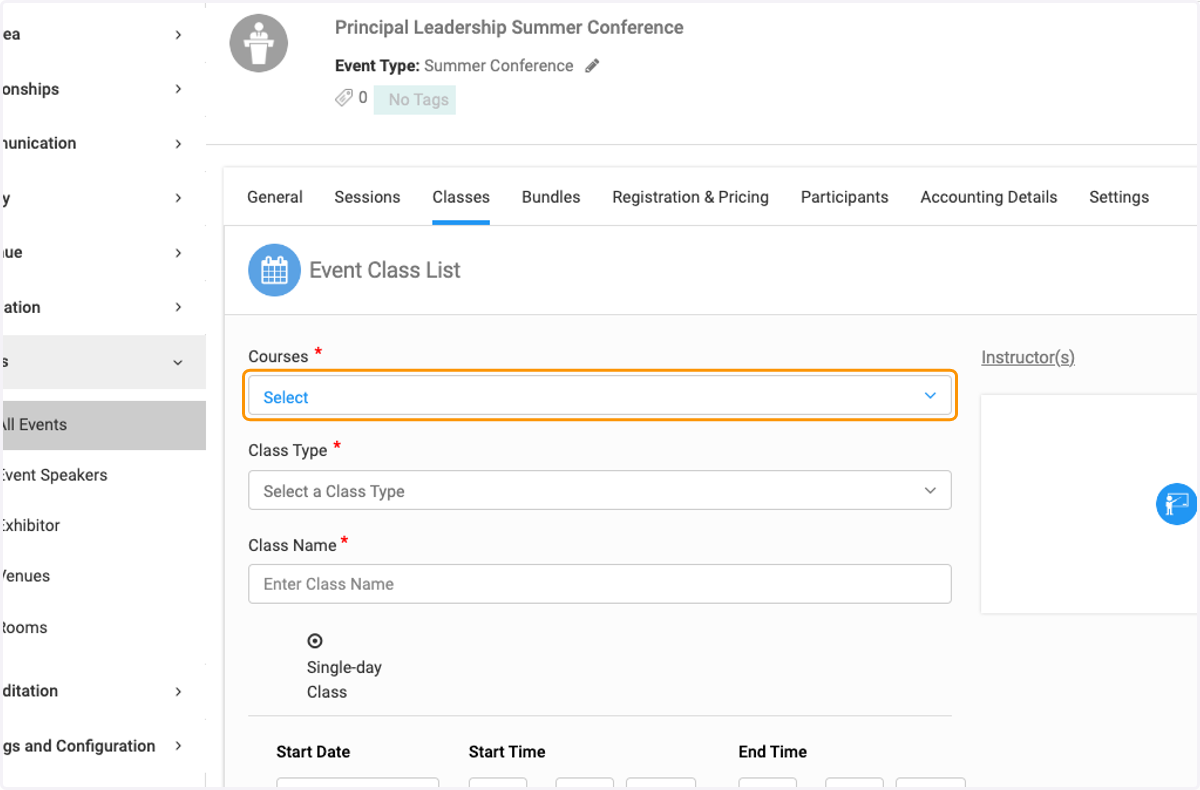
8. Select the course
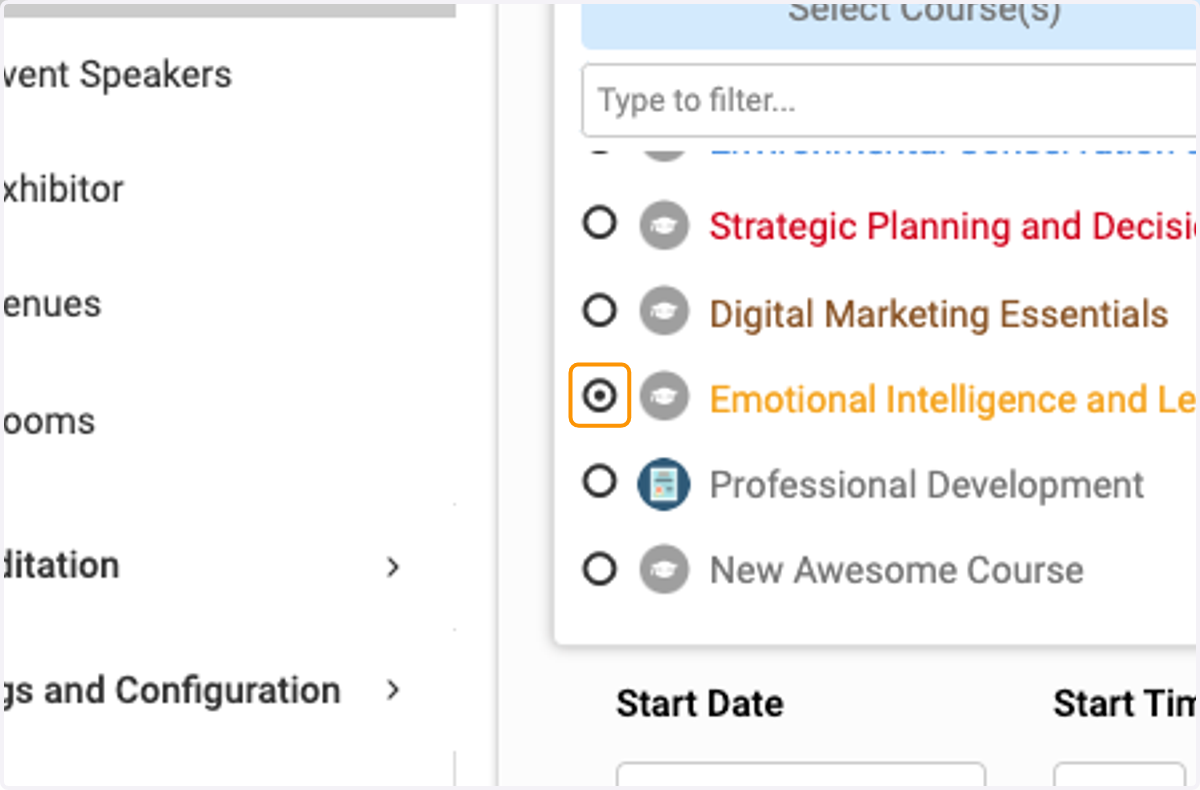
9. Click on Select Course(s)…
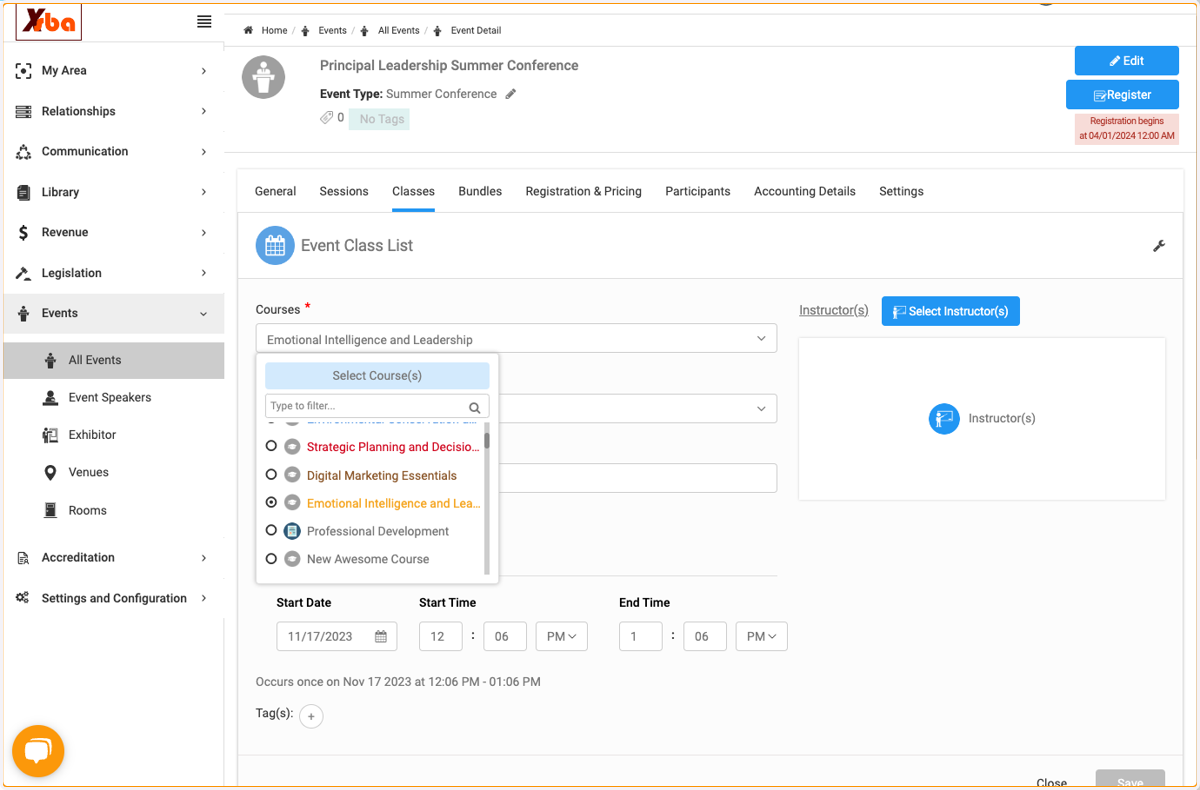
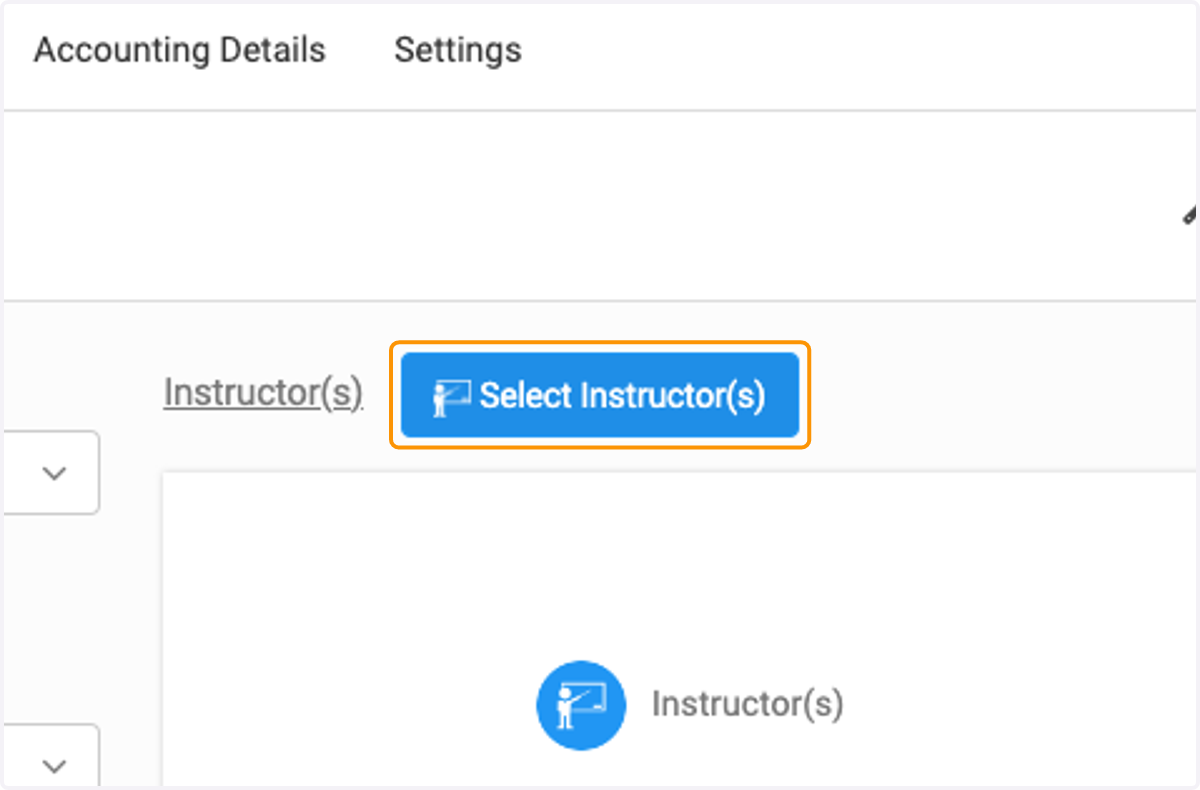
10. Click on Select Instructor(s)
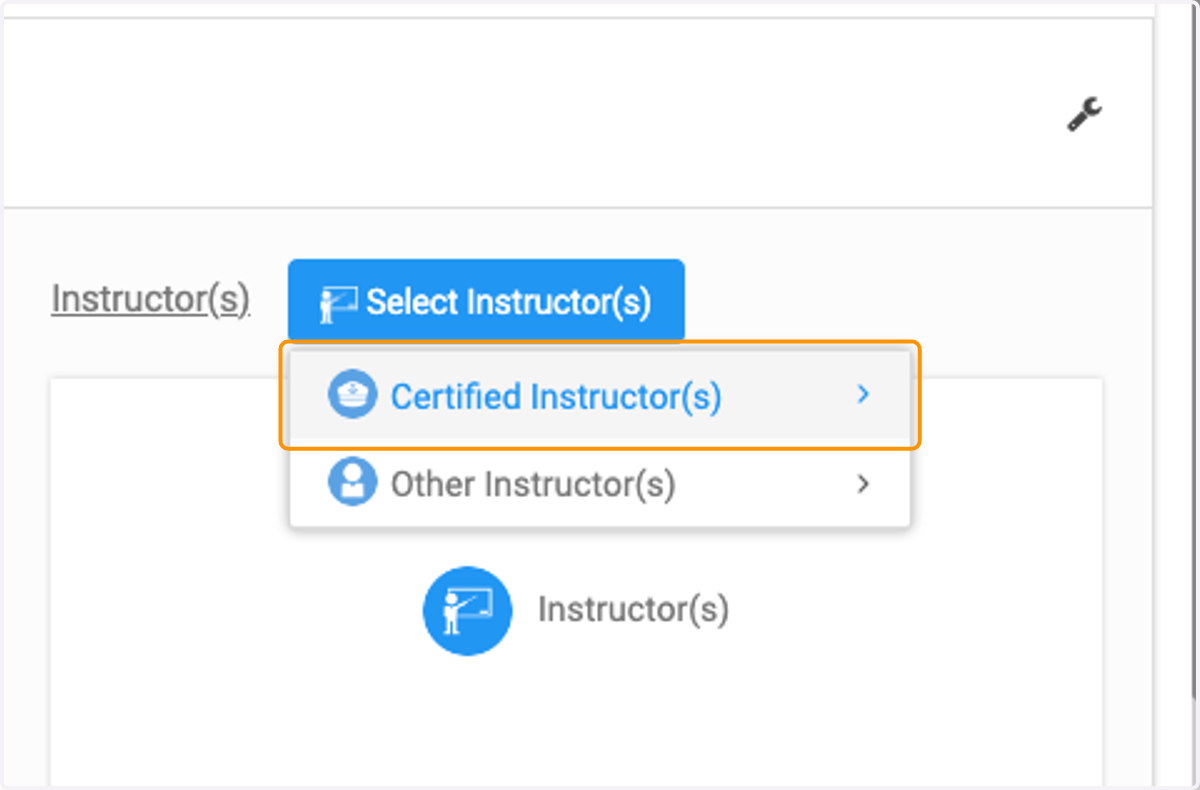
11. Click on Certified Instructor(s)
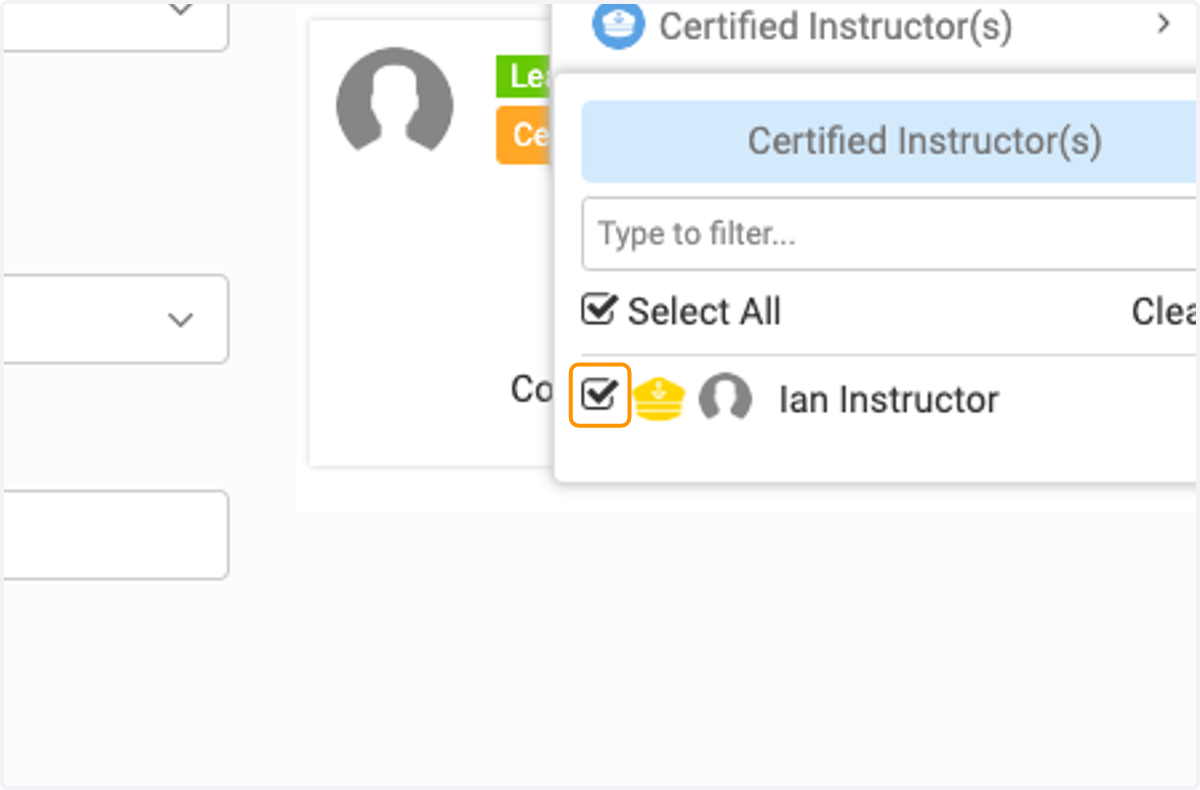
12. Add Instructor
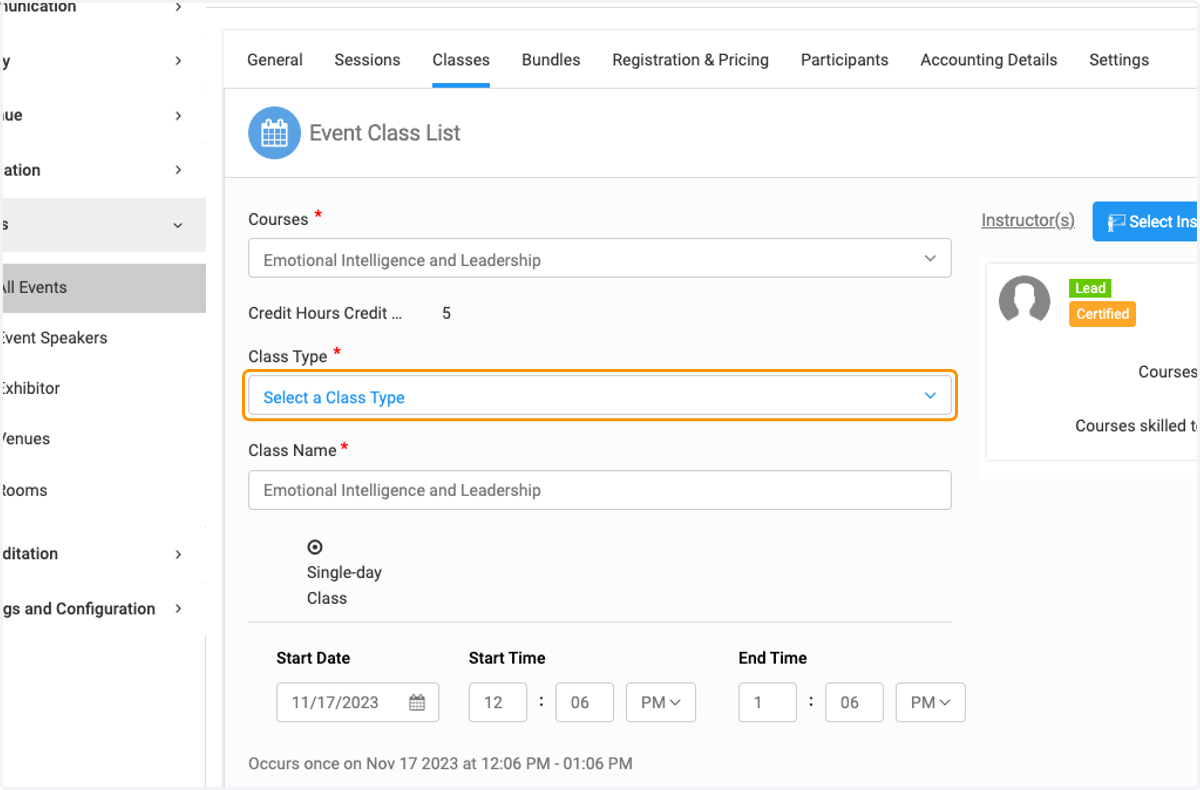
13. Click on Select a Class Type
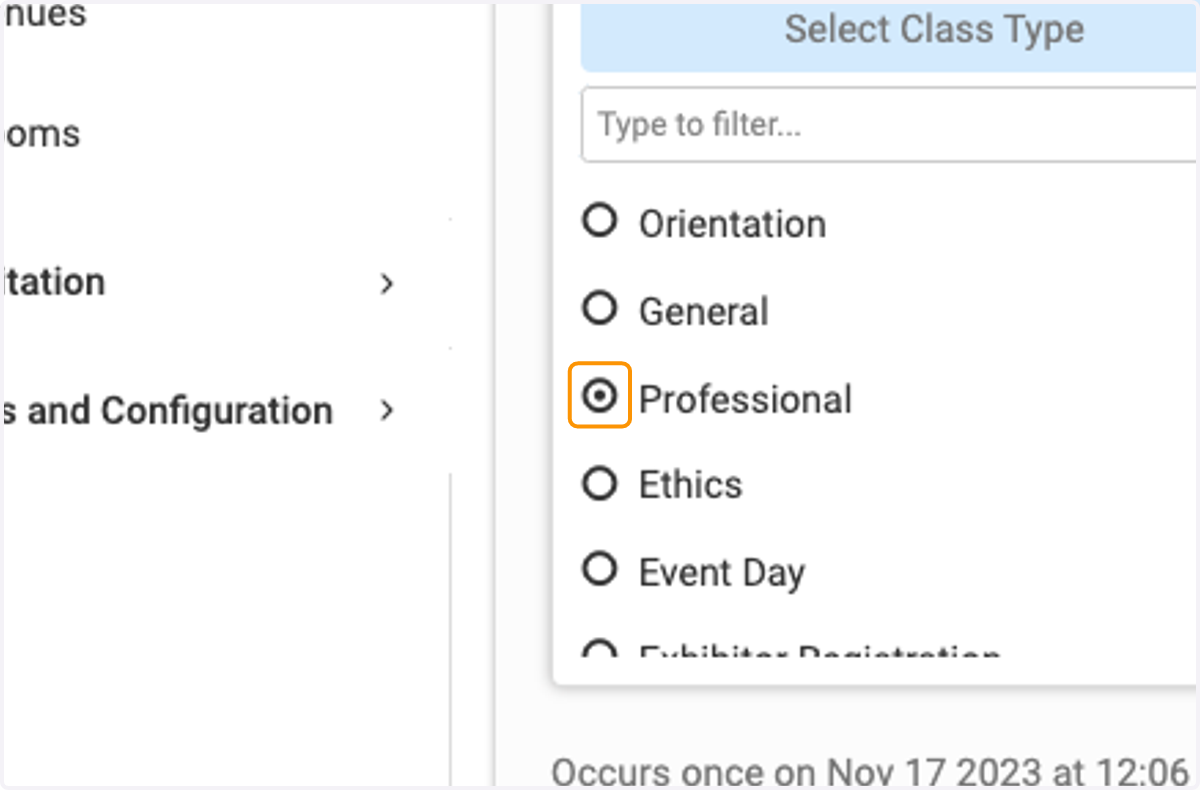
14. Select class type
15. Select the date
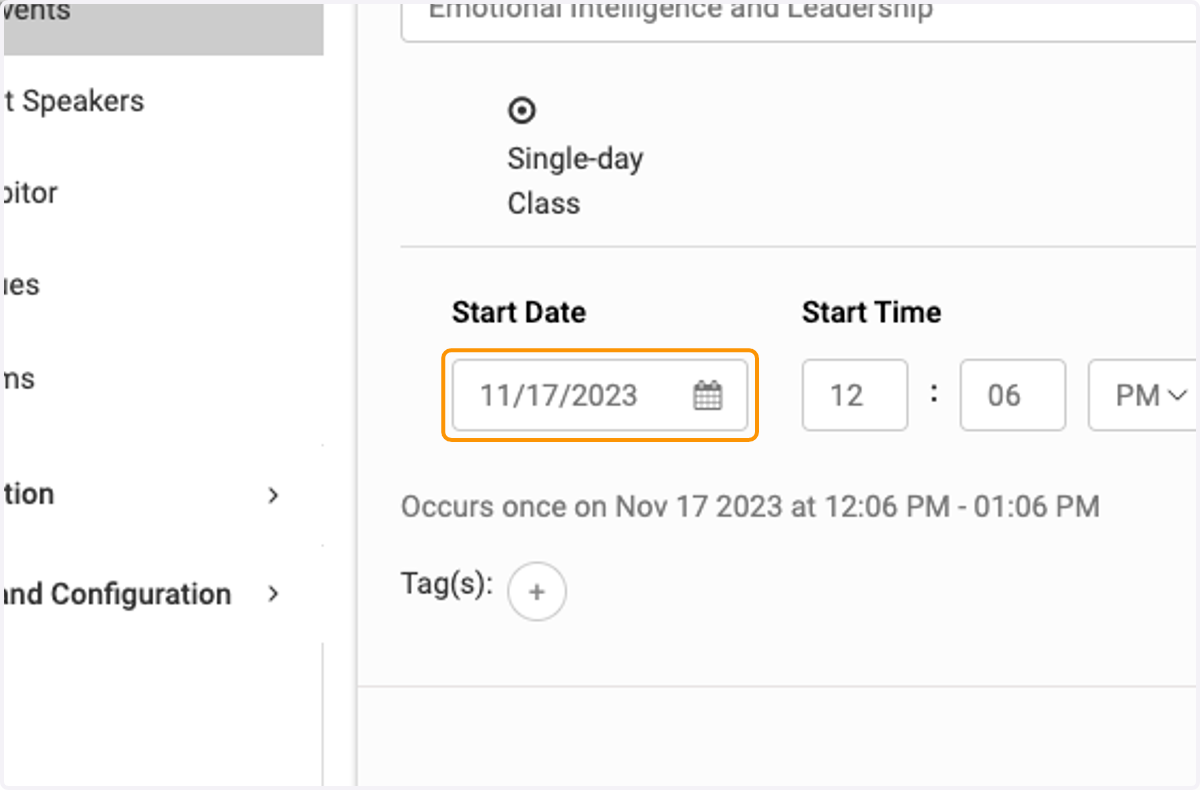
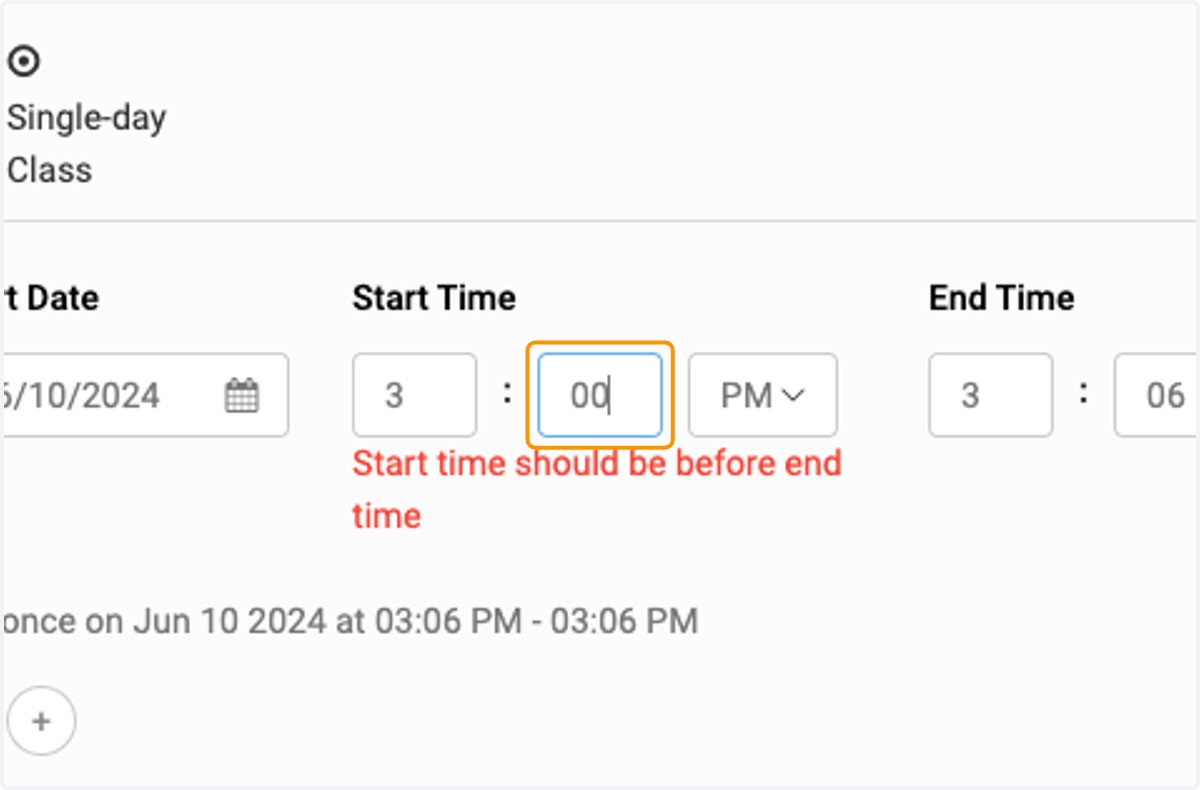
16. Add the time
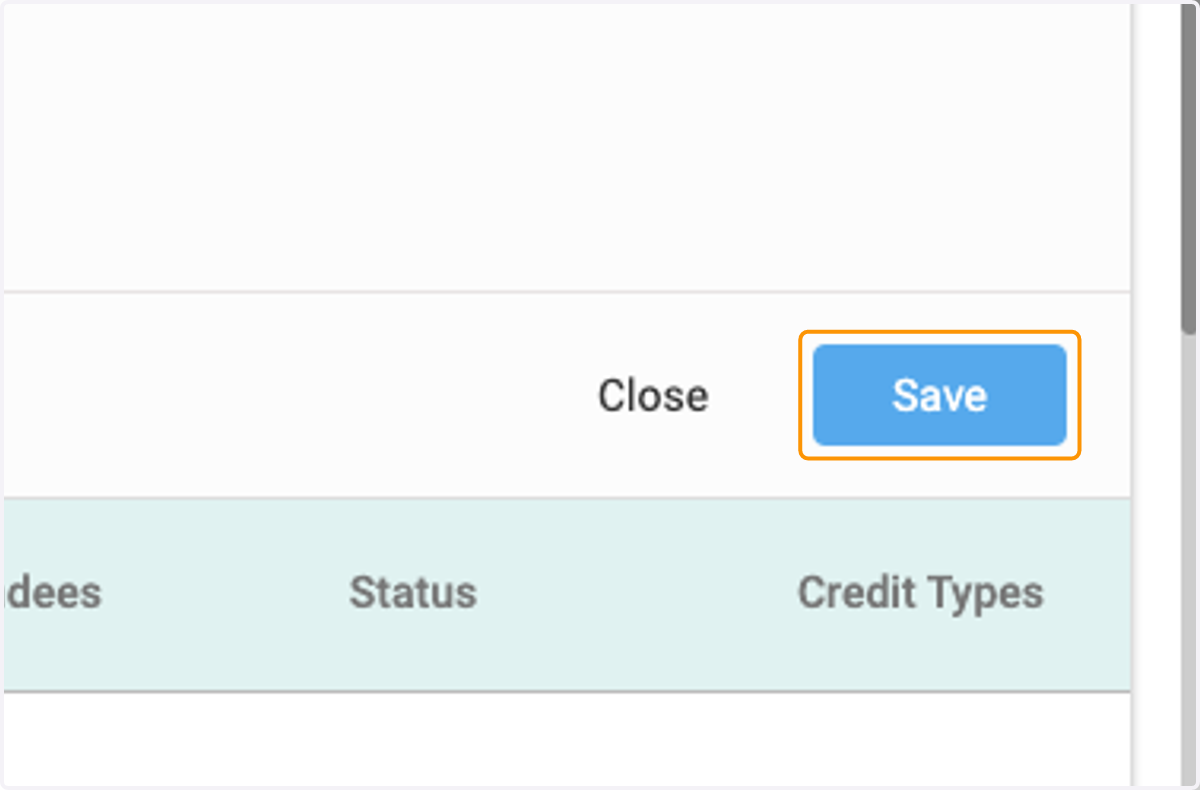
17. Click on Save
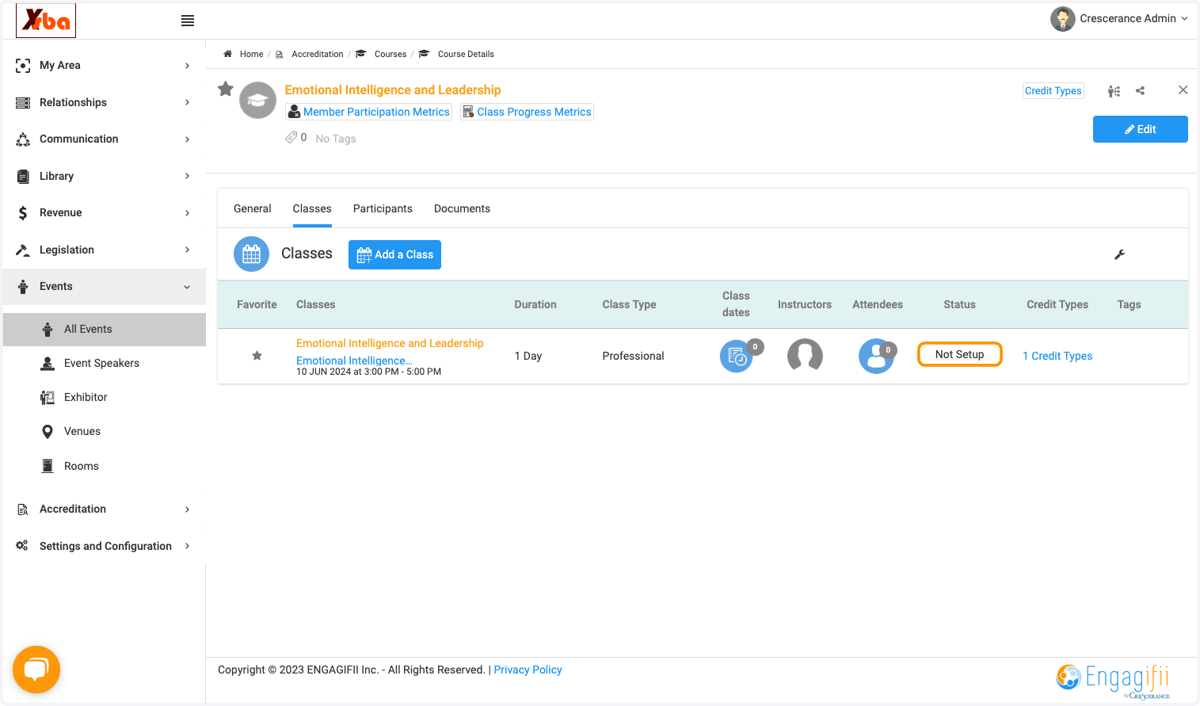
18. Select the course you just added.
19. Click on Edit to set it up
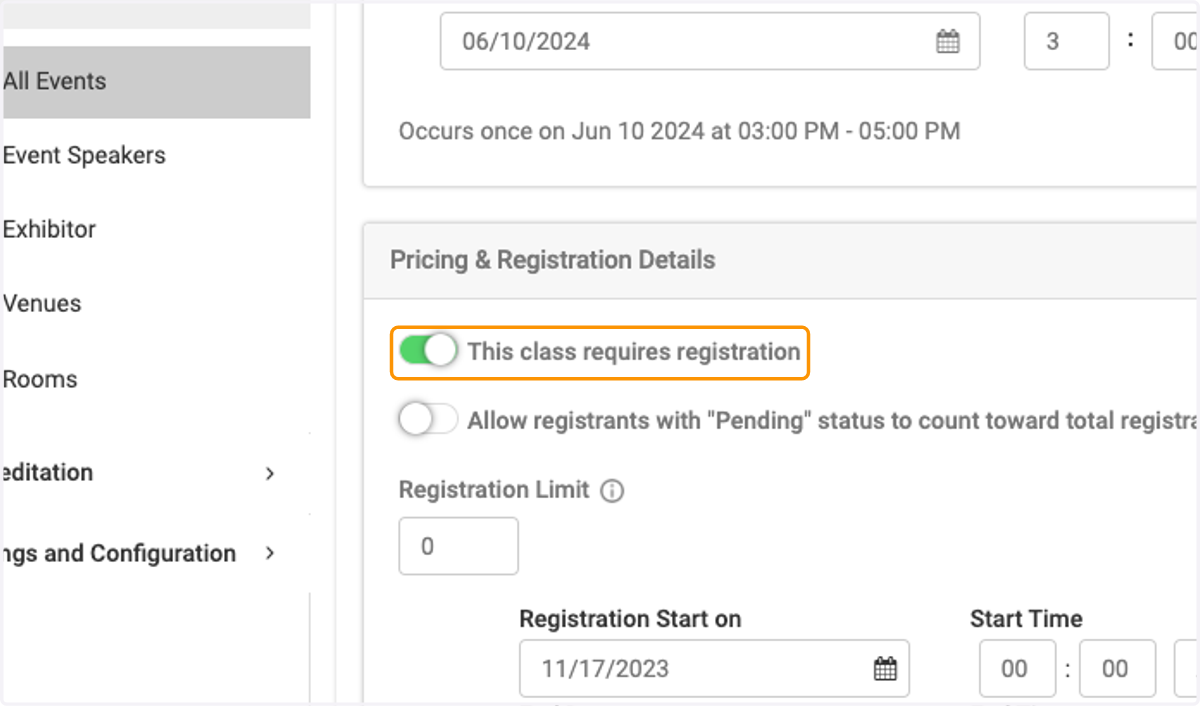
20. Check This class requires registration
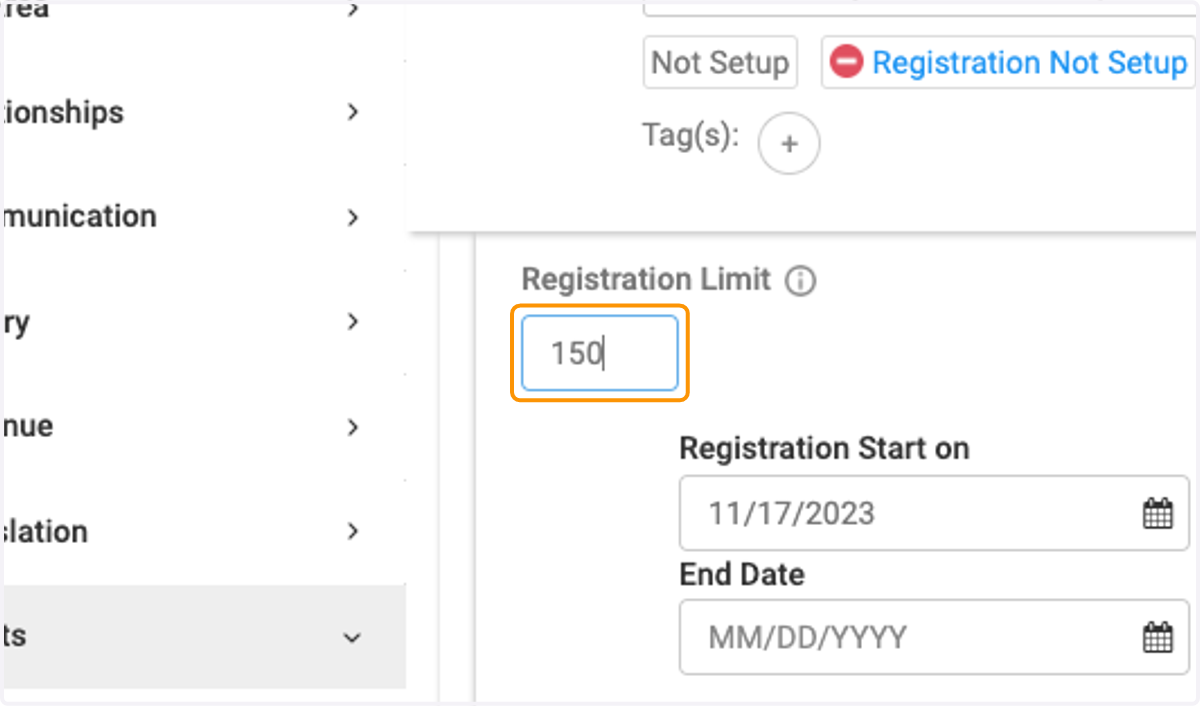
21. Add registration limit
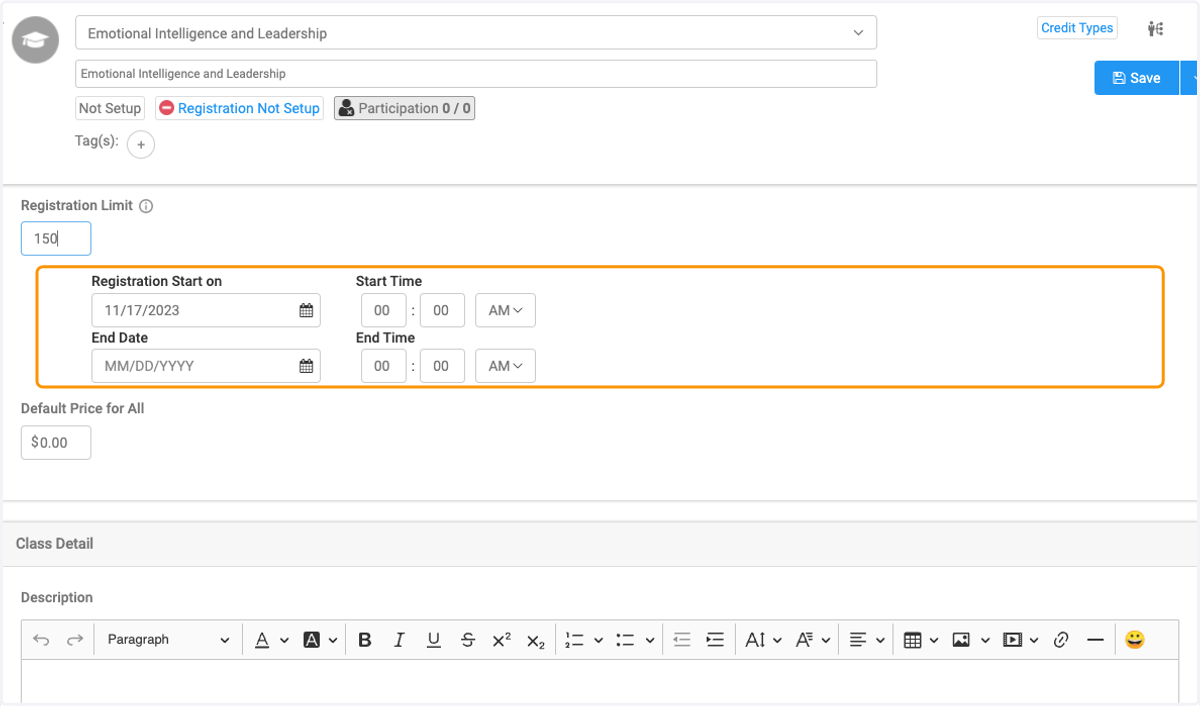
22. Add registration period dates.
23. Select class type
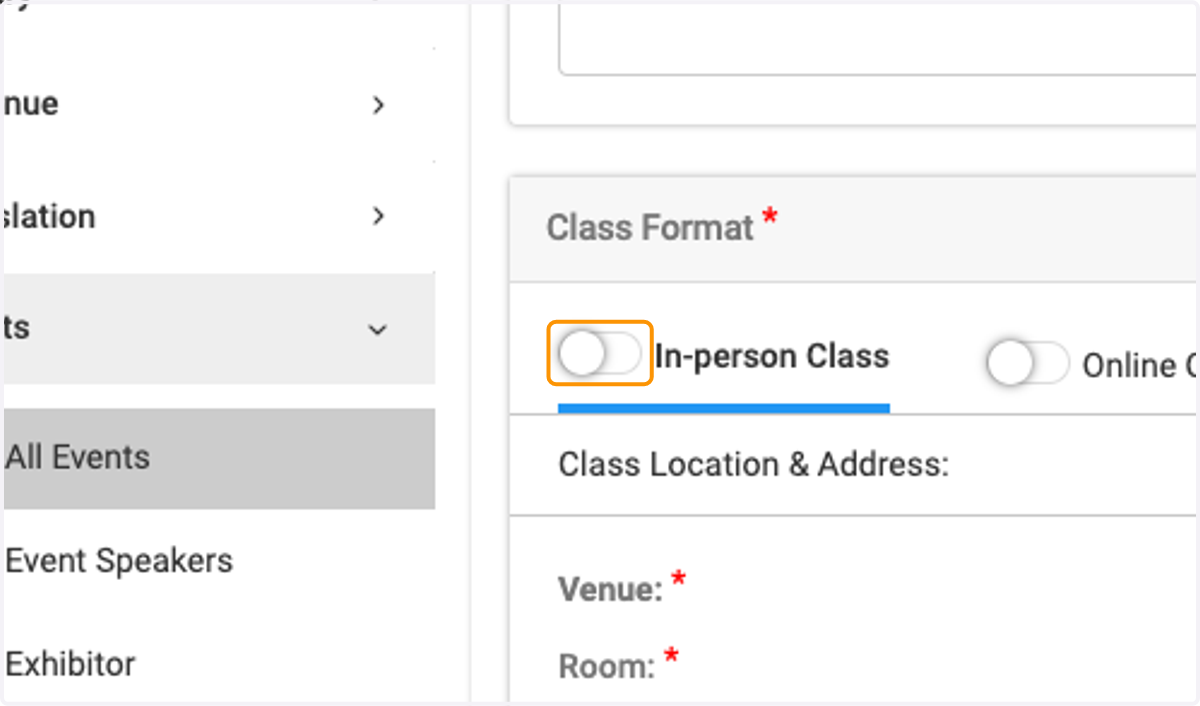
24. Select your venue and room
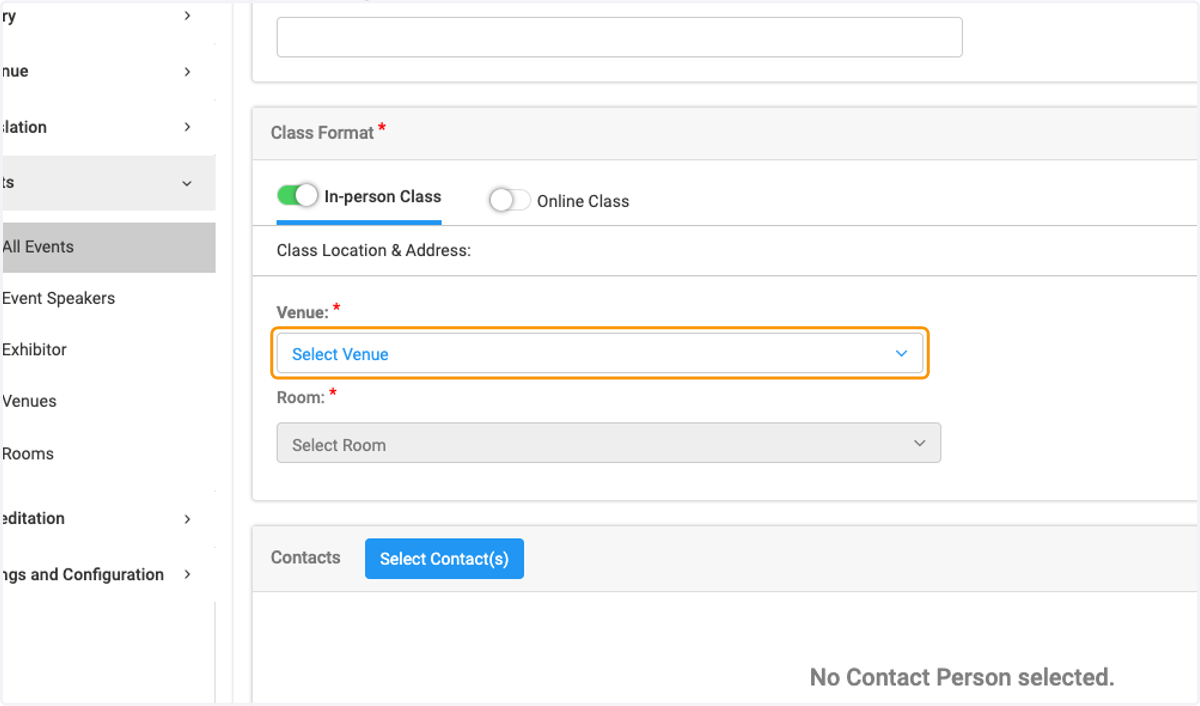
25. Click on Select Room
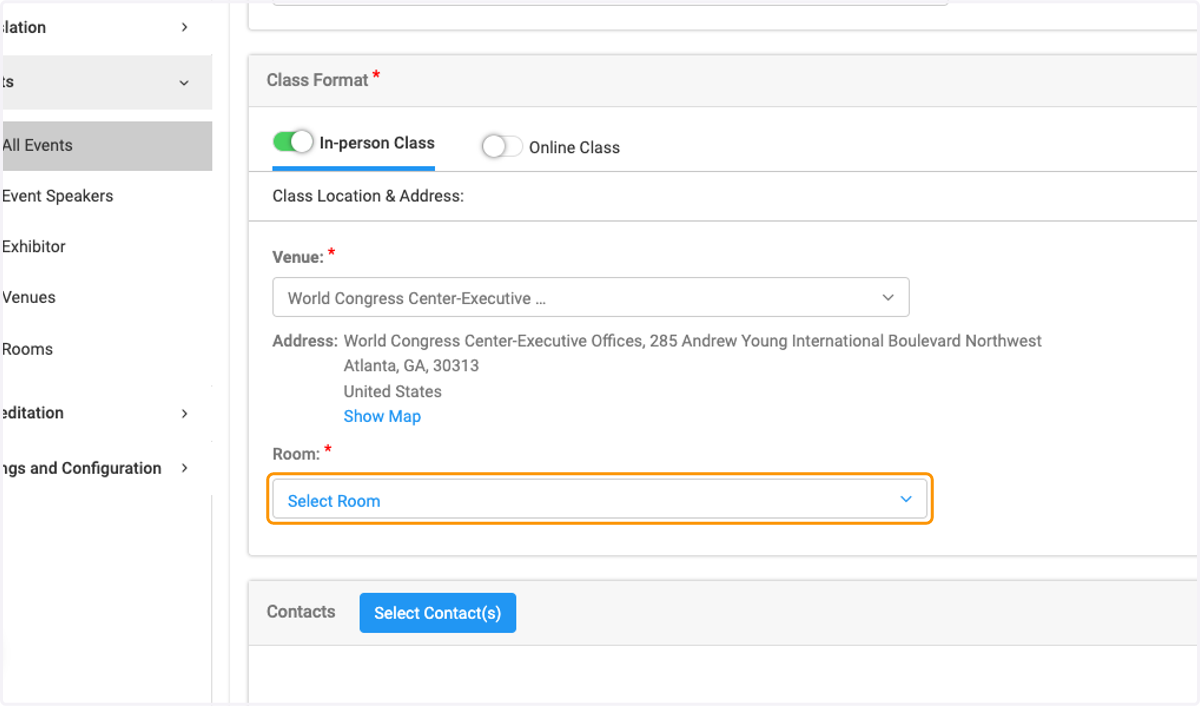
26. Select Grand Ball Room South
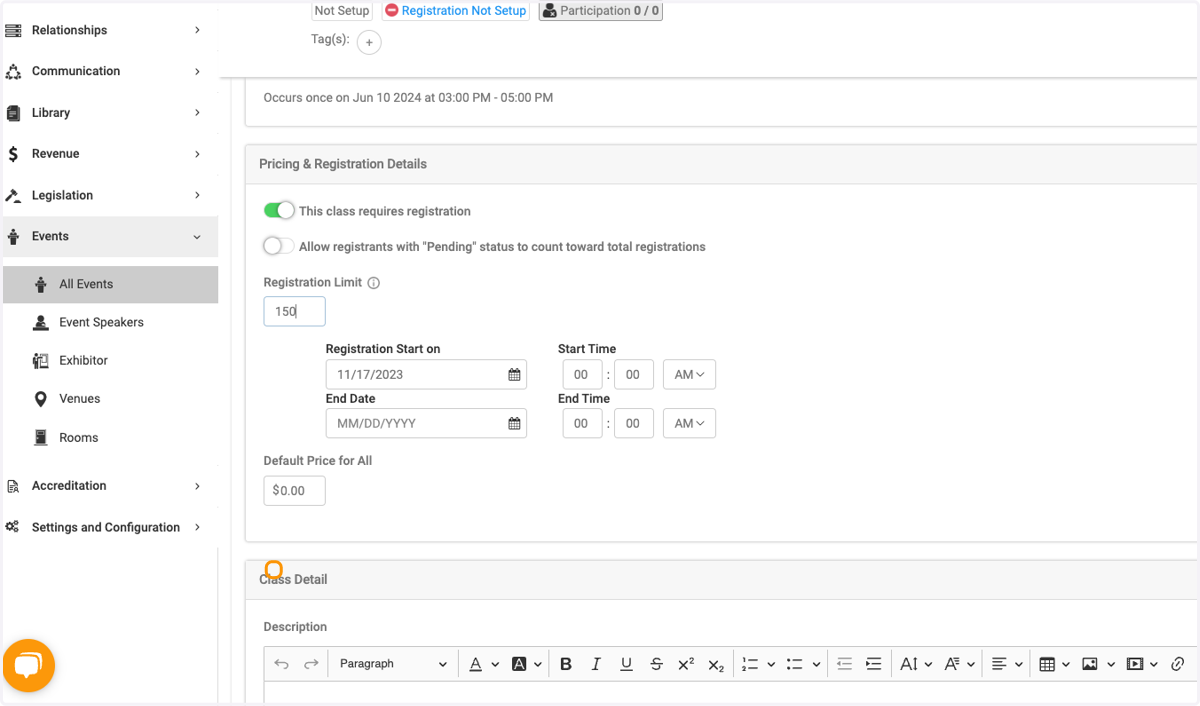
27. Press Save
28. If you would like to add a class that already exists in the system follow these next steps.
29. Click on Principal Leadership Summer Conference
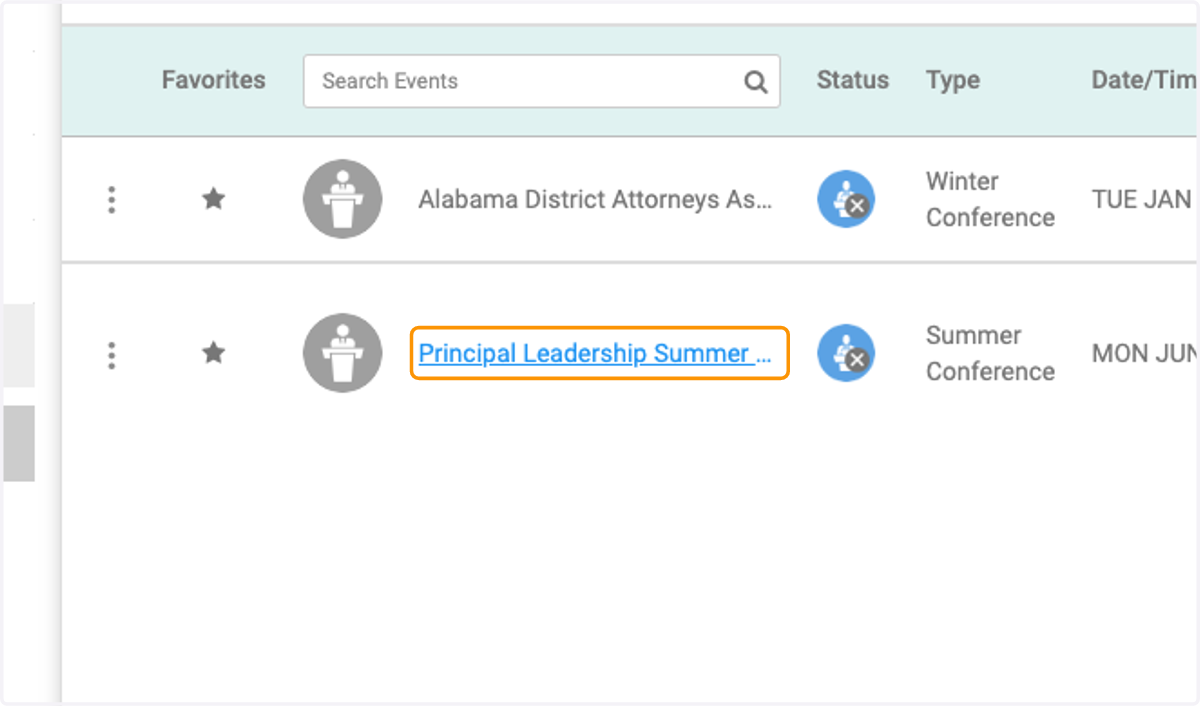
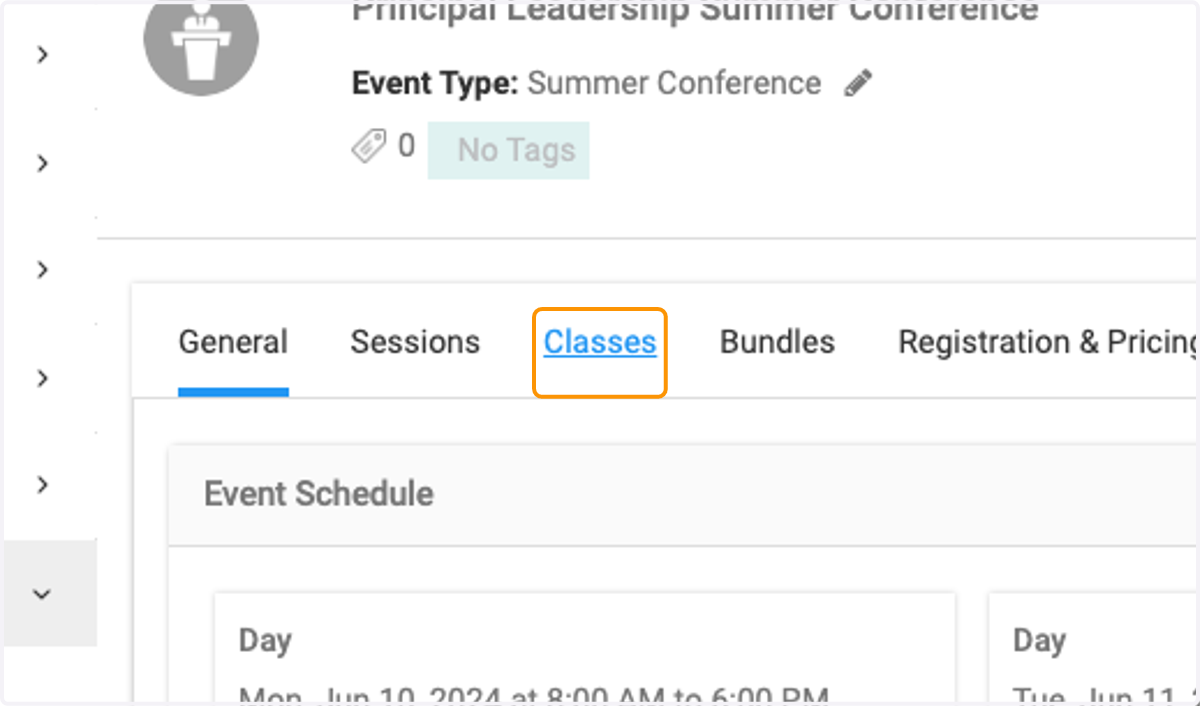
30. Click on Classes
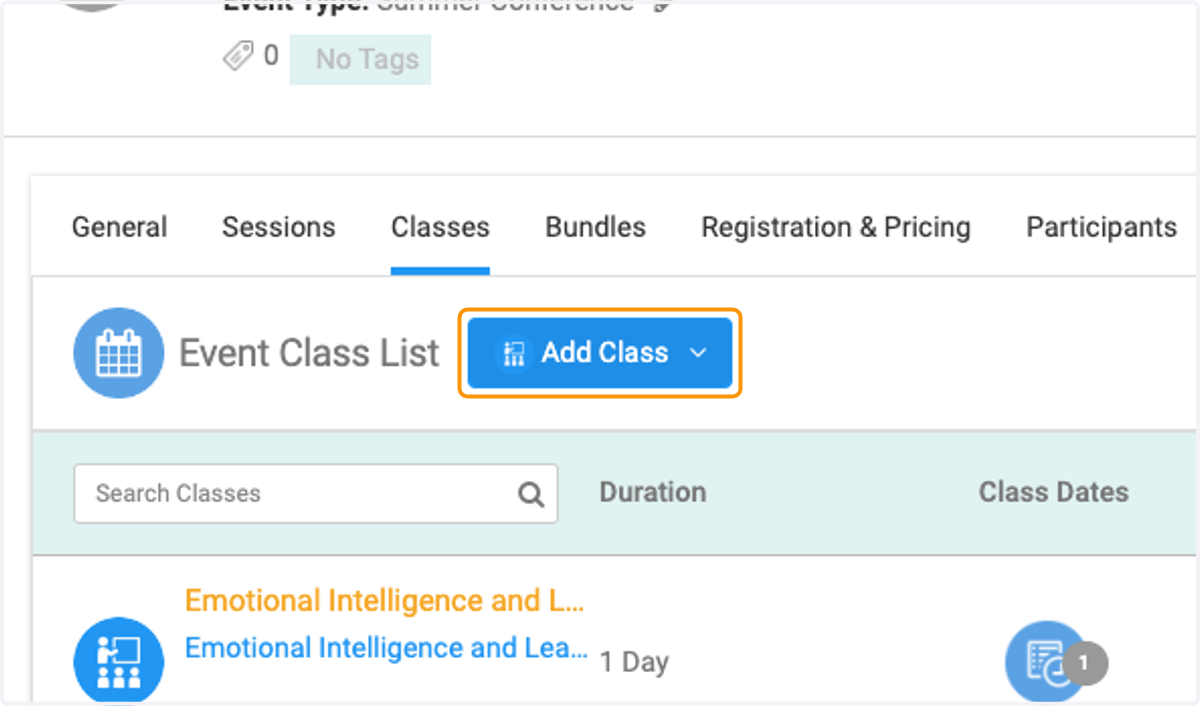
31. Click on Add Class
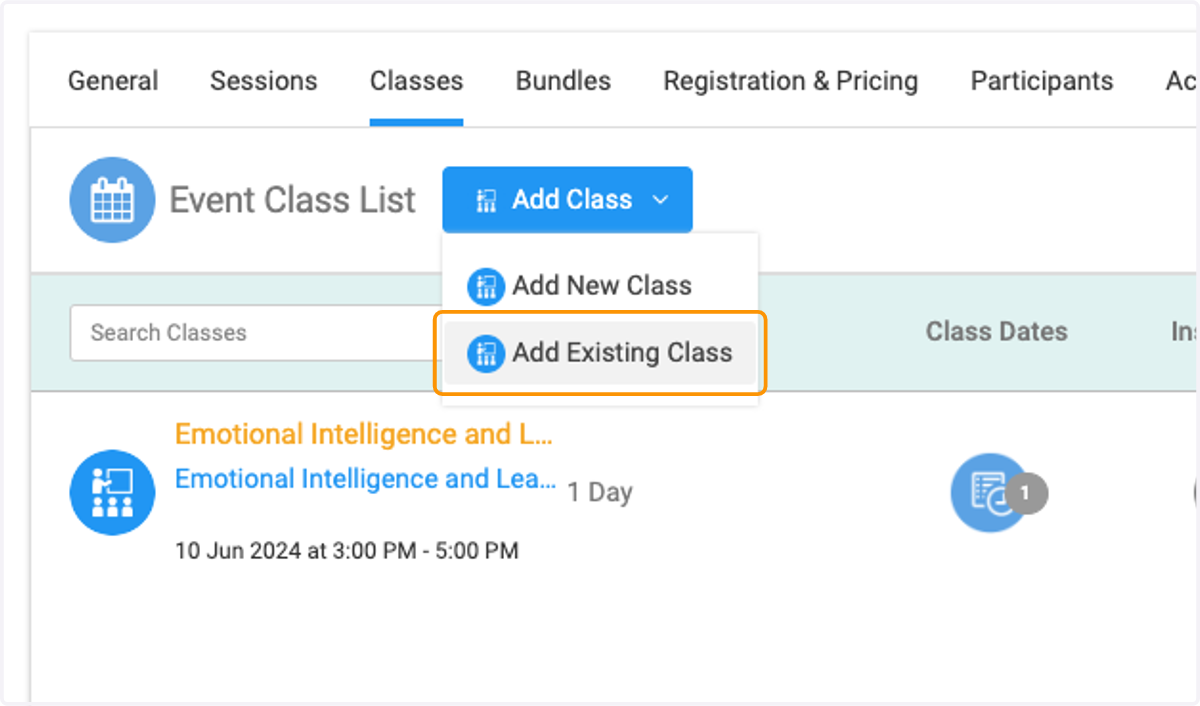
32. Click on Add Existing Class
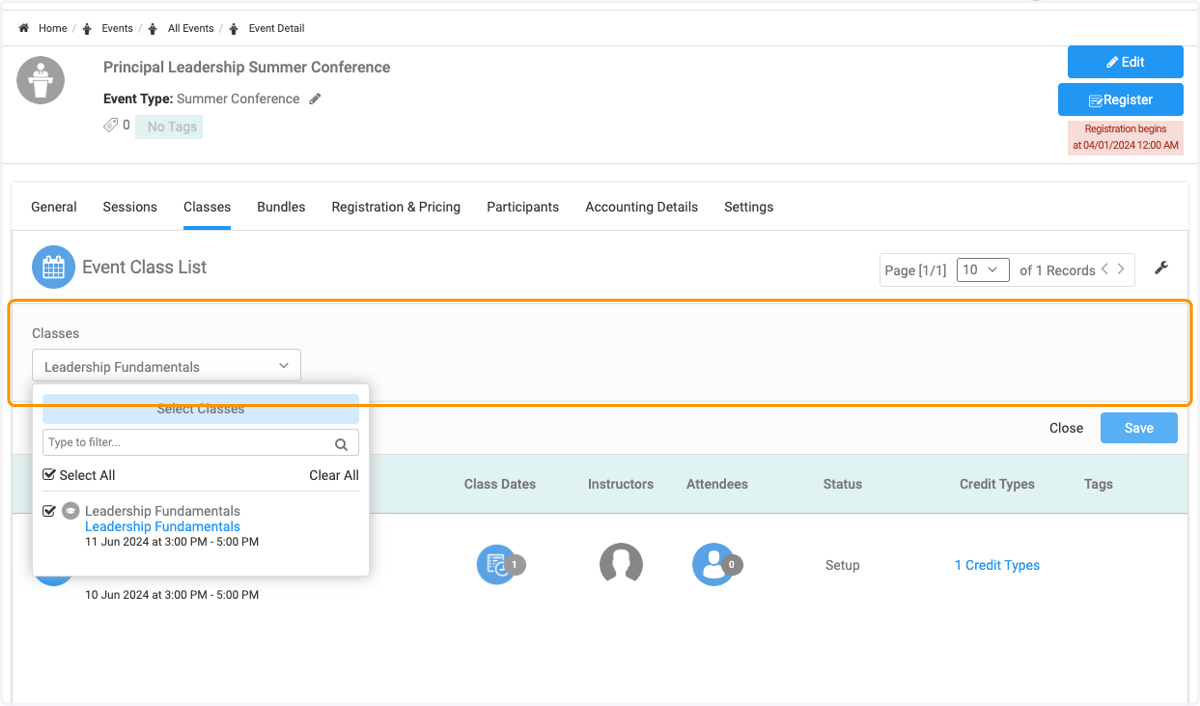
33. Click on Classes and select from the list
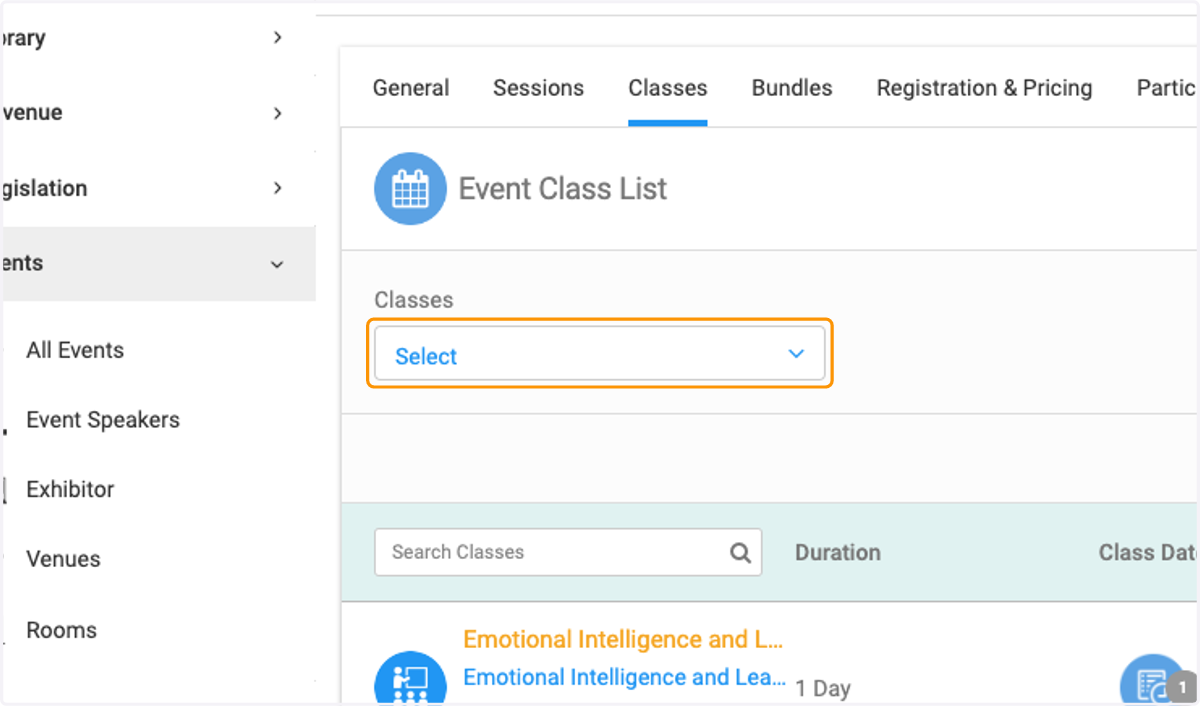
34. Click on Classes and select from the list
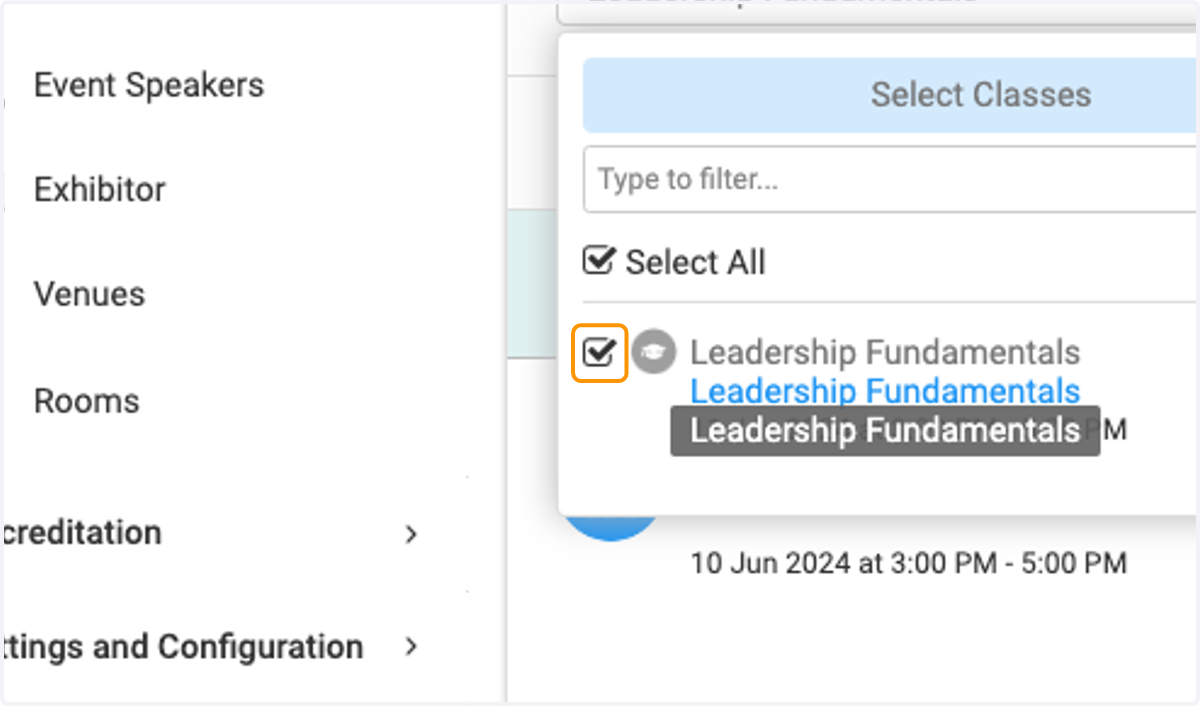
35. Click on Classes and select from the list
36. Click on Save
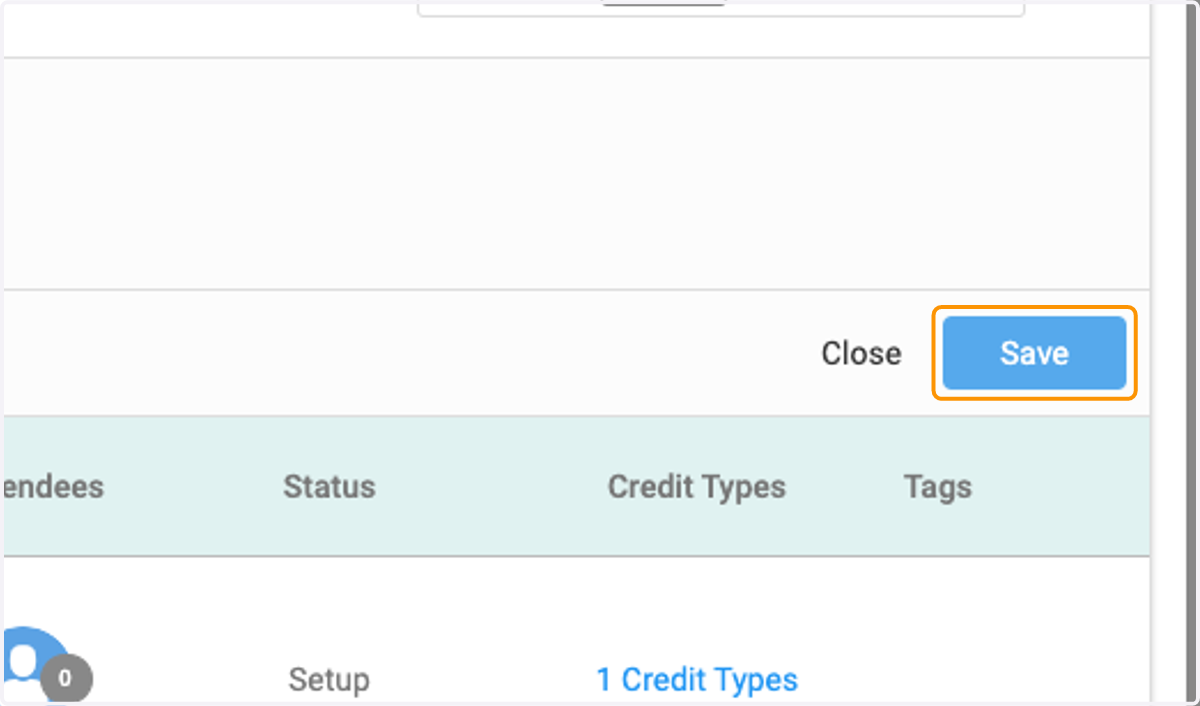
37. You have added an existing class.