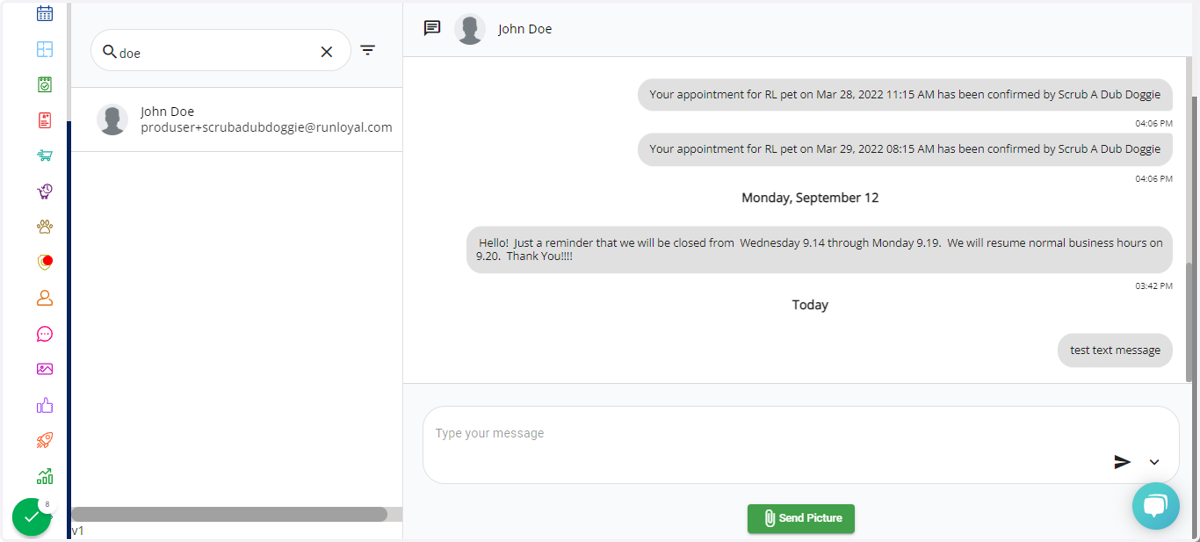
How to send an SMS/Text Message while in Message Hub.
***PLEASE NOTE: The system will send all messages by default through the app. It will also automatically send an email if the customer is not signed up in the app/accepted app notifications.
Use these steps if you would like to send an SMS/Text message instead while in the message hub. (Must have the SMS/Text Message add-on feature)
1. Go to your RunLoyal staff portal on a google chrome browser.
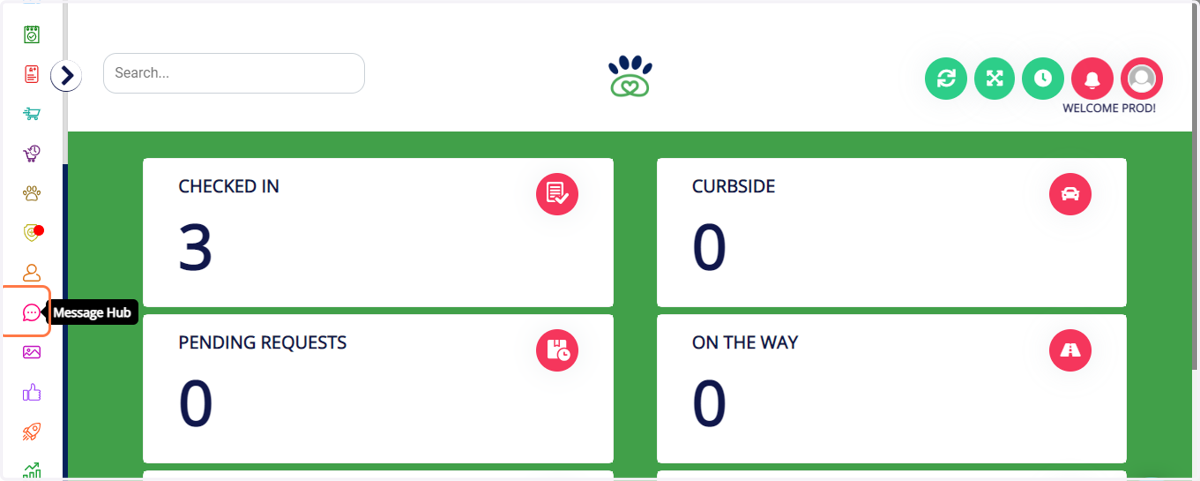
2. Click on "Message Hub"
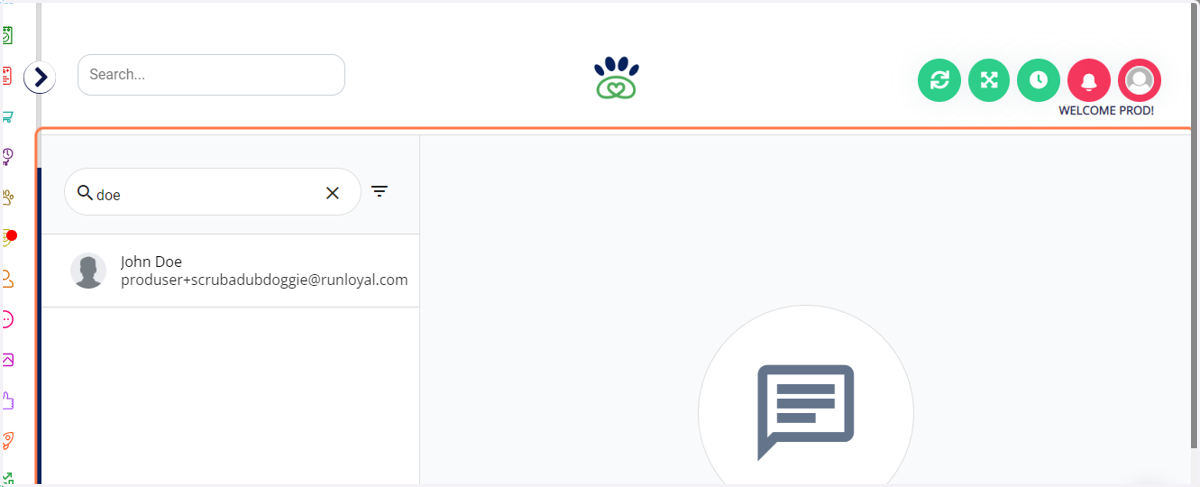
3. Search for the associated customer name that you would like to send a message to.
4. *****Important: Sometimes your browser window will cut off the bottom of the message hub screen. If so, you can change your resolution while on google chrome. Located by clicking on the three dots in the top of your google chrome browser, then clicking the (-) sign to reduce.
***Skip to Step 6 if this step is not needed.
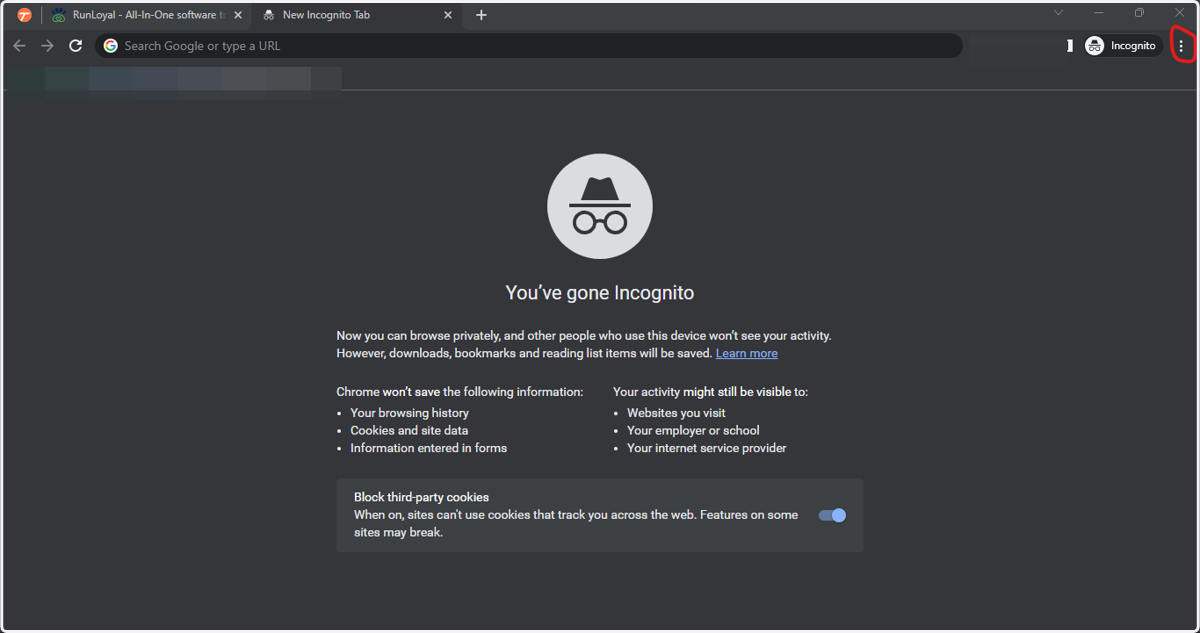
5. Select a smaller screen resolution. [See Example Below]
***Skip to Step 6 if this step is not needed.

6. Click on the drop down arrow at the bottom of the screen and select SMS instead of APP. (APP will be selected by default.) Create your message, then press "Enter" to send.
*****SMS/Text messages are an additional feature. If you do not see an SMS option, please reach out to RunLoyal directly by emailing puppylove@runloyal.com to sign up for the SMS/Text Message add-on.
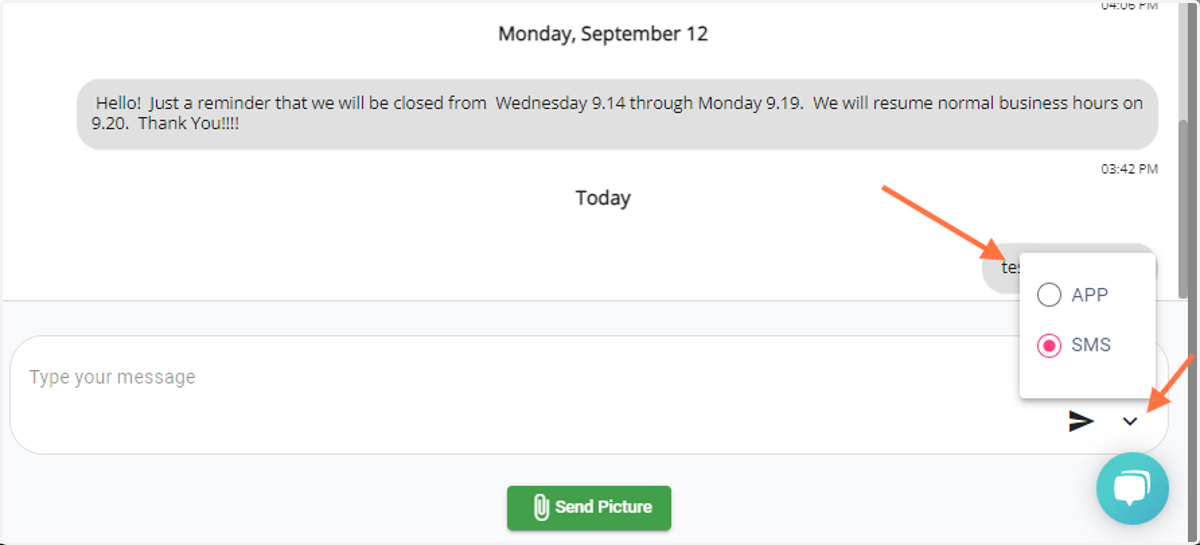
7. It will show your message on the following screen if sent successfully.
***If you do not see the message on the screen after submitting, please refresh your screen before resending.