Authenticating DocuSign
Follow these steps to Authenticate CMIS with a specific User's DocuSign Account. You should have already gotten the DocuSign's User ID.
From CMIS' Main Title Page
1. Click on Nav.
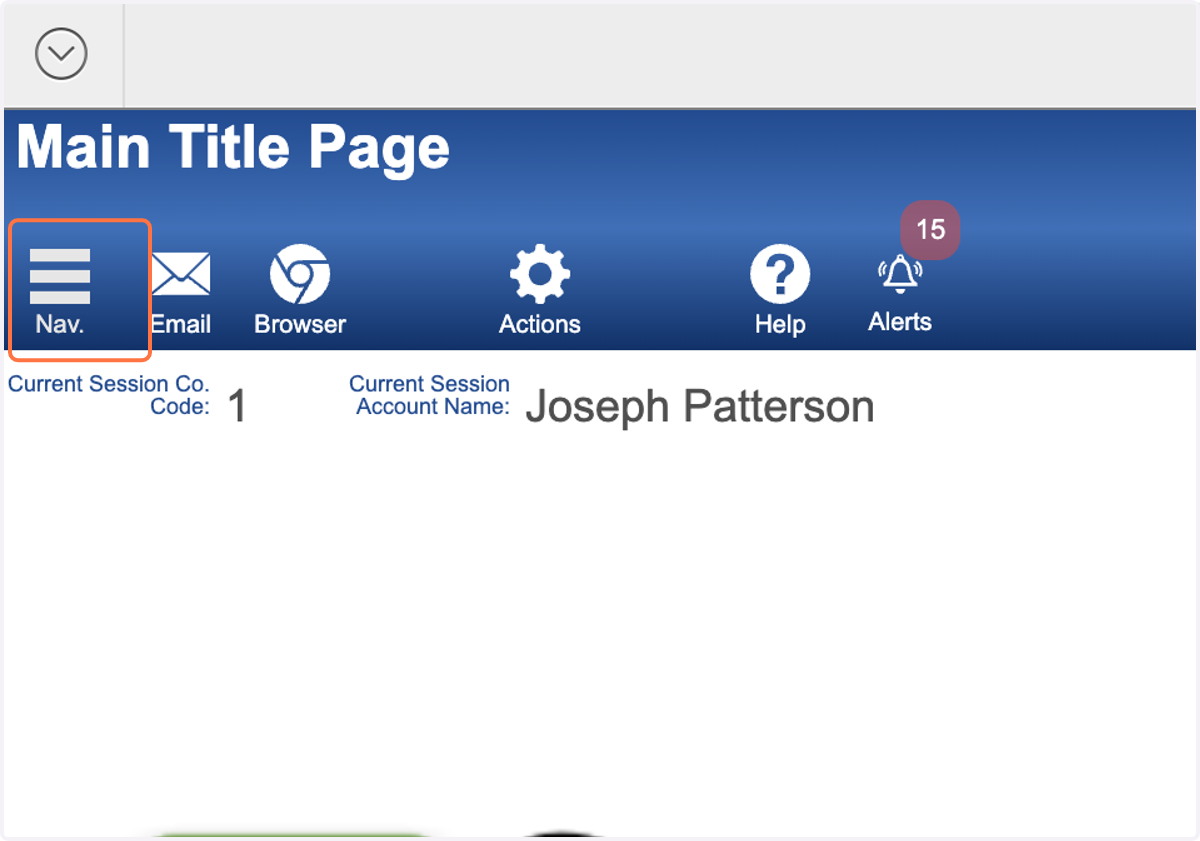
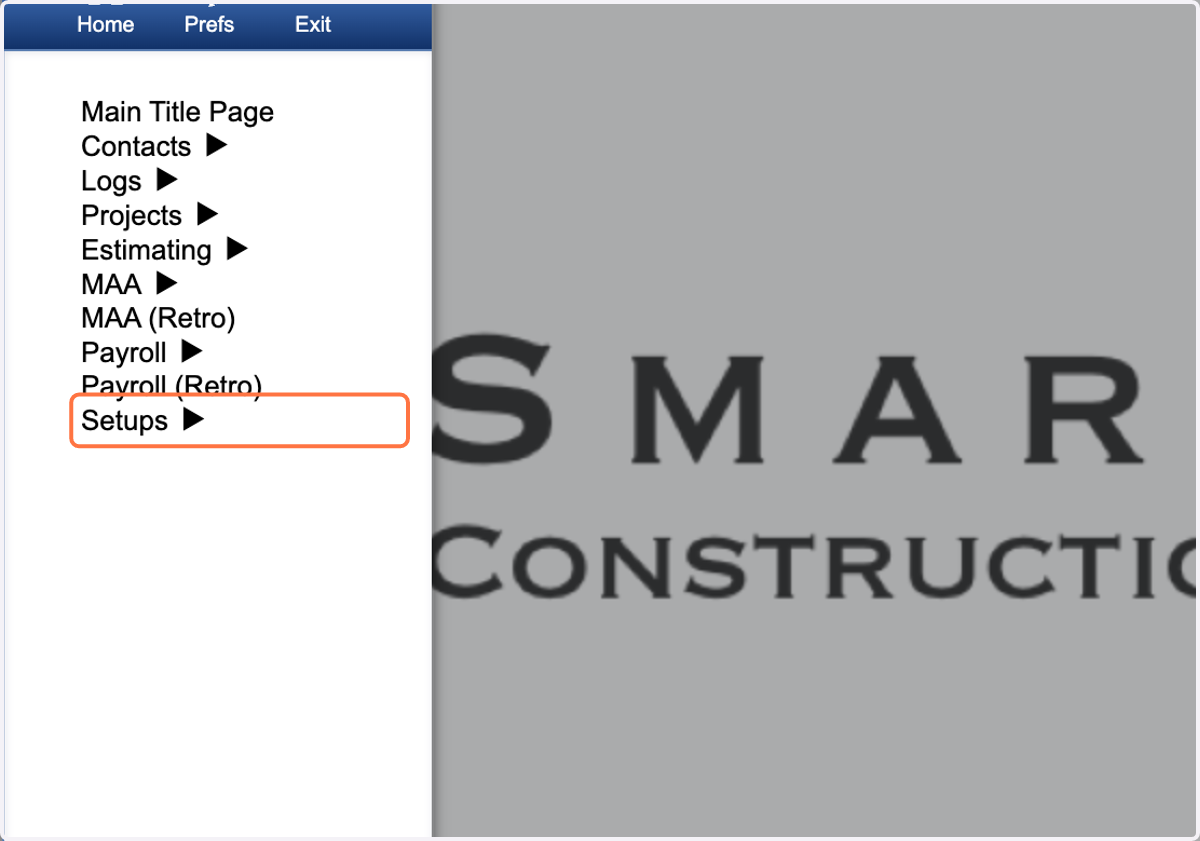
2. Click on Setups
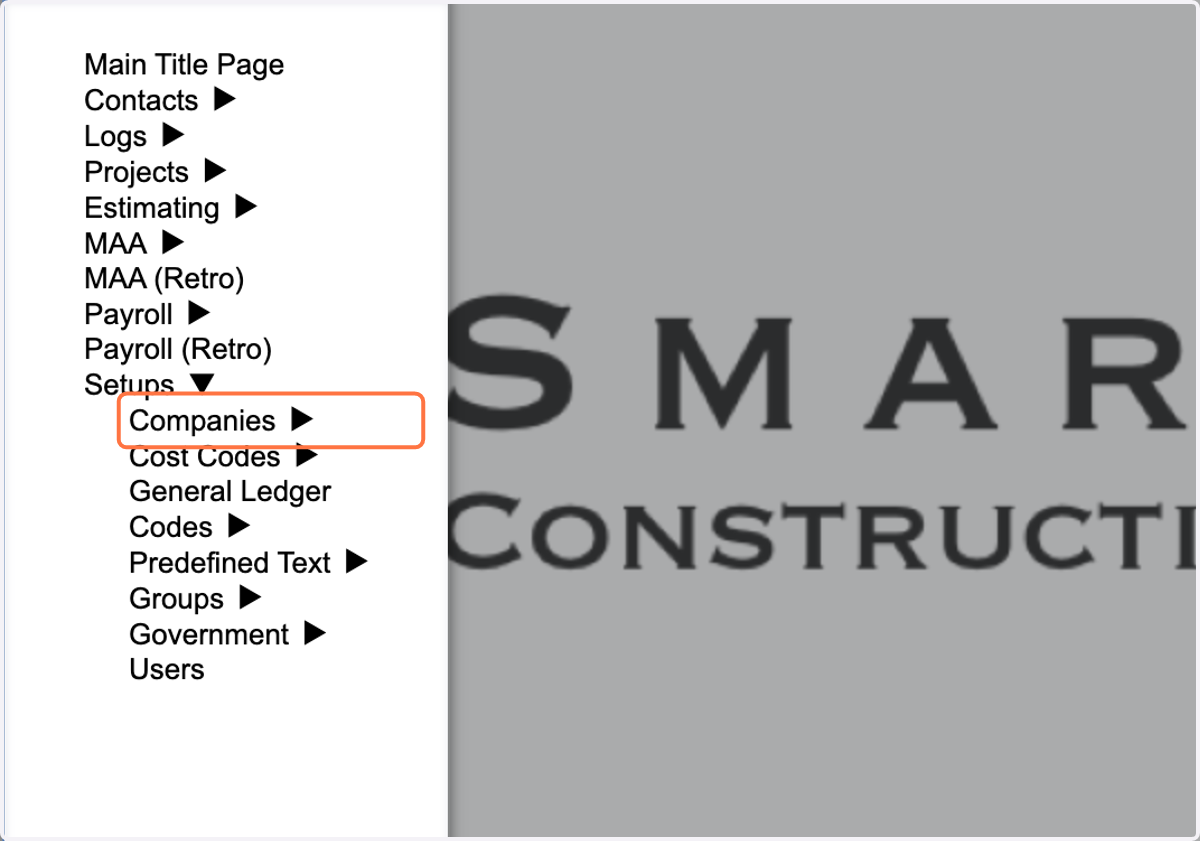
3. Click on Companies
4. Click on General
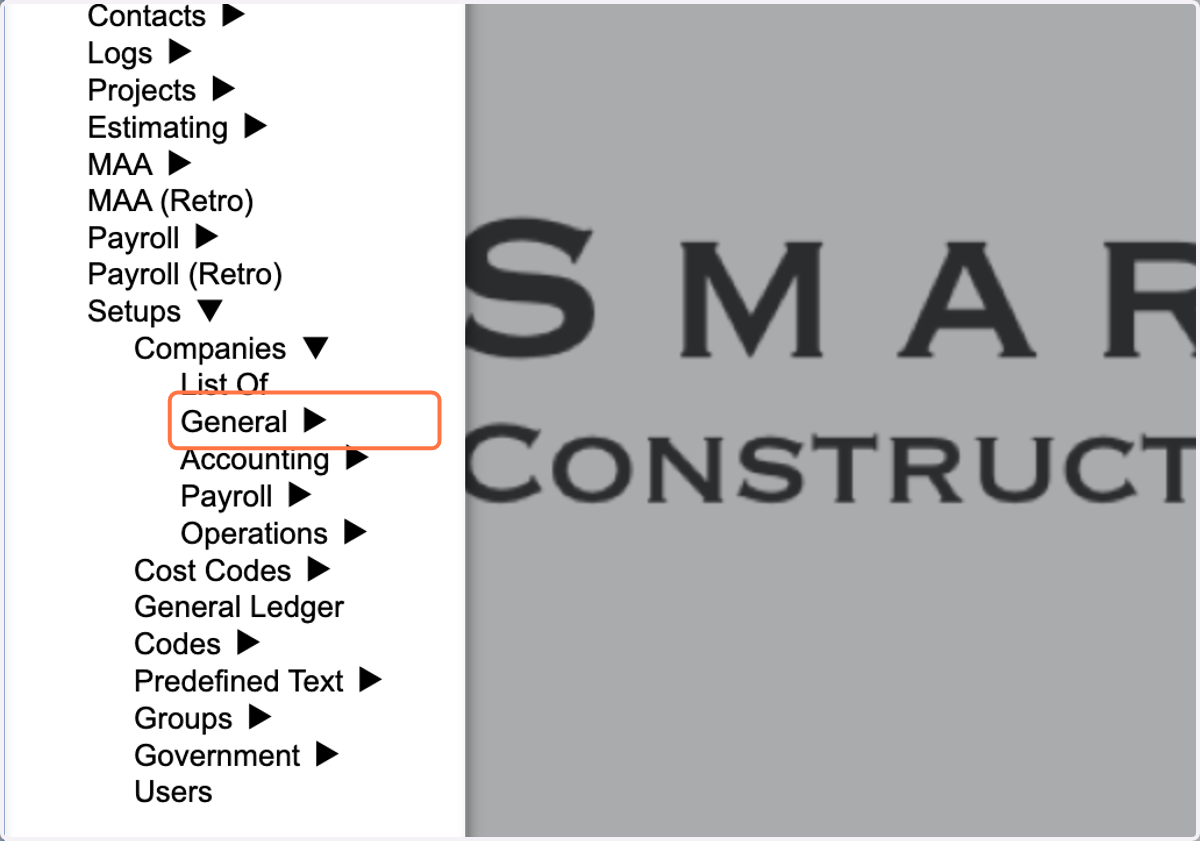
5. Click on Processes
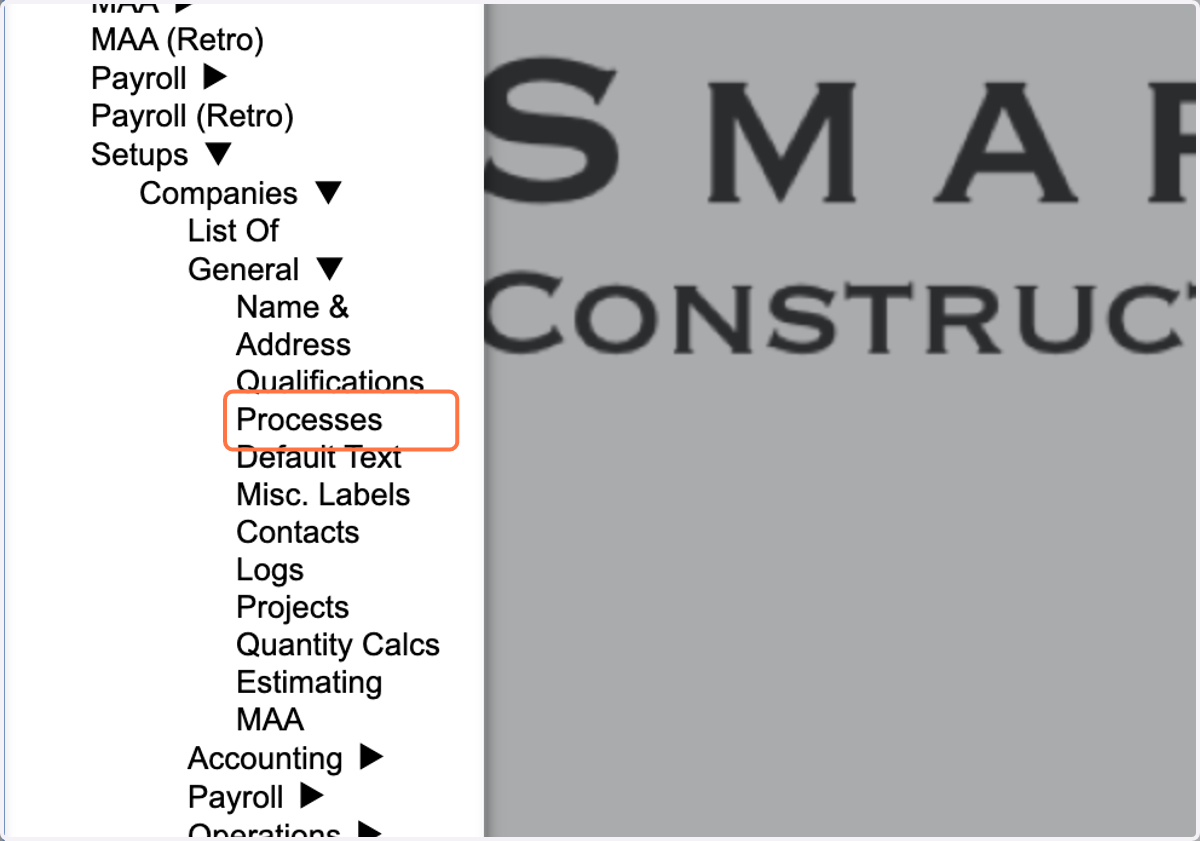
6. Click on API Intigrations
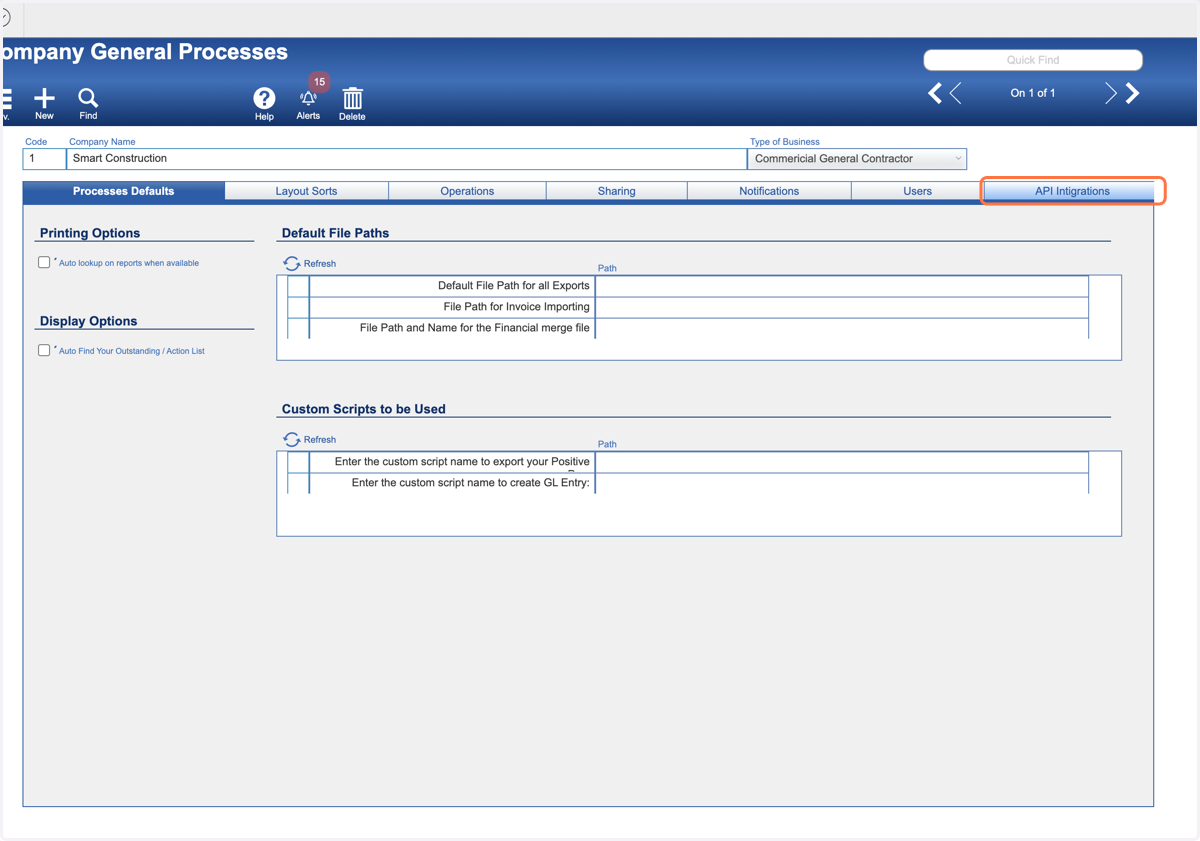
7. Click on DocuSign Tab
If you have a "Demonstration" or "Sandbox" account select "Sandbox" for the CurrentEnvironment, otherwise select "Production."
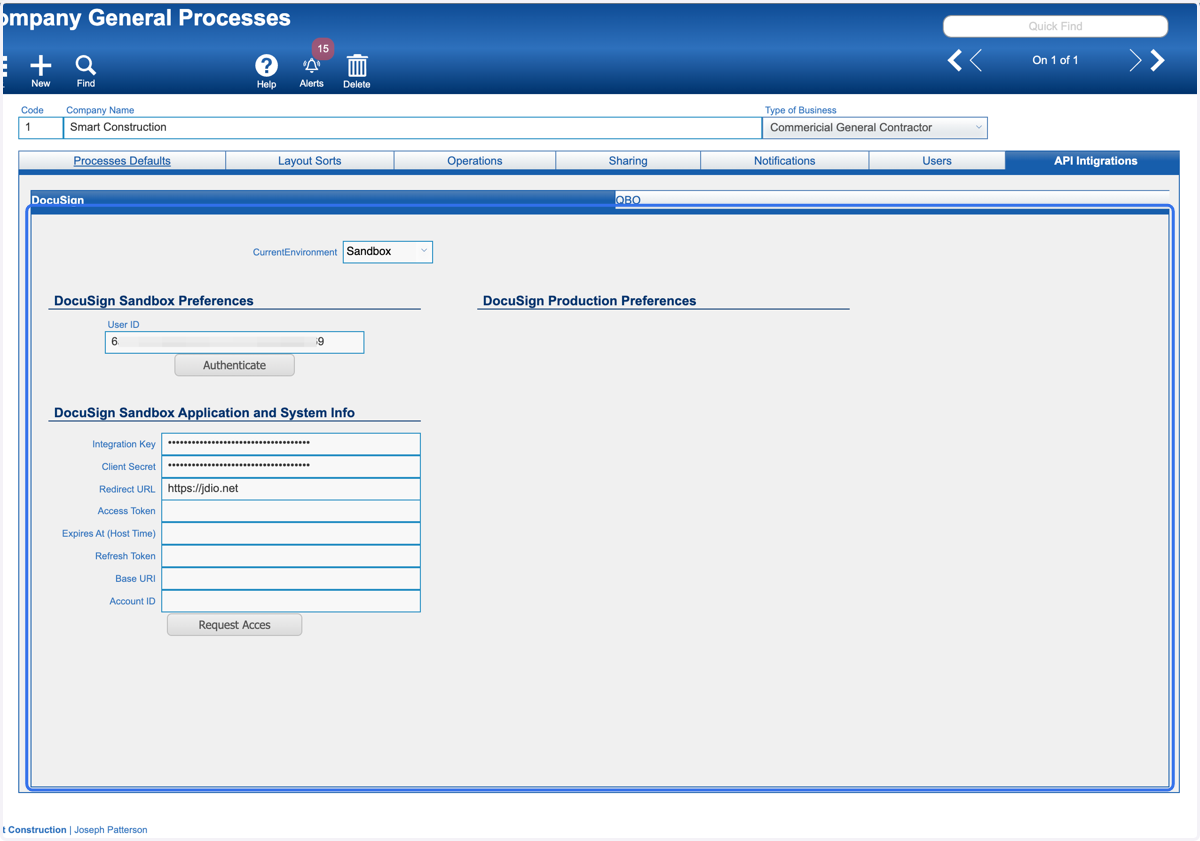
8. Enter your DocuSign User ID and then Click on Authenticate
DocuSign has differenent User ID's for Sandbox accounts verse Production accounts. Make sure you are using the correct User ID for the correct Environment.
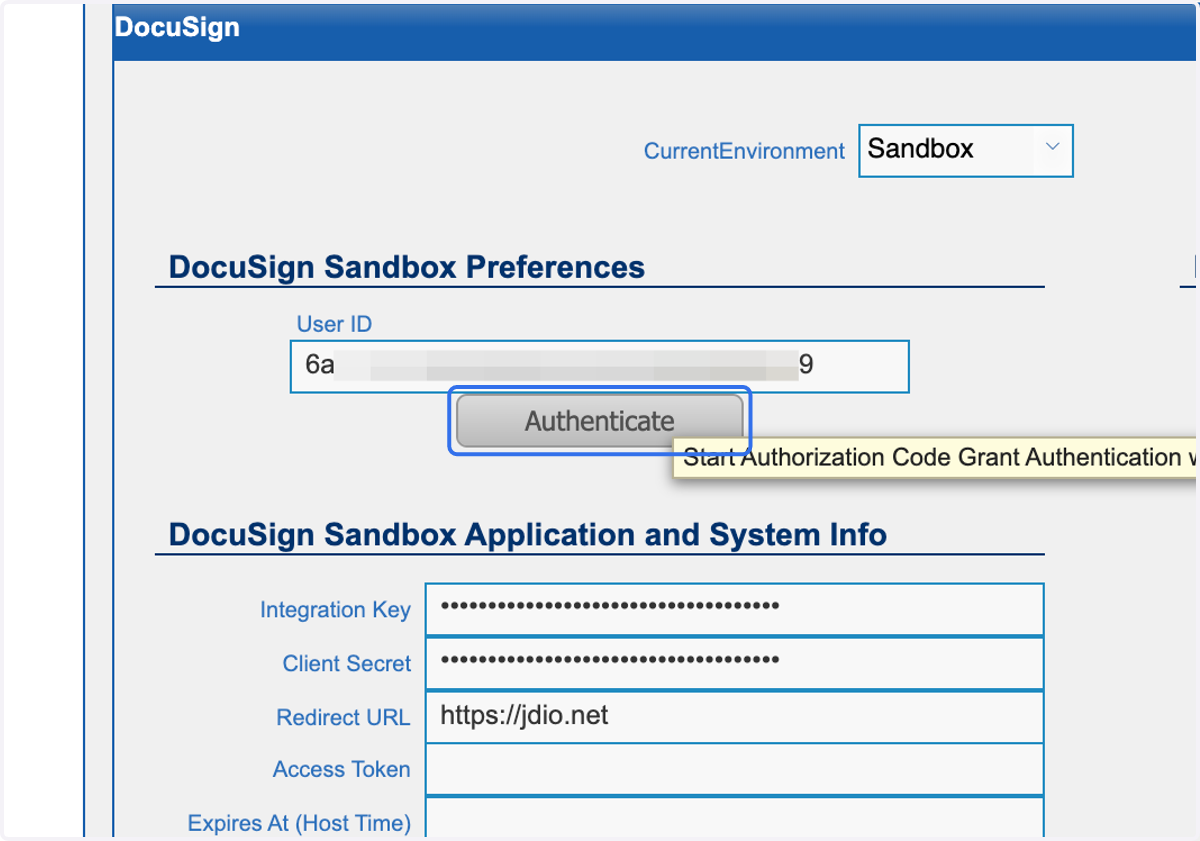
9. After Clicking Authentication the following will happen:
A new browser tab will open.
Enter your DocuSign email address, then click next.
Enter your DocuSign password, then click log-in.
When asked to give permission for CMIS, click on Allow.
Return to the CMIS browser tab/window
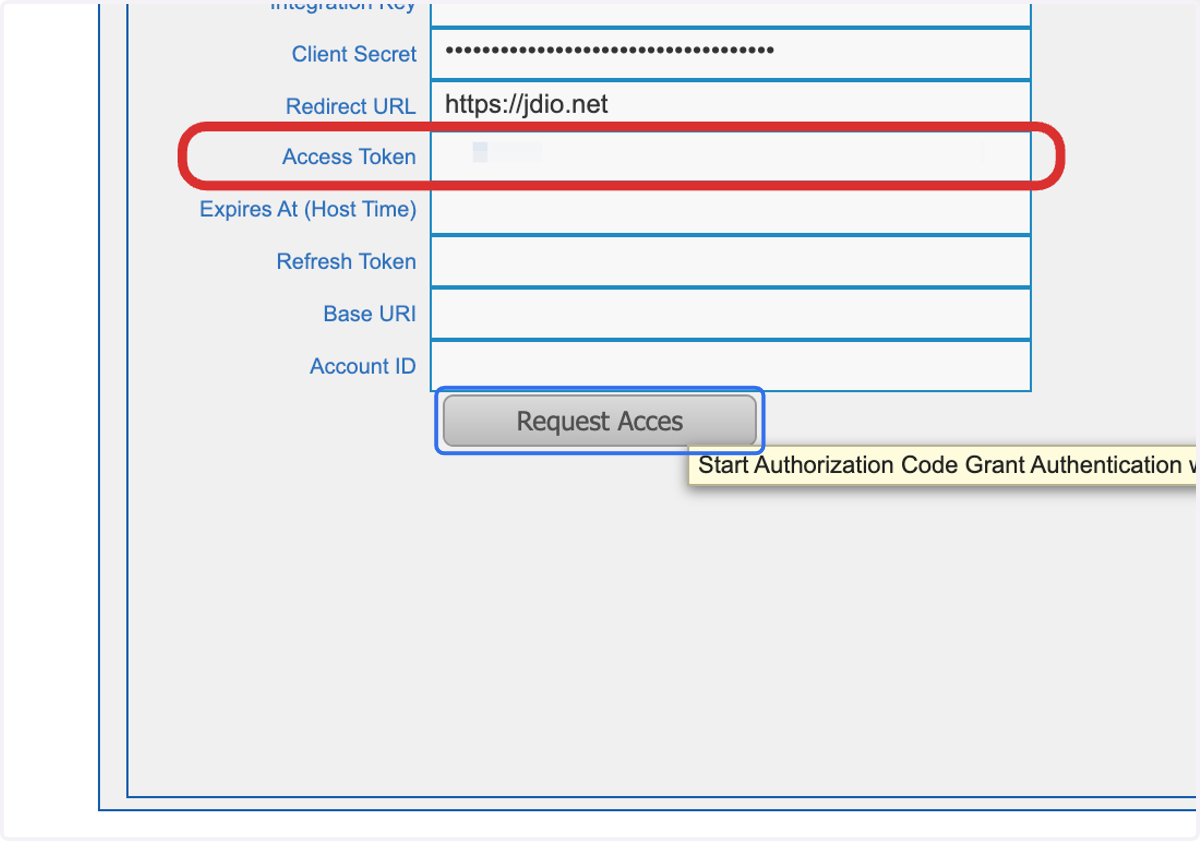
10. To test to see if you have access Click on Request Acces
If you did not receive any error messages and the "Access Token" is filled in you and all users of CMIS now have access to DocuSign.