Navigating in the Backend
Go to your respective webpage on skylinecollege.edu
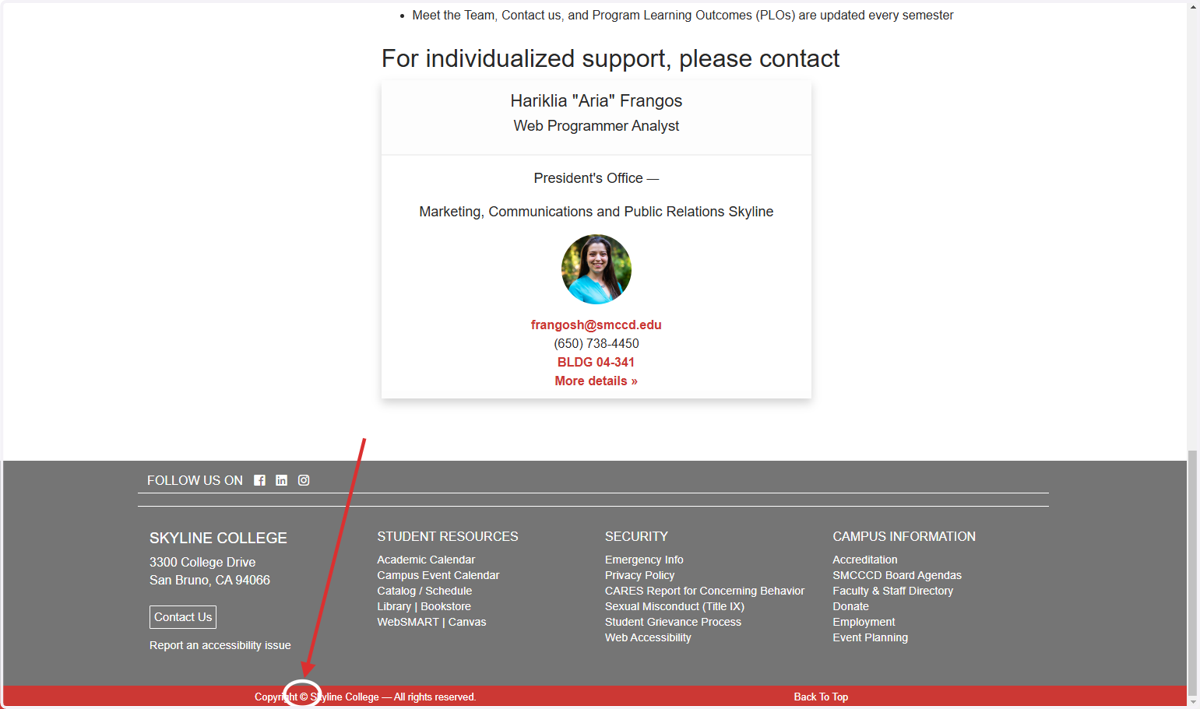
1. Scroll to the bottom of your webpage and click directly on the copyright symbol in the bottom left of the footer
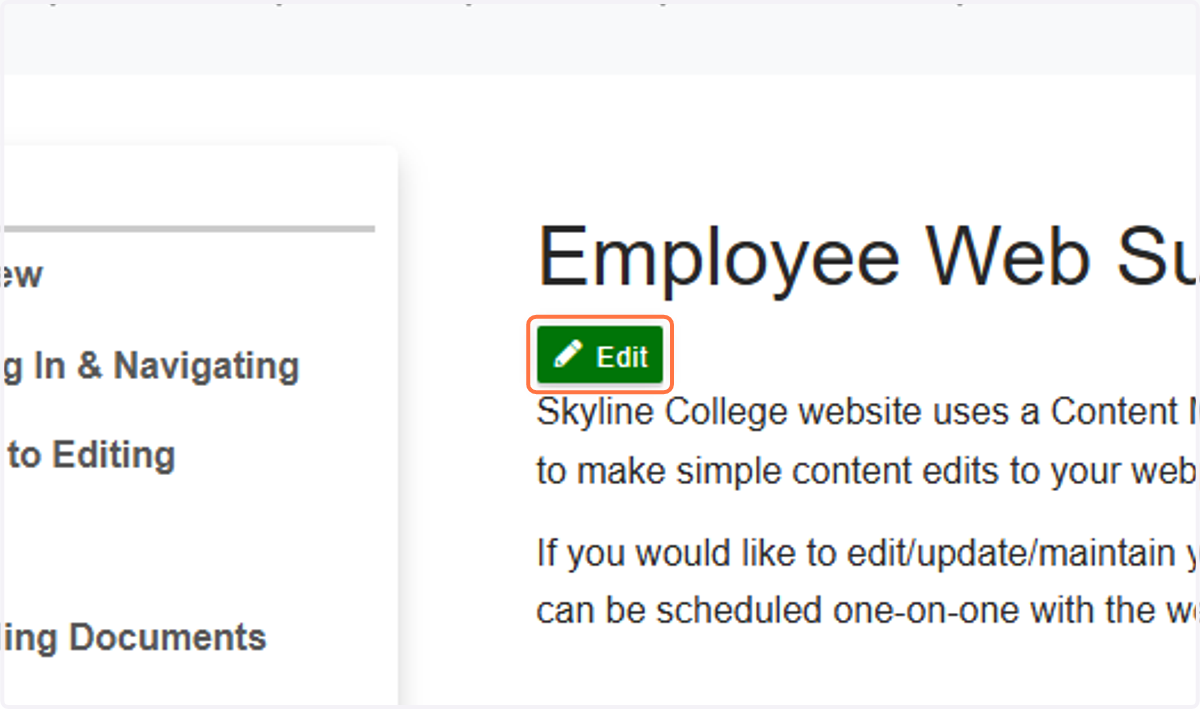
2. If you have editing privileges, this will take you to the backend of the website. Click the green 'edit' button to edit this page.
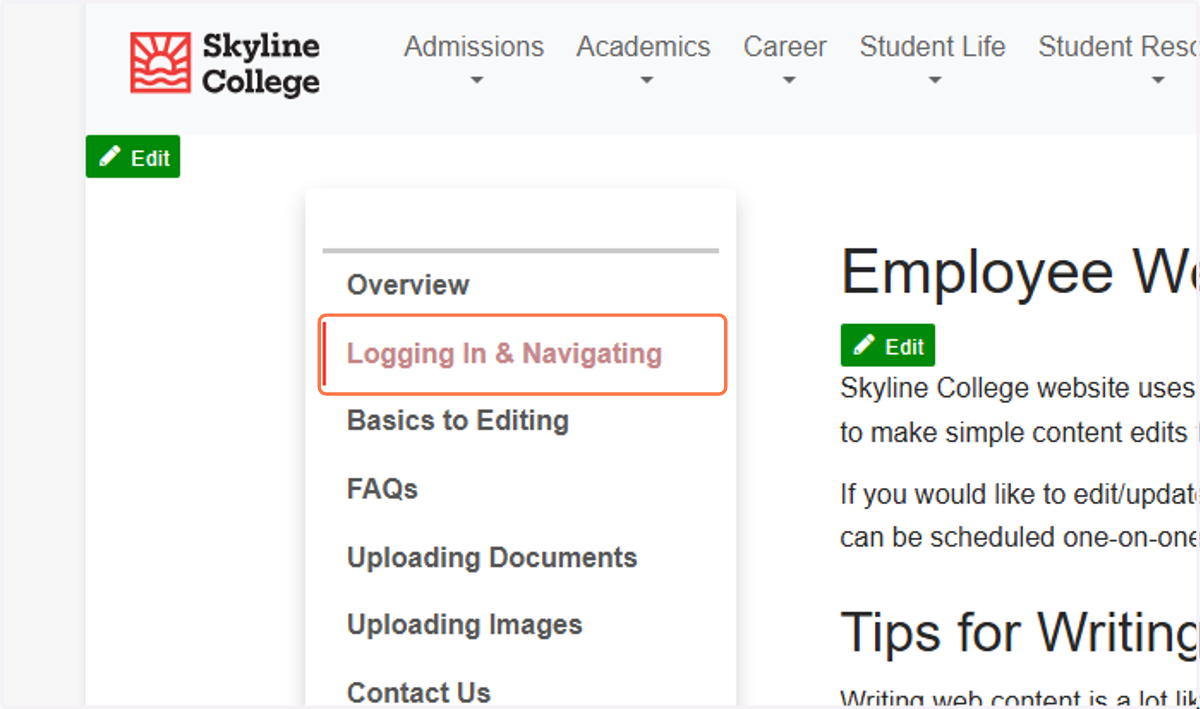
3. If you want to go to another page on your site, DO NOT click on the side menu links like this one. That will not take you to the editable page.
This menu is simply demonstrating how the live site will work. It does not have a real function in the editor.
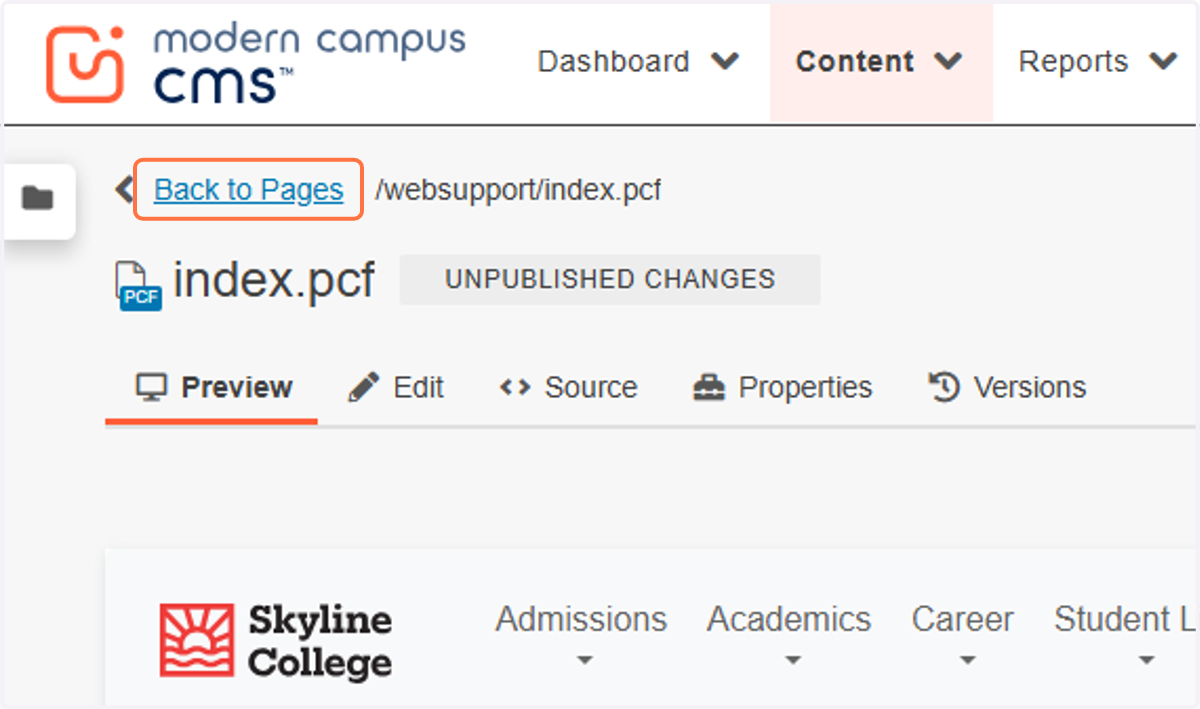
4. Instead, always use the breadcrumbs in the top left and the blue "Back to Pages" link to navigate through the backend.
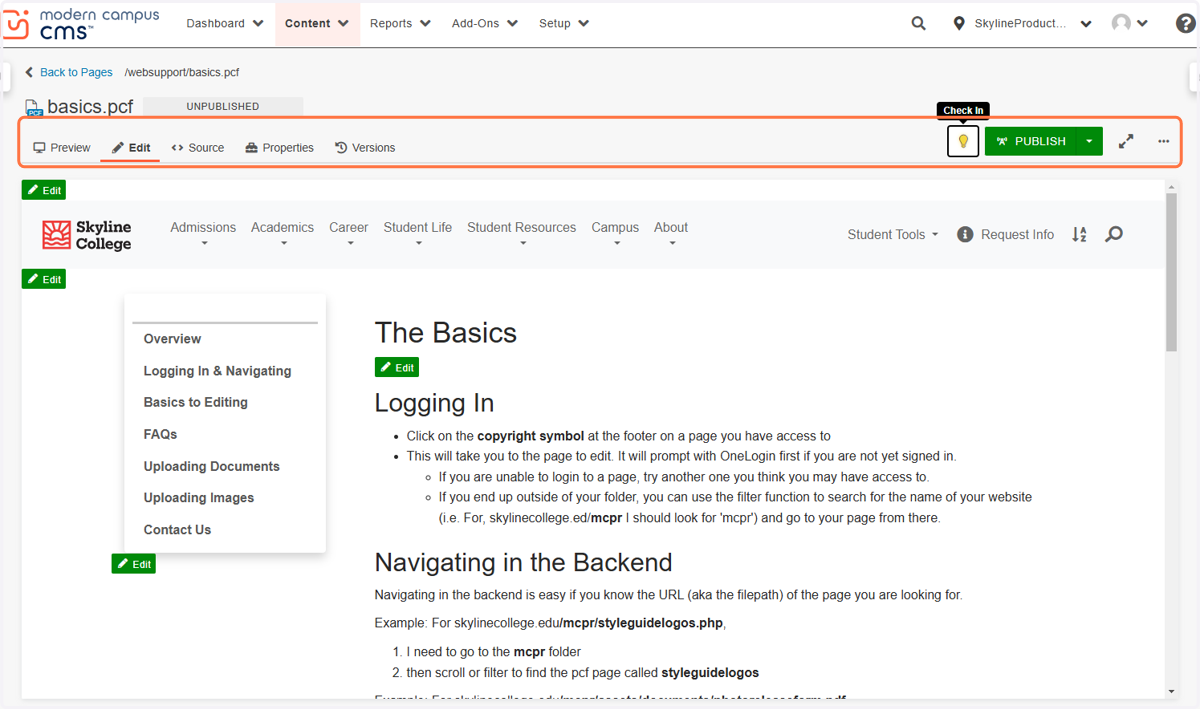
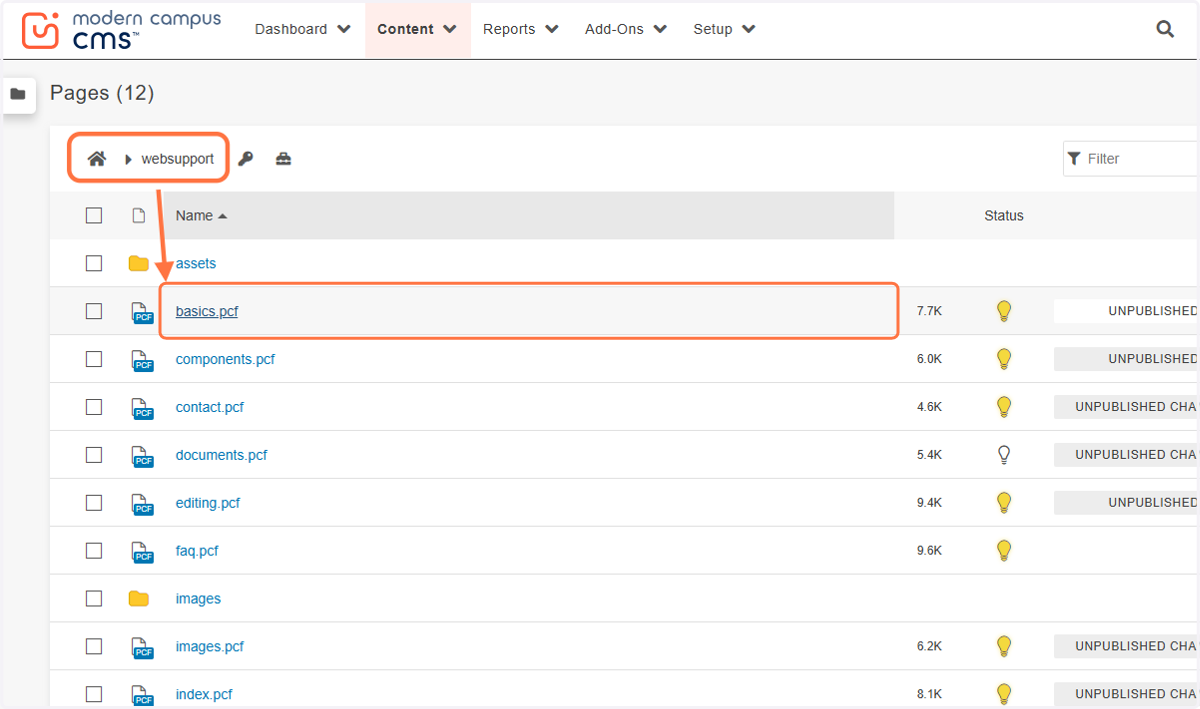
5. Find the page you want to edit using a combination of the breadcrumbs and the file names. These will align with the URL of the webpage.
Ex: if I want to edit skylinecollege.edu/websupport/basics.php, the breadcrumbs in the top left should tell me I'm in the 'websupport' folder, and I want to click on the 'basics' page inside.
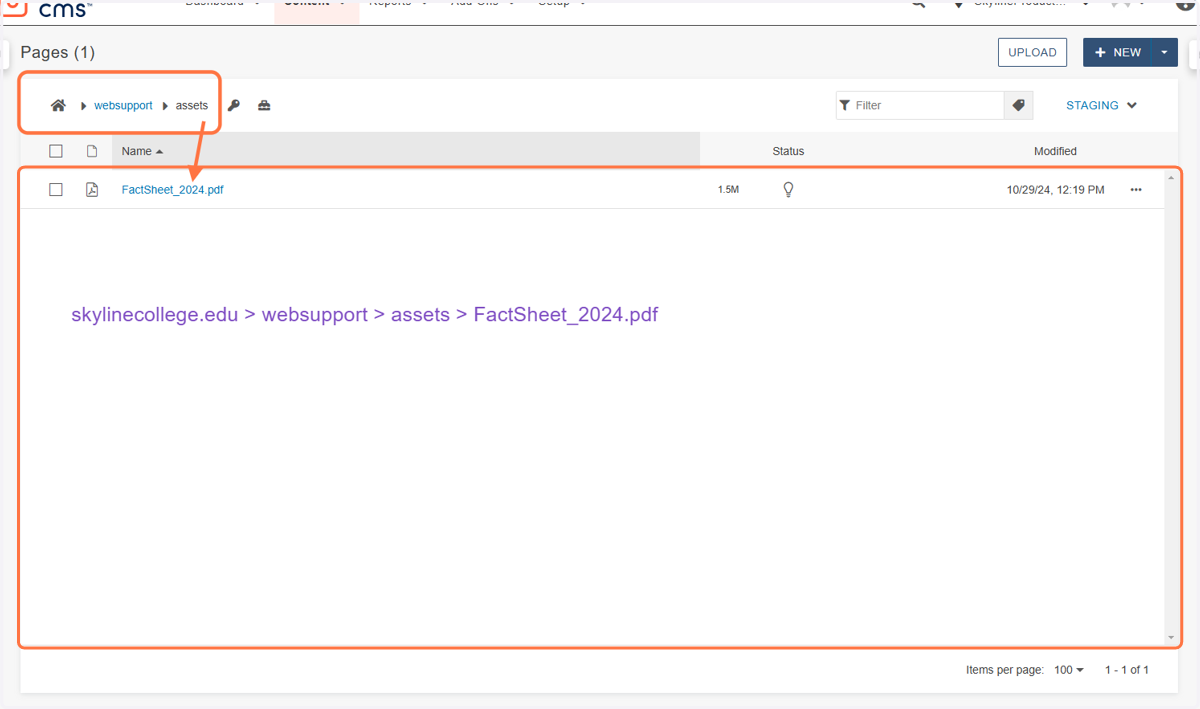
6. Another example of navigation: I want the PDF at skylinecollege.edu/websupport/assets/FactSheet_2024.pdf
7. When you are editing a page, this lightbulb will be on. This means nobody except you can edit the page at the moment. Always check out when you are done. Publishing a page checks it out automatically.
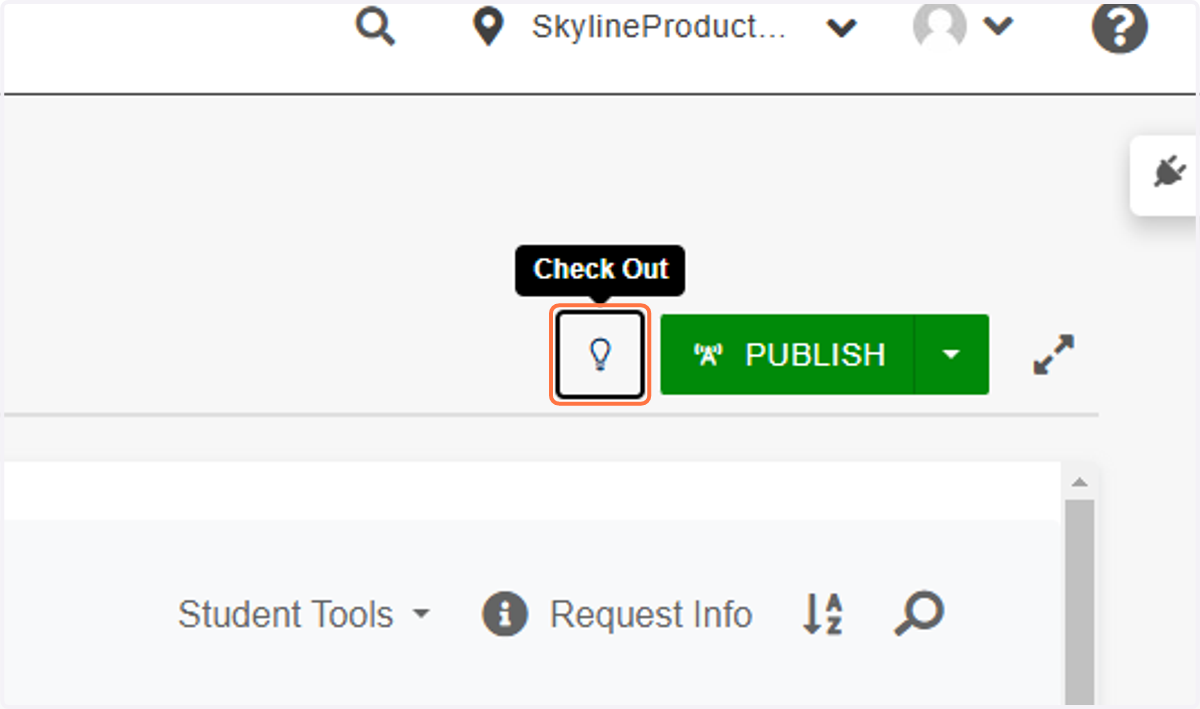
8. Lightbulb on = you have it checked out & only you can edit. Lightbulb off = it is checked in & anyone can edit. Lock = someone else has the page checked out & only they can edit.