Standardizing Feeding and Medication notes using Dynamic Notes
Go to your RunLoyal staff portal on a Google Chrome browser.
**All settings-related items must be updated while on a desktop or laptop.
Preparation: How to set up Dynamic notes in Settings
1. Click on Settings"
2. Select "Operations"
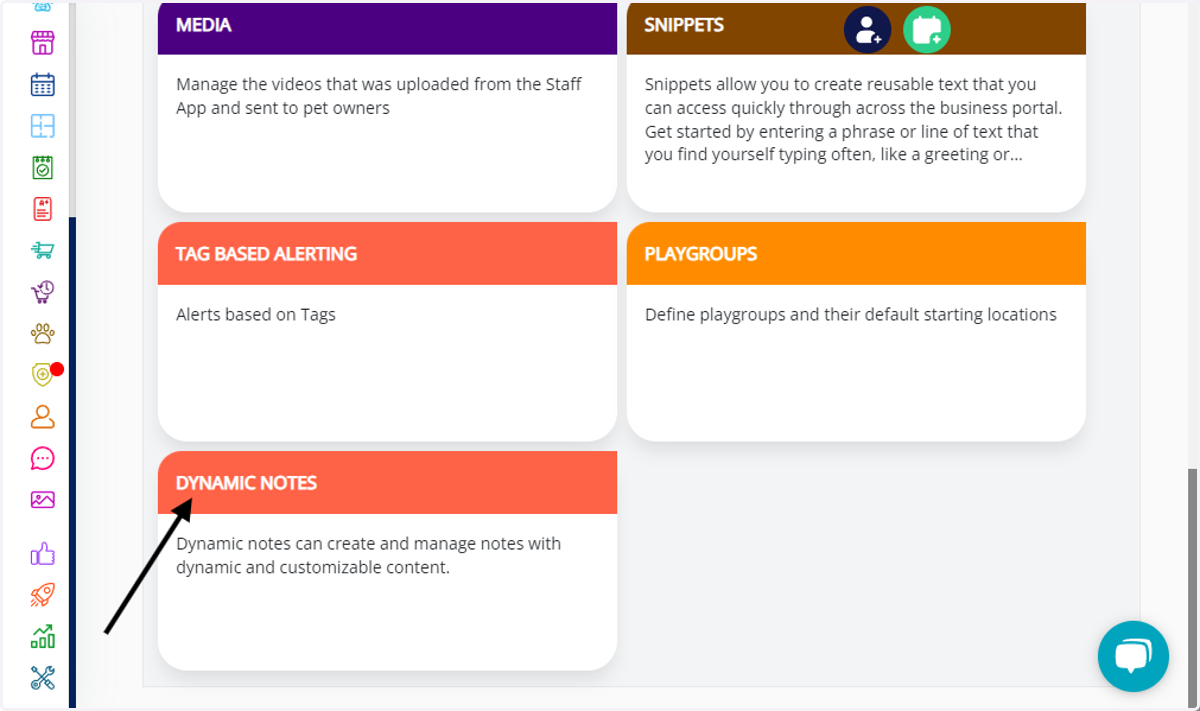
3. Choose "Dynamic Notes" to access the feature.
Creating a Dynamic Note:
4. Click the "Add Note" button.
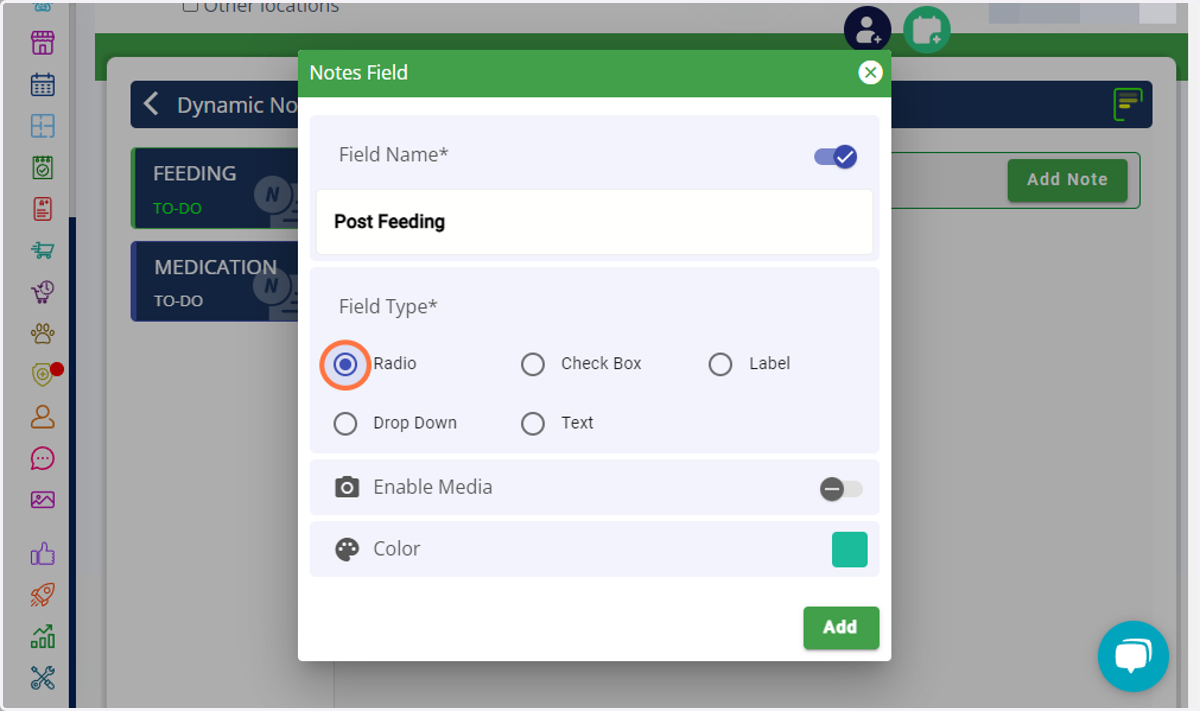
5. Enter a descriptive name for the note, like "Post-Feeding" or "Food Preparation."
6. Choose the Field type based on how it will interact with the note; options encompass Radio Button, Check Box, Label, Drop Down, and Text.
7. Click "Enable Media" to upload photos or videos related to the note.
8. Choose a color for the note to visually distinguish it.
9. Click "Add" to save your newly created dynamic note.
10. Define specific choices for the note field. For example, under "Feeding," create options like "Ate All," "Ate Some," and "Refused."
11. Click "Save" to finalize your note field choices.
12. Similar to Feeding, choose the relevant option for Medication notes like 'Administered All', 'Partially Administered', or 'Refused' and click 'Save'."
Using Dynamic Notes with Run card for an Appointment
13. Follow the usual steps to book an appointment for a pet.
14. After creating the appointment, navigate to the To-Do menu and click "Feeding"
15. Choose the run card for the appointment you want to add notes to.
16. Click on the "Feeding" column where you want to add notes.
17. Click "Open" to display the note options.
18. Select the relevant option for that specific appointment, like "Ate All" or "Refused."
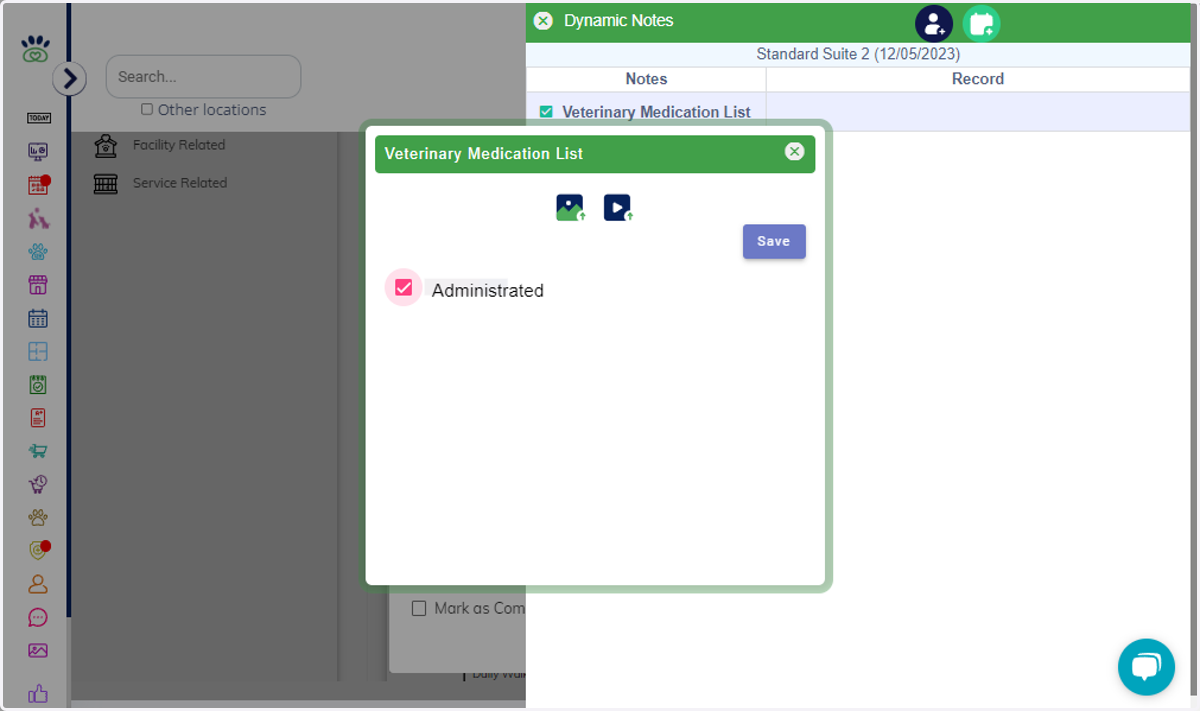
19. Same goes for Medication! Navigate to "Medication". Click the 'Medication' column to add notes.
20. Click "Open" to display the note options.
21. Select the relevant option for that specific appointment, like "Administered All”, “Partially Administered”, and “Refused”
22. Click "Save" to finalize the notes for the appointment.
Viewing Dynamic Notes
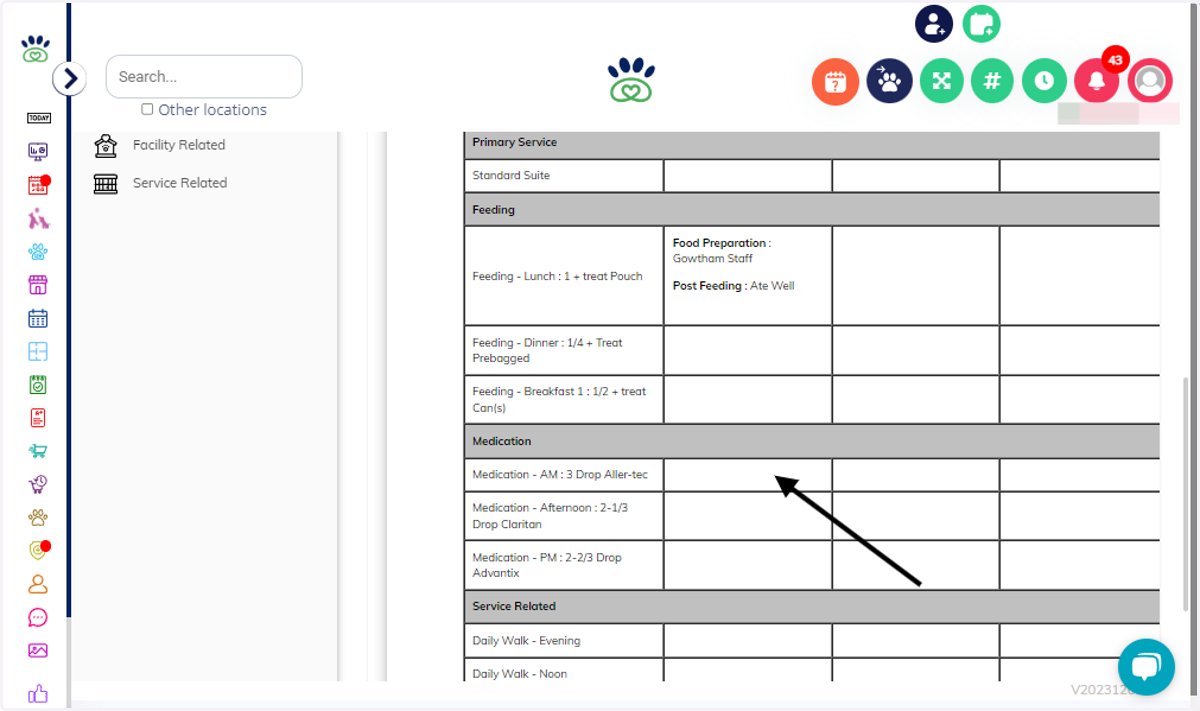
23. Now, you'll see the full run card with the dynamic notes you added for Feeding and Medication.
Using Dynamic Notes in an Invoice
24. After creating and setting up dynamic notes for an invoice (refer to previous instructions for creating dynamic notes), navigate to the invoice history menu.
25. Search for the specific invoice you want to add notes to.
Click on the desired invoice to open it.
26. Scroll down the invoice page until you find the "Dynamic Notes" section.
27. Click on the "Add Notes" button
28. Type in the specific dynamic notes you want to add to this invoice.
Be sure to include any relevant details.
Click "Save" to finalize adding the notes.
29. The dynamic notes you added should now be displayed under the invoice details, along with the date, time, and the person who added them.