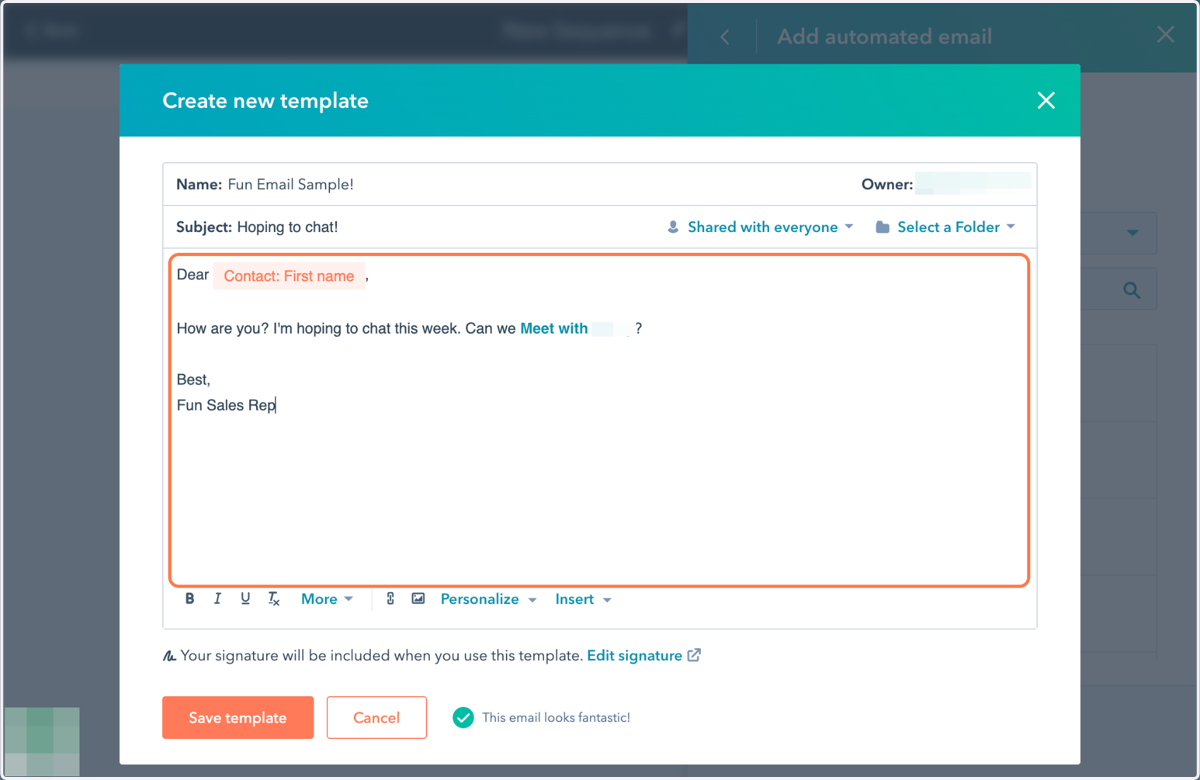
Create a template for an email sequence in Hubspot
Hubspot makes it easy to create templates for email sequences.
Hubspot
1. Go to Hubspot homepage
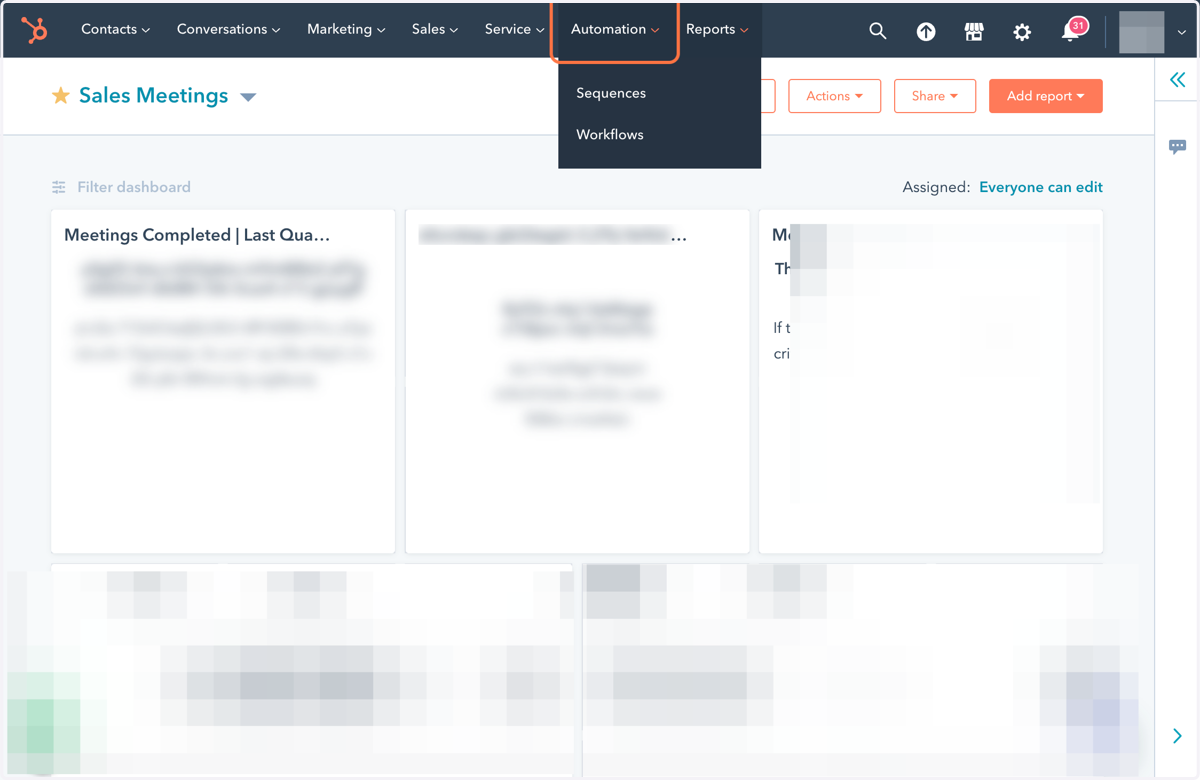
2. Click on Automation and Sequences
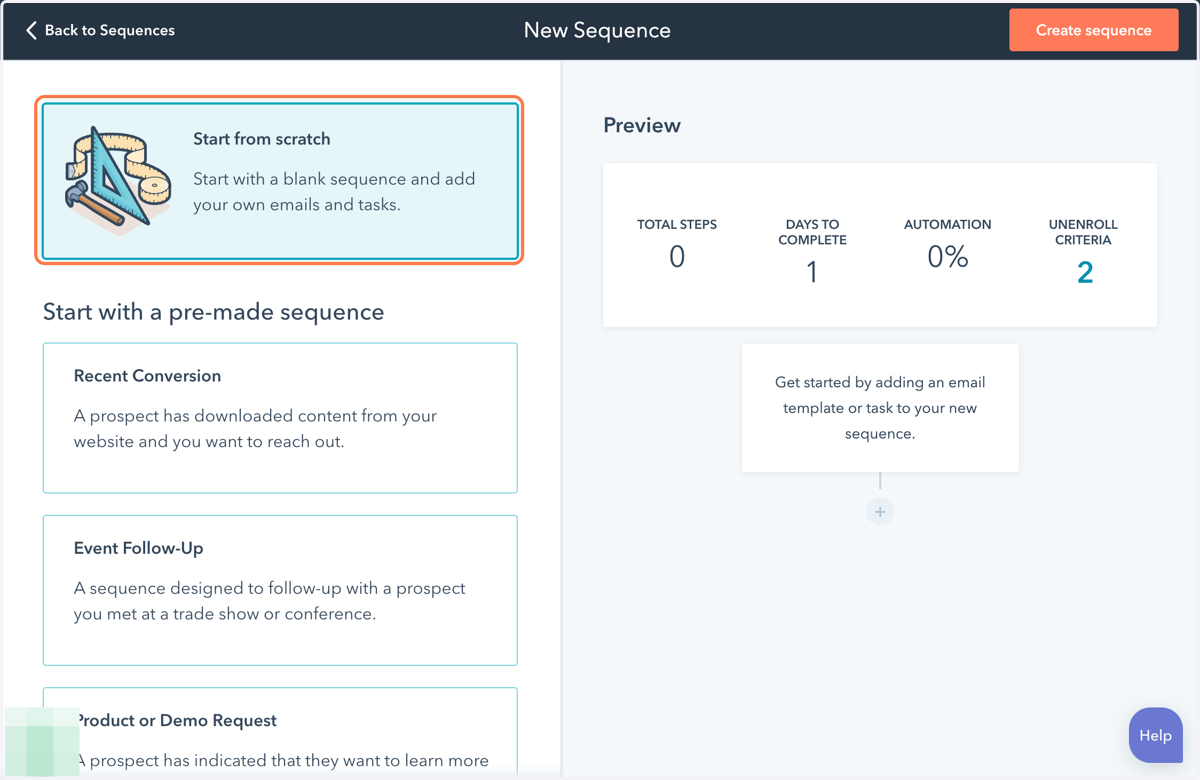
3. Click on start from scratch
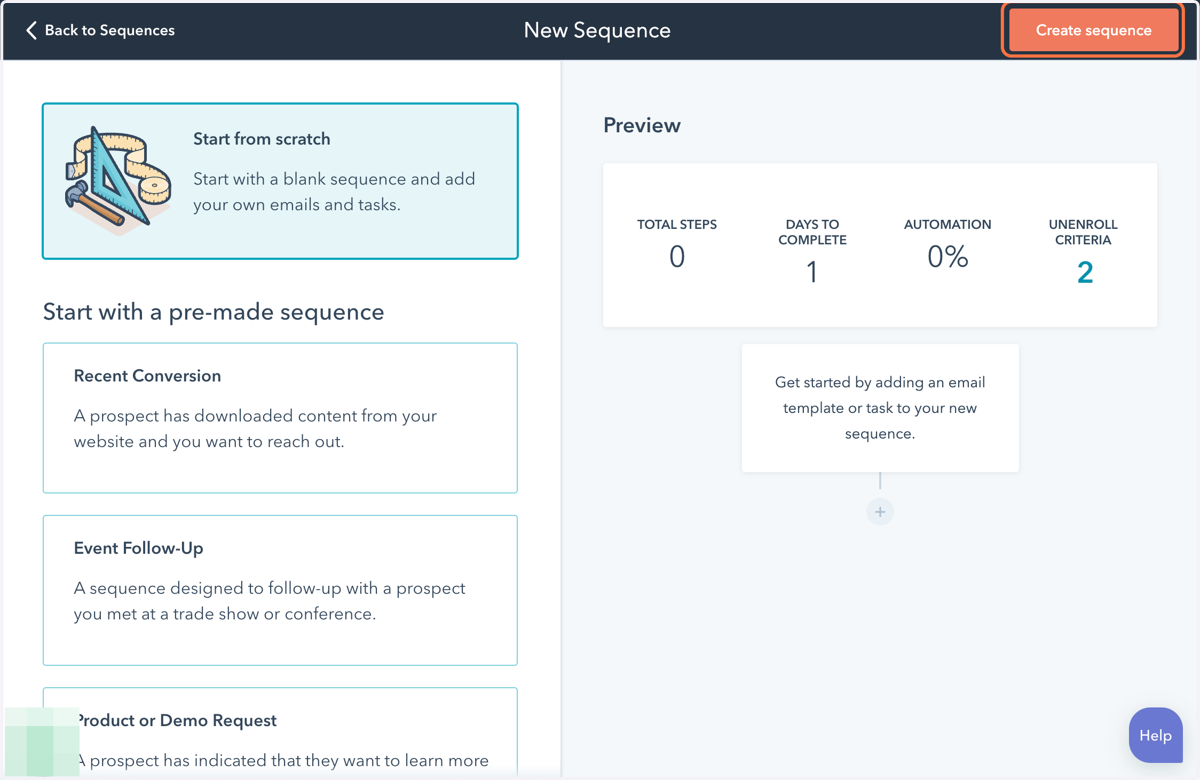
4. Click on Create sequenc
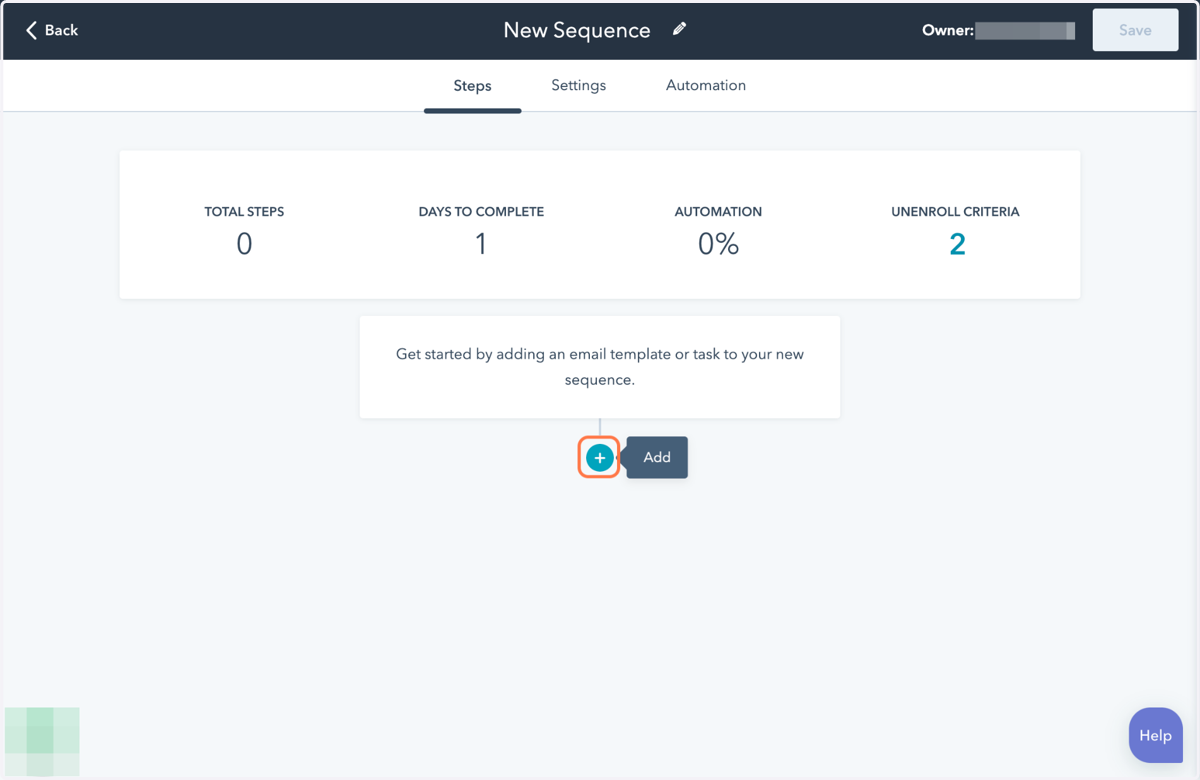
5. Click to add your first step
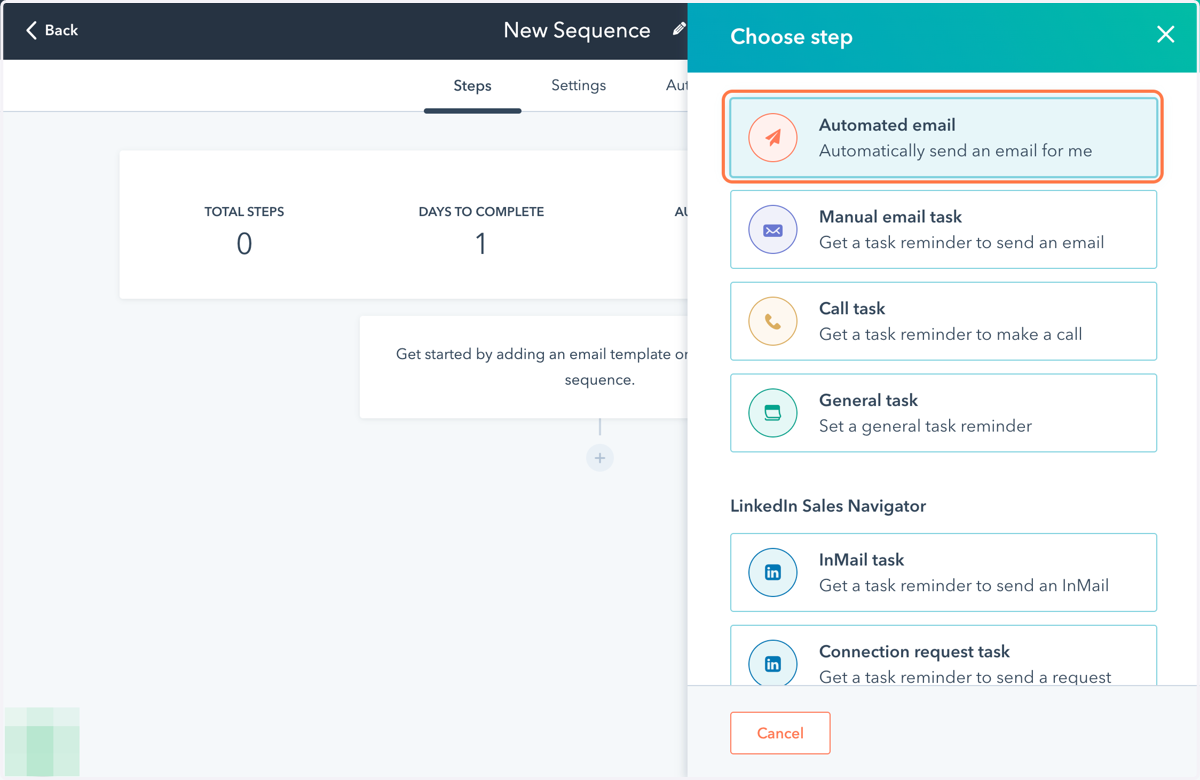
6. Click on automated email
Hubspot
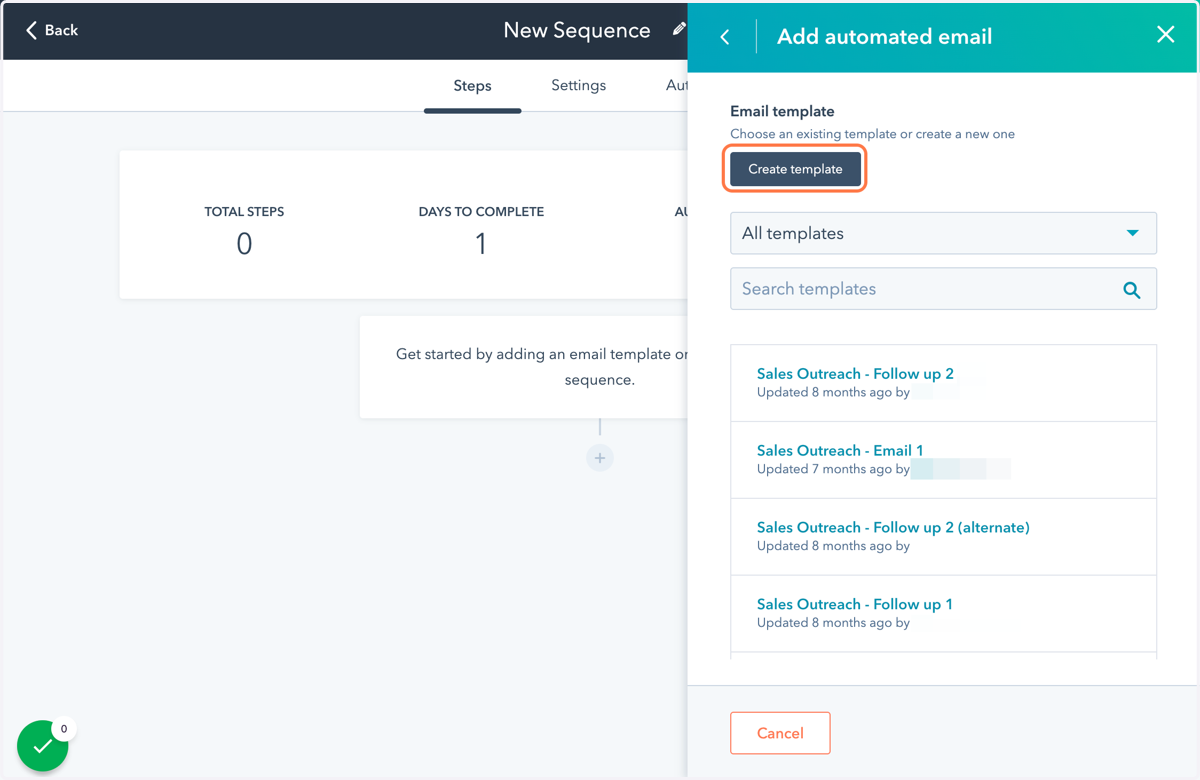
7. Click on Create template
8. Start a new email!
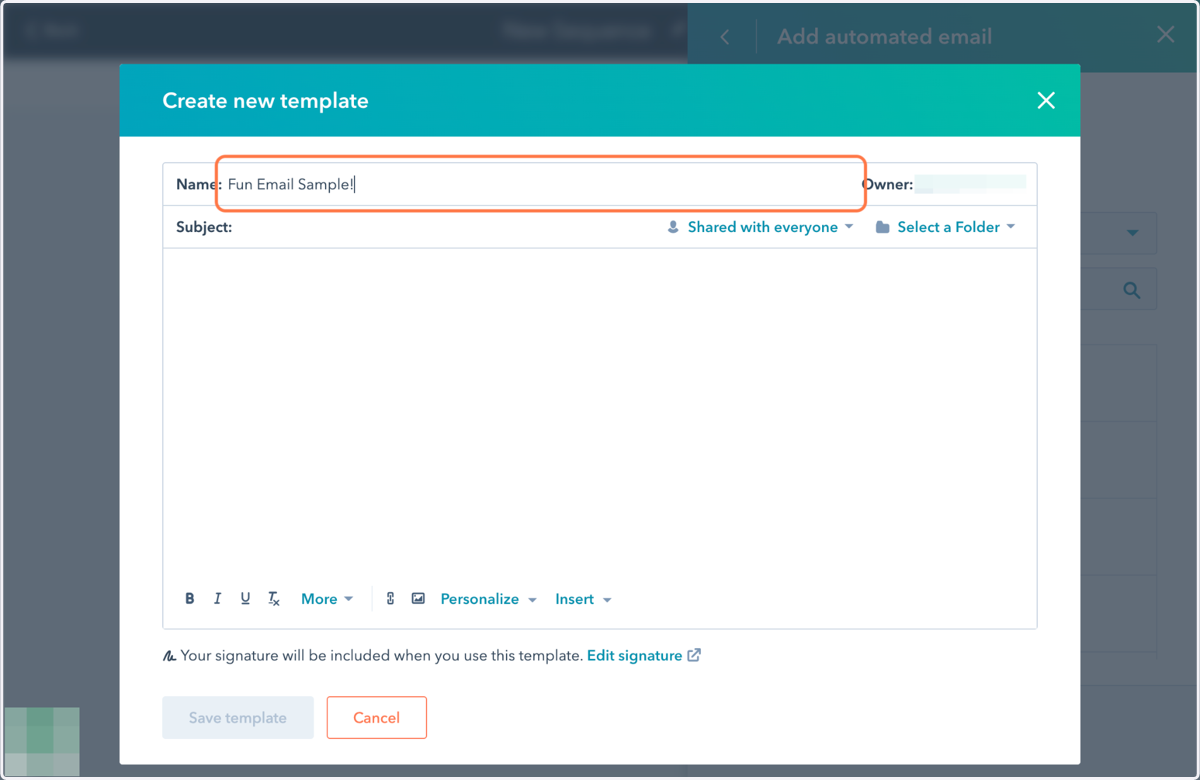
9. Add a subject
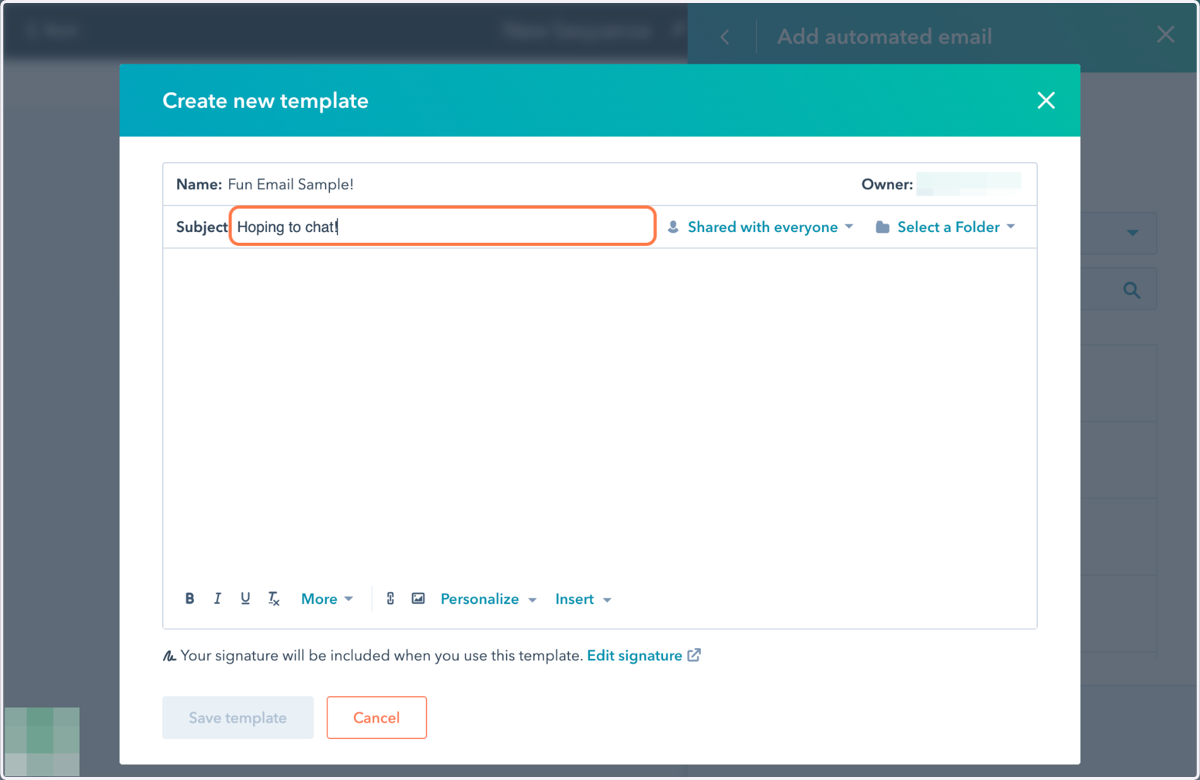
10. Add some text and personalization
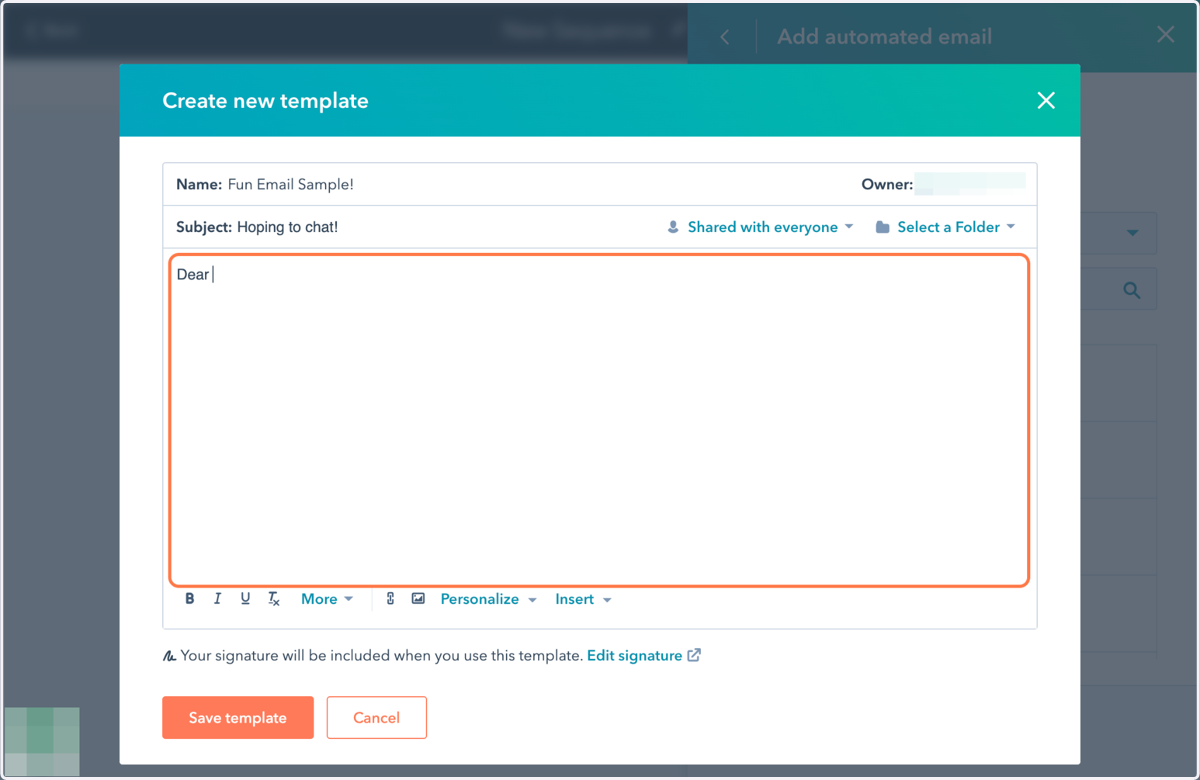
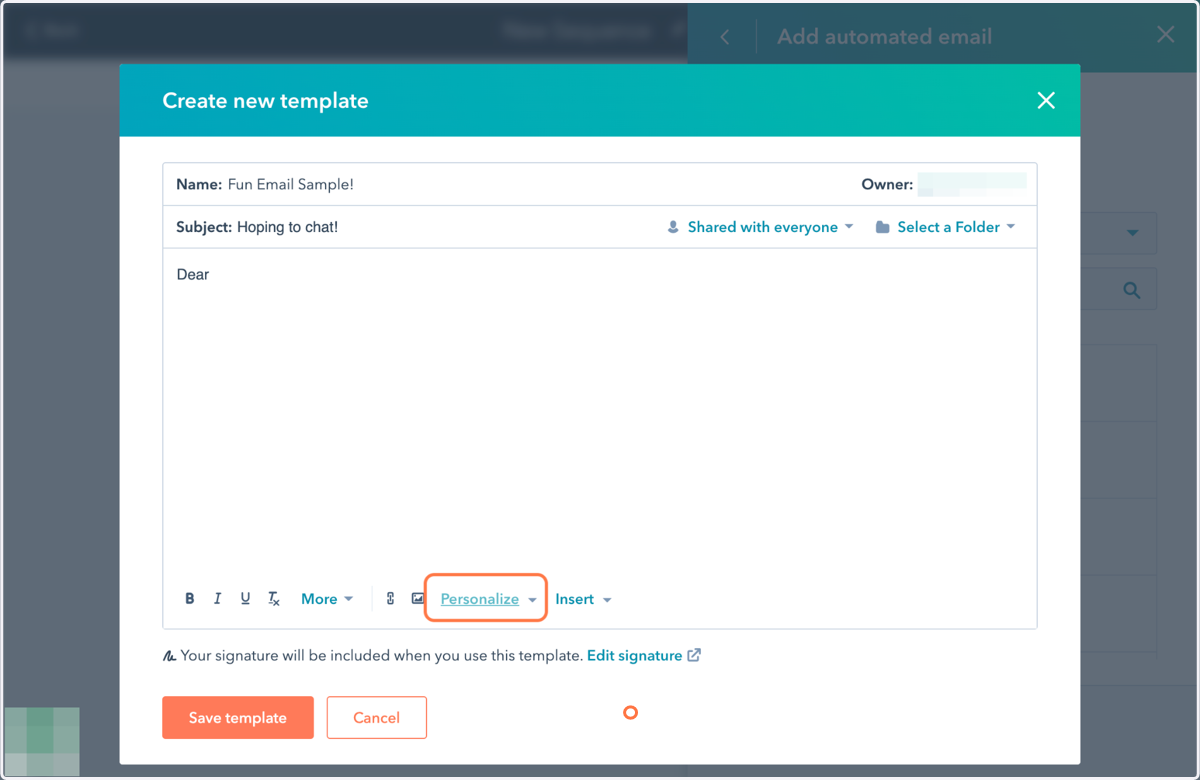
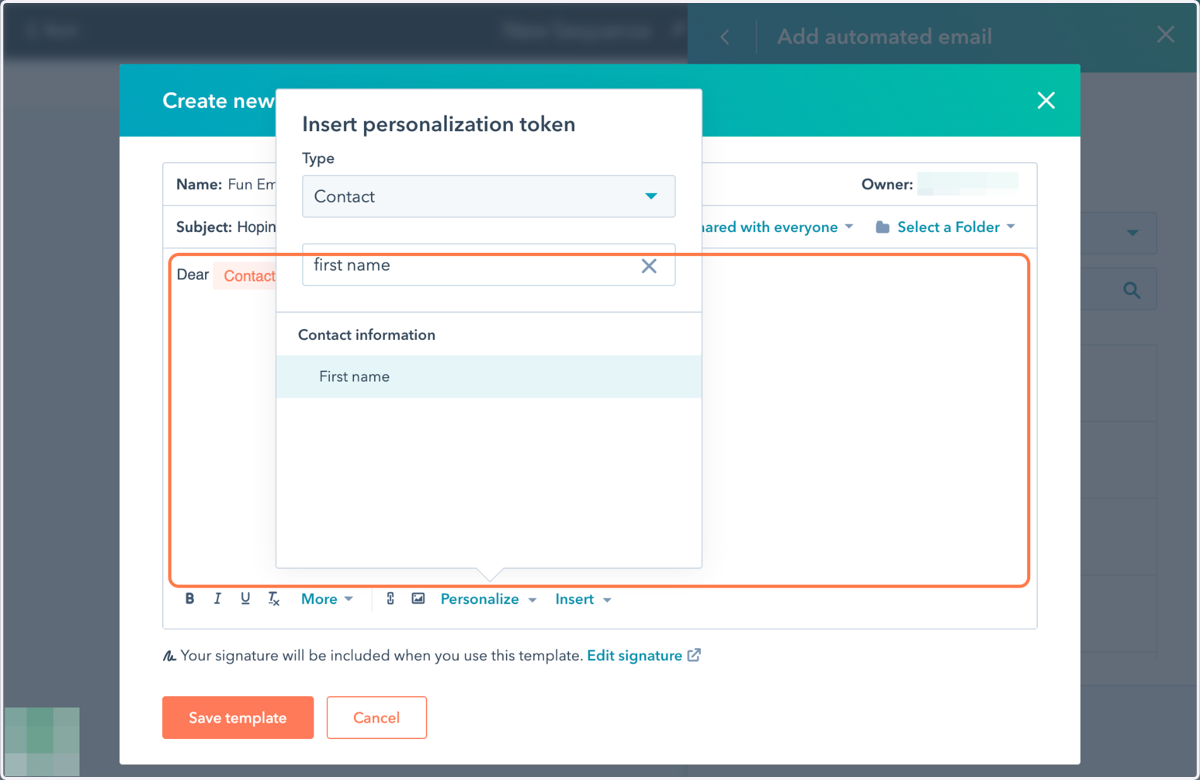
11. Click on Personalize to auto-fill the user's First Name, Company, etc.
12. Type "first name"
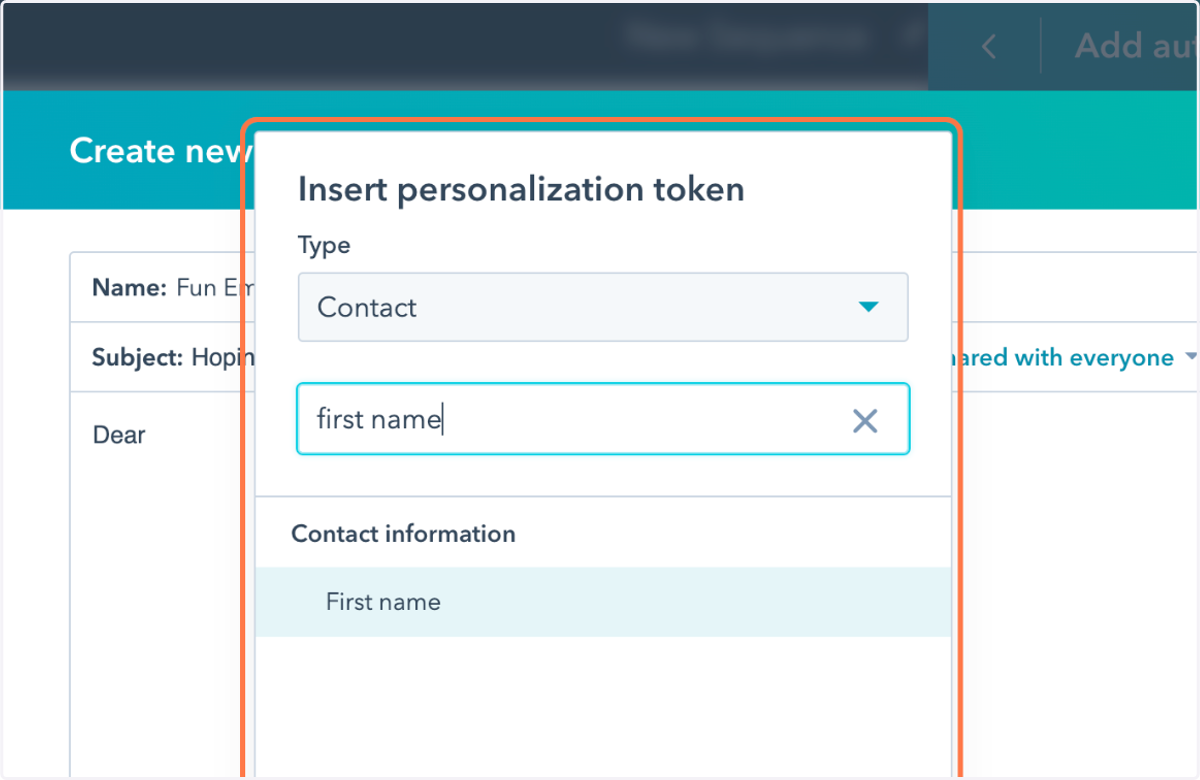
13. Click on First name
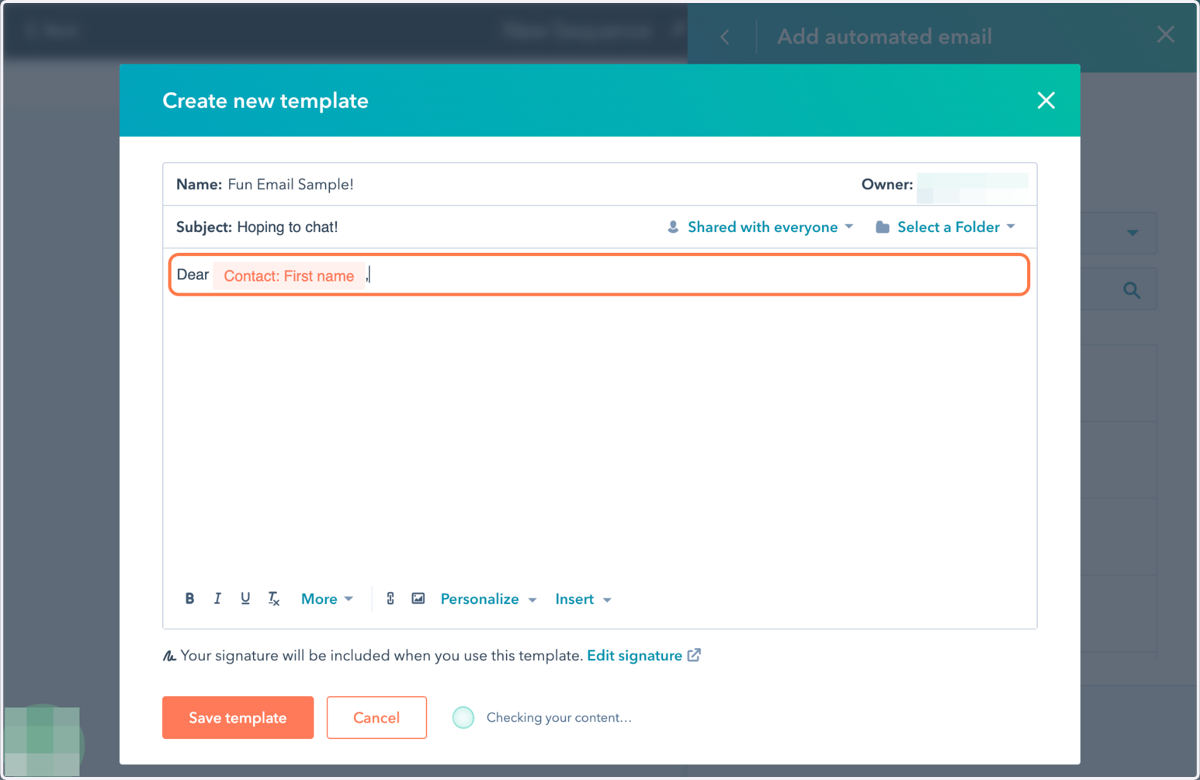
14. First name personalization is now added as an automation!
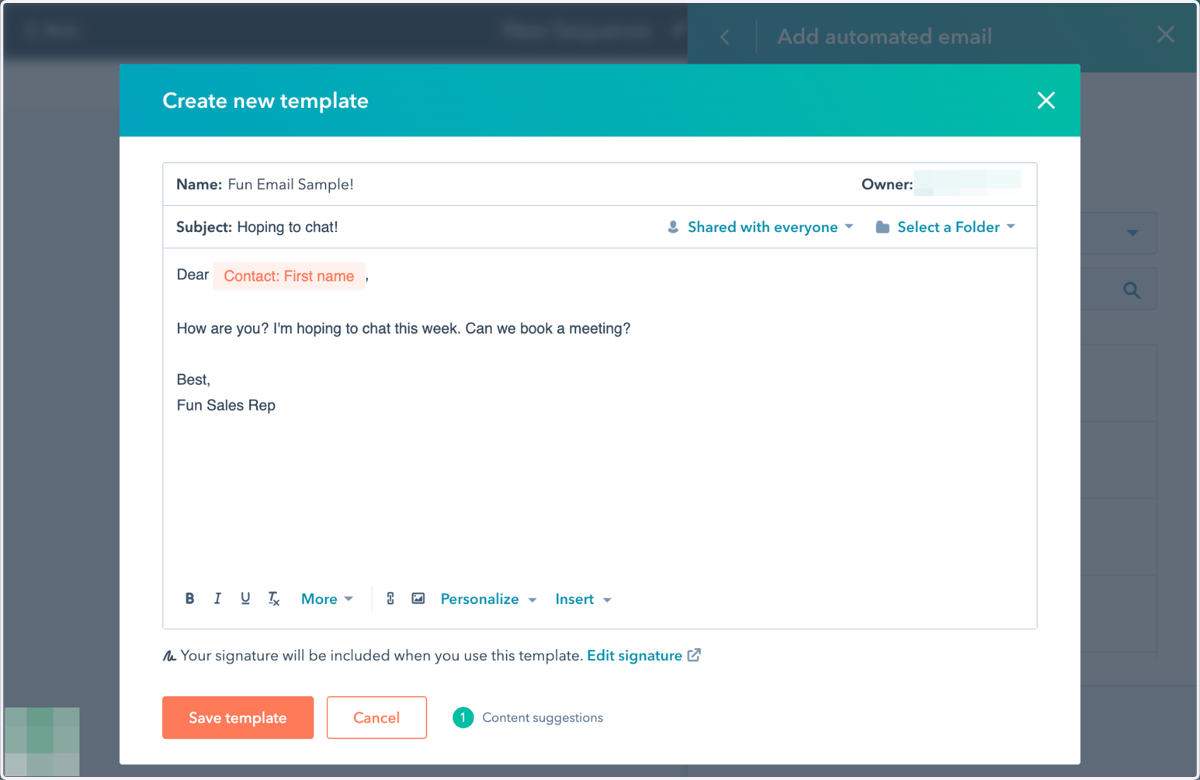
15. Write your email
16. Add your meeting link by highlighting the text where you want to create a link.
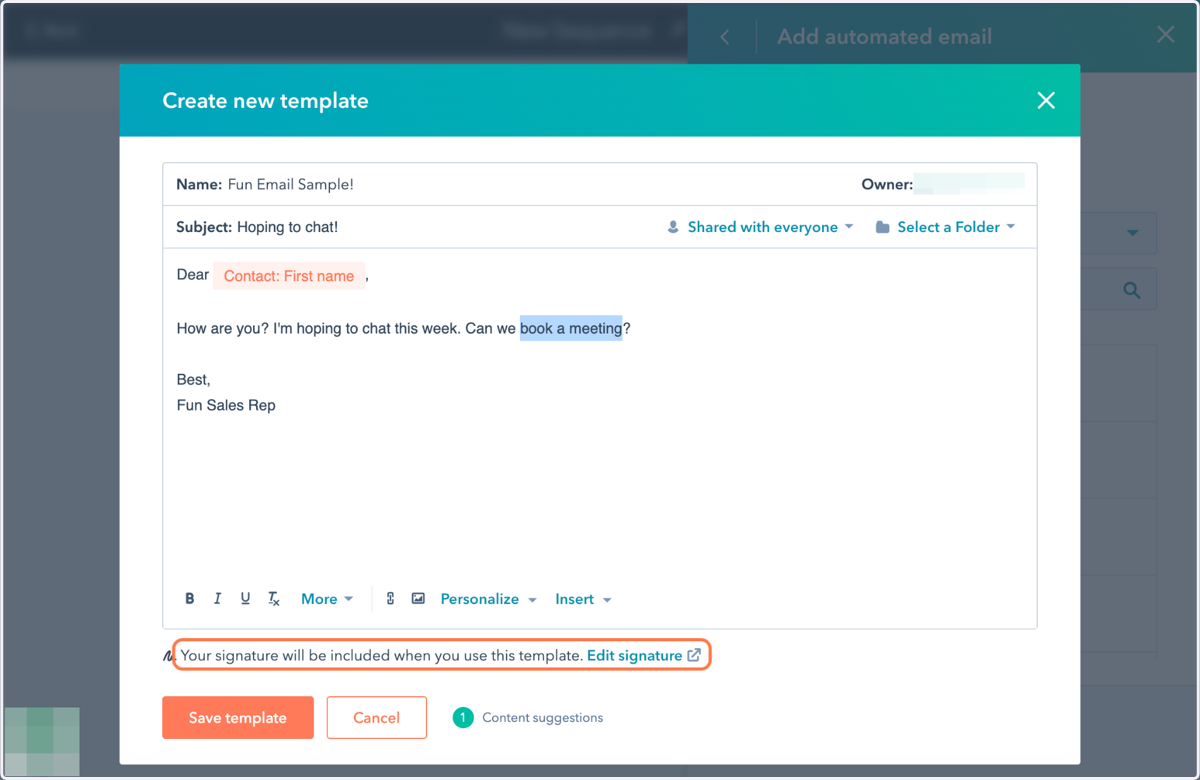
17. Click on Insert
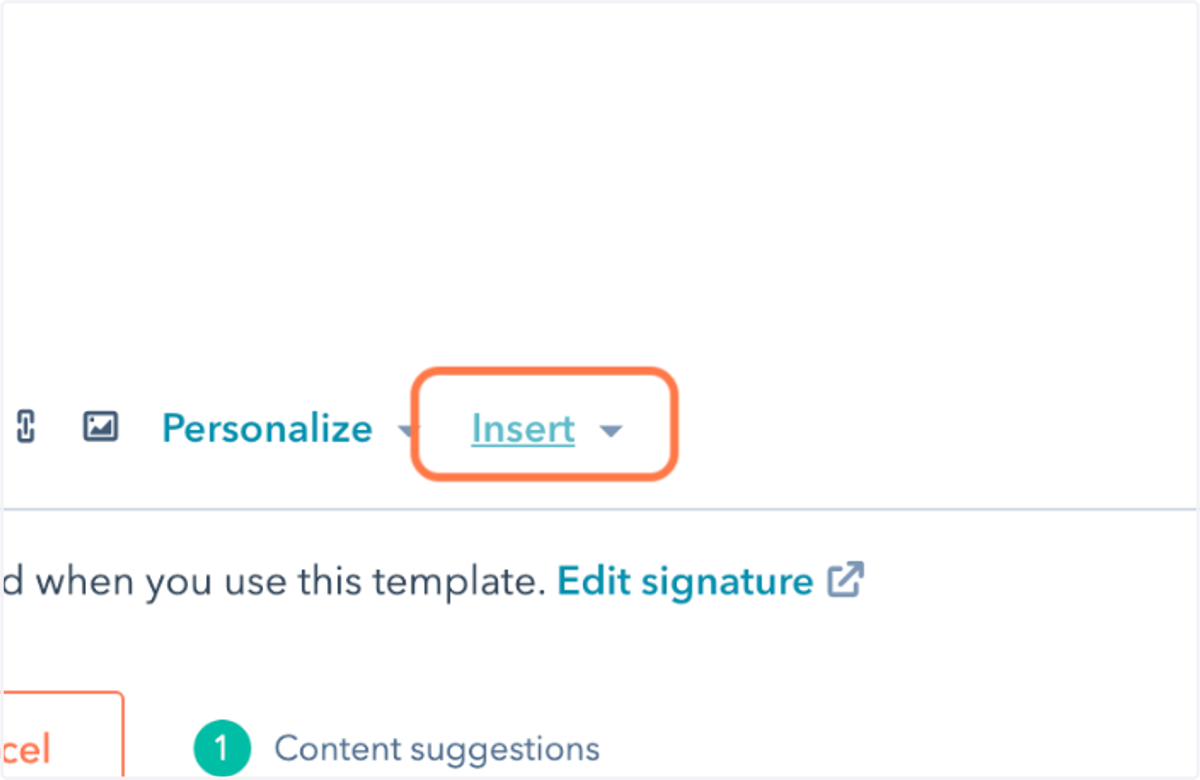
18. Click on Insert
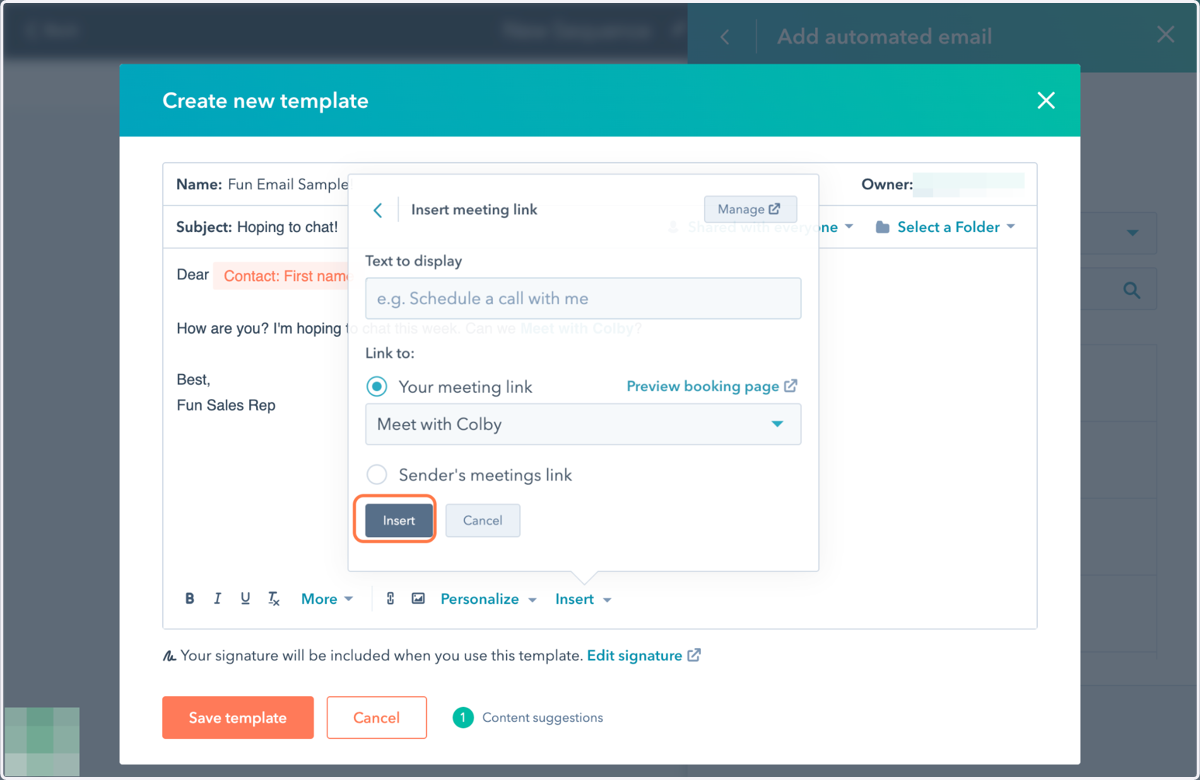
19. Hit Save Template!