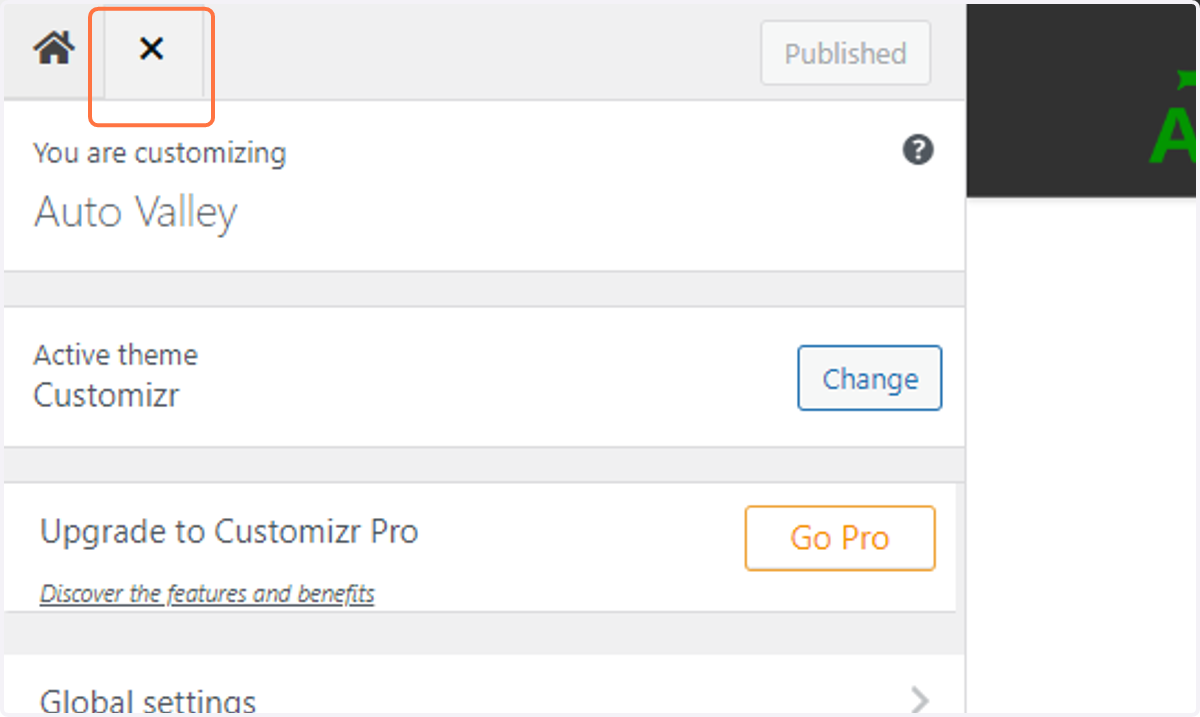
Customizing The WordPress Theme for our Website Designers
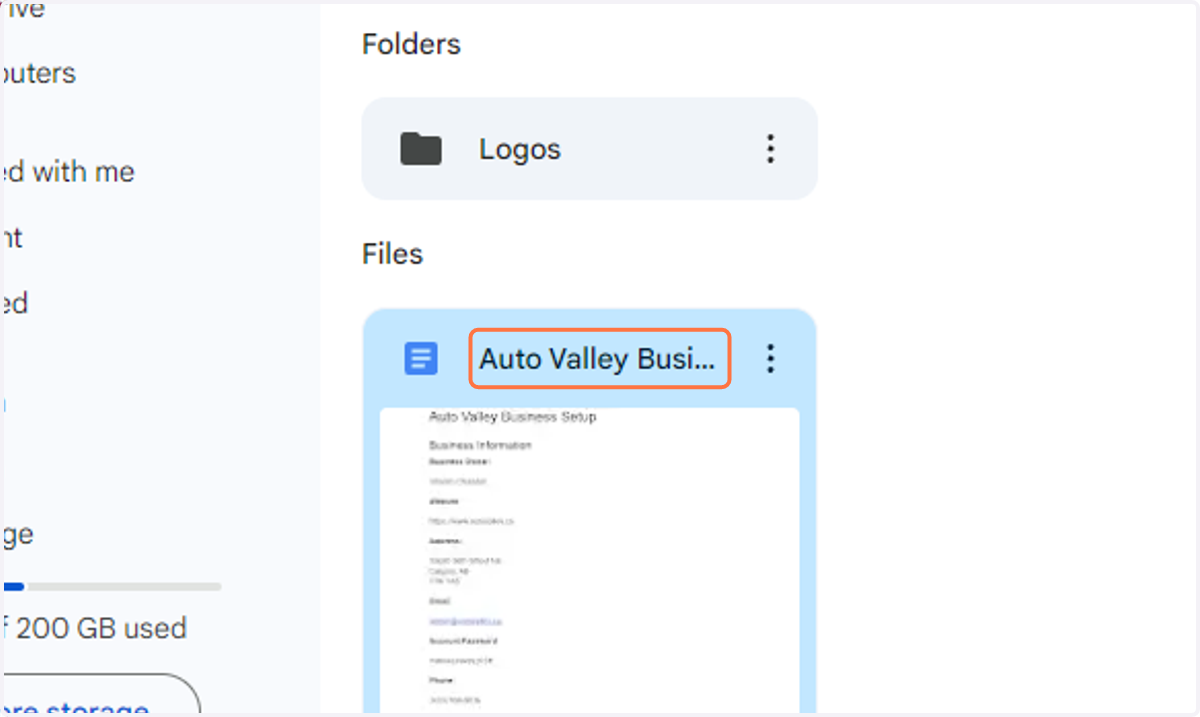
1. Check that you have access to the Guiding Doc for the Business
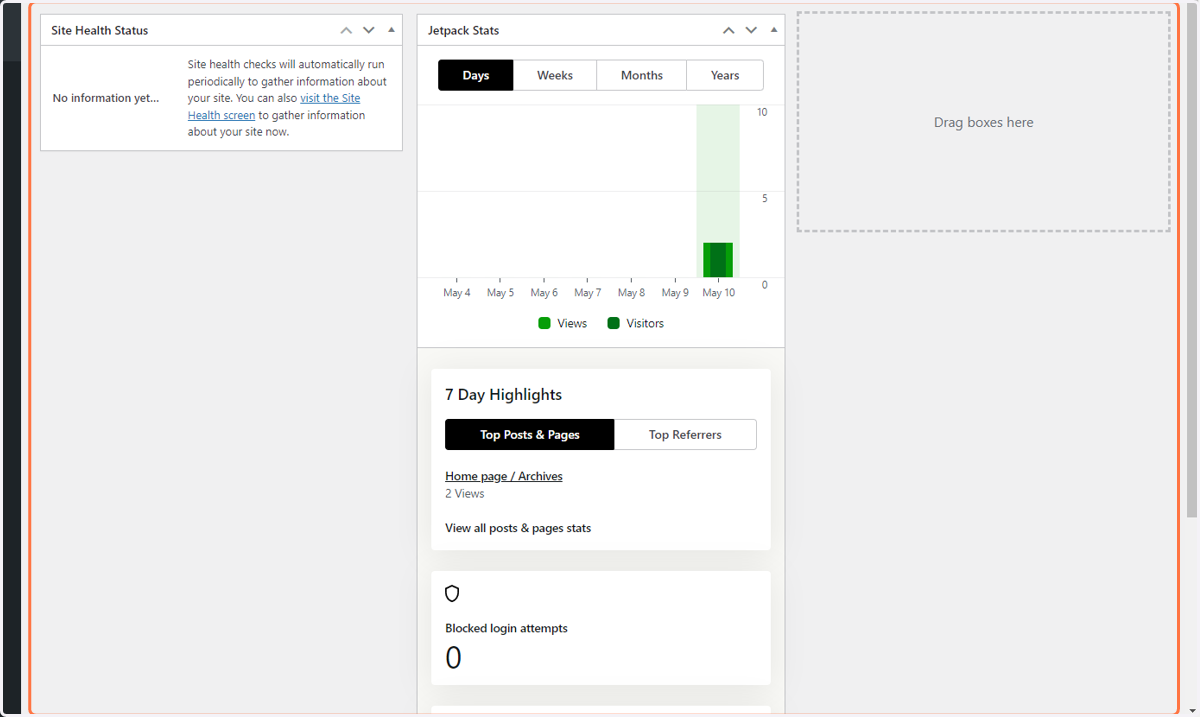
2. Login to the WordPress Dashboard for the website you are customizing
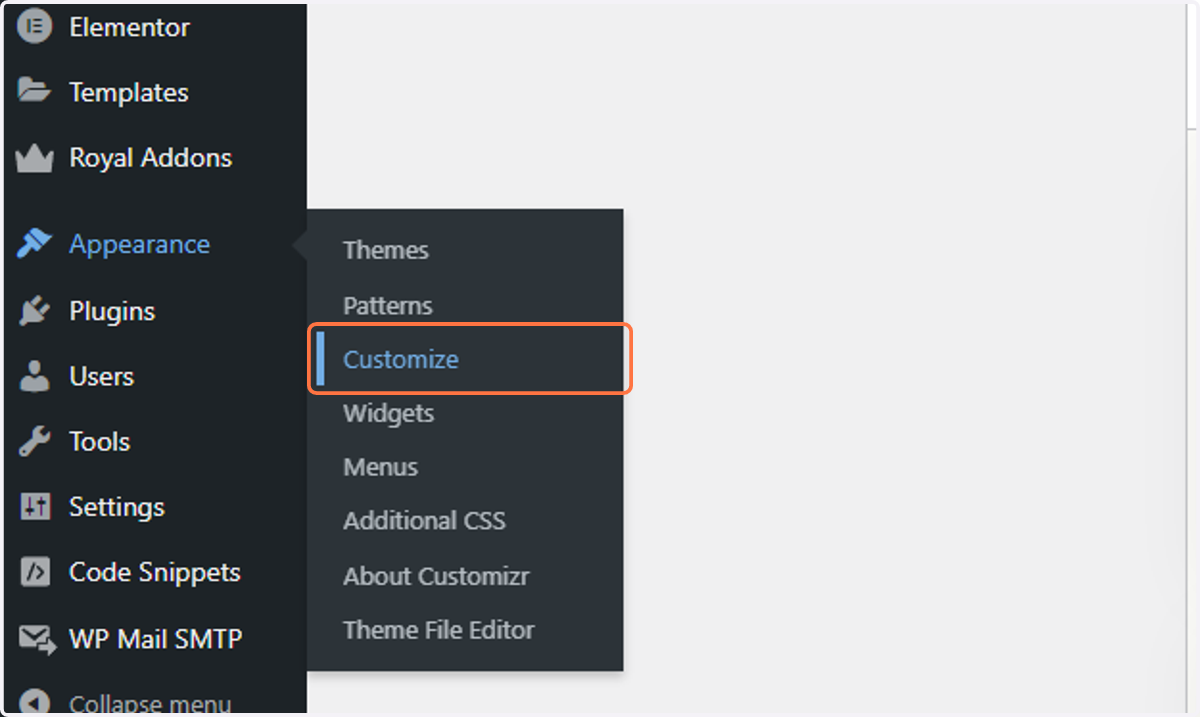
3. Hoer over Appearance and Click on Customize
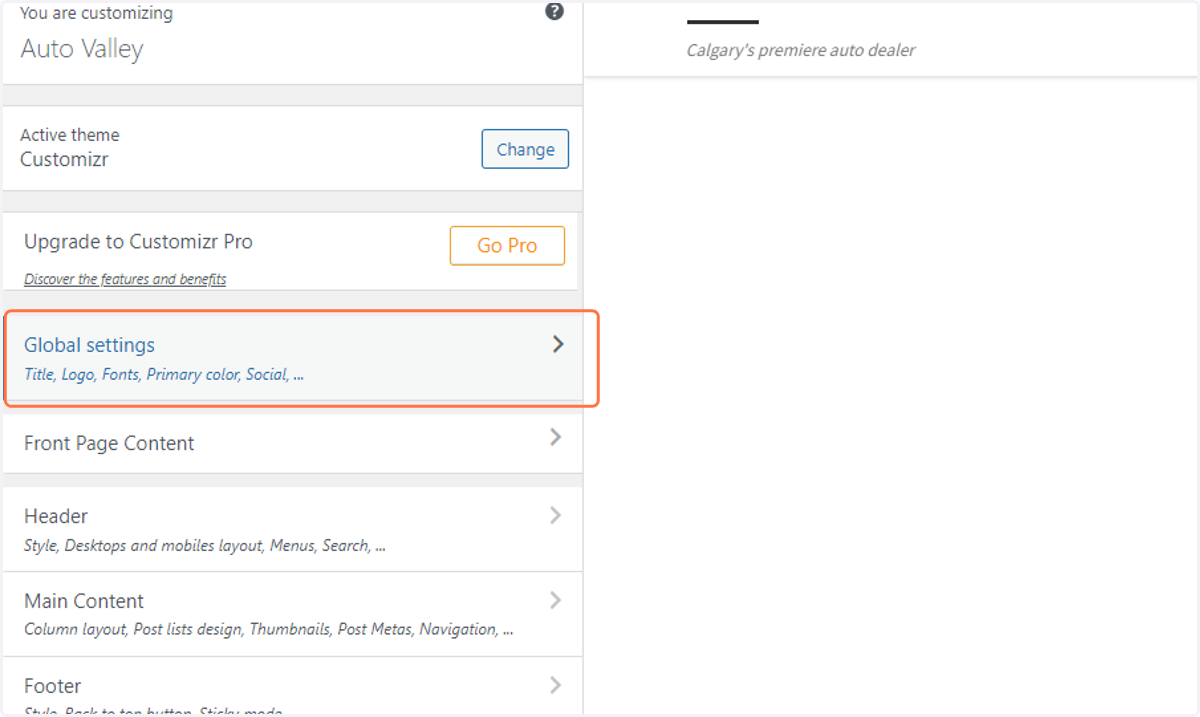
4. Click on Global settings
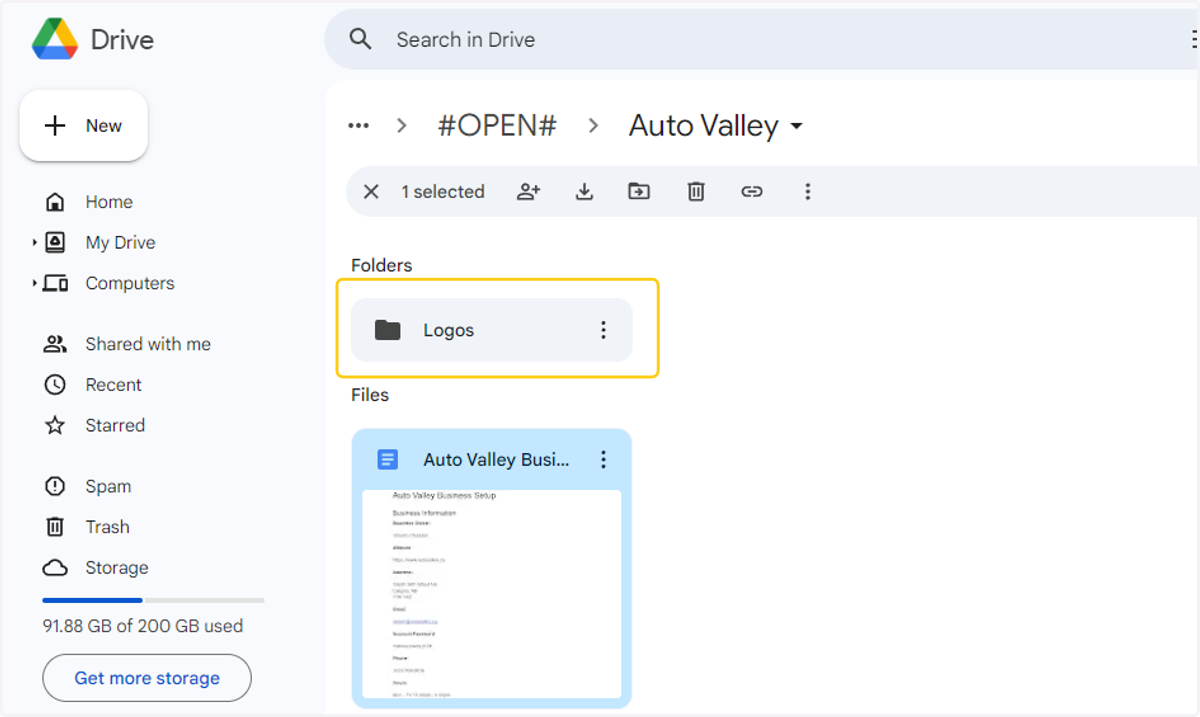
5. Navigate to the Logos folder of the business you are editing
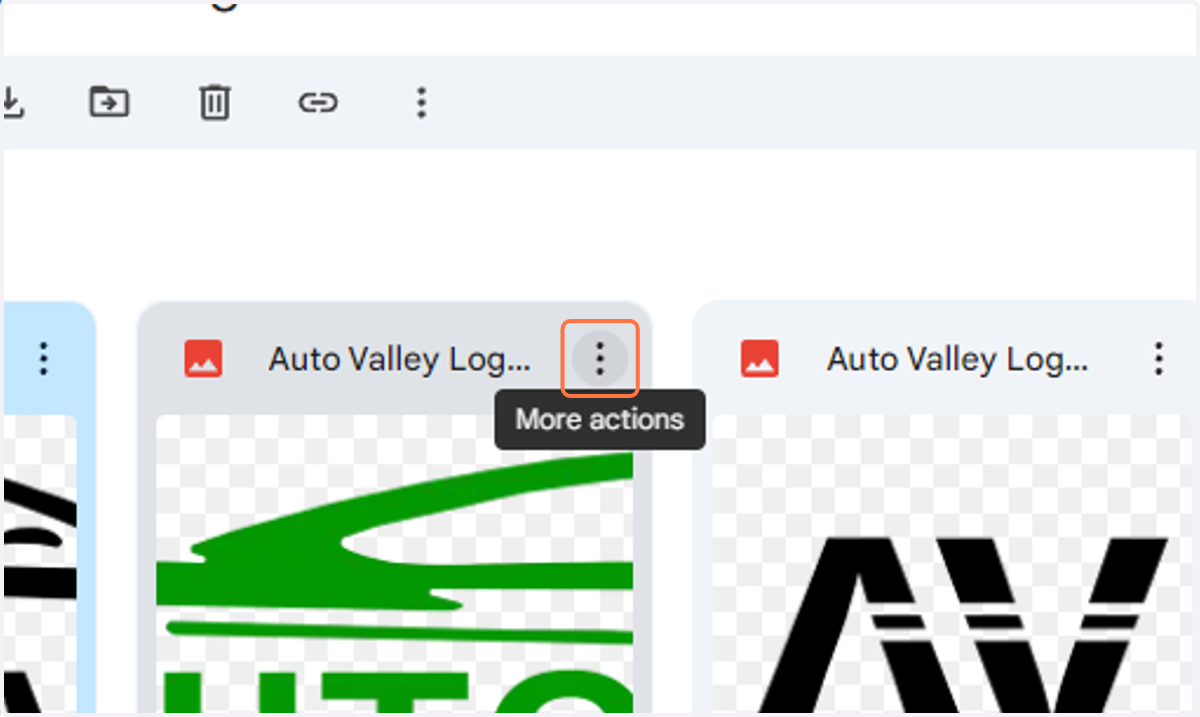
6. Click on the three dots to reveal More actions
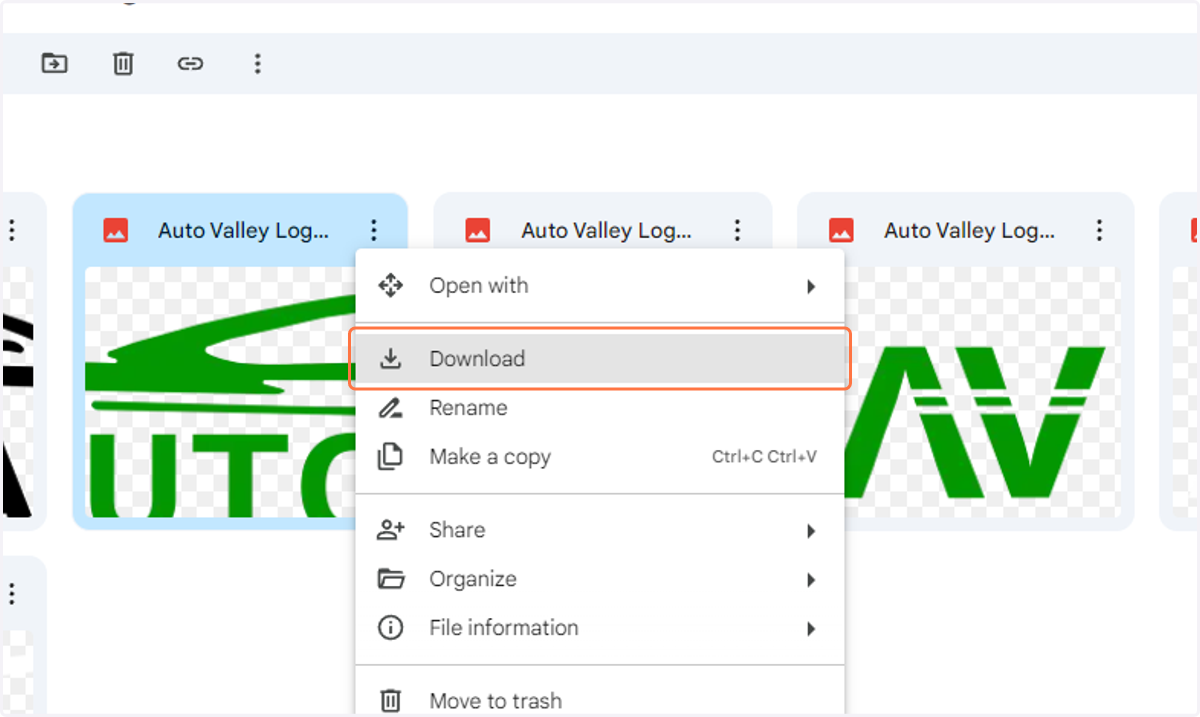
7. Download all of the assets in the folder
8. Click on Select logo
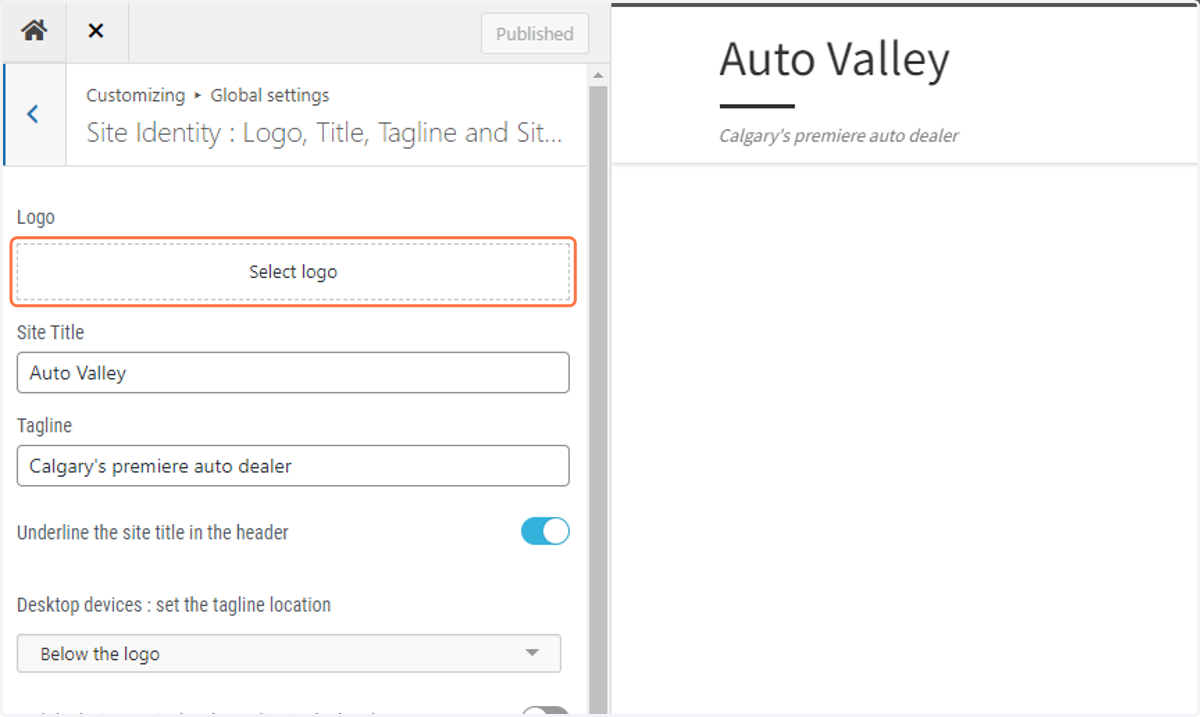
9. Upload the assets you downloaded from the Google folder
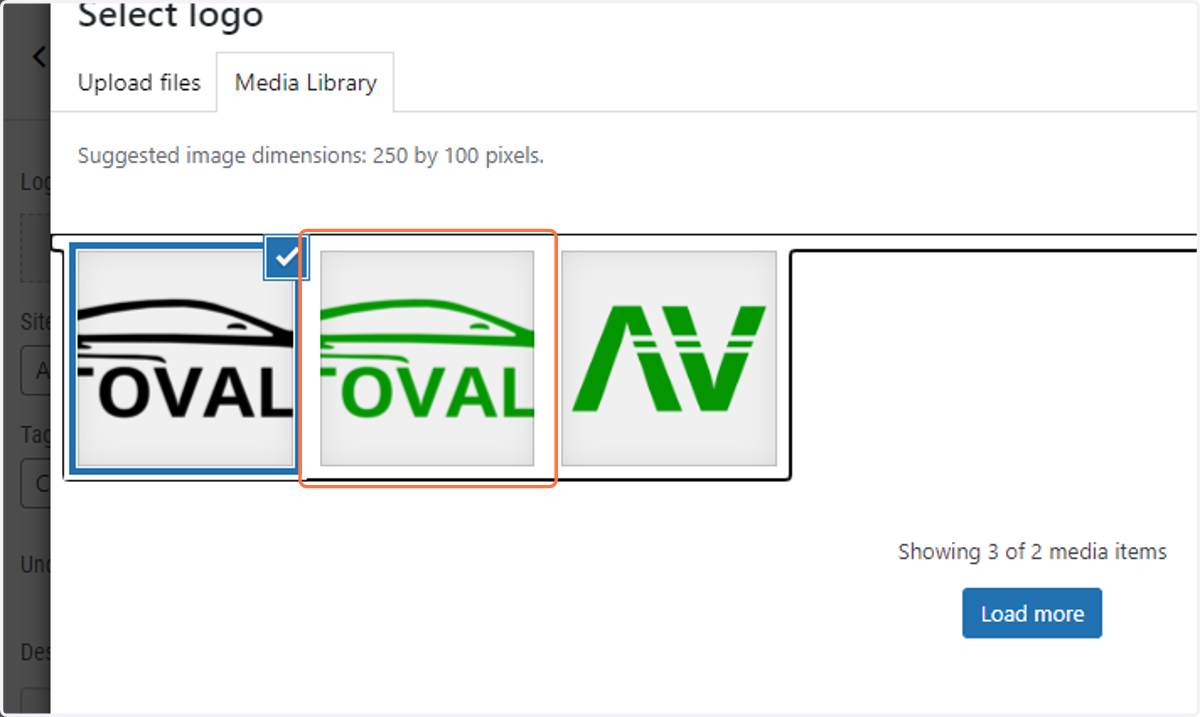
10. Select the Horizontal logo and Click on Select to confirm
11. Adjust the crop to ensure the entire image is visible and nothing is removed

12. Click on Crop image
13. Turn off the underline site title option
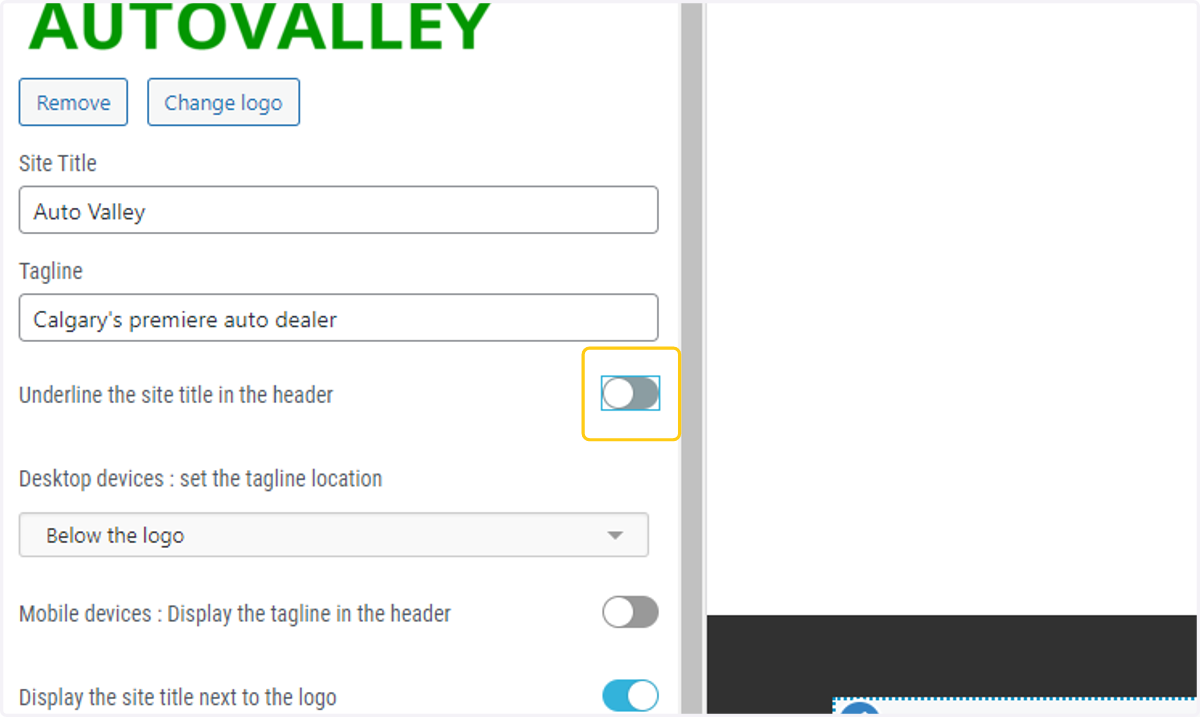
14. Turn off the site title option
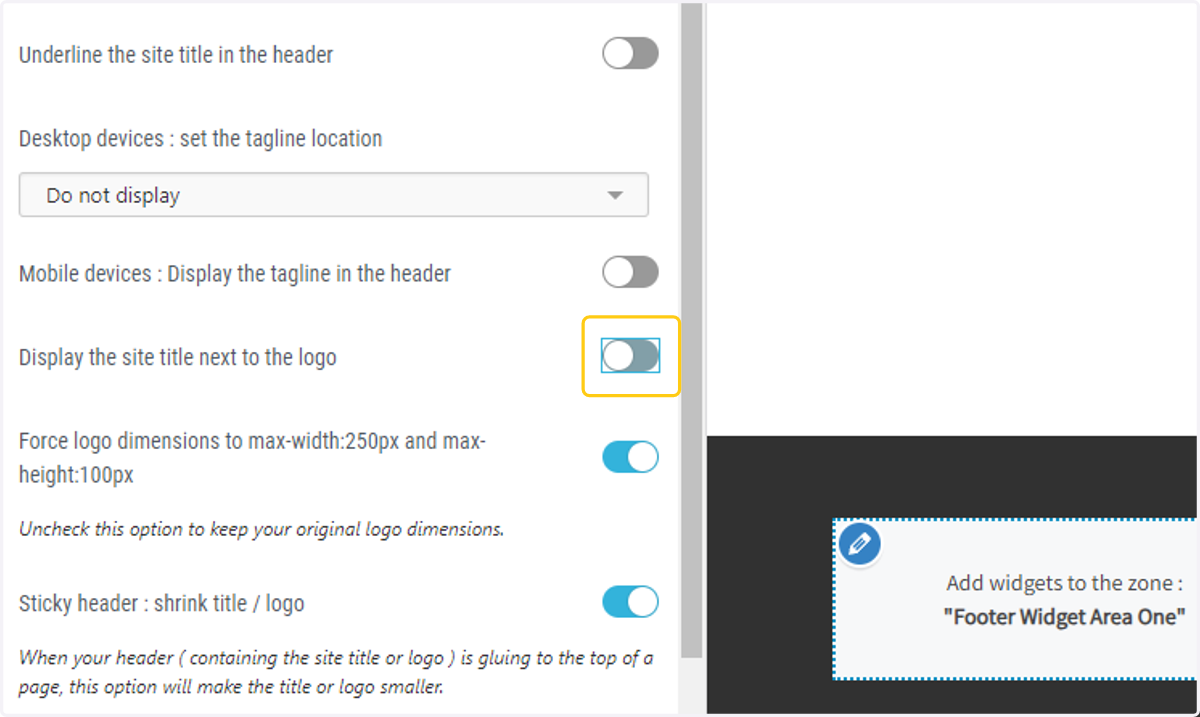
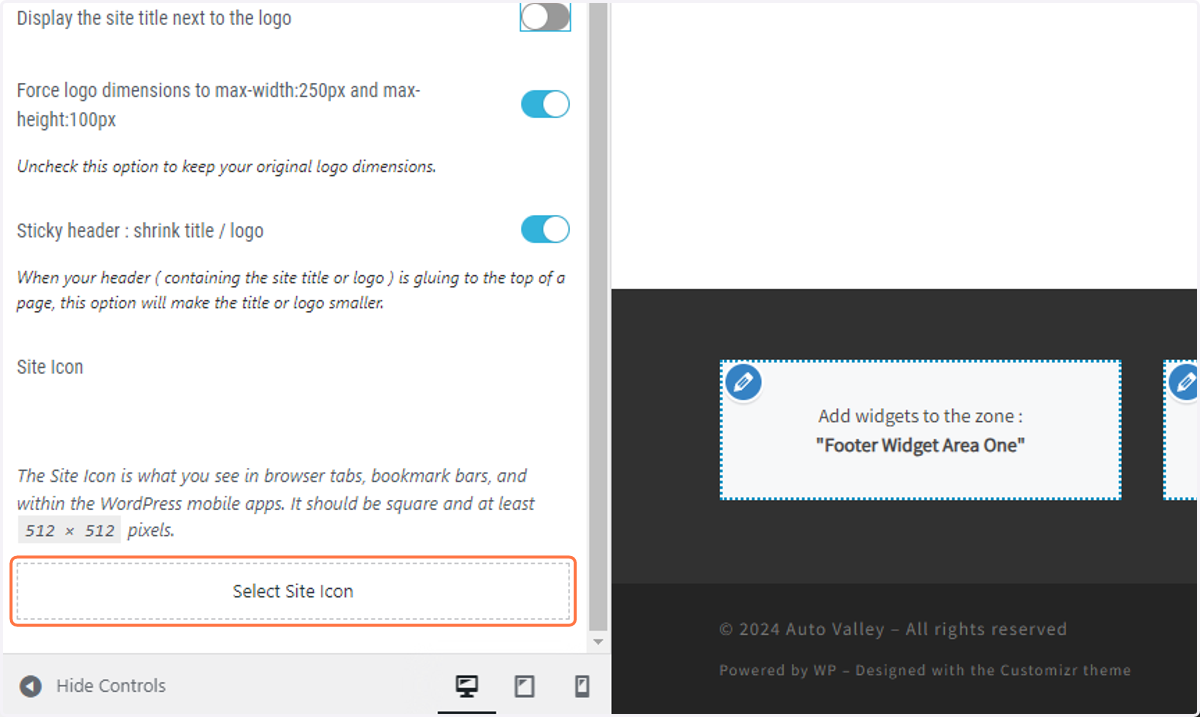
15. Click on Select Site Icon
16. Choose the square logo option you retrieved from the Google folder
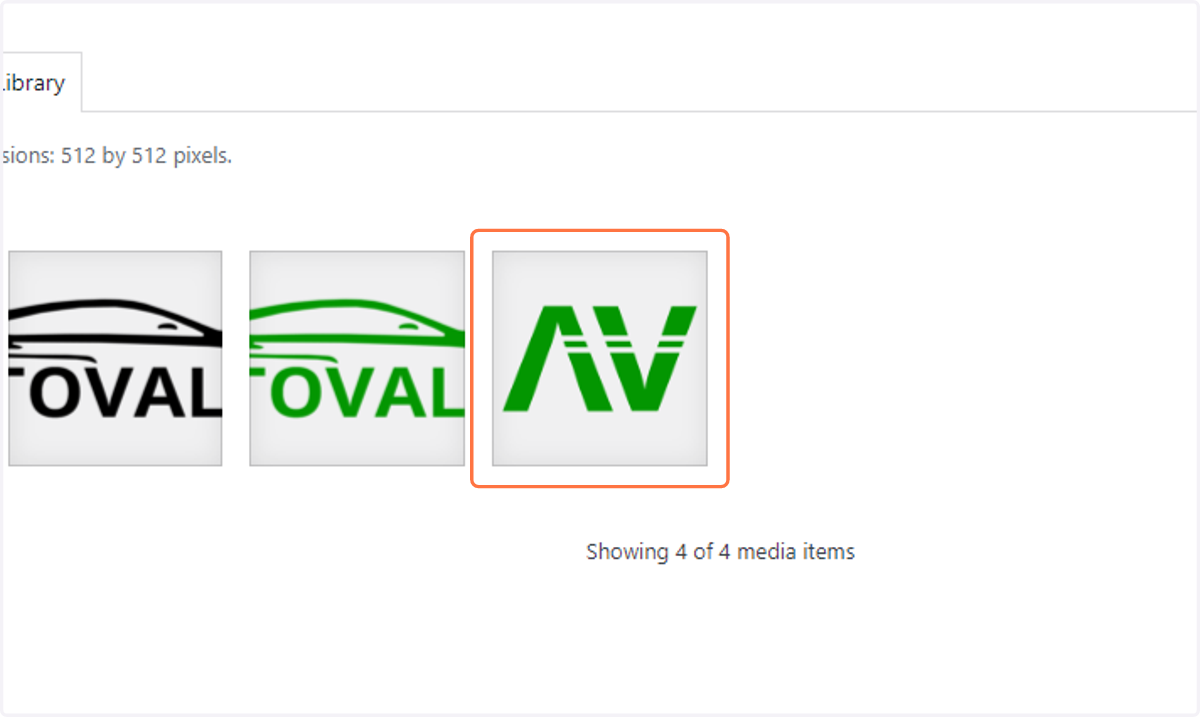
17. Click on Select to confirm
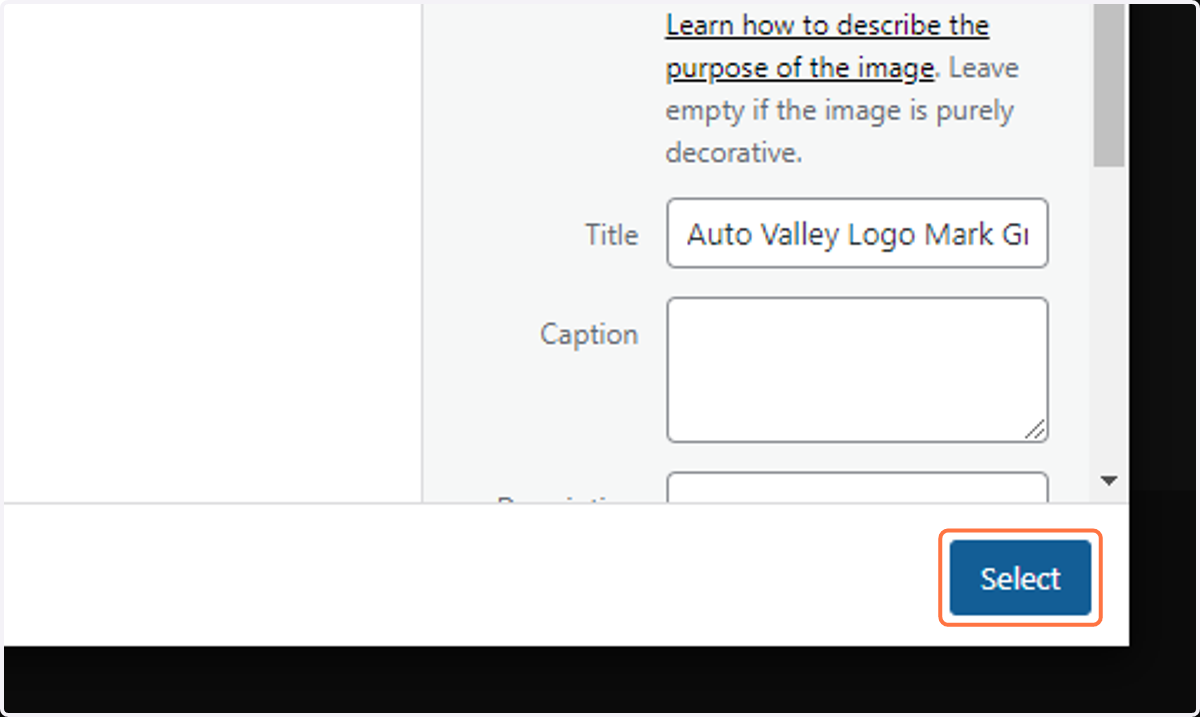
18. Crop the image to ensure all of it will be visible and click the Crop button
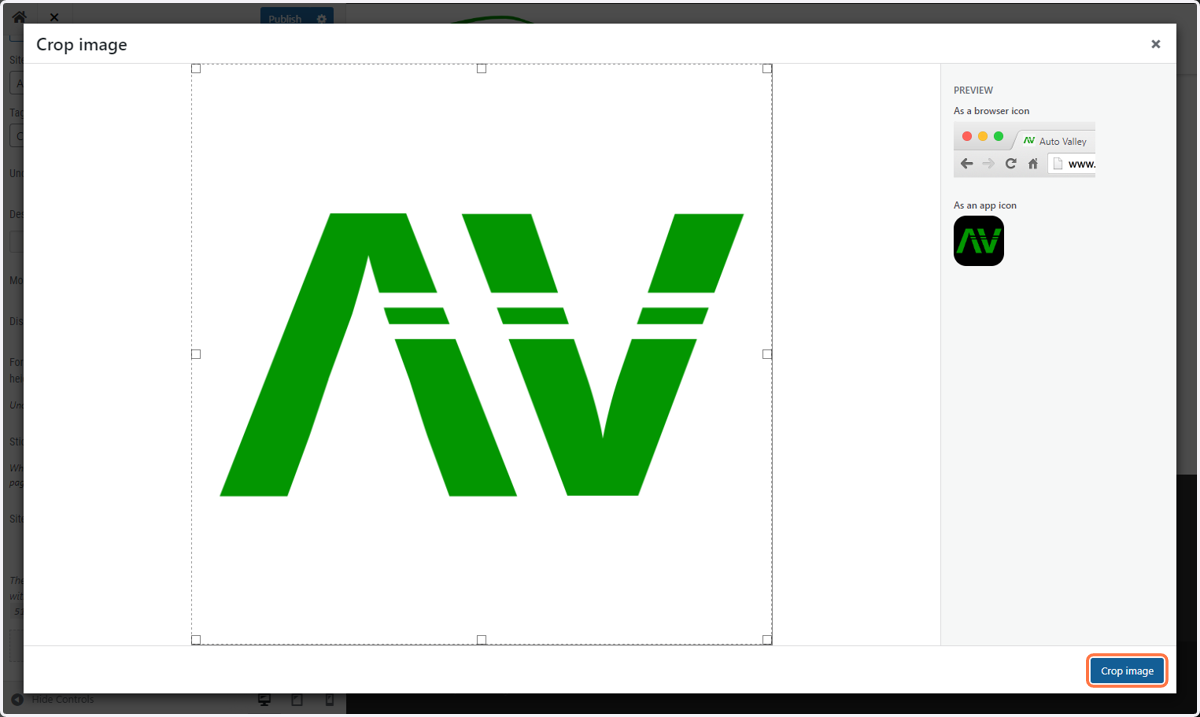
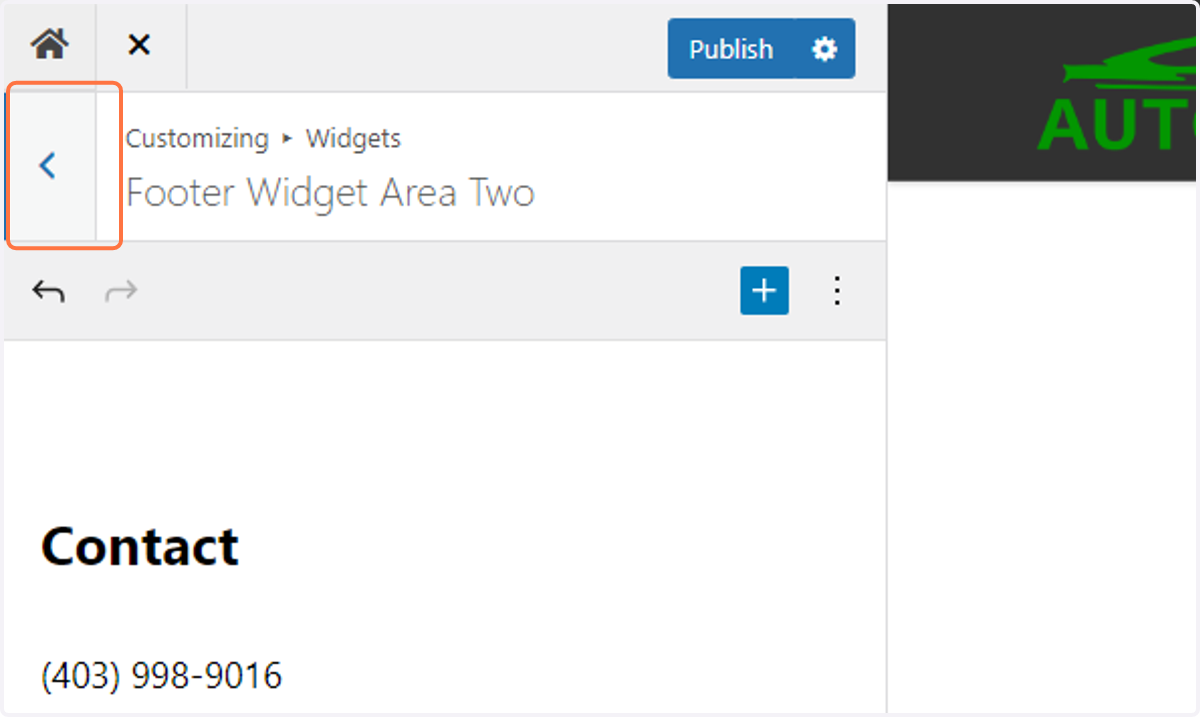
19. Click on Back
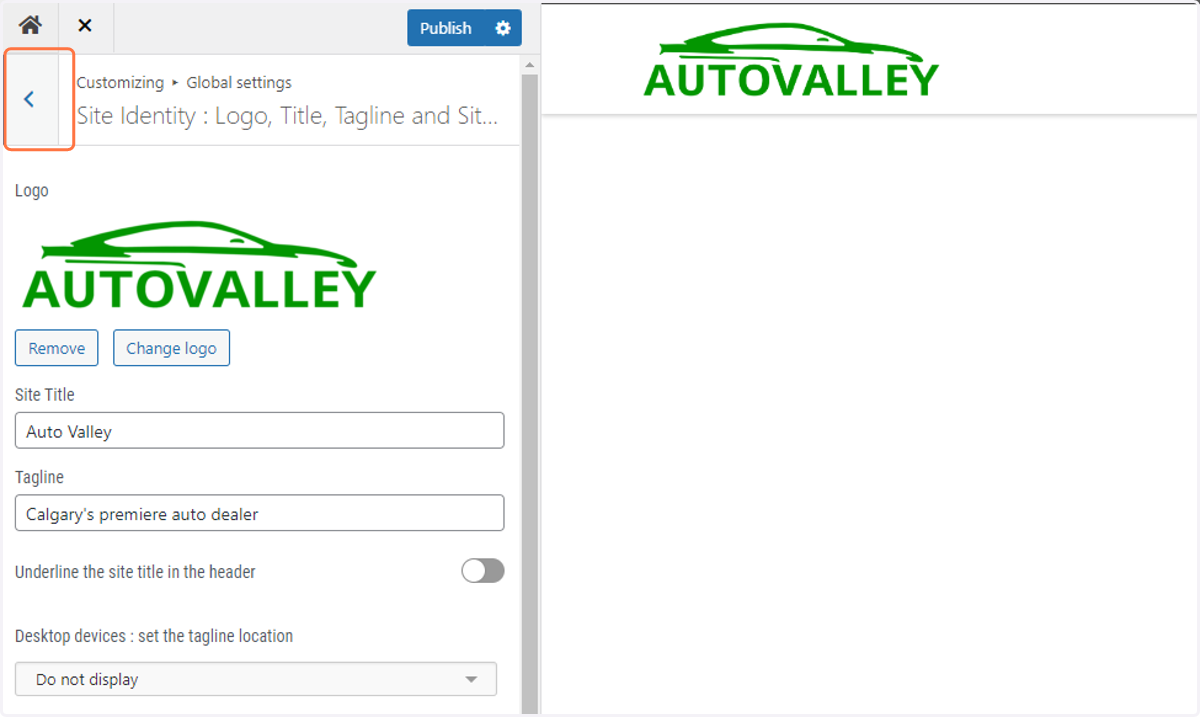
20. Click on Primary color of the theme…
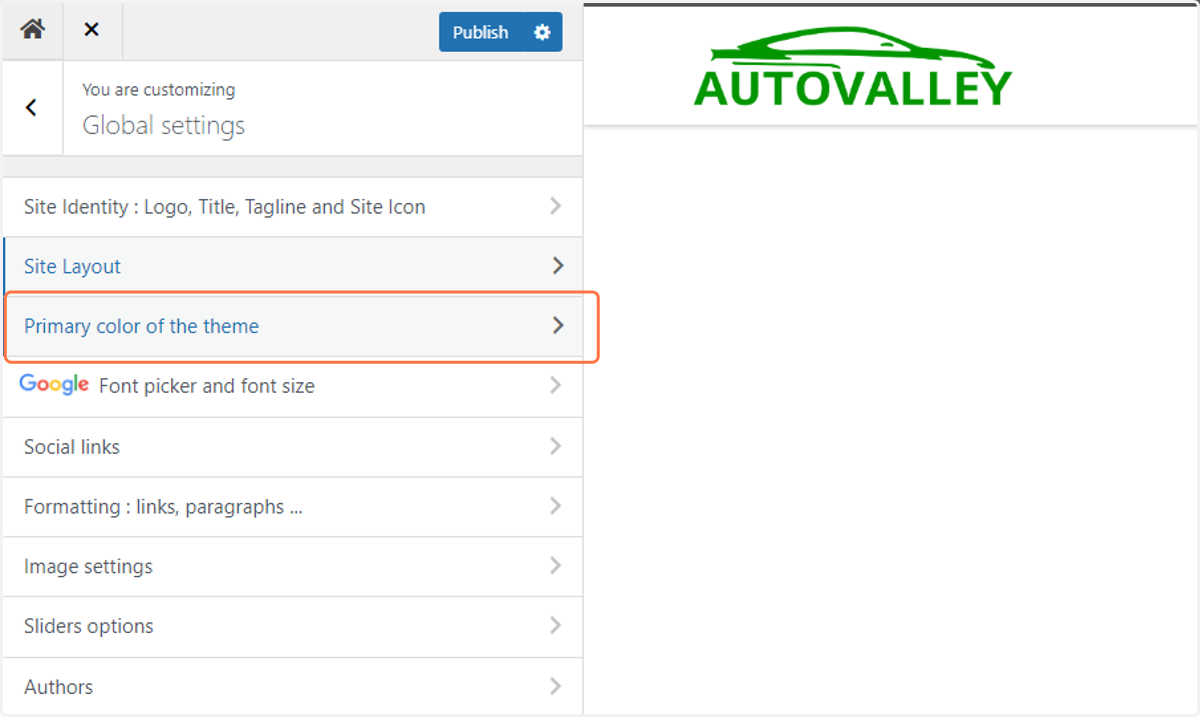
21. Retrieve the appropriate brand color from the Guiding Doc
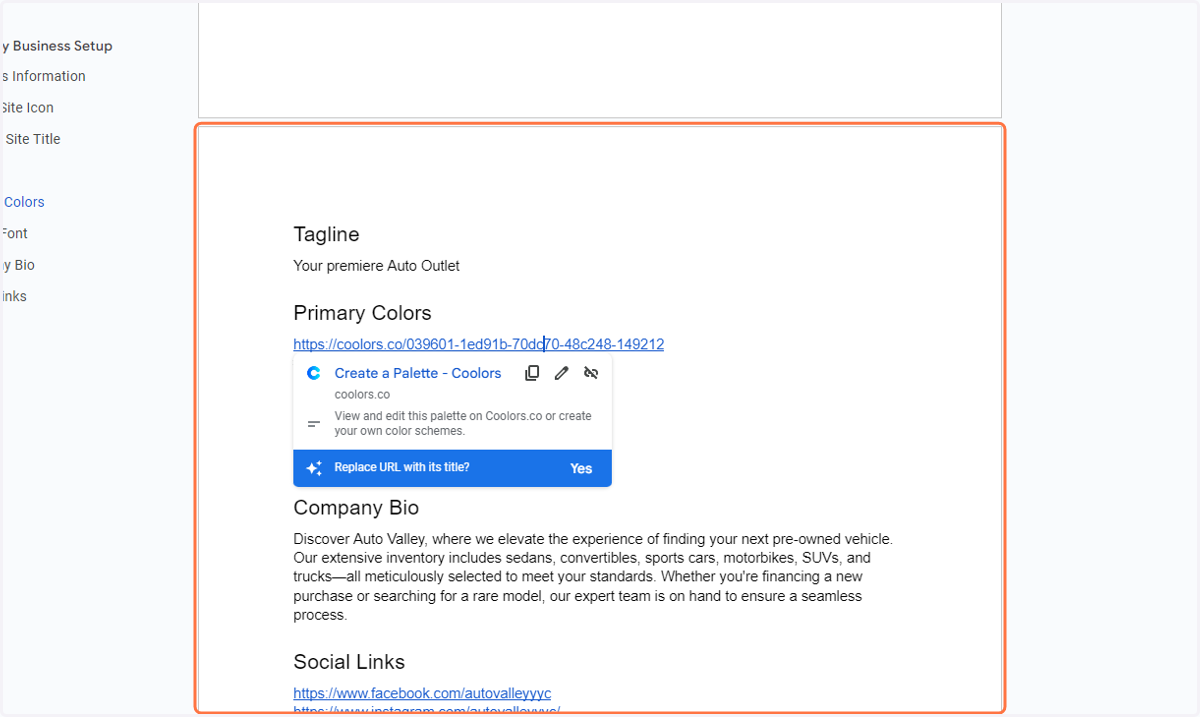
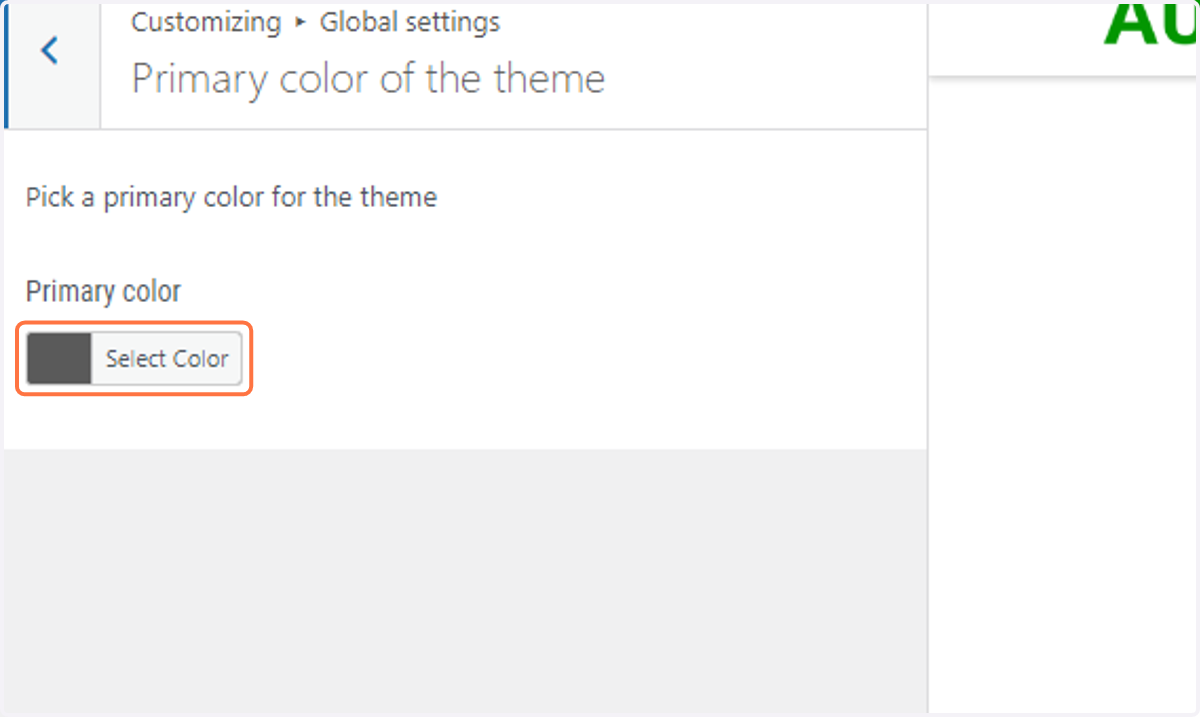
22. Return to the WordPress customizer and click on Select Color
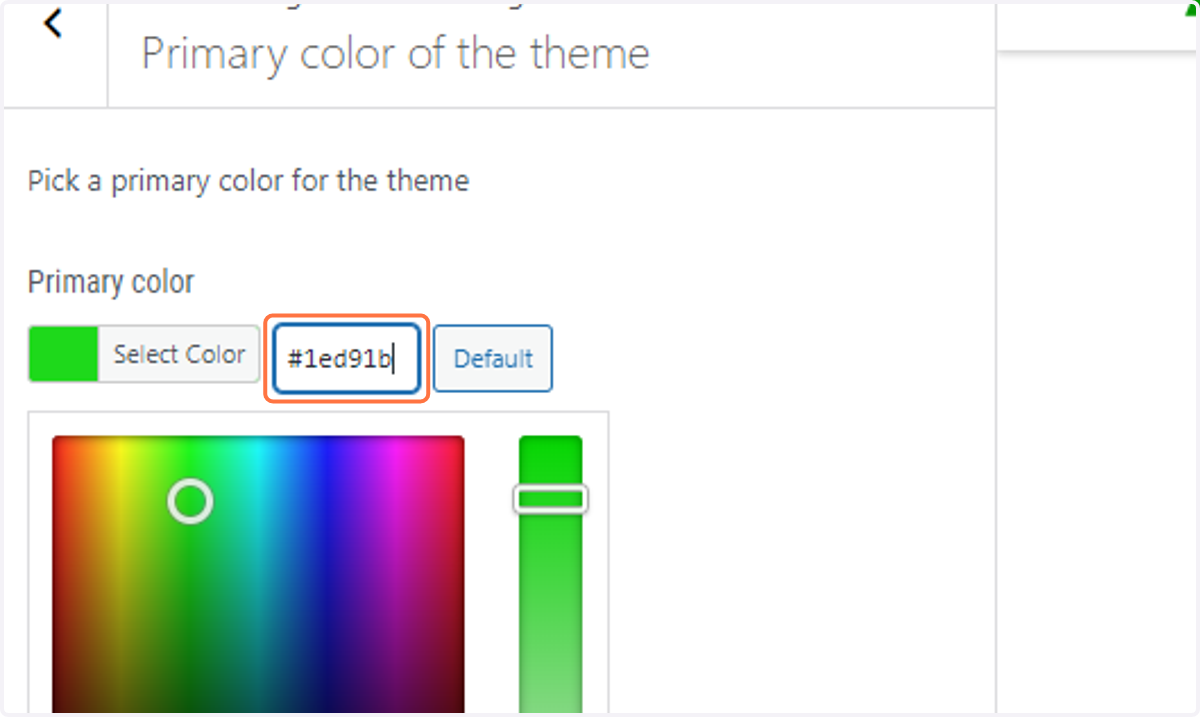
23. Paste the color hash into the available input
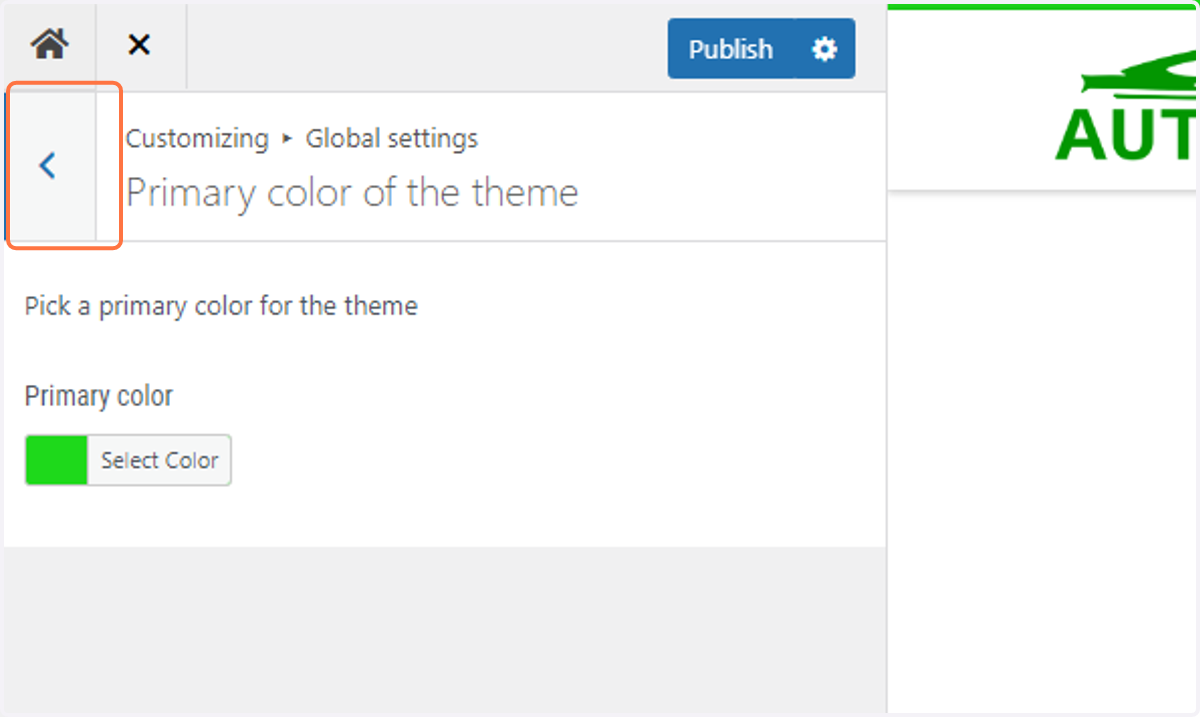
24. Return to the main menu by clicking on the Back arrow
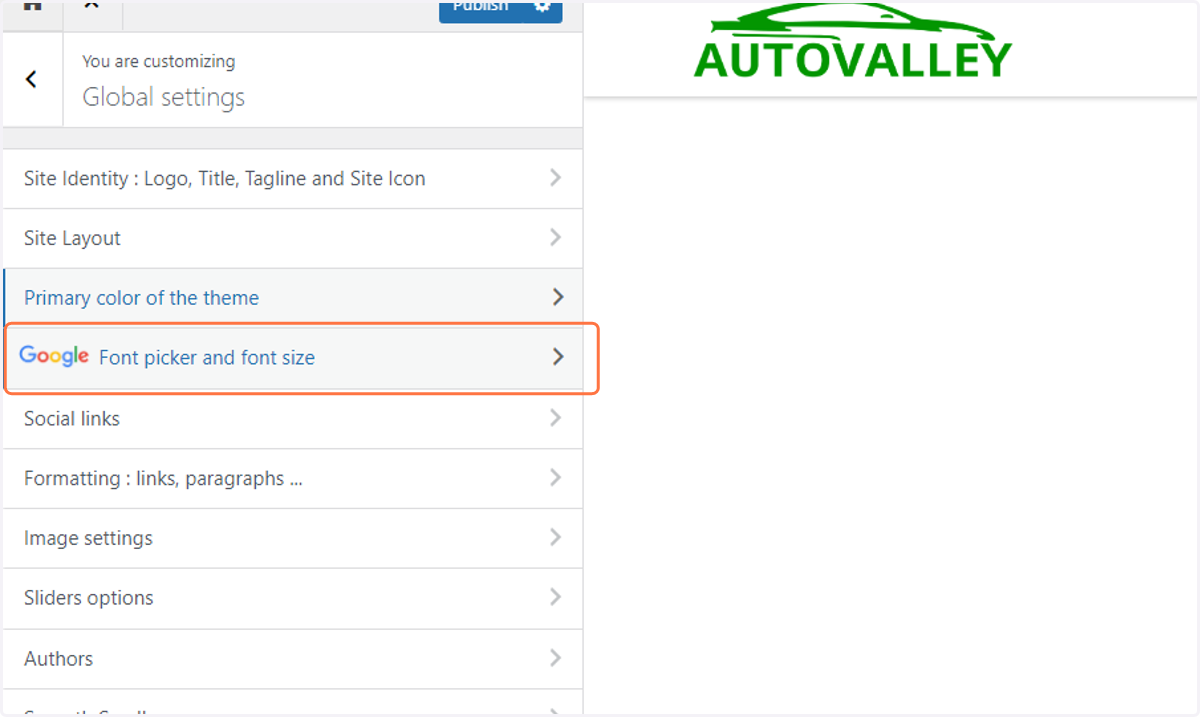
25. Click on Google Font picker and font size
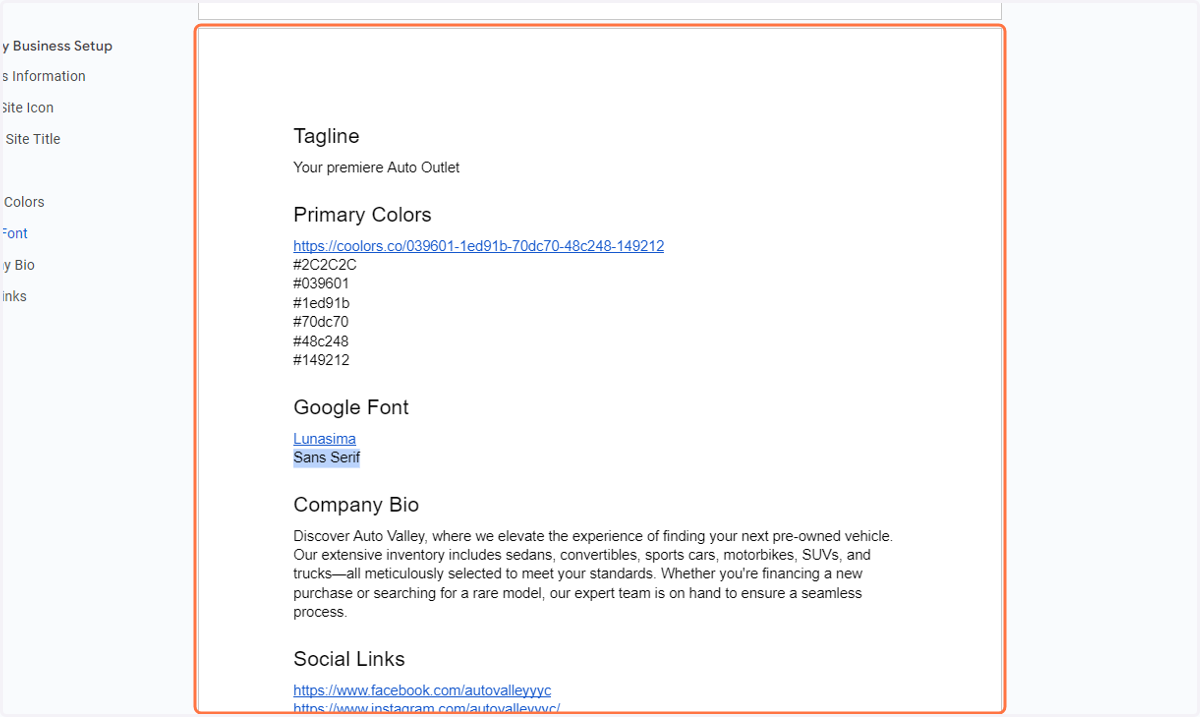
26. Retrieve the Font Family from the Guiding Doc
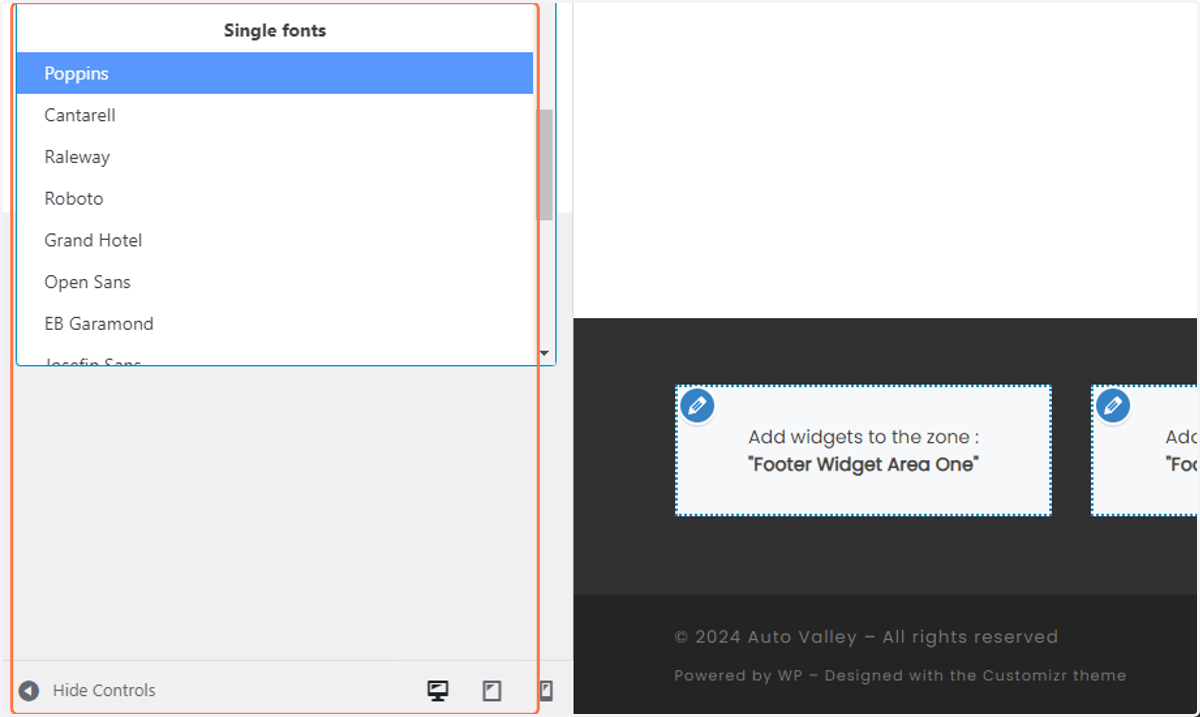
27. Return to the cusotomizer and select the corresponding font from the drop down menu
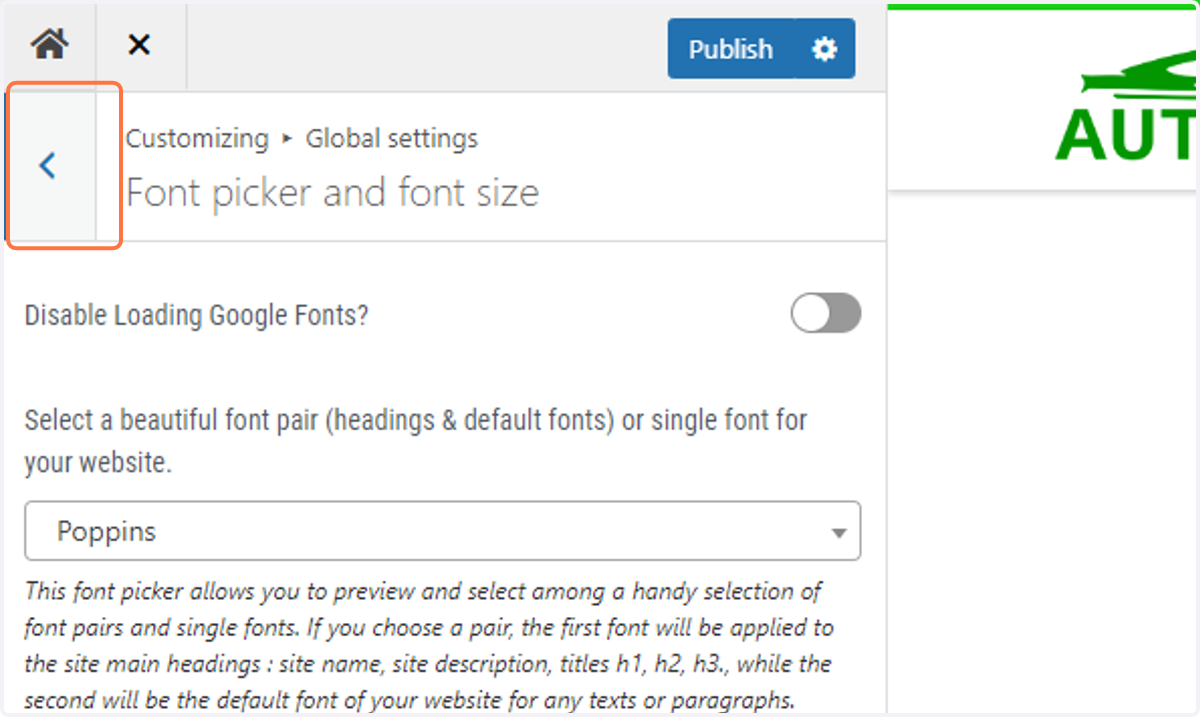
28. Return to the previous menu by clicking on Back
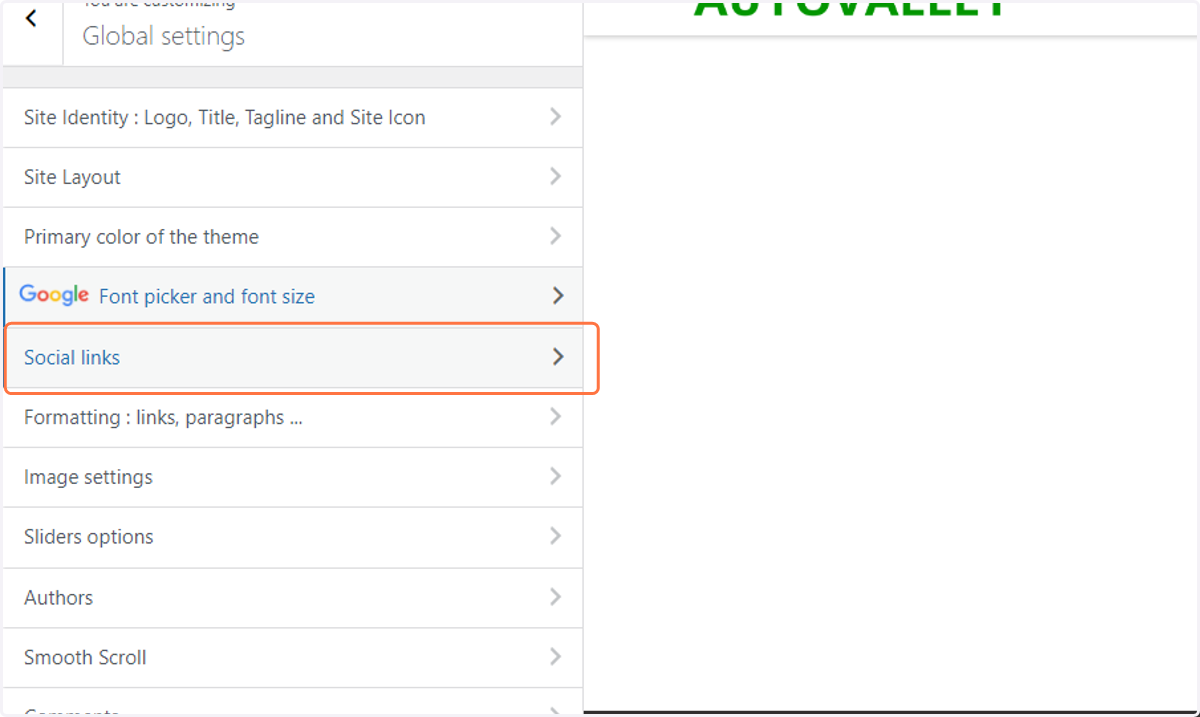
29. Click on Social links
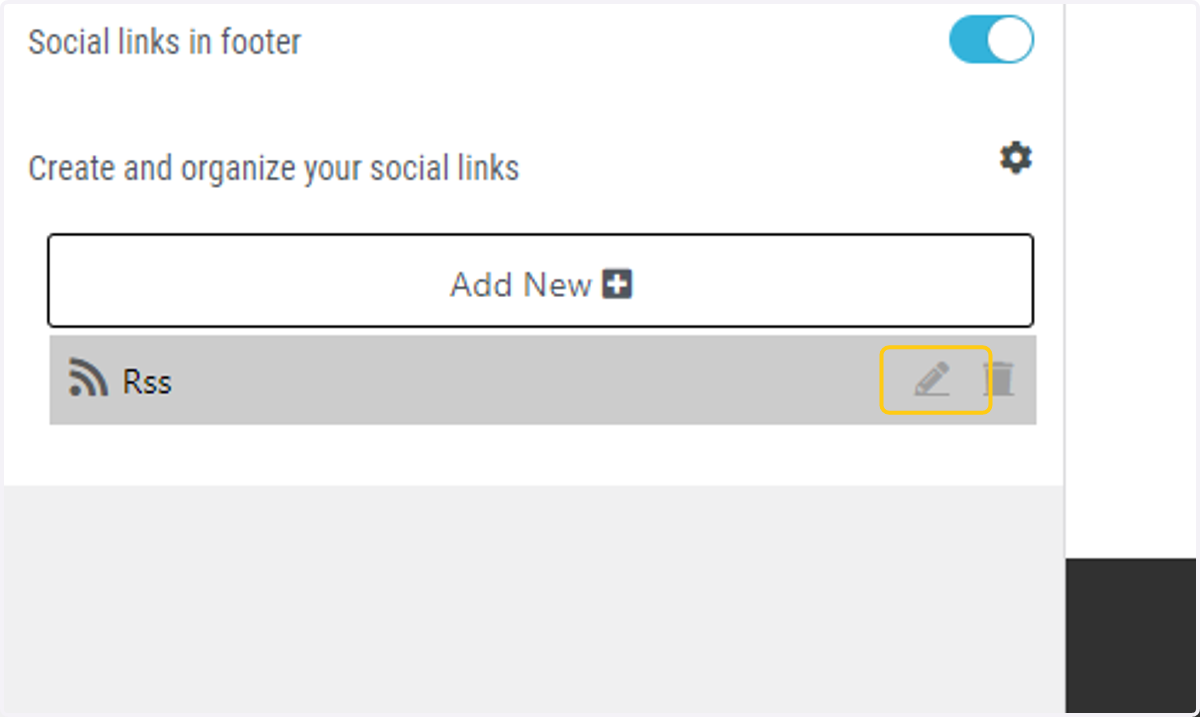
30. Click on the pencil icon to edit the existing link
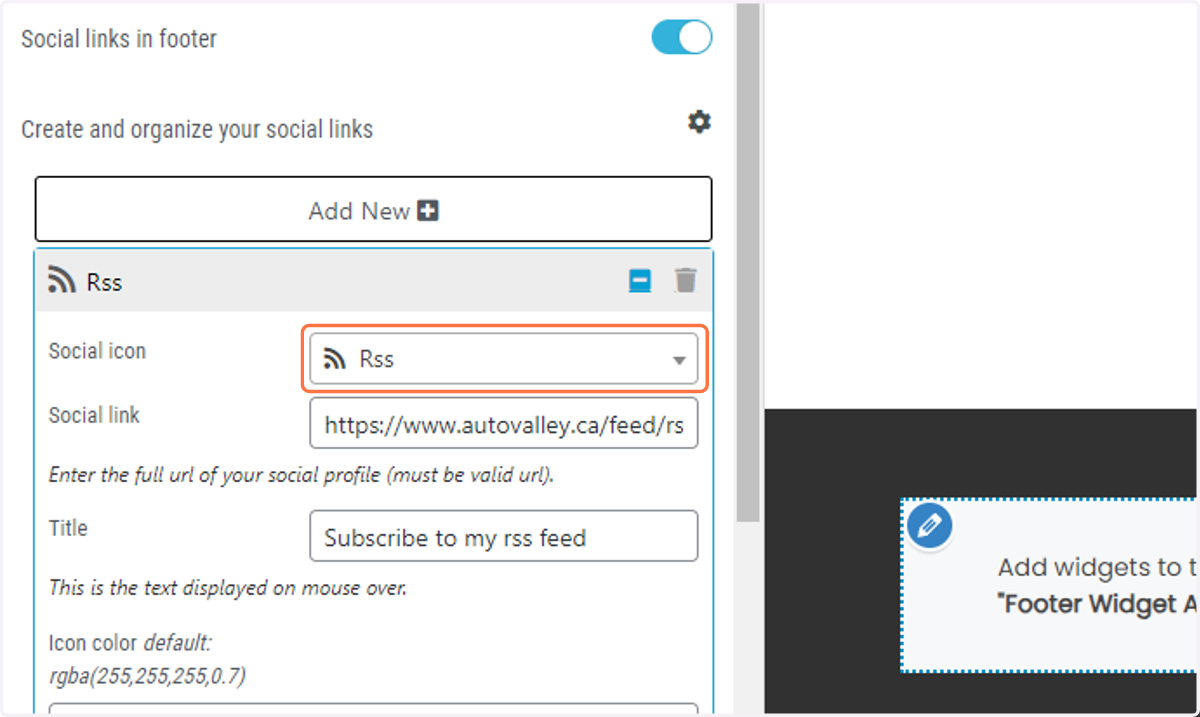
31. Click on the Social icon drop down menu
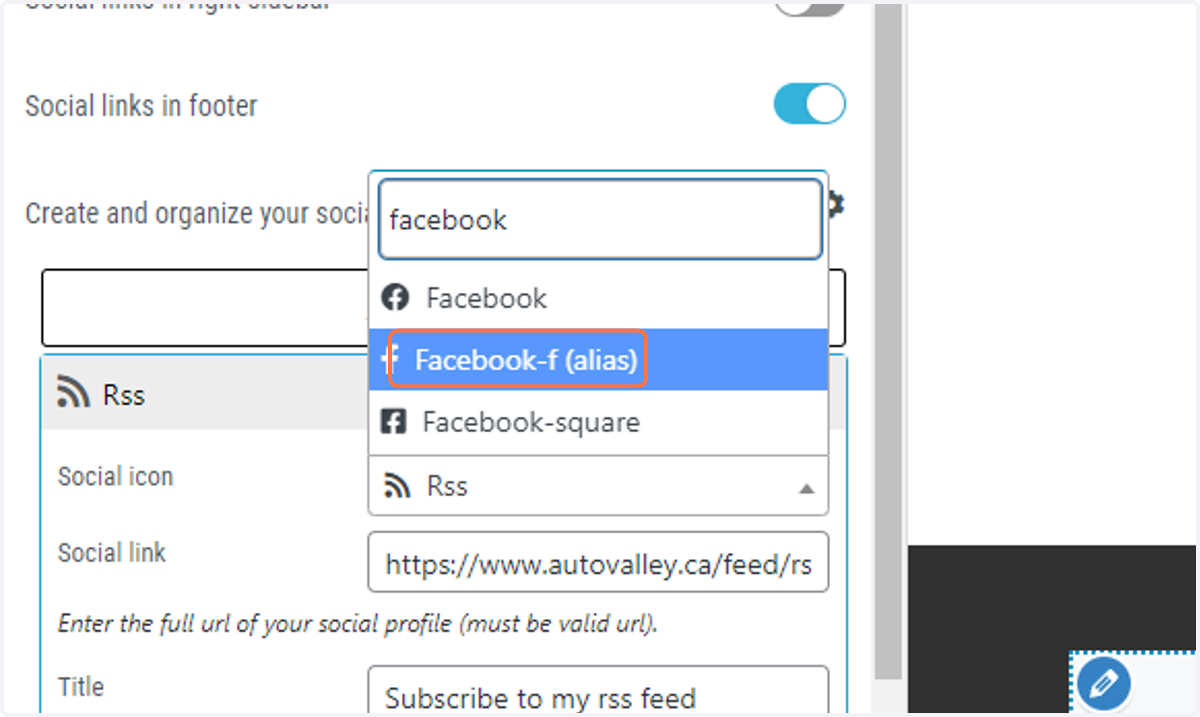
32. Search for the Facebook icon and select one
33. Copy the Facebook link from the Guiding Doc
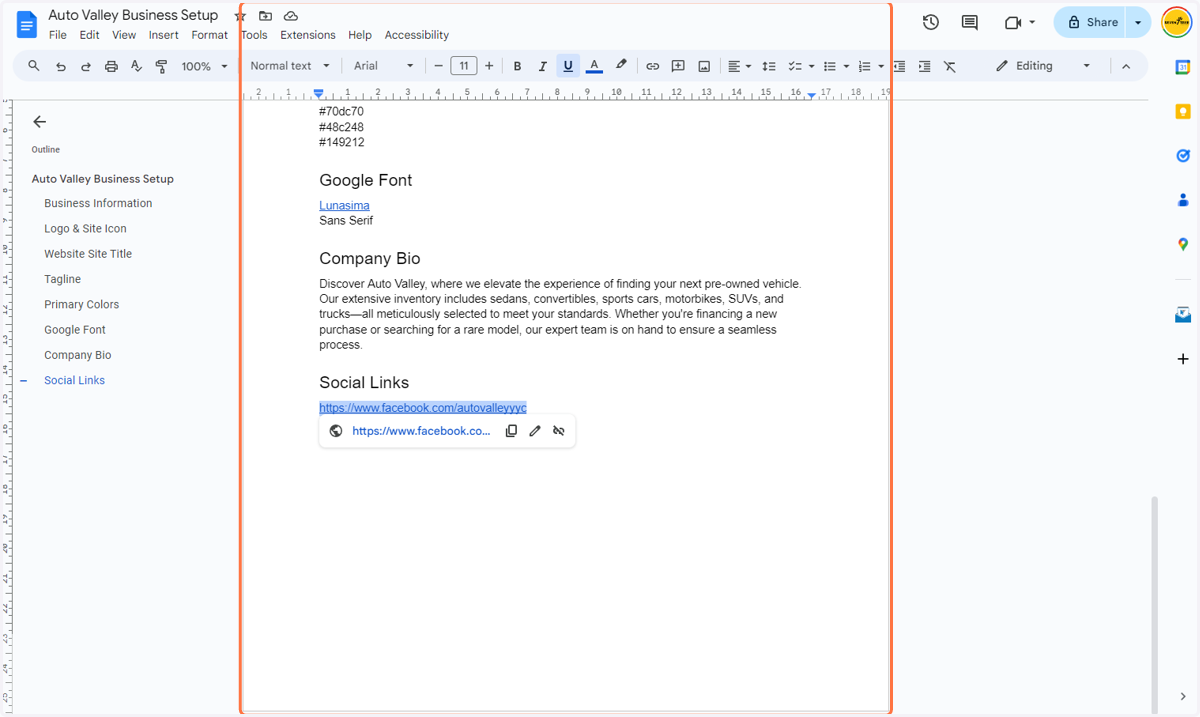
34. Paste the Facebook link into the corresponding input
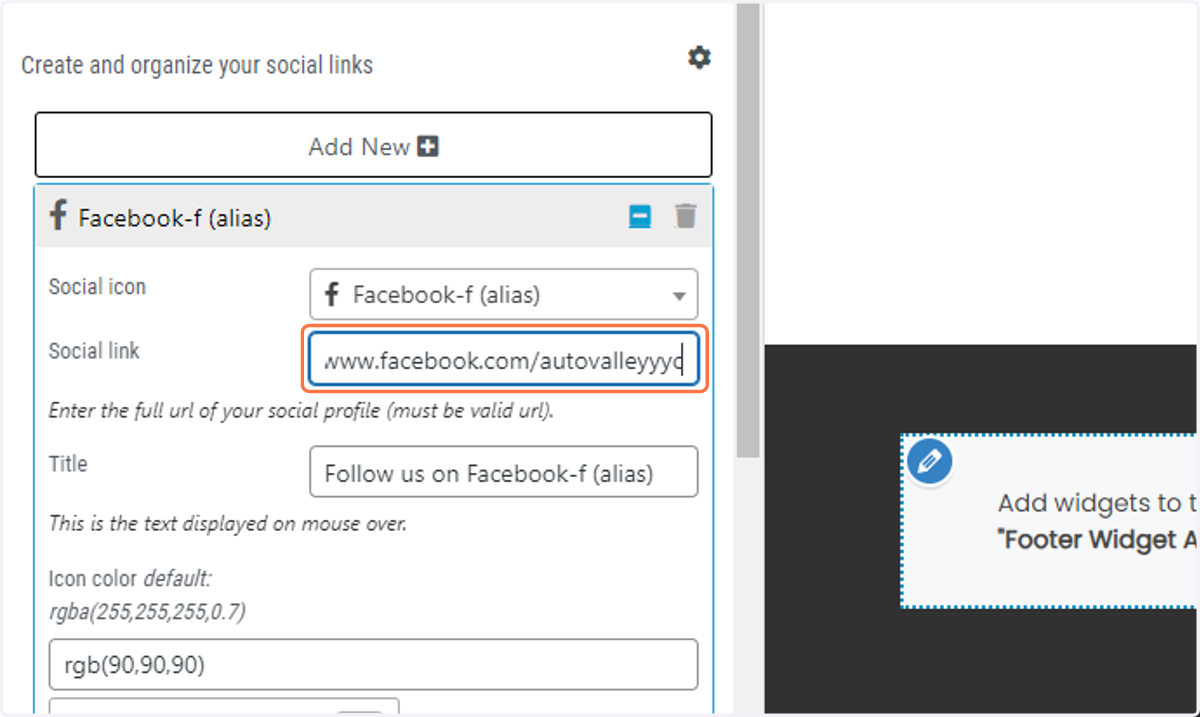
35. Type "Follow us on Facebook"
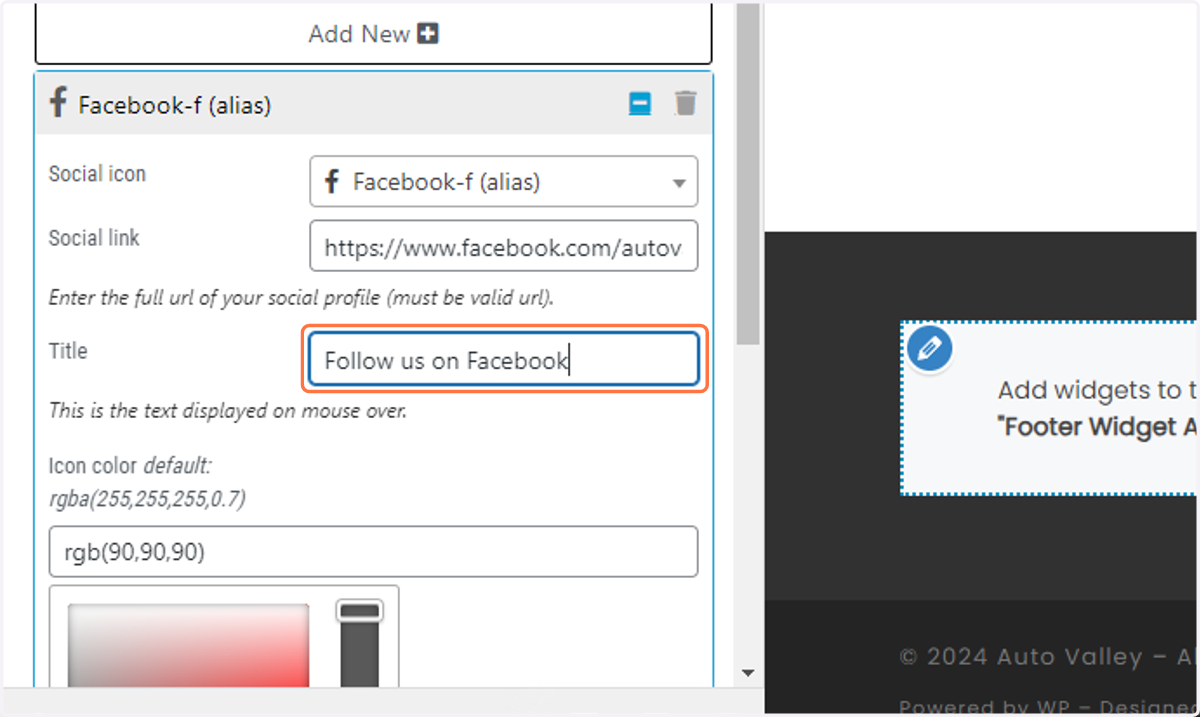
36. Paste the brand color hex into the corresponding input
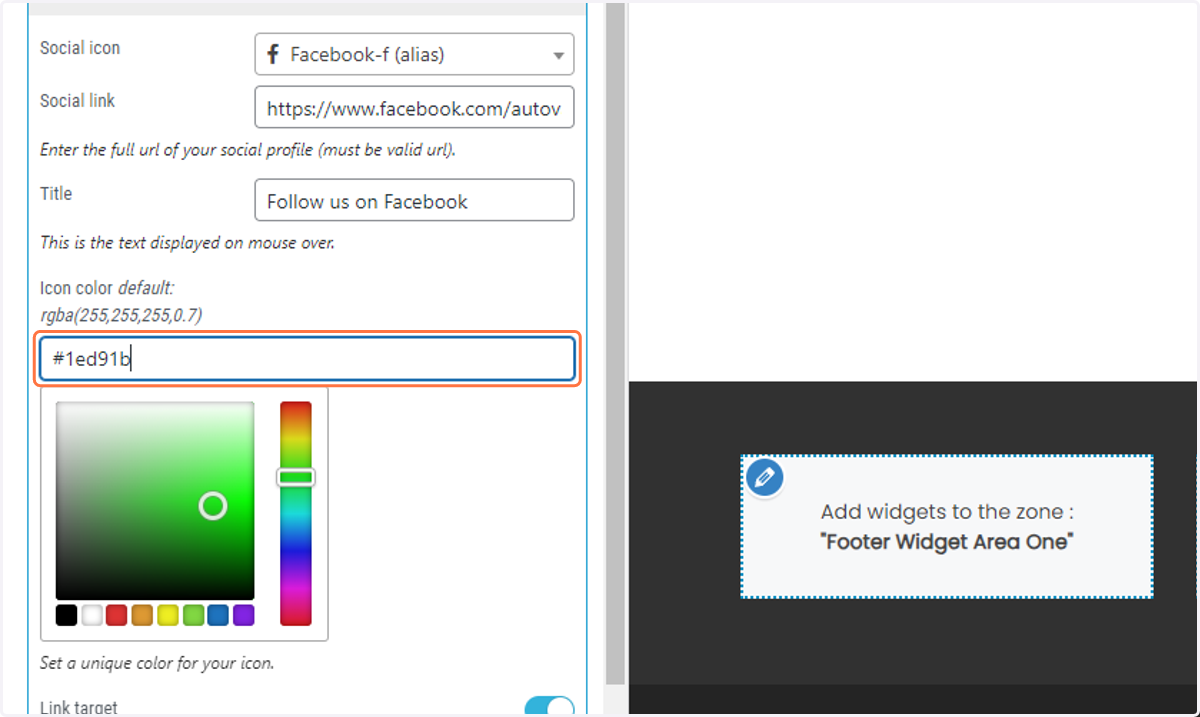
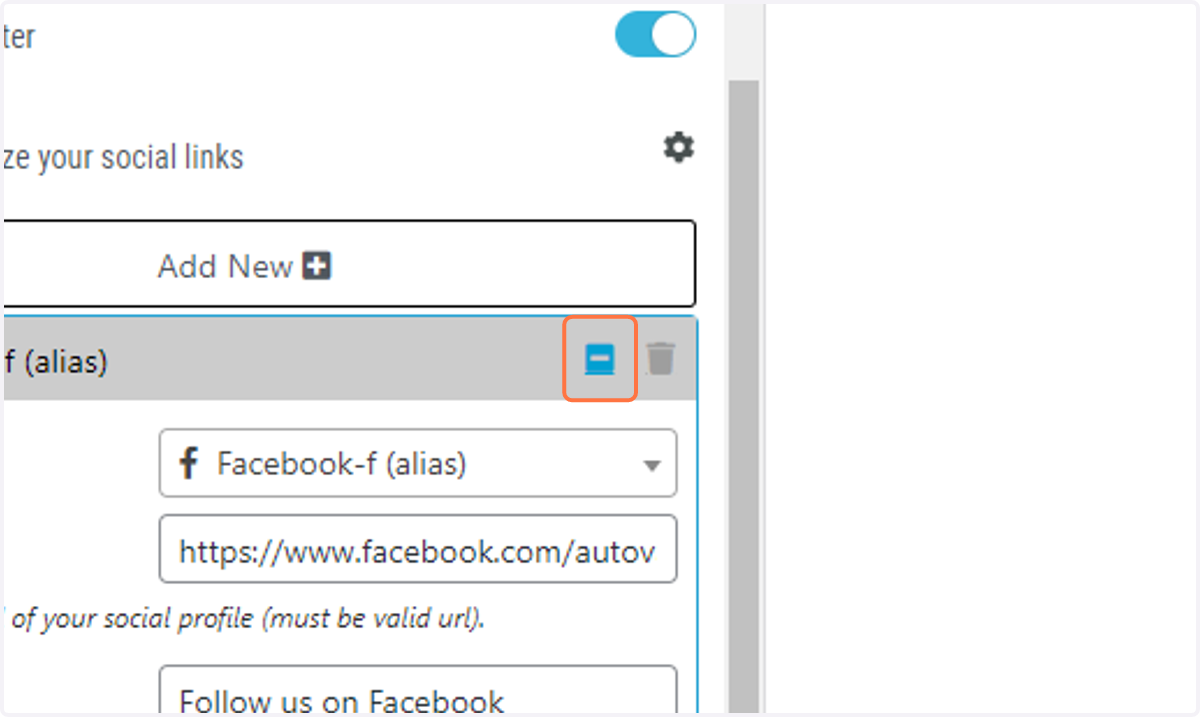
37. Click on on the minimize icon to close the link box
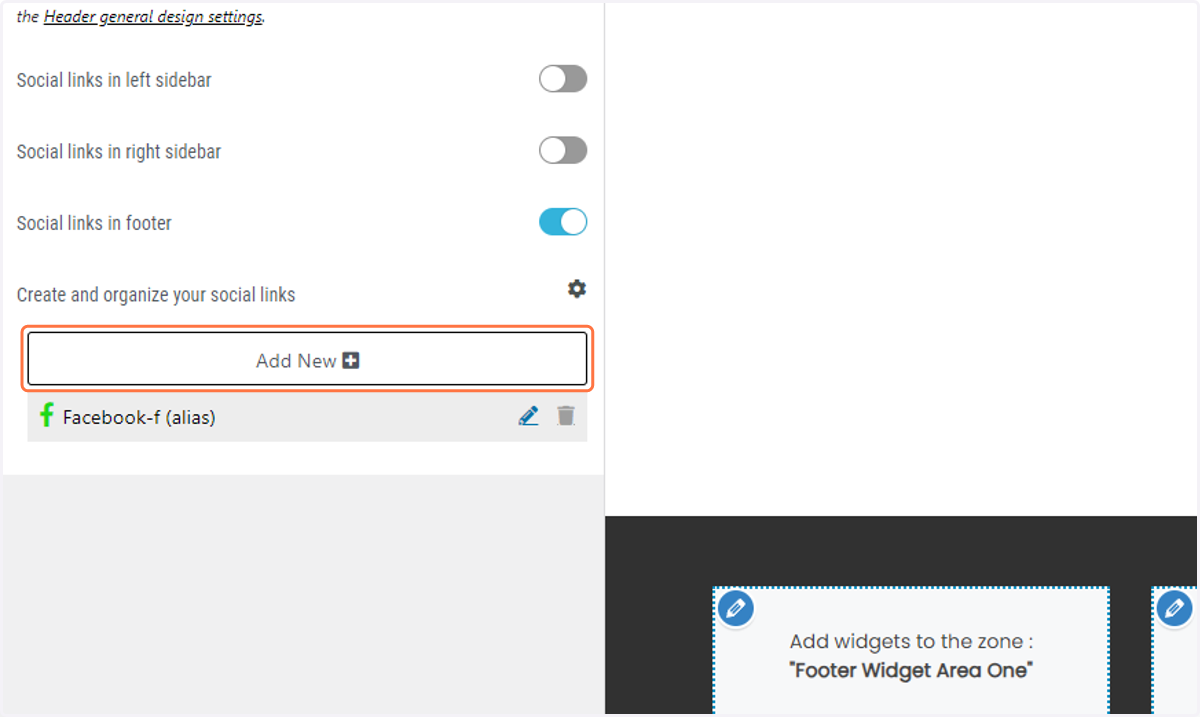
38. Click on Add New
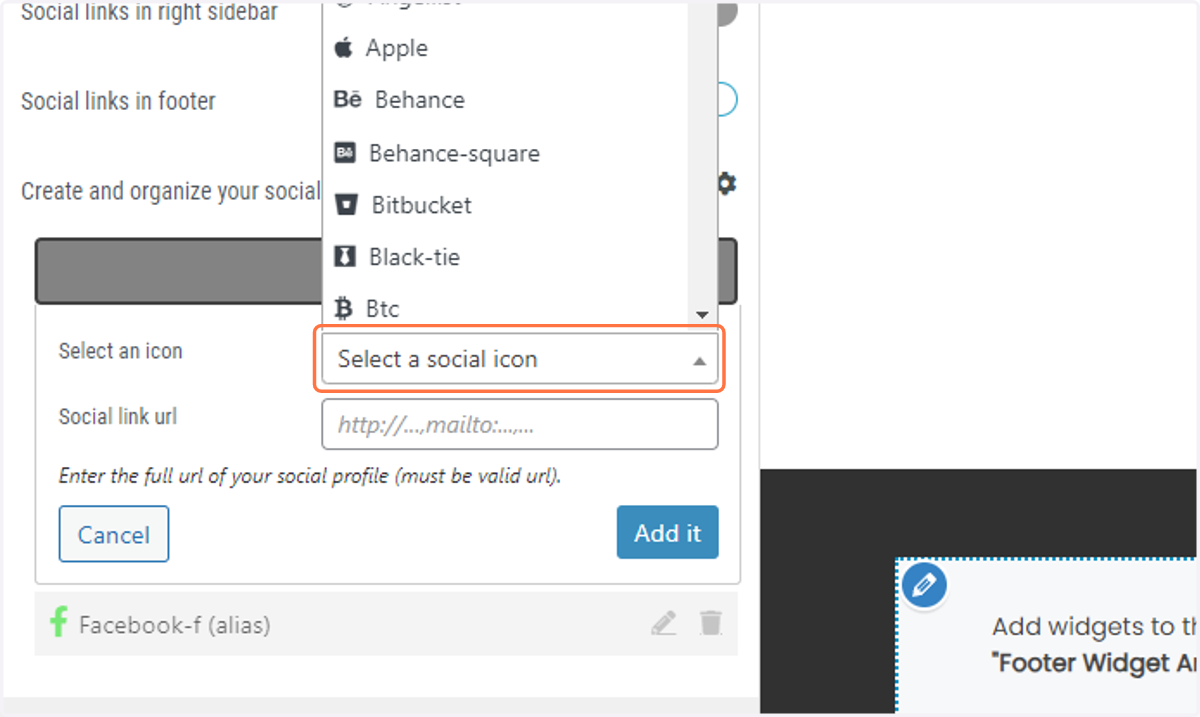
39. Click on Select a social icon
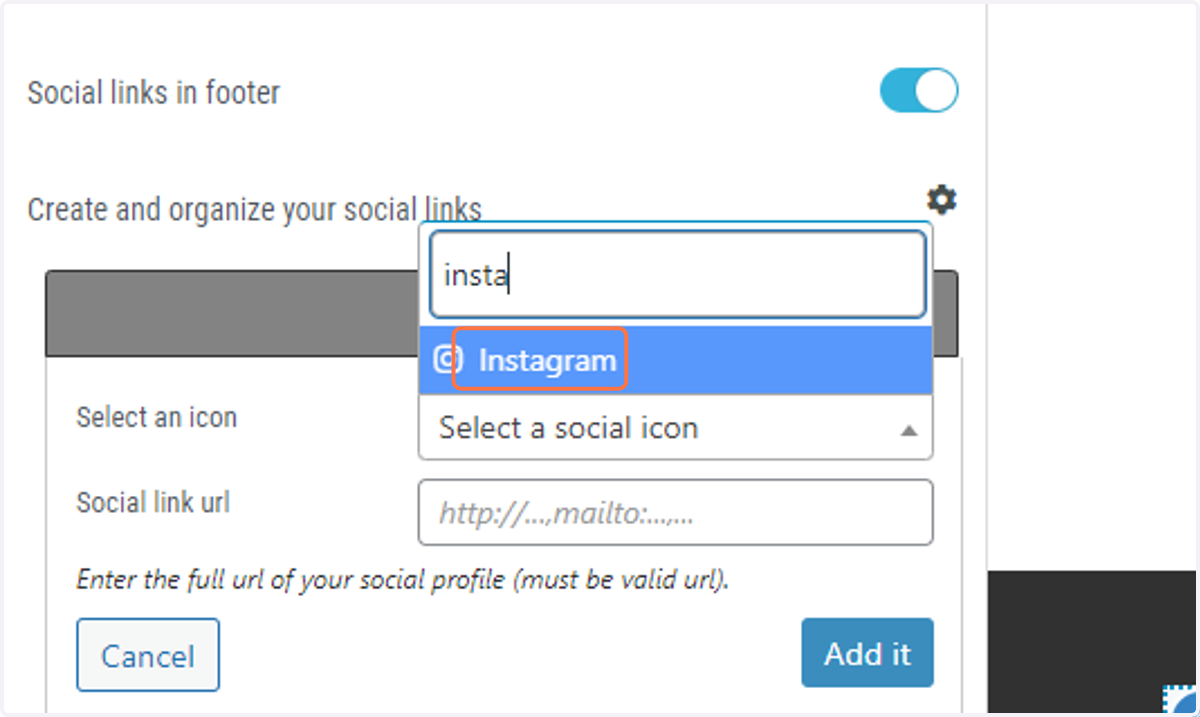
40. Search for the Instagram icon
41. Click on Auto Valley Business Setup…
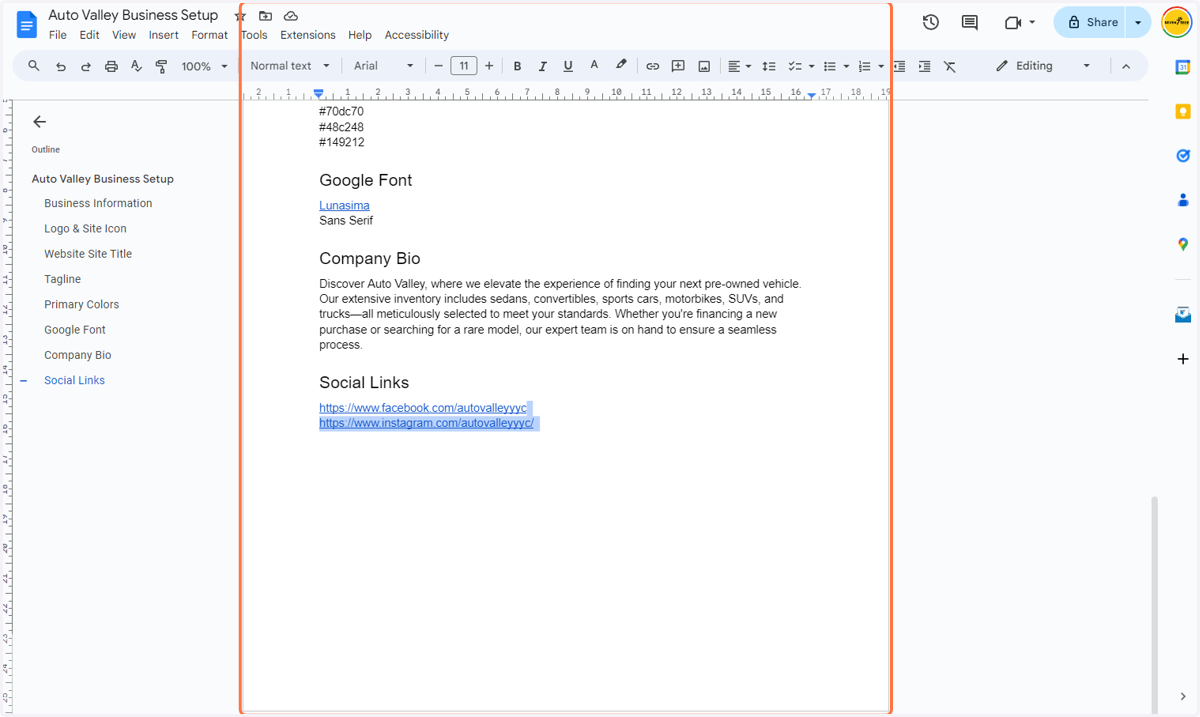
42. Paste the Instagram link into the corresponding input
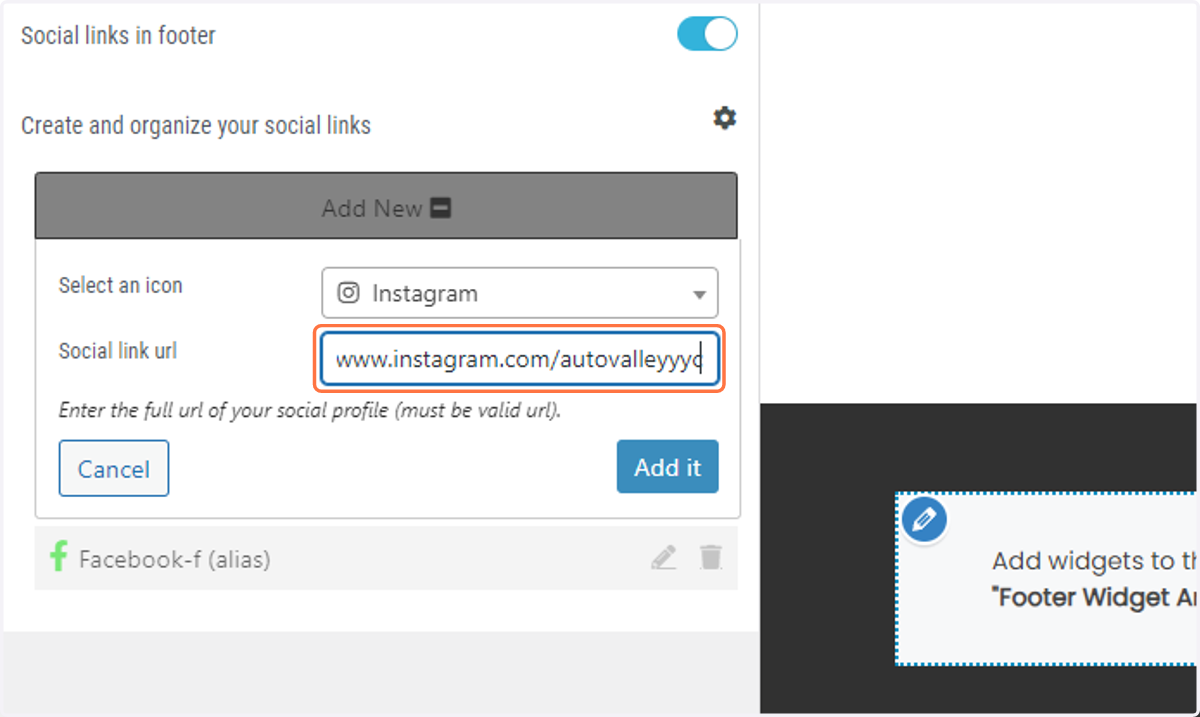
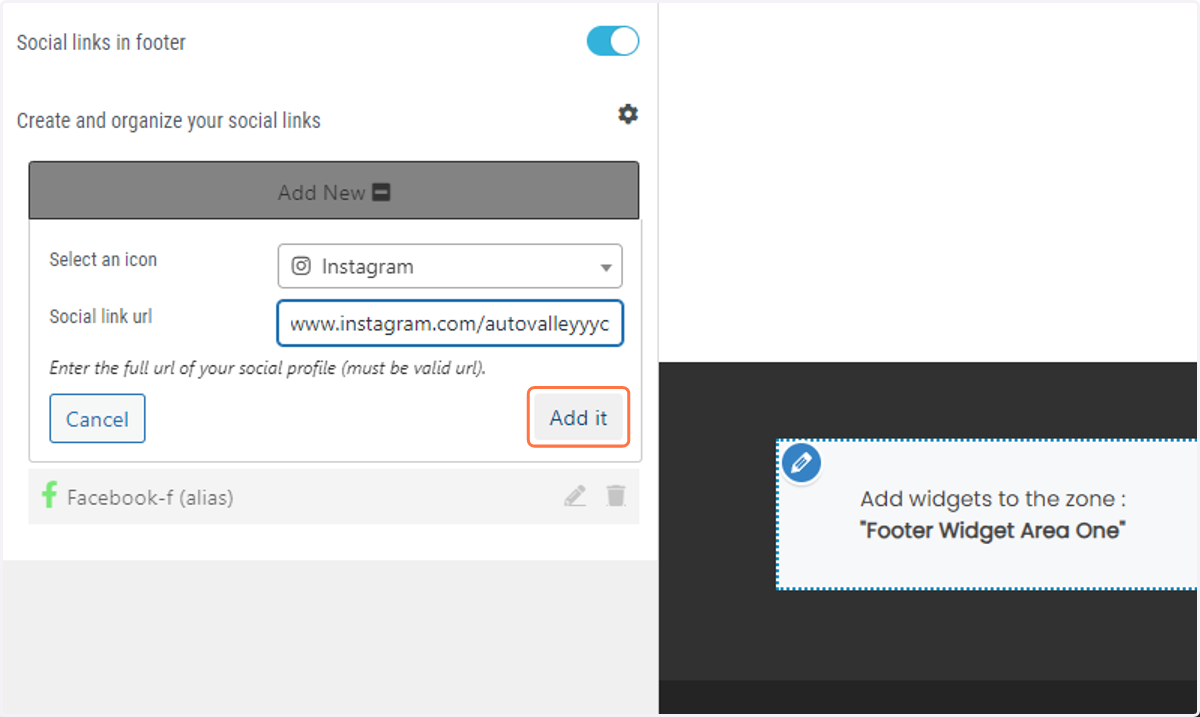
43. Click on Add it
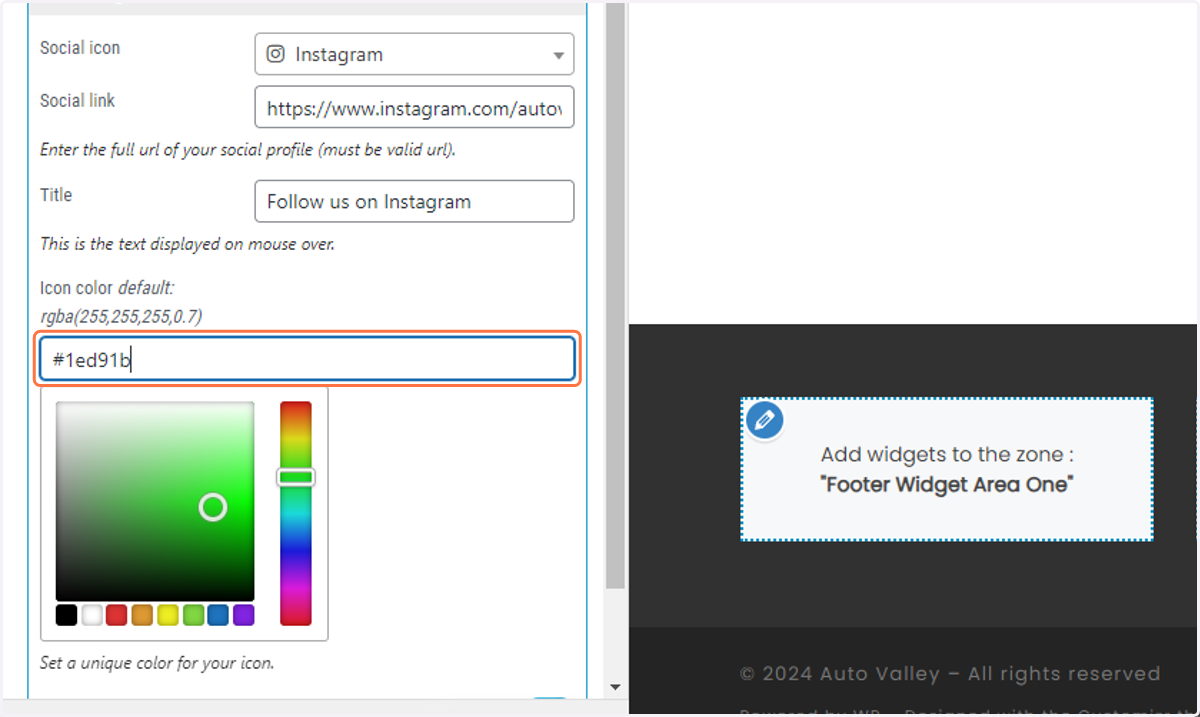
44. Paste the brand color hex into the corresponding input
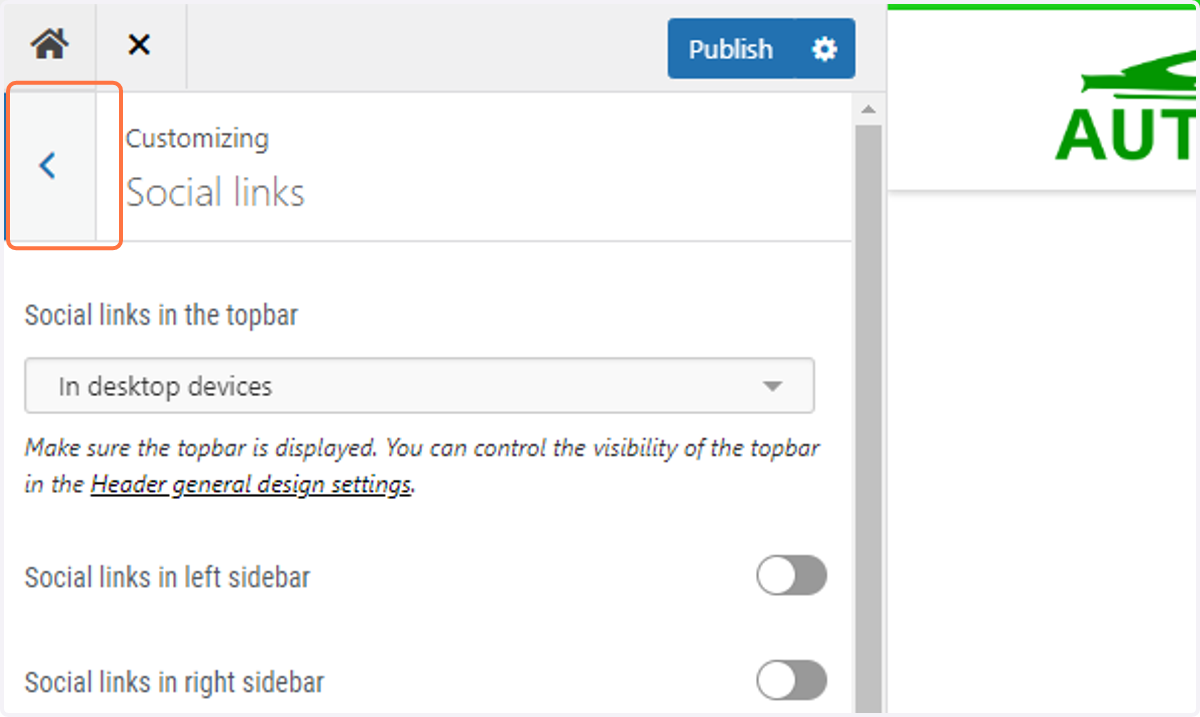
45. Return to the previous menu by clicking on the back arrow
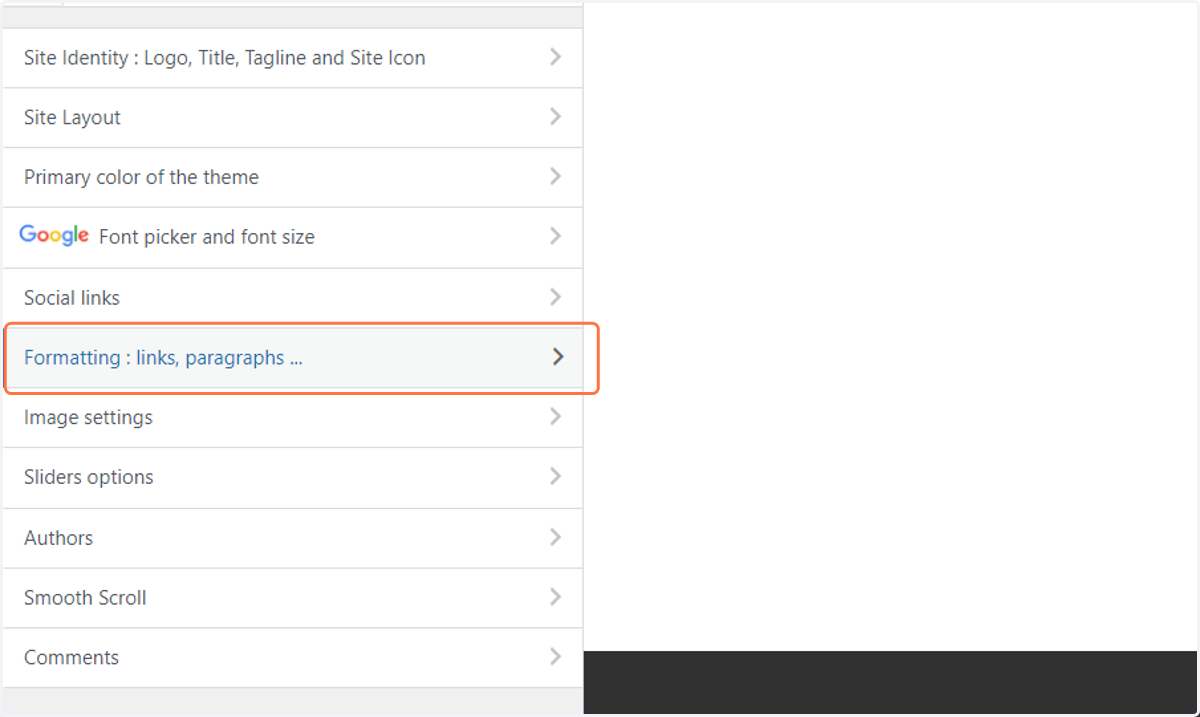
46. Click on Formatting : links, paragraphs
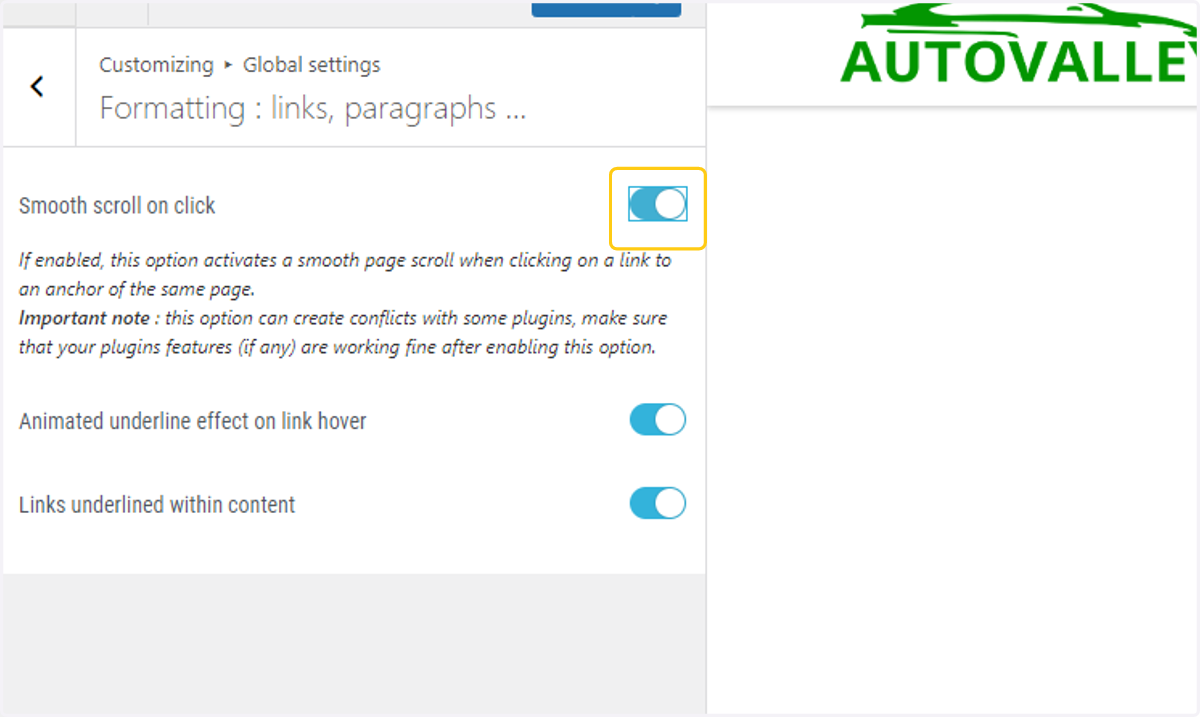
47. Toggle on the Smooth Scroll option
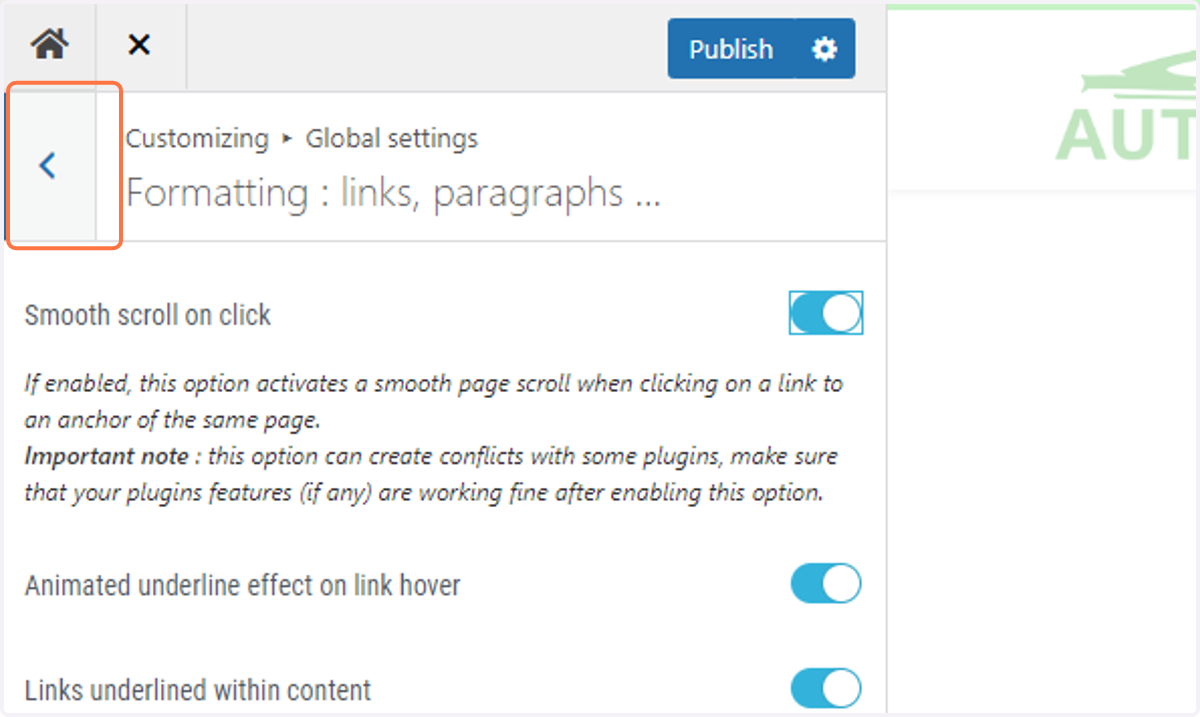
48. Return to the previous menu by clicking on the back arrow
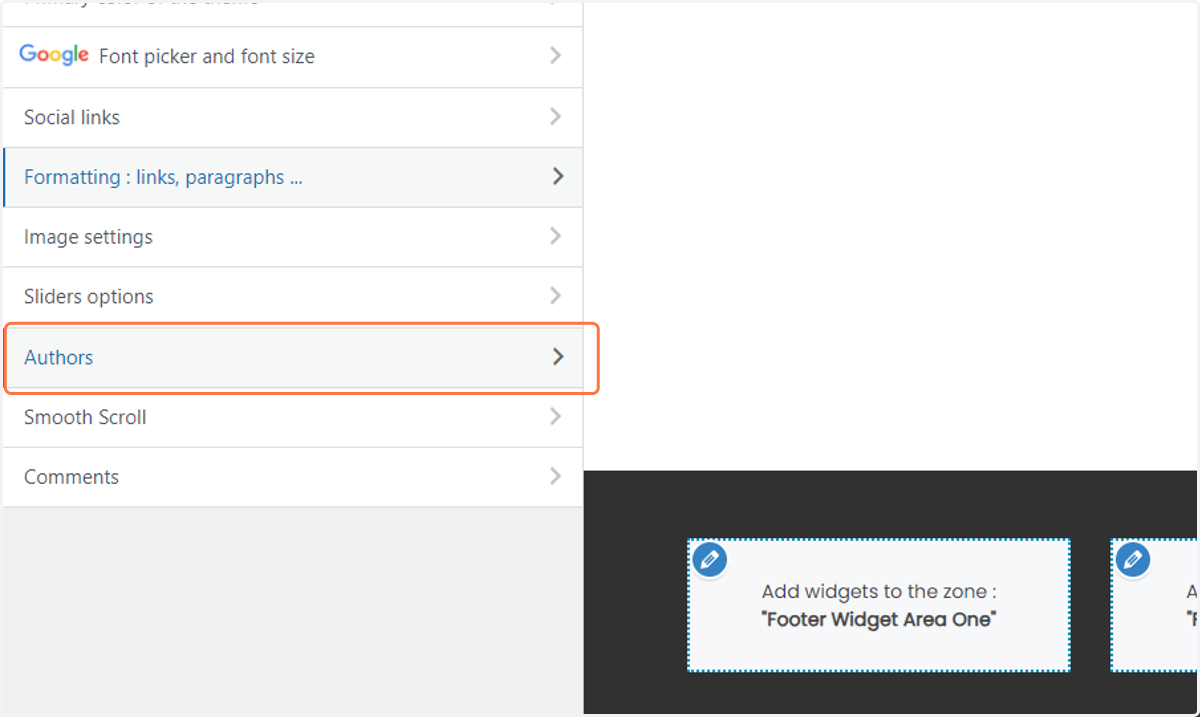
49. Click on Authors
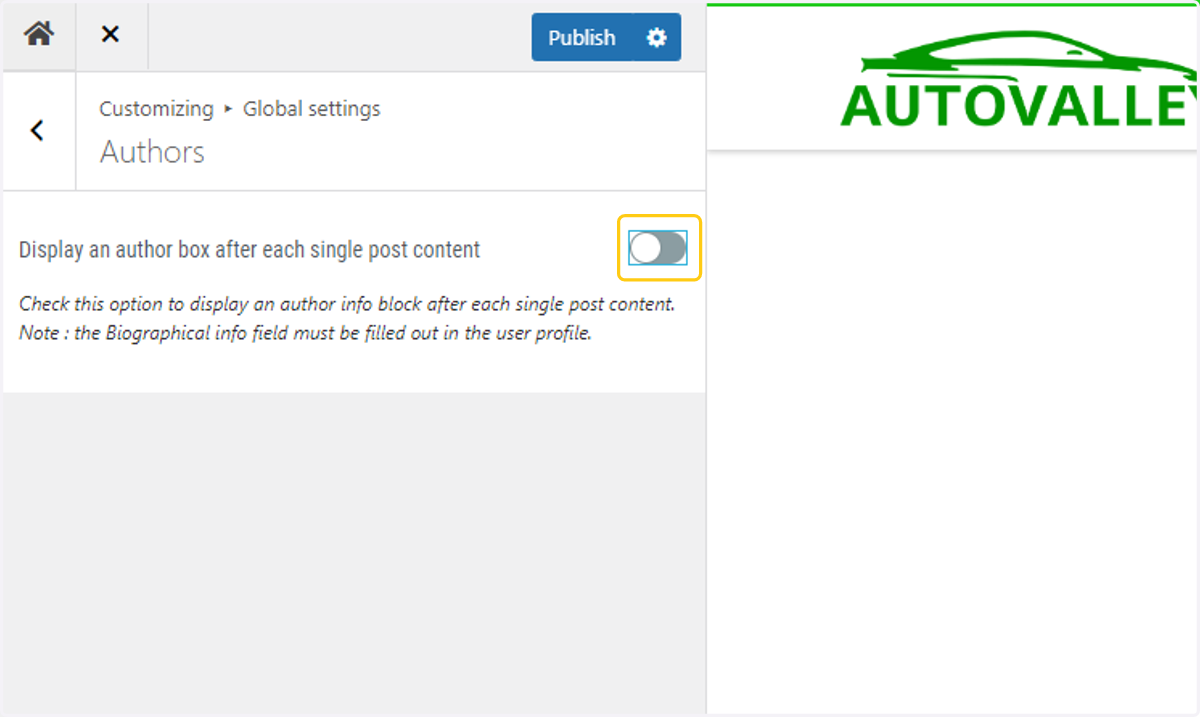
50. Toggle off the Author Box option
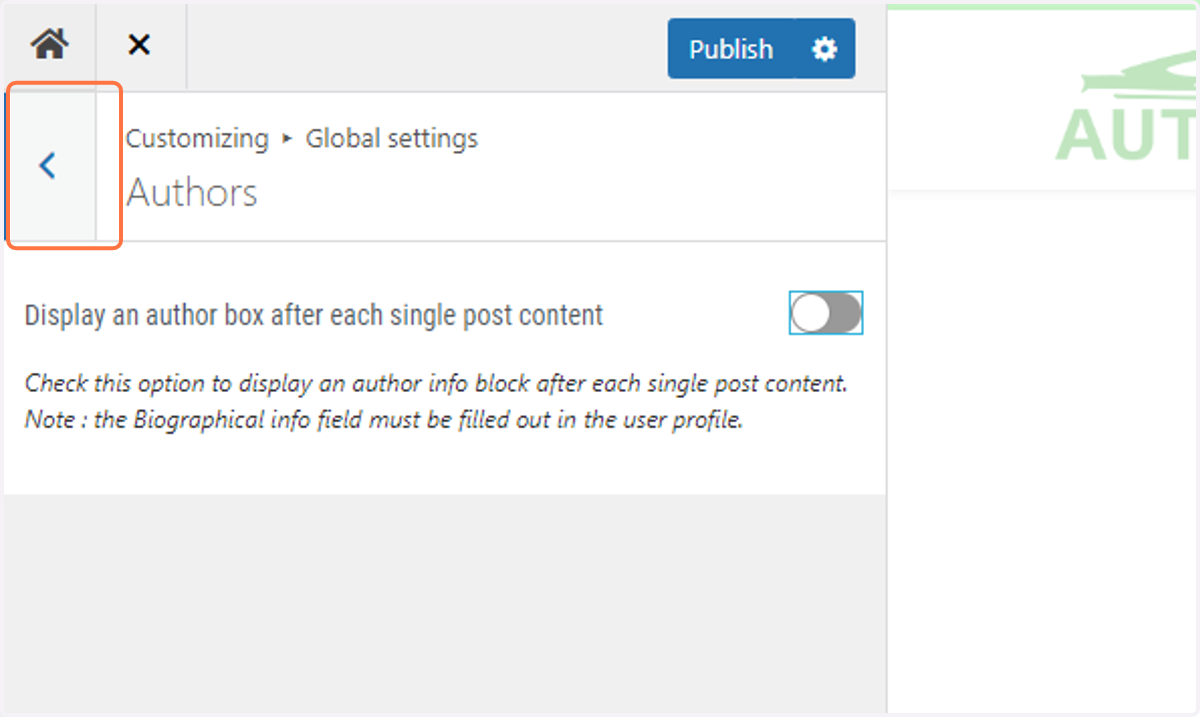
51. Return to the previous menu by clicking on the back arrow
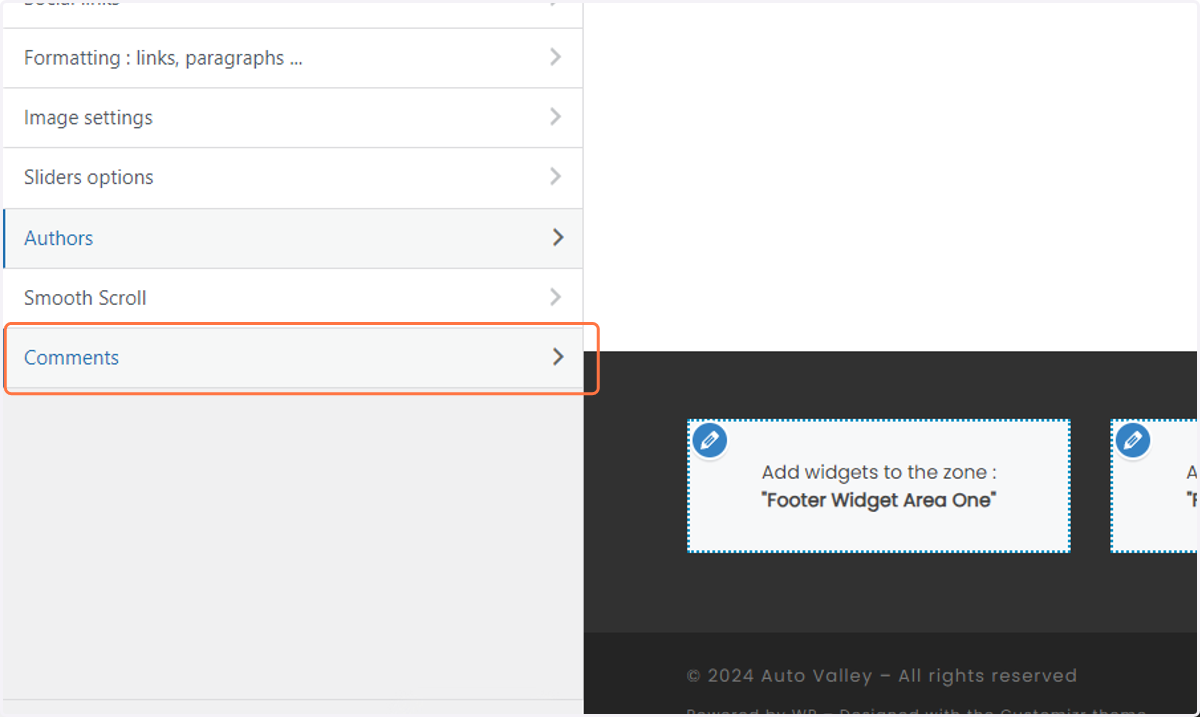
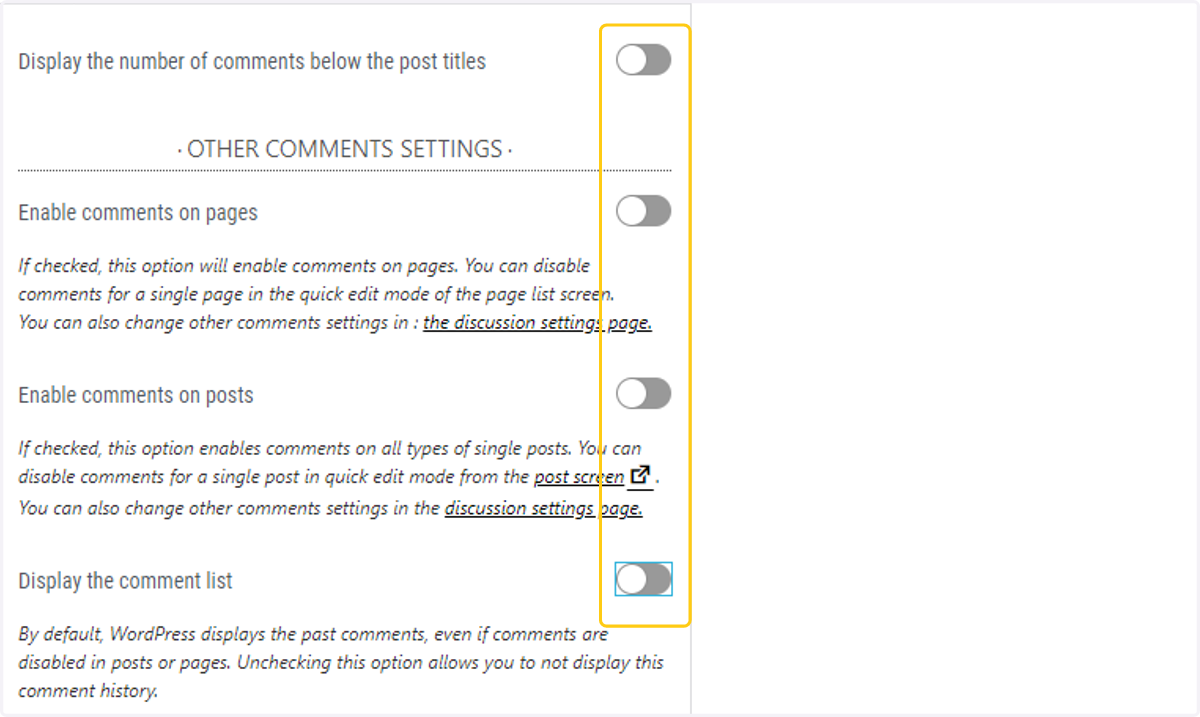
52. Click on Comments
53. Toggle off all of the options
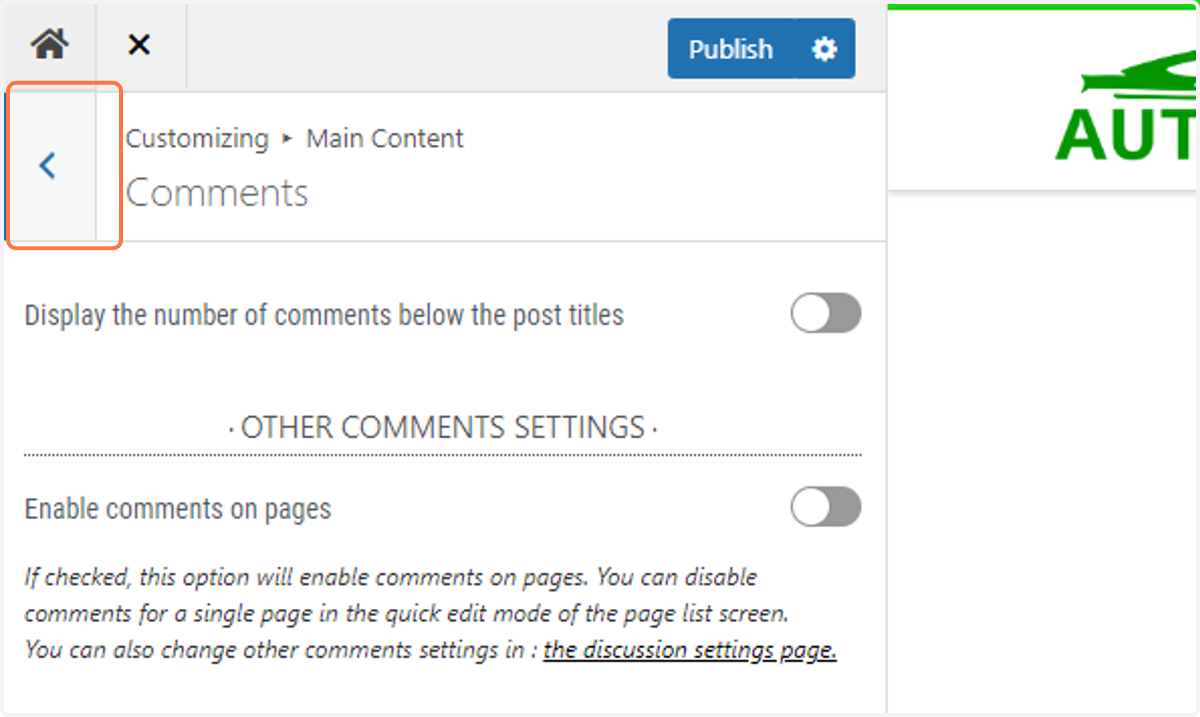
54. Return to the previous menu by clicking on the back arrow
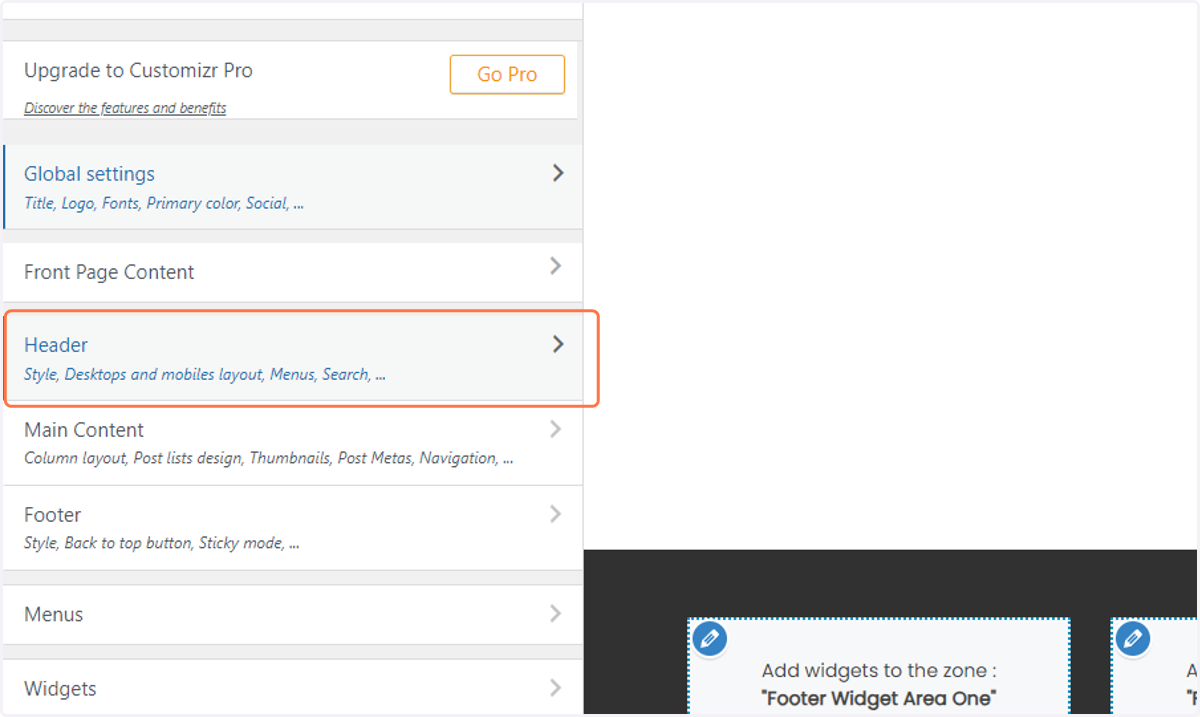
55. Click on Header
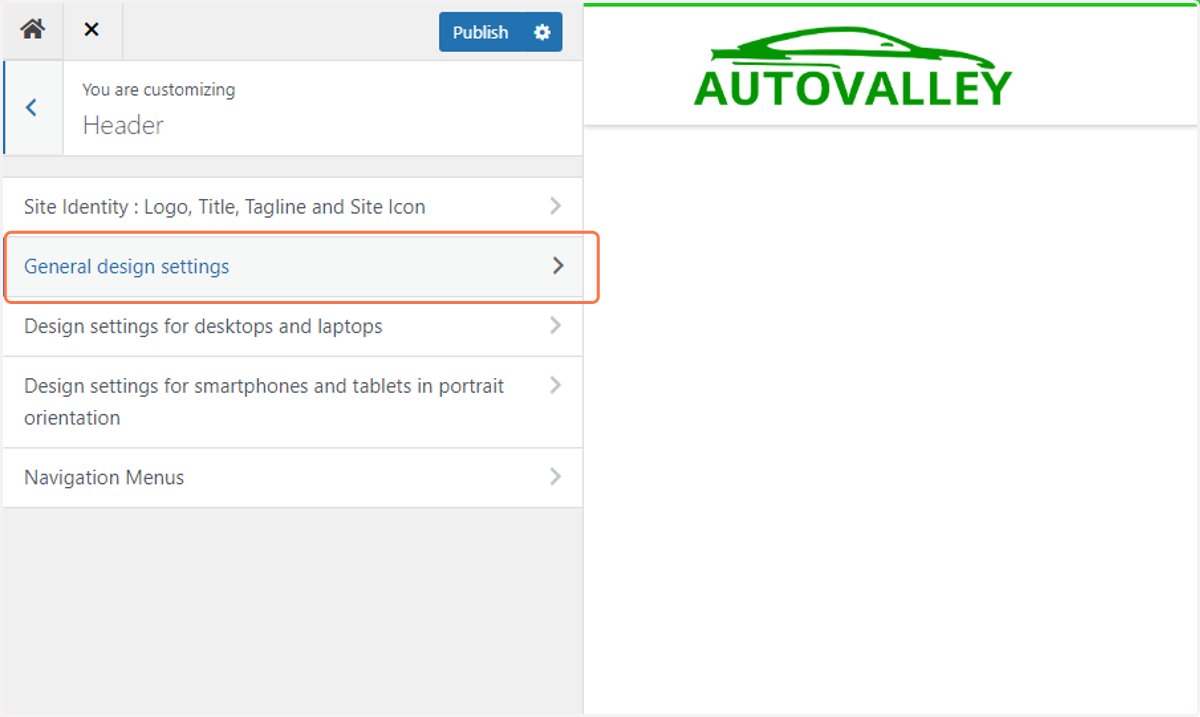
56. Click on General design settings…
57. Check the Guiding doc and change the Header style to match
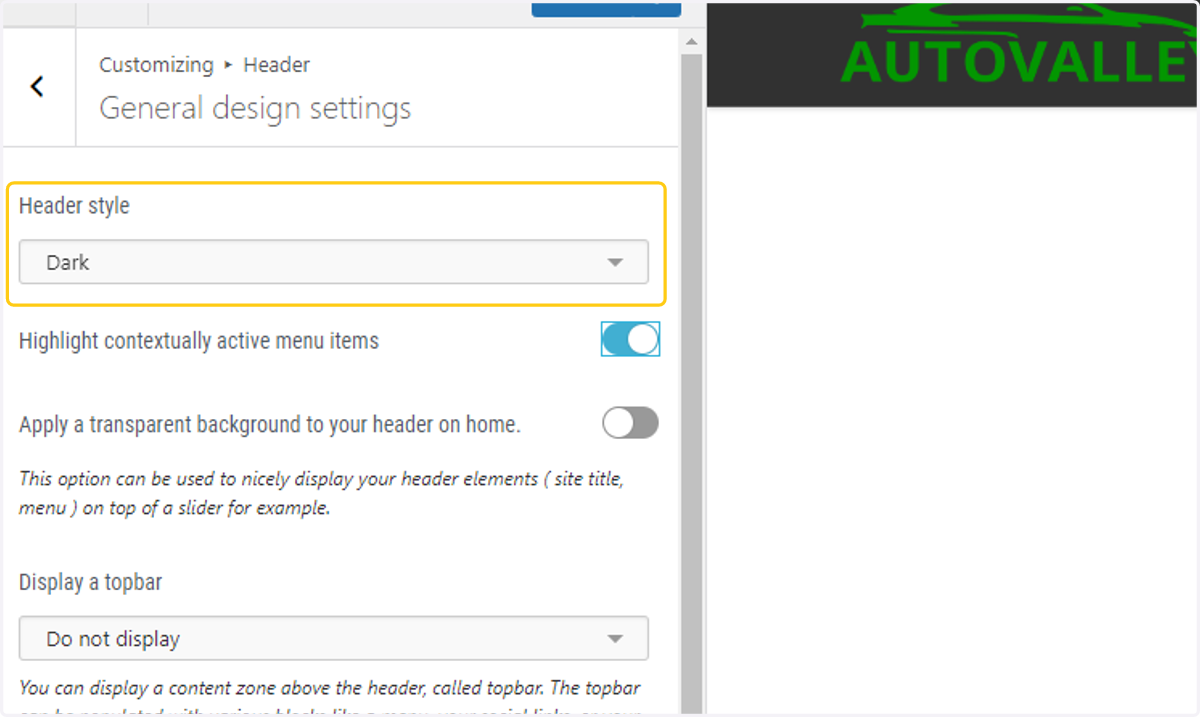
58. Toggle on the Contextual Highlight option
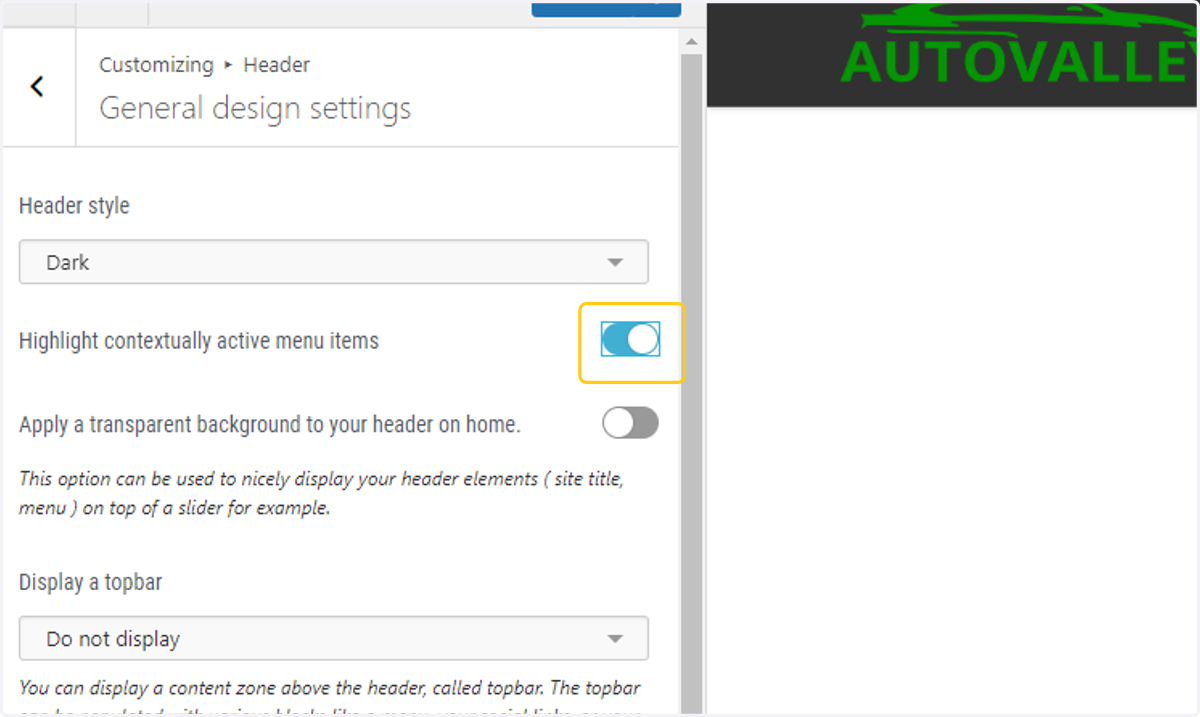
59. Toggle off the Top Border option
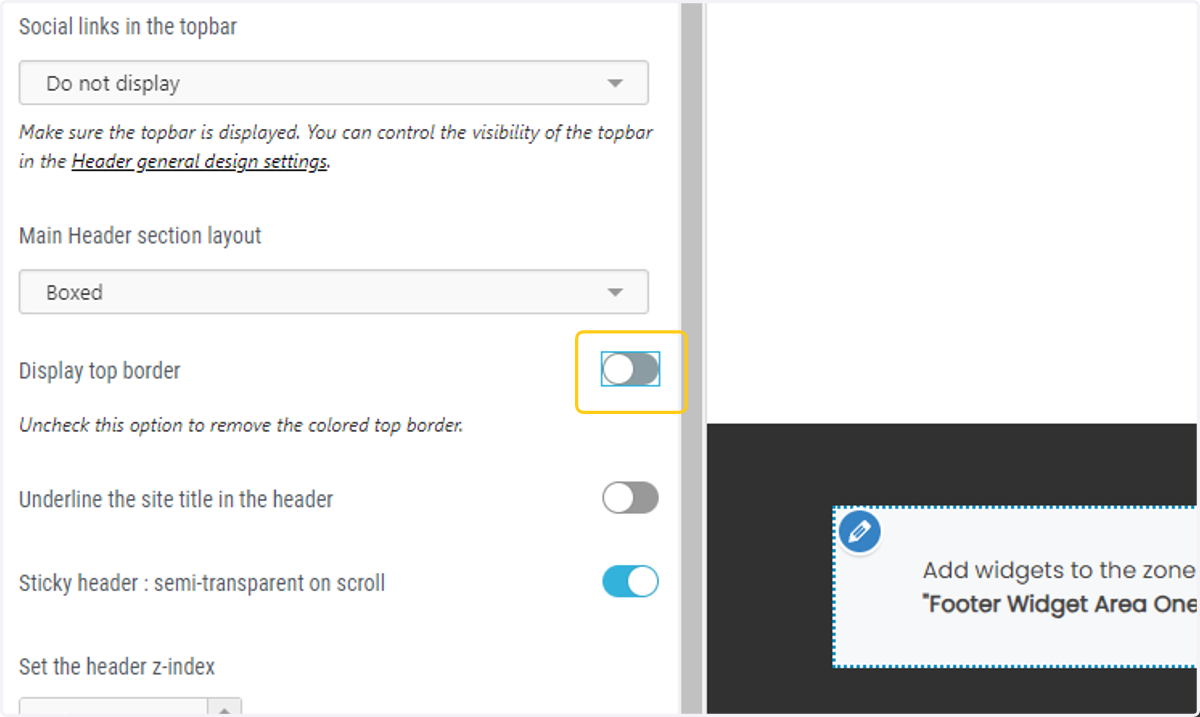
60. Return to the previous menu by clicking on the back arrow
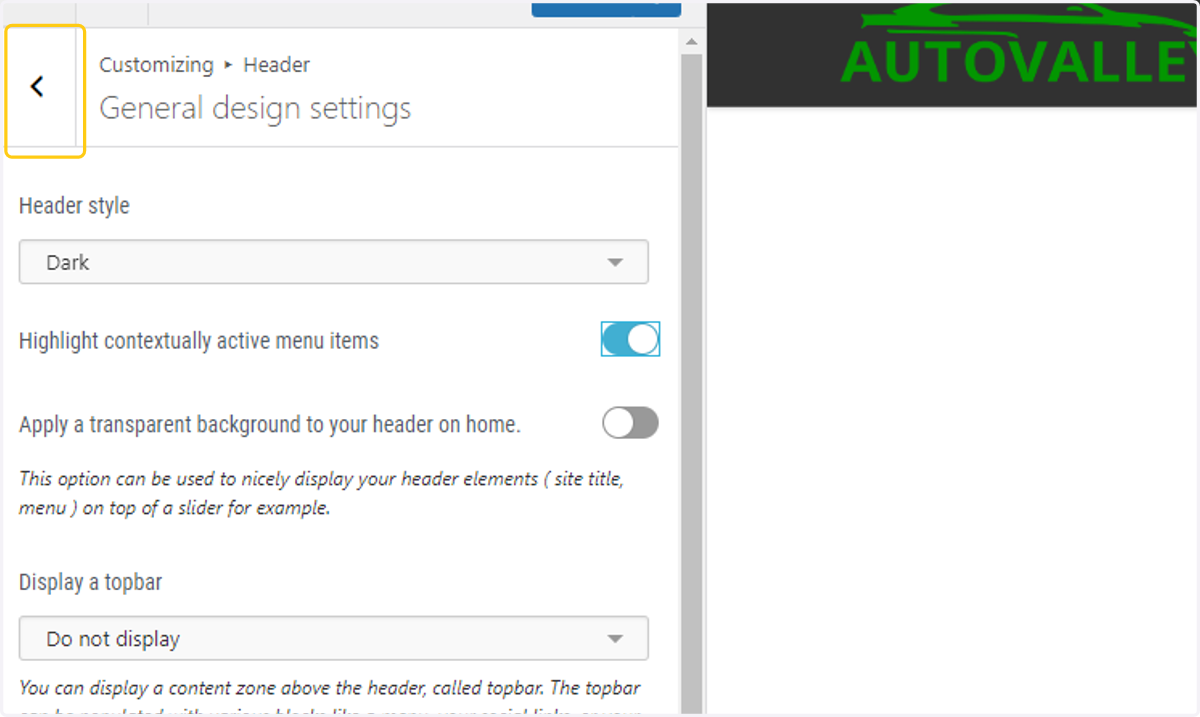
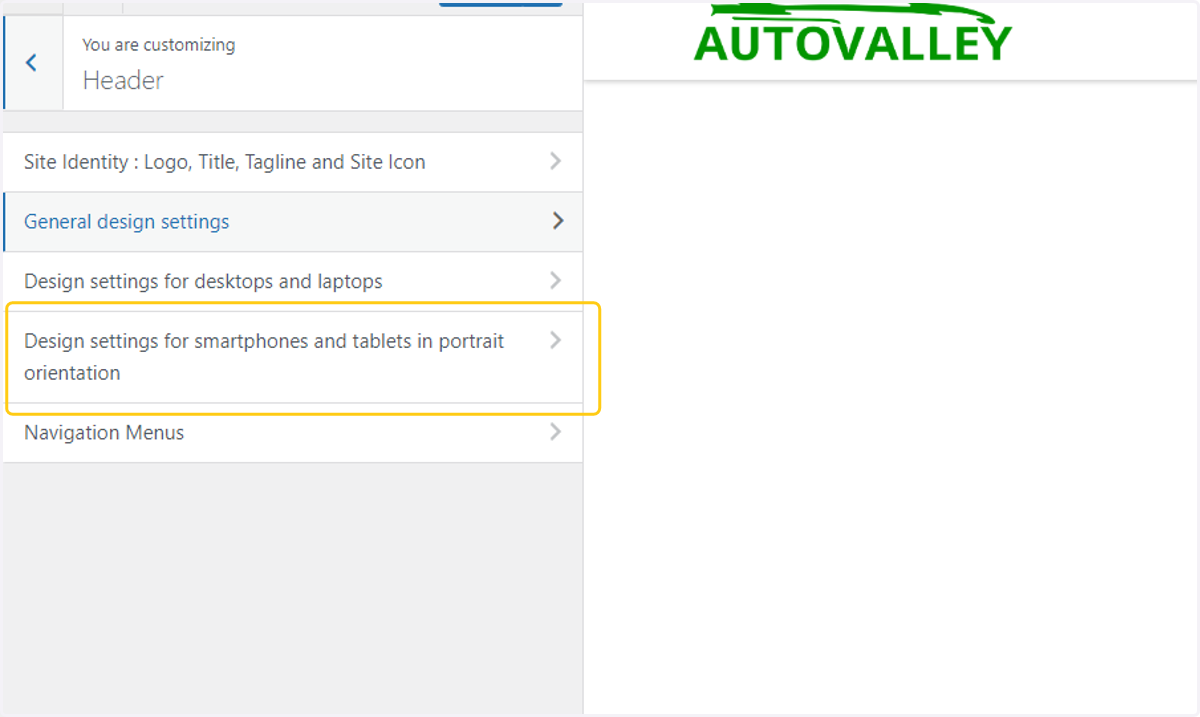
61. Click on Design settings for smartphones
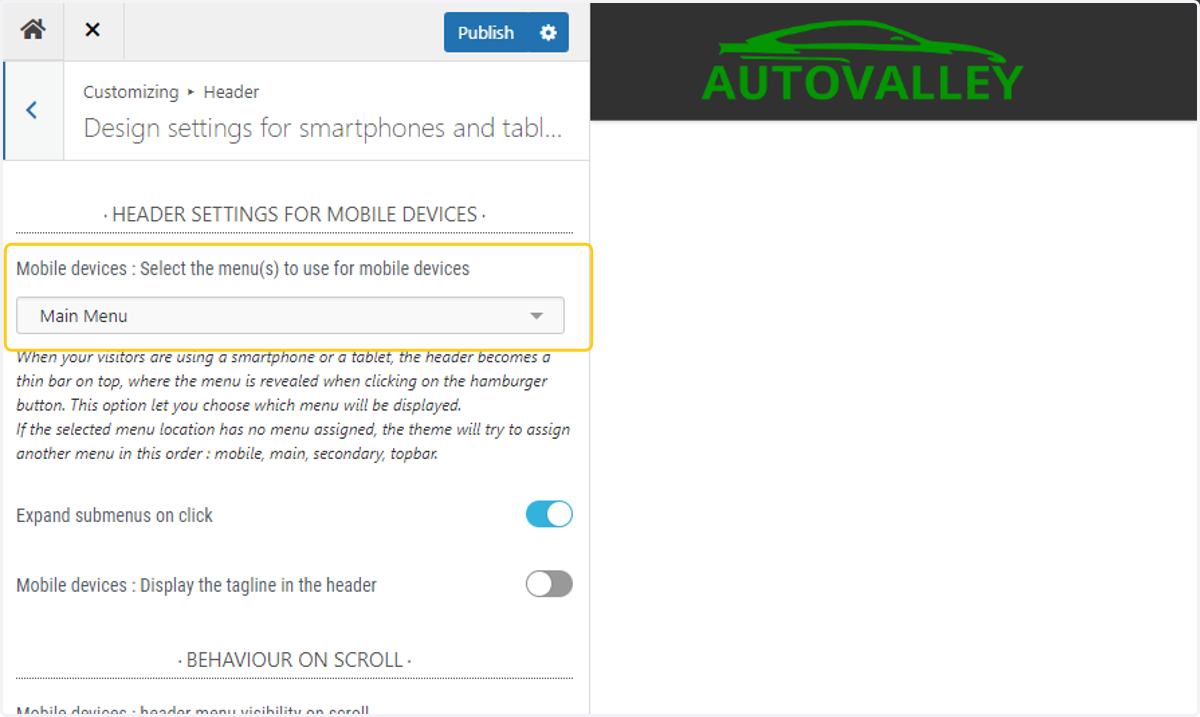
62. Change the Mobile Devices menu to the Main Menu option
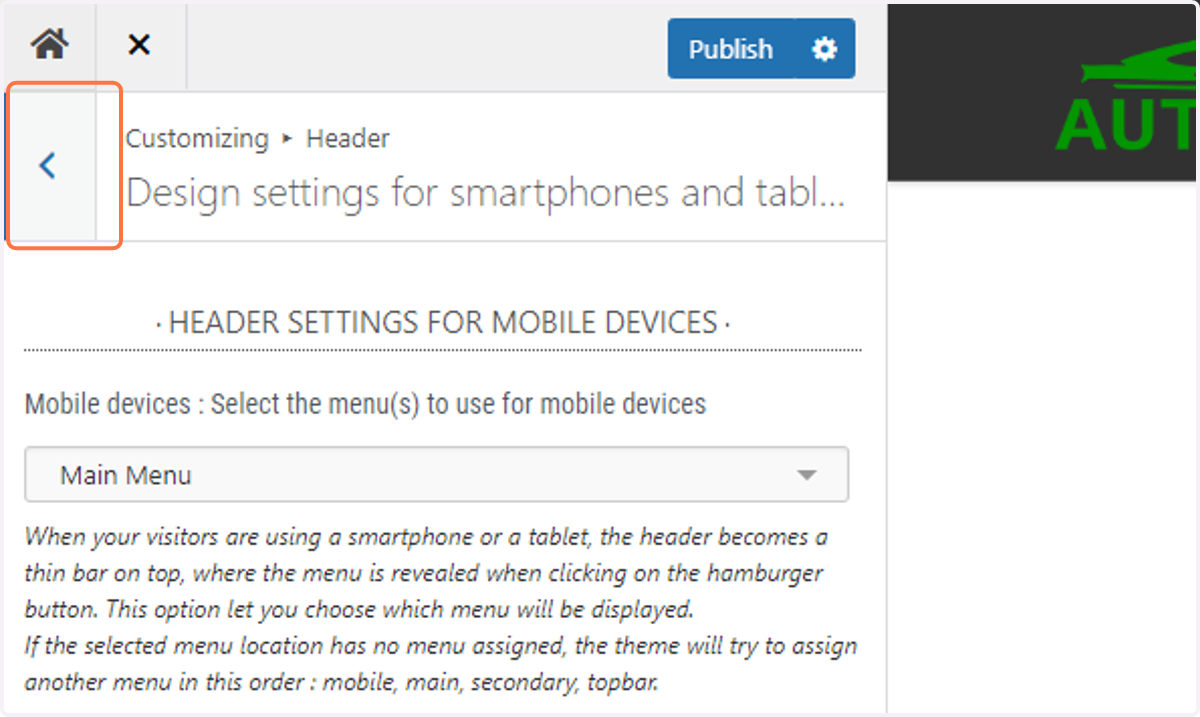
63. Return to the previous menu by clicking on the back arrow
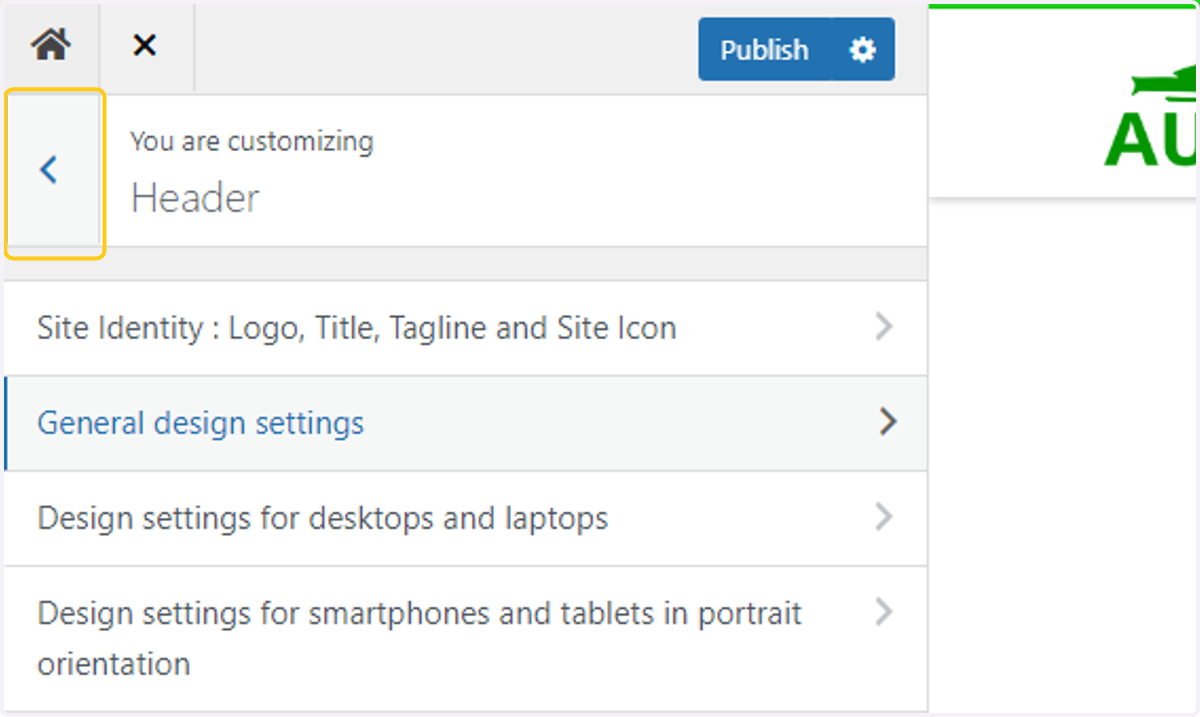
64. Return to the previous menu by clicking on the back arrow
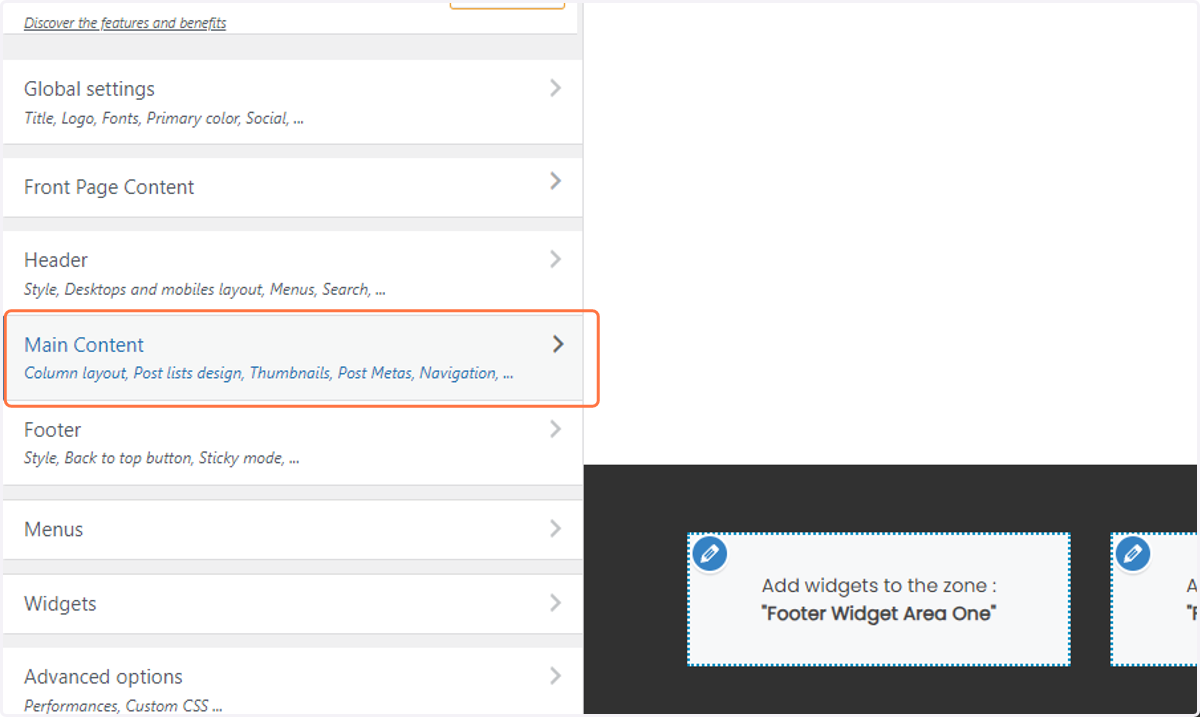
65. Click on Main Content
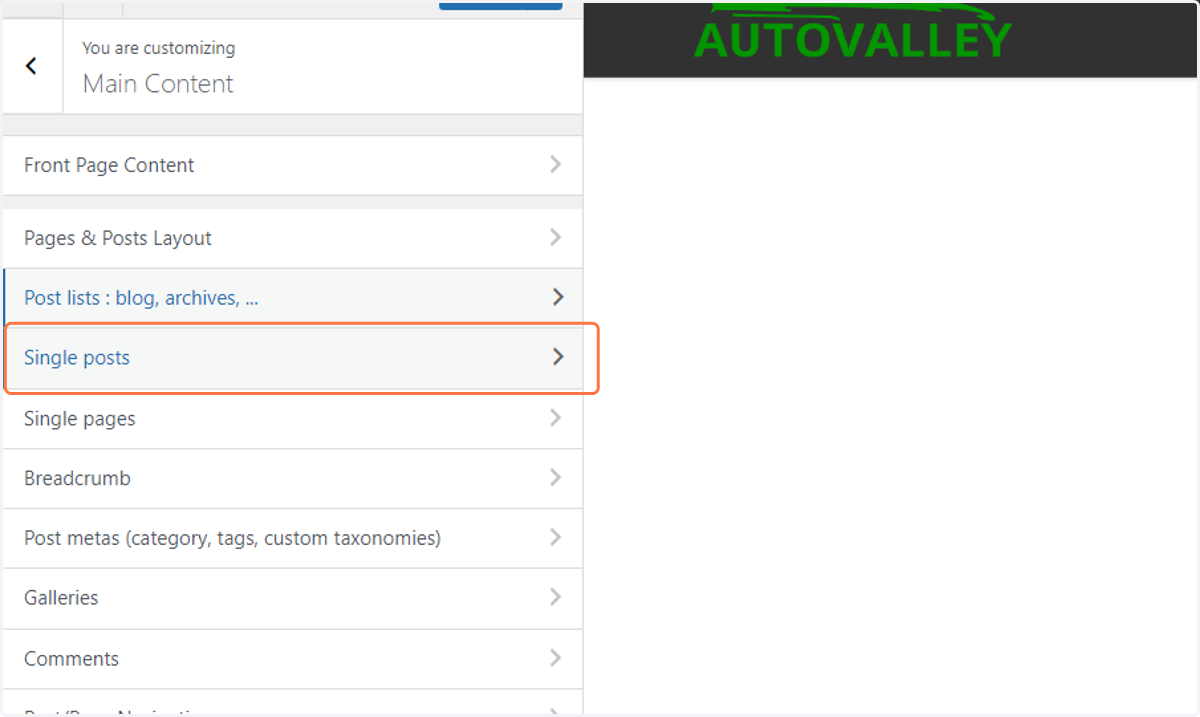
66. Click on Single posts…
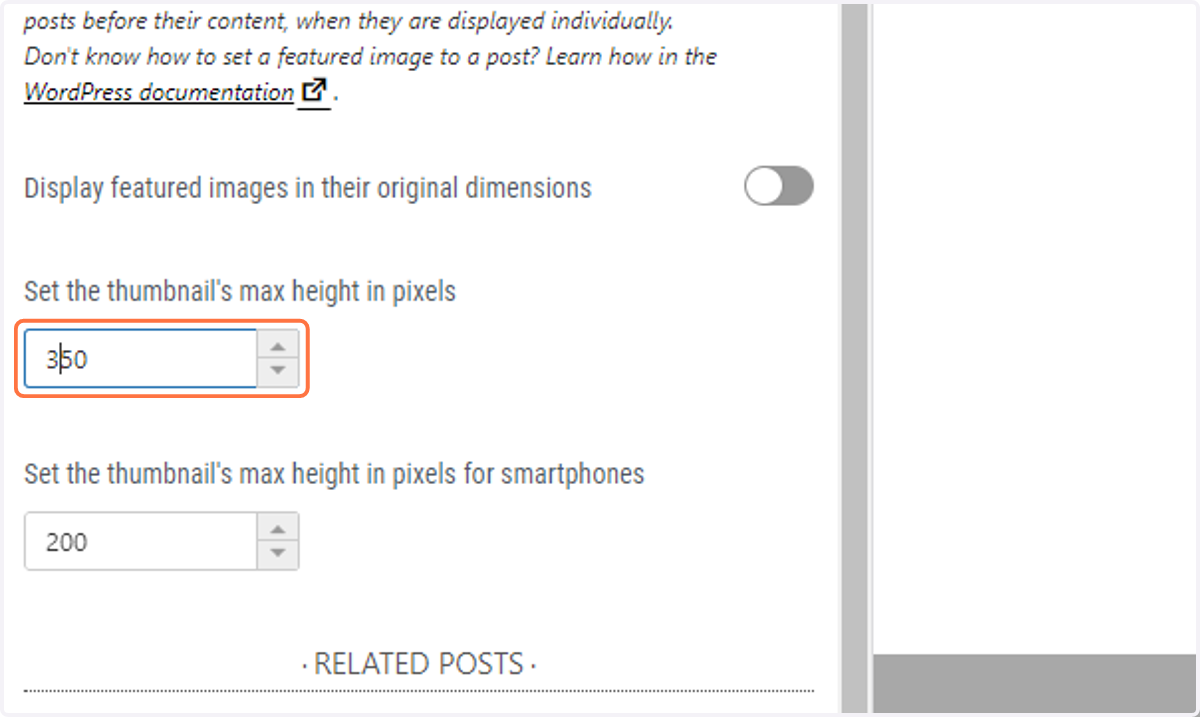
67. Set the featured image thumbnail size to 350px
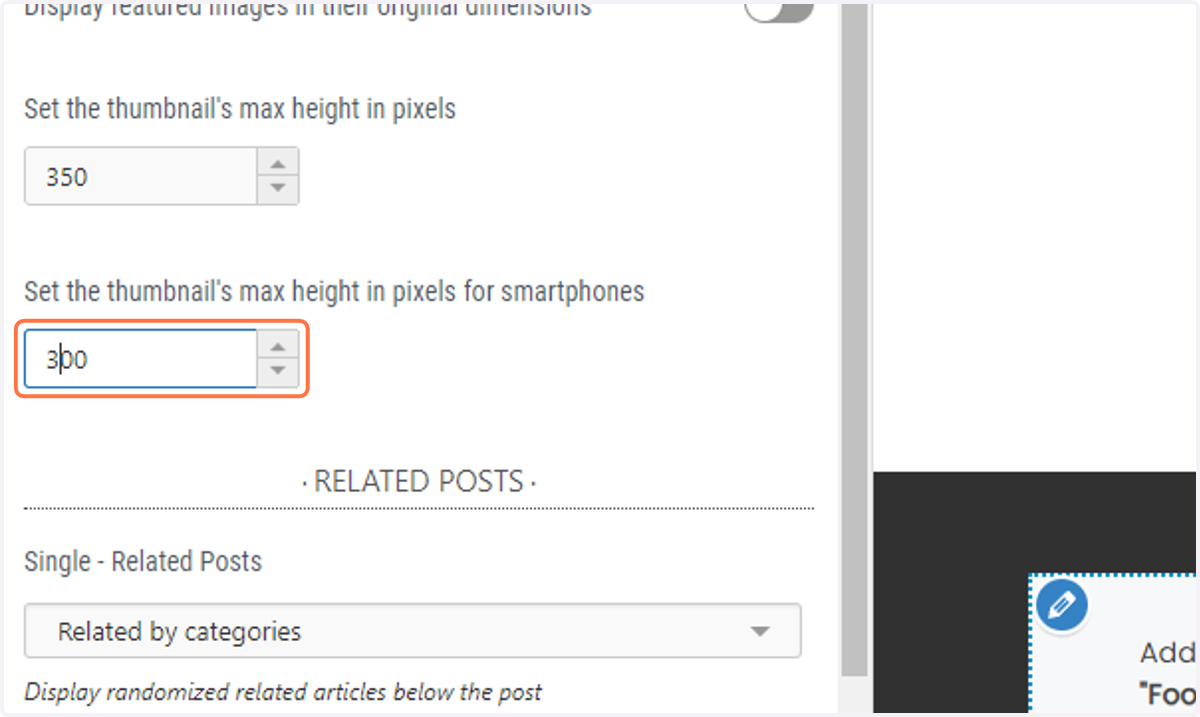
68. Set the thumbnail size for smartphones to 300px
69. Return to the previous menu by clicking on the back arrow
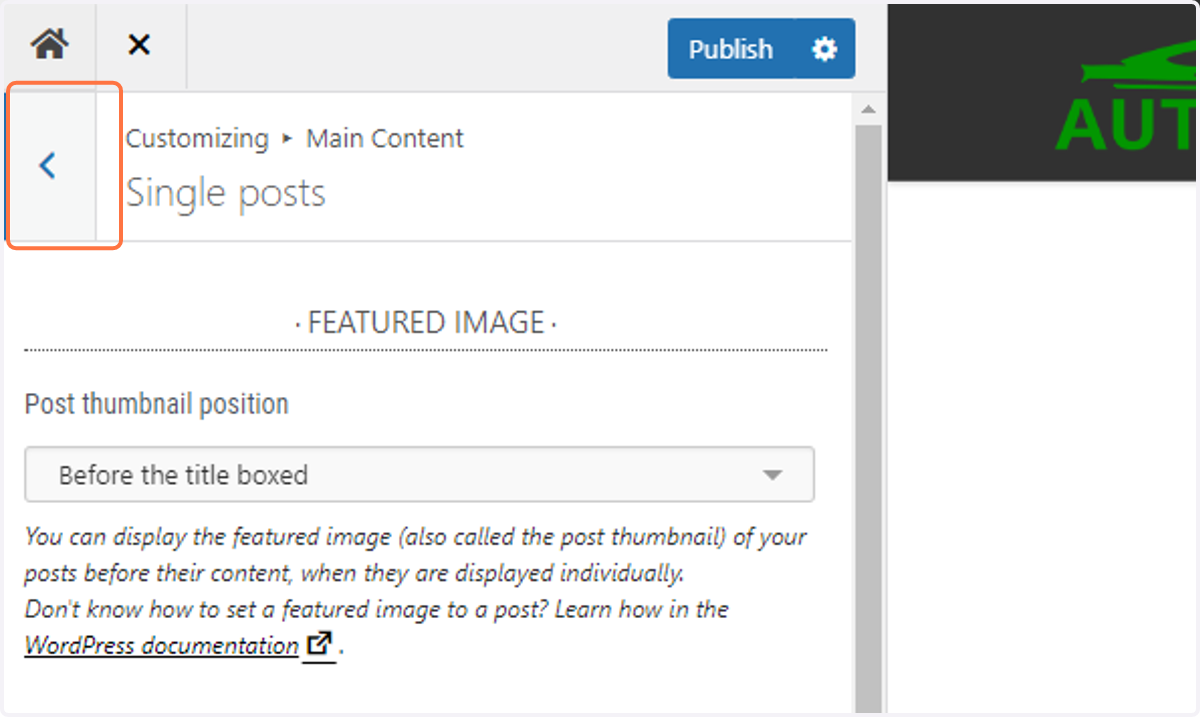
70. Click on Post/Page Navigation
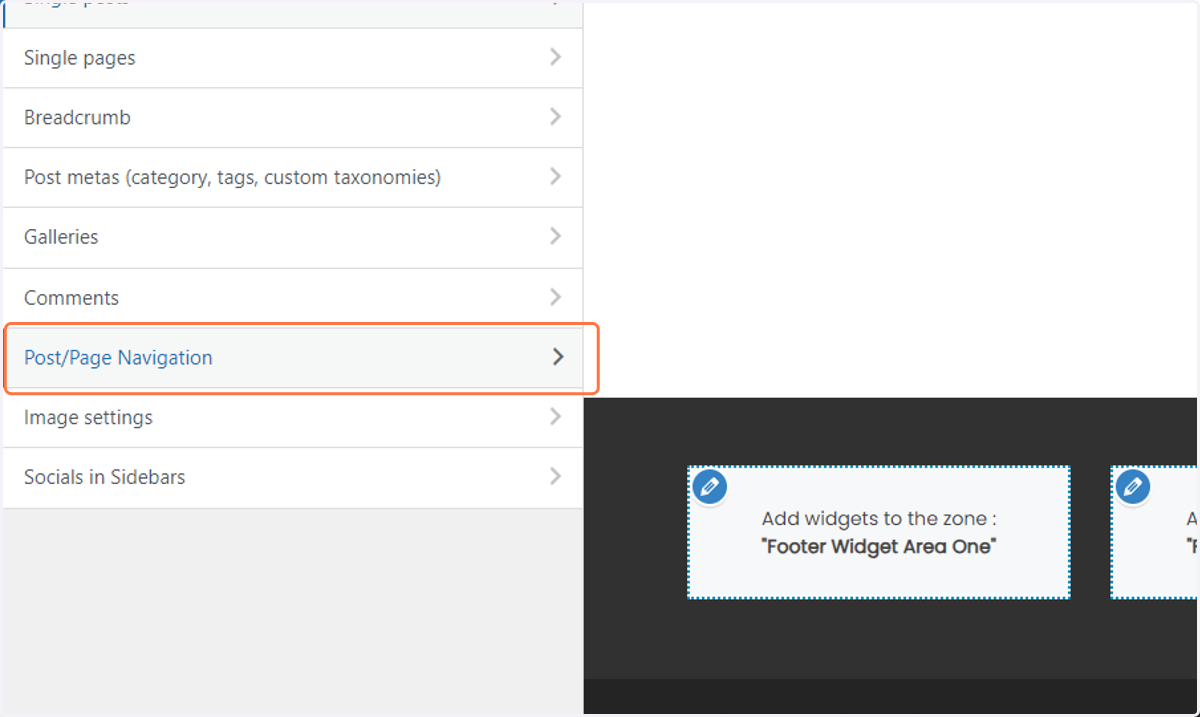
71. Toggle off the post navigation option
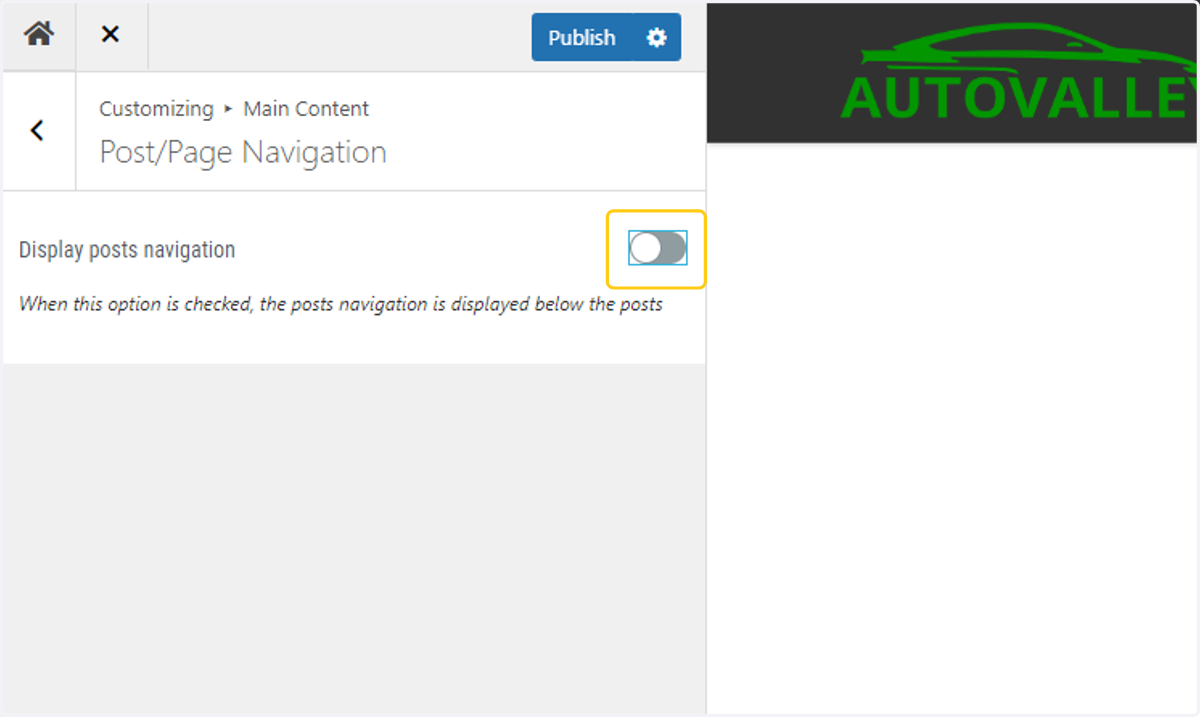
72. Return to the previous menu by clicking on the back arrow
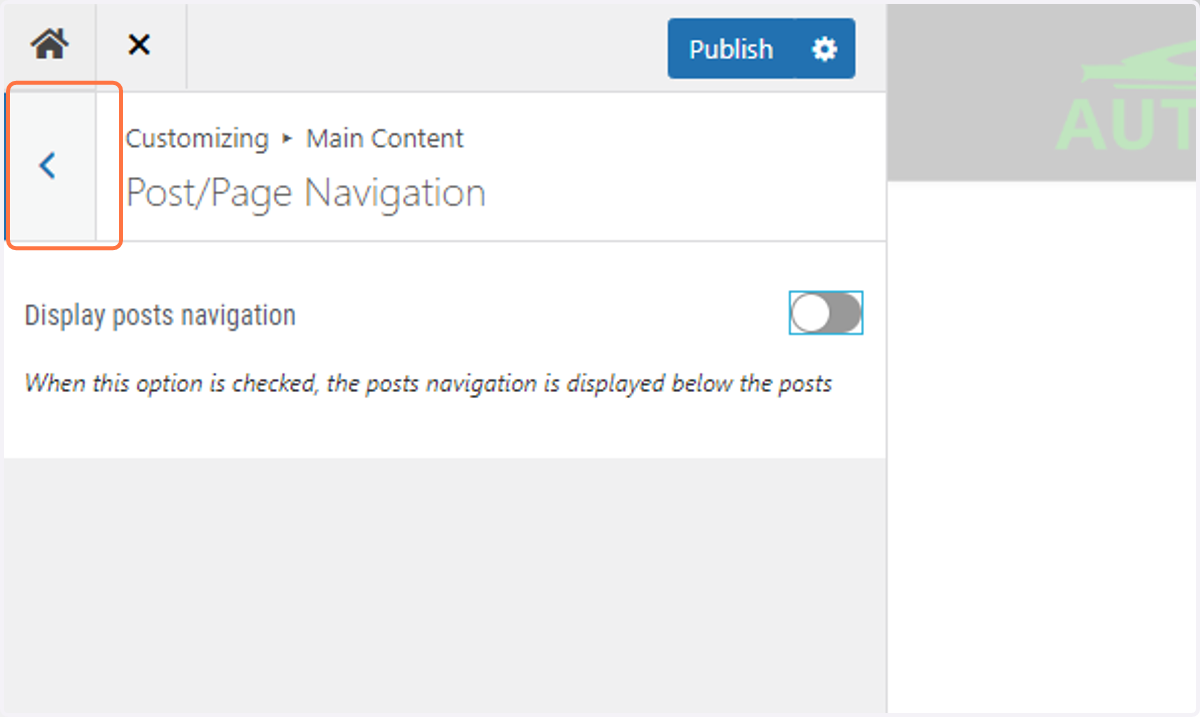
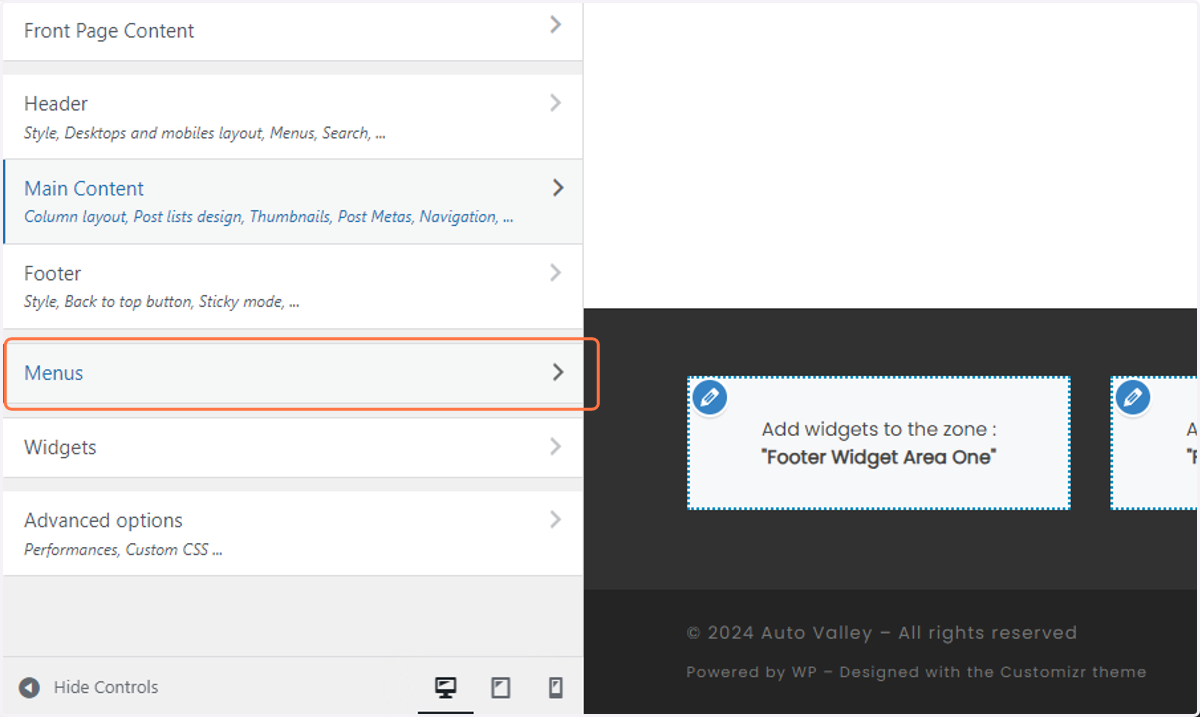
73. Click on Menus
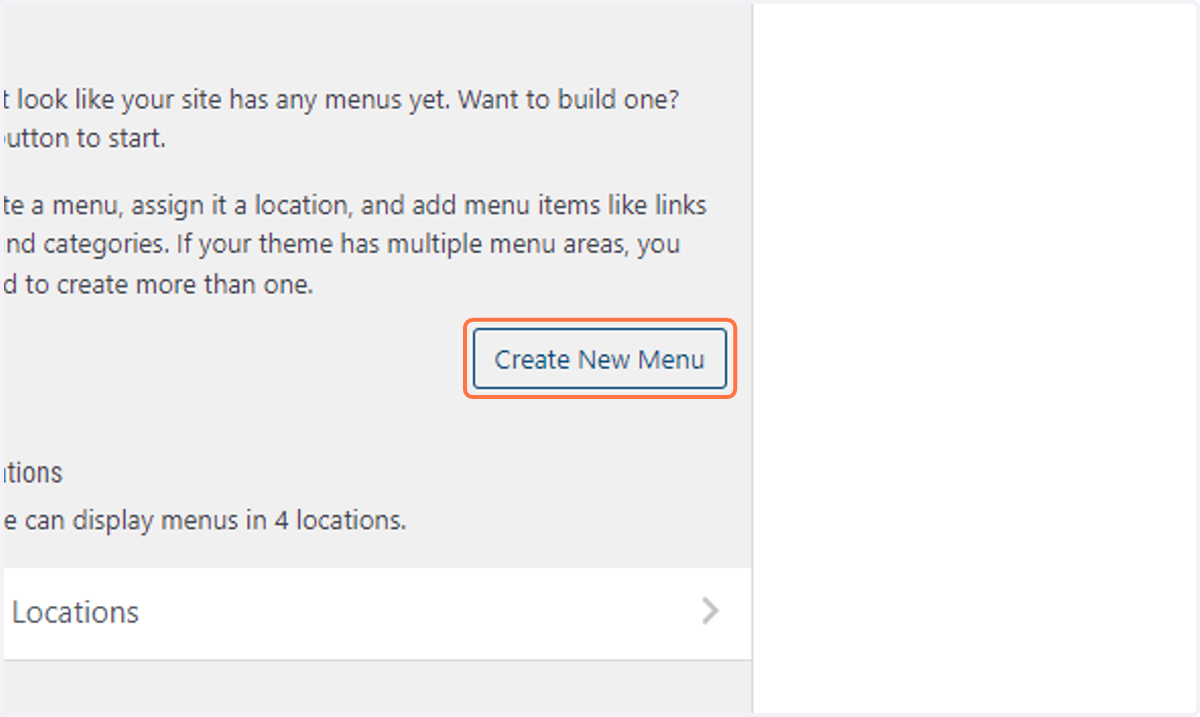
74. Click on Create New Menu
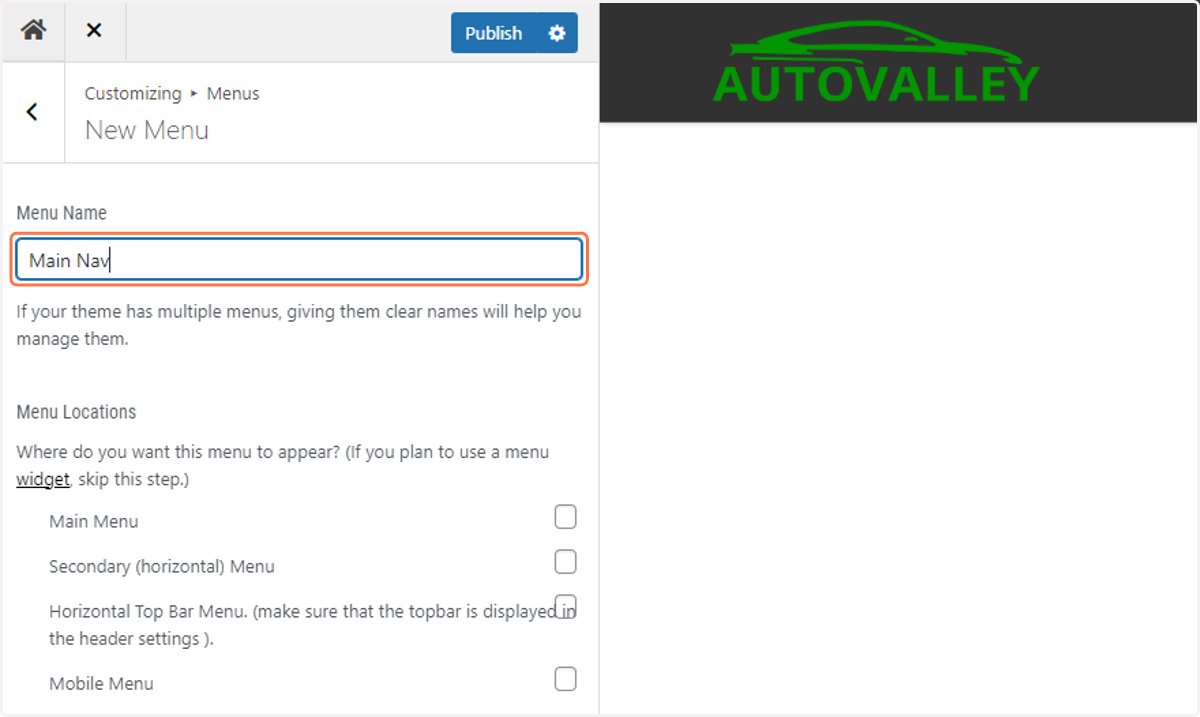
75. Name the new menu "Main Nav"
76. Toggle on Main Menu and Mobile Menu
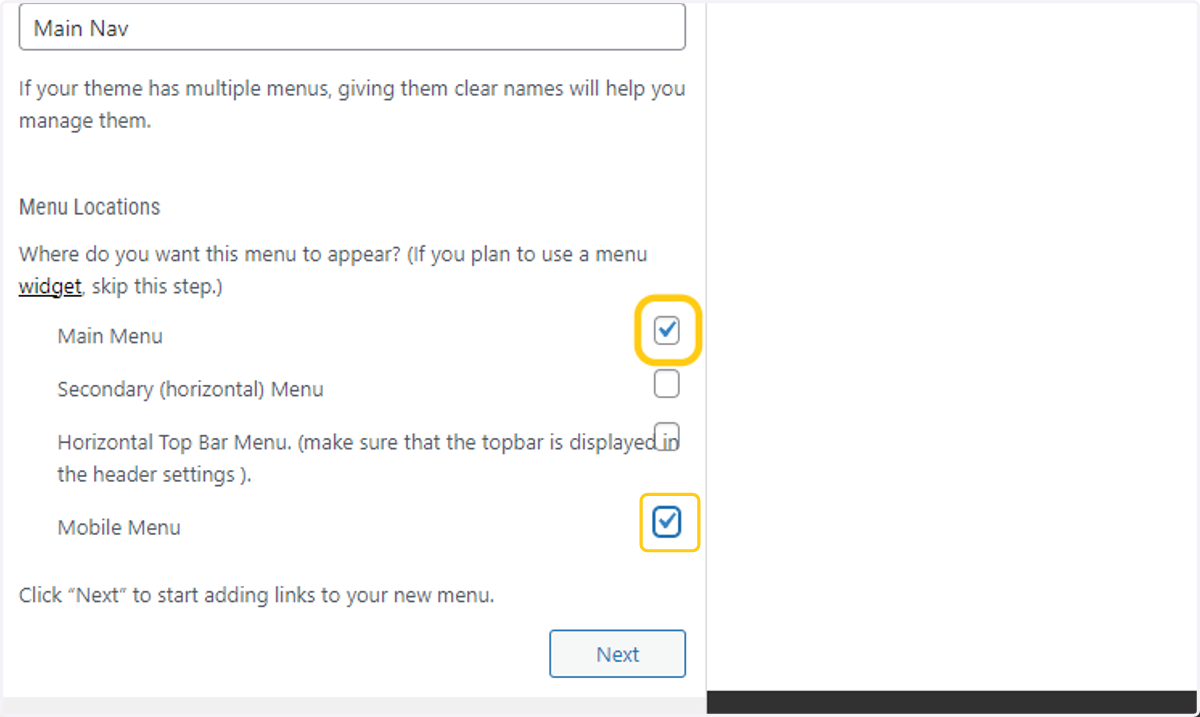
77. Click on Next
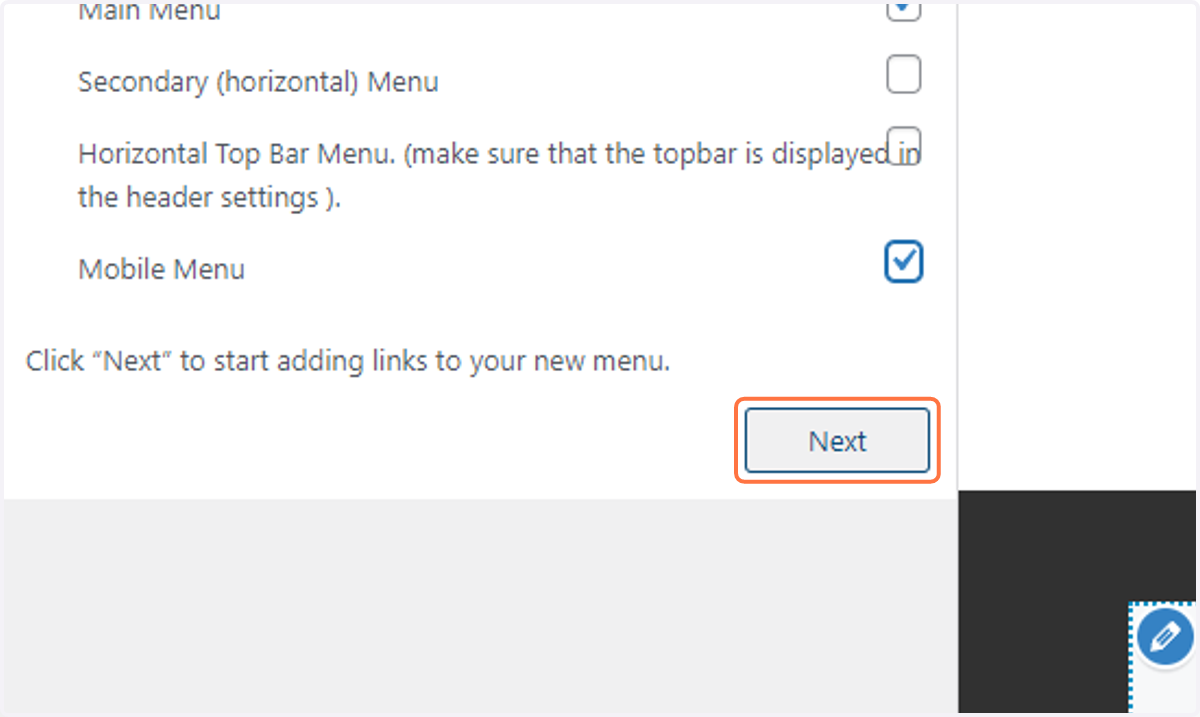
78. Click on Add Items
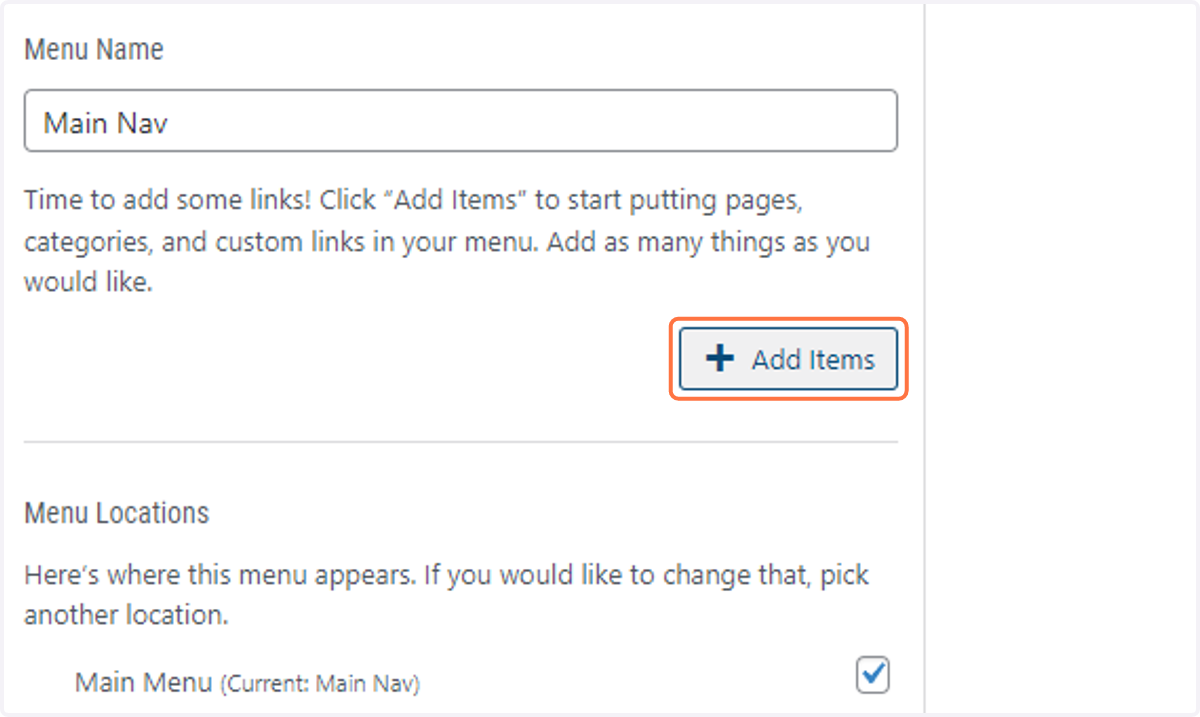
79. Click on Home to add it to the menu
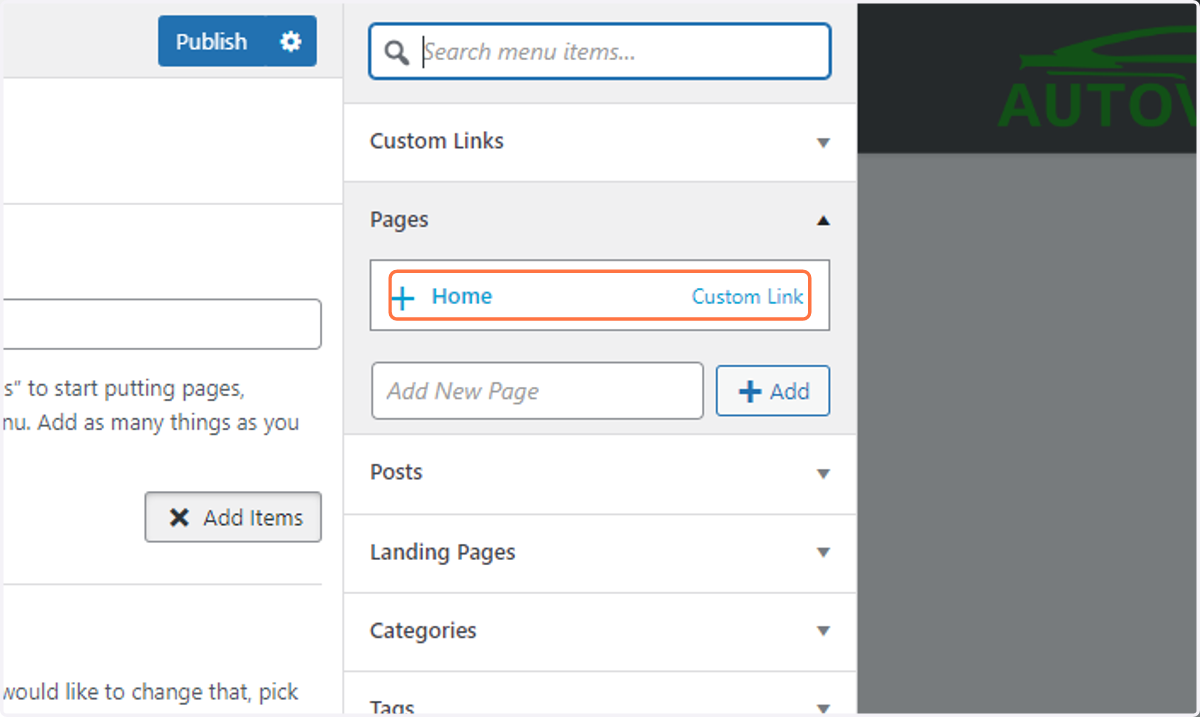
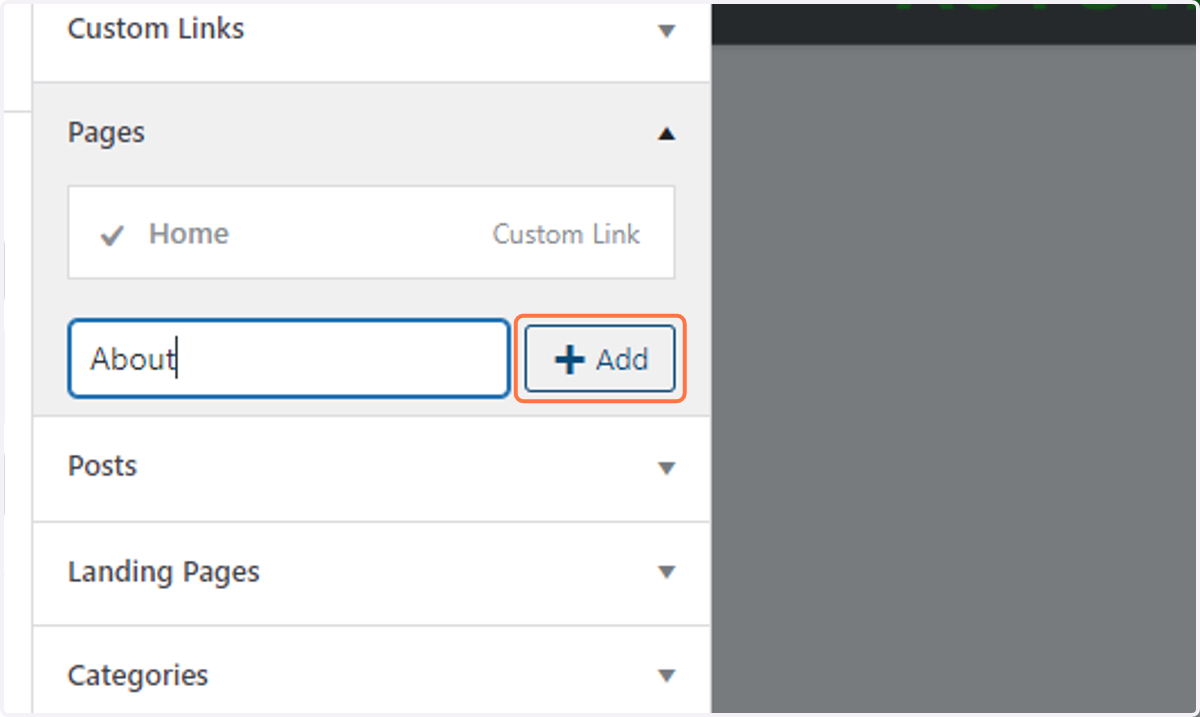
80. Type "About"
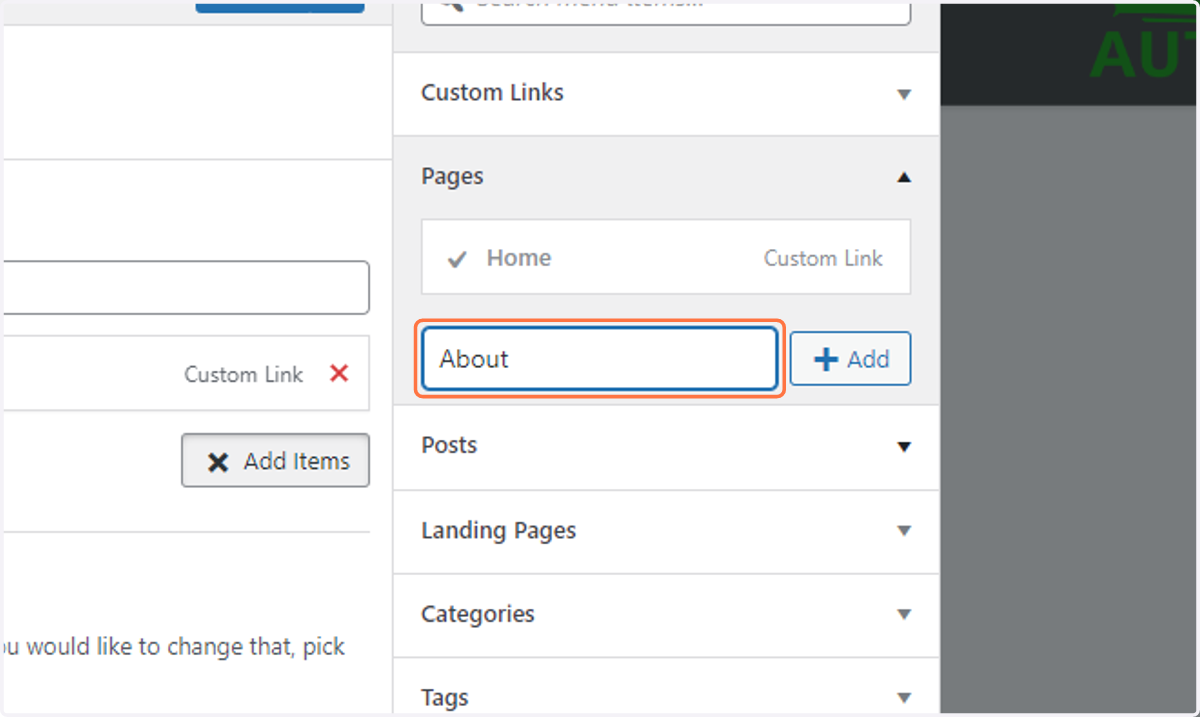
81. Click on Add
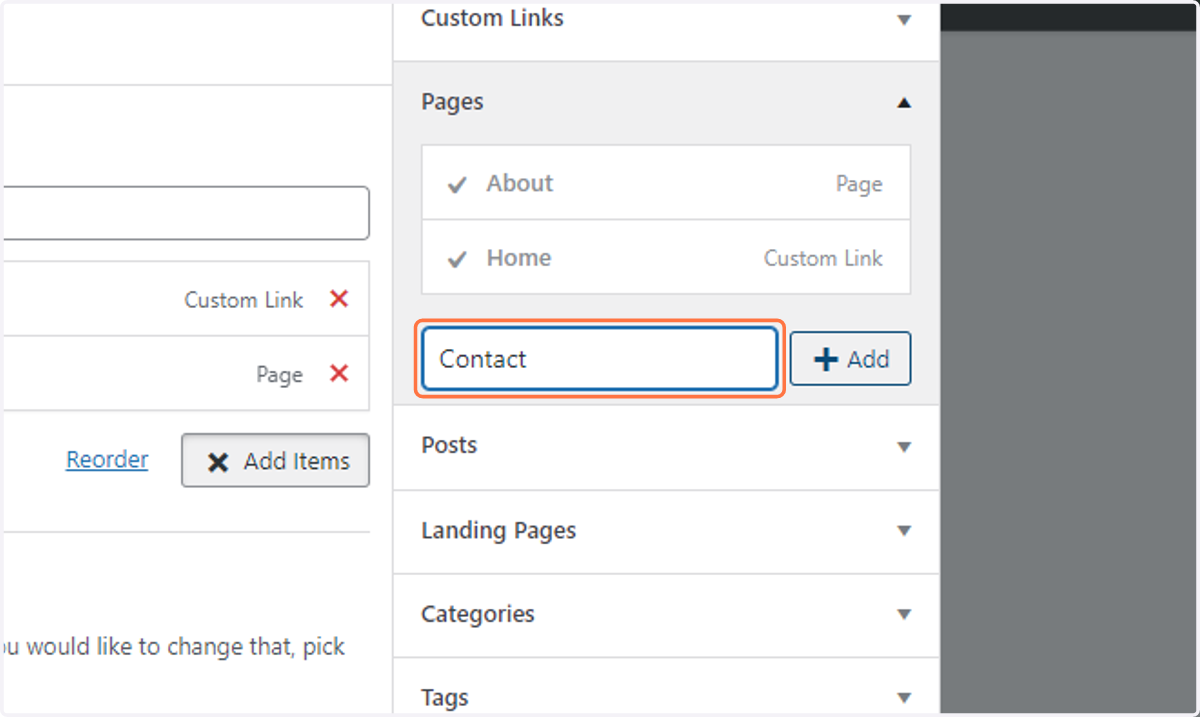
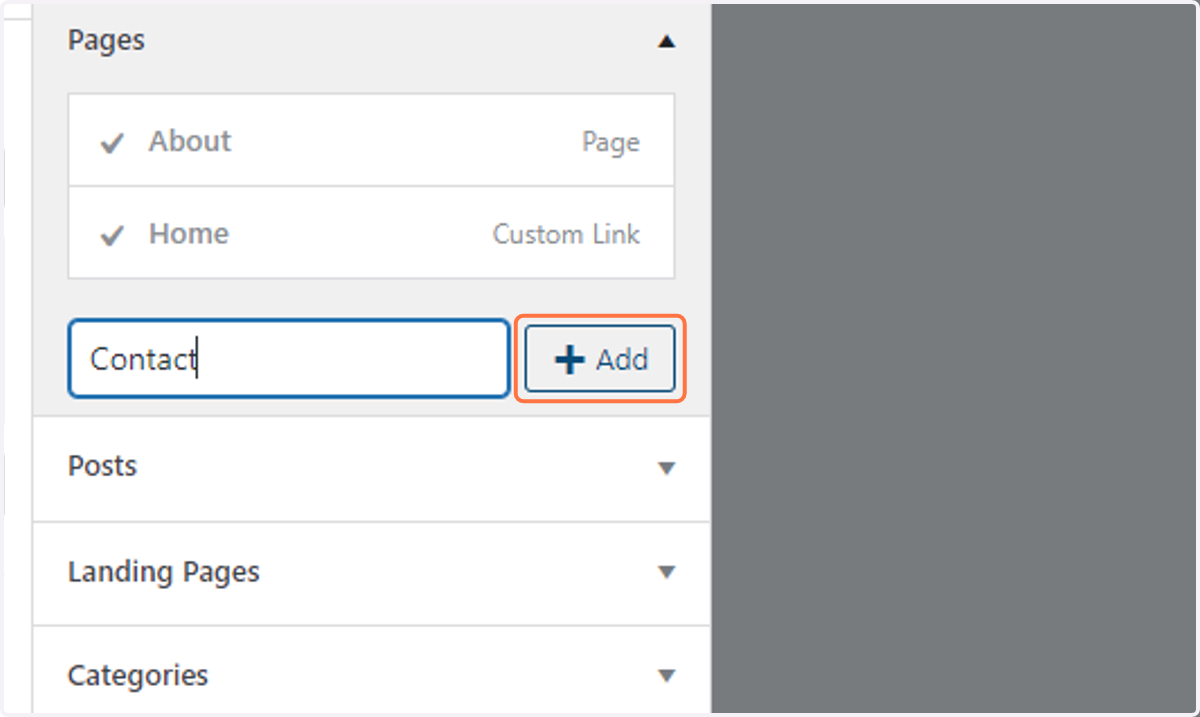
82. Type "Contact"
83. Click on Add
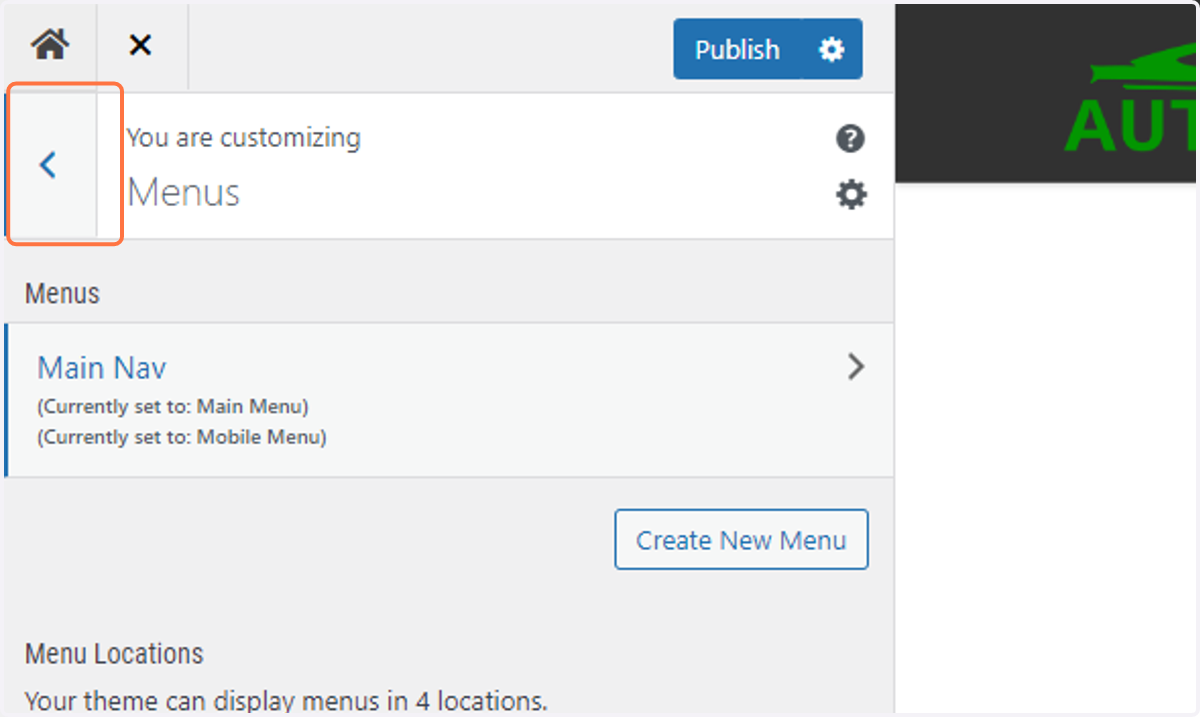
84. Return to the previous menu by clicking on the back arrow
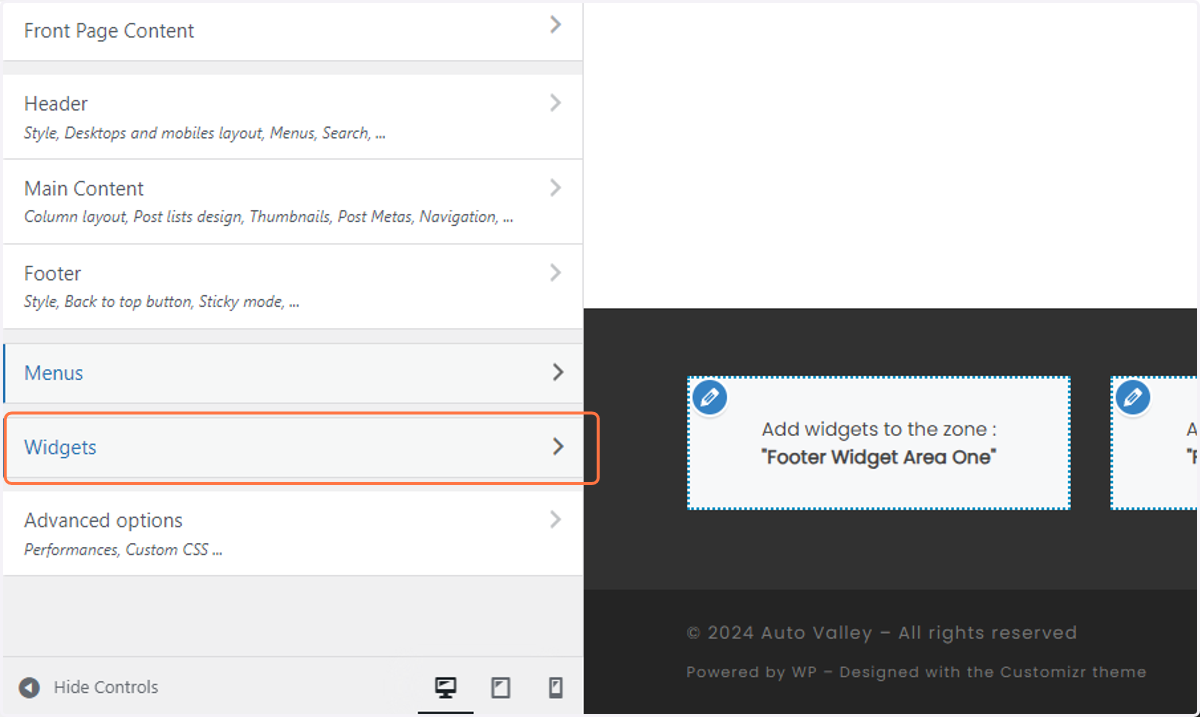
85. Click on Widgets
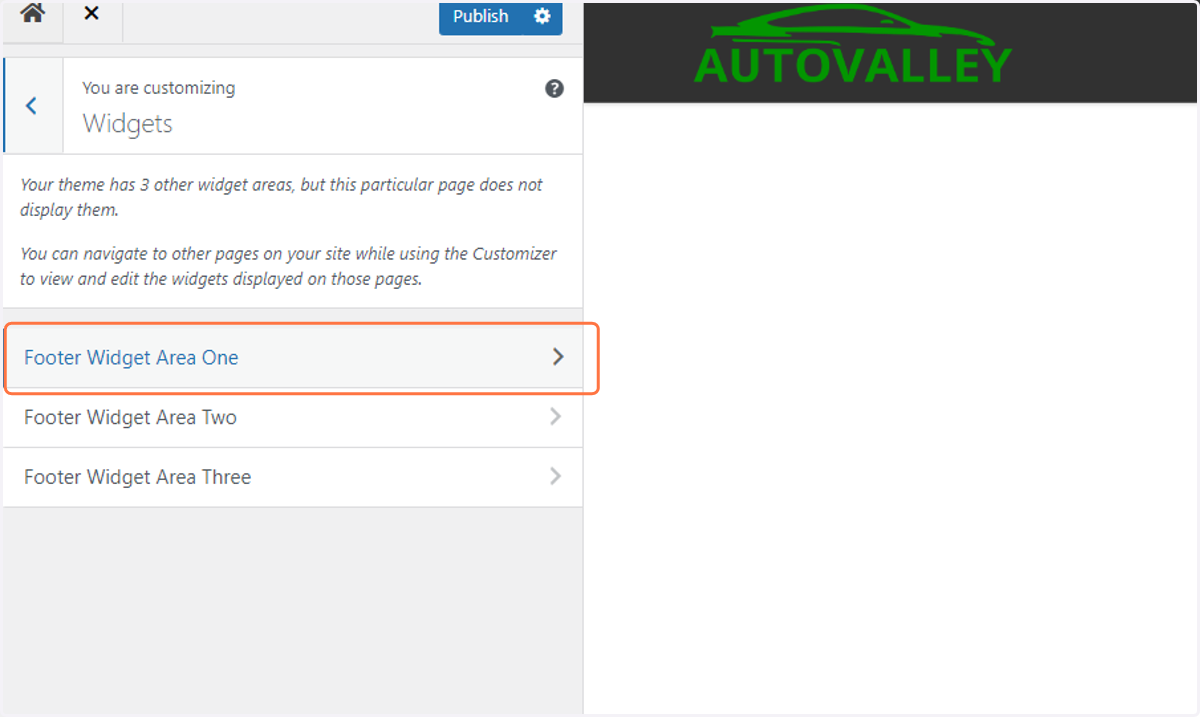
86. Click on Footer Widget Area One…
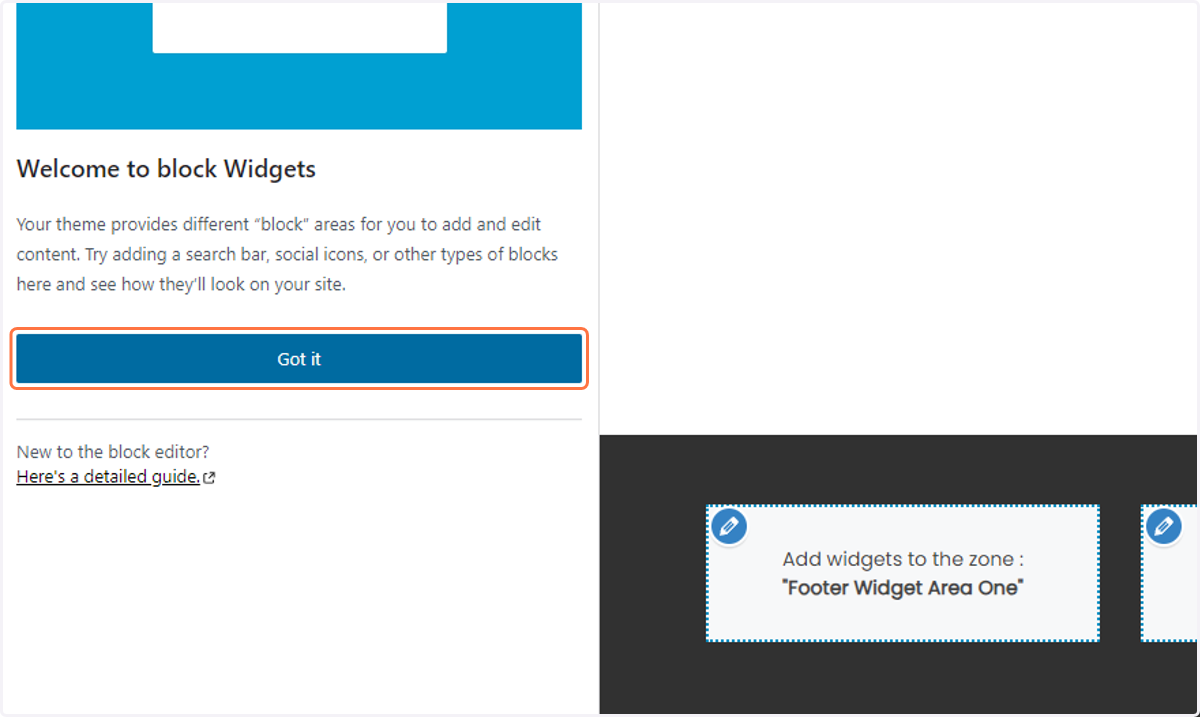
87. Dismiss the welcome dialogue by clicking on the Got it button
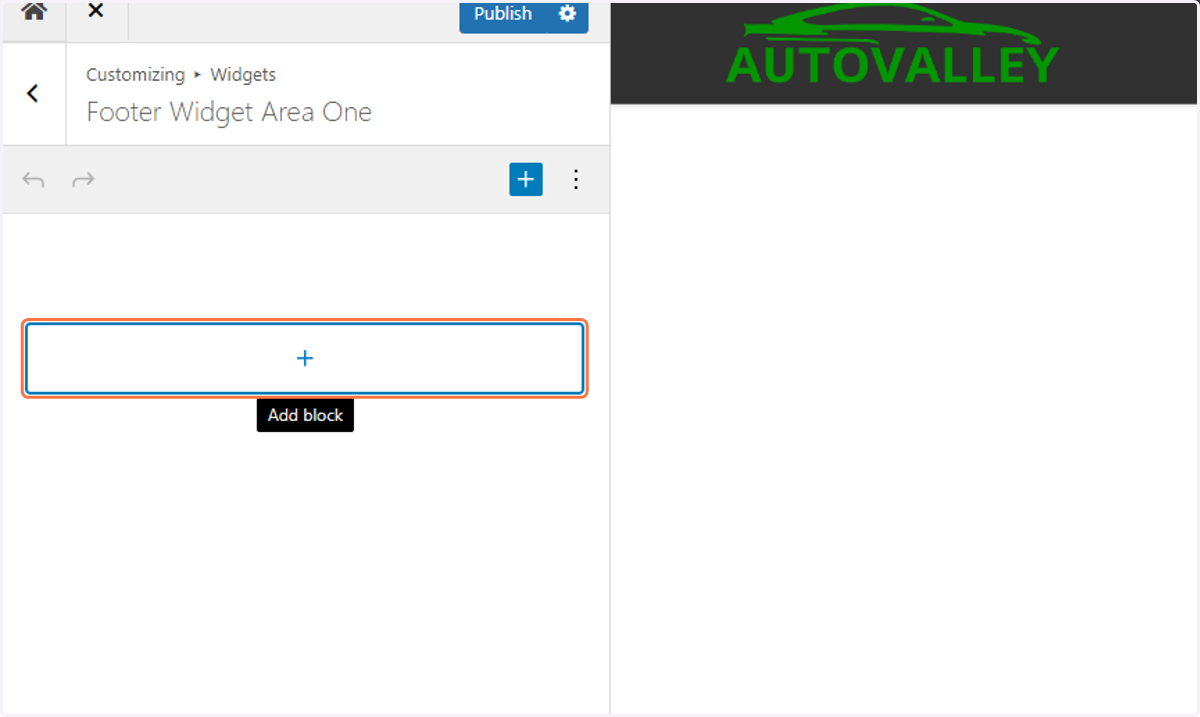
88. Click on the plus symbol to Add a new block
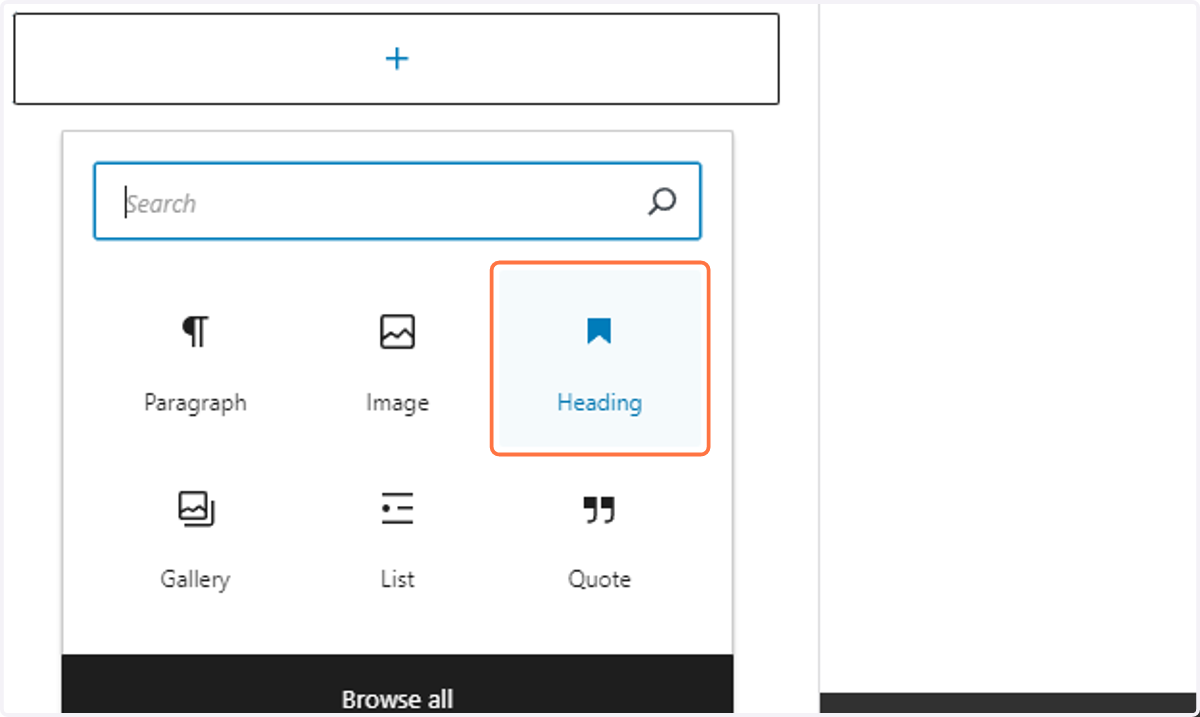
89. Select Heading from the options
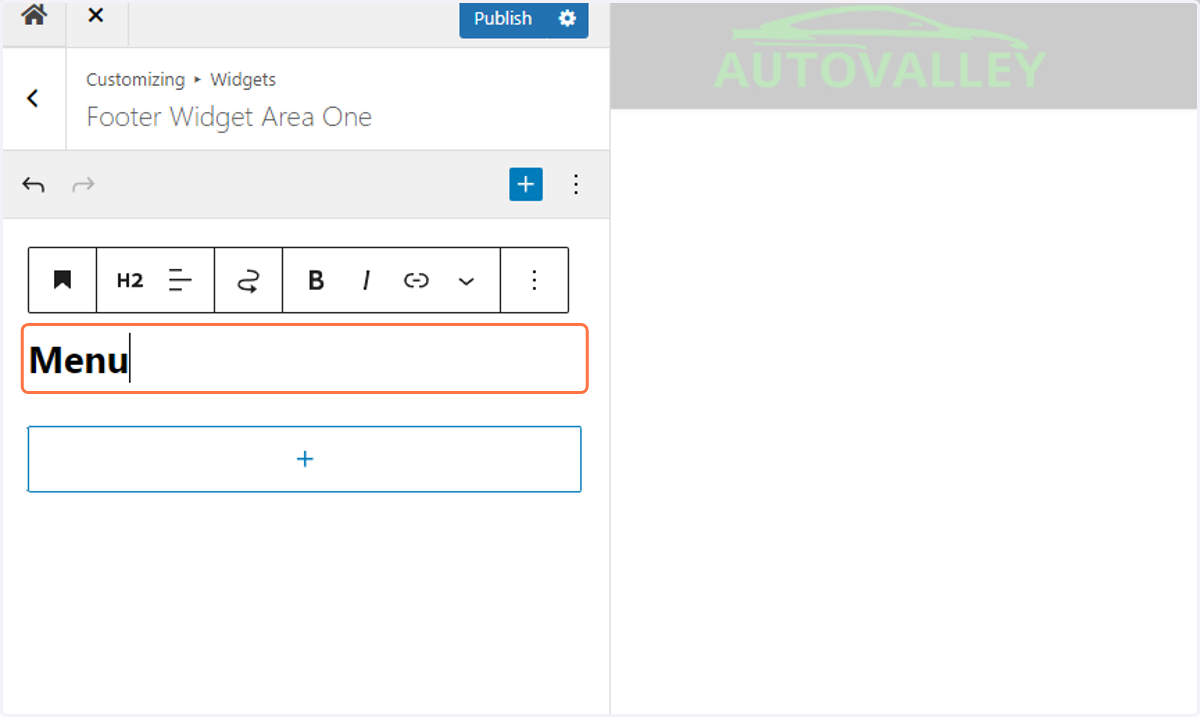
90. Type Menu in the corresponding input
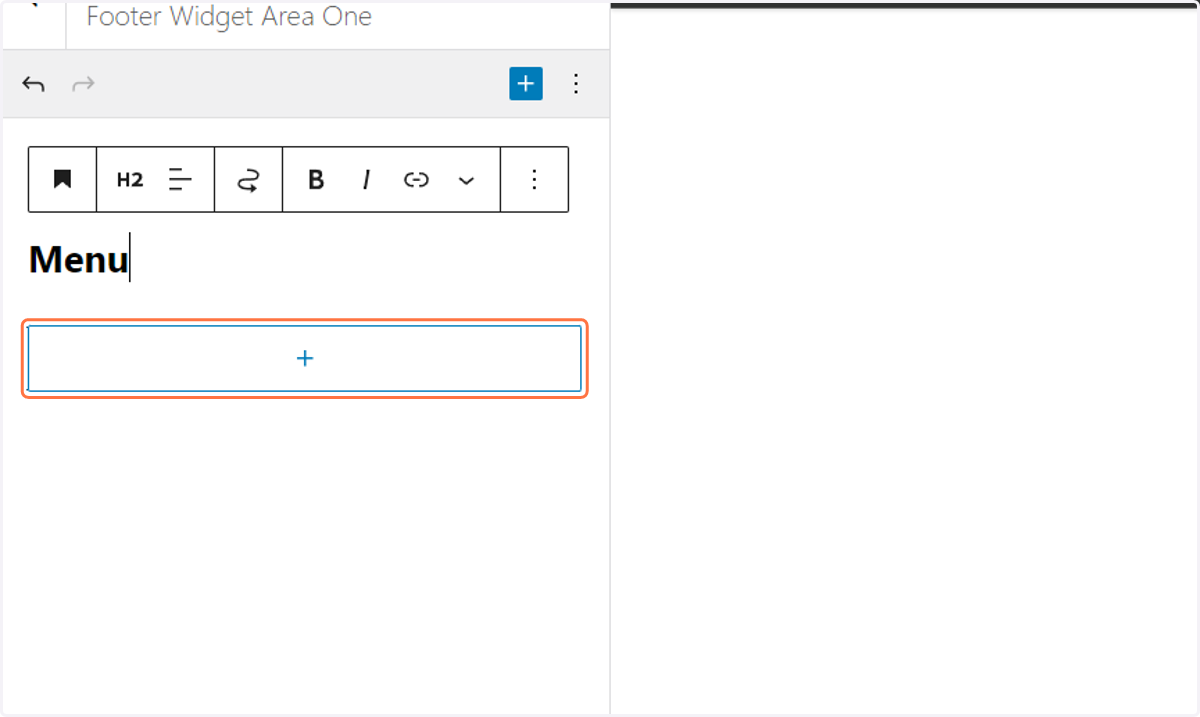
91. Click on the plus symbol to Add a new block
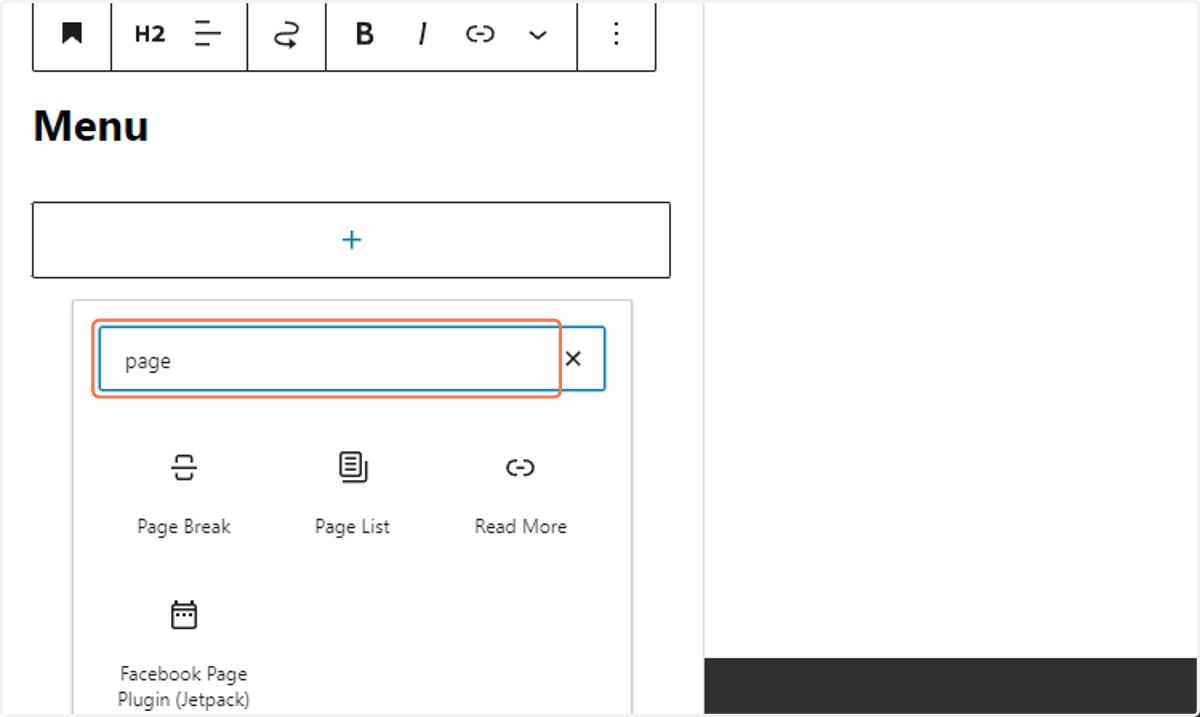
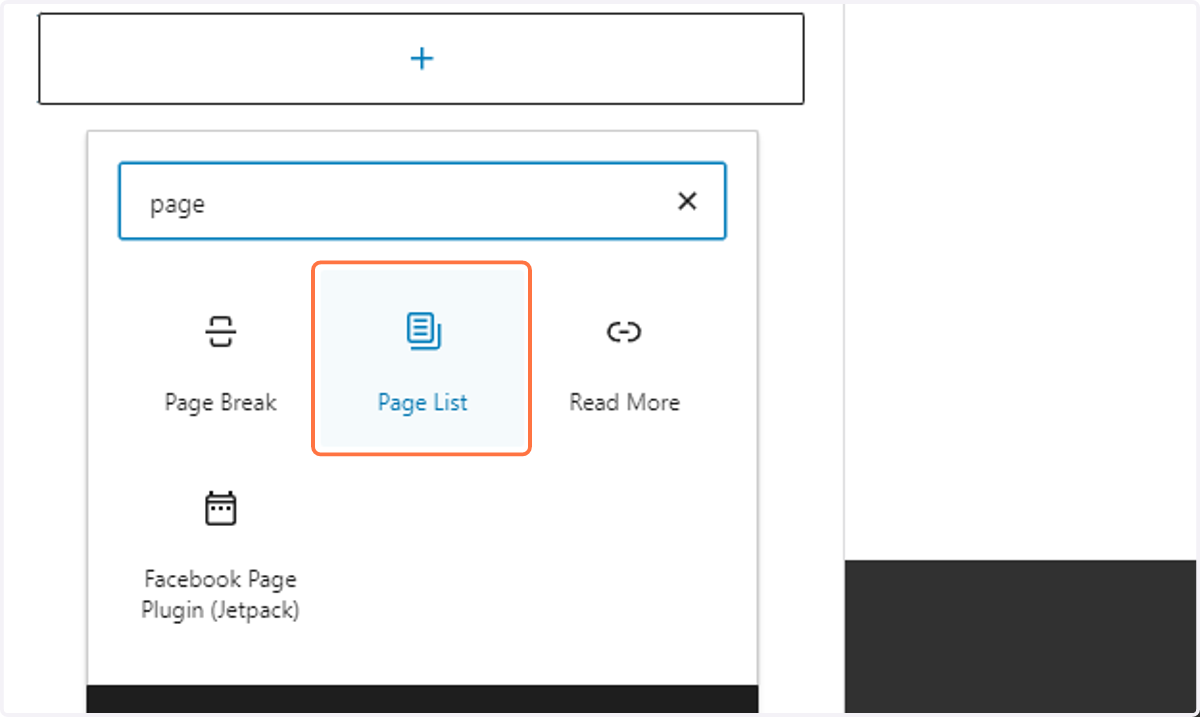
92. Search for Page List
93. Click on Page List to add it to the widget area
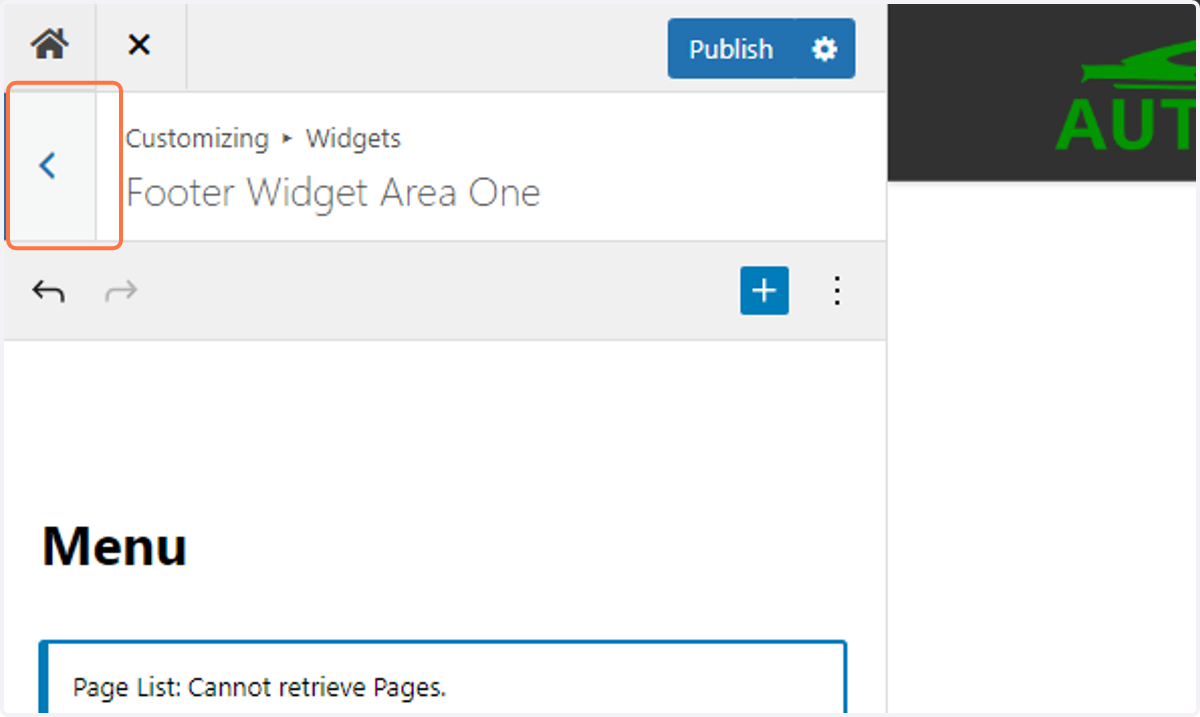
94. Return to the previous menu by clicking on the back arrow
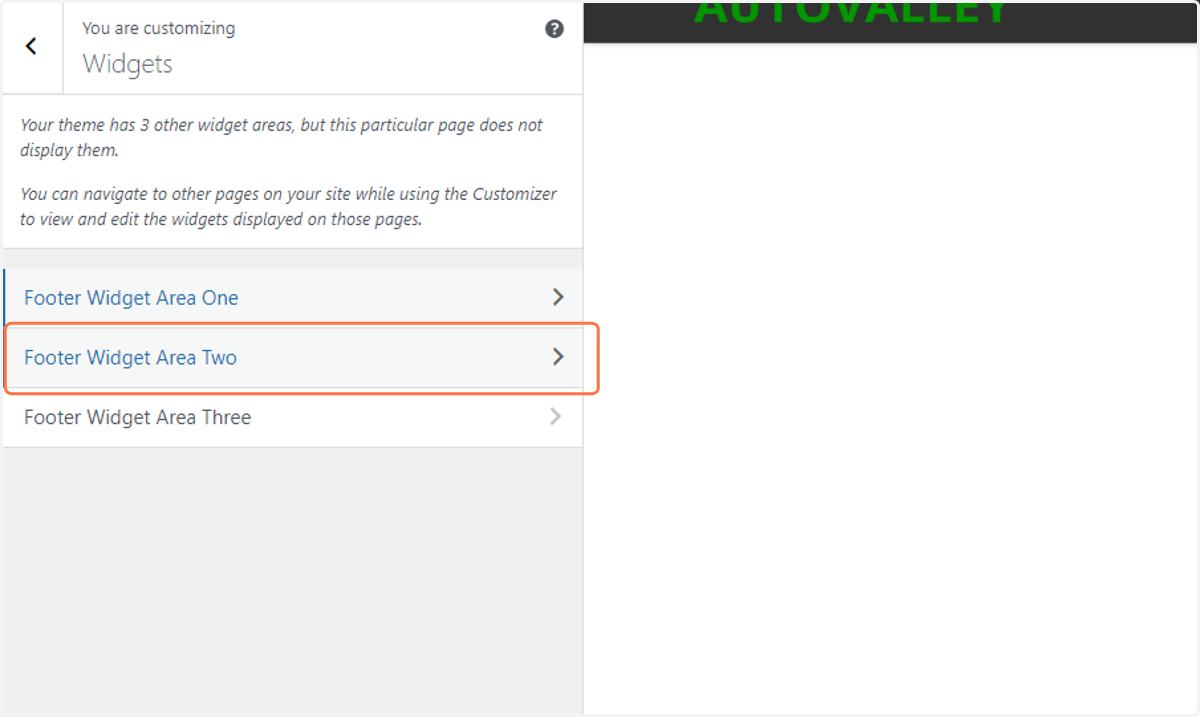
95. Click on Footer Widget Area Two
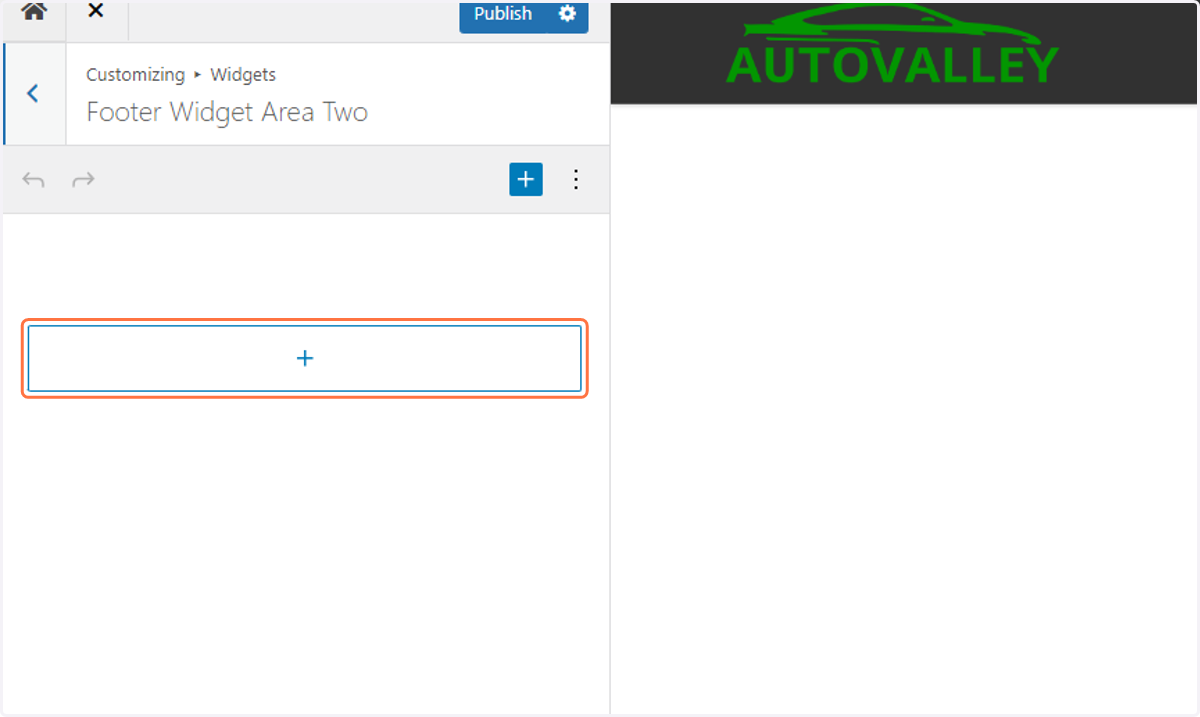
96. Click on the plus symbol to Add a new block
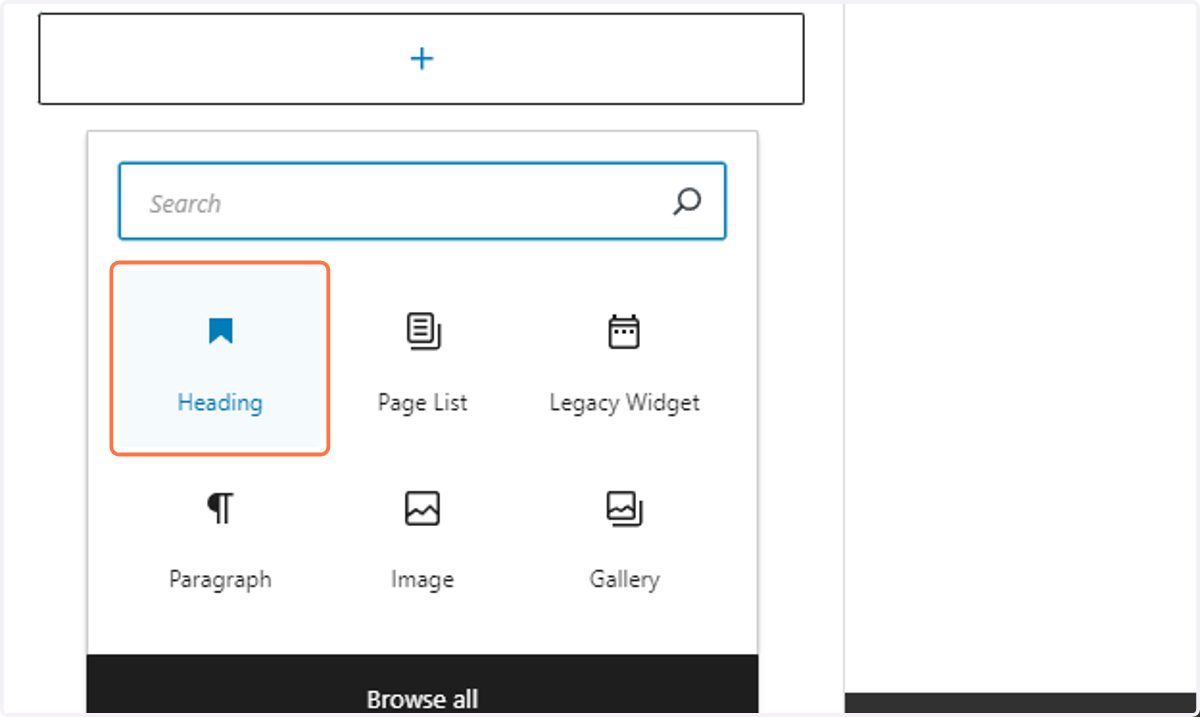
97. Select Heading
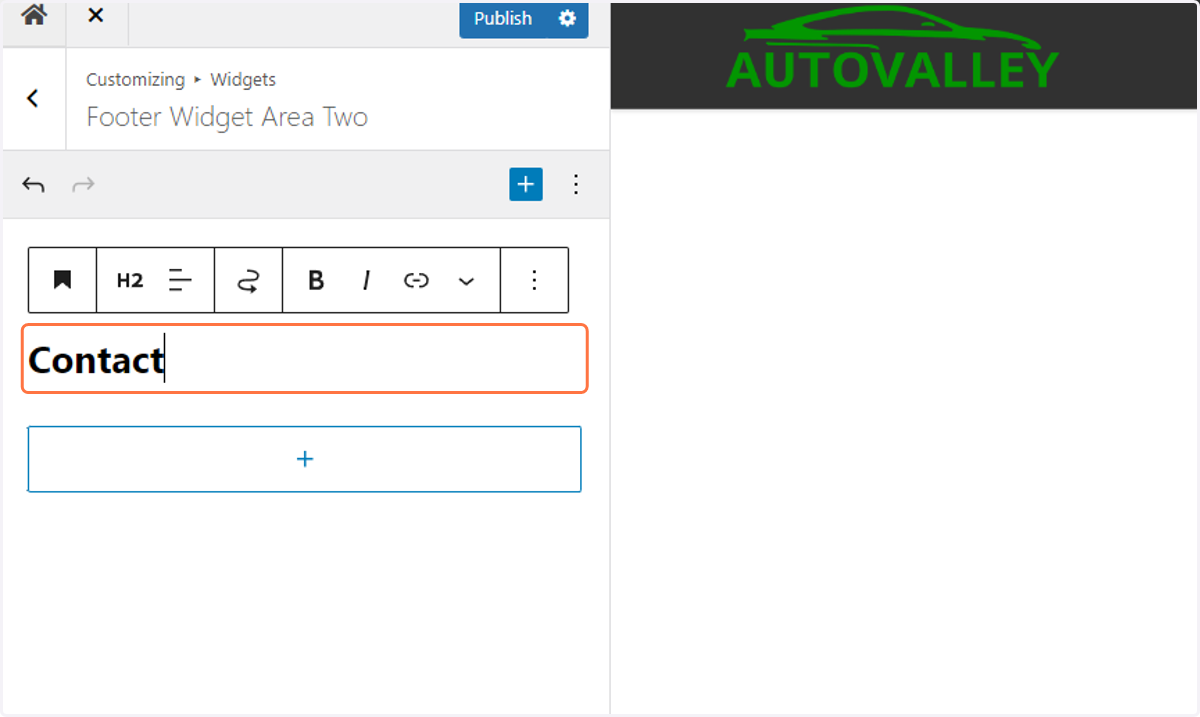
98. Type Contact into the corresponding input
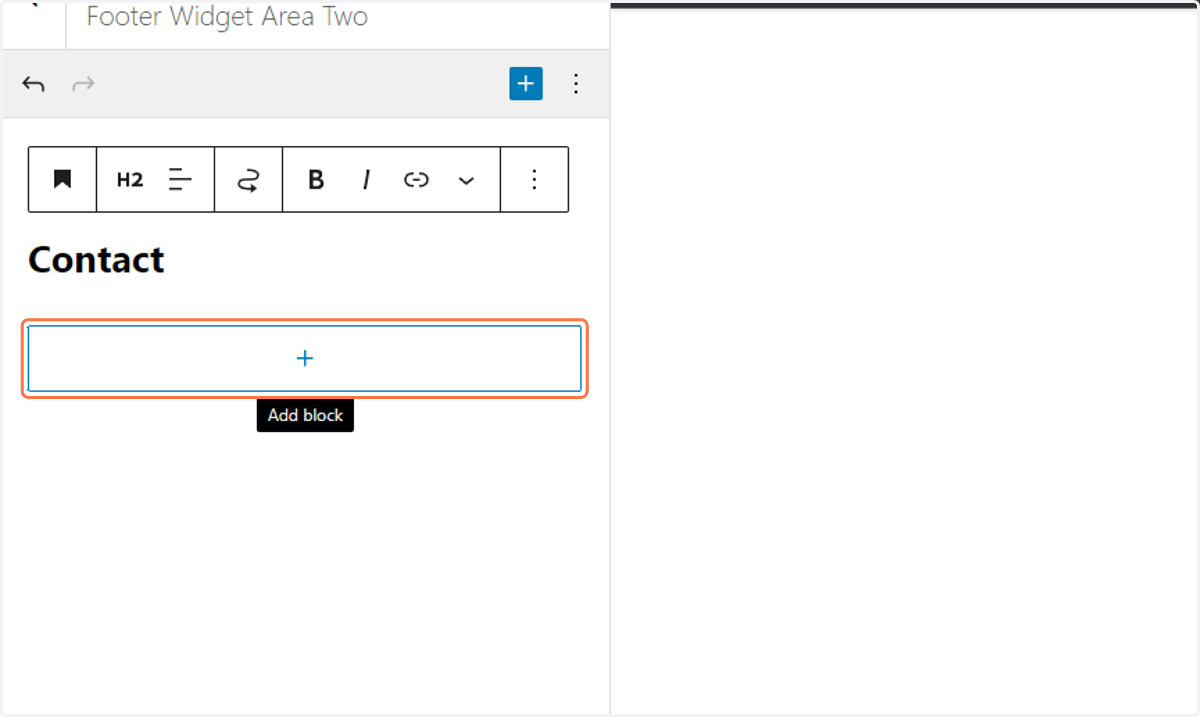
99. Click on the plus symbol to Add a new block
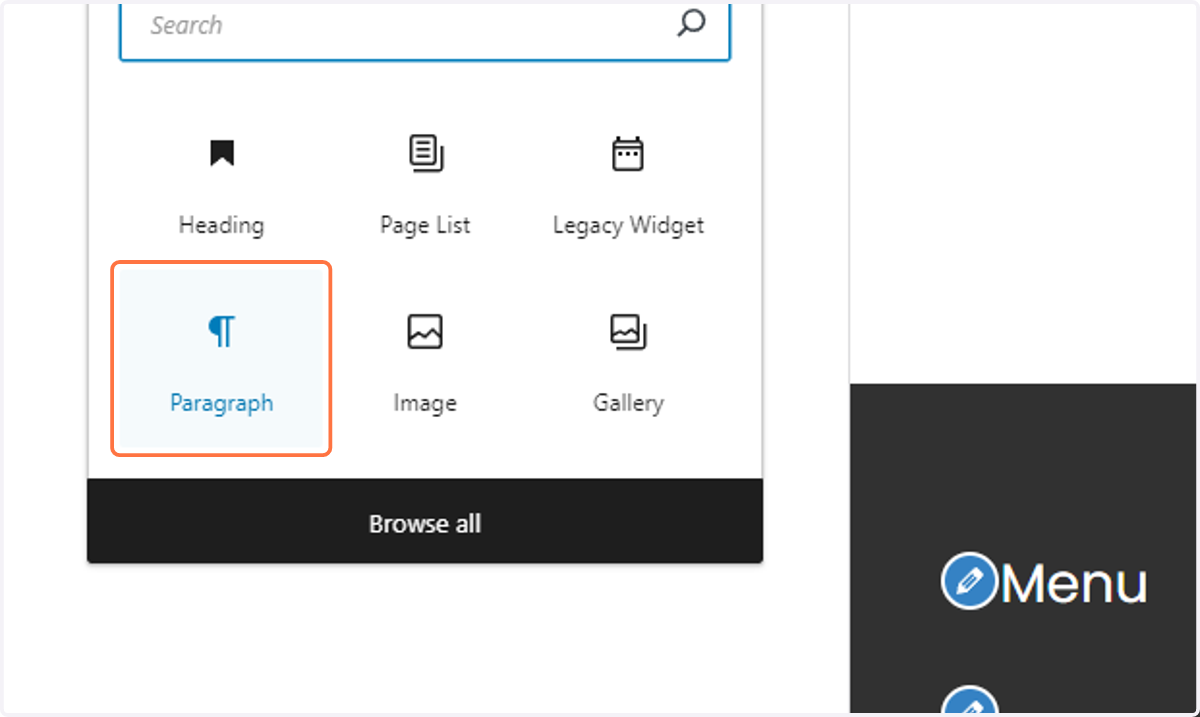
100. Select Paragraph
101. Copy the phone number and business address
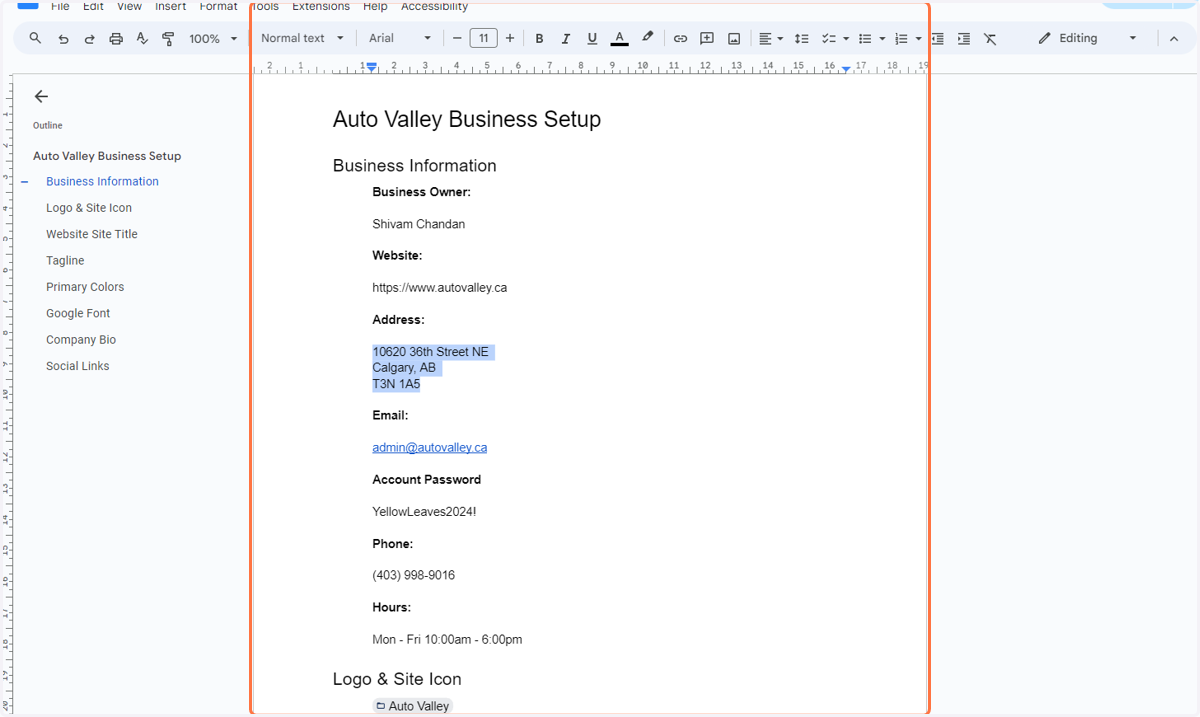
102. Paste the business contact info into the corresponding input ensuring single spacing by using [Shift+Enter] for each new line
![Paste the business contact info into the corresponding input ensuring single spacing by using [Shift+Enter] for each new line](https://images.tango.us/workflows/9b50a312-9271-456f-943a-f3bc9e01ac6a/steps/f241a719-a928-4df0-b192-d17e581d3d64/fa9a4b77-16d5-46ce-8bc0-55a74ecedab8.png?fp-x=0.1439&fp-y=0.3666&fp-z=1.7640&w=1200&border=F4F2F7&bx=16&by=314&bw=407&bh=40&c=FF7442&dpr=1.00)
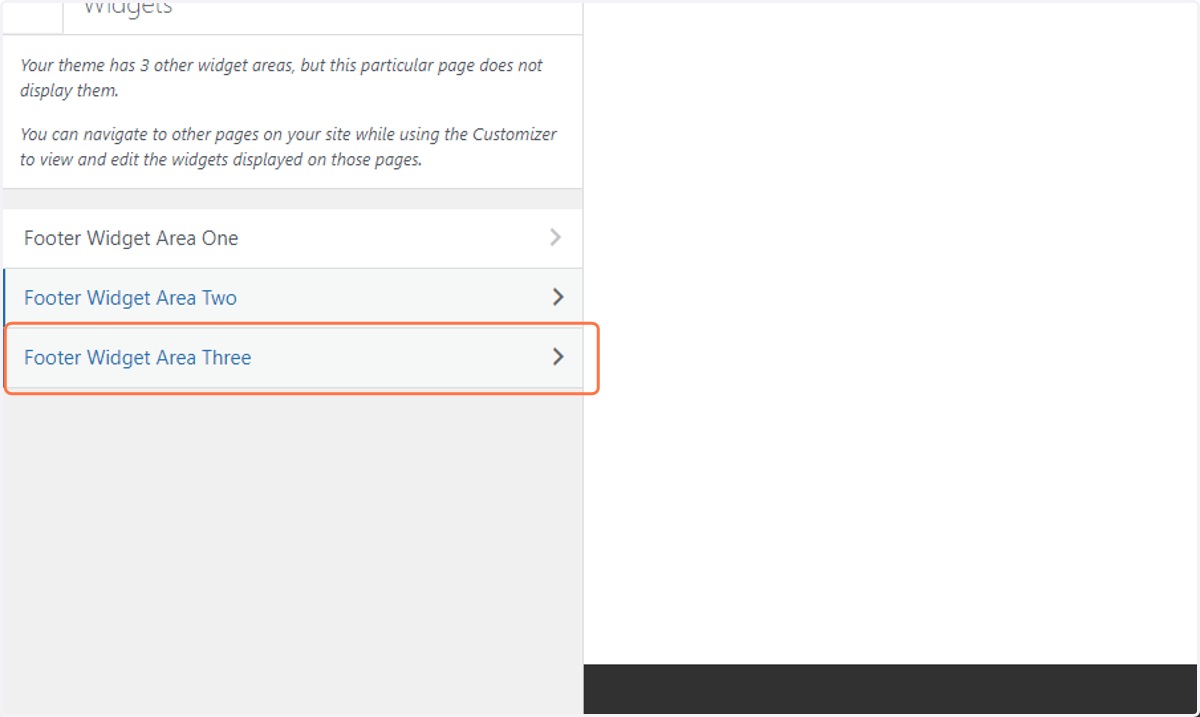
103. Return to the previous menu by clicking on the back arrow
104. Click on Footer Widget Area Three
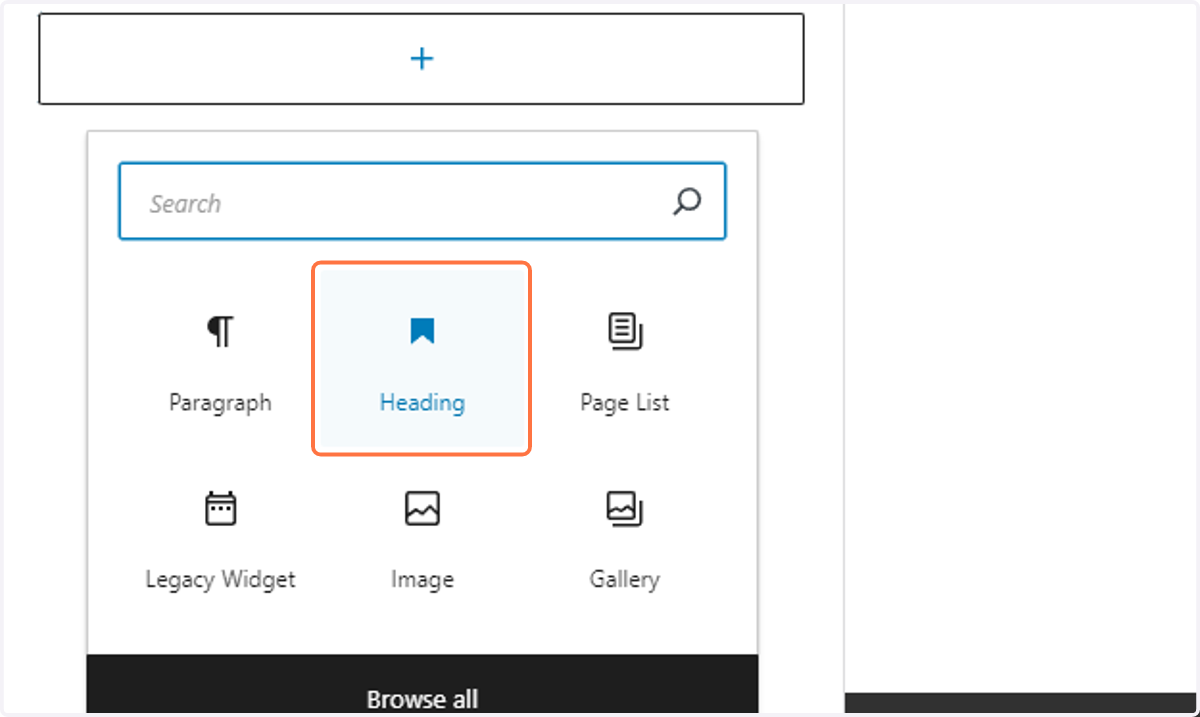
105. Click on the plus symbol to Add a new block
106. Select Heading
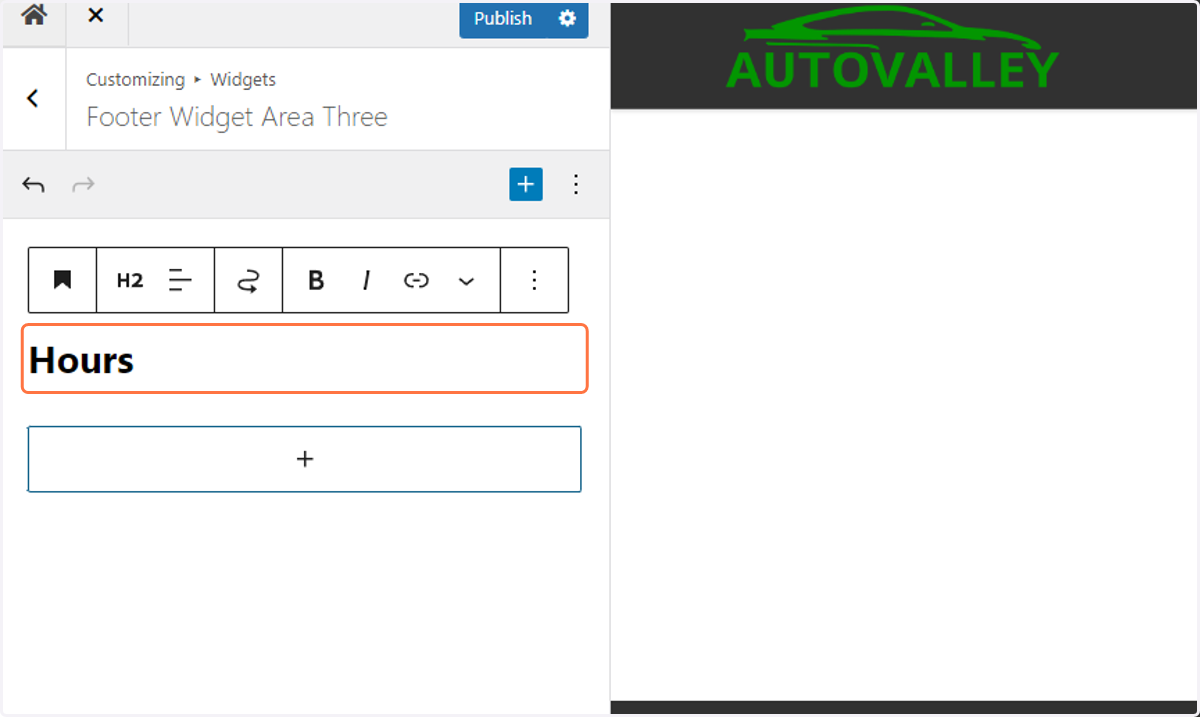
107. Type Hours into the corresponding input
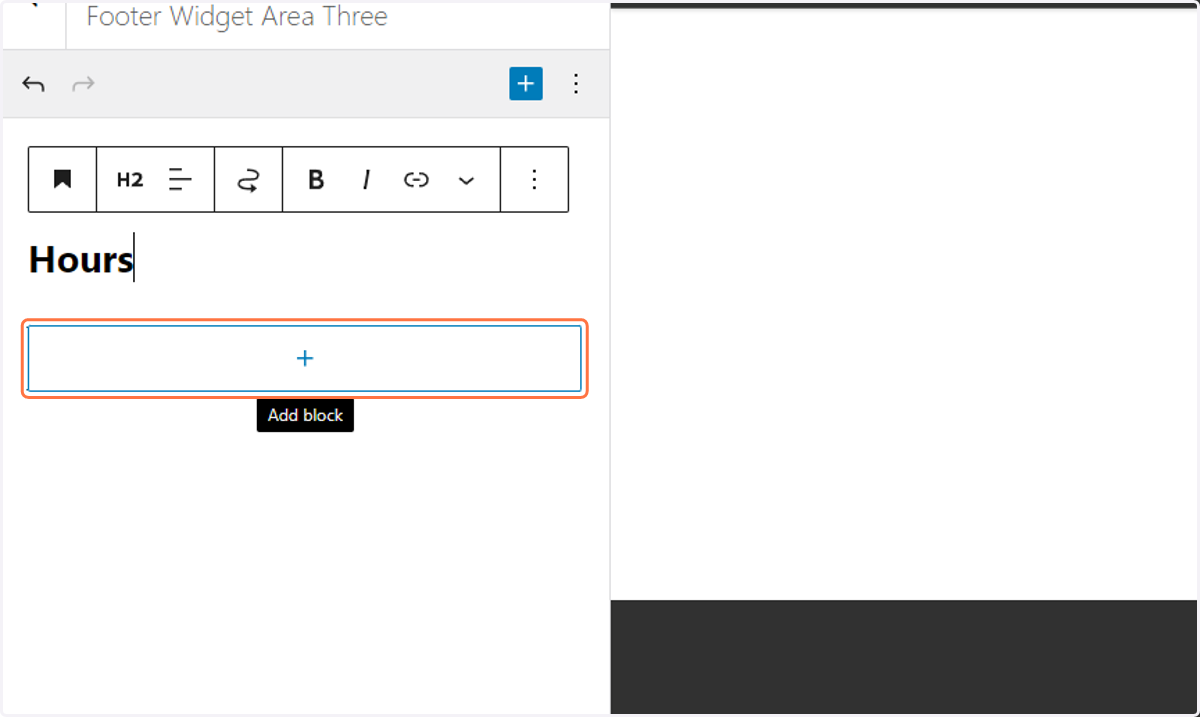
108. Click on the plus symbol to Add a new block
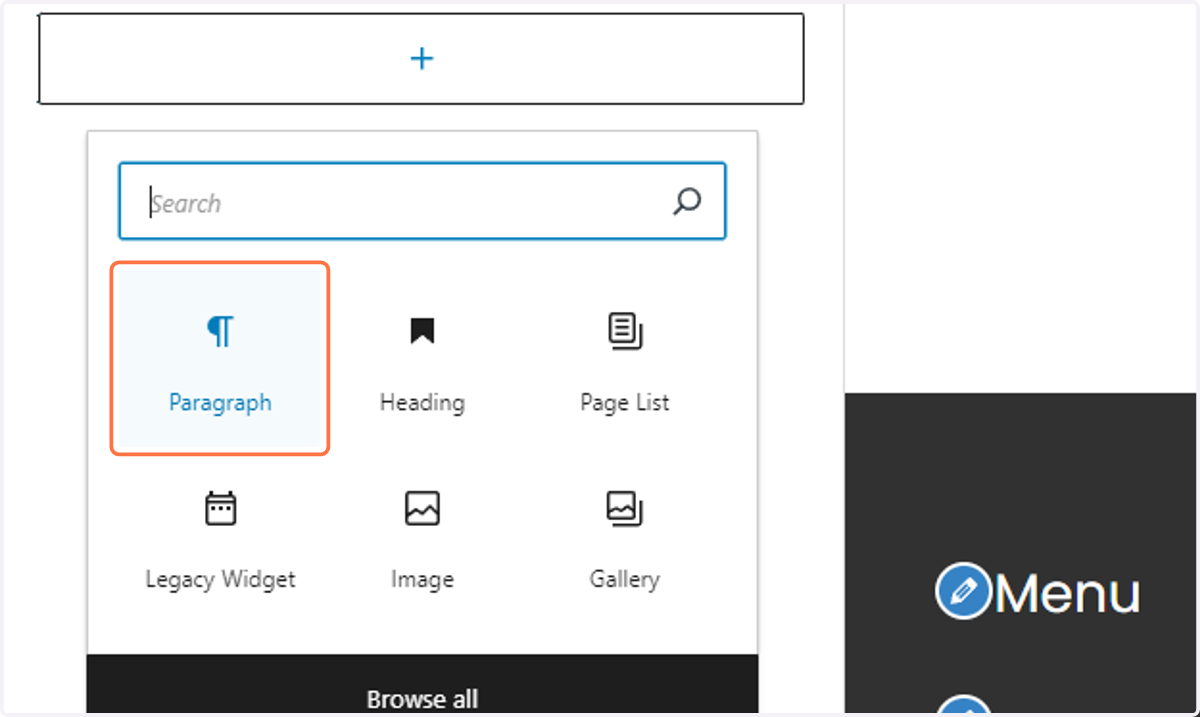
109. Select Paragraph
110. Paste the business hours into the corresponding input ensuring single spacing by using [Shift+Enter] for each new line
![Paste the business hours into the corresponding input ensuring single spacing by using [Shift+Enter] for each new line](https://images.tango.us/workflows/9b50a312-9271-456f-943a-f3bc9e01ac6a/steps/a3069f63-c0f1-44b5-b788-efb9b6a915c3/7358792a-e998-4d6f-a5af-b09a90fbb792.png?w=1200&border=F4F2F7&dpr=1.00)
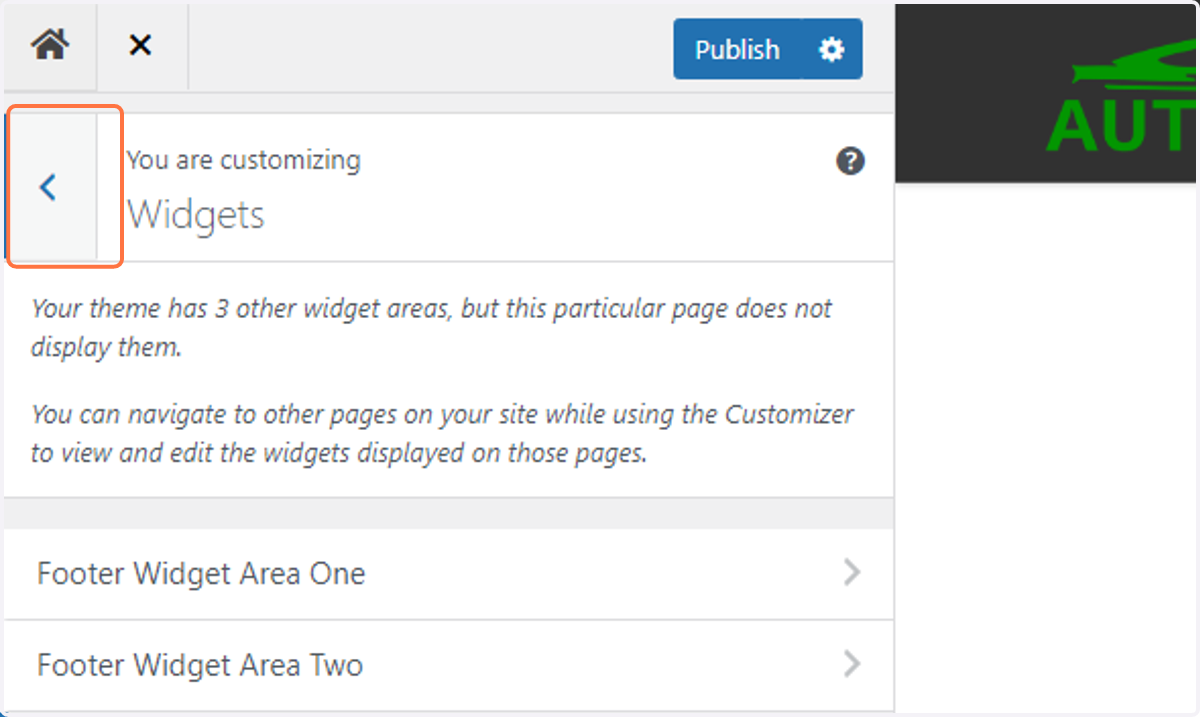
111. Return to the previous menu by clicking on the back arrow
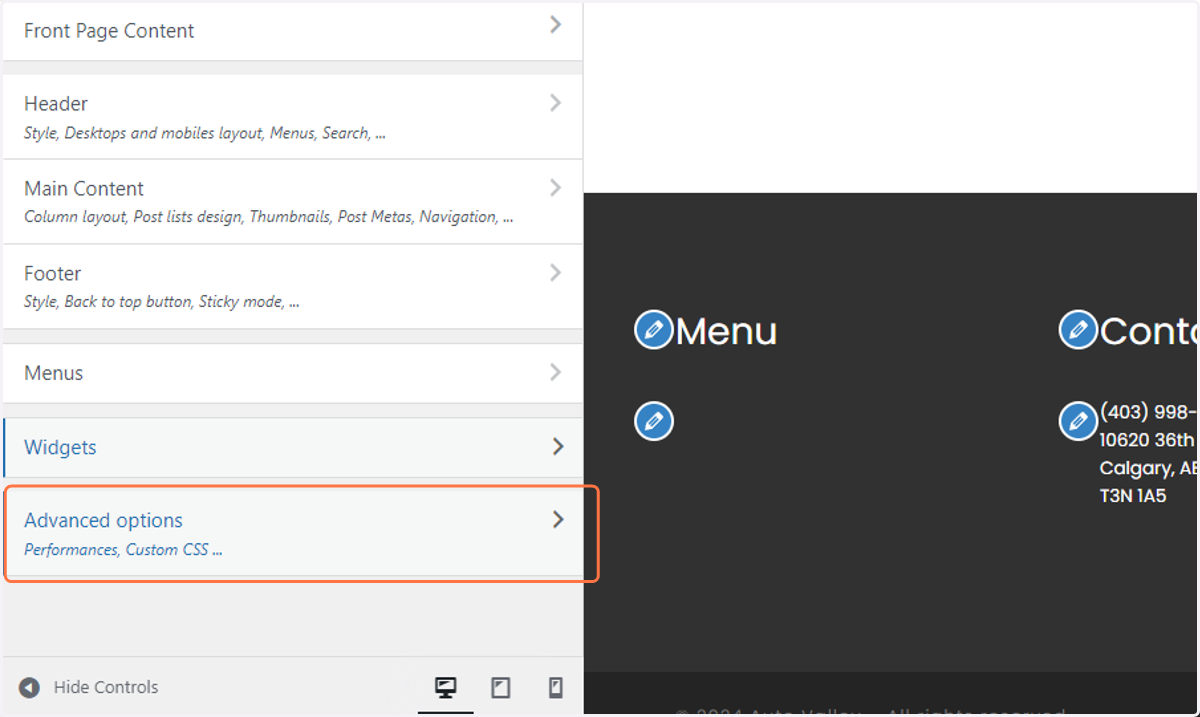
112. Click on Advanced options
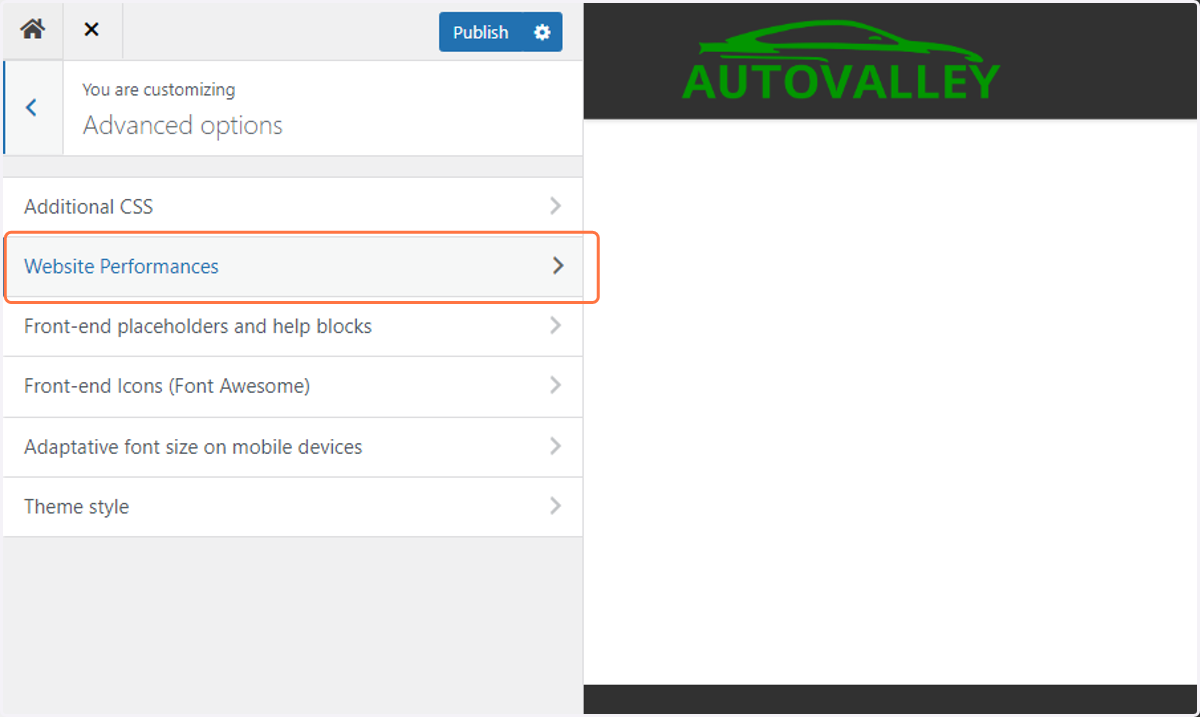
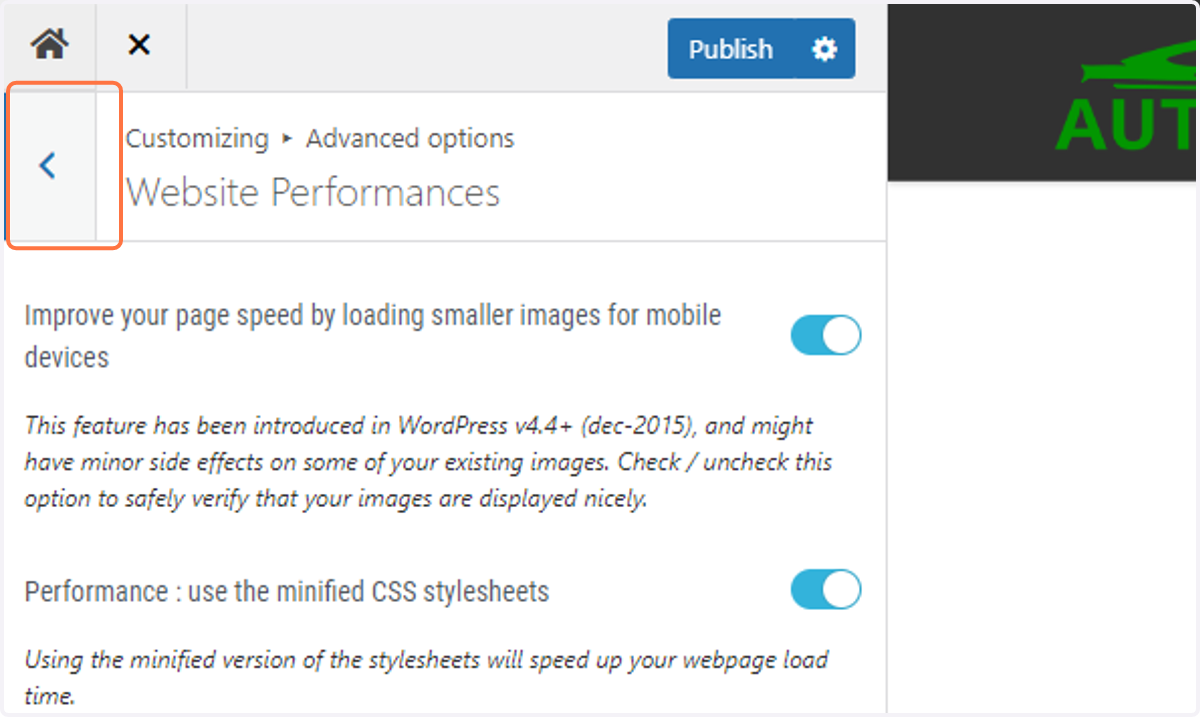
113. Click on Website Performances
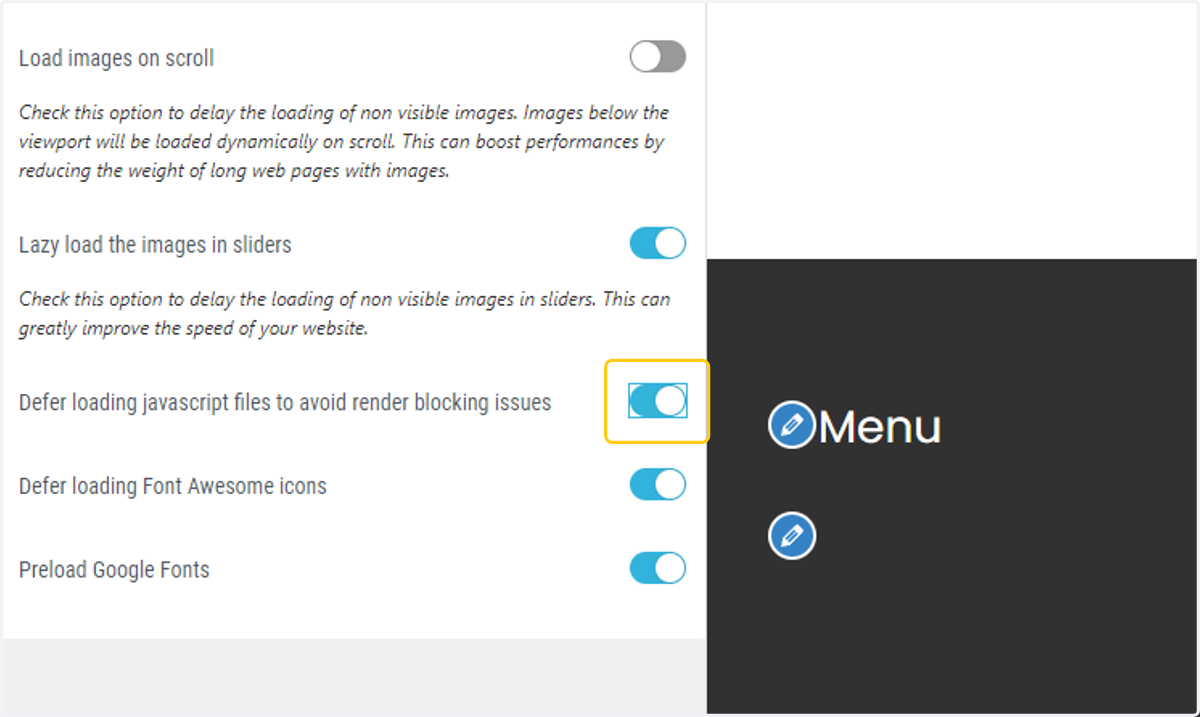
114. Toggle on the Defer loading javascript option
115. Return to the previous menu by clicking on the back arrow
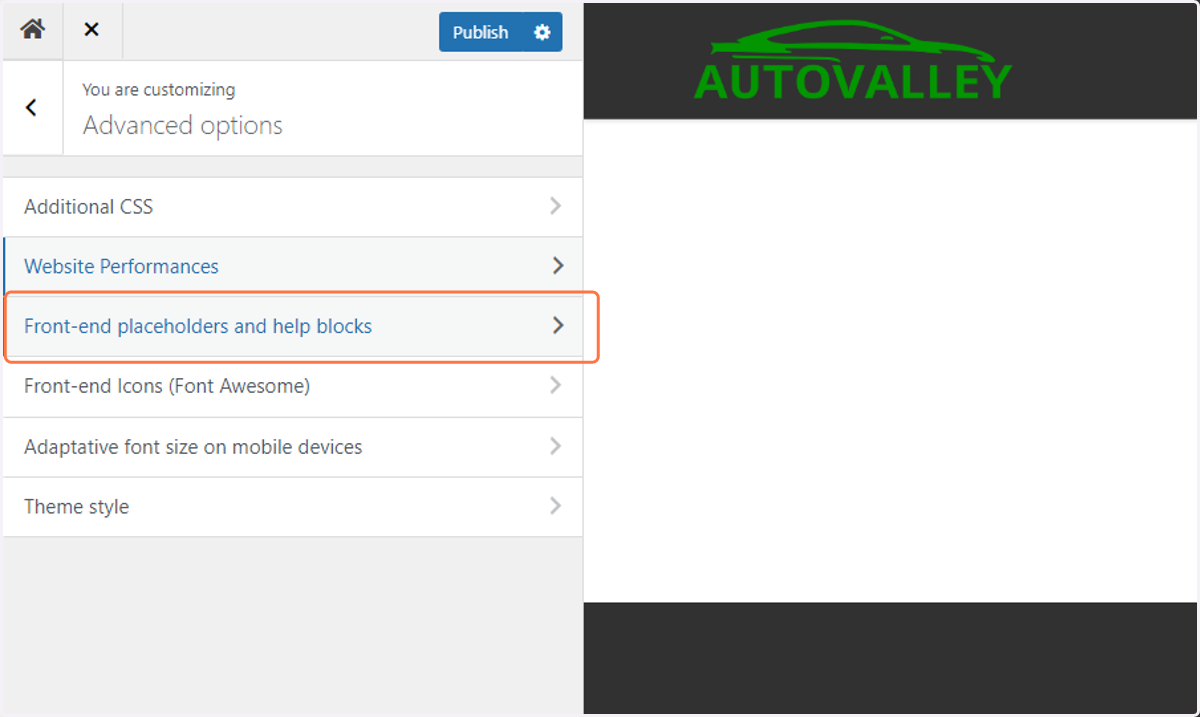
116. Click on Front-end placeholders and help blocks
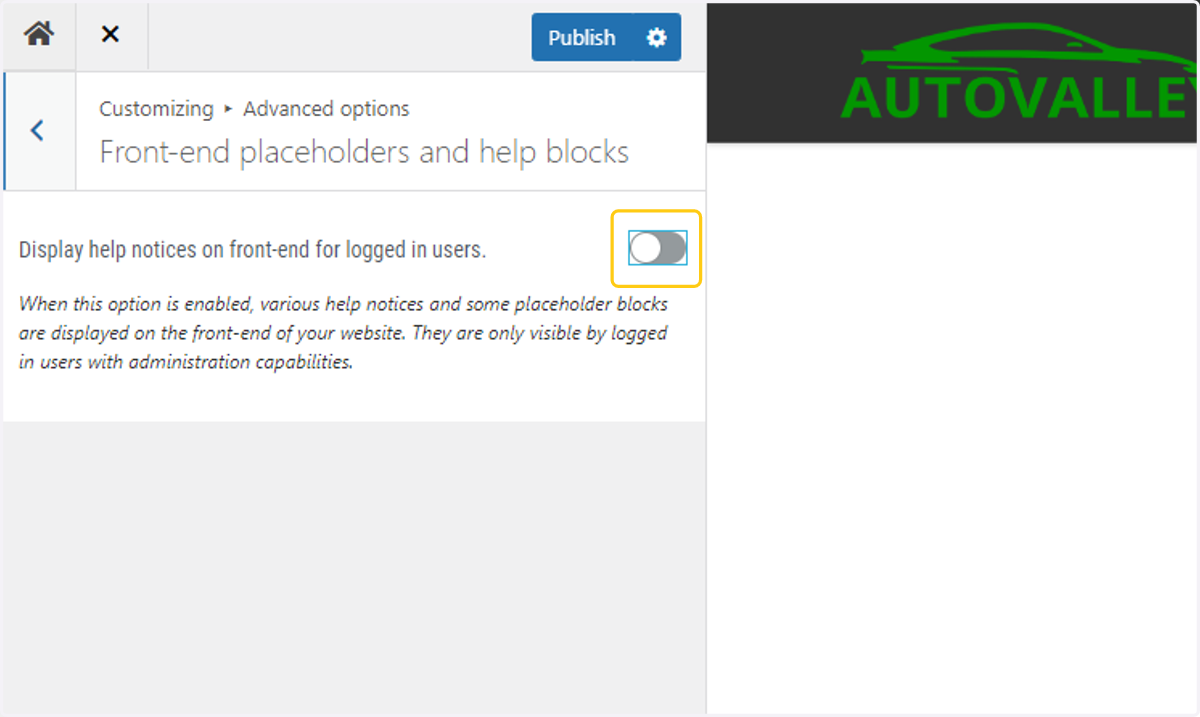
117. Toggle off the Help Notices option
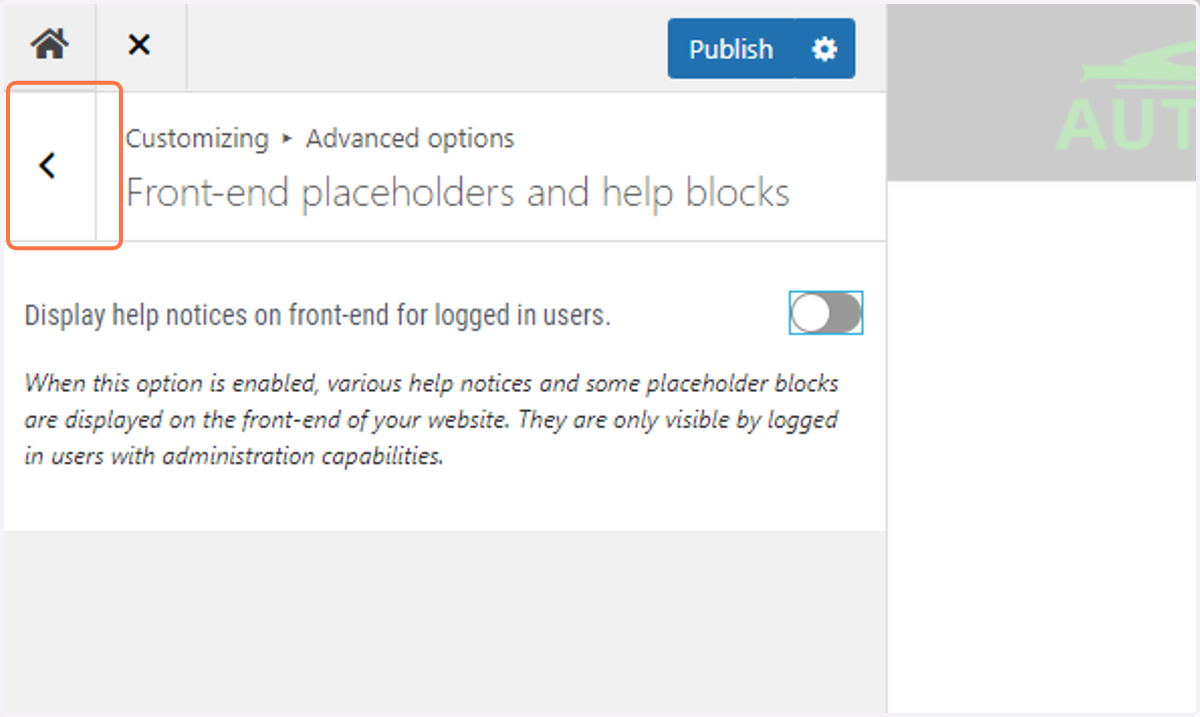
118. Return to the previous menu by clicking on the back arrow
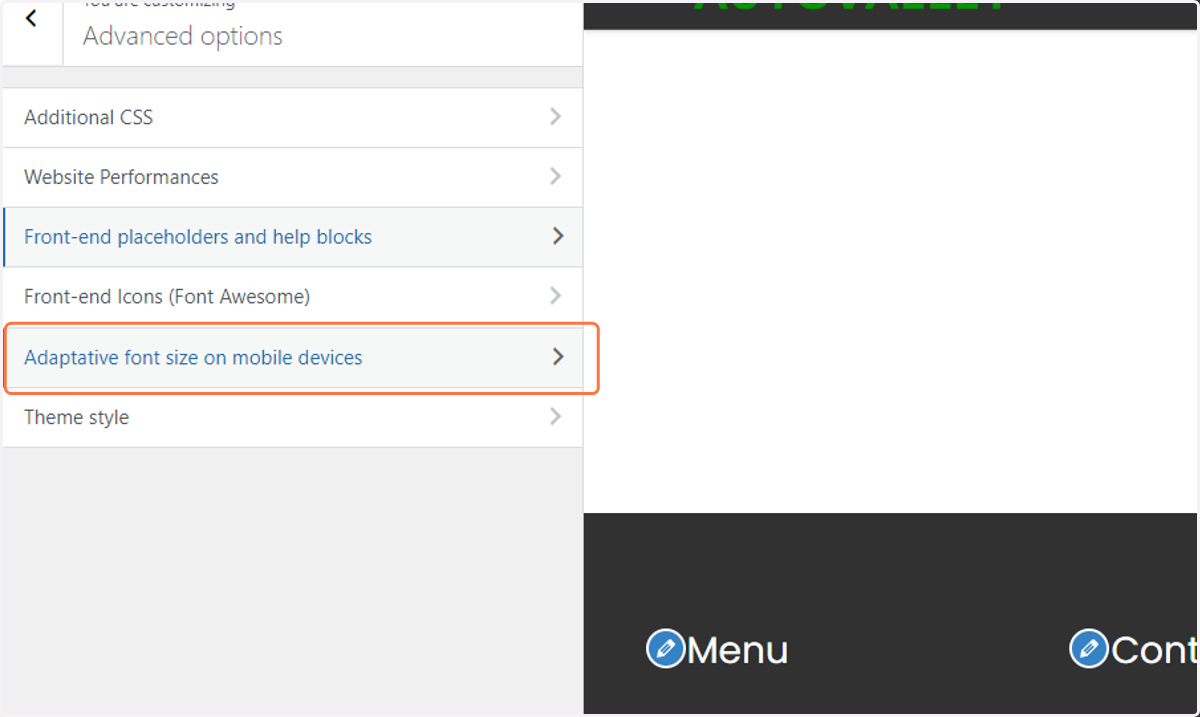
119. Click on Adaptative font size on mobile devices
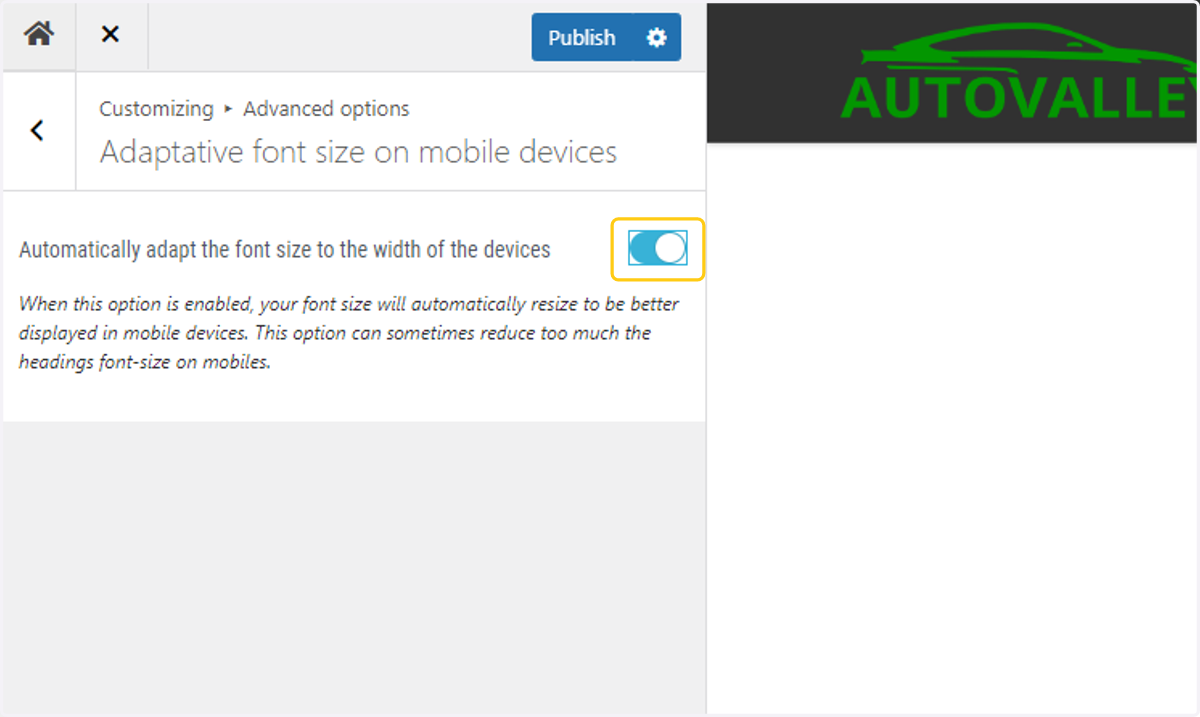
120. Toggle on the Adaptive Fonts option
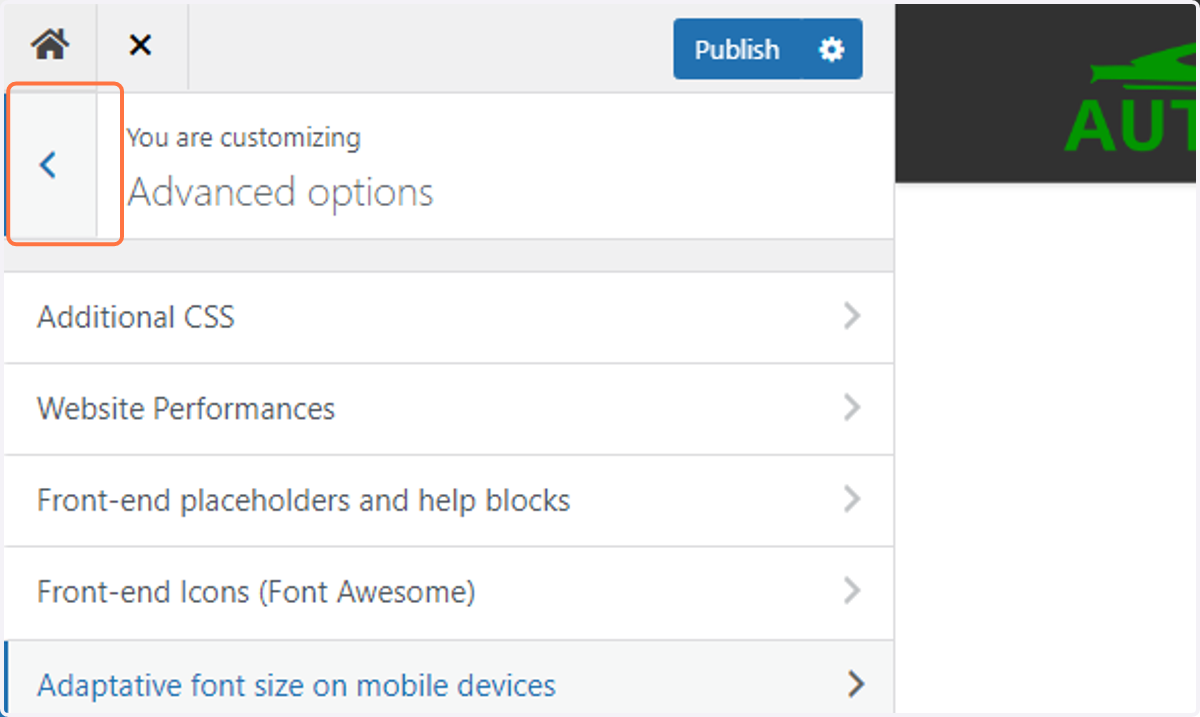
121. Return to the previous menu by clicking on the back arrow
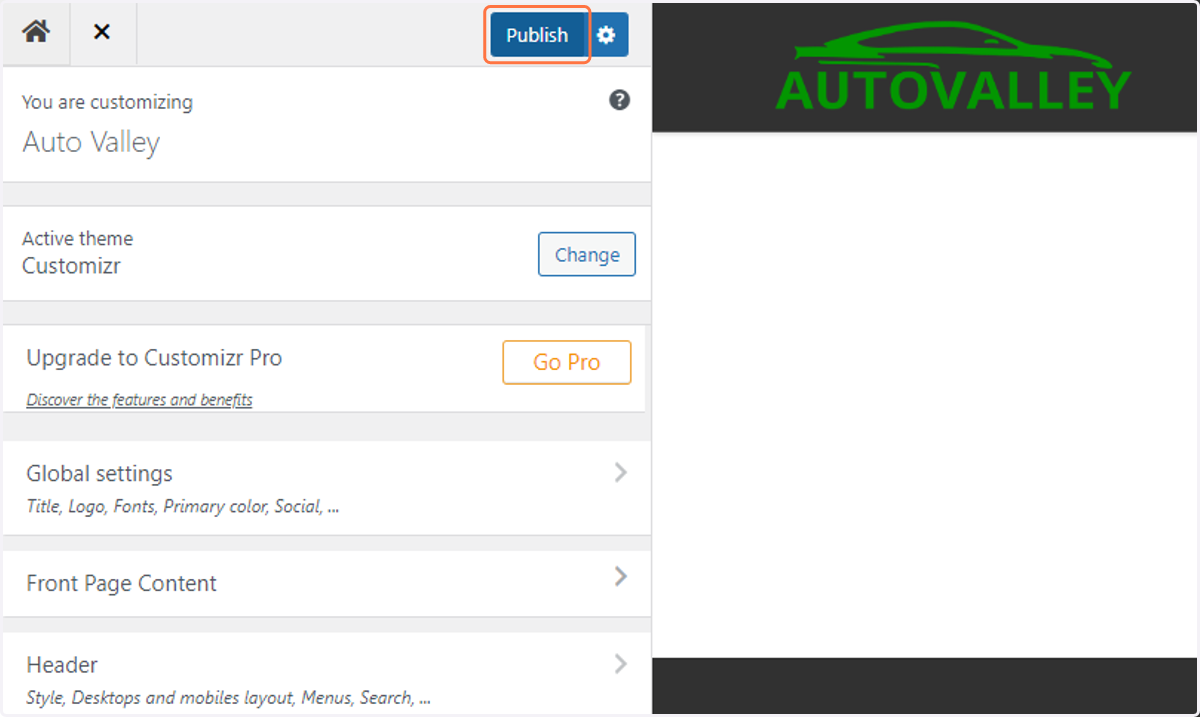
122. Click on the Publish button to save your changes
123. Click on Close