Market Rate Updates for Mass Changes [RDS]
Apartment Pricing Dashboard
1. Click Apartment Rate Update Requests
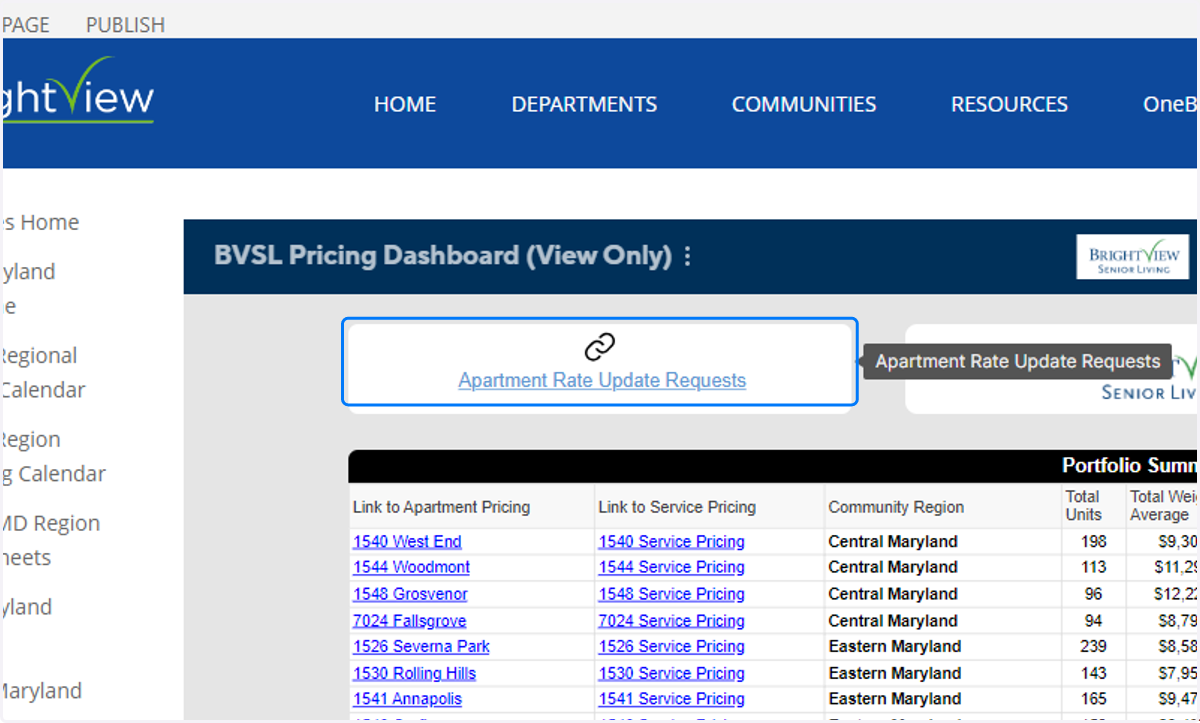
2. Filter your Community

3. Select Row
Select a row to update % Increase** and Effective Date in the side pane.

4. Enter Data
Enter % Increase and Effective Date for that apartment style. Save.
**If you would rather update prices individually by apartment, leave % Increase blank.

5. Fill all applicable rows
Even if you do not plan to increase certain styles, all rows must have an Effective Date. You can enter "0" in the % Increase column or leave it blank.

6. Open Community Pricing Sheet
Back on the Apartment Pricing Dashboard, click the link to your community's apartment pricing sheet.

7. Review New Market Rates
New market rate columns are on the far right of the table. You may need to scroll to see it.
View your new rates in the New Market Rate column.

8. Manual Rate Override
If you need to override a rate, select a row to edit.
**Note: you won't be able to update data on care level header rows.
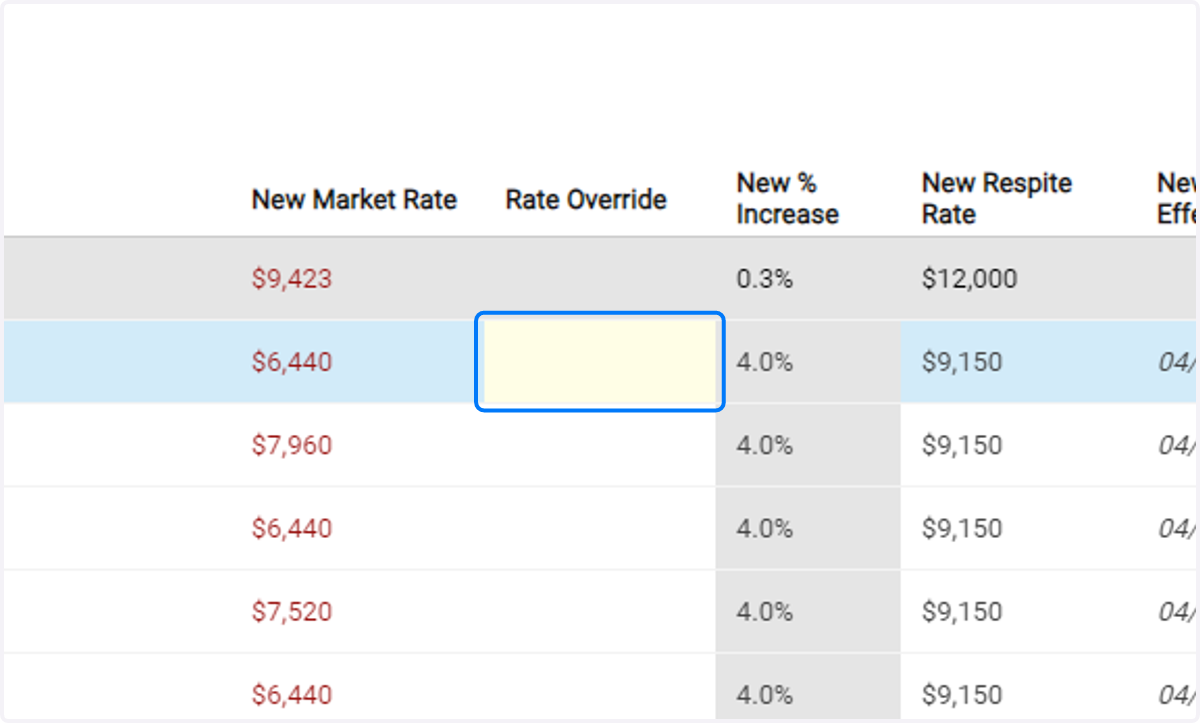
9. Enter Rate
This will replace the original calculated rate in the New Market Rate column.
Save.

10. Review Override
See the new rate in the New Market Rate column along with updated New % Increase.

11. Review Average % Increase by Care Level
The average percentage increase can be found on the Care Level header rows.

12. Submit Help Desk Ticket
Once all your rates and effective dates are in our sheet, send a ticket to the Help Desk (helpdesk@bvsl.net) to notify the Yardi team that the rates are ready to be loaded into Yardi.