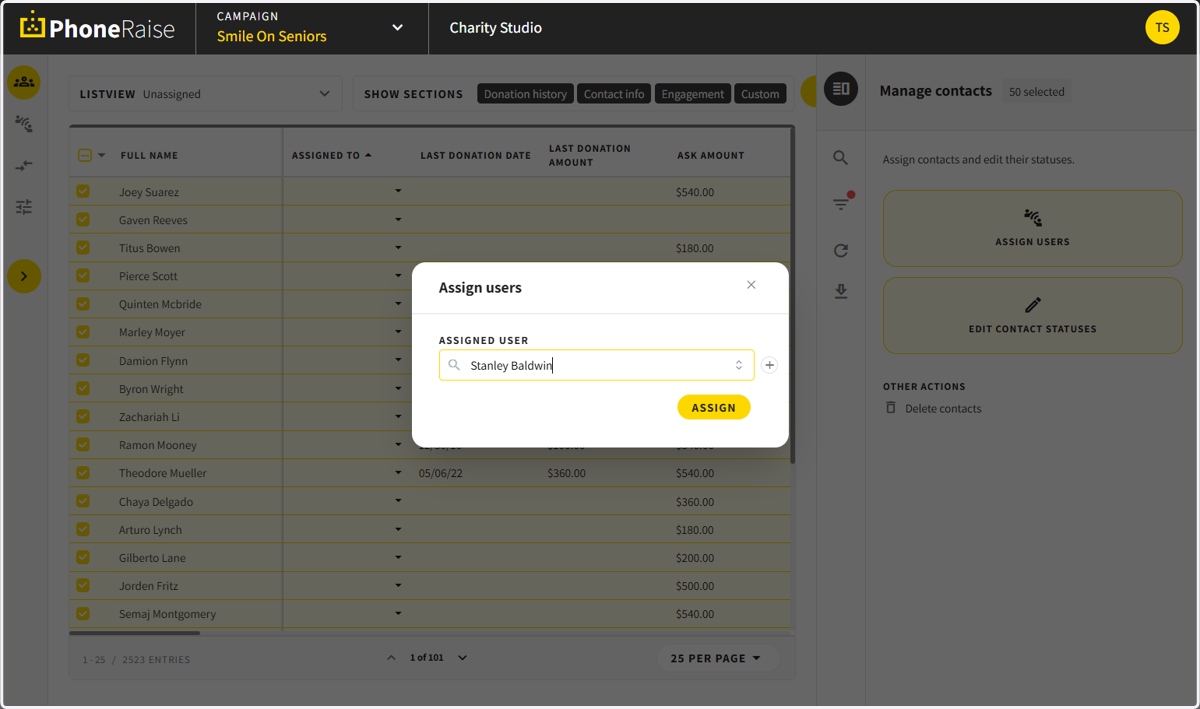
Custom Assign Contacts to Users
Option One: Bulk Select Contacts
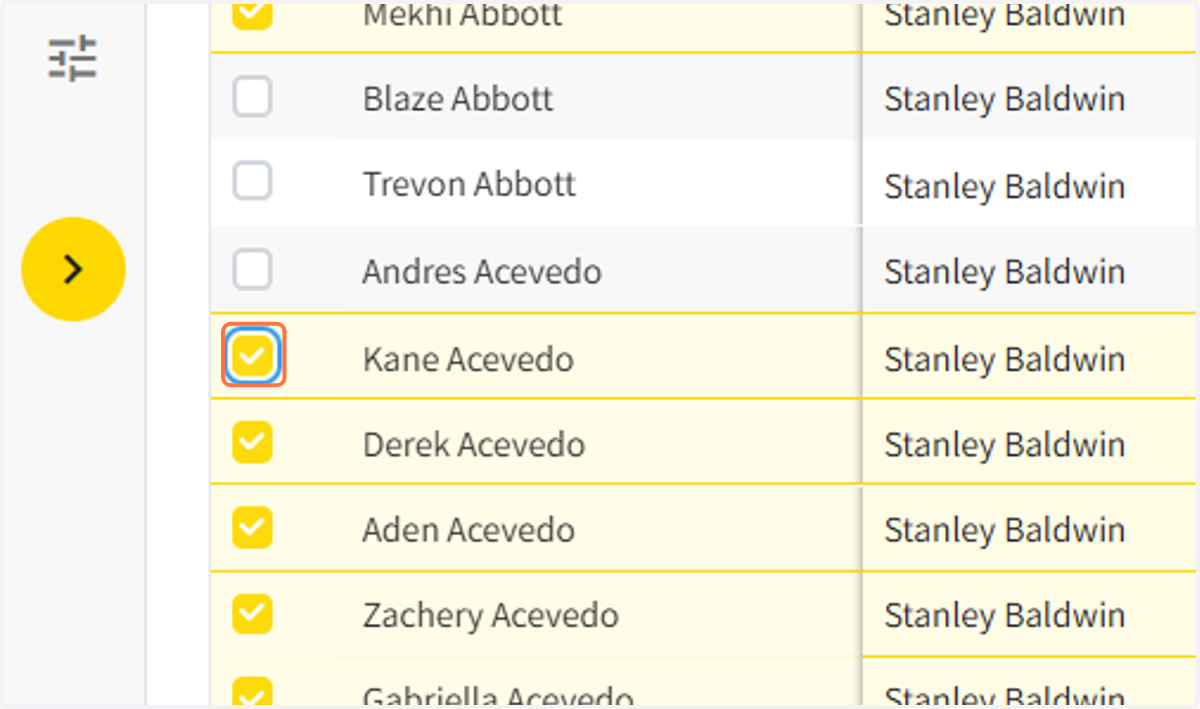
1. Click on the checkboxes to select contacts
Tip: To select many contacts without clicking each box, you can click the first contact and then shift+click to select the last one, and it will include all check all contacts in between.
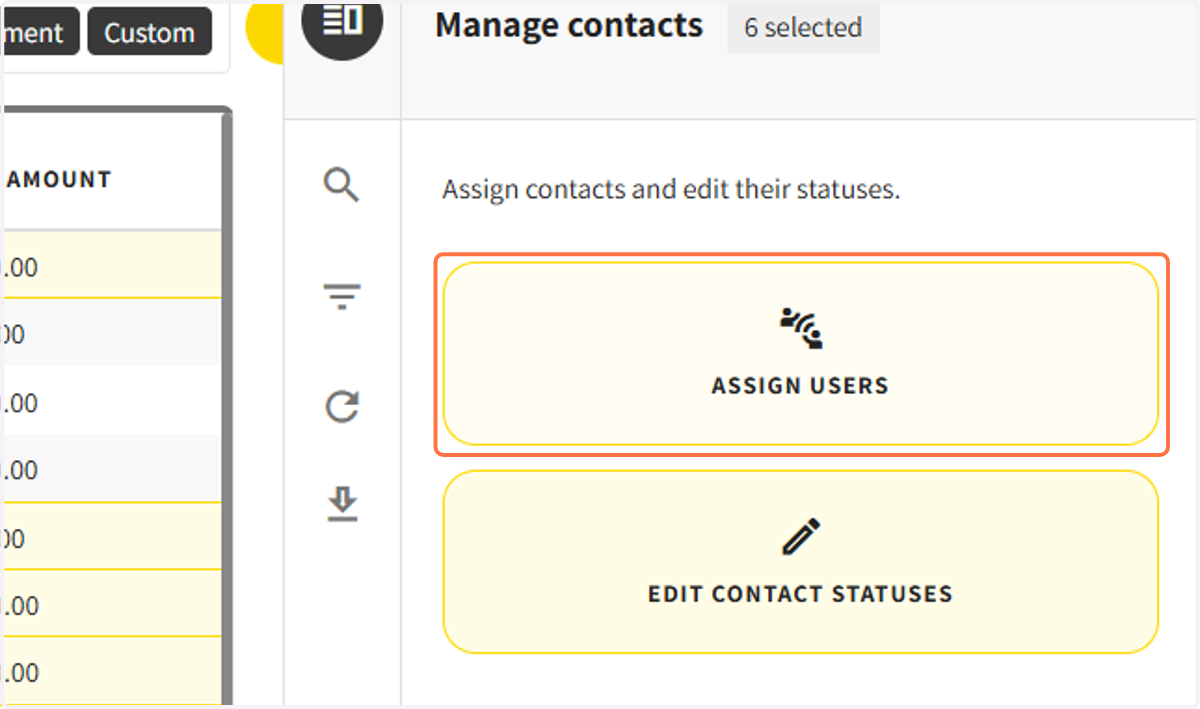
2. Once checkboxes are selected, click assign users
3. Select the user to assign contacts to
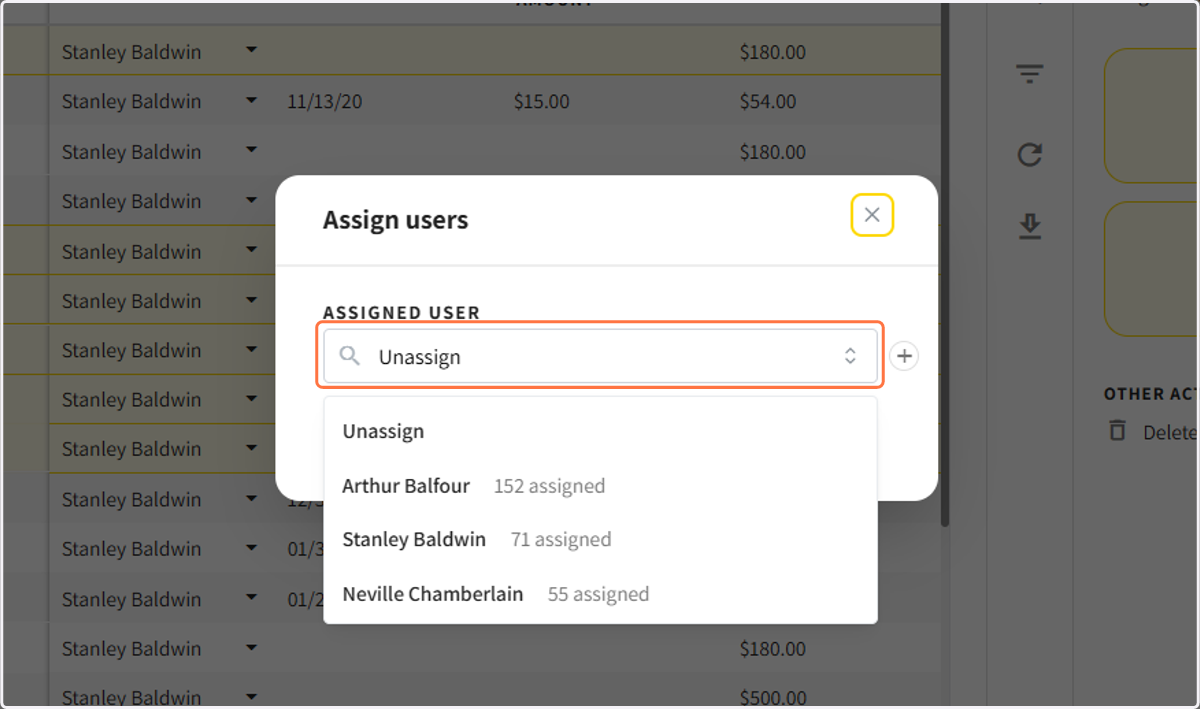
4. Click on Assign
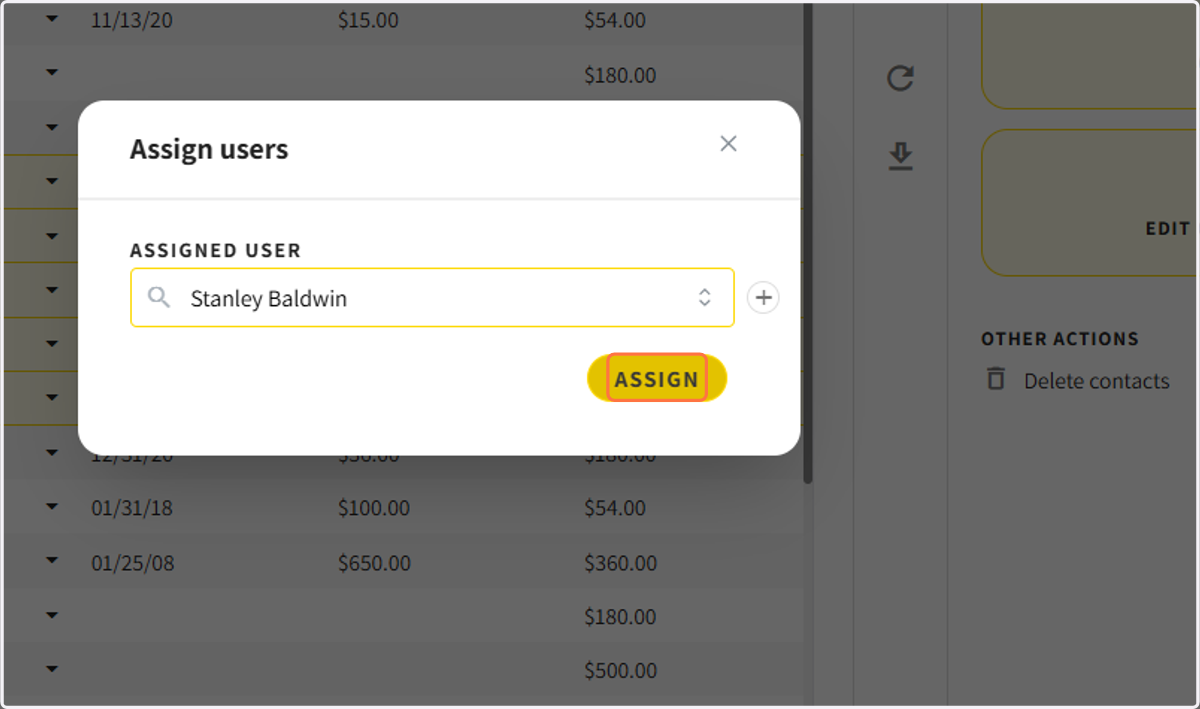
Untitled Heading
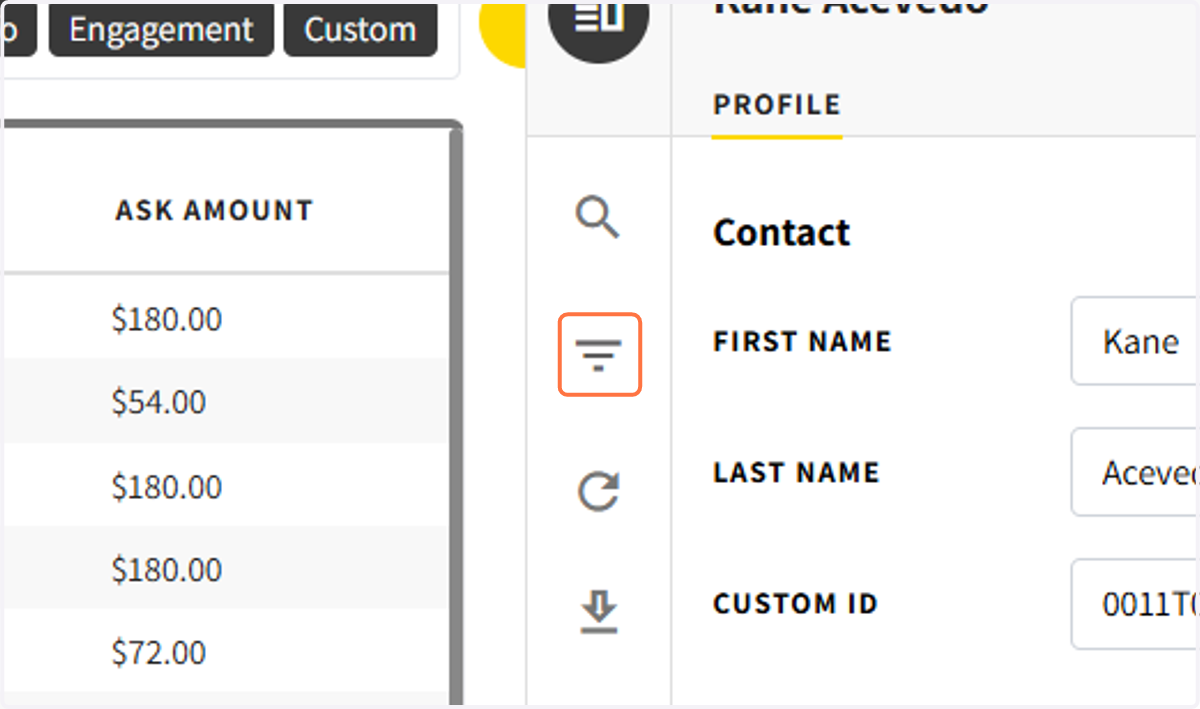
5. Click on the filter icon on the right side
Click on the filter icon
6. Select a filter or multiple filters to use
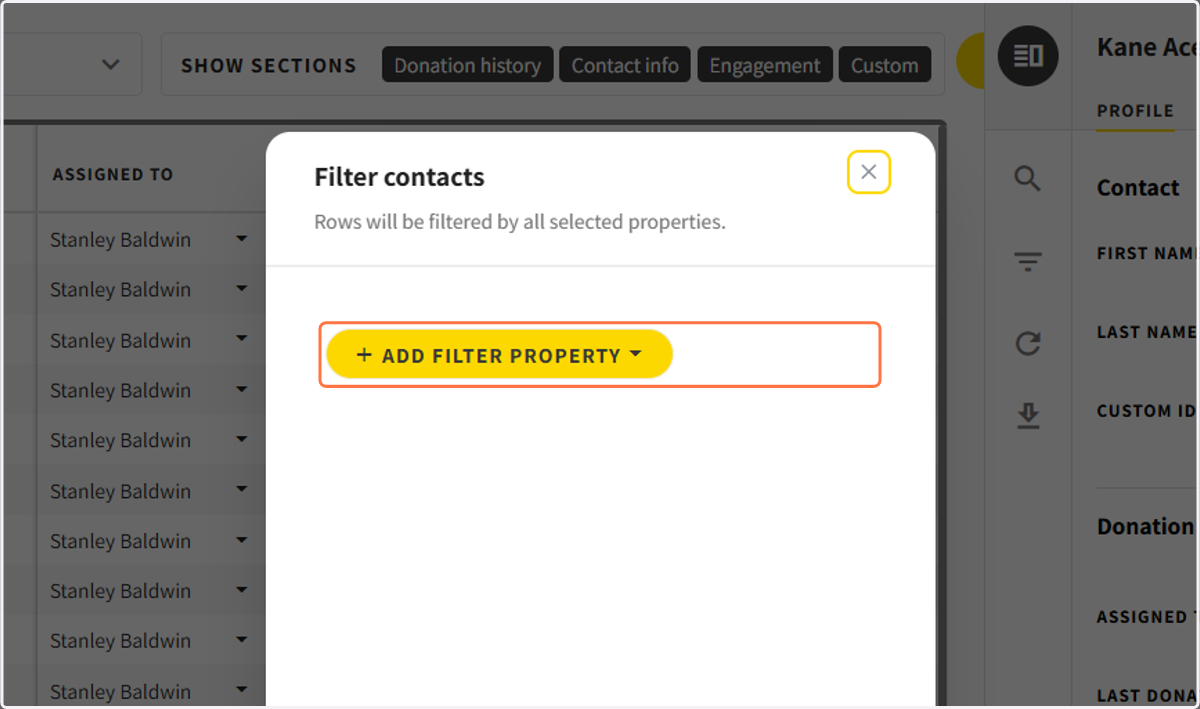
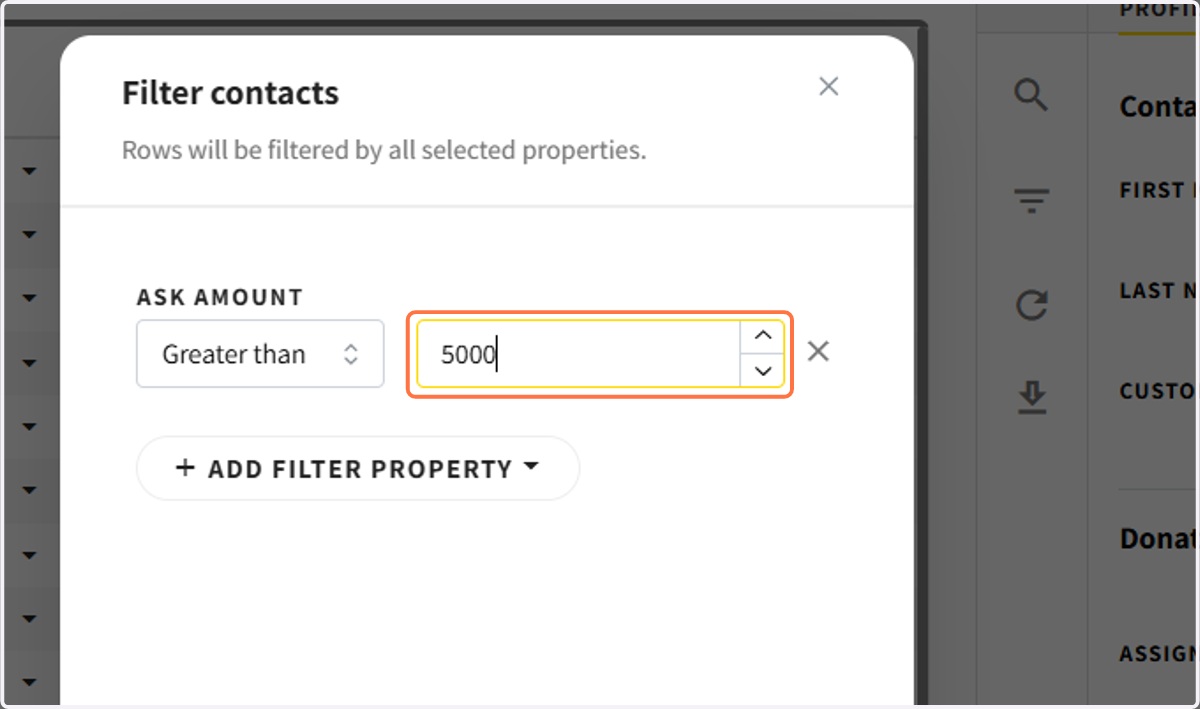
7. In this example, we will use the ask amount.
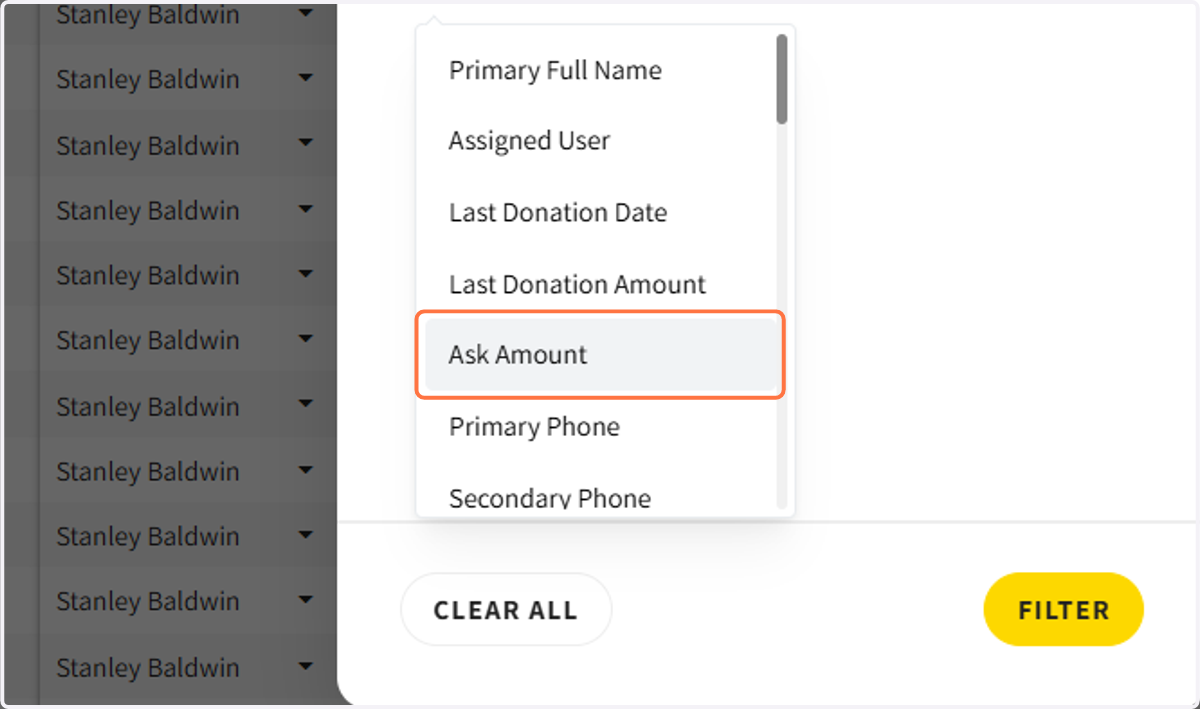
8. Select the parameter and the amount
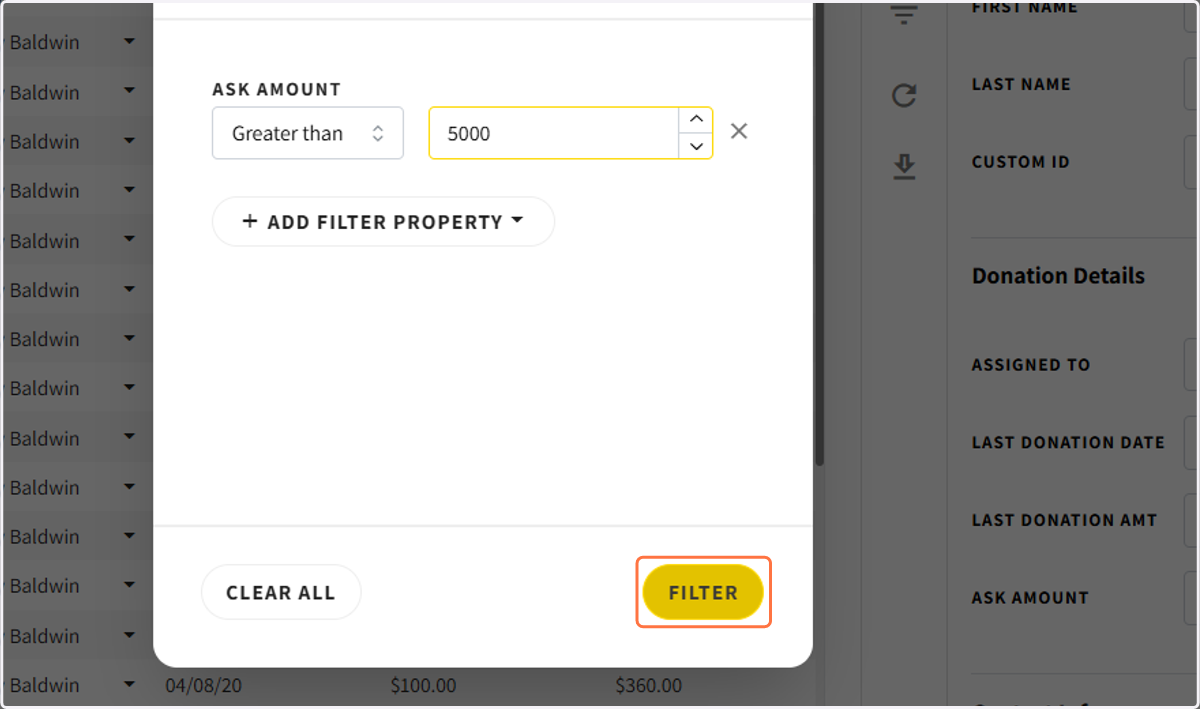
9. Click on Filter
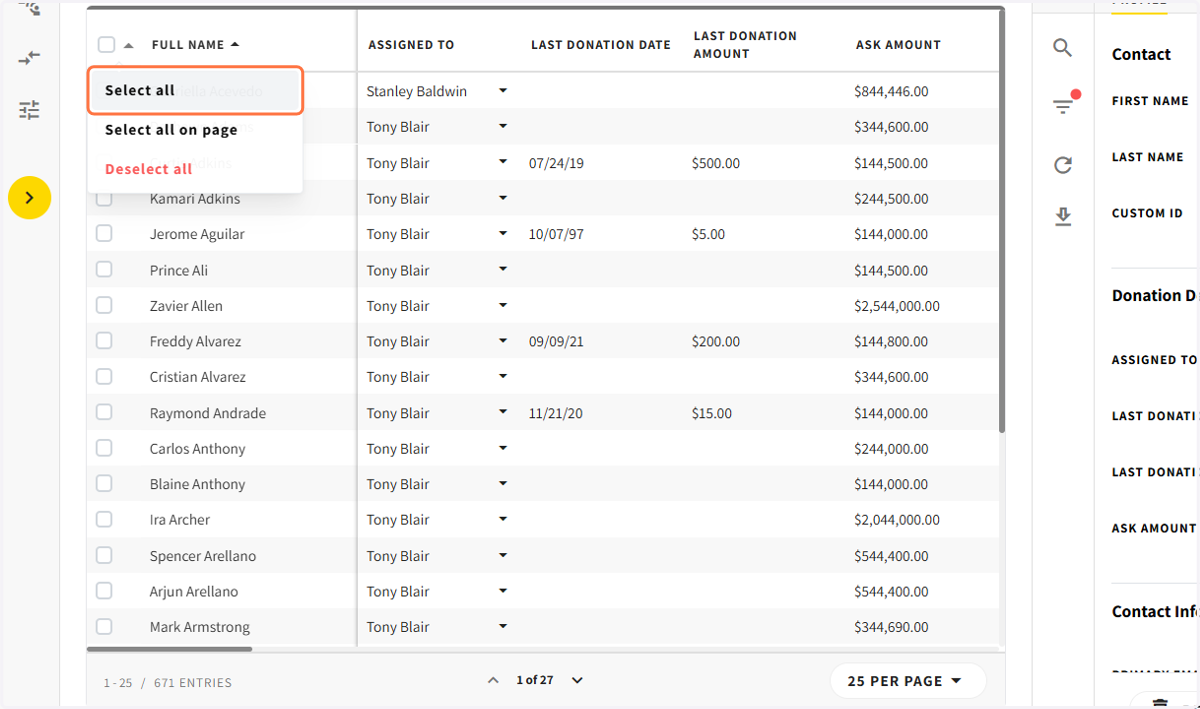
10. Select all contacts on the filtered view
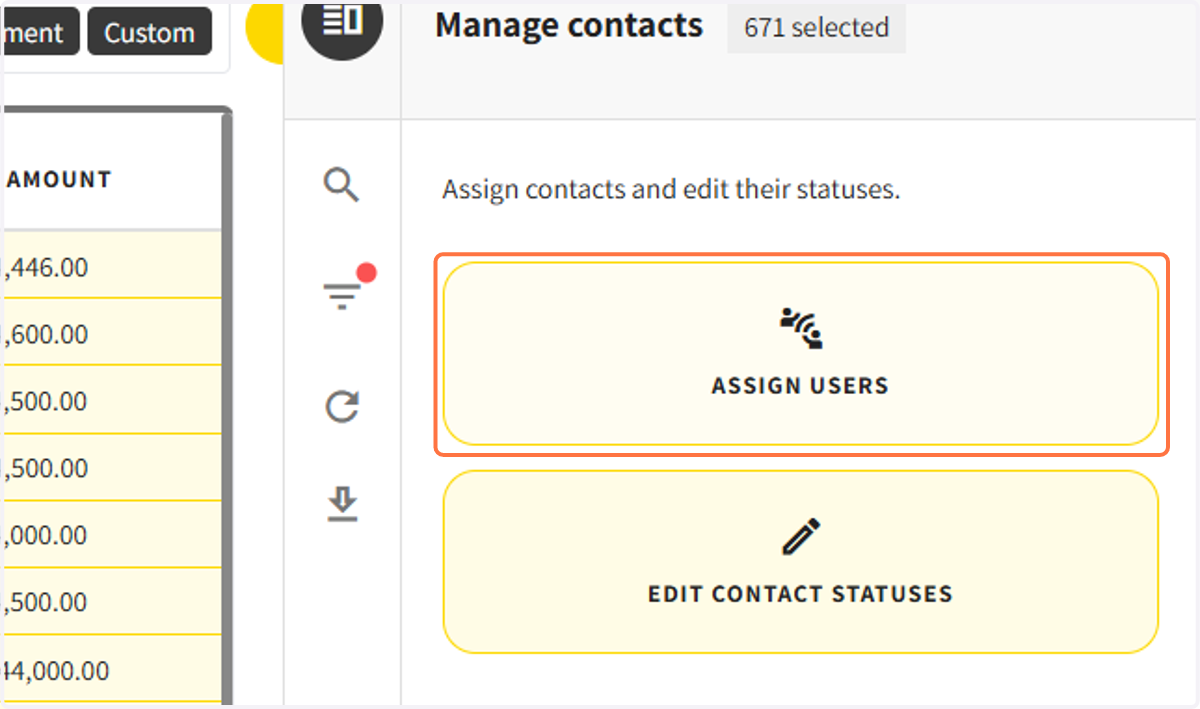
11. Click on assign users
12. Select the user
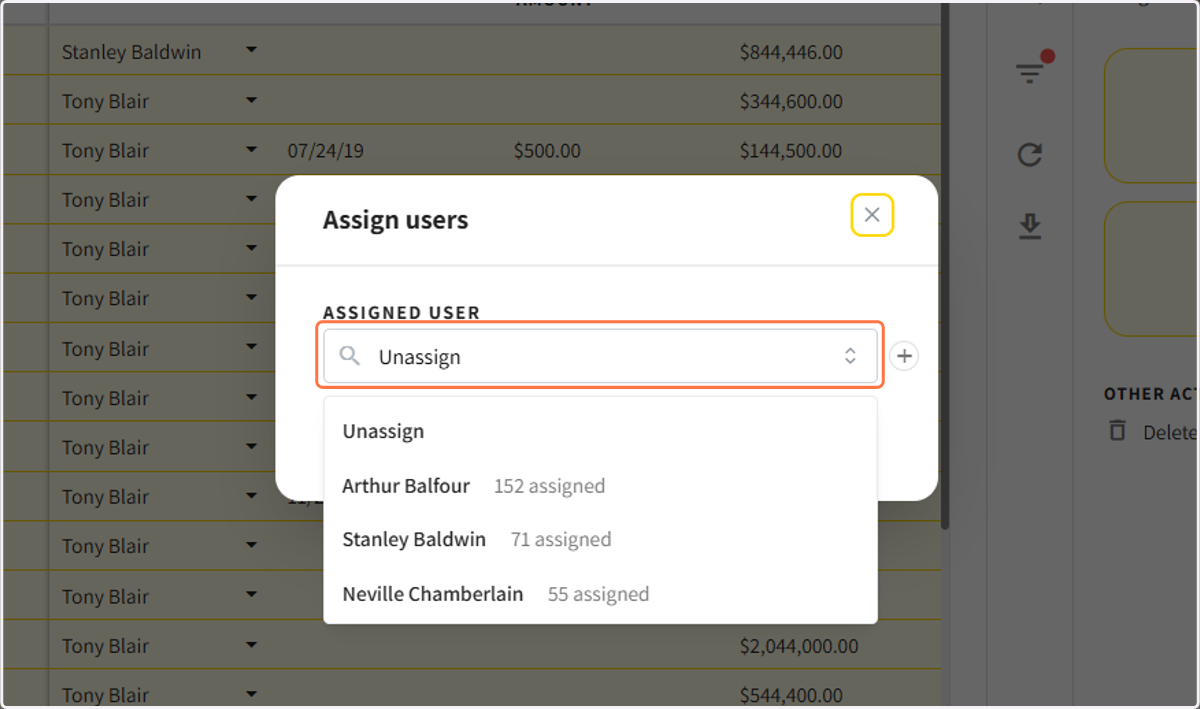
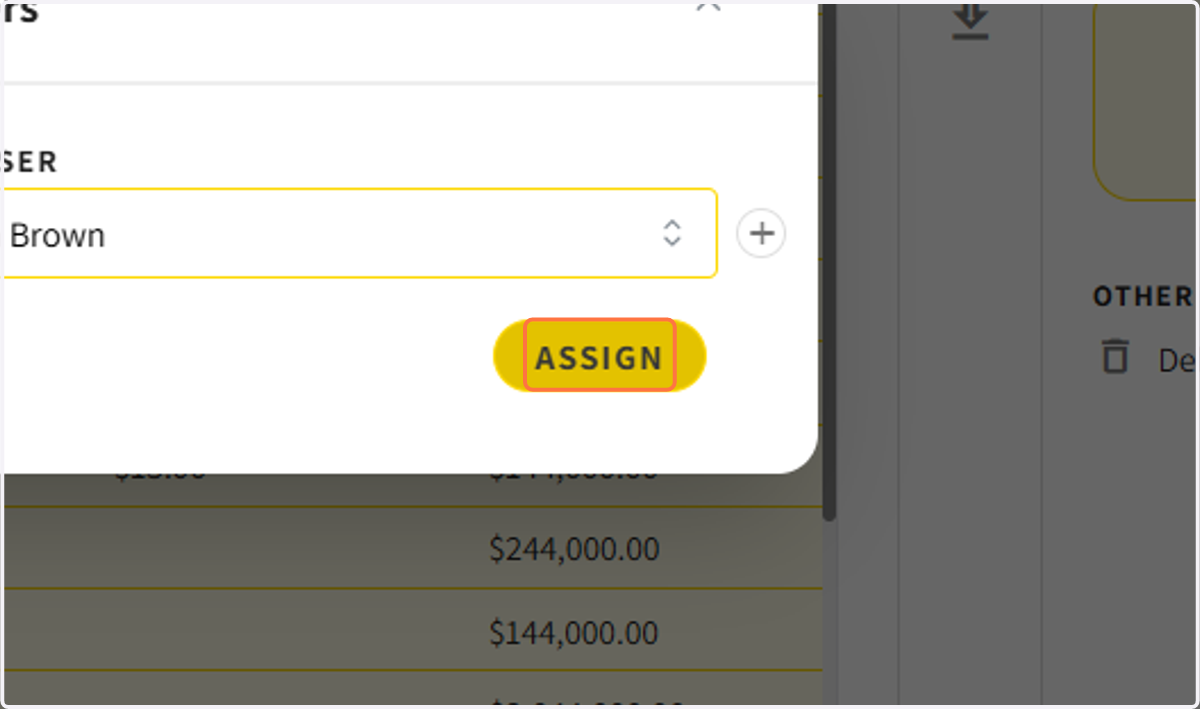
13. and click assign
Option Three: Use a list view
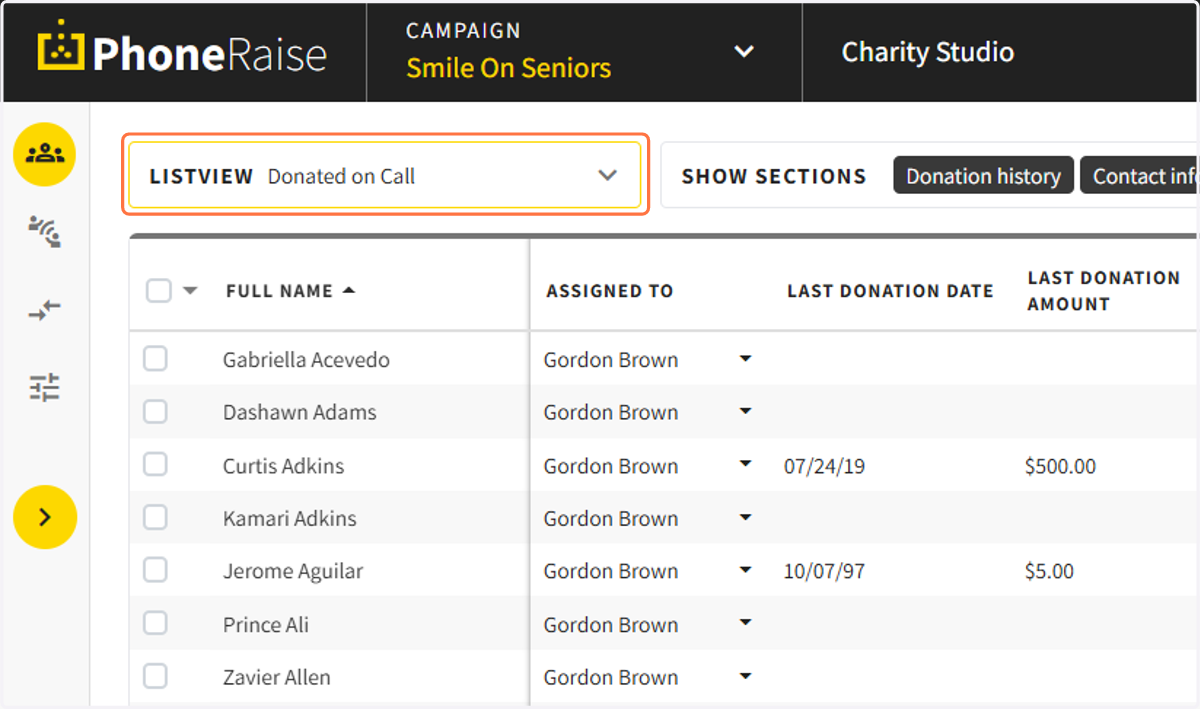
14. Select a list view
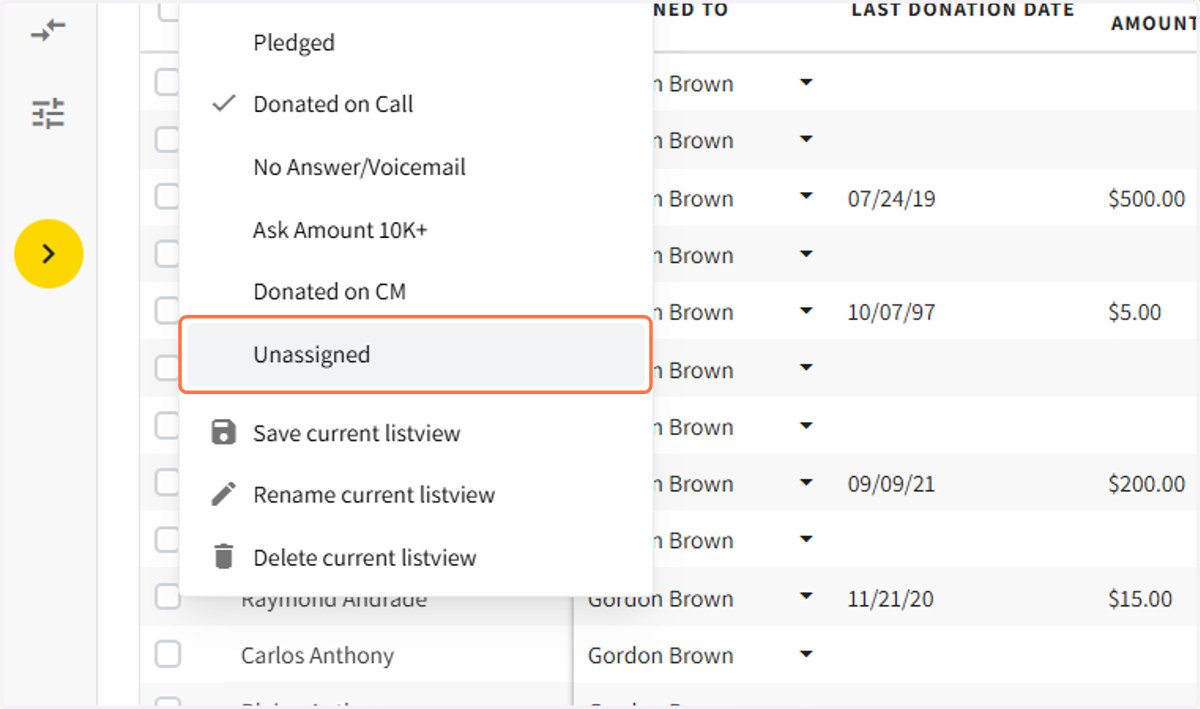
List views are saved filter views
15. Select the list view you want to use
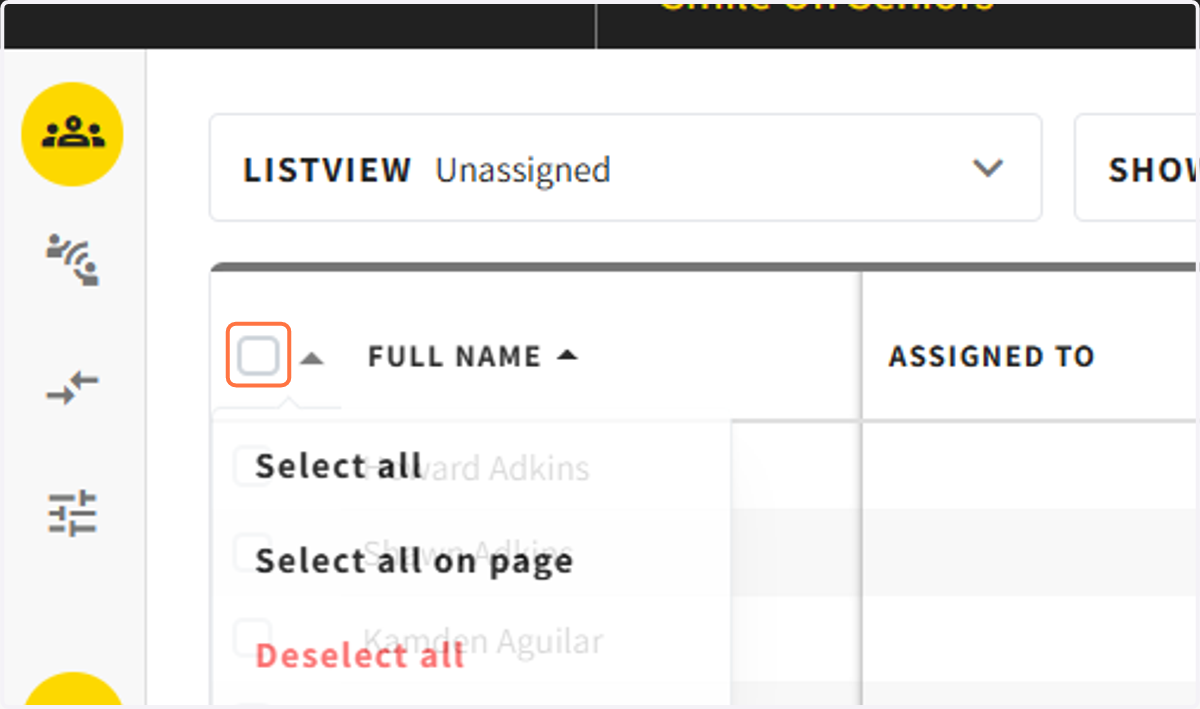
16. Select all
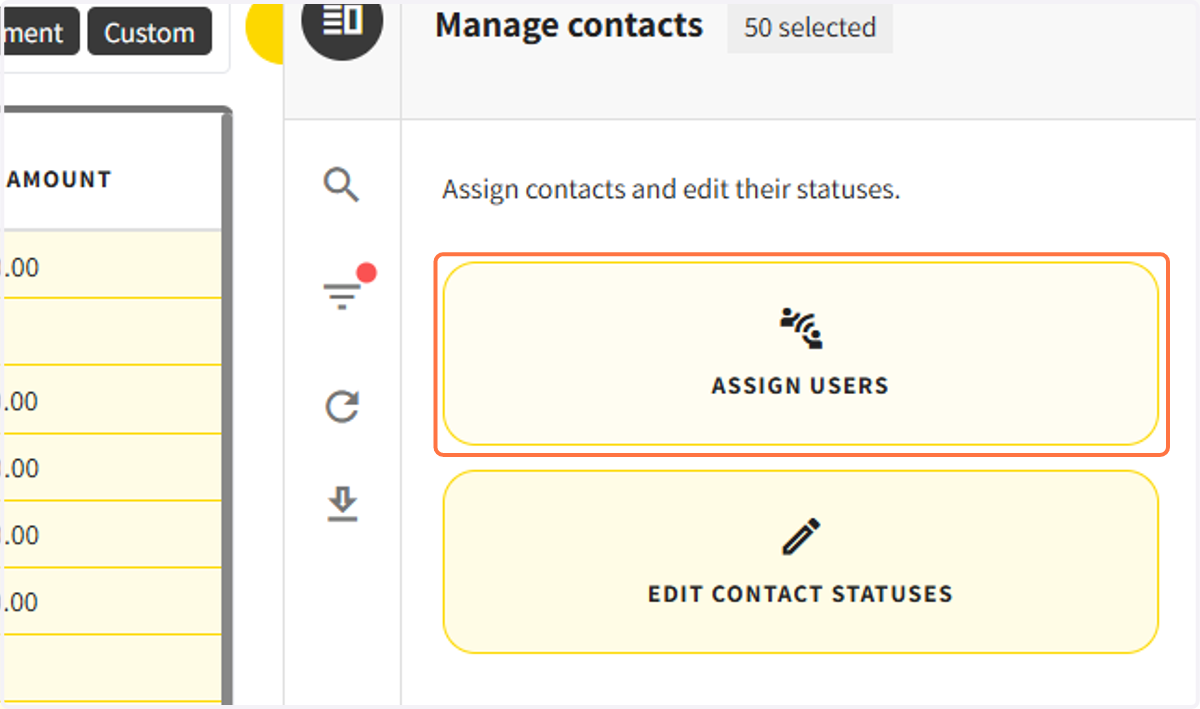
17. Click on assign users
18. Select the user and click assign