Adding Students to my classes
Student Check-in Tool
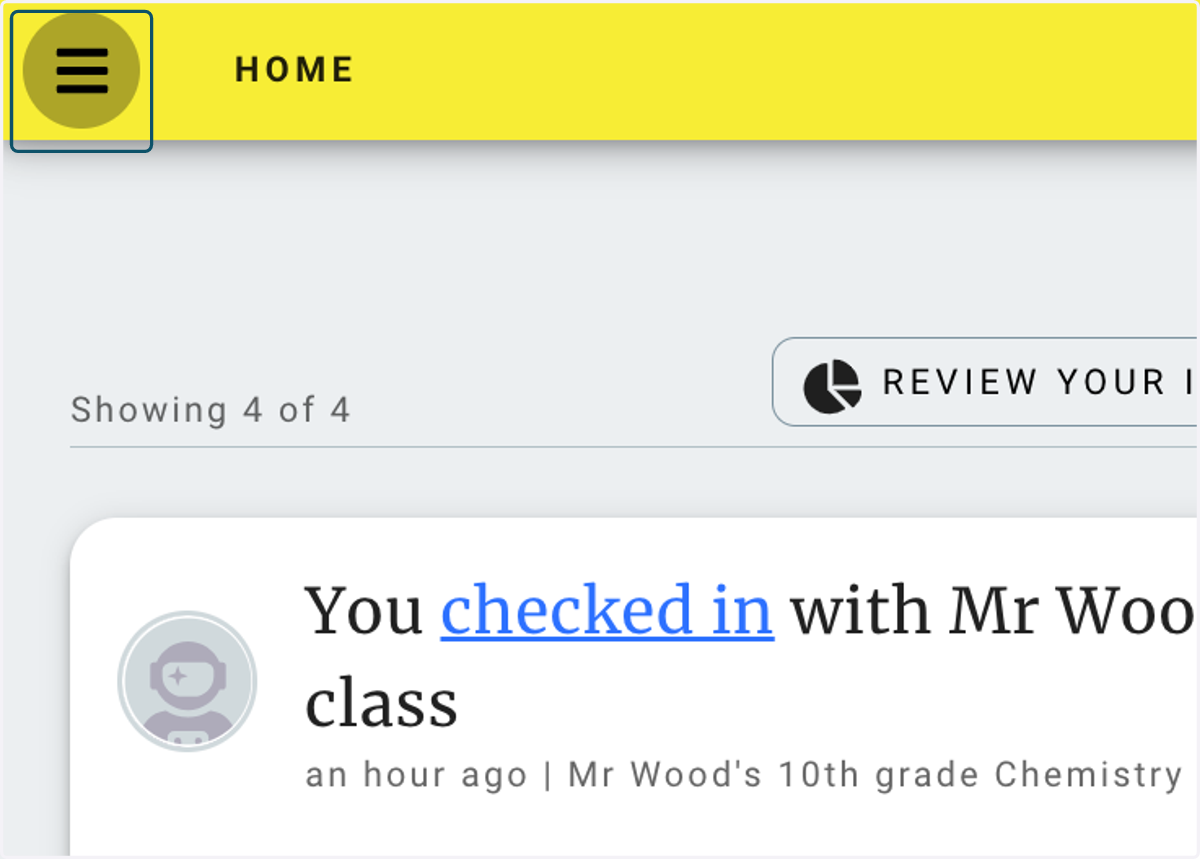
1. Click on the main menu (hamburger icon)
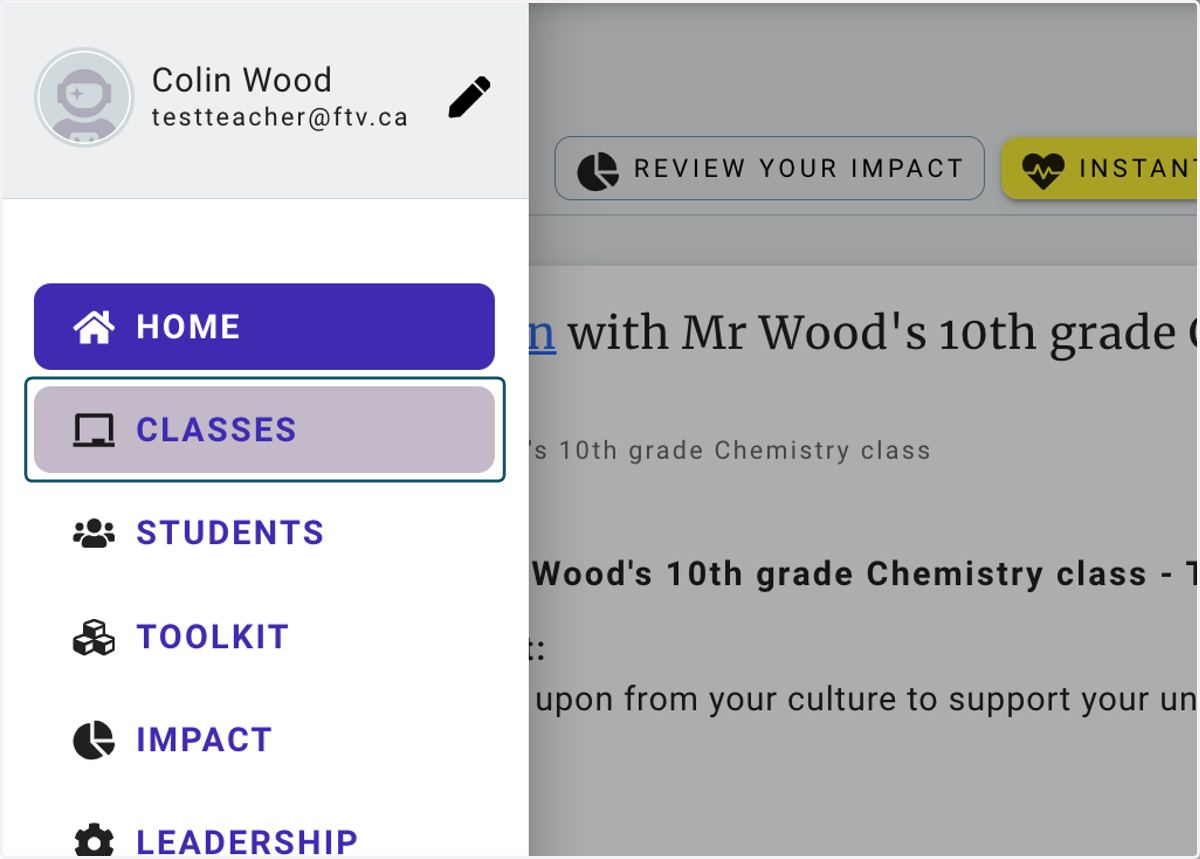
2. Click on CLASSES
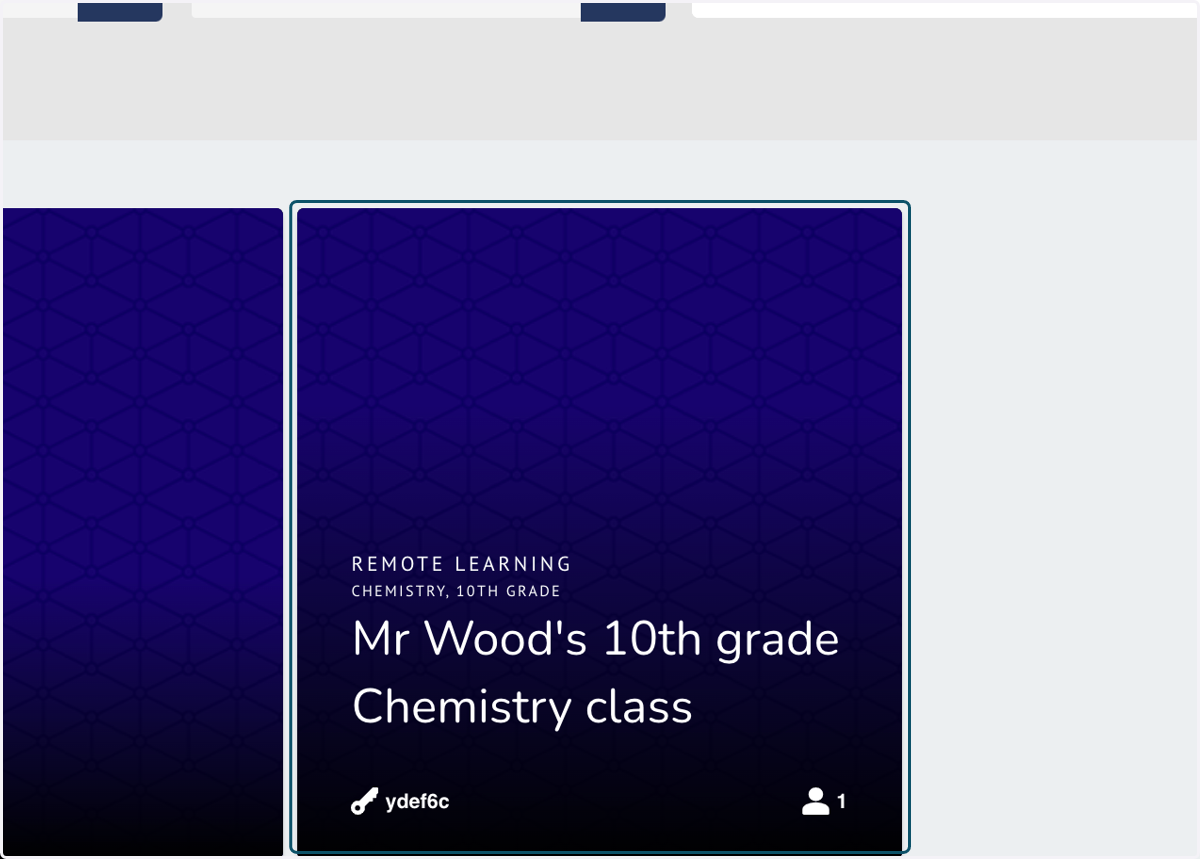
3. Click on the Class you wish to add students to
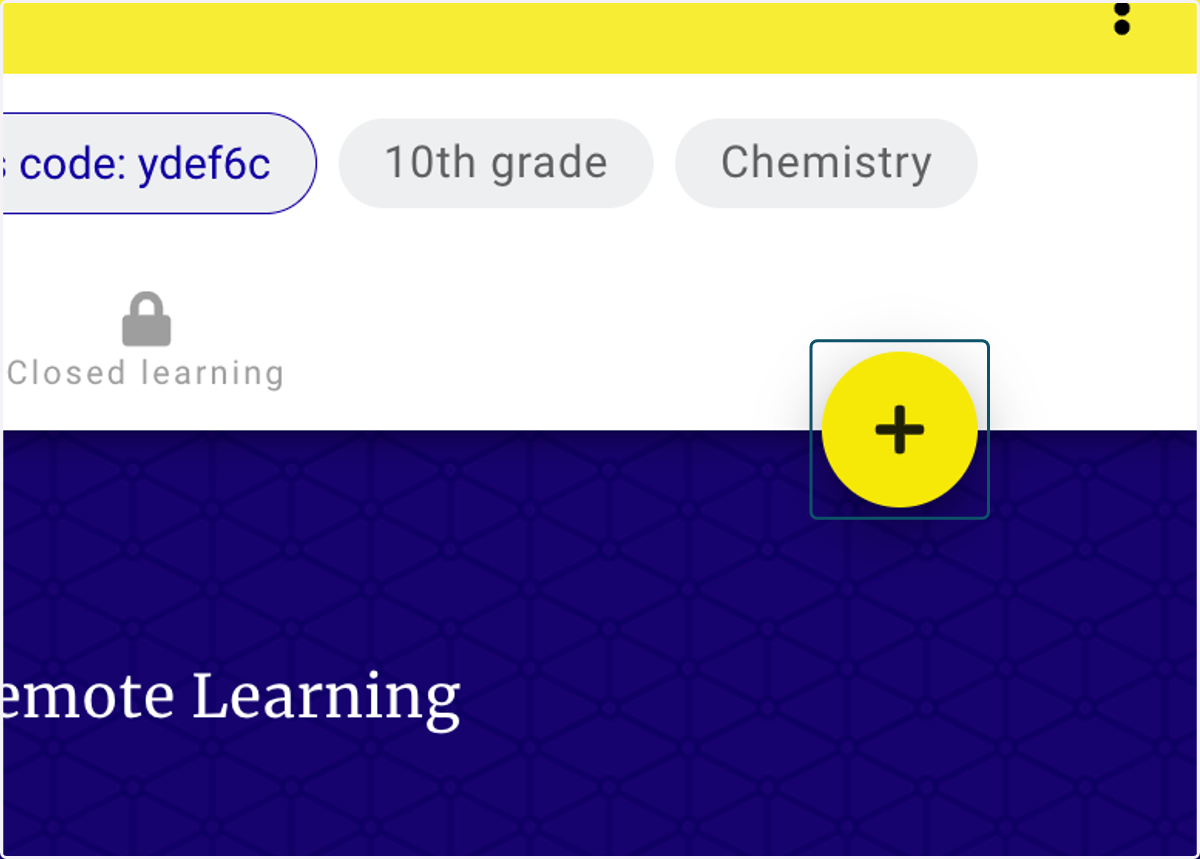
4. Click on the plus button (+)
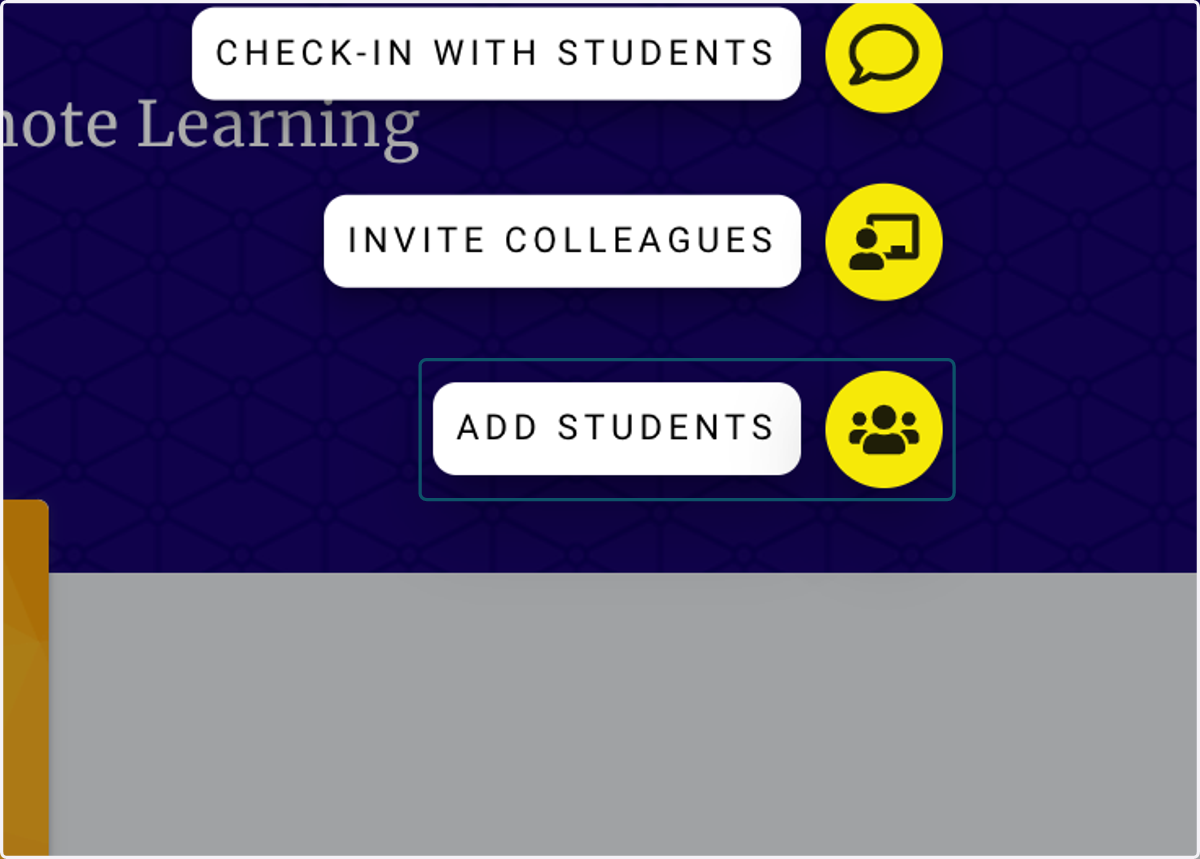
5. Click on ADD STUDENTS
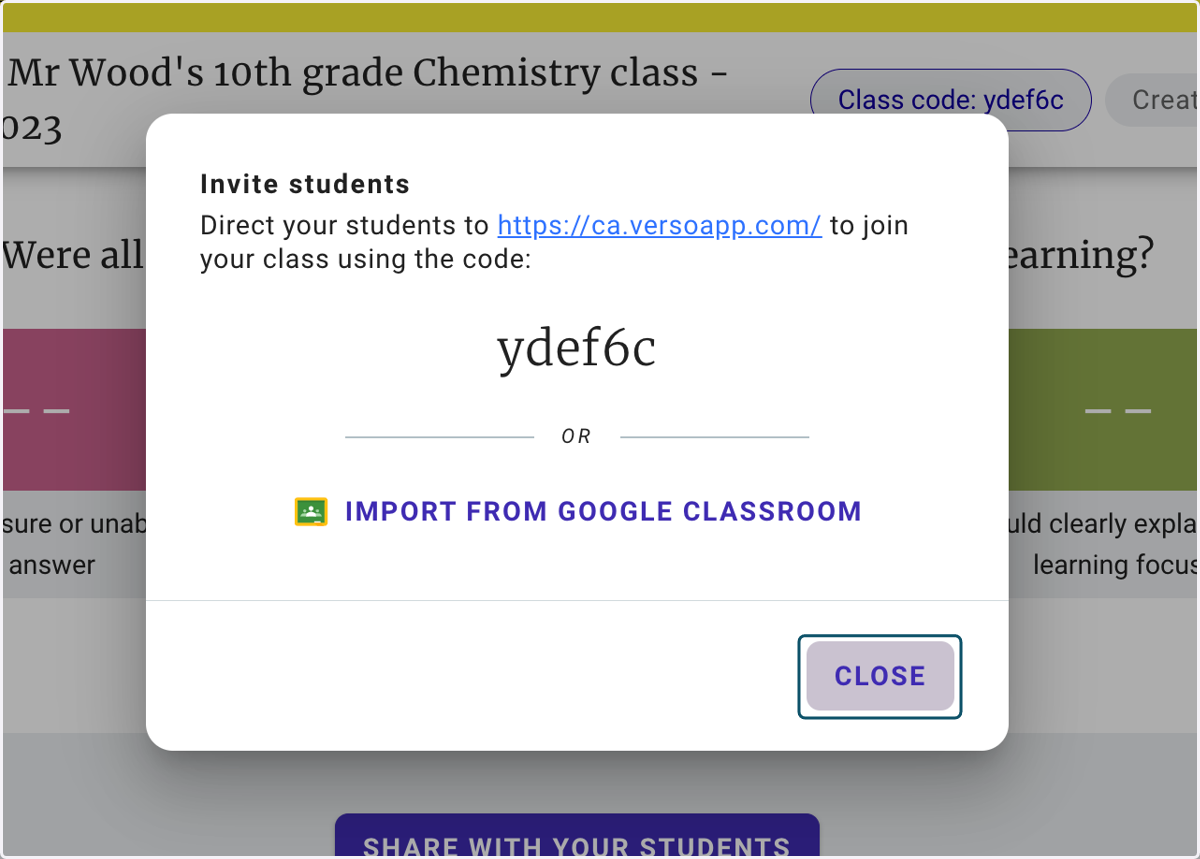
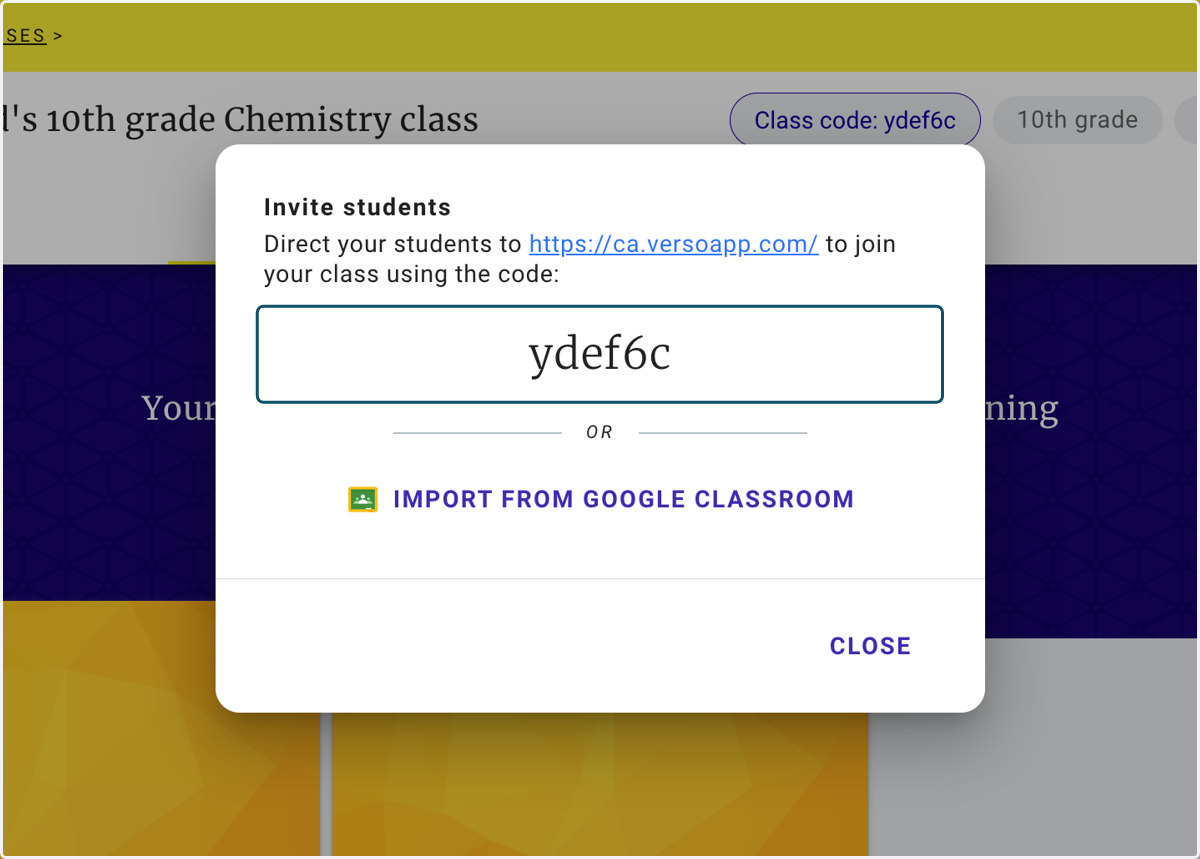
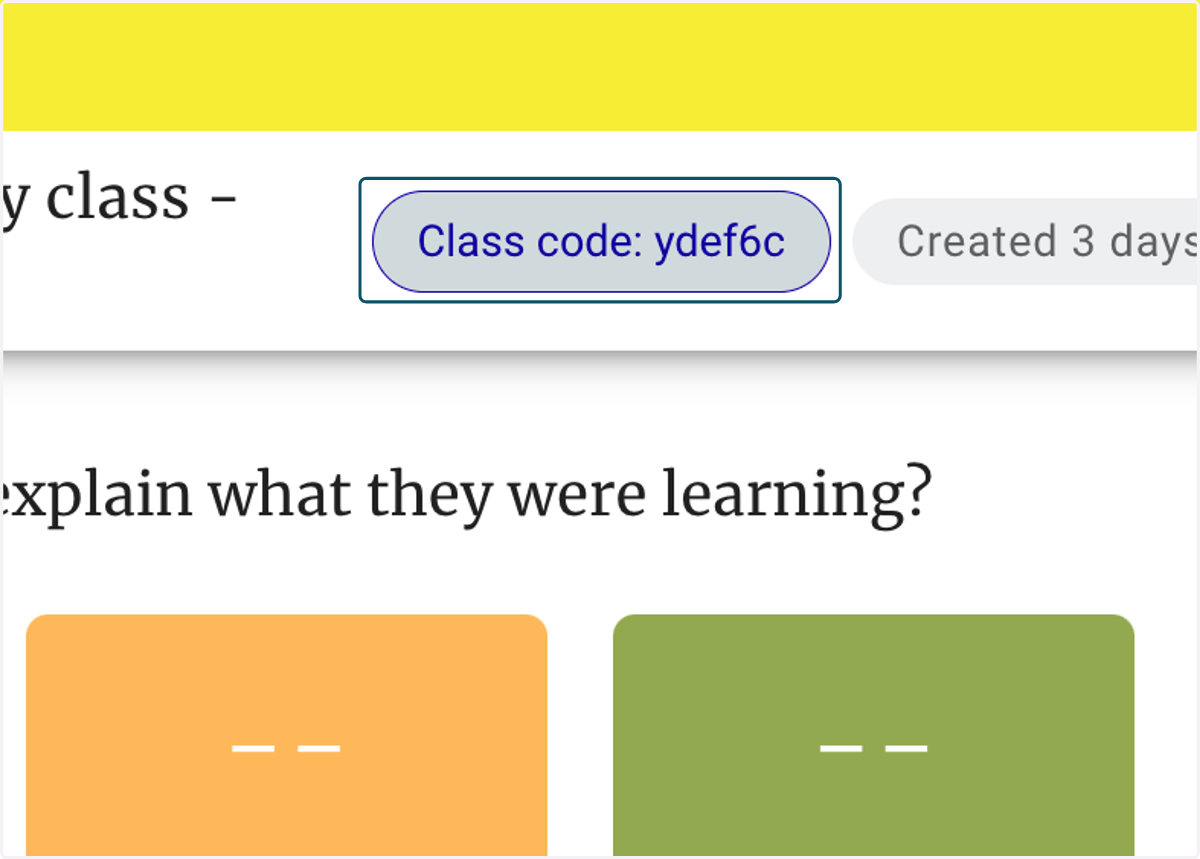
6. Students can join the Class themselves by heading to the Student Check-in Tool and using the published class code.
https://ca.versoapp.com
Teachers typically write the Class Code on the white board at the front of the class for all students to see and access.
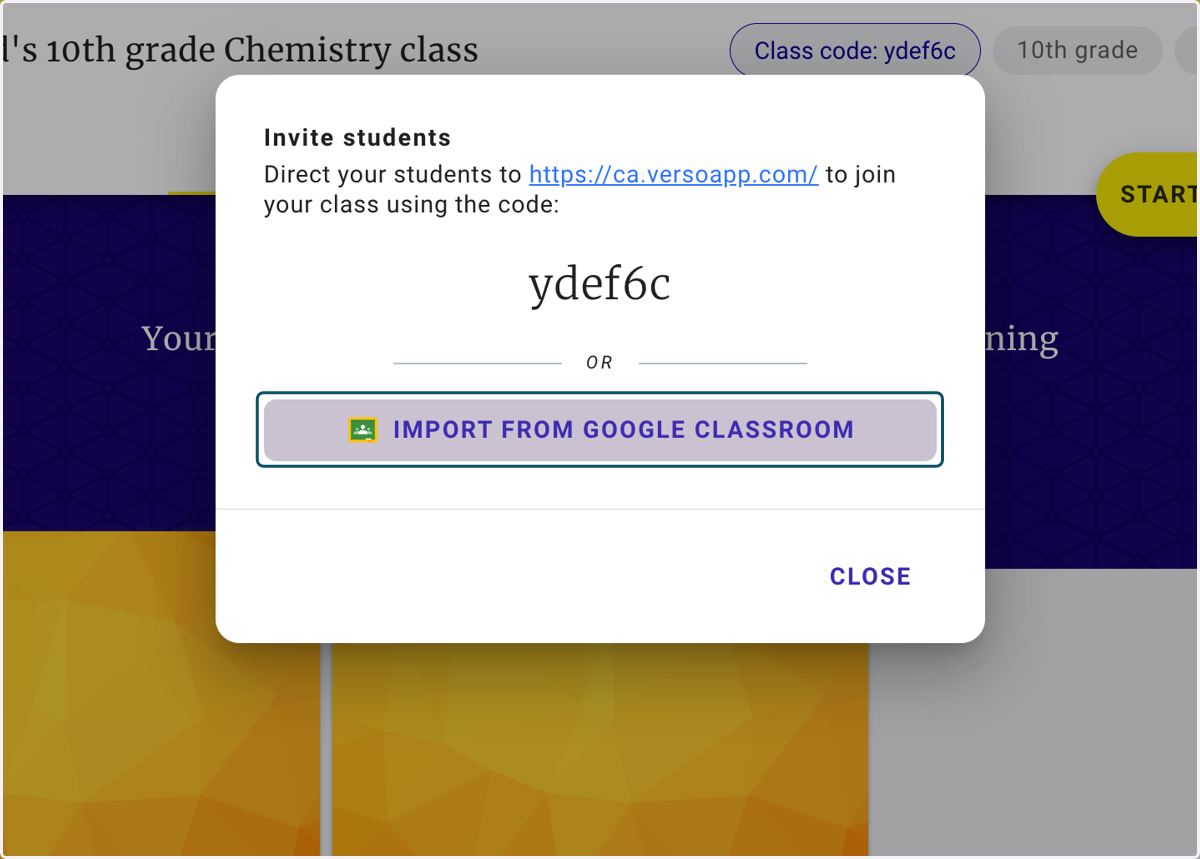
7. Alternatively, click on IMPORT FROM GOOGLE CLASSROOM to bring all students across from Google
You can select the specific Google Classroom that you wish to pull student in from.
8. You can also invite students direct from the Check-in Dashboard. Click on a Check-in on the Class page.
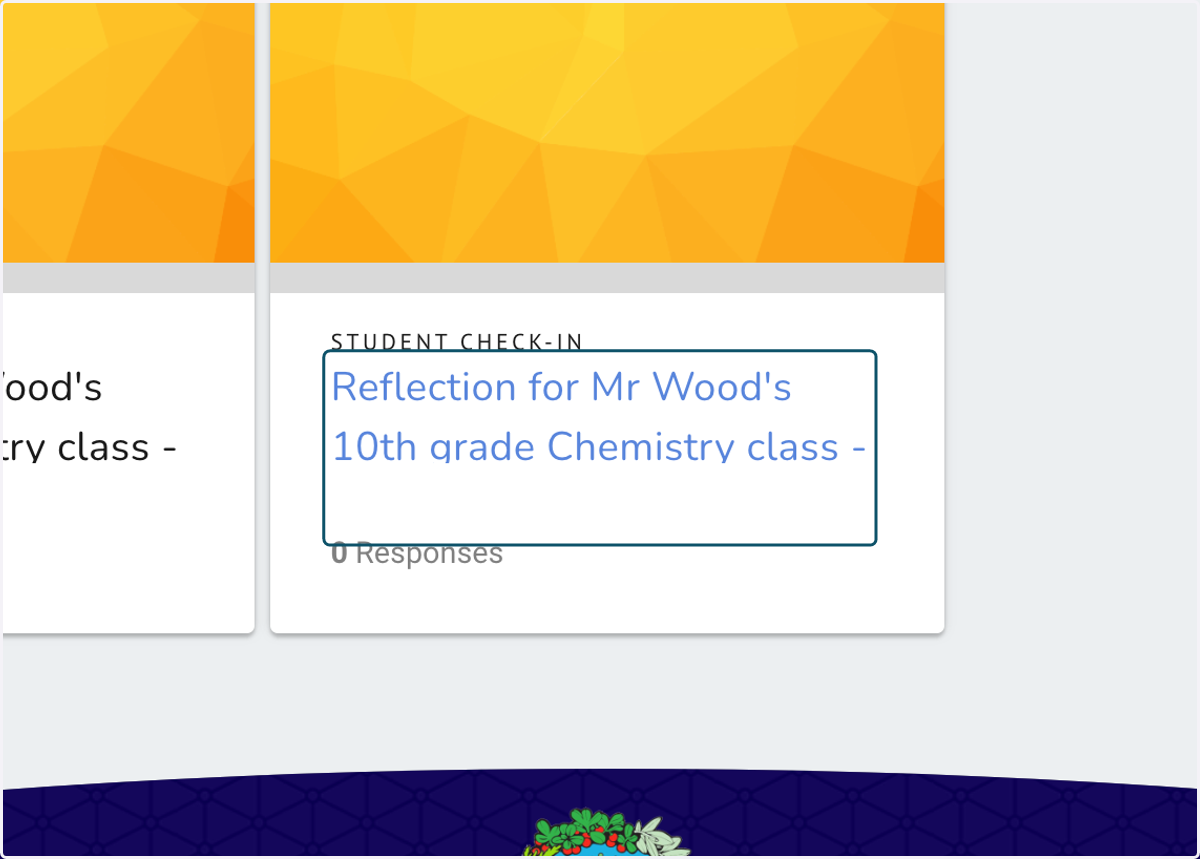
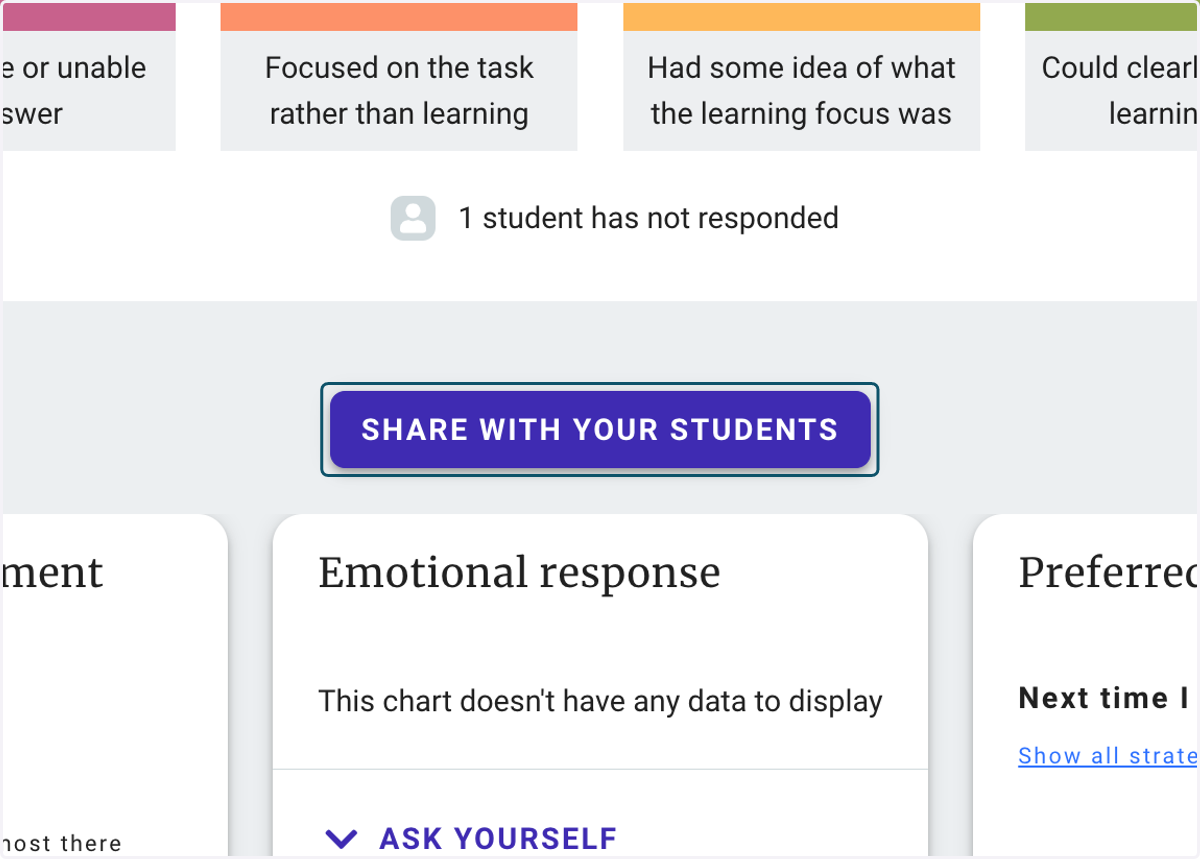
9. From the Check-in Dashboard, click on SHARE WITH YOUR STUDENTS
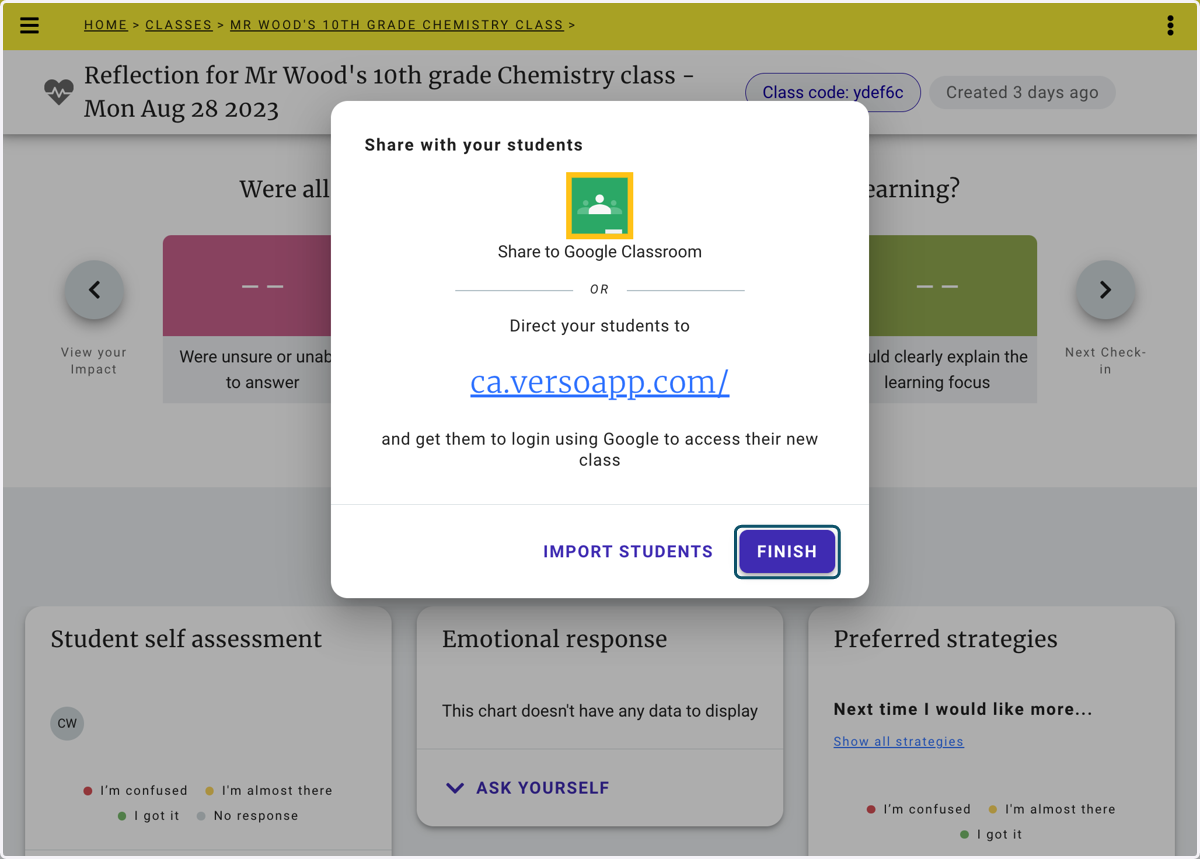
10. Direct Students to the Student Check-in web-site or share your Check-in to your Google Classroom, Alternatively you can IMPORT your students from Google.
11. Clicking on Class code will also launch the sharing window
12. Use either the Class Code or IMPORT from Google CLassroom