New CompPass "My Distributions" Tab Available in Passes Accounts
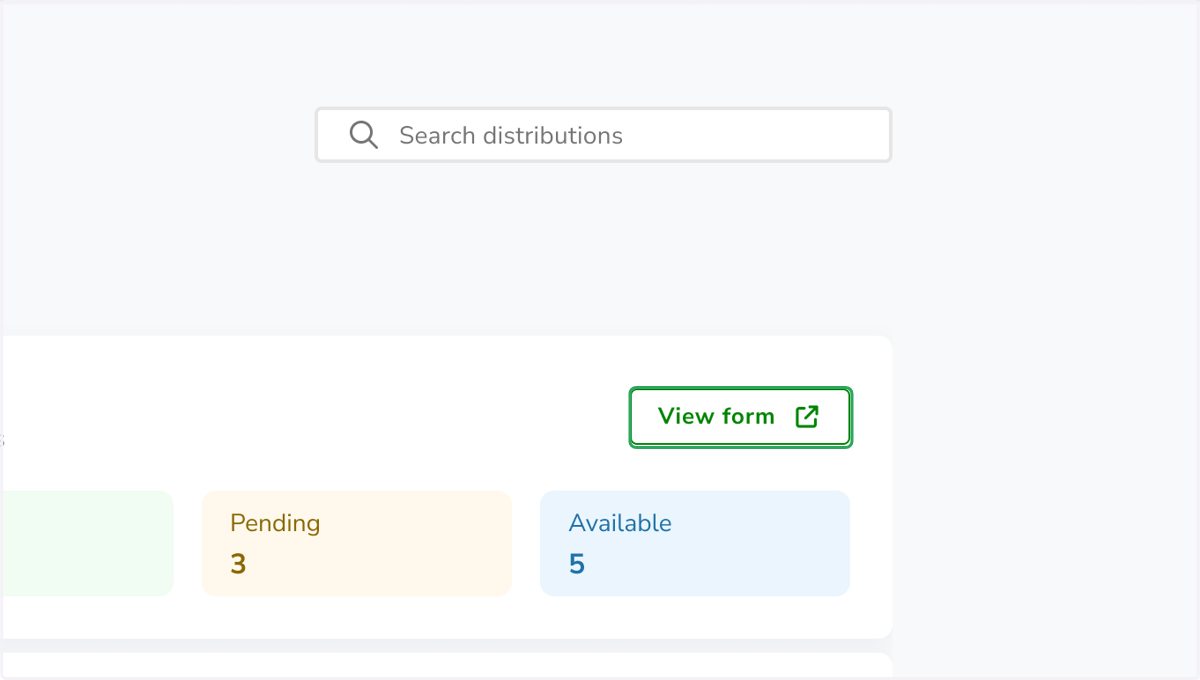
CompPass distributors who are logged into their Passes account can now view and manage all of their distributions from a single, dedicated tab. The new "My Distributions" tab splits your distributions into Upcoming and Past categories. At a glance, you can see each passbook distribution's details. From either category, a "View form" button opens the full distribution form in a new browser tab.
Log in to your Passes account
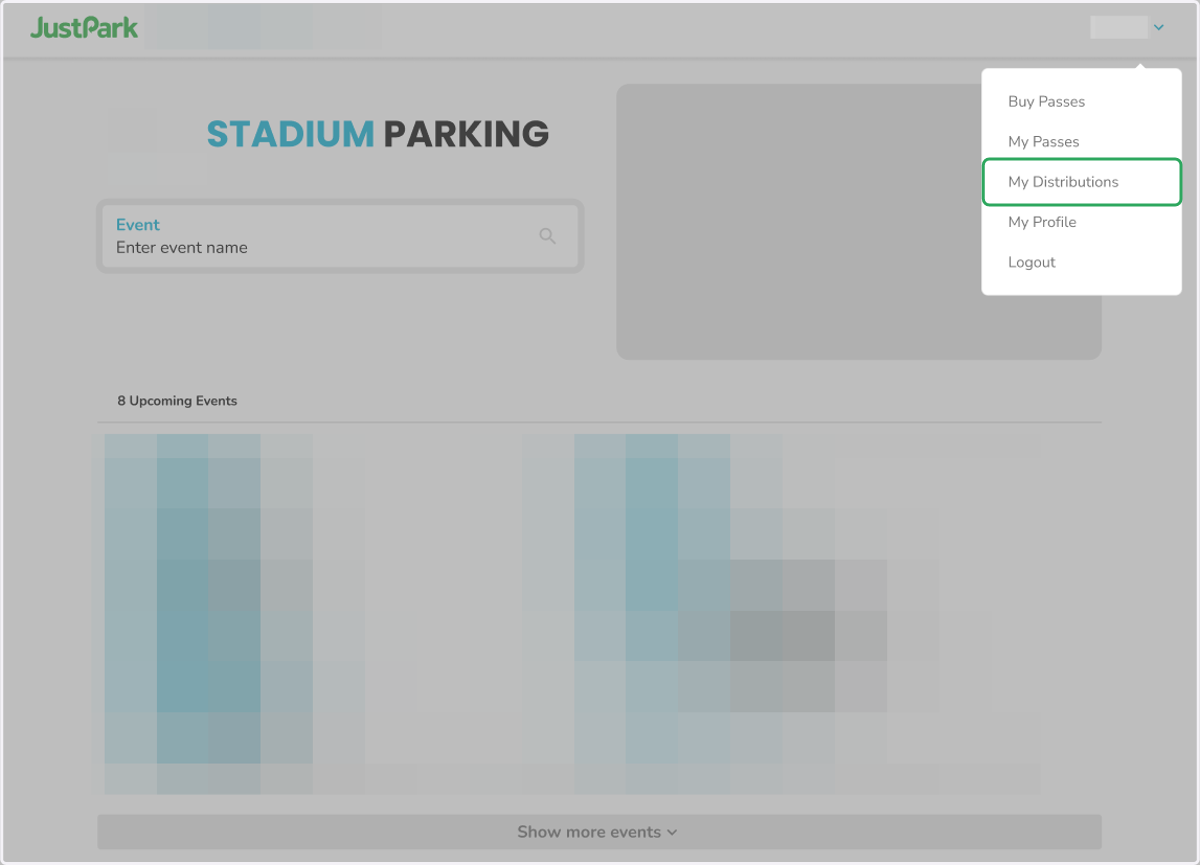
1. Open the menu in the top right corner and find the new "My Distributions" tab
Click on "My Distributions" to explore the feature.
Note: This option only appears if you have distributions assigned to your account.
2. Browse upcoming distributions
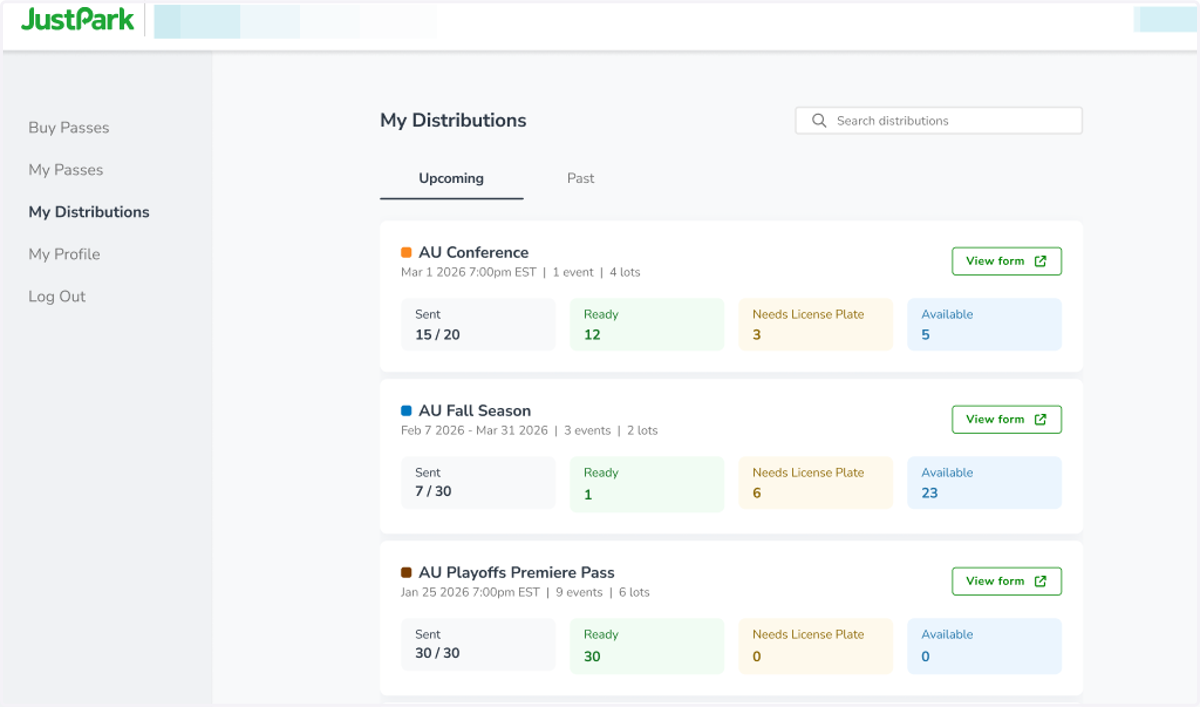
View and manage all upcoming distributions, sorted by start date. Scroll through the list or search by passbook name. For each distribution, you will see:
Passbook Name
Pass Color
Start Date
Number of Events
Number of Lots
Status Bar Metrics: Sent, Ready, Needs License Plate, Available
A “View form” button that links out to each distribution form in new tab
A “Deactivated” flag for any distributions that were deactivated
3. Browse past distributions
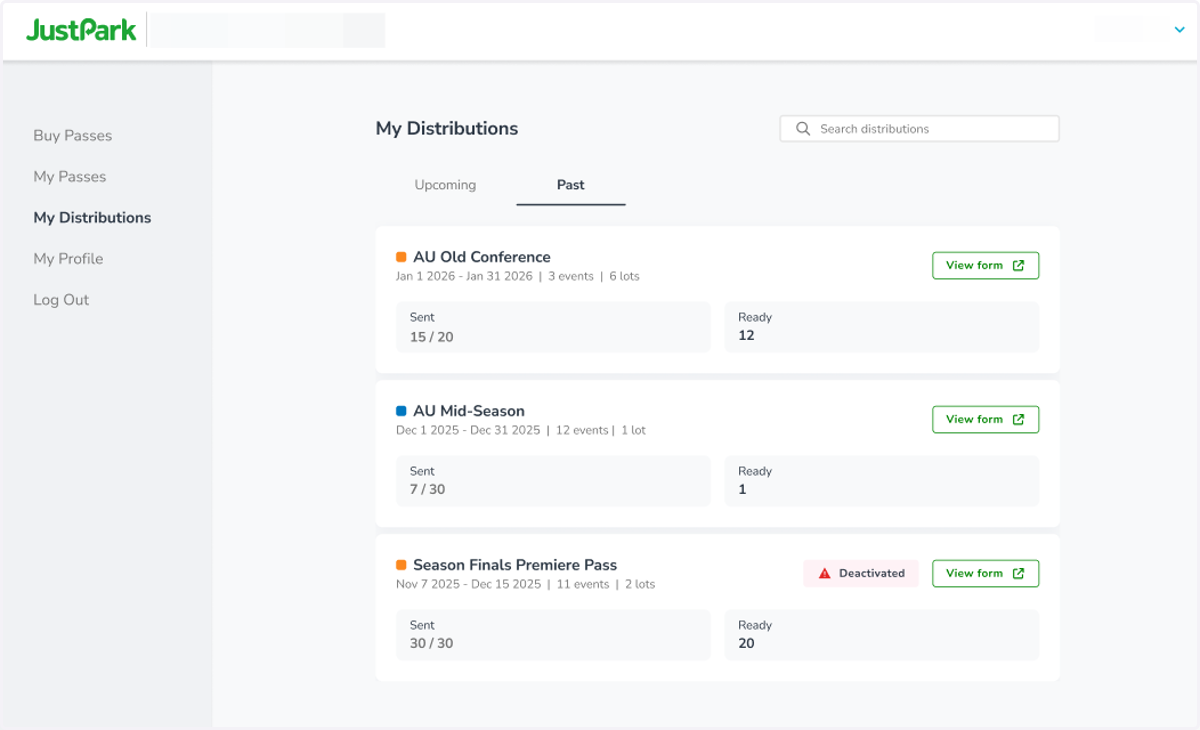
View and manage all past distributions, sorted by start date. Scroll or search by passbook name. For each distribution, you will see:
Passbook Name
Pass Color
Start Date
Number of Events
Number of Lots
Status Bar Metrics: Sent, Ready
A “View form” button that links out to each read-only distribution form in new tab
A “Deactivated” flag for any distributions that were deactivated
4. View your distribution form
Click the "View form" button for any passbook distribution to open its distribution form in a new browser tab. For past distributions, the form is read-only.
5. Review the distribution form (upcoming distributions)
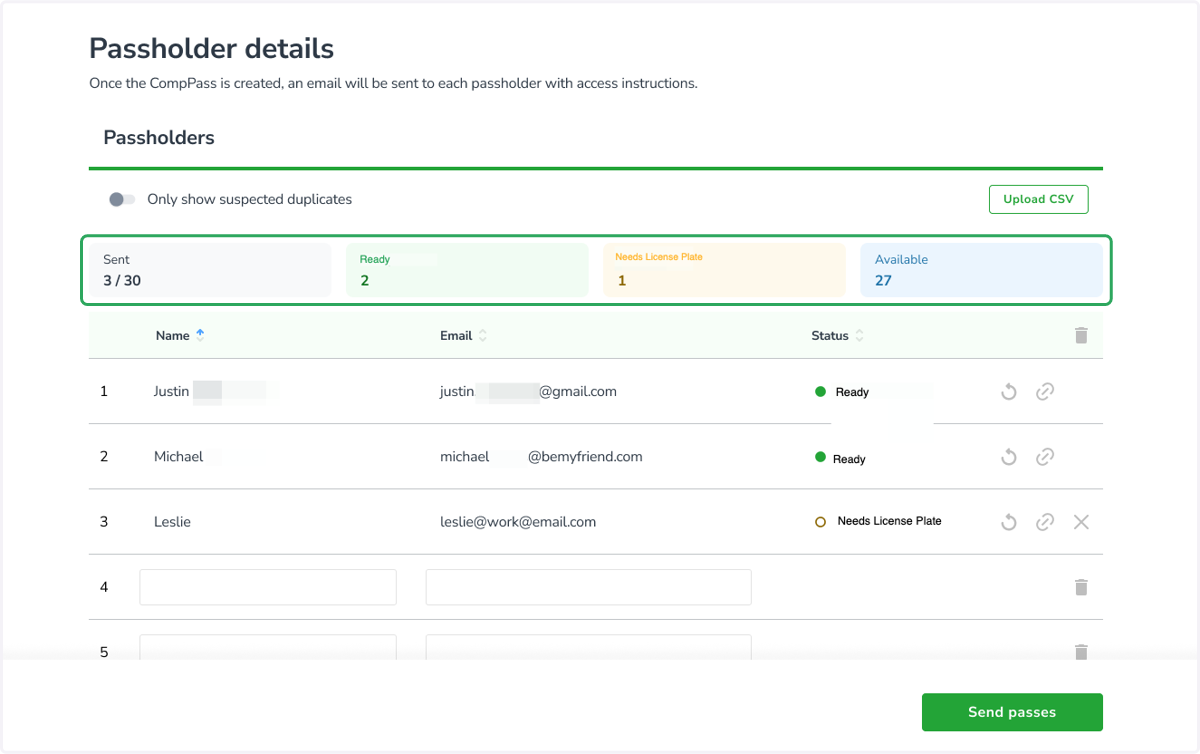
Manage the distribution form as you normally would — now with a status bar showing total Sent, Ready, Needs License Plate, and Available CompPasses above the Passholder details table.
6. Review the distribution form (past distributions)
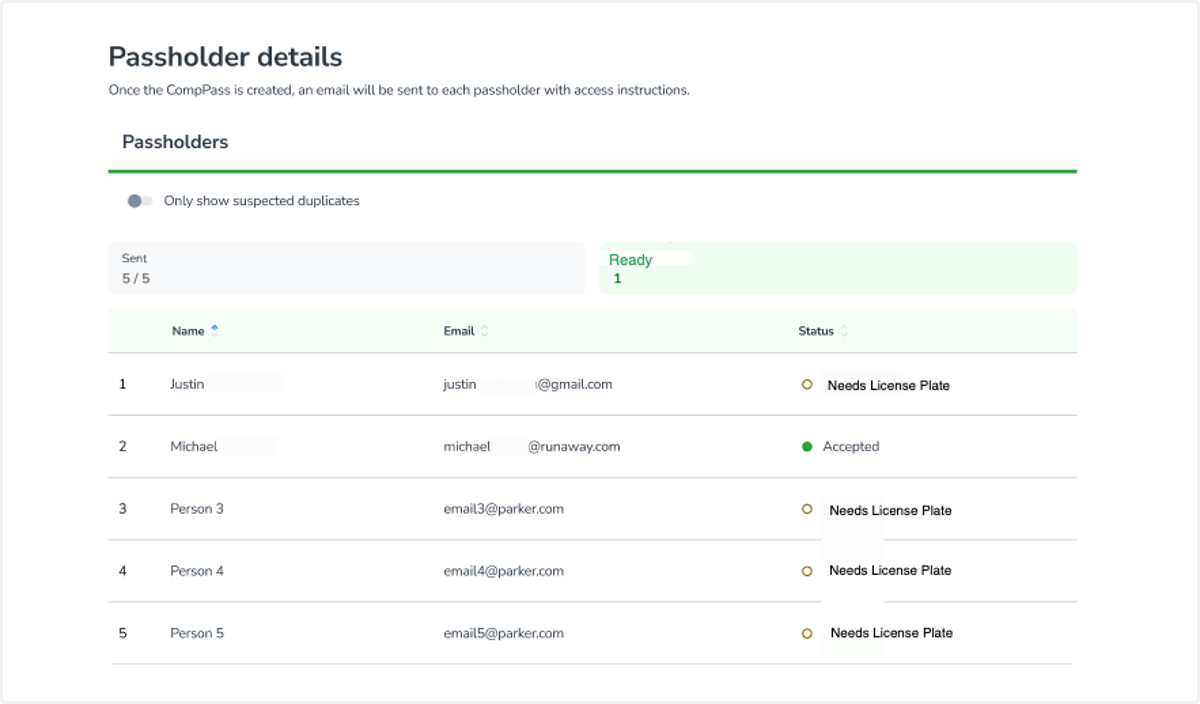
View the distribution form as you normally would — now with a status bar showing total "Sent" and "Ready" CompPasses above the Passholder details table.
7. Deactivated passbook distributions
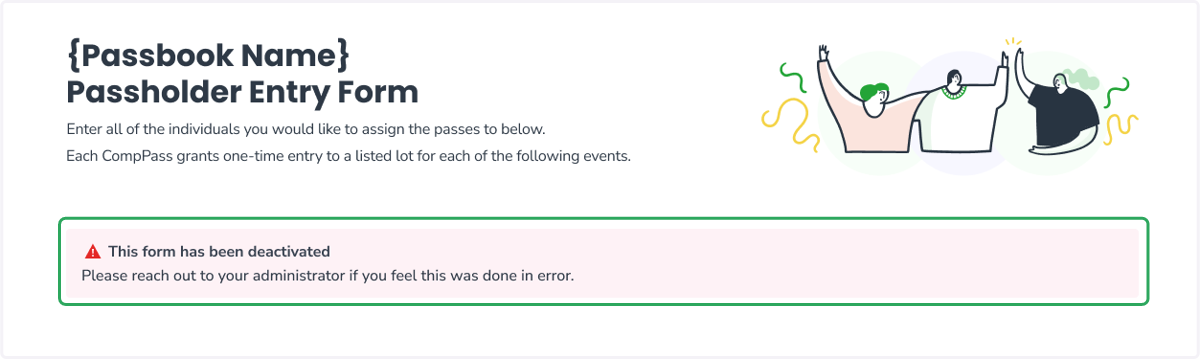
If you open the distribution form for a deactivated passbook distribution, you will see a warning message letting you know it is no longer active.