Create a new email
Head to your Engagifii Workspace
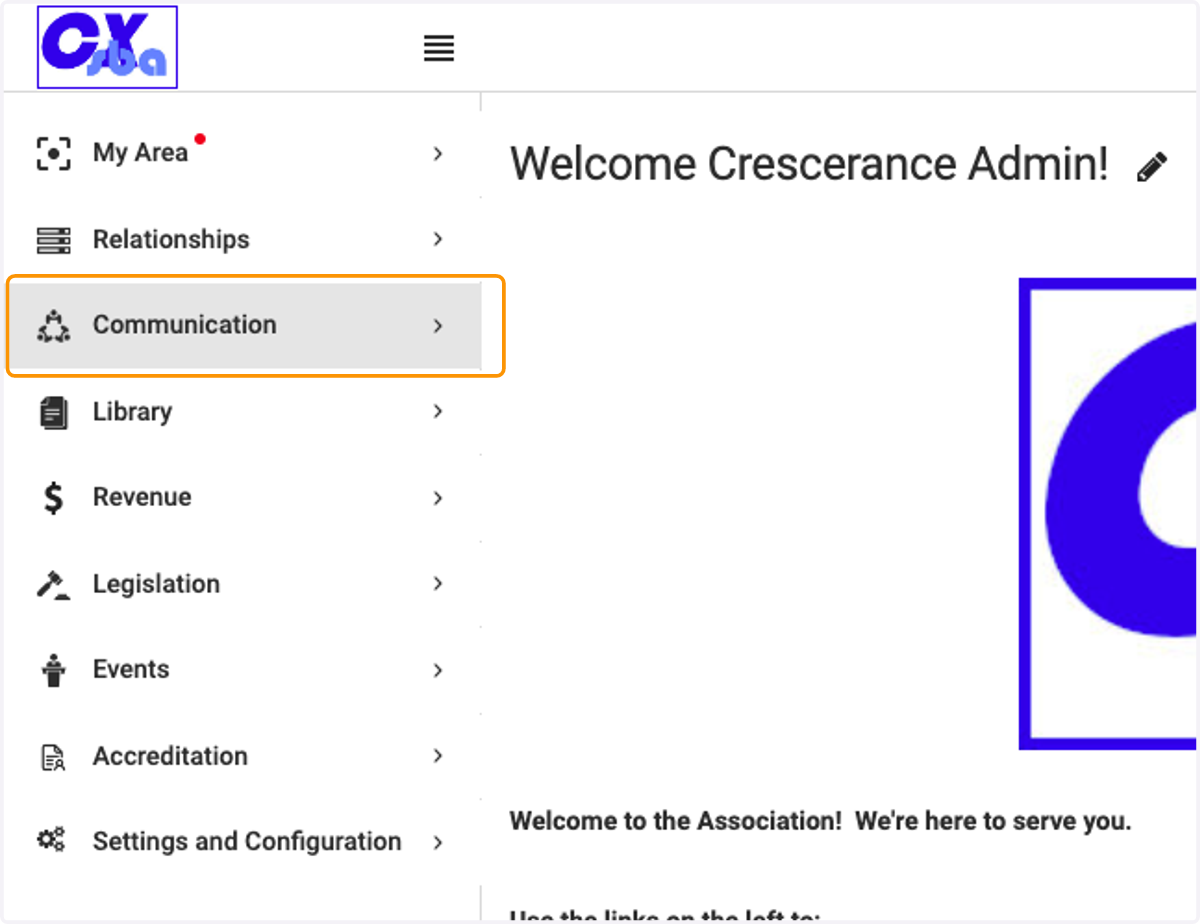
1. Click on Communication
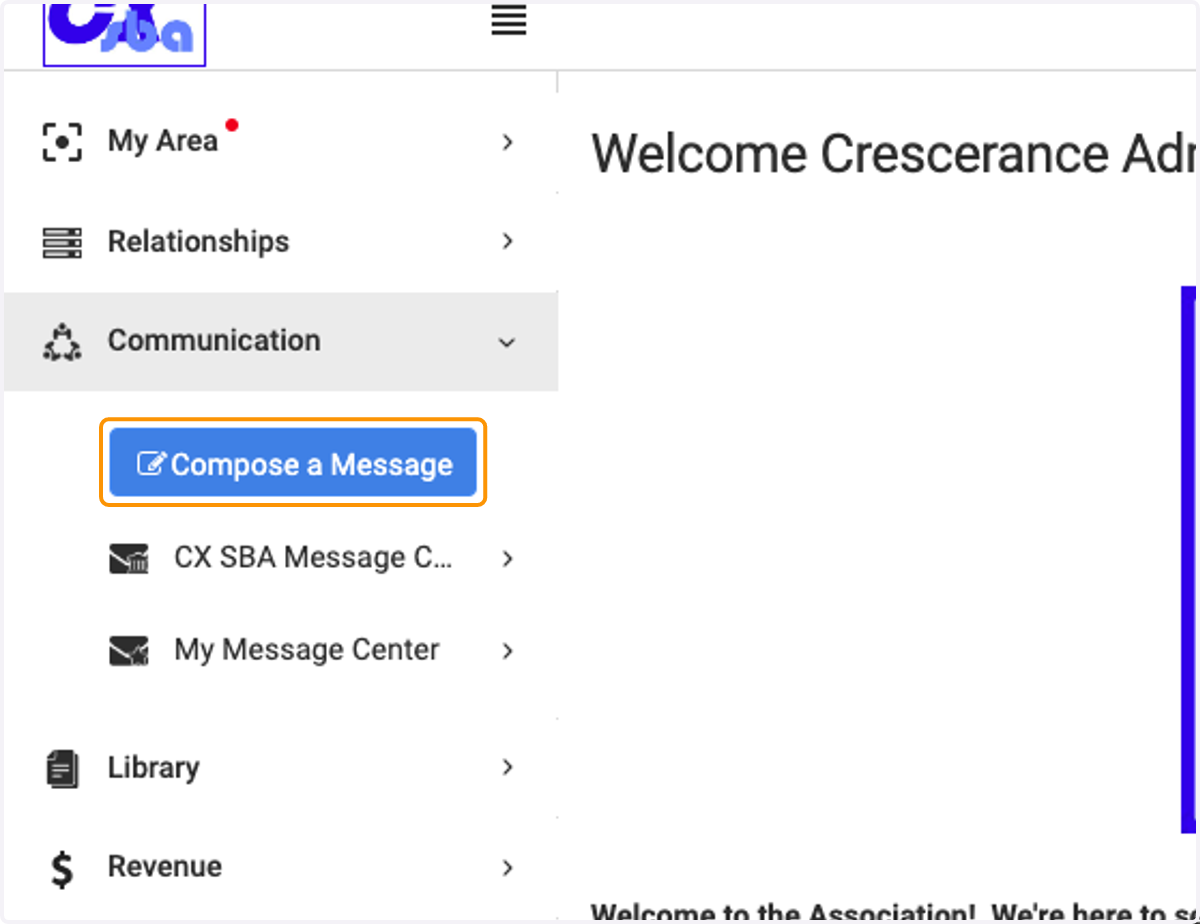
2. Click on Compose a Message
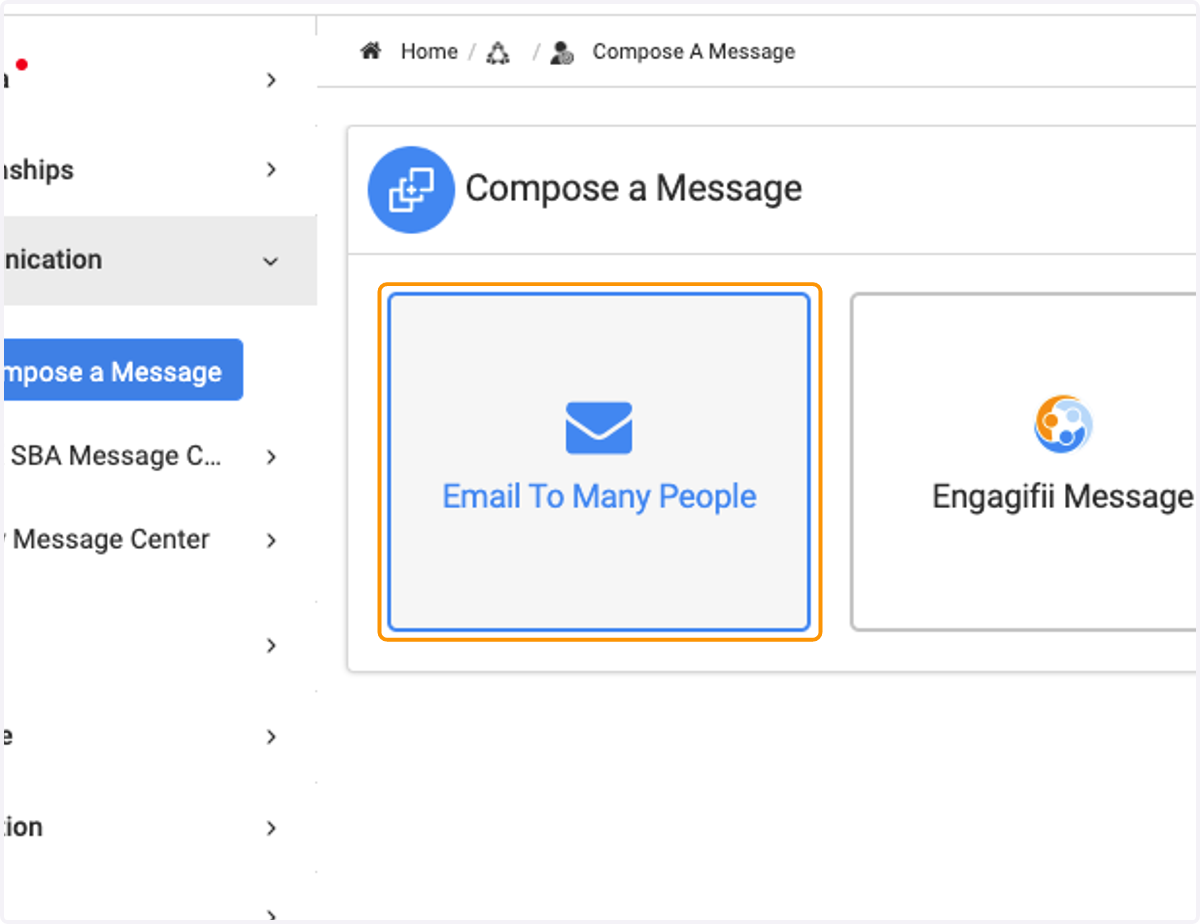
3. Click on Email To Many People
4. Type in the name of the individuals, groups or organizations you would like to send this email to
You will see the spotlight search pop up with any relevant data below where you typed in your name
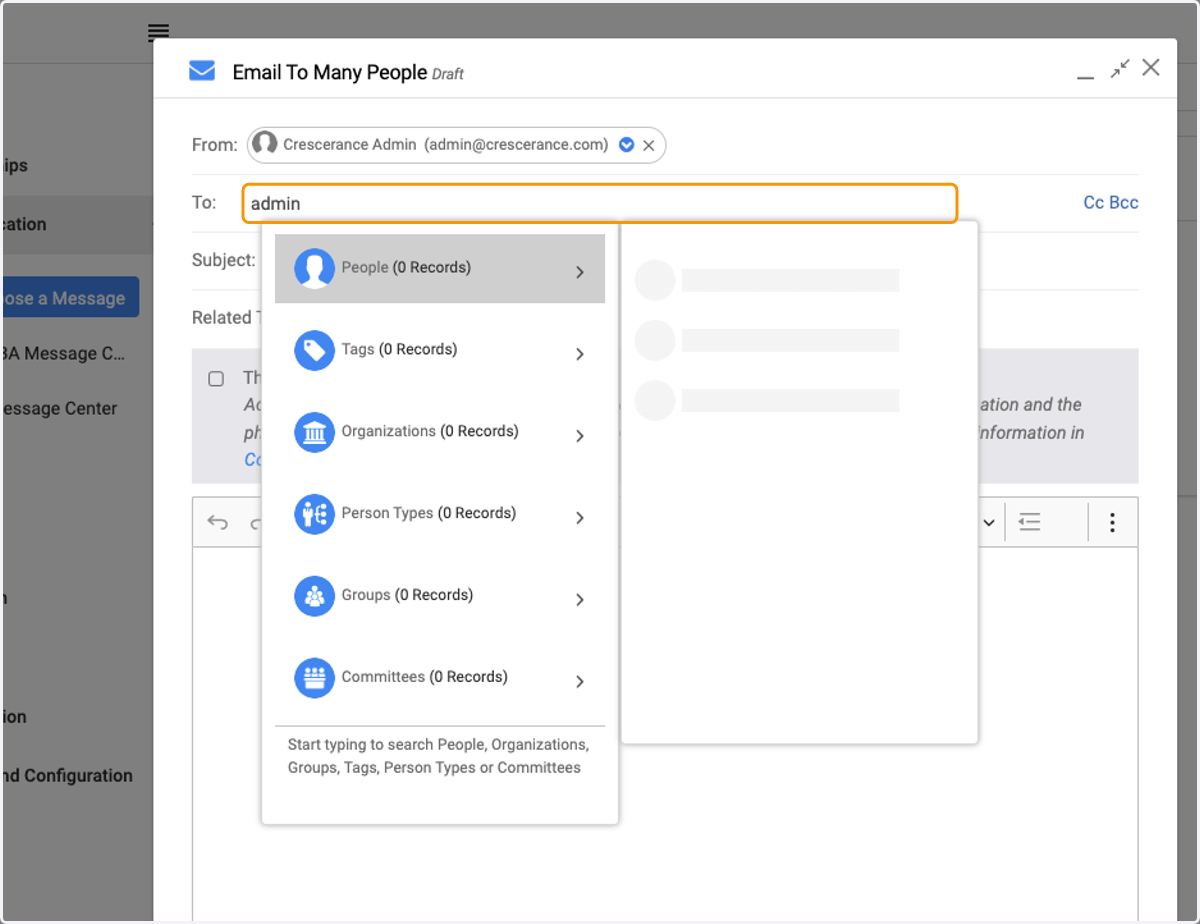
5. Click on the individual, group or organization you want to send the email to by clicking on the name
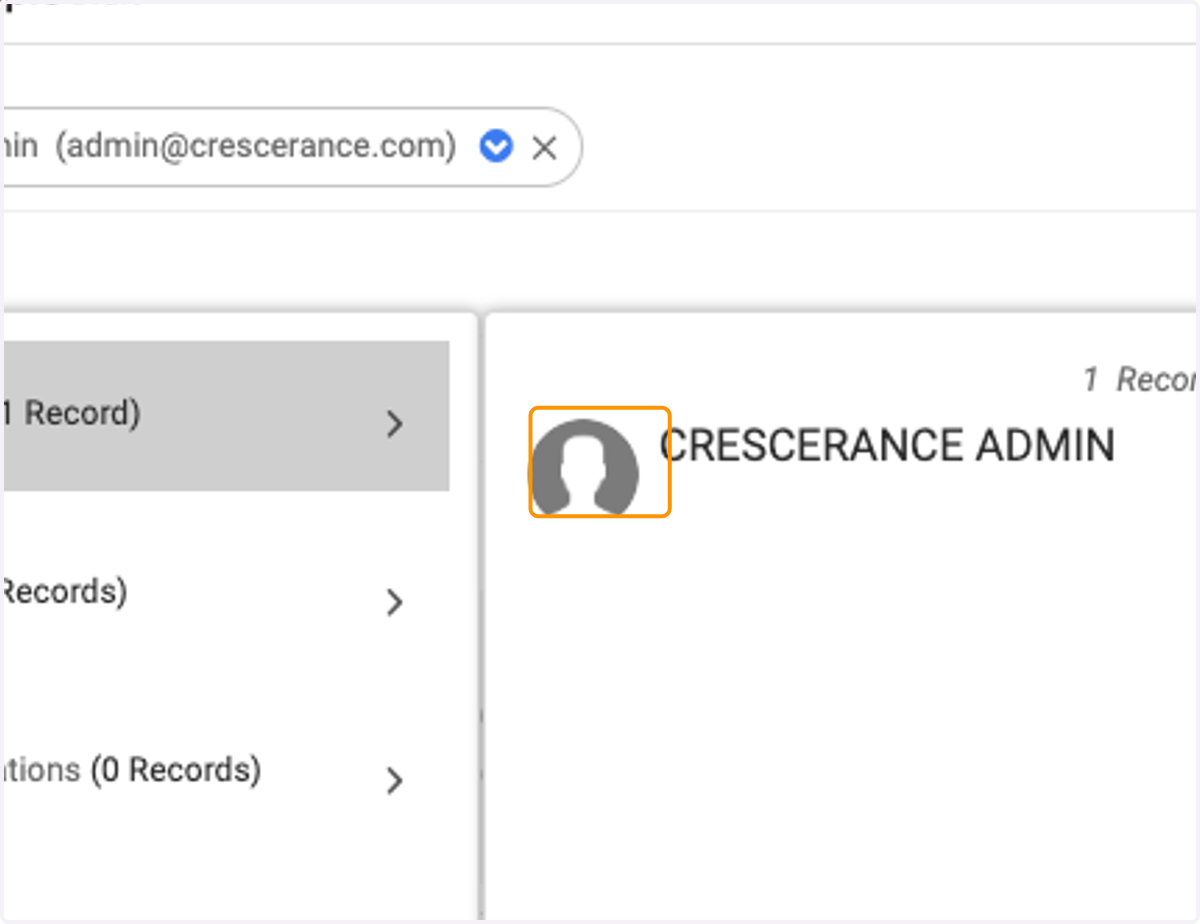
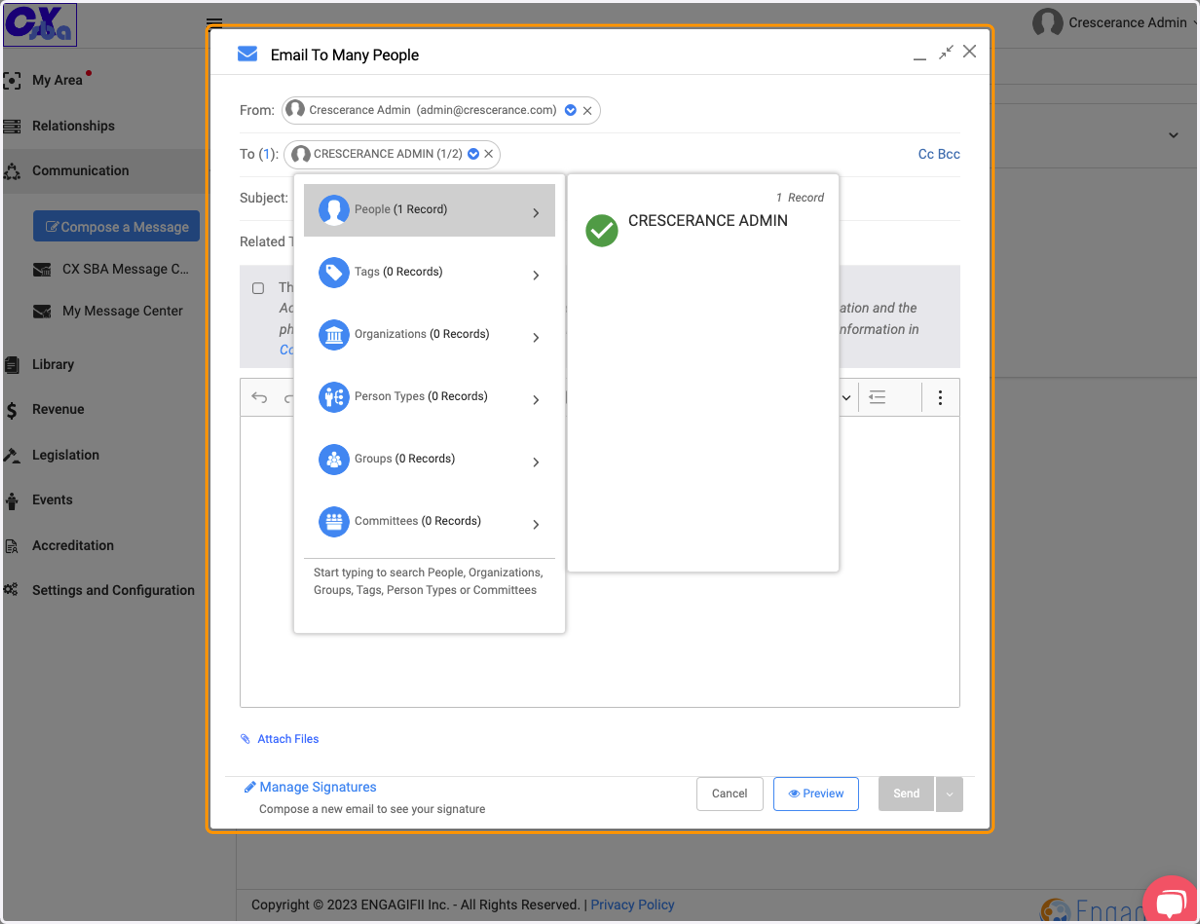
6. You will then see the green check mark next to their name, as well as their email address in the To: field
7. Type out your subject line
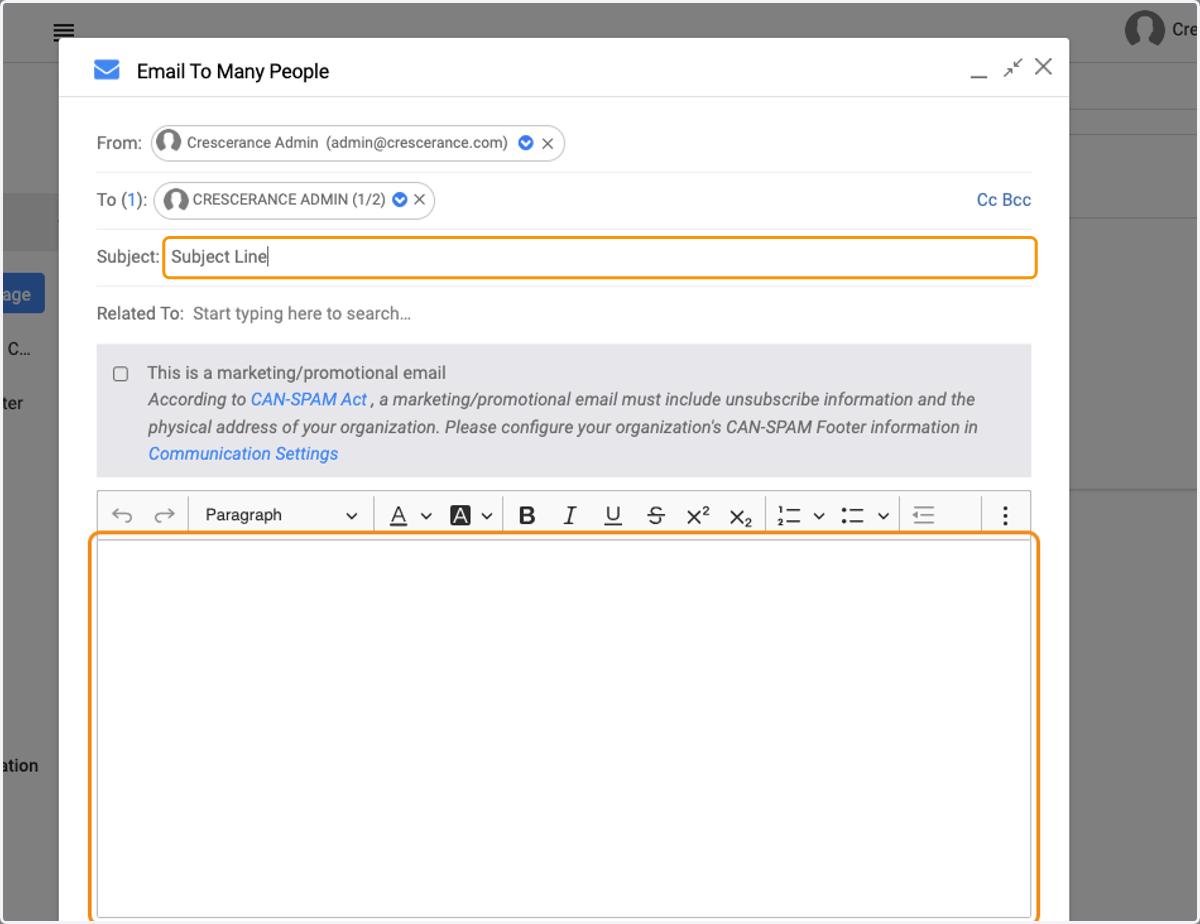
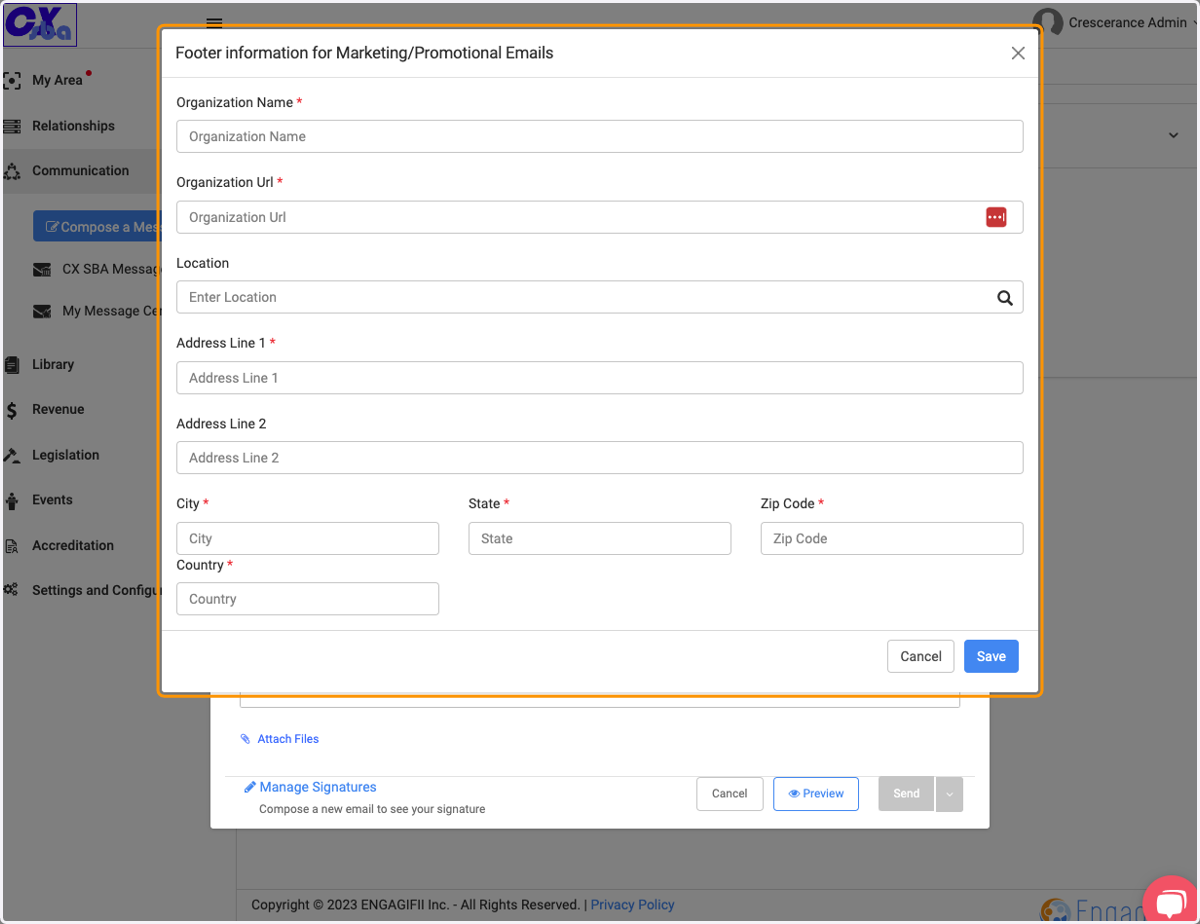
8. For Marketing/promotional emails, you'll check the box for this (above the text editor) and an additional window will pop up asking for Footer information
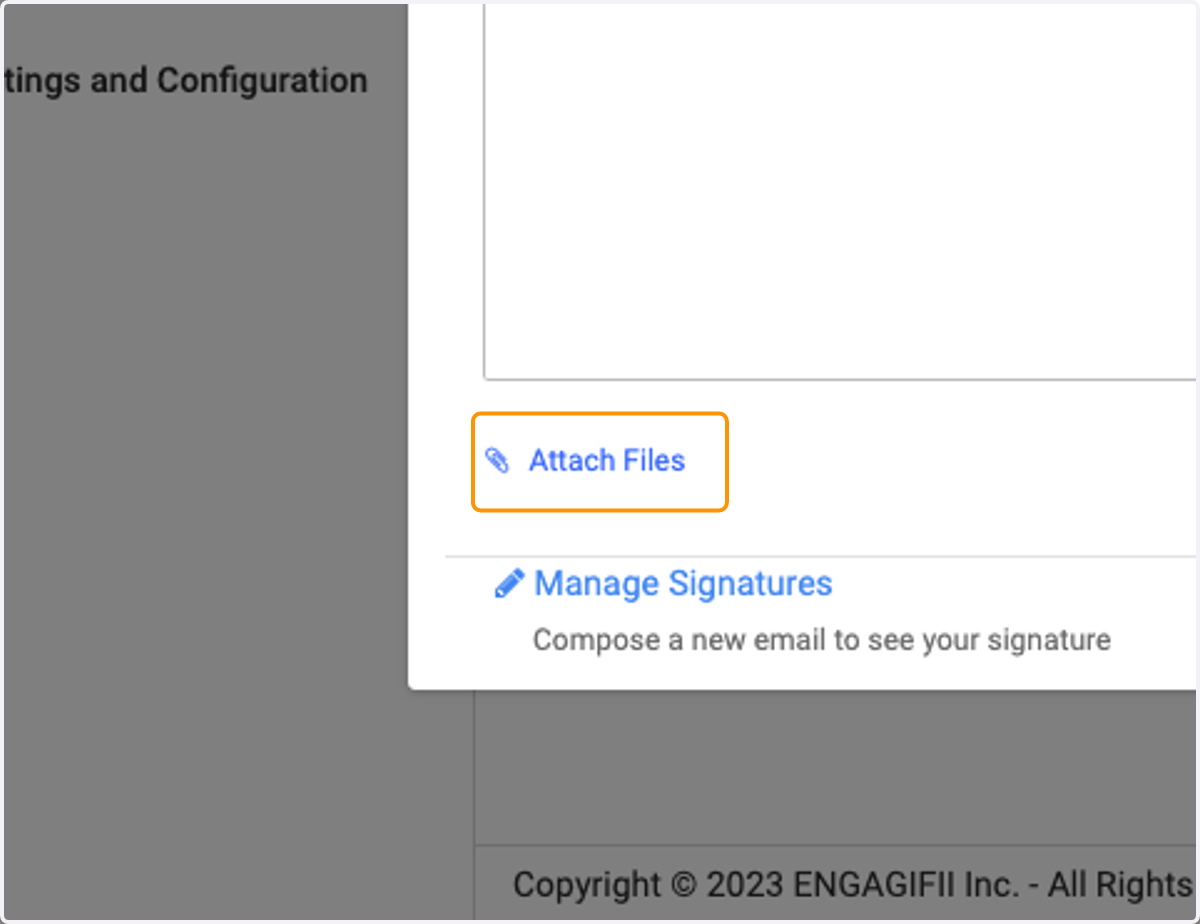
9. Click on Attach Files
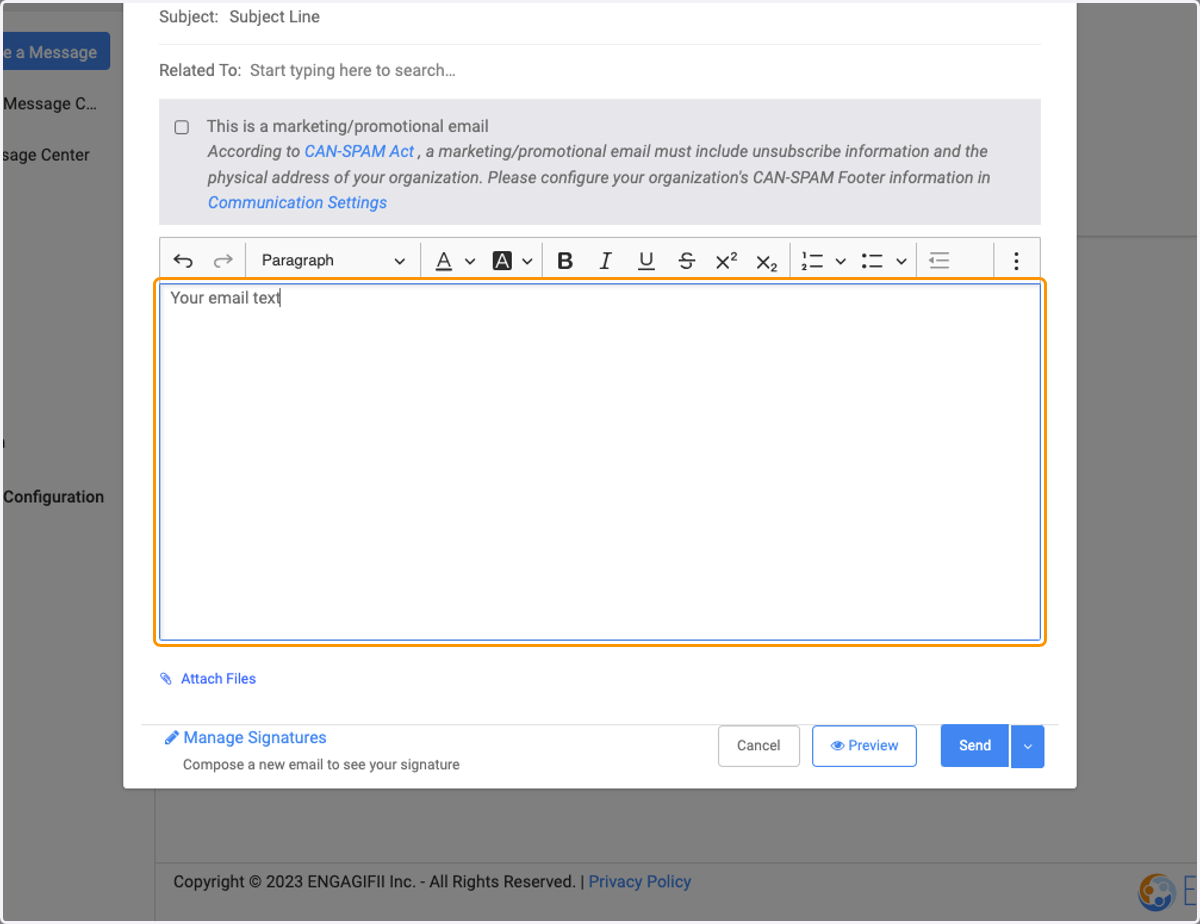
10. Type in your email body. You can type within this box, or copy and paste from another source.
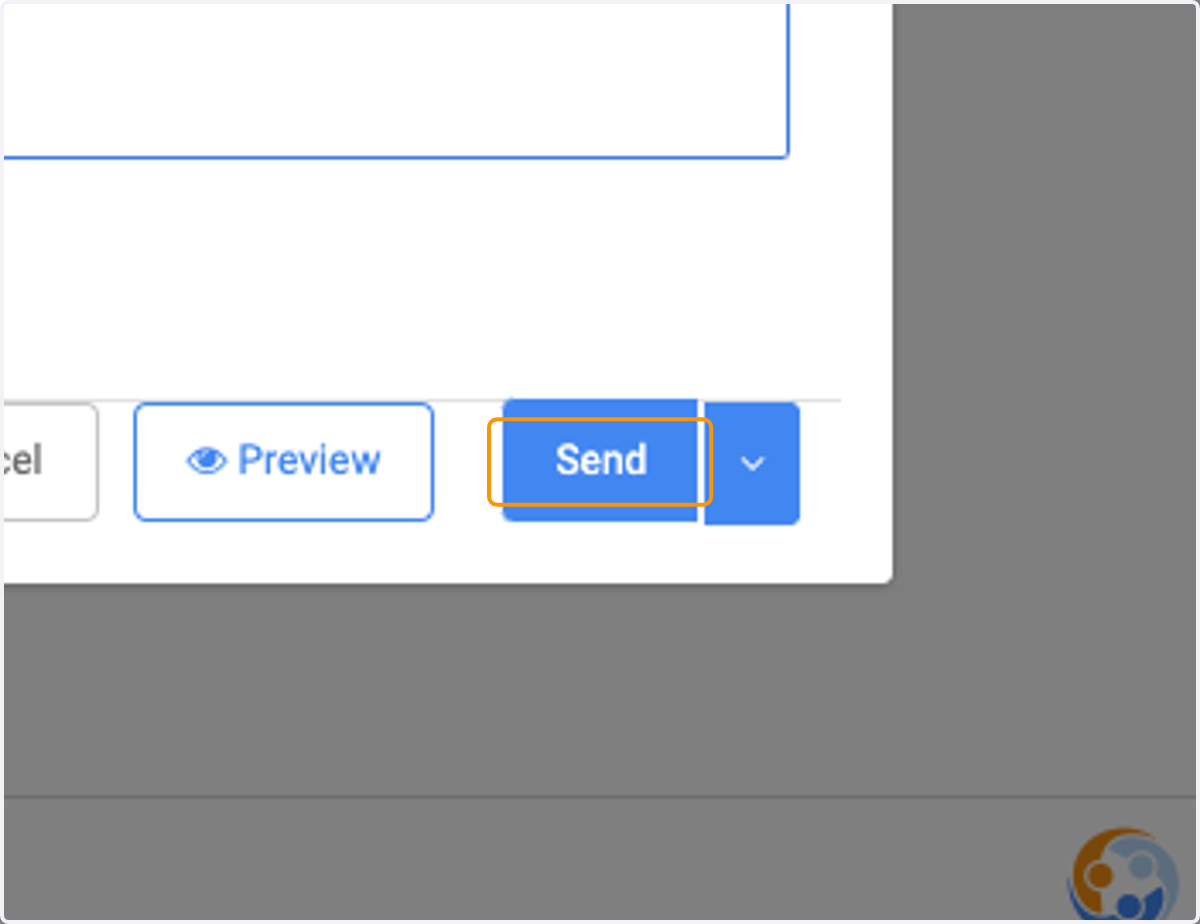
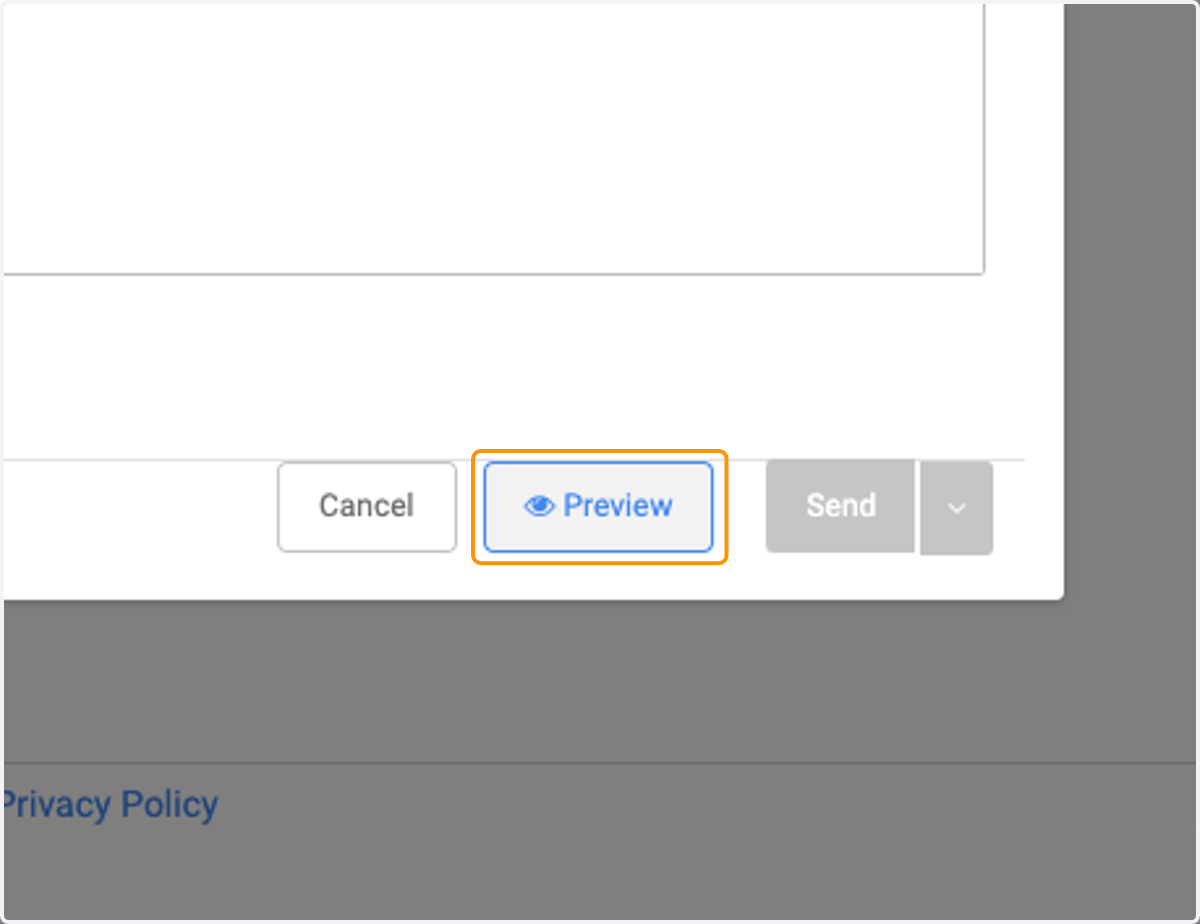
11. If you'd like to take a look at what your email will look like prior to sending it out to your recipients, click on the Preview button in the bottom right
12. Once you're ready, click the Send button