Configuring delivery/shipping taxes on a tax provider basis | BG_PAY_001
Infigo has long had the ability to apply tax to shipping/delivery rates. These options are configured as part of the Tax Settings.
More recently, we have introduced the ability to control shipping/delivery tax rates at a tax provider level.
This applies to tax provider options:
TaxJar
Tax By Country & State & Zip
This functionality gives the ability to define the rate of tax on shipping, based on elements such as geographical location.
In this tutorial, we'll see a basic example of this setup.
Prior to the start of this tutorial, the following steps were carried out:
A basic sample product was created
Two new tax categories were created (Delivery/Shipping Tax and Product Tax)
No rates have been applied to these categories so far
General tax display settings in "Tax Settings" have been modified to clearly display tax rates on the Storefront. This is for clarity purposes only and is not strictly required.
1. Apply the product tax to the product
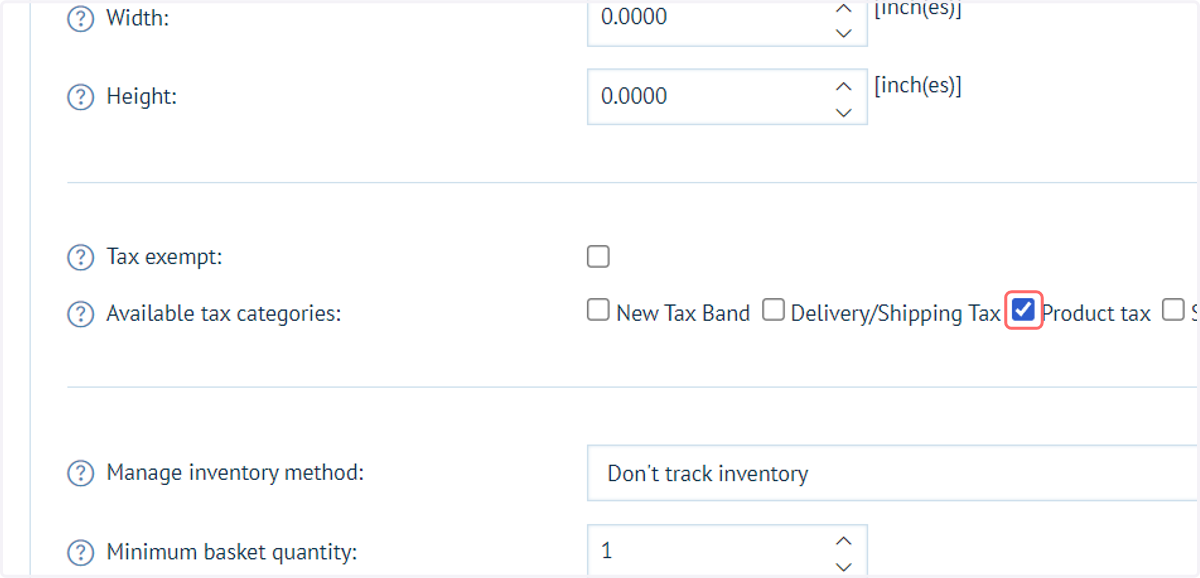
In order to clearly see a differentiation of the taxes applied by product and shipping, this example sees the application of the Product Tax category to our basic product.
This controls the tax from the product cost only, and does not reflect shipping taxes.
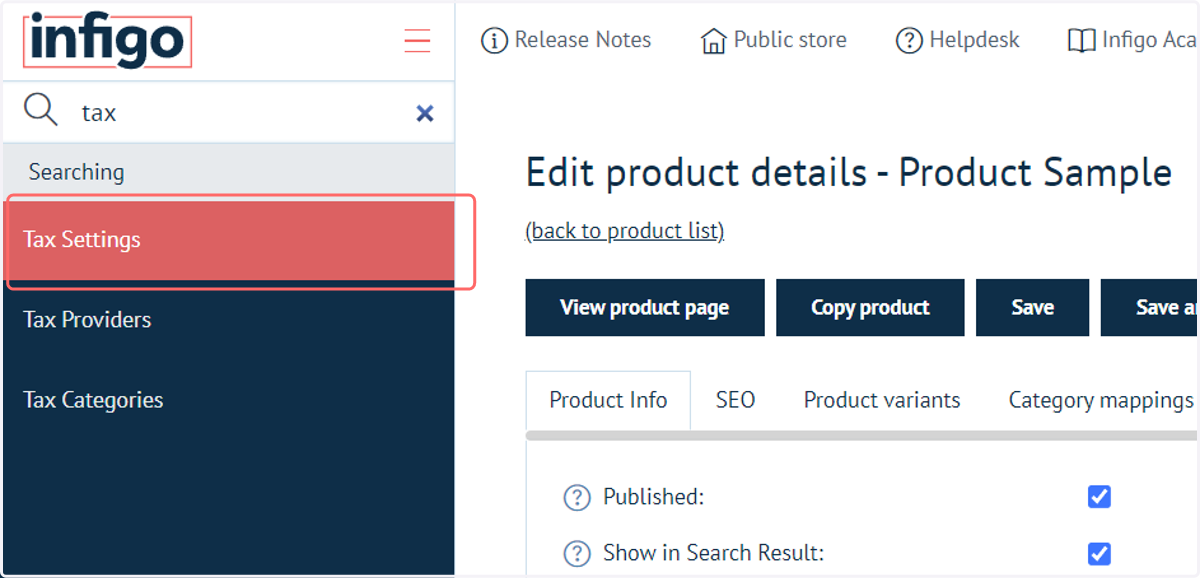
2. Navigate to Tax Settings
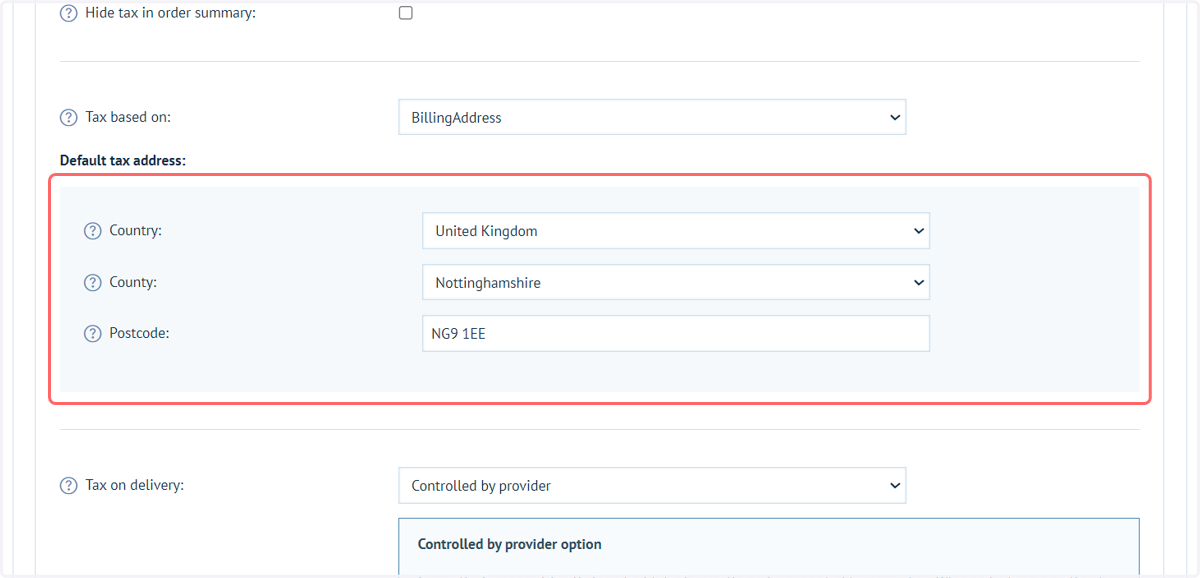
3. Ensure a Tax based on and Default tax address are entered
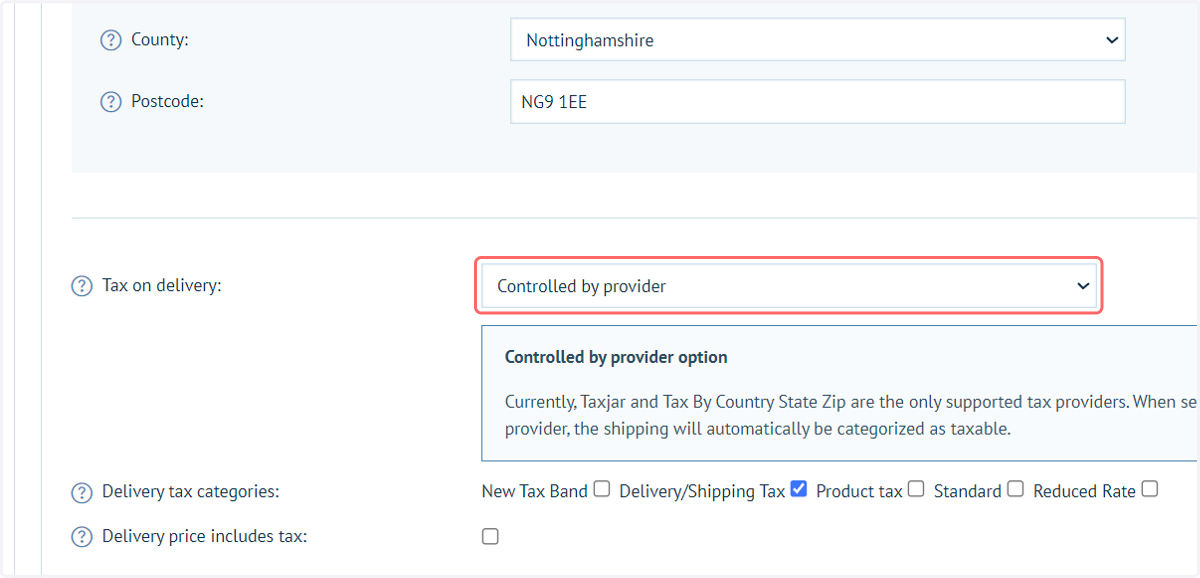
4. Click on Controlled by provider from Tax on delivery
"Controlled by provider" is a new option within the "Tax on delivery" dropdown.
Currently applying only to TaxJar and Tax By Country State Zip, selecting this option will hand over control on the inclusion and rate of shipping tax to those providers.
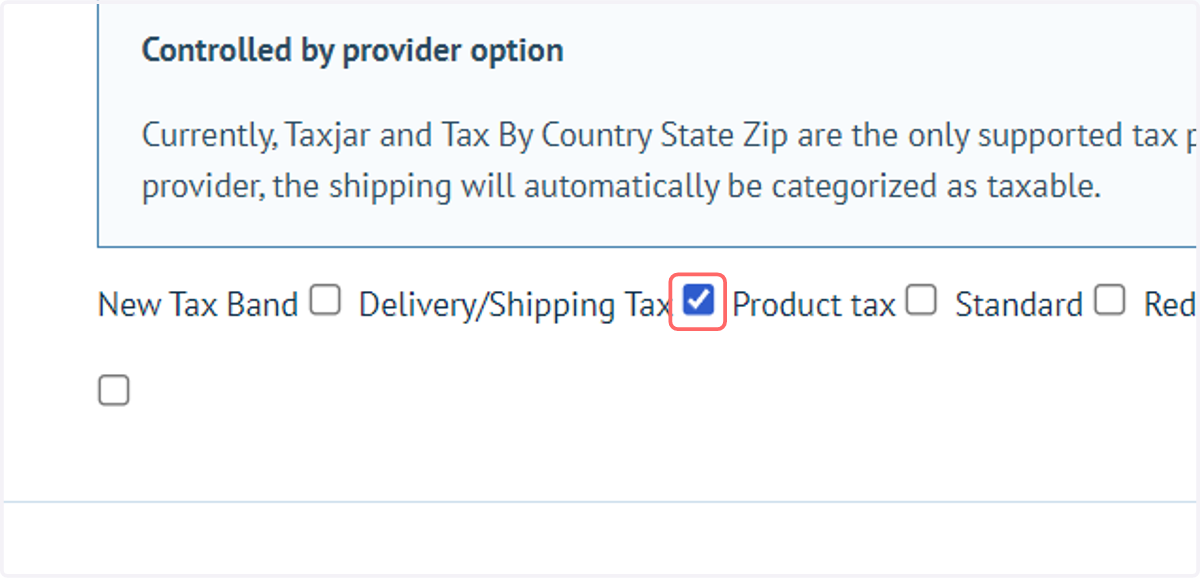
5. Check tax categories related to shipping / delivery tax
In our example, the matching named tax category has been selected.
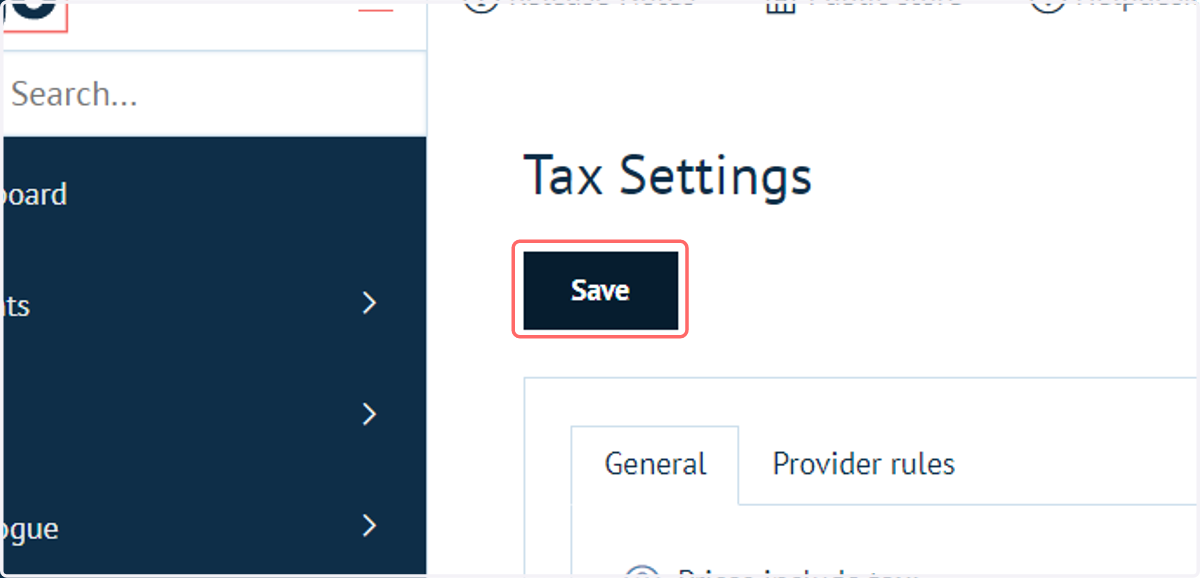
6. Click on Save
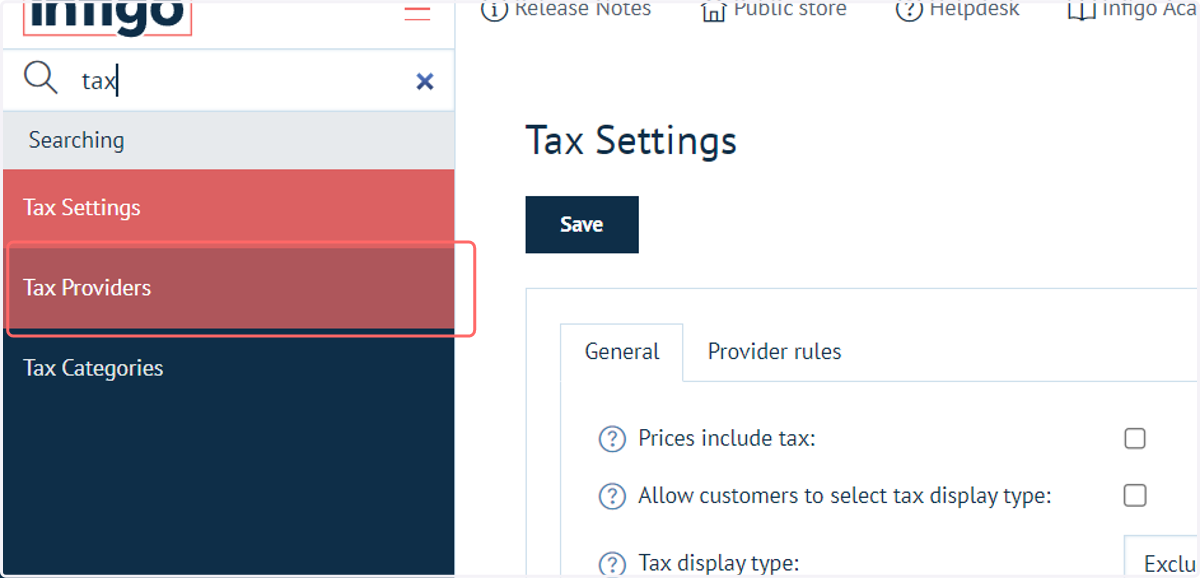
7. Navigate to Tax Providers
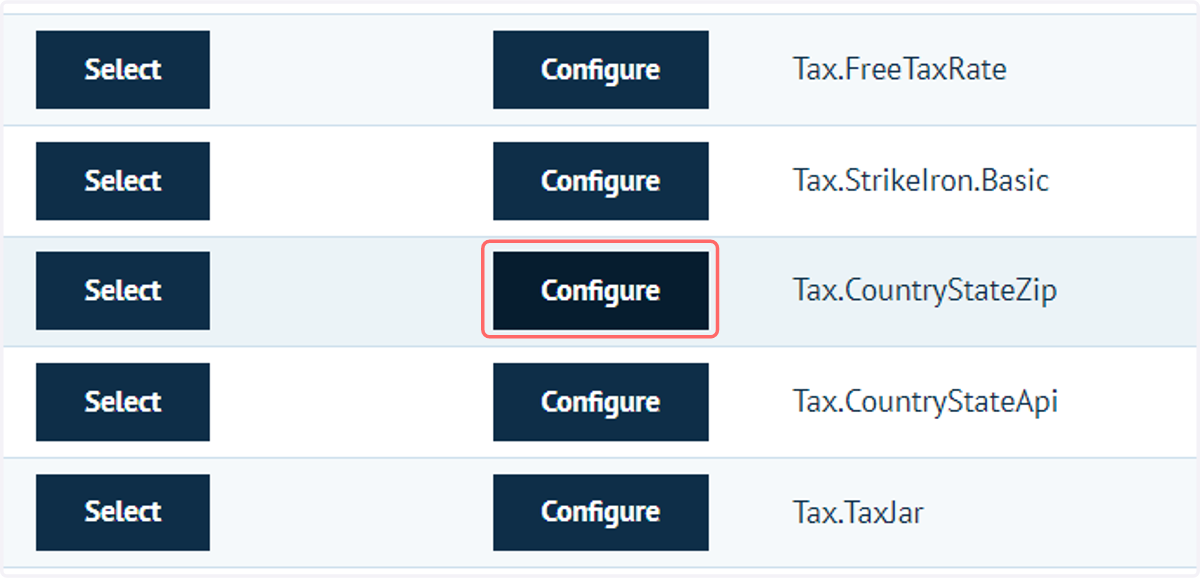
8. Click on Configure next to your chosen tax provider
In this case, we are utilising Tax By Country State Zip
9. Configure tax rates
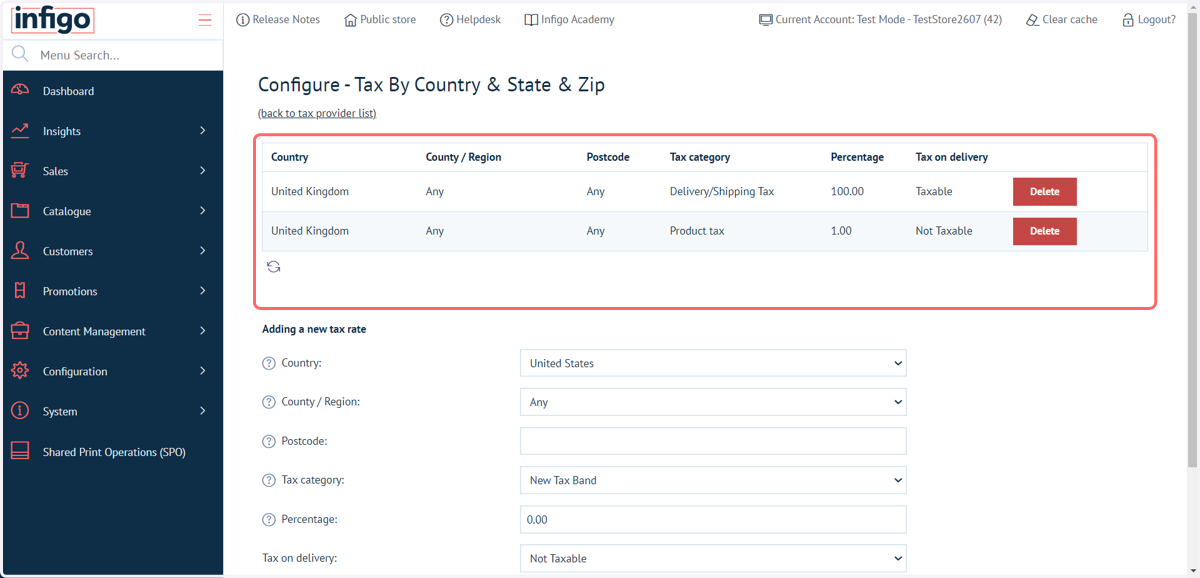
Here, we can see two tax rates configured using the series of options below the table.
One entry is set to apply a 100% tax rate to delivery.
The second entry is apply a 1% tax rate on our product.
10. Navigate to the front end and proceed through the checkout with an order for our chosen product
11. Applied tax rates during checkout
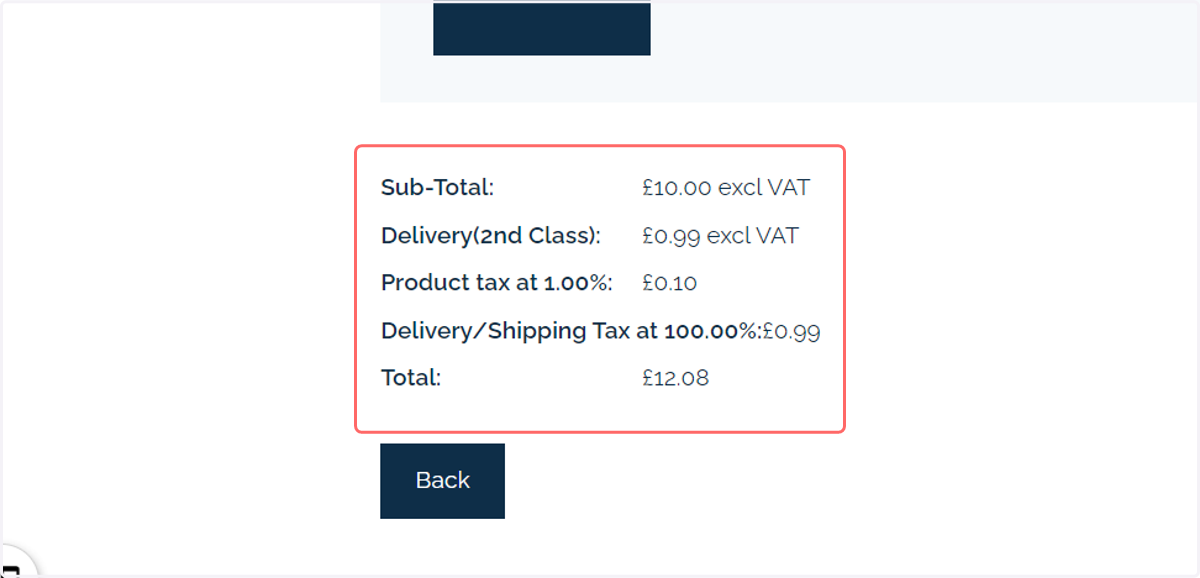
We can see in our example that two tax rates have been applied.
The 1% rate has successfully been applied to our product only.
The 100% rate has been applied to our shipping only.