October 5th Release Notes
Adding a Category and Cost to Approved Case Decisions
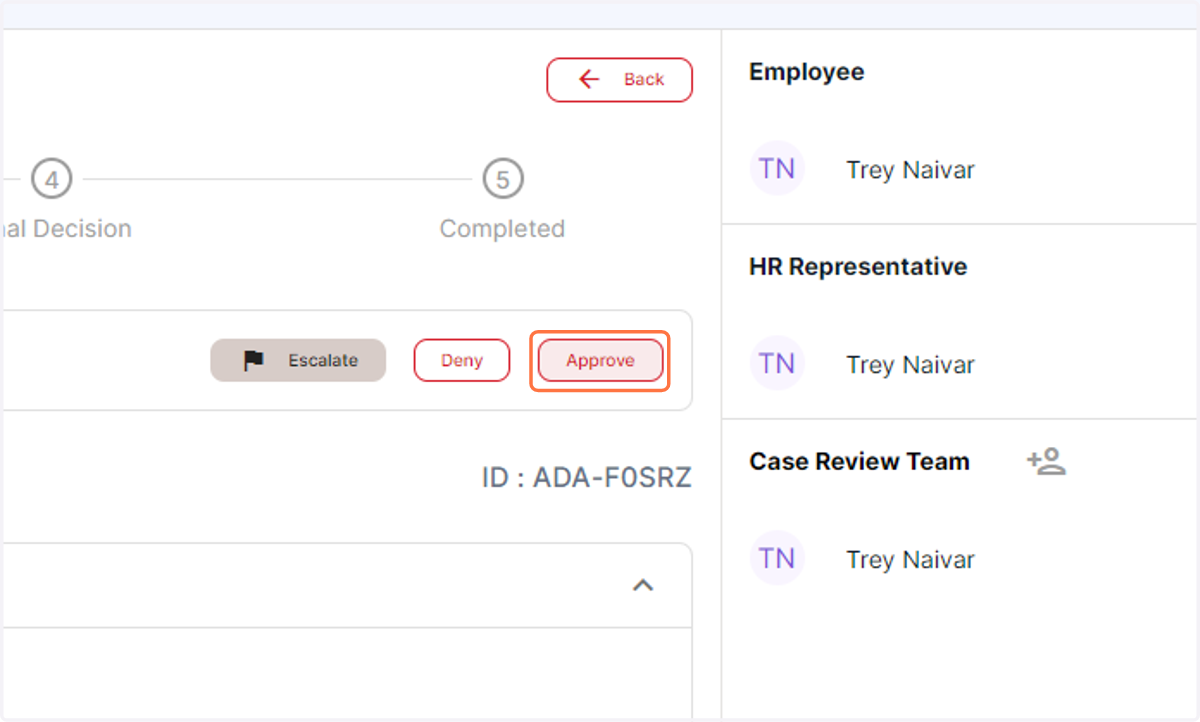
1. If an Approval is granted...
Once you click the Approve button, you will now be able to categorize the decision and record any associated costs!
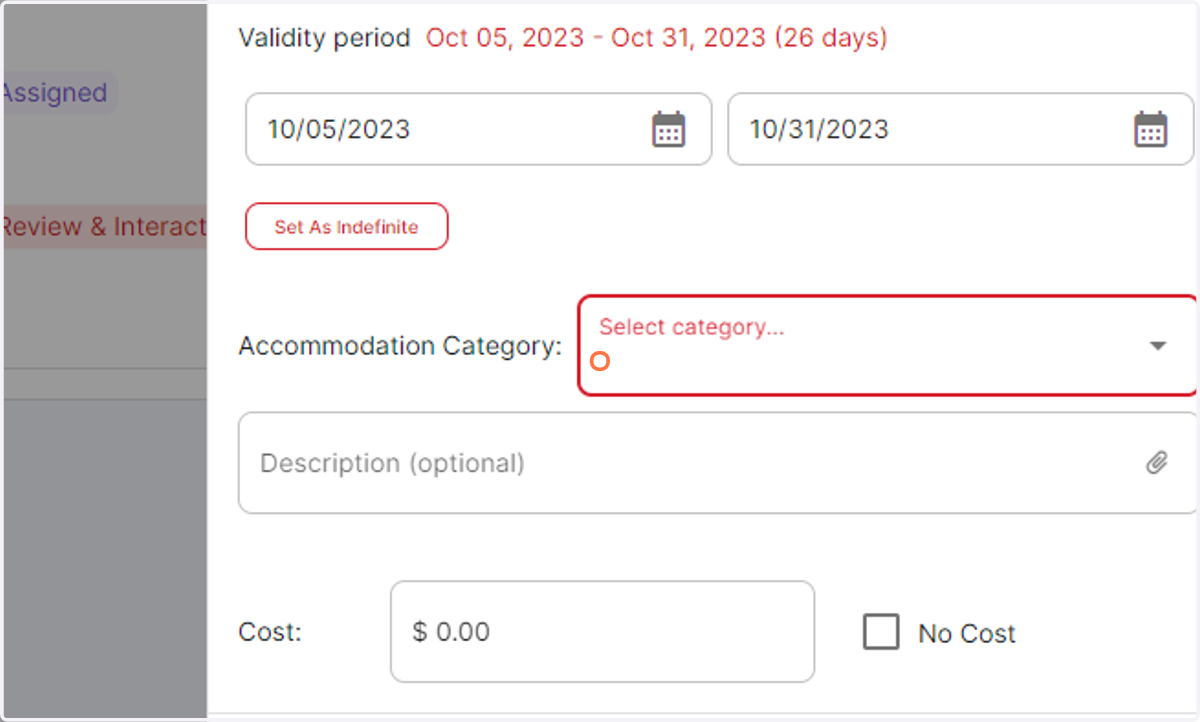
2. Category Menu
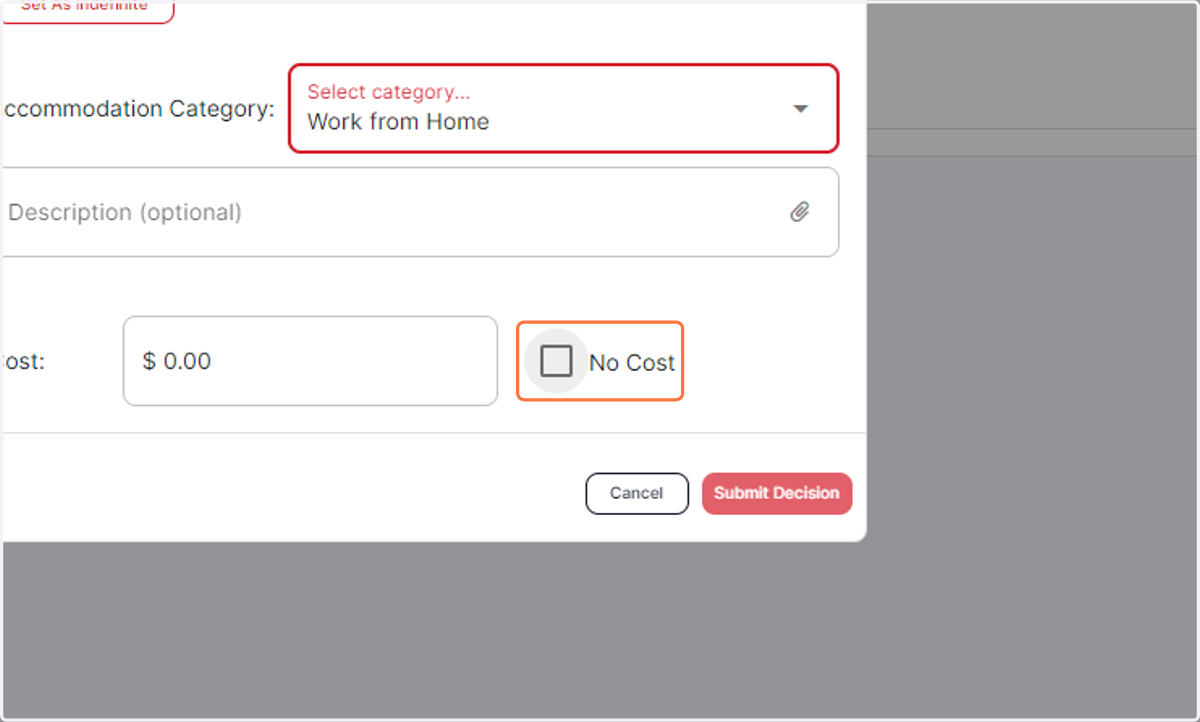
After you have selected your Start and End dates, you can use the dropdown menu to choose what Category your employee's accommodation will be logged under.
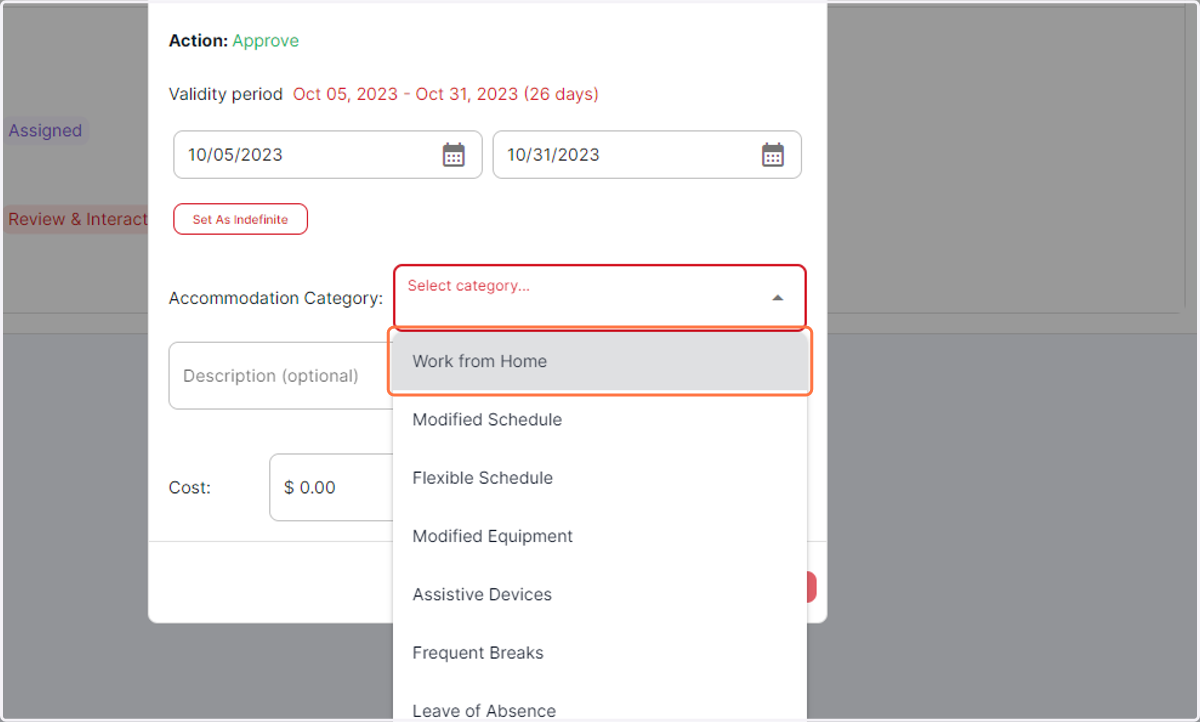
3. Choose from the dropdown...
Categories include: Work From Home, Modified Schedule, Flexible Schedule, Modified Equipment, Assistive Devices, Frequent Breaks, Leave of Absence, Position Relocation, Intermittent Leave, Distraction-Reduced Work Environment, and Other
4. Record any associated Costs
You can also make a record of any associated costs with the Decision should it come with an expenditure for the company or select No Cost if there is no associated expenditure
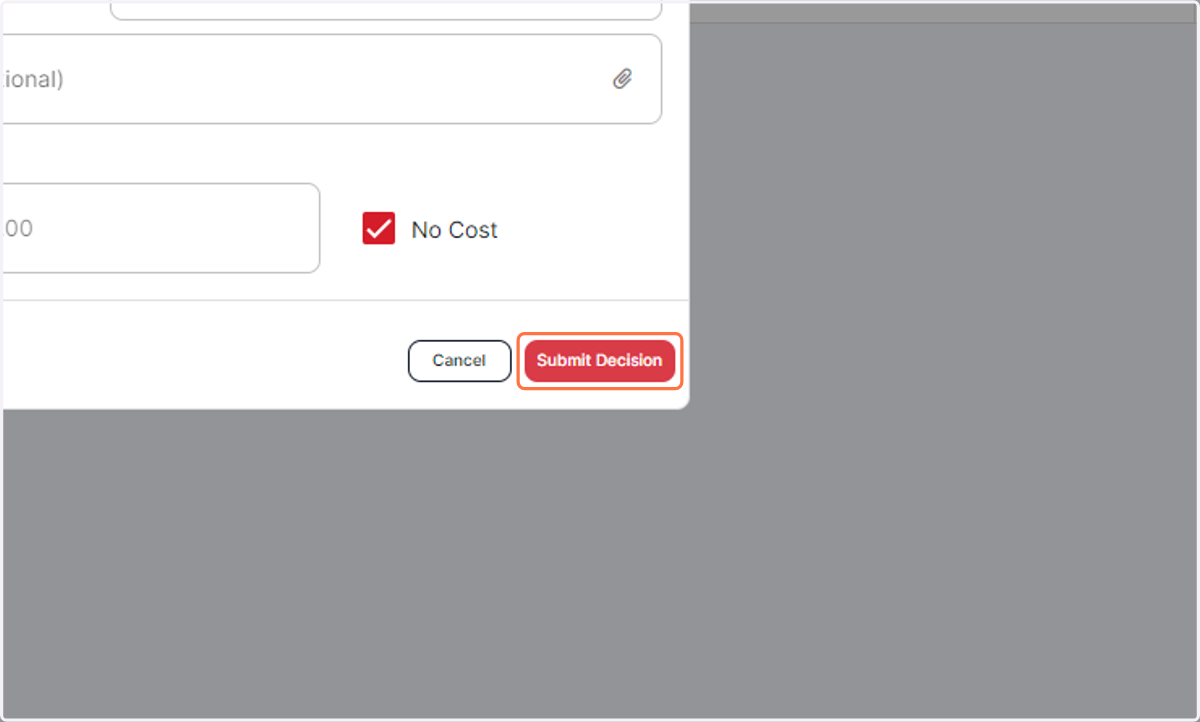
5. Click on Submit Decision
CareValidate Recommended Documents
6. AccommoCare now offers recommended documents for your ADA needs!
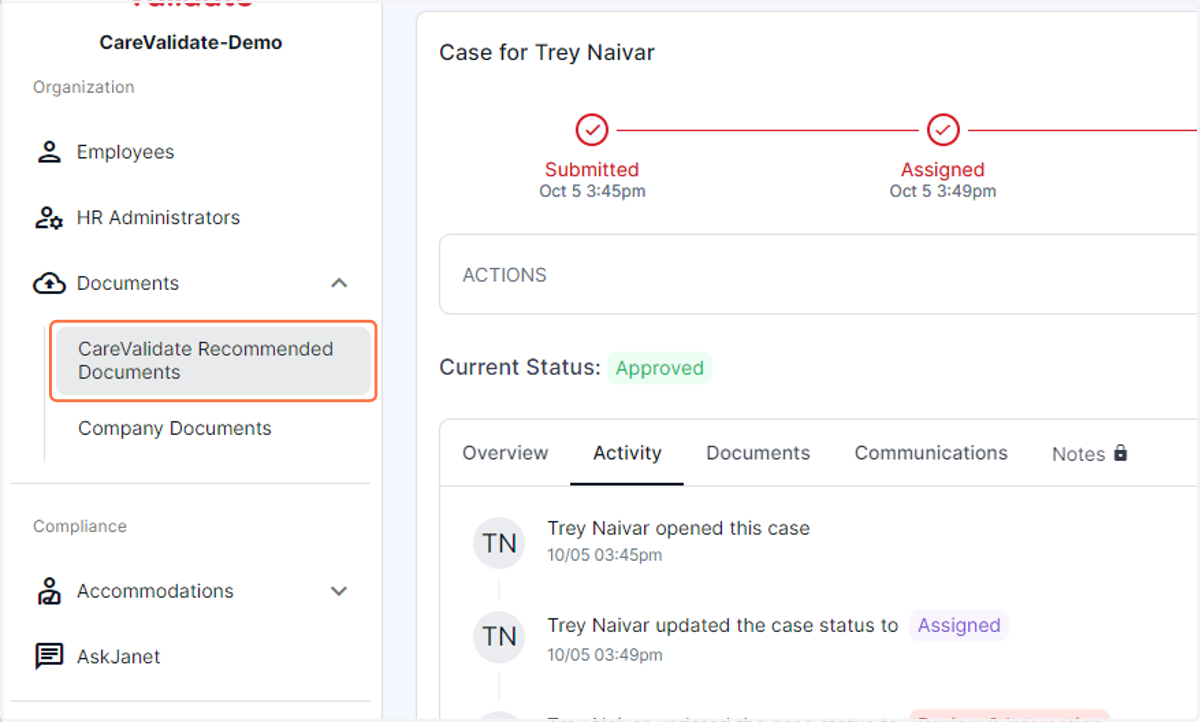
7. Click on Recommended Documents and you will find a library of ready-to-fill forms
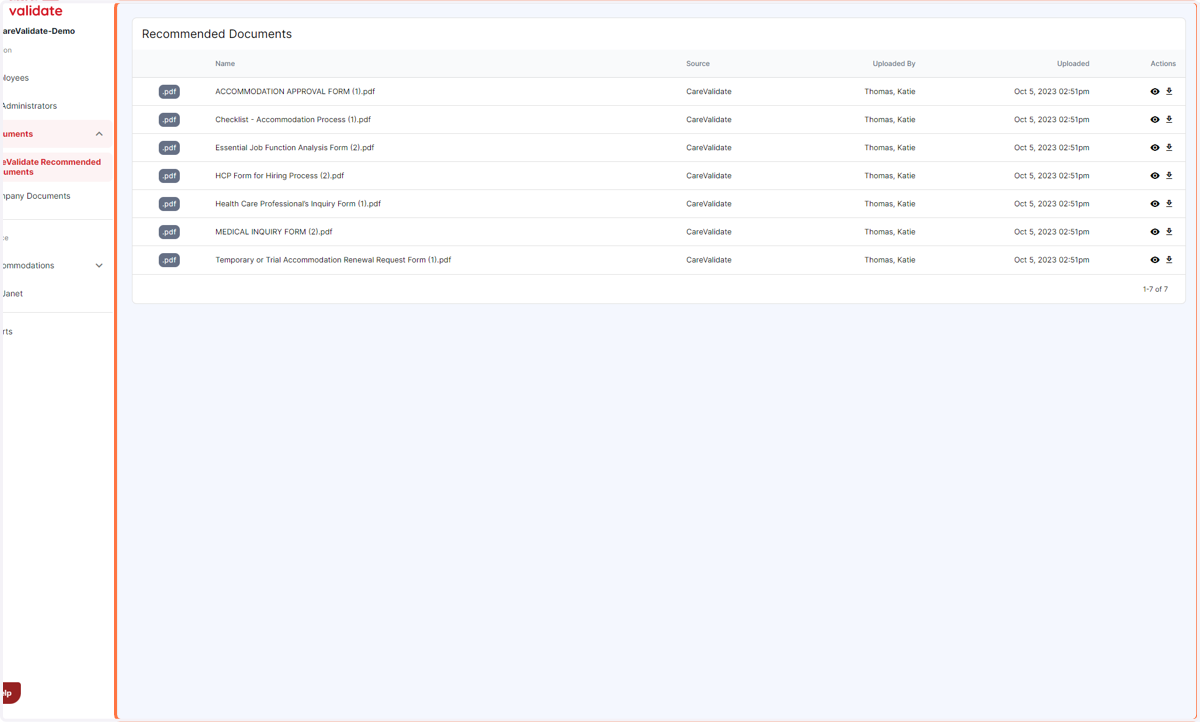
8. Click on the eye icon to view a document...
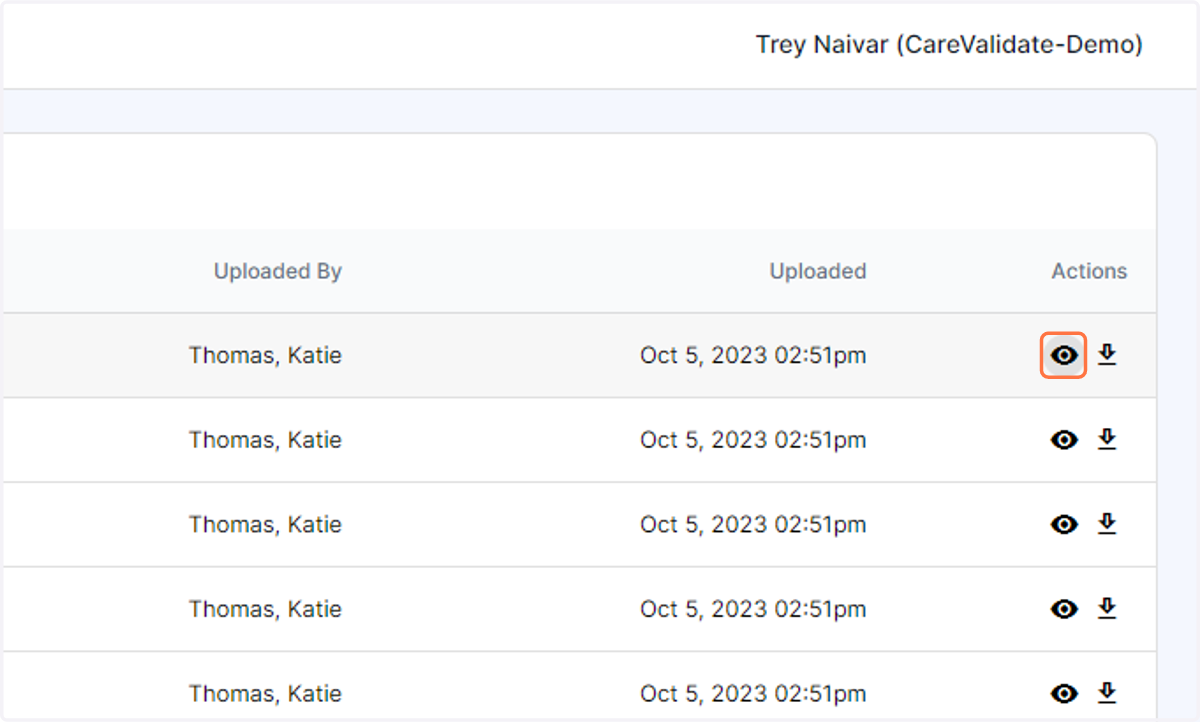
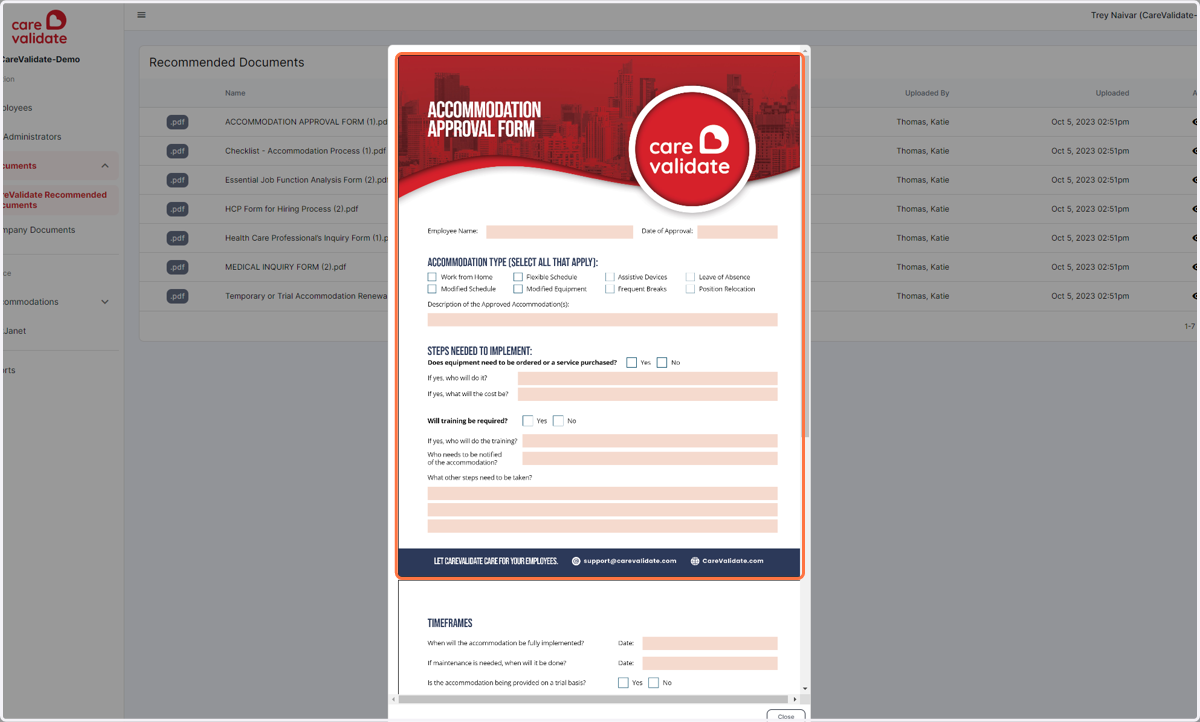
9. ...and you will get a preview of the document!
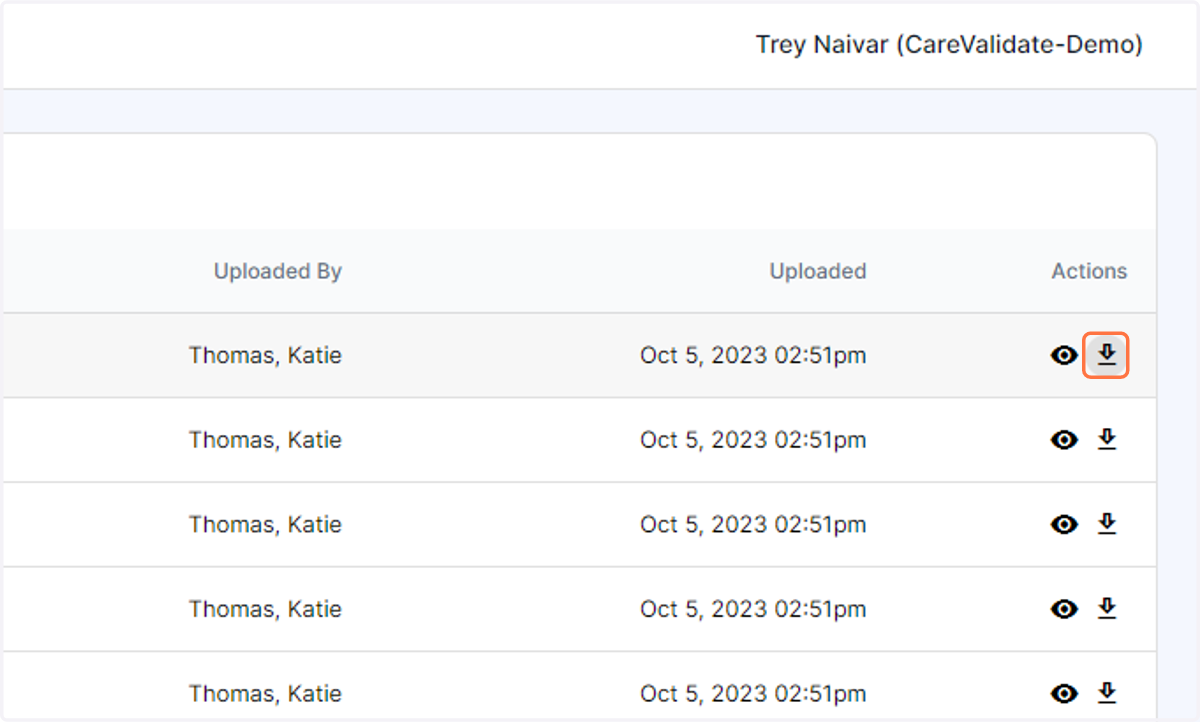
10. Click on download to download a copy of the document to use!
New Reporting - Accommodation by Type and Cost
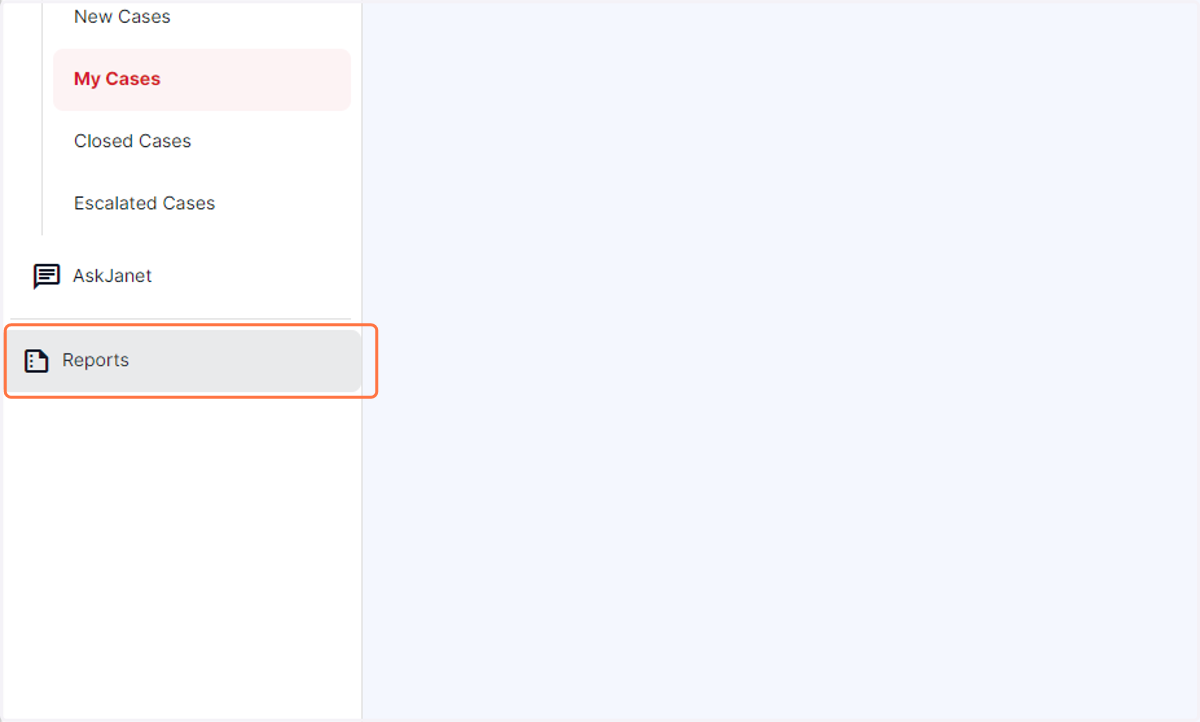
11. You can run a report on your Cases by clicking on Reports...
12. ...then selecting the date range for the type of report...
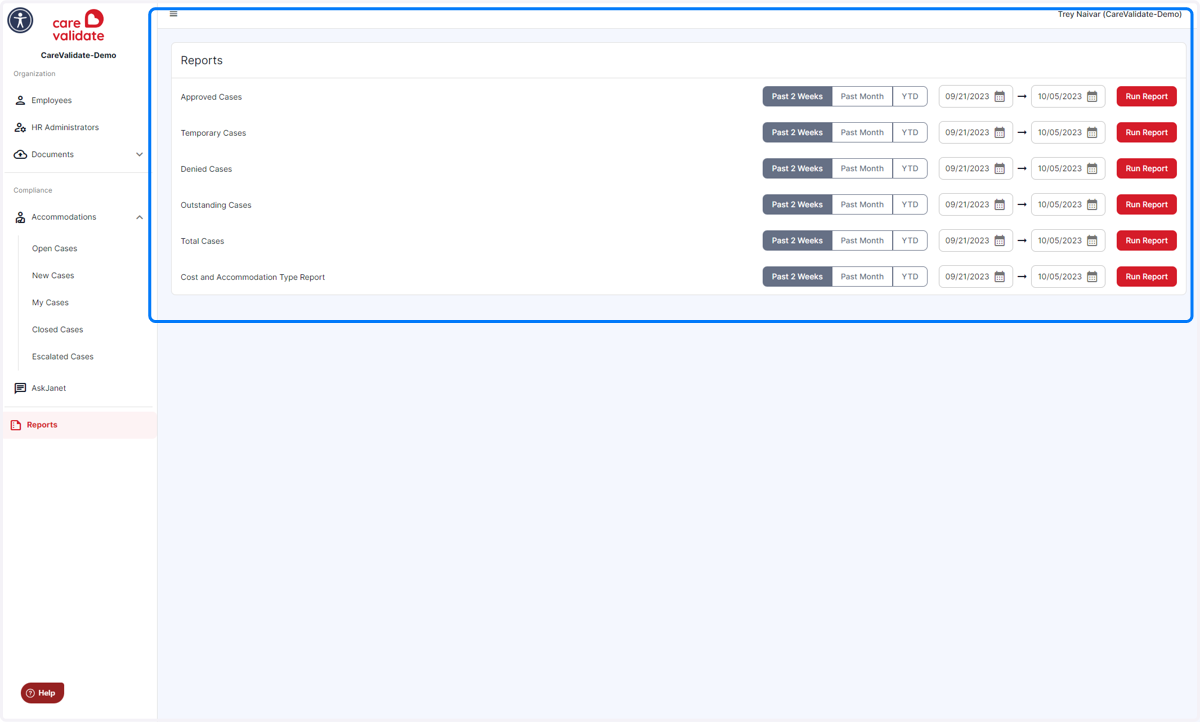
13. ...and finally clicking on Run Report
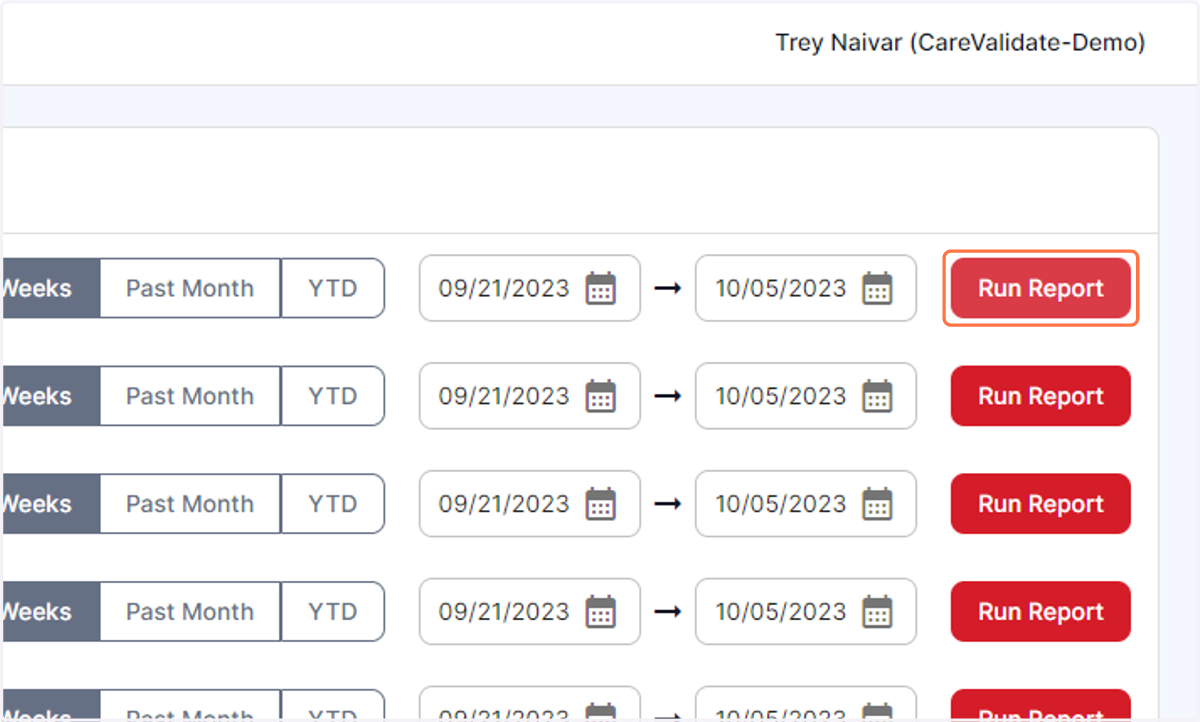
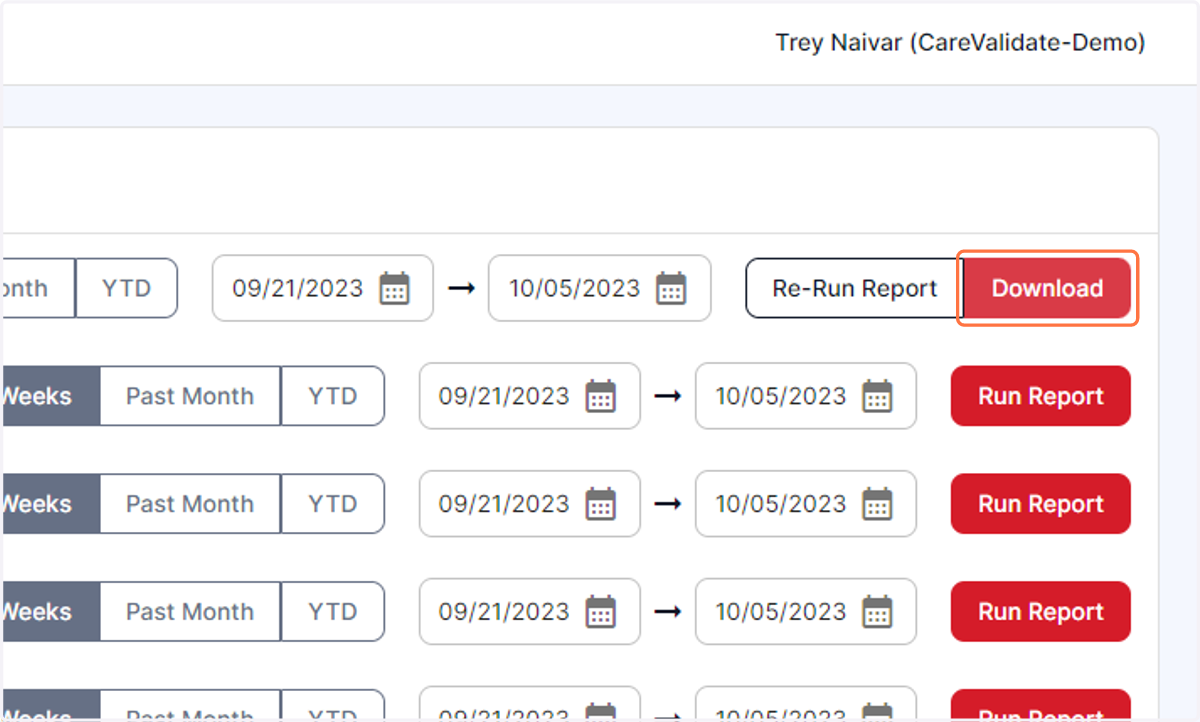
14. Click on Download to download and view the report!