New Clarity Pack Layout
The Clarity Pack layout has been updated to follow the onboarding workflow. Please note as a new teacher the success criteria will be hidden while you complete your first action plan for understanding the learning purpose. This will focus your initial use for the first few Clarity Packs on the Learning Intention and communicating effectively with your learners.
The hidden criteria can be revealed by simply click the x in the top right of the hidden panel.
Clarify-ed
1. Onboarding - Self-Assessment
As a new teacher the success criteria will be hidden behind a greyed out panel. This is to focus the attention on the Learning Intention. If you want to access the success criteria simply click on the X in the top right corner of the panel.
Once you complete your first action plan the greyed panel over the success criteria will no longer appear.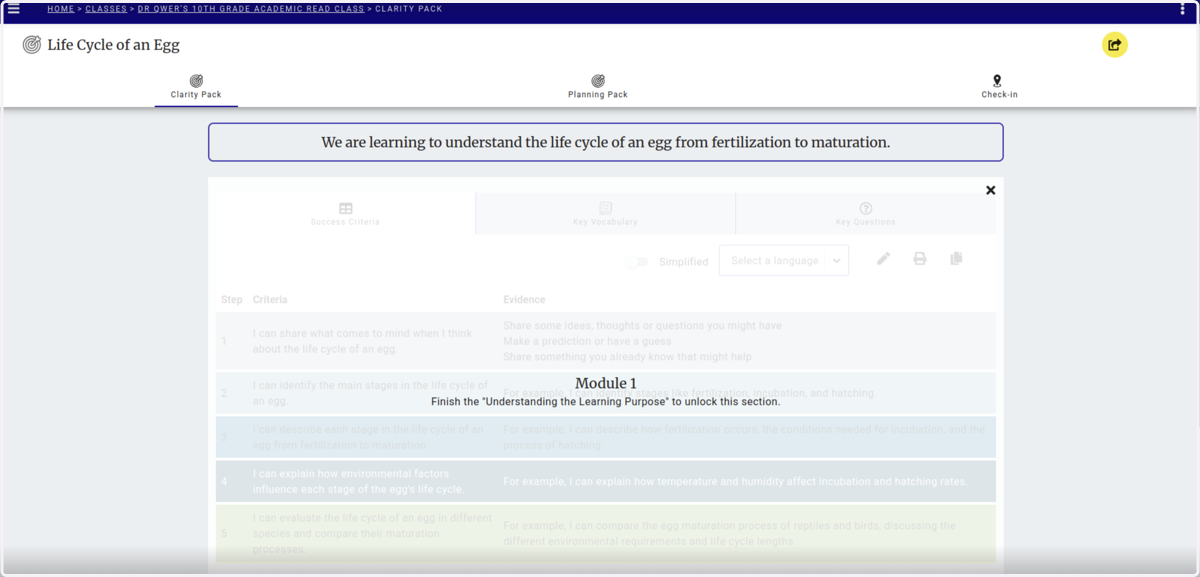
2. The new Clarity Pack Layout
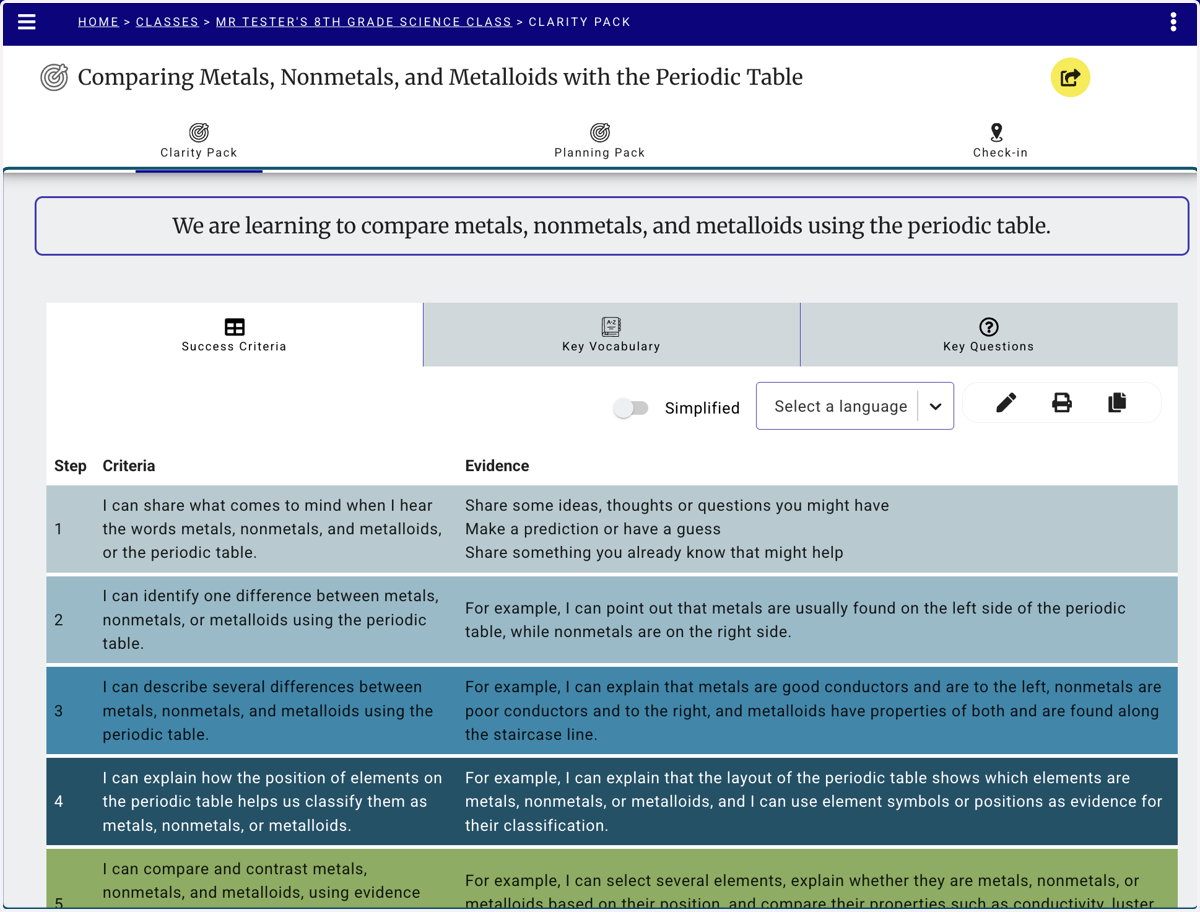
The tabs across the top simplify access to the Clarity Pack, Planning Pack (formerly Teacher Pack and the Check-in.
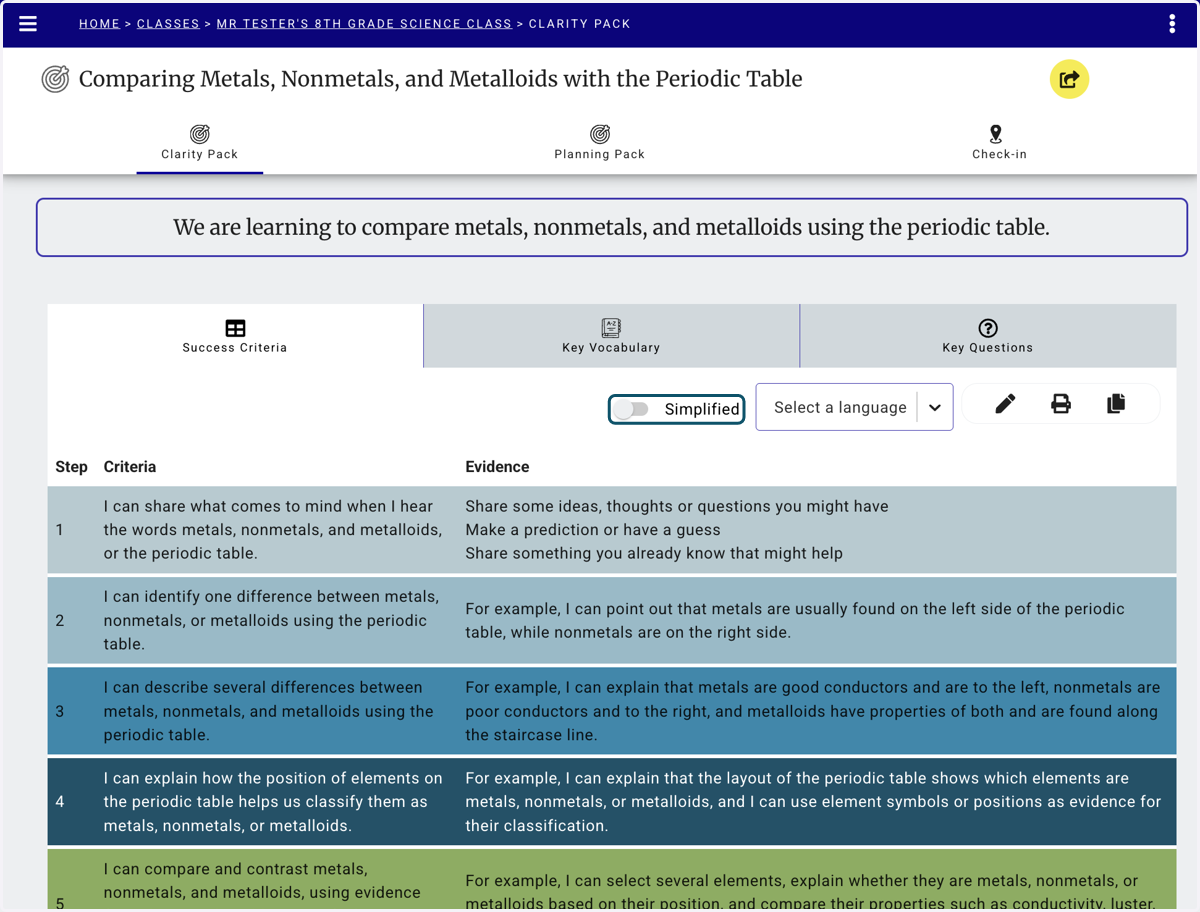
3. Simplified version is now a toggle on the success criteria page.
Toggle on to view the simplified version and toggle off to see the original
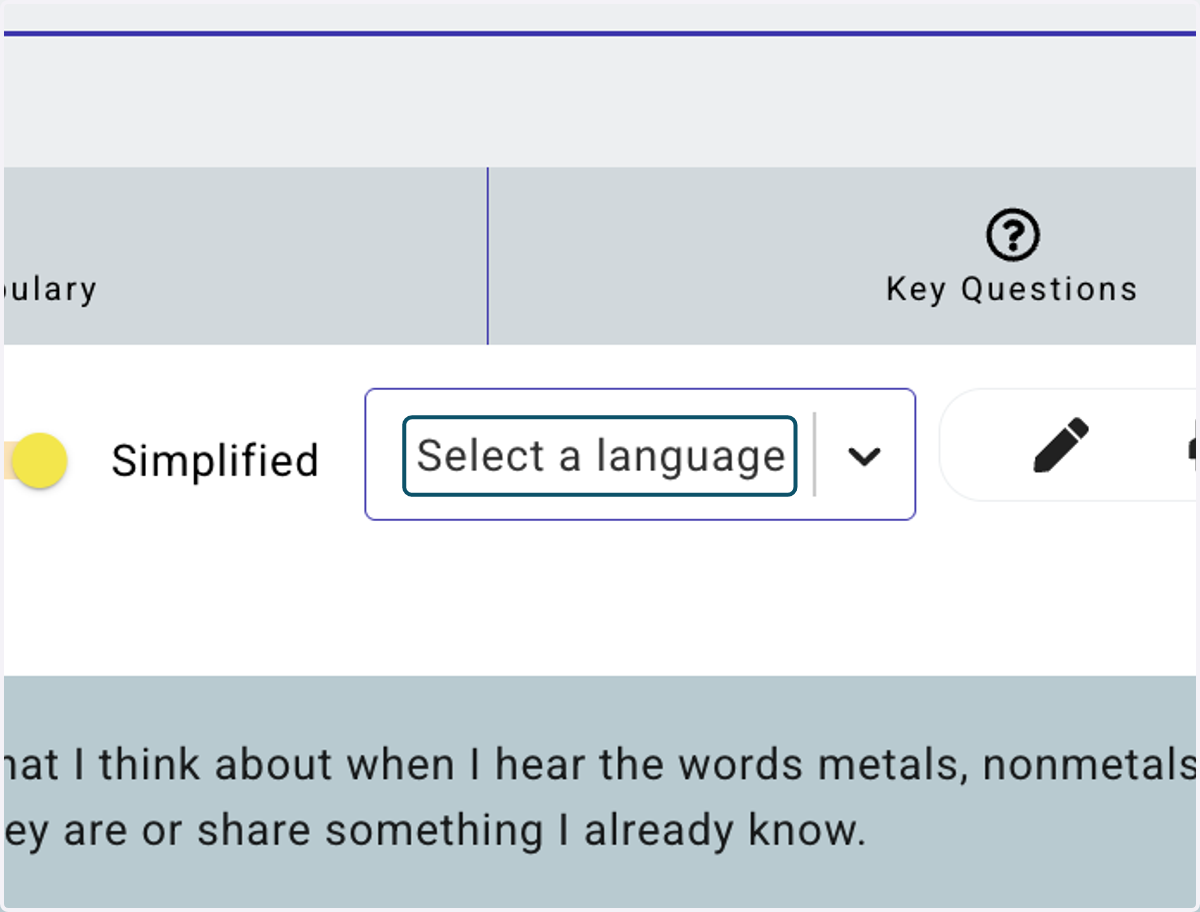
4. The languages are generated using the drop down box
Select the language and click generate. Students will only see the languages that the teacher has generated.
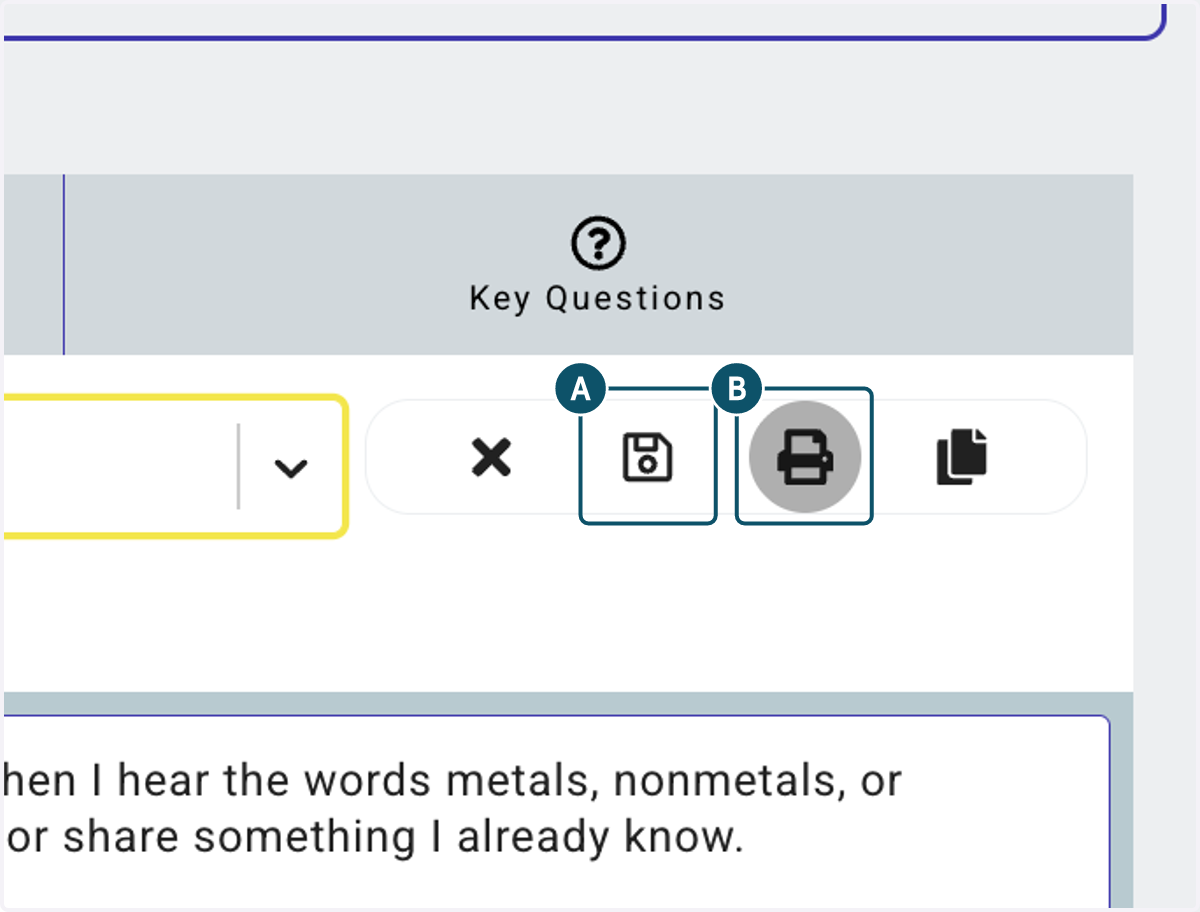
5. A. Click on Edit to make changes to the text
5. B. Click on Print to see the new print options
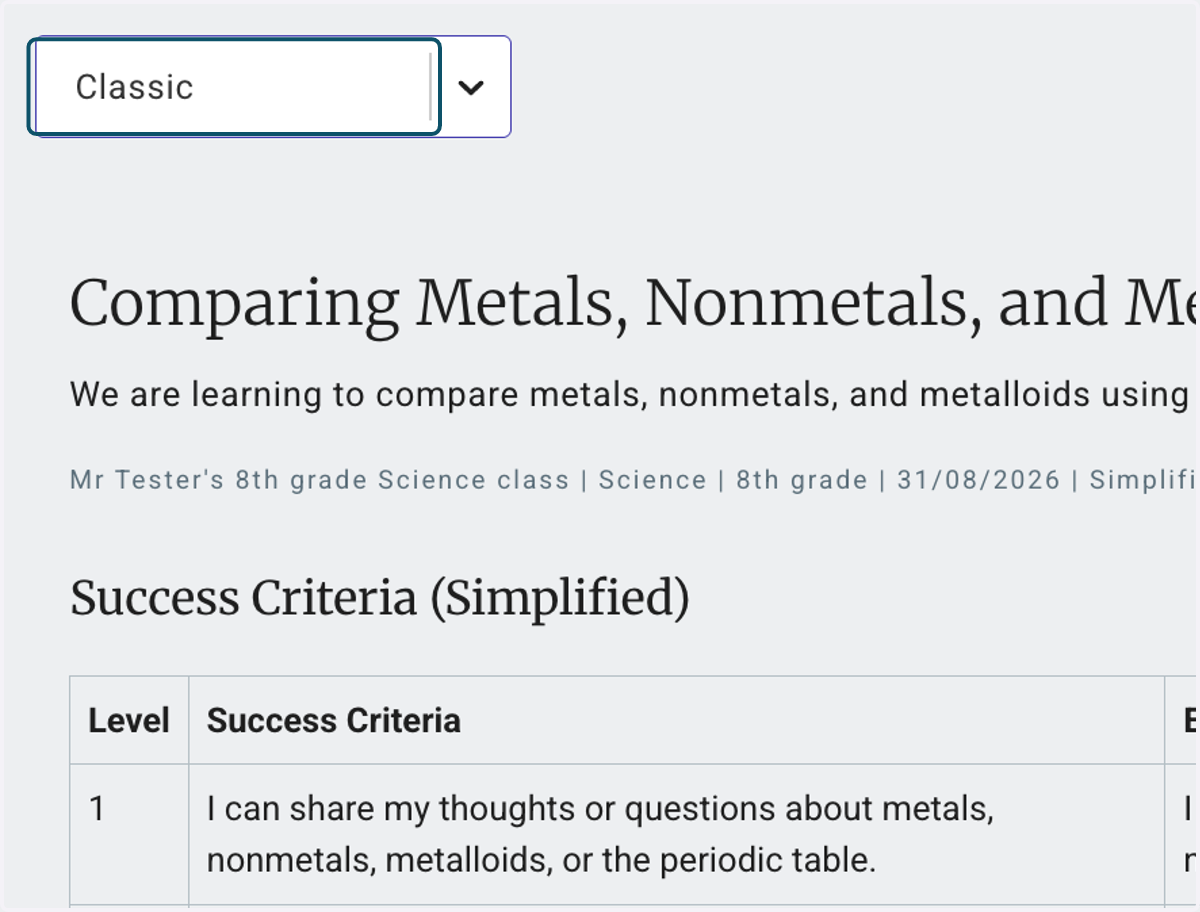
6. The dropdown box allows you to switch between classic and primary views.
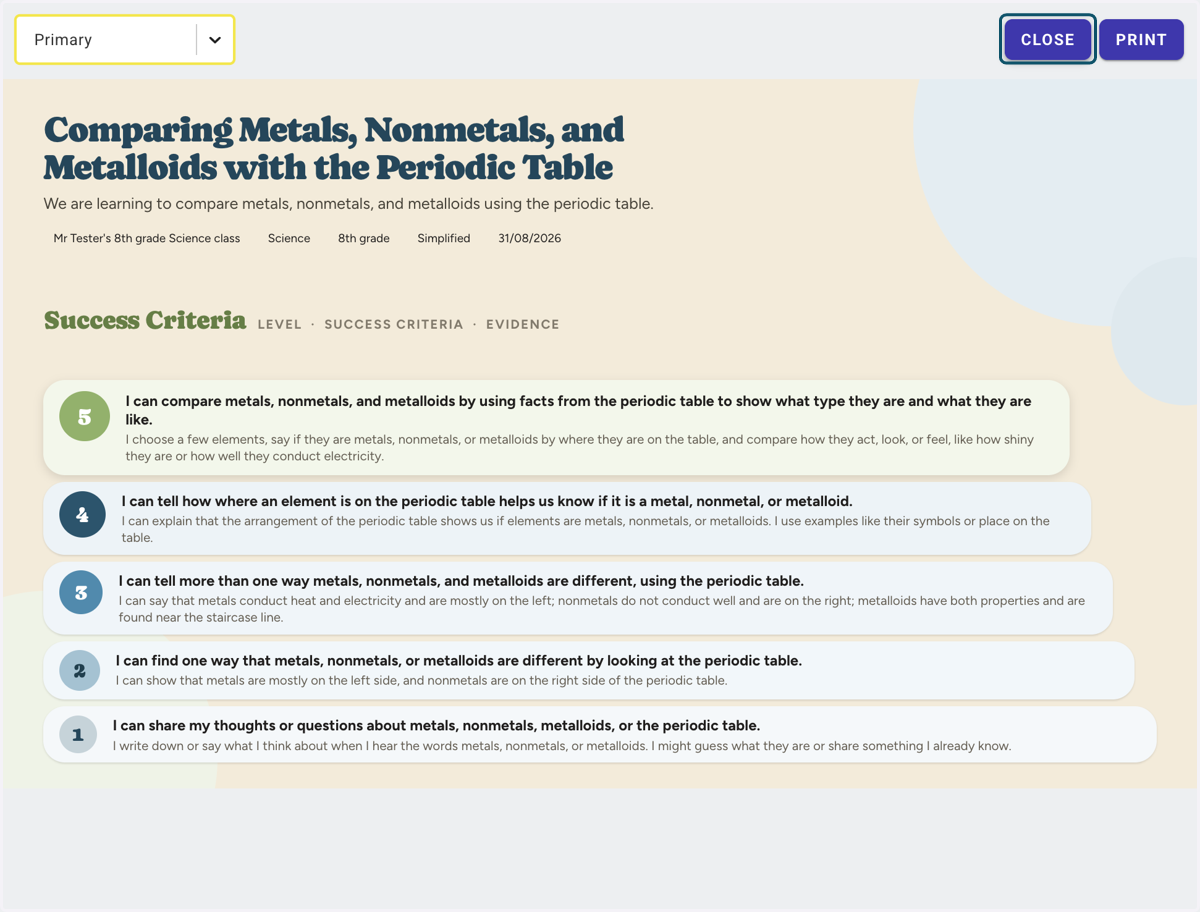
7. The primary version provides a more graphical option for younger learners.
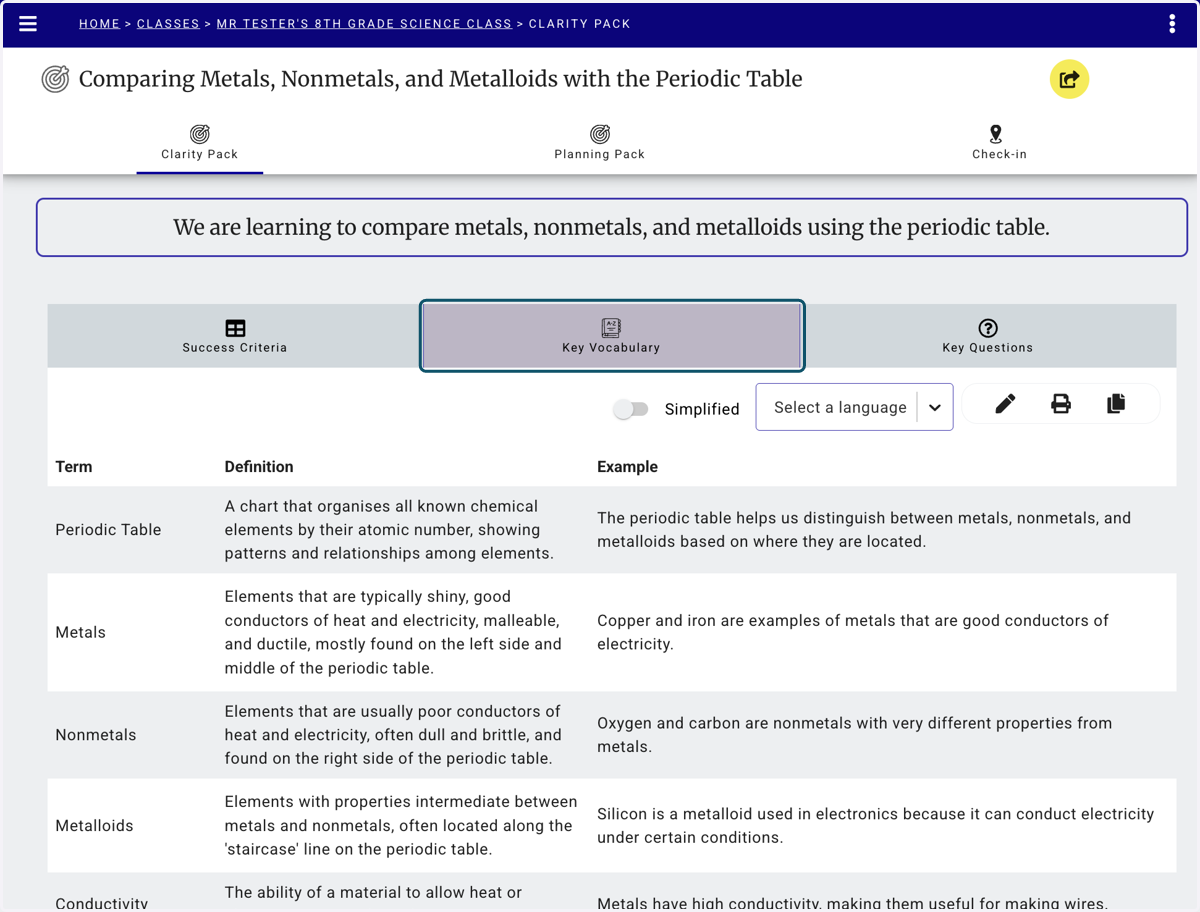
8. Click on Key Vocabulary - The pencil icon will allow you to edit any words.
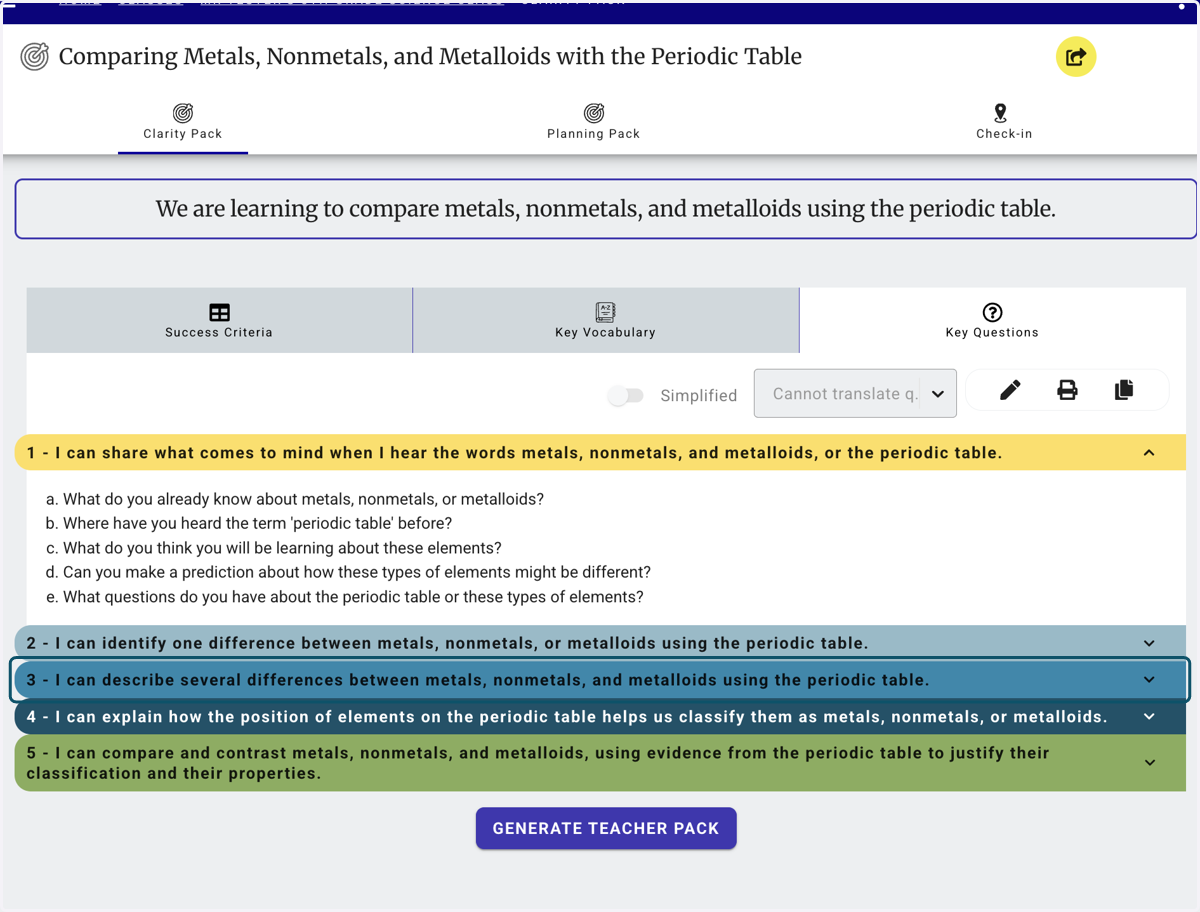
9. Click on Key Questions - The arrow will expand the list of questions under each step of the success criteria.
10. The Planning Pack tab will open the high impact strategies including those from your from you action plan,
In this tab you will also find the Bump-it-up Strategies and another view of the Key Questions.
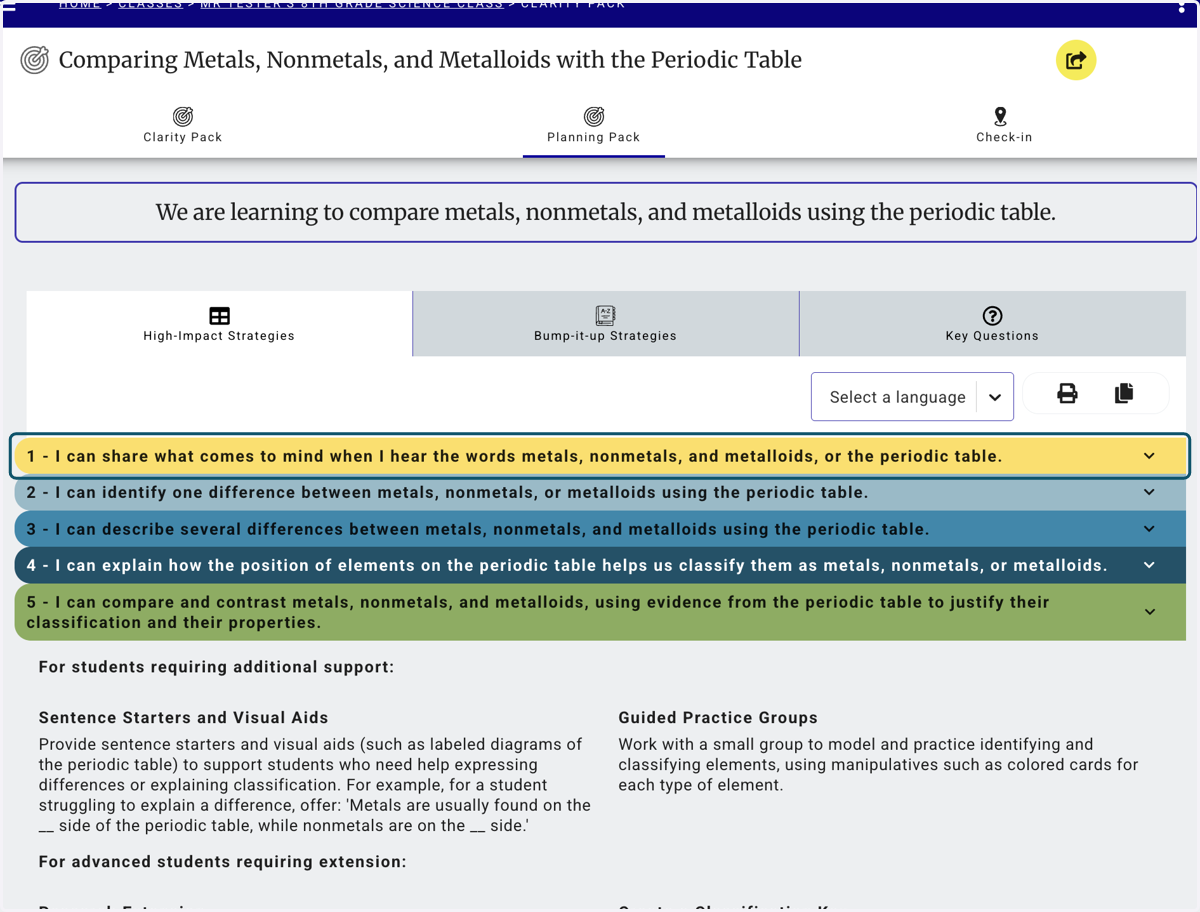
11. Click the arrows to expand the list of high impact strategies to support your lesson planning.
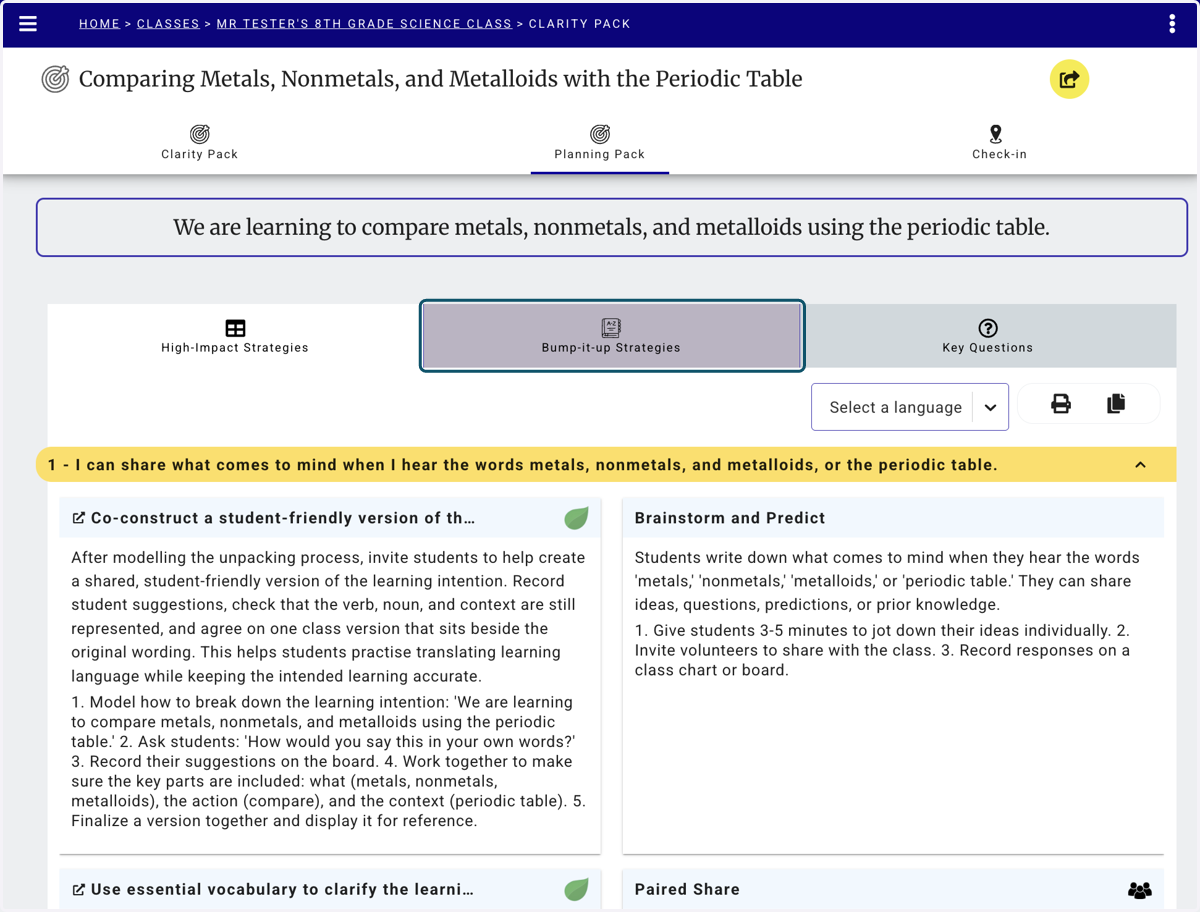
12. Bump-it-up Strategies
After you've run a Check-in the initials of the students that require bump-it-up strategies will appear under each stage.
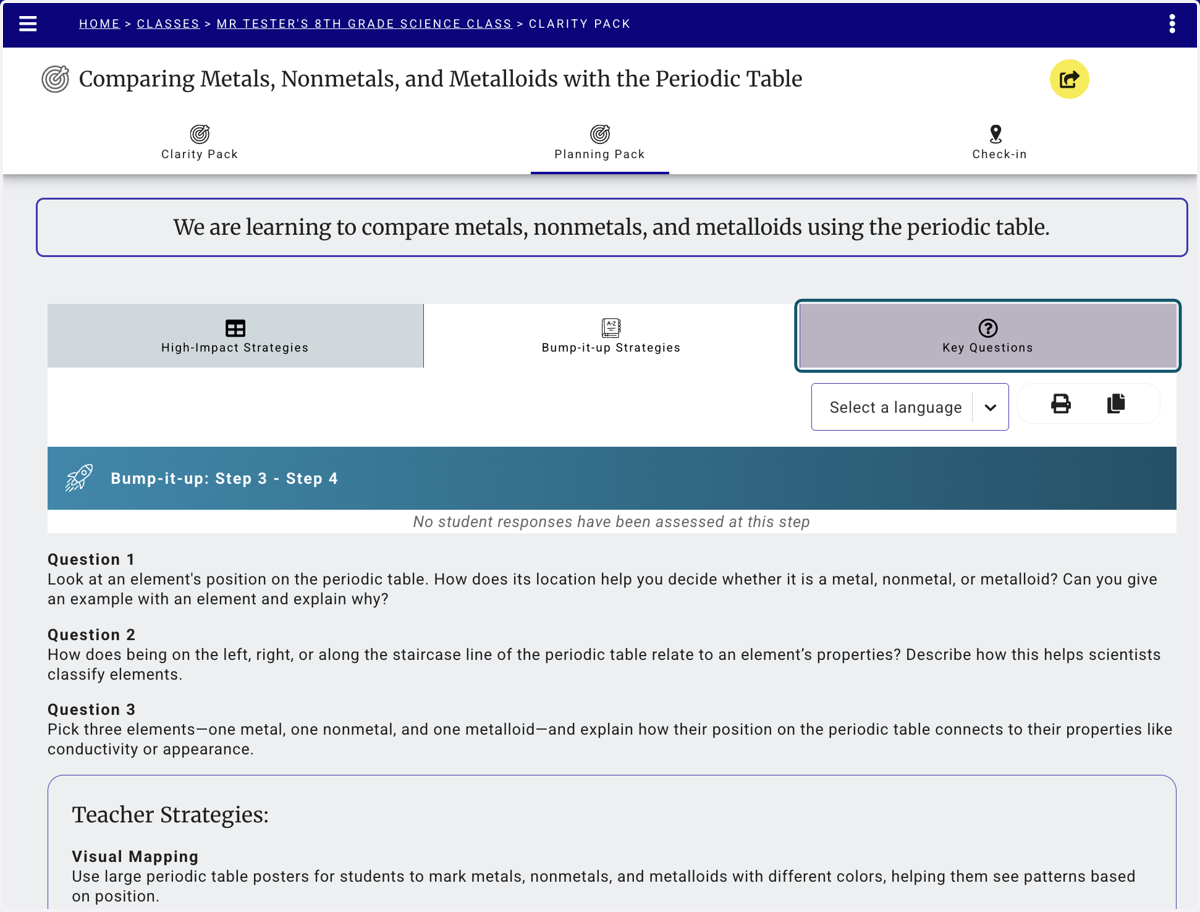
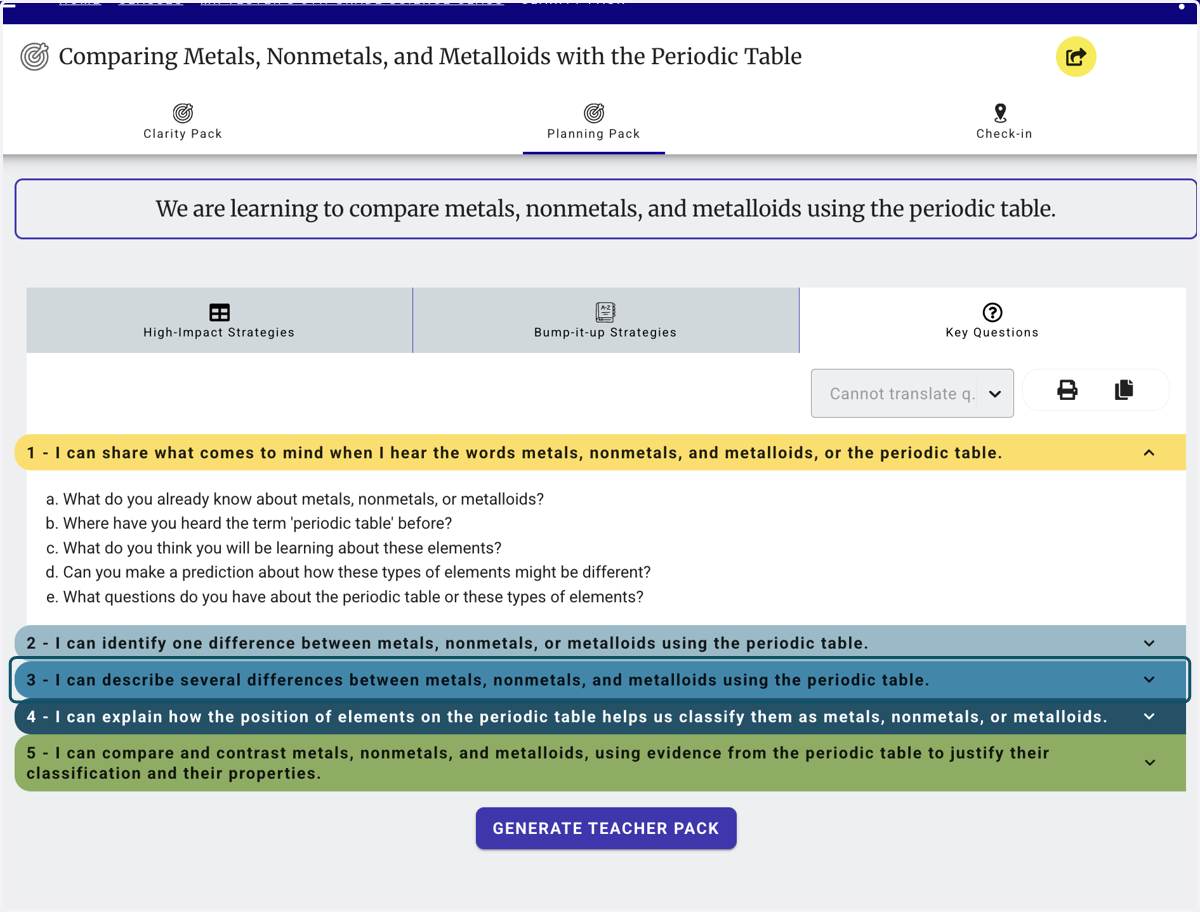
13. Key Questions also now live in the planning section of the Clarity Pack.
Use the arrows to expand the view of questions for each step of the success criteria.
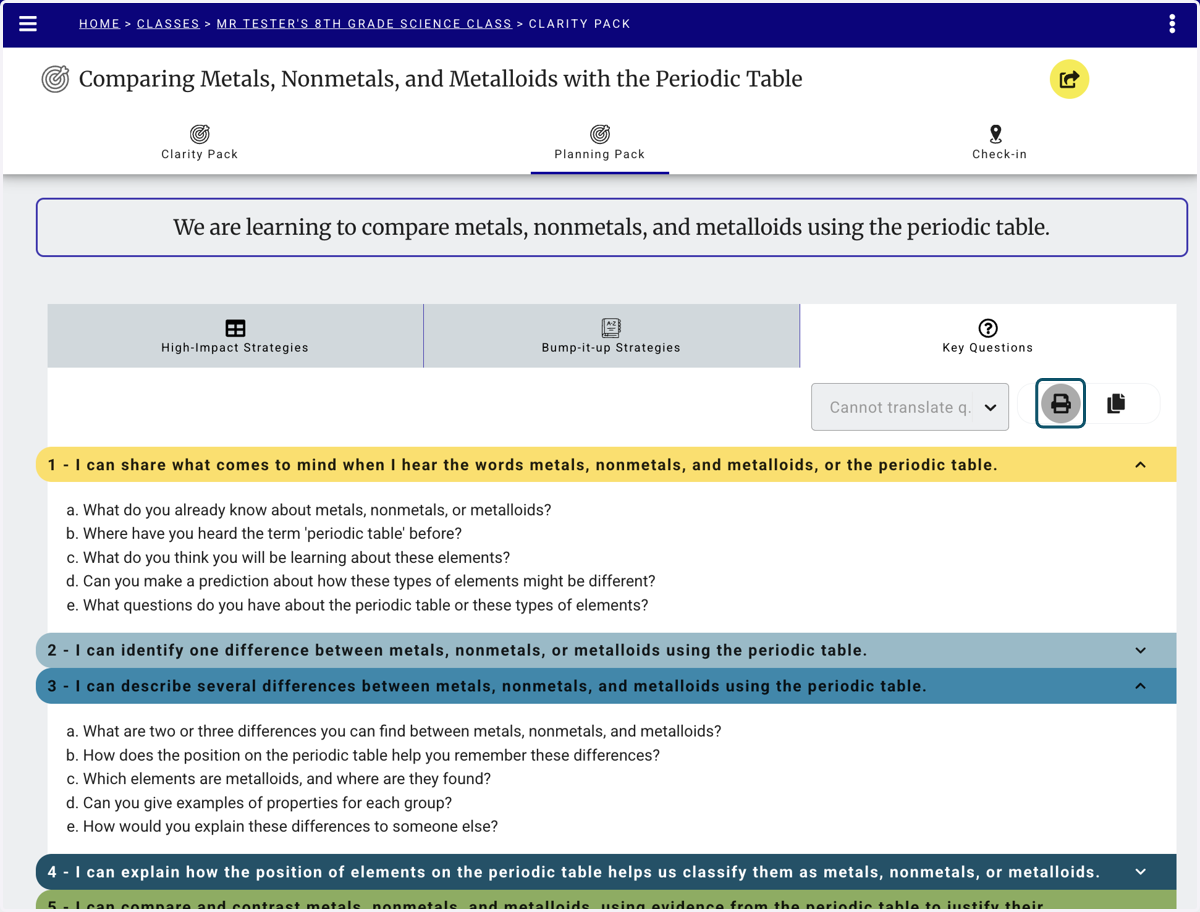
14. Key Questions can be printed and shared with your students in class.
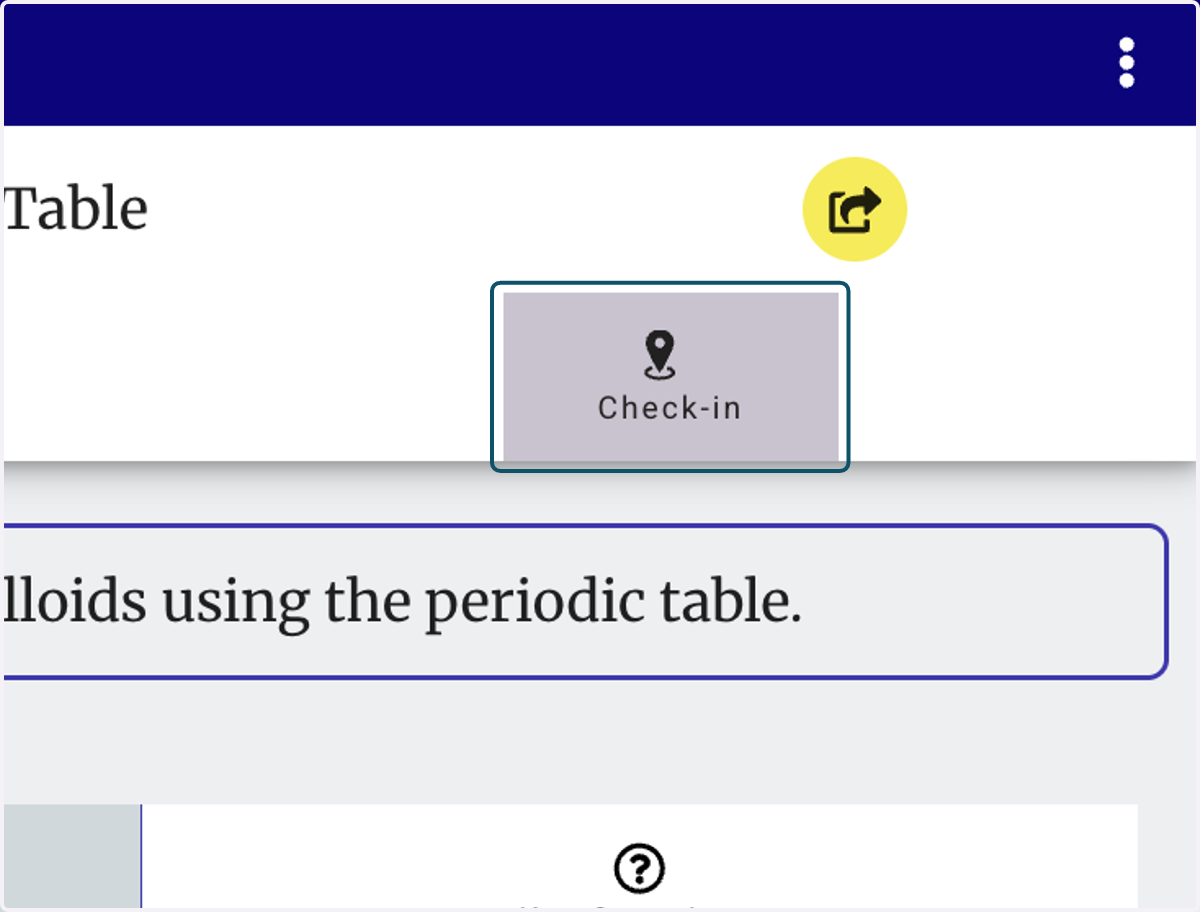
15. The 3rd tab opens the Check-in.
16. Click on ADD A CHECK-IN
Once a Check-in has been completed, the initials of the students will appear below the grey box.
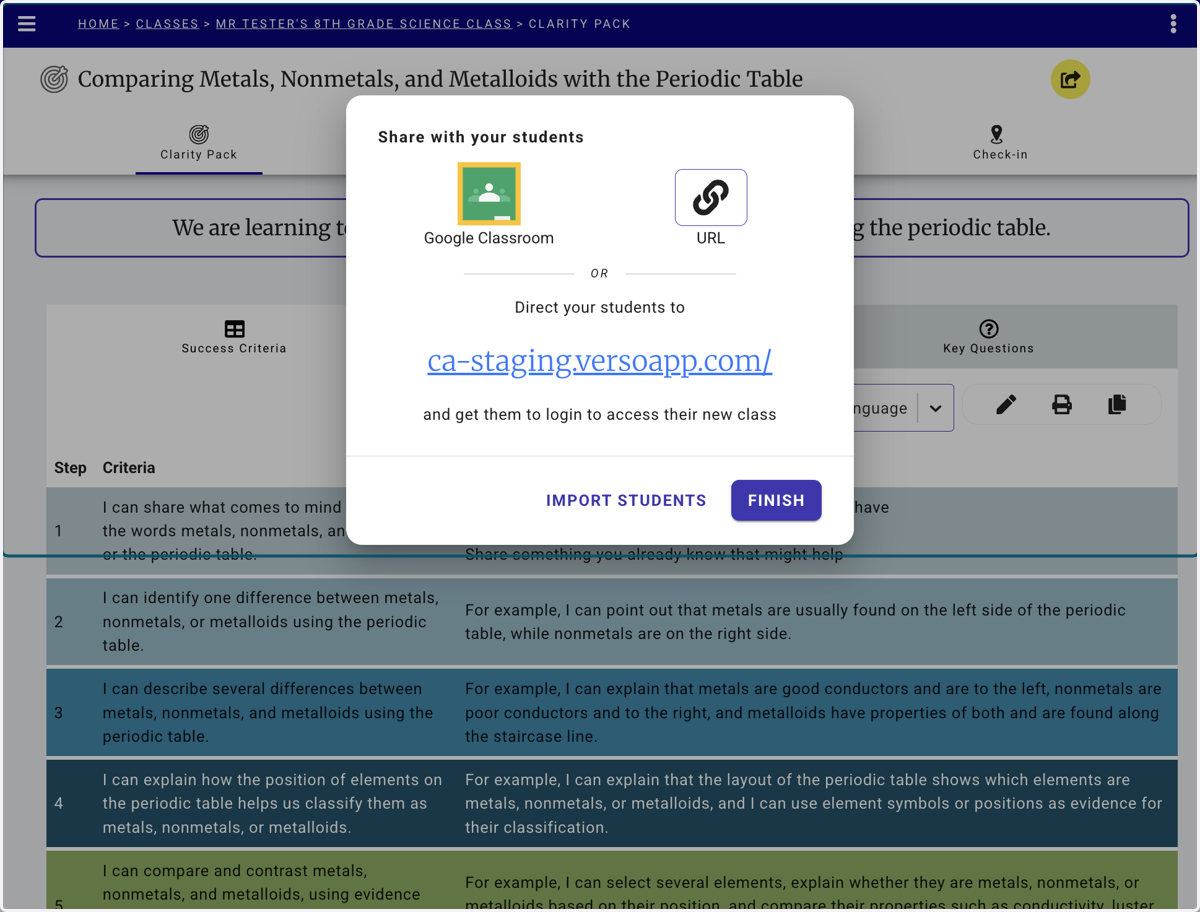
17. Remember to share the Clarity Pack with your students.
The share button allows you to push to Google Classroom and provide the link to the class.