Signing into the Customer Portal
Okta
1. Go to portal.summitinterconnect.com
Begin by visiting the portal website.
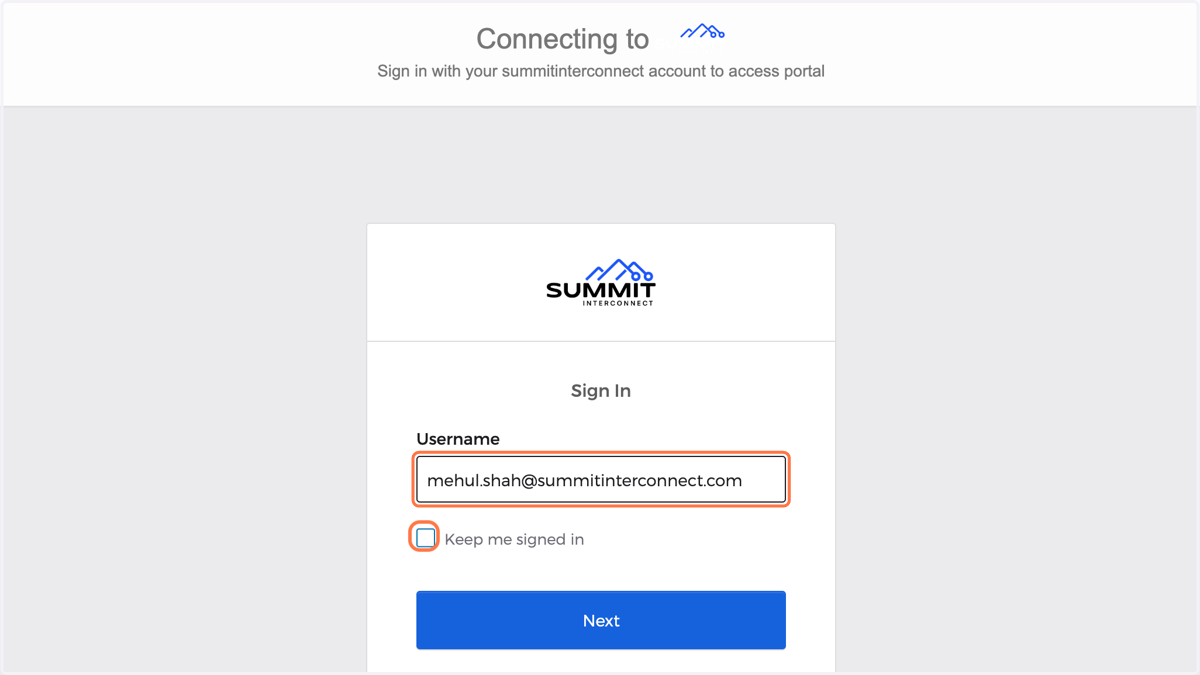
2. Type in your email in the username field
You can choose optionally to click the "Keep me signed in" checkbox so you don't have to login every time you visit the portal.
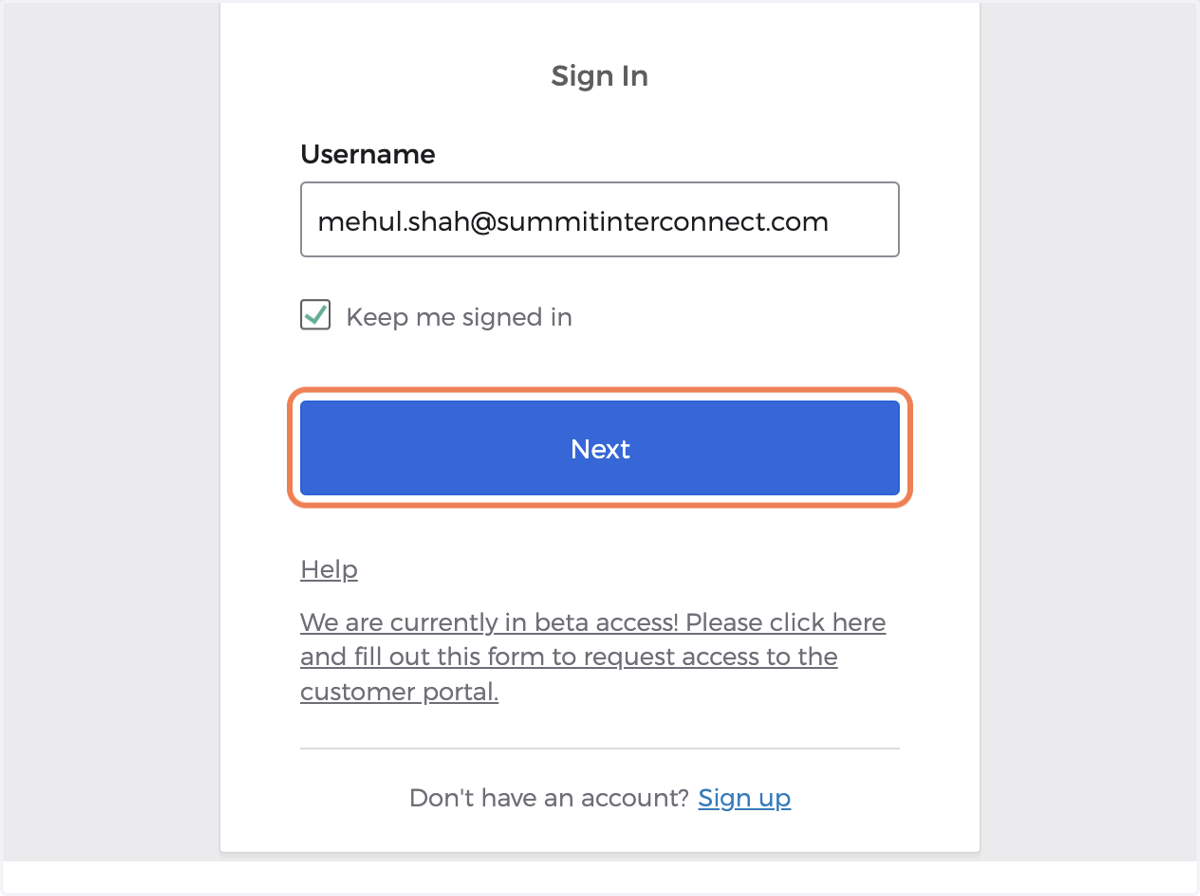
3. Click on Next
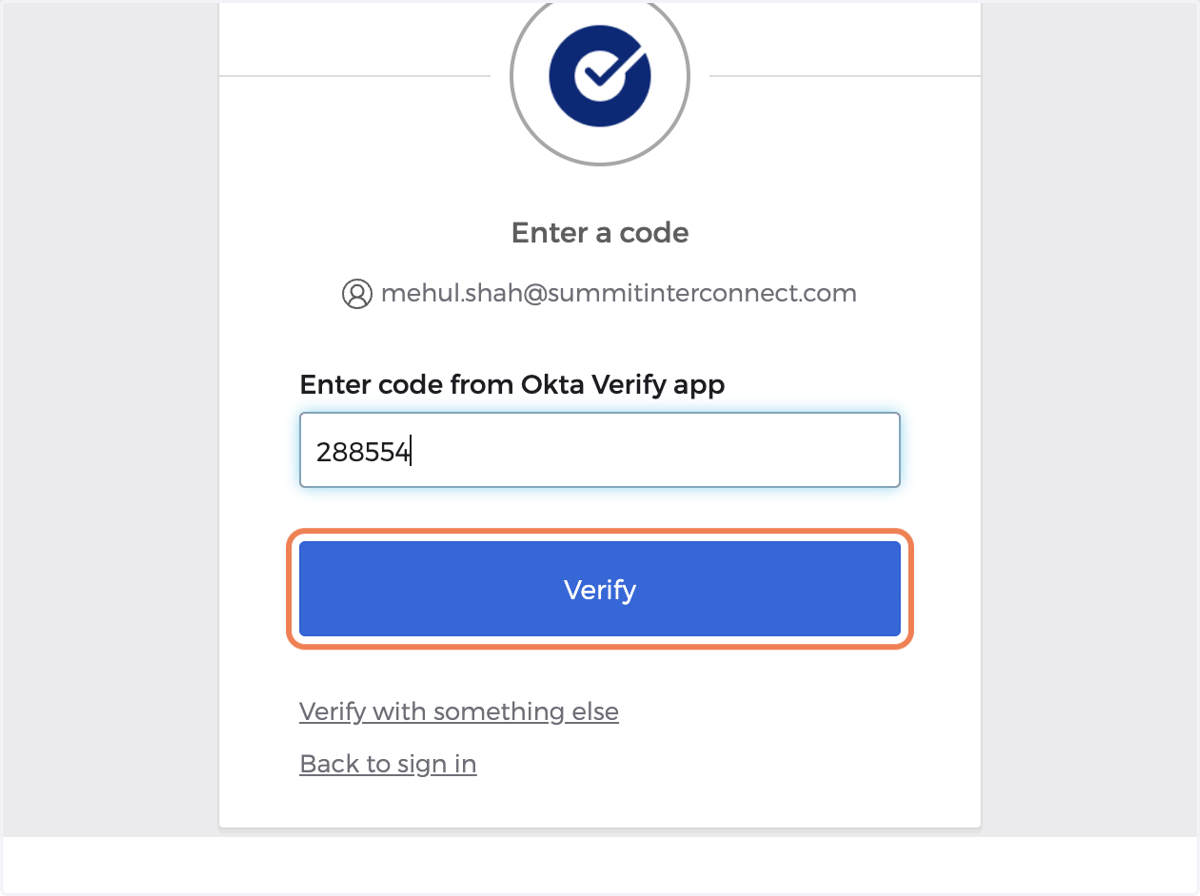
4. Enter code from Okta Verify app
We use Okta for our 2-Factor Authentication (2FA). 2FA is required by default to remain compliant with the NIST-800/171 standard. If you do not have the Okta Verify app, you can download it from the app store. Alternatively, click "verify with something else" to setup 2FA with text message.
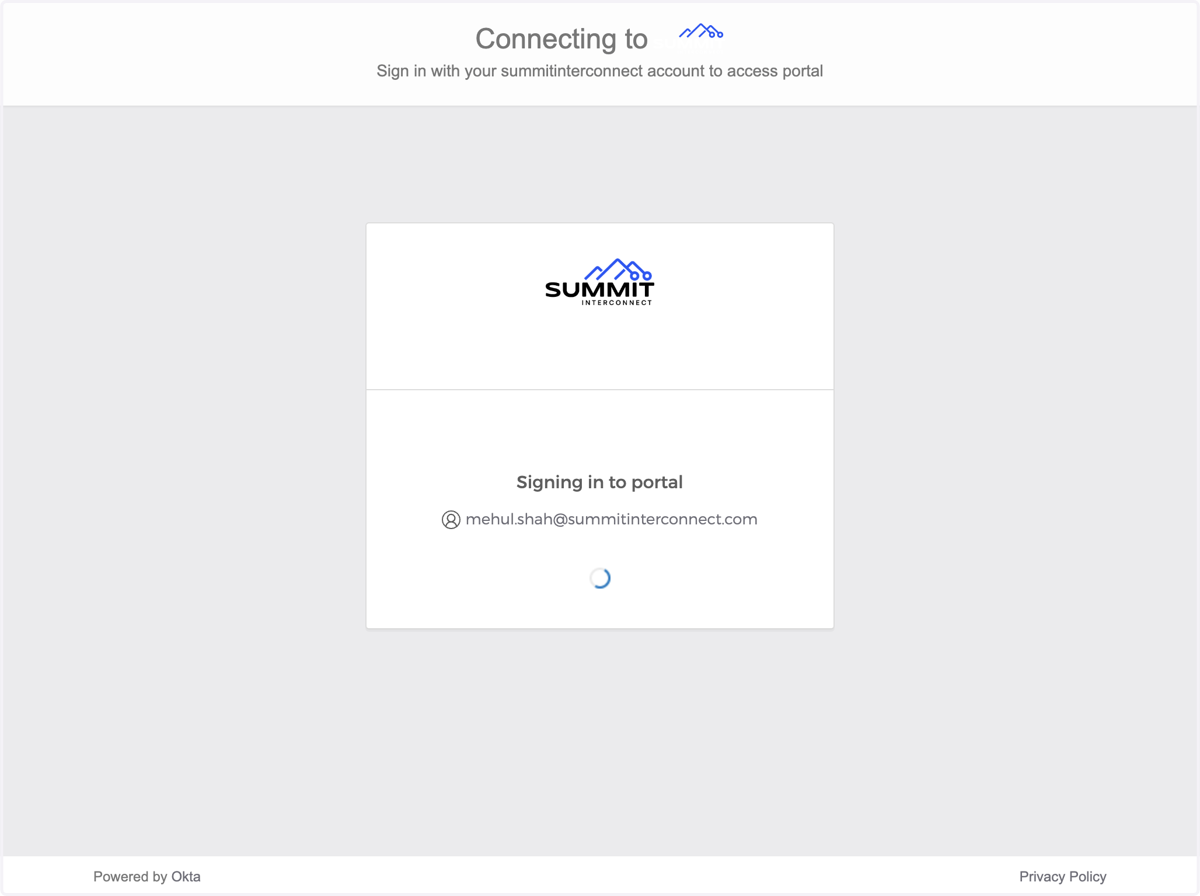
5. Wait as your credentials are verified...
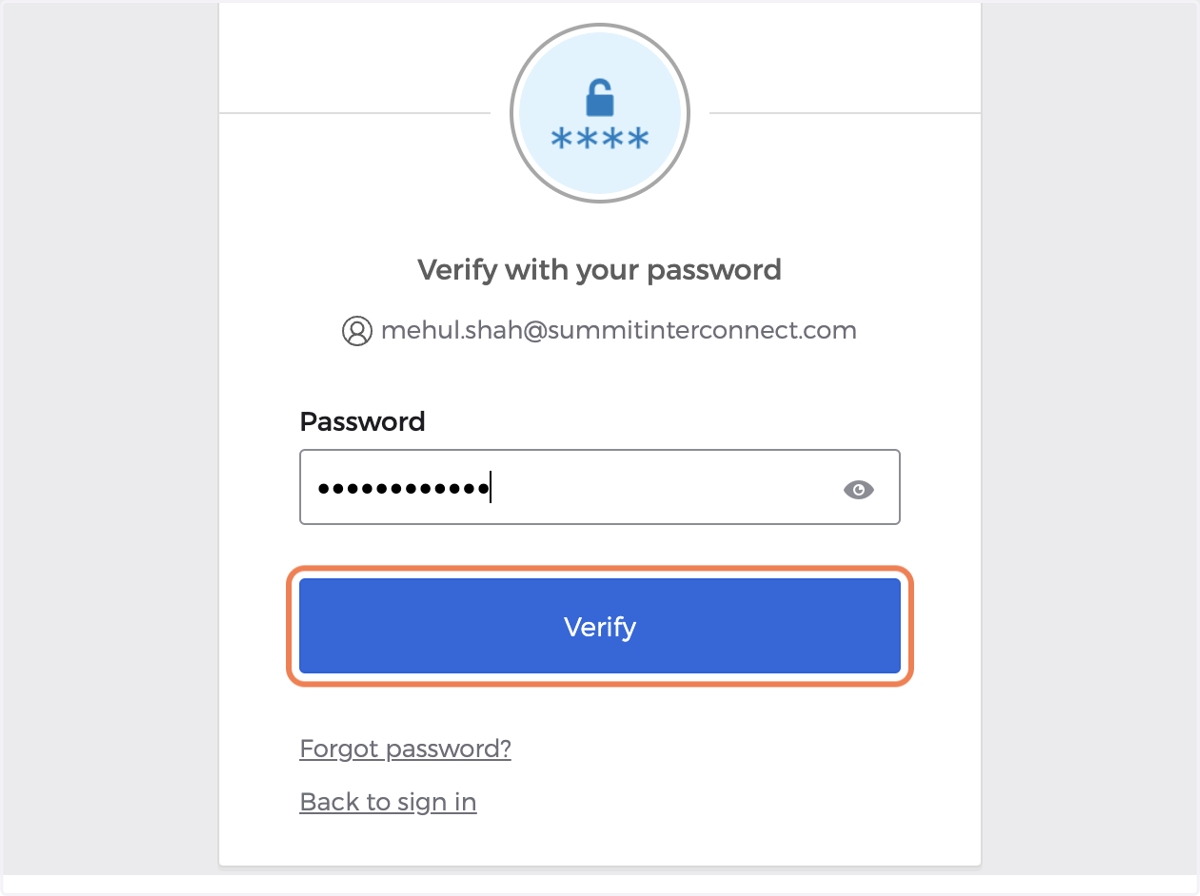
6. Type in your password
2FA consists of your password + a second method of verification. In this case we are using the Okta Verify app, but you can also use text messages sent to your phoen