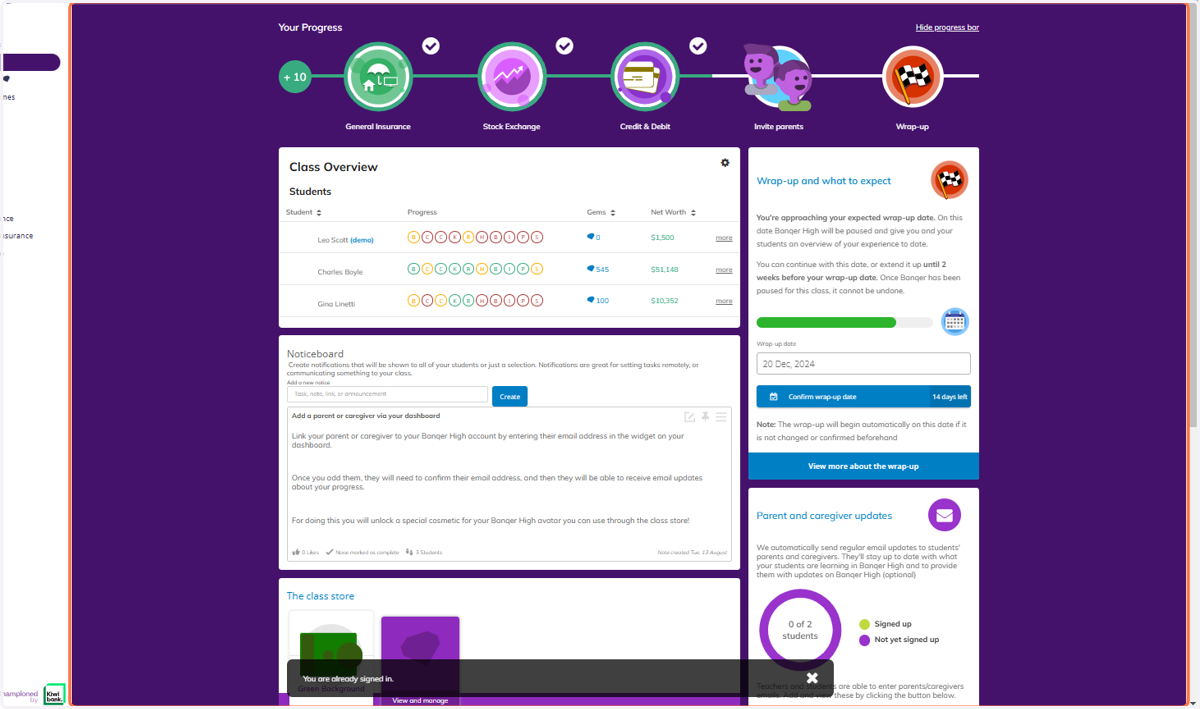
Navigating as Leo Scott - your demo student
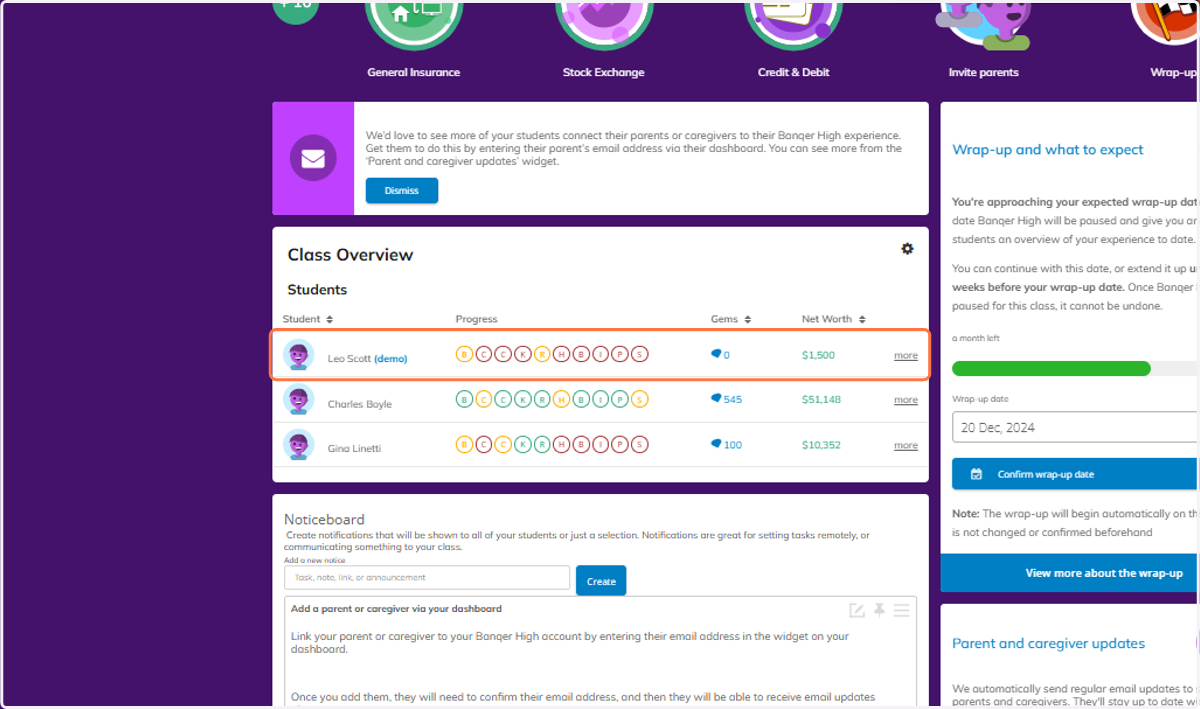
1. Click anywhere on Leo Scott from your Class Overview, or click on the more button.
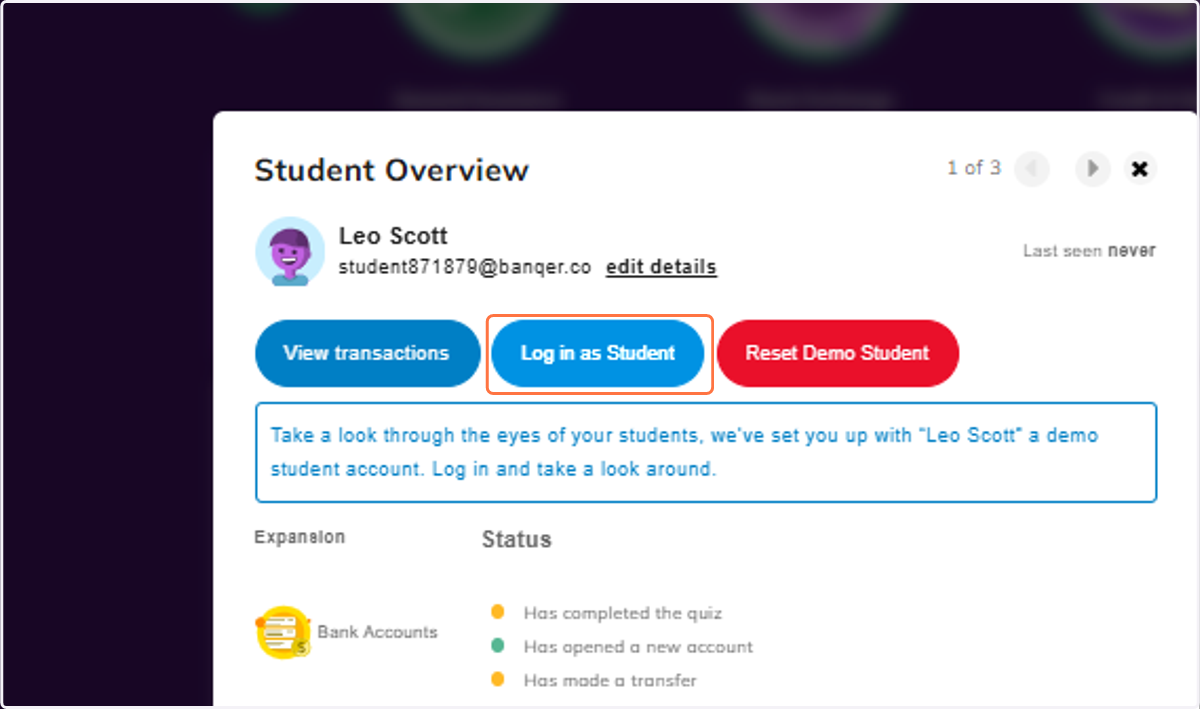
2. This will open up the Student Overview for Leo. Click on Log in as Student.
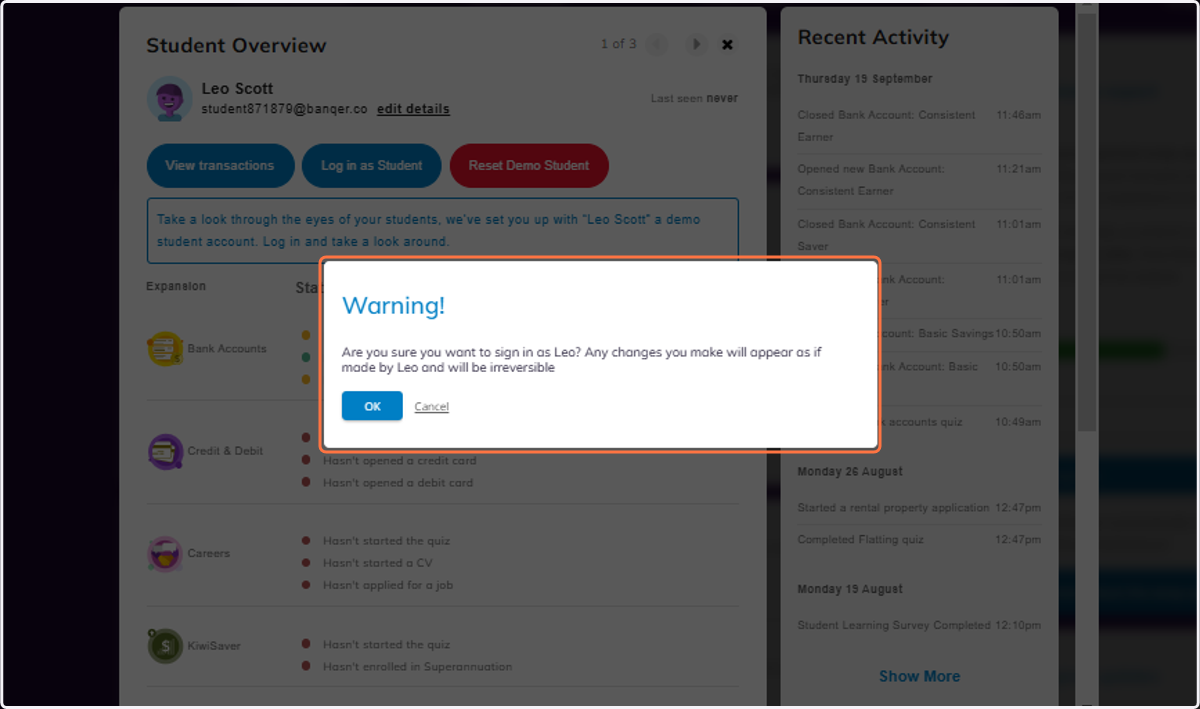
3. You will see this warning, click OK.
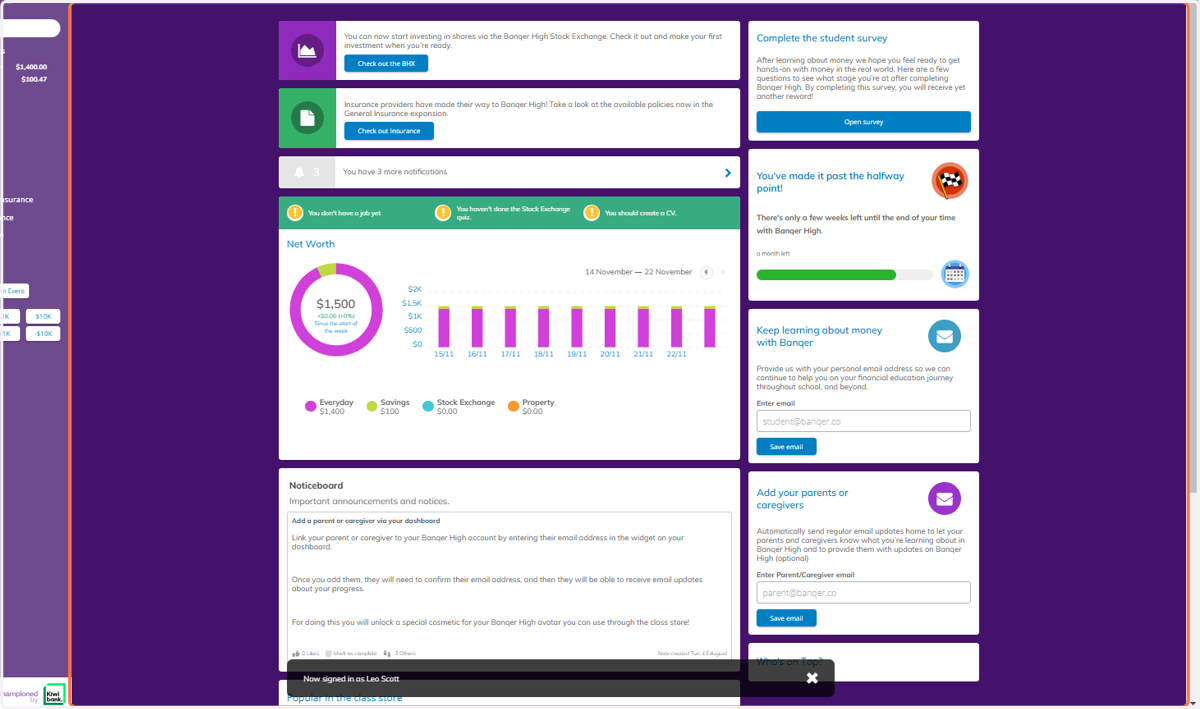
4. You can now view and navigate through Banqer from a student view.
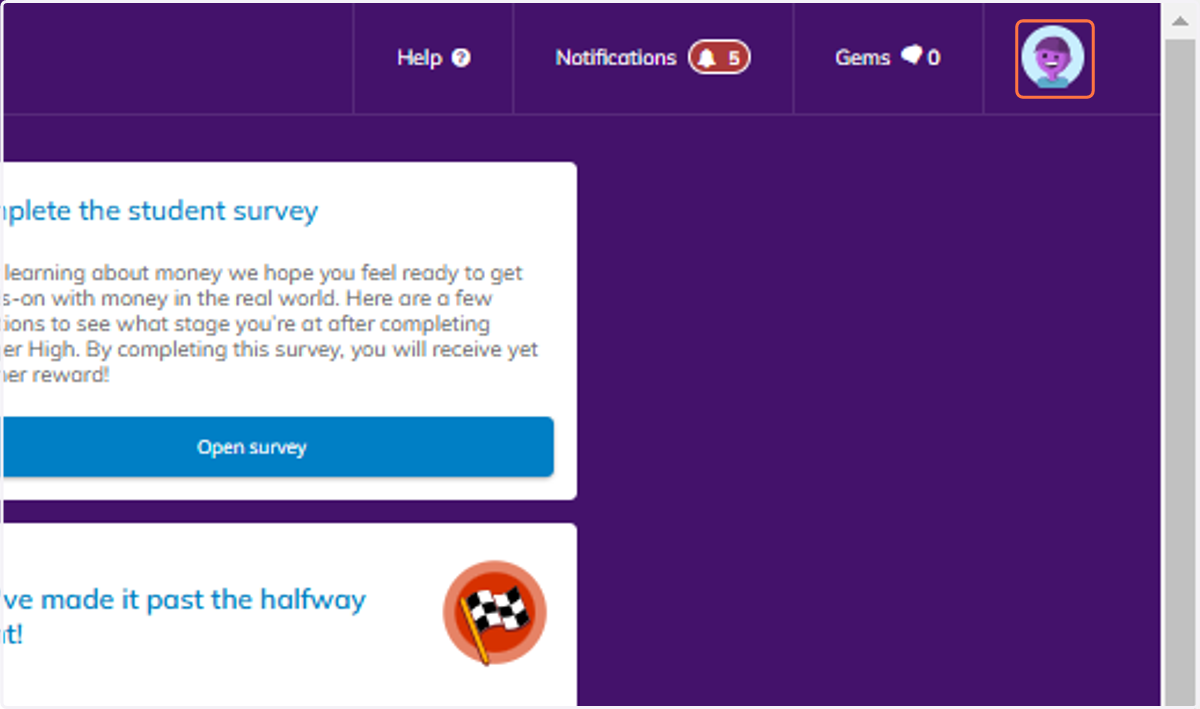
5. To log out, click on the profile icon in the top right hand corner.
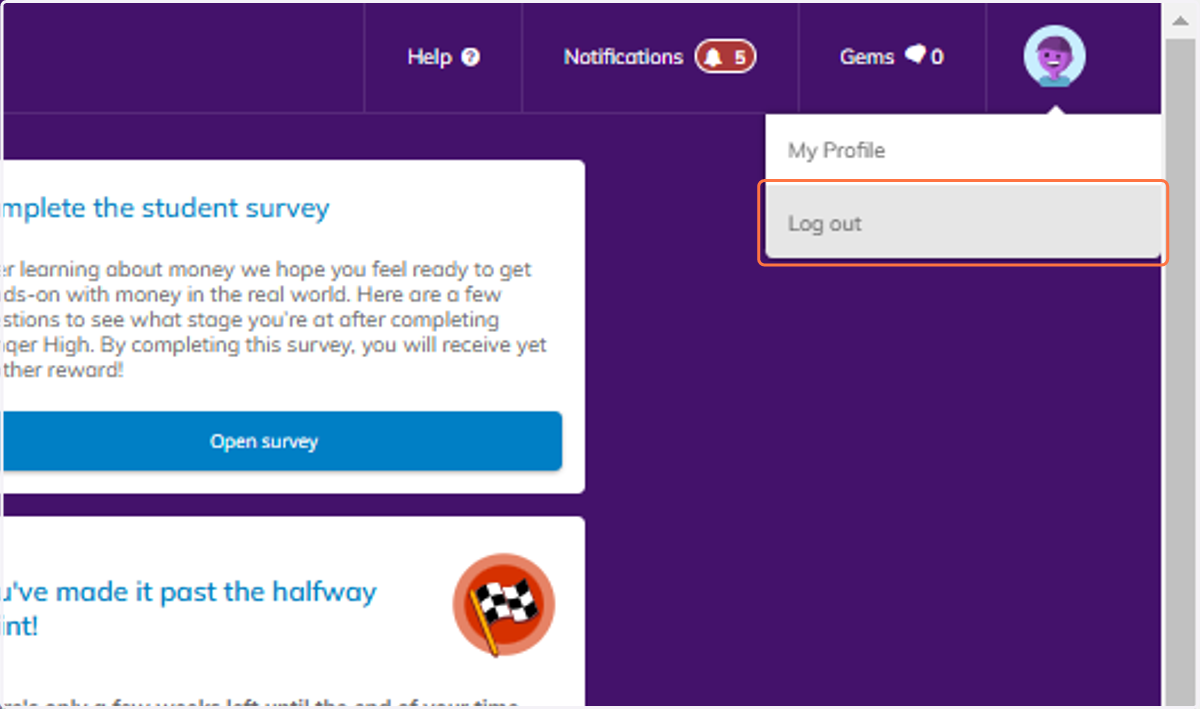
6. Click on Log out
7. This will take you straight back into your Teacher view.