Creating Touchpoints
Option One: Adding Touchpoints from the Contacts Section
1. Select the person(s) that you would like to add a touchpoint to
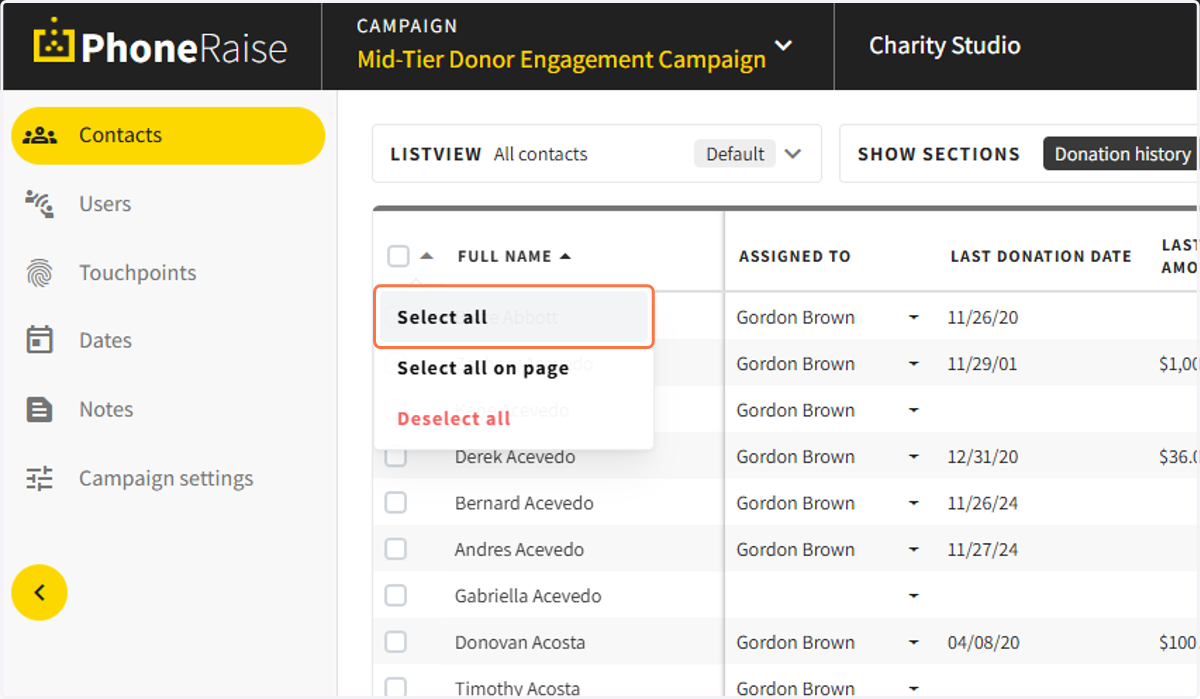
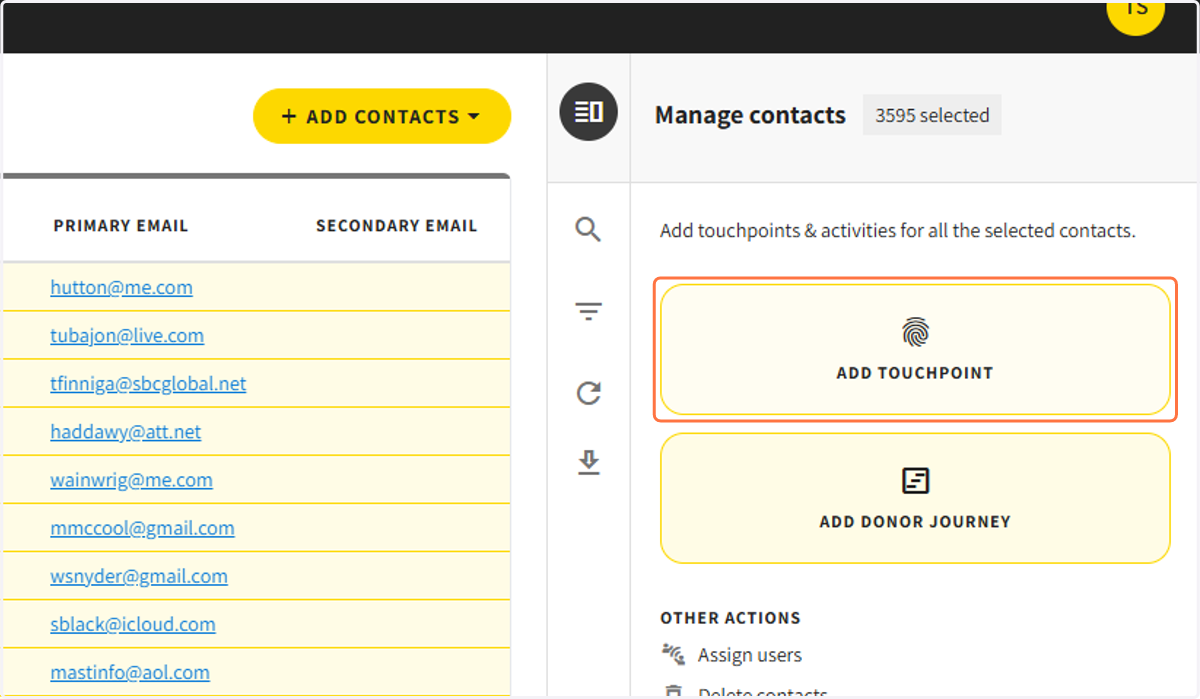
2. From the right sidebar, click on add touchpoint
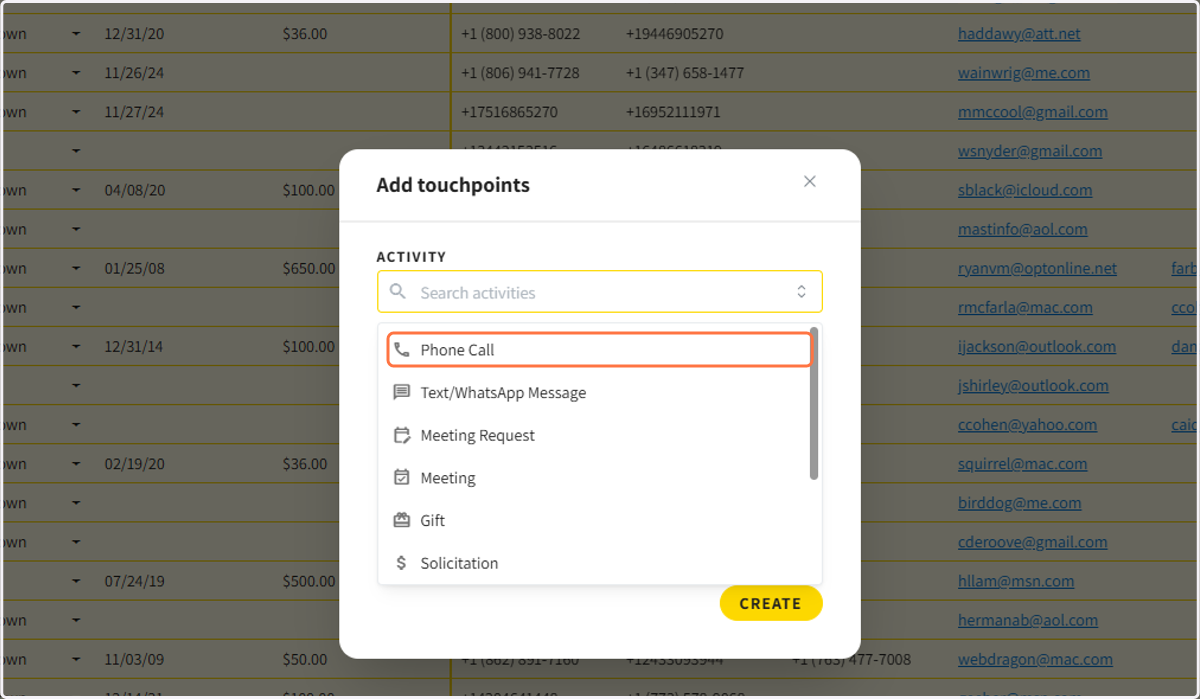
3. Choose the activity type the touchpoint should be
4. Add the touchpoint due date and short description
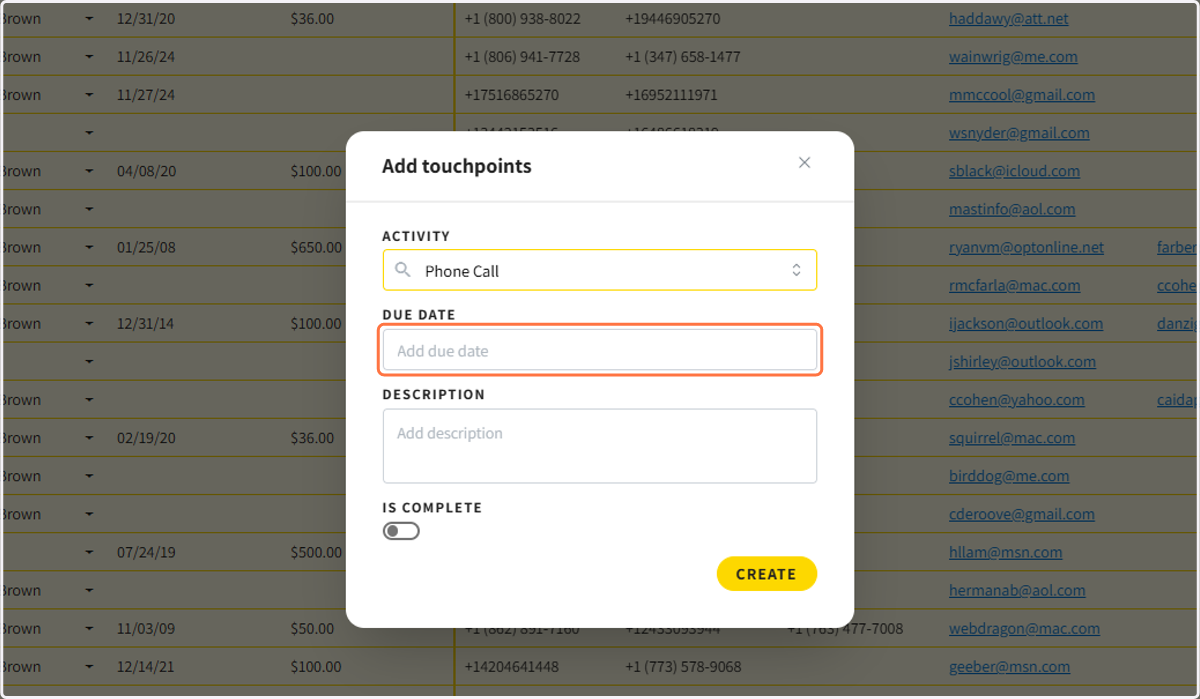
5. If this touchpoint has already happened and is complete, mark it as complete.
This usually applies only if you are adding a touchpoint to a single person.
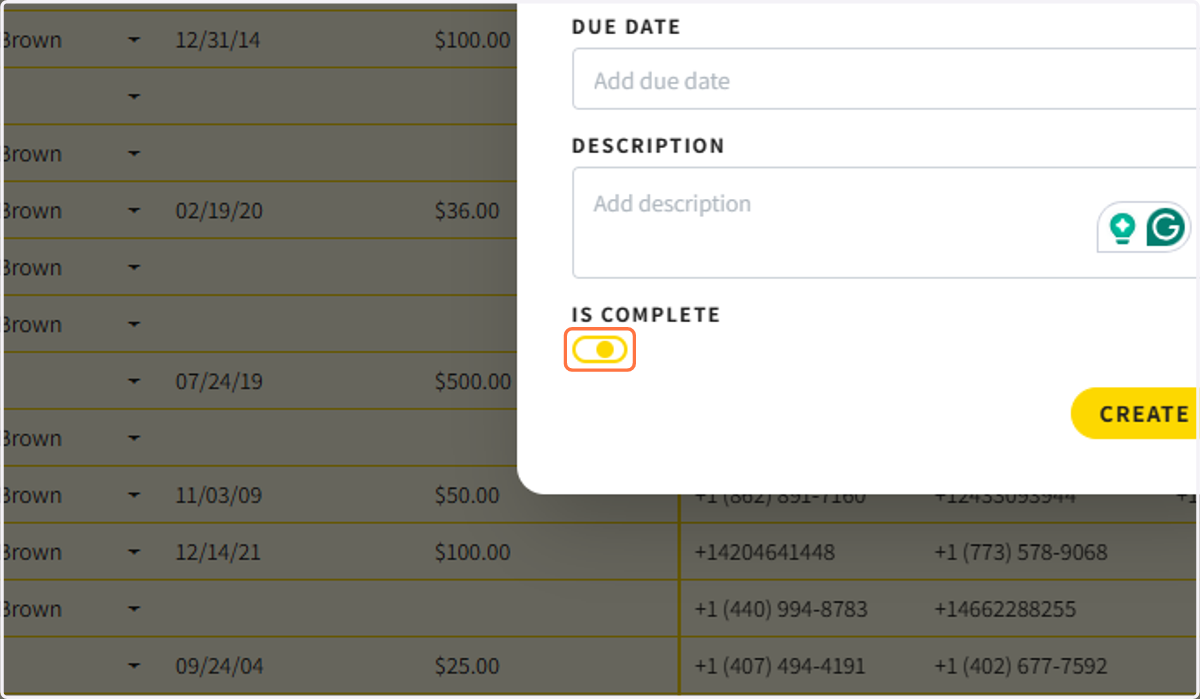
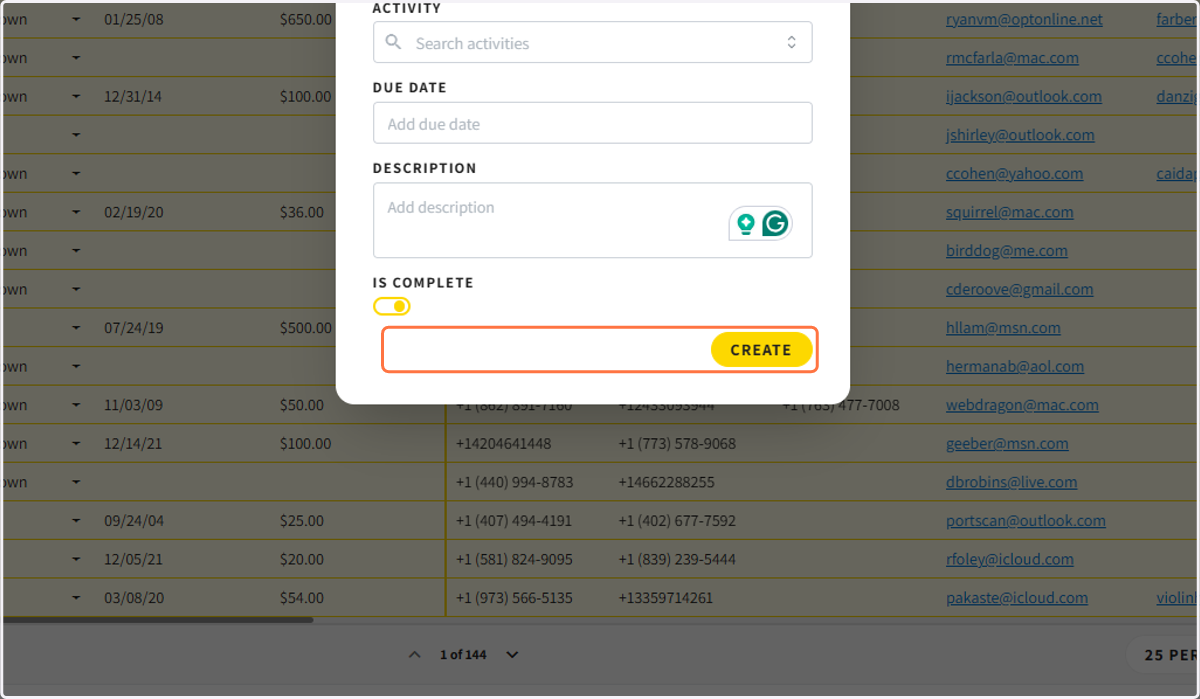
6. Click on Create
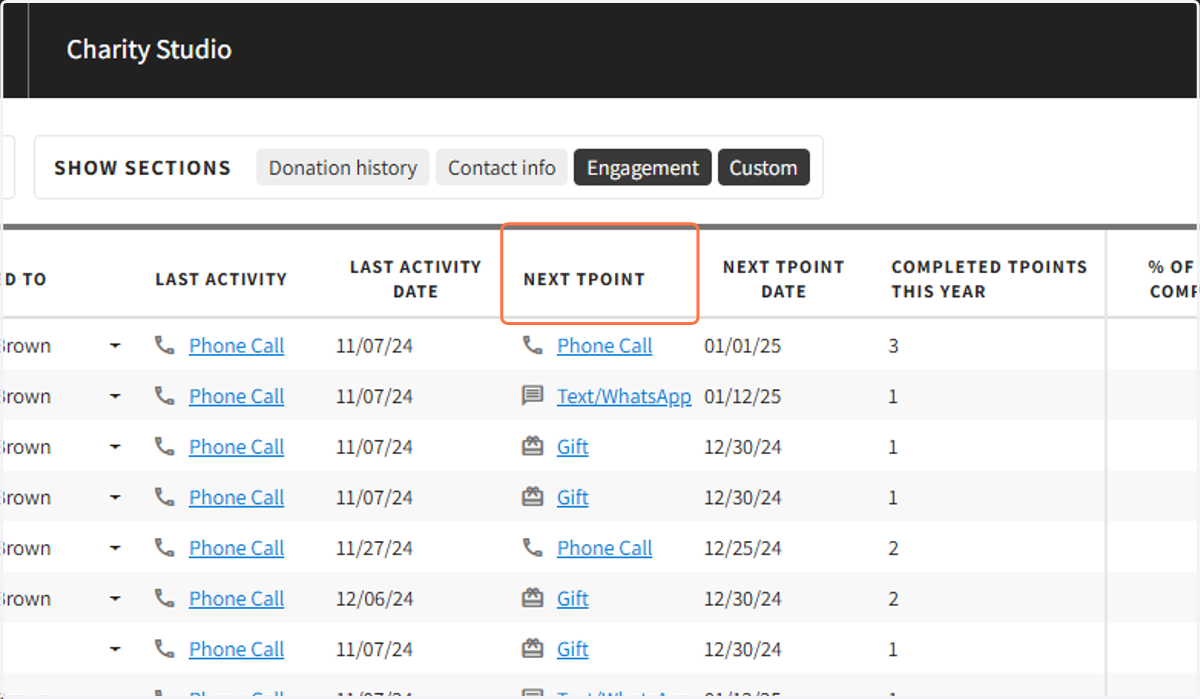
7. You can view the last activity and upcoming touchpoints in the contact section. To view all touchpoints, you will go to the touchpoints section.
Option Two: Adding a Touchpoint from the Touchpoints Section
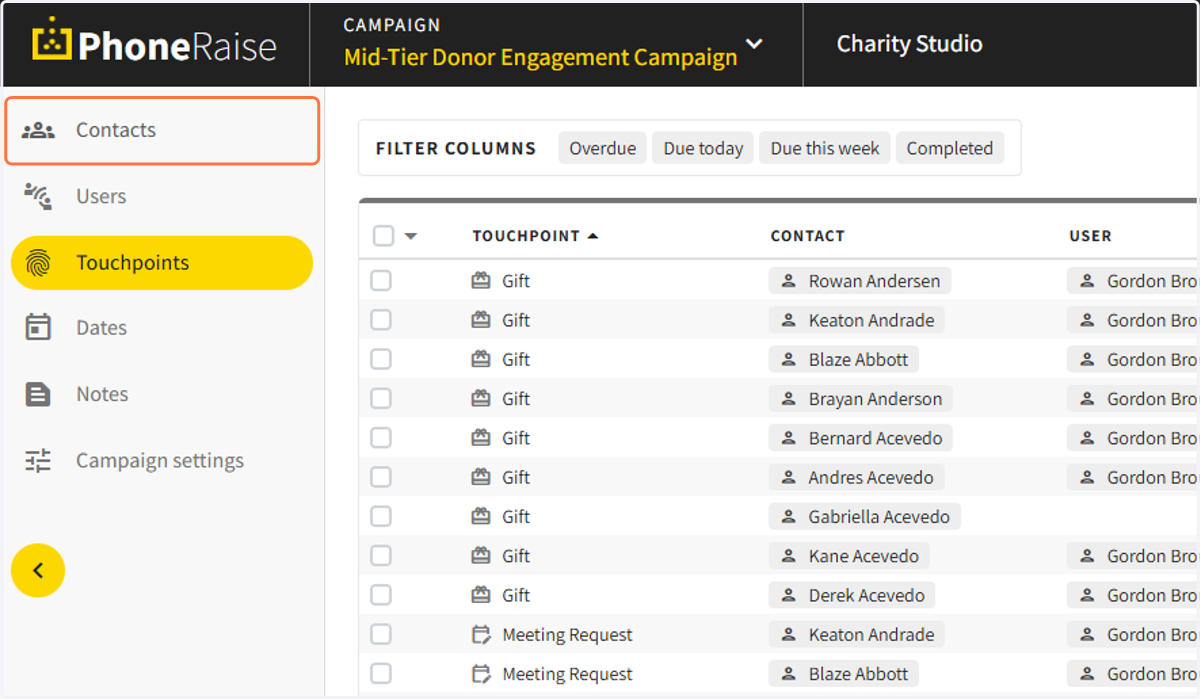
8. Click on Touchpoints in the left navigation
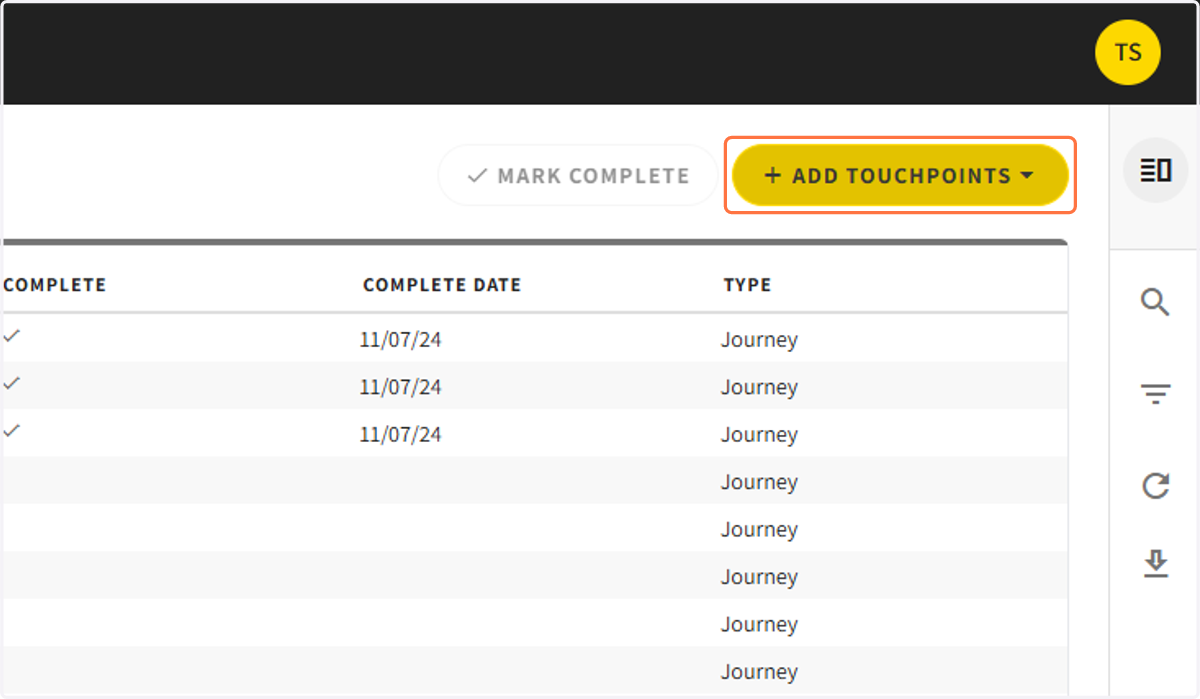
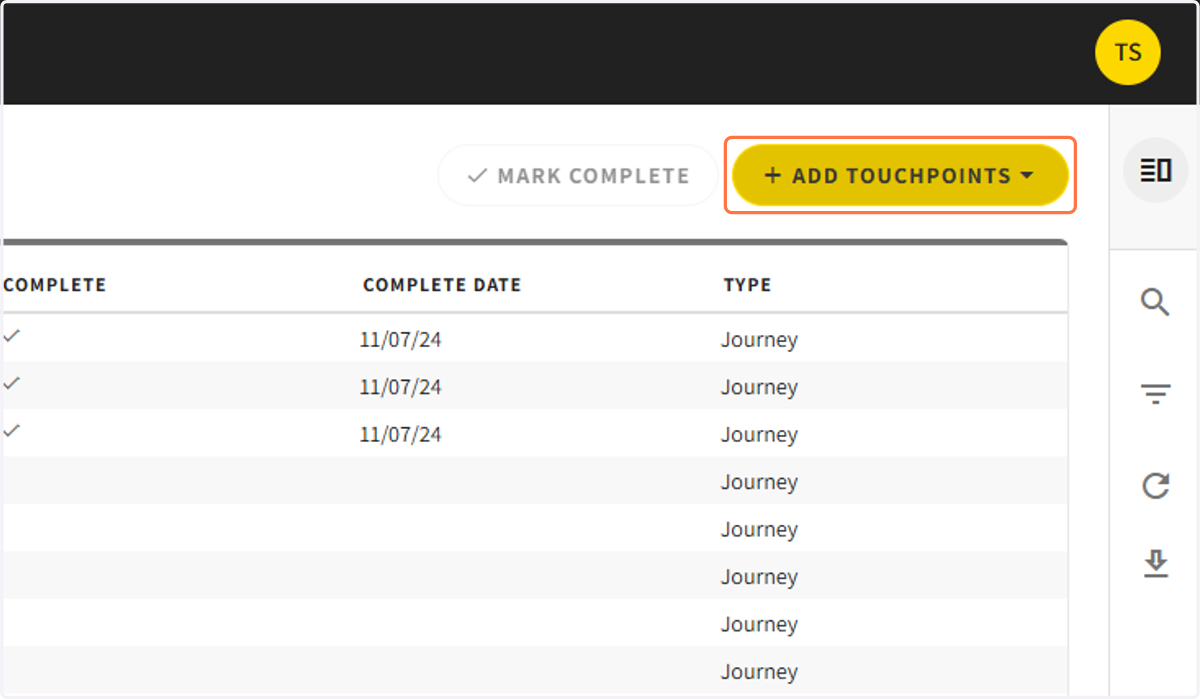
9. Click on Add Touchpoints
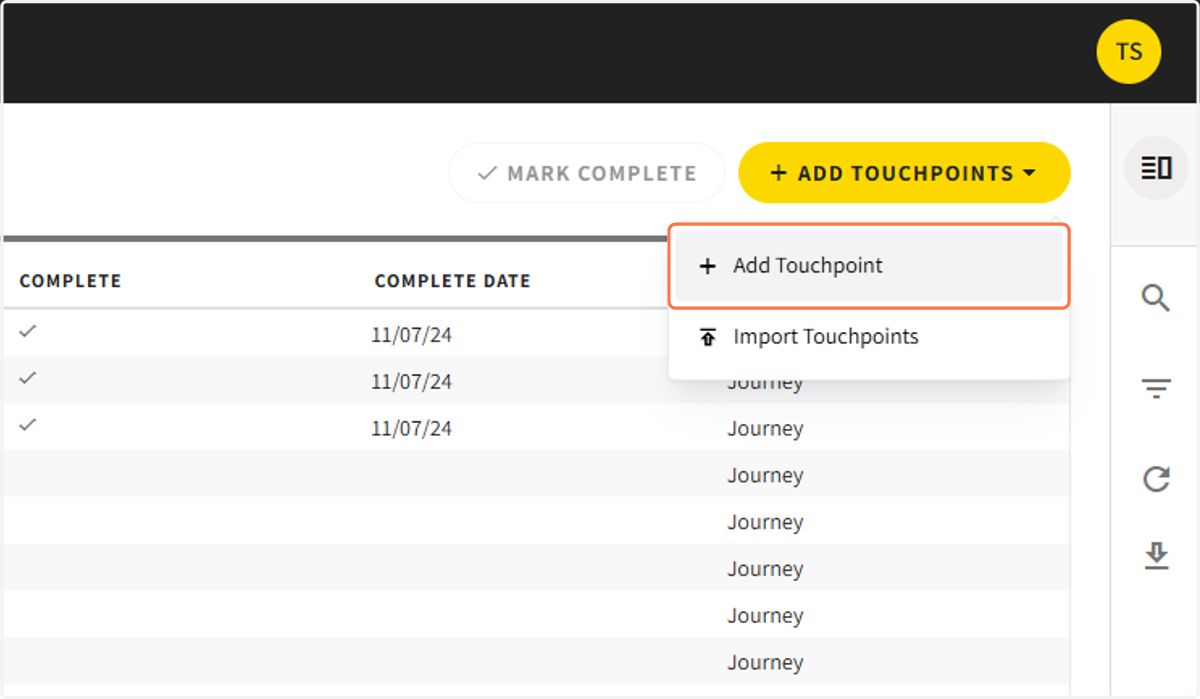
10. Click on Add Touchpoint
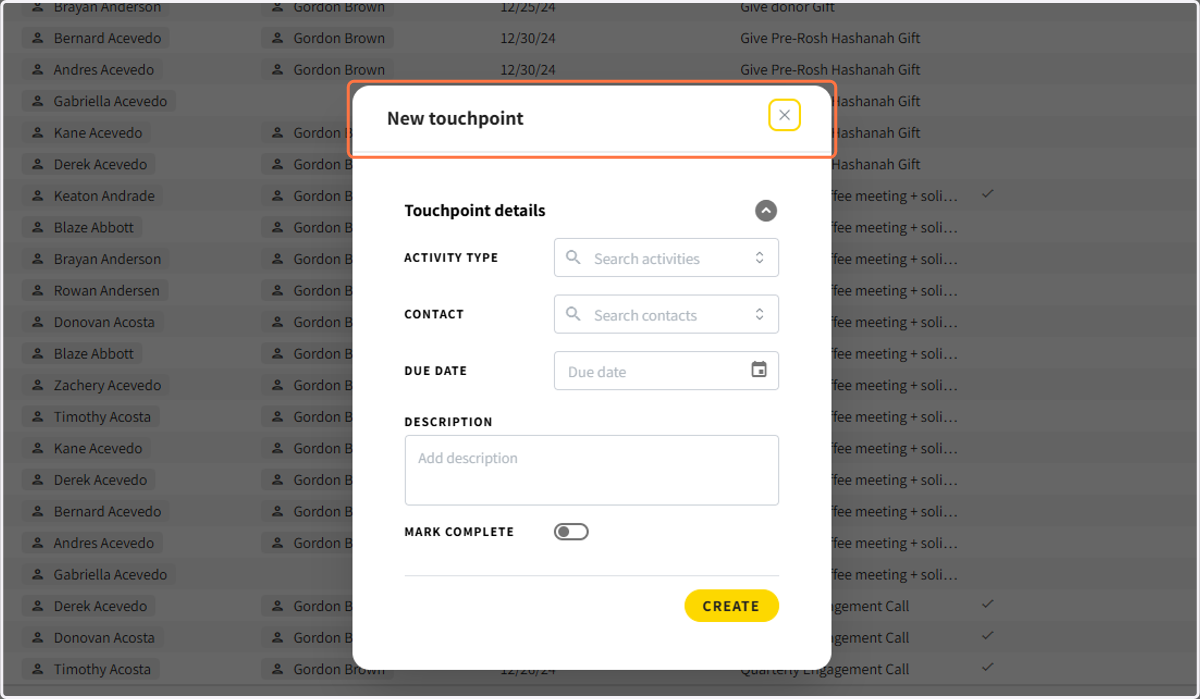
11. Add the activity type, contact, due date, and description. Click Create
Option Three: Importing Touchpoints In Bulk
To import touchpoints, you will need to import a .CSV file that has a custom id or email to match.
12. Click Add Touchpoints
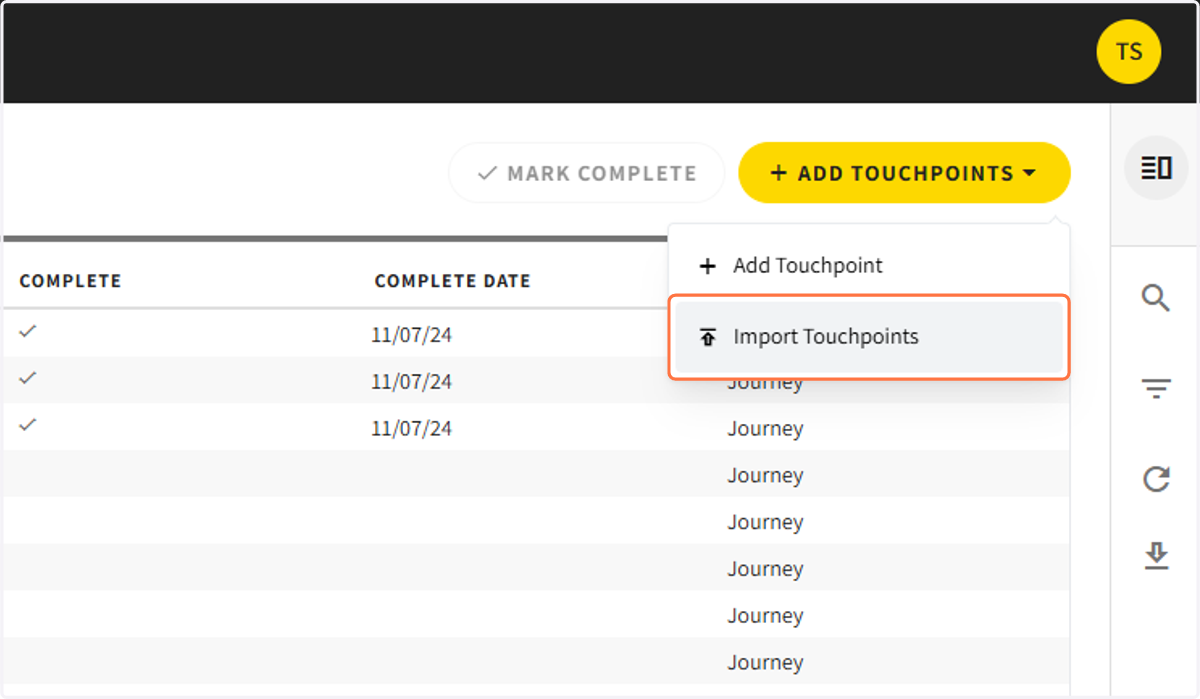
13. Click on Import Touchpoints
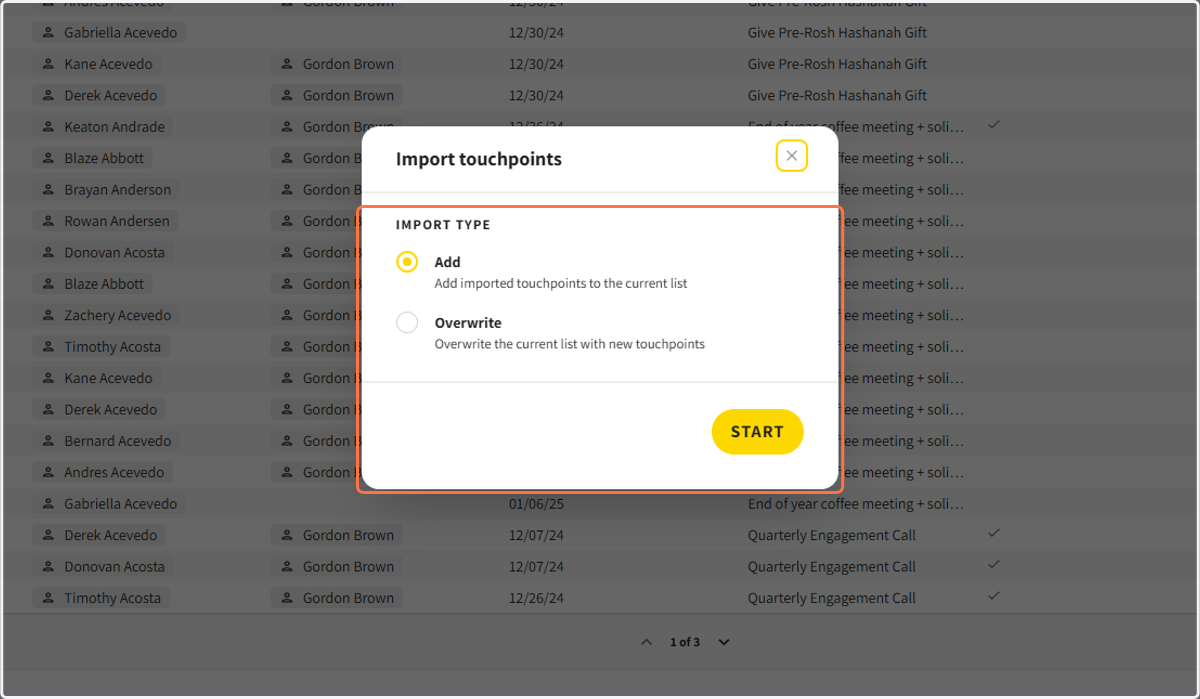
14. Choose to add new touchpoints or overwrite old ones and click start.
Option Four: Adding Touchpoints From The App
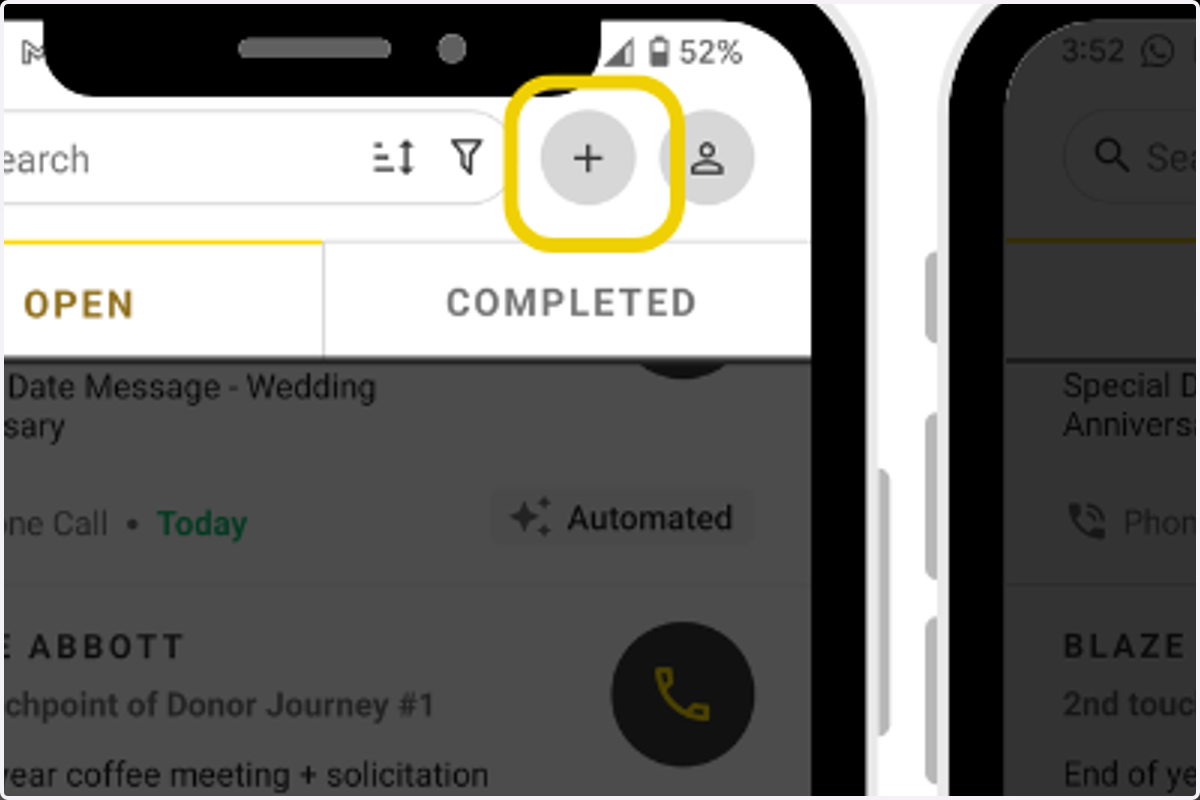
15. Click on the plus sign on the top
16. Select Touchpoint
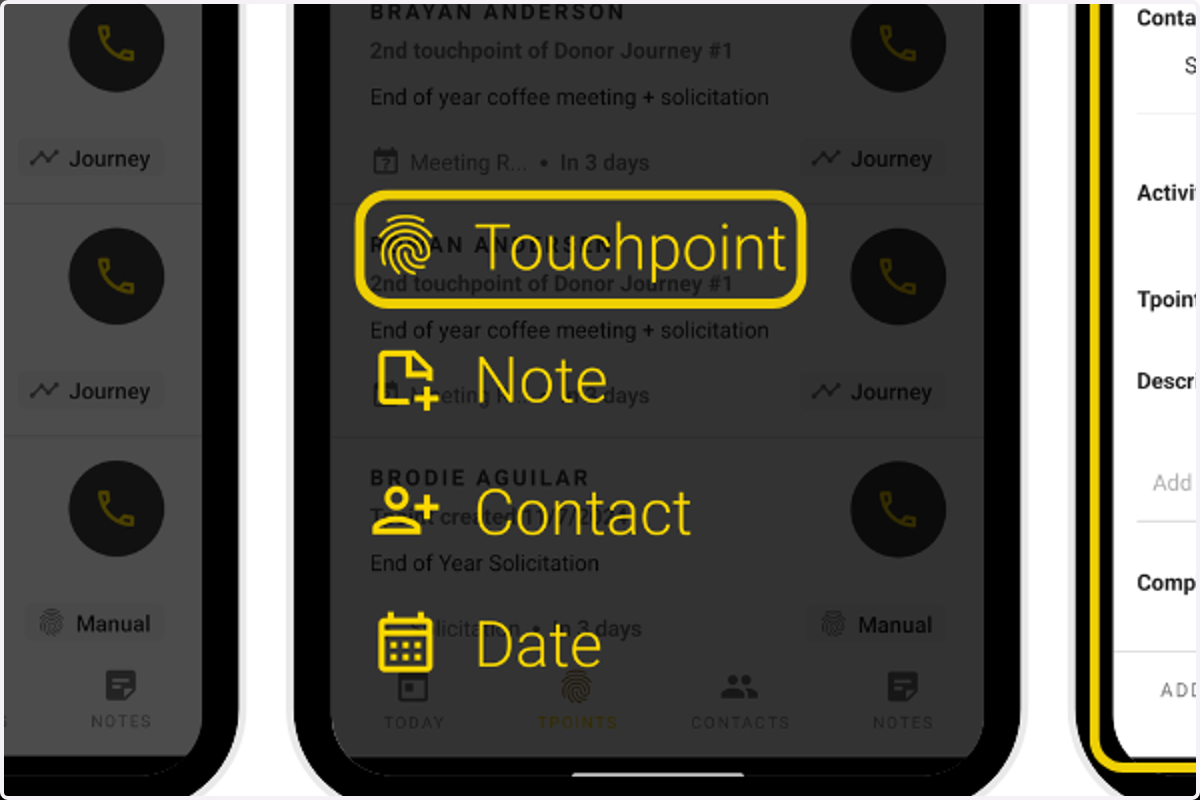
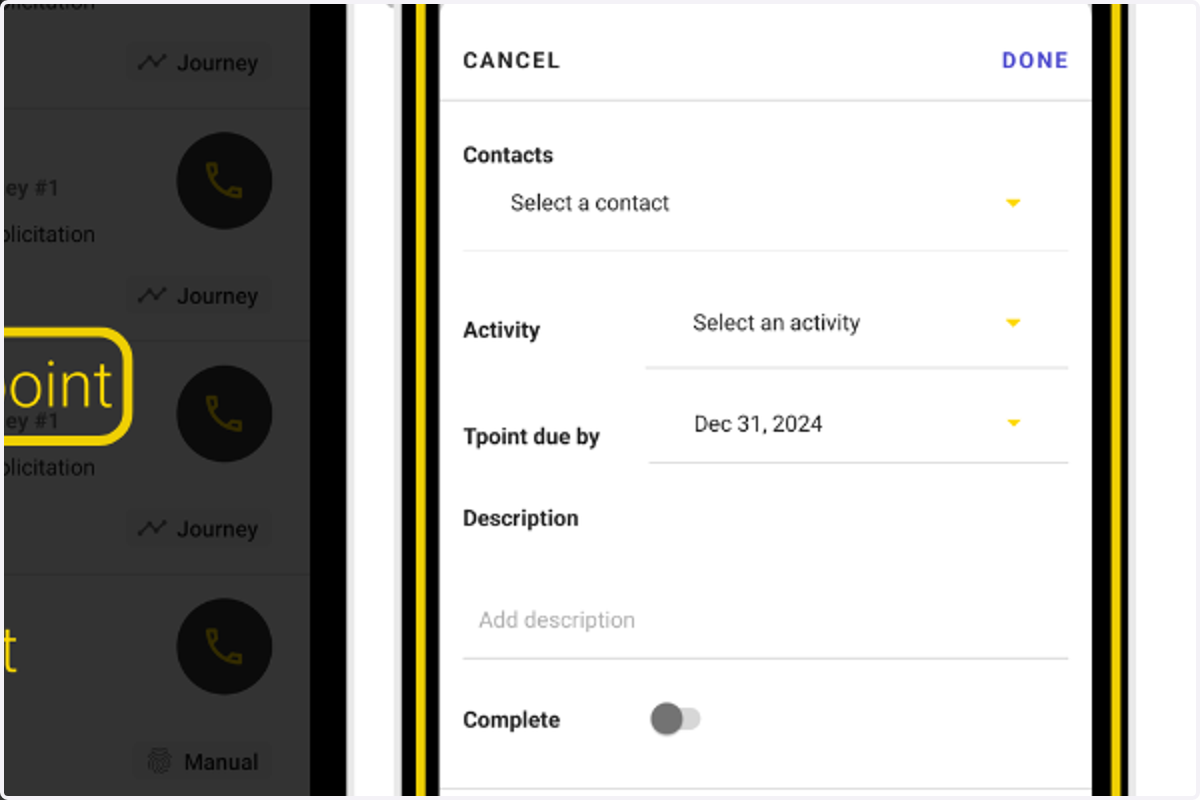
17. Add the Touchpoint Information