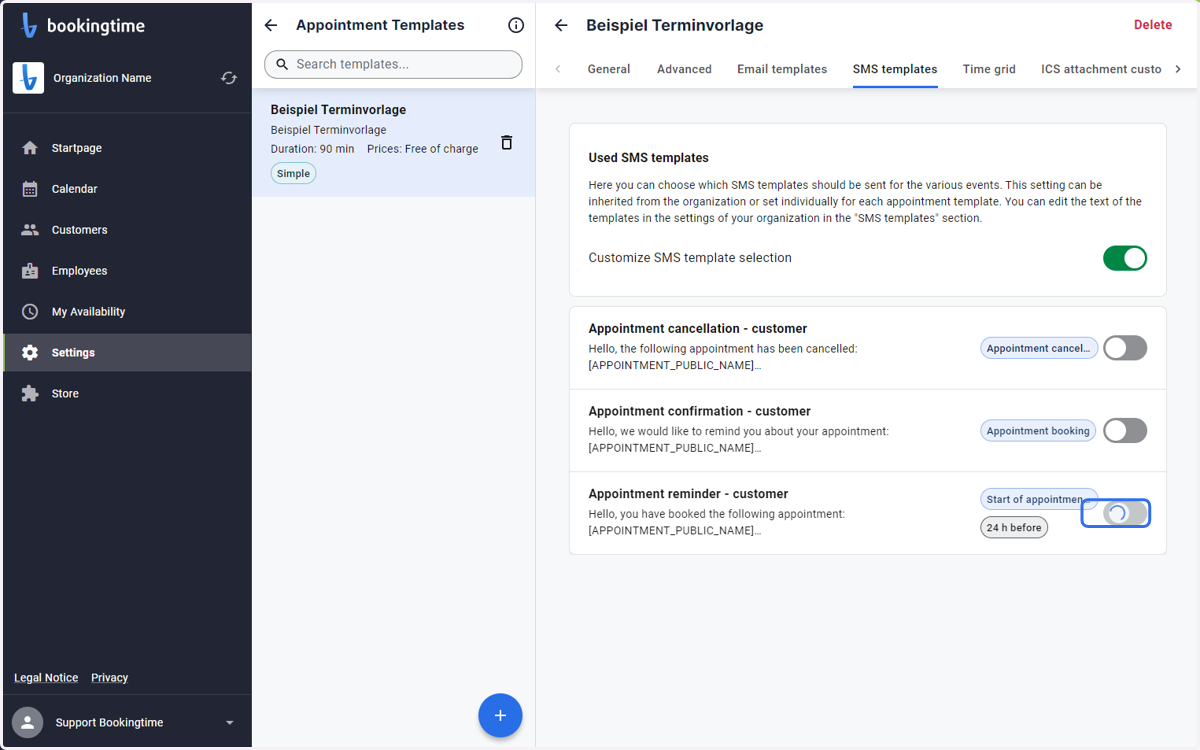
How to Customize Email and SMS Appointment Confirmations
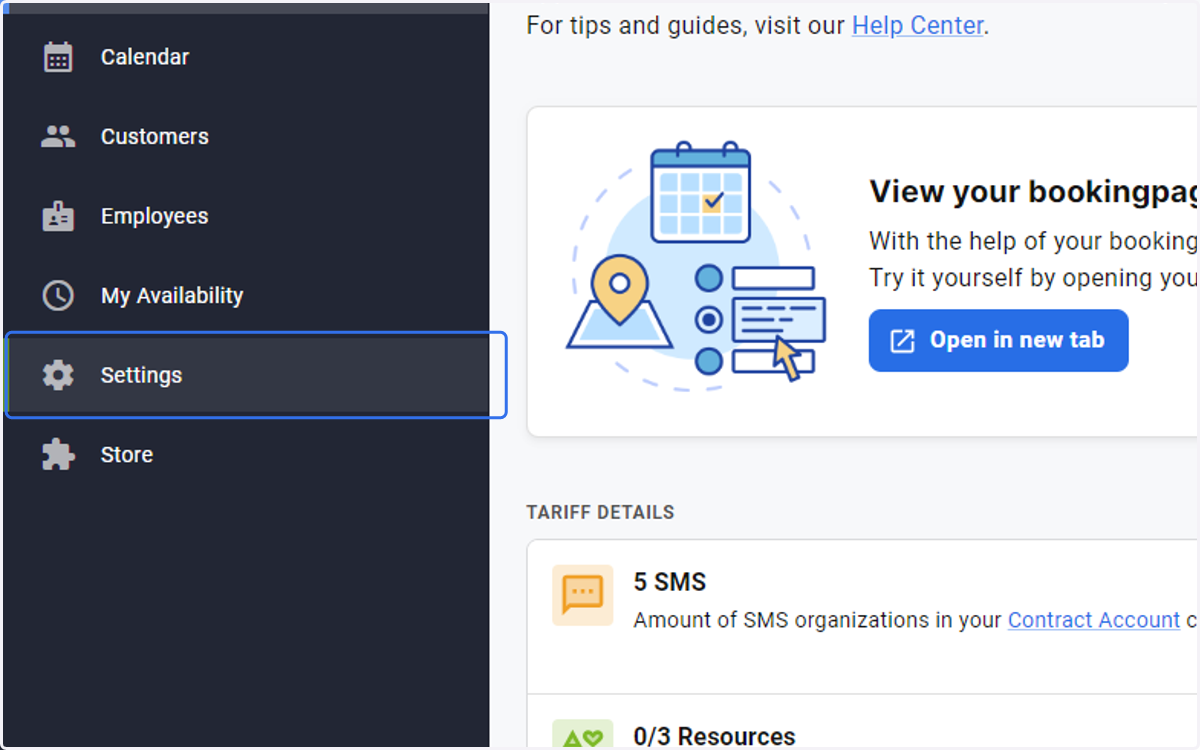
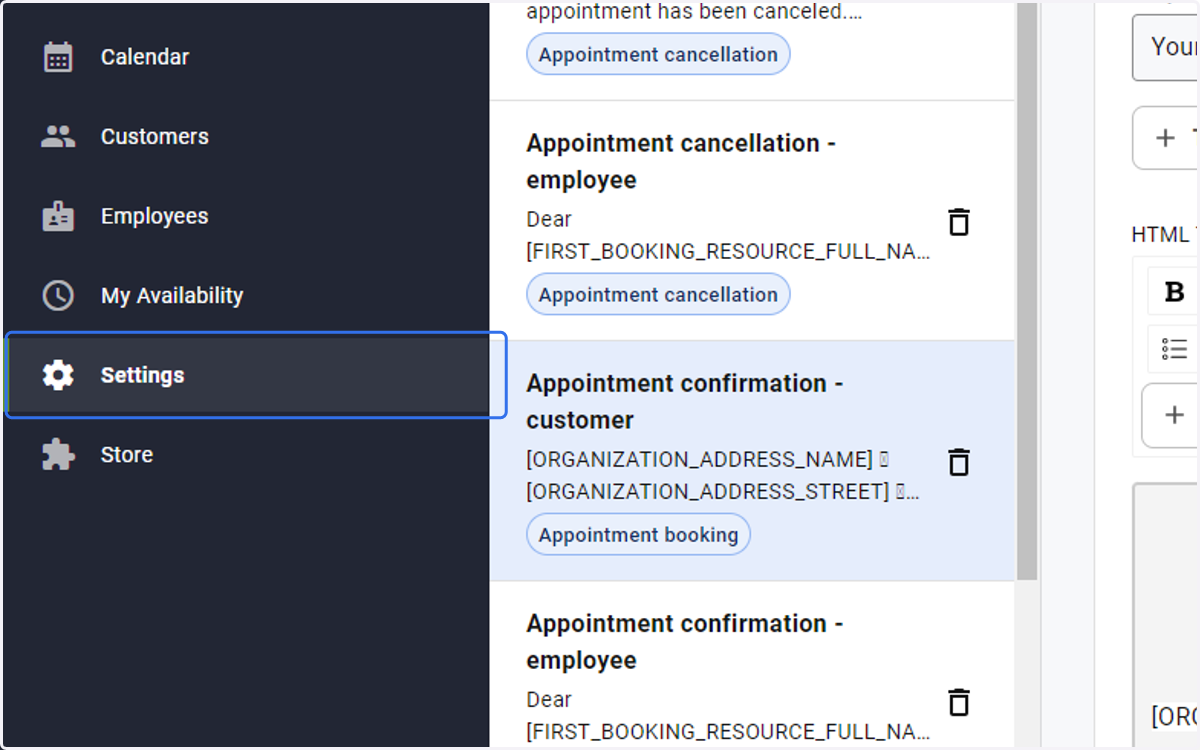
1. Click on Settings
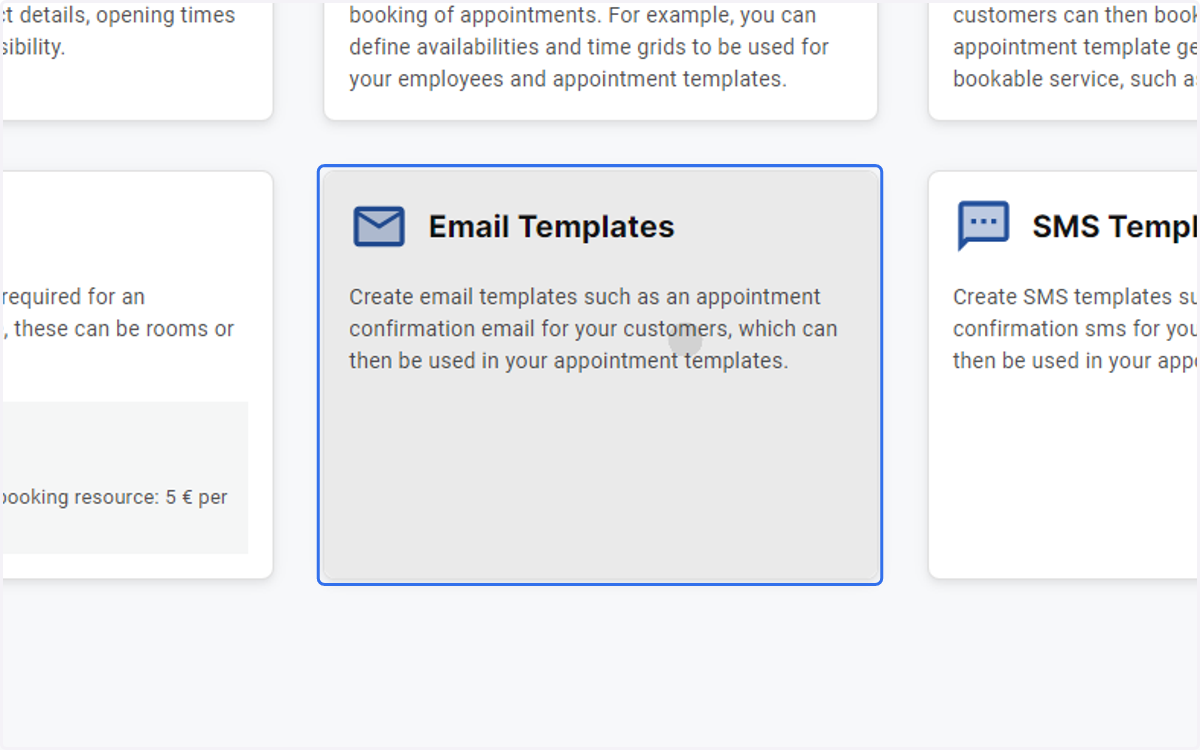
2. Click on Email Templates
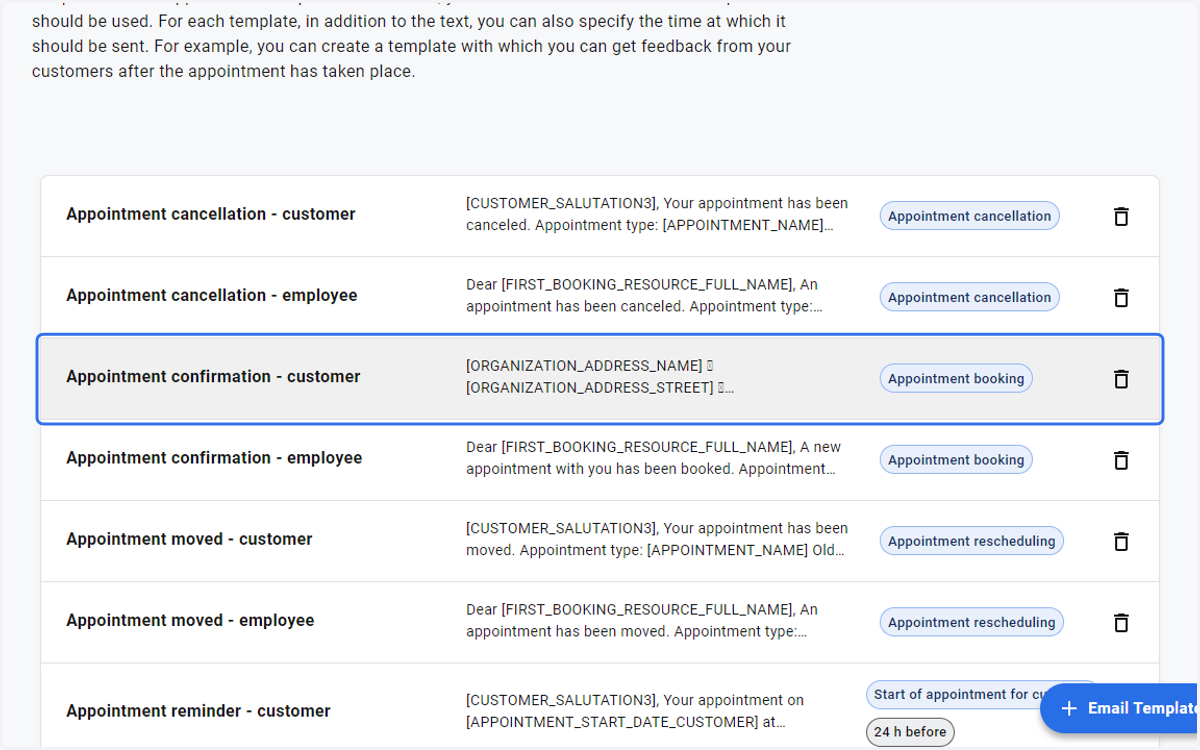
3. Click on Appointment confirmation - customer…
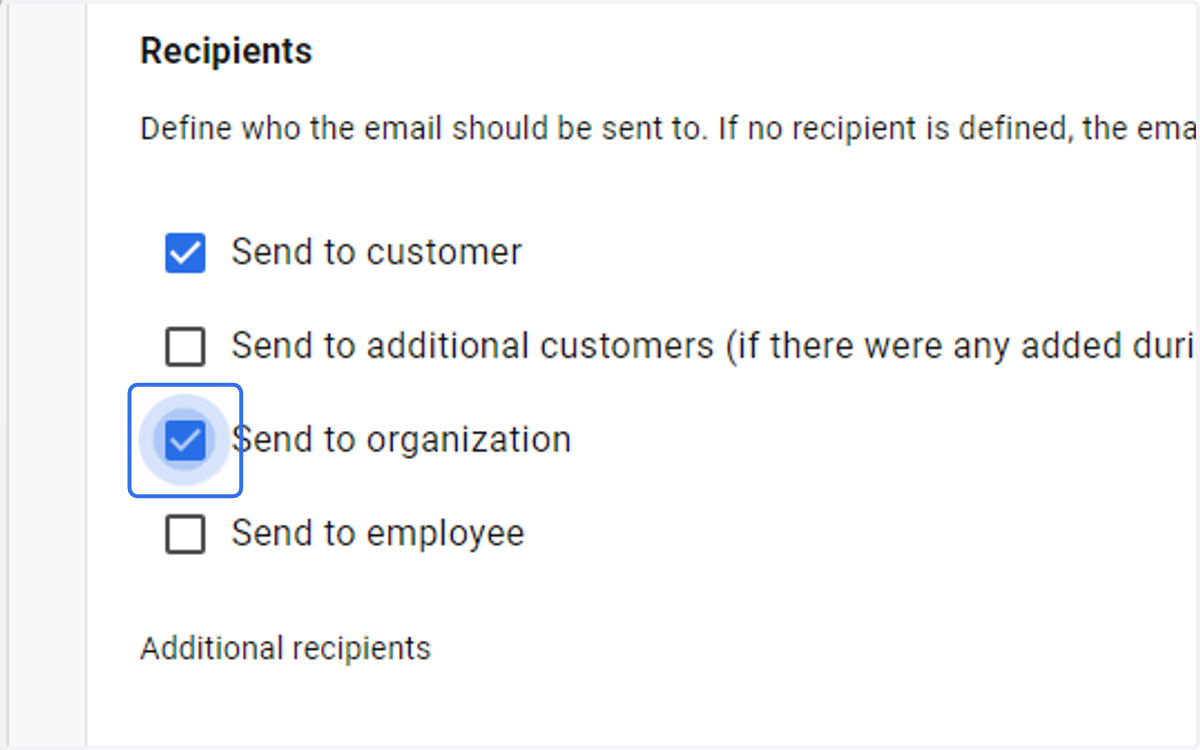
4. Confirmations can be sent to more than one recipient or in CC to the Organization or an employee
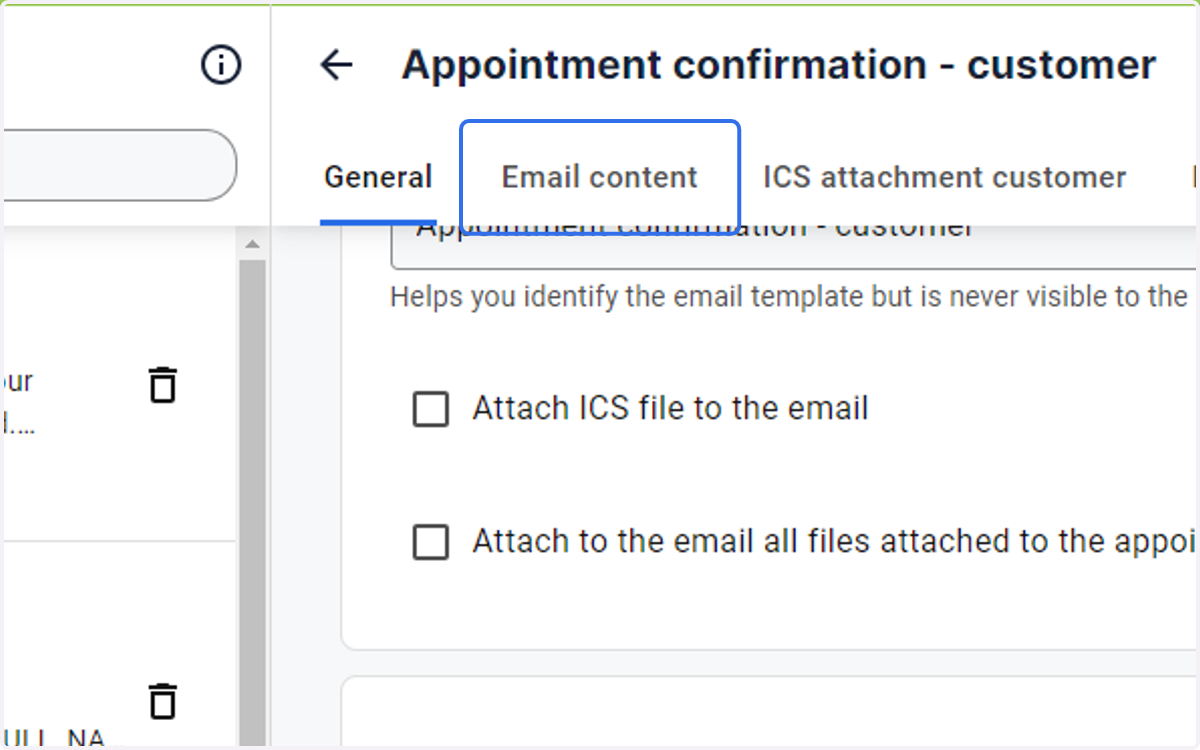
5. Click on Email content
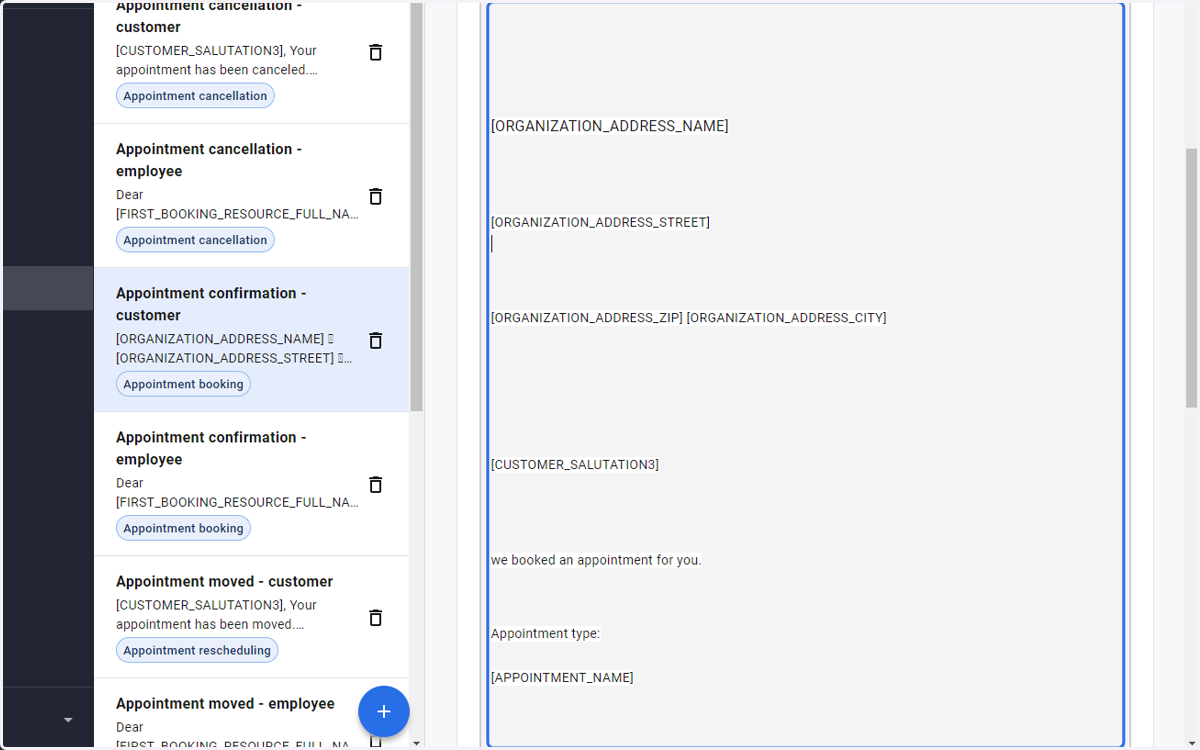
6. The text can be customized
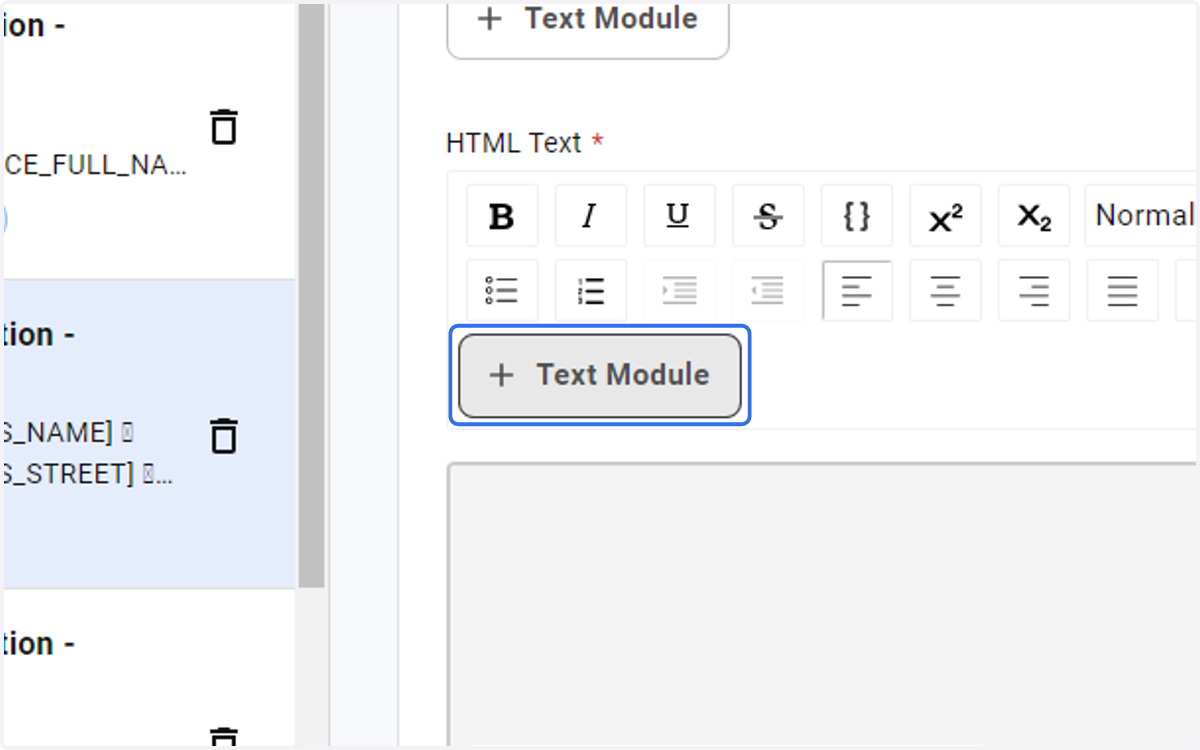
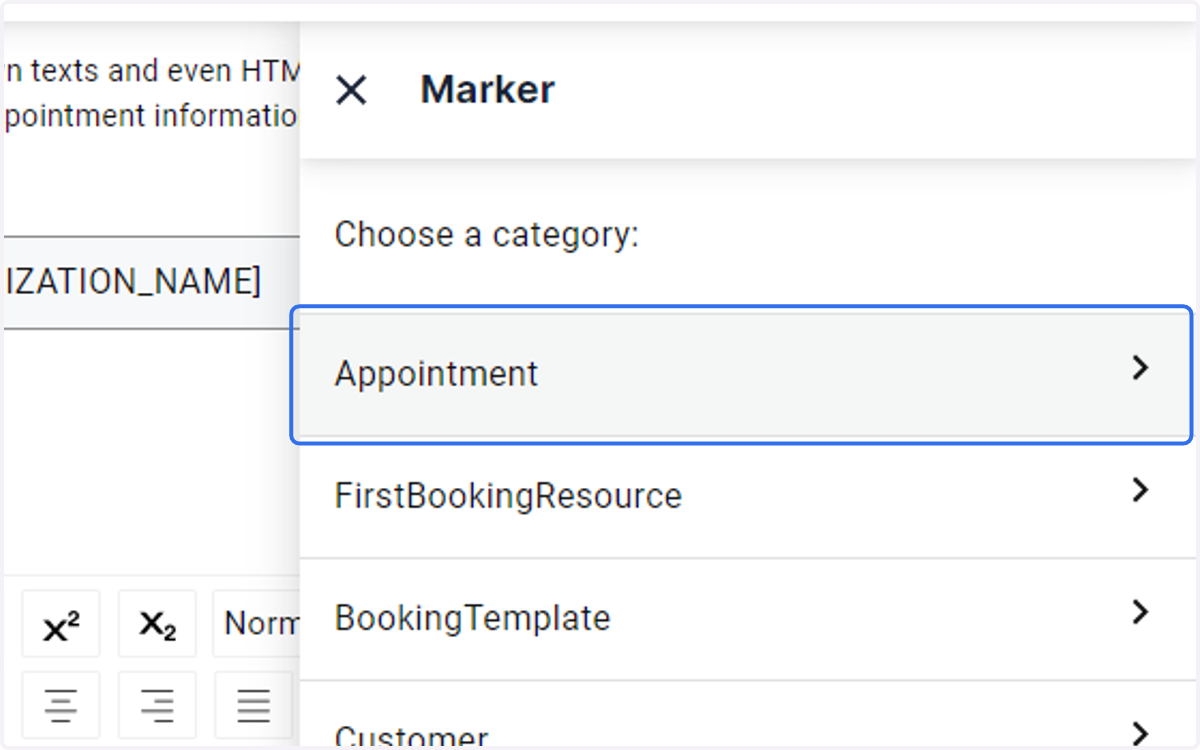
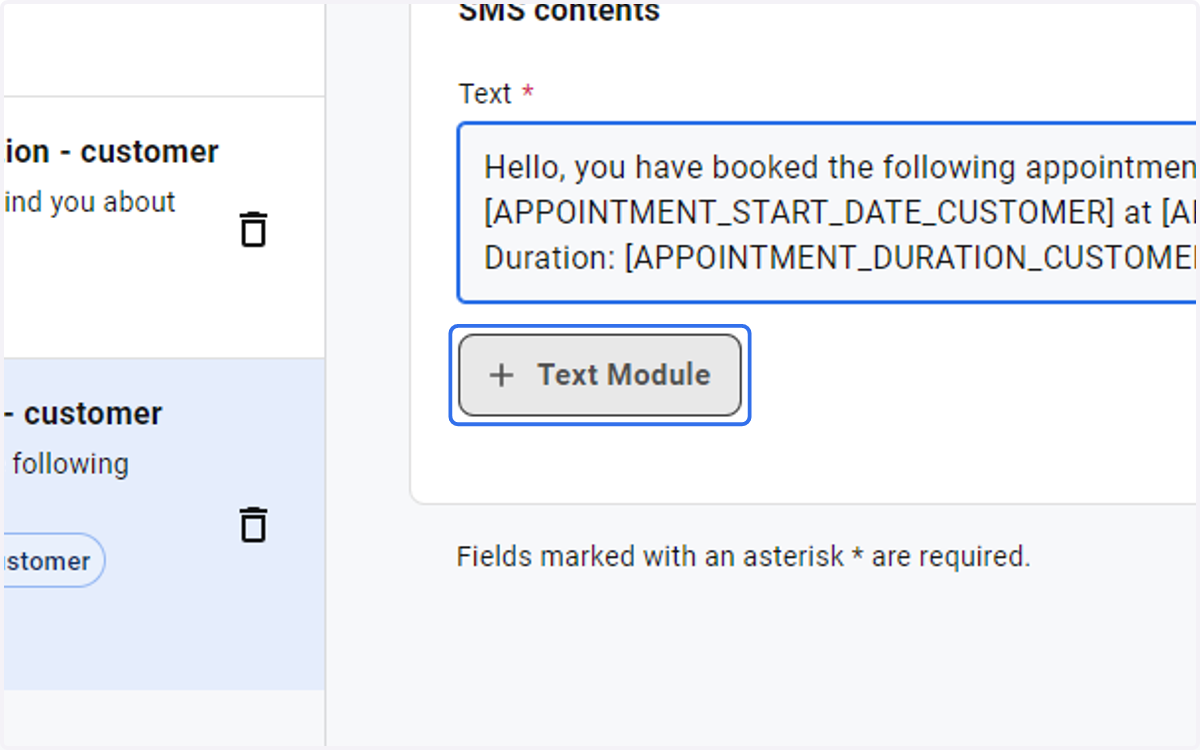
7. There are also lists of Text markers or place holders under Text Module
8. Click on Appointment
9. Save any changes and click on settings again
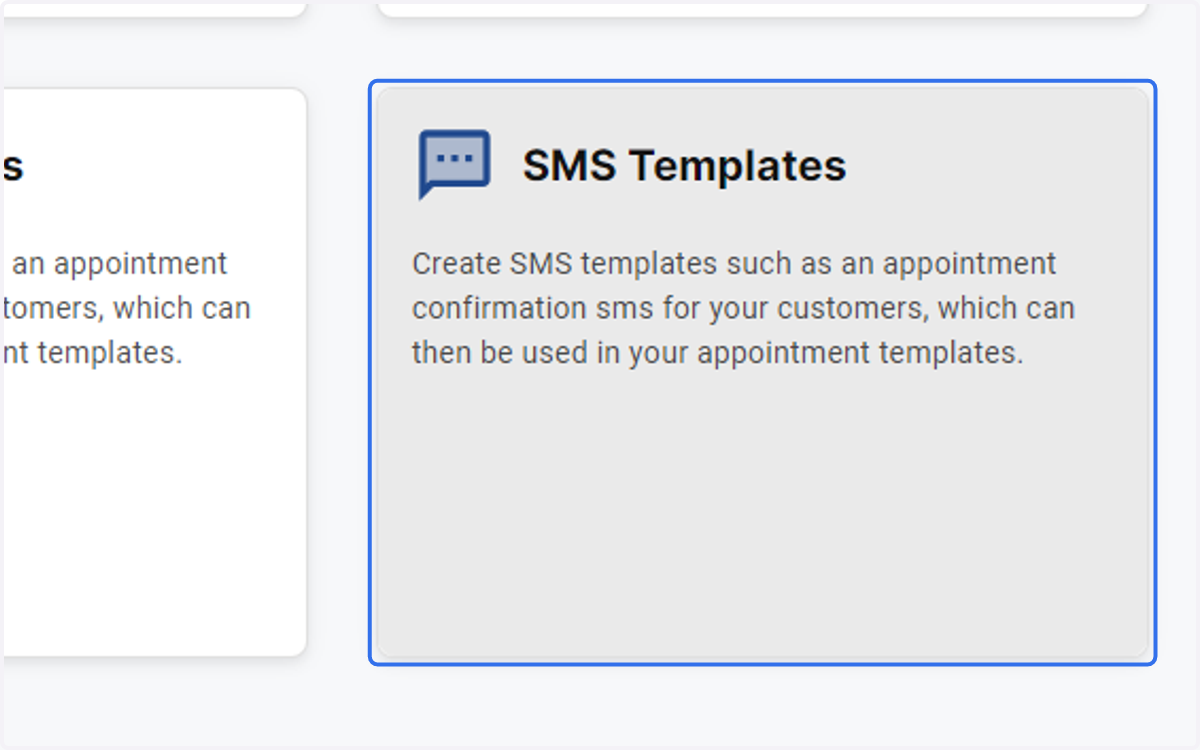
10. Click on SMS Templates
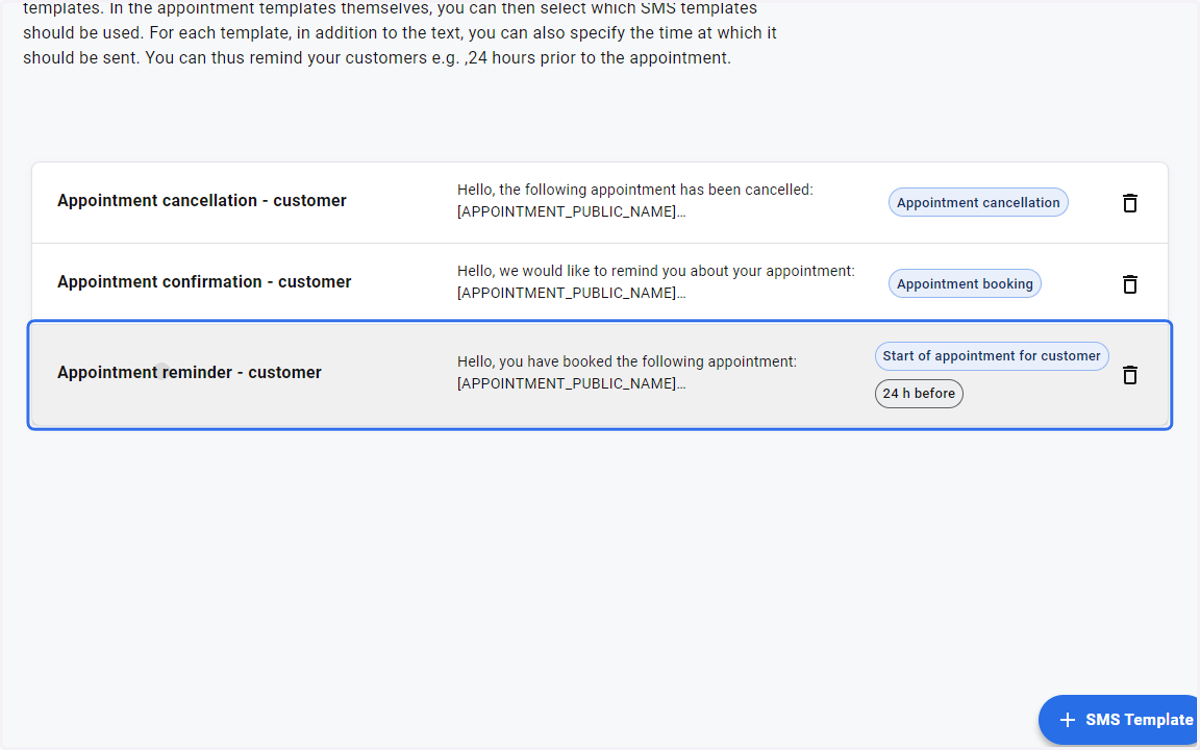
11. Click on Appointment reminder - customer…
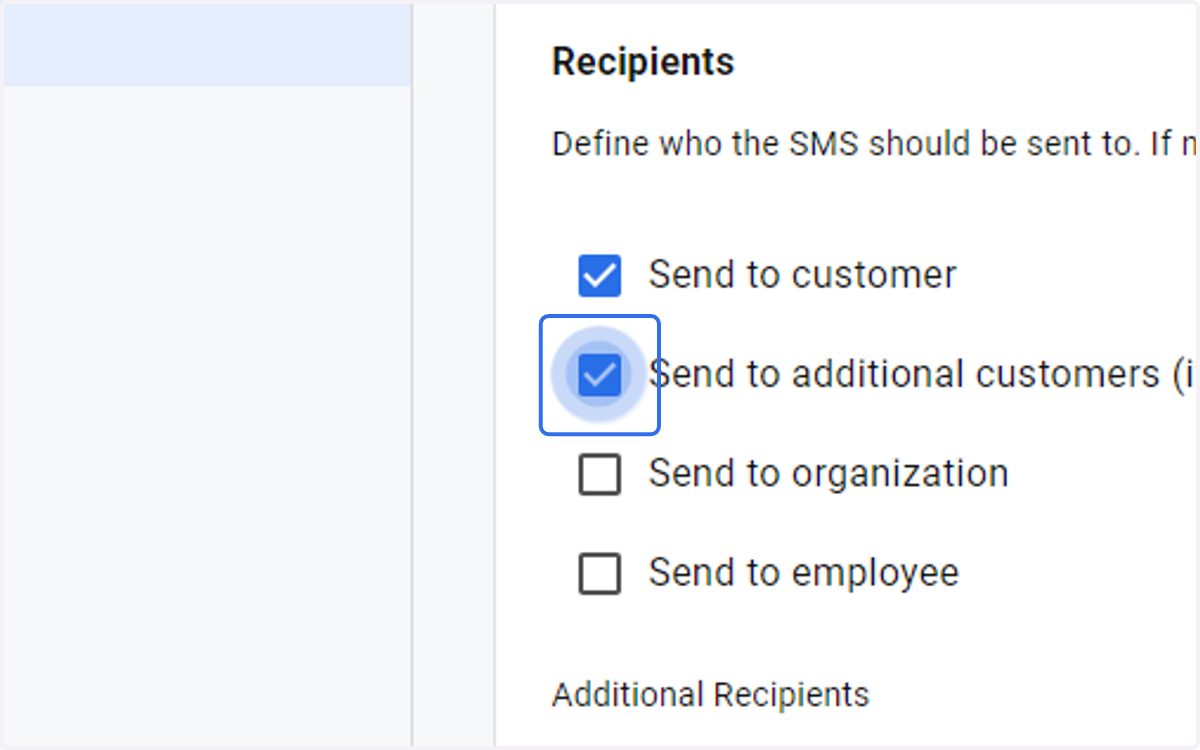
12. Check Send to additional recipients if you like
13. Edit text
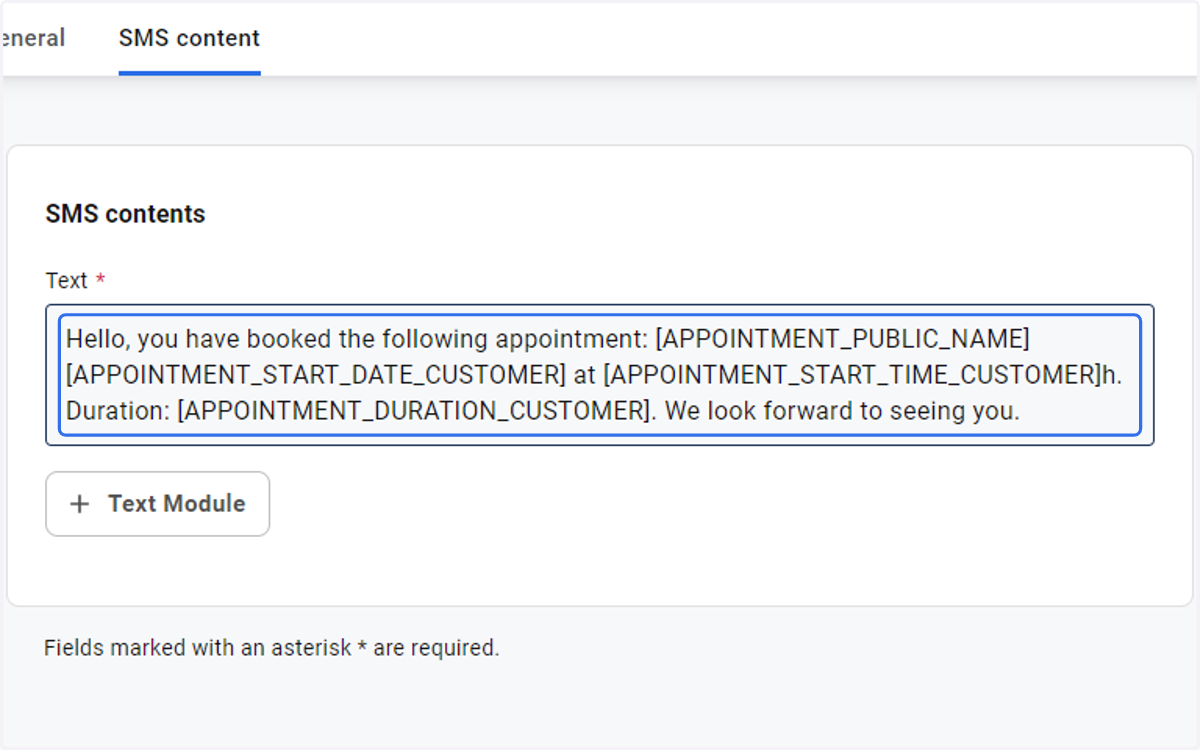
14. and Markers can also be used here
15. to define which confirmations are sent according to appointment template go back to settings
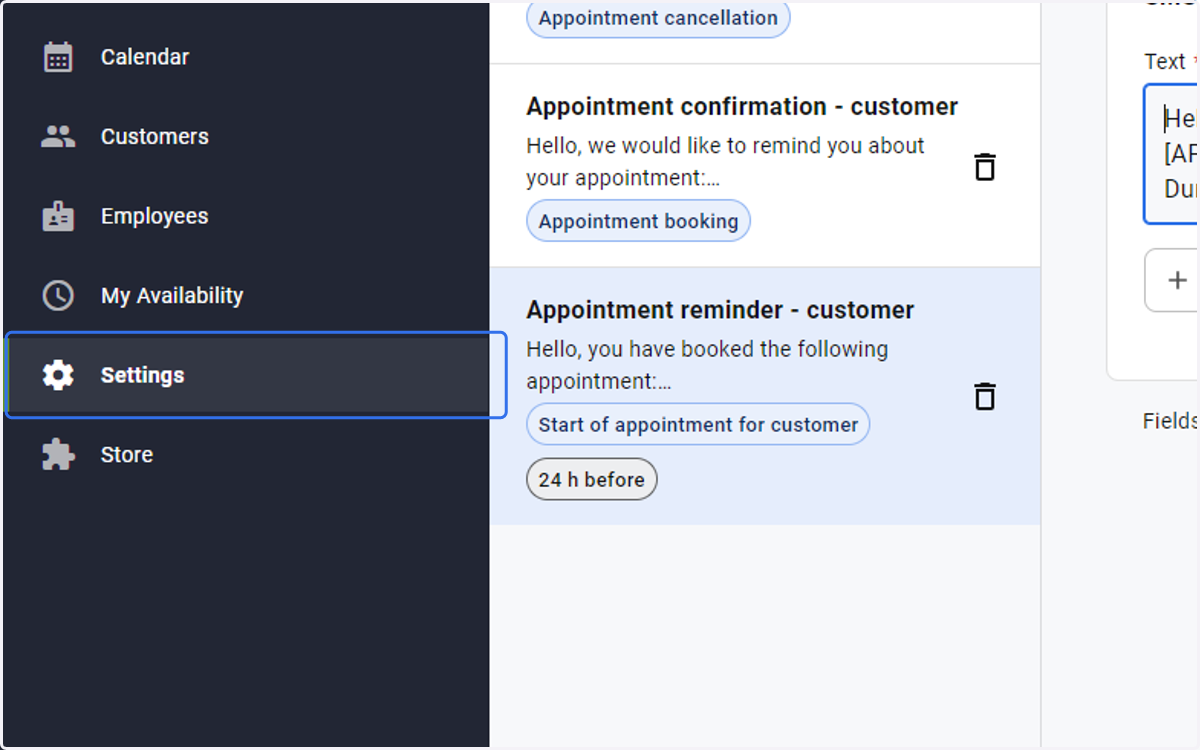
16. Click on Appointment Templates
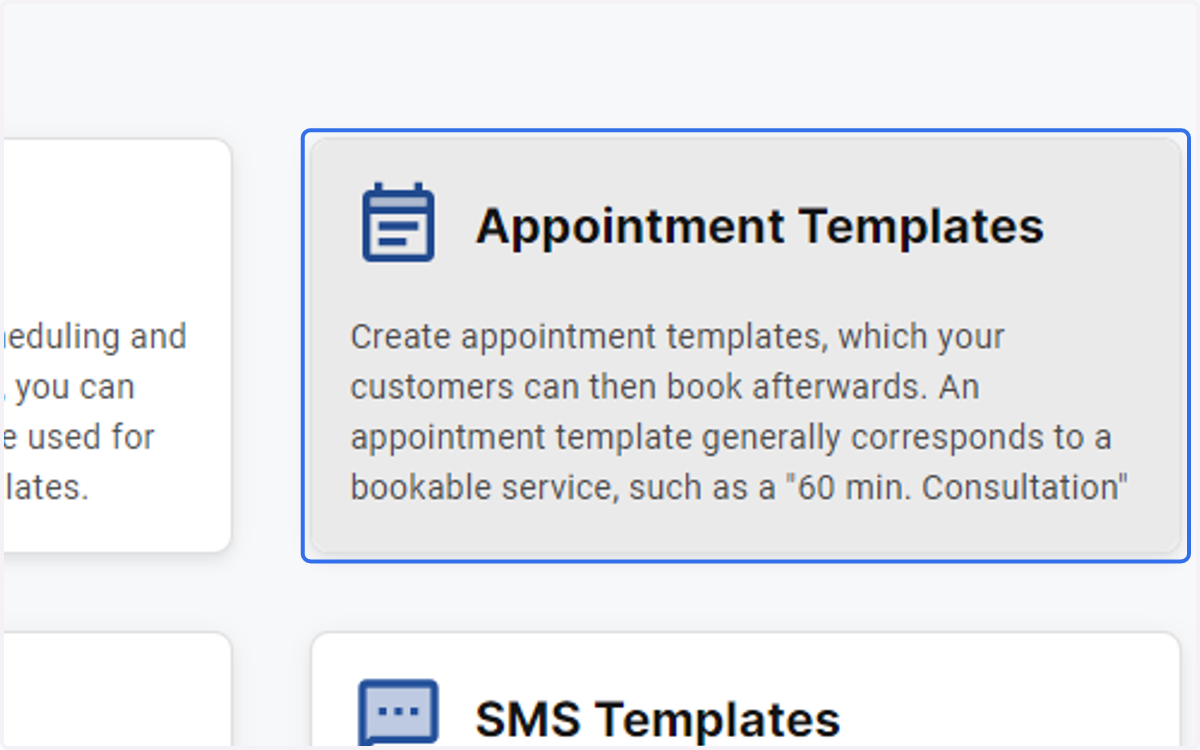
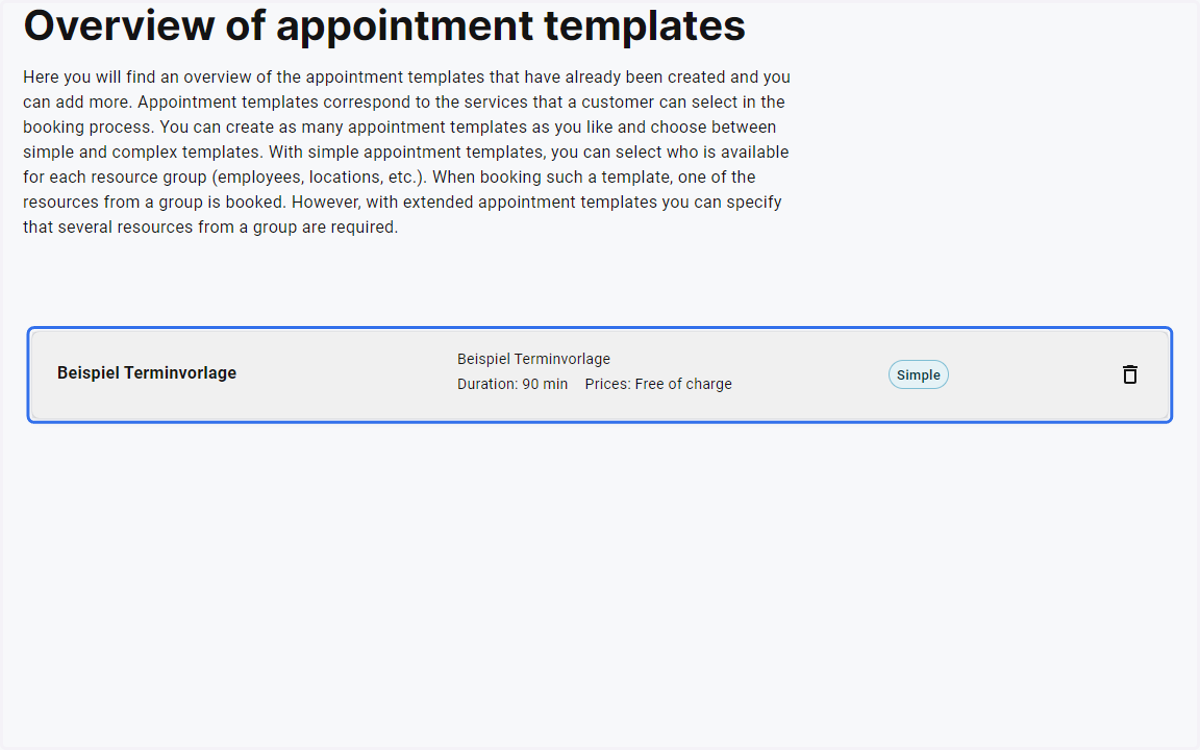
17. Select the appointment template
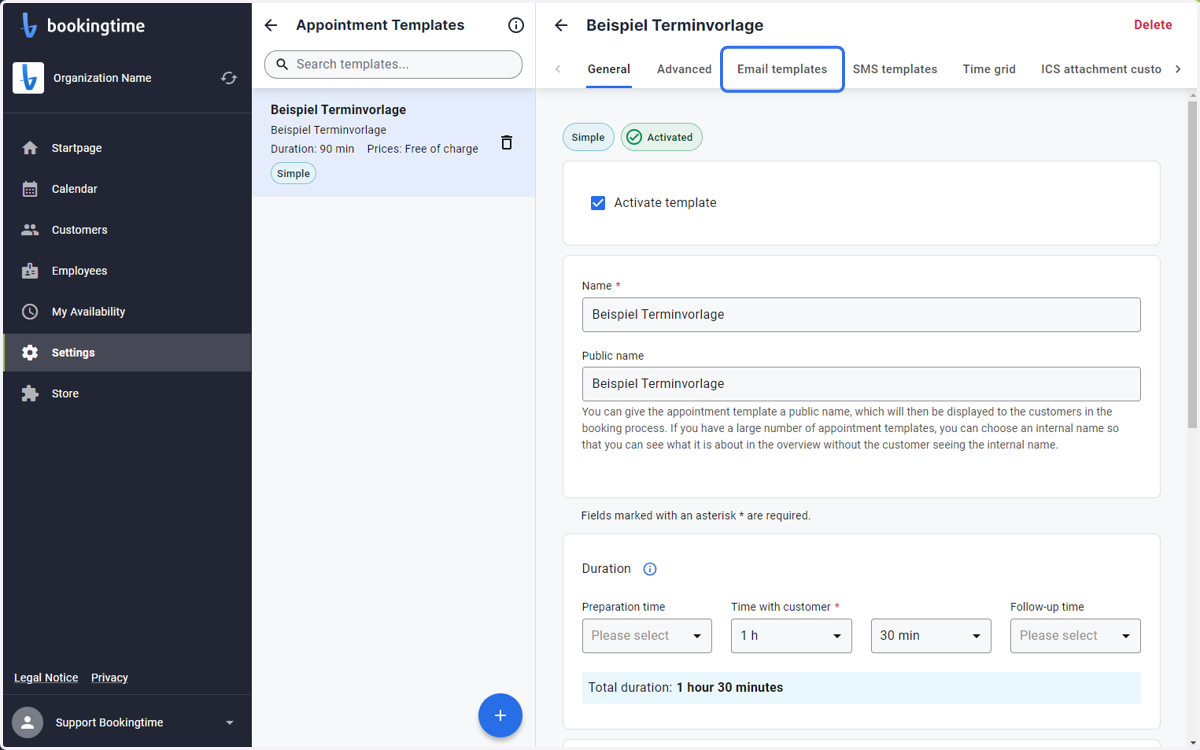
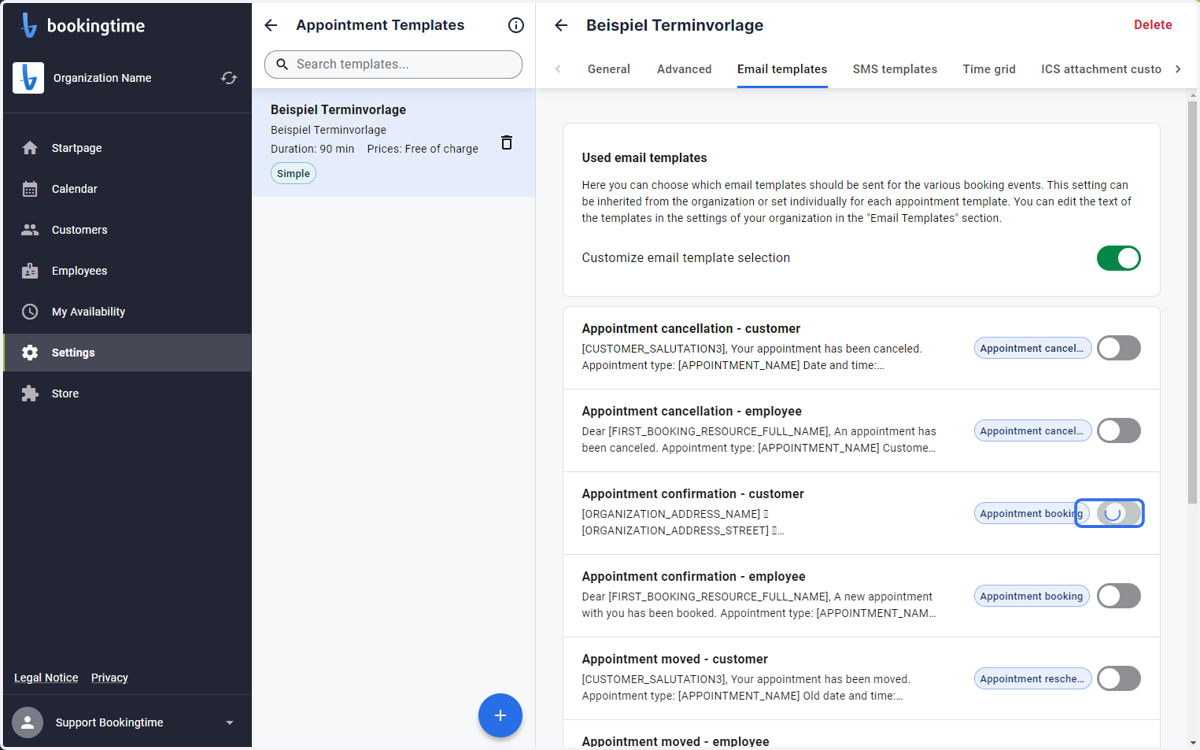
18. Click on Email templates
19. Check Customize email template selection
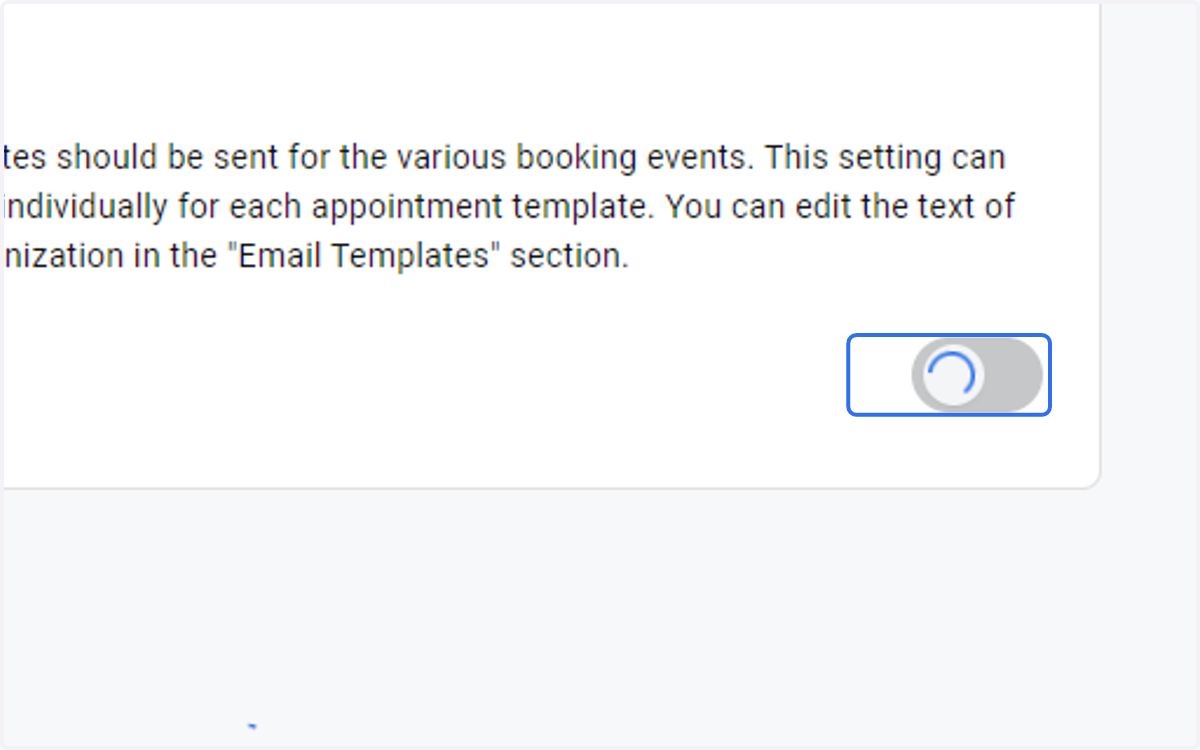
20. Select the relevant confirmations
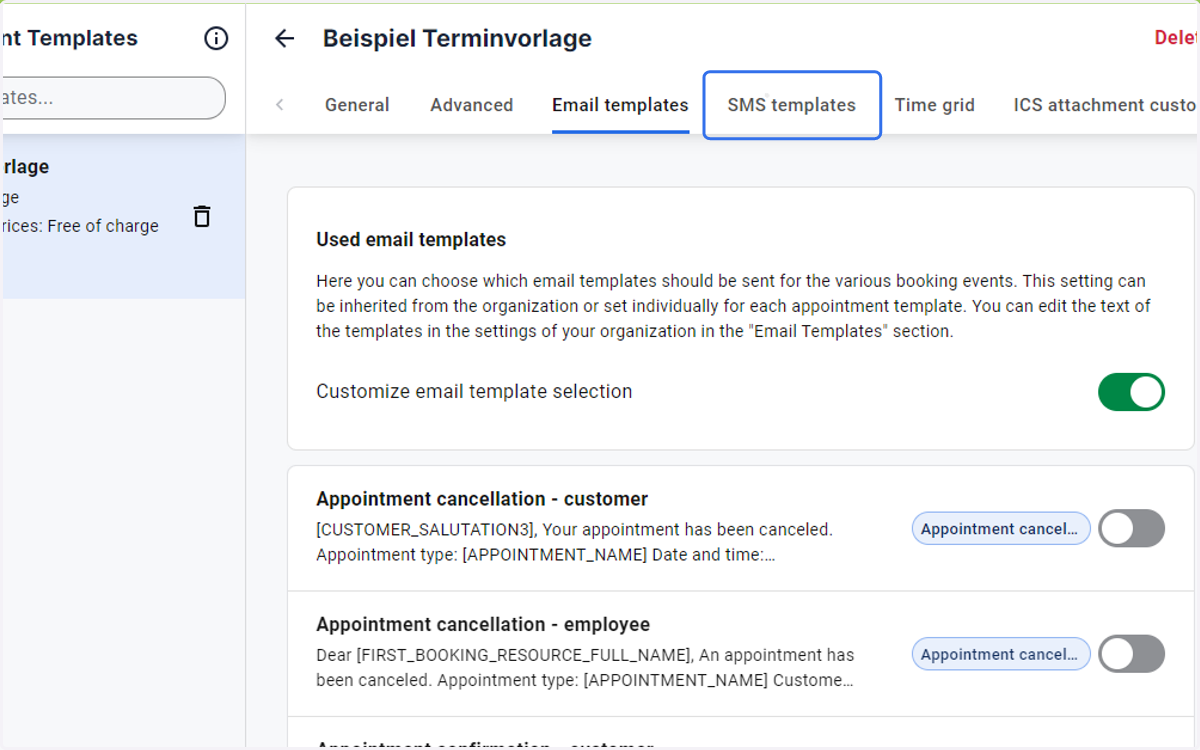
21. Click on SMS templates
22. Check Customize SMS template selection
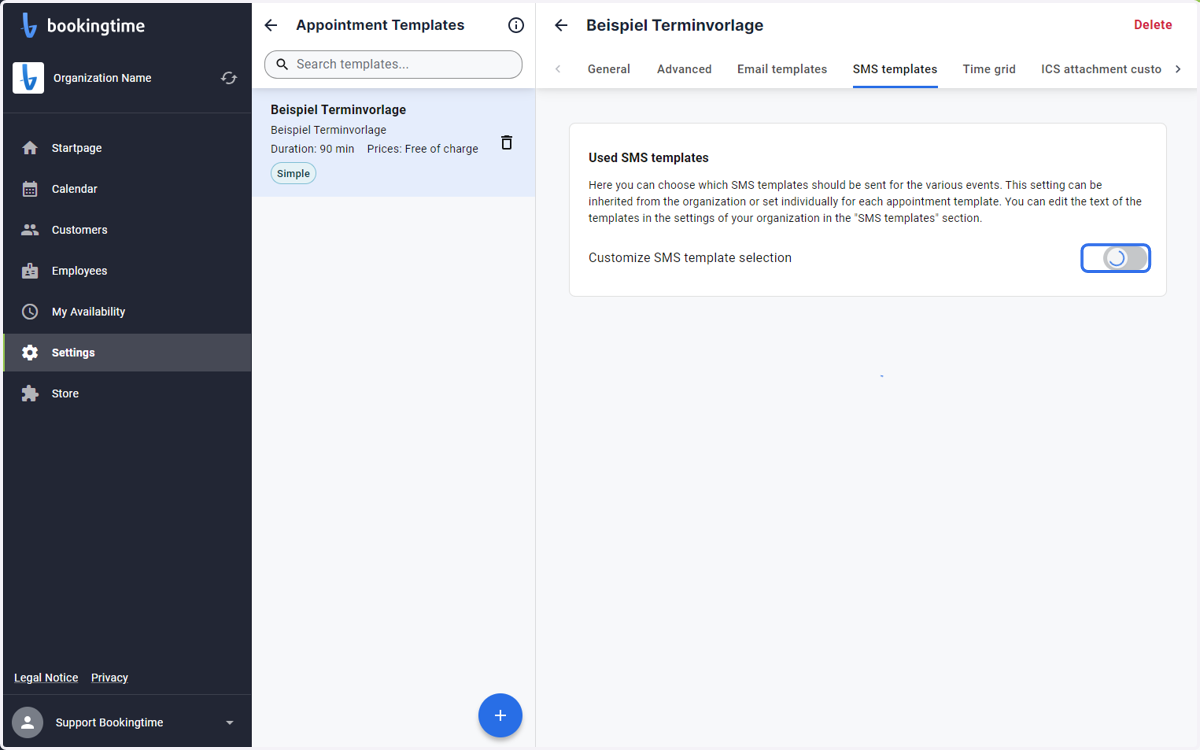
23. Select the diesired SMS confirmations for this appointment Template