Consolidating Invoices

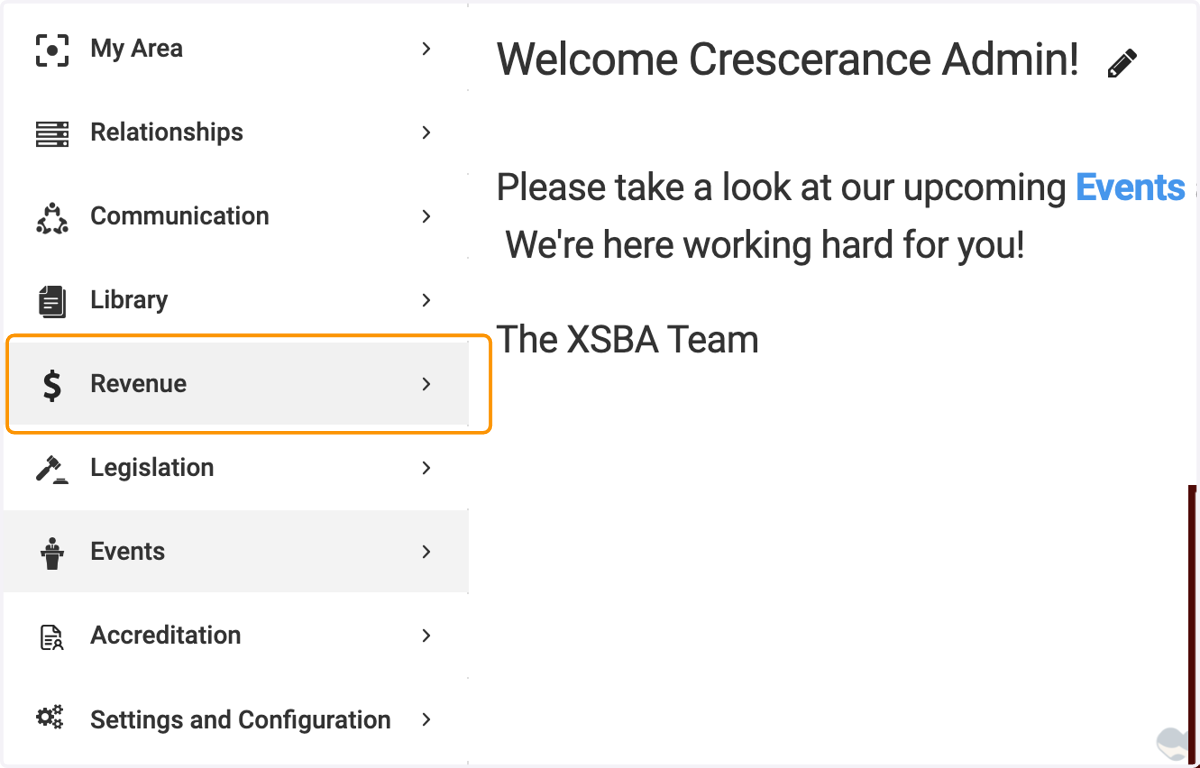
  1. 1. Click on Revenue

    Click on Revenue
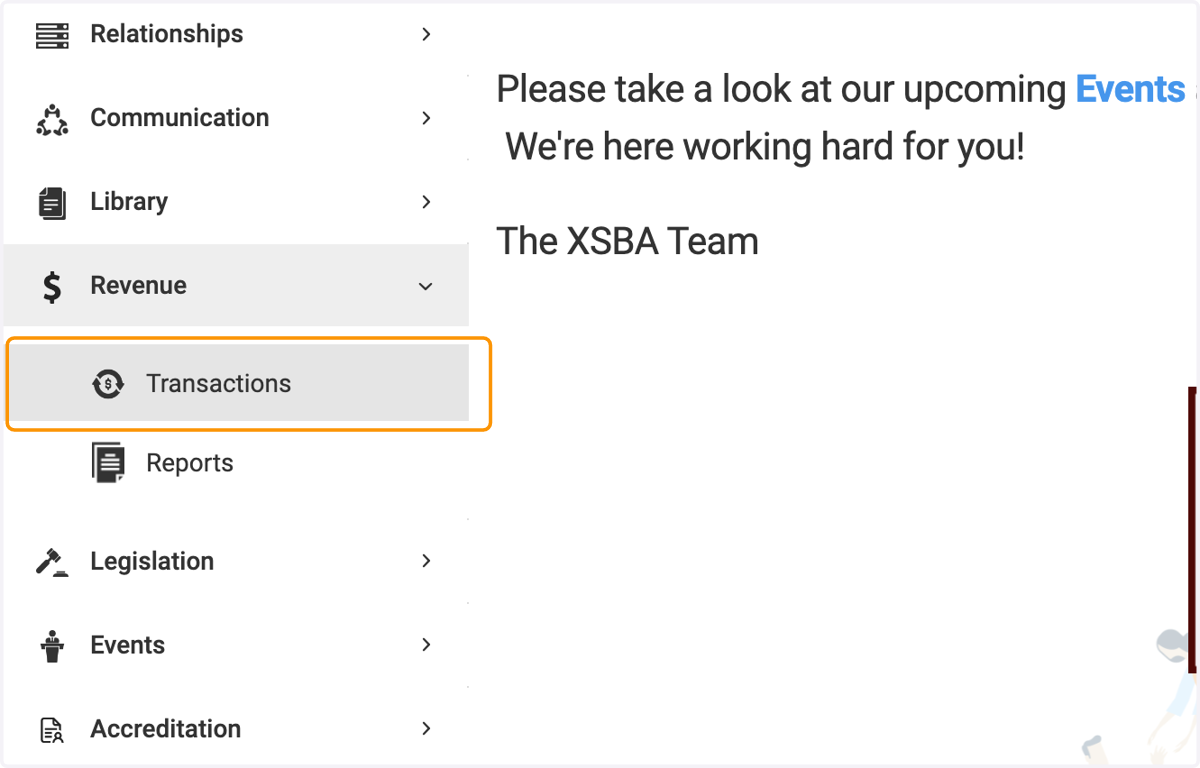
  2. 2. Click on Transactions

    Click on Transactions
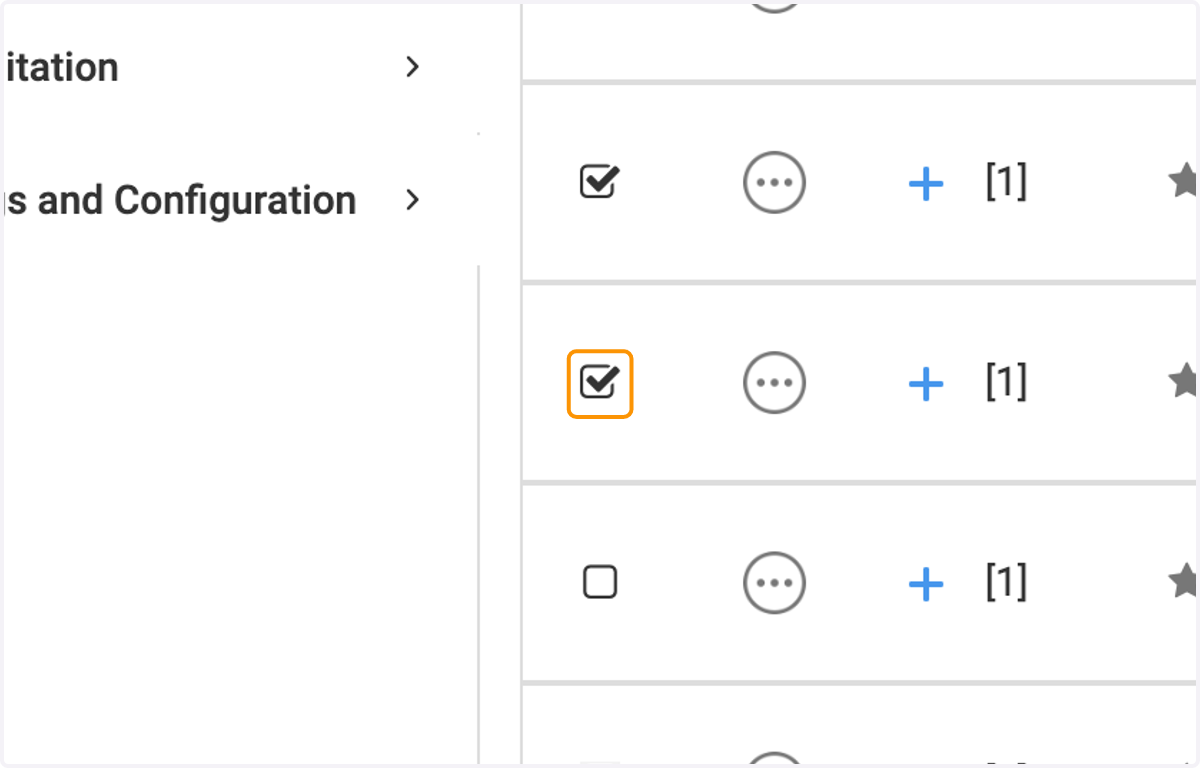
  3. 3. Check on your first invoice to add to the consolidation
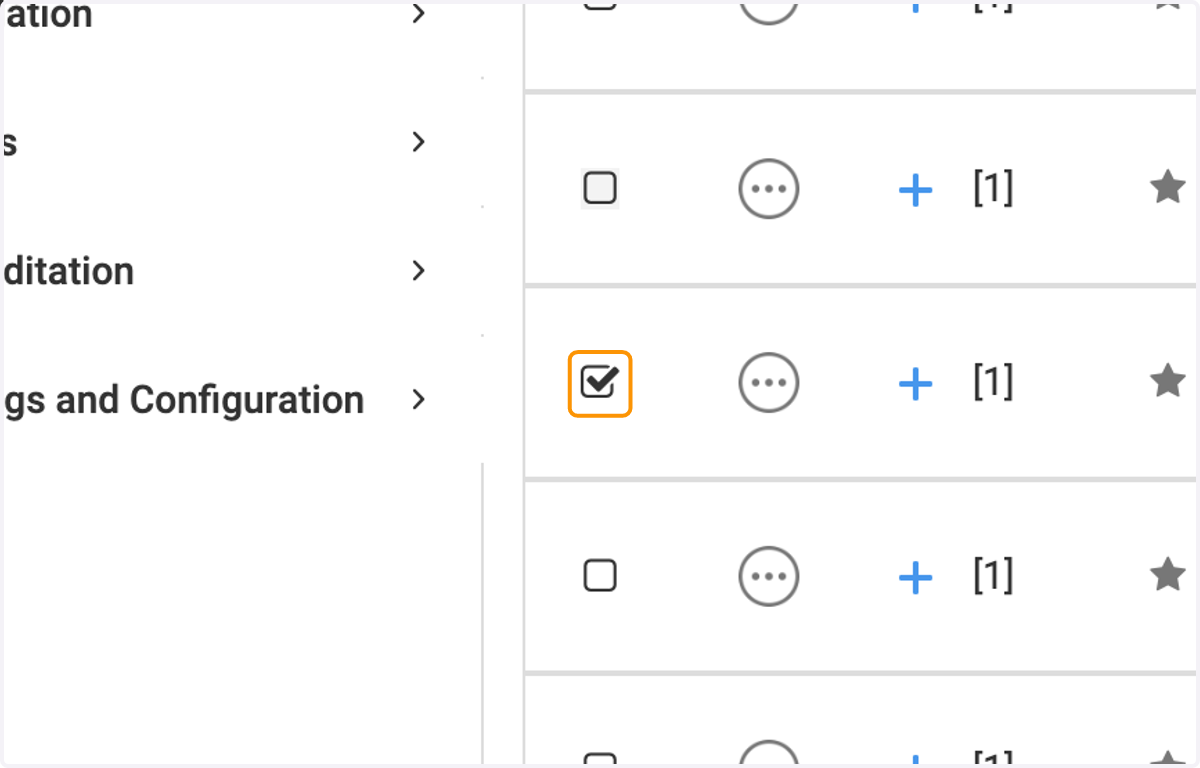
    Check on your first invoice to add to the consolidation
  4. 4. Check on your second

    Check on your second
  5. 5. Check on any more that you'd like to have consolidated into one
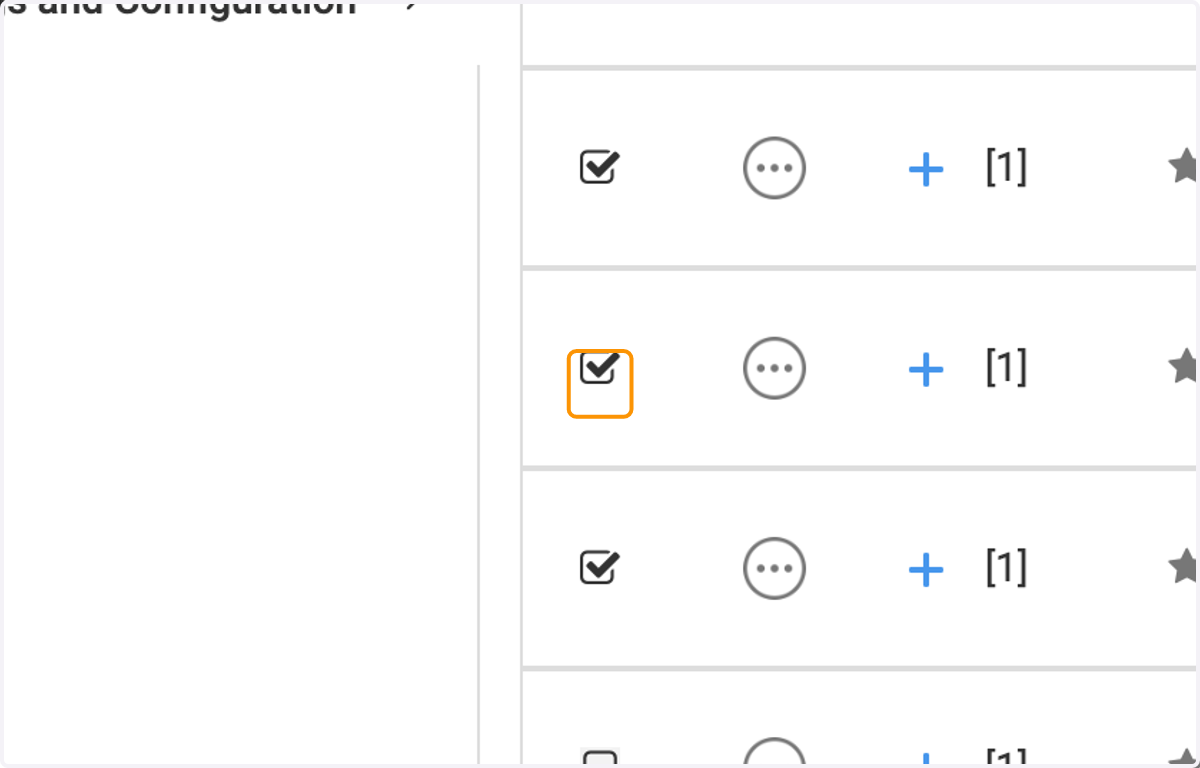
    Check on any more that you'd like to have consolidated into one
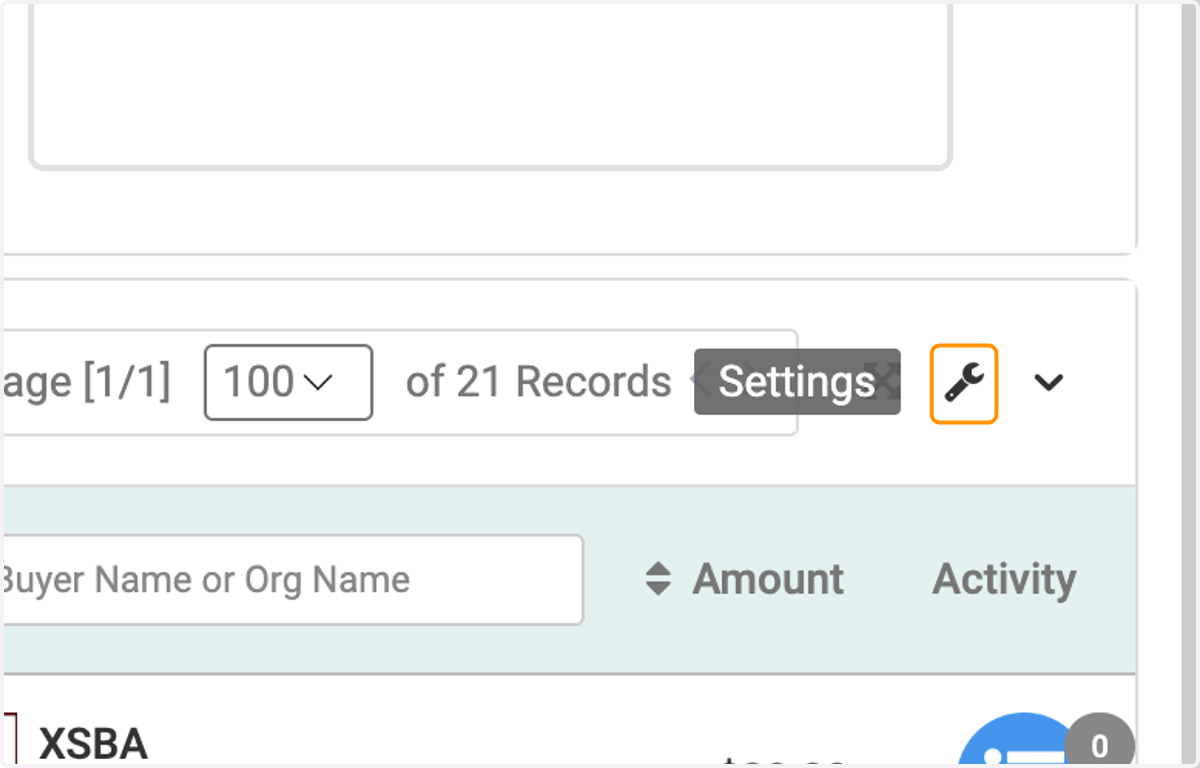
  6. 6. Click on the Settings icon

    Click on the Settings icon
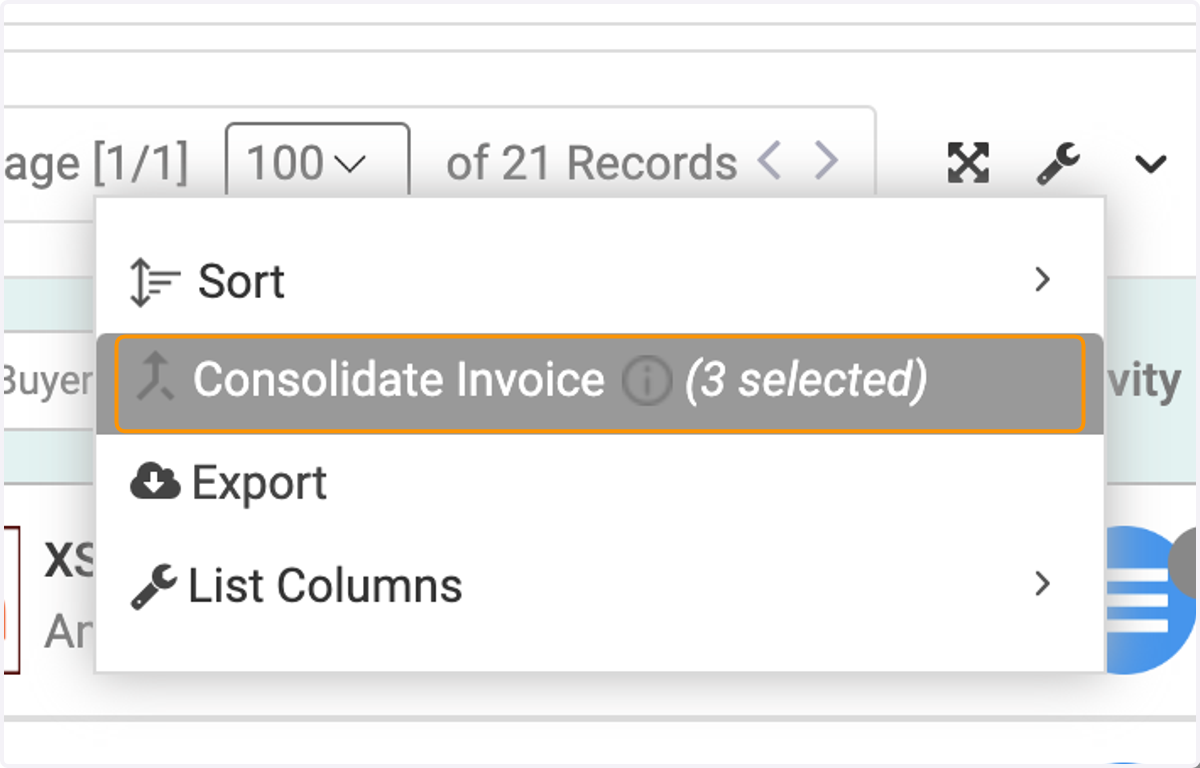
  7. 7. Click on Consolidate Invoice

    Click on Consolidate Invoice
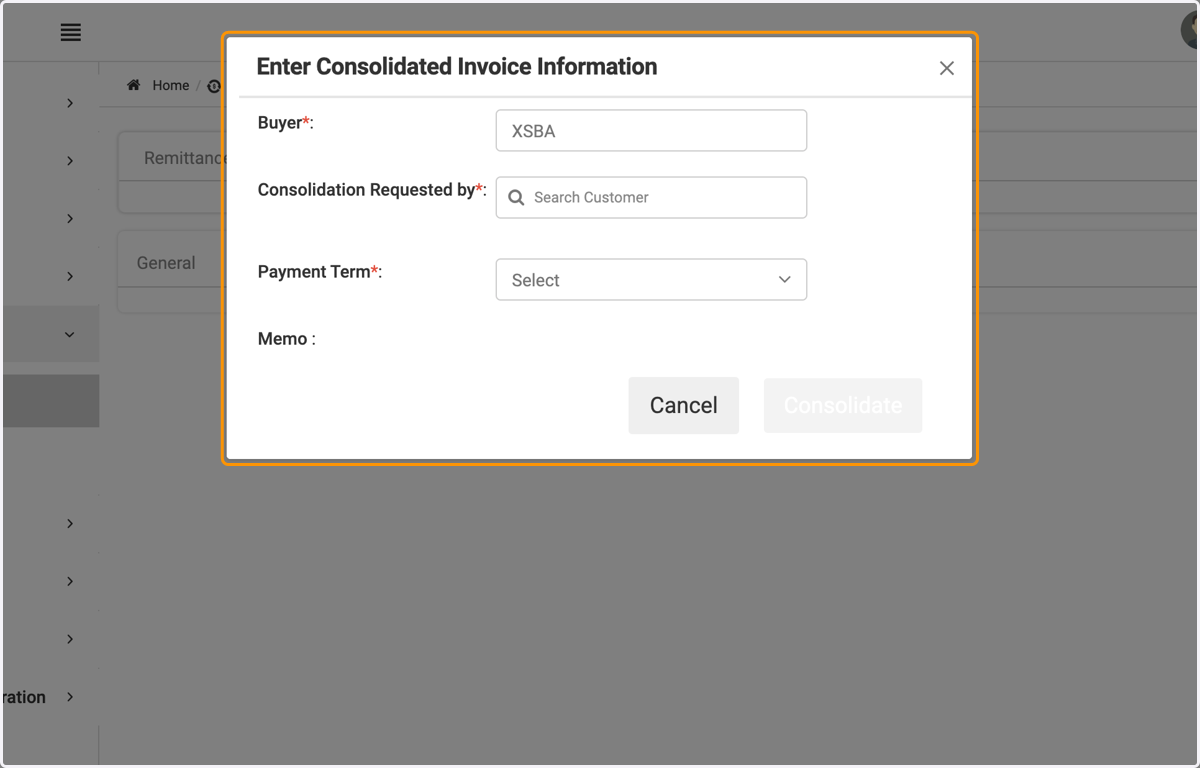
  8. 8. The review window will pop up, click on Consolidate
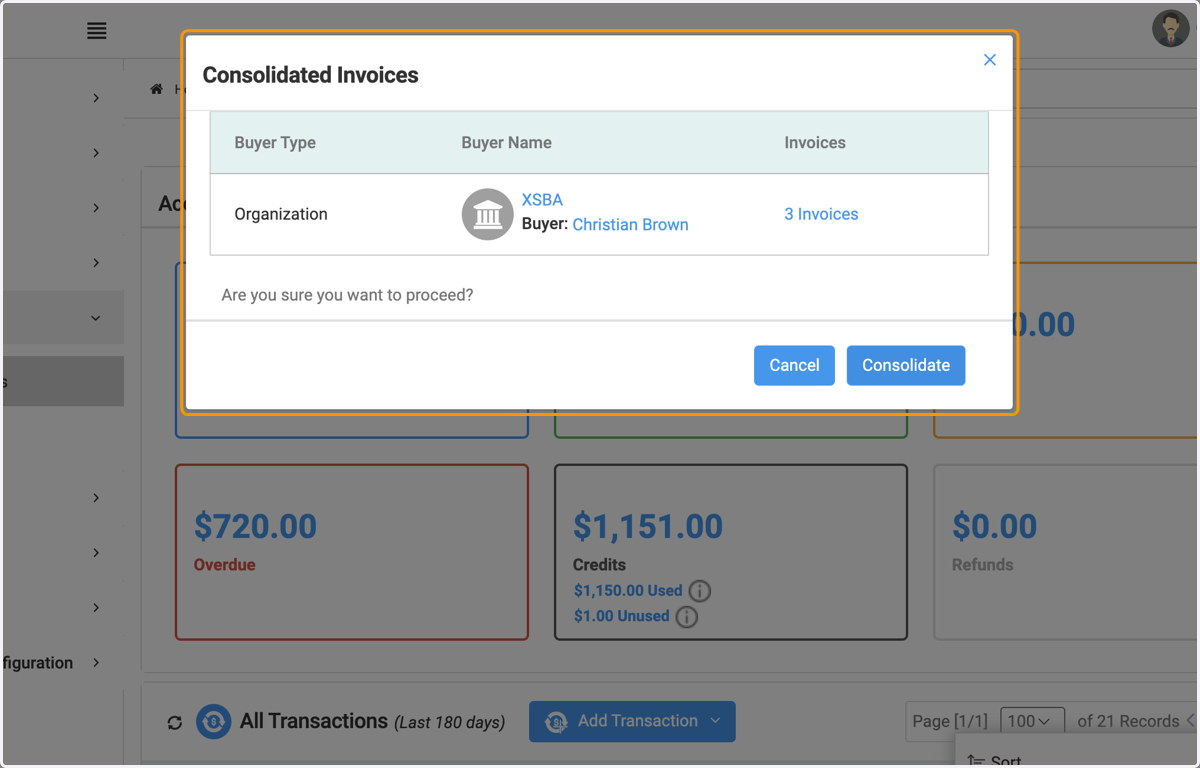
    The review window will pop up, click on Consolidate
  9. 9. Fill out the necessary fields

    Fill out the necessary fields
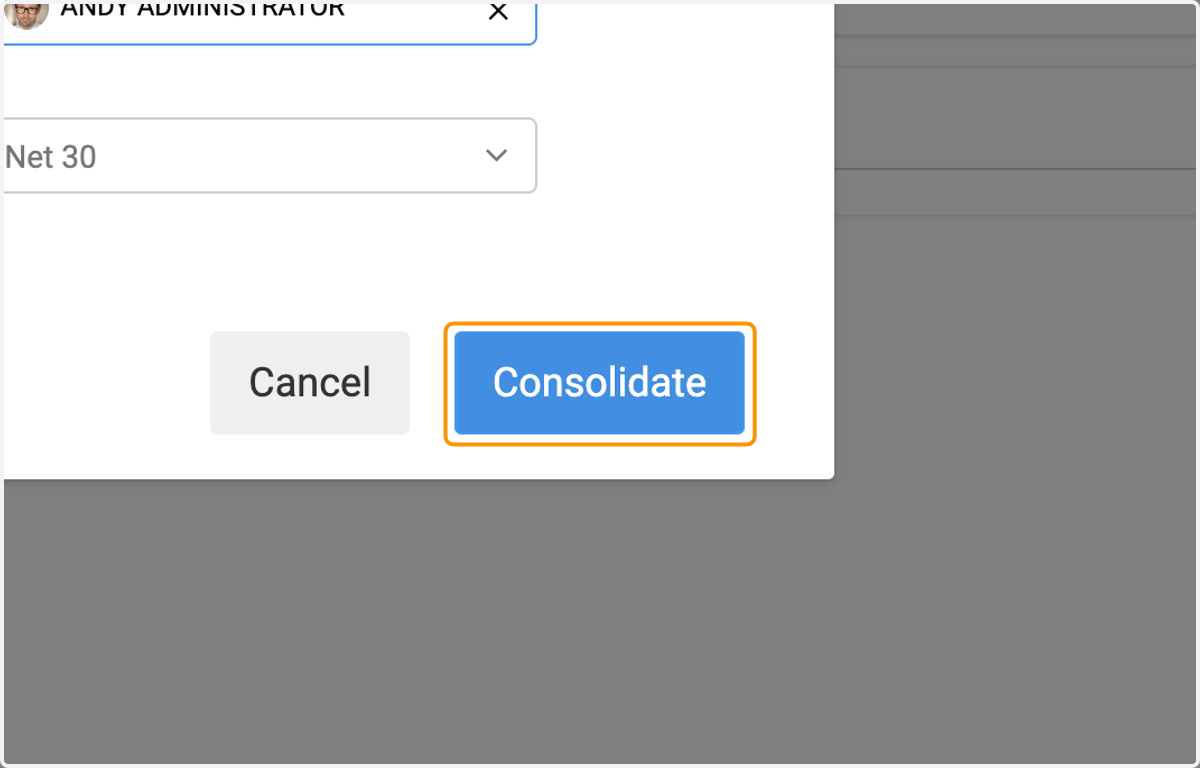
  10. 10. Here are what the fields will look like filled in
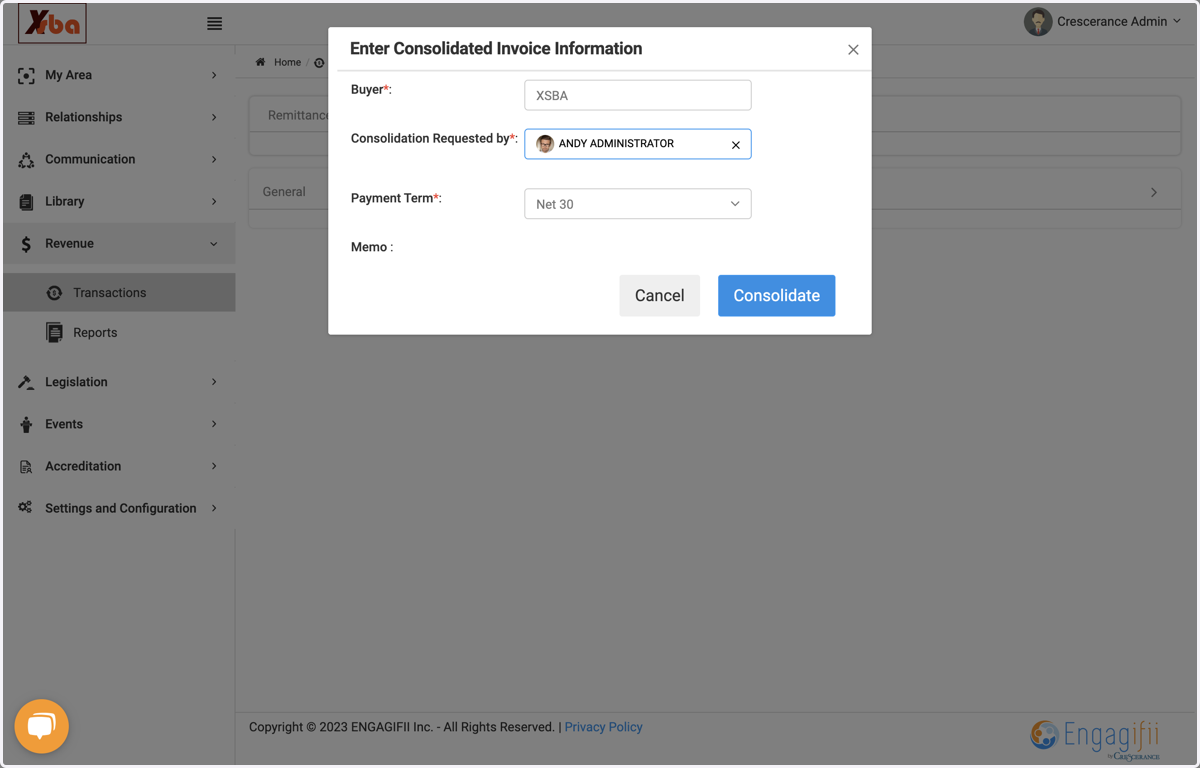
    Here are what the fields will look like filled in
  11. 11. Click on Consolidate

    Click on Consolidate
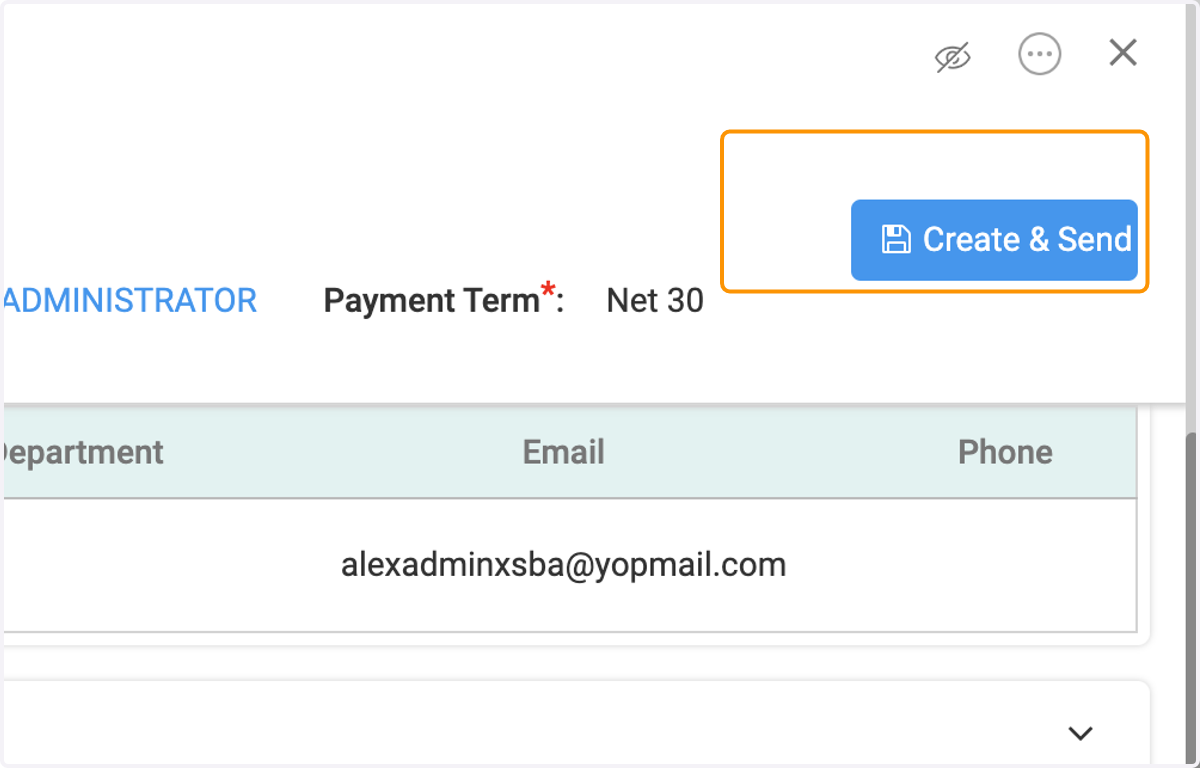
  12. 12. Click on Create & Send

    Click on Create & Send