Award Pricing and Registration Settings
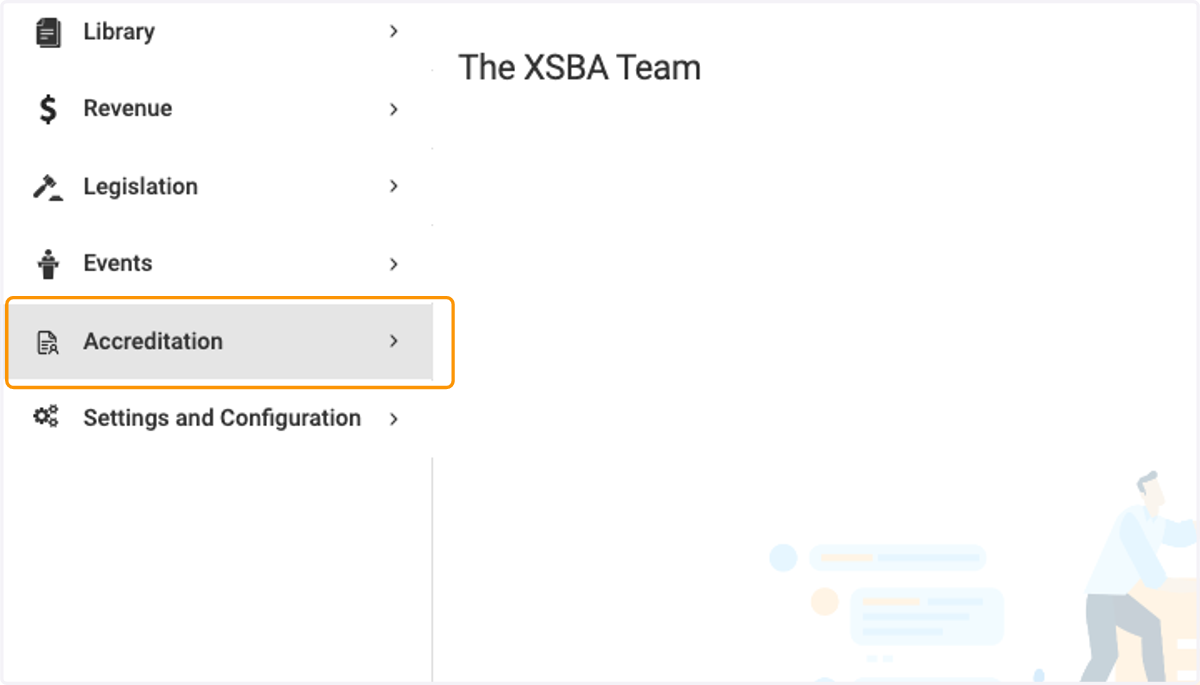
1. Click on Accreditation
2. Click on Awards

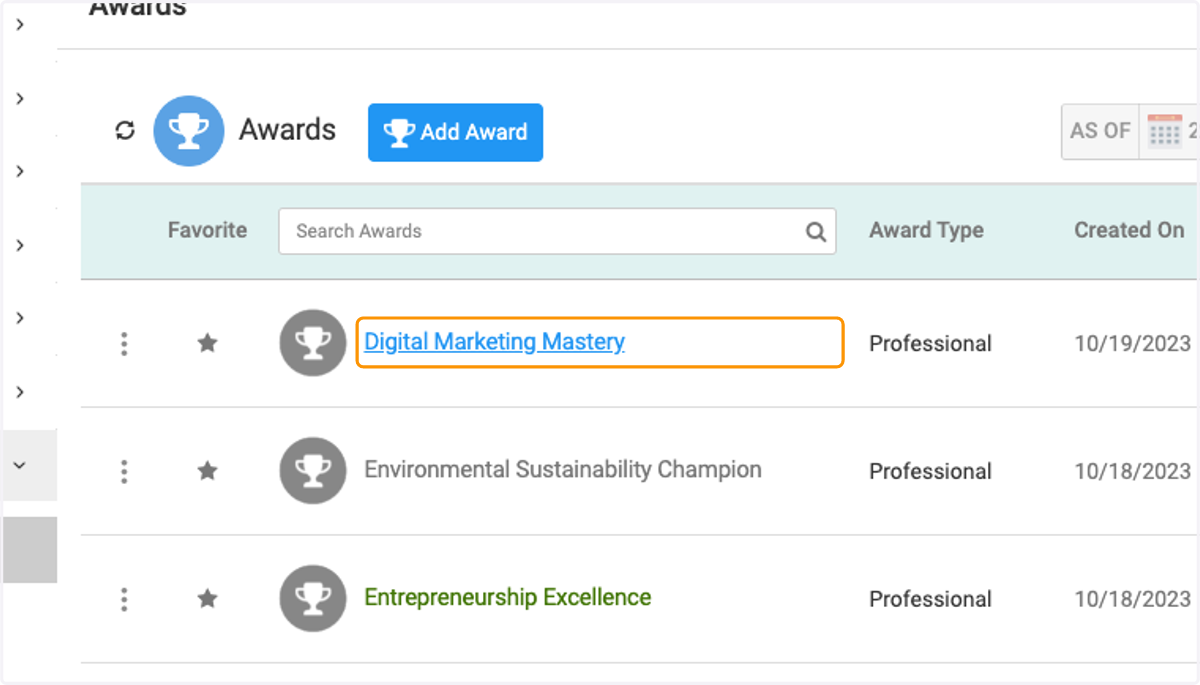
3. Choose the Award
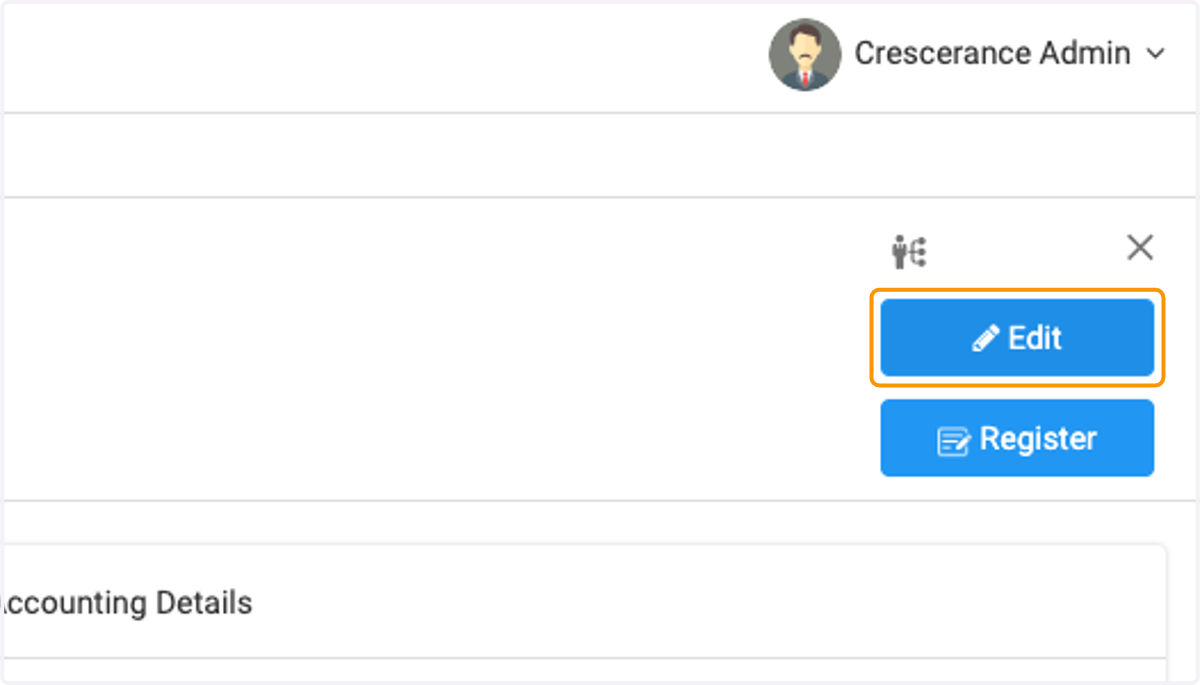
4. Click on Edit
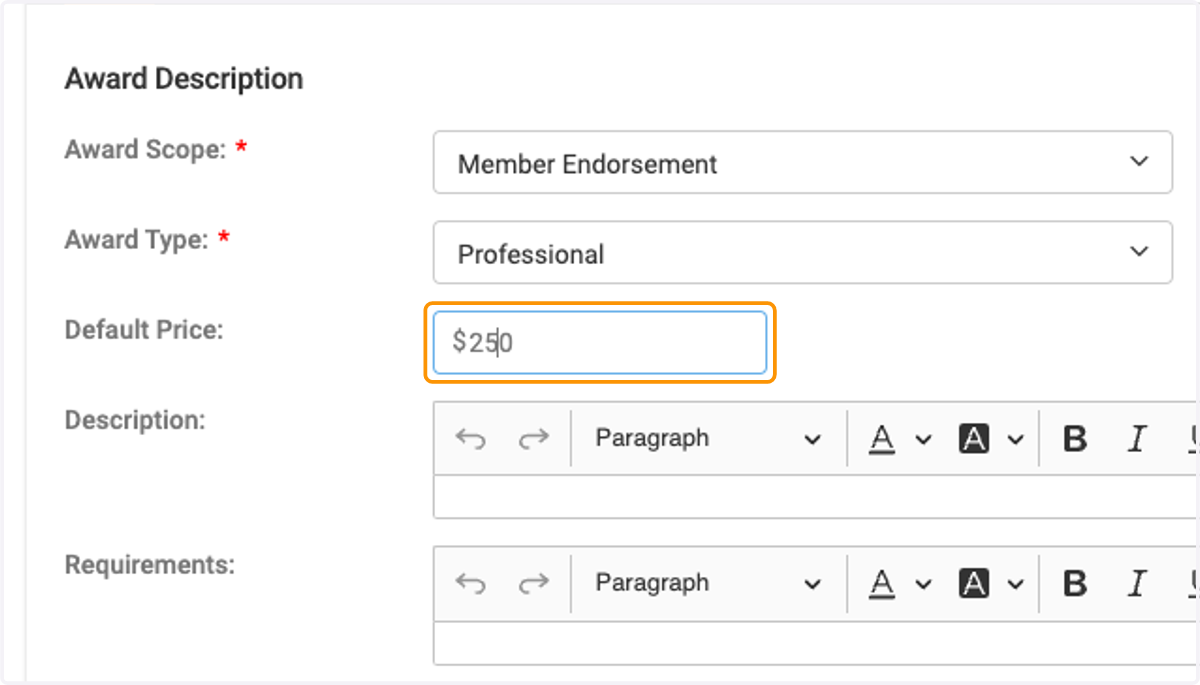
5. Set the default price
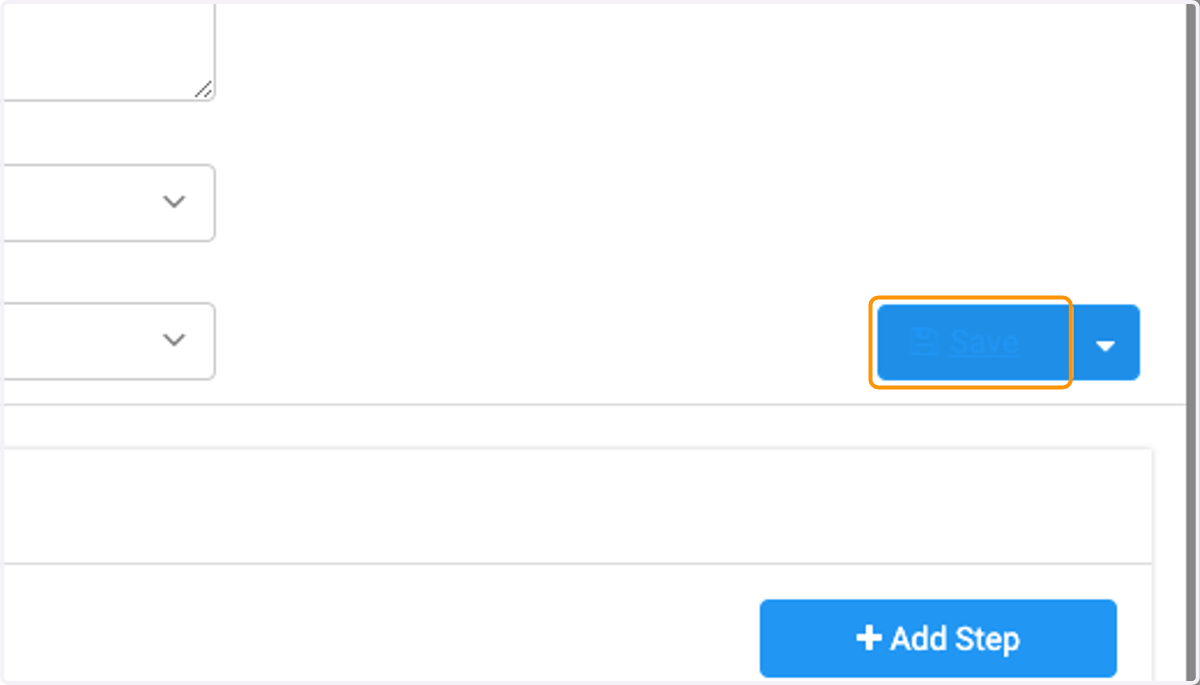
6. Click on Save
7. Click on Edit
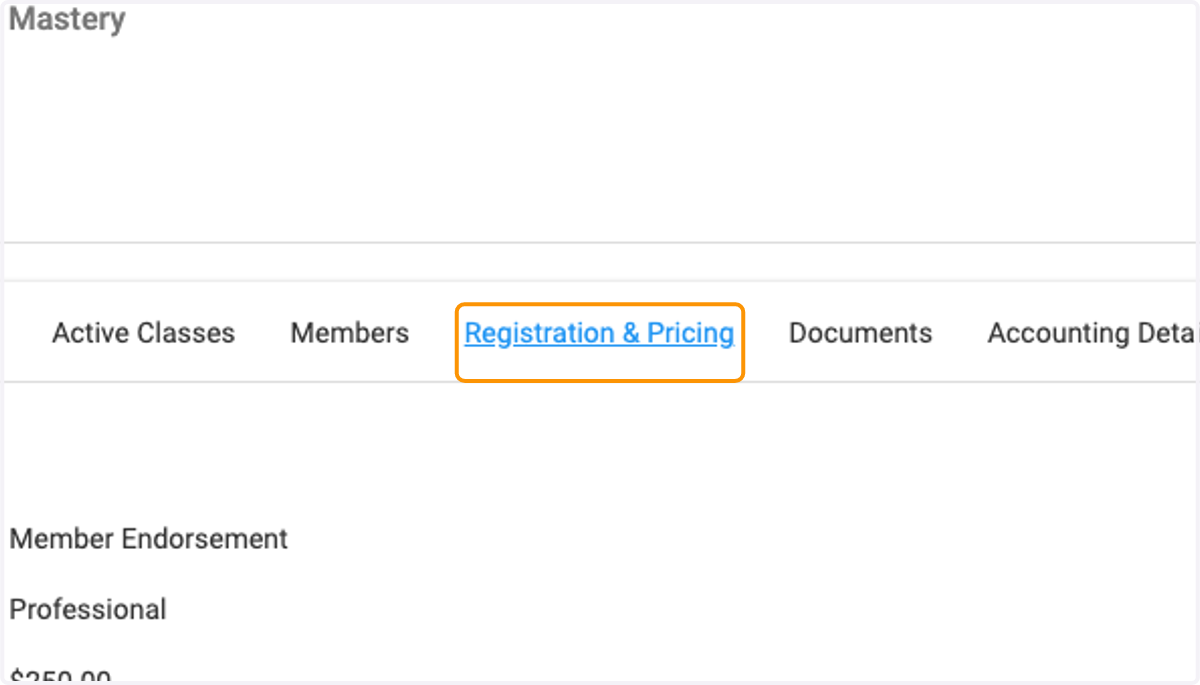
8. Click on Registration & Pricing
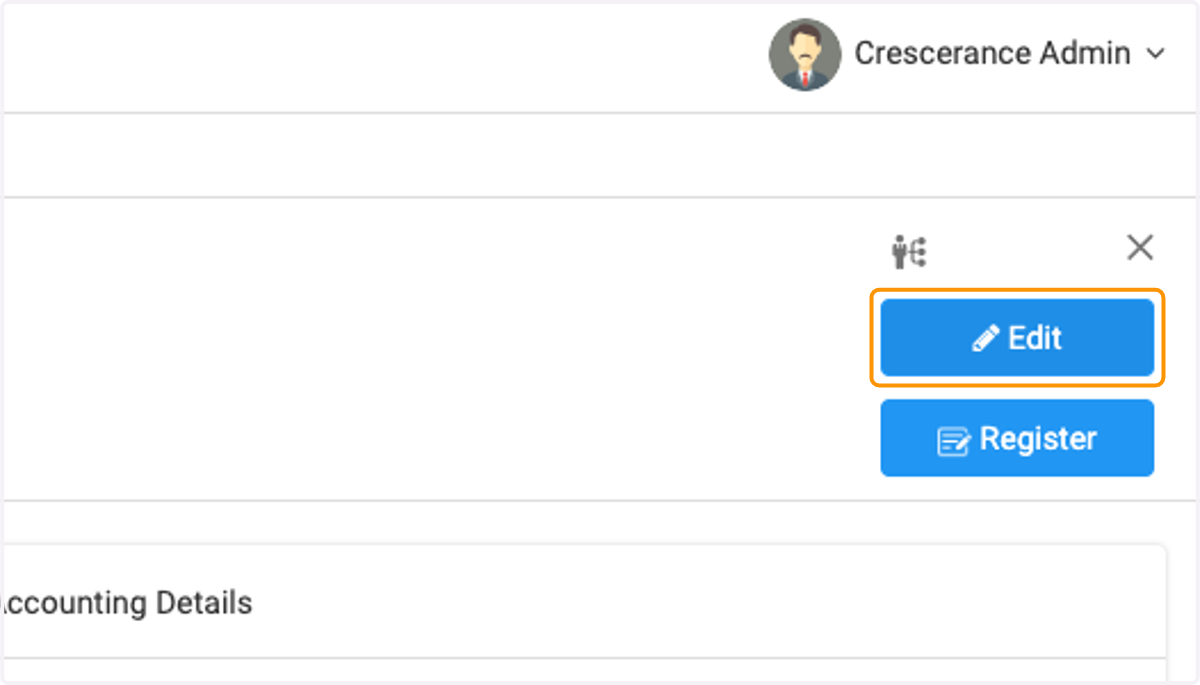
9. Click on Edit
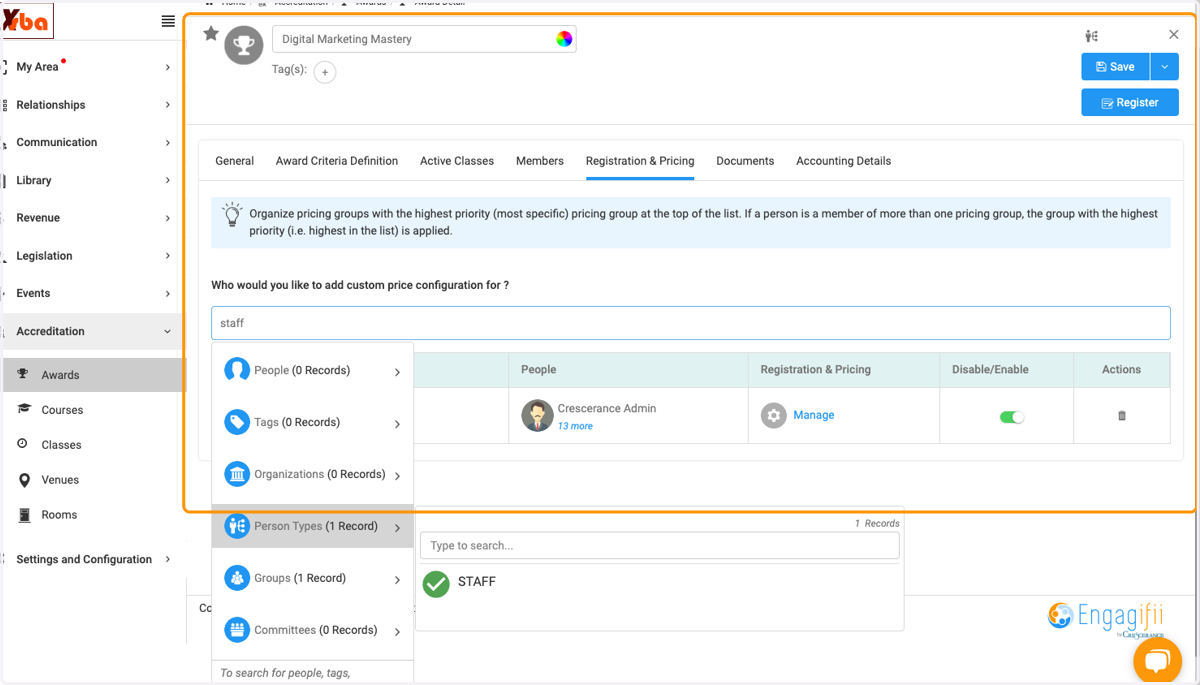
10. I would like to set a special price for staff. So I am searching for staff here.
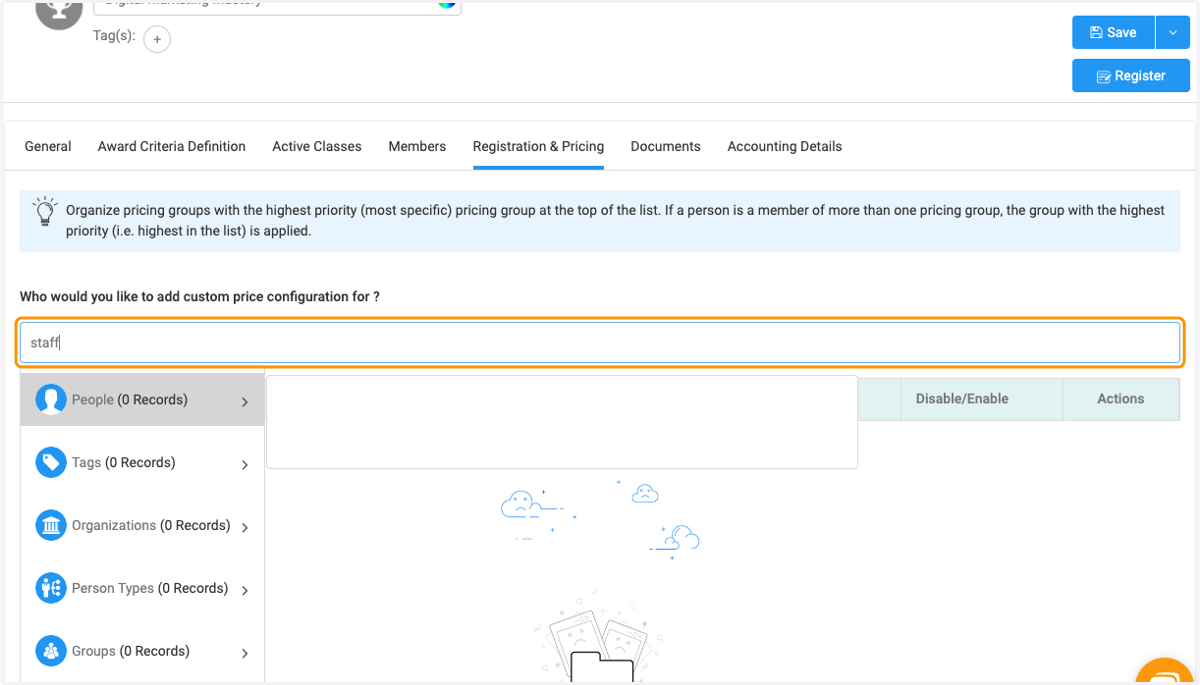
11. I would like to set a special price for staff. So I am searching for staff here.
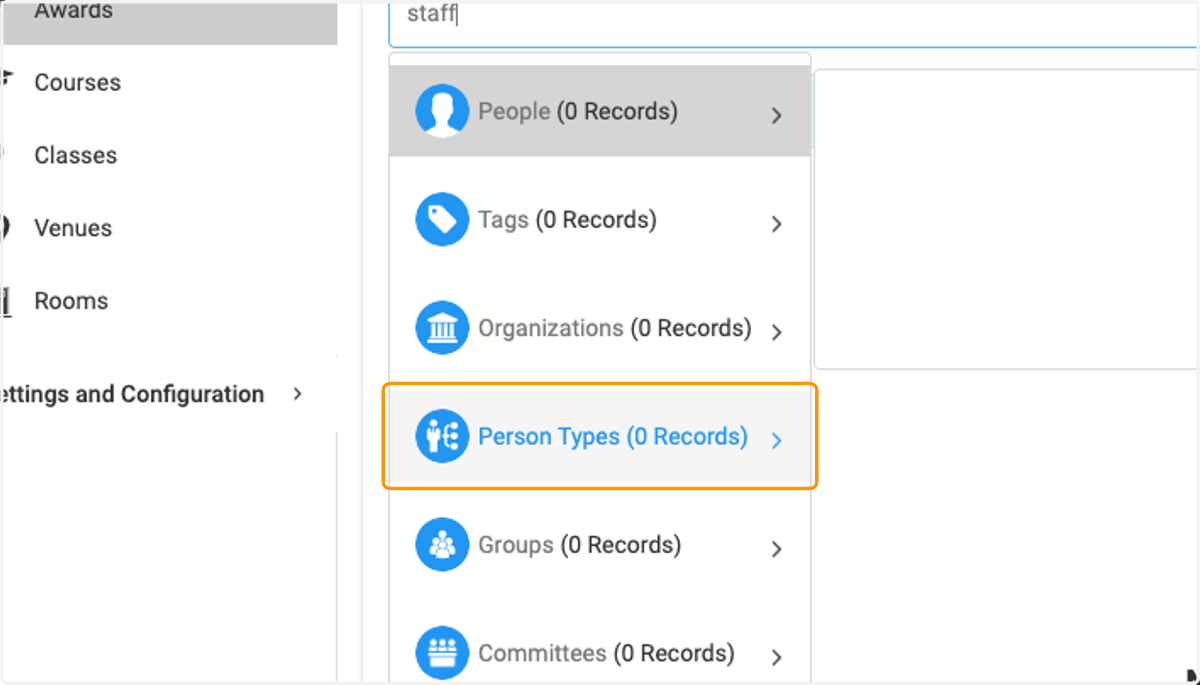
12. I would like to set a special price for staff. So I am searching for staff here.
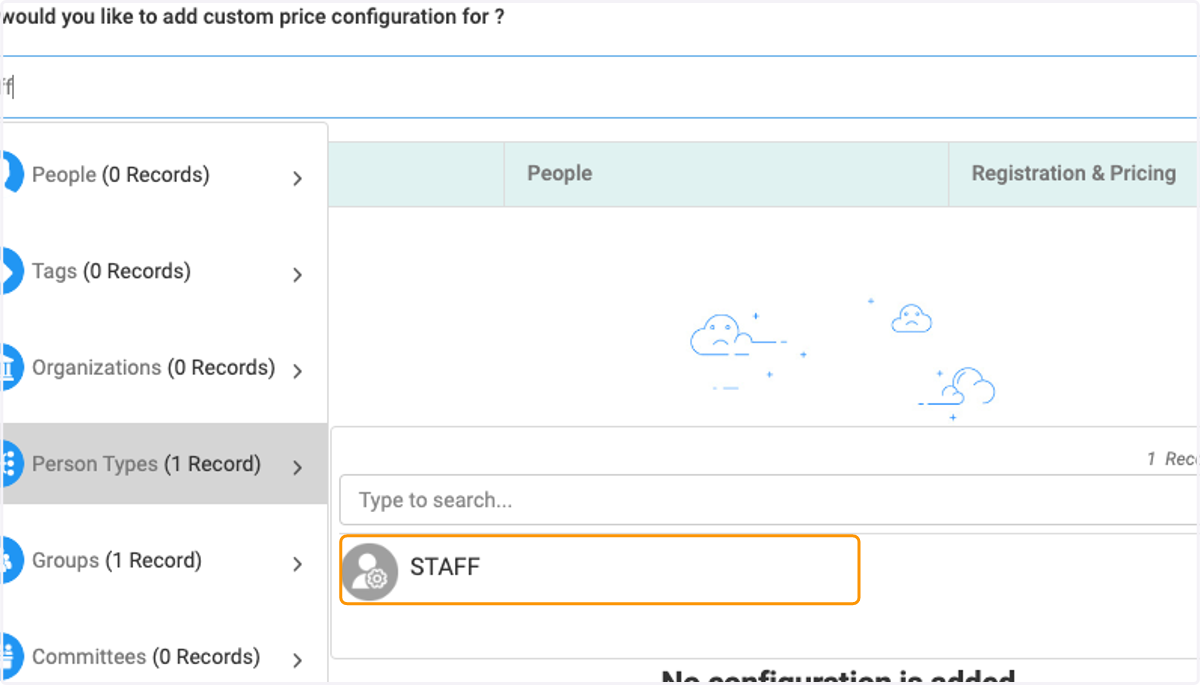
13. I would like to set a special price for staff. So I am searching for staff here.
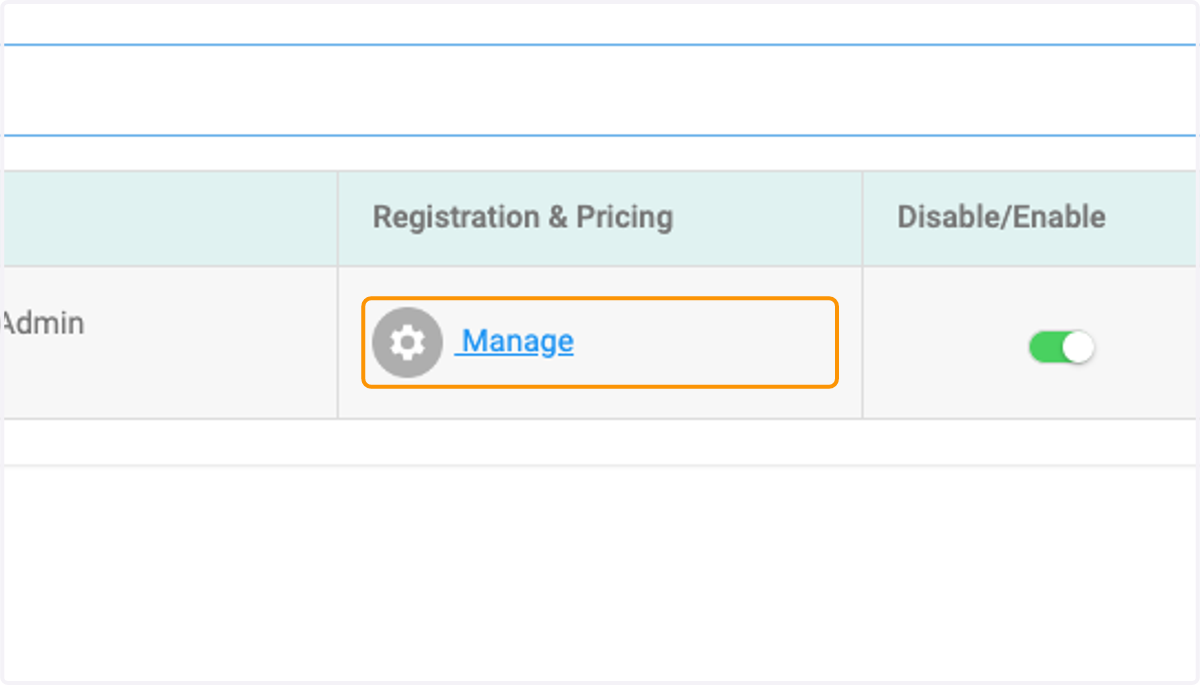
14. Click on Manage
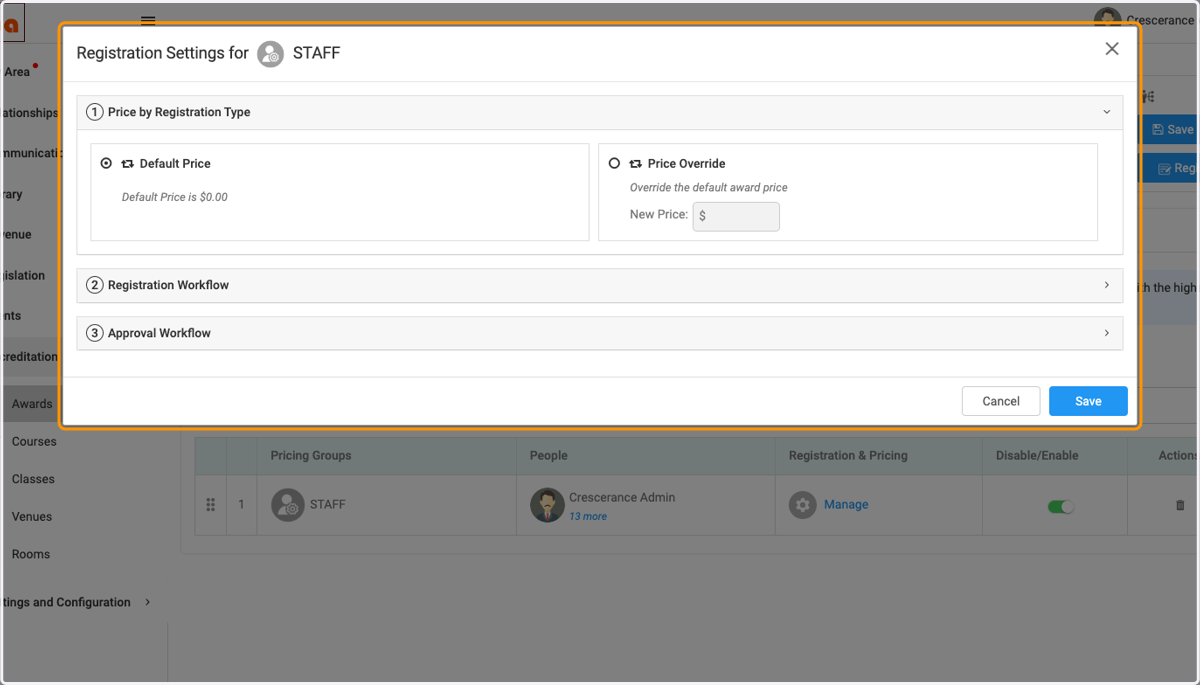
15. Click on Registration Settings for STAFF…
16. I would like to set a special price for staff. I am entering the price here.
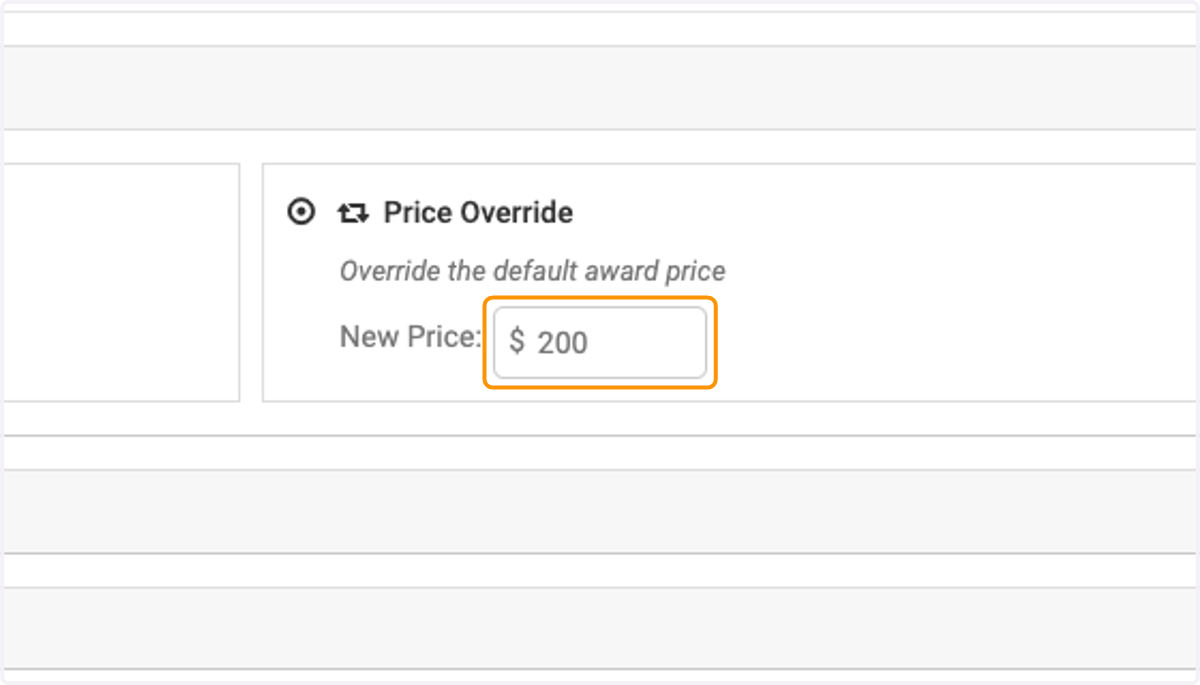
17. I would like to set a special price for staff. I am entering the price here.
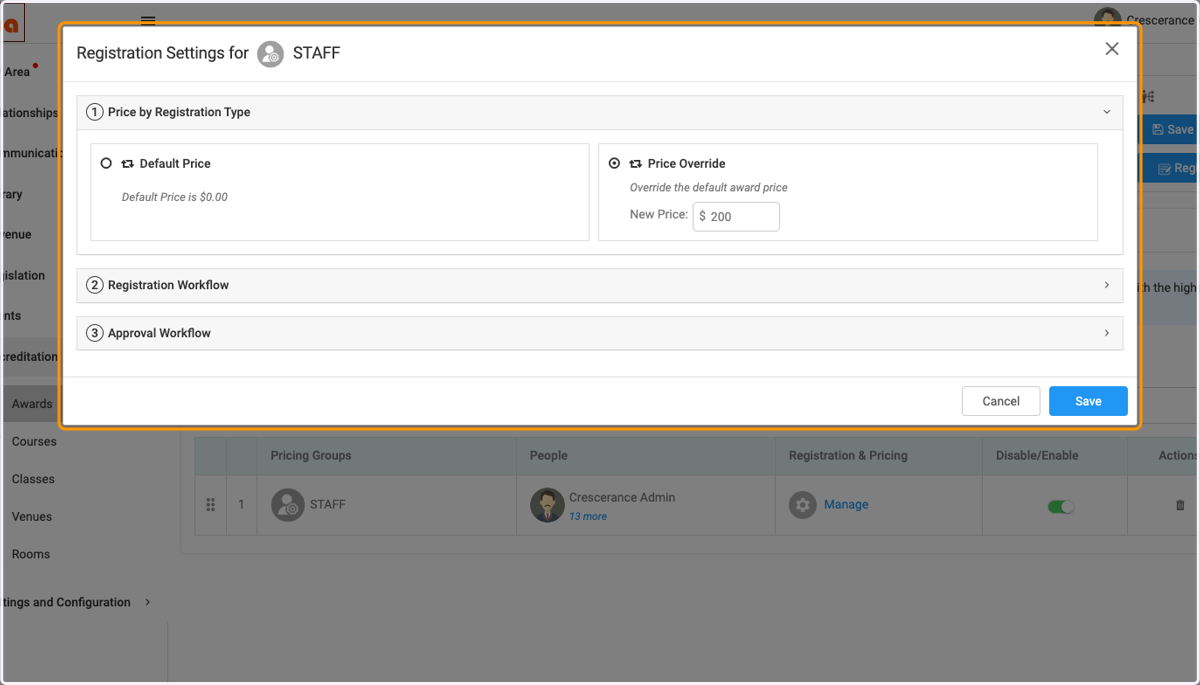
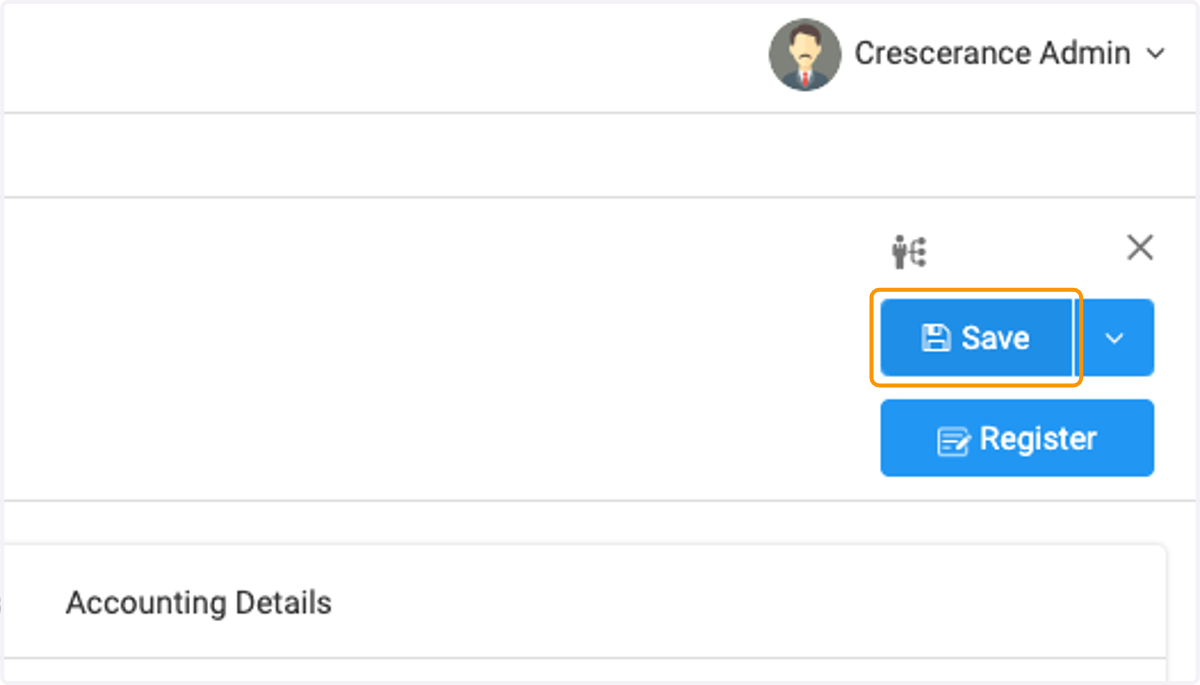
18. Click on Save
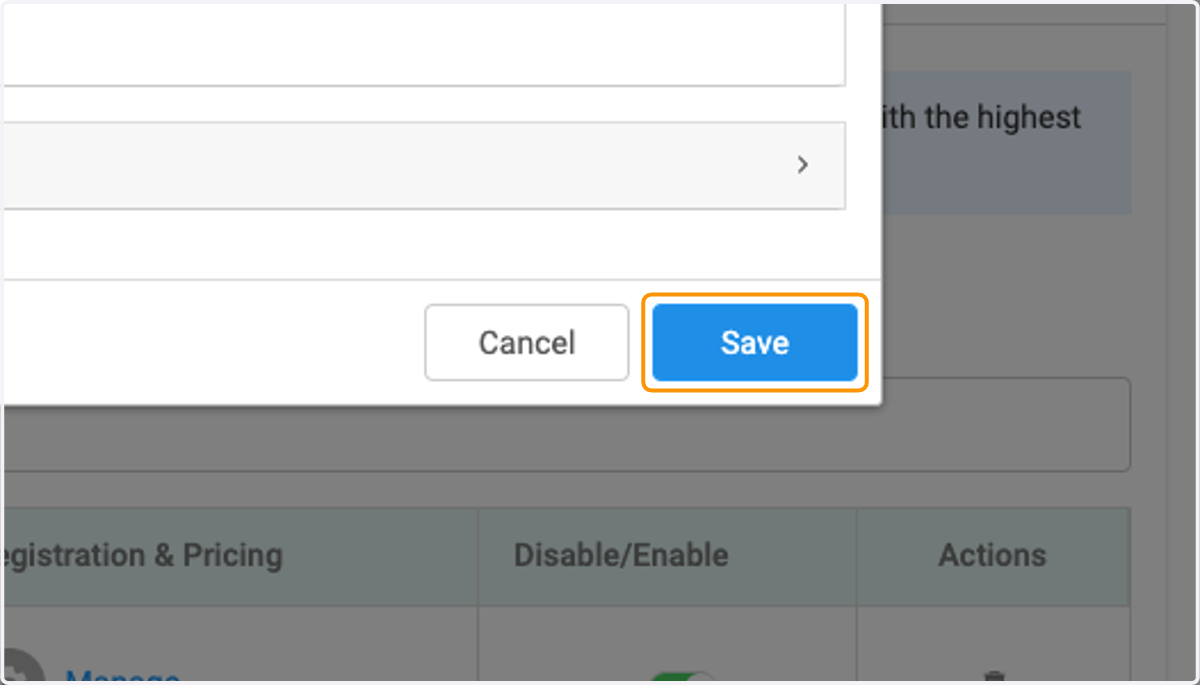
19. Click on Save
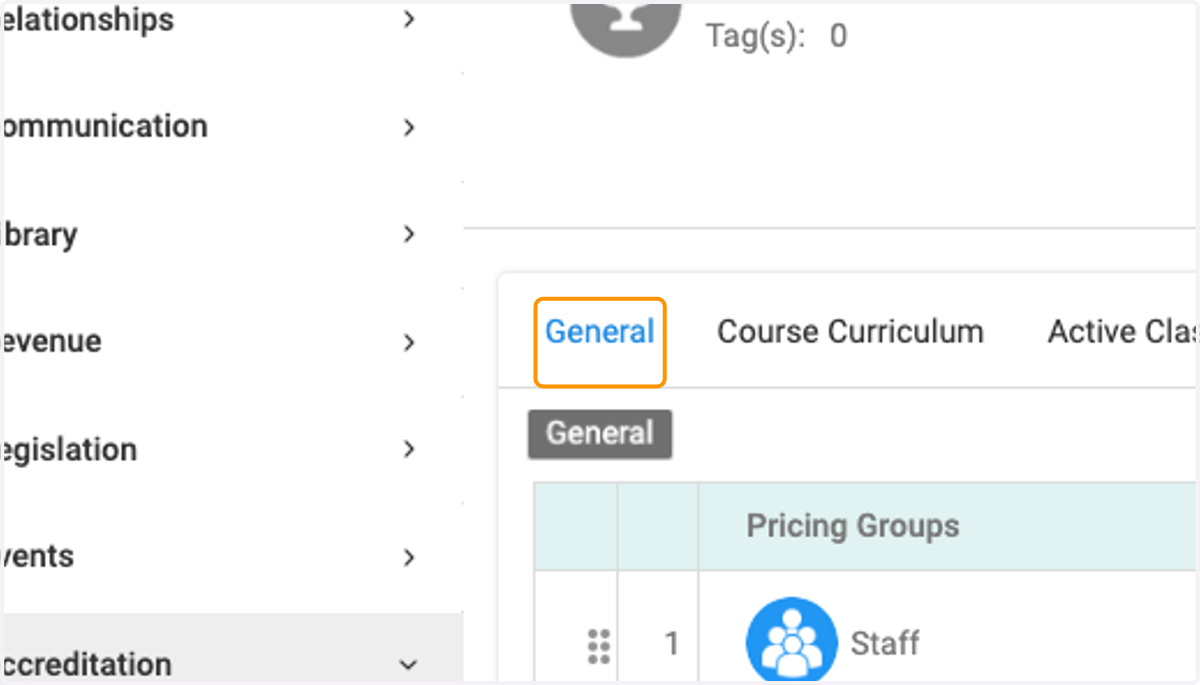
20. Click on General
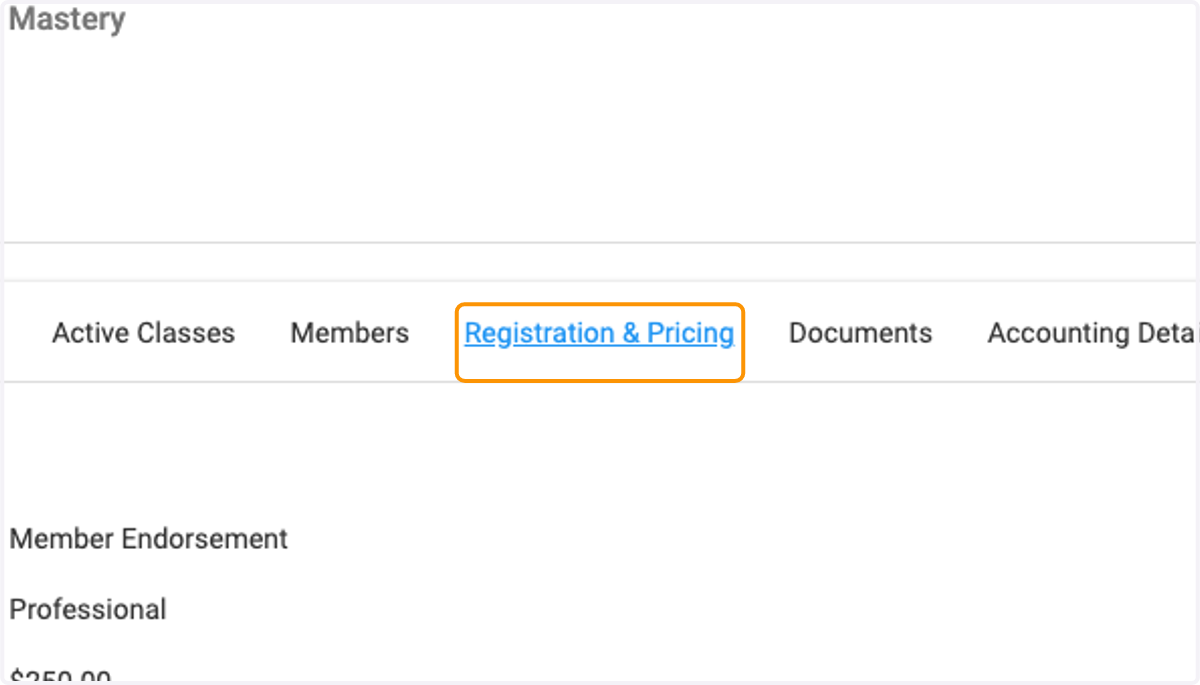
21. Click on Registration & Pricing
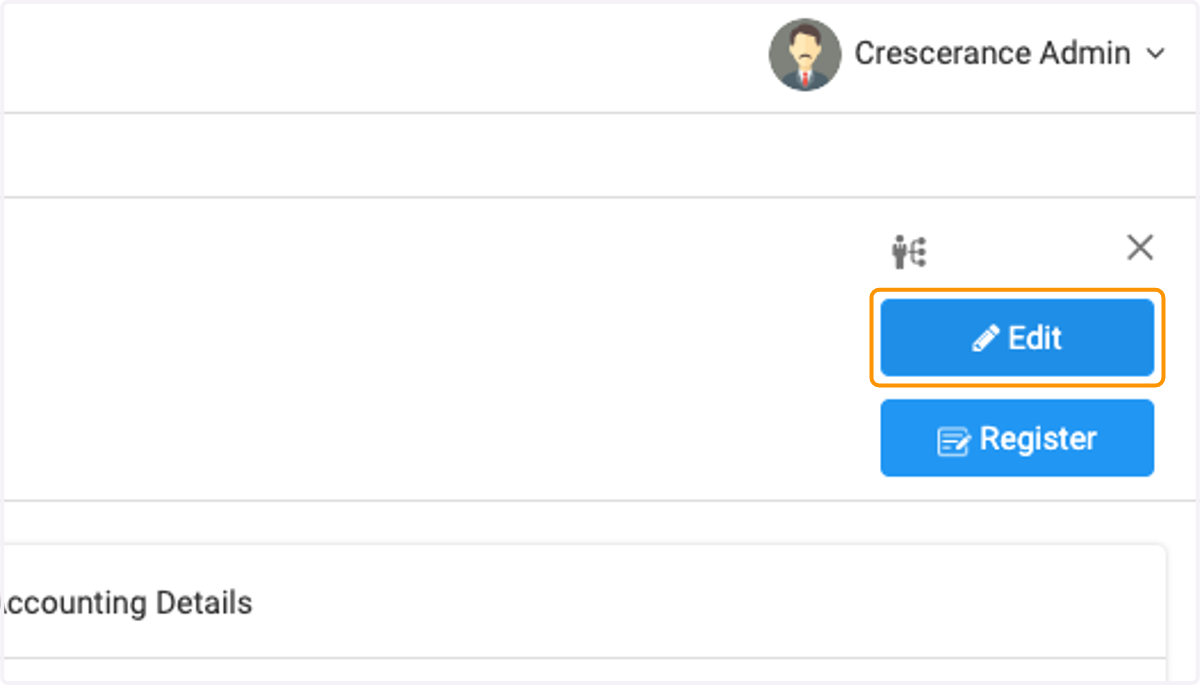
22. Click on Edit
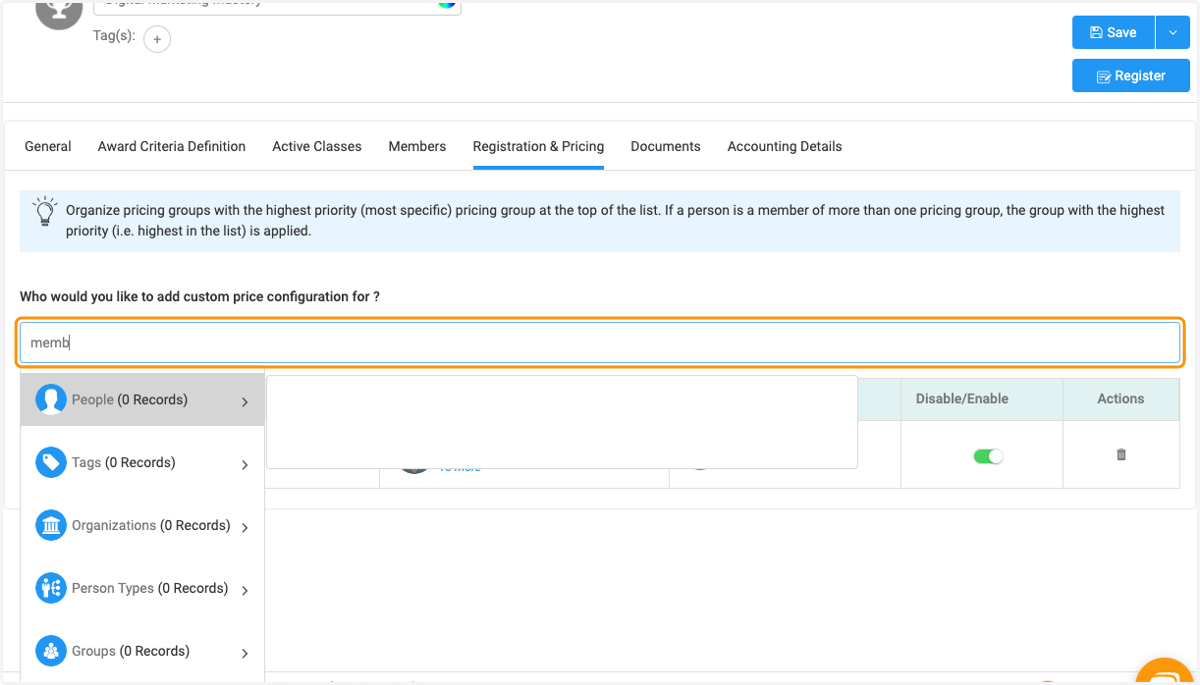
23. I would like to set an approval process for members to register for this award so I am searching for member in person type.
24. I would like to set an approval process for members to register for this award so I am searching for member in person type.
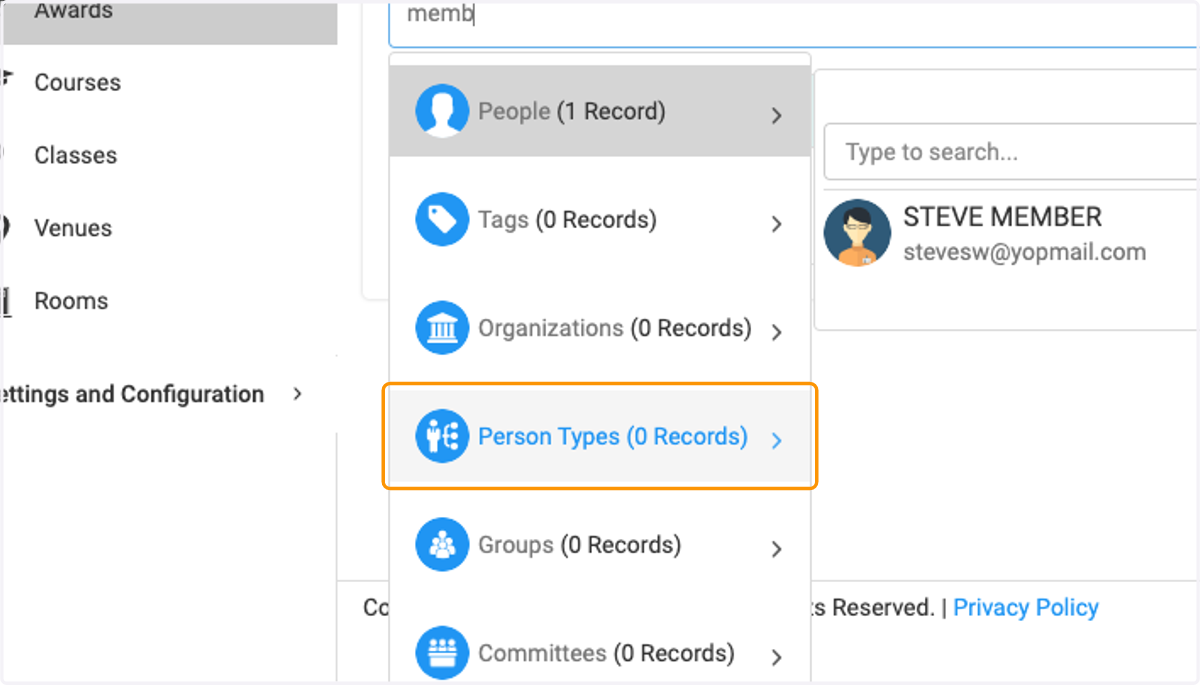
25. I would like to set an approval process for members to register for this award.
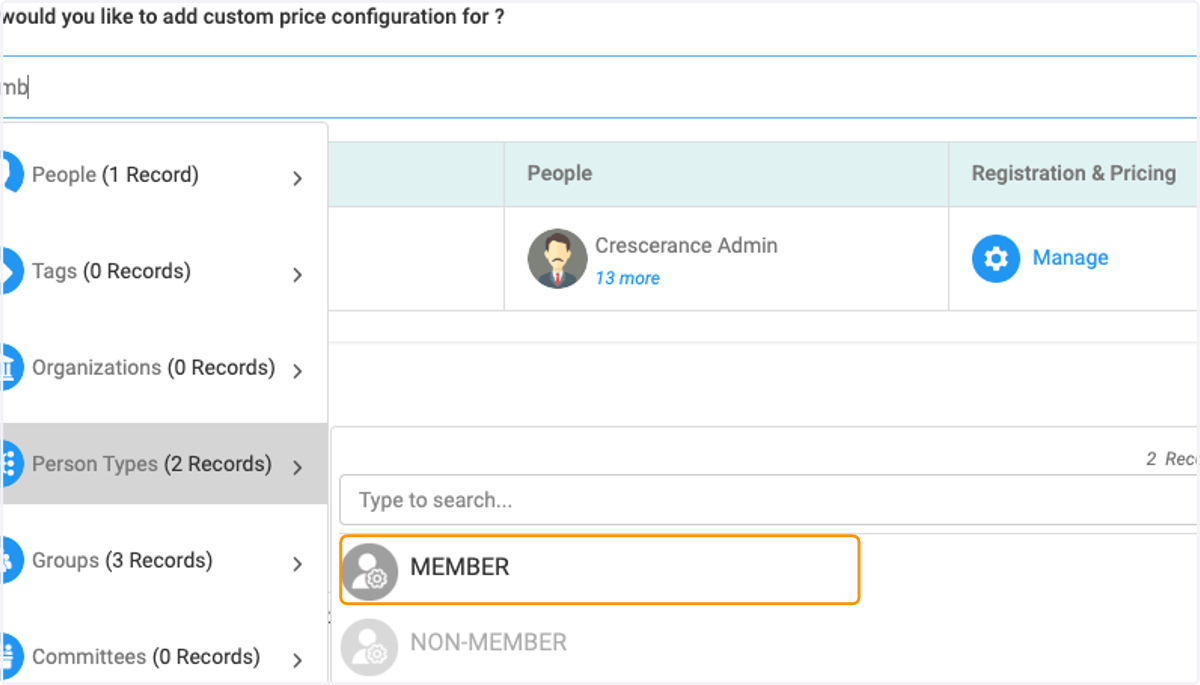
26. I would like to set an approval process for members to register for this award so I am searching for member in person type.
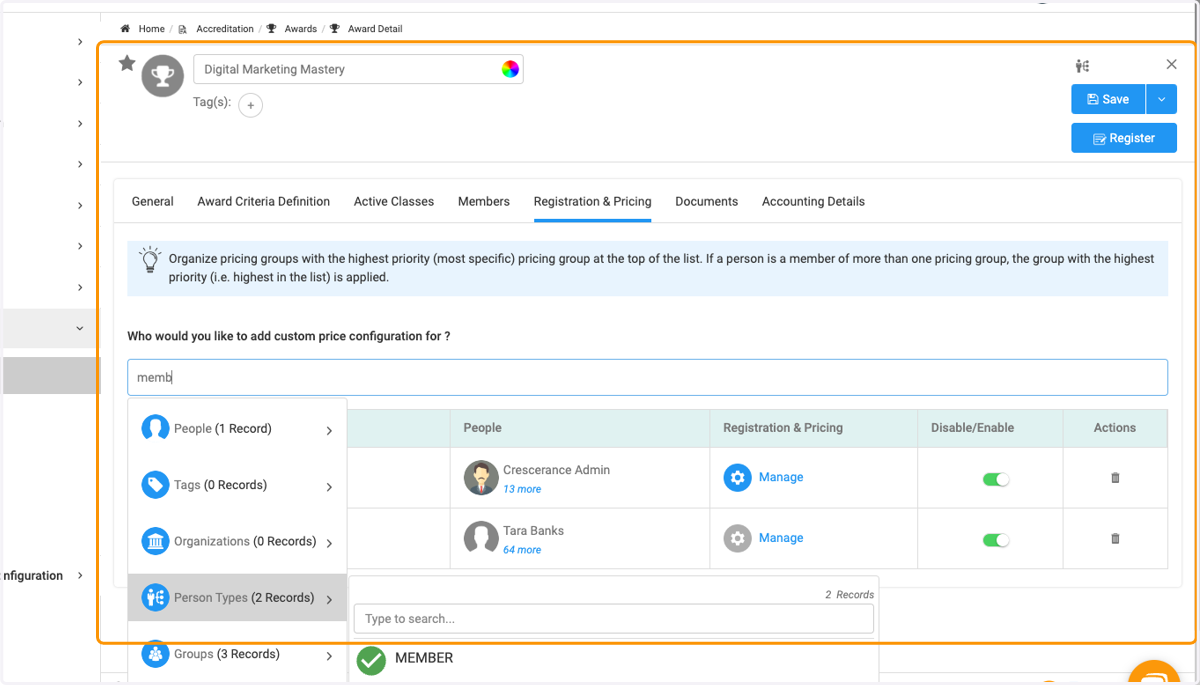
27. Click on Manage
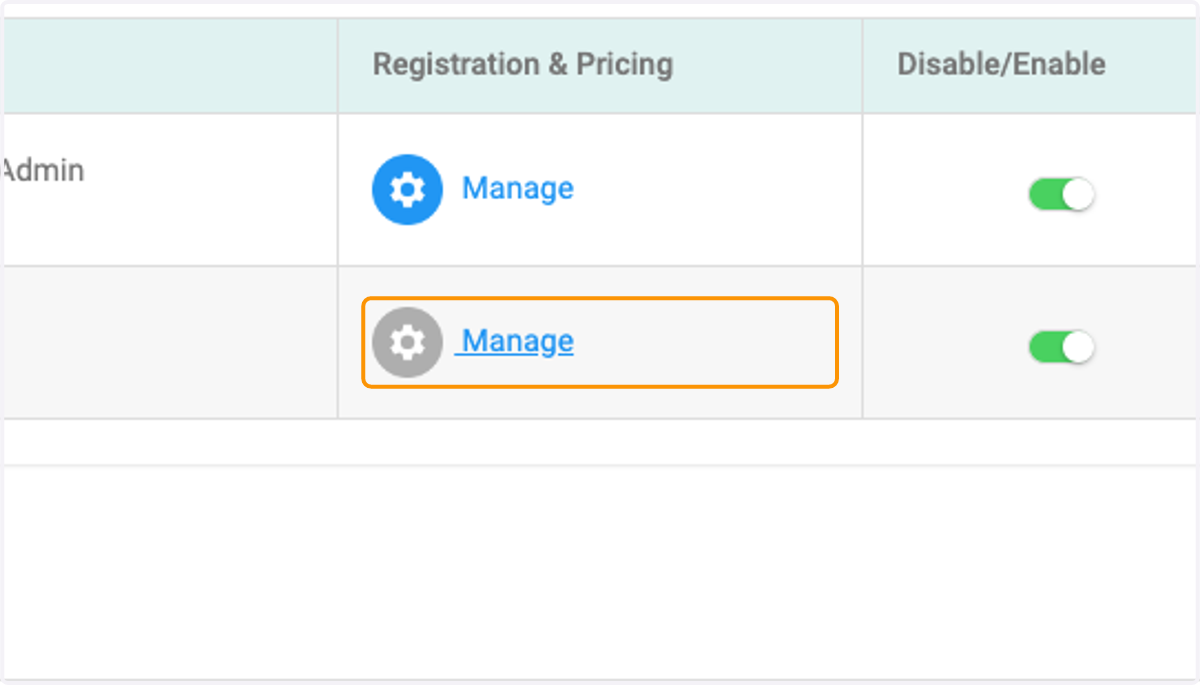
28. Click on Registration Workflow
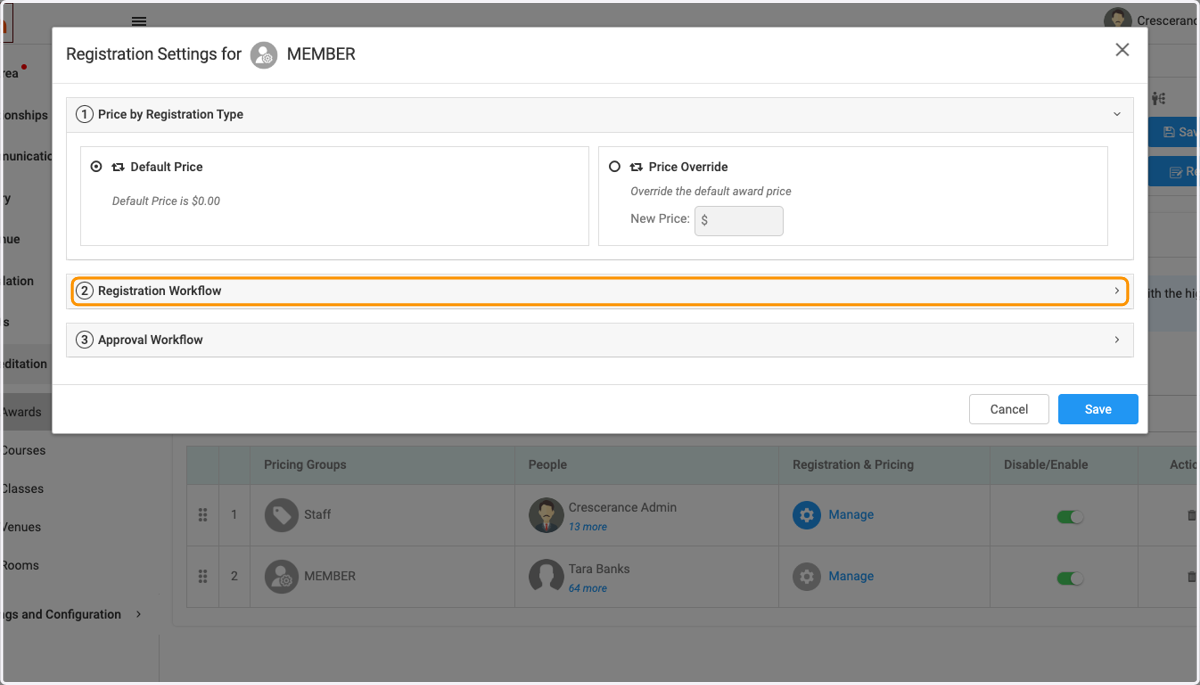
29. Choose a workflow.
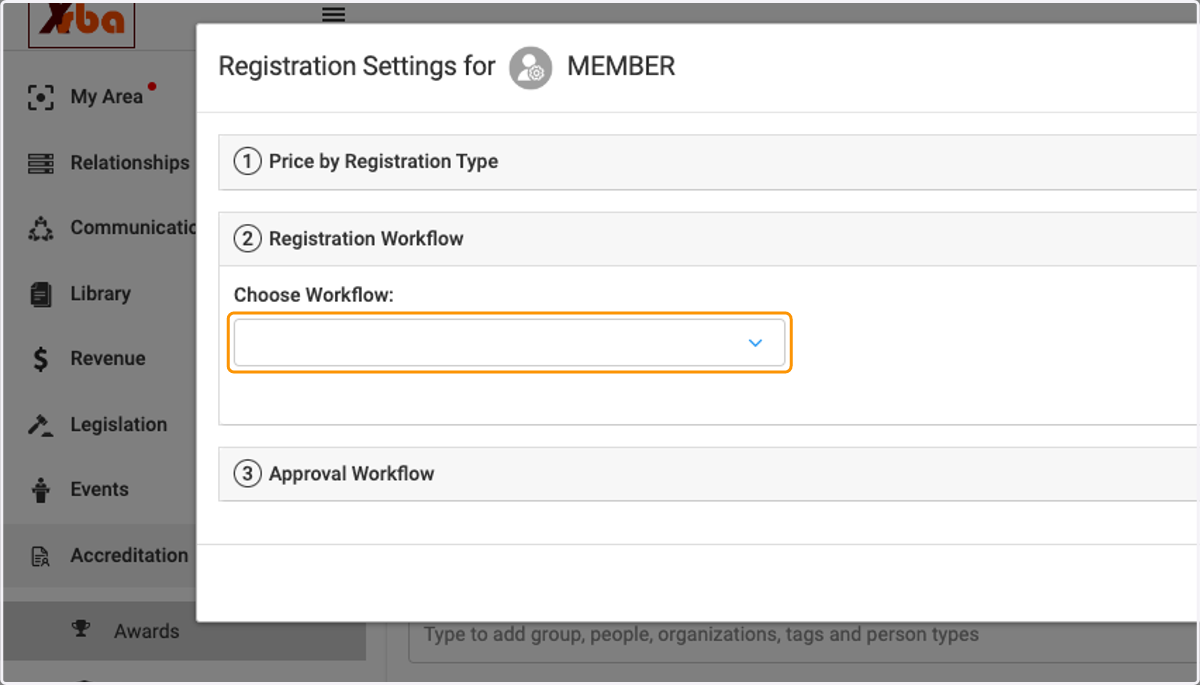
30. Click on 3Approval Workflow
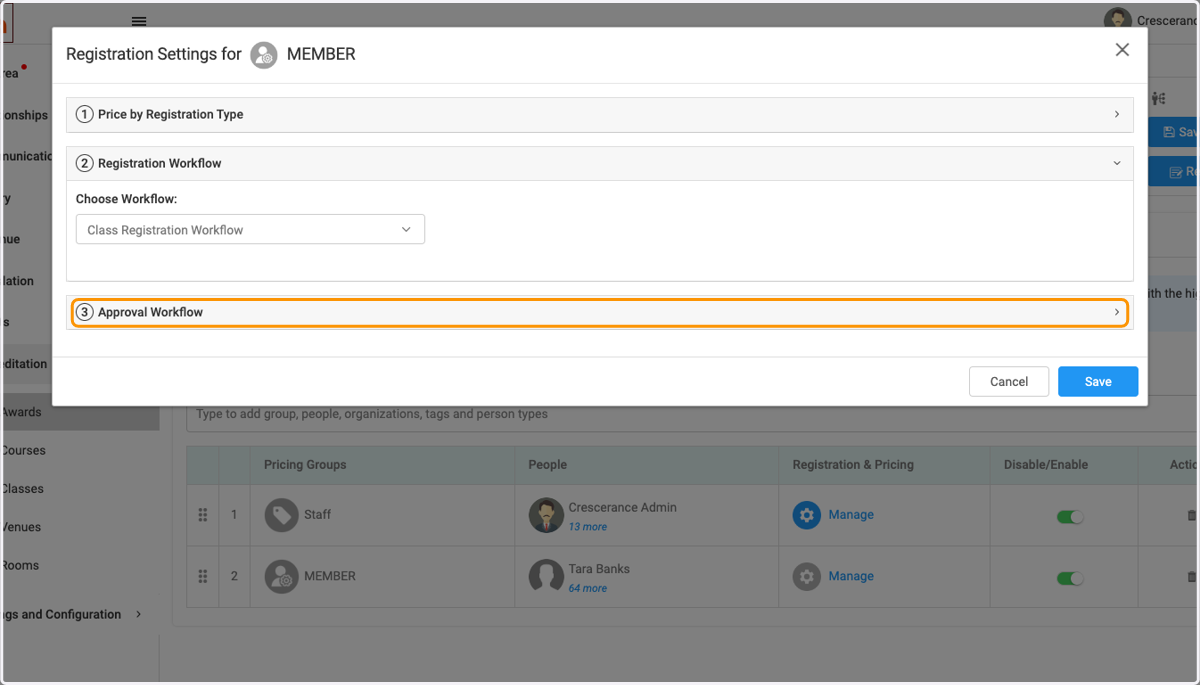
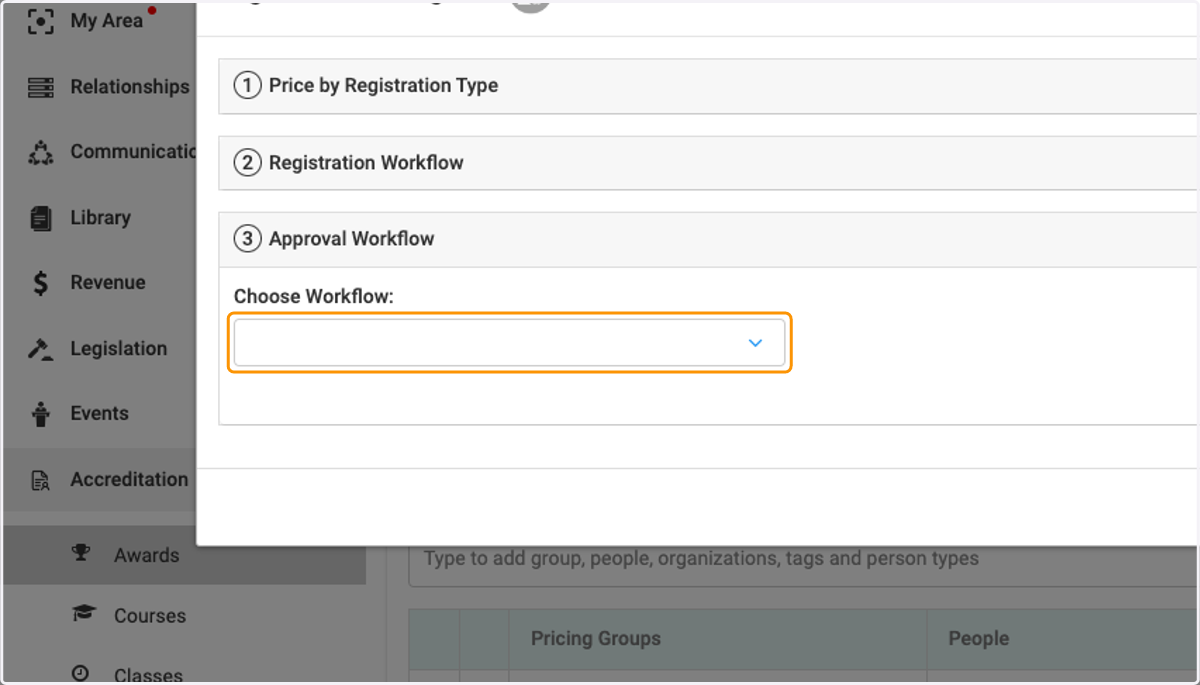
31. Click on dropdown trigger
32. Click on Save
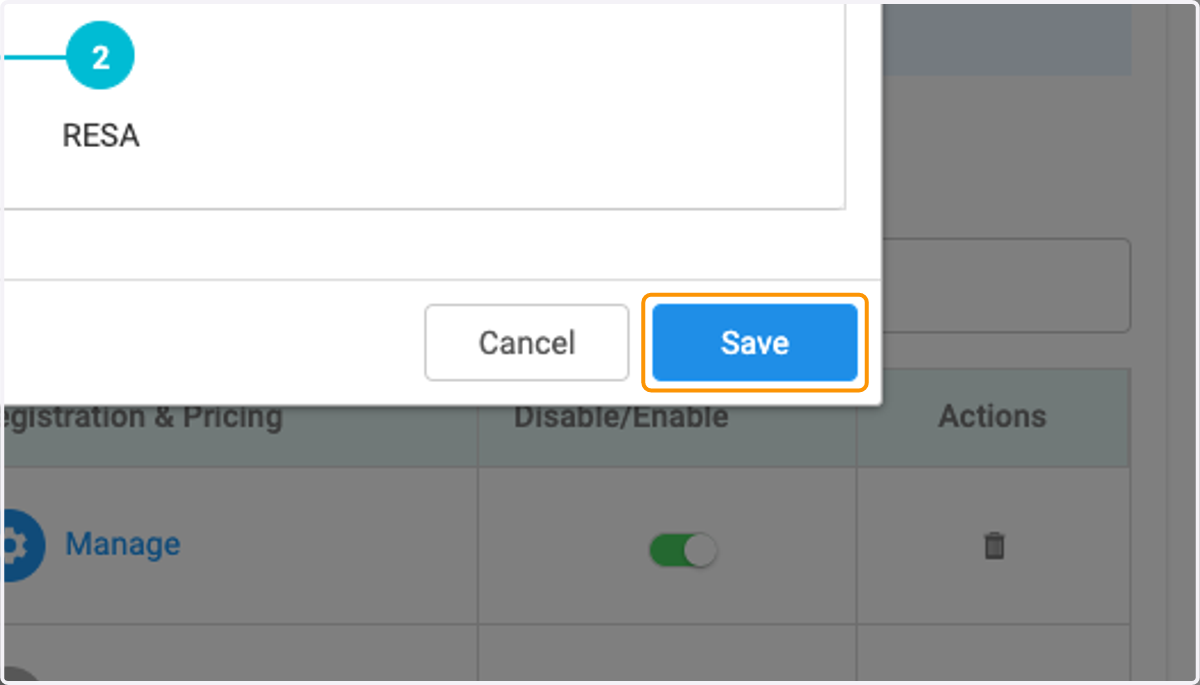
33. Click on Save
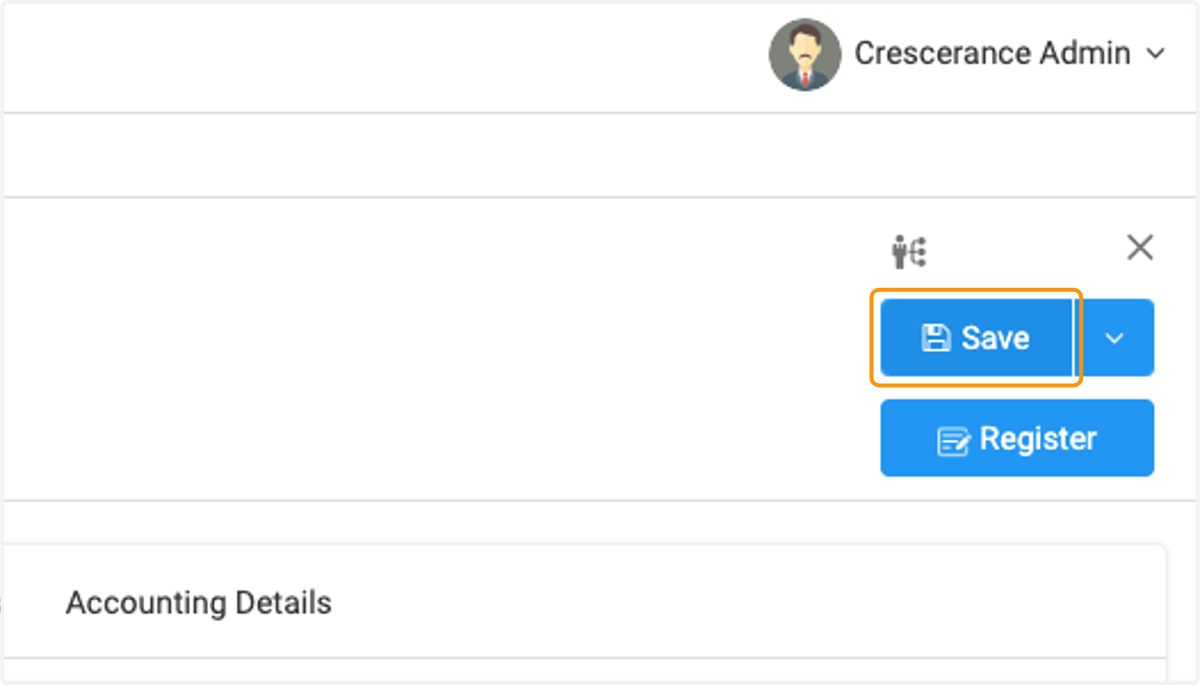
34. Click on Manage
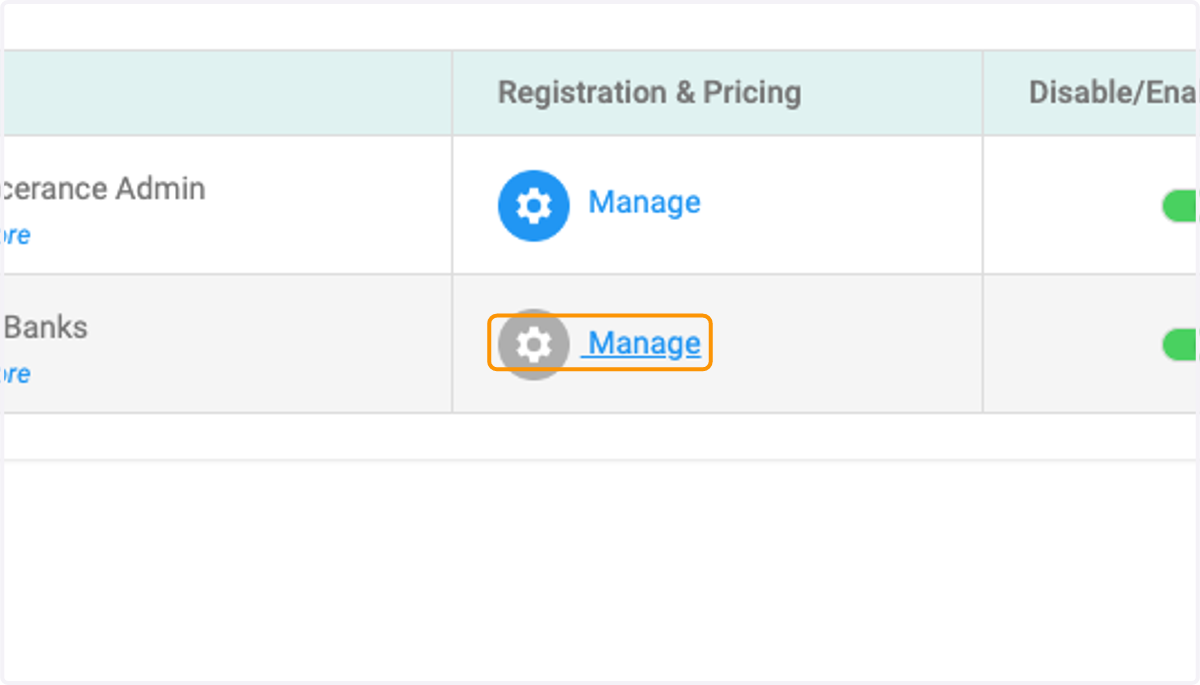
35. Click on 3Approval Workflow
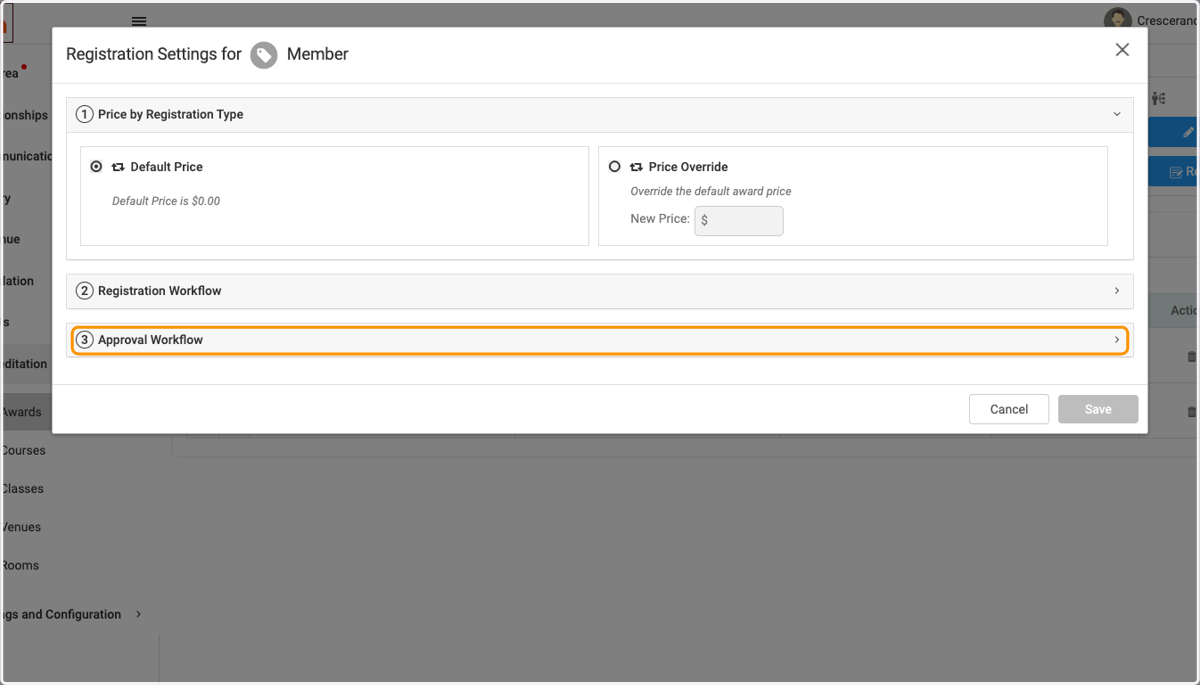
36. Click on Registration Settings for Member…
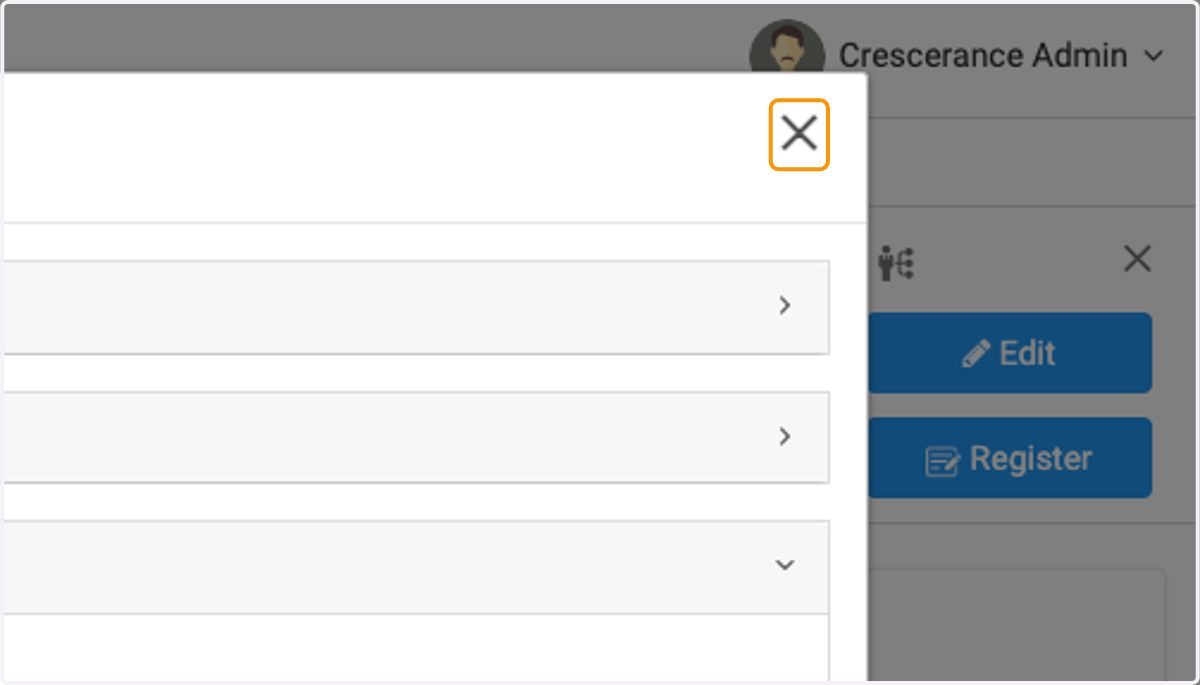
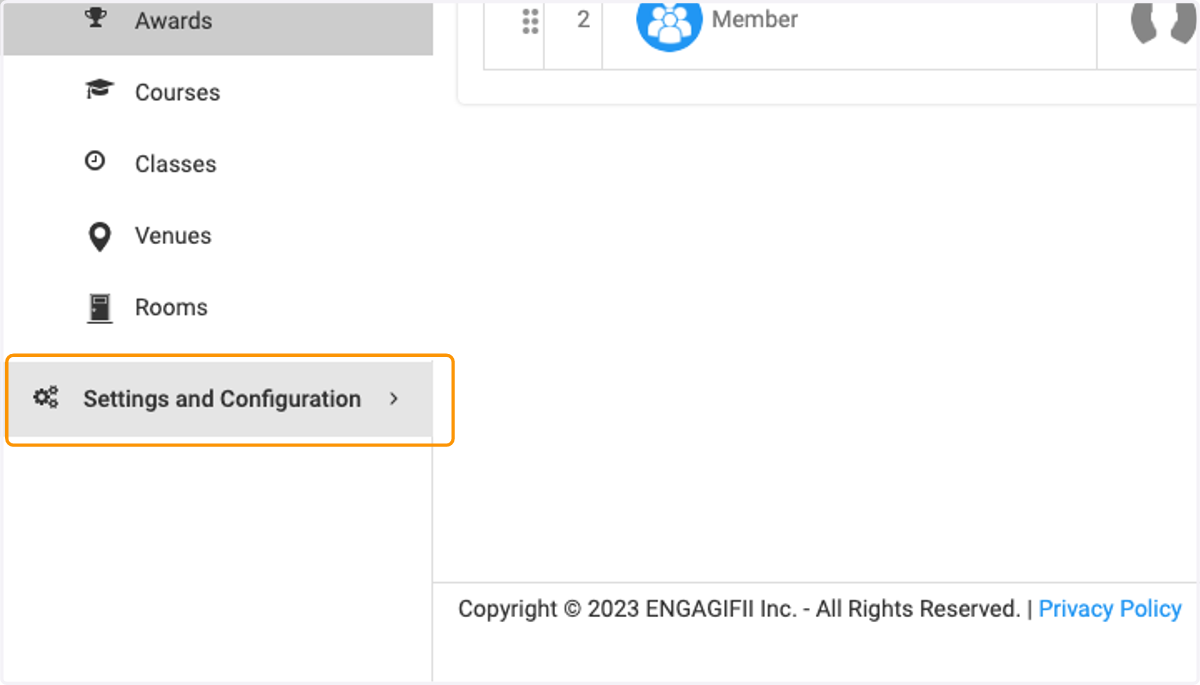
37. Click on Settings and Configuration
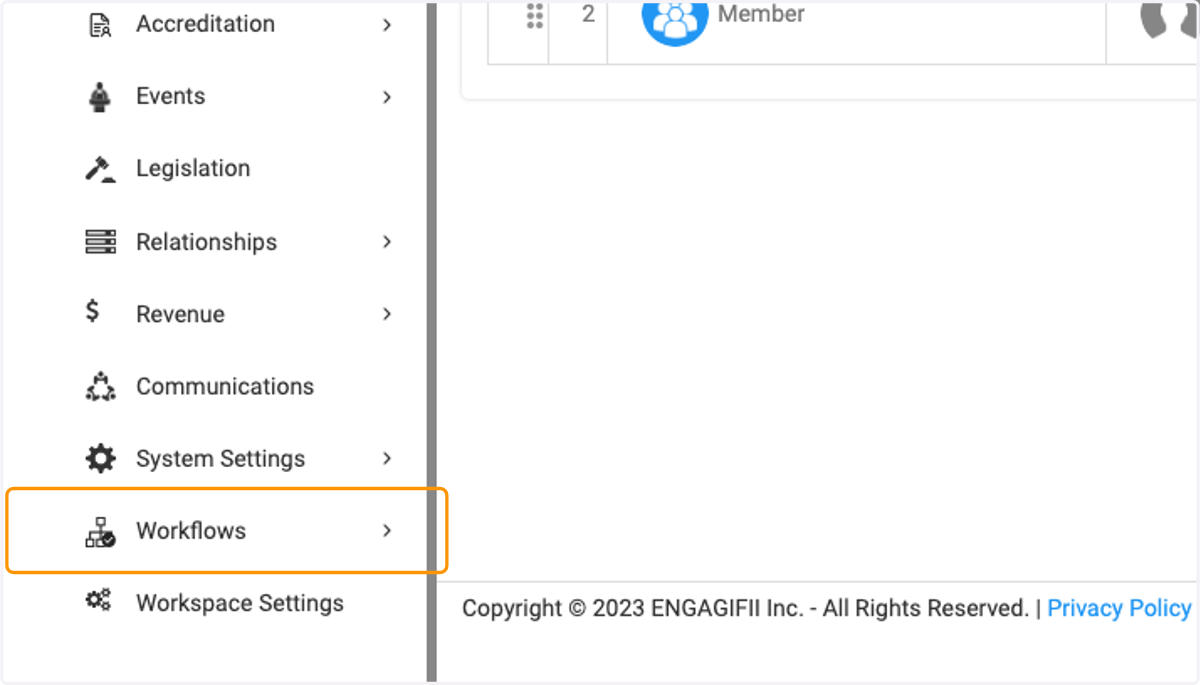
38. Click on Workflows
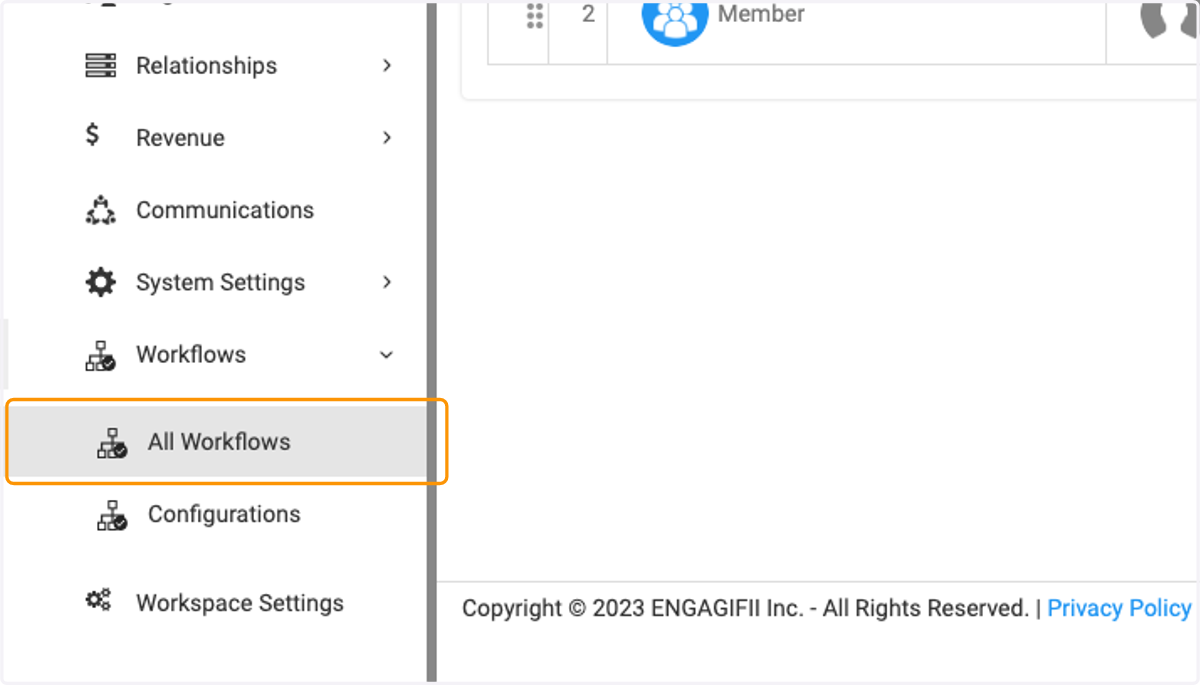
39. Click on All Workflows
40. Click on highlight
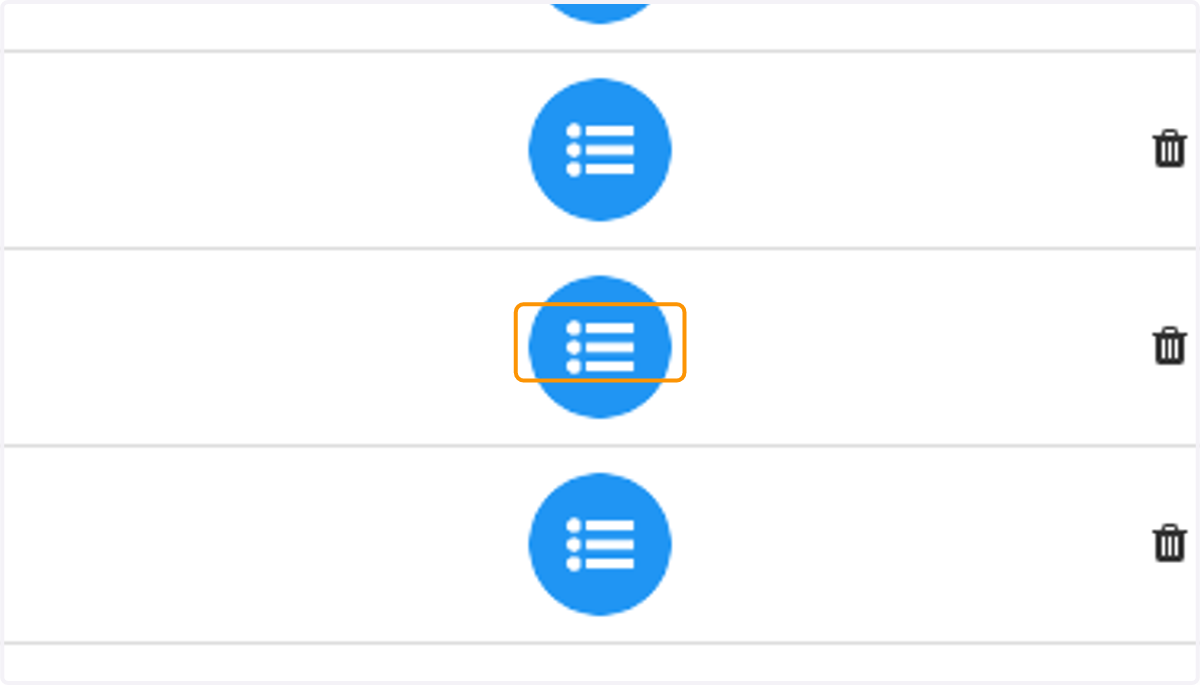
41. Click on Workflow Steps…
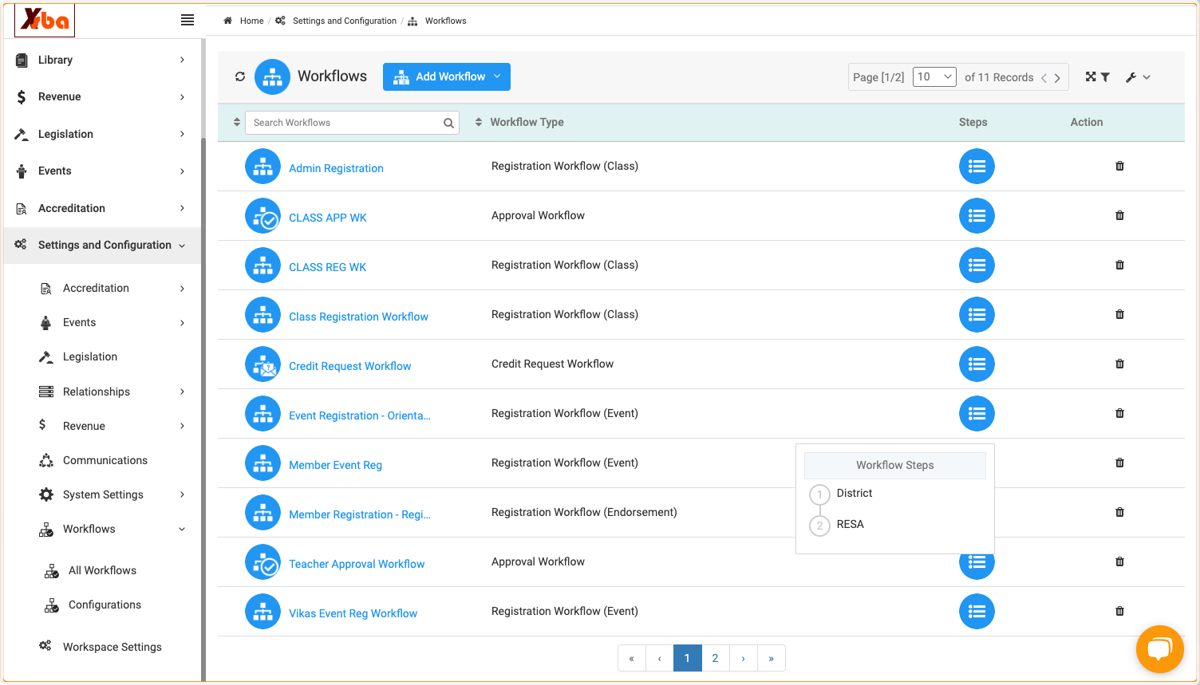
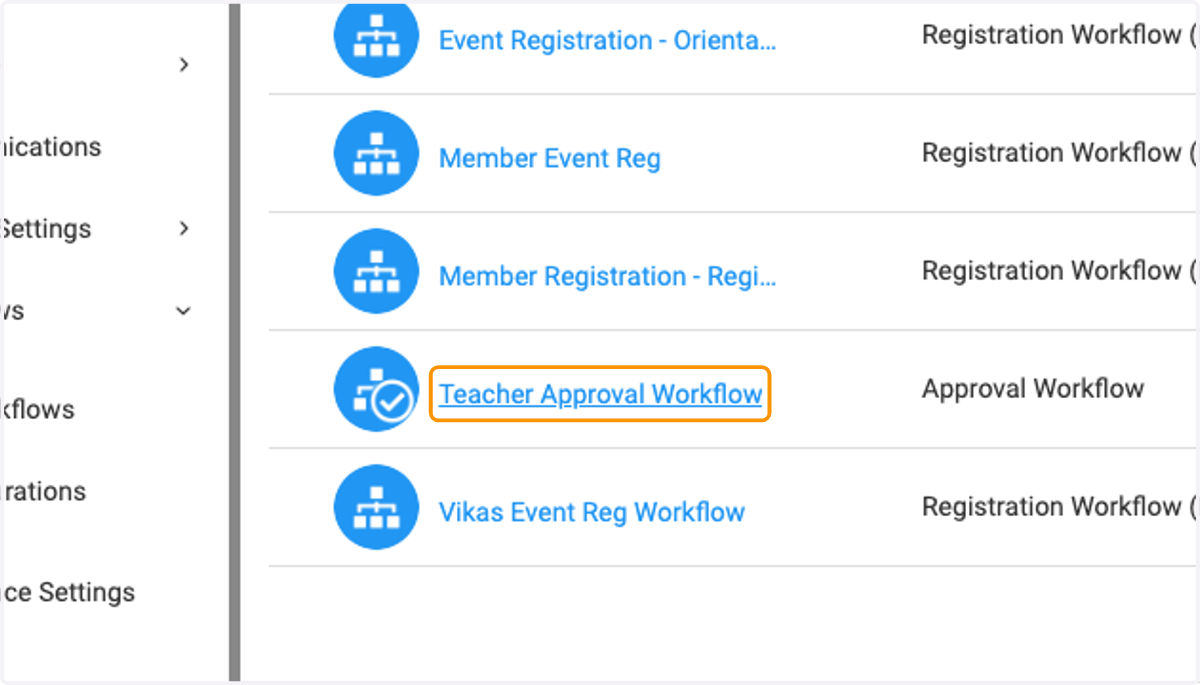
42. Click on Teacher Approval Workflow
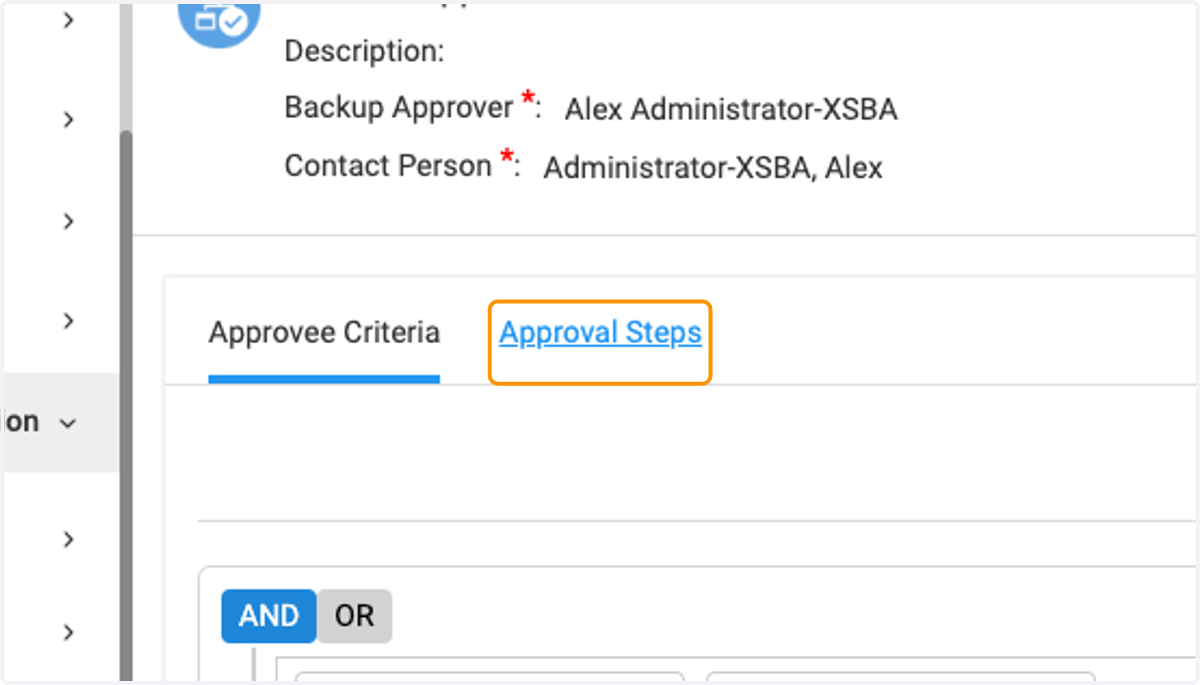
43. Click on Approval Steps
44. Click on highlight
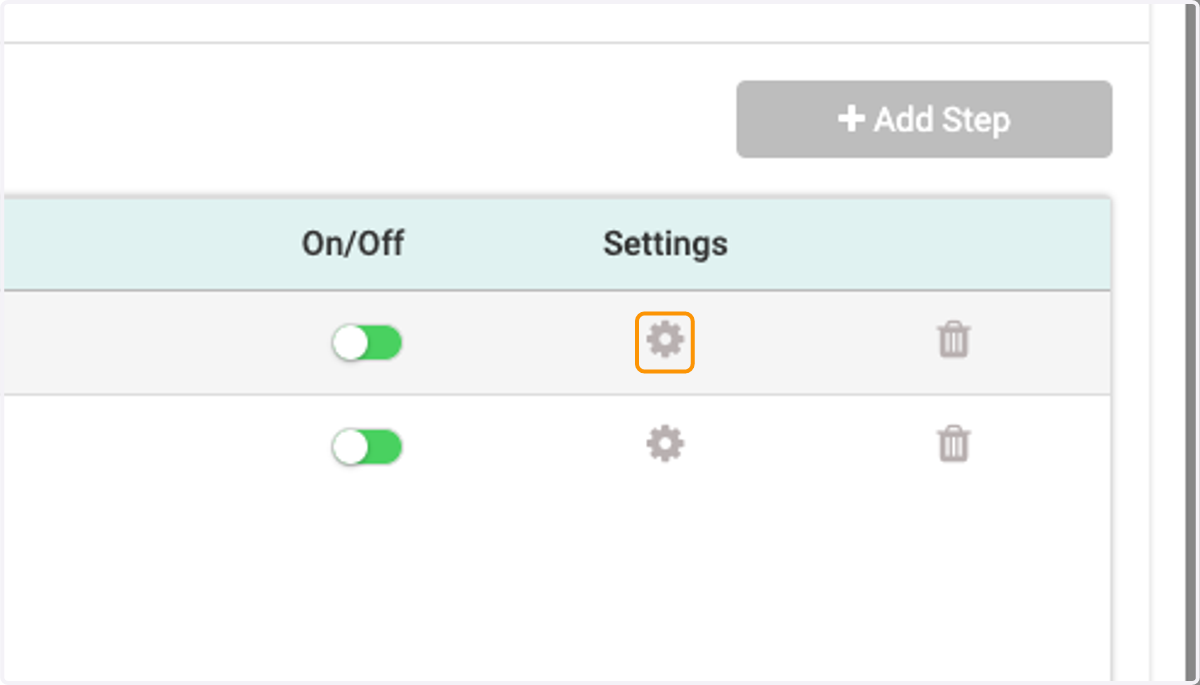
45. Click on Edit
46. Click on highlight
47. Click on Approver Step Settings…
48. Click on Save