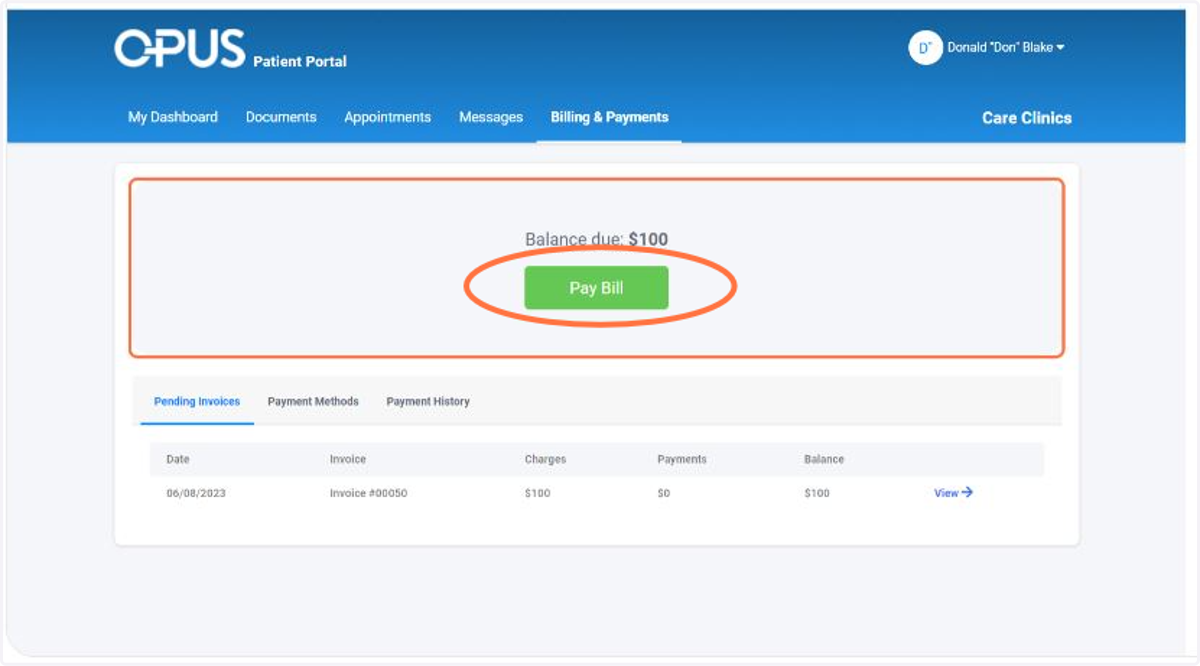
How to Check Your Balance and Pay your Bill in the Patient Portal
1. Log-in to the CARE Counseling Patient Portal webpage: https://carecounseling.portal.opusehr.app/welcome
2. From the Home Screen click on Billing & Payments
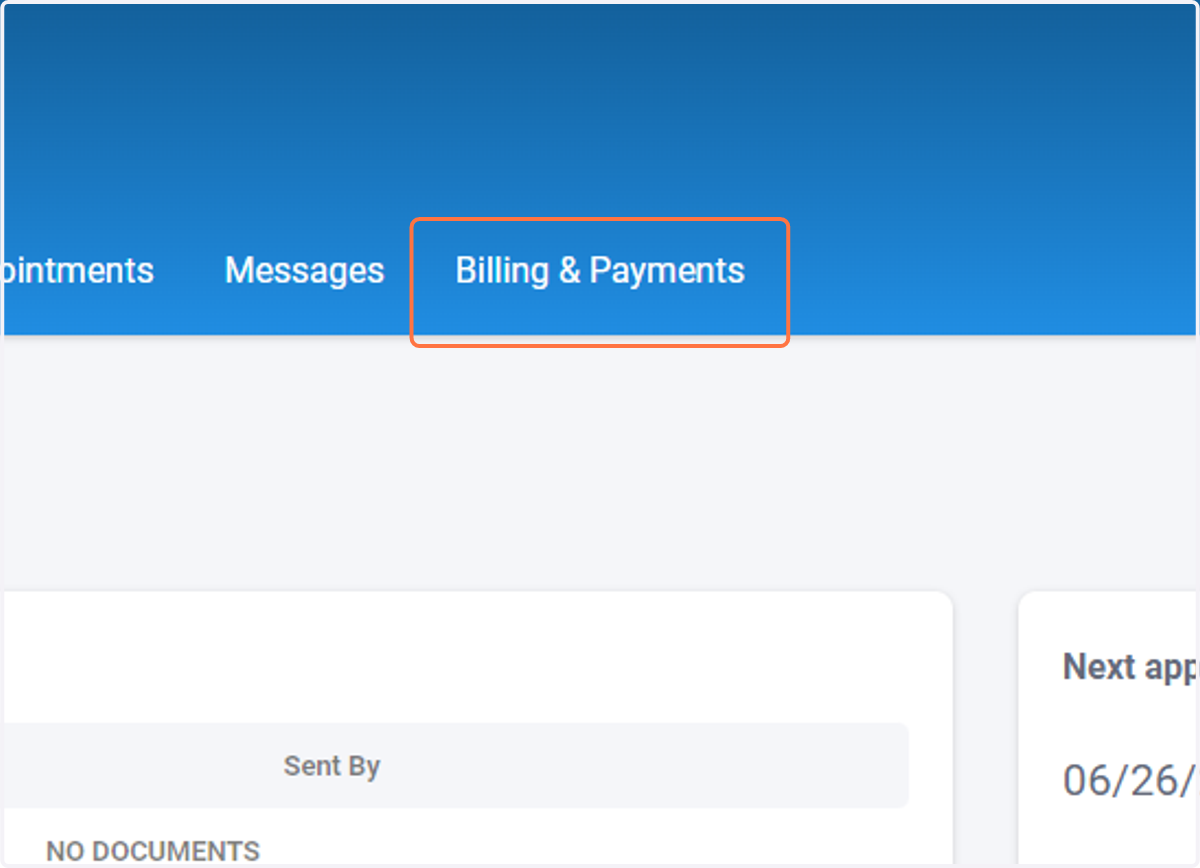
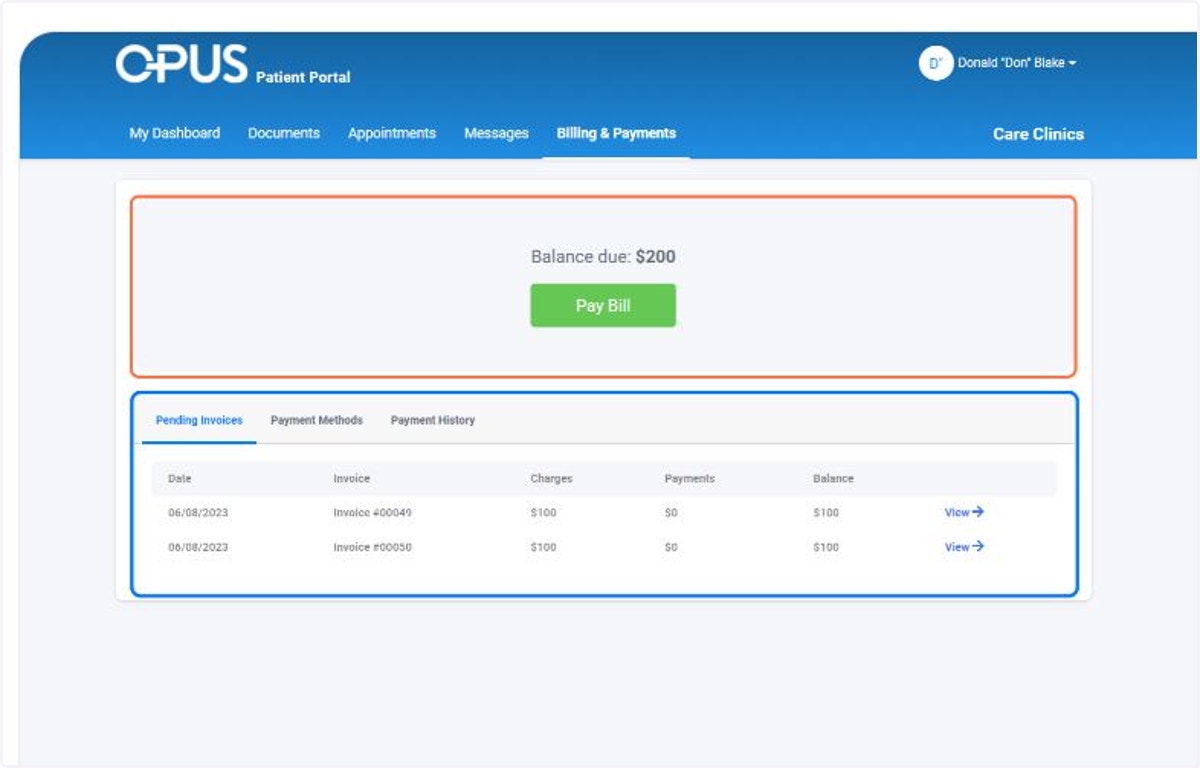
3. From the Billing & Payments, you will see all balance that are due.
The top section shows the Total balance that is due. You can pay this balance all at once using the green PAY BILL button.
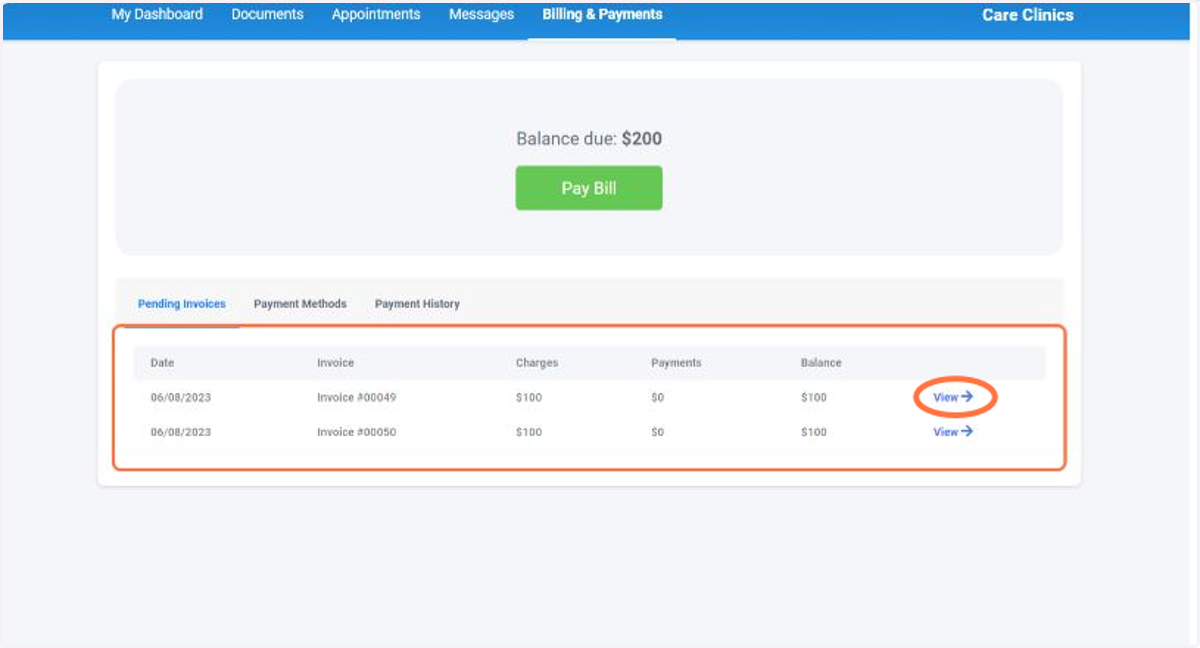
The bottom section shows individual invoices with their respective balance. If you wish to pay only a specific invoice, you can do so by clicking "View" and selecting "Pay Invoice"
4. To pay via Invoice, identify the invoice you want to pay and click View
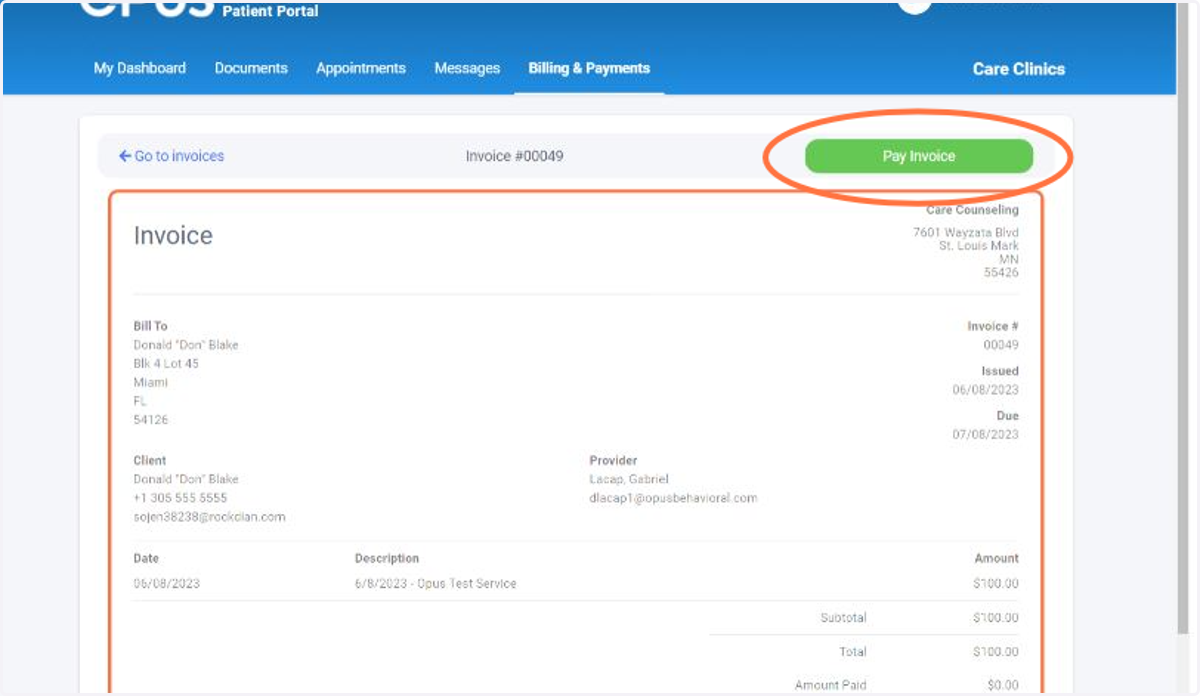
5. Review the details of the Invoice and then click Pay Invoice
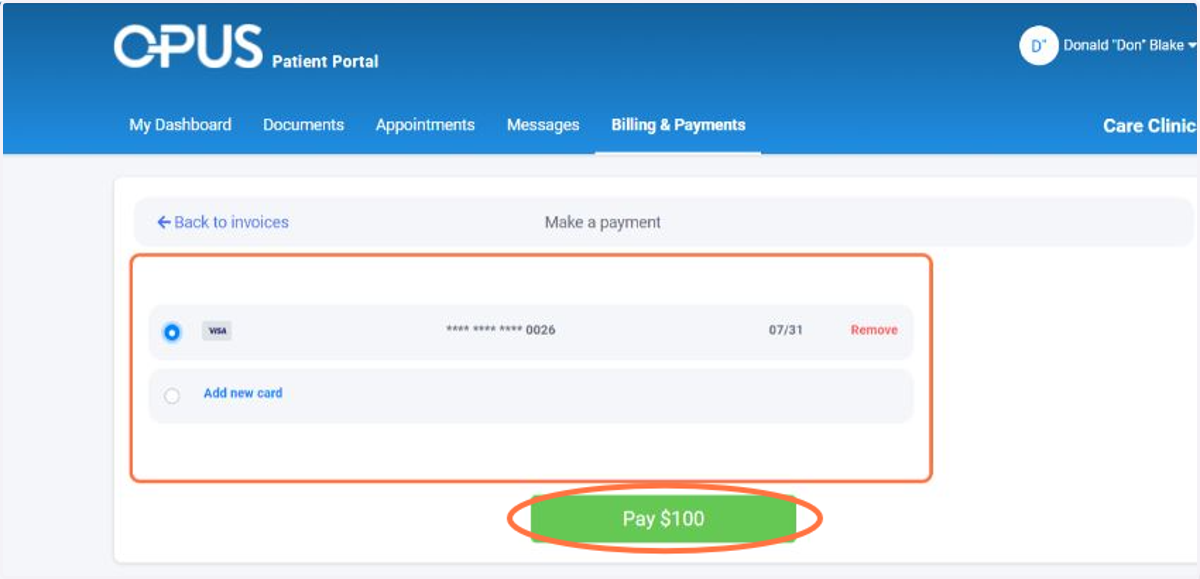
6. Select a Payment Method and Click Pay button
NOTE: If no card has been added yet, you can select Add new card and follow the instructions.
For this demo, we will choose the existing VISA card as method of payment.
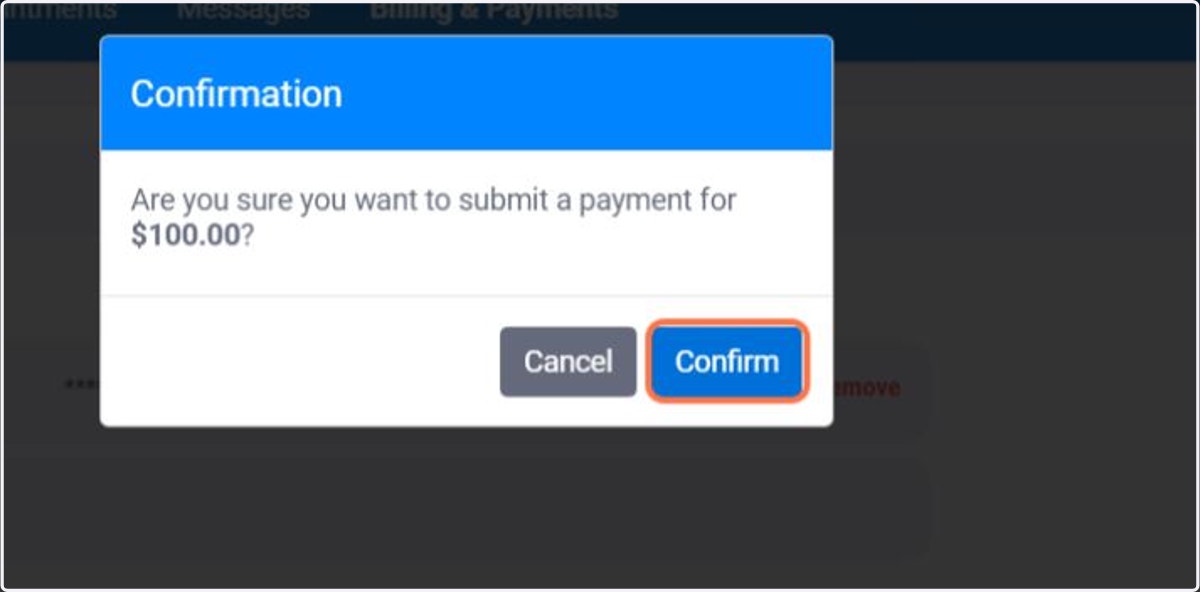
7. Click Confirm
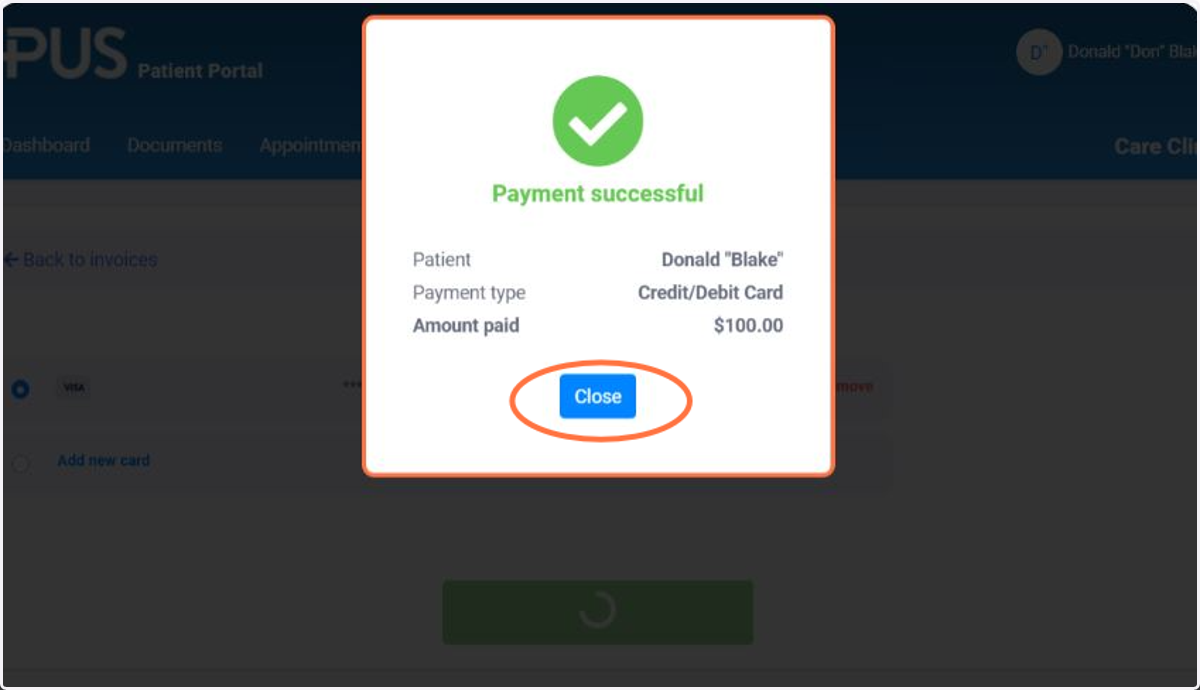
8. A success message will appear, indicating successful payment of the invoice. You can click Close afterward.
9. Another method of paying invoice is via the green PAY BILL button
NOTE: In this method, you can pay all Pending invoices at once. You can click on PAY BILL and follow the same steps from STEP 6.