Self-Assessment
Understanding the learning purpose. Answer the 3 questions about your students and their understanding of what they're learning and how it connects to who they are and what they already know.
Clarify-ed
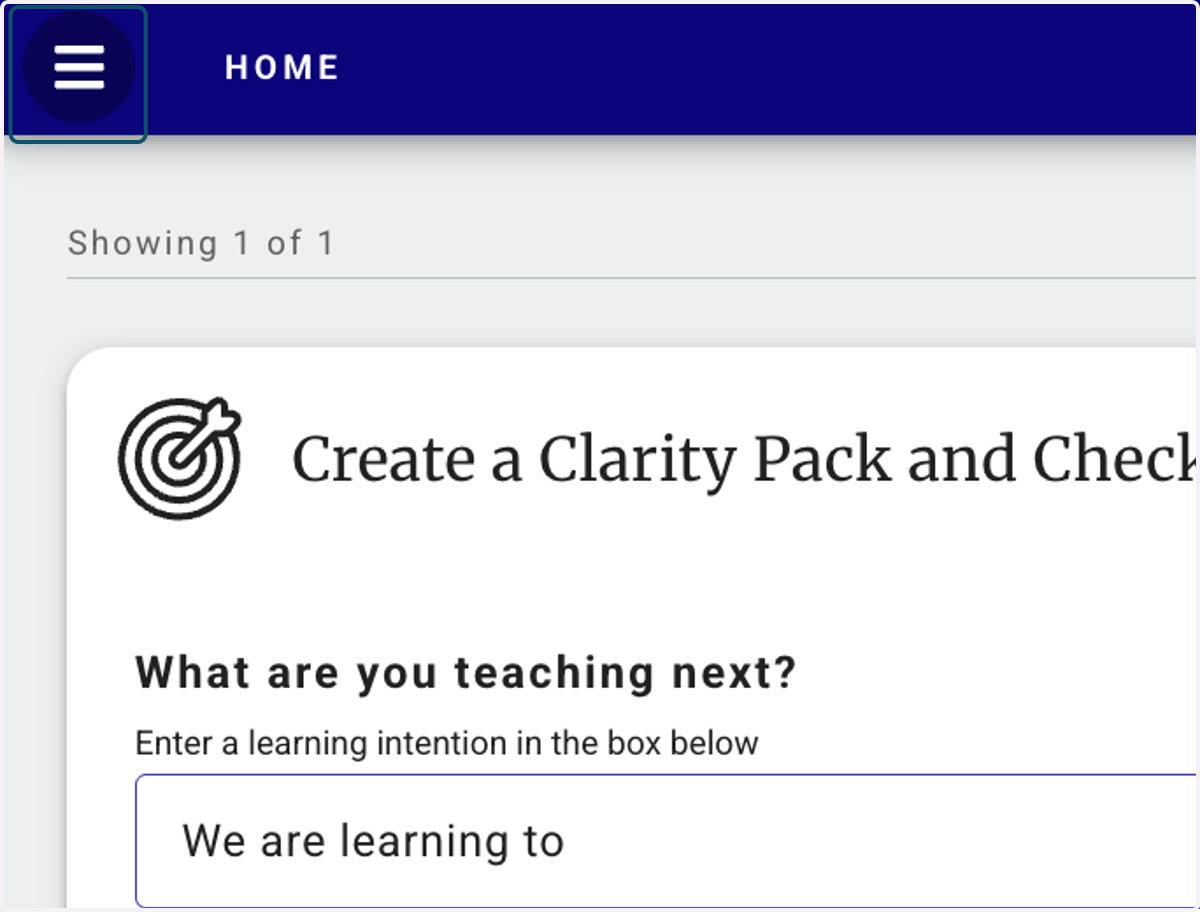
1. Click on Open main menu
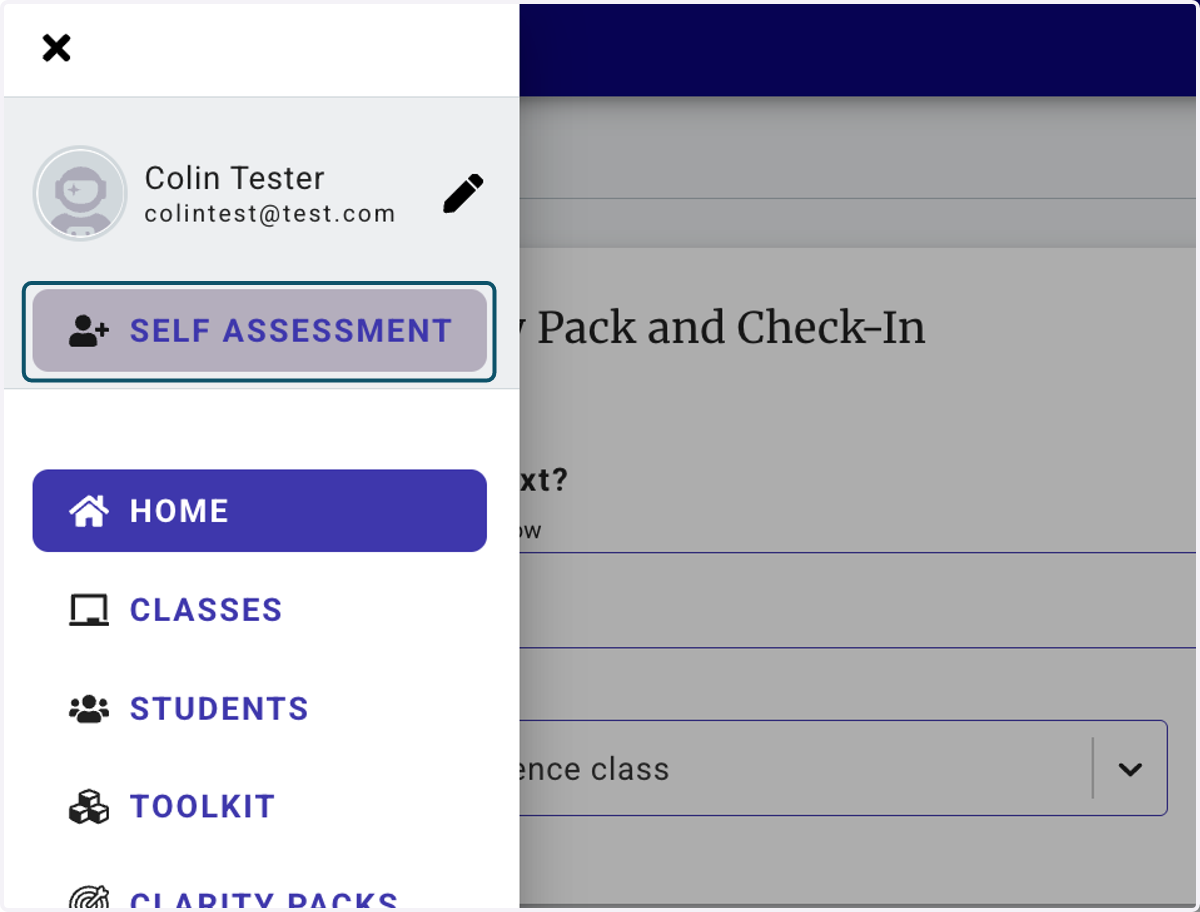
2. Click on SELF ASSESSMENT
3. Click on Understanding the Learning Purpose…
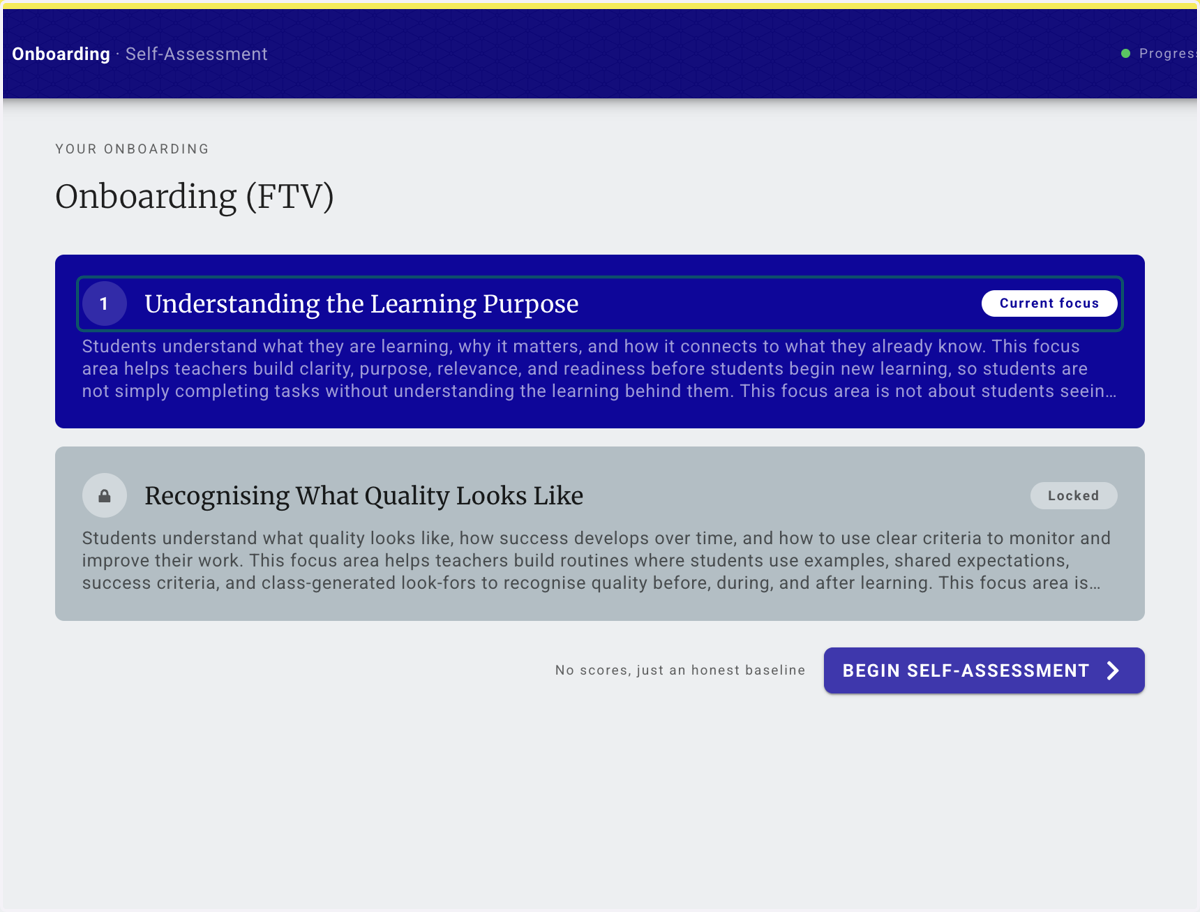
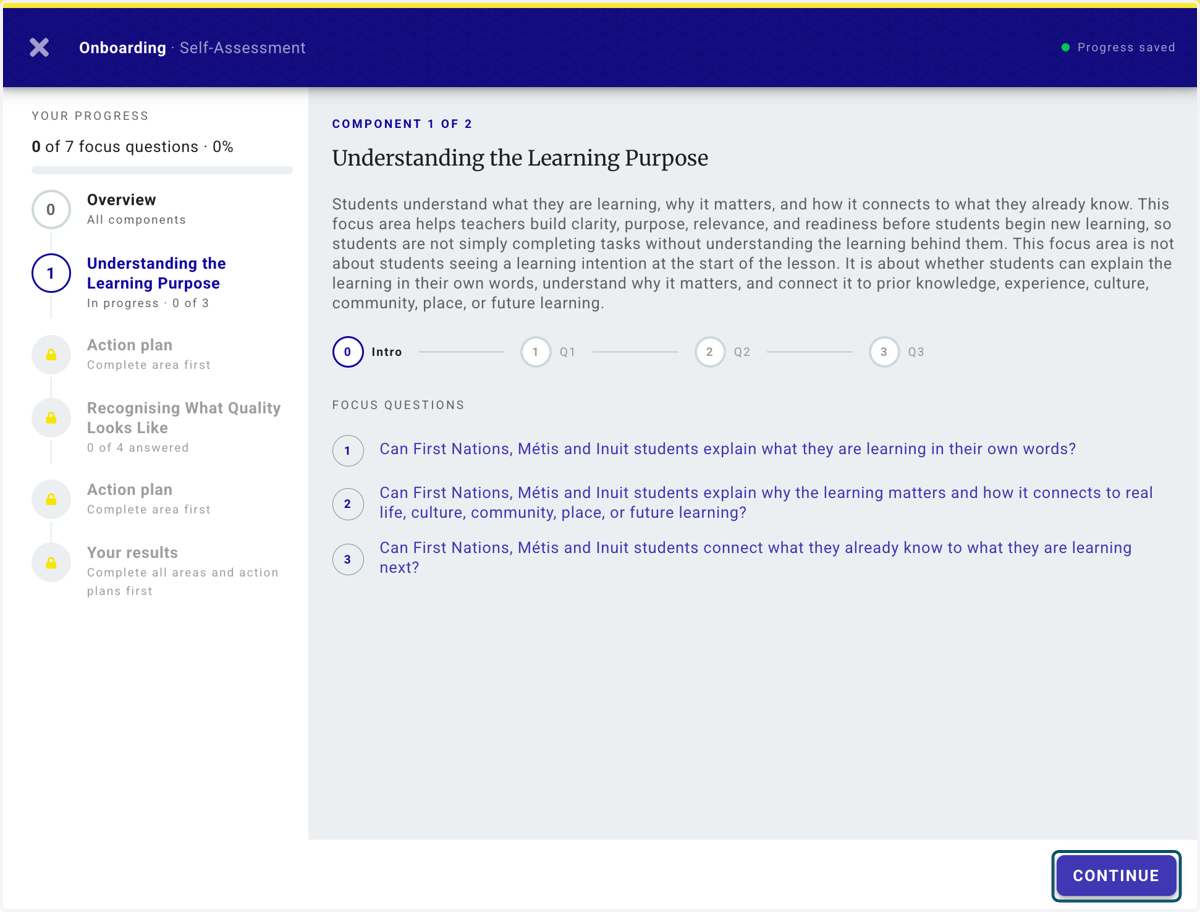
4. Component page - introduces the component and the questions.
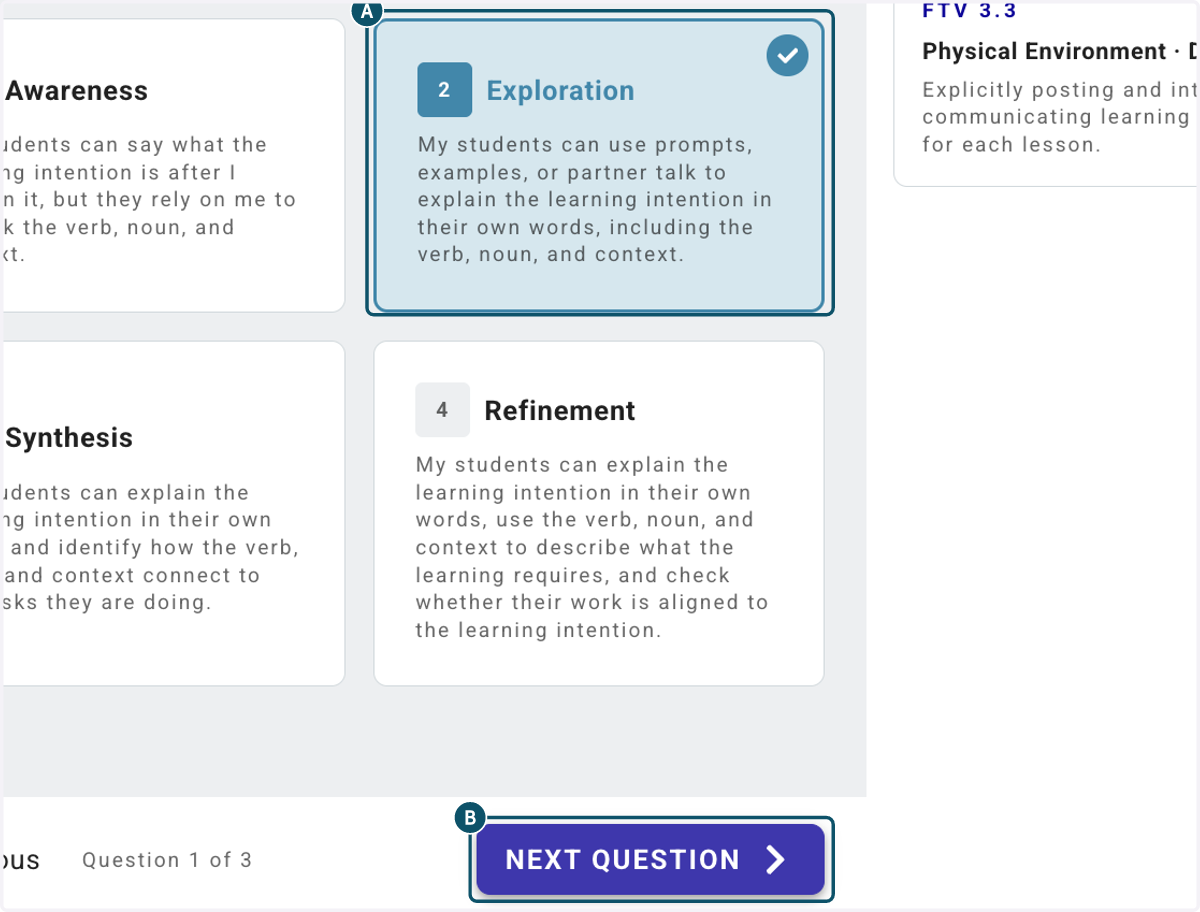
5. A. Pick the level that best describes where your students are at.
5. B. Click on NEXT QUESTION
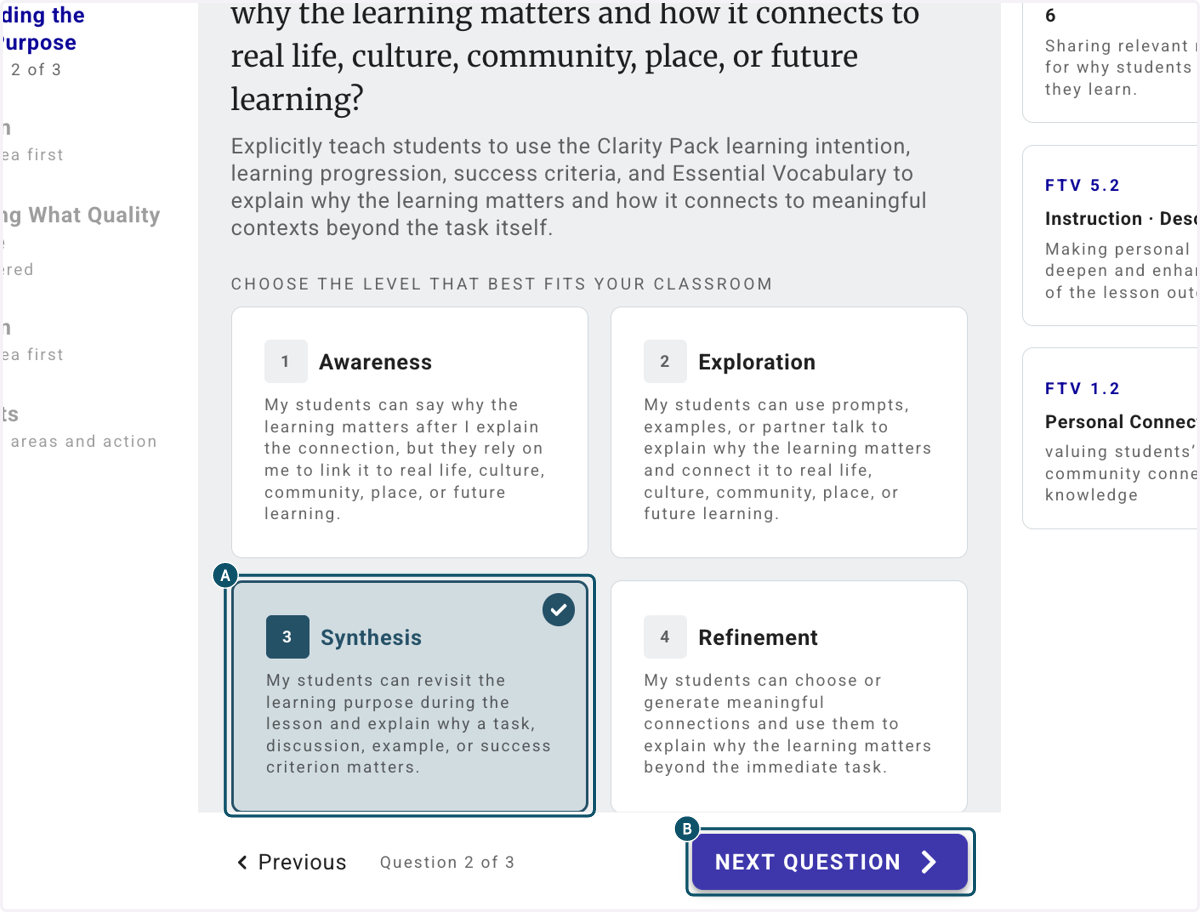
6. A. Repeat for each of the 3 questions
6. B. Click on NEXT QUESTION
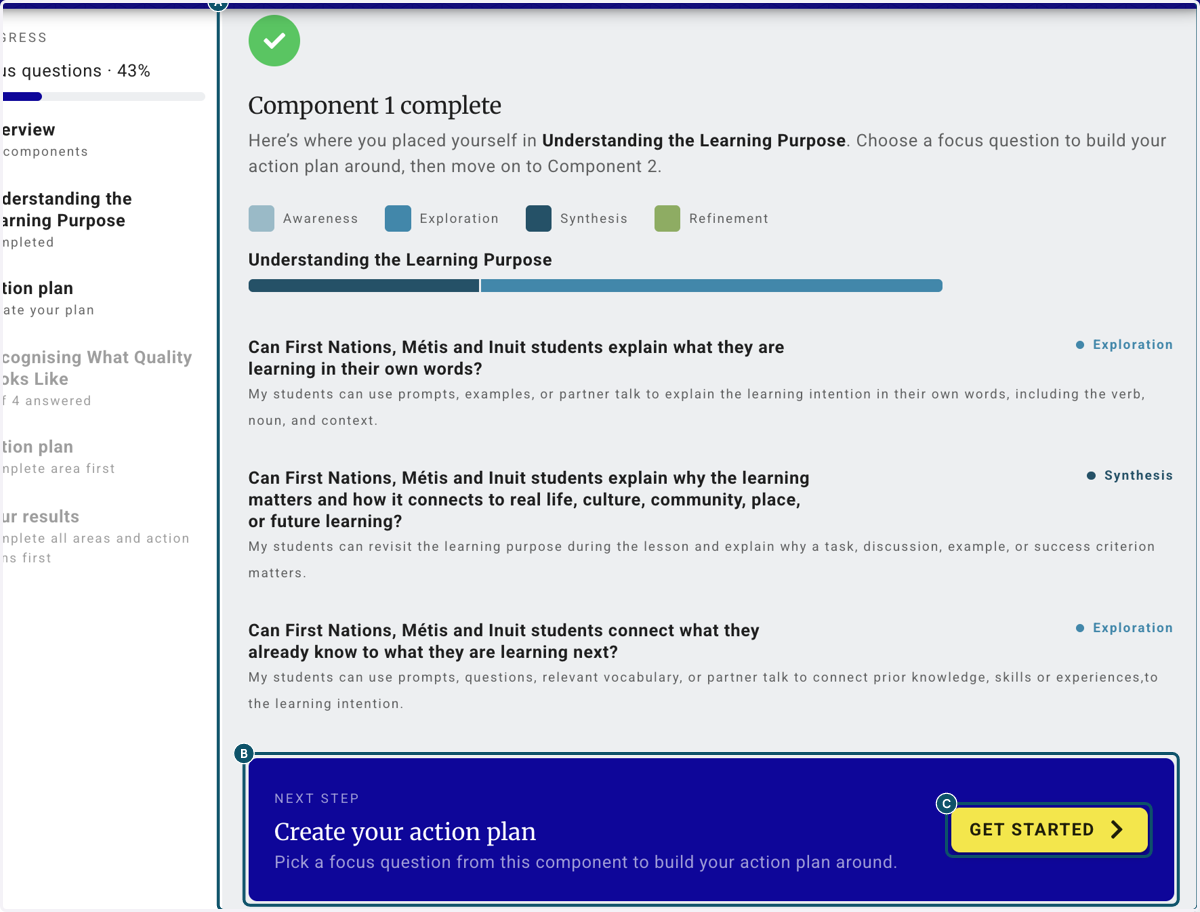
7. A. Once you've completed all the questions for the component you will see a summary of your answers.
7. B. Click on NEXT STEP…
7. C. Click on GET STARTED
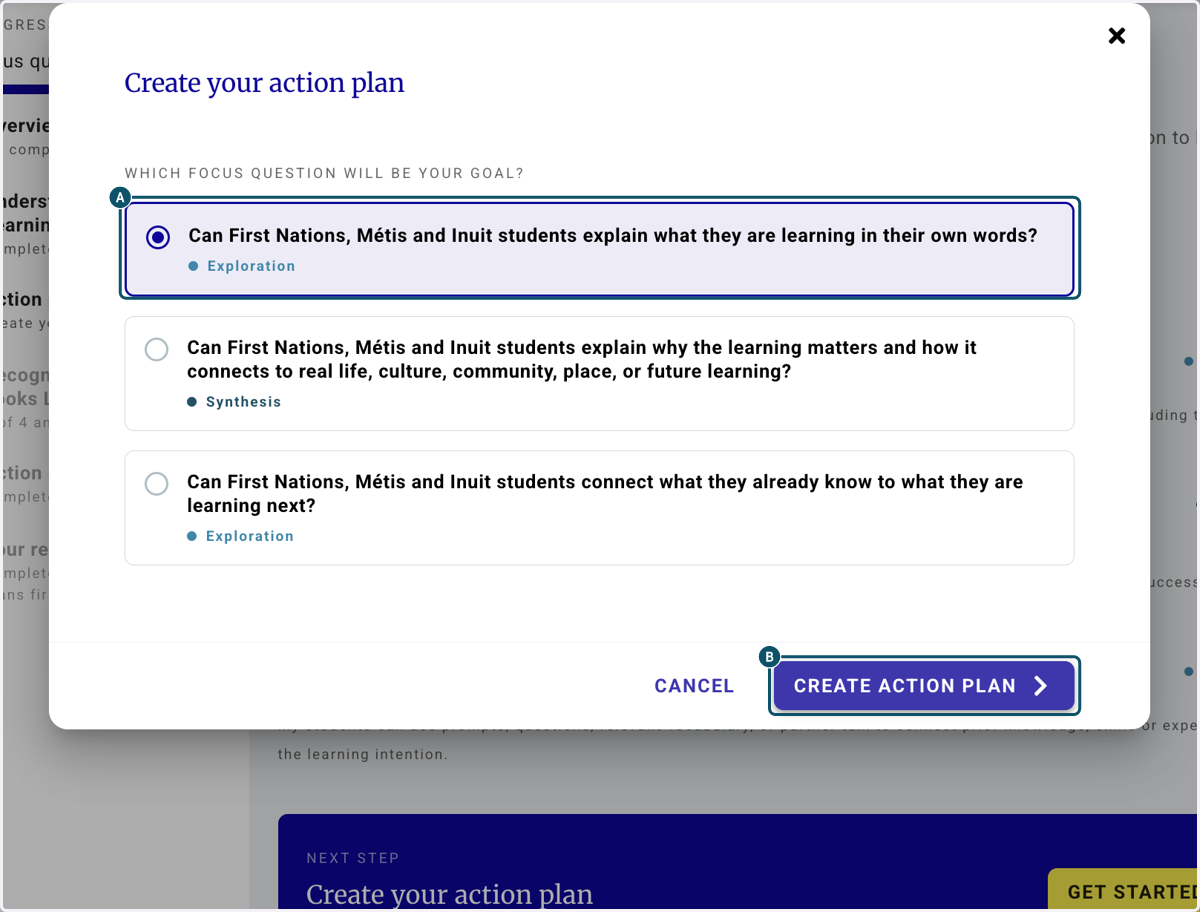
8. A. Select the focus question that needs to be prioritised
8. B. Click on CREATE ACTION PLAN
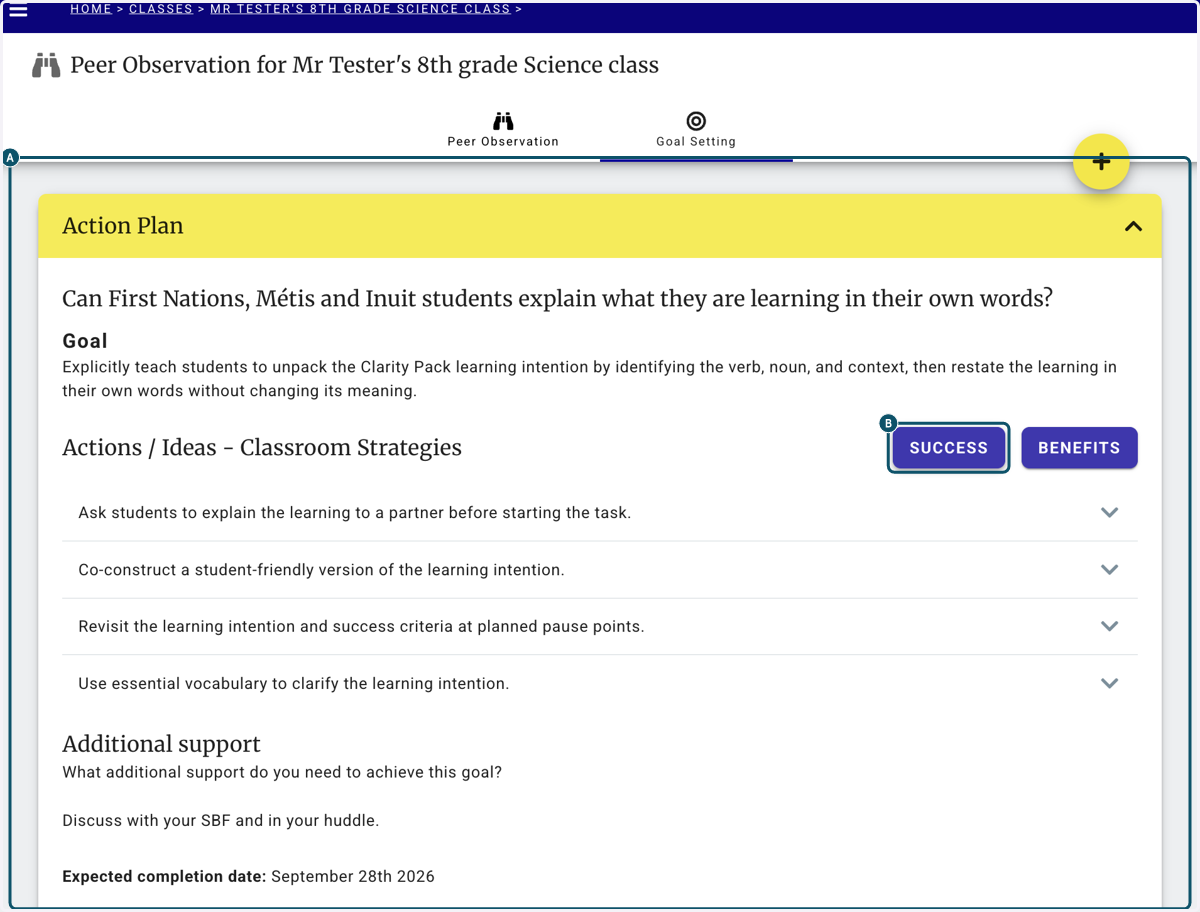
9. A. The Action Plan translates your chosen focus question into a professional goal
9. B. Click on SUCCESS to see what success in the classroom could look like
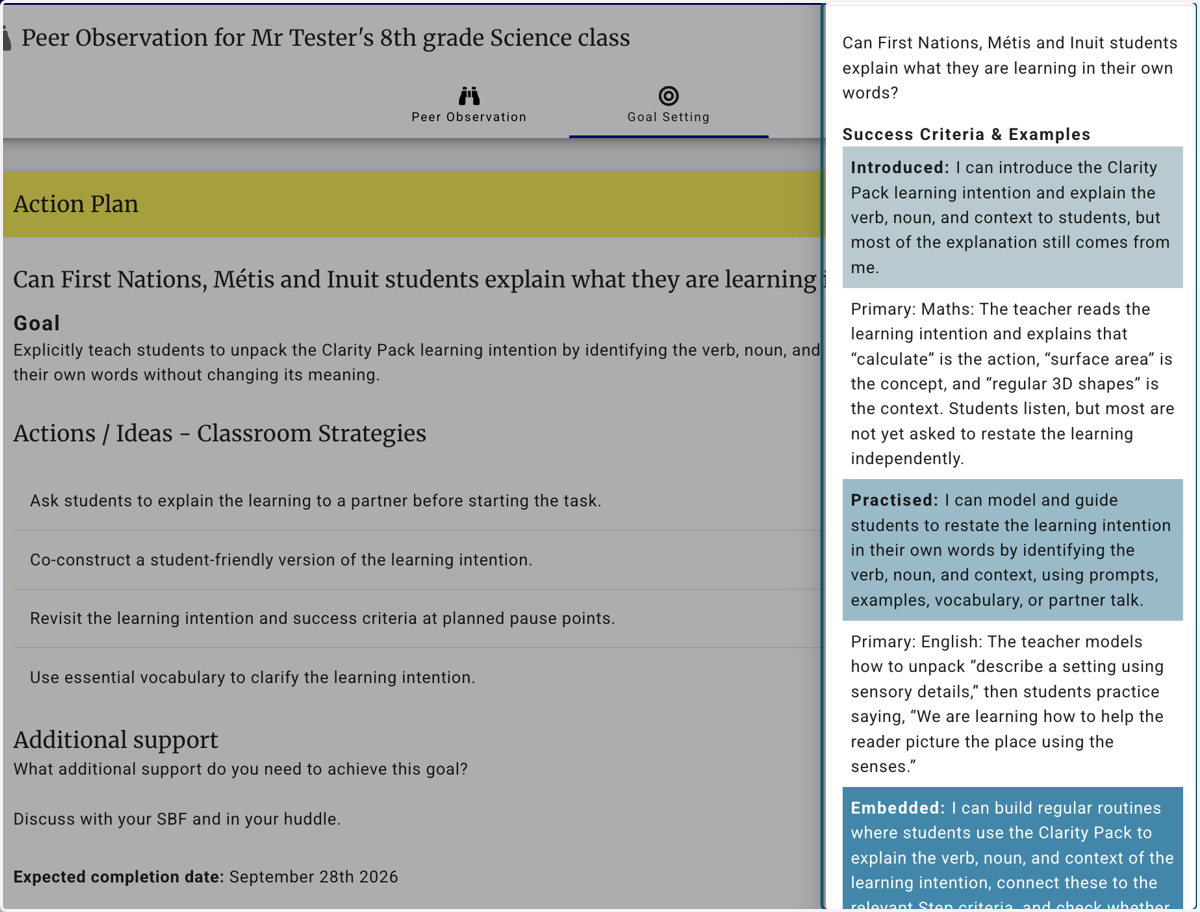
10. Success Criteria will appear on the right hand side.
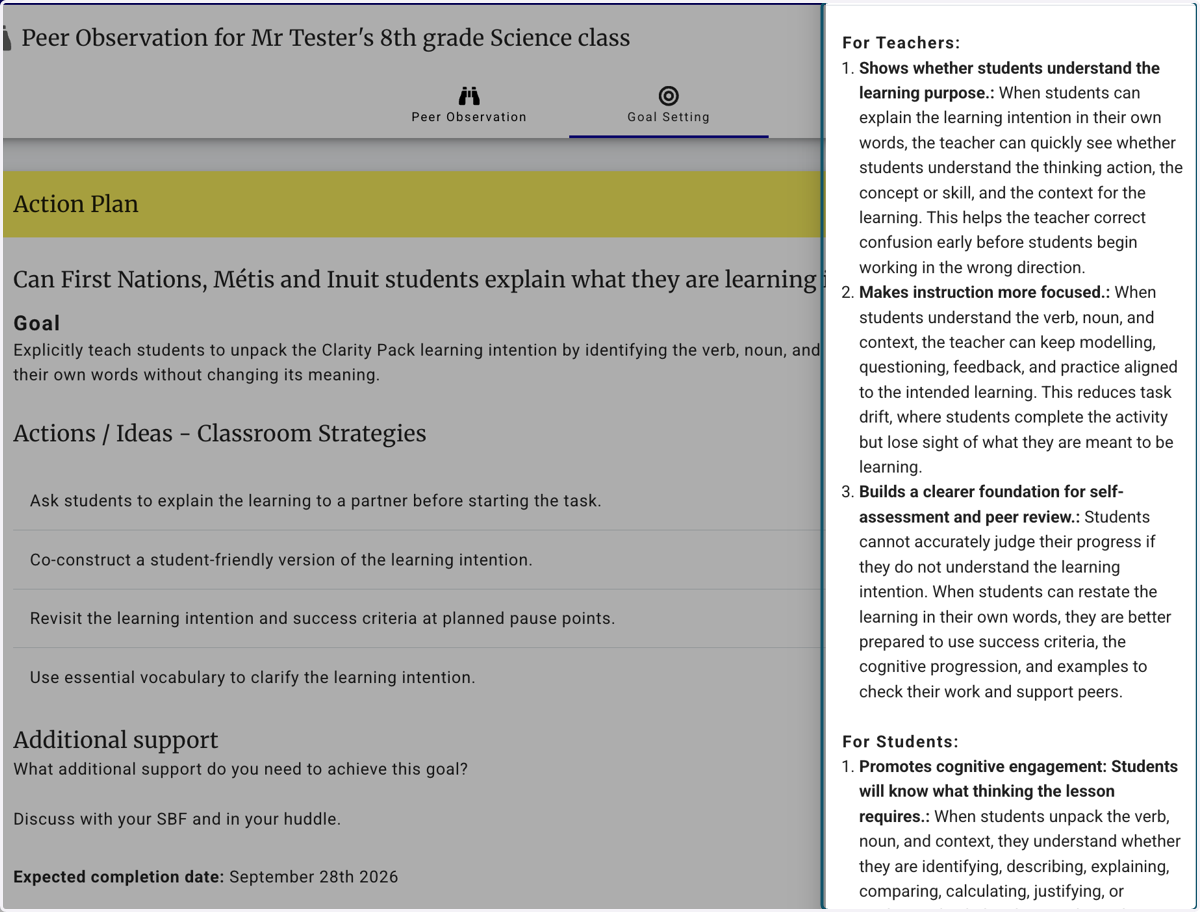
11. View benefits for teachers and students
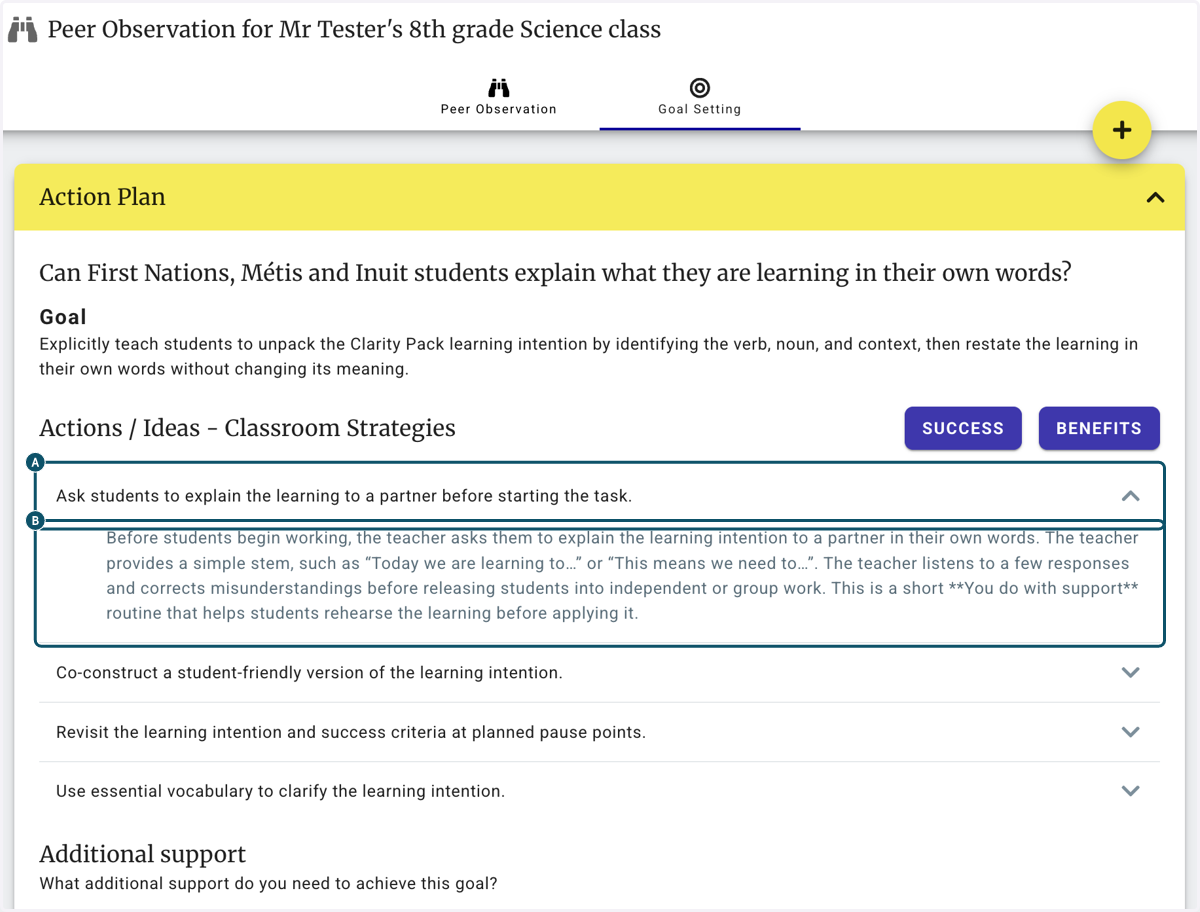
12. A. Actions, ideas and micro routines have been selected to support you in implementing your professional goal.
12. B. Click on the arrow to expand and see the details on how to implement. Actions from your action plan will appear in your Planning Pack in each Clarity Pack that you create.
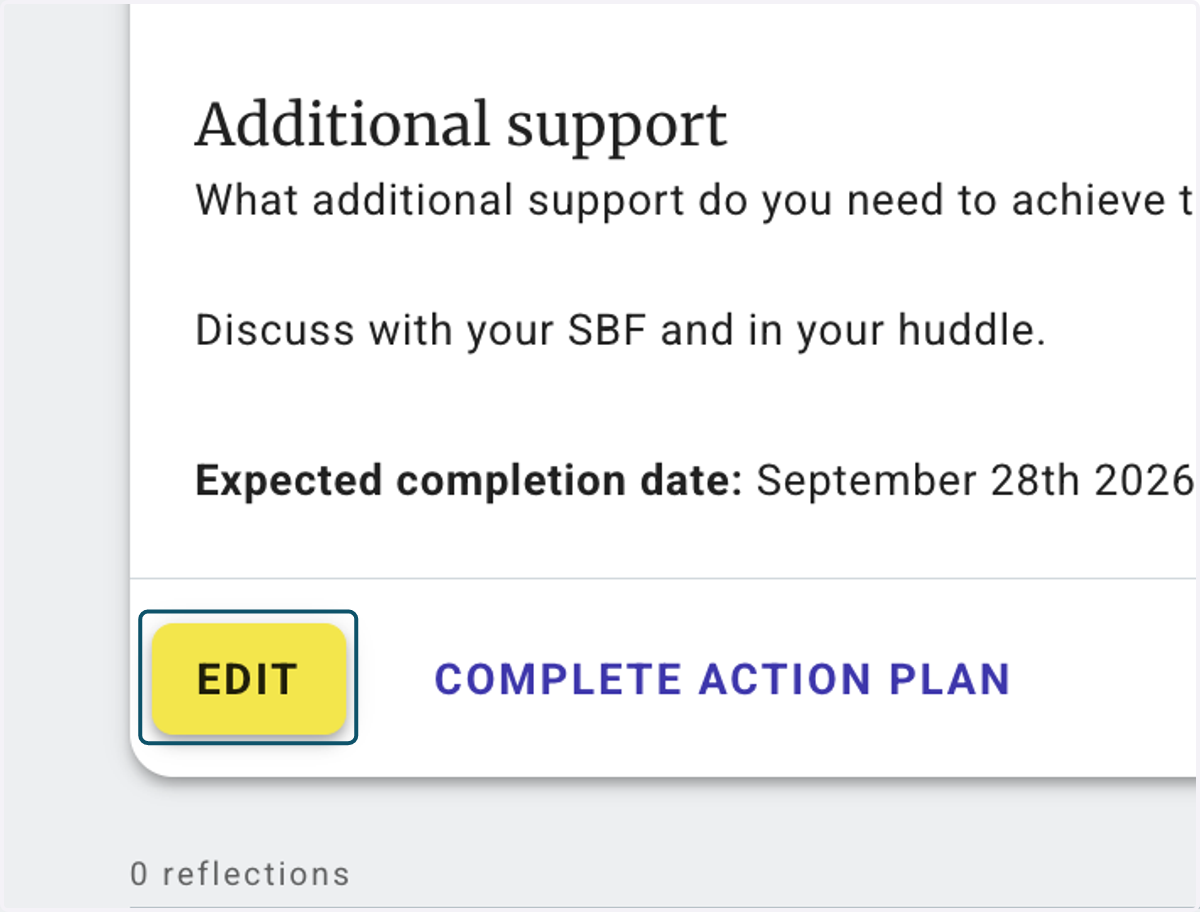
13. Click on EDIT to view more actions to select. You can also update the completion date and the additional support box.
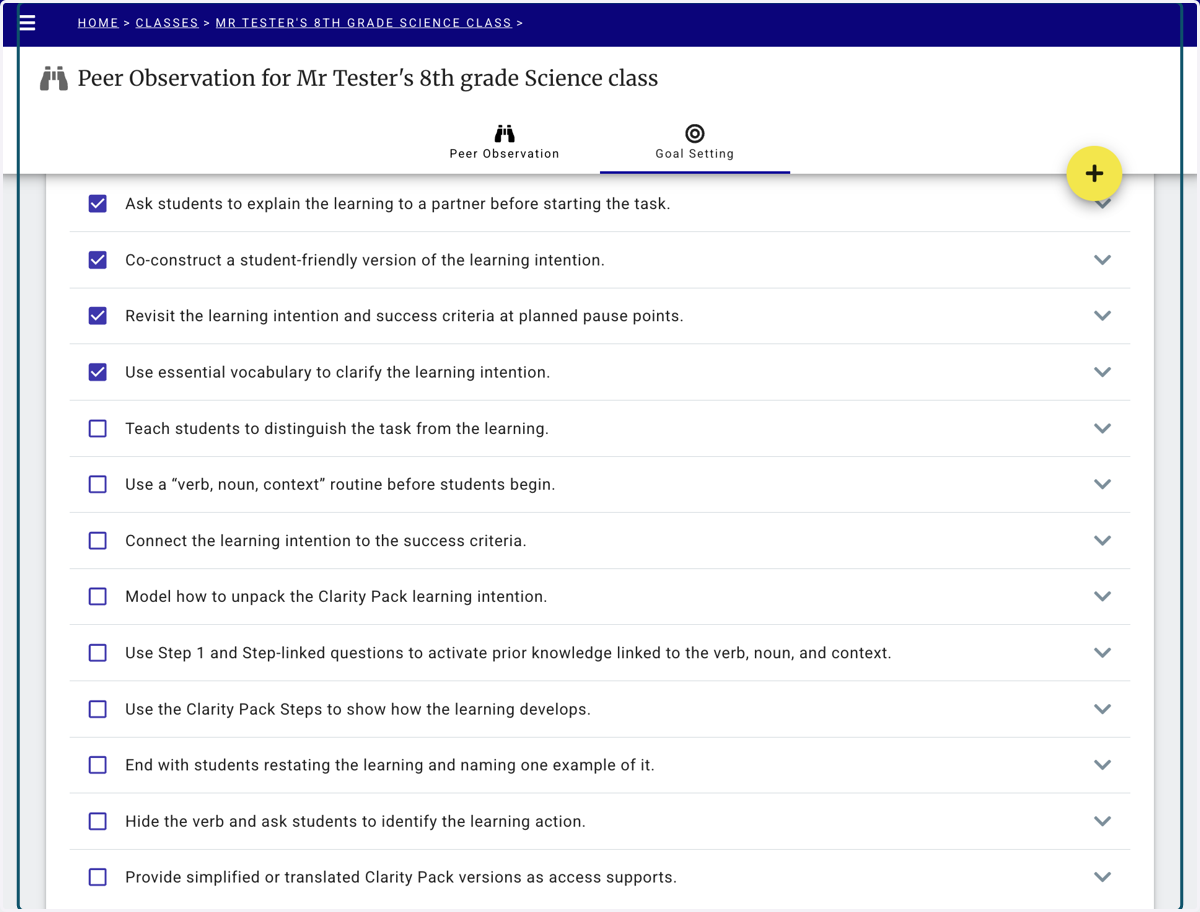
14. Check the boxes to change the actions in your action plan
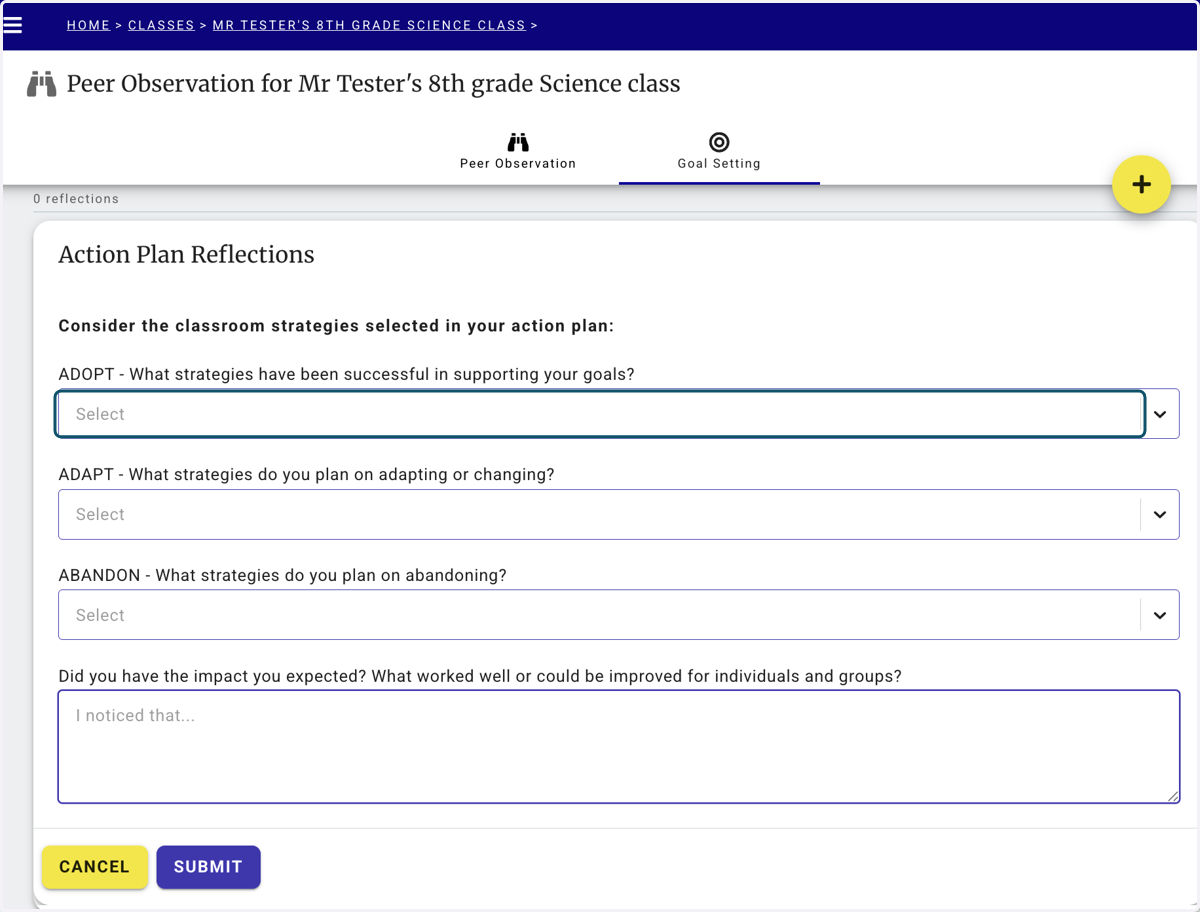
15. As you practice the actions in your class add a reflection to your action plan.
You need to add a reflection before you can complete an action plan
16. To complete a reflection you need to select an action to adopt, adapt or abandon.
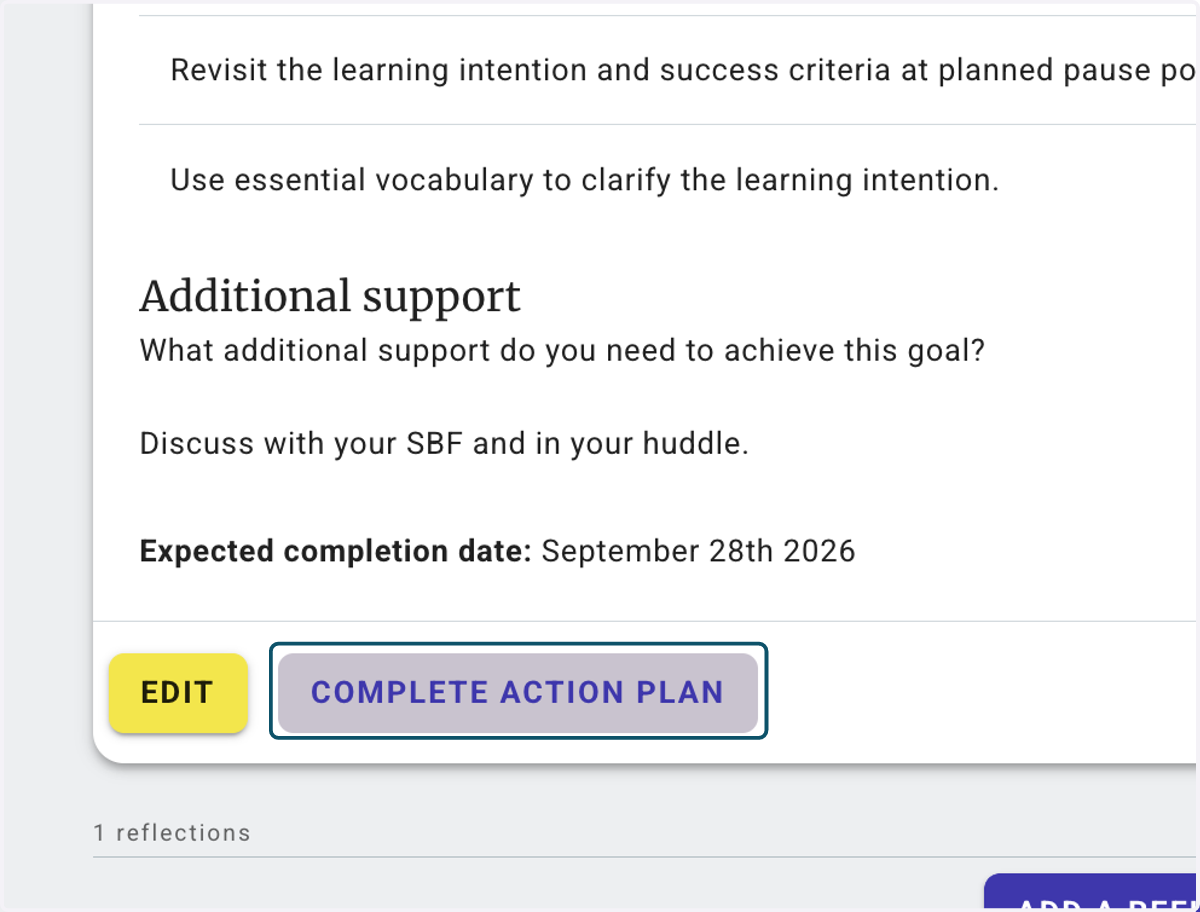
17. Click on COMPLETE ACTION PLAN
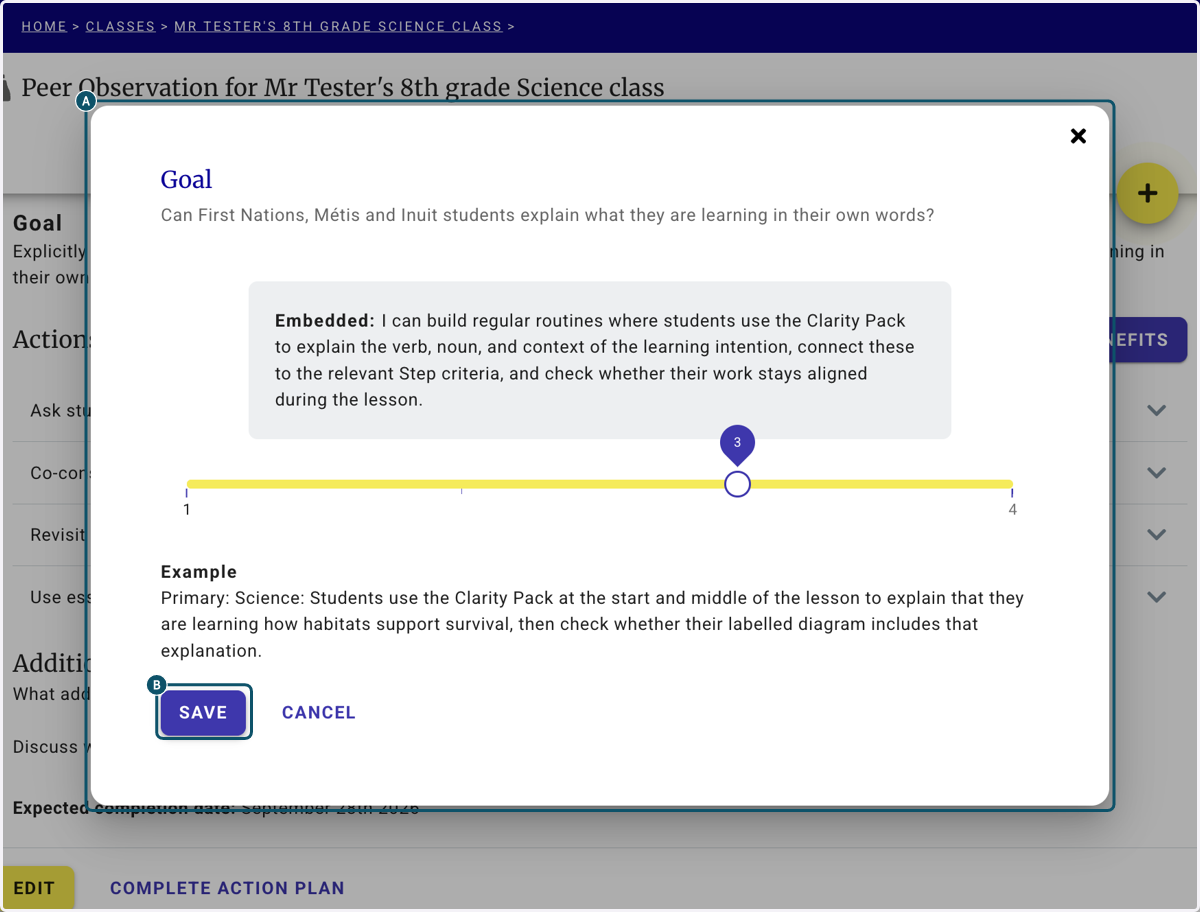
18. A. Use the slider to state where you think you are on the rubric
18. B. An example will appear below to help reflect on your position Click Save to complete the action plan.
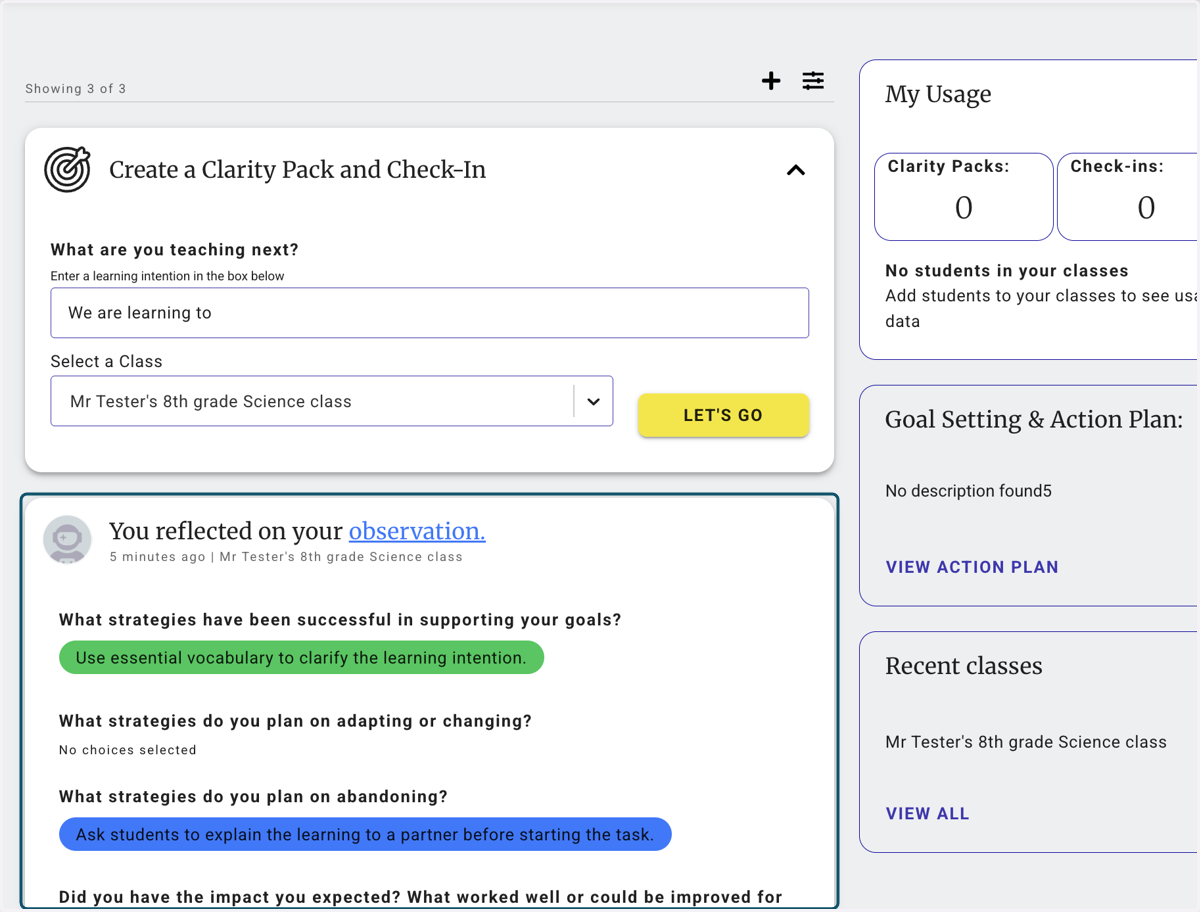
19. Your Action Plan can be accessed from your homepage at any time by clicking on view action plan.
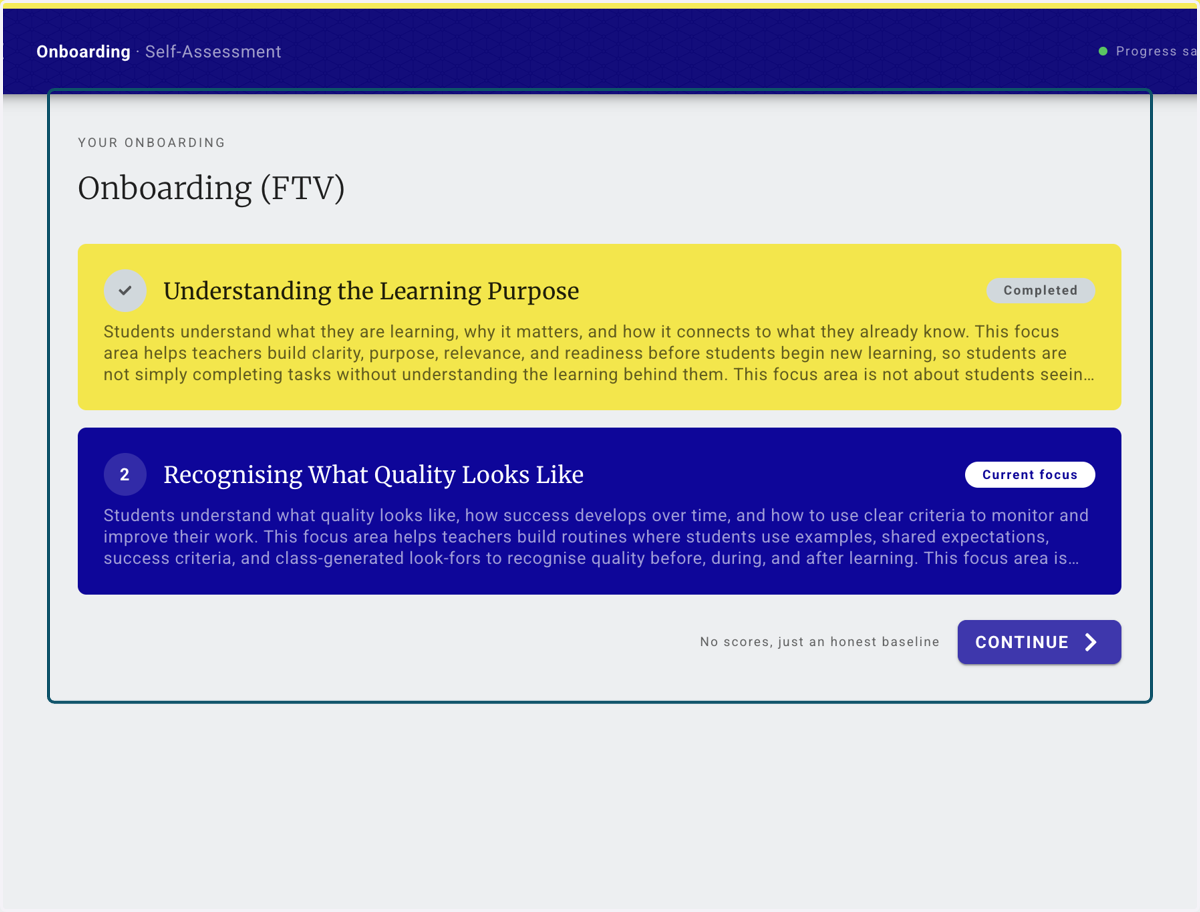
20. When you next access your Self-Assessment from the main menu, the first component will now be completed and the second component will be unlocked.
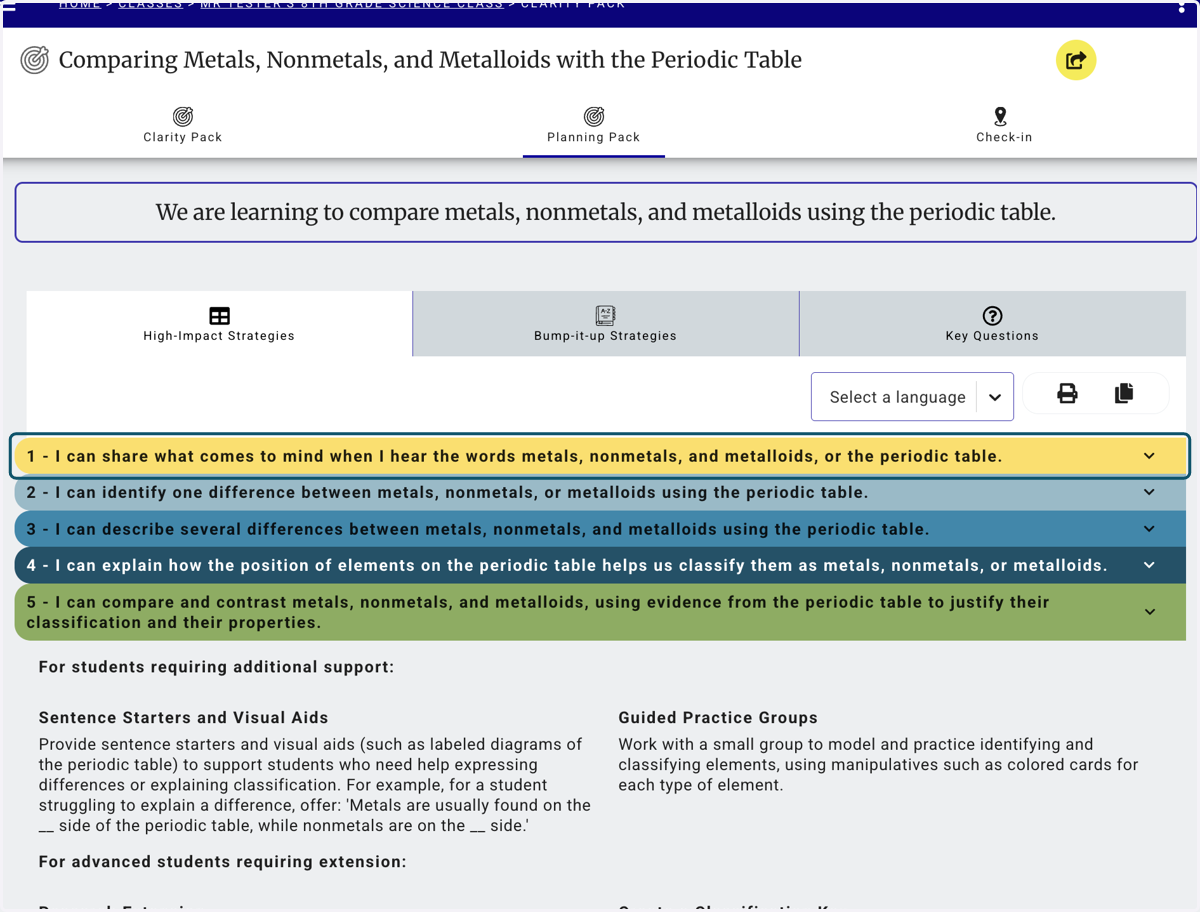
21. In you Clarity Pack on the Planning pack tab you will find contextual methods for implementing the Actions form your action plan
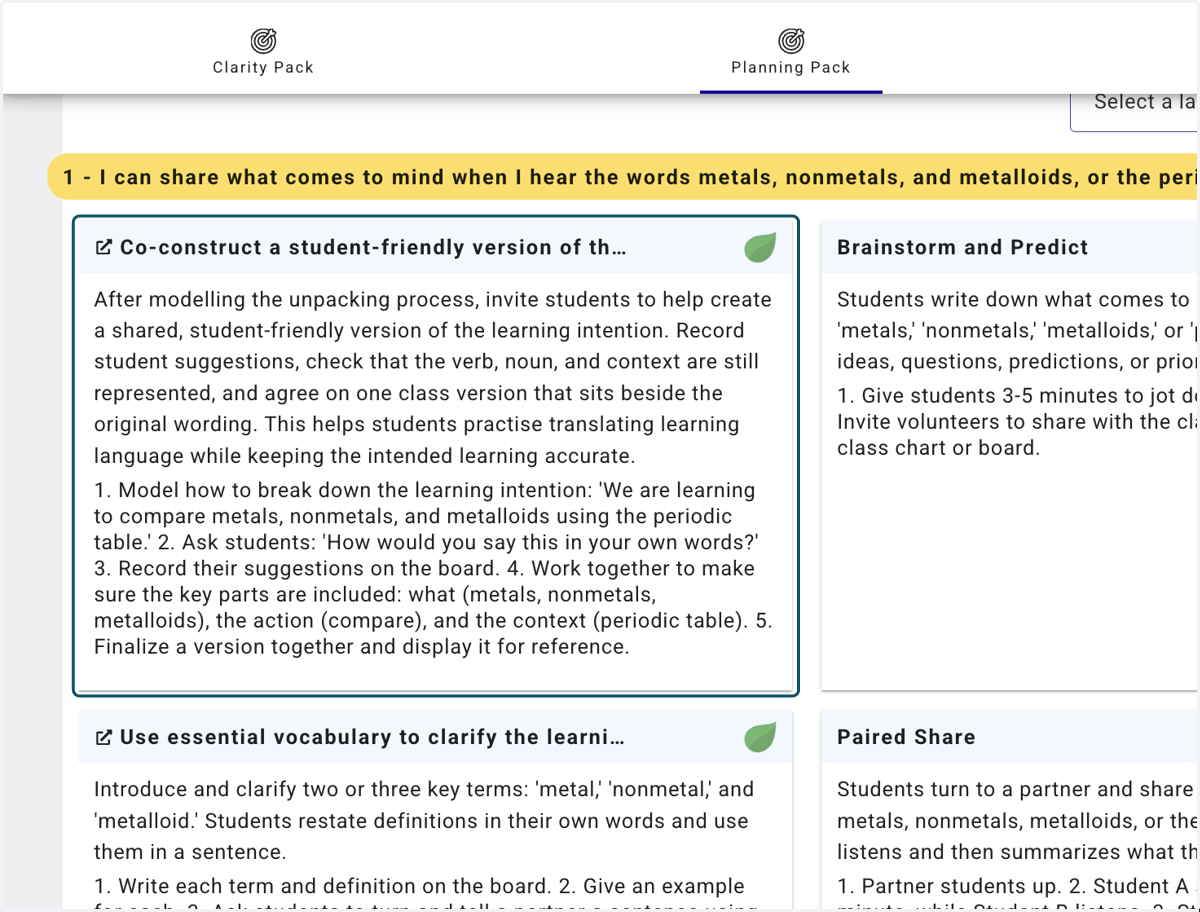
22. Actions from your action plan are shown with the green leaf icon
Click on the elaborate icon to the left of the Action title to expand.
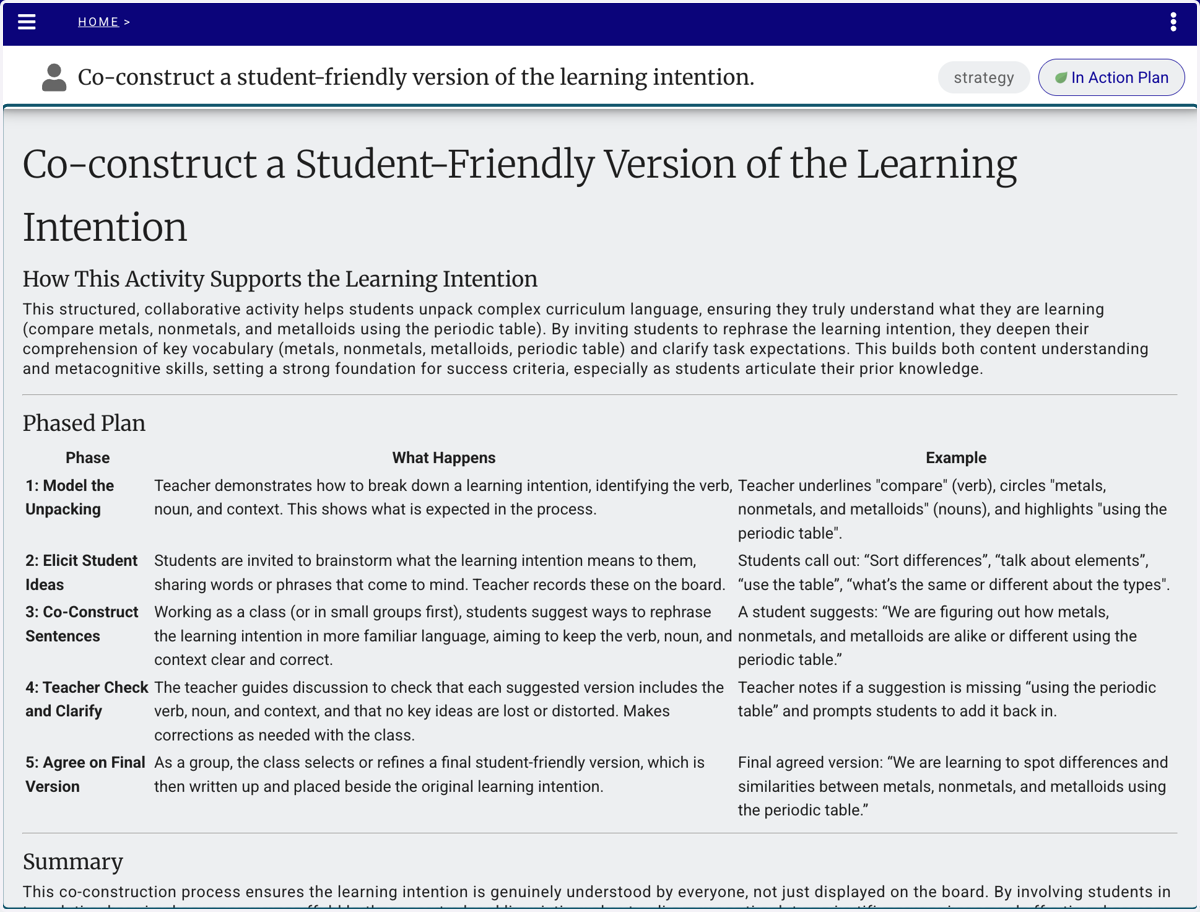
23. The elaboration will load in a new window and provide the full implementation guide.