Creating Device Subcategory Custom Field - Connect Platform

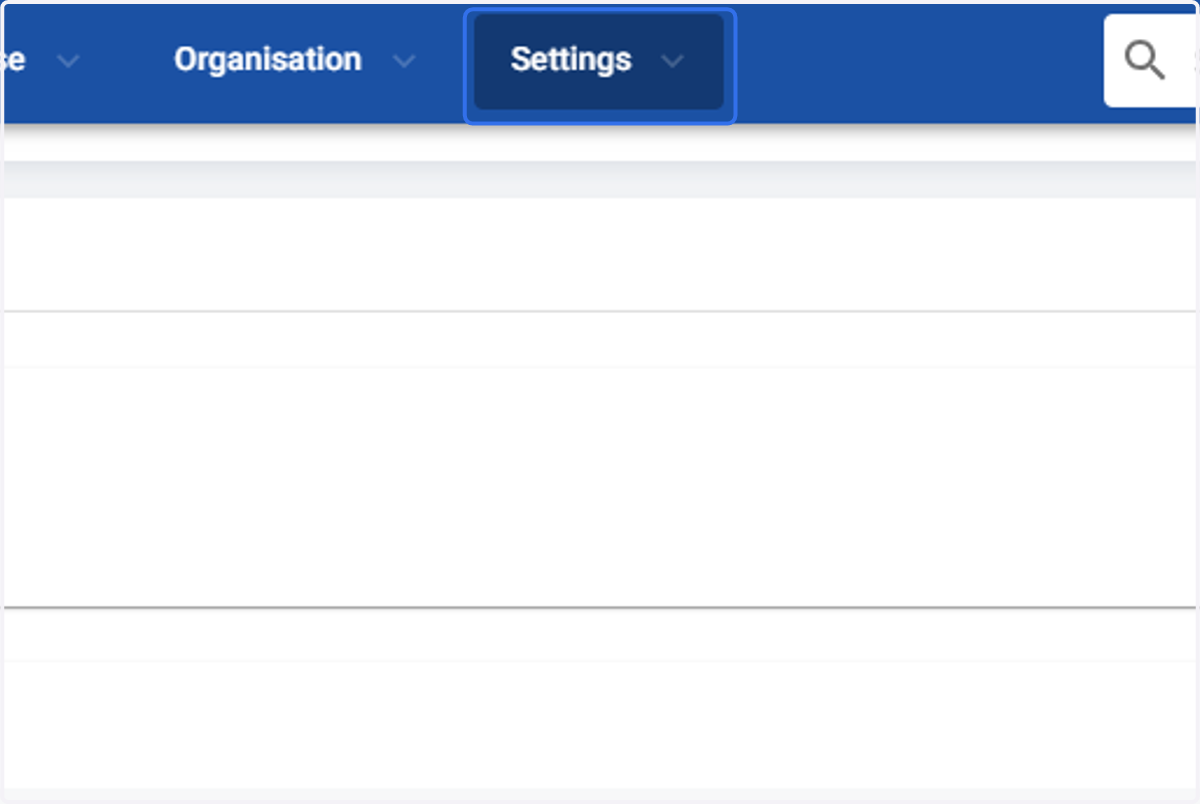
  1. 1. Click on Settings

    Click on Settings
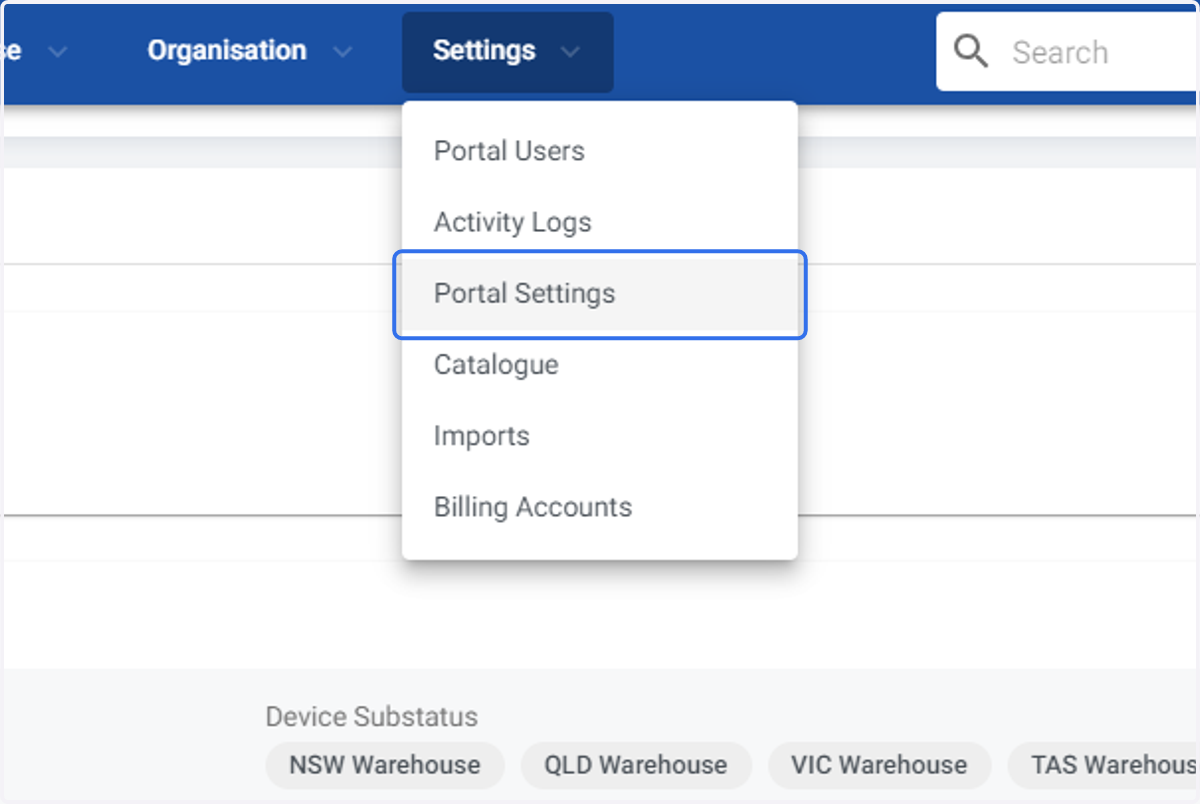
  2. 2. Click on Portal Settings

    Click on Portal Settings
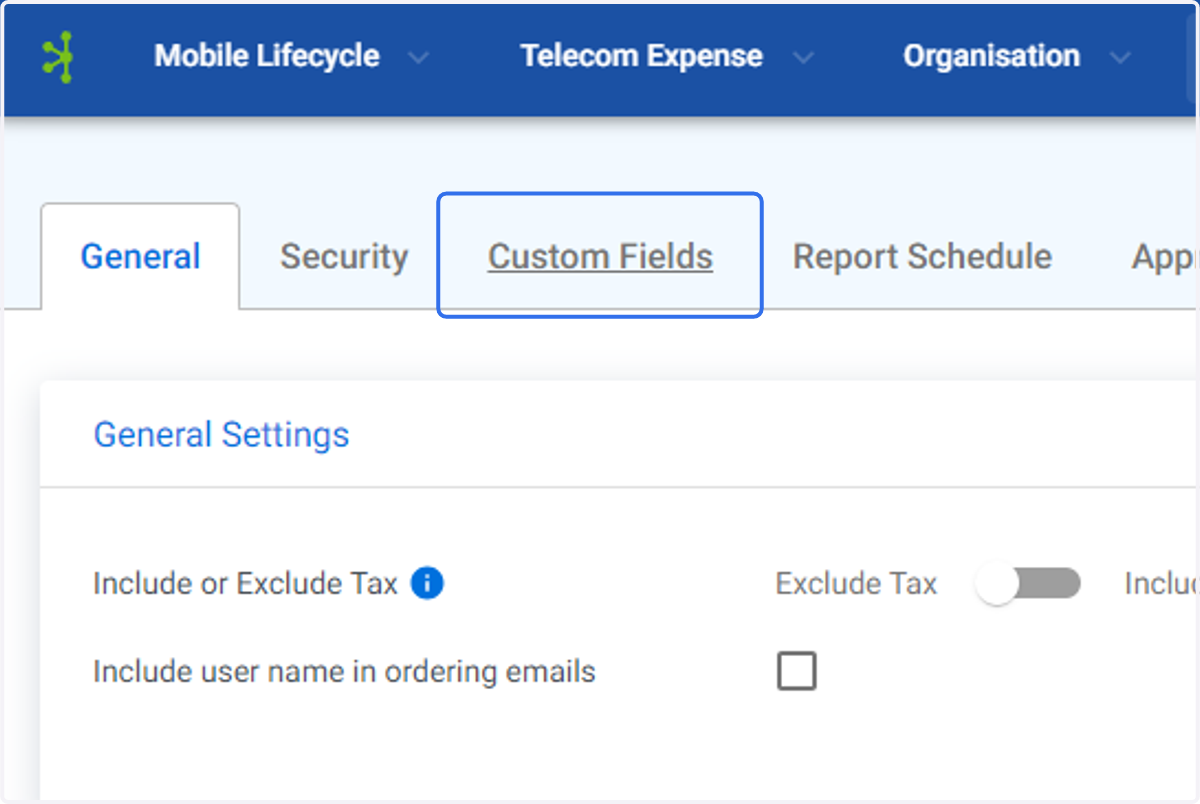
  3. 3. Click on Custom Fields

    Click on Custom Fields
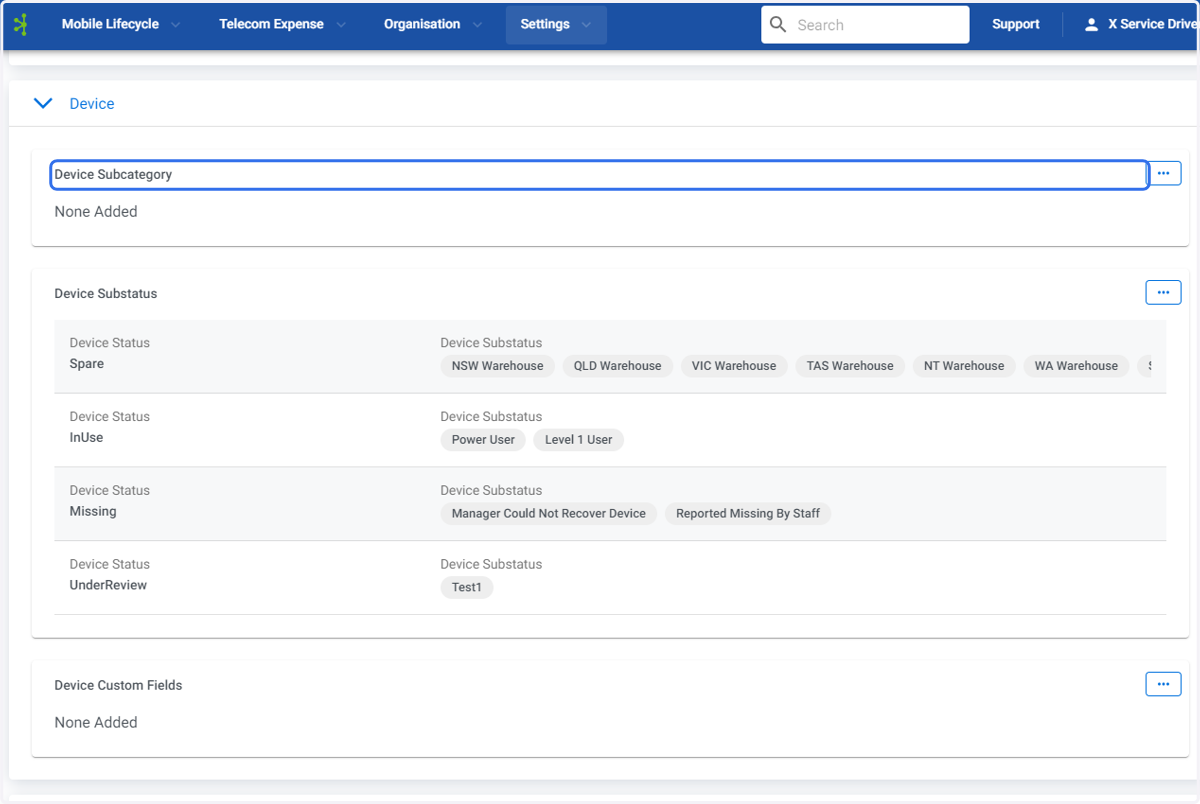
  4. 4. Click on Device Subcategory

    Click on Device Subcategory
  5. 5. Click on Device Subcategory options menu.
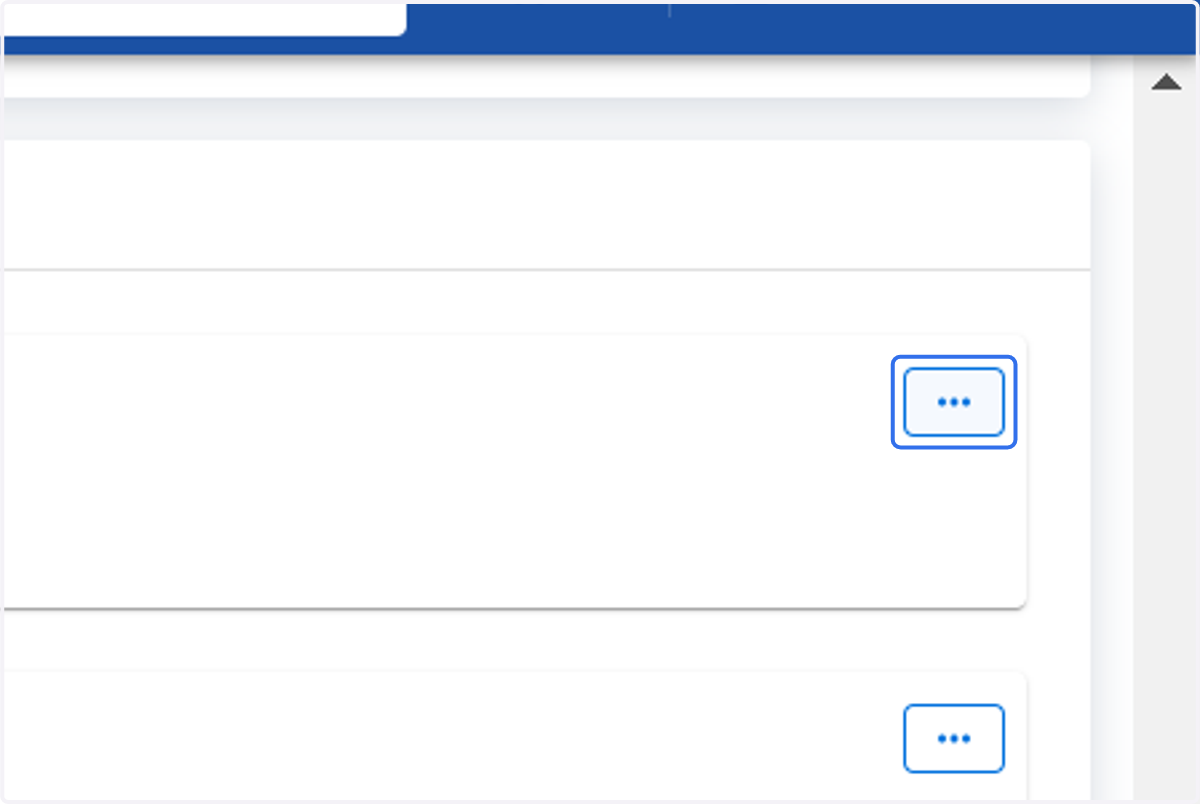
    Click on Device Subcategory options menu.
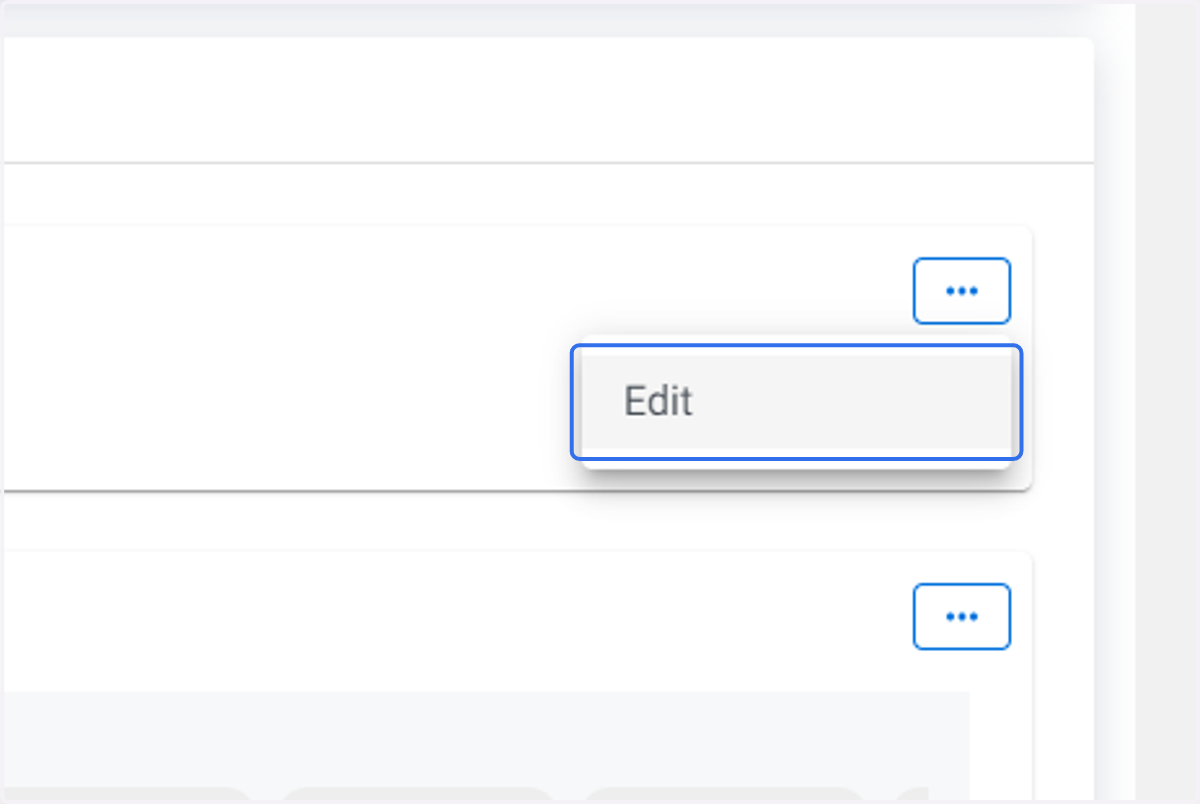
  6. 6. Click on Edit

    Click on Edit
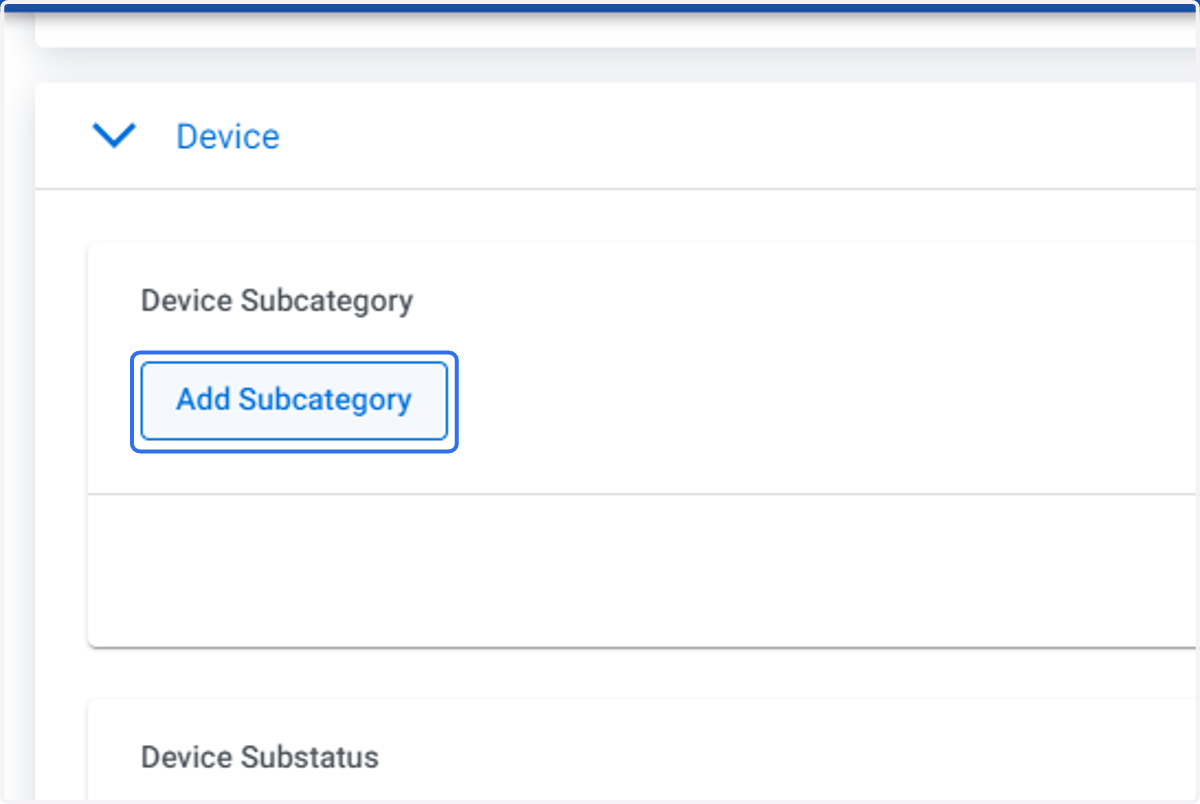
  7. 7. Click on Add Subcategory

    Click on Add Subcategory
  8. 8. Click on the Device Category drop down.
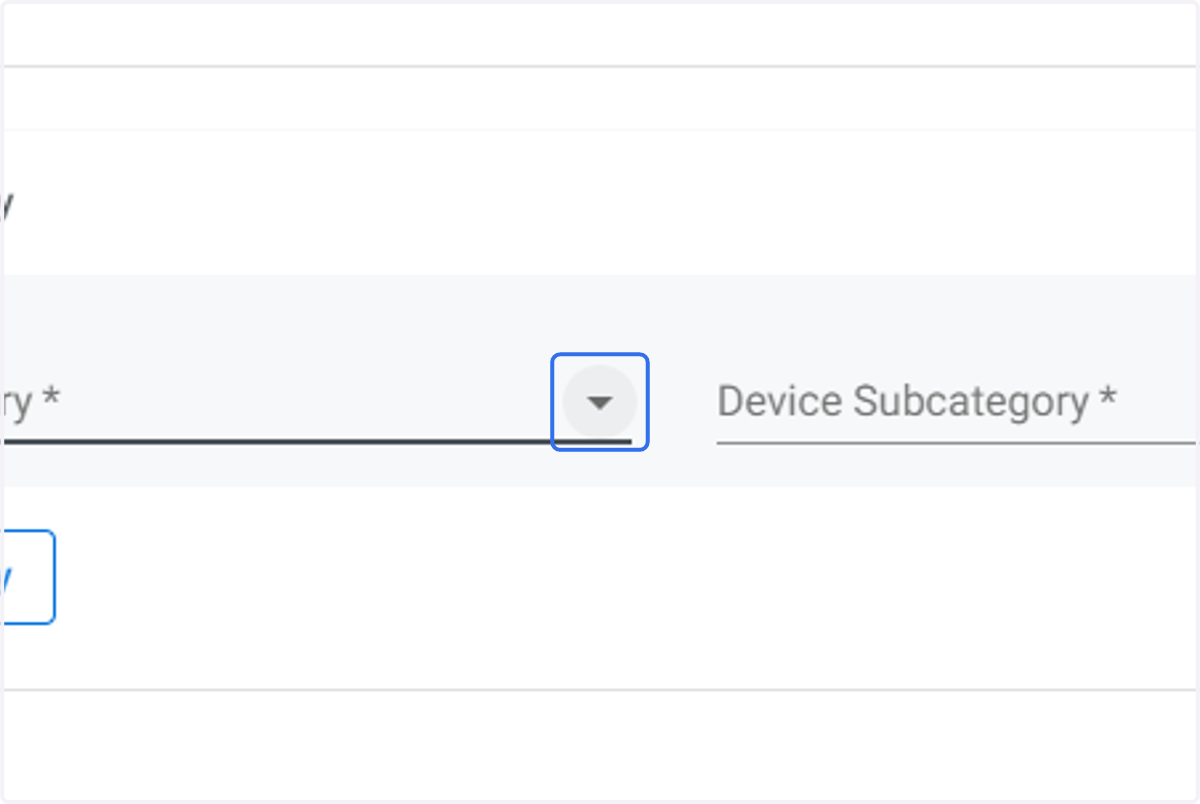
    Click on the Device Category drop down.
  9. 9. Click on the Device Category you wish to create a Subcategory for.
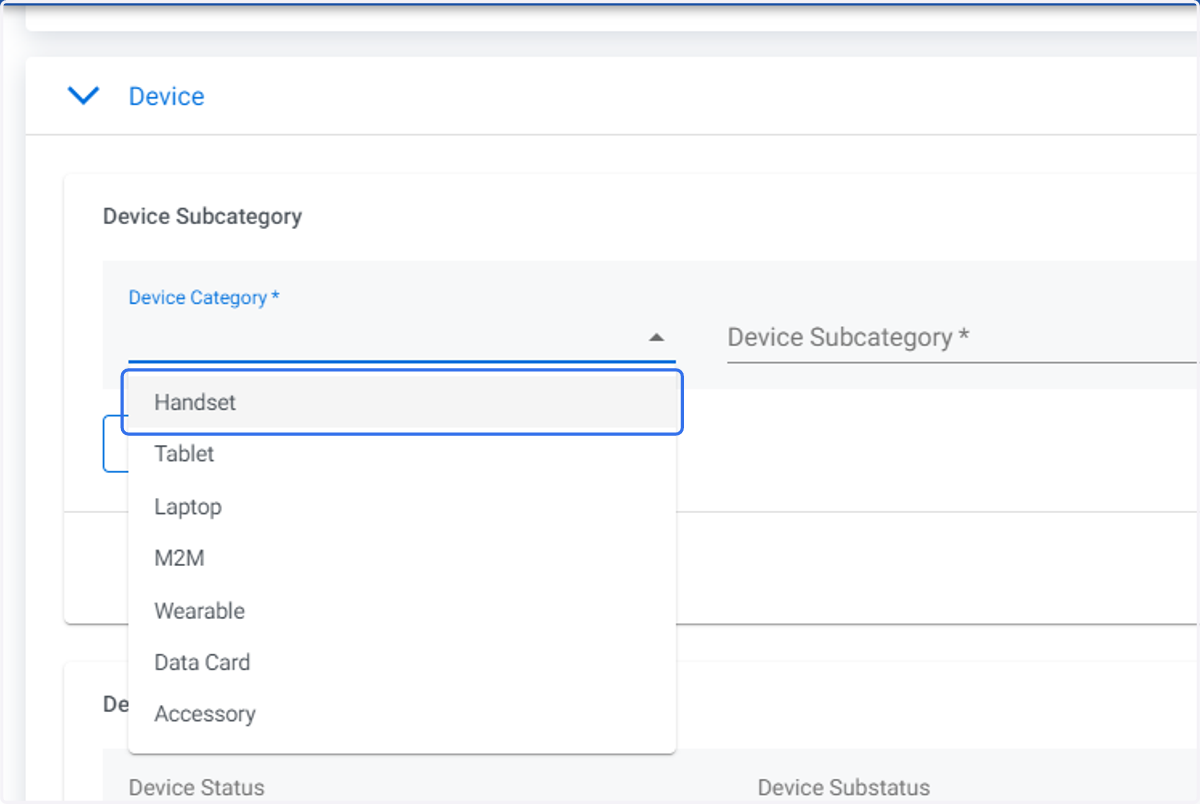
    Click on the Device Category you wish to create a Subcategory for.
  10. 10. Type in the name of the Device Subcategory you wish to create. Select Enter after each Subcategory.
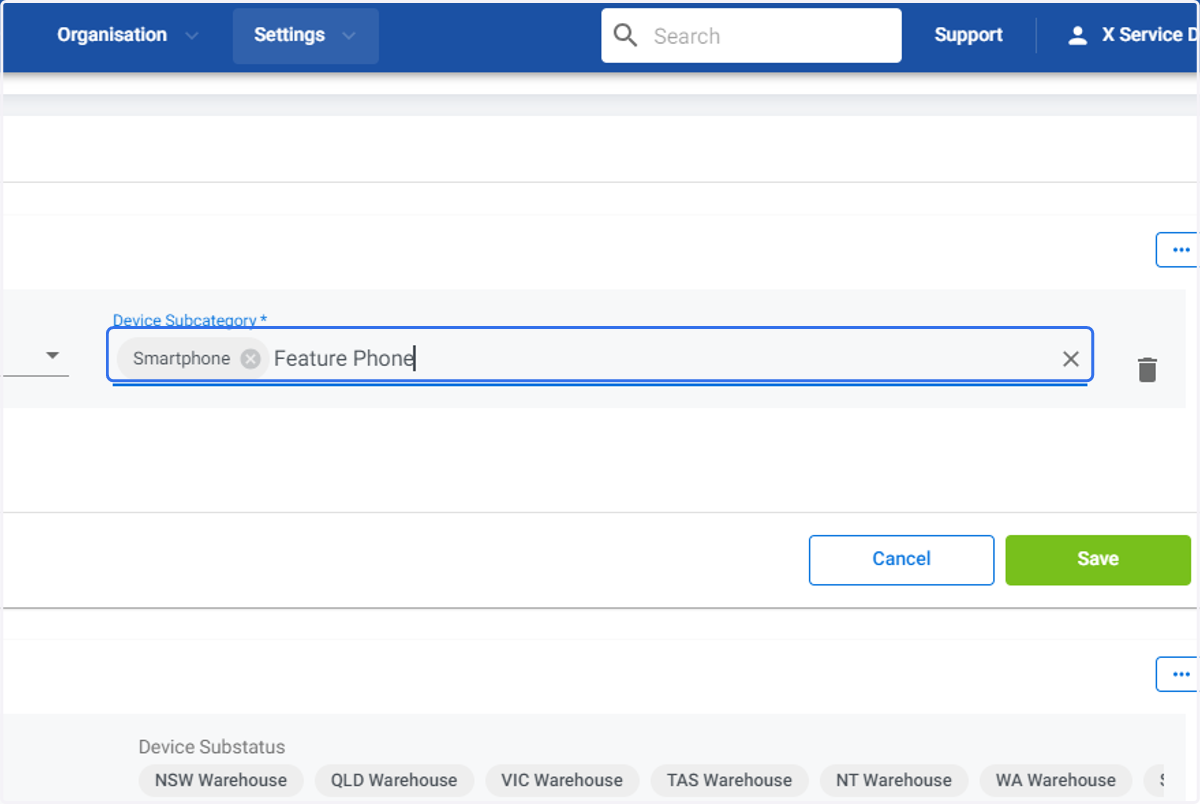
    Type in the name of the Device Subcategory you wish to create. Select Enter after each Subcategory.
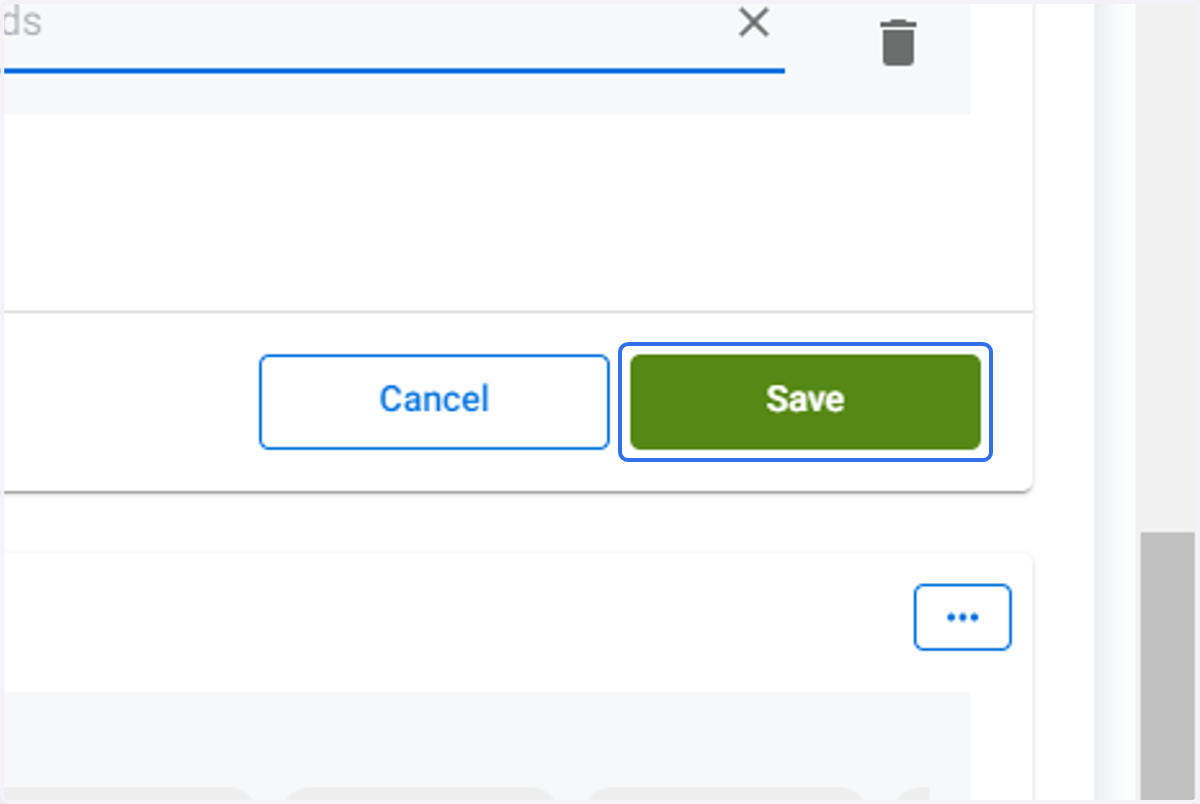
  11. 11. Click on Save

    Click on Save
  12. 12. The newly created Device Subcategory will be displayed.
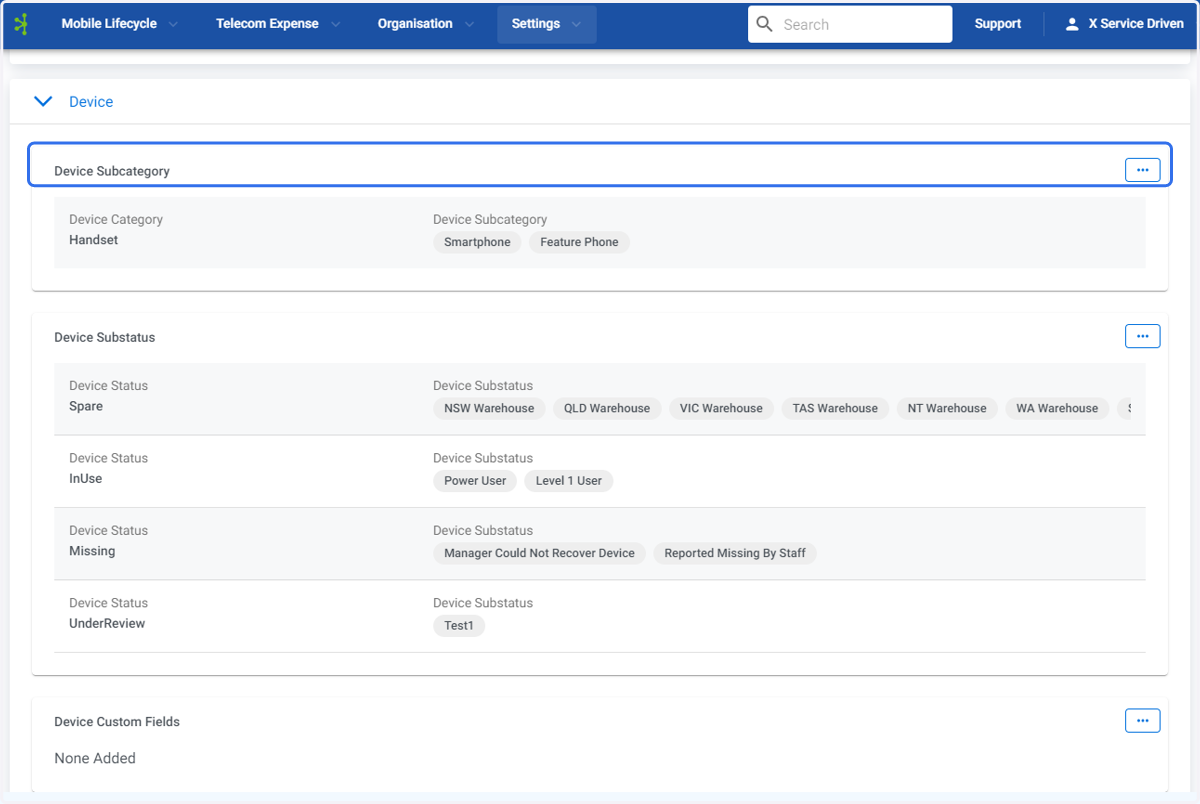
    The newly created Device Subcategory will be displayed.