3.4 How to create and managing Fiscal Positions
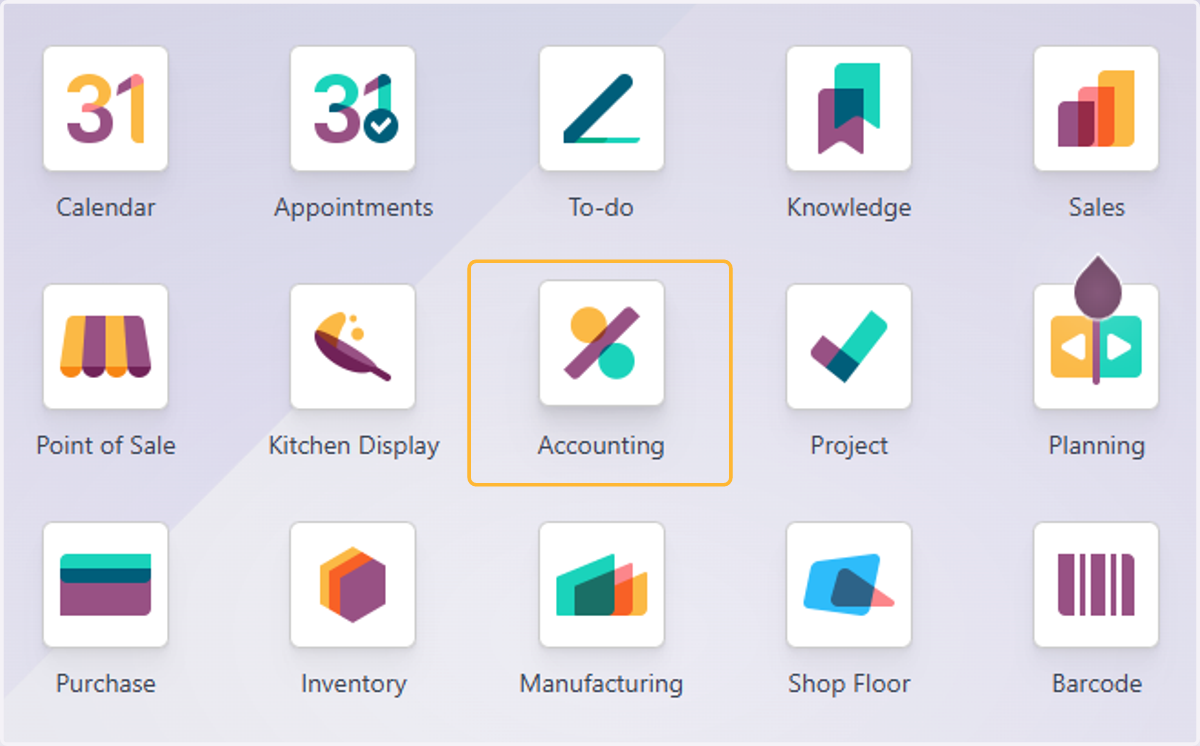
1. Click on Accounting
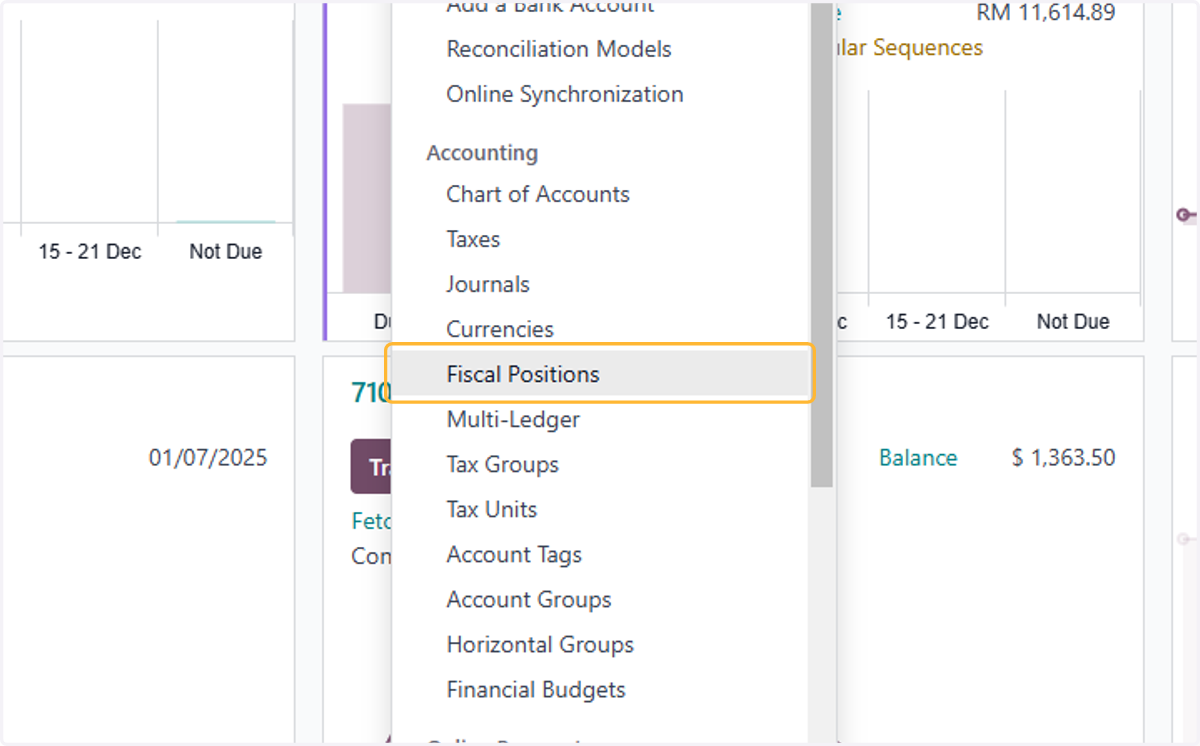
2. Click on Fiscal Positions
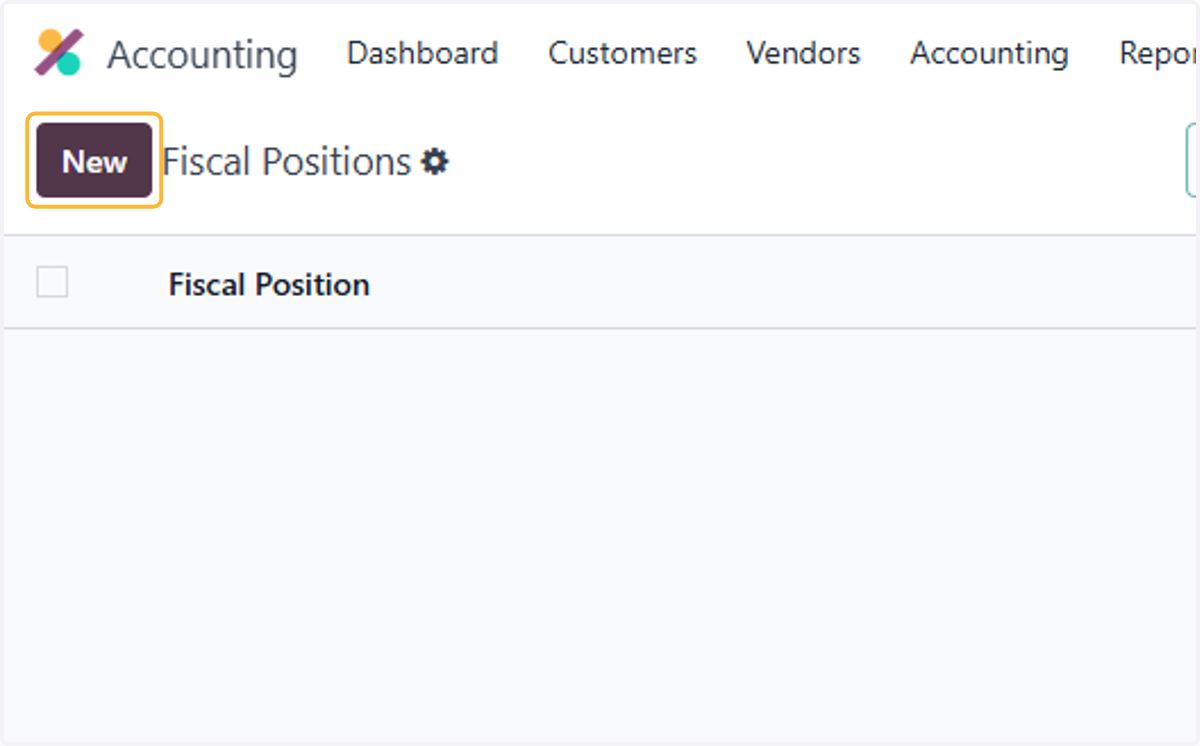
3. Click on New
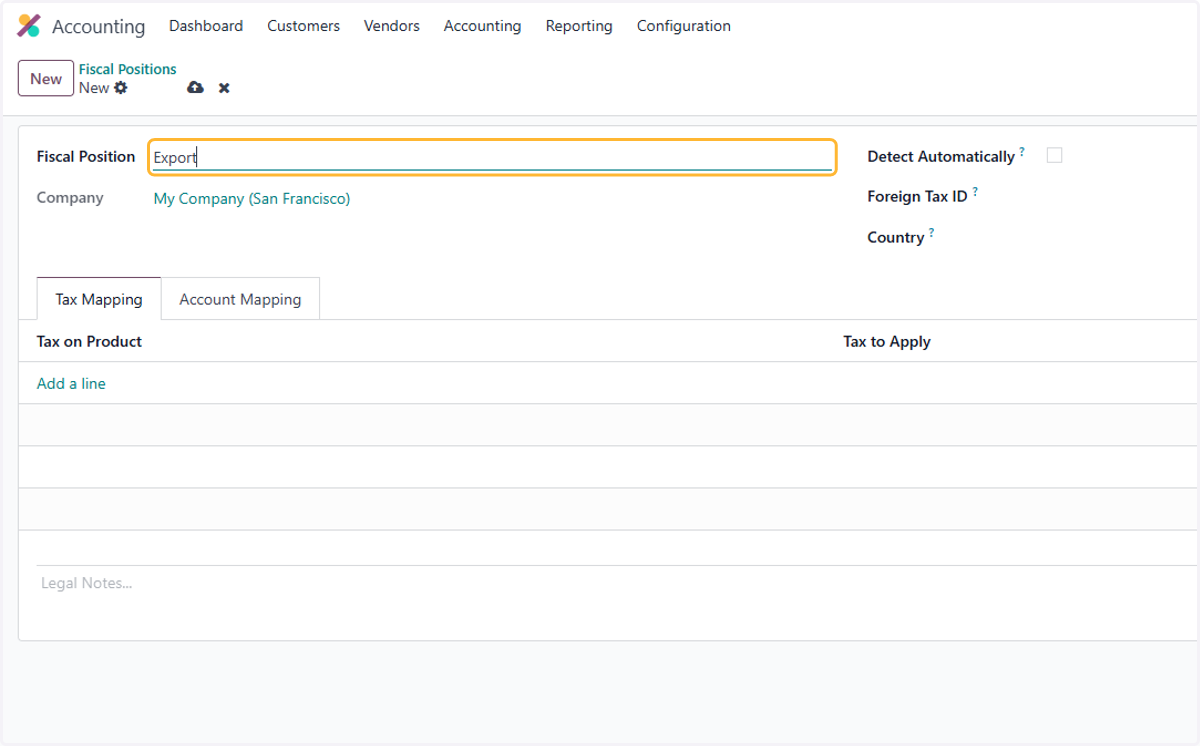
4. Fill in name for Fiscal Position
5. Check Detect Automatically If you want the following settings to always apply
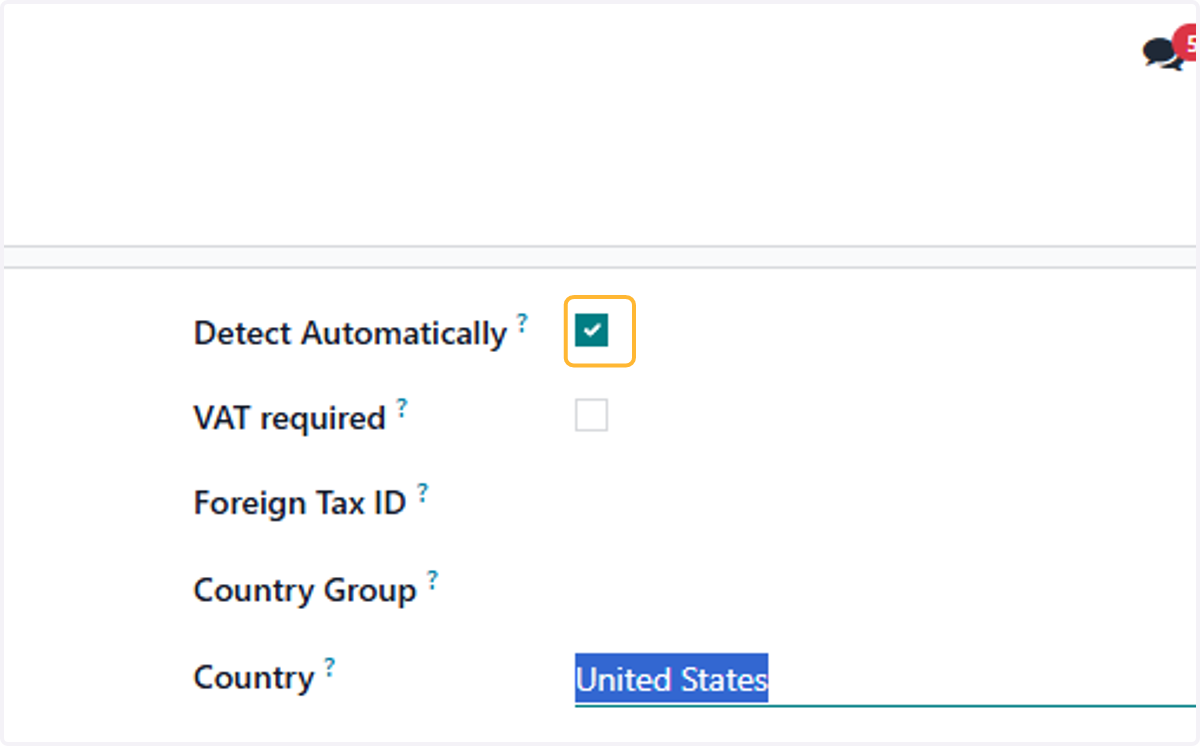
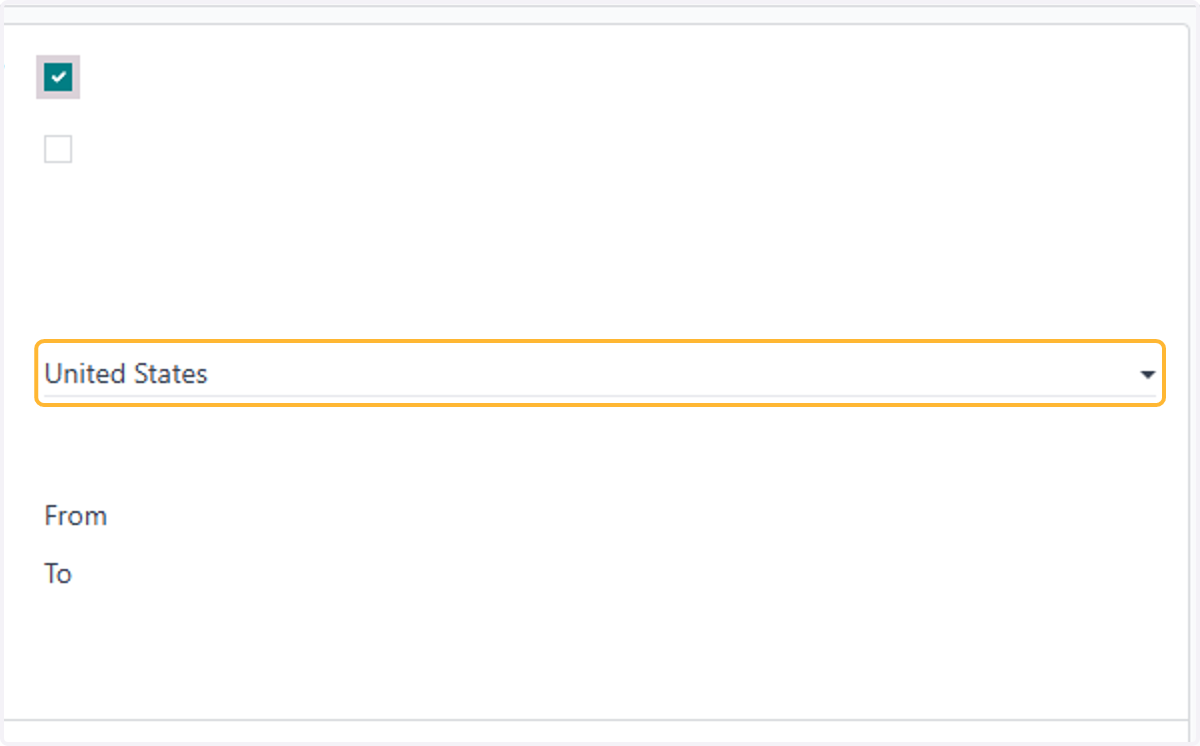
6. Select country
This will enable any contact in selected country to automatically apply this fiscal Position.
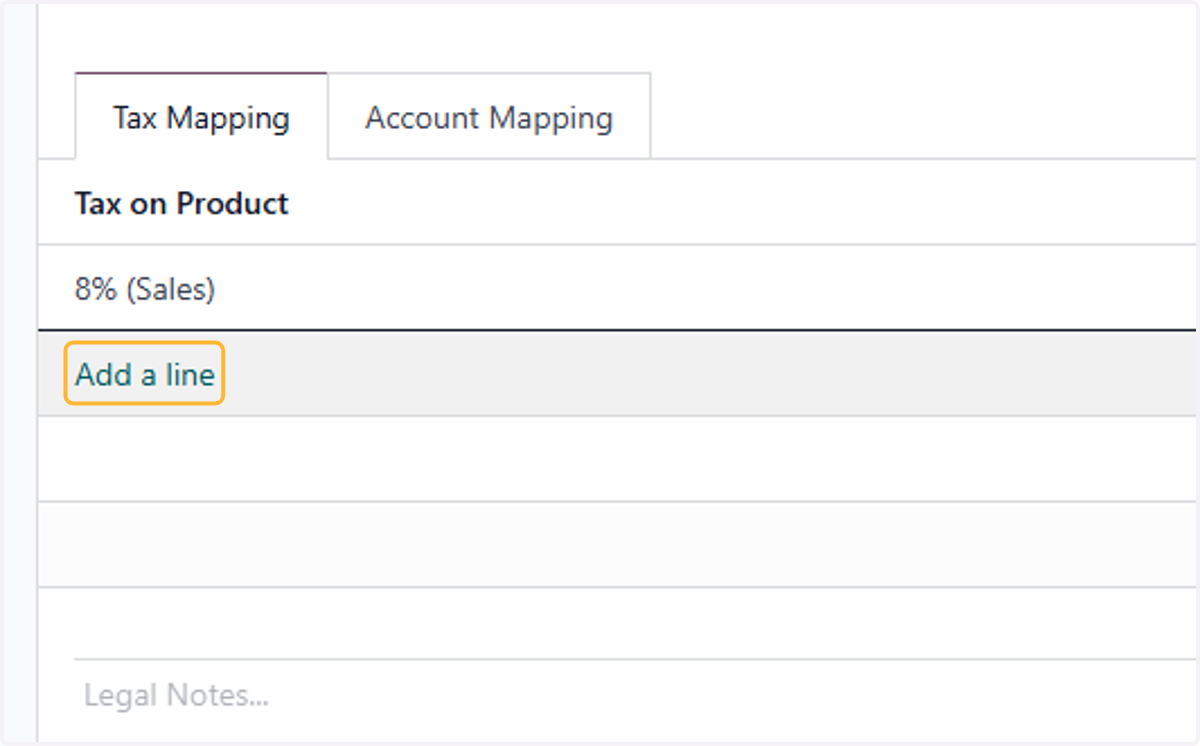
7. Click on Add a line
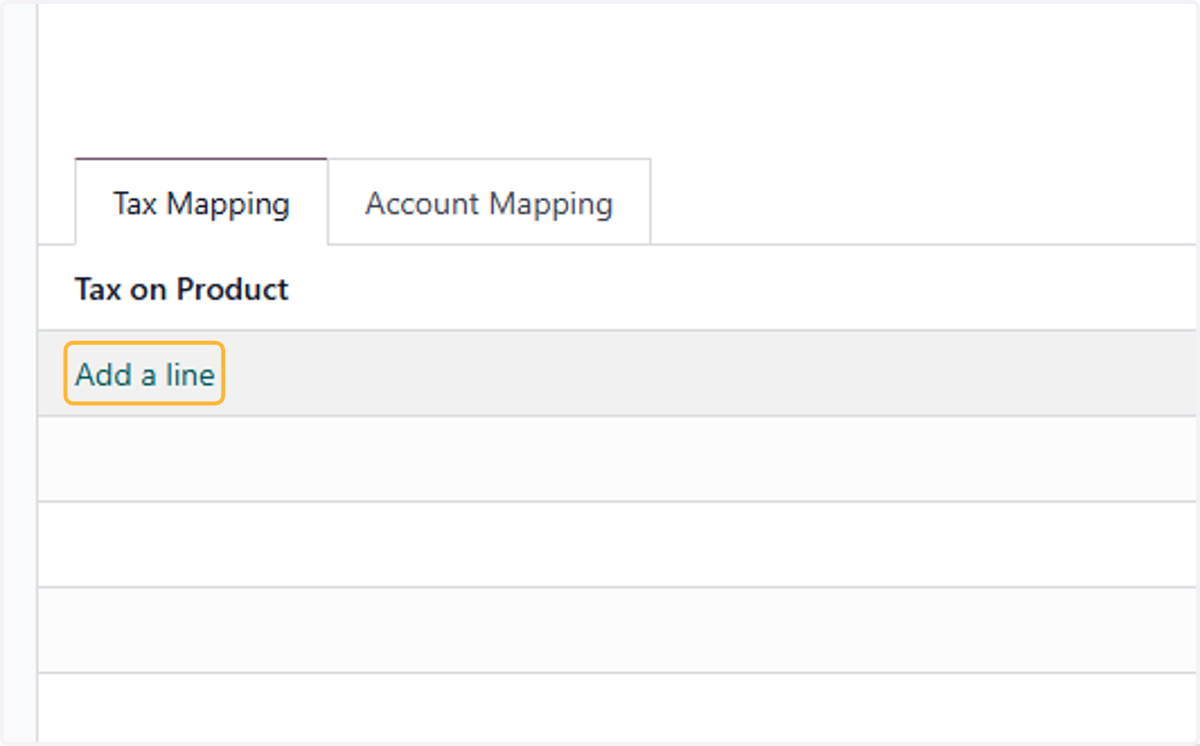
8. Select tax will be replaced
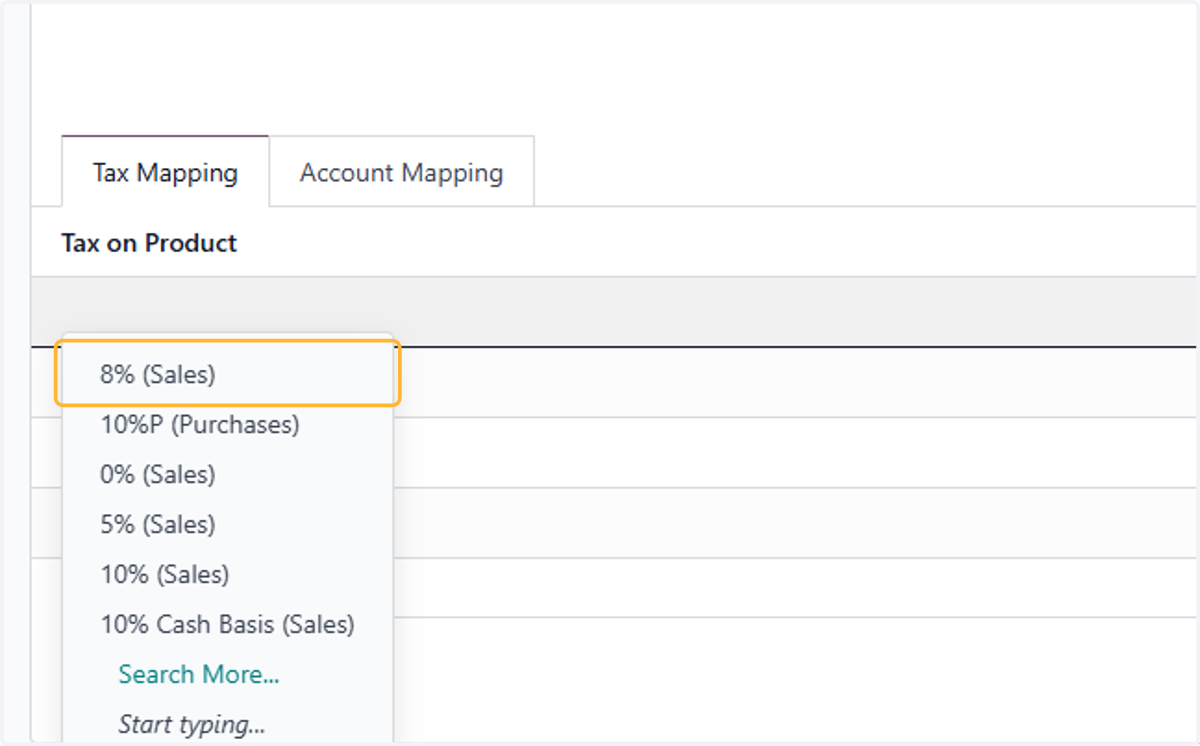
9. Select tax that will applied
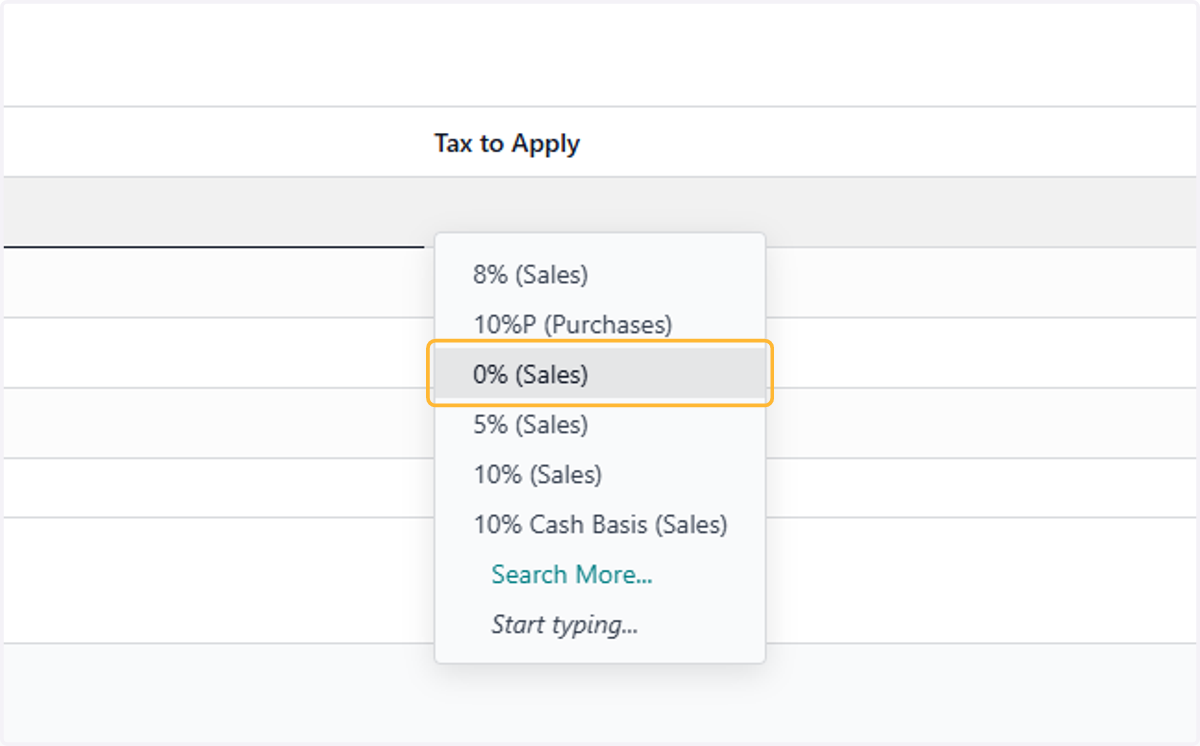
10. Repeat step 7 & 8 for as many different taxes that apply
11. Click on Account Mapping
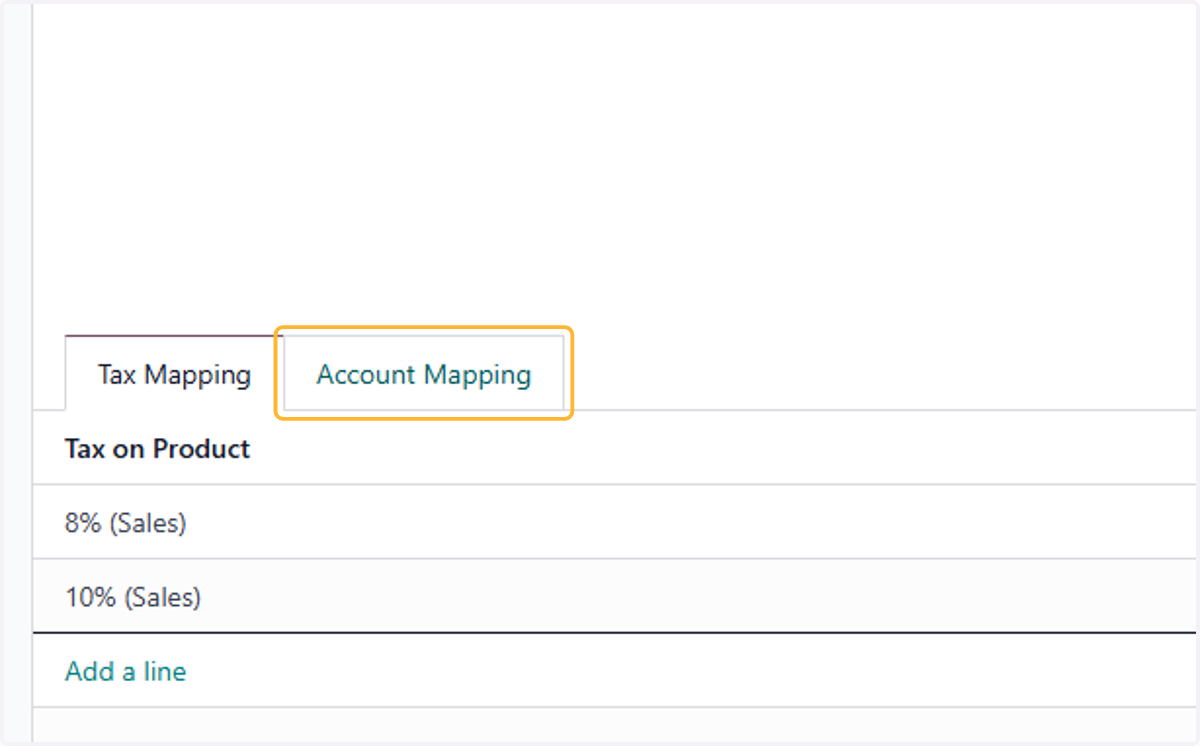
12. Click on Add a line
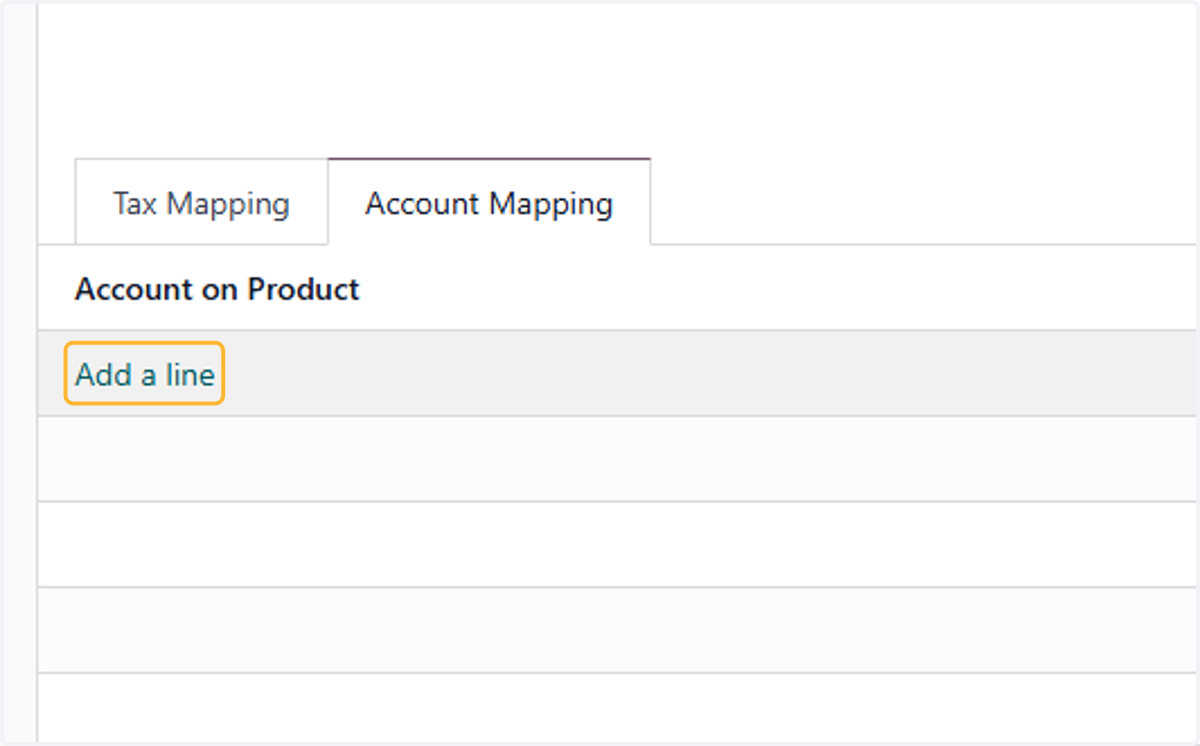
13. Select income account that will be replaced
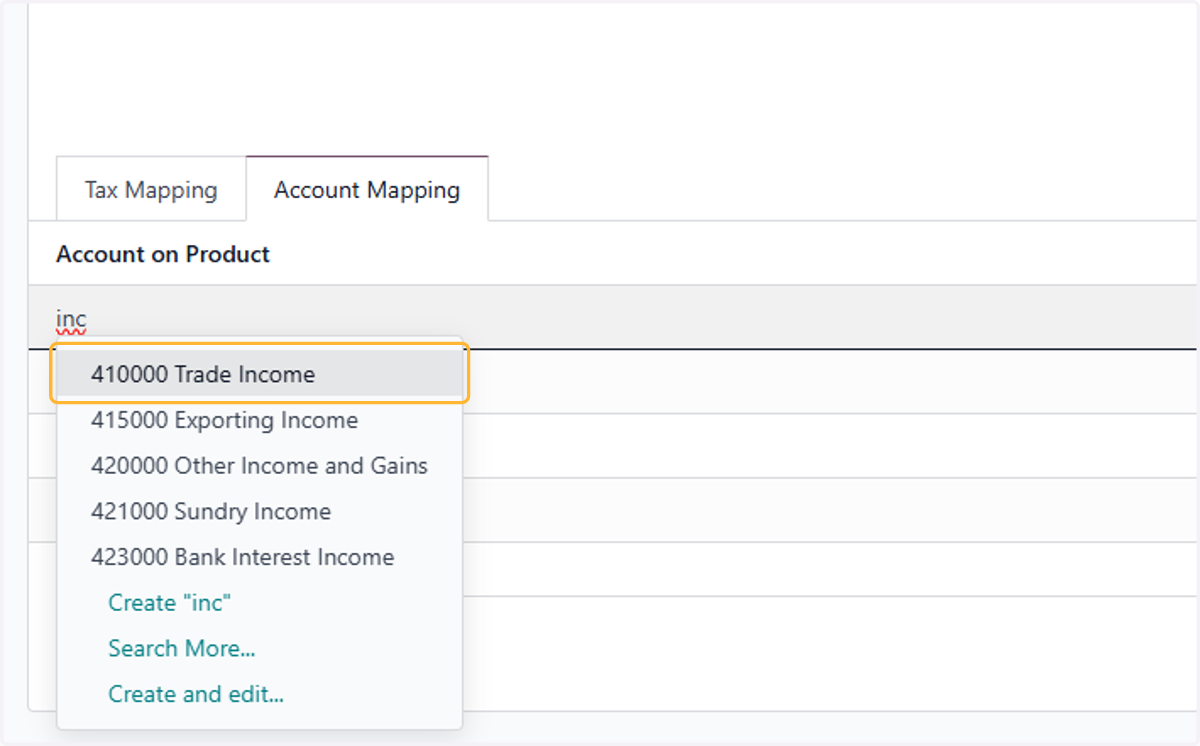
14. Select income account that will be applied
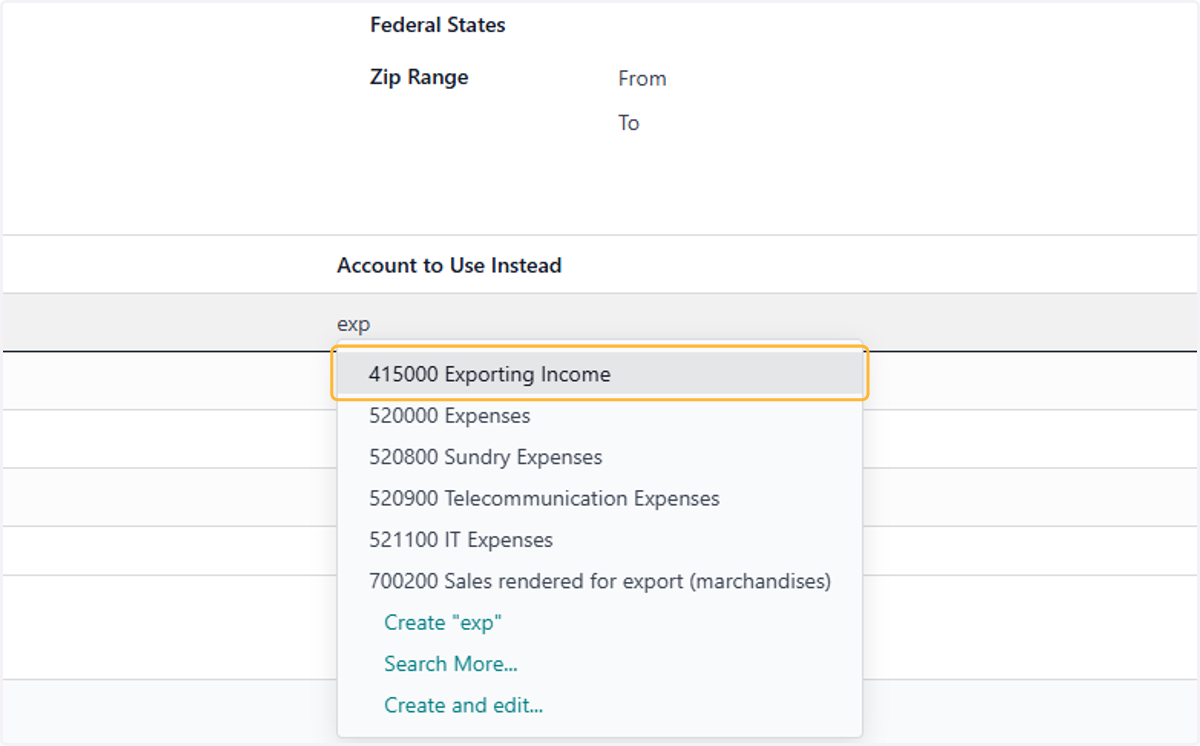
15. Click on Save manually
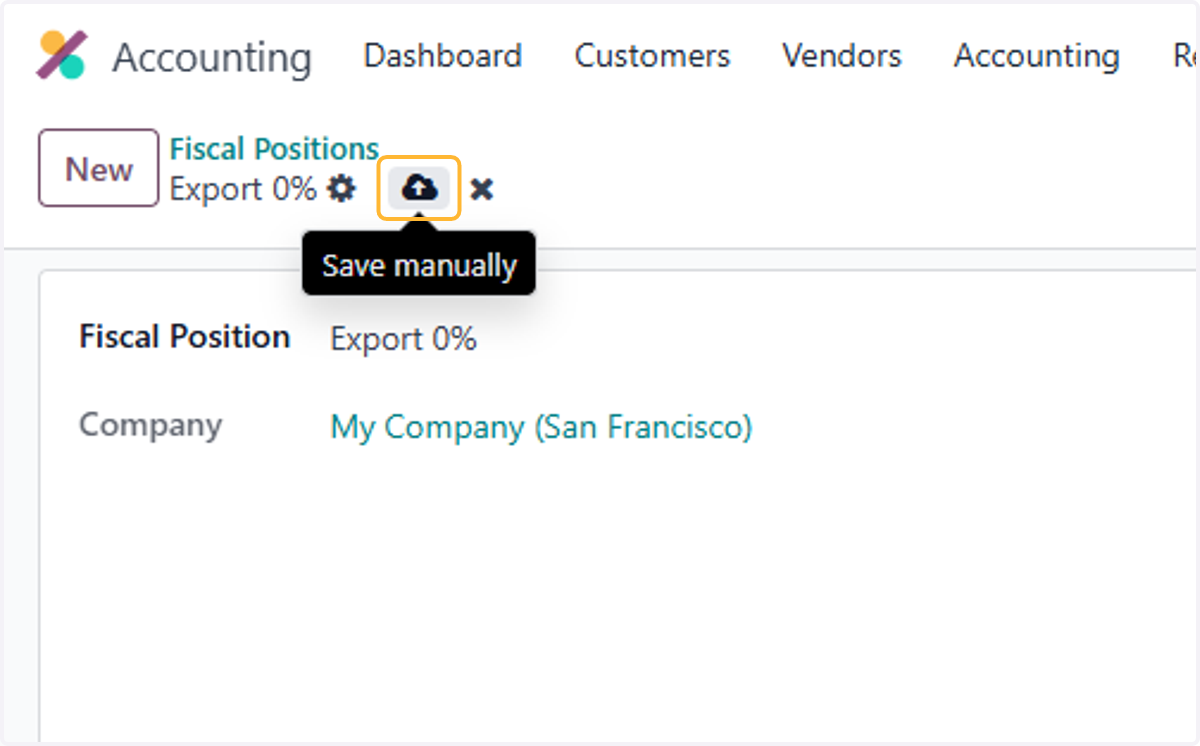
Example of how it'll appear in the invoice
16. Click on Customers
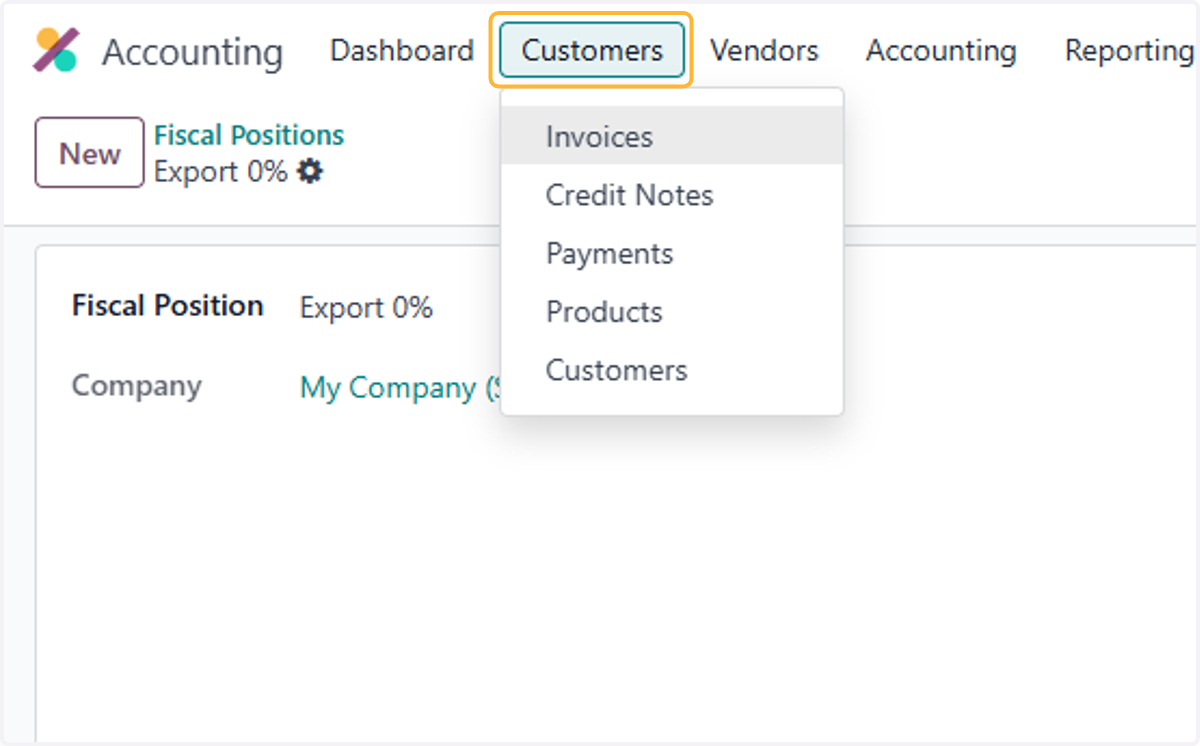
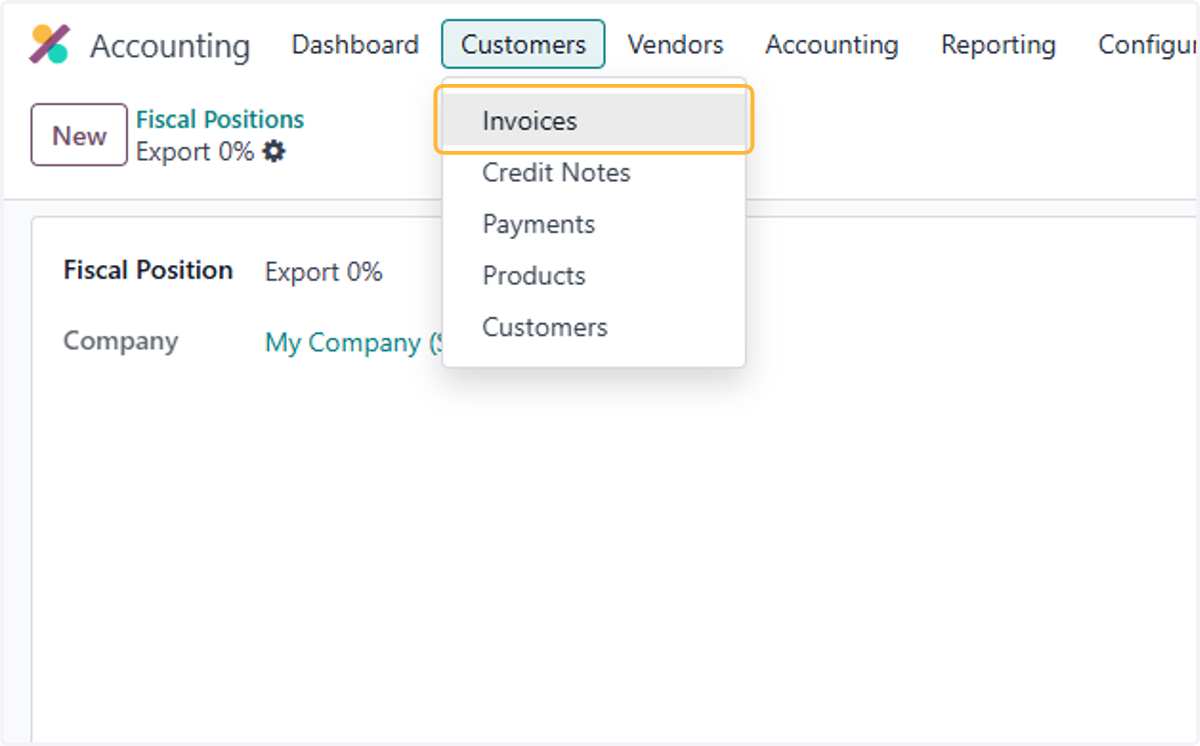
17. Click on Invoices
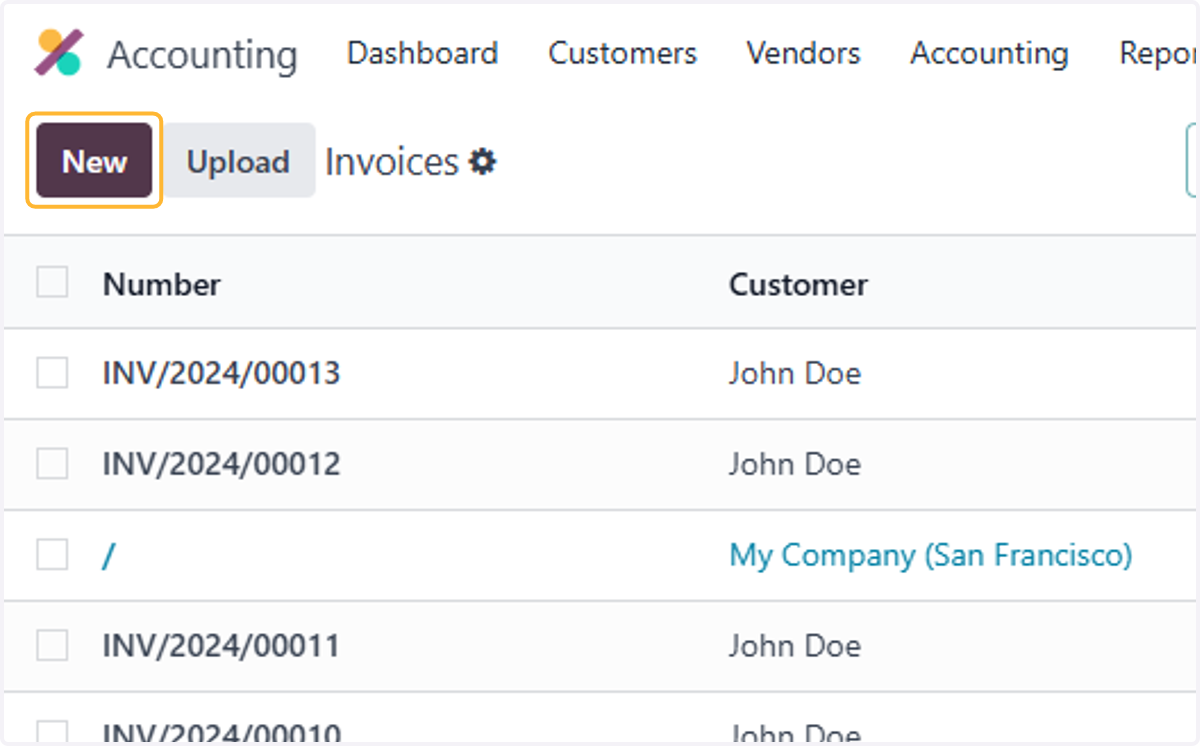
18. Click on New
19. Click on Add a line
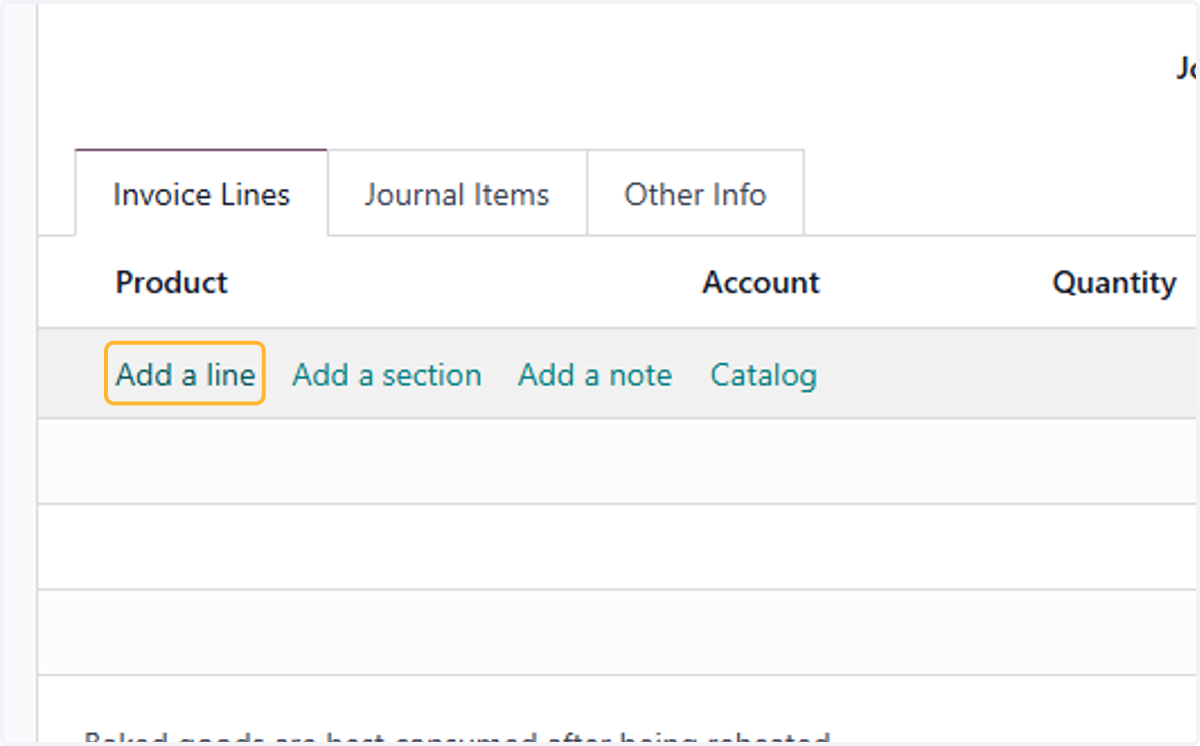
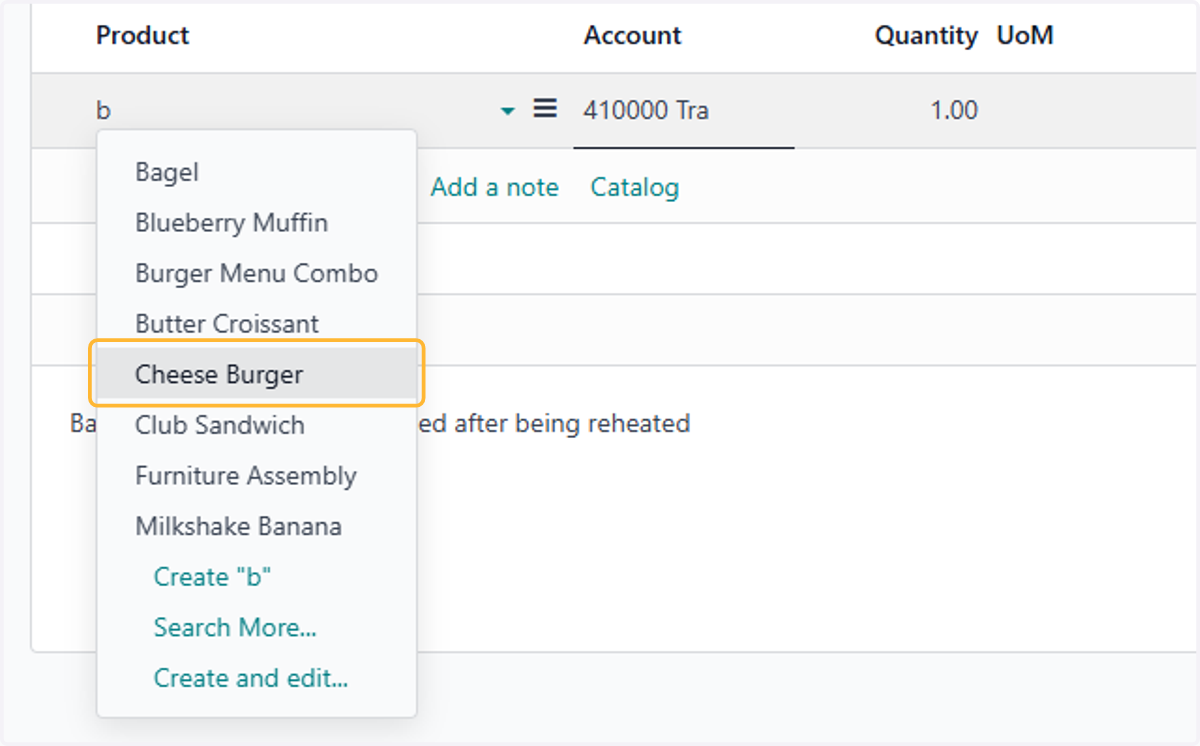
20. Select relevant product. For example Cheese burger
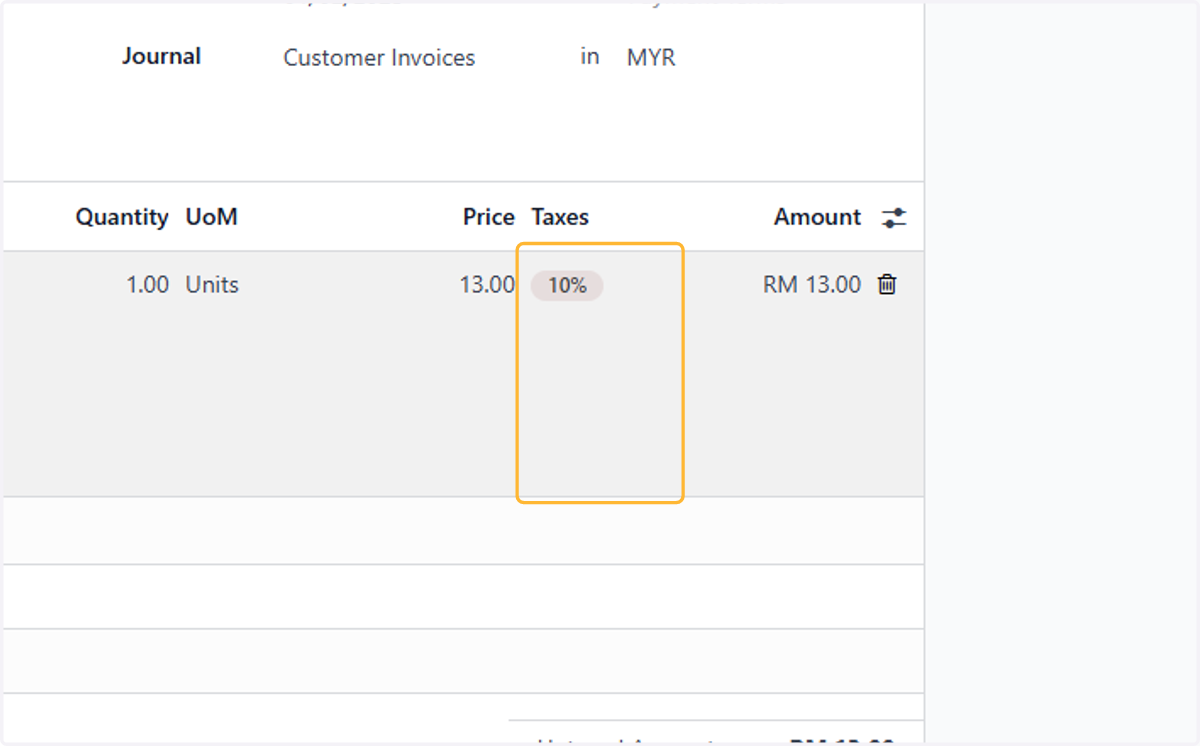
21. The default taxes for this product will still be applied
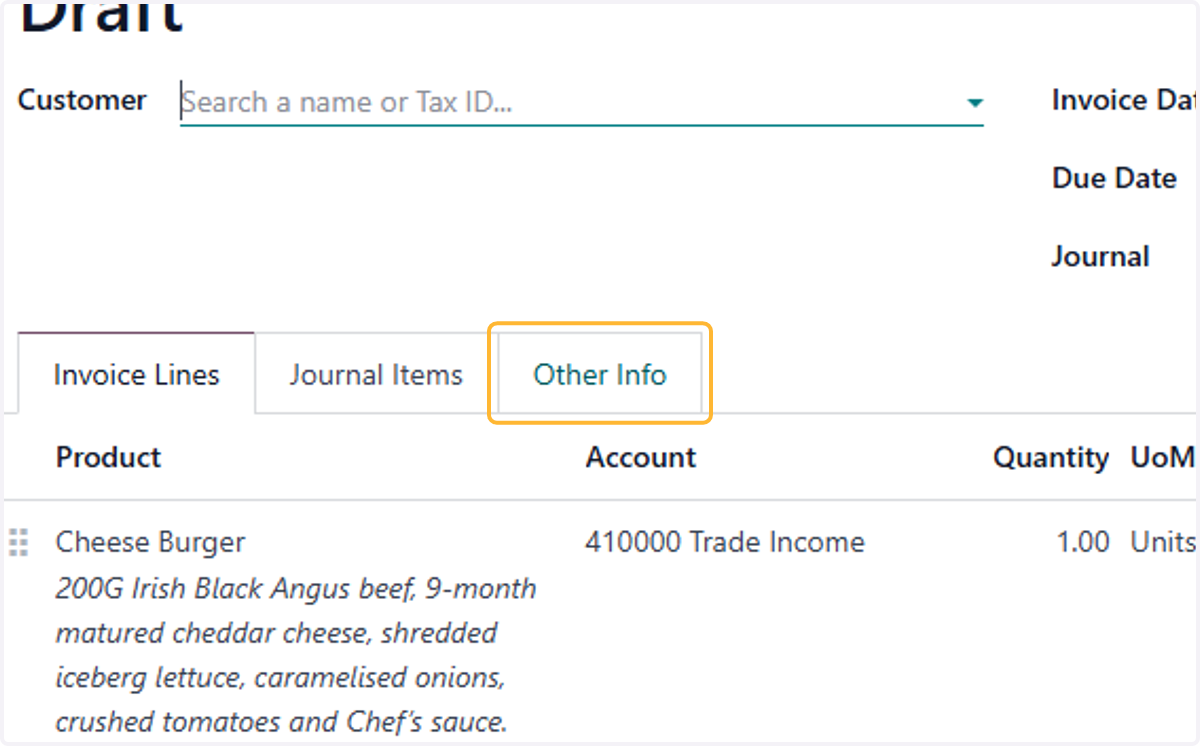
22. Click on Other Info
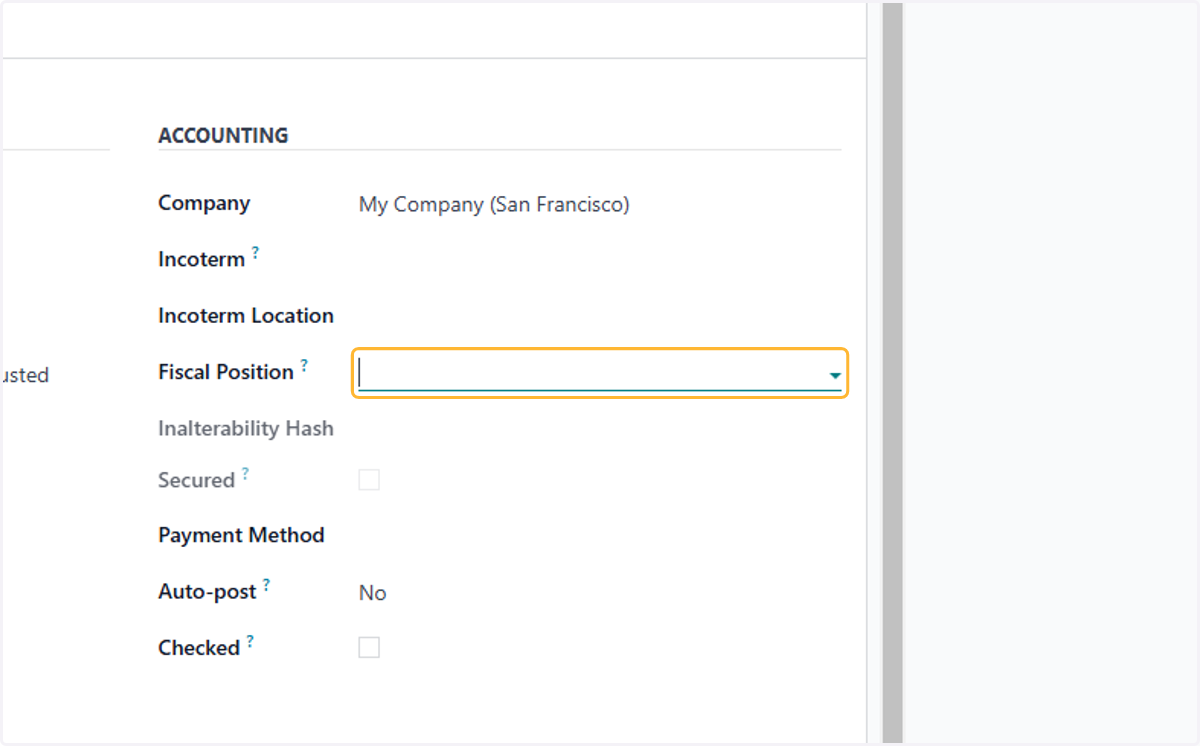
23. By default, fiscal position will be left empty
24. Select Customer.
In this case, the customer deco addict has a registered address in United states
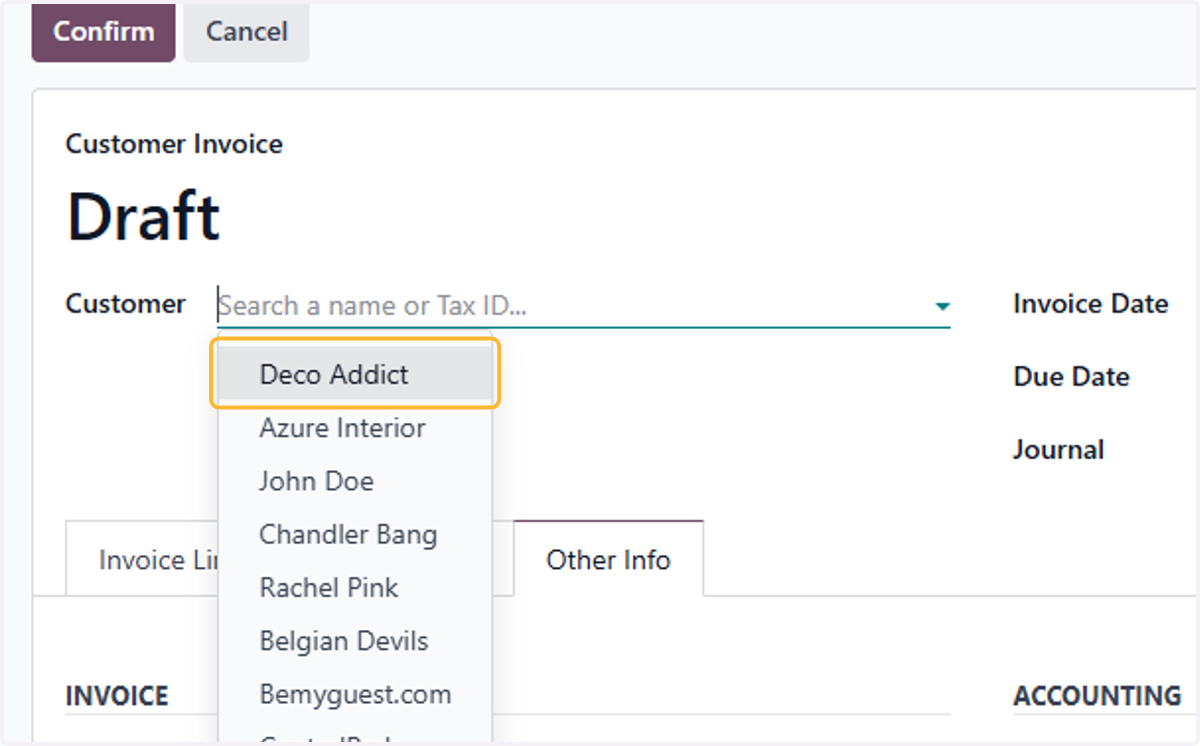
25. Once customer was selected, Fiscal Position will updated & will apply the
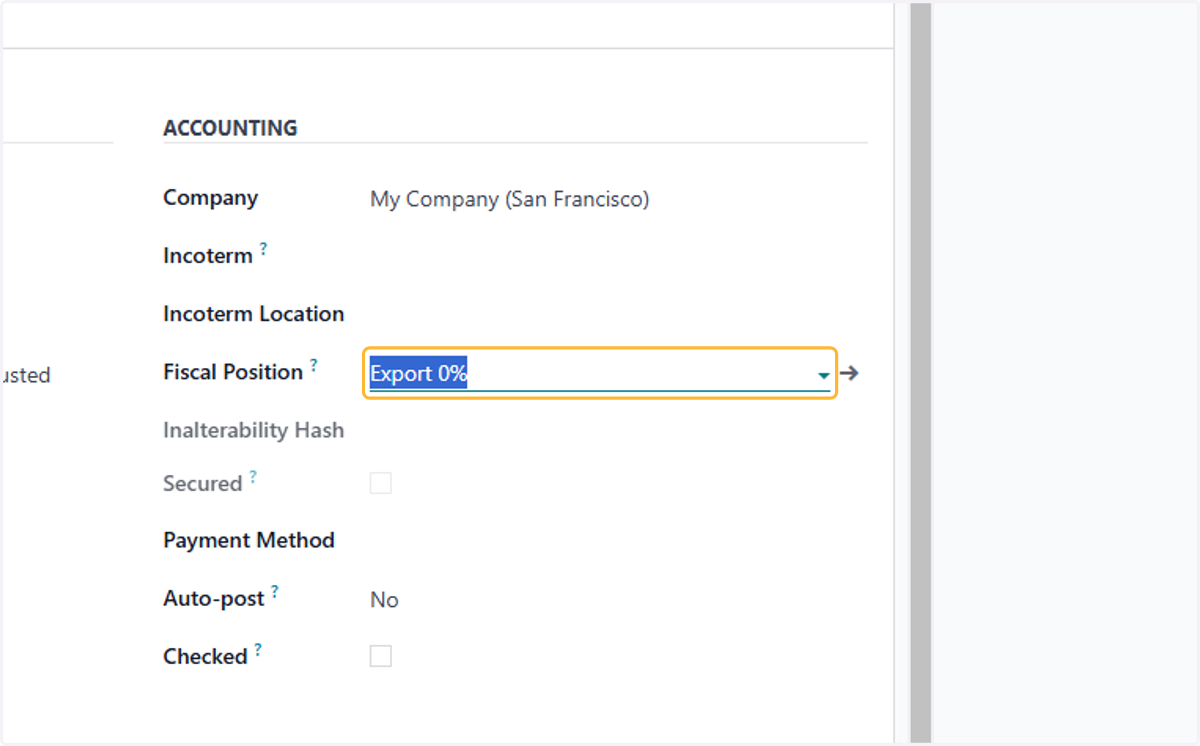
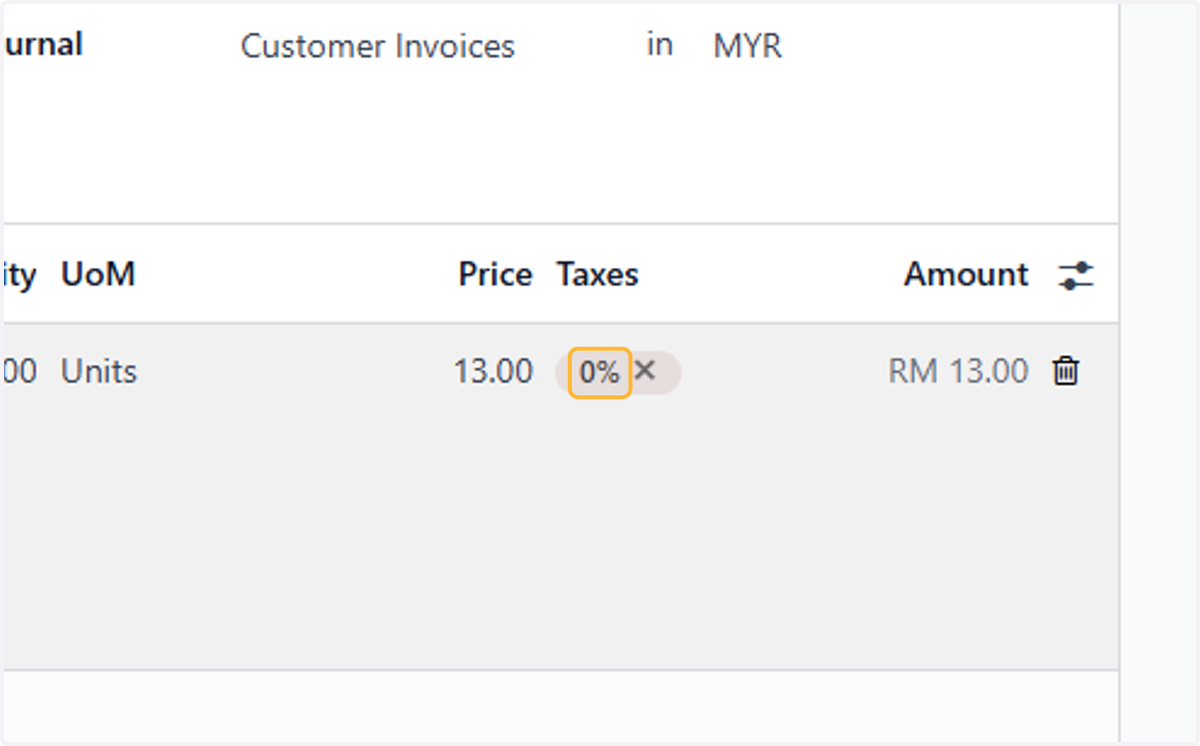
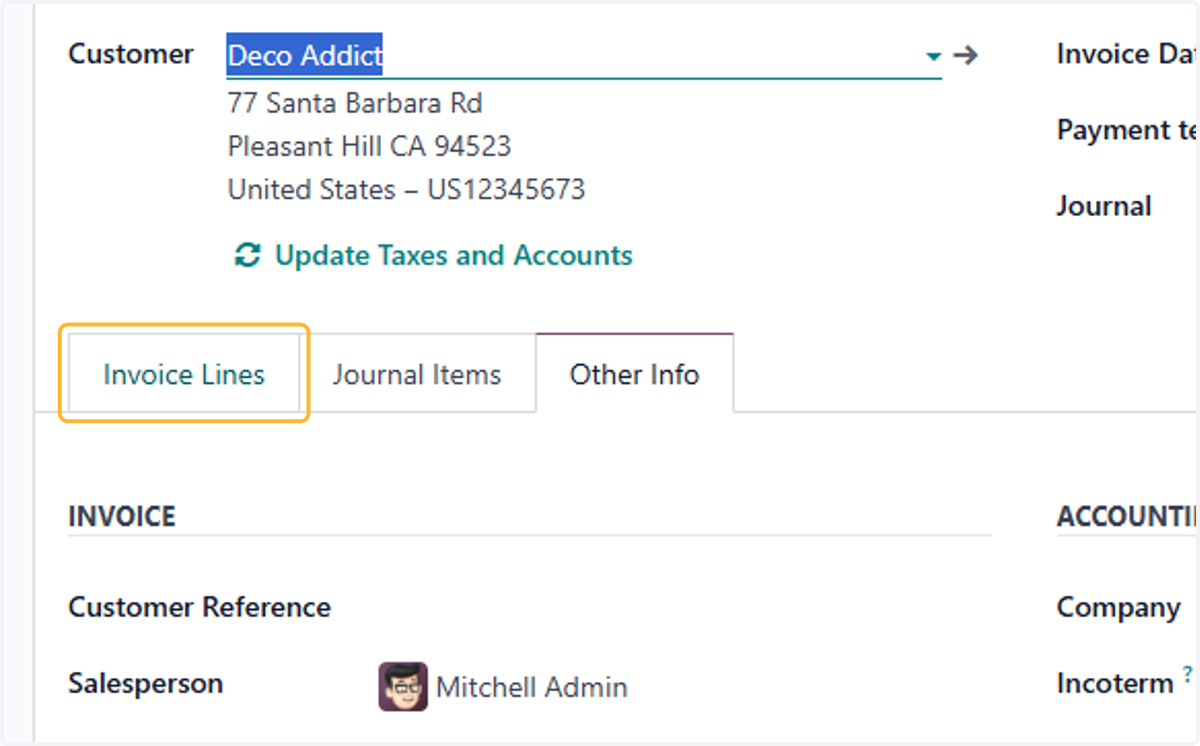
26. Click on Invoice Lines
27. Click on Delete row
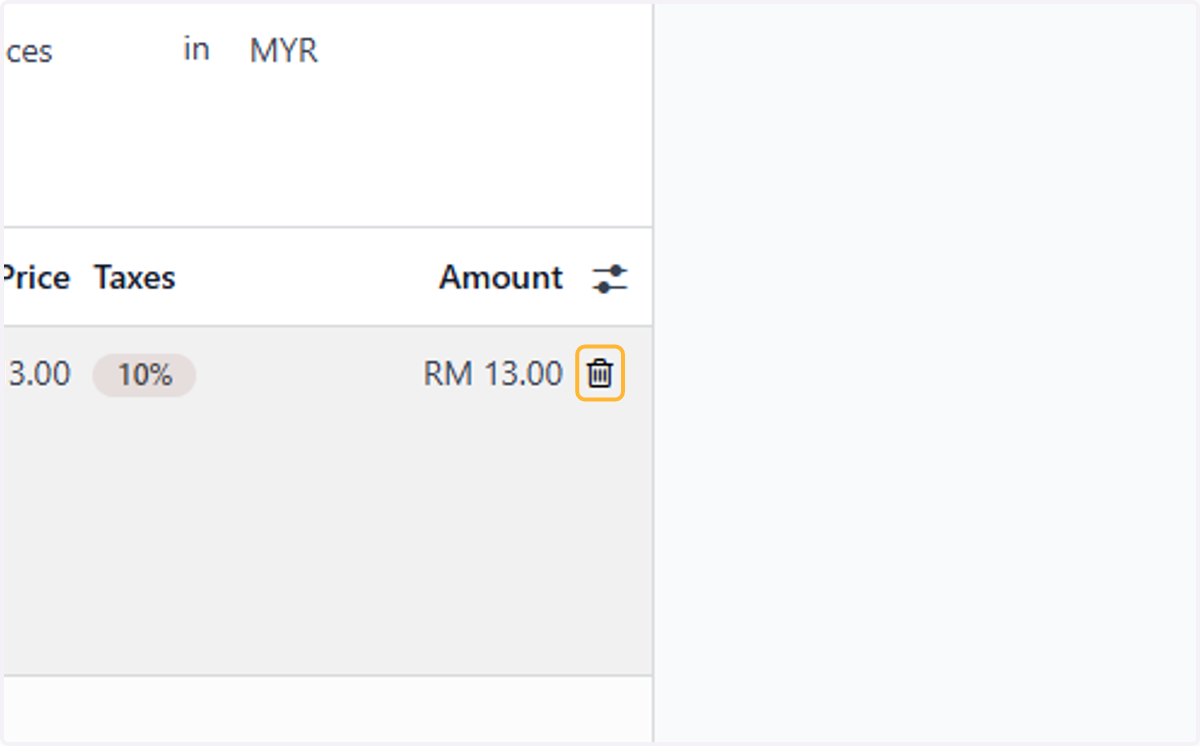
28. Re-Adding the cheese burger product
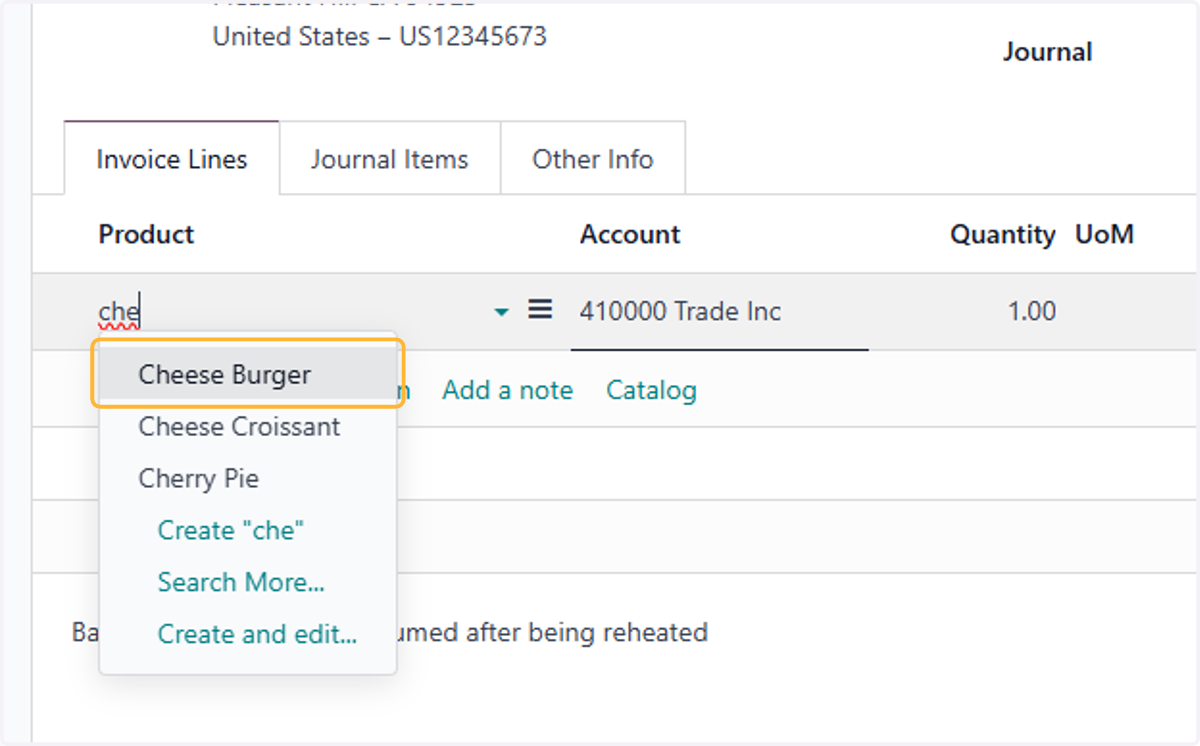
29. Now the fiscal position will override the taxes & select the appropriate taxes