Navigating Portal: A Quick Reference for Accessing Important Features
This guide provides a quick overview of the Portal Dashboard to help get you up to speed. The Portal is a great tool to help keep your club up to date and is also your central point for SAFE status, annual returns and more.
This guide will go through each dashboard tile, there will be more guides that covers SAFE and Annual Returns.
Portal Dashboard
1. Get Started!
You can access the portal anytime via www.portal.tennis.kiwi Bookmark this URL so you can easily access the portal in the future.

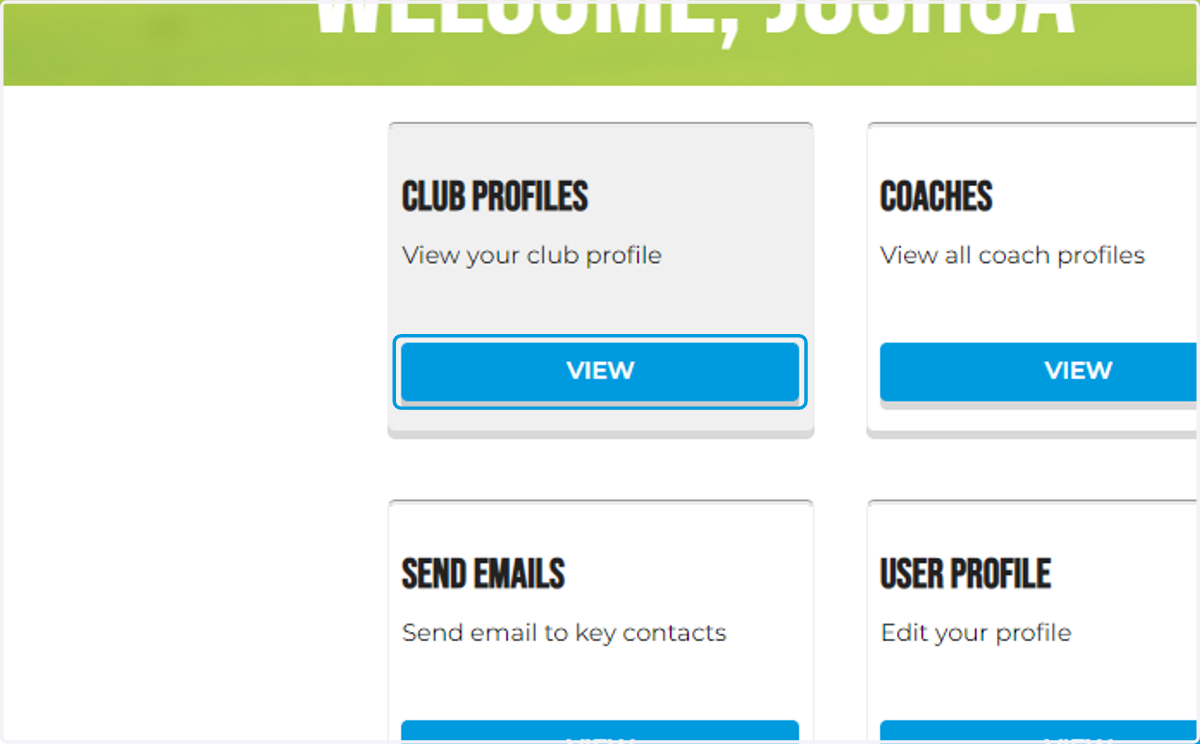
2. Club Profiles
This section allows you to view information regarding your club, if you are a Portal Administrator for multiple clubs you will see them in a list view.
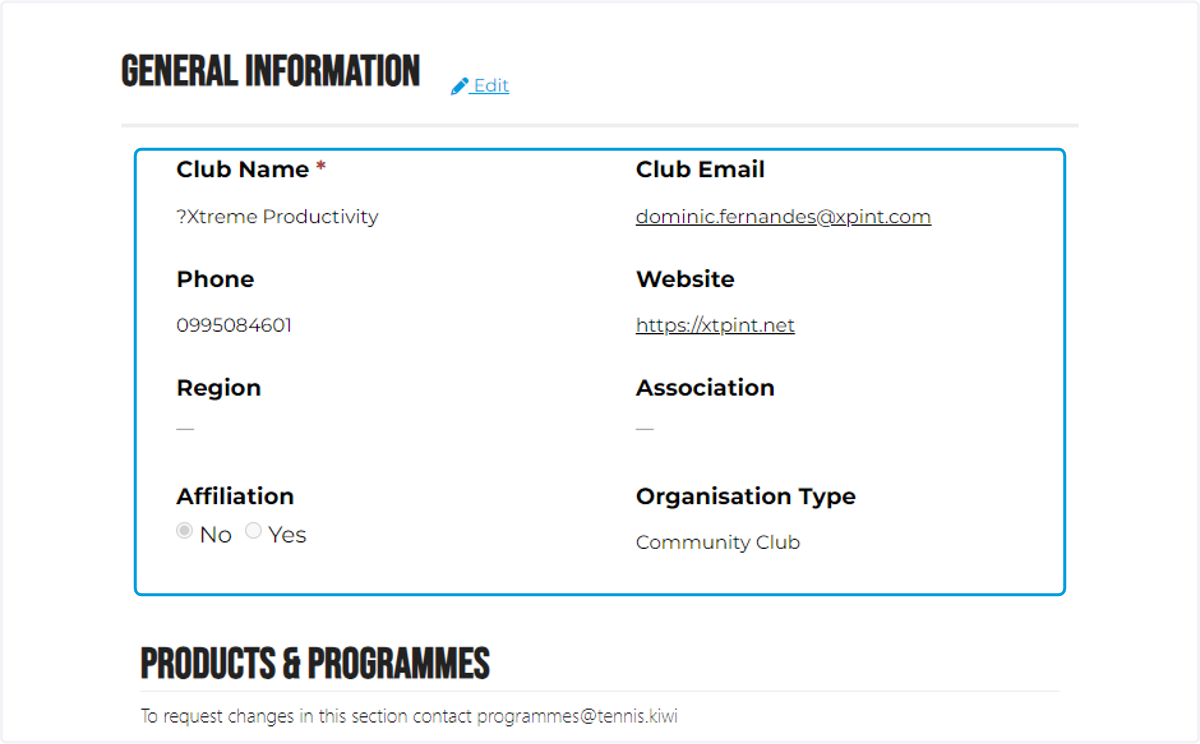
3. General Information
This provides an overview of the club / venue.
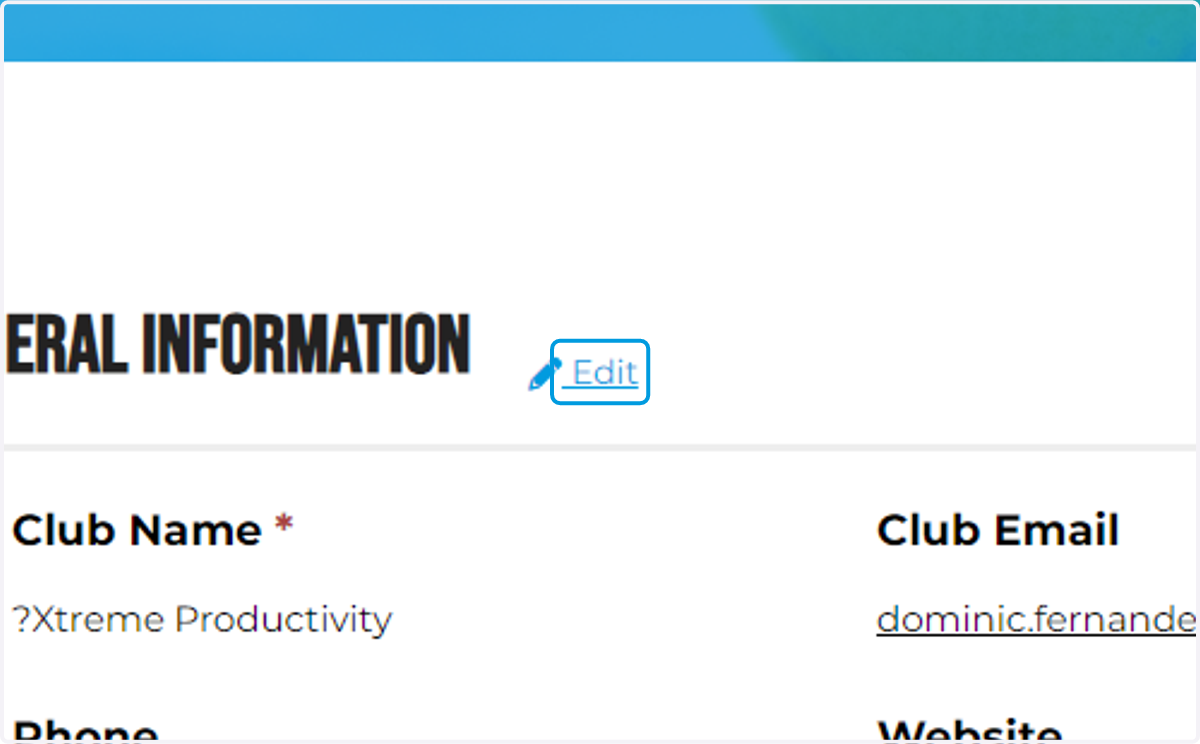
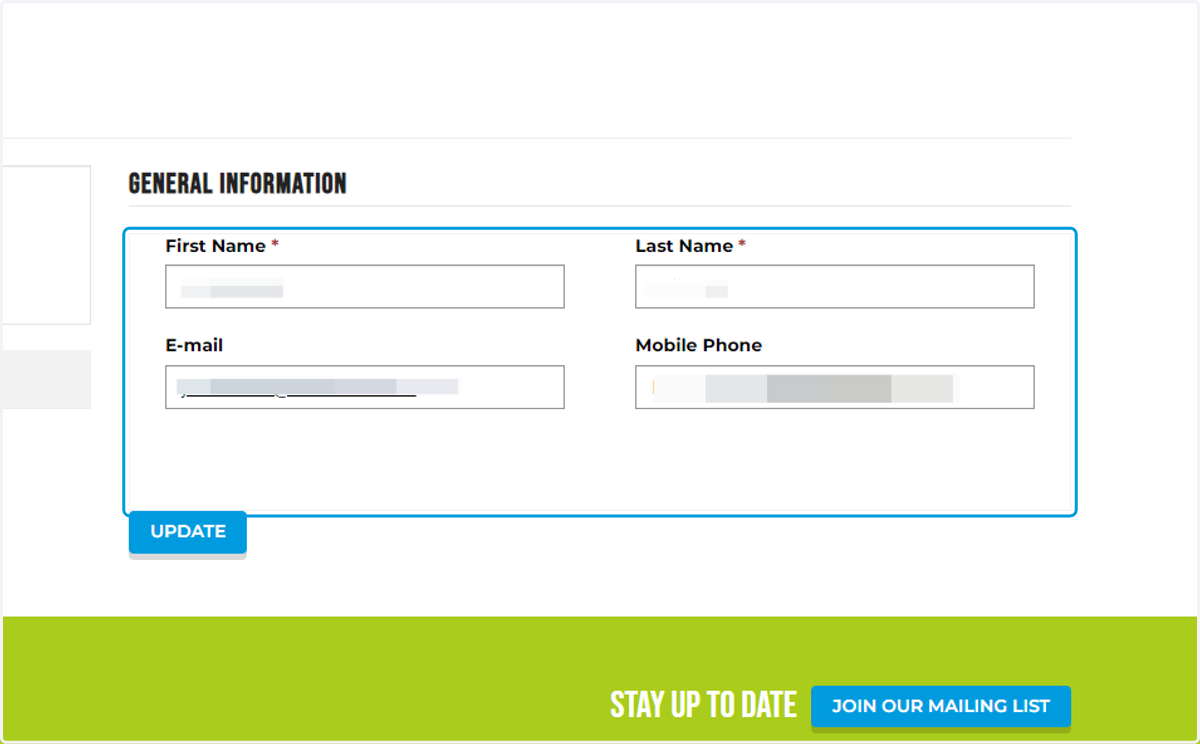
4. If you need to update information, Click Edit
Update Details such as Email, Phone Number & Website.
Once you have completed updating information click Update
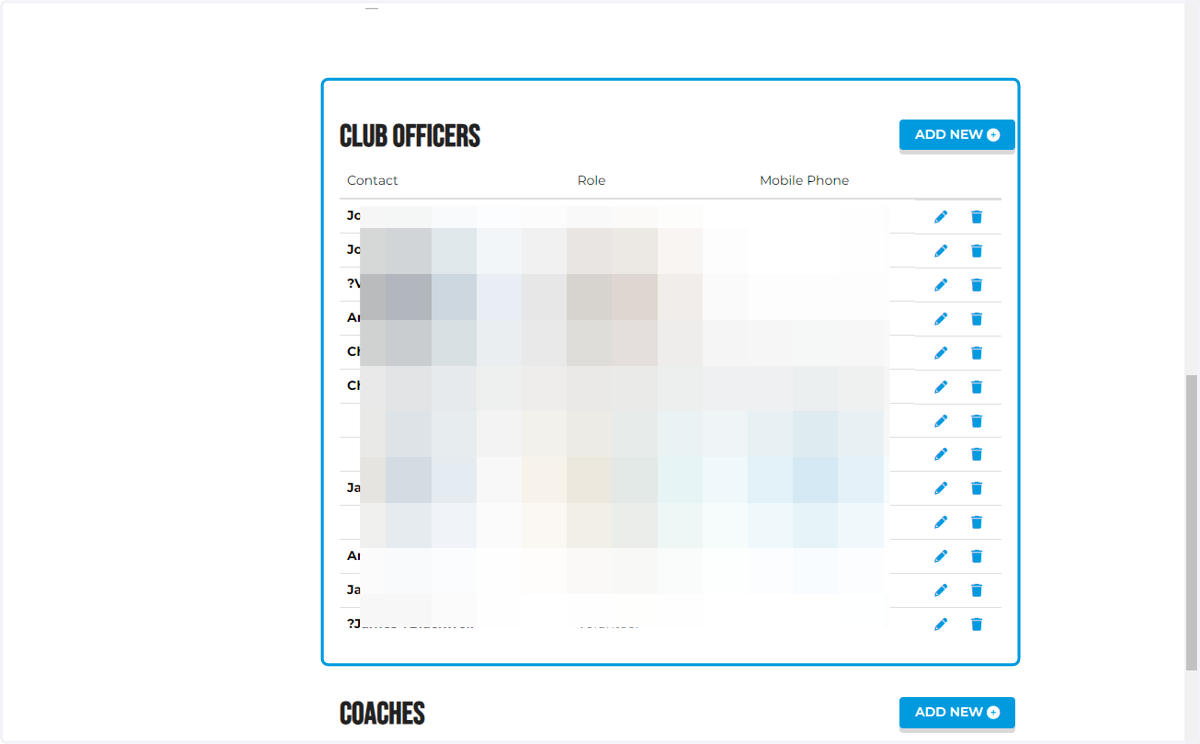
5. Club Officers
This is where you can add / view key members of the club, for example Presidents, Portal Administrators, Volunteers etc. To add club officers click Add New and follow the prompts.
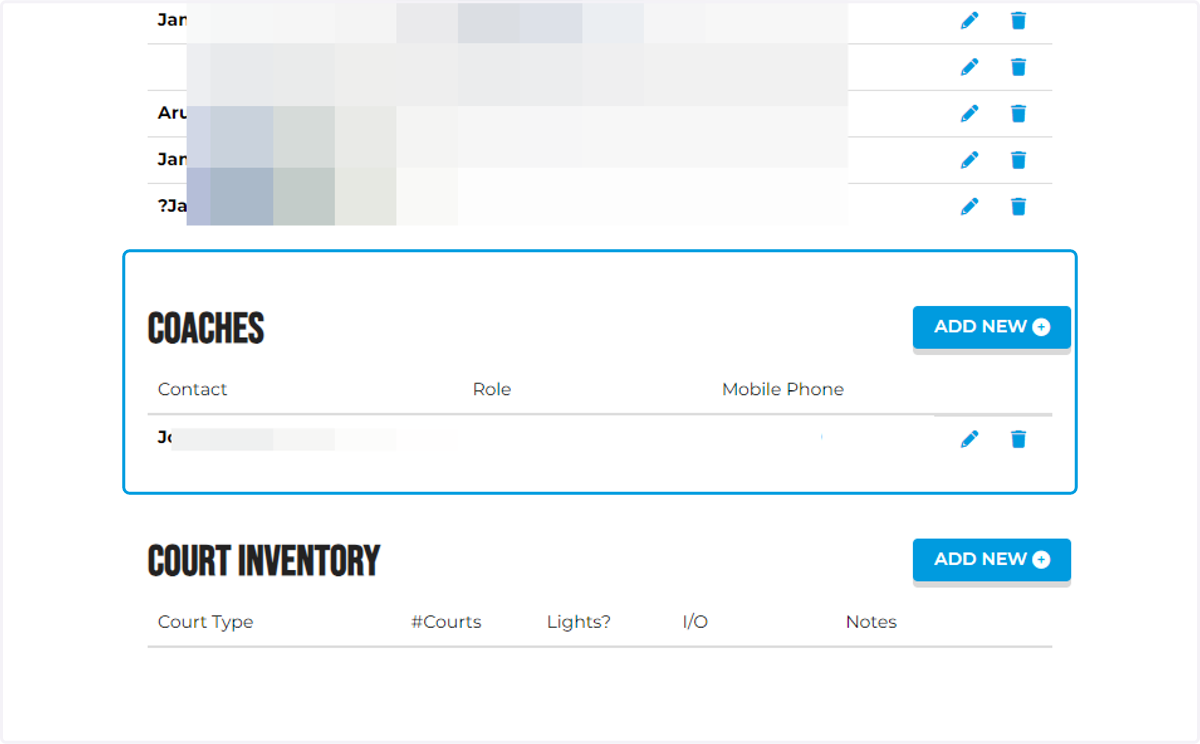
6. Coaches
Here you will be able to view a directory of the club coach/s to add coaches to the venue, click Add New - It's key to include the correct details to ensure the right information is visible (e.g. SAFE Status)
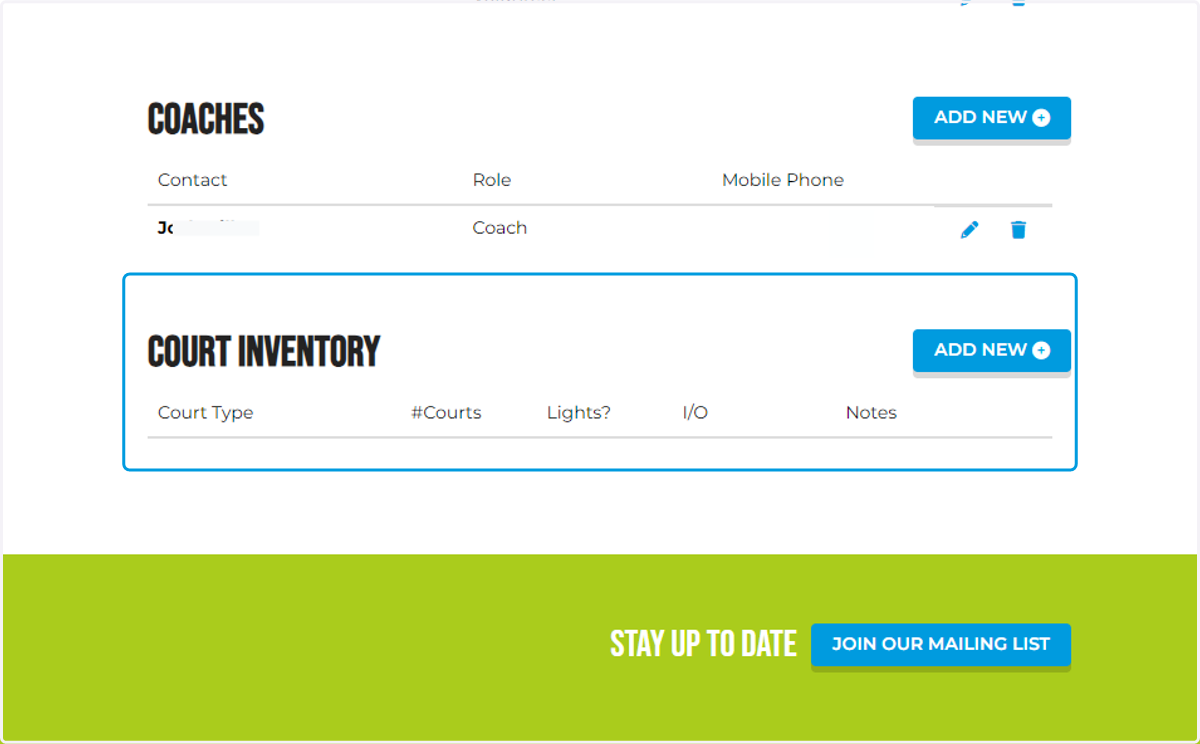
7. Court Inventory
Update / Check the clubs current inventory. In most cases you will only need to update this if an additional court is built or removed.
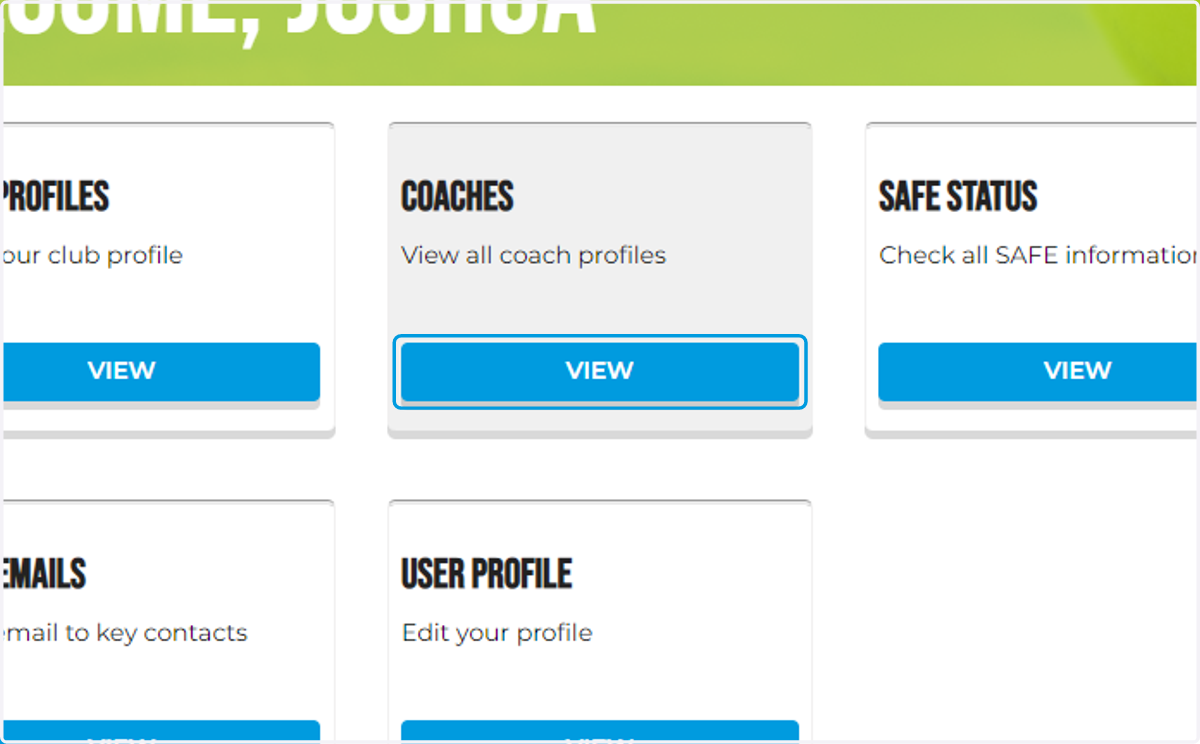
8. Coaches
View your clubs coaches in detail, including their SAFE status here
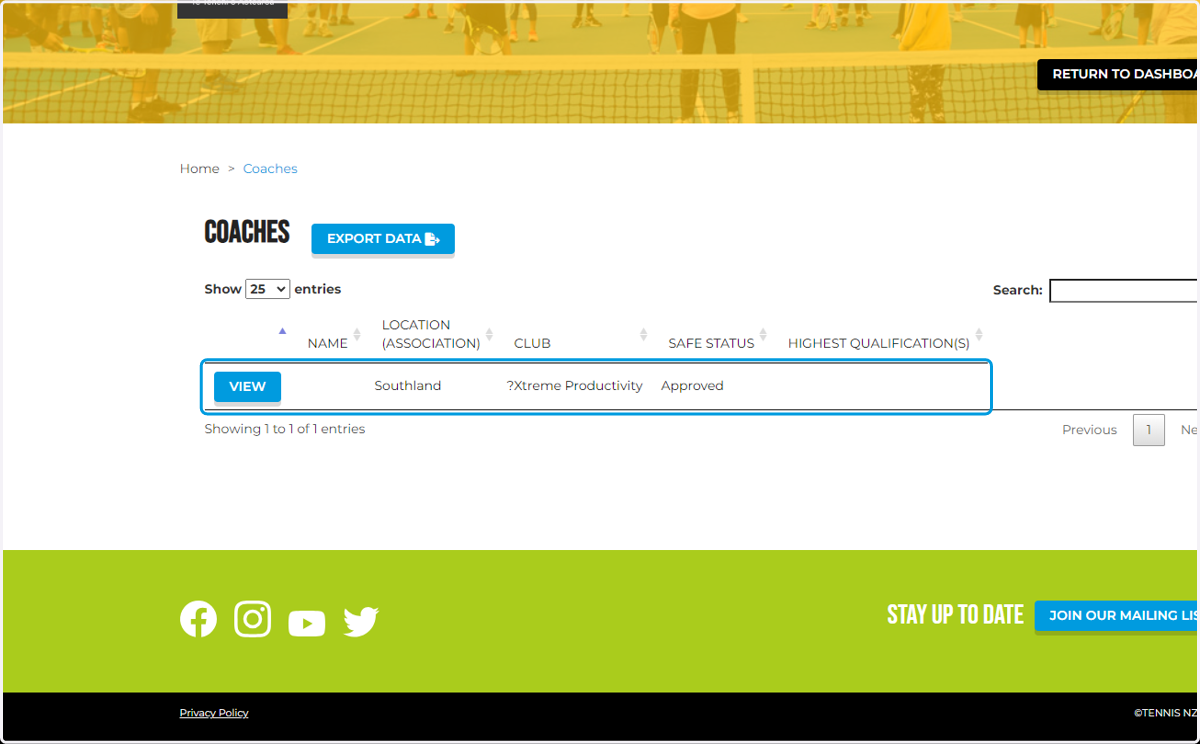
9. Your coaches will be listed here
You can briefly view the Coach and SAFE Status as well as Highest Qualification. You can view more information by clicking VIEW
10. General Information
You can update this information if details have since changed.
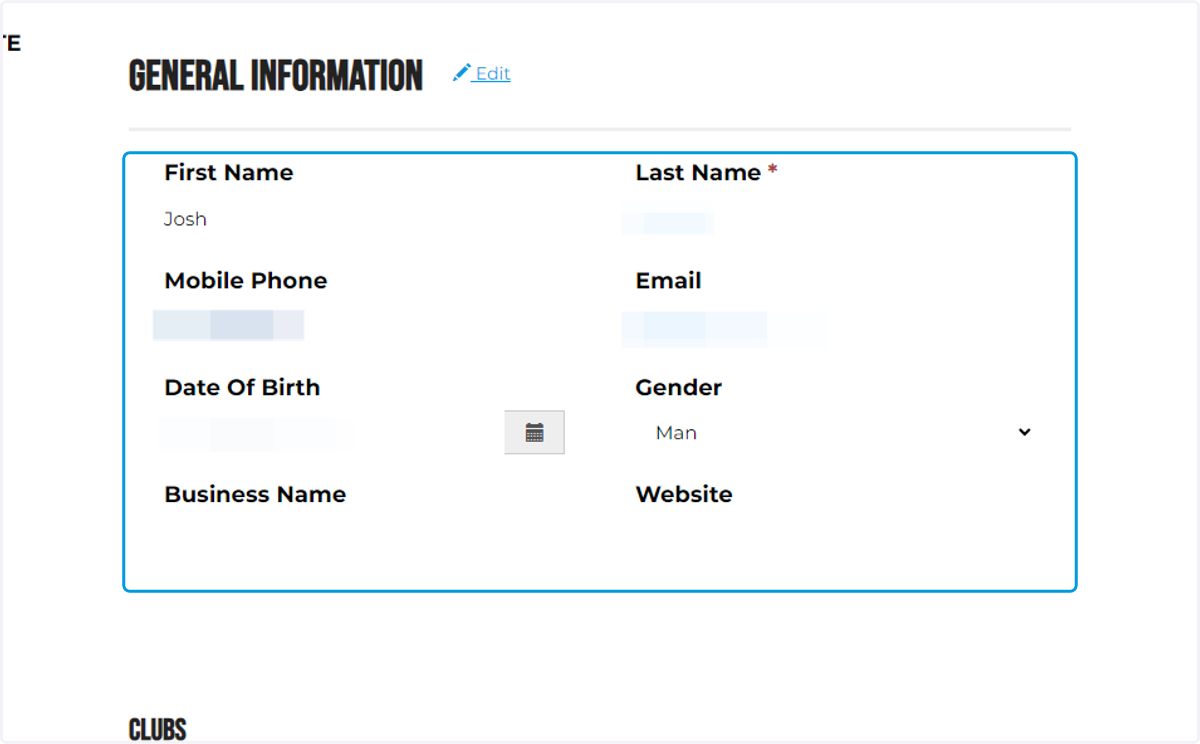
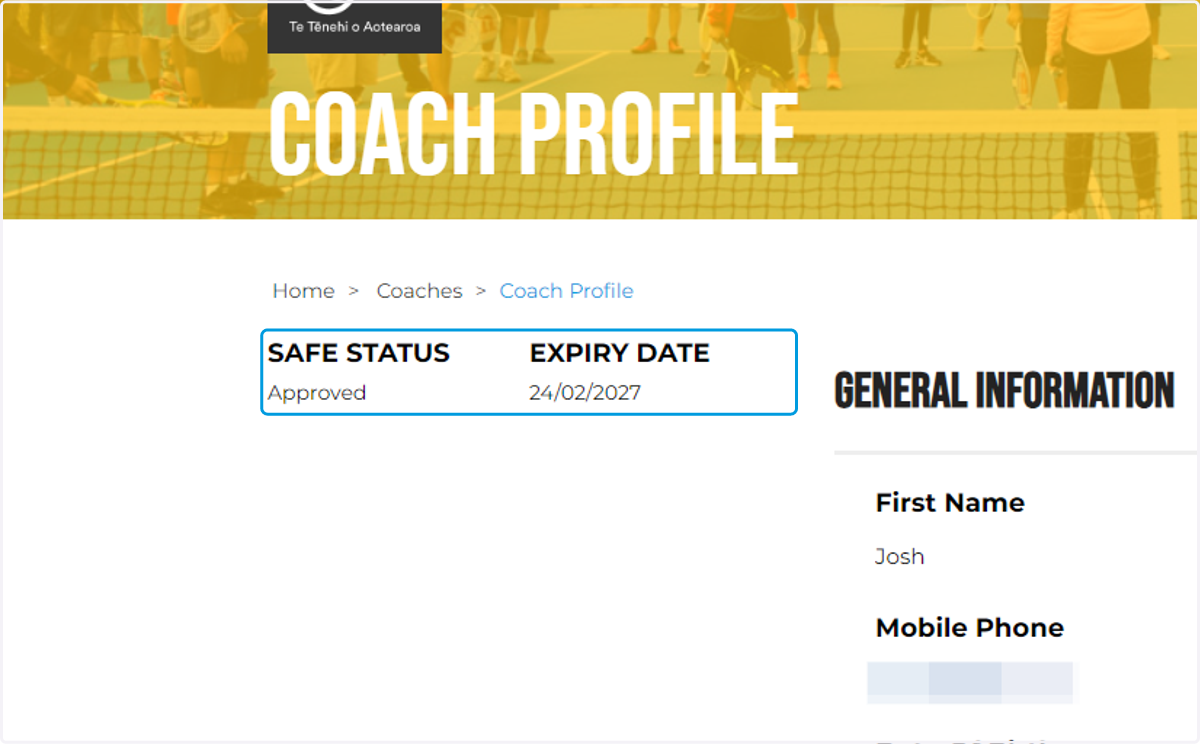
11. View the SAFE Status for Police Vetting & Expiry Dates
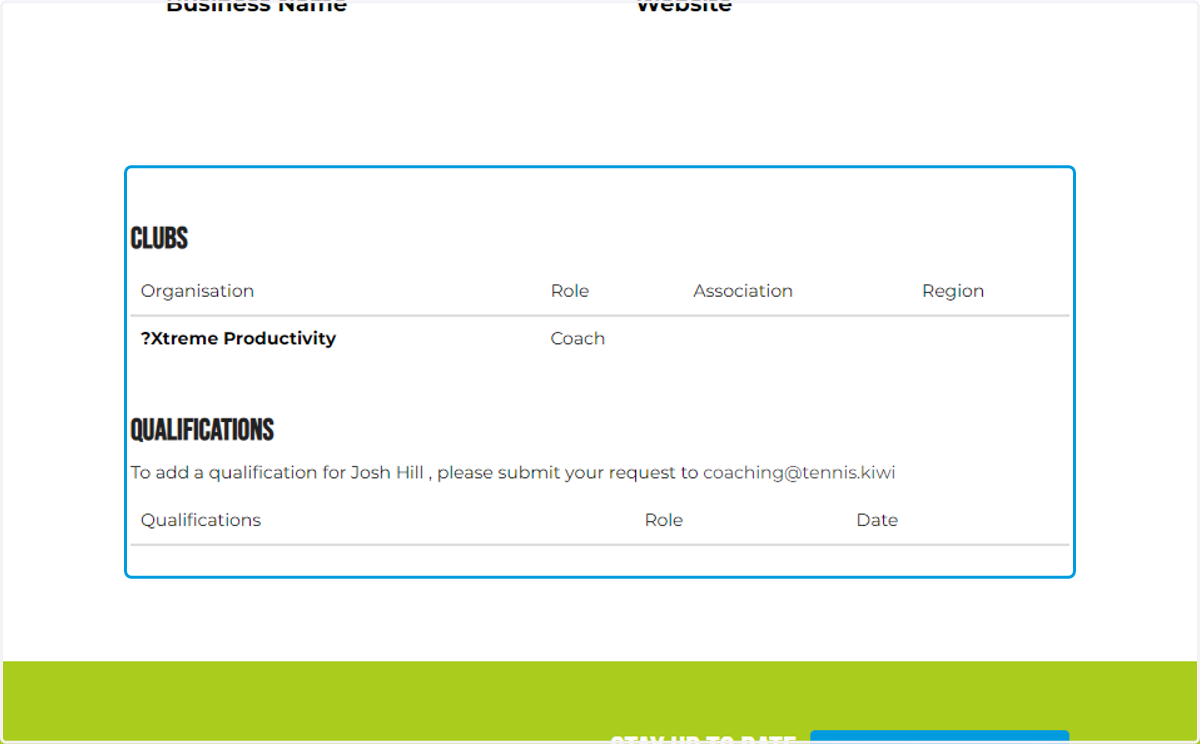
12. Overview of the Clubs and Qualifications the coach is active in.
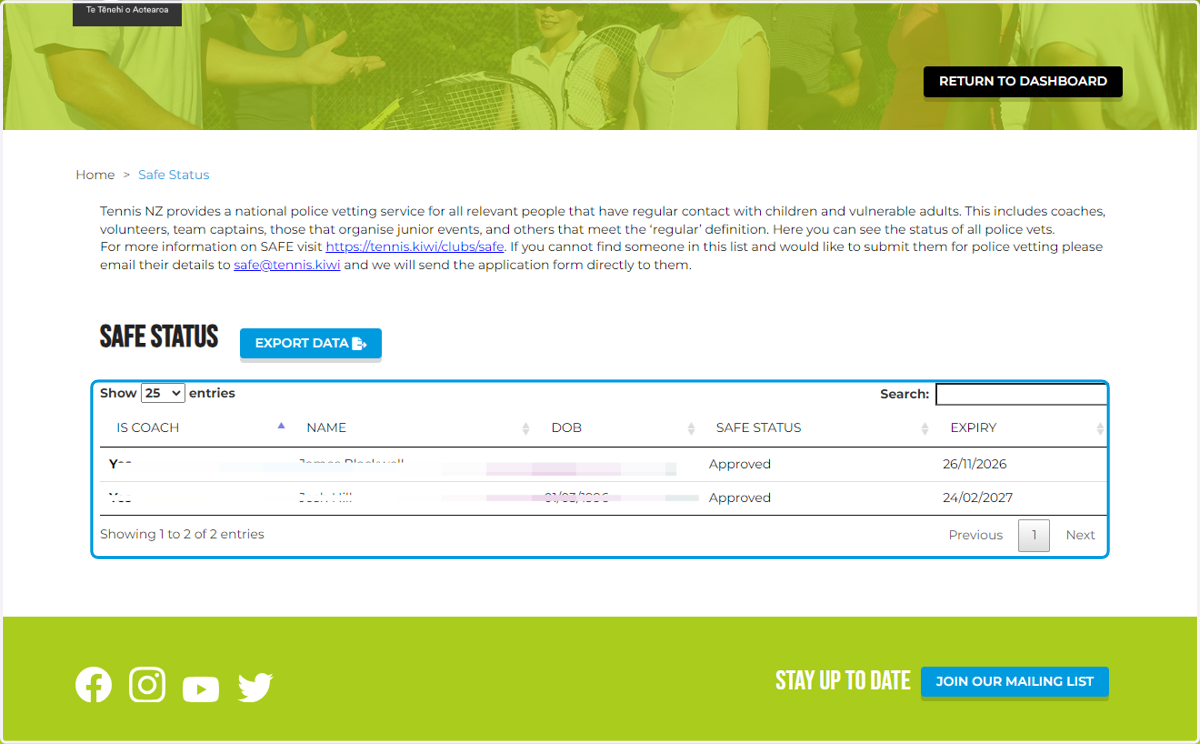
13. SAFE Status
Provides an overview of SAFE Status so that you can overview Club Officers and Coaches who are going through the Vetting. This guide here will show you how to add Volunteers who have recently completed a SAFE vetting request.
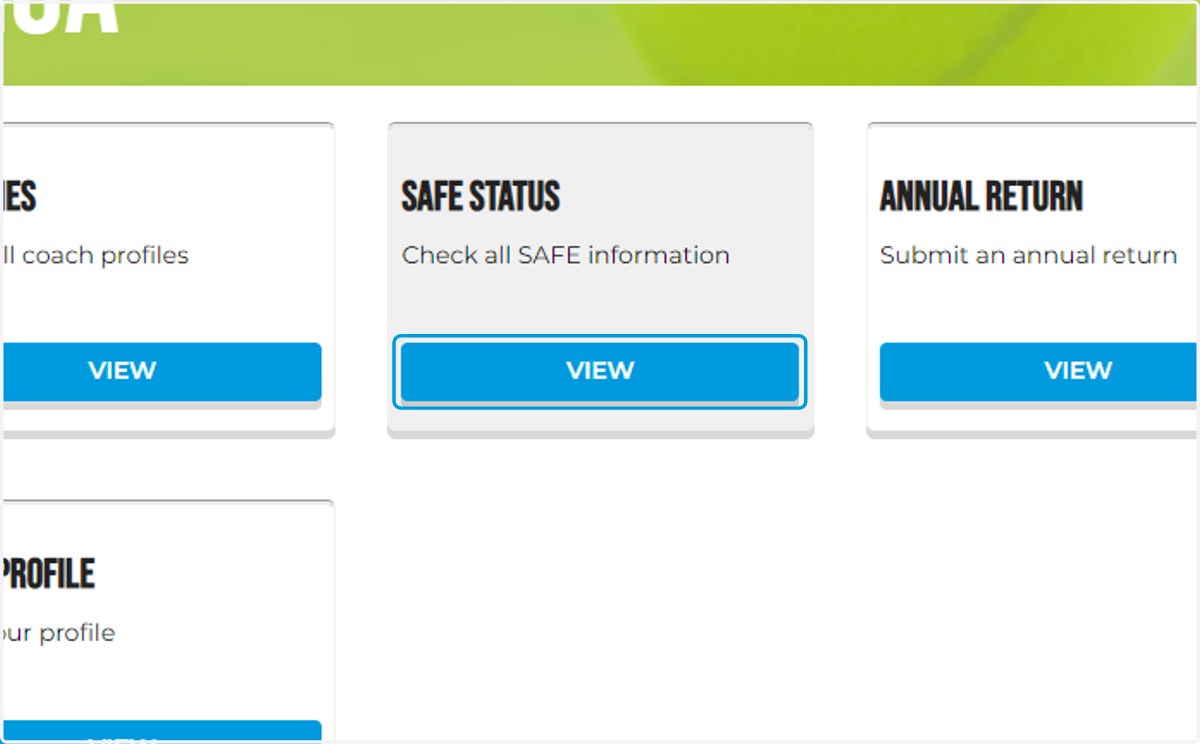
14. Overview outlines the status
15. Annual Returns
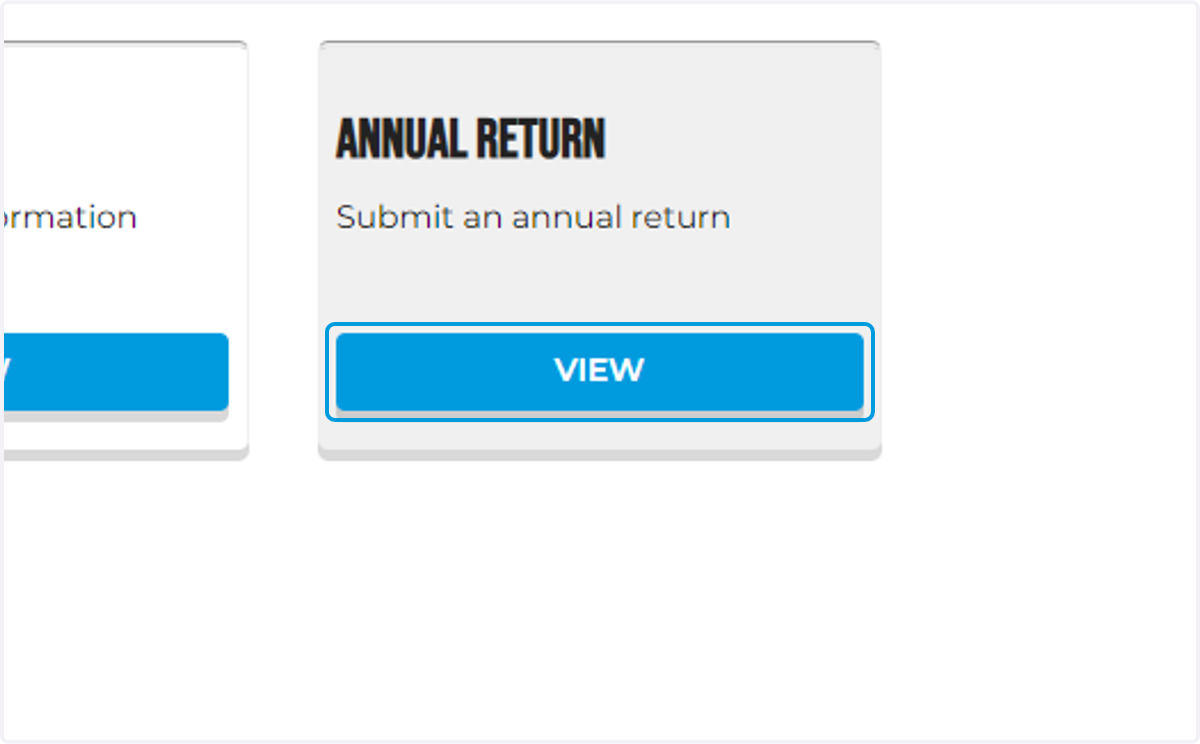
This is where you can submit an annual return, there is a dedicated guide on the Annual Return process here
Please Note: Submission of your Annul Return via the Portal can begin from the 30th of April 2024
16. Send Emails
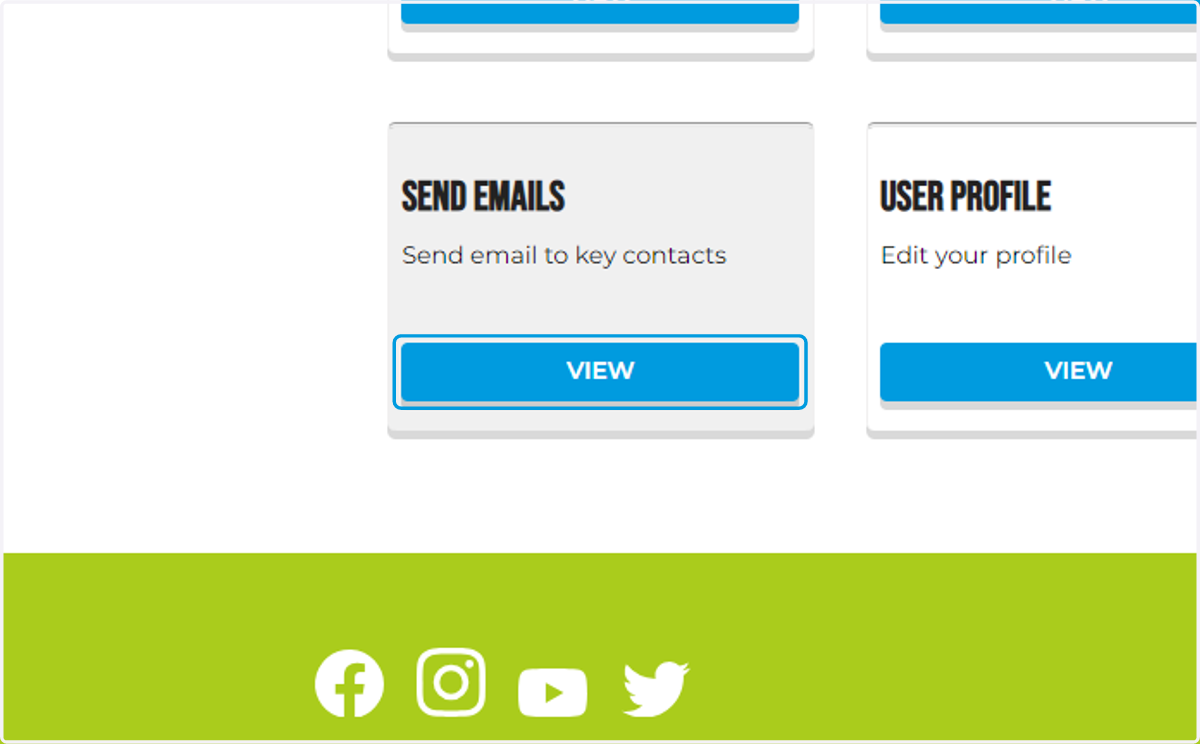
Here you can send informational emails within Portal. This email sending functionality is available for the purposes of providing information only. Please do not send marketing emails from this page.
17. User Profile
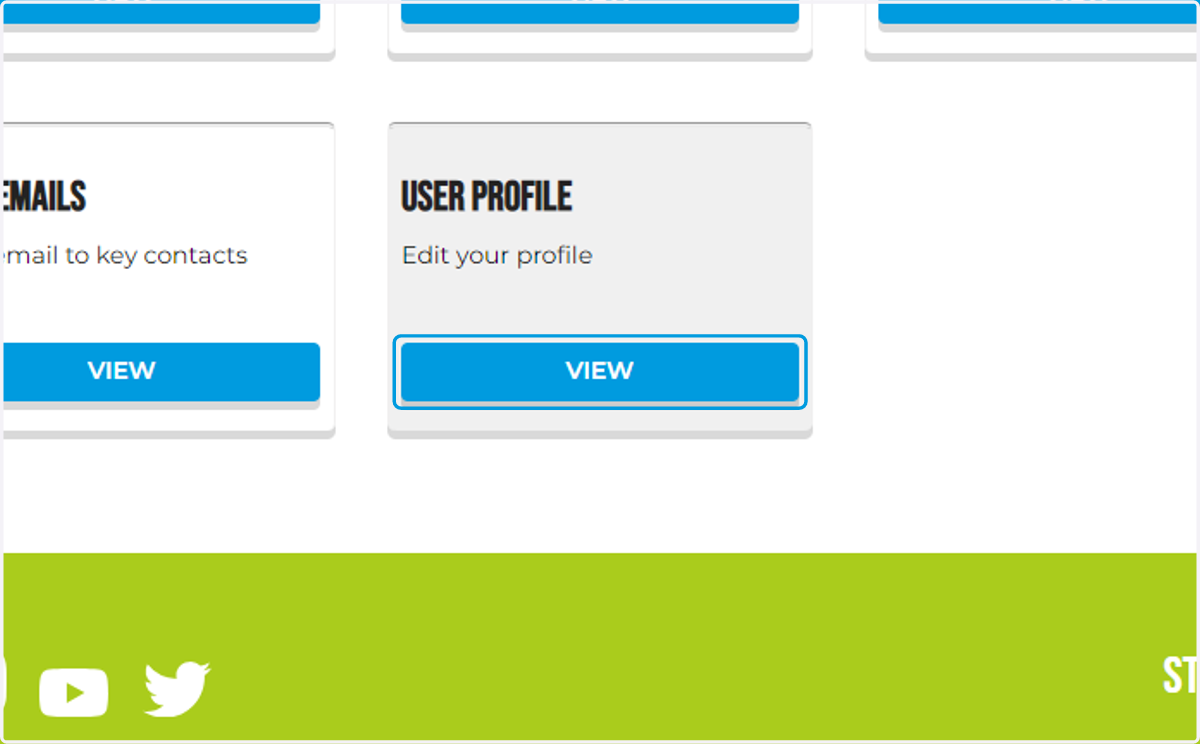
Edit your User Profile to update your own information.
18. Click on Joshua Hill…
19. Done!