A Step-by-Step Tutorial on how to add a new Unit on Opago
Opago | The Property Operations-as-a-Service Platform
1. Go on properties
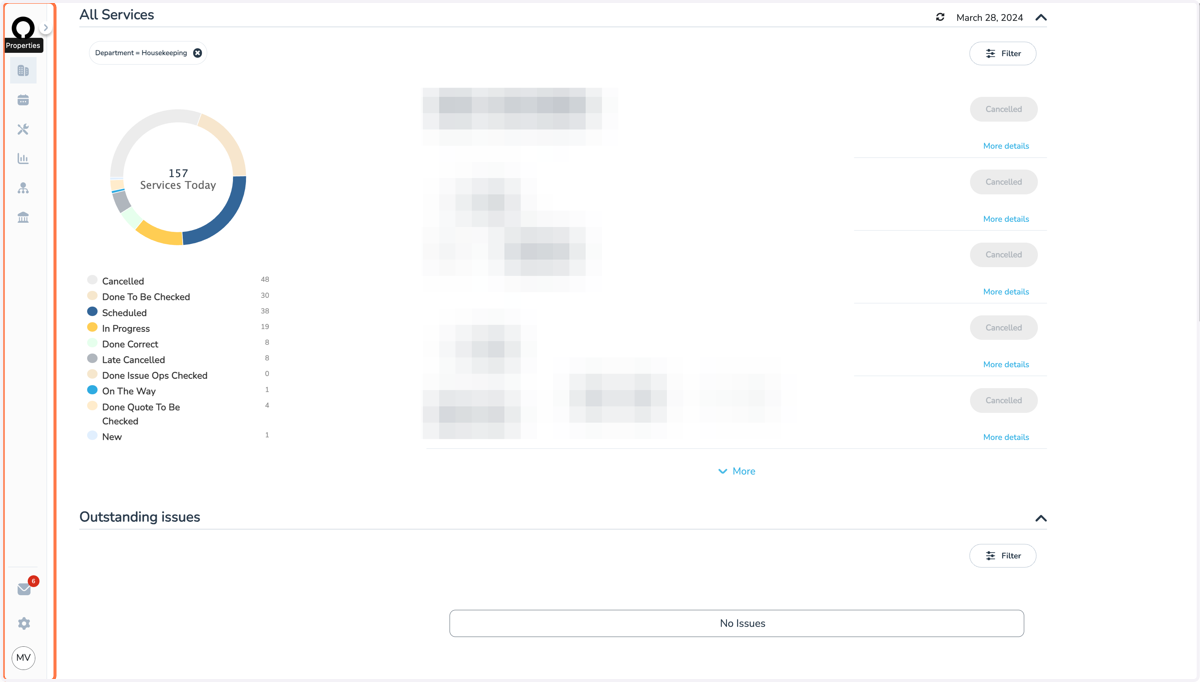
2. Add + Unit:
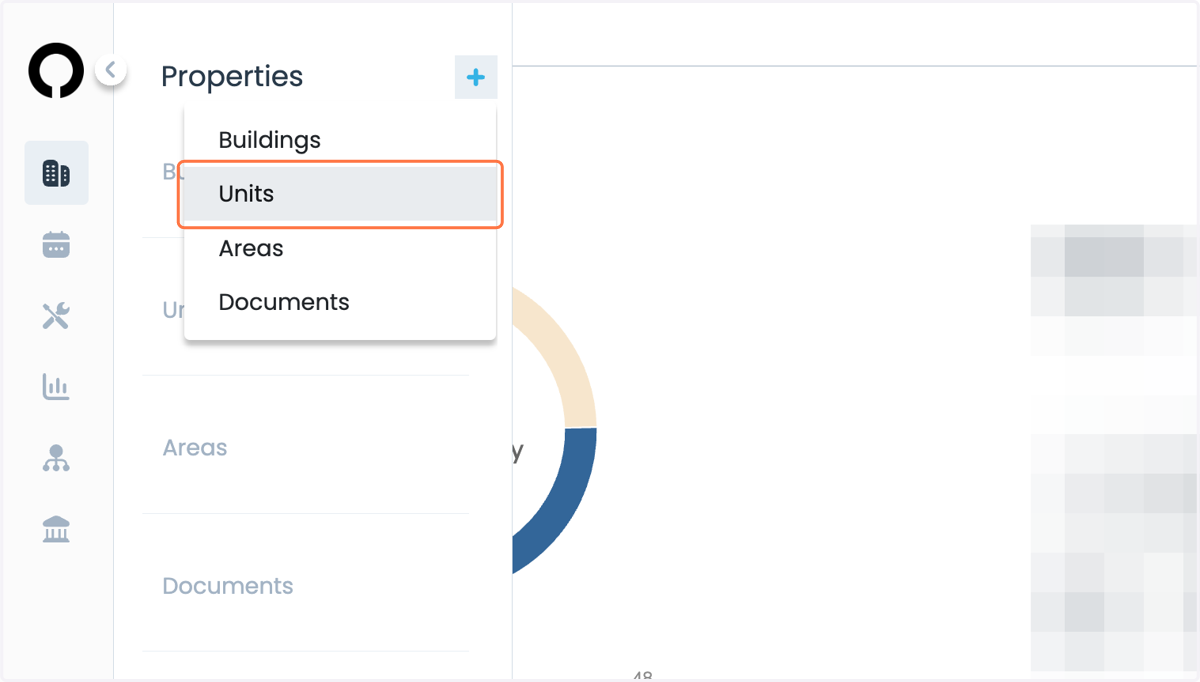
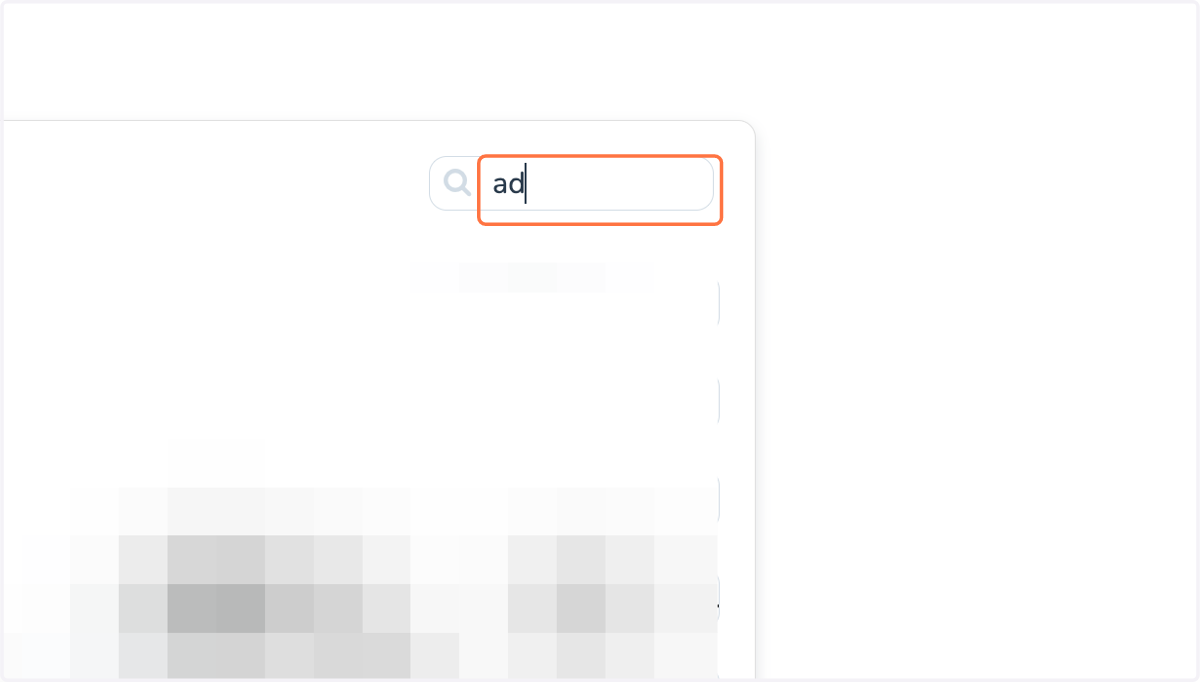
3. Search the host on Opago and select:
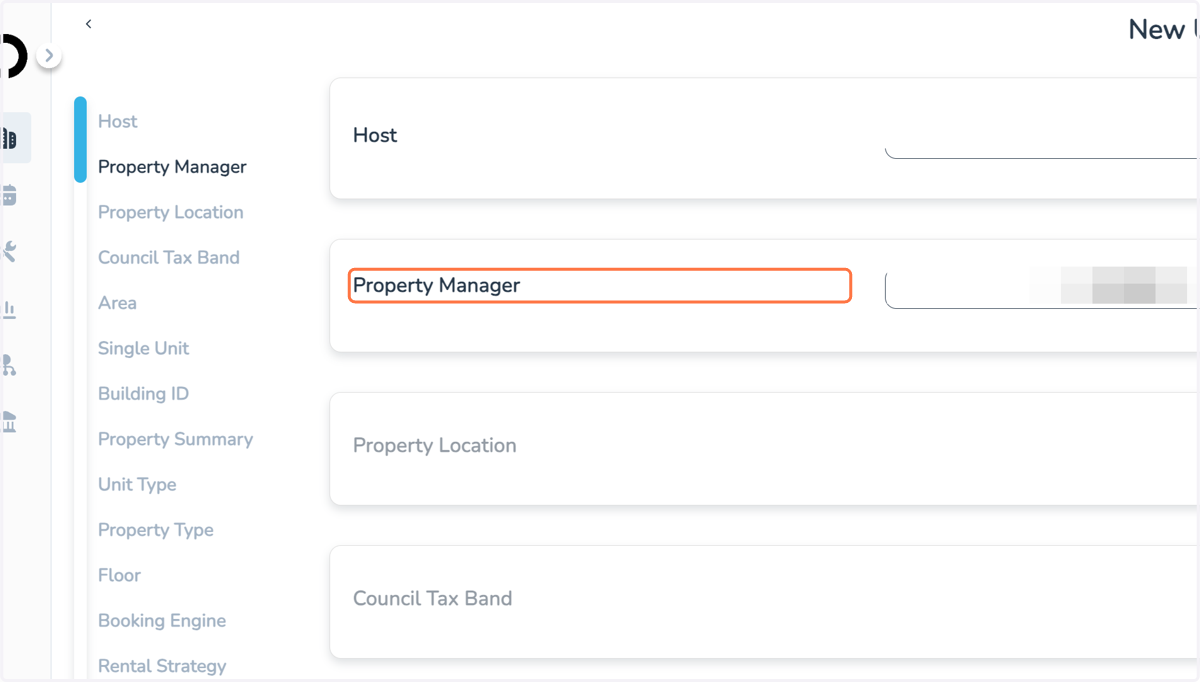
4. Select your Property Manager and click on "next":
5. On property location add the full address and key location
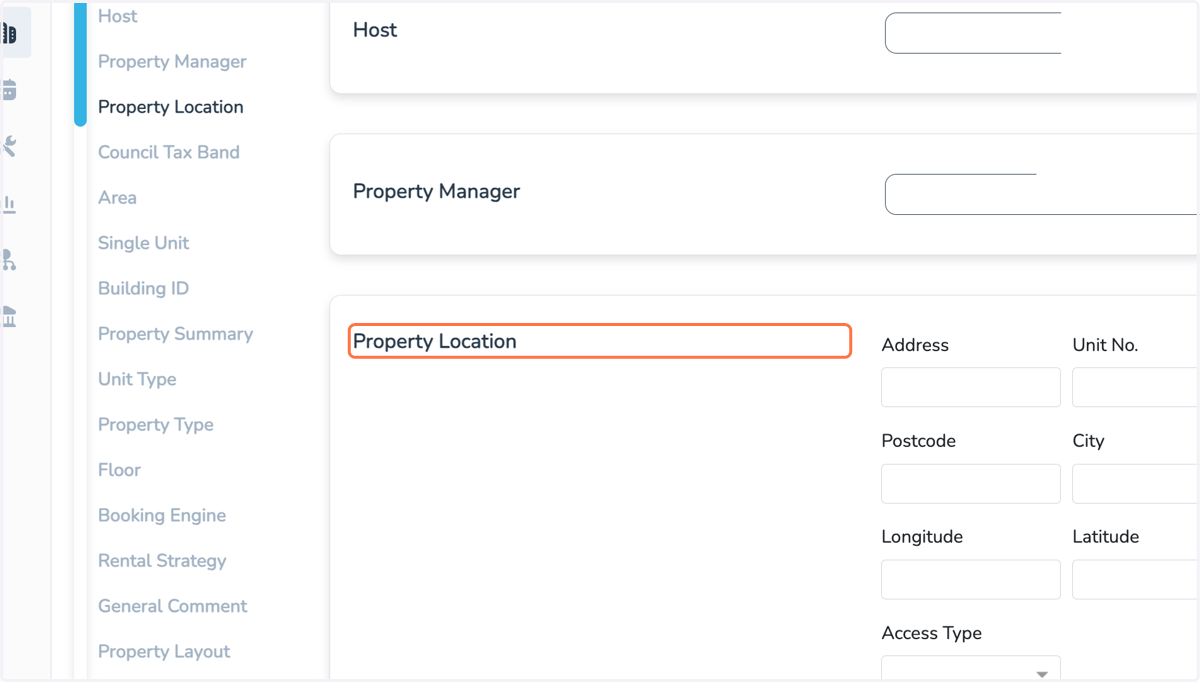
6. Proceed to Council Tax band and select the correct one:
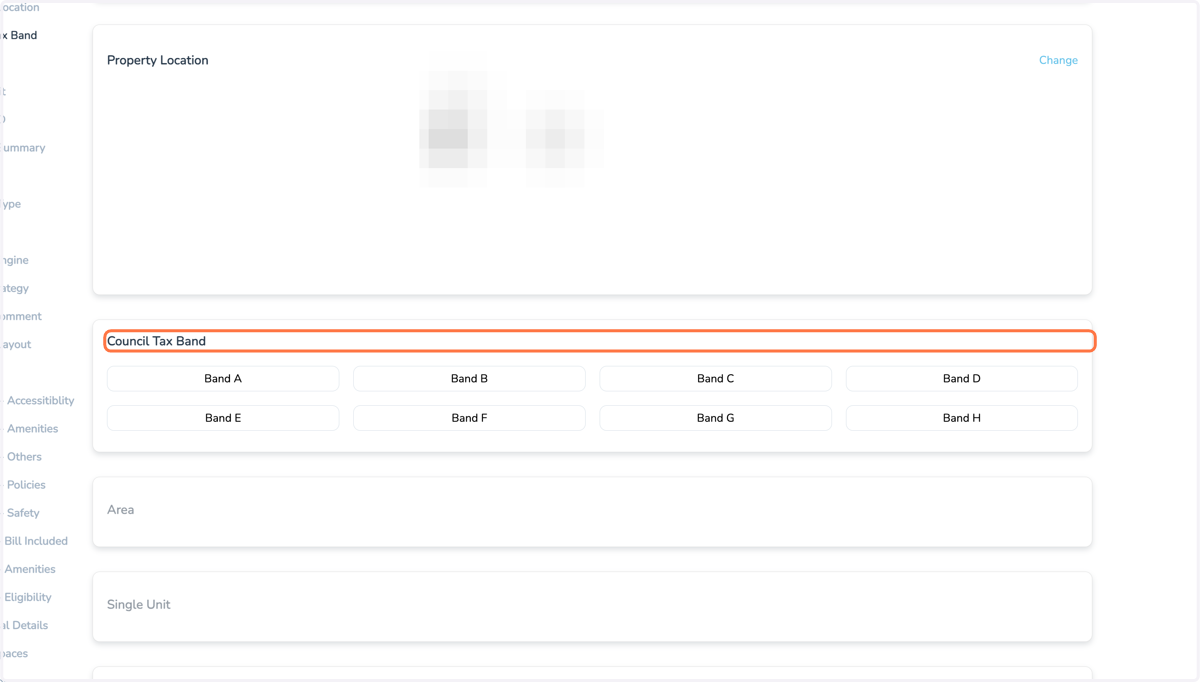
7. Select the area:
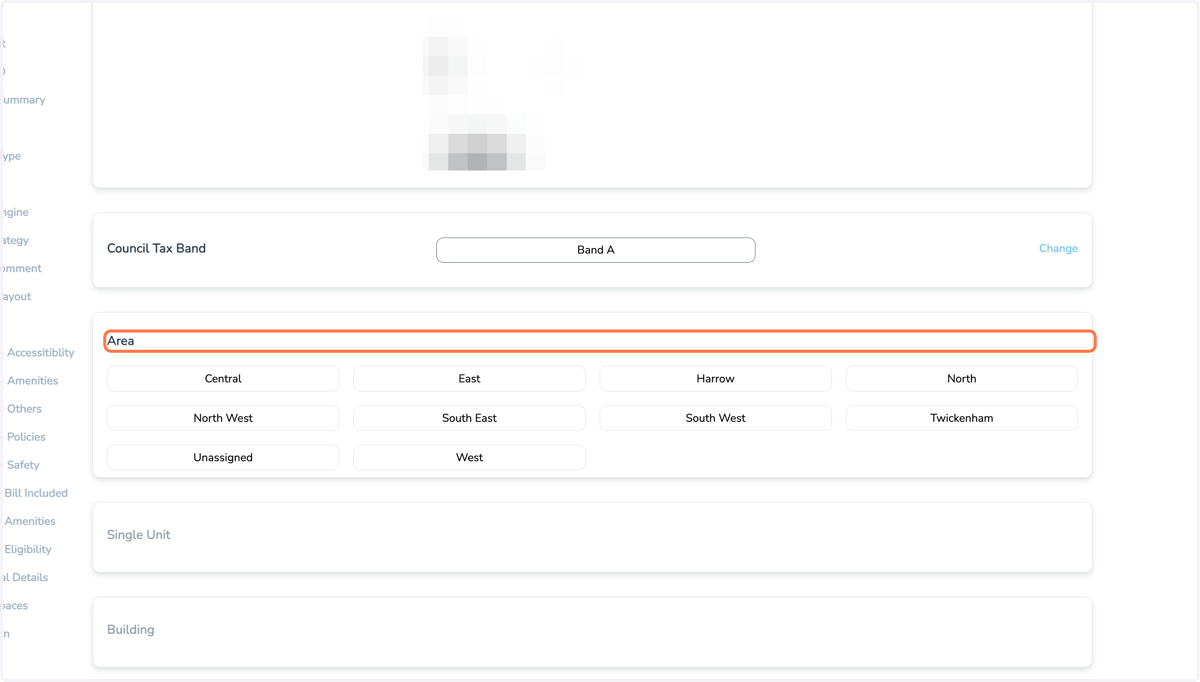
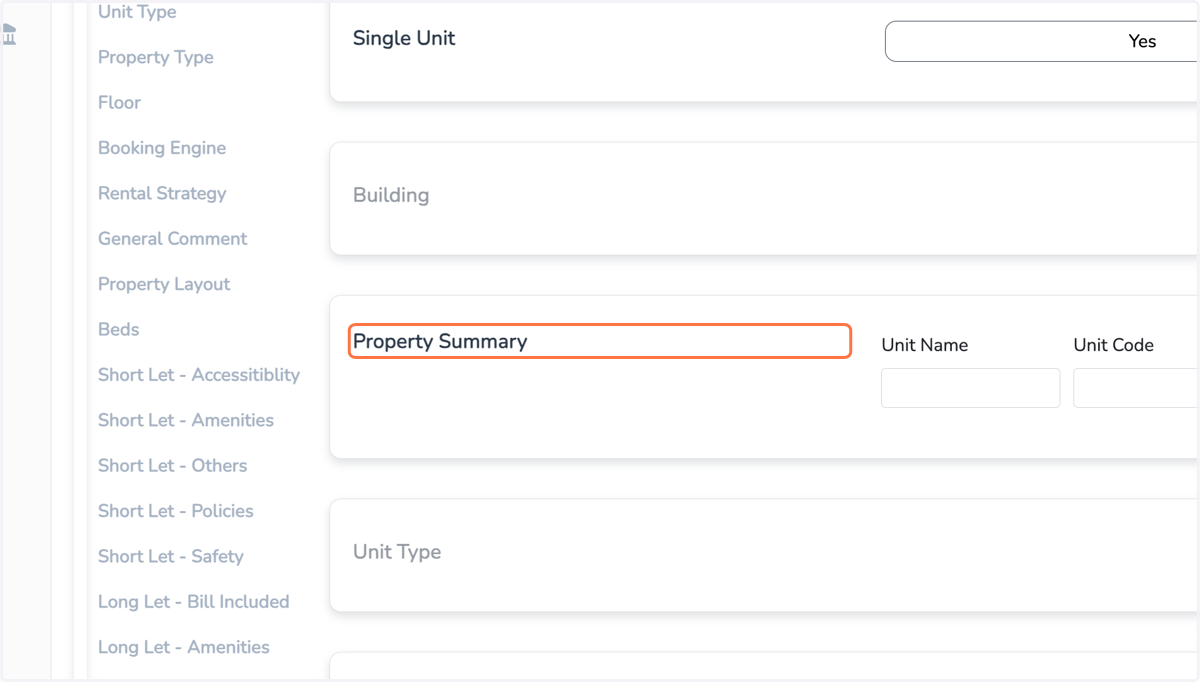
8. Select Yes on Single Unit. On property Summary add the unit code:
The unit code is the name we will use internally to identify your property. We normally add the abbreviation of your property manager - road name - unit number, e.g.: ABC-FUL-45
9. Proceed to property type: apartment, house, etc
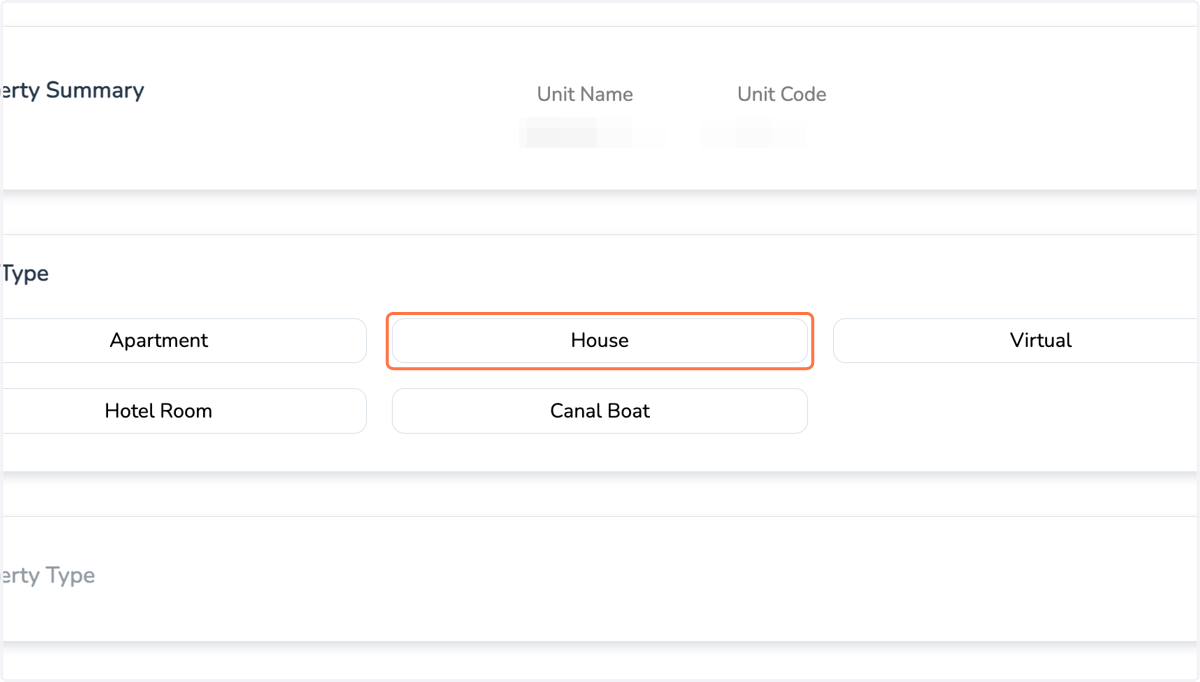
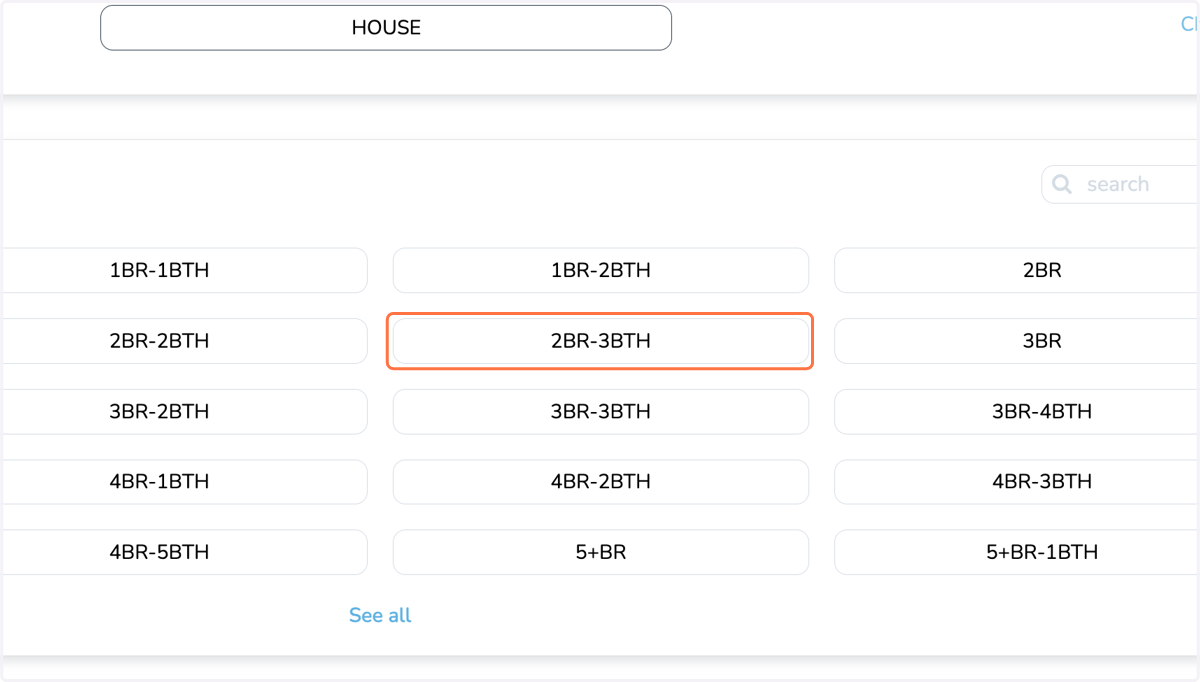
10. Select the property Size > click Save:
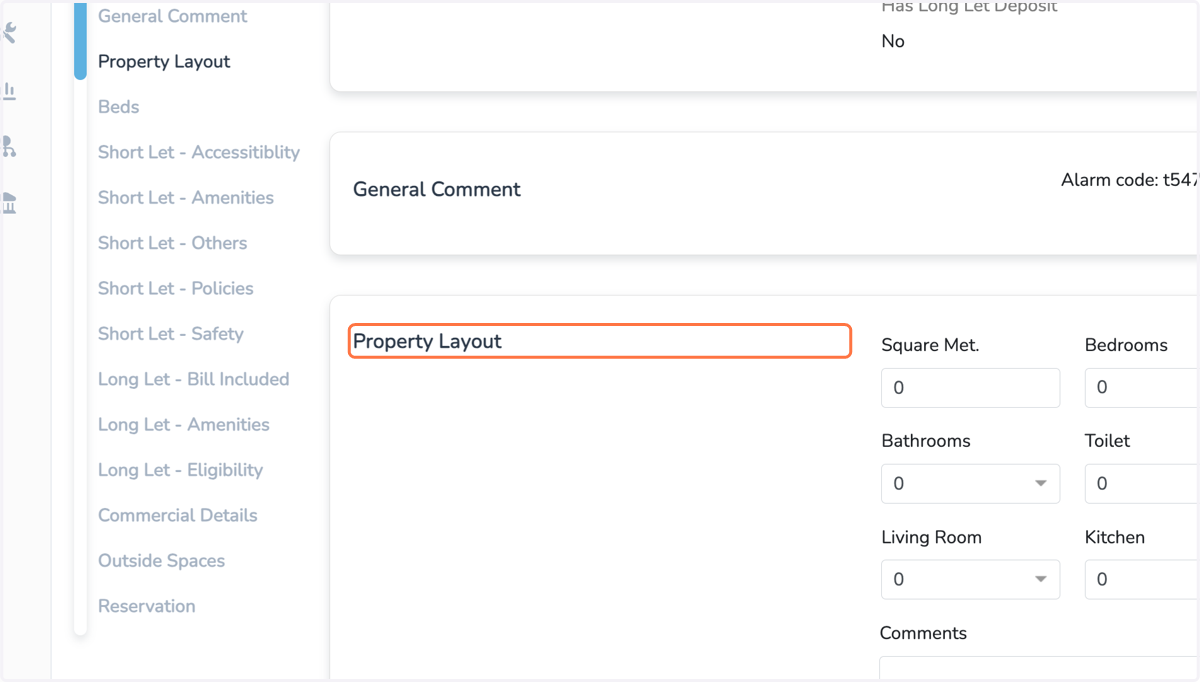
11. On property layout add the number of bedrooms, bathrooms, living rooms, etc > Save
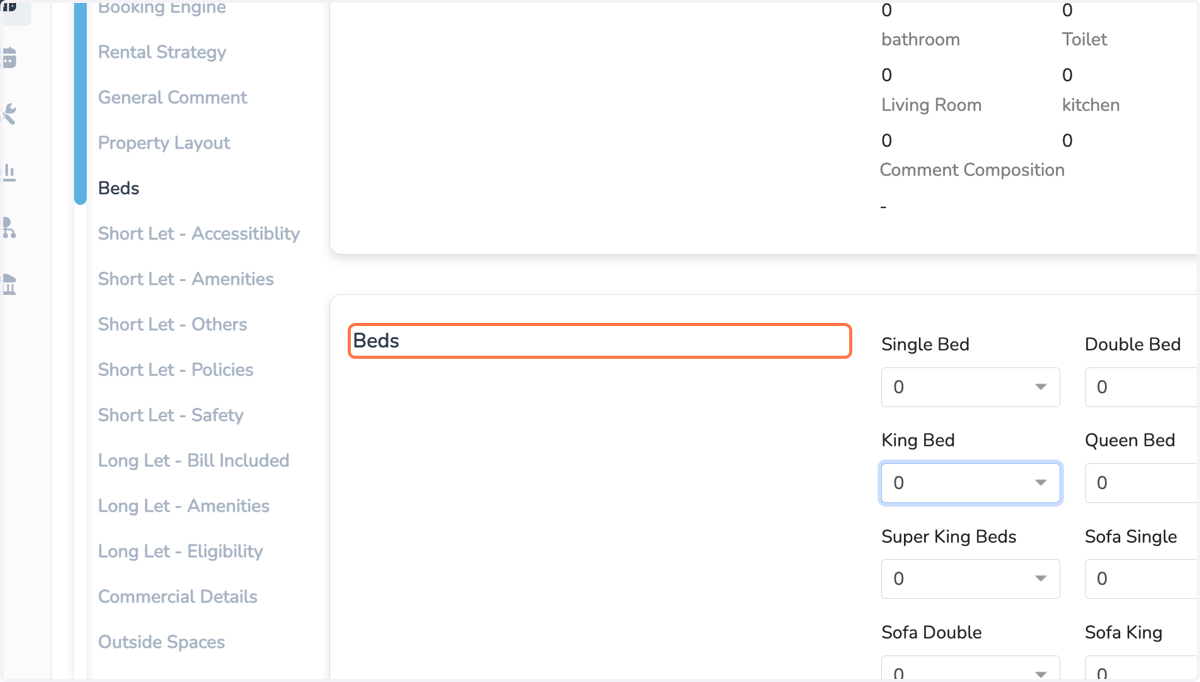
12. Select the size of beds and sofa beds:
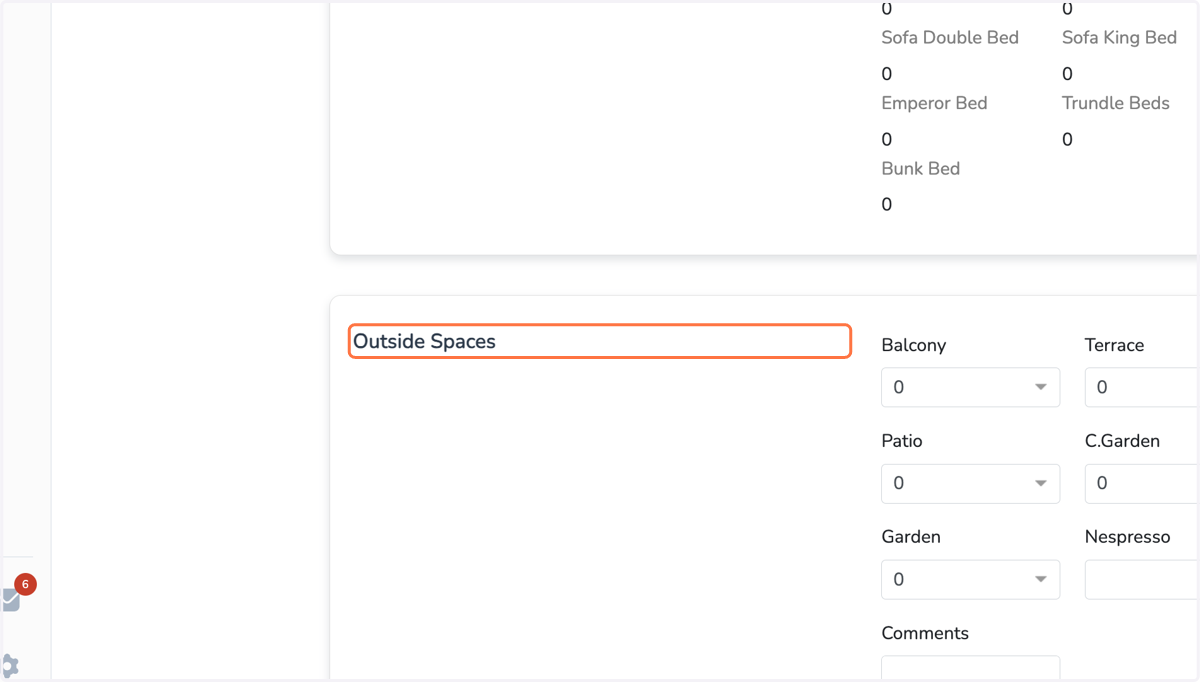
13. Add any outside spac: Balcony, patio ...
14. Click on Save 😀