Managing Type, SubType, and SubSubType Picklists

Chateau

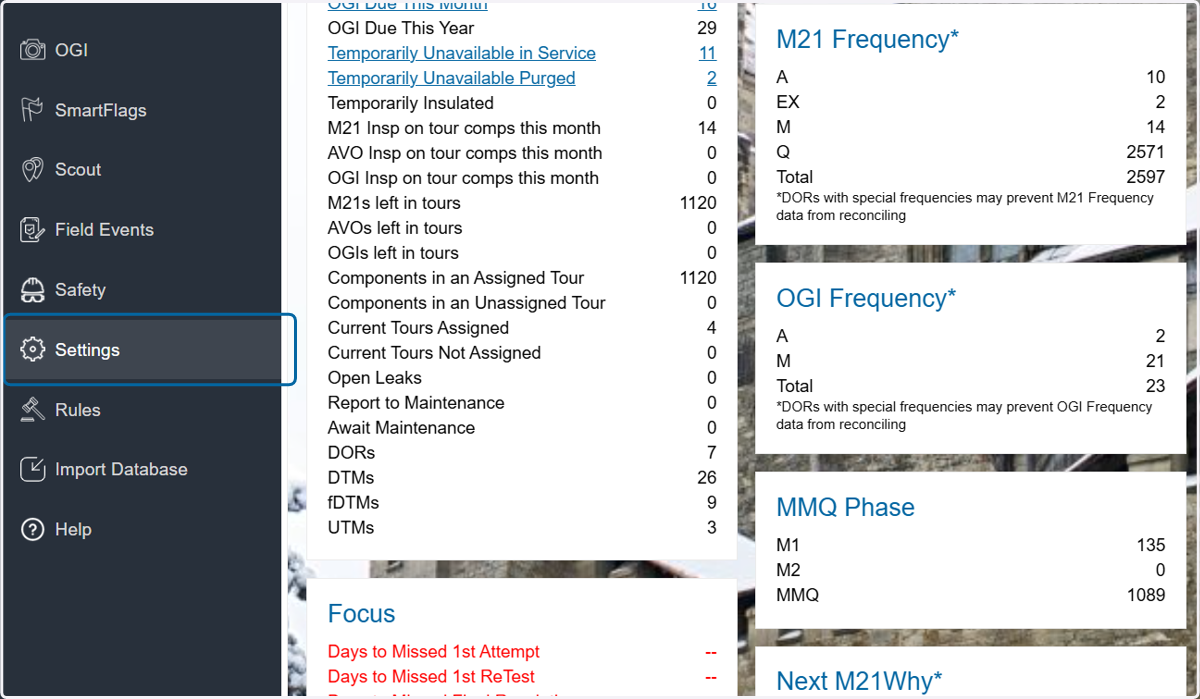
  1. 1. Click on Settings

    Click on Settings
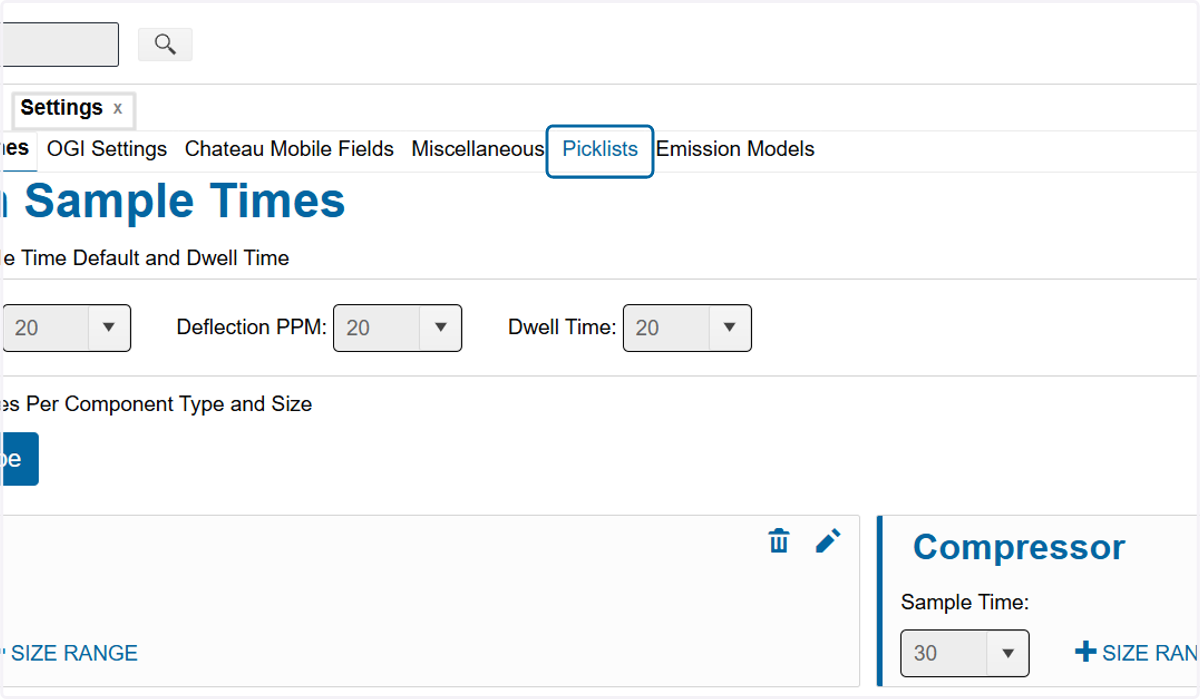
  2. 2. Click on Picklists

    Click on Picklists
  3. 3. Choose Component Types from the Category dropdown
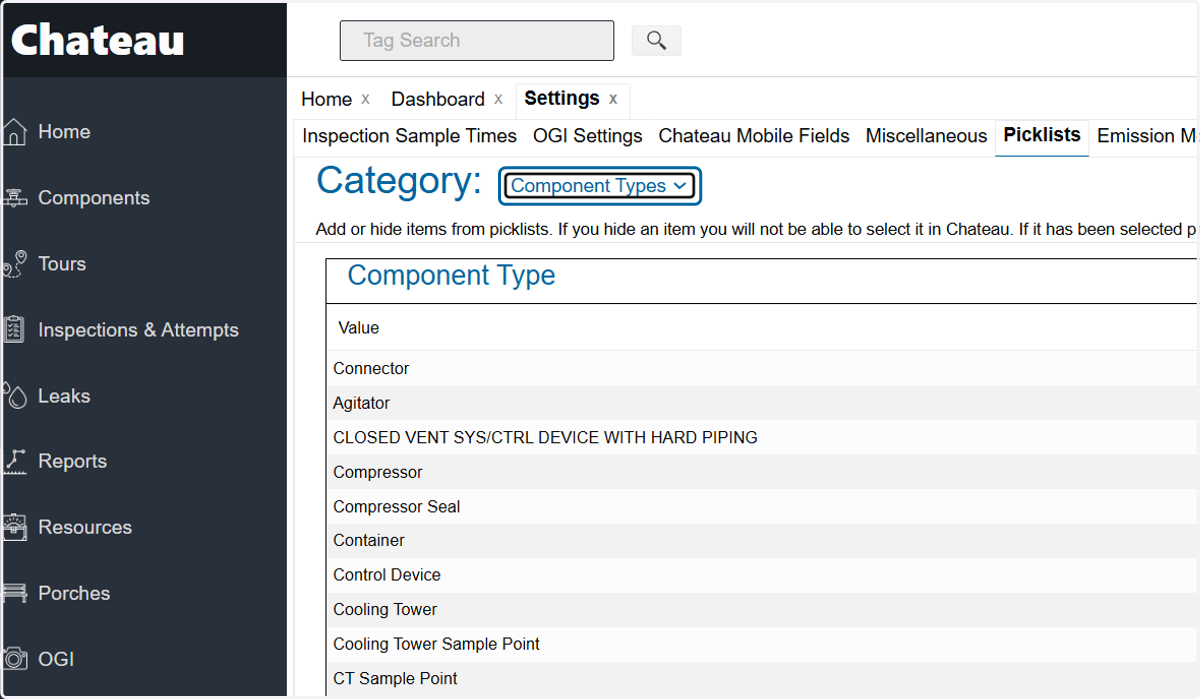
    Choose Component Types from the Category dropdown
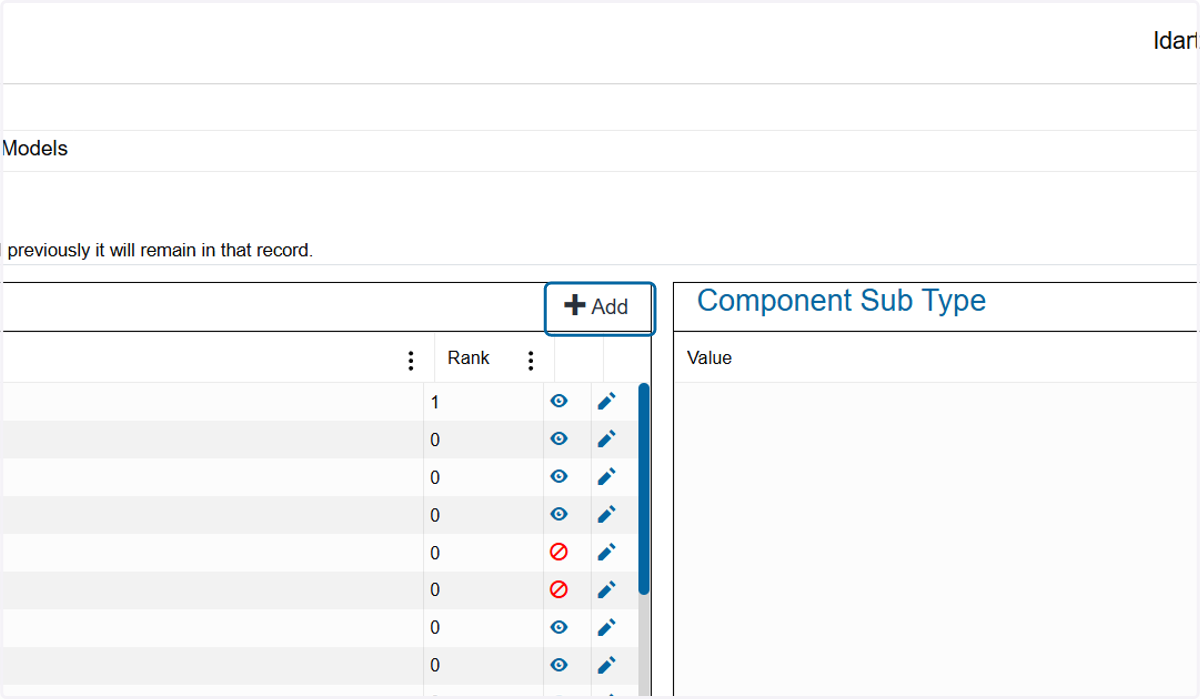
  4. 4. To Add a new Type, Click on Add

    To Add a new Type, Click on Add
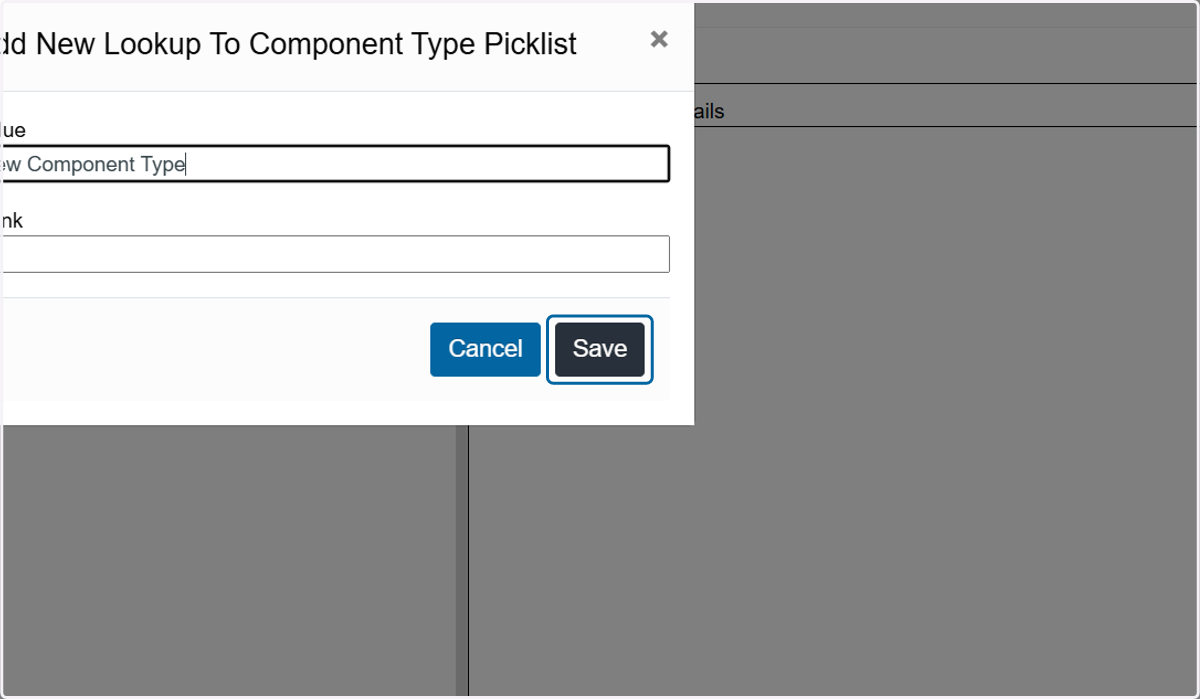
  5. 5. Enter the new type in the Value box
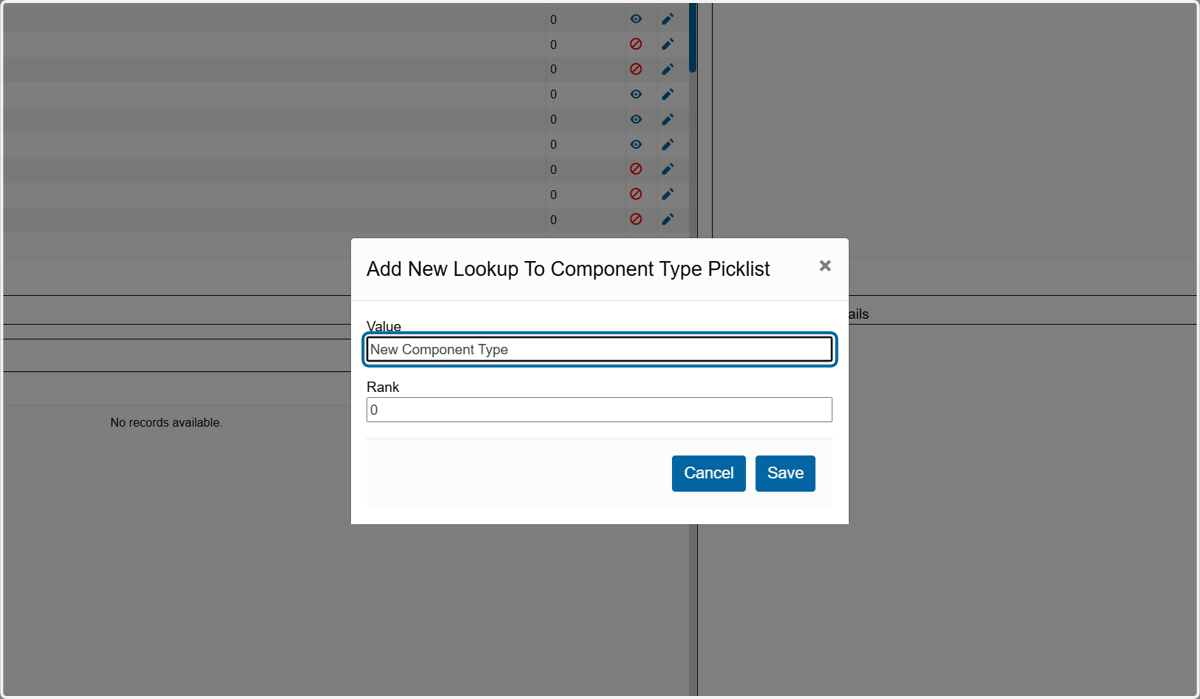
    Enter the new type in the Value box
  6. 6. Click on Save

    Click on Save
  7. 7. To add a Sub Type to a Type, click on the Type you want it to be a SubType of in the Component Type list
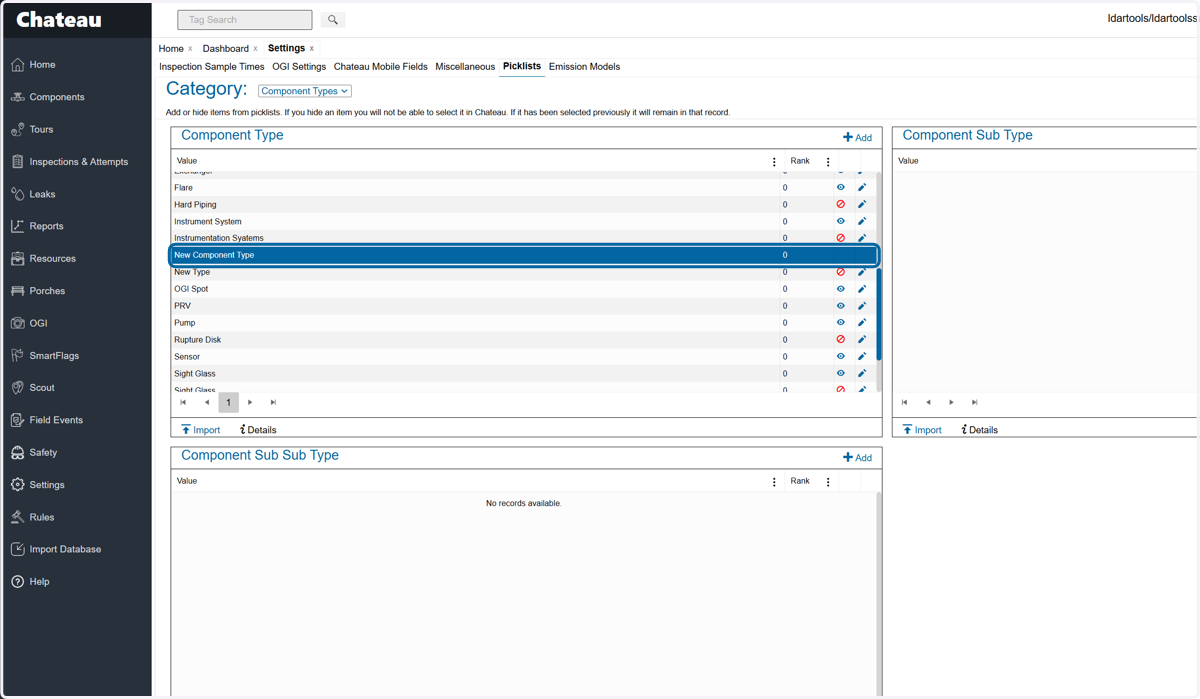
    To add a Sub Type to a Type, click on the Type you want it to be a SubType of in the Component Type list
  8. 8. Click Add in the Component Sub Type pick list
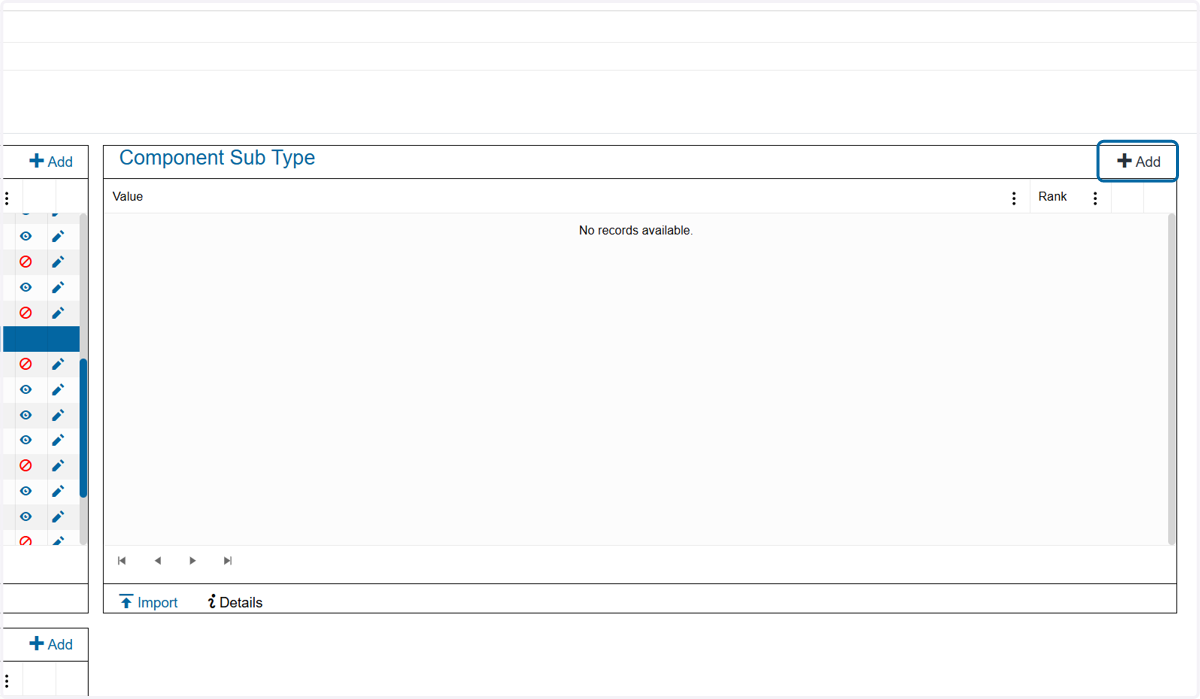
    Click Add in the Component Sub Type pick list
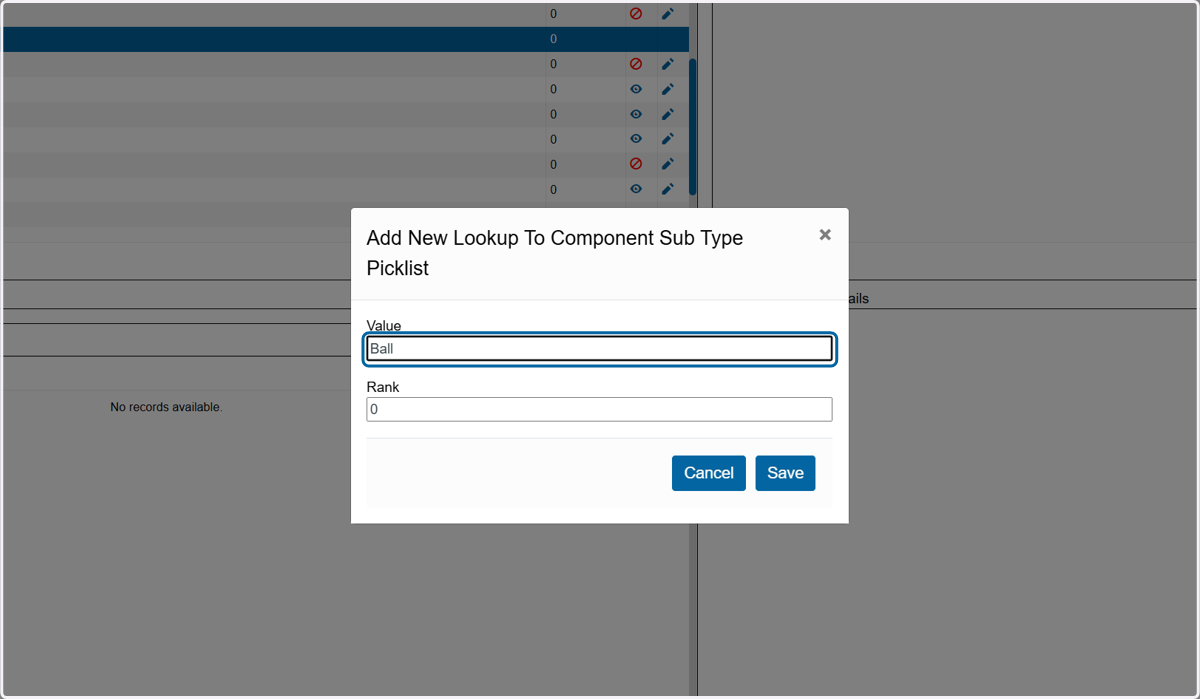
  9. 9. Enter the new sub type

    Enter the new sub type
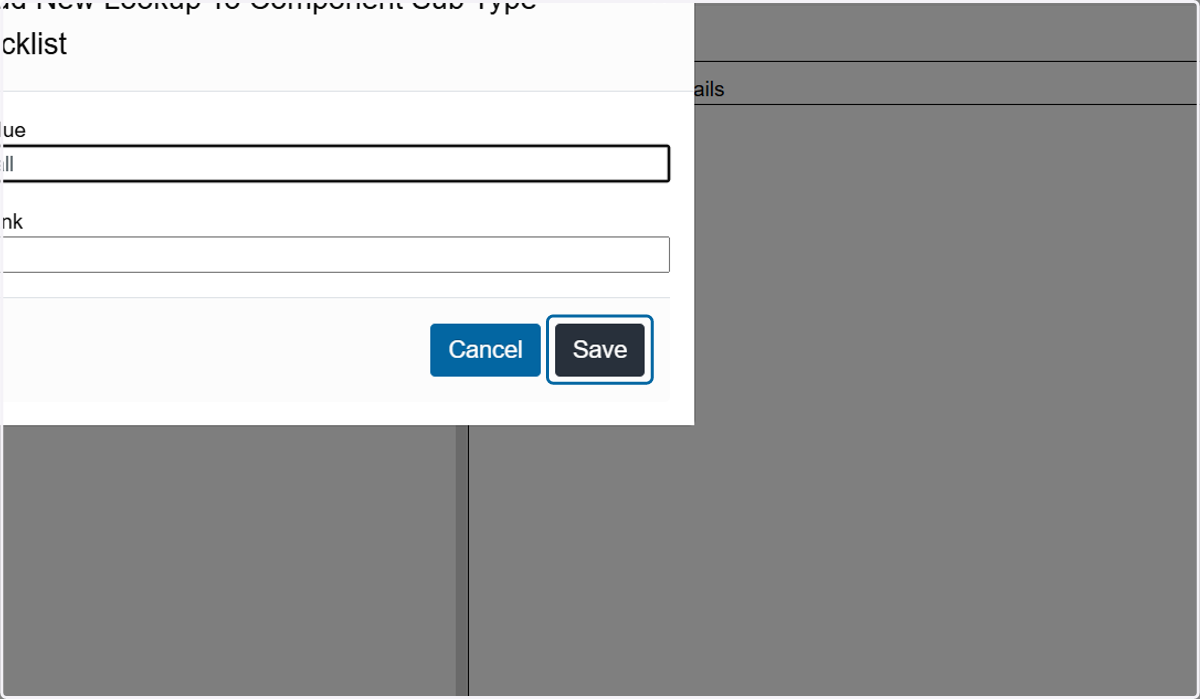
  10. 10. Click on Save

    Click on Save
  11. 11. To add a Sub Sub Type to a Sub Type, click on the Type you want it to be under first
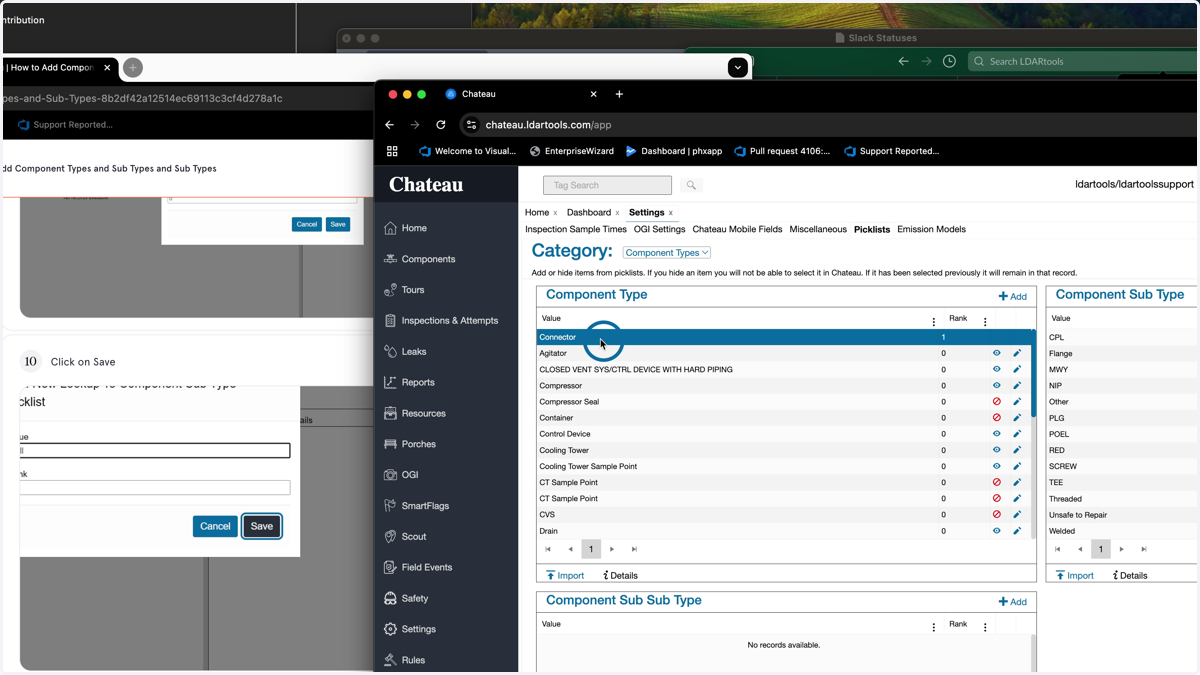
    To add a Sub Sub Type to a Sub Type, click on the Type you want it to be under first
  12. 12. Then select the Sub Type in the Sub Type pick list you want the Sub Sub Type to be under.
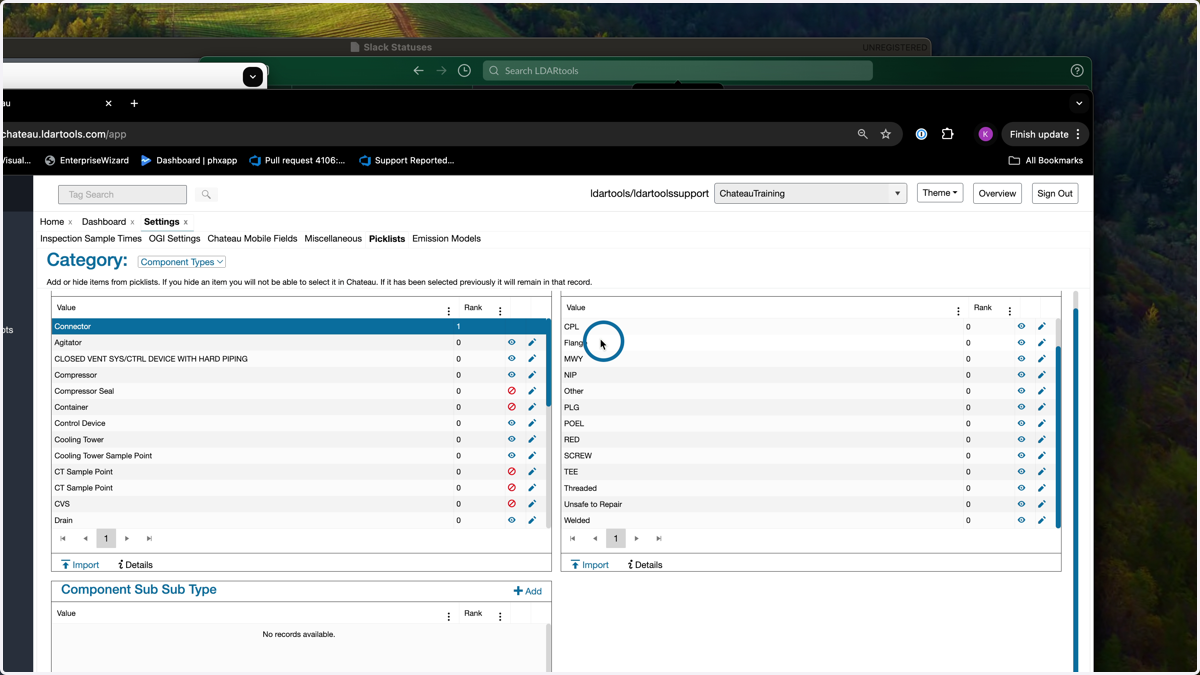
    Then select the Sub Type in the Sub Type pick list you want the Sub Sub Type to be under.
  13. 13. Click Add in the Component Sub Sub Type pick list
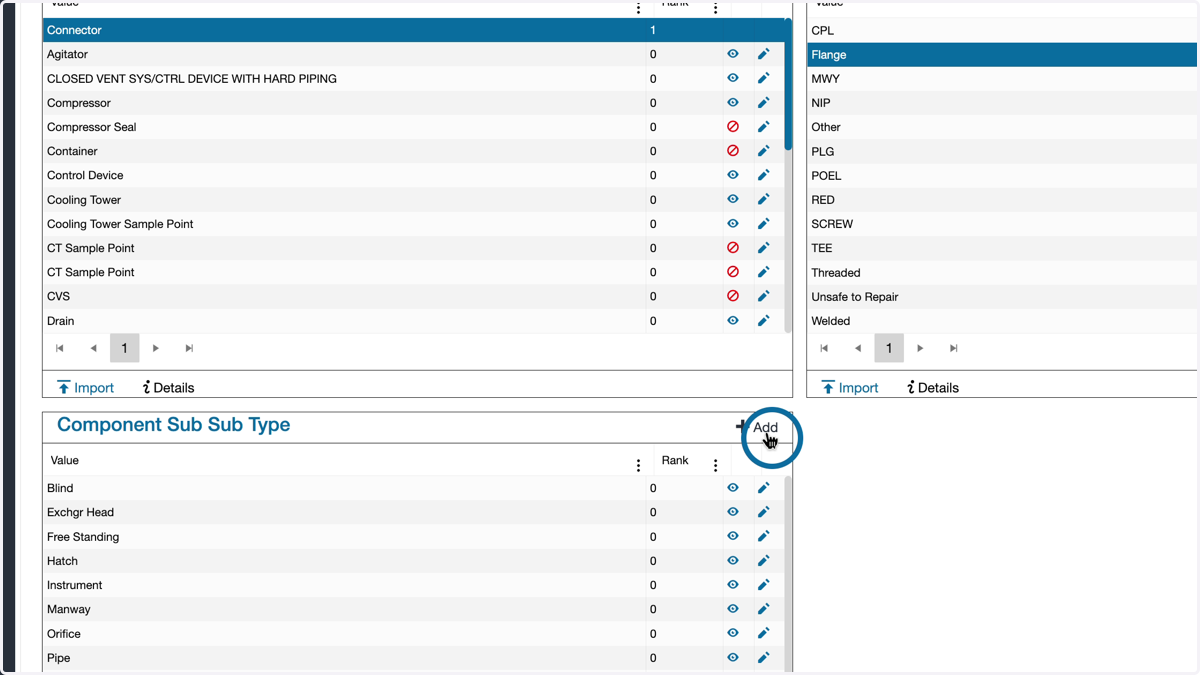
    Click Add in the Component Sub Sub Type pick list
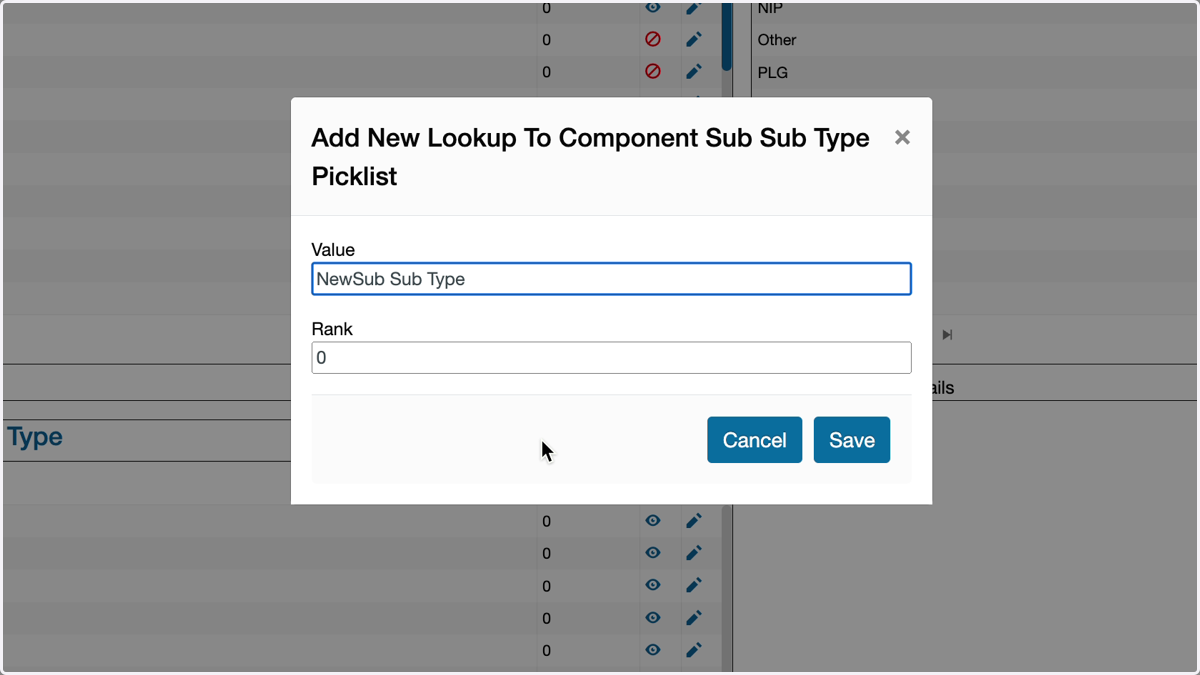
  14. 14. Enter the new sub sub type

    Enter the new sub sub type
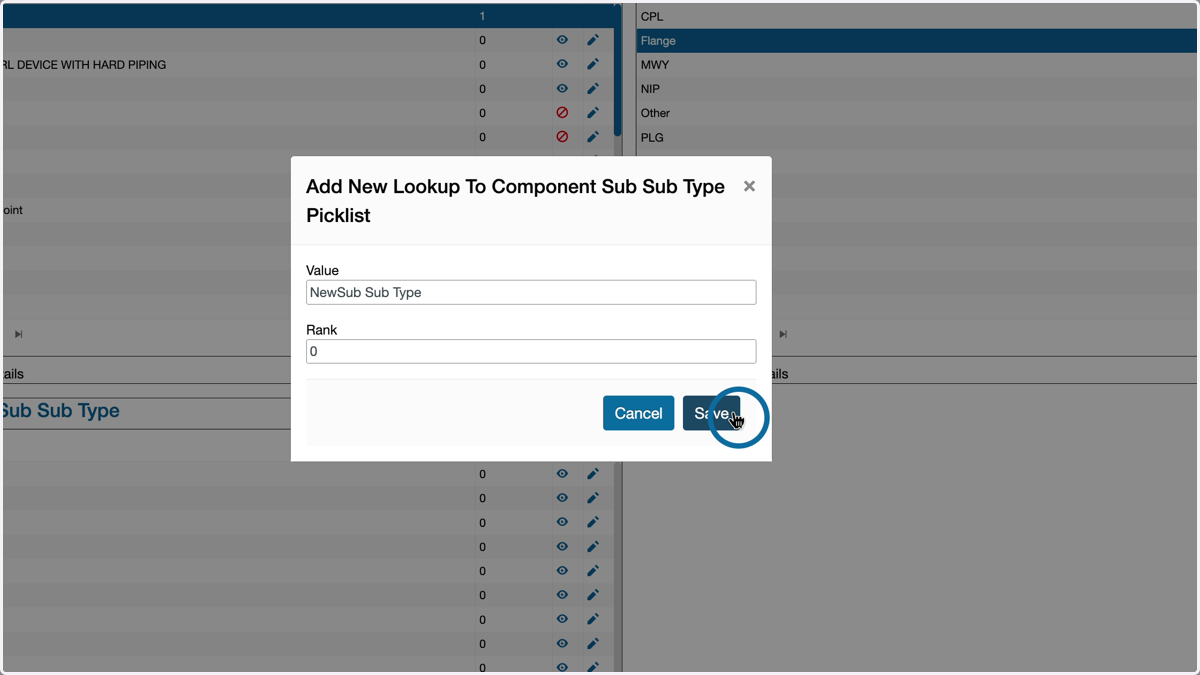
  15. 15. Click Save

    Click Save