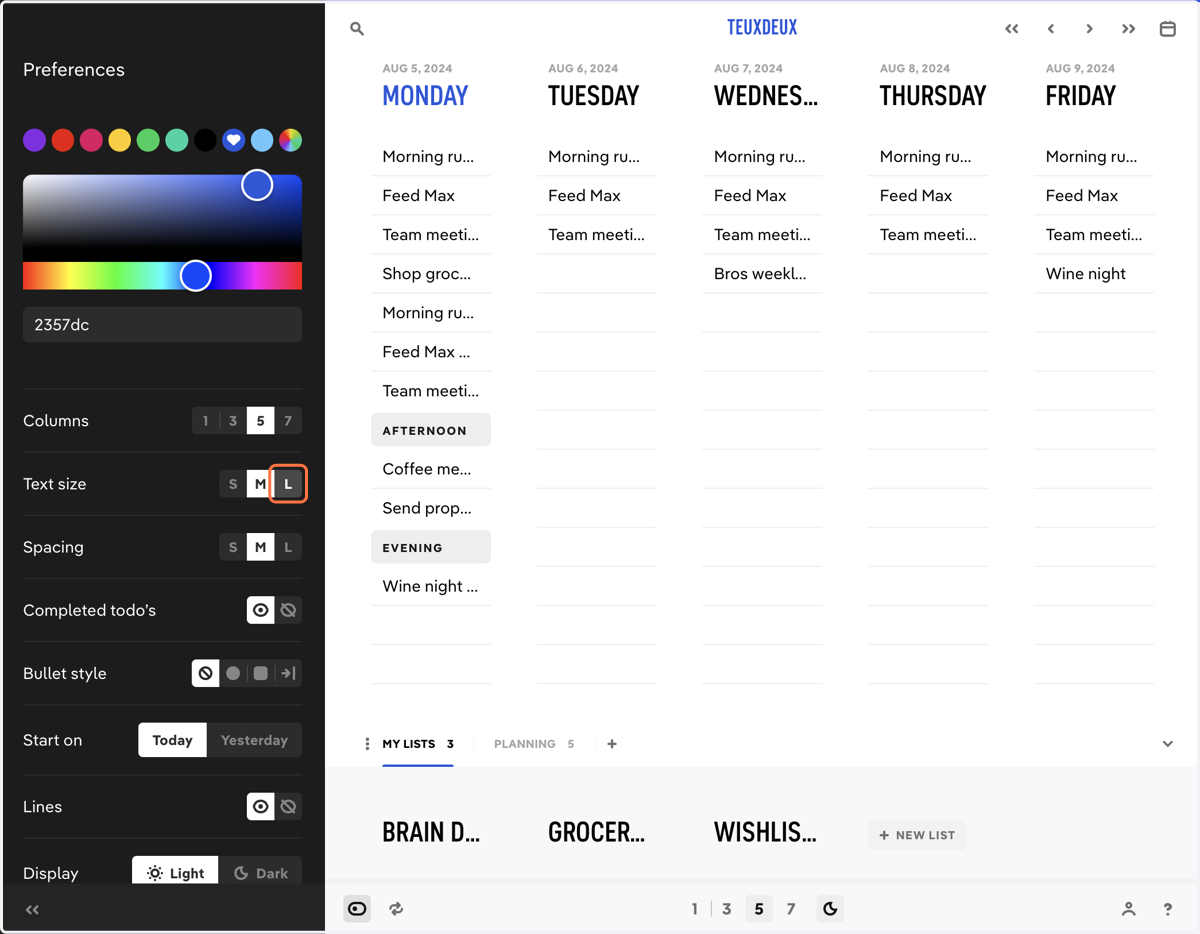
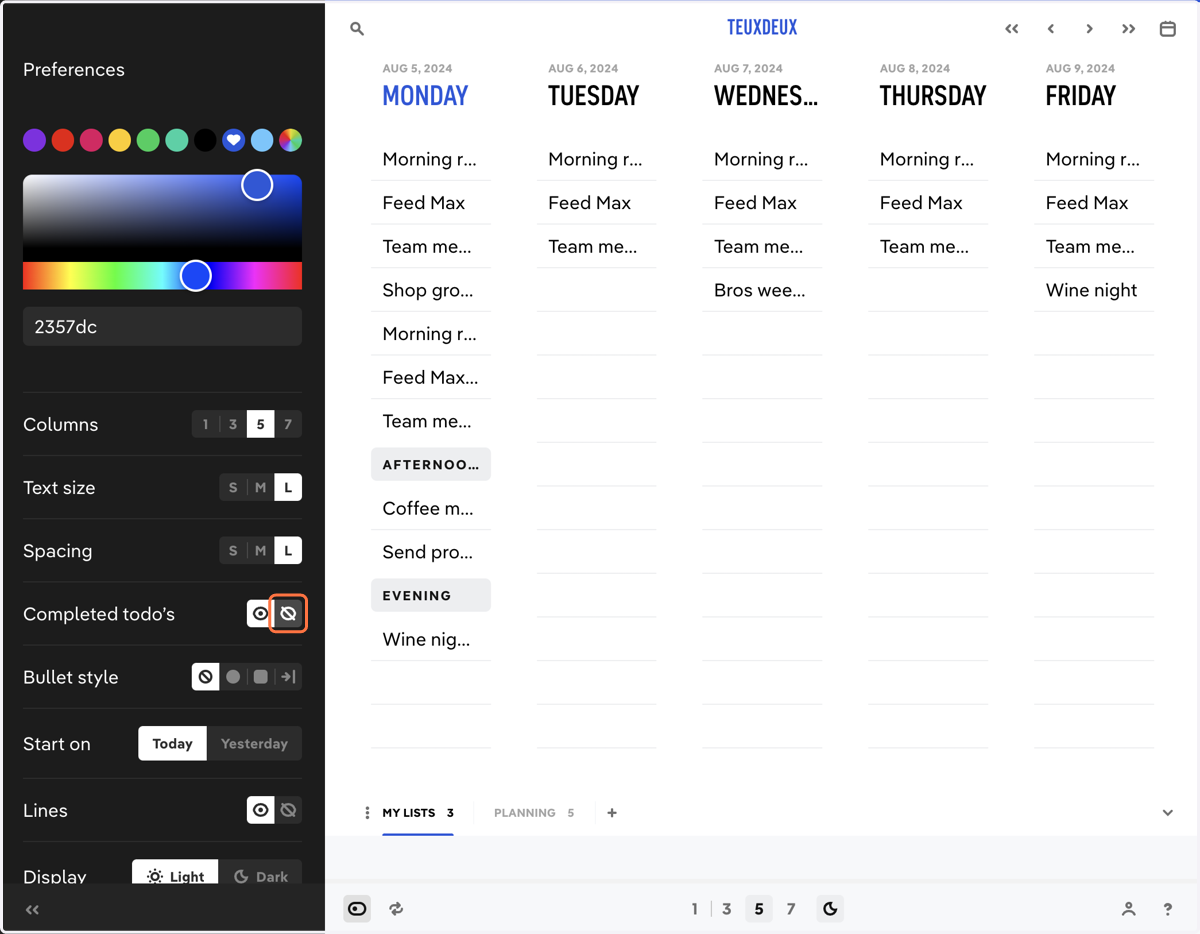
Manage Preferences

  1. 1. Click the Preferences icon at the bottom left of the screen.
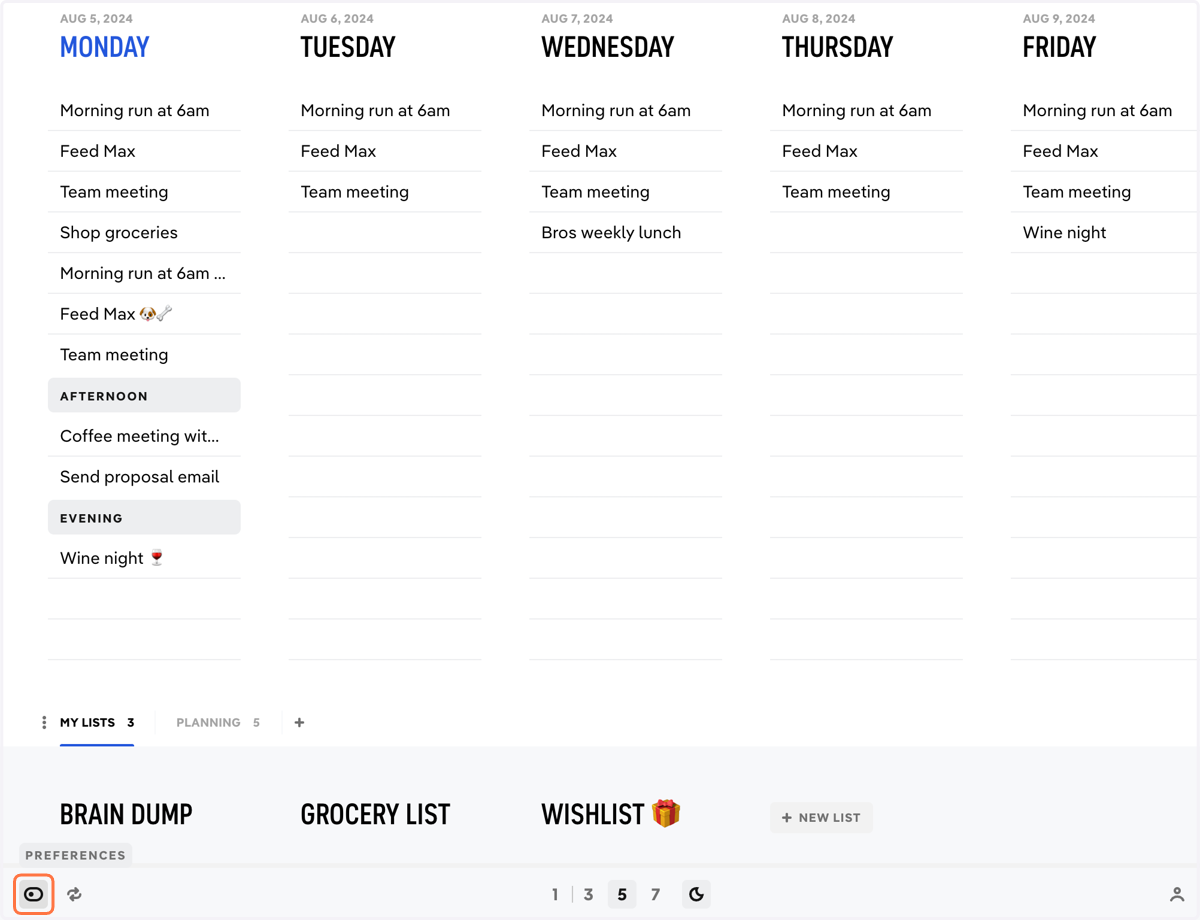
    Click the Preferences icon at the bottom left of the screen.
  2. 2. Choose from the color presets or pick your own custom color.
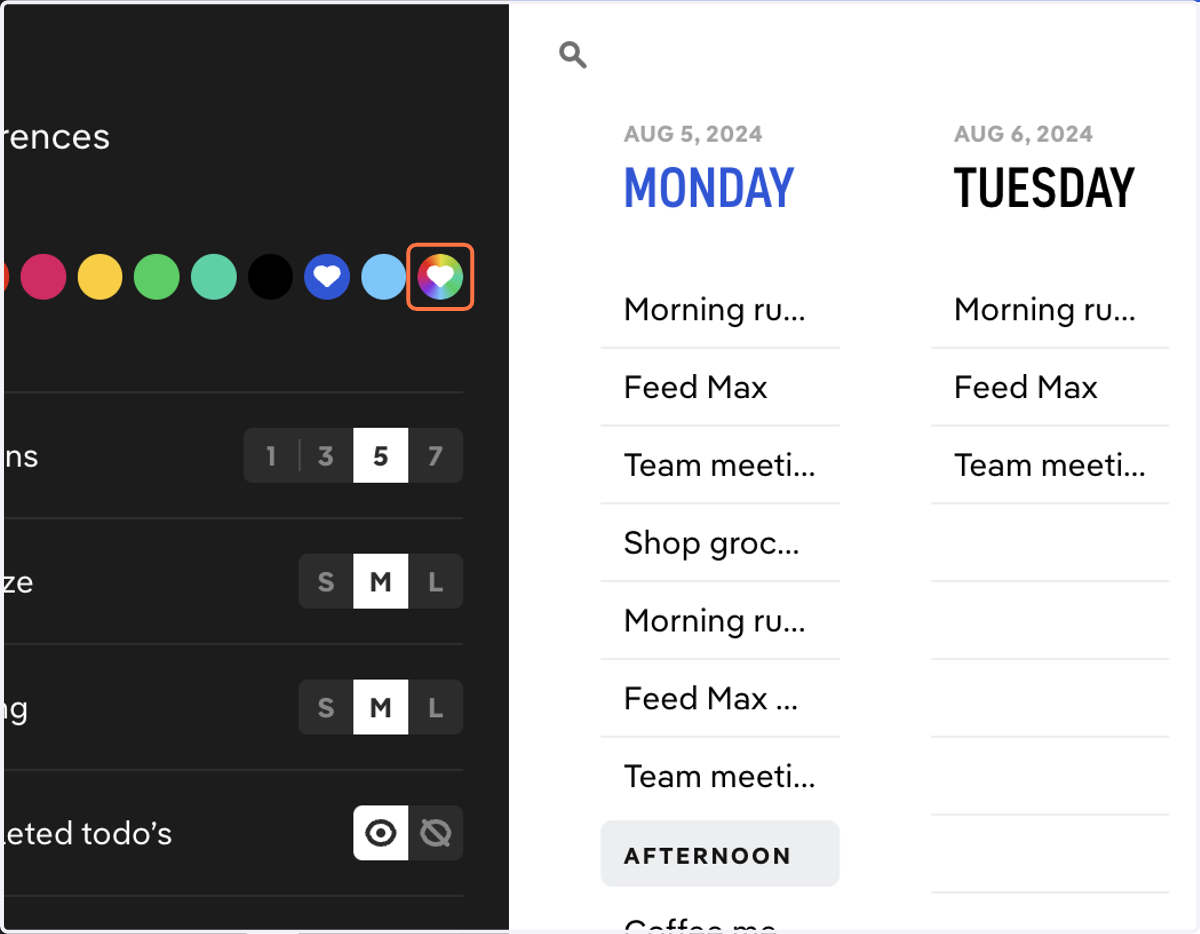
    Choose from the color presets or pick your own custom color.
  3. 3. Choose how many columns of lists are in view.
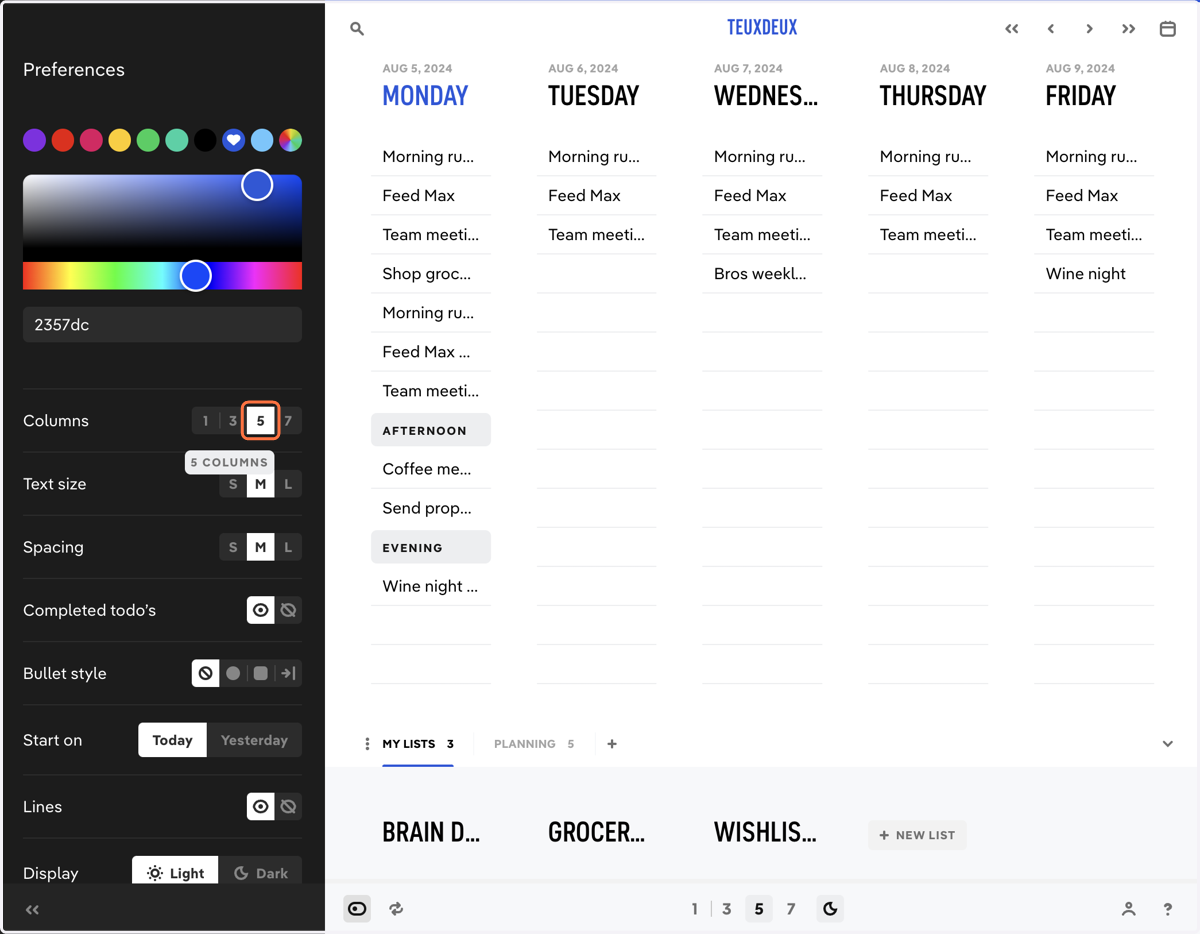
    Choose how many columns of lists are in view.
  4. 4. Choose a text size.

    Choose a text size.
  5. 5. Set the vertical spacing of your to-dos.
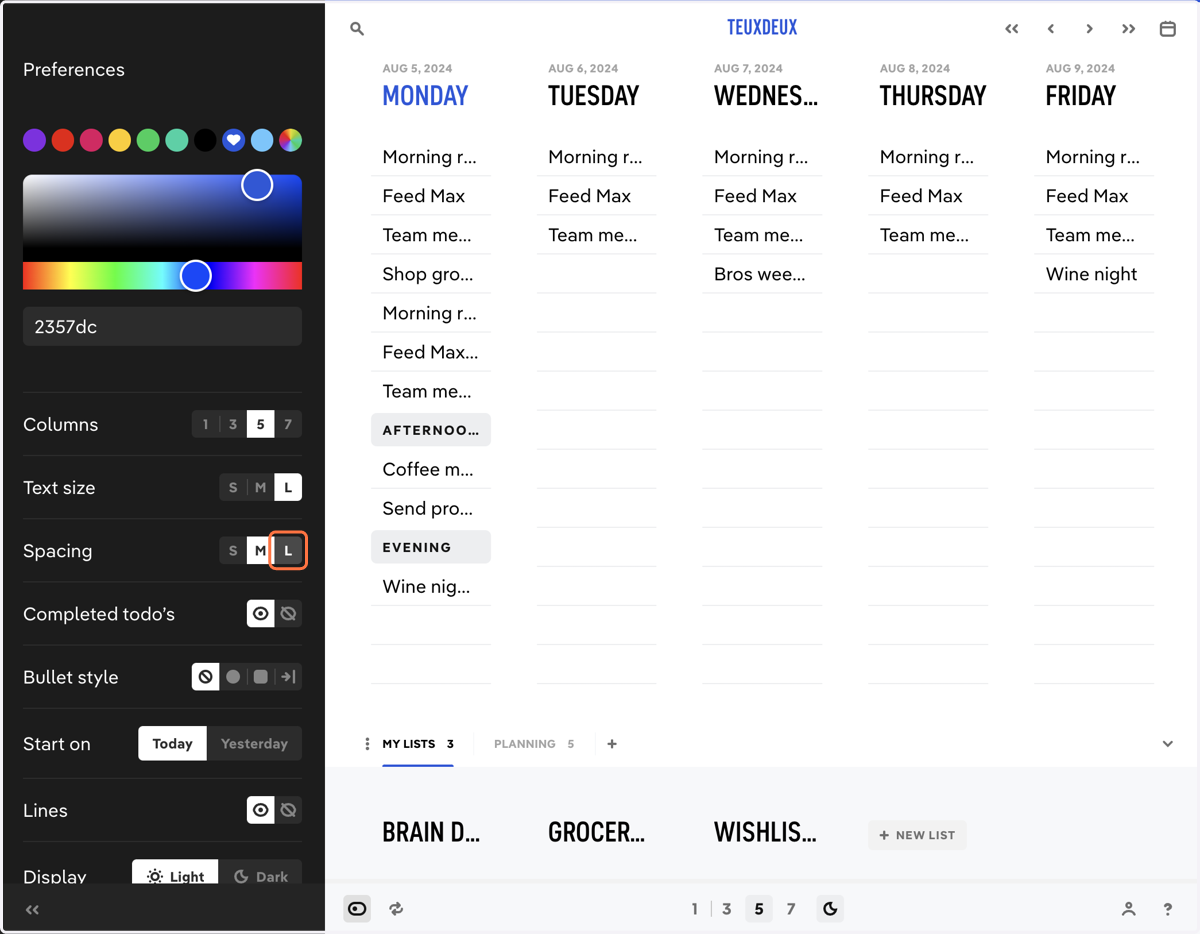
    Set the vertical spacing of your to-dos.
  6. 6. Show or hide completed to-dos.

    Show or hide completed to-dos.
  7. 7. To-dos that start with '-' will be automatically formatted with your selected bullet style.
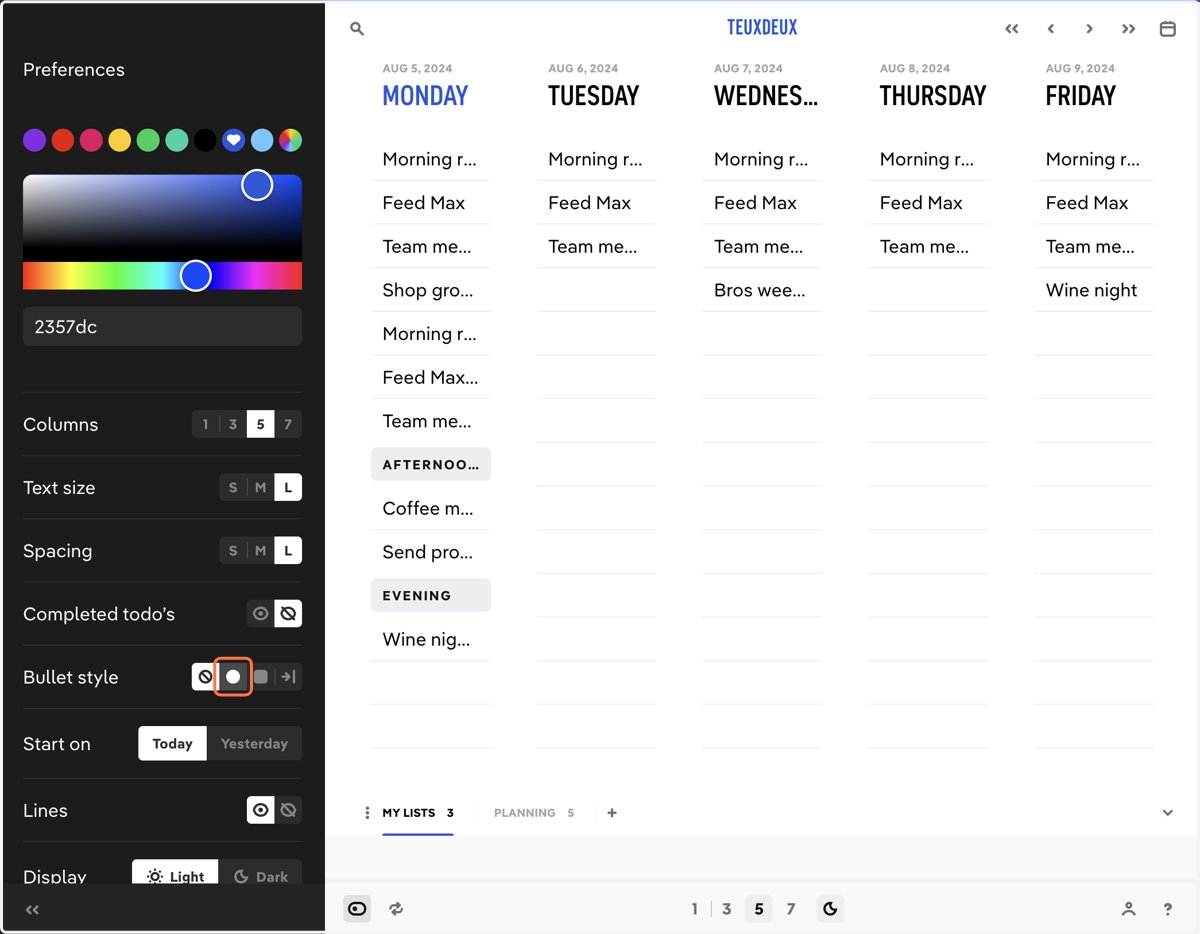
    To-dos that start with '-' will be automatically formatted with your selected bullet style.
  8. 8. Show or hide yesterday's list in your default view.
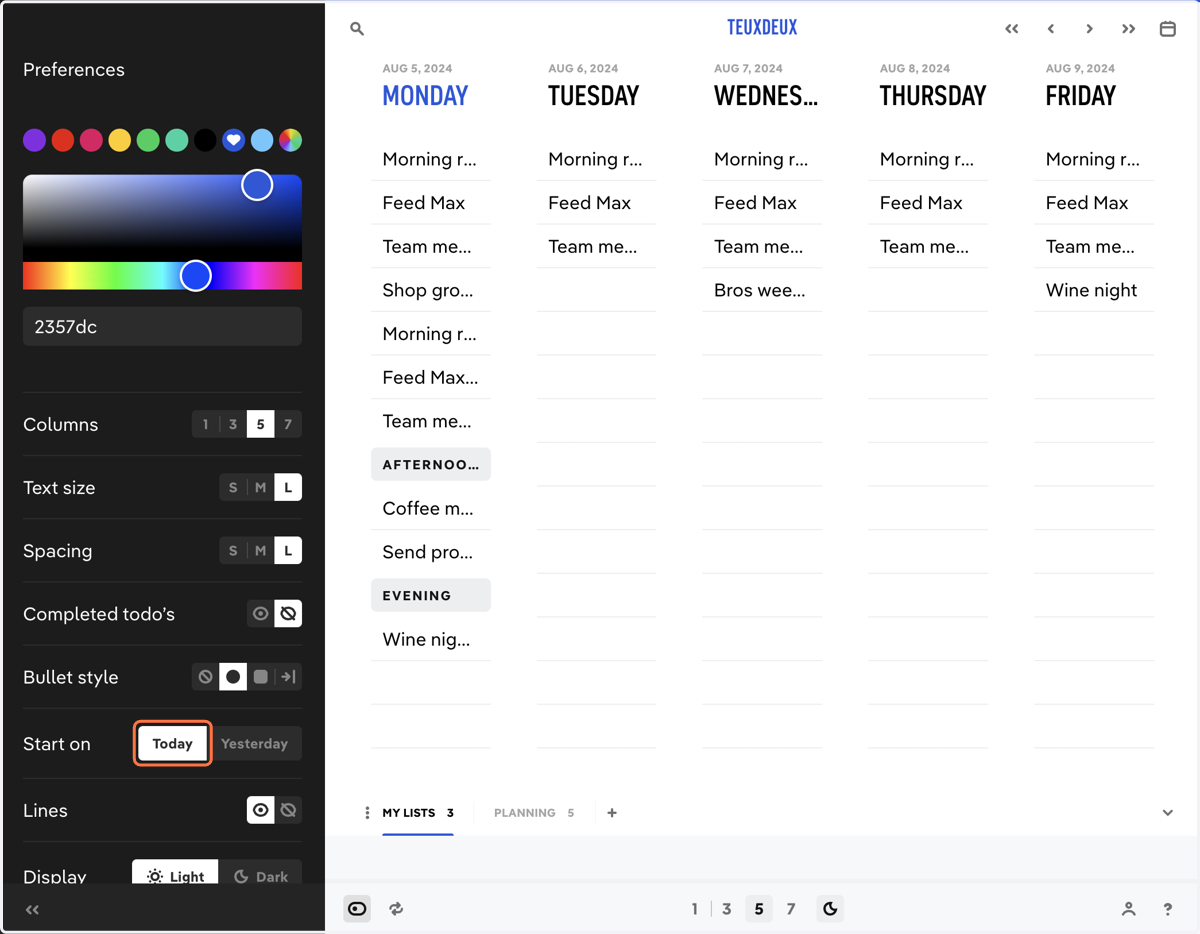
    Show or hide yesterday's list in your default view.
  9. 9. Show or hide empty lines at the end of your lists.
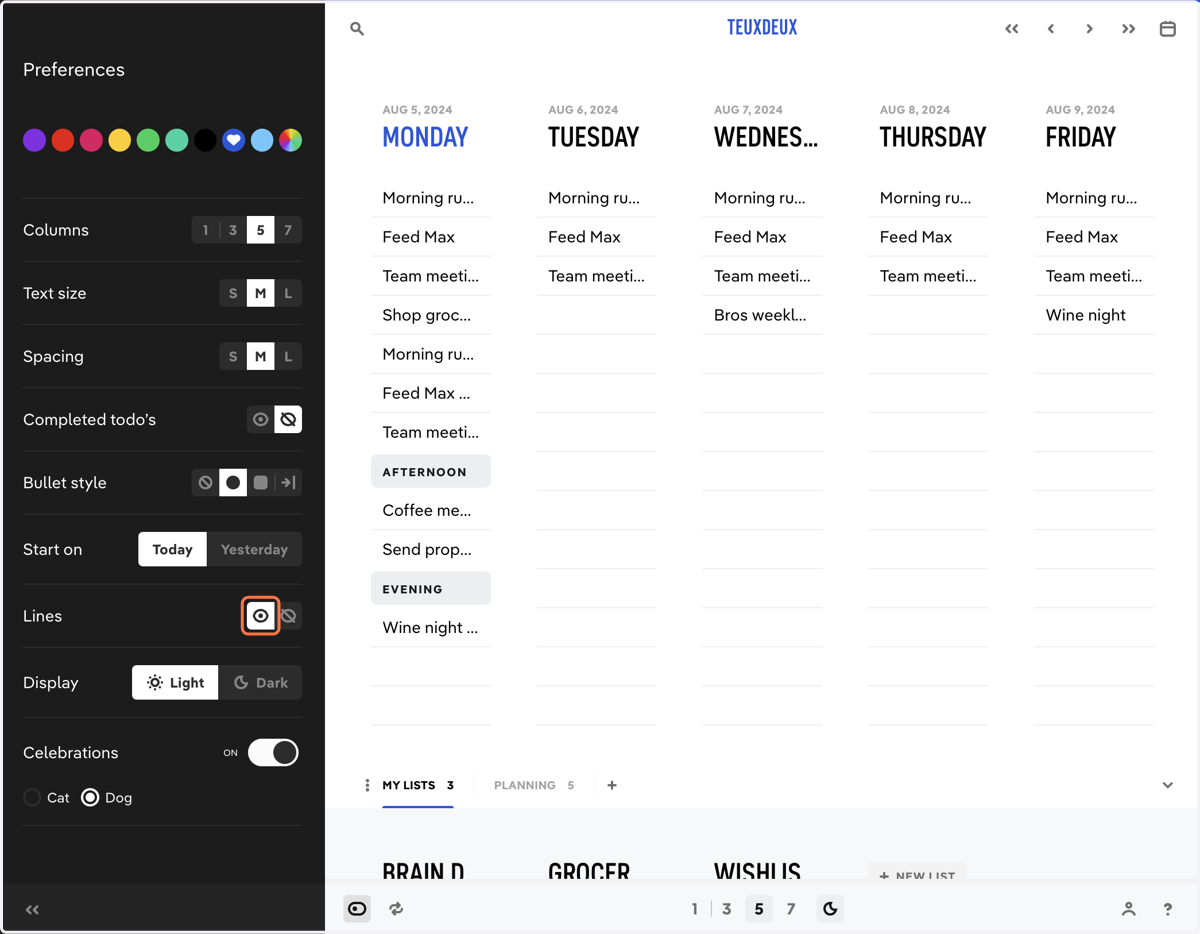
    Show or hide empty lines at the end of your lists.
  10. 10. You have the option to go 'Dark mode'.
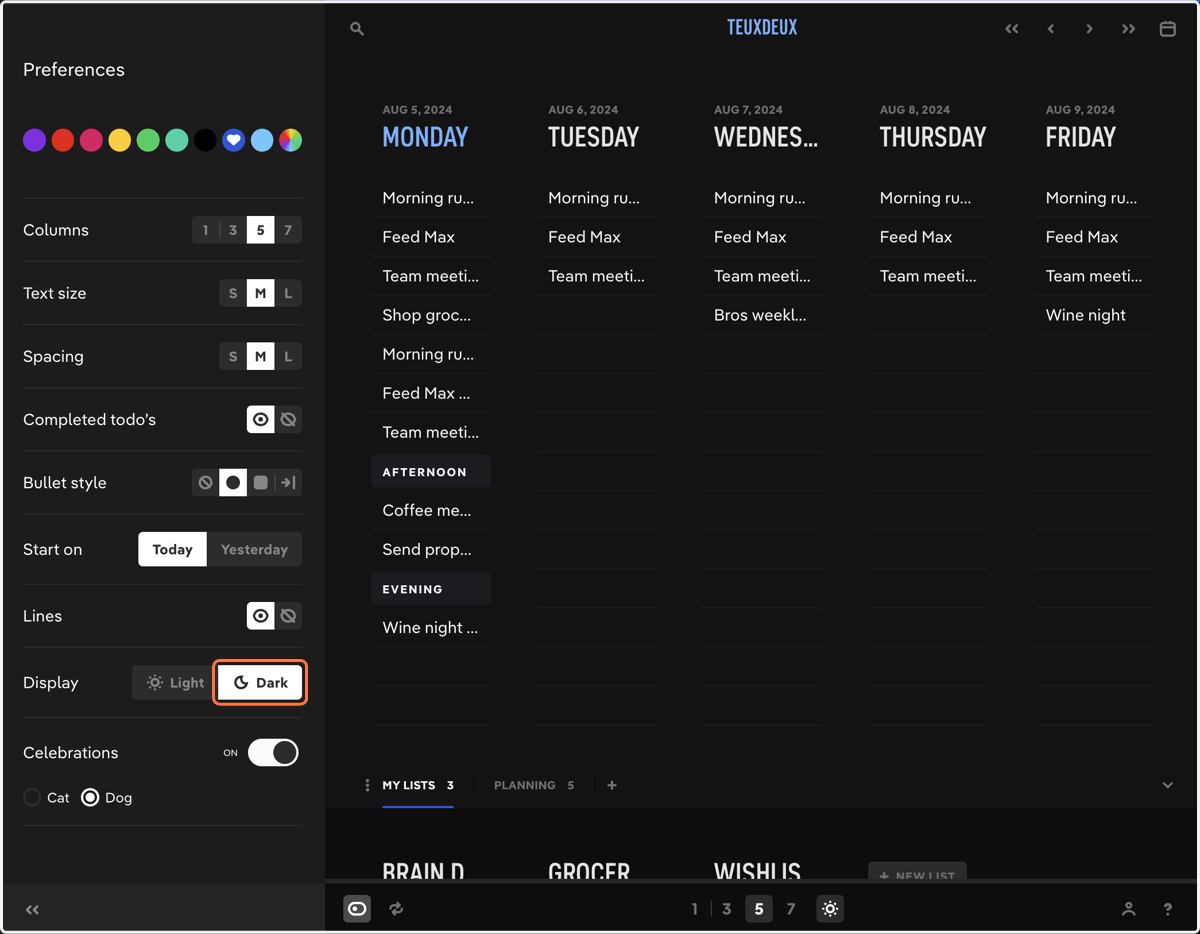
    You have the option to go 'Dark mode'.
  11. 11. Enable Celebrations for a fun surprise when you complete a to-do 🎉
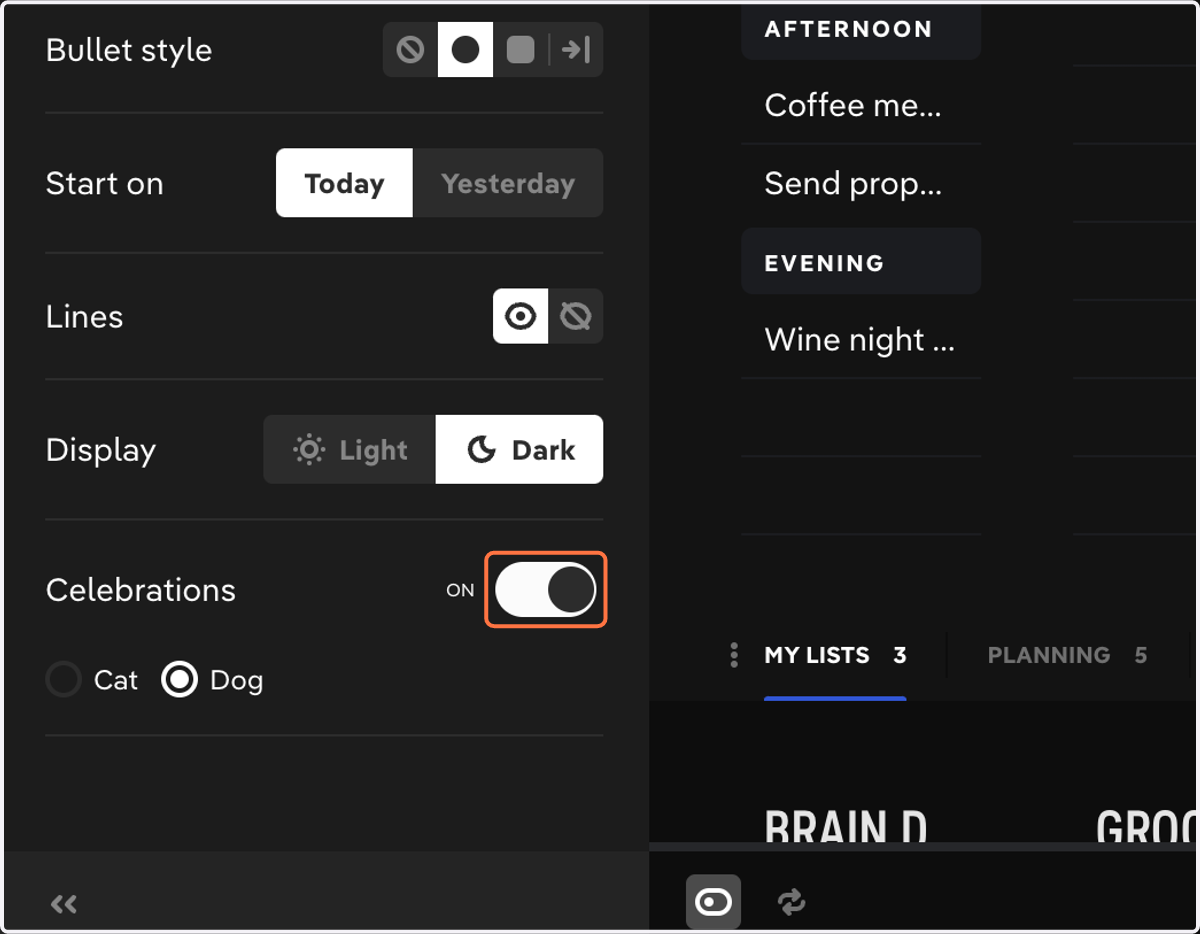
    Enable Celebrations for a fun surprise when you complete a to-do 🎉