Generate Invoicing Reports
Log Into Your Portal
motivatedleads.com and click Sign In
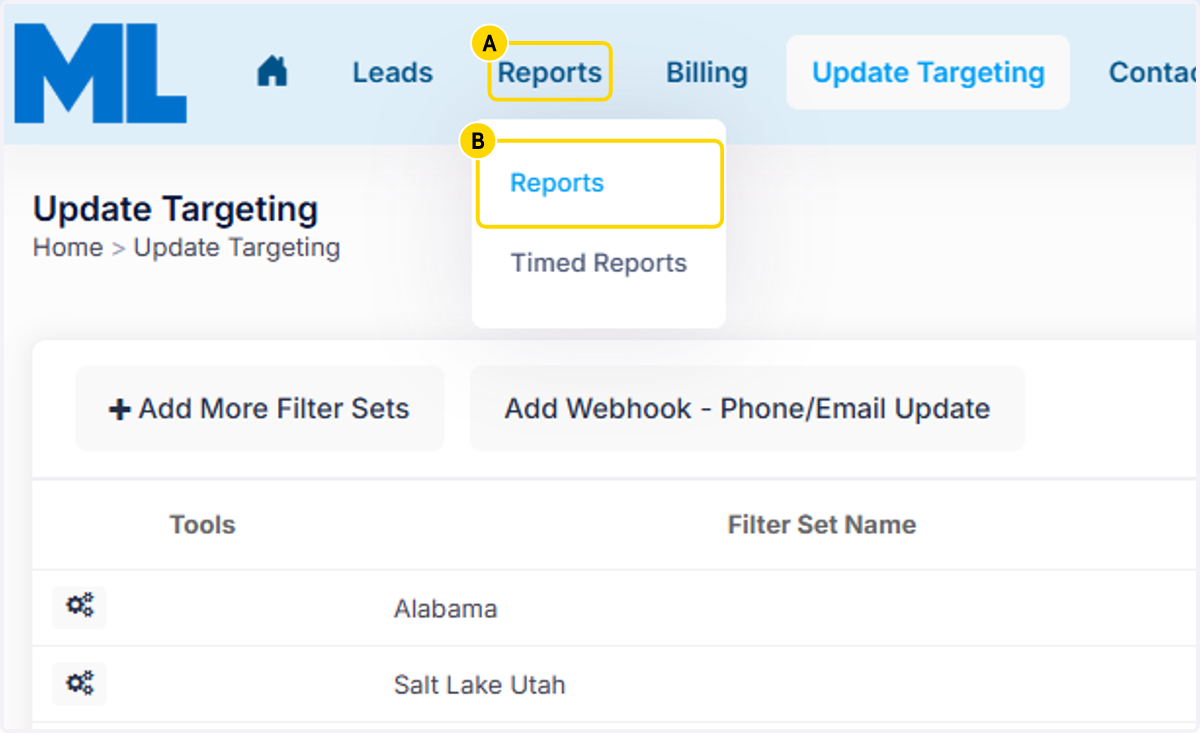
1. A. Click on Reports
1. B. Click on Reports
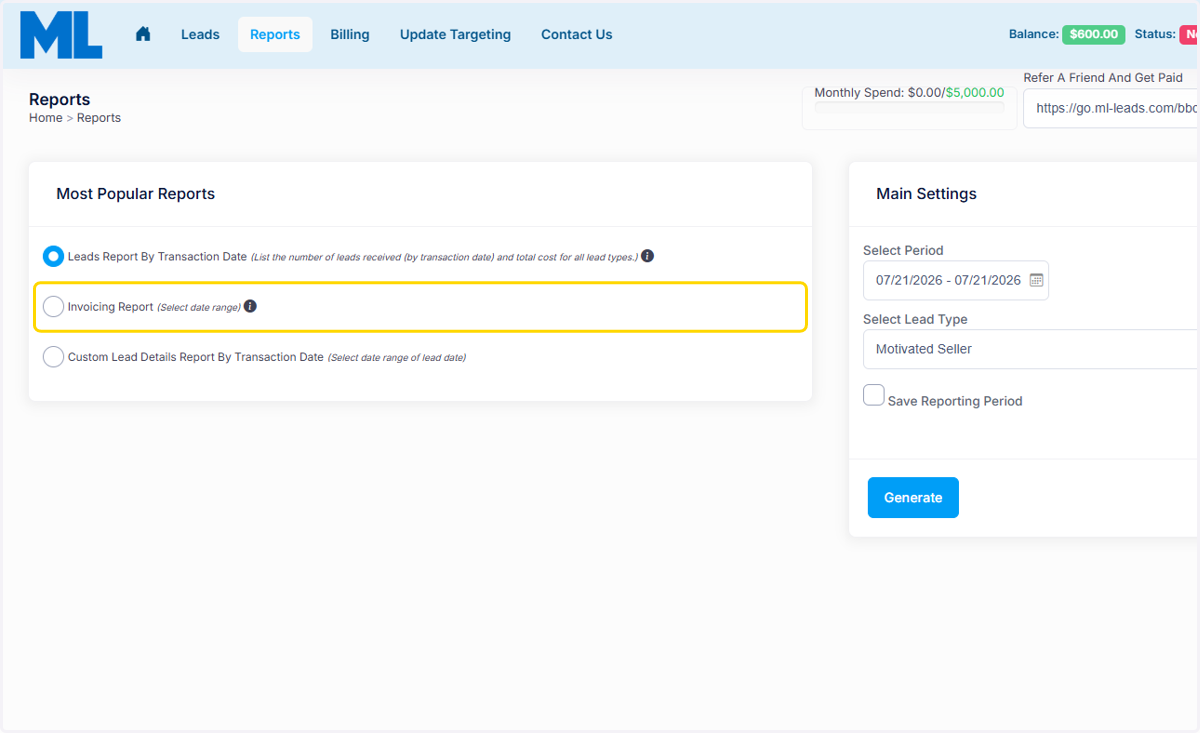
2. Click on Invoicing Report
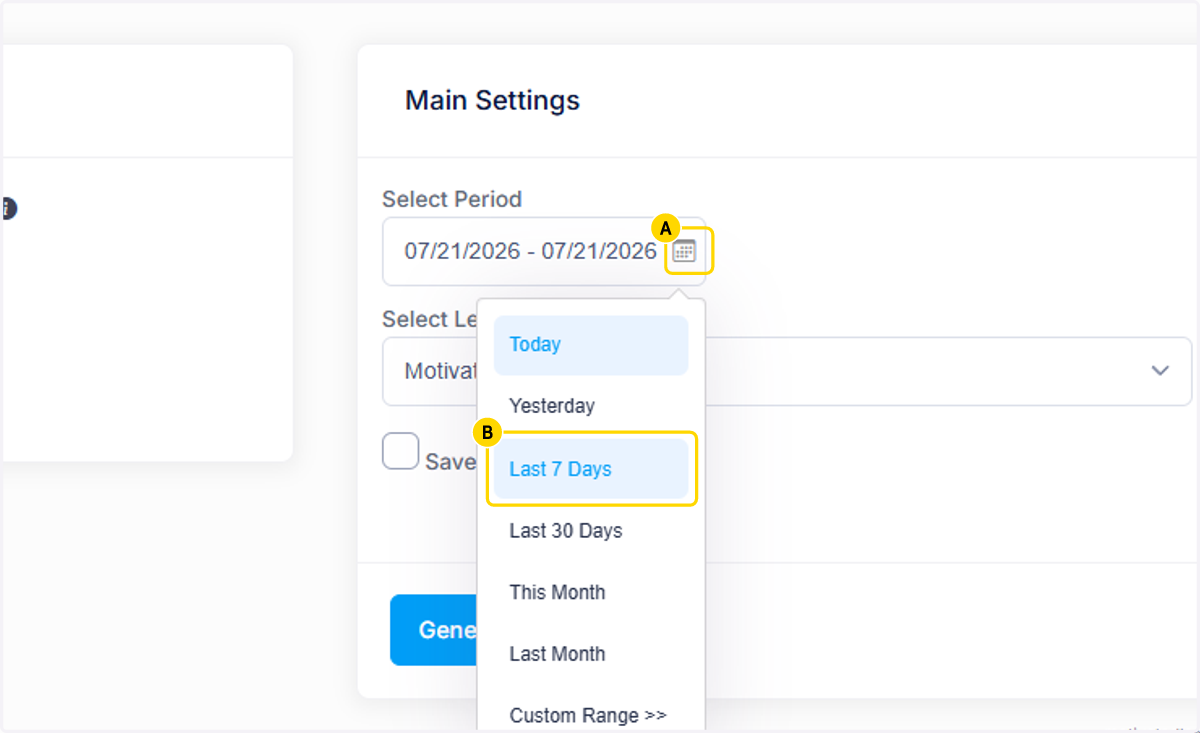
3. A. To the right under Main Settings, Click on the Calendar Filter
3. B. Choose the Time Frame you want the Report for
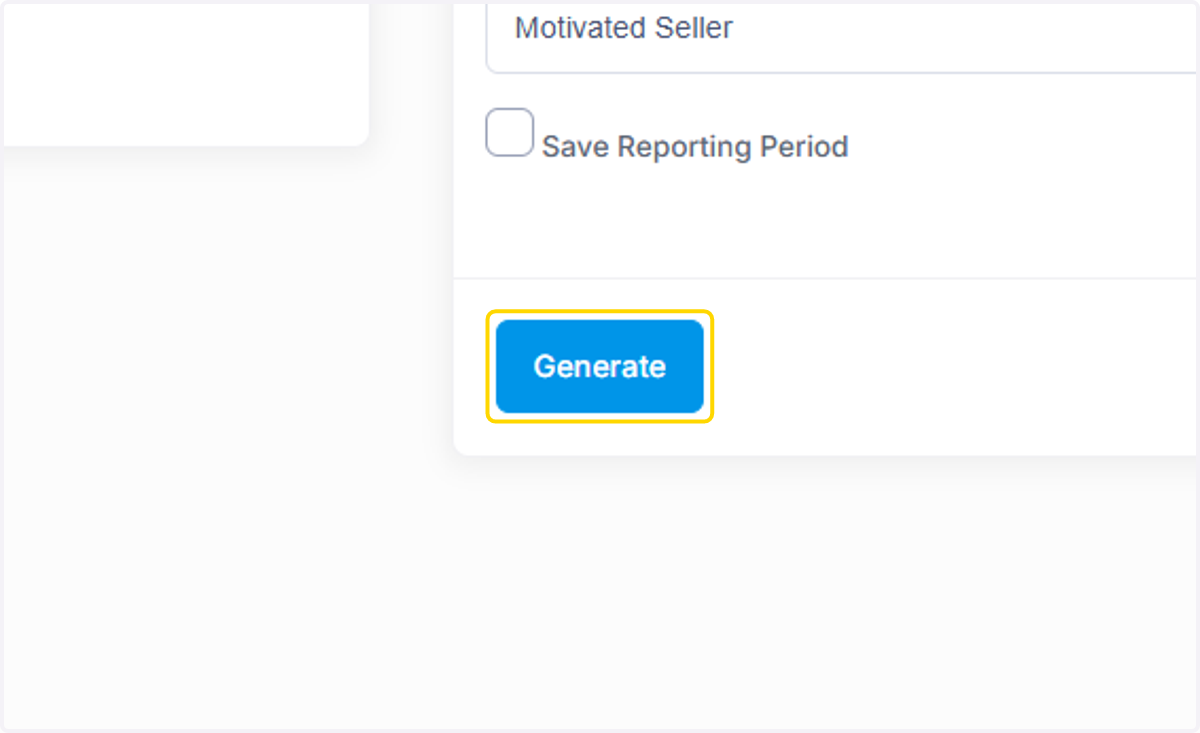
4. Click on Generate
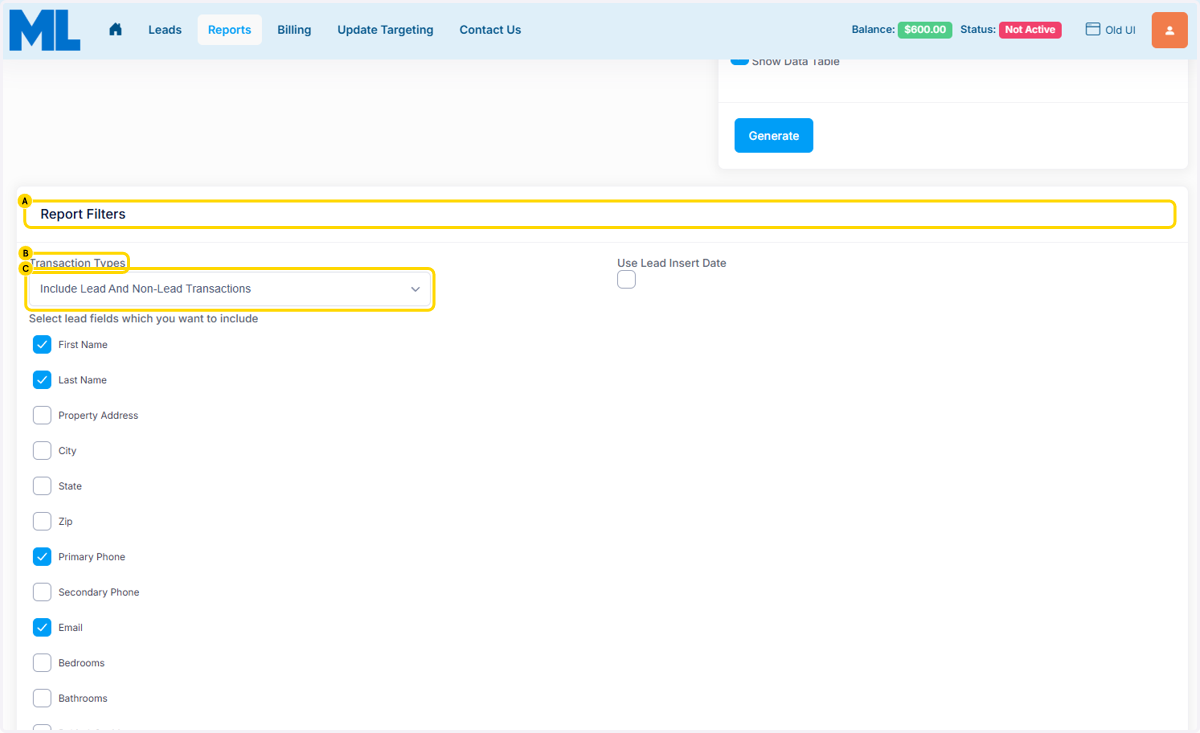
5. A. Half way down the page, Click on Report Filters
5. B. Click on Transaction Types
5. C. Select an option
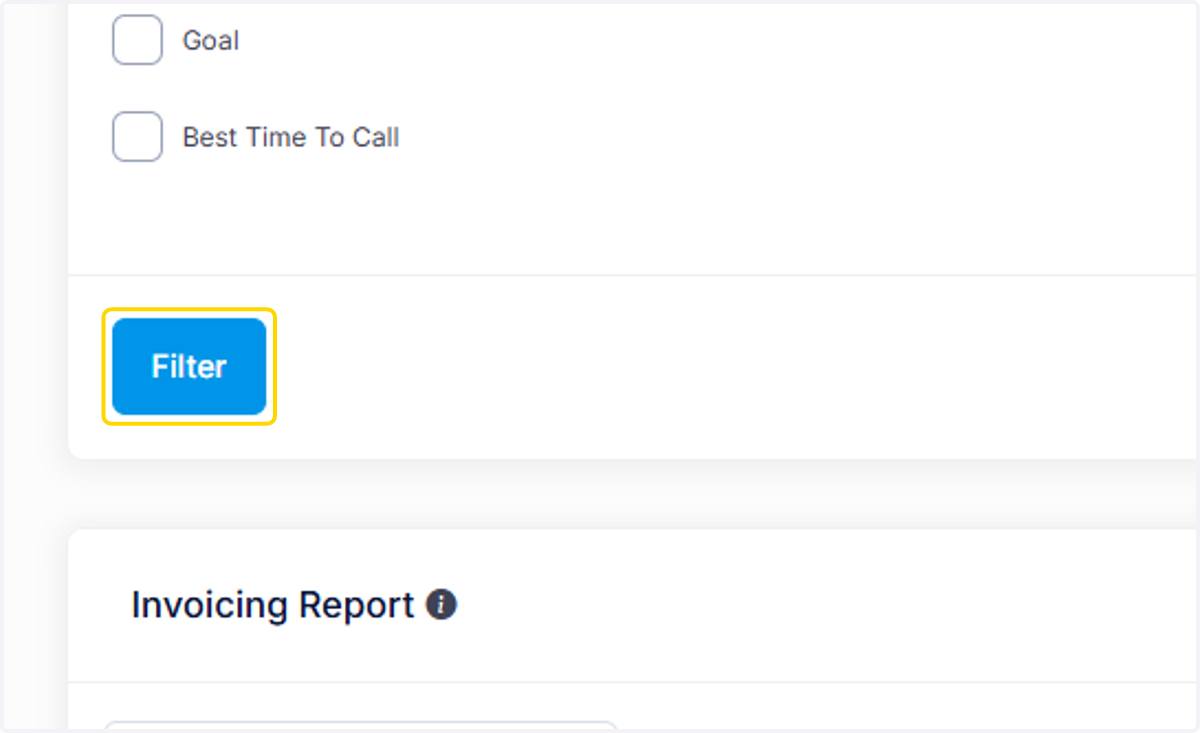
6. Click on Filter
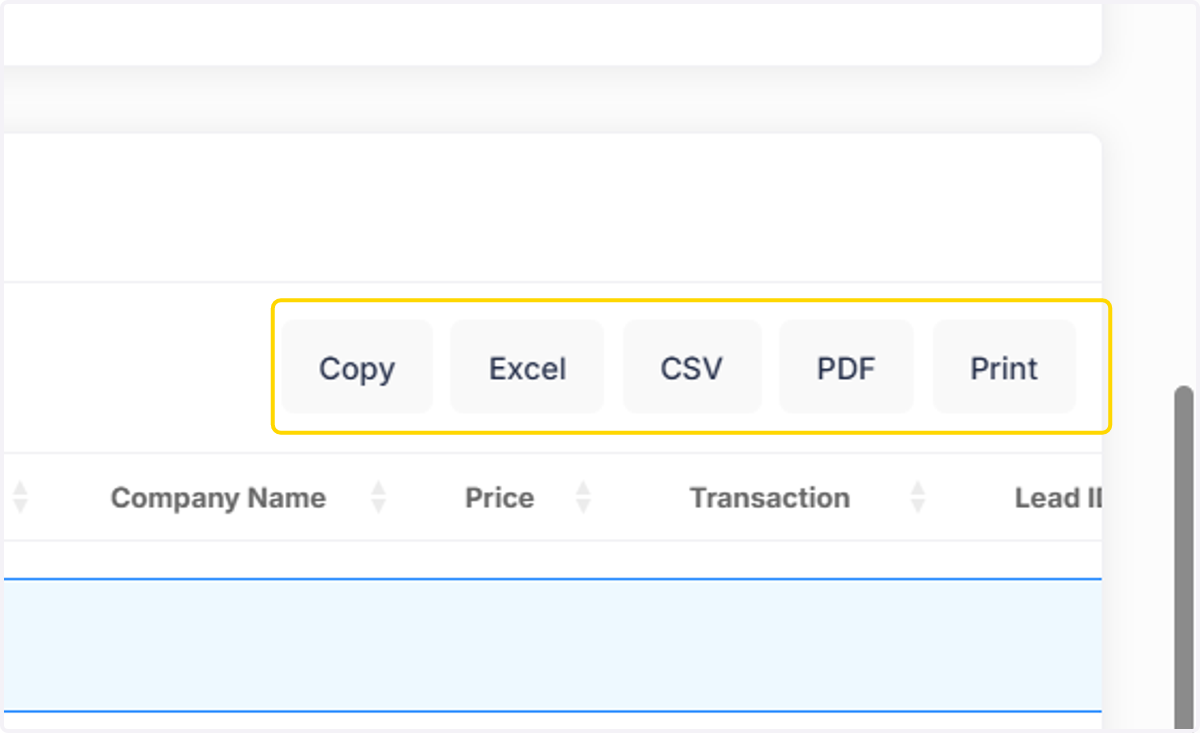
7. At the Bottom of the Page, the Data will Generate for you. You can Export the Report by Clicking on Copy Excel CSV PDF Print