OCR Interface Updates
The purpose of this user guide is to highlight the minor updates, for users when reviewing invoices captured in marketplace, from the OCR.
Administration Homepage: Brightview
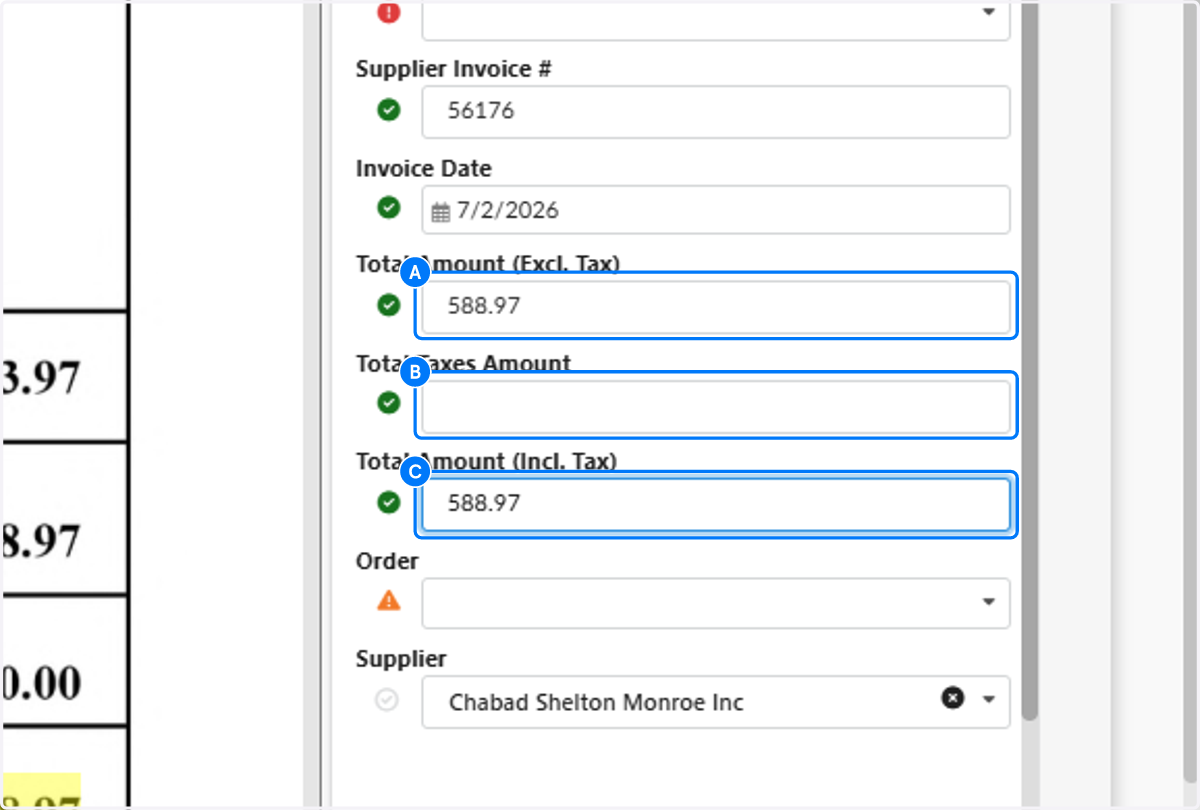
1. Your OCR interface looks slightly different! After referencing the populated invoice on the left hand side, ensure all total fields are properly captured on the right hand side.

2. A. Verify Total Amount (Excl. Tax) is accurate
2. B. If taxes apply, Verify Total Taxes Amount is accurate
2. C. Verify Total Amount (Incl. Tax) is accurate
3. Header - Tax Details dropdown will no longer be expanded

4. You will continue to fill out the Invoice line item details

5. Click on Add Captured Invoice Lines for an automatic capture of invoice lines. Ensure to double check what was captured for errors. Hit Save and Close!
