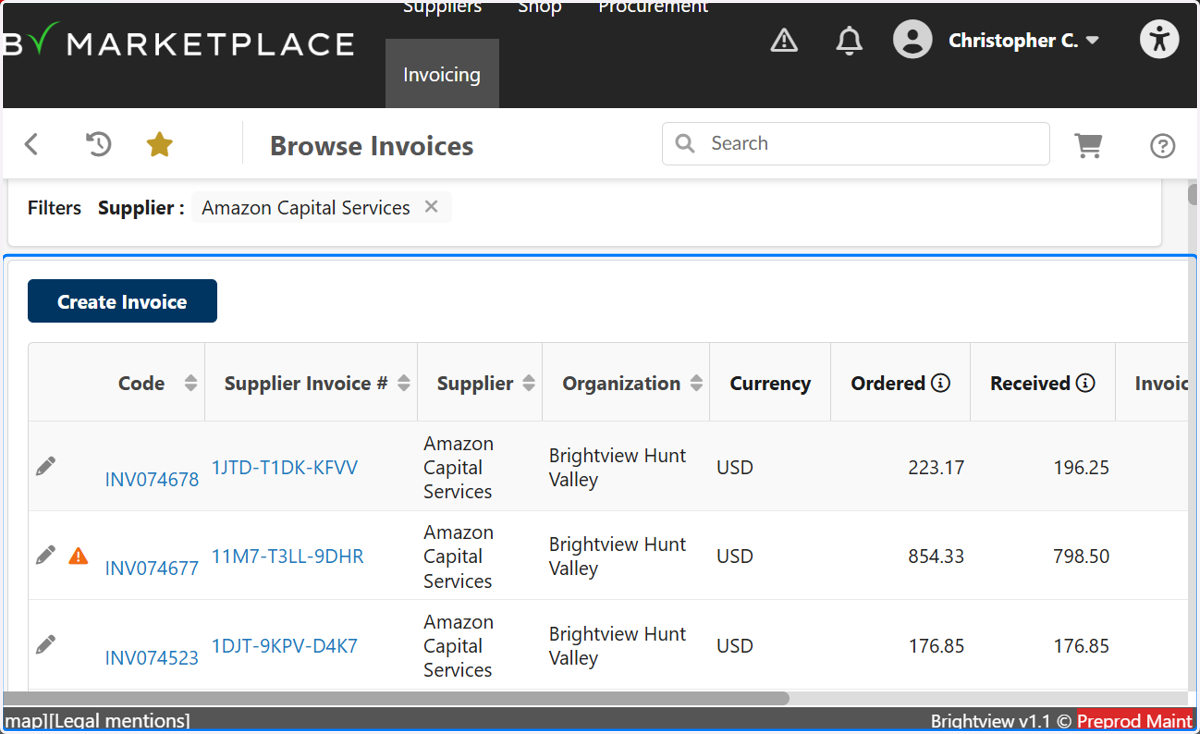
How to create favorite filters in BV Marketplace
Procurement Portal: Brightview
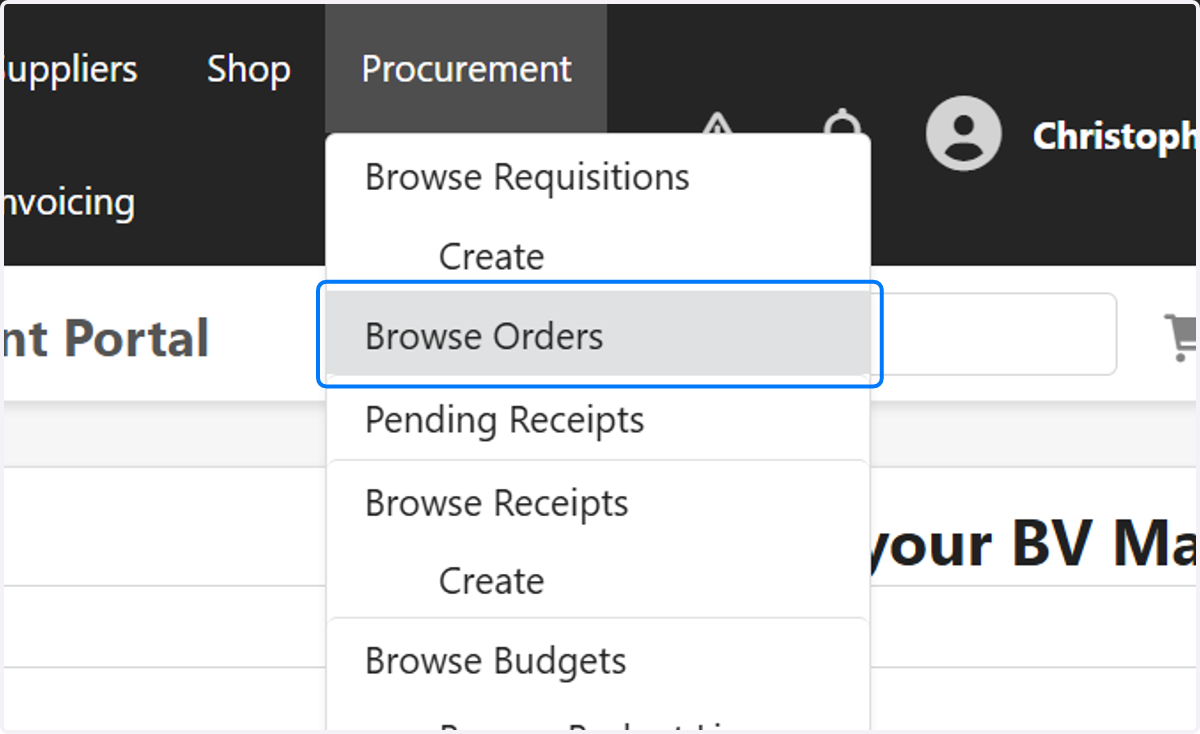
1. Click on Browse Orders or any table you want to filter and review
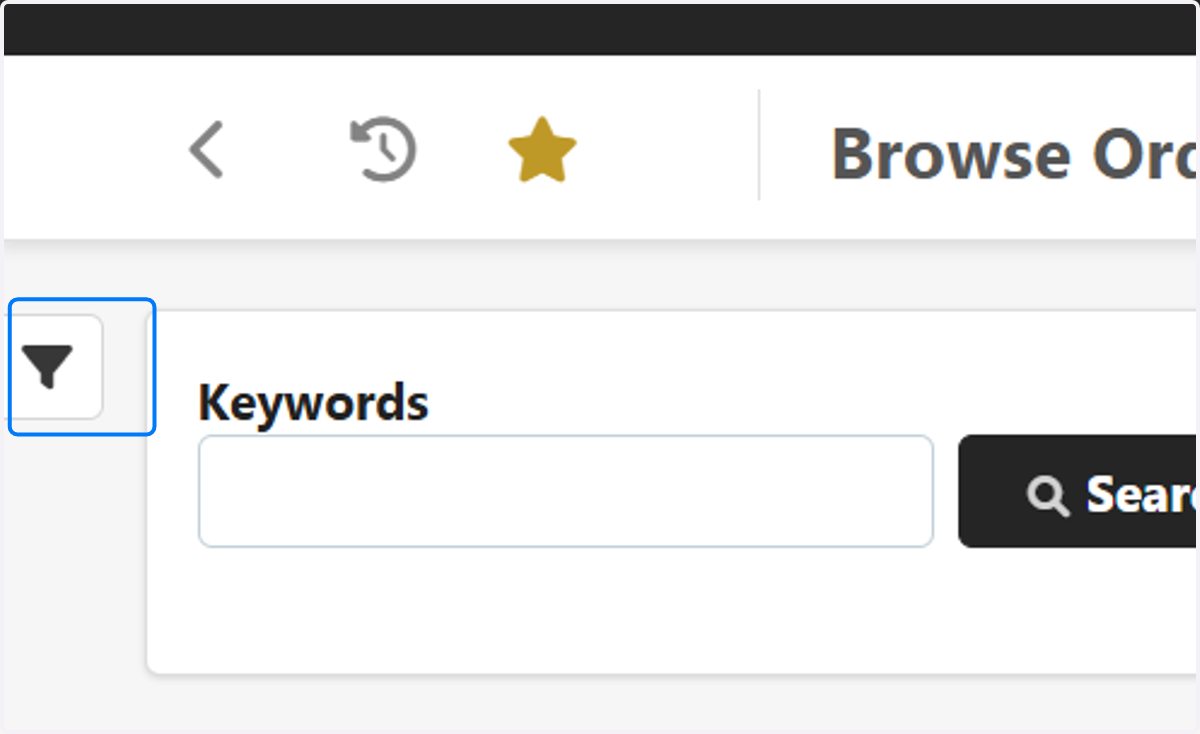
2. Click on Open the advanced filters panel that has this icon
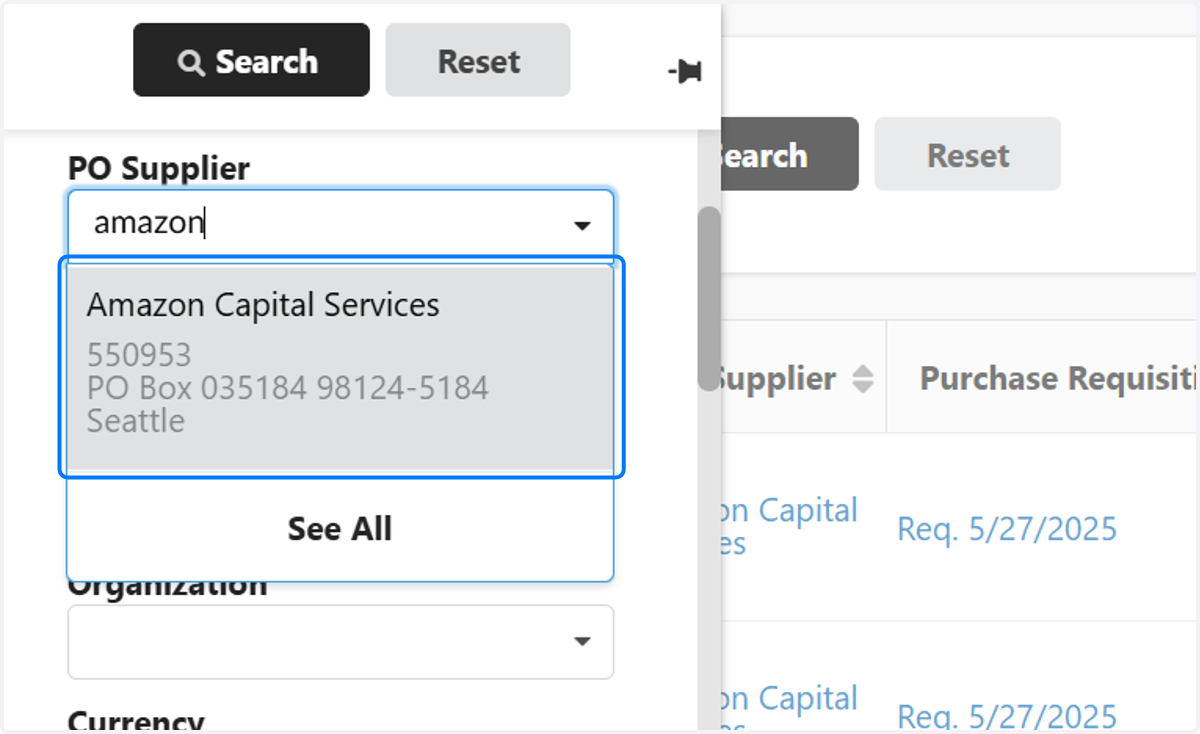
3. Type the Supplier name in that you would like to create a favorite for
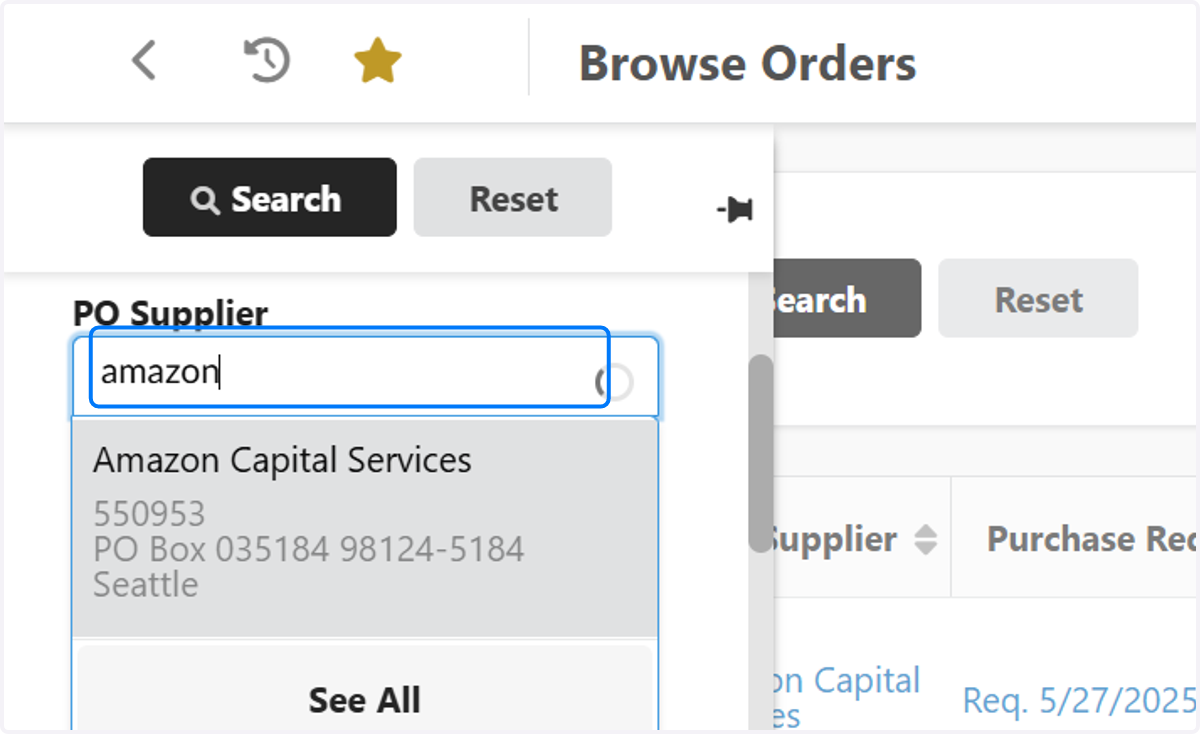
4. Click on the Supplier name…
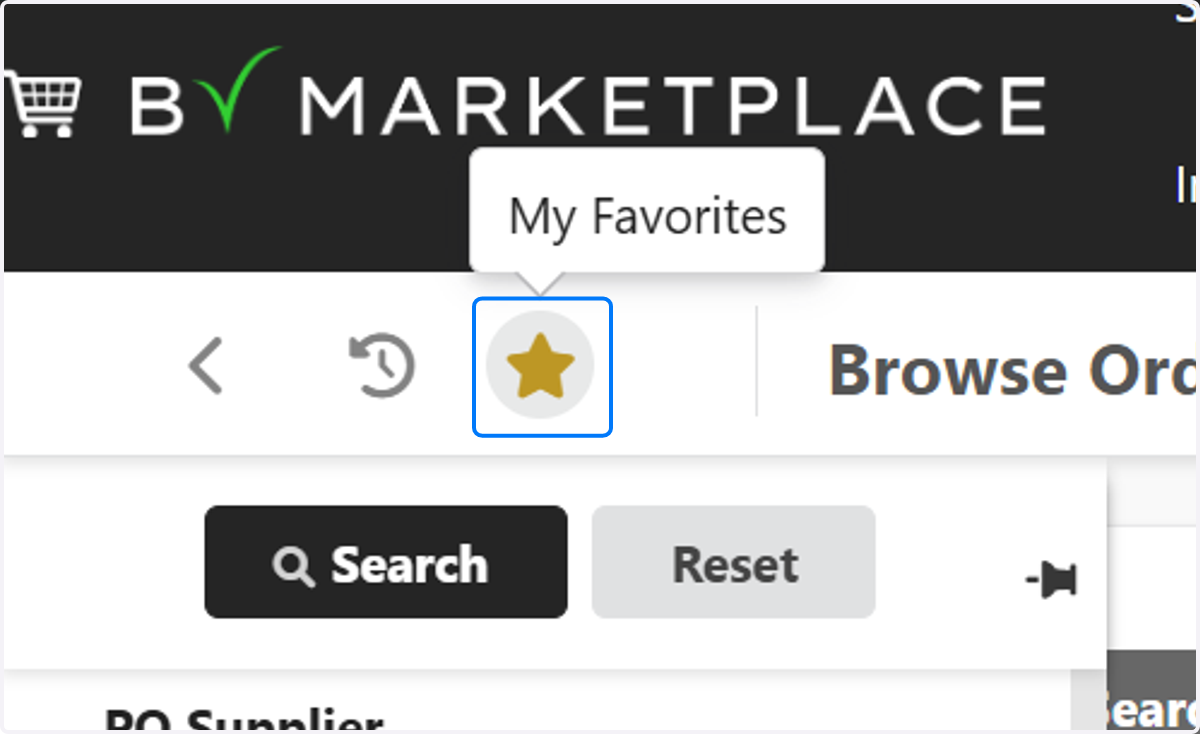
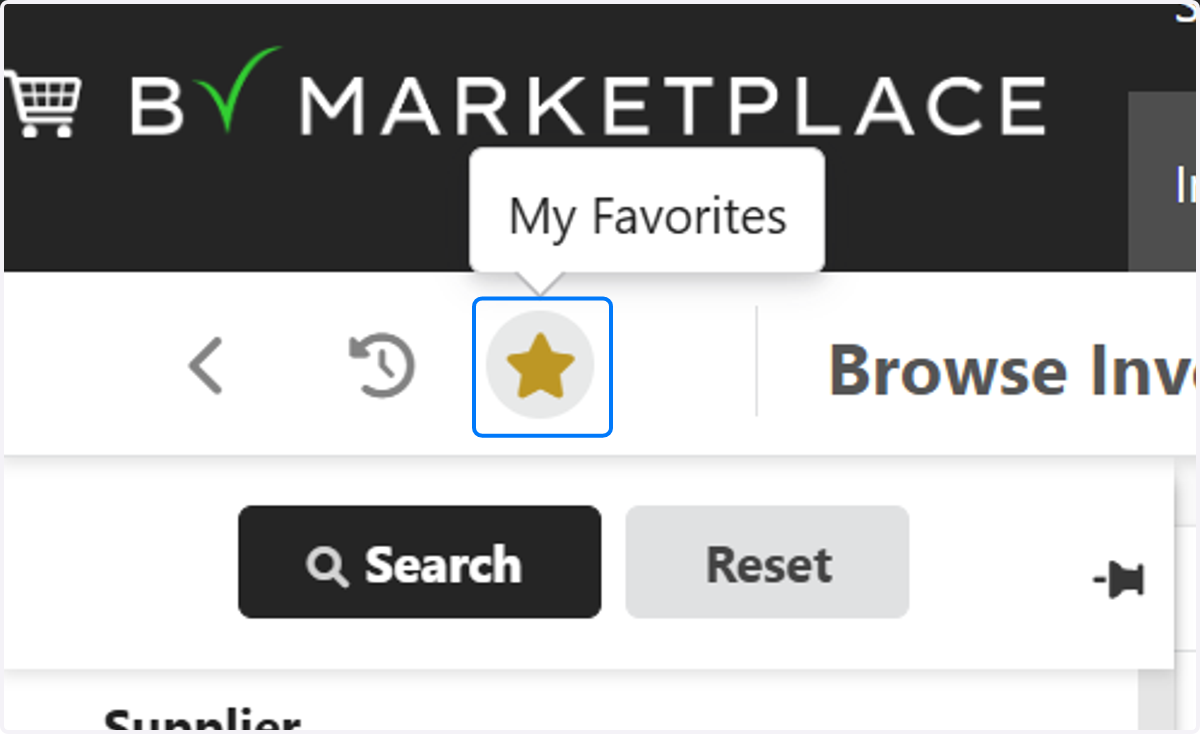
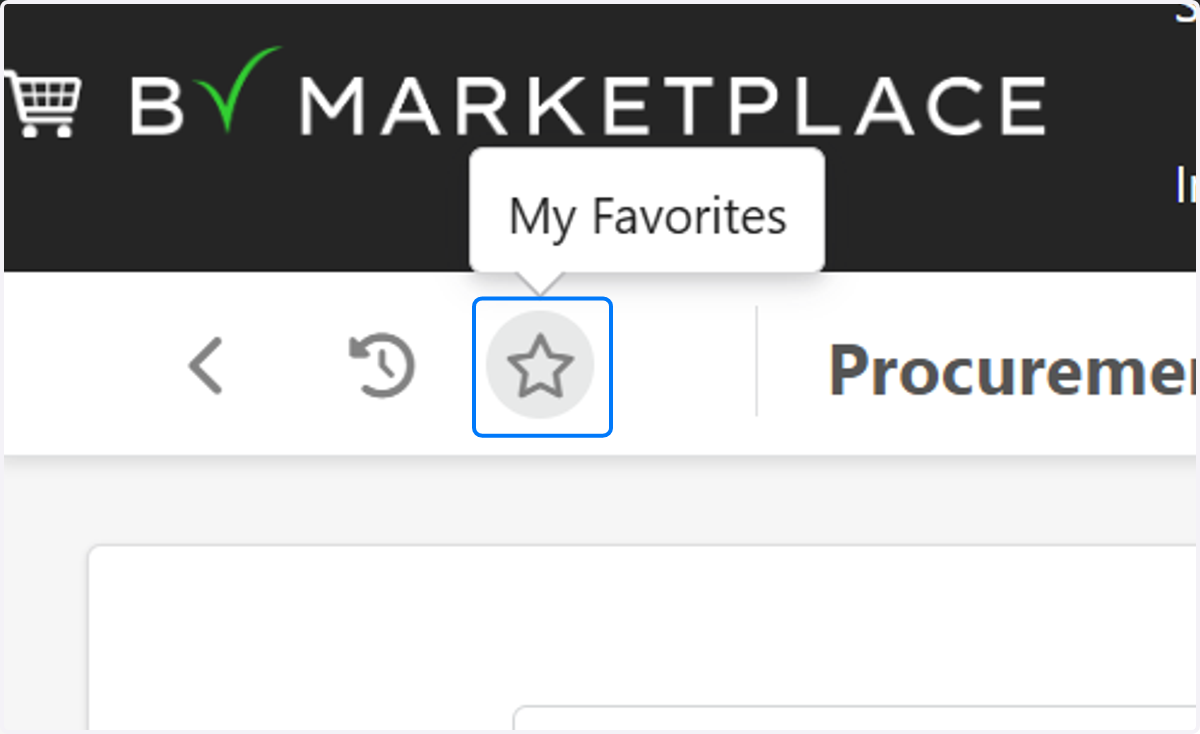
5. Click on My Favorites "STAR" button in the top left corner of the screen
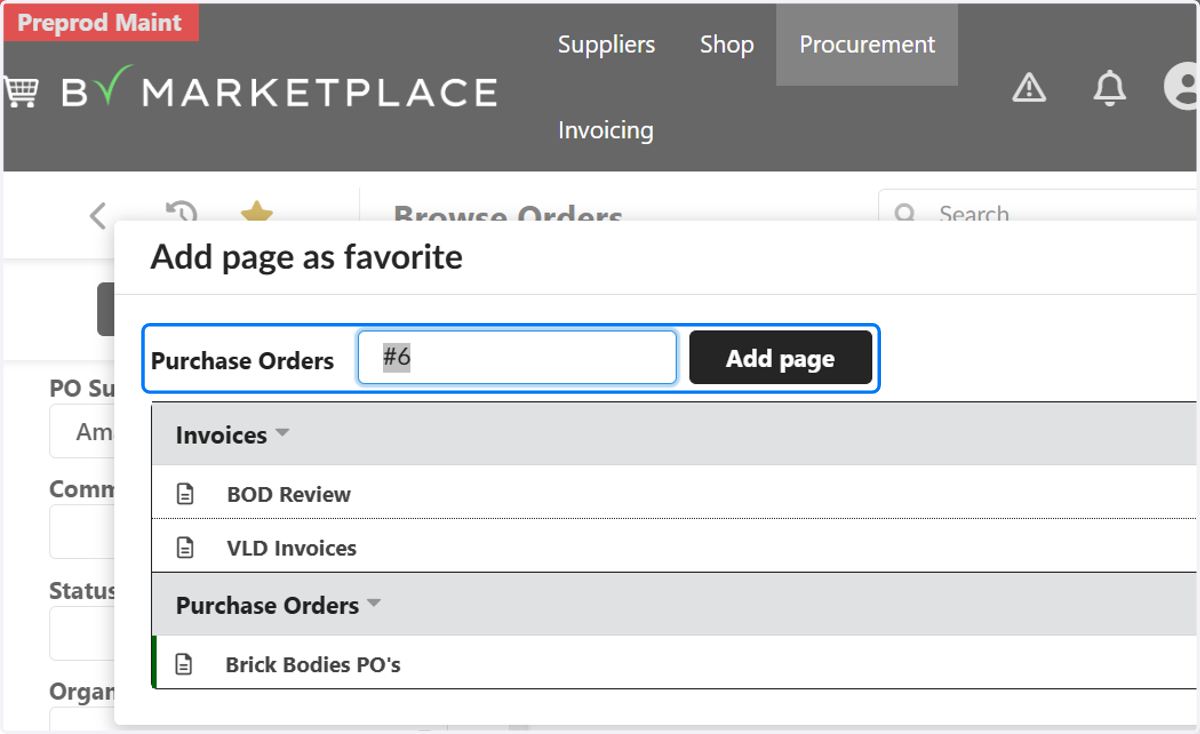
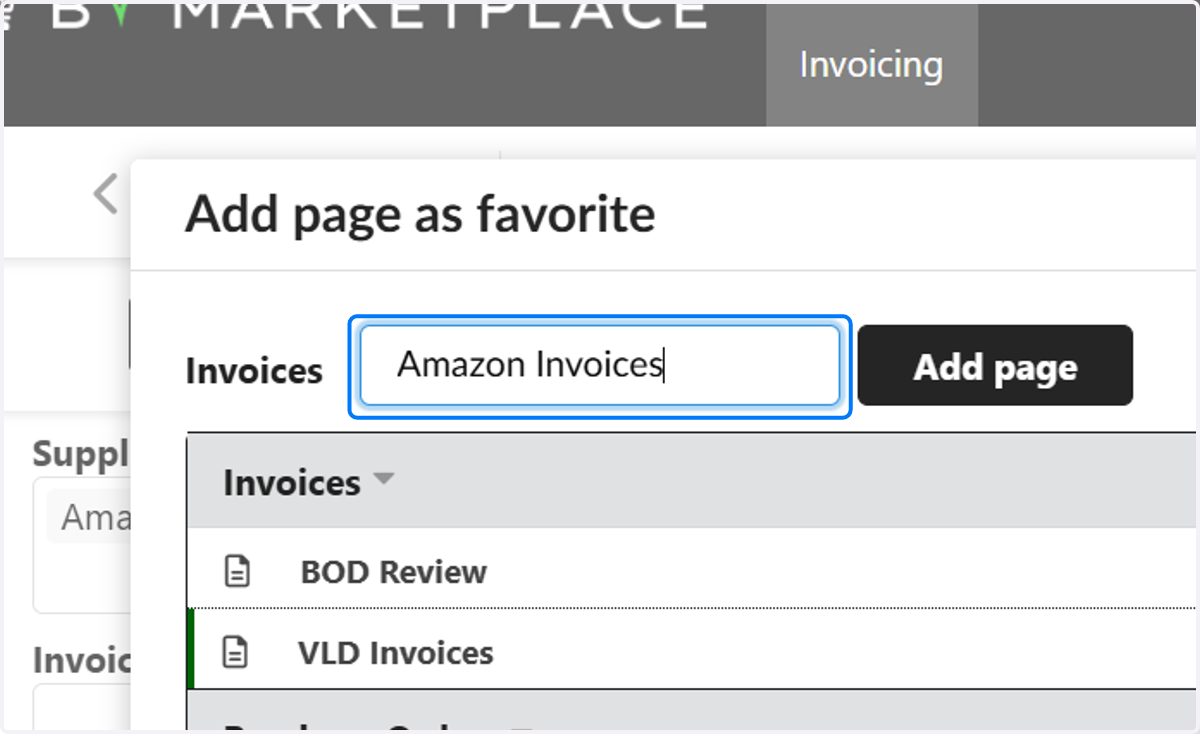
6. Click in this field to add/edit the name of your filter…
7. Type and description that works best for you
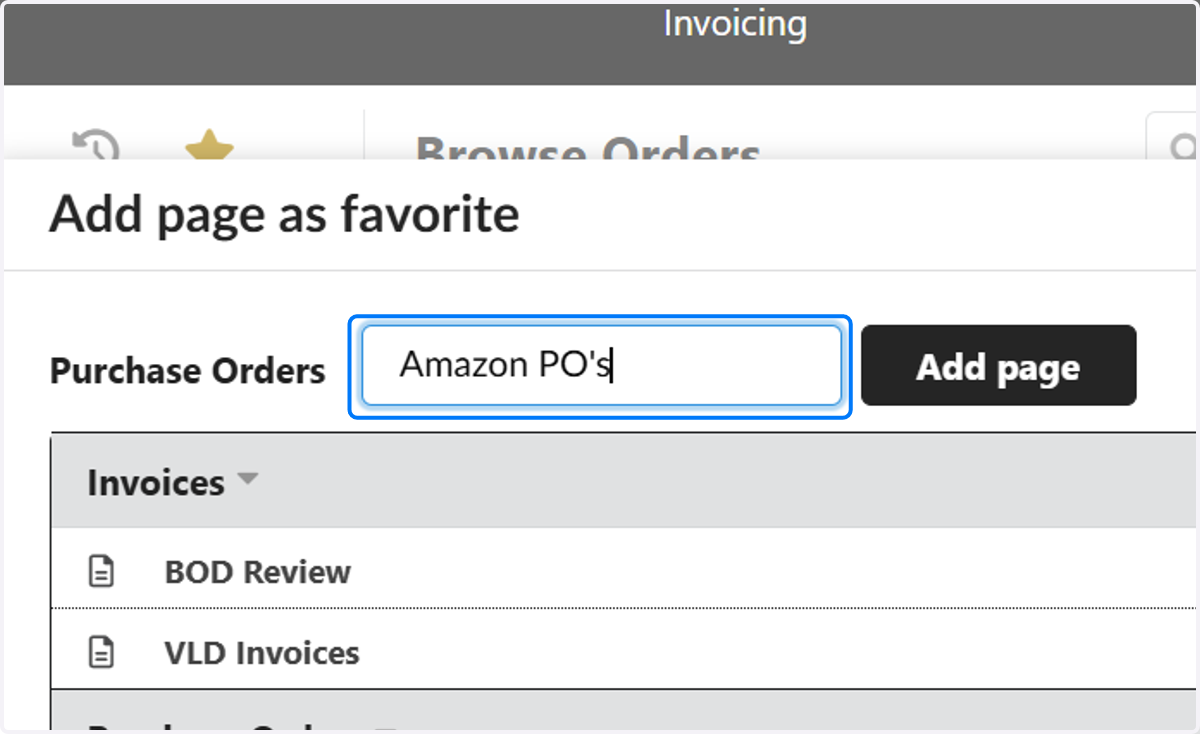
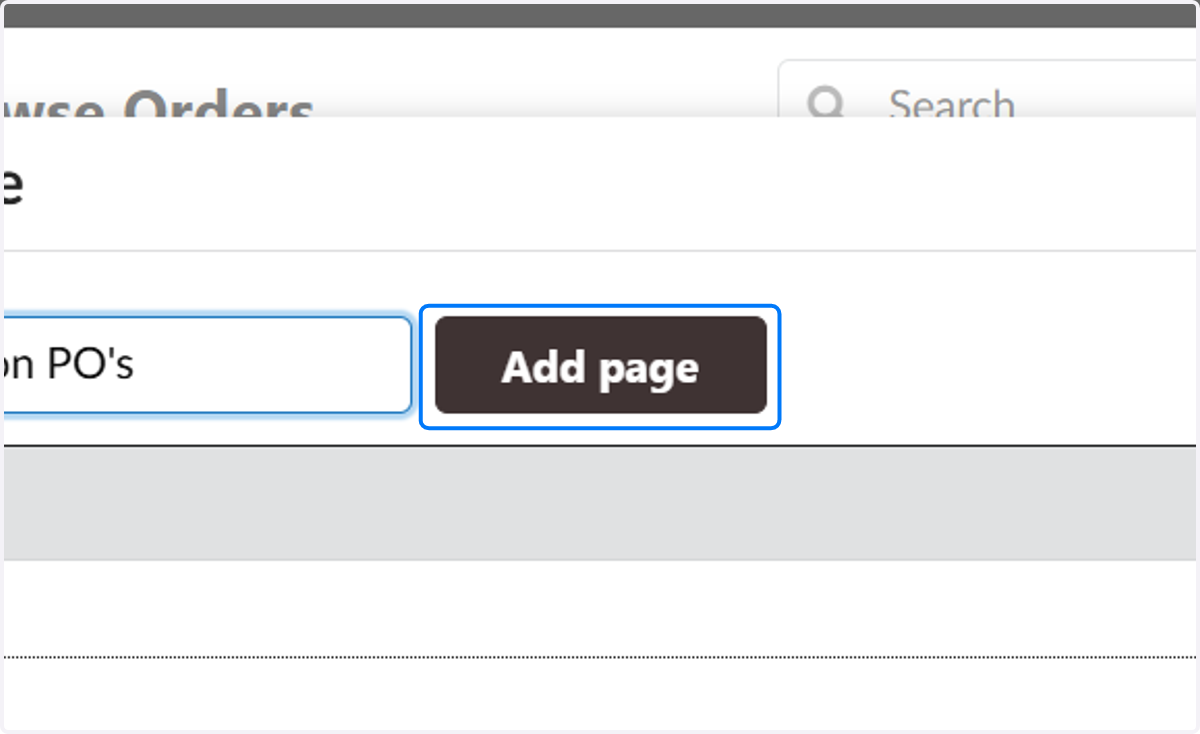
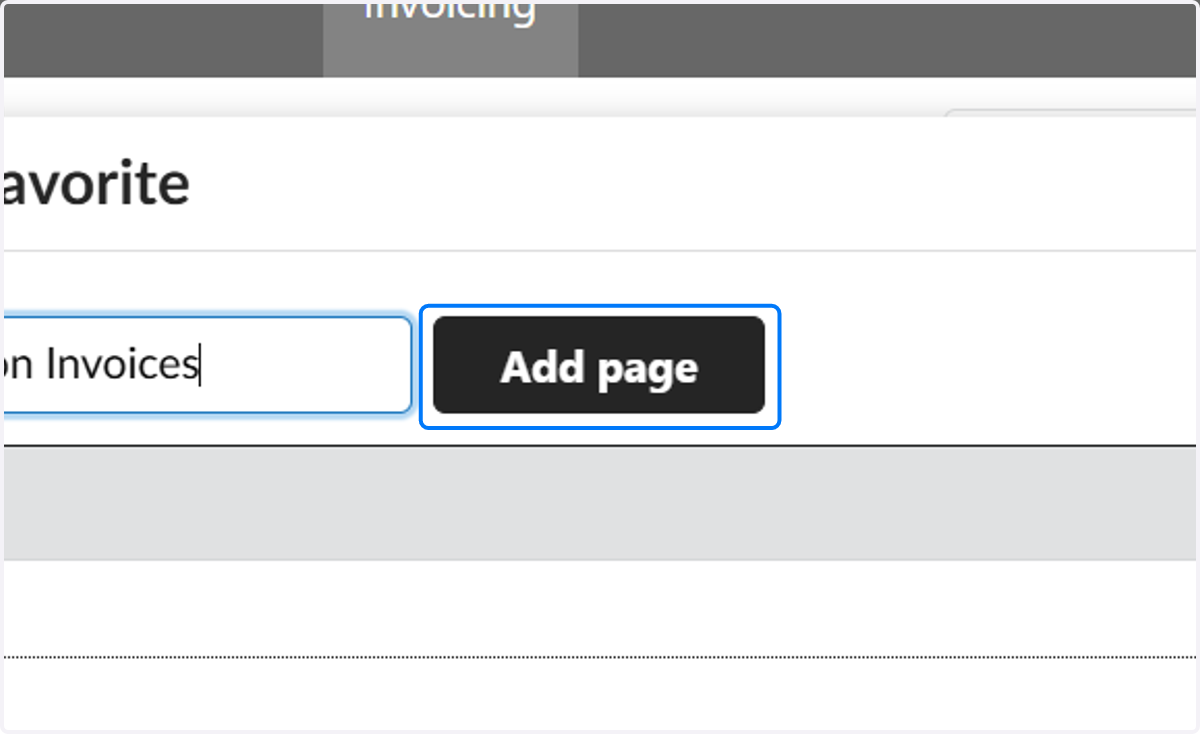
8. Click on Add page
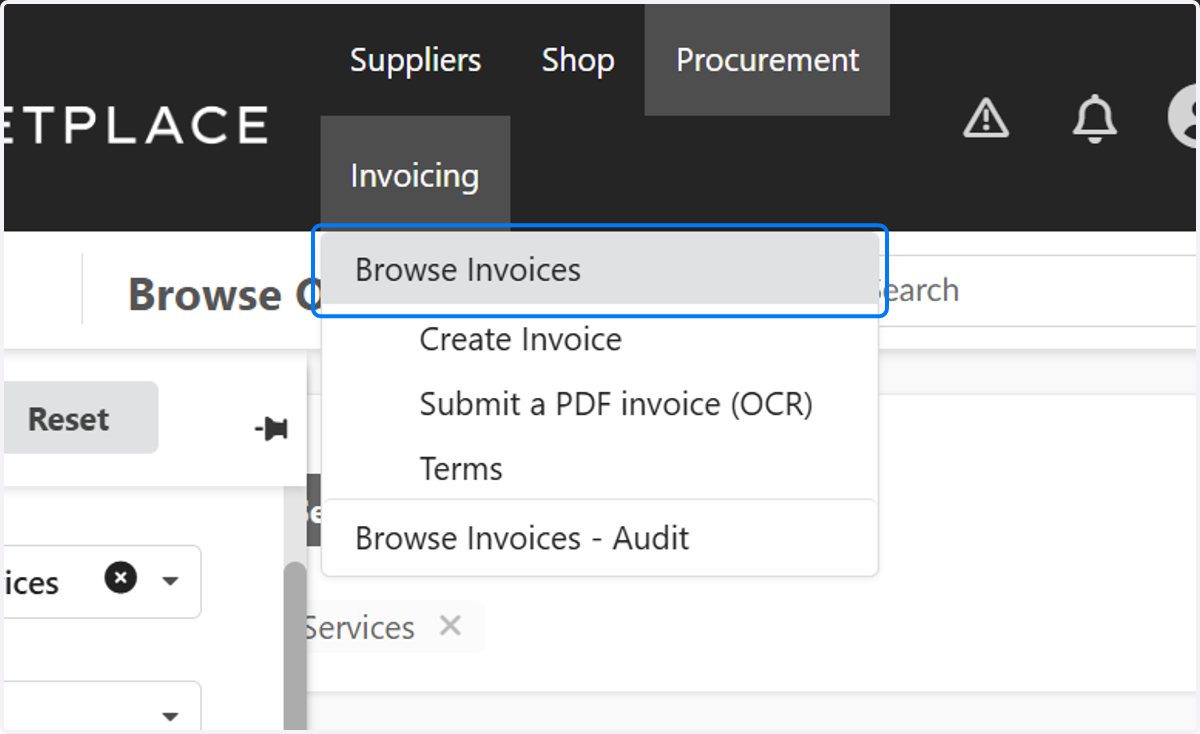
9. You can also add favorite filters to the "Browse Invoices"- Click on Browse Invoices
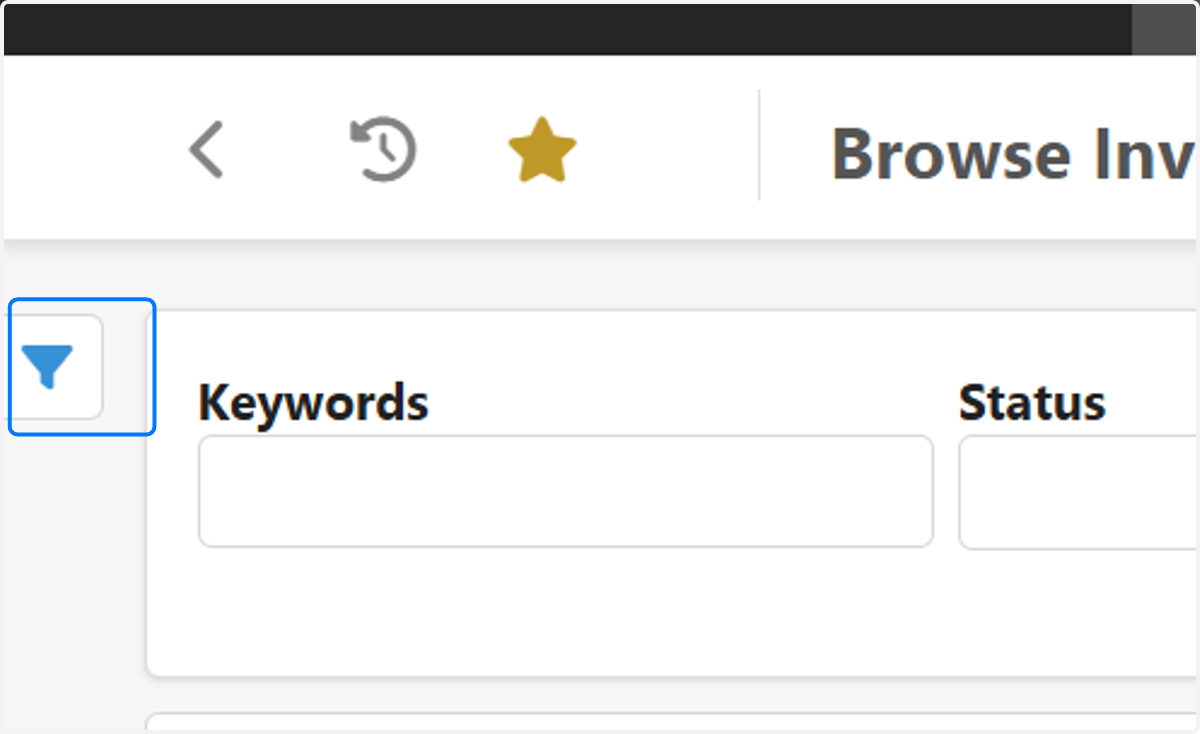
10. Click on Open the advanced filters panel
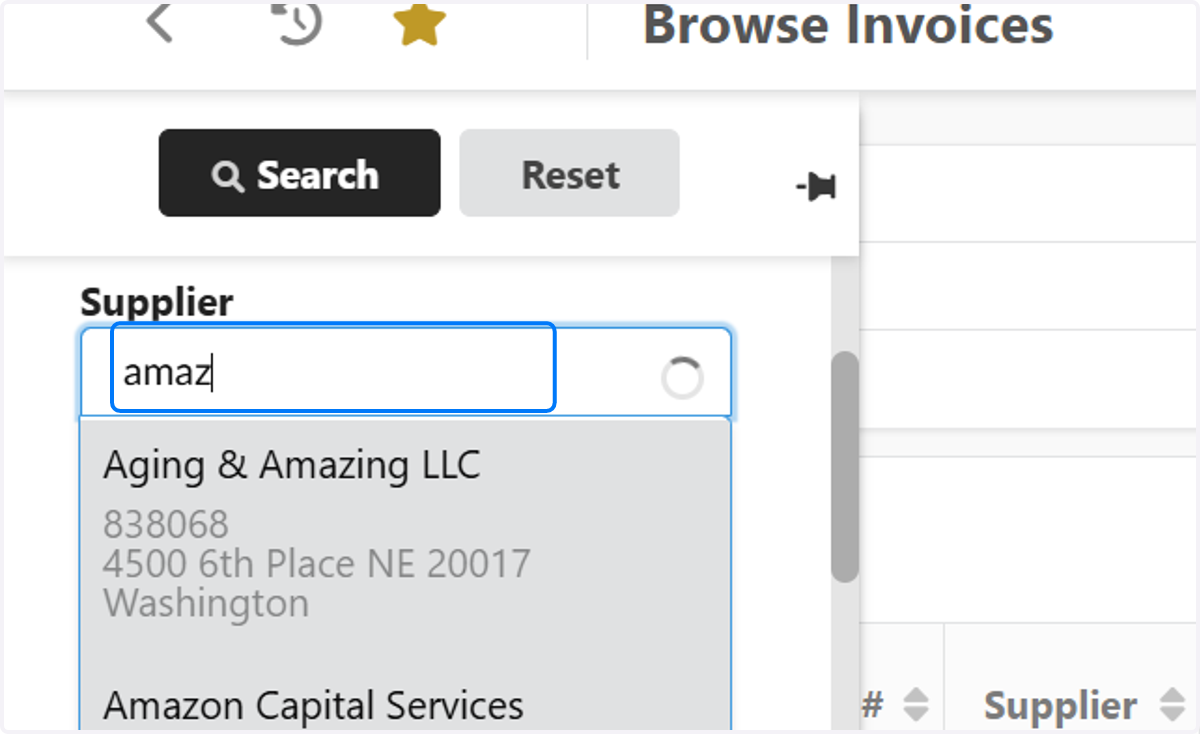
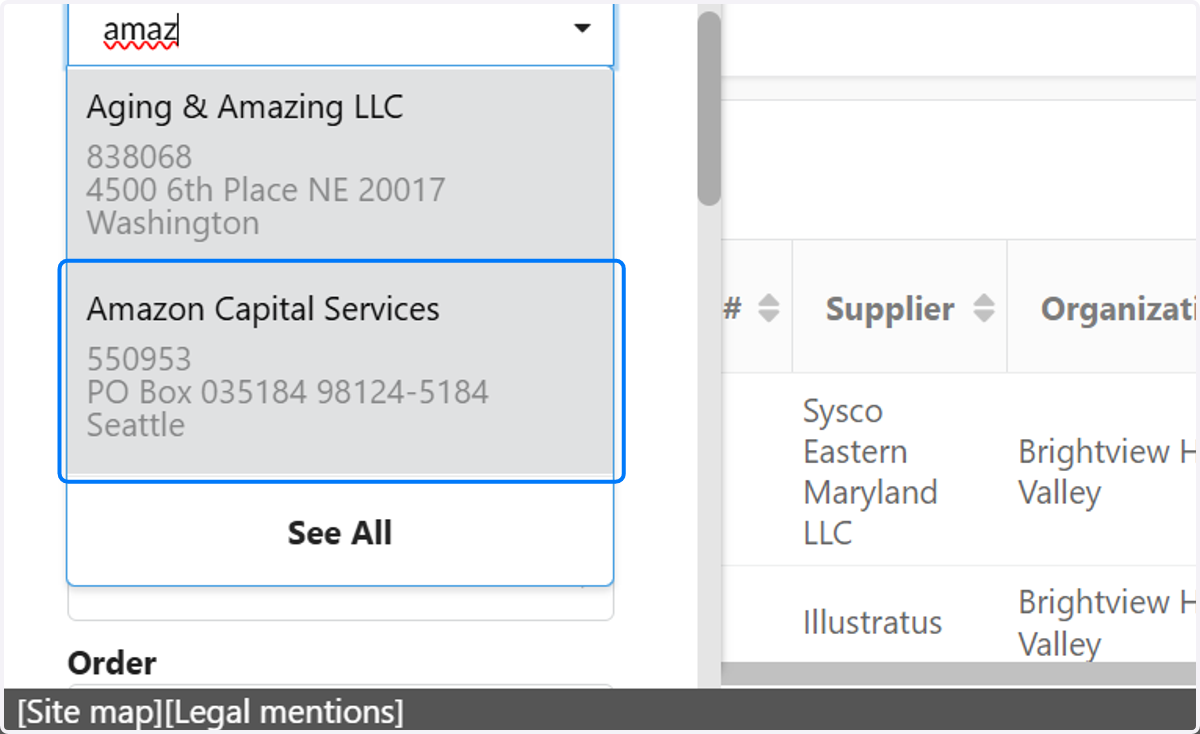
11. Type Supplier name in the "Supplier" field
You can use any filter and favorite based on the fields in the advanced filter page or even the main "Keywords" or "Status" fields
12. Click on the Supplier name…
13. Click on My Favorites "STAR" icon in top left corner of the page
14. Add a name to the filter
15. Click on Add page
16. To find your favorite filters go to your Homepage and Click on My Favorites "STAR" in top left corner
17. Find and click on the favorite filter that was created
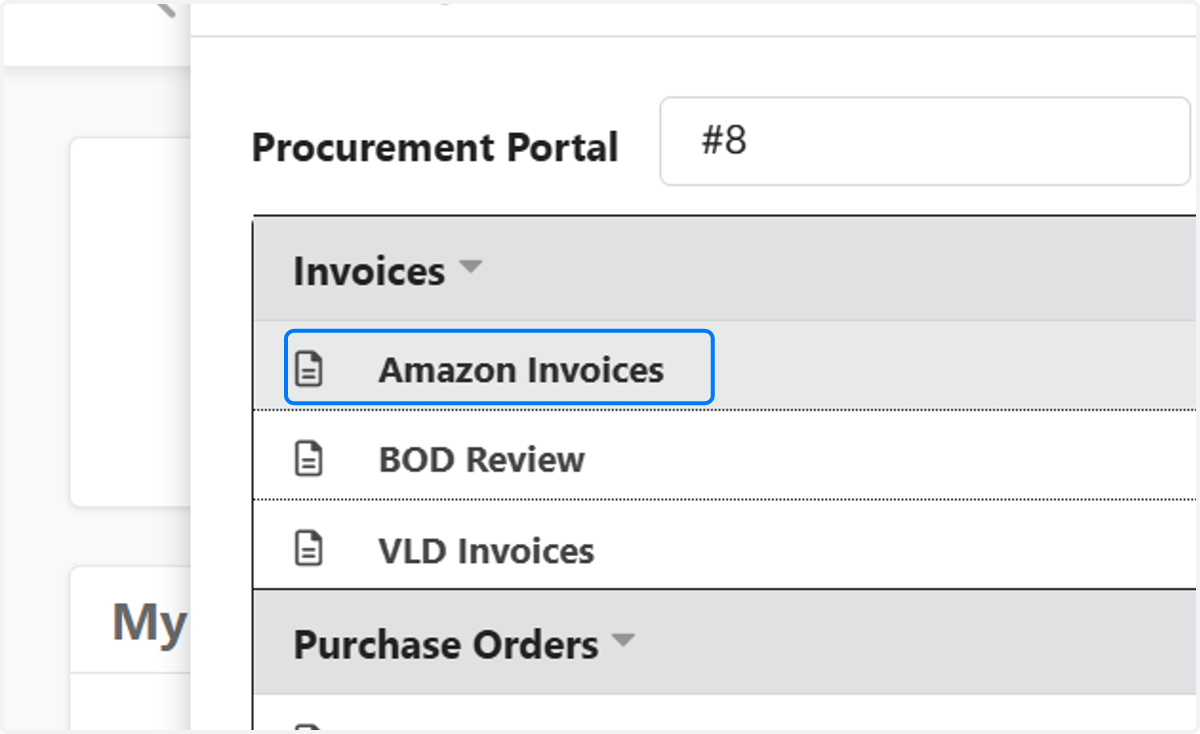
18. Once you have clicked on the favorite filter it will take you to that page and only display results based on your criteria that you saved