How to manage existing clients AND view medical records/invoices
1. How to manage existing clients AND view medical records/invoices
This tutorial starts from your Compliant Clients Home Page
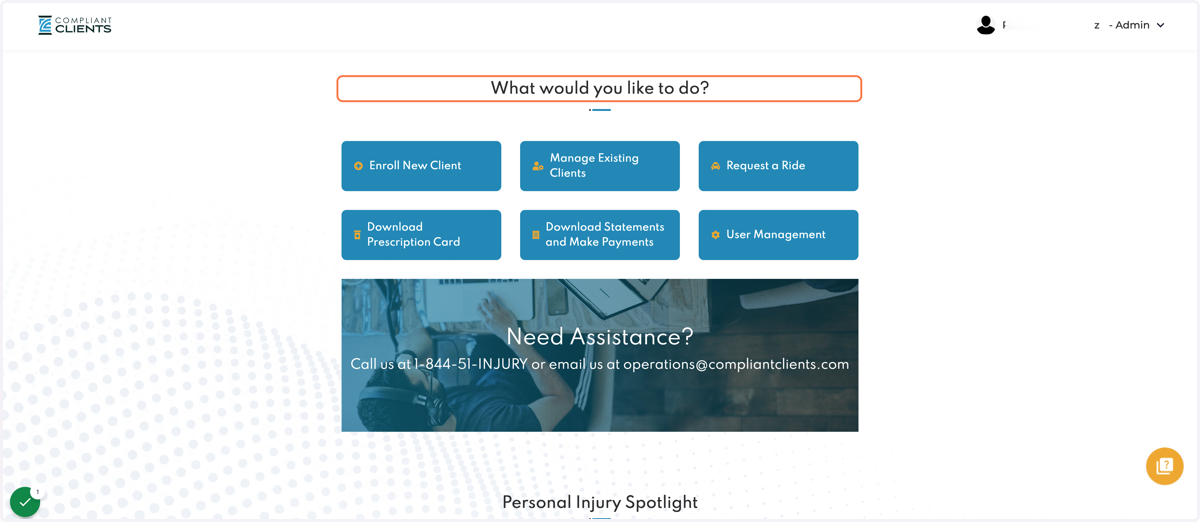
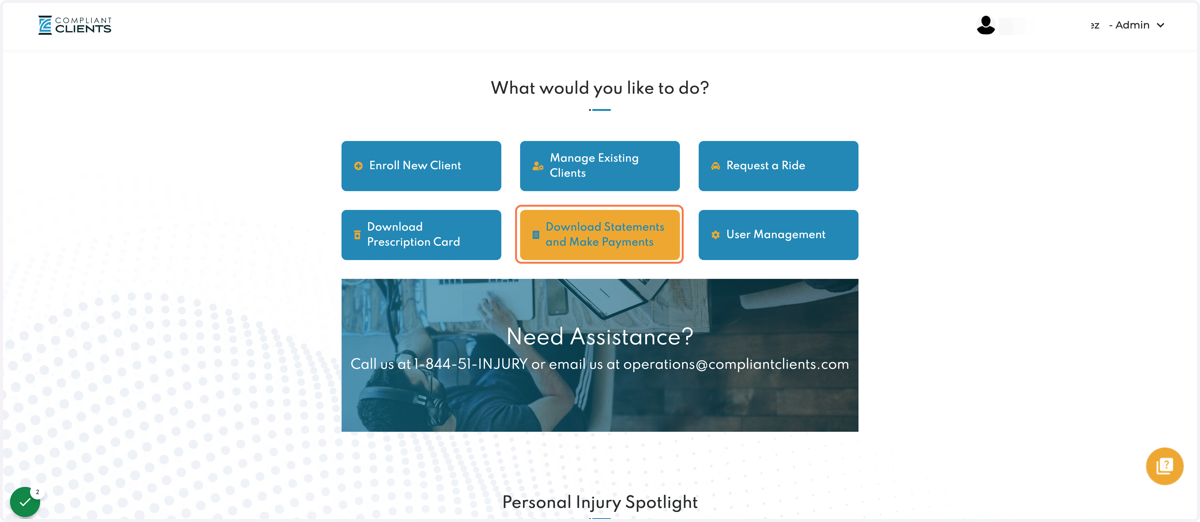
2. Click on Download Statements and Make Payments
18.217.20.54
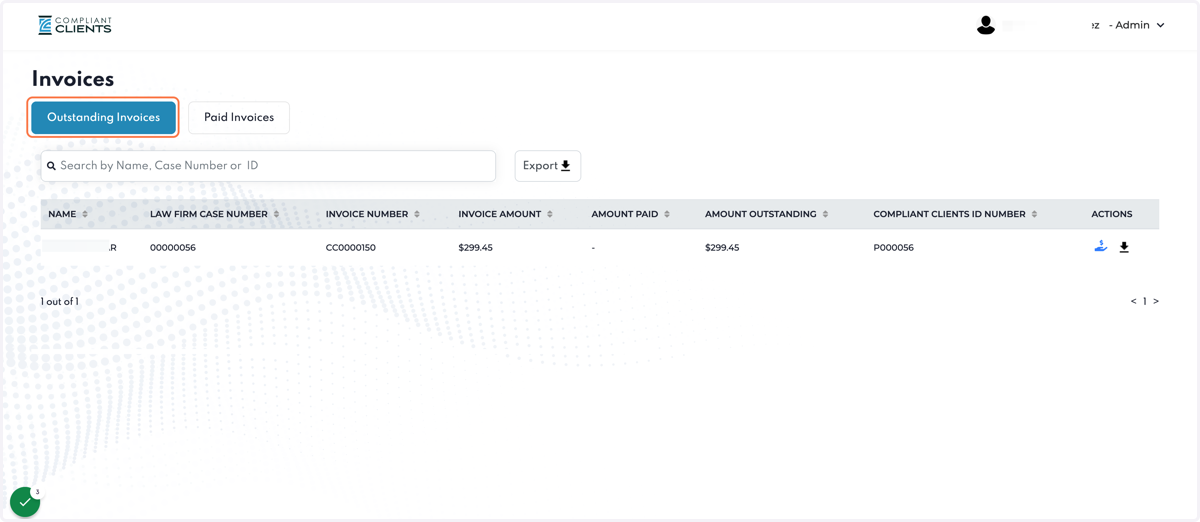
3. Click on Outstanding Invoices
This will show you all clients who have invoices that have not been paid yet.
4. Click on Paid Invoices
This will show you all clients who have invoices that have already been paid - no further services can be requested for these clients!
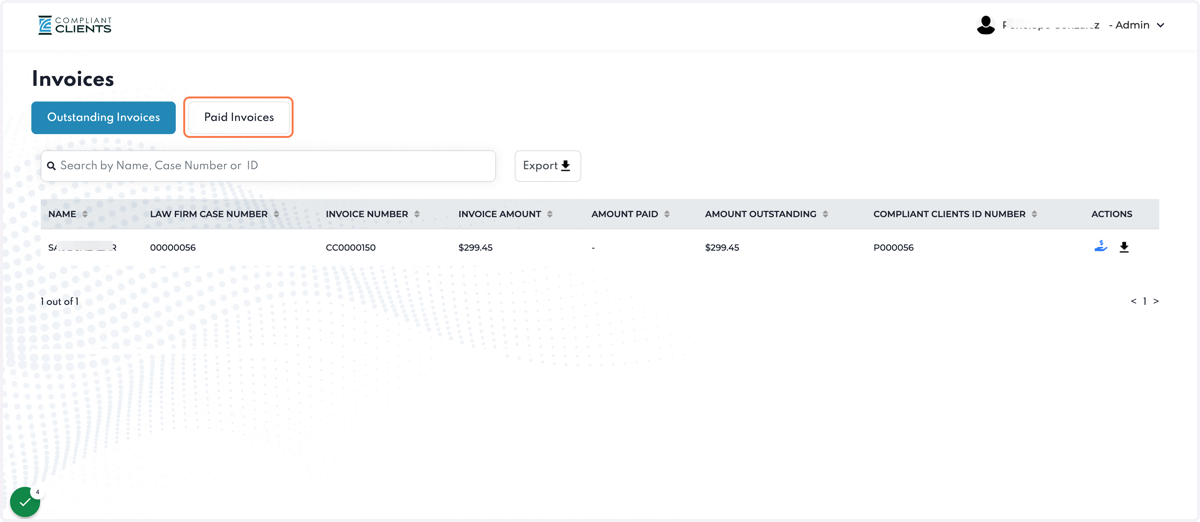
5. Download or pay invoices under the 'Actions' column
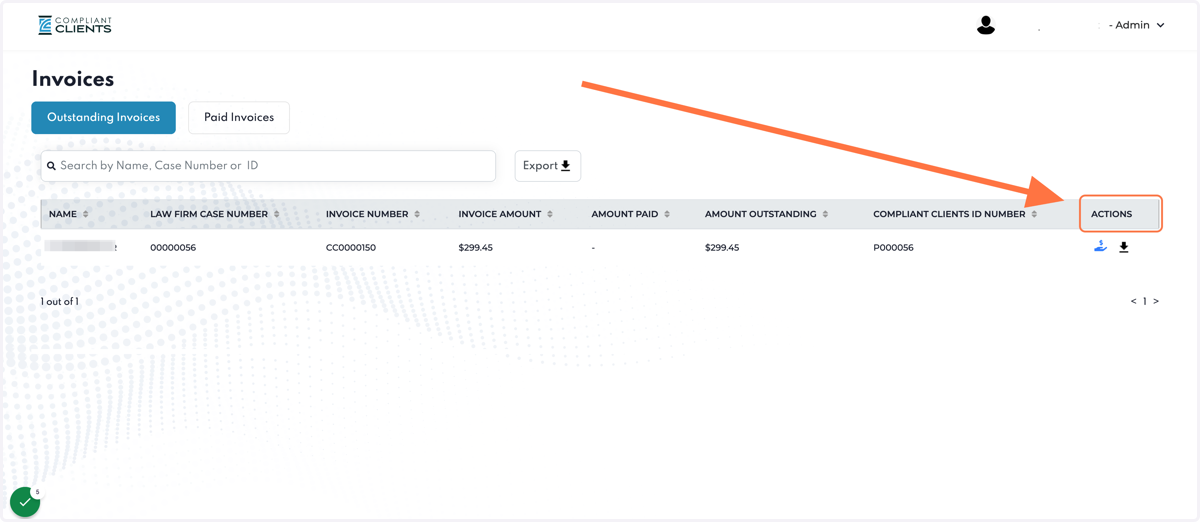
6. Download a medical record invoice by clicking the download icon
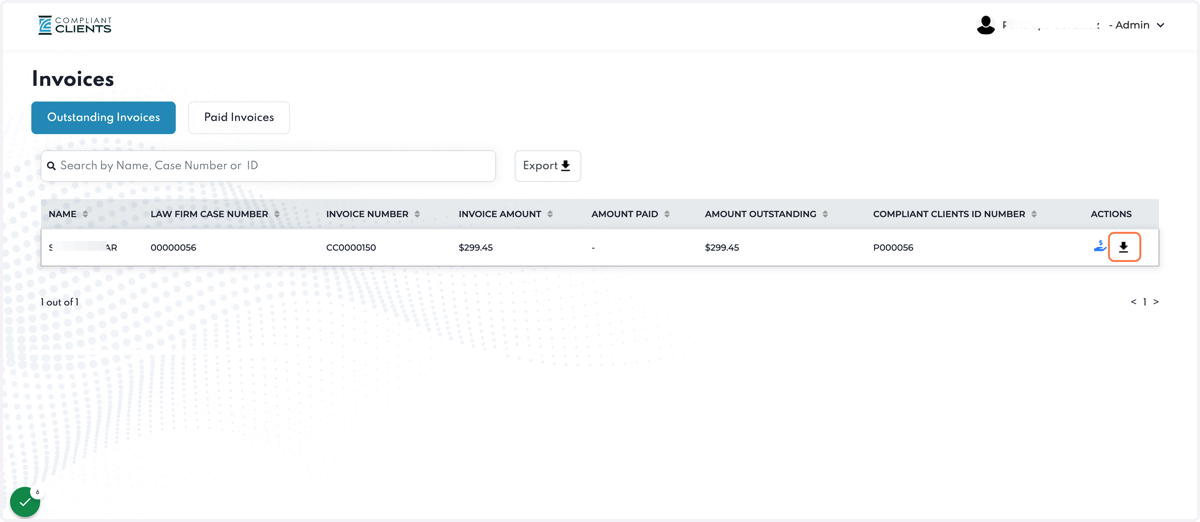
7. Pay an invoice by clicking the payment icon
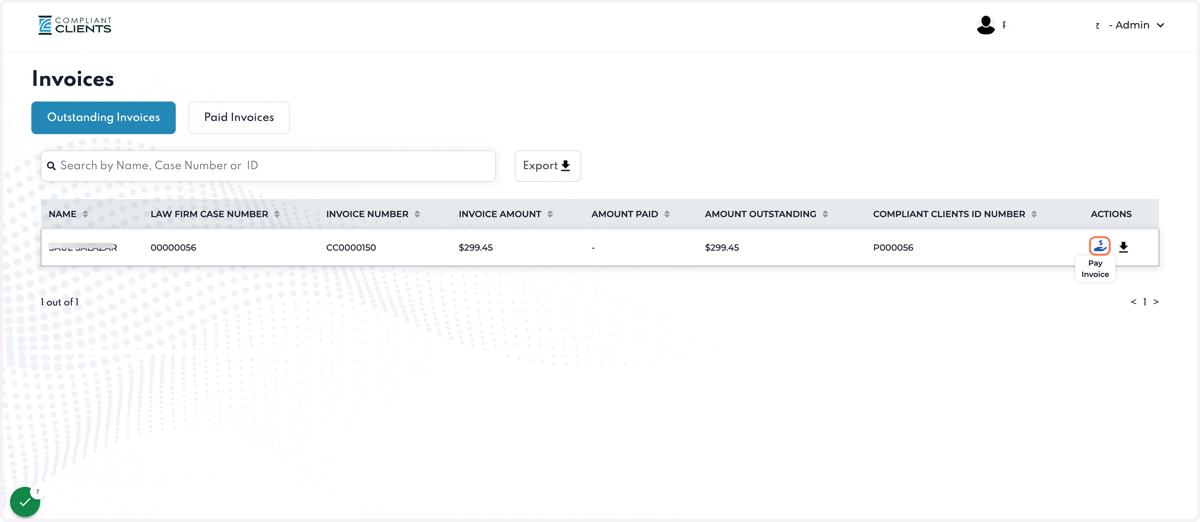
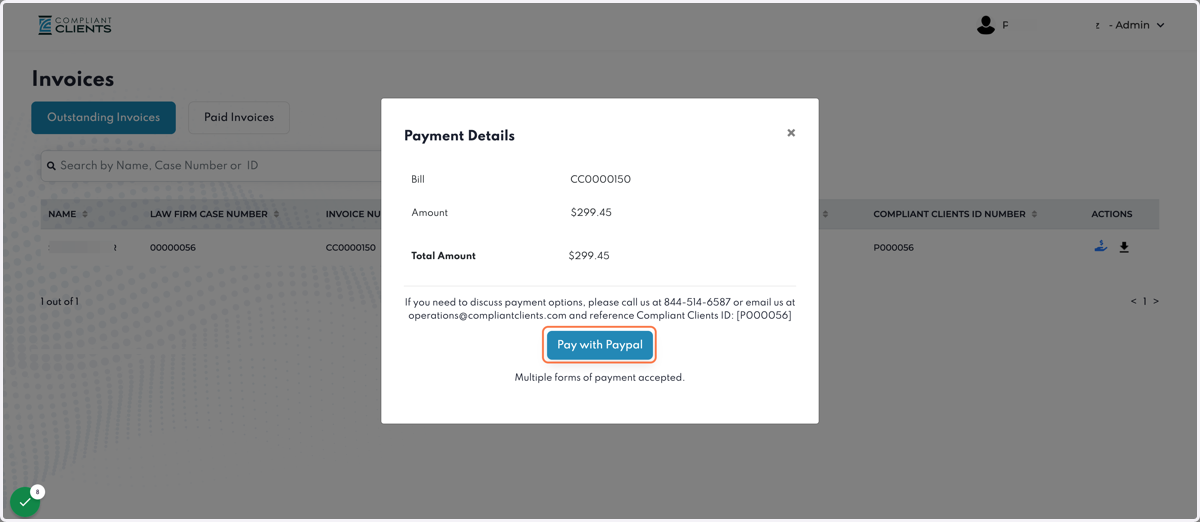
8. After clicking the payment icon, you can pay the invoice via Paypal.
9. From your home page you can also click on 'Manage Existing Clients'
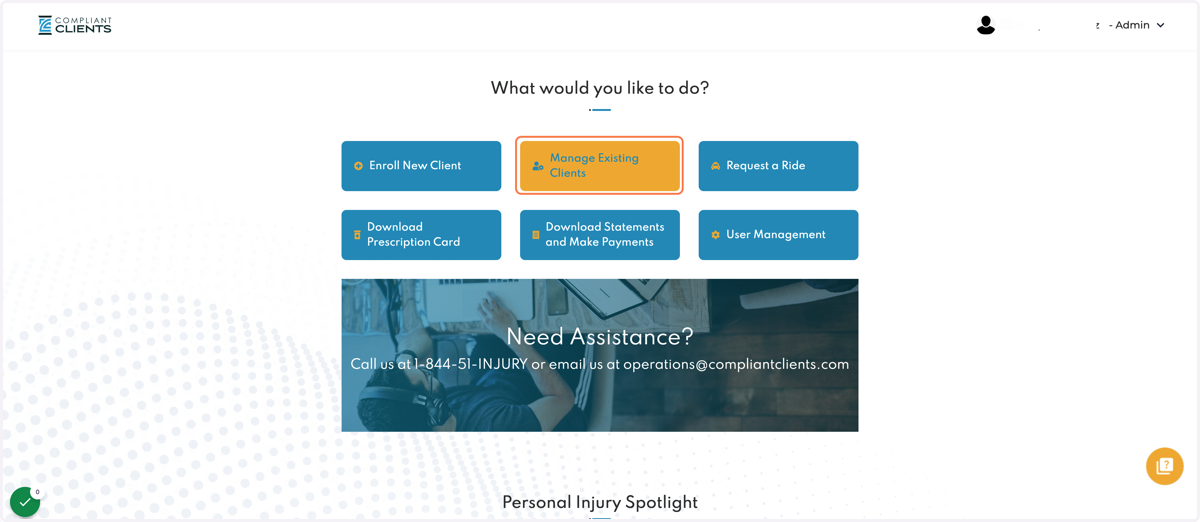
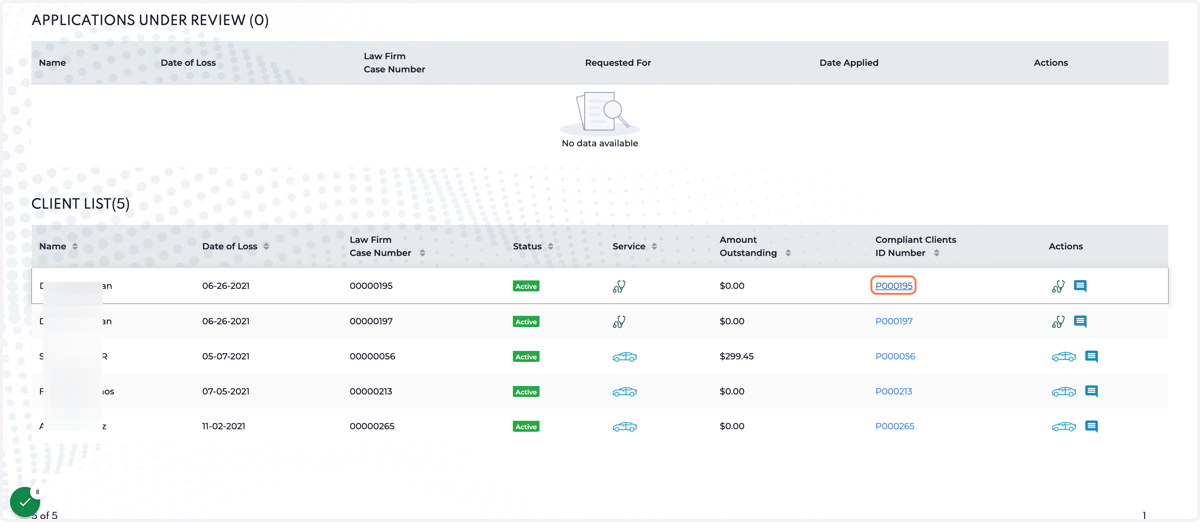
10. Client Management allows you to see all your client statuses
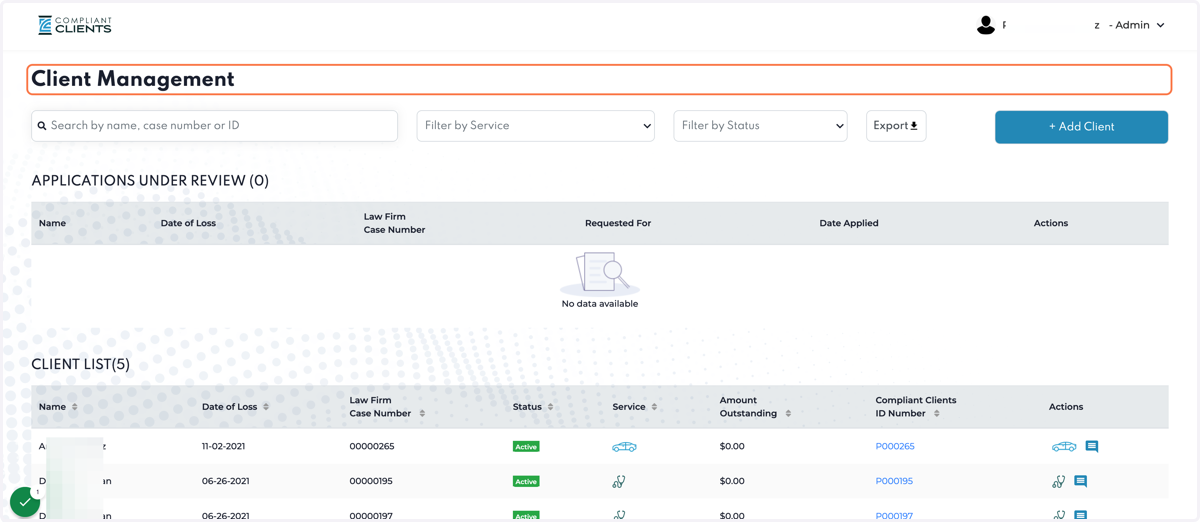
18.217.20.54
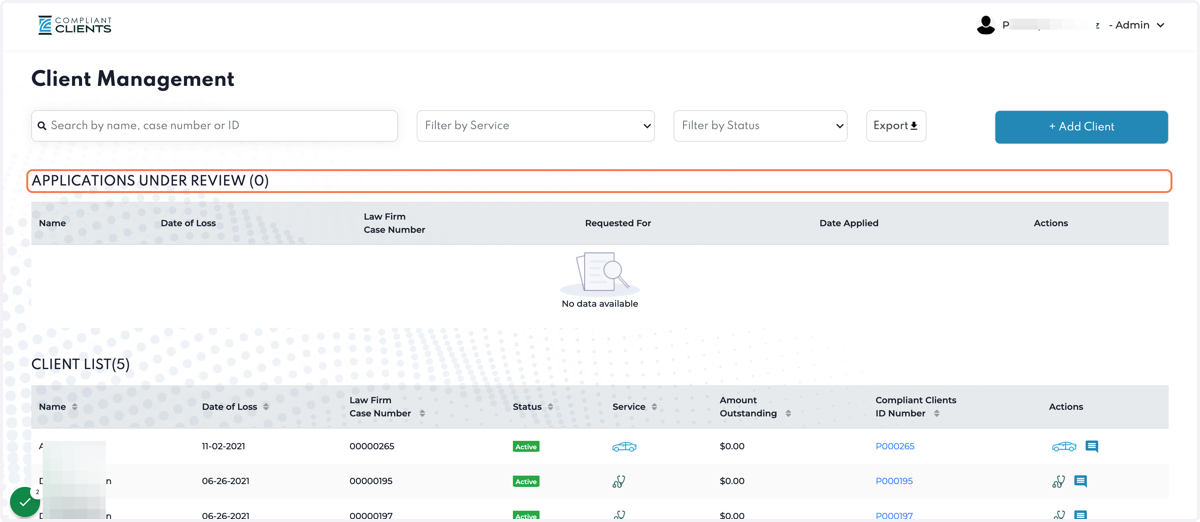
11. Applications Under Review show your client enrollments that are under review.
12. Client List shows all of your clients that have already been reviewed
Their status can be Active, Closed, or Denied
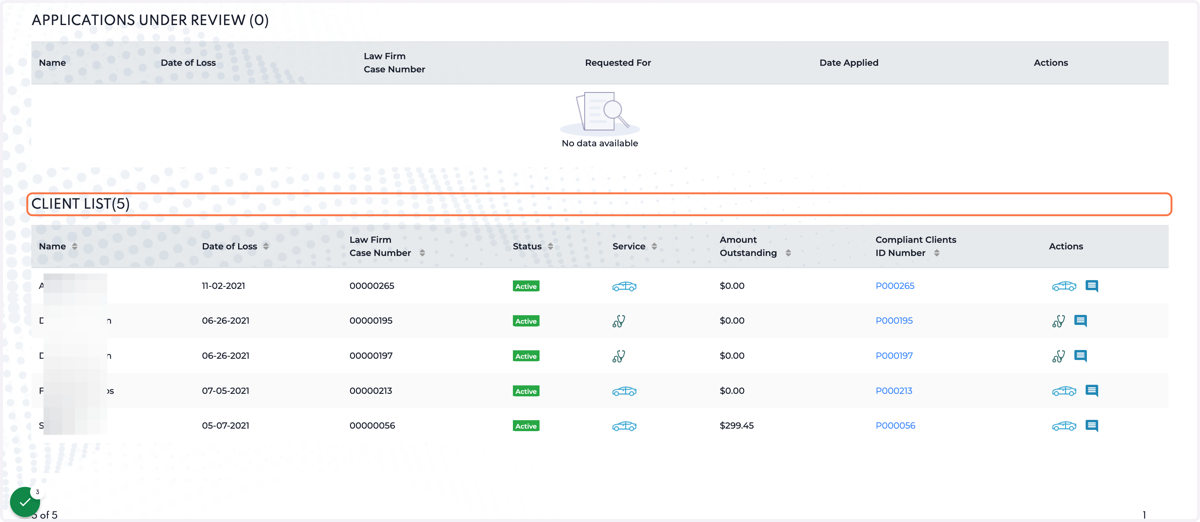
13. Refer to the 'Actions' column to request a ride, add an internal comment, or download a prescription card
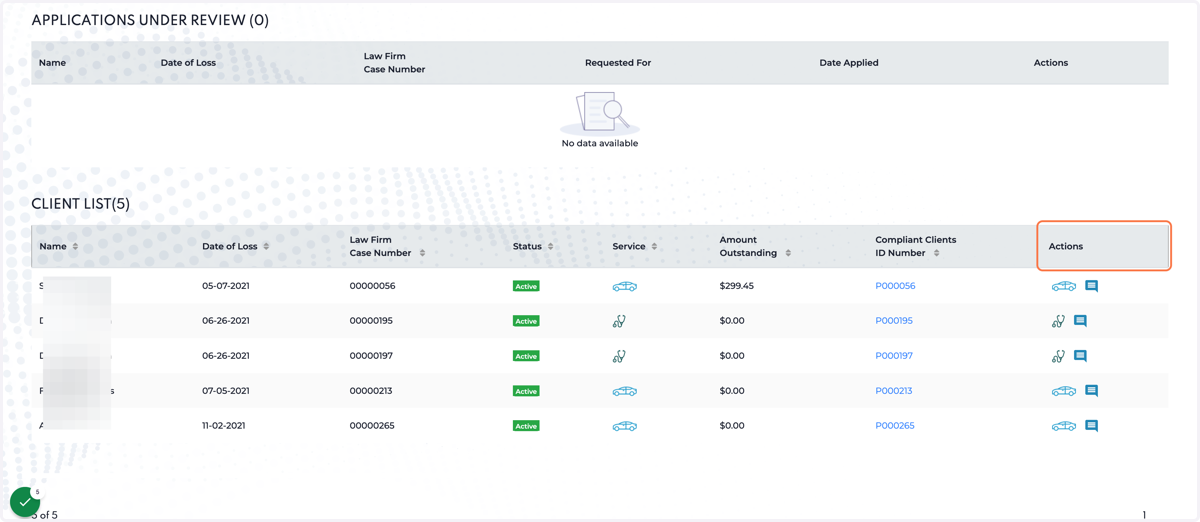
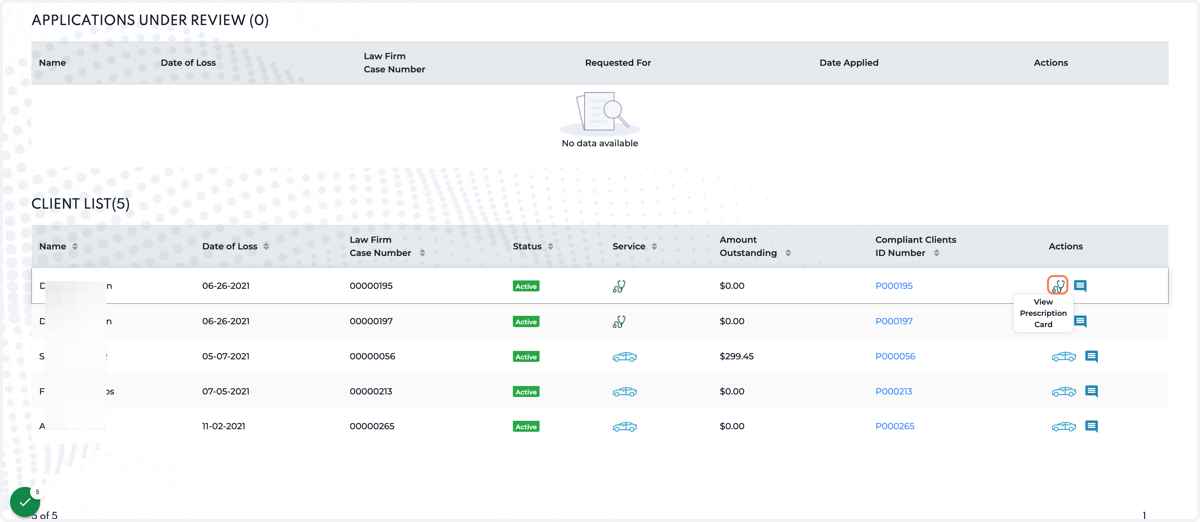
14. View Prescription Card by clicking the medical icon
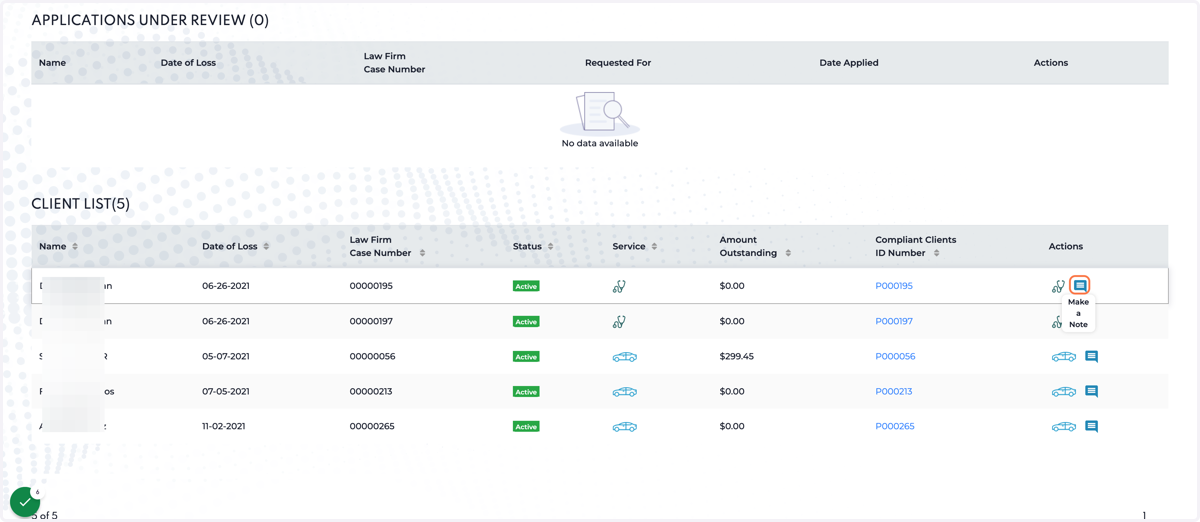
15. Click on Comment Icon to make an internal note for your reference only
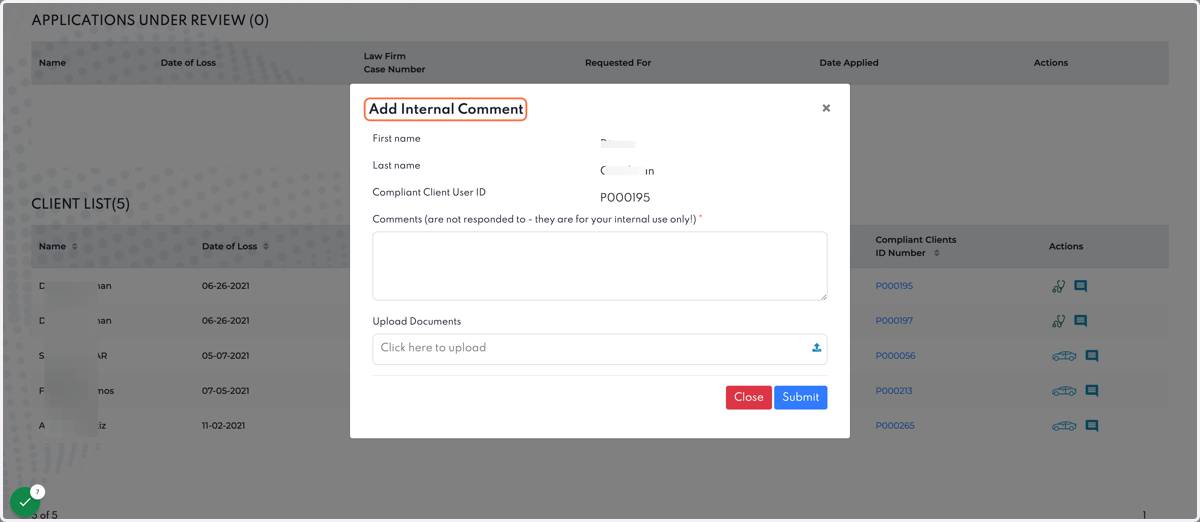
Note: Comments are not responded to - they are for your internal use only!
16. Add your Internal Comment or Upload a File here
17. Click on your Clients ID number to view more information about your client
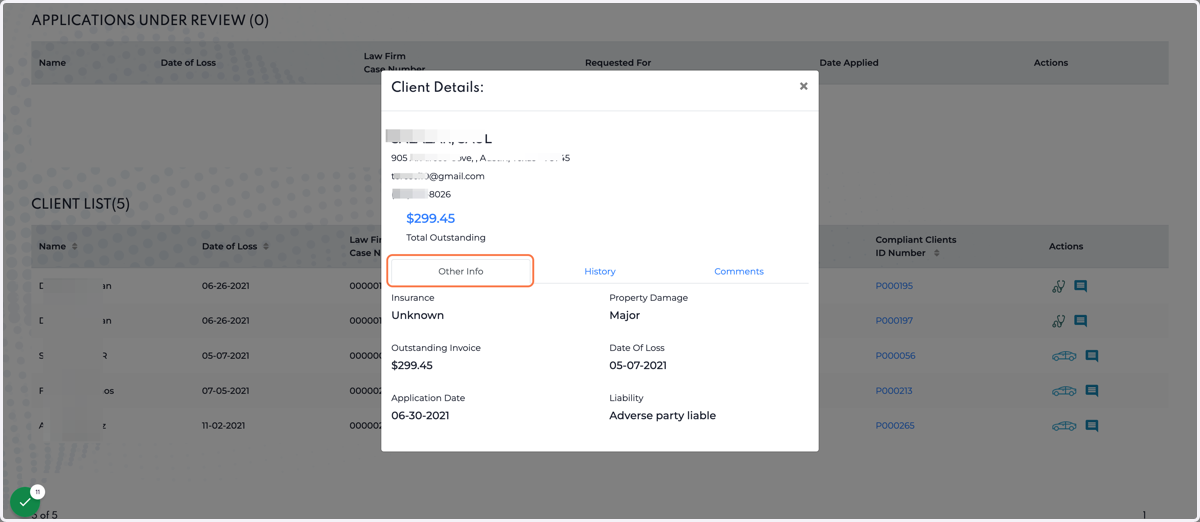
18. Client Details
View your submitted case details, history, comments, and outstanding balance here
19. Contact us if you have any questions
Improve your case outcomes by preventing gaps in treatment!