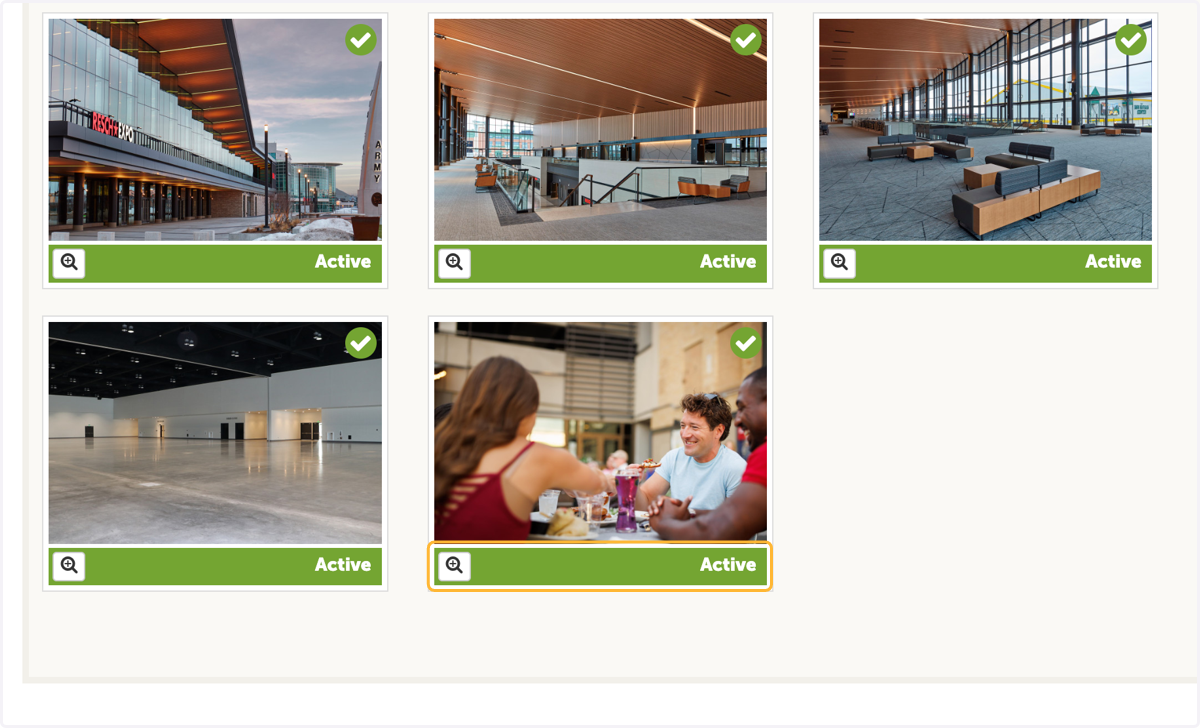
Add and Publish Media in Green Bay Extranet
Make sure your images are up-to-date and well-representative of your business on GreenBay.com. Follow this guide to update and activate your listing's images.
Discover Green Bay Extranet
1. Click on Login
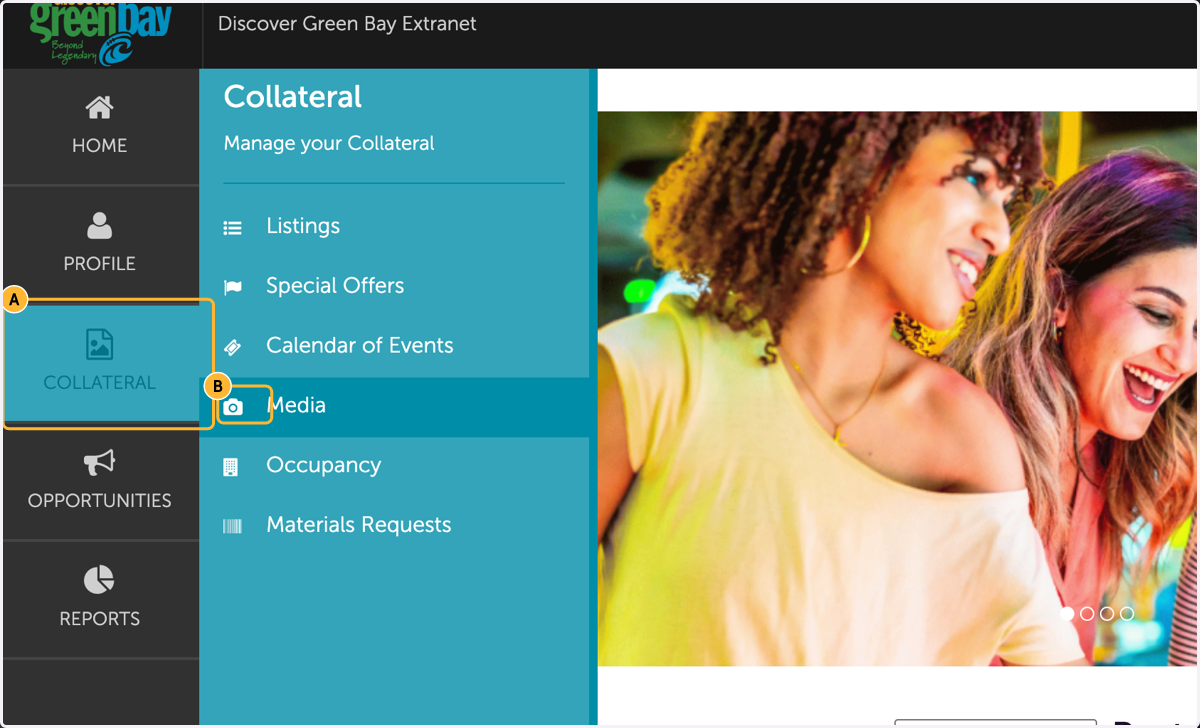
2. A. Click on COLLATERAL
2. B. Click on Media
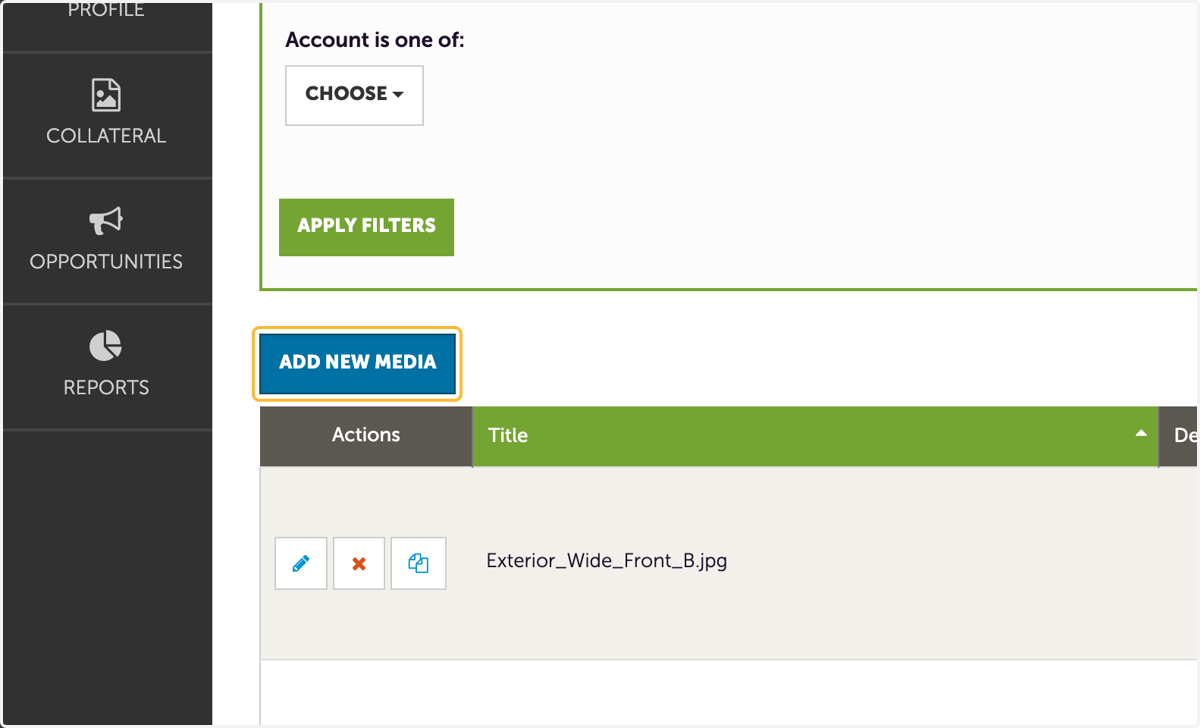
3. Click on ADD NEW MEDIA
Select "browse" to choose from your computer or drag and drop into dialog box.
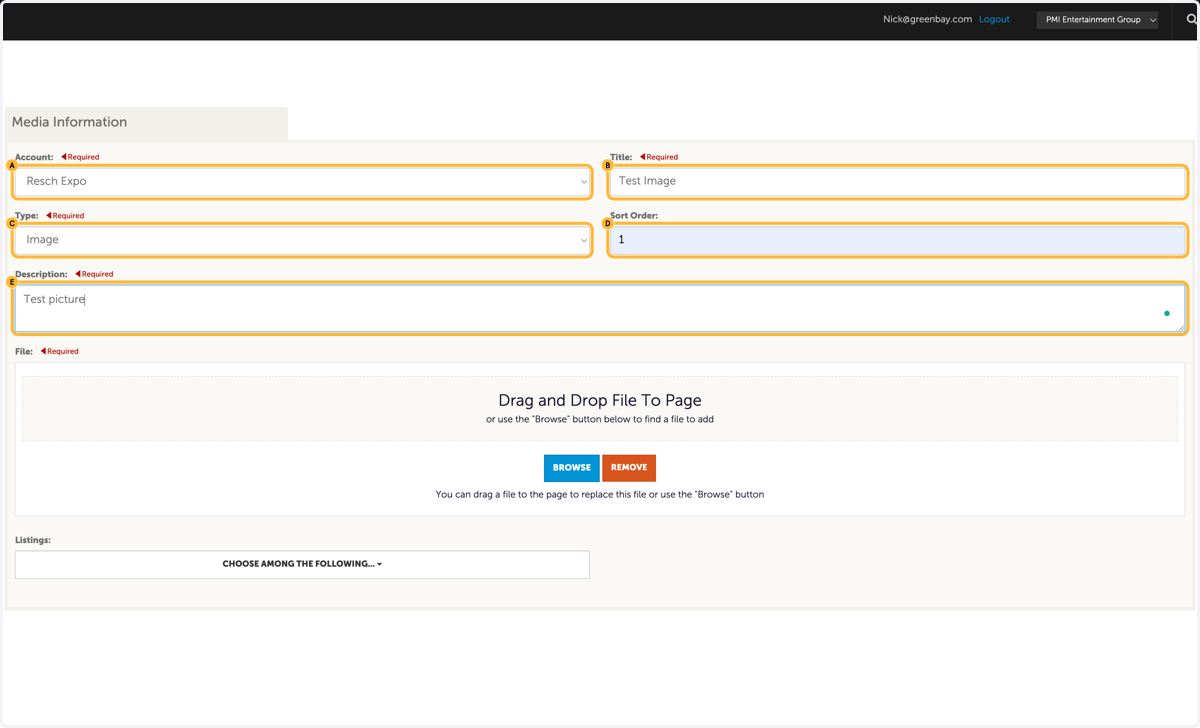
4. A. Select Account
4. B. Name your image
4. C. Select image type, either logo or image depending on what you're uploading
4. D. Enter sort order, 1 will be the first image on your website listing
4. E. Type image description
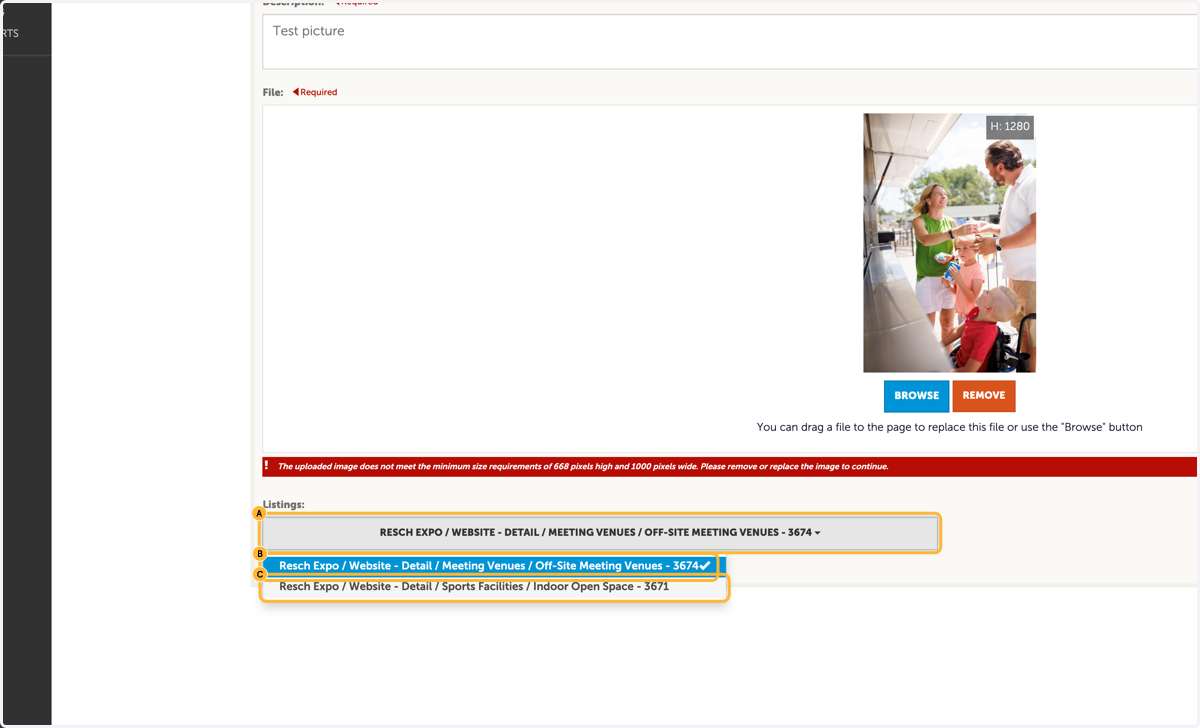
5. A. Select the listing or listings that you'd like to apply this image to.
5. B. Click on Resch Expo / Website - Detail / Meeting Venues / Off-Site Meeting Venues - 3674
5. C. Click on Resch Expo / Website - Detail / Sports Facilities / Indoor Open Space - 3671
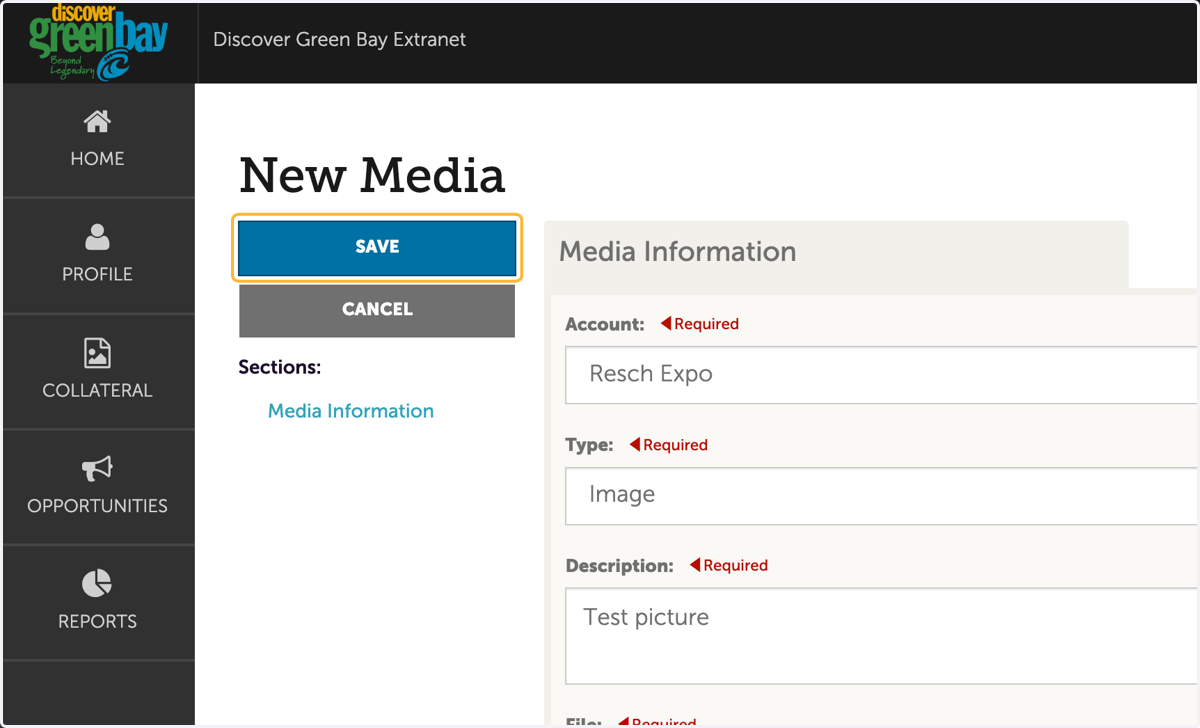
6. Click on Save
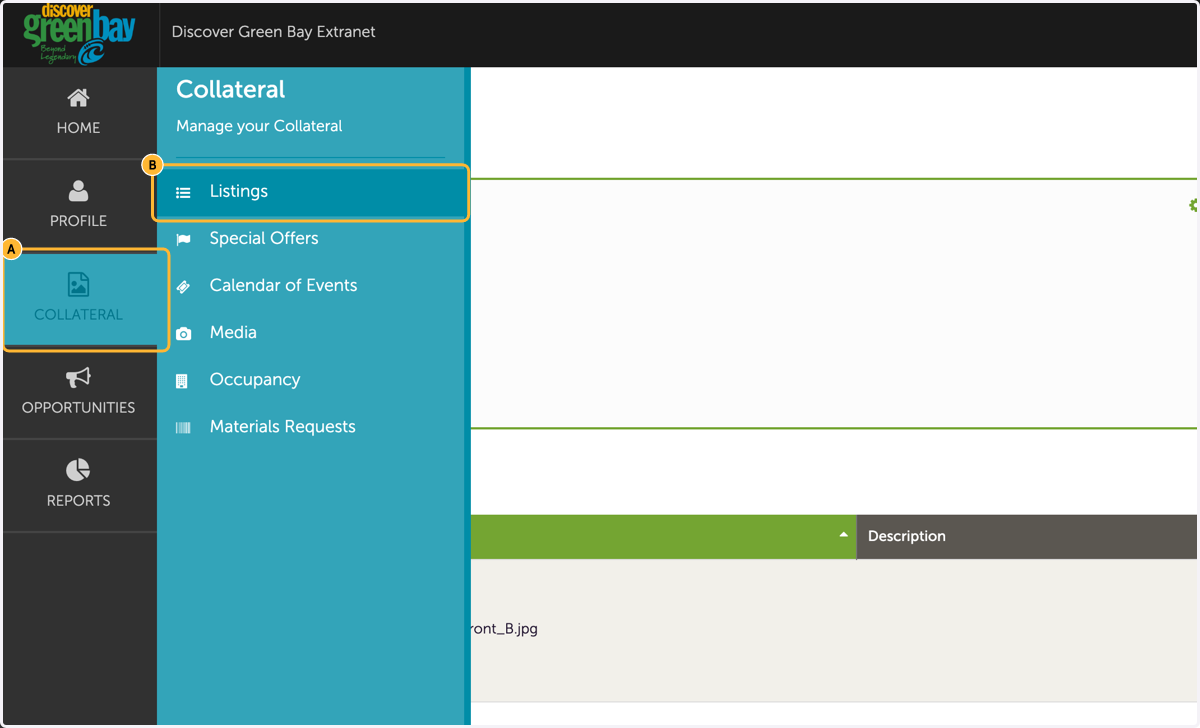
7. A. Next, make sure your listing has the updated image
7. B. Click Collateral, then on Listings
8. Select the edit button for the desired listing
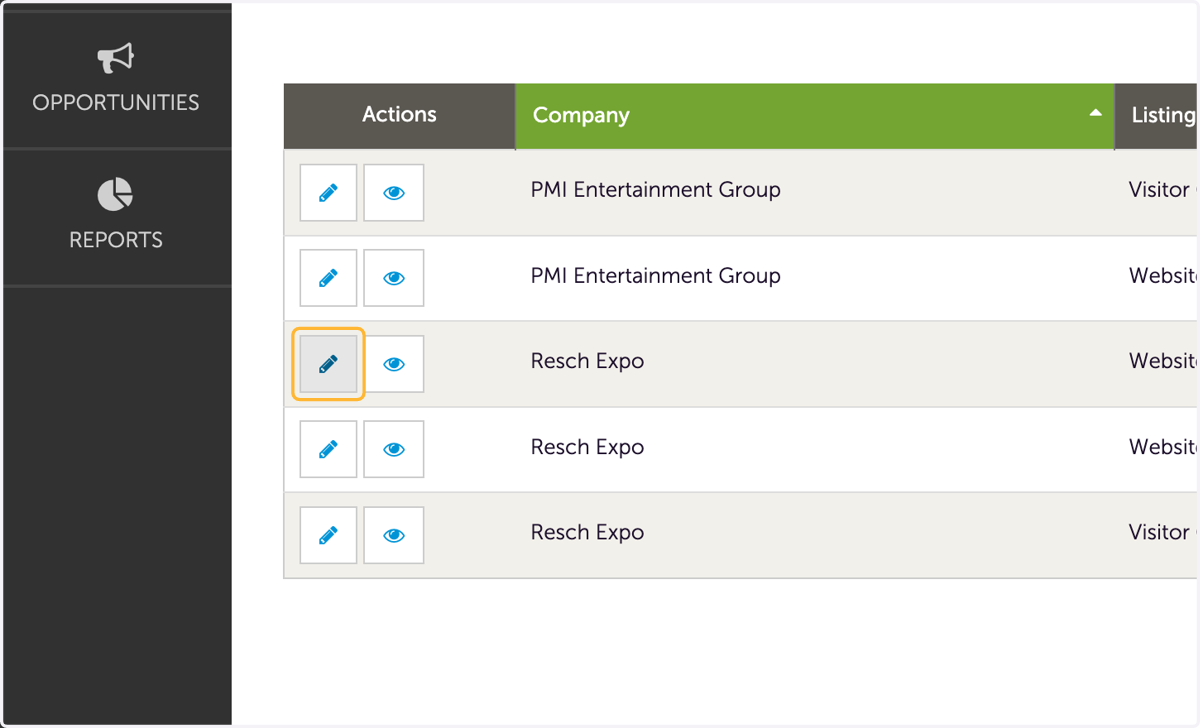
9. Ensure new image is "active" (green bar)