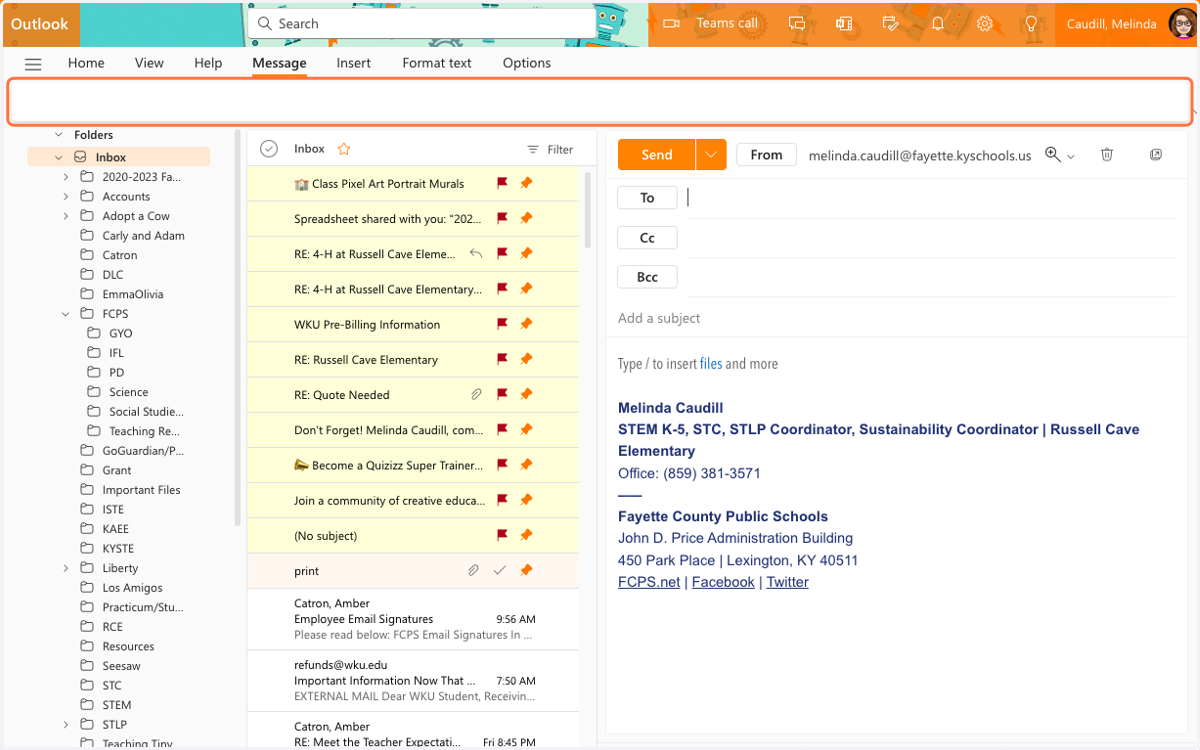
Setting Up a Signature in Outlook Email
Mail - Caudill, Melinda - Outlook
1. Open Email Program
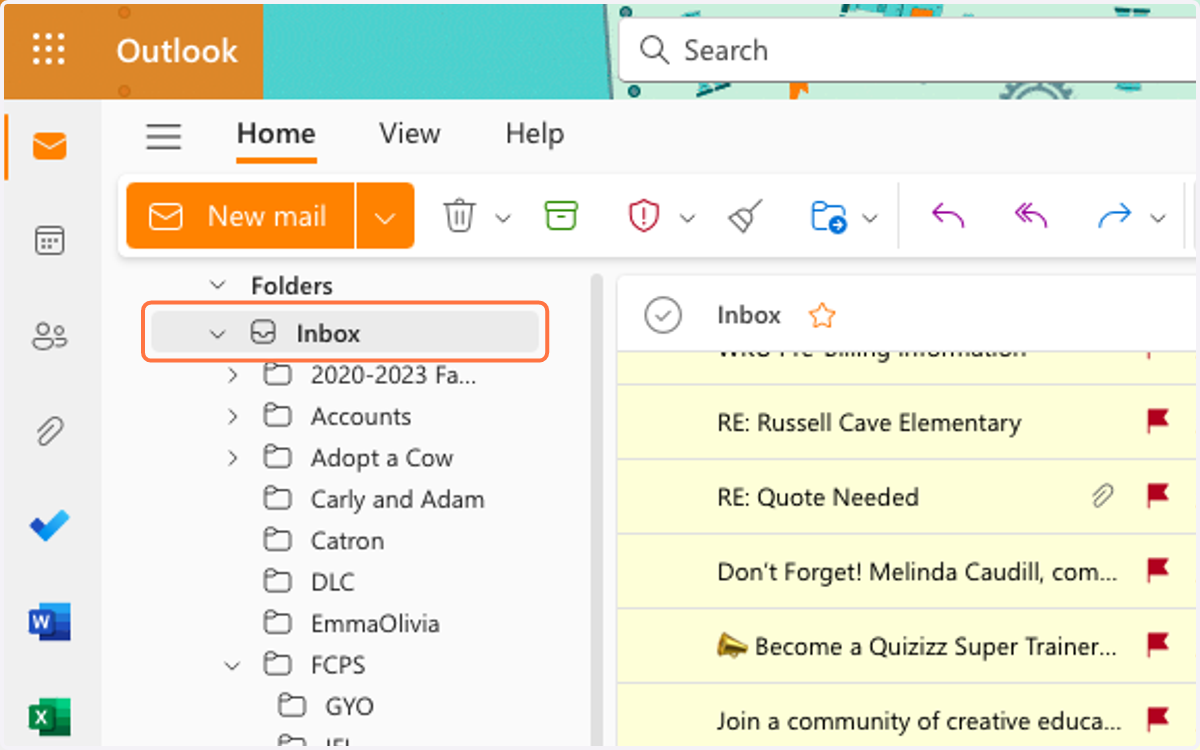
2. Click on Settings
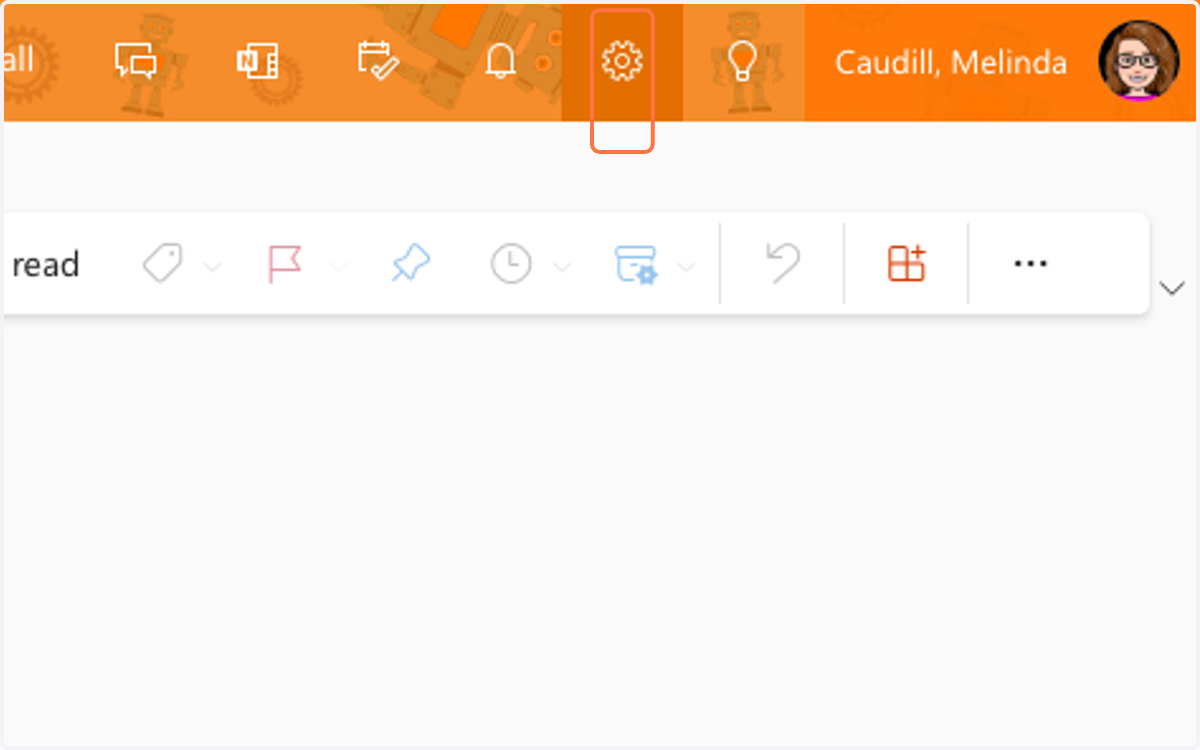
3. Type "signature" in search bar
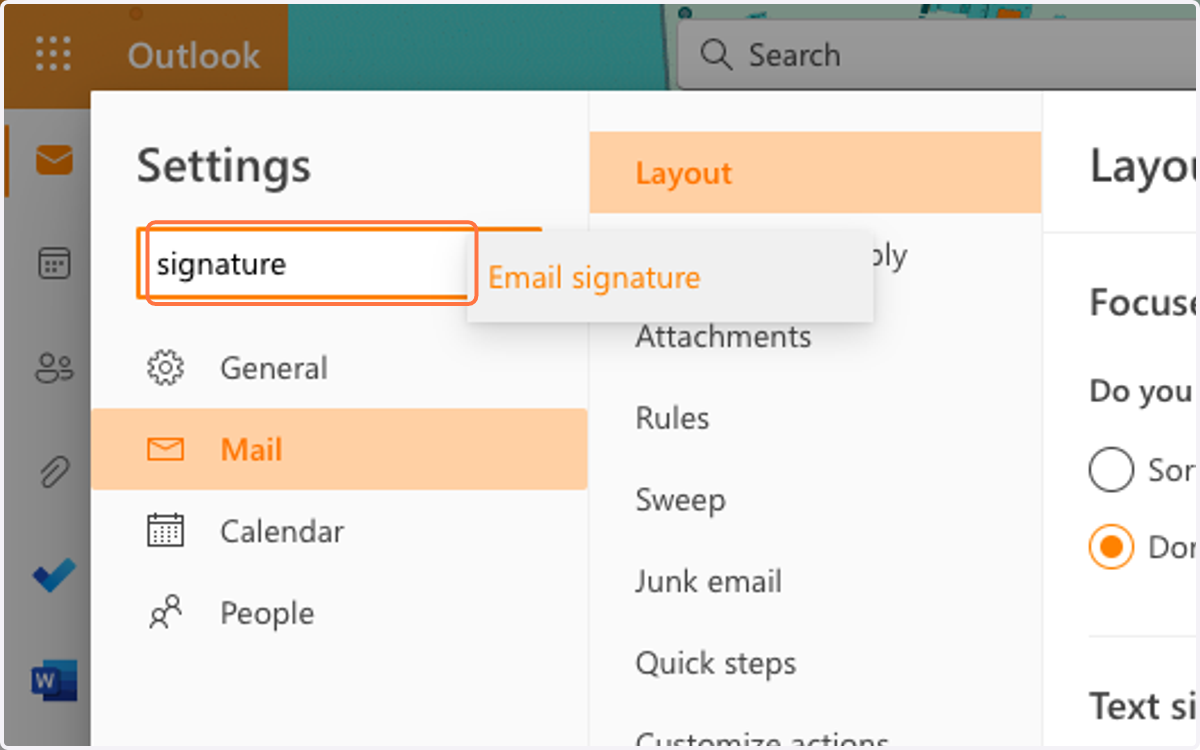
4. Click on Email signature
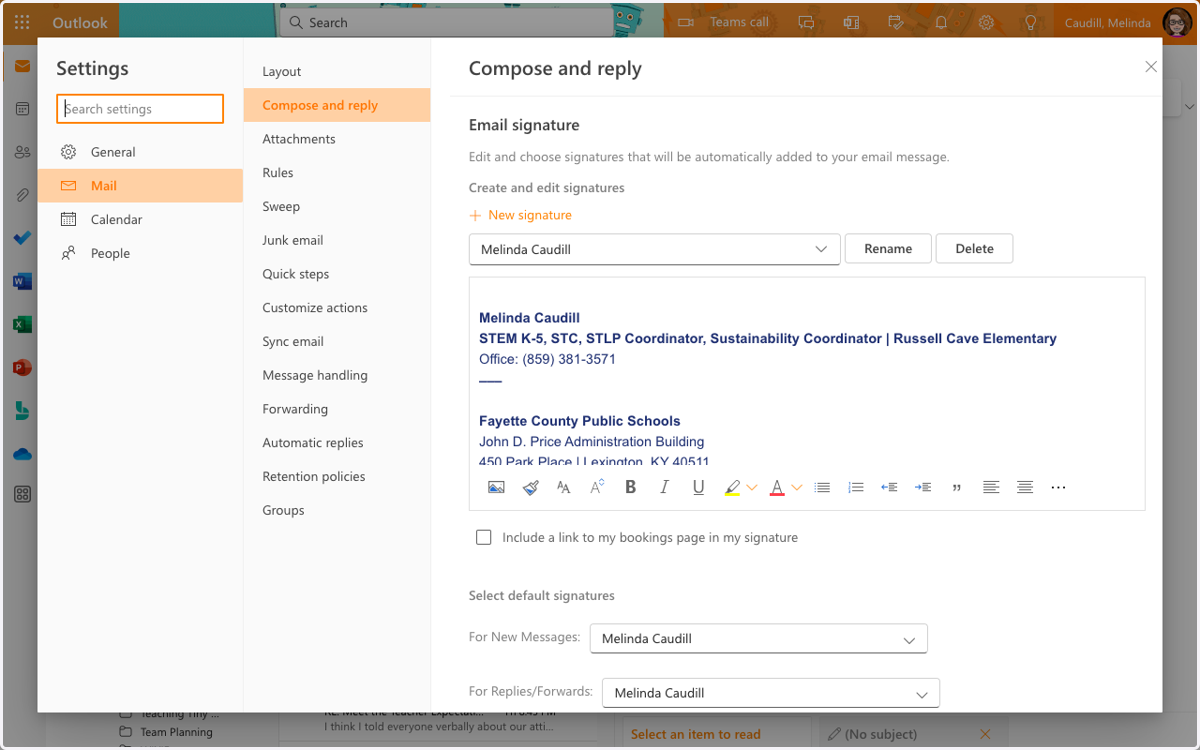
5. Click on Email signature
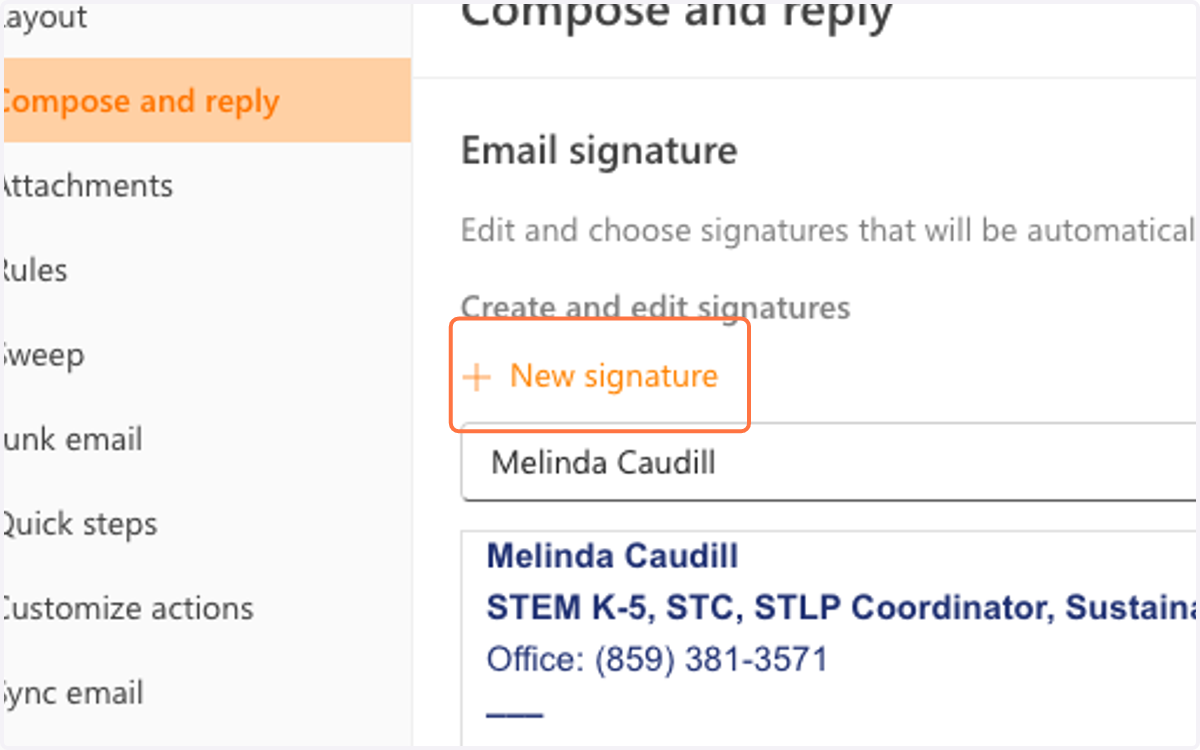
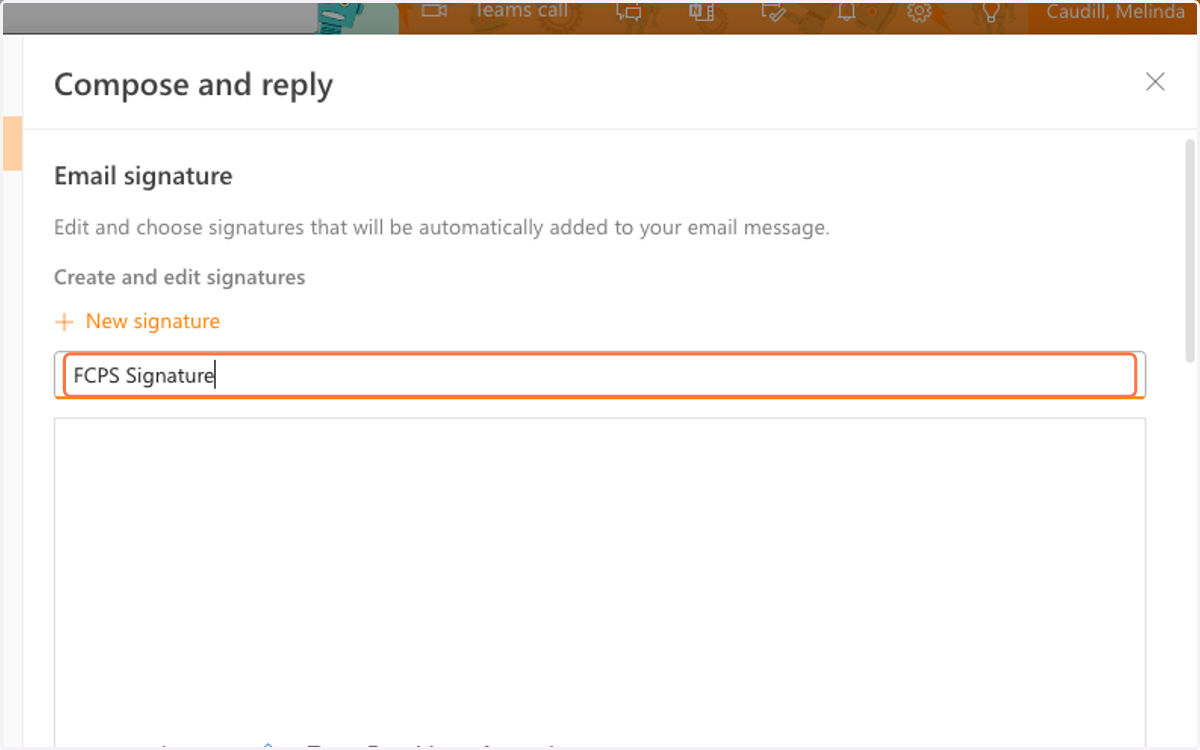
6. Type "FCPS Signature"
7. Click on Signature
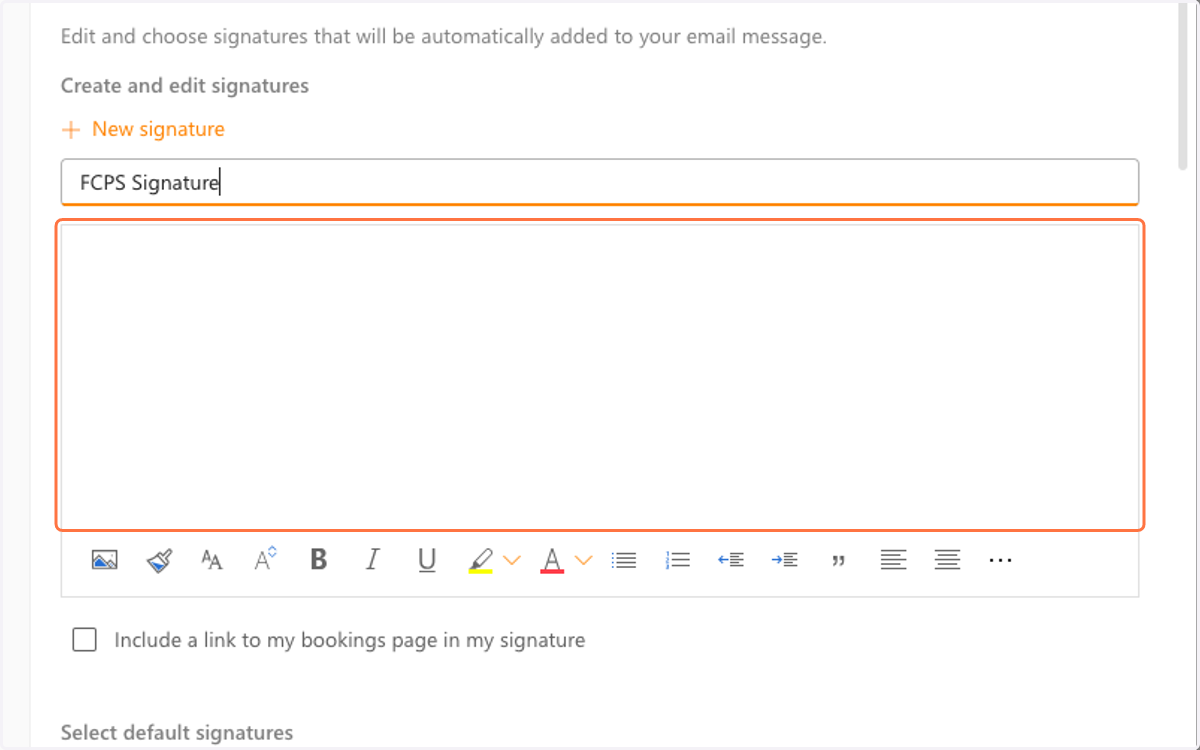
8. Paste template
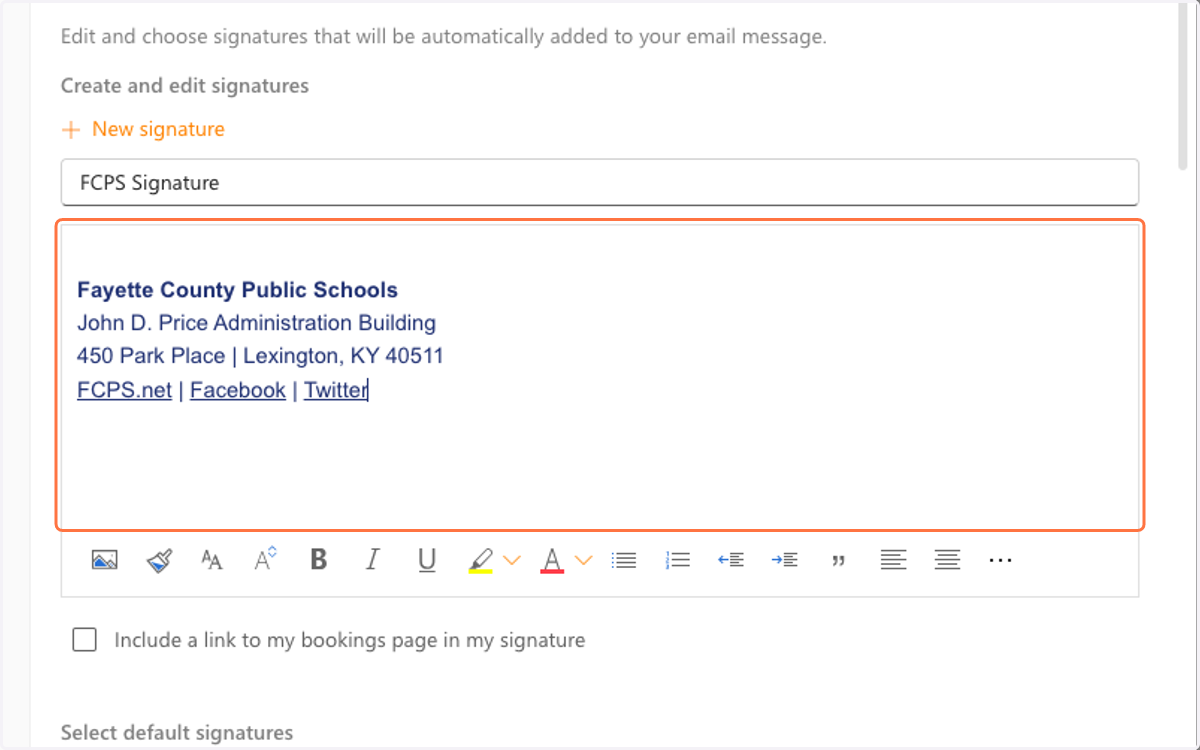
9. Input your information in the template
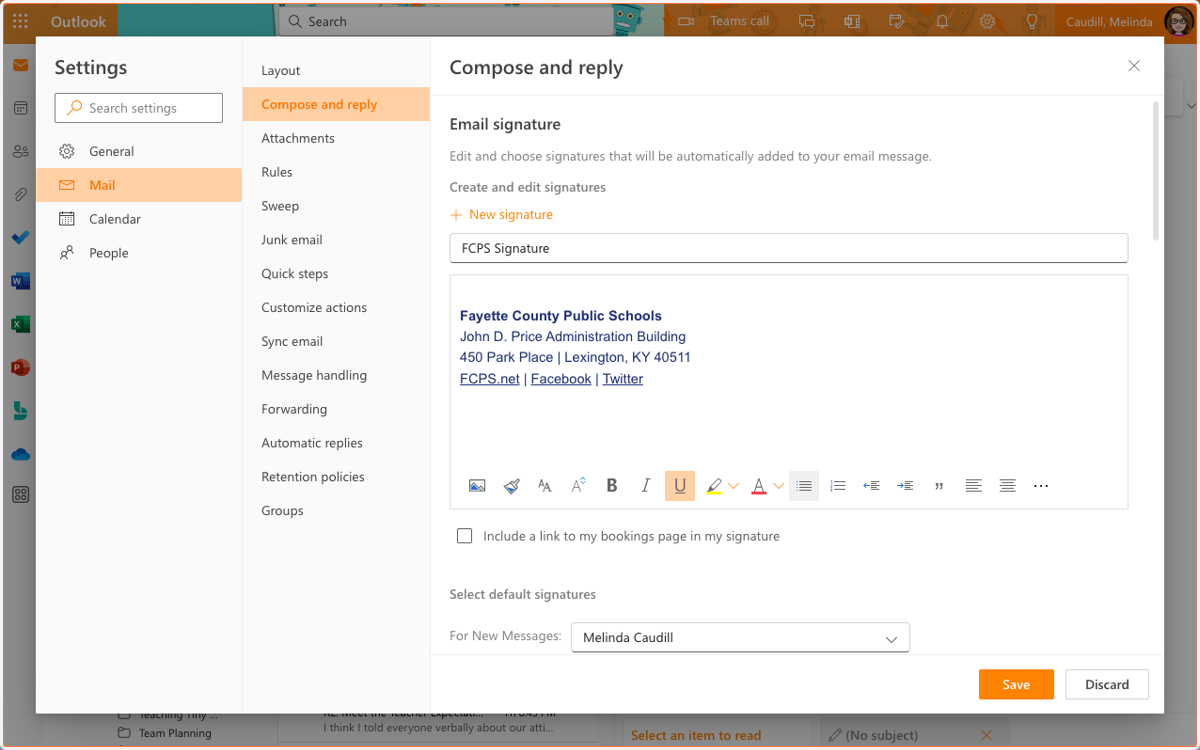
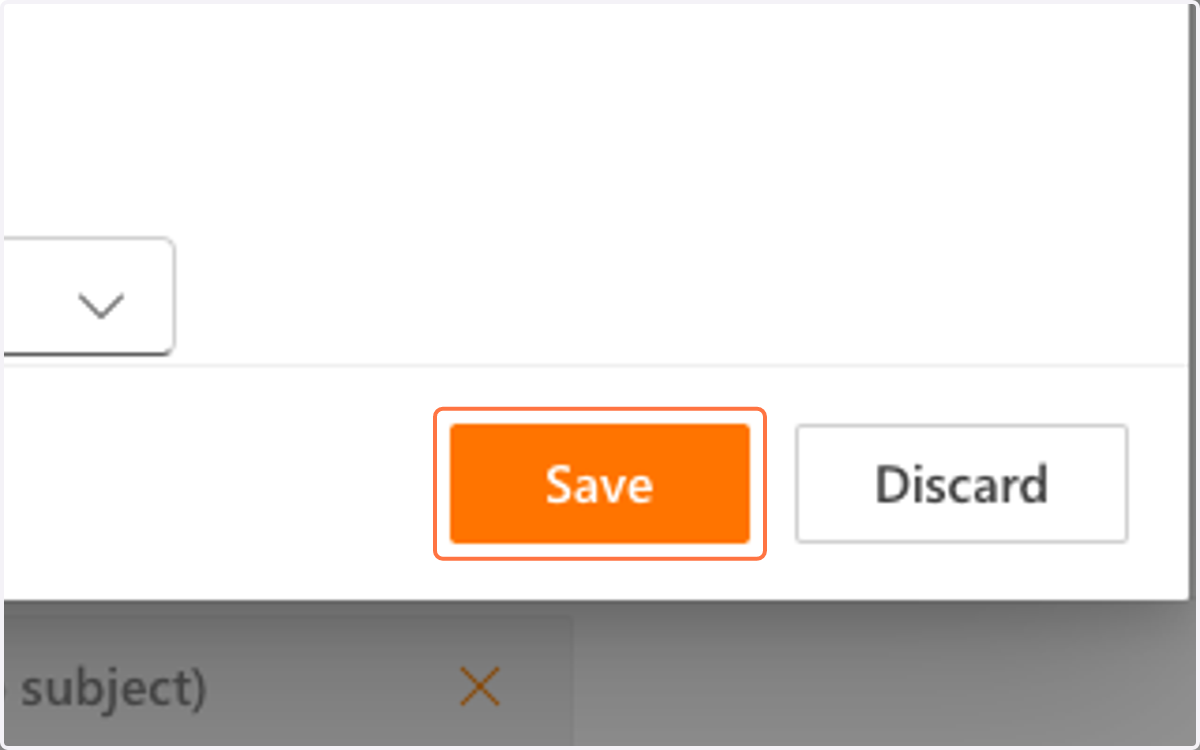
10. Click on Save
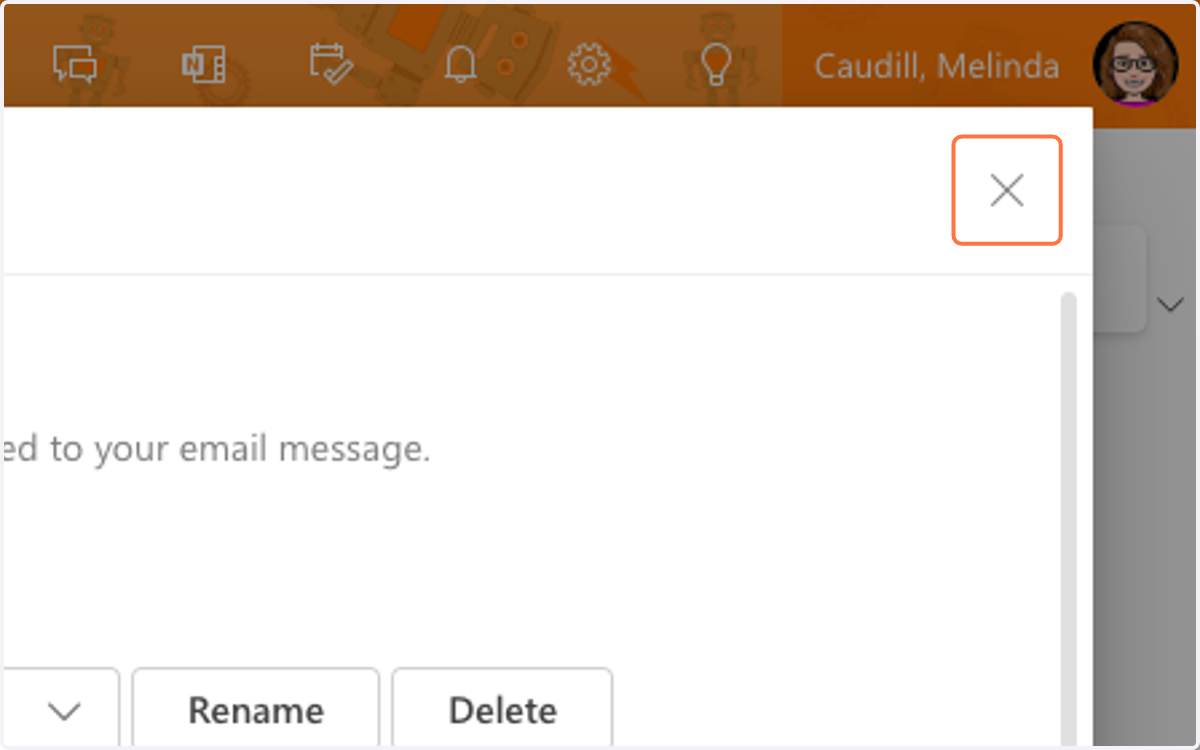
11. Click on Close settings
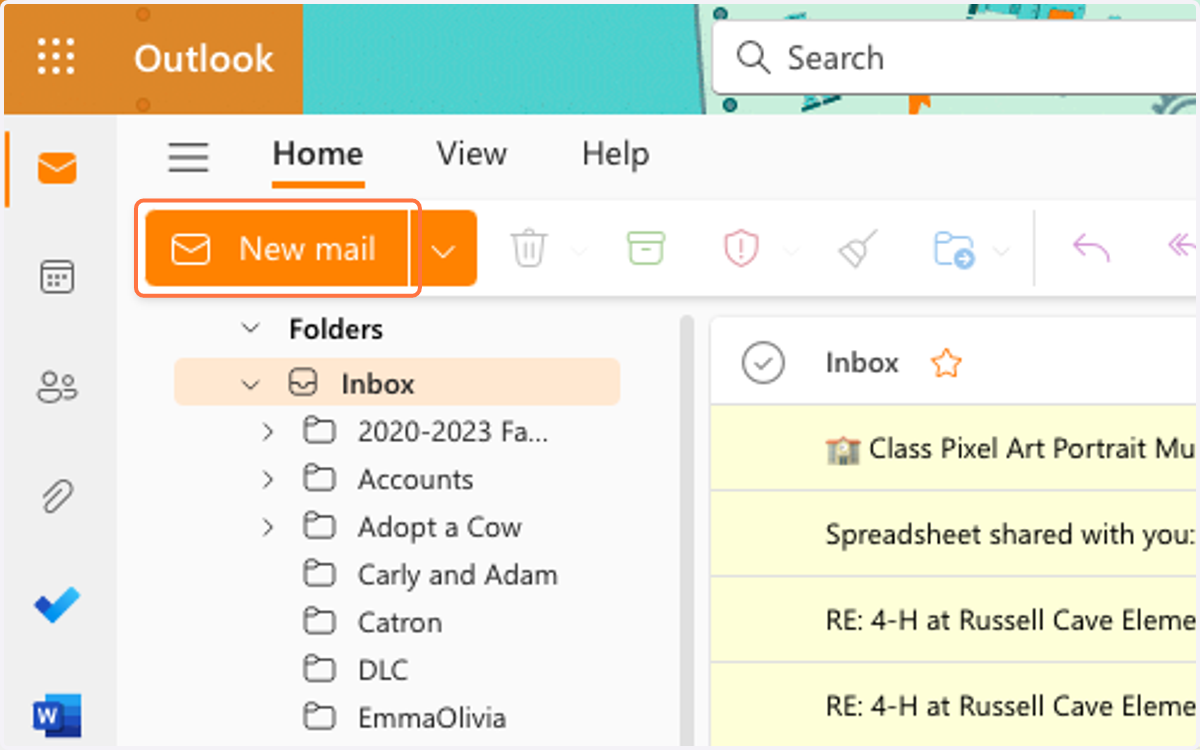
12. Click on New mail
13. Your signature should now appear at the bottom of every email