Link Co-Occupant w/Shared Payer
This workflow shows how to link a co-occupant with a shared payer. This shared payer can be the primary resident or another contact (adult child, etc.). The below example shows the Primary Resident as the primary
Senior CRM
1. Select Future resident
Open the primary resident's profile.
Please note that certain steps in this workflow require the prospect to be in Future Resident status.
2. Click on Contacts

3. Click on Add New under Contacts

4. Enter name and any other detail for the contact/co-occupant as required

5. Check Co-Occupant

6. Click on Save
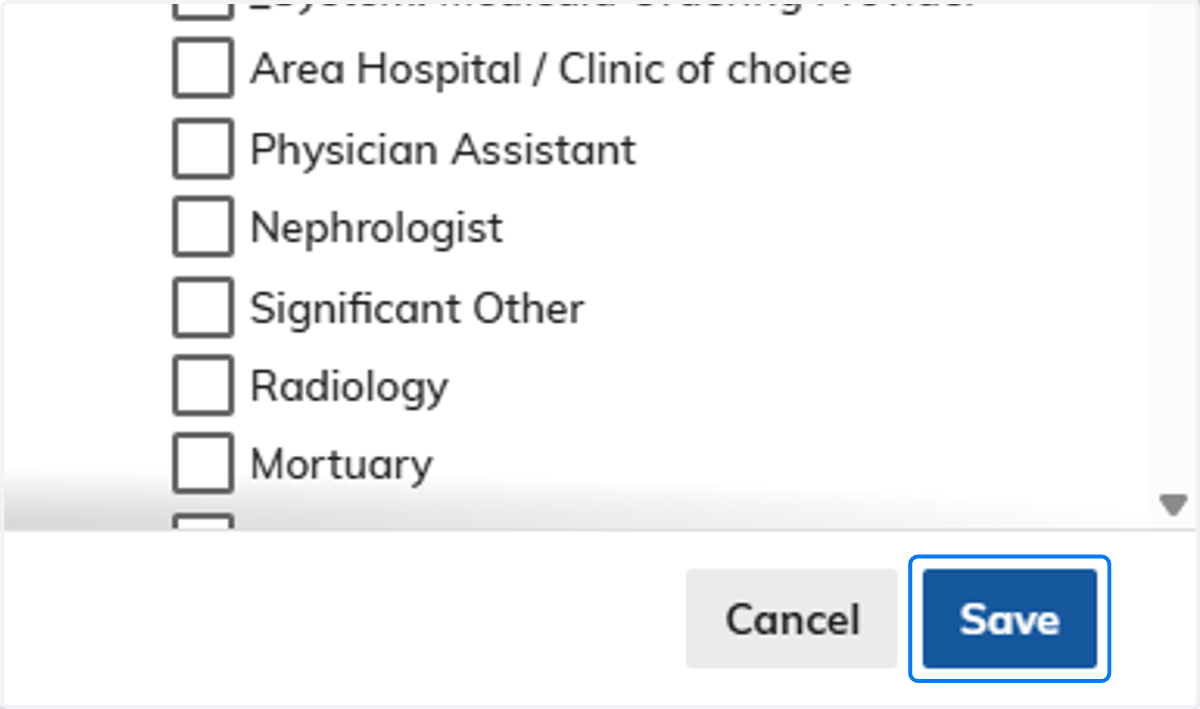
7. Click on Actions

8. Click on Link Co-Occupant

9. Click on Link to the appropriate Contact
Please be patient! The next screen can take a few moments to load.
If Yardi freezes while performing this step, check to see if the second resident was created before trying again.

10. Click on OK to link said co-occupant to the primary resident
Please be patient! The next screen can take a few moments to load.
If Yardi freezes while performing this step, check to see if the second resident was created before trying again.

11. Select the appropriate relationship for all shared contacts between the primary and secondary resident

12. Click on Share at the bottom of the page

13. Click on Actions

14. Click on View Co-Occupant

15. Click on Profile under the secondary resident

16. Click on Marketing

17. Select Primary Payer
Select the newly linked Primary Payer from the dropdown list

18. Click on Save
The primary payer is now selected on both prospect profiles.
