How to create and update Social Security and its automatic calculation in Odoo-iLines HR

Odoo

  1. 1. Click on iLines HR

    Click on iLines HR
  2. 2. Click on Configurations

    Click on Configurations
  3. 3. Click on Company Configurations

    Click on Company Configurations
  4. 4. Click on My Company Configuration

    Click on My Company Configuration
  5. 5. Click on GOSI, Salaries and Loans

    Click on GOSI, Salaries and Loans
  6. 6. Right click on Citizen Nationality?

    Right click on Citizen Nationality?
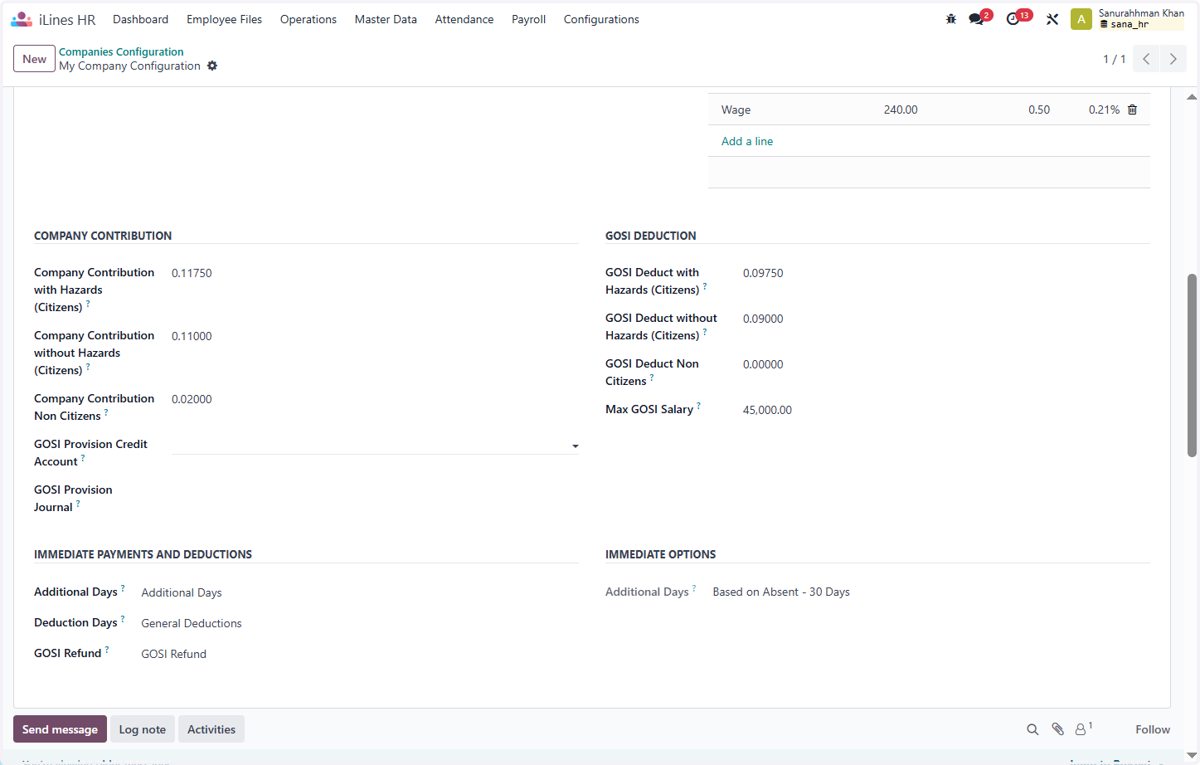
  7. 7. Click on Company Contribution with Hazards (Citizens)? This is for the company contiribution part the company can enter the configuration for the hazards citizens

    Click on Company Contribution with Hazards (Citizens)? This is for the company contiribution part the company can enter the configuration for the hazards citizens
  8. 8. Click on Company Contribution without Hazards (Citizens)?This is for the company contiribution part the company can enter the configuration for the without hazards citizens

    Click on Company Contribution without Hazards (Citizens)?This is for the company contiribution part the company can enter the configuration for the without hazards citizens
  9. 9. Click on Company Contribution Non Citizens?

    Click on Company Contribution Non Citizens?
  10. 10. Click on GOSI Deduct without Hazards (Citizens)? and on this side it contain the employees deduction part and we enter the percentage of the GOSI deduction that could be made form here. it is like employee contribution for the social inssurance.

    Click on GOSI Deduct without Hazards (Citizens)? and on this side it contain the employees deduction part and we enter the percentage of the GOSI deduction that could be made form here. it is like employee contribution for the social inssurance.
  11. 11. Click on GOSI Deduct Non Citizens?

    Click on GOSI Deduct Non Citizens?
  12. 12. Click on Max GOSI Salary? you can also add the max Gosi Salary Amount

    Click on Max GOSI Salary? you can also add the max Gosi Salary Amount
  13. 13. Click on Citizen Nationality? and you can also set the deduction process according to the citizen nationality.for example, now it will only apply to the saudi arabia nationality person

    Click on Citizen Nationality? and you can also set the deduction process according to the citizen nationality.for example, now it will only apply to the saudi arabia nationality person
  14. 14. For testing it Click on Master Data

    For testing it Click on Master Data
  15. 15. Click on Employee

    Click on Employee
  16. 16. Click on مدير الموارد البشرية

    Click on مدير الموارد البشرية
  17. 17. Click on In Contract Since…

    Click on In Contract Since…
  18. 18. Click on iLines Salary Info

    Click on iLines Salary Info
  19. 19. Click on highlight

    Click on highlight
  20. 20. Click on Update GOSI in Contracts

    Click on Update GOSI in Contracts
  21. 21. Now the GOSI details has been updated for the Saudi nationality person

    Now the GOSI details has been updated for the Saudi nationality person
  22. 22. Click on Employees, now we will check the other nationality person contract effect

    Click on Employees, now we will check the other nationality person contract effect
  23. 23. Click on highlight

    Click on highlight
  24. 24. Open the Pakistan Nationality Person

    Open the Pakistan Nationality Person
  25. 25. Open the Contract

    Open the Contract
  26. 26. Click on iLines Salary Info

    Click on iLines Salary Info
  27. 27. Here you can see the GOSI deuction is not Applied for this nationality

    Here you can see the GOSI deuction is not Applied for this nationality
  28. 28. Now we will go back to all contracts and update them all

    Now we will go back to all contracts and update them all
  29. 29. Click on Master Data

    Click on Master Data
  30. 30. Click on Contracts

    Click on Contracts
  31. 31. Click on Remove

    Click on Remove
  32. 32. Check on

    Check on
  33. 33. Click on Actions

    Click on Actions
  34. 34. Click on Update GOSI in Contracts

    Click on Update GOSI in Contracts
  35. 35. Click on Employee…

    Click on Employee…
  36. 36. Click on David Johnson

    Click on David Johnson
  37. 37. Now Finally we can see all the Contracts has been updated.

    Now Finally we can see all the Contracts has been updated.