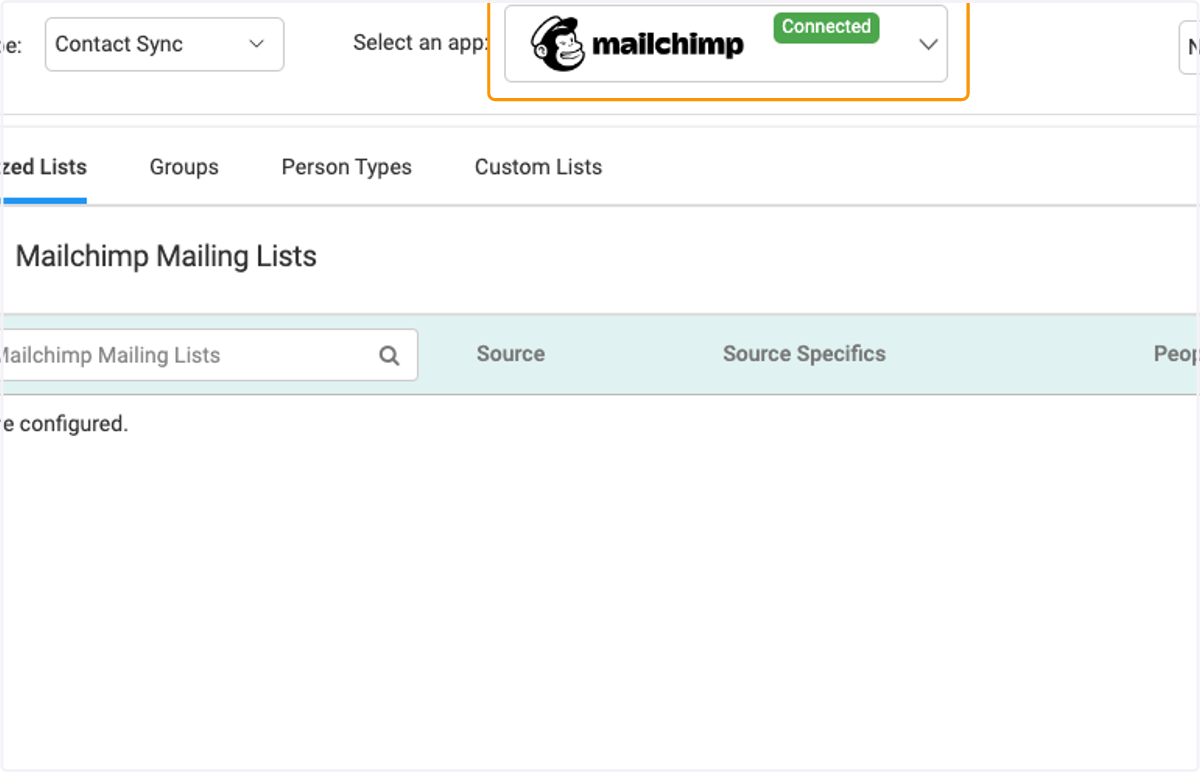
Mailchimp Integration
CUSTOMERONBOARDING Communication Settings: Powered by Engagifii
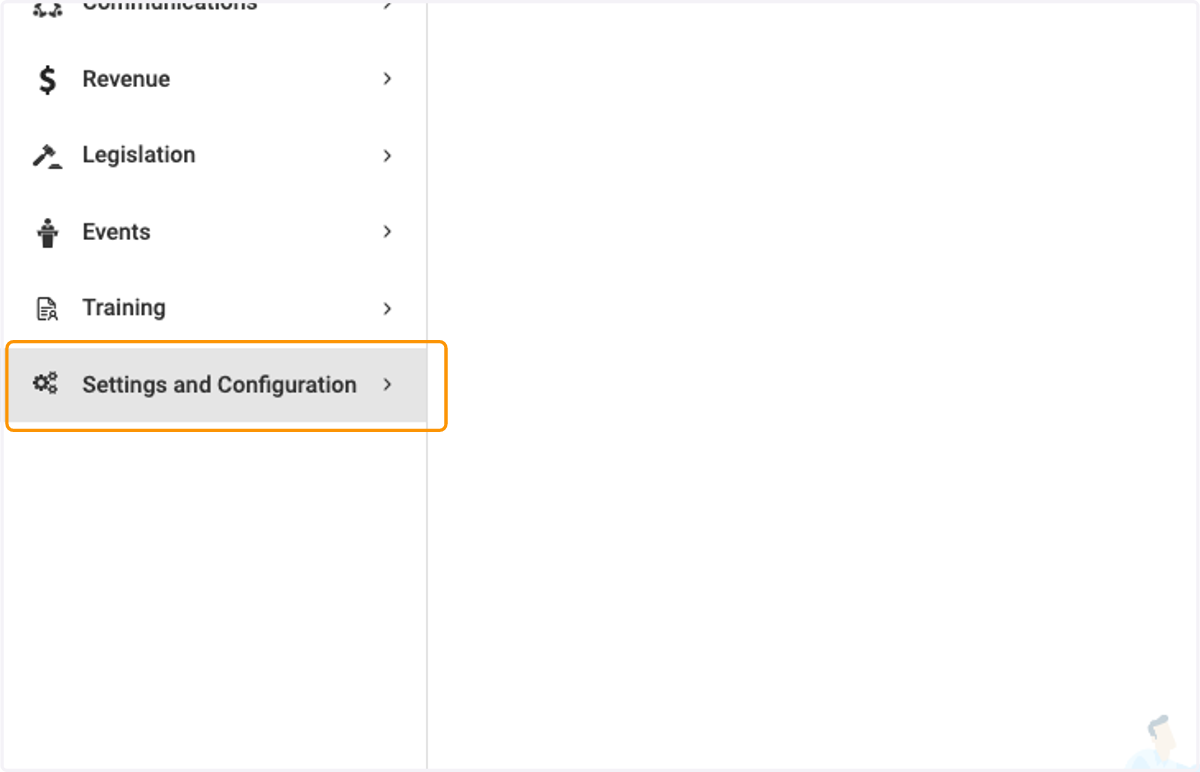
1. Click on Settings and Configuration
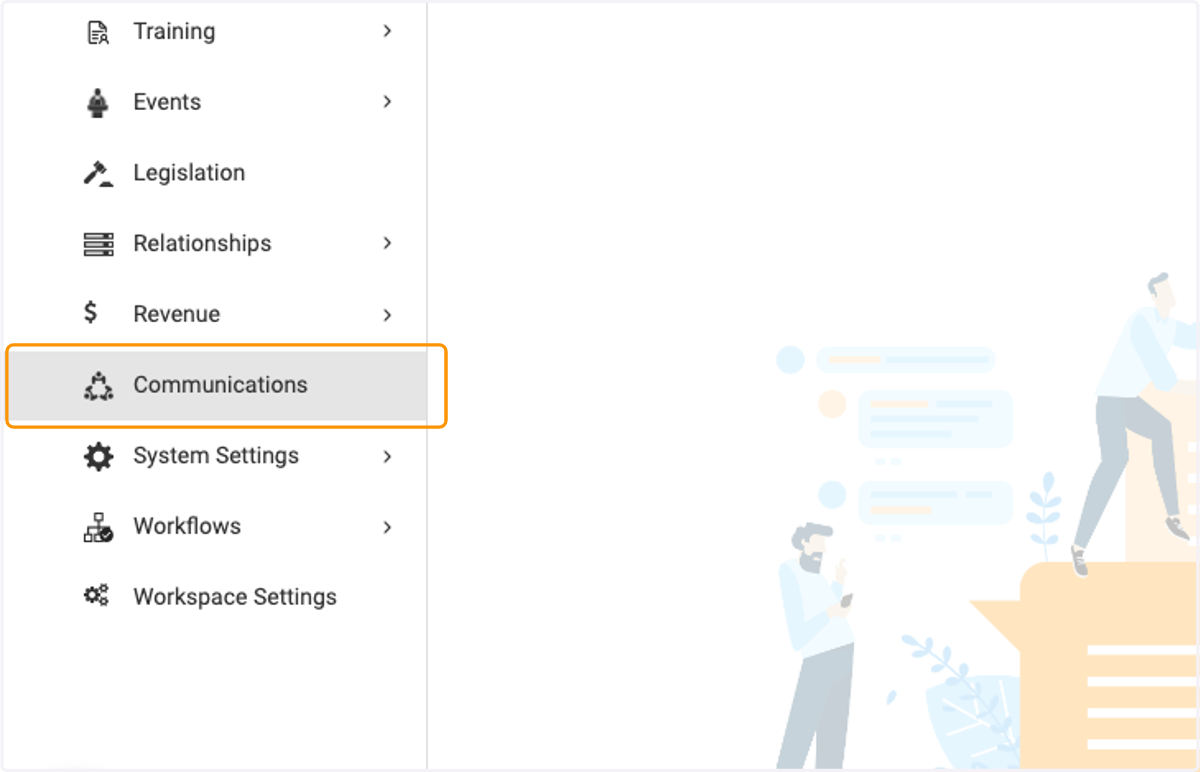
2. Click on Communications
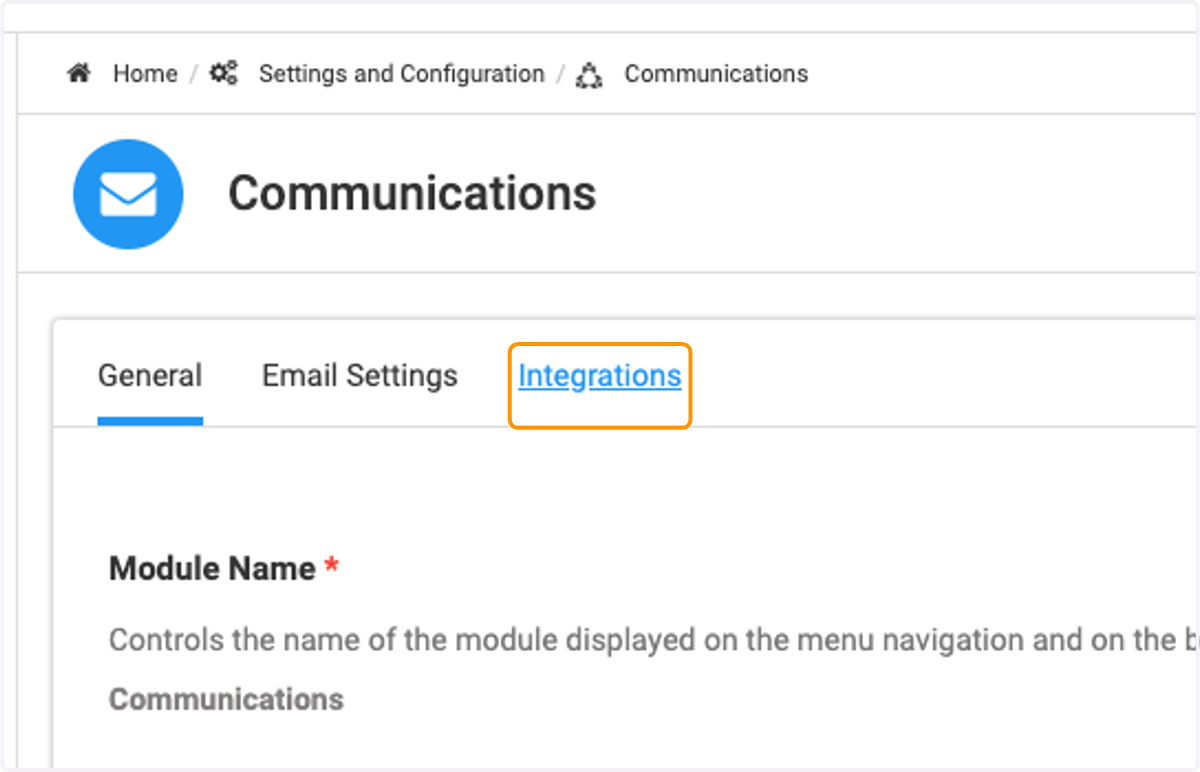
3. Click on Integrations
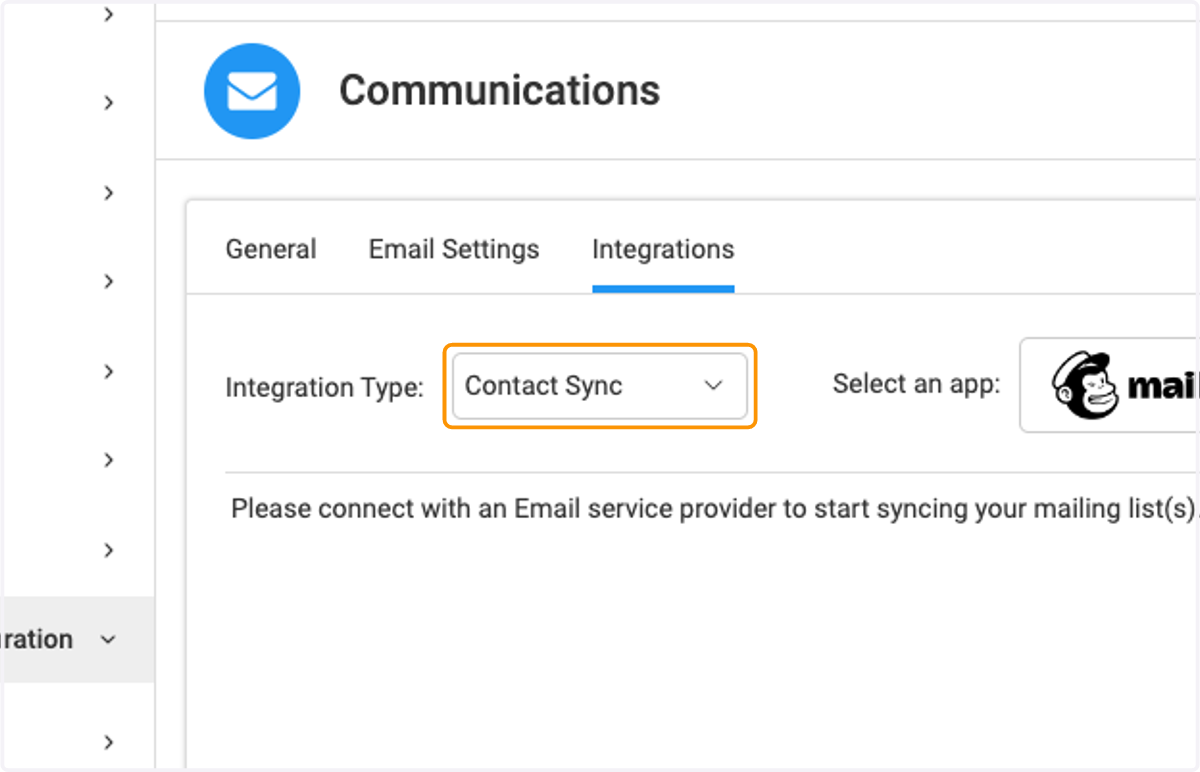
4. Select Integration Type
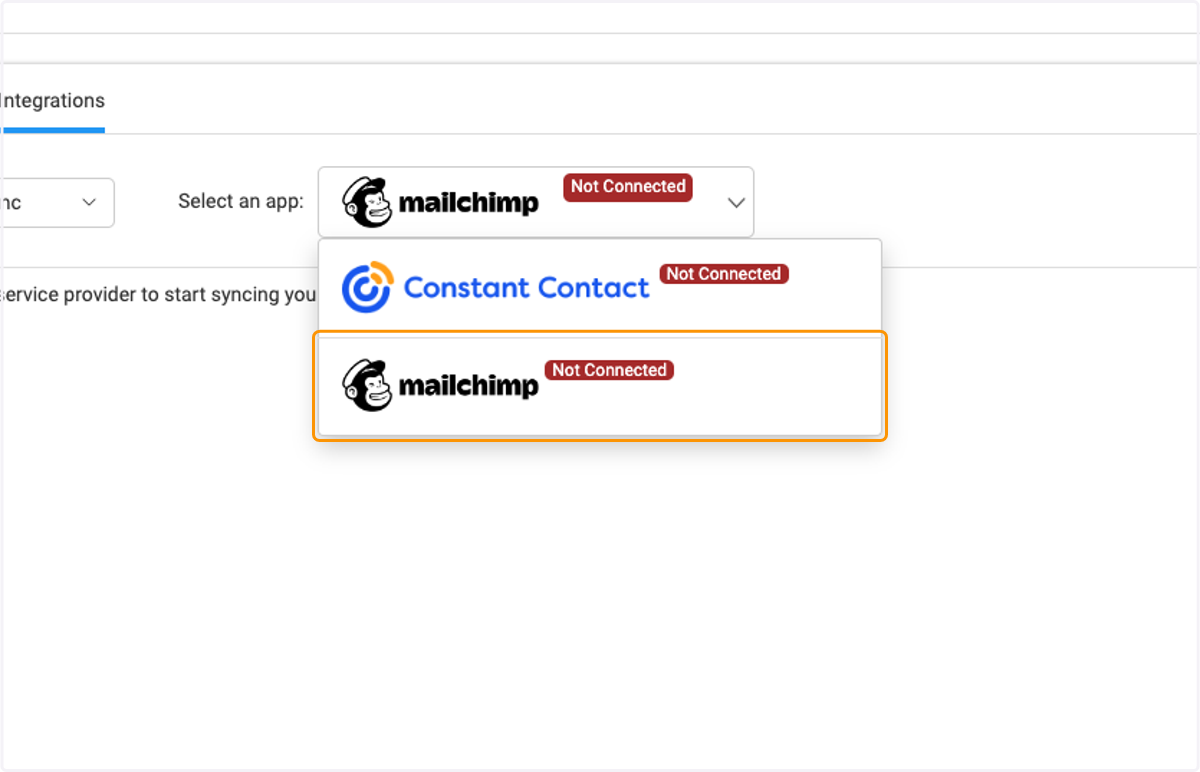
5. Click on service provider
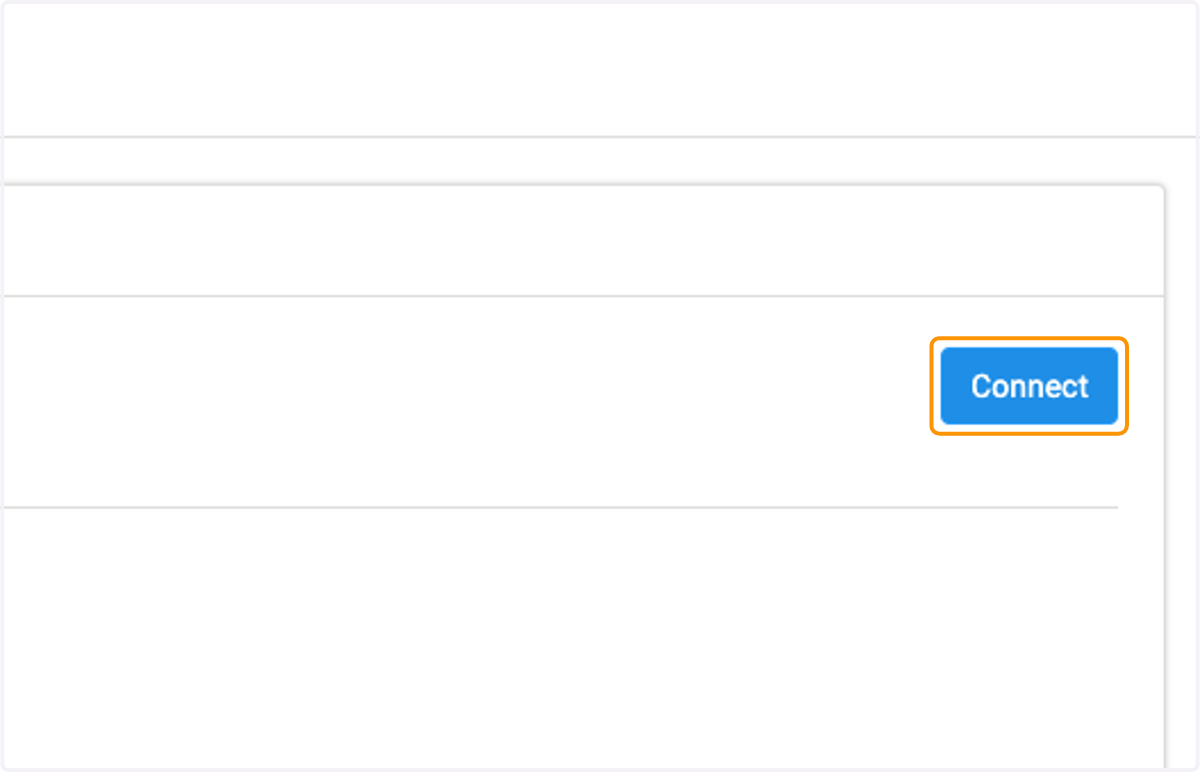
6. Click on Connect
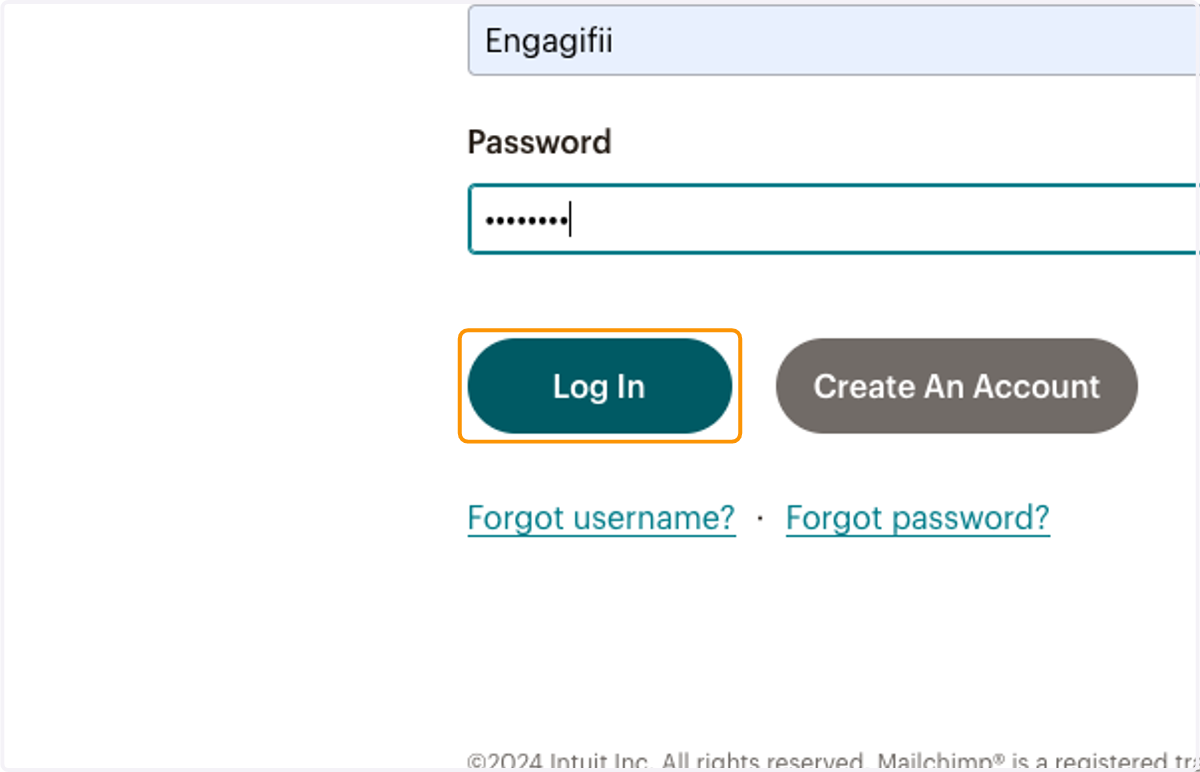
7. A Pop-Up window will open where you can enter your login credentials
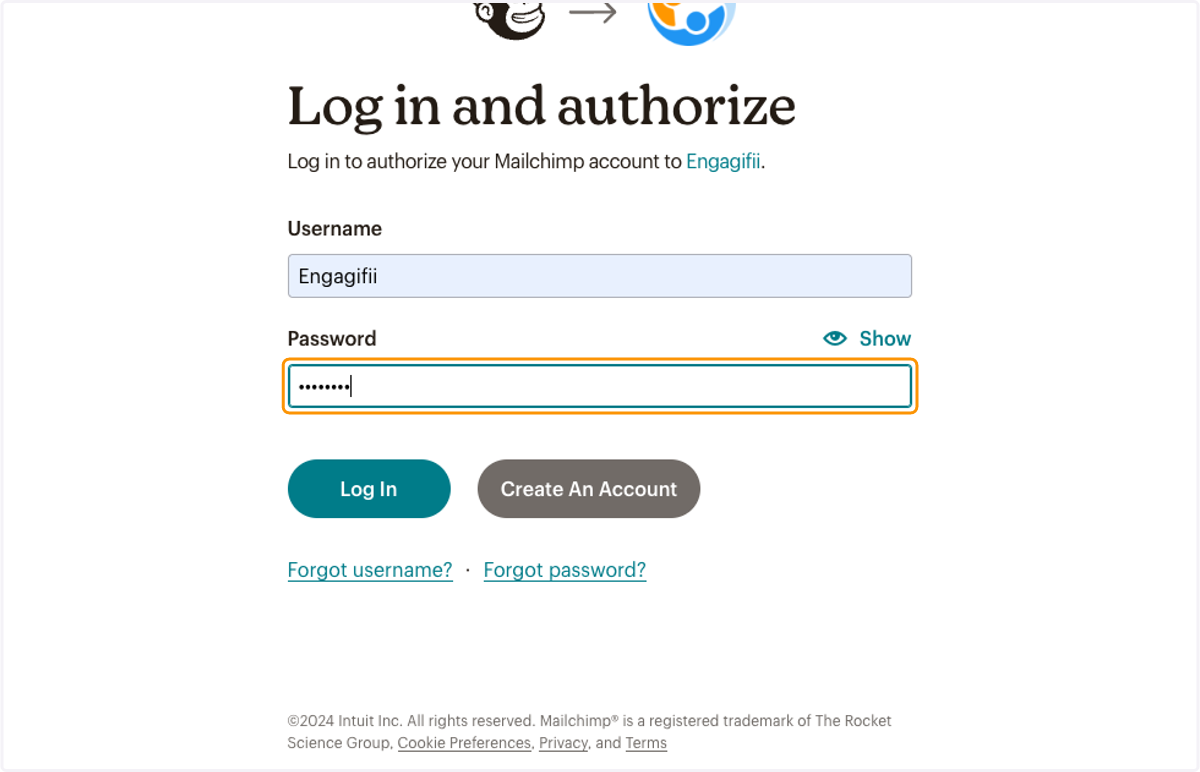
8. Click on Log In
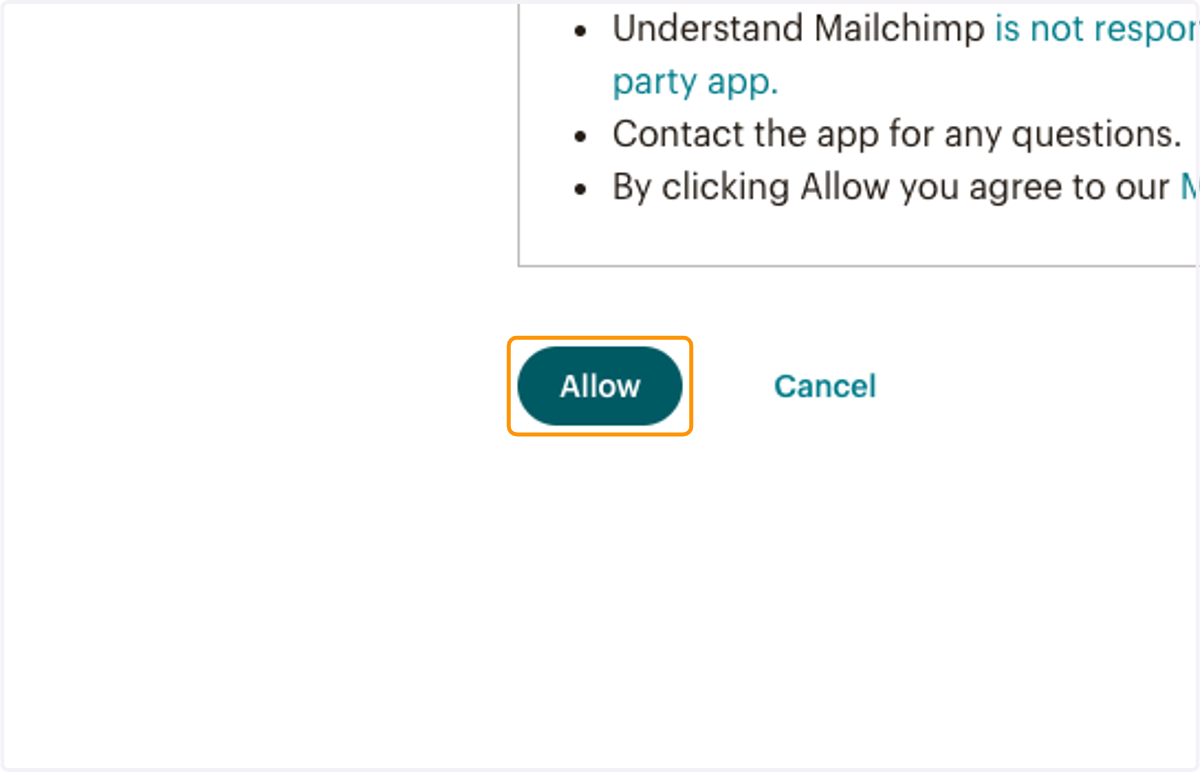
9. Click on Allow to allow the connection between your provider and Engagifii
CUSTOMERONBOARDING Communication Settings: Powered by Engagifii
10. Mailchimp is now connected to your Engagifii Workspace